How to use Google Flow in one line: sign in at flow.google.com, create a project, switch the prompt box to Video, describe the shot and click Generate. You can start without paying, because every account gets 50 Google Flow credits a day.
Those credits are what a beginner has to manage. An 8-second Gemini Omni Flash clip at 720p costs 12 of them, so four such prompts use 48 of the day’s 50.
Evidence basis: Google’s Flow help center and the plan cards on flow.google.com, checked October 2026.
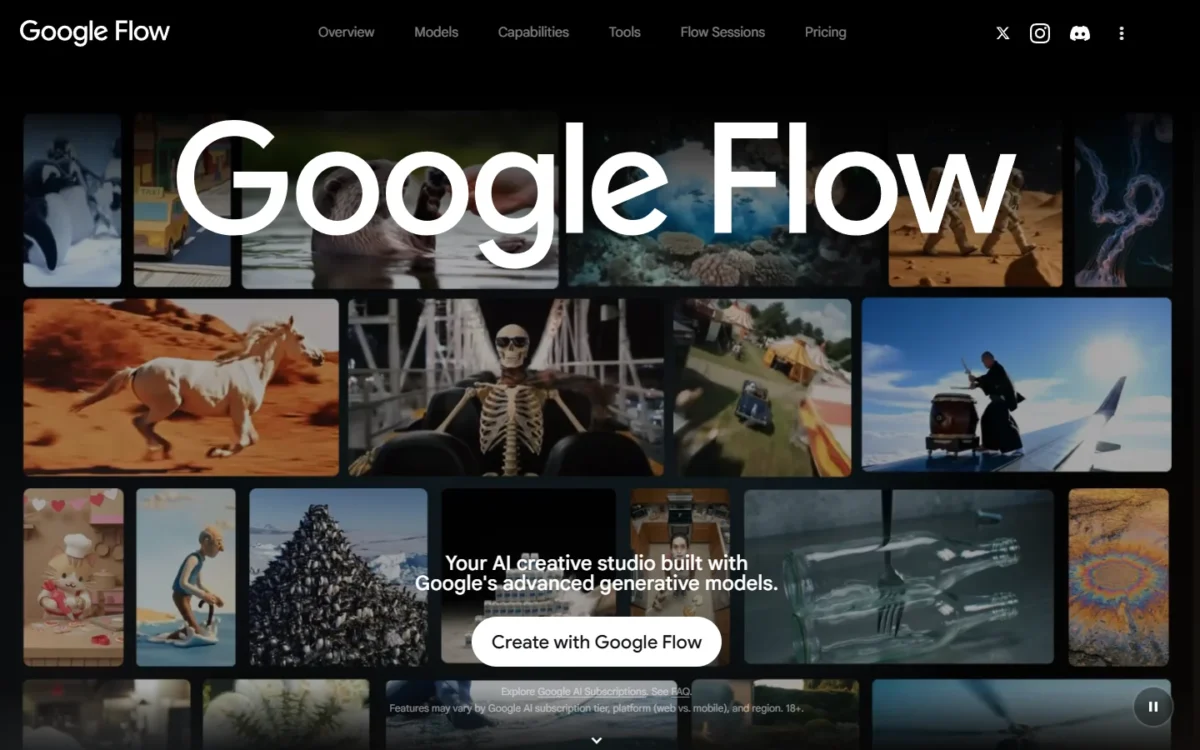
The whole path, before the detail:
- Sign in at flow.google.com and create a project.
- Pick a mode: text, frames, ingredients or the Agent.
- Write a prompt that names subject, action, environment, lighting and style.
- Edit, extend or arrange your clips in Scenebuilder.
- Download the clip, the scene or the whole project.
In This Article (10 sections)
What You Need Before You Use Google Flow
Four things, and a subscription is not one of them:
- A Google Account to sign in with.
- Age 18 or older, in a supported country. The United States is on Google’s list of supported countries.
- A computer for the first sessions. The Agent and Omni Flash start and end frames are web features.
- English prompts. Google recommends them, since output quality can vary in other languages.
The free route has one catch: without a subscription, video generation may be unavailable from roughly 2 p.m. to 5 p.m. UTC.
That window is 10 a.m. to 1 p.m. EDT (Eastern Daylight Time, UTC-4). After daylight saving ends, Eastern time is UTC-5 and the window shifts to 9 a.m. to 12 p.m. EST. Images and the Agent keep working, so plan shots then.
Google Flow Plans and Credits: What Each Tier Buys
Every tier, free included, receives 50 daily Google Flow credits. Paid Google AI plans add a monthly pool on top, plus a few export features.
| Plan | Price per month (US) | Google Flow credits | What it adds |
|---|---|---|---|
| No subscription | Free of Charge | 50 daily | Agent, Text to Video, Frames to Video, Ingredients to Video, Video Extension, Scenebuilder |
| Google AI Plus | $4.99 | 50 daily + 200 monthly | 1080p video upscaling, creating Flow Tools, higher Agent access |
| Google AI Pro | $19.99 | 50 daily + 1,000 monthly | Everything in Plus, Gemini app with 3.1 Pro, 5 TB of storage |
| Google AI Ultra | $99.99 | 50 daily + 10,000 monthly | 4K image and video upscaling, highest Agent access |
| Google AI Ultra | $199.99 | 50 daily + 25,000 monthly | Everything in Ultra $99.99, 30 TB of storage |
Sources: Google Flow plans on flow.google.com and the Google Flow credits help page, checked October 2026. Prices may vary by market.
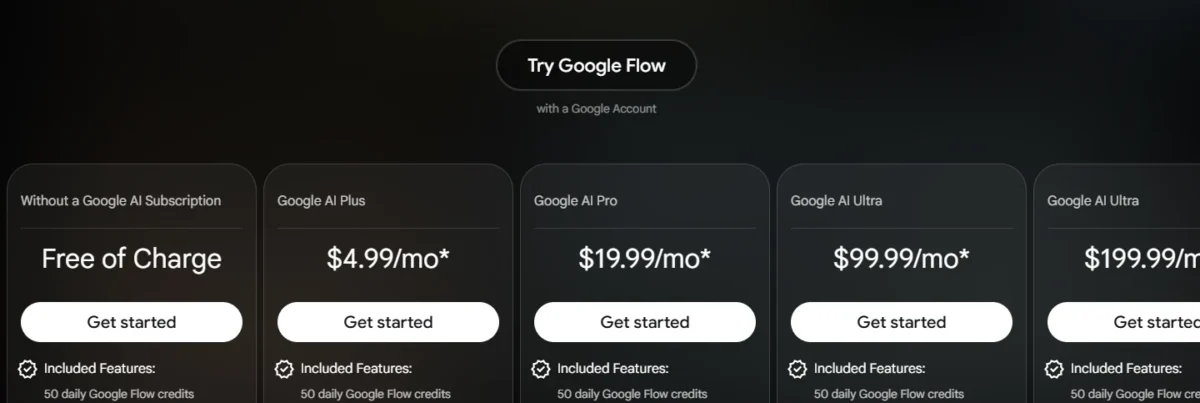
The free tier is a real way to learn, not a locked demo: every generation mode is on it. What it lacks is volume and resolution, since 1080p upscaling is not available to non-subscribers and costs subscribers 0 credits.
Neither pool carries over. Unused daily credits are gone the next day, and monthly plan credits reset at the start of each billing cycle. Plan credits cannot be saved up for a big project.
Credits are charged per generation, not per request. Asking for 2 outputs means paying for 2 generations, so the outputs setting is the first one to check while you learn.
What your credits actually buy
Each cell gives the whole generations you get, then the math: the allowance divided by what one generation costs a non-Ultra account.
| Generation | From 50 daily credits | From Pro’s 1,000 monthly credits |
|---|---|---|
| Veo 3.1 Lite, 4, 6 or 8 s | 5 (50 ÷ 10) | 100 (1,000 ÷ 10) |
| Veo 3.1 Fast, 4, 6 or 8 s | 2 (50 ÷ 20) | 50 (1,000 ÷ 20) |
| Veo 3.1 Quality, 8 s | 0 (50 ÷ 100) | 10 (1,000 ÷ 100) |
| Omni Flash 720p, 4 s | 7 (50 ÷ 7) | 142 (1,000 ÷ 7) |
| Omni Flash 720p, 8 s | 4 (50 ÷ 12) | 83 (1,000 ÷ 12) |
| Omni Flash 360p, 8 s | 8 (50 ÷ 6) | 166 (1,000 ÷ 6) |
| Omni Flash edit of a video | 1 (50 ÷ 40) | 25 (1,000 ÷ 40) |
Sources: Google Flow credits help page, checked October 2026.
Three things follow for a beginner. Veo 3.1 Quality is out of reach on free credits alone: one clip costs 100, double a free day’s 50.
Veo 3.1 Lite and Fast charge the same for 4 seconds as for 8, so take the 8. Omni Flash charges by length, but its 360p drafts cost half of 720p.
That makes 360p the drafting resolution. Pro and Ultra subscribers can upscale a 360p keeper to 720p for 0 credits, and Ultra subscribers pay half the non-Ultra rate on Veo 3.1 Lite and Fast.
Pro’s 1,000 monthly credits are 800 more than Plus’s 200, for $15 more a month ($19.99 minus $4.99). That step pays off once you generate most days; our Google Flow pricing and credits breakdown covers the Ultra tiers as well.
Step 1: Create Your First Google Flow Project
A project holds everything you make for one idea: videos, images, characters, scenes and uploads.
- Go to flow.google.com, click Create with Google Flow and sign in with your Google Account.
- Click + New project.
- To see your balance, click your profile picture or initial at the top right. Remaining credits show under your profile information.
Before the first prompt, open the project’s Settings at the top right and turn on Show tile details. Every tile then shows its asset type and the prompt that made it, which turns the project into a record of what worked.
Step 2: Choose a Video Generation Mode
The mode decides what you hand the model besides text, and not every model accepts every mode.
| Mode | What you give Flow | Use it when | Models that support it |
|---|---|---|---|
| Text to Video | A text prompt | You are exploring an idea | All Veo 3.1 models, Omni Flash |
| Frames to Video | A start image, optionally an end image | A shot must begin or end on an exact picture | All Veo 3.1 models, Omni Flash |
| Ingredients to Video | Reference images or videos | A character or product must repeat across clips | Veo 3.1 Lite and Fast (8 s only), Omni Flash |
| Agent | A chat request | You want help planning, batching or picking a model | Chooses the model for you |
| Video to Video editing | An existing clip plus a prompt | You want to change a clip you have | Omni Flash only |
Sources: Google Flow models and supported features, checked October 2026.
For a first project, start with Text to Video on Omni Flash at 360p. It is the cheapest clip a non-Ultra account can make (4 credits for 4 seconds), and it supports every mode except Extend.
Text to video in the standard prompt box
The standard prompt box is the simplest route:
- Open a project and describe your scene in the prompt box.
- Click the model name. The default image model is Nano Banana 2 Lite at no charge and Nano Banana Pro for Google AI Ultra subscribers.
- Click Video.
- Choose the aspect ratio, number of outputs, model and generation length.
- Click Generate.
Set outputs to 1 until a prompt works. Each extra output is a separate generation with its own charge.
Frames to video for exact openings and endings
Frames are the beginner’s best tool for control, because the model starts from a picture you chose.
- In the prompt box, click the model name, then Video > Frames.
- Drag an image to + Add start frame, and optionally another to + Add end frame.
- Describe the action or transition that should happen between them.
- Choose your video settings and click Generate.
The images can come from Flow itself. Generate one in the same project with an image model, or pause a video you already made and click Save frame.
Ingredients to video for consistent characters
Ingredients keep the same person, object or place recognizable from one clip to the next.
- Click the model name, then Video > Ingredients.
- Add references: drag a file in, type @ to search assets already in the project, or click Add under the prompt.
- Describe how each ingredient should be used, for example “the chef from the first image plates dessert in the kitchen from the second”.
- Click Generate.
Shoot or generate subject references on a plain or segmented background. Keep location references free of people or objects you do not want in the shot.
If one person will appear across a whole project, build a Character instead. It bundles 1 or 2 images with a voice, and typing @ plus its name calls it into any prompt. Typing @me adds your own avatar.
Let the Agent drive
The Agent suits beginners who would rather describe a result than set options. Click Agent in the prompt box to turn it on, and click it again to return to the standard box.
Chatting with it costs no credits, though a daily quota applies. Every image or video it generates does spend Flow credits, and by default it asks before spending.
Leave Confirm before generating on Always until you know your costs. Google’s own example request asks for five variations of a video with different lighting.
As five 8-second Omni Flash clips at 720p, that request costs 5 x 12 = 60 credits, more than a free day’s 50.
Step 3: Write Prompts Google Flow Can Follow
Google’s prompt advice comes down to naming five things: subject, action, environment, lighting and style. A worked example shows the difference.
- Weak: a dog in the rain
- Stronger: A golden retriever in a yellow raincoat splashes through puddles on a cobblestone street at dusk, warm streetlights reflecting on wet stones, slow-motion tracking shot, grainy film look.
| Element | In the stronger prompt |
|---|---|
| Subject | golden retriever in a yellow raincoat |
| Action | splashes through puddles |
| Environment | cobblestone street at dusk |
| Lighting | warm streetlights reflecting on wet stones |
| Style | slow-motion tracking shot, grainy film look |
The weak version names only a subject, so the model picks the other four for you. The stronger one fixes all five, which makes a failed clip easier to diagnose: change one element and generate again.
When you add frames or ingredients, the rules tighten:
- Let the text complement your images, never contradict them.
- Mention the frames or ingredients in the prompt itself.
- Keep ingredient images in one consistent look so the model can blend them.
For more starting points, browse our library of Google Flow prompts and adapt one to your shot.
Google AI subscribers can also hand a rough idea, an image or a video to Gemini and ask it for new prompts. If Gemini itself is part of why you would subscribe, our Google Gemini review covers what the paid app adds.
Step 4: Edit, Extend and Build Scenes
Editing never overwrites a clip. Every earlier version and the prompt behind it stays in the History panel, so editing a video in Flow is safe to experiment with.
Edit a clip with a prompt
The quickest route is the Agent: turn it on, drag the video into the prompt box, describe the change and click Generate. The edit is saved to the asset’s stack.
For direct control, use Omni Flash:
- At the bottom of the prompt box, open the generation settings, click Video and choose Omni Flash.
- Add a clip of 60 seconds or less and no more than 1 GB, as a .mov, .mp4, .avi or .wmv file.
- Click the video and select up to a 10-second segment in the trimming window.
- Describe the change, for example a new lighting mood or a text overlay, and click Generate.
Uploads longer than 30 seconds must be trimmed to 30 first. You get up to 3 follow-up turns before the edit loses the context of earlier changes.
An Omni Flash edit costs as much as ten 4-second drafts at 360p (10 x 4 = 40 credits), whatever the clip’s length or resolution. On free credits, regenerate with a revised prompt and save edits for clips you plan to keep.
Extend a clip
- In a project, click the clip you want to lengthen.
- At the bottom, click Extend.
- Describe how the action should continue.
- Click Generate.
Only Veo clips of 8 seconds can be extended, and the extension runs on Veo 3.1 Lite. Insert, remove and camera edits no longer apply once a clip is extended.
That makes the model choice a planning decision: generate any shot you may want to lengthen on Veo at 8 seconds. For an Omni Flash clip, save its last frame with Save frame and use it as the next clip’s start frame.
Build a scene in Scenebuilder
Scenebuilder turns separate clips into a sequence. Hover over a clip, click More > Add to Scene, then drag clips into order, trim each end with the handles and preview the whole run.
To use an older version of an edited clip, open the clip, hover over that version in the History panel and click Save to Project first.
Step 5: Download and Share Your Video
Pick the download option that fits the job:
- One clip. Hover over it, click More > Download and pick a file type. Choosing 270p gives a GIF.
- A whole project. Open it and click More > Download project at the top right.
- A collection. Hover over it and click Download.
- A finished sequence. Download the scene from Scenebuilder.
- YouTube. Hover over a clip, click More > Publish to YouTube and connect your channel.
Direct YouTube publishing handles single clips only. A Scenebuilder sequence has to be downloaded as one file and uploaded through YouTube Studio.
Think before sharing a link. Anyone with it can find and use your creation, and the only way to stop sharing is to delete the original from Flow.
Resolution is decided before export. Subscribers upscale to 1080p for 0 credits, non-subscribers cannot, and 4K upscaling is Ultra-only at 50 credits.
For a full backup, Google Takeout exports your Flow data: media, prompts, generation settings, projects and edit history. Its emailed download links stay active for 7 days.
Common Beginner Mistakes in Google Flow
Most early frustration traces back to a handful of avoidable choices:
- Getting an image instead of a video. The prompt box defaults to an image model. Click the model name and choose Video first.
- Paying for outputs you did not need. Two outputs are two generations. Keep it at 1 until the prompt works.
- Picking Veo 3.1 Quality on free credits. It needs more than a free day provides.
- Planning to extend an Omni Flash clip. Extend is Veo-only; chain clips with Save frame instead.
- Letting the prompt fight the references. If your ingredient shows a red car, a prompt asking for a blue one contradicts it.
- Generating video at peak hours on the free tier. Make images or plan with the Agent in that window.
- Setting the Agent to never confirm. A single batch request can cost more than a free day’s 50 credits.
Which Google Flow Plan Should a Beginner Choose?
Stay on the free tier for your first week. Its 50 daily credits cover 8 Omni Flash clips of 8 seconds at 360p a day (50 ÷ 6), enough to learn every mode.
Move to Google AI Plus at $4.99 a month once you want to publish. It adds 200 monthly credits and 1080p upscaling, and lifts the peak-hour limit on video.
Google AI Pro at $19.99 a month fits anyone generating most days. Its 1,000 monthly credits buy 83 eight-second Omni Flash clips at 720p (1,000 ÷ 12), and 360p drafts upscale to 720p for 0 credits.
Ultra, at $99.99 or $199.99 a month, earns its price only for 4K delivery or production-scale volume. No beginner should start there.
Before you pay for anything, our Google Flow review weighs whether the tool deserves a subscription at all.
If Flow’s credit model does not fit your output, the best AI video generators we ranked cover the alternatives.
FAQ
Is Google Flow free to use?
Yes: without a subscription you get 50 Google Flow credits a day and every core generation mode. The daily refill is triggered by your first generation, so first use on August 12 means the next 50 credits arrive on August 13.
What can you create with Google Flow?
Video clips, images, reusable characters, an avatar of yourself and custom Tools. Google-built Tools include Type Overlays for animated text, Video Resizer for new aspect ratios and Storyboard Studio for storyboards. Flow Music runs on its own credits, separate from Google AI credits.
Can you use Google Flow on a phone?
Yes. A Google Flow mobile app is available in supported countries, and credits are shared across every device on your account. The Agent stays on web and PC for now, so build on a computer and review on the phone.
Do Google Flow videos have a watermark?
Yes, an invisible one. Videos generated in Flow carry a SynthID watermark that identifies them as AI-generated, and it should not be tampered with or removed. Because it is invisible, it does not change how a clip looks when you post it.
Where is Google Flow available?
In the United States and a long list of other countries and territories, for users 18 and older. Some features are restricted locally. Editing uploaded videos and Avatars are unavailable in the EEA, Switzerland and the UK, and AI credit purchases are unavailable in Japan.
How long can a Google Flow clip be?
A single clip runs 4, 6 or 8 seconds on Veo 3.1 and up to 10 seconds on Gemini Omni Flash. Longer pieces come from extending 8-second Veo clips or arranging several clips in Scenebuilder, then downloading the scene as one file.