ClickUp Review 2026: Is ClickUp still the best all-in-one work management platform if you need projects, docs, dashboards, and automations in one place? In this review, I assess ClickUp the way I would for a client—based on hands-on setup, ease of adoption, reporting clarity, automation depth, permissions, and total cost (including add-ons like AI). By the end, you’ll know who ClickUp is best for in 2026, who should avoid it, and which alternatives make more sense if you want something simpler.
Quick Summary – ClickUp Review
| Category | Assessment |
|---|---|
| Verdict | Best all-in-one platform for teams willing to invest in setup; overkill for simple project tracking |
| Best for | Cross-functional teams (5–50 people) managing diverse workflows—product, marketing, ops—in one workspace; agencies juggling client projects; teams migrating from 3+ tools |
| Not ideal for | Pure software dev teams (Jira wins), ultra-simple use cases (Trello suffices), teams without a process champion to configure it |
| Learning curve | Steep (2–4 weeks to fluency); intuitive once configured but overwhelming initially |
| Pricing snapshot | Free plan available; paid plans start $7/user/month (Unlimited); ClickUp Brain AI adds $7/user/month |
| Biggest strengths | View flexibility (15+ views), custom fields, automation power, Docs/Whiteboards integration, generous free tier |
| Biggest limitations | Over-engineered UI, inconsistent mobile experience, reporting requires Business+ plan, feature bloat creates decision paralysis |
ClickUp consistently ranks among the top choices in our best project management software roundup for teams seeking an all-in-one solution.
What is ClickUp?
ClickUp is an all-in-one work management platform that combines project management, documents, wikis, whiteboards, dashboards, and time tracking in a single workspace—designed to replace multiple SaaS tools with one configurable system. It’s featured in our best team collaboration tools guide for consolidating multiple workflows into one platform.
Core components:
- Tasks & Projects – Five-level hierarchy (Workspace > Space > Folder > List > Task/Subtask) with unlimited custom fields, statuses, and priorities
- Views – 15+ ways to visualize work: List, Board (Kanban), Calendar, Gantt/Timeline, Table, Workload, Map, Mind Map, and more
- Docs & Whiteboards – Collaborative documents with live editing, nested pages, and visual brainstorming boards
- Dashboards – Custom reporting with 50+ widget types (charts, lists, calculations, embeds)
- Automations – No-code workflow automation with 50+ free automations per workspace on paid plans
- Time Tracking – Native time tracking with timesheets, estimates, and billable hours
- Integrations – 1,000+ via native connectors, Zapier, Make, and API
ClickUp positions itself as the “one app to replace them all”—a claim that’s both its superpower and Achilles’ heel.
How We Tested ClickUp (Methodology)
Test period: January 2026 (updated review) Environment: Web app (Chrome, Safari), iOS mobile app, desktop app (Mac) Team simulation: 12-person cross-functional team (product, marketing, ops, design)
What we built:
- Sprint planning workspace – Two-week sprints with story points, bug tracking, and retrospective docs
- Agency client delivery system – Client intake forms, approval workflows, time tracking, and deliverable dashboards
- Content calendar – Editorial workflow with writer assignments, SEO checklist custom fields, and publication timeline
- Onboarding automation – New hire task templates with auto-assignments triggered by form submission
What we measured:
- Setup time – How long to configure each workflow from scratch (range: 45 minutes for simple list to 4 hours for full agency system)
- Navigation friction – Clicks required for common actions; clarity of hierarchy
- Reporting clarity – Ease of building useful dashboards without training
- Automation power – Complexity of workflows achievable without code
- Permissions granularity – Ability to control access at workspace, space, folder, list, and task levels
- Mobile parity – Feature availability and usability on iOS app
Limitations of this evaluation:
This review reflects a simulated 12-person team over 30 days. Enterprise deployments (100+ users) introduce additional governance, SSO, and training challenges not fully explored here. We did not test advanced features like custom roles, multiple workspaces, or API integrations in depth.

ClickUp’s Core Features (What Matters in Real Teams)
Tasks, Custom Fields & Statuses
Why it matters: Most PM tools force you into their task model. ClickUp lets you build yours.
Tasks support unlimited custom fields (text, numbers, dropdowns, dates, formulas, relationships). You can model almost anything: bug severity scores, content SEO grades, project budgets, client approval stages.
Example: Our agency workflow used custom fields for “Client Name” (relationship field), “Deliverable Type” (dropdown), “Approval Status” (status), and “Billable Hours” (number). Filter and group by any field across views.
Watch-out: Too many custom fields creates sprawl. Standardize at the Space level, not per-list, or teams create redundant fields.
Views (The Flexibility Advantage)
ClickUp offers 15+ views of the same data:
- List view – Classic hierarchical task list with inline editing
- Board (Kanban) – Drag-and-drop cards grouped by status, assignee, priority, or any custom field
- Calendar – Schedule tasks by due date or custom date fields
- Gantt/Timeline – Dependency mapping, critical path, drag-to-reschedule
- Workload view – Capacity planning by assignee with points or time estimates
- Table view – Spreadsheet-like interface with bulk editing
- Map, Mind Map, Activity, Team views – Niche but useful for specific workflows
Why it matters: Different roles need different views. Designers want Kanban, PMs want Gantt, execs want dashboards. One data set, multiple lenses.
Setup tip: Create “saved views” with pre-applied filters (e.g., “My Tasks This Week,” “Overdue Client Work”) and pin them to sidebar for quick access.
Docs, Whiteboards & Collaboration
Docs – Think Notion-style nested pages with rich formatting, tables, embeds, and real-time co-editing. Embed tasks, link to projects, convert doc content to tasks with slash commands.
Whiteboards – Infinite canvas for brainstorming with sticky notes, shapes, connectors, and embeds. Convert whiteboard items to tasks.
Why it matters: Eliminates context-switching to Google Docs or Miro visual collaboration platform. Everything references your task database.
Trade-off: Docs are solid but lag Notion’s documentation capabilities in database views and templates. Whiteboards are functional but less polished than Miro or FigJam.
Dashboards & Reporting
Build custom dashboards with 50+ widget types: bar charts, pie charts, number cards, task lists, time tracked, burndown charts, custom calculations.
Why it matters: Execs get real-time status without pestering teams. Track velocity, budget burn, workload distribution in one glance.
Watch-out: Advanced reporting (custom charts, time tracking dashboards) requires Business plan or higher. Free and Unlimited plans get basic widgets only.
Example: Our agency dashboard showed: active projects (list widget), hours logged this week (calculation), client deliverables by status (pie chart), upcoming deadlines (timeline widget).
Automations
No-code automation builder with triggers (status changes, assignee changes, due dates, form submissions) and actions (create tasks, send emails, move tasks, change fields, webhooks).
Why it matters: Automate repetitive workflows—auto-assign QA when dev marks “Ready for Review,” send Slack notifications when high-priority bugs appear, create subtask checklists when project status changes to “In Progress.”
Limits: Free plan gets 1 automation. Unlimited plan gets 50/workspace. Business+ gets 250. Custom automations possible via API.
Example automation: When client intake form submitted → create project folder with templated tasks → assign project manager → send welcome email.
Time Tracking & Resource Planning
Native time tracking with manual entry or live timer. Track time at task level, tag as billable/non-billable, generate timesheets.
Workload view shows capacity by assignee based on time estimates or story points. Spot overallocated team members before burnout.
Why it matters: Agencies bill clients, product teams track velocity, ops teams justify headcount.
Limitation: No automatic time tracking from desktop activity (unlike Toggl or Harvest integrations). Relies on team discipline.
Integrations & API
1,000+ integrations via native connectors. ClickUp connects seamlessly with Slack for team messaging, GitHub for development, Figma for design collaboration, Dropbox for file storage, HubSpot CRM, and Salesforce CRM. For additional automation, integrate via Zapier or Make (formerly Integromat).
Robust REST API for custom integrations. Webhooks for real-time event triggers.
Why it matters: ClickUp becomes your system of record while syncing data from specialized tools.
Watch-out: Some integrations are one-way (ClickUp → other tool) or require Business+ plan. Test critical integrations in free trial.
Permissions & Hierarchy
Five-level hierarchy offers granular control:
- Workspace – Top level, defines billing and admin settings
- Space – Department or team (e.g., Marketing, Product)
- Folder – Project grouping (e.g., Q1 Campaigns, Client Projects)
- List – Workflow or task category (e.g., Blog Posts, Design Requests)
- Task/Subtask – Individual work items
Permissions set at any level: private, edit, comment, view. Guest access for clients/contractors.
Why it matters: Control who sees sensitive projects (HR, finance) while keeping broader workspace collaborative.
Complexity warning: Five levels can confuse new users. Many teams flatten to Workspace > Space > List > Task for simplicity.
ClickUp AI in 2026 (ClickUp Brain) — Helpful or Hype?
What it is: ClickUp Brain is an AI assistant ($7/user/month add-on) that summarizes tasks, generates content, answers workspace questions, and extracts action items from comments and docs.
Best use cases:
- Summarize long threads – “What’s the status of Project X?” pulls updates from comments, status changes, and docs
- Generate task descriptions – Expand brief task titles into detailed descriptions with acceptance criteria
- Meeting notes to tasks – Paste meeting transcript, extract action items as subtasks with auto-assignments
- Draft content – Write first drafts of project briefs, status updates, or doc outlines
Risks & limitations:
- Privacy: AI analyzes your workspace data. Review data processing terms if handling sensitive client info.
- Accuracy: Brain hallucinates occasionally—verify outputs, especially for critical decisions.
- Cost control: $7/user/month adds 50–100% to Unlimited plan cost. Quickly expensive at scale.
Who benefits most:
- Teams drowning in documentation who need quick context retrieval
- Content/marketing teams drafting repetitive copy
- Managers needing quick status summaries without reading every comment
Who should skip:
- Teams on tight budgets (core ClickUp is already expensive at scale)
- Security-conscious industries (healthcare, finance) wary of AI data processing
- Teams with simple, well-documented workflows that don’t need AI summarization
Consultant take: ClickUp Brain is genuinely useful for large, chaotic workspaces where finding information is painful. But it’s not essential—core ClickUp works fine without it. Try the 30-day trial before committing.
ClickUp Pricing in 2026 (Plans, Value, and Hidden Costs)
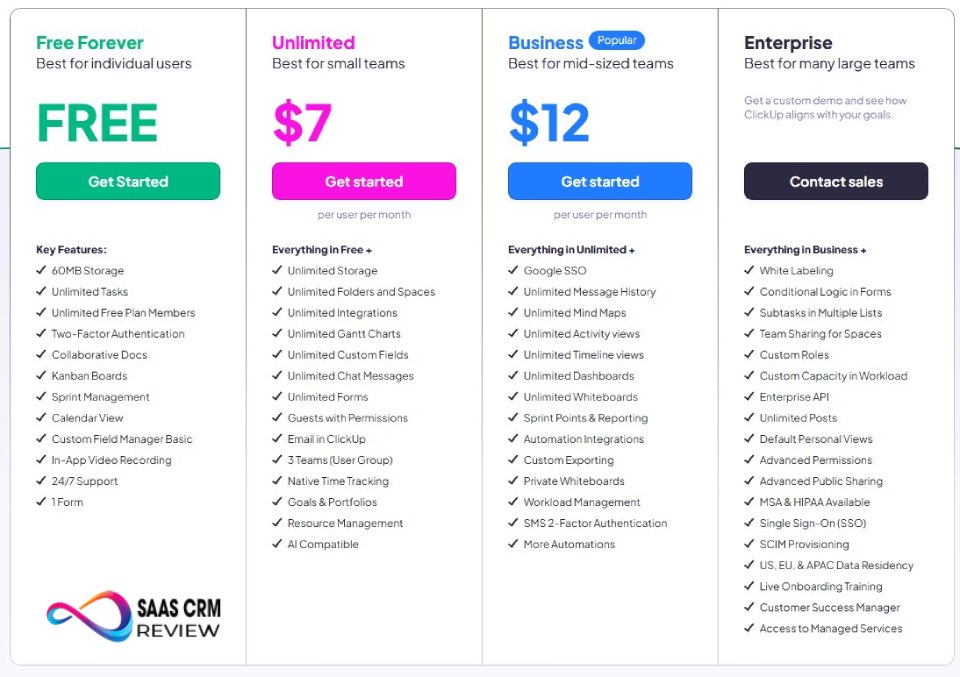
ClickUp uses per-user/month pricing with annual discounts. Guests are free (limited permissions).
How pricing works: Pay for “members” (full access), not “guests” (view/comment on assigned items only). Charges are workspace-wide—can’t pay different rates for different teams.
Plan-by-plan breakdown:
| Plan | Price (annual) | Best For | Key Limits | Unlocks |
|---|---|---|---|---|
| Free Forever | $0 | Solo users, small teams testing ClickUp, simple task tracking | 100MB storage, 1 automation, basic widgets, no time tracking, no Gantt/Timeline | Unlimited tasks, unlimited members (but feature-limited), 2-factor auth |
| Unlimited | $7/user/month | Growing teams (5–20 people) needing automations, Gantt, time tracking | 50 automations/workspace, basic reporting, no advanced permissions | Unlimited storage, Gantt/Timeline, time tracking, 50 automations, unlimited custom fields, guests |
| Business | $12/user/month | Mid-size teams (20–100) needing dashboards, advanced automations, reporting | 250 automations, advanced dashboard widgets require add-ons | Advanced dashboards, 250 automations, advanced reporting, time tracking dashboards, workload view, custom exports, Google SSO |
| Enterprise | Custom pricing | Large orgs (100+) needing SSO, advanced security, dedicated support | Contact sales | Unlimited automations, white labeling, advanced permissions, dedicated success manager, MSA/BAA contracts, API rate limit increases |
Source: ClickUp Pricing
Hidden cost drivers:
- ClickUp Brain (AI) – $7/user/month add-on for any plan. Not included in base pricing.
- User creep – Easy to add members; bills accumulate fast. 20-person team on Business = $2,880/year.
- Storage overages – Rare (Unlimited plan has unlimited storage), but Free plan’s 100MB fills fast with attachments.
- Integration limits – Some advanced integrations (Salesforce, certain GitHub features) require Business+ or Enterprise.
What I’d buy for different team types:
For a 10-person SMB operations team: → Unlimited plan ($840/year total). Gets you automations, time tracking, and Gantt views. Skip Brain unless you’re drowning in docs.
For a 15-person agency managing 30+ clients: → Business plan ($2,160/year total). Need advanced dashboards for client reporting, workload view for capacity planning, and guest access for client collaboration.
For a 25-person product/engineering team: → Consider Jira for software development teams instead. If staying with ClickUp, Business plan ($3,600/year) for sprint tracking and advanced reporting—but evaluate Jira or Linear for modern issue tracking first (better for pure software dev).
Value assessment: ClickUp’s pricing is competitive with Asana project management and monday.com work OS at Unlimited tier but gets expensive at Business tier. Free plan is genuinely usable for small teams (unlike Asana’s hobbled free tier).
ClickUp Pros and Cons (Consultant Take)
Pros
- Unmatched view flexibility – 15+ views of same data means every role gets their preferred interface. Kanban for designers, Gantt for PMs, dashboards for execs—no other tool matches this range.
- Generous free tier – Unlimited tasks and members on Free plan. Teams can trial full workflows before paying, unlike Asana (15-user cap) or monday.com (2-user cap).
- Deep customization – Custom fields, statuses, automations, and templates let you model almost any workflow. Not just project management—works for CRM, hiring, content ops, IT ticketing.
- All-in-one consolidation – Replace Asana + Notion + Miro + Toggl + Airtable database platform with one tool (if you commit to setup). Reduces SaaS sprawl and context-switching.
- Automation power – 50 automations on Unlimited plan outpaces Asana (limited on Premium), monday.com (250 on Standard but more expensive), and Trello Kanban boards (Butler limited on free).
- Guest access done right – Unlimited free guests with scoped permissions. Perfect for agencies collaborating with clients or contractors without inflating bills.
- Active development – ClickUp ships features aggressively (sometimes too fast). You’re getting a tool that evolves, not stagnates.
- Strong mobile app – iOS/Android apps have improved significantly in 2025–2026. Not full desktop parity but usable for task updates, time tracking, and comments on the go.
Cons
- Overwhelming complexity – Five-level hierarchy, 15+ views, hundreds of settings creates decision paralysis. New users stare at blank workspace unsure where to start. Requires dedicated process champion to configure and train team.
- Inconsistent UI/UX – Interface feels cluttered. Icons change, menus nest deeply, settings hide in unexpected places. ClickUp 4.0 improved this but still lags Asana/Linear in polish.
- Reporting locked behind Business plan – Advanced dashboards, custom charts, and time reporting require $12/user/month. Free and Unlimited plans get basic widgets only—frustrating for data-driven teams.
- Feature bloat – ClickUp adds features faster than it refines existing ones. Result: half-baked features (email in ClickUp, Chat, Mind Maps) that don’t replace best-in-class tools.
- Steep learning curve – Teams need 2–4 weeks to reach fluency. Onboarding burden is real—expect to build templates, record training videos, and hold office hours. Not “set up in an afternoon” simple.
- Performance issues at scale – Workspaces with 10,000+ tasks can slow. Loading times lag, filters take seconds to apply. Enterprise teams report needing to archive old projects quarterly.
- Mobile app gaps – Can’t configure automations, build dashboards, or edit custom fields deeply on mobile. Primarily a consumption/update tool, not full workspace management.
- Overkill for simple needs – If you just need a shared to-do list, ClickUp is like using Excel to track groceries. Trello or Todoist personal task manager will serve you better with 1/10th the overhead.
Non-obvious trade-offs
Flexibility vs. governance: Unlimited customization means teams create redundant fields, inconsistent statuses, and overlapping workflows. Requires strong process ownership to prevent chaos.
Consolidation vs. best-of-breed: Replacing five tools sounds appealing, but ClickUp’s Docs are weaker than Notion, Whiteboards trail Miro, and Gantt charts lack MS Project’s depth. You trade specialization for convenience.
Onboarding burden: Every new hire needs ClickUp training. Compare to Asana (intuitive in 30 minutes) or monday.com (visual, less training needed). Budget time for documentation and training.
For teams prioritizing minimalist wiki functionality, explore Nuclino lightweight knowledge base as an alternative documentation layer.

ClickUp vs Alternatives (Which is Better for You?)
| Tool | Best For | Beats ClickUp When… | Loses to ClickUp On… | Starting Price |
|---|---|---|---|---|
| Asana | Marketing/ops teams wanting intuitive PM without tech overhead | You need polished UI, minimal setup, and strong portfolio/goal tracking | View variety, automation power, free tier generosity, all-in-one features | $10.99/user/month (Premium) |
| monday.com | Non-technical teams needing visual workflows and CRM-like flexibility | You want colorful, easy-to-build boards and prefer no-code approach with strong automations | Pricing (monday.com gets expensive fast), native time tracking, Docs/Whiteboards integration | $9/user/month (Basic, 3-user min) |
| Notion | Knowledge workers building wikis, databases, and light project tracking | Your priority is documentation/knowledge base > task management, or you want elegant minimal UI | Task management depth, Gantt/Timeline, time tracking, dedicated PM views | $8/user/month (Plus) |
| Jira | Software dev teams running Agile/Scrum with technical workflows | You’re pure engineering, need advanced issue tracking, or already in Atlassian ecosystem | Ease of use, cross-functional collaboration, non-technical user adoption | $7.75/user/month (Standard, 10-user min) |
| Trello | Small teams needing dead-simple Kanban boards without complexity | You have <5 people, simple workflows, and want setup in 10 minutes | Every other feature—views, automations, reporting, time tracking, scalability | $5/user/month (Standard) |
| Wrike | Enterprise PMOs managing complex programs with resource planning | You need enterprise-grade reporting, request forms, and waterfall project controls | Pricing, ease of use, modern UI, speed of implementation | $9.80/user/month (Professional) |
| Smartsheet | Teams bridging spreadsheets and PM, finance/ops workflows | You live in Excel, need grid-first interface, or require advanced formulas | Modern collaboration, docs/whiteboards, intuitive views, mobile experience | $9/user/month (Pro, 3-user min) |
When I would choose alternatives over ClickUp:
Choose Asana when: Your team is non-technical (marketing, HR, ops) and needs a tool that works out of the box. You value polish and ease of onboarding over configurability. Read our detailed Asana review for complete analysis.
Choose monday.com when: You need visual appeal to drive adoption with creative teams. You’re building CRM-like workflows (lead tracking, sales pipelines) and want board-first interface. See our monday.com review for pricing breakdown. Can’t decide between Asana and monday.com? Our Asana vs monday.com head-to-head comparison breaks down pricing, features, and team fit to help you choose.
Choose Notion when: Your primary need is documentation and knowledge management with light task tracking. You want beautiful, minimalist design and are okay sacrificing advanced PM features.
Choose Jira when: You’re a software development team running Scrum or Kanban. You need issue types, sprints, epics, story points, and don’t care about making it usable for non-technical teams. If you’re already using Confluence for team wikis/Bitbucket, Jira integrates seamlessly.
Choose Trello when: You have a simple workflow (personal tasks, small team Kanban, content calendar) and want free forever without complexity. You never need Gantt charts, time tracking, or automations beyond Butler basics. Compare Trello plan costs and limits before deciding.
Choose Wrike when: You’re enterprise PMO managing dozens of projects with strict resource allocation, request intake, and financial controls. See our Wrike enterprise PM review for details.
Choose Smartsheet when: You’re migrating from Excel, work in finance/operations, and need grid-first interface with formulas. Check our Smartsheet review for comparison with ClickUp’s Table view.
Choose Linear when: You’re a software development team that prioritizes speed and keyboard-first UX over configurability. You want Jira-level issue tracking without Jira-level complexity.
Basecamp offers simplicity for teams overwhelmed by feature overload.
ClickUp wins when: You’re a cross-functional team (5–50 people) managing diverse workflows—product, marketing, ops, design—and need one workspace that’s configurable enough to handle everything. You have a process champion willing to invest in setup and training.
For teams heavily invested in Google’s ecosystem, Google Workspace with its native Docs, Sheets, and Drive integration may be a more natural fit.
Common Use Cases (Templates That Actually Work)
1. Agency Client Delivery System
Goal: Manage multiple client projects with intake forms, approval workflows, time tracking, and client-facing dashboards.
90-minute setup:
- Create Space: “Client Projects”
- Add custom fields to Space (inherited by all lists): Client Name (relationship), Project Type (dropdown: Web, Brand, Content), Budget (number), Deliverable Status (status: Draft, In Review, Client Approved, Published)
- Create template List: “Client Project Template” with phases as task groups (Discovery, Design, Development, Launch)
- Build intake form (Forms feature) → automate form submission to create project from template, assign project manager
- Create client-facing Dashboard: filter to specific client, show deliverable status (pie chart), hours logged (number card), upcoming milestones (timeline)
- Set up guest permissions: clients can view/comment on their project folder only
Watch-out: Use Folders per client (e.g., Folder: “Acme Corp” containing Lists: “Website Redesign,” “Q1 Content”) to group multiple projects and simplify guest permissions. If native billable hours and profitability reporting are critical, see our Teamwork agency PM review — it’s built specifically for agency economics.
2. Sprint Planning (Agile Product Team)
Goal: Two-week sprints with story points, bug tracking, and retrospectives.
Setup steps:
- Space: “Product Development”
- Lists: “Backlog,” “Sprint 1,” “Sprint 2,” “Bugs,” “Retrospectives”
- Custom fields: Story Points (number), Sprint Goal (text), Bug Severity (dropdown)
- Board view for Sprint lists, grouped by status (Backlog → In Progress → Code Review → QA → Done)
- Create Sprint template with default statuses and checklist (dev complete, PR reviewed, QA passed, deployed)
- Use Workload view to allocate story points across team members (avoid overcommitment)
- Sprint retrospective: create Doc linked to Sprint list, use template (What went well / What didn’t / Action items)
Automation: When task moved to “Code Review” → assign QA engineer, add comment “@qa-team ready for testing”
3. Content Calendar (Marketing Team)
Goal: Editorial workflow with writer assignments, SEO checklist, and publication timeline.
Setup steps:
- Space: “Content Marketing”
- List: “Blog Posts” with custom fields: Topic Keyword (text), Target Word Count (number), SEO Score (dropdown: Red/Yellow/Green), Writer (person), Editor (person), Publish Date (date)
- Calendar view filtered by Publish Date
- Task template: “Blog Post Template” with subtasks (Outline, First Draft, Edit, SEO Review, Graphics, Publish)
- Automation: When Publish Date is 3 days away + status not “Published” → send Slack reminder to writer
- Dashboard: Content pipeline (Board widget filtered by status), Publishing calendar (Calendar widget), SEO score distribution (Pie chart)
Watch-out: Use statuses like “Pitch → Outline → Draft → Edit → Approved → Scheduled → Published” to track lifecycle clearly.
4. Sales Pipeline (Ops/RevOps Team)
Goal: Track leads from inquiry to closed deal with follow-up tasks and revenue forecasts.
Setup steps:
- Space: “Sales”
- List: “Pipeline” with custom fields: Lead Source (dropdown), Deal Value (number with currency), Close Date (date), Stage (status: Inquiry → Qualified → Demo → Proposal → Negotiation → Closed Won/Lost)
- Board view grouped by Stage
- Automations: When lead enters “Demo” stage → create subtask “Send follow-up email” due in 2 days; when moved to “Proposal” → notify sales manager
- Dashboard: Total pipeline value (Sum of Deal Value where Stage ≠ Closed Lost), Deals by stage (Bar chart), Close rate (Calculation)
Integration tip: Sync leads from HubSpot or Salesforce via native integration or Zapier—ClickUp becomes deal tracking layer while CRM remains lead source.
5. IT/Support Ticketing
Goal: Internal helpdesk for employee IT requests with SLA tracking and priority triage.
Setup steps:
- Space: “IT Support”
- Form: “Submit IT Ticket” with fields (Issue Type, Urgency, Description, Attachments)
- List: “IT Tickets” with statuses (New → Assigned → In Progress → Waiting on User → Resolved)
- Custom fields: Priority (dropdown: Low, Medium, High, Critical), SLA Due Date (date, auto-calculated formula: Created Date + 4 hours for Critical, + 24 hours for High)
- Automation: When Priority = “Critical” → assign on-call IT engineer, send Slack alert
- Dashboard: Open tickets by priority (Pie chart), Overdue SLAs (List widget filtered by SLA Due Date < Today + Status ≠ Resolved)

ClickUp Review: FAQs
Is ClickUp really free?
Yes, ClickUp’s Free Forever plan includes unlimited tasks, unlimited members, 100MB storage, and core features like multiple views (List, Board, Calendar). However, it’s limited to 1 automation, no Gantt/Timeline view, no time tracking, and basic reporting. For serious team use, you’ll likely need Unlimited ($7/user/month) or Business ($12/user/month) plans.
How long does ClickUp take to set up?
For a simple task list, 30–45 minutes. For a full workspace with custom fields, automations, templates, and dashboards, expect 4–8 hours of admin time plus 2–4 weeks for team training and adoption. ClickUp rewards investment but isn’t “works out of the box.”
Can ClickUp replace Notion?
Partially. ClickUp Docs handle wikis, SOPs, and linked pages reasonably well, but Notion’s database views, relational databases, and elegant UI are more powerful for knowledge management. ClickUp wins on task management and PM features. Many teams use both: Notion for docs, ClickUp for execution.
Is ClickUp good for software development?
It works but isn’t ideal. ClickUp supports sprints, story points, and issue tracking, but Jira and Linear offer superior developer experiences (better Git integrations, advanced issue workflows, faster performance). Use ClickUp if you need one tool for dev + marketing + ops; use Jira for dev-only teams.
How does ClickUp pricing compare to Asana and monday.com?
ClickUp Unlimited ($7/user/month) undercuts Asana Premium ($10.99/user/month) and monday.com Standard ($12/user/month after minimum seat purchases). However, ClickUp Business ($12/user/month) for advanced reporting matches monday.com’s cost. ClickUp’s free tier is more generous (unlimited users vs. Asana’s 15-user cap). Winner on value: ClickUp for small teams, comparable for mid-size teams.
What’s ClickUp Brain and is it worth $7/user/month?
ClickUp Brain is an AI assistant that summarizes tasks, answers workspace questions, generates content, and extracts action items. It’s useful for large, chaotic workspaces where finding information is painful, but not essential. Try the free trial; skip it if you’re budget-conscious or have simple, well-documented workflows.
Can I use ClickUp with clients or external collaborators?
Yes. ClickUp offers unlimited free “guests” with scoped permissions (view/comment on assigned items only). Perfect for agencies sharing project status with clients or contractors collaborating on specific tasks. Guests don’t count toward billing.
What’s the biggest mistake teams make with ClickUp?
Over-customizing too early. Teams create dozens of custom fields, complex automations, and nested hierarchies before understanding their workflow. Result: confusion and abandonment. Start simple (one Space, basic statuses), use ClickUp for 2–4 weeks, then add complexity incrementally based on pain points.
Does ClickUp work offline?
No. ClickUp requires internet connection. Desktop and mobile apps cache recent data but won’t sync changes offline. If you need offline access, consider Notion (better offline mode) or traditional desktop tools like MS Project.
How secure is ClickUp for sensitive data?
ClickUp is SOC 2 Type II certified, offers 2FA, SSO (Google on Business+, advanced SSO on Enterprise), and granular permissions. Enterprise plans include BAA (HIPAA) and custom data processing agreements. For highly regulated industries (healthcare, finance), evaluate Enterprise plan features and request security documentation from ClickUp sales.
Can I migrate from Asana/Trello/monday.com to ClickUp?
Yes. ClickUp offers CSV import and has native importers for Asana, Trello, Jira, and others. Expect manual cleanup post-import—custom fields, automations, and integrations don’t transfer perfectly. Budget 1–2 weeks for migration depending on workspace complexity.
What integrations does ClickUp support?
ClickUp integrates with 1,000+ tools natively or via Zapier/Make: Slack, Microsoft Teams for enterprise communication, Google Workspace, GitHub, GitLab, Figma, Zoom for video meetings, Salesforce, HubSpot, Harvest, Toggl, Calendly, Loom, and more. REST API available for custom integrations. Check ClickUp Integrations for full list.
Final Verdict — Should You Use ClickUp in 2026?
Clear recommendation by persona:
ClickUp is excellent for:
- Cross-functional teams (5–50 people) managing diverse workflows—product, marketing, operations, design—who need one flexible workspace instead of five specialized tools
- Agencies juggling multiple client projects with guest access, time tracking, and custom reporting requirements
- Teams willing to invest in setup and training with a dedicated process champion (ops lead, project manager, or chief of staff) who can configure and maintain the workspace
- Growing companies consolidating SaaS sprawl tired of paying for Asana + Notion + Miro + Toggl and willing to accept learning curve for long-term consolidation
ClickUp is NOT ideal for:
- Pure software development teams who need specialized dev tools—Jira, Linear, or GitHub Projects offer better developer experience with less overhead
- Small teams (<5 people) with simple needs—Trello or Todoist will serve you better without the complexity tax
- Teams without dedicated process ownership—ClickUp becomes a chaotic mess without someone driving structure, templates, and training
- Organizations requiring immediate productivity—ClickUp demands 2–4 weeks of learning curve; if you need results tomorrow, Asana or monday.com are faster to value
Next steps:
- Start with Free plan – Build one real workflow (client project, sprint board, content calendar) with your team. If you hit walls (need automations, Gantt view, time tracking), upgrade to Unlimited trial.
- Assign a process champion – Don’t crowdsource setup. One person should own workspace structure, templates, training docs, and onboarding.
- Resist over-customization – Start with default views and minimal custom fields. Add complexity only when you identify specific pain points after 2–3 weeks of use.
- Plan for 30-day adoption – Schedule team training sessions, create “how-to” docs, hold office hours for questions. Budget time for onboarding—it’s not optional.
- Evaluate alternatives in parallel – Free trials are risk-free. Test Asana and monday.com simultaneously if unsure. ClickUp’s flexibility comes at complexity cost—make sure it’s worth it for your team.
Consultant recommendation: ClickUp is a powerful, flexible, and cost-effective work management platform for teams willing to invest in configuration and training. It genuinely can replace 3–5 tools, reducing context-switching and SaaS costs. But it’s not “easy”—it’s capable. If you have a process champion and diverse workflows that need one workspace, ClickUp delivers exceptional value in 2026. If you need simple and polished, look elsewhere.
For credibility and additional perspectives, see user reviews on G2 and Capterra.
About the author

I’m Macedona, an independent reviewer covering SaaS platforms, CRM systems, and AI tools. My work focuses on hands-on testing, structured feature analysis, pricing evaluation, and real-world business use cases.
All reviews are created using transparent comparison criteria and are updated regularly to reflect changes in features, pricing, and performance.