JIRA-riview

Jira Review 2026: Features, Pricing, Pros/Cons, and Best Use Cases

If you’re comparing Jira Software to other project management software in 2026, the real question isn’t “Can Jira manage tasks?”—it’s whether your team needs structured issue tracking, agile project management (Scrum/Kanban), and governance strong enough to scale without losing visibility. This Jira Review cuts straight to the decision: what Jira does exceptionally well (backlog and sprint planning, workflow automation, dashboards and reporting, integrations across the Atlassian ecosystem), where it becomes heavy (setup complexity, admin overhead, inconsistent data hygiene), and which teams get the most ROI from adopting it.

Based on common implementation patterns across product, engineering, and operations teams, Jira tends to perform best when you standardise workflows, limit custom fields, and use integrations—such as Confluence integration, Slack/Microsoft Teams, and GitHub/GitLab—to reduce coordination tax. In the sections below, you’ll get a practical breakdown of Jira pricing (how it typically works and what drives cost), real-world UX trade-offs, best use cases (including Jira Service Management for ITSM), and the most credible Jira alternatives—plus a clear decision checklist so you can pick Jira (or not) with confidence.


Quick Summary – Jira Review 2026

SummaryJira Review (Key takeaways)
VerdictBest for structured agile delivery and governed workflows; overkill for simple task tracking.
Best forProduct/engineering teams using Scrum/Kanban who need traceability and scalable reporting.
Not ideal forSmall teams wanting minimal setup and low admin overhead.
StrengthsPowerful issue tracking, flexible workflows, strong automation, robust reporting (with good data hygiene).
WeaknessesSetup/admin complexity; inconsistent fields/workflows can break reporting and slow adoption.
Pricing (high-level)Typically tiered per-user; total cost often rises with apps/add-ons and advanced admin/security needs.
EcosystemStrong Atlassian stack + Marketplace apps; integrates with Confluence, Bitbucket, Slack/Teams, GitHub/GitLab.
Best use casesSoftware delivery, bug tracking, cross-team dependencies, structured intake; ITSM via Jira Service Management.
AlternativesAsana/Trello/Monday.com for simpler work management; Linear/Azure DevOps for specific dev-first needs.
Bottom lineChoose Jira if you’ll standardise templates and governance; avoid if you need lightweight simplicity.

Read more: Best Help Desk Solutions of 2026: Reviewed & Compared

What is Jira?

Jira is an issue tracking and project management platform created by Atlassian in 2002, originally designed to help software teams track bugs and manage development workflows. Over two decades, it evolved into a comprehensive work management system used by over 100,000 organizations globally.

At its core, Jira organizes work into “issues”—discrete units representing tasks, bugs, stories, epics, or any custom type you define. Teams visualize and progress these issues through customizable workflows on Scrum or Kanban boards, with extensive reporting and automation capabilities layered on top.

The Jira Family

Jira Software is the flagship product for software development teams, featuring sprint planning, backlog management, release tracking, and deep integration with development tools like GitHub, GitLab, and Bitbucket.

Jira Service Management (formerly Jira Service Desk) targets IT operations and support teams, adding incident management, SLA tracking, service catalogs, and ITSM-specific workflows on top of Jira’s core capabilities.

Jira Work Management (formerly Jira Core) serves business teams needing structured project tracking without agile ceremonies. It simplifies Jira for marketing, HR, legal, and operations teams.

This review focuses primarily on Jira Software, as it represents the most widely deployed configuration and the tool most readers are evaluating.

Market Position

Jira dominates the developer tooling space with an estimated 65-70% market share among software teams. Its position as the “default choice” creates network effects—most engineers have Jira experience, most integrations support it first, and most job postings list it as required knowledge. This incumbency advantage is both Jira’s greatest strength and its protection against more user-friendly challengers.


Jira’s Core Features

Issue Types and Custom Fields

Jira structures work around issue types: Story, Task, Bug, Epic, Subtask by default, with unlimited custom types possible. Each issue contains:

  • Summary and description (with rich text formatting)
  • Assignee, reporter, and watchers
  • Priority, status, and resolution fields
  • Time tracking (original estimate, time spent, remaining)
  • Attachments, comments, and activity history
  • Custom fields (dropdowns, numbers, text, dates, user pickers)

In practice, teams often create specialized issue types like “Spike,” “Technical Debt,” or “Security Vulnerability.” The flexibility is powerful but requires governance—organizations without field management conventions end up with 50+ unused custom fields cluttering every screen.

Workflows and Statuses

Workflows define how issues transition between statuses (e.g., To Do → In Progress → Code Review → Done). Jira allows:

  • Unlimited custom workflows per project or issue type
  • Conditional transitions based on fields, user roles, or validators
  • Post-functions that automatically update fields during transitions
  • Visual workflow designer with complex branching logic

Real-world consideration: While this flexibility enables precise process modeling, it also creates maintenance burden. Teams typically start with simple workflows and progressively complicate them until someone can’t figure out why an issue won’t transition. Best practice: keep workflows under 6-8 statuses unless complexity is genuinely necessary.

Boards: Scrum and Kanban

Jira’s board views are where daily work happens:

Scrum Boards support fixed-duration sprints with:

  • Sprint planning interface (drag issues from backlog to sprint)
  • Sprint goal setting
  • Burndown charts showing work remaining
  • Velocity reports tracking story points completed
  • Sprint retrospective linking

Kanban Boards enable continuous flow with:

  • WIP (Work In Progress) limits per column
  • Cumulative flow diagrams
  • Cycle time and lead time metrics
  • Dynamic backlog feeding the board

Both board types support swimlanes (grouping by assignee, priority, epic), quick filters, and card color coding. You can create multiple boards per project with different filters and configurations.

Key insight: Scrum boards work well for teams with predictable sprint cadences and planning ceremonies. Kanban suits teams with continuous delivery, unpredictable interrupt-driven work, or those transitioning from waterfall. Many mature teams use hybrid approaches—sprints for feature work with a separate Kanban board for bugs and maintenance.

Backlog Management

The backlog is Jira’s holding area for prioritized work not yet in active development:

  • Drag-and-drop prioritization (rank order, not arbitrary sorting)
  • Epic organization with progress rollups
  • Bulk issue creation and refinement
  • Estimation interface for story points or time
  • Version/release grouping

Teams running Scrum typically spend 5-10% of sprint time grooming the backlog—breaking down epics, adding acceptance criteria, estimating effort, and re-prioritizing. Jira’s backlog view supports these ceremonies reasonably well, though very large backlogs (500+ items) can become sluggish without proper filtering.

Sprint Planning and Execution

Sprint planning in Jira involves:

  1. Creating a new sprint with start/end dates and capacity
  2. Dragging prioritized backlog items into the sprint
  3. Confirming team capacity vs. committed work
  4. Starting the sprint (moves issues to active board)

During sprint execution, team members:

  • Move cards across workflow columns
  • Log time and update remaining estimates
  • Link related issues or blockers
  • Add comments and @mentions for collaboration

Sprint ceremonies like standups reference the board (often displayed on a large monitor). The daily churn of status updates and comments creates the activity stream that keeps distributed teams aligned.

Automation Engine

Jira’s automation feature (formerly a paid add-on, now included in paid tiers) enables no-code workflow automation:

  • Triggers: Issue created, status changed, comment added, scheduled events
  • Conditions: Field values, user roles, time-based logic, JQL queries
  • Actions: Update fields, send notifications, create sub-tasks, transition issues, call webhooks

Example automation: “When a bug is created with priority ‘Critical’, automatically assign it to the on-call engineer, add label ‘triage-needed’, and post to #engineering-alerts Slack channel.”

In practice, automation dramatically reduces manual toil. Teams typically build 10-20 rules covering:

  • Automatic status syncing between parent/child issues
  • SLA warnings and escalations
  • Assignment routing based on component or label
  • Notification customization (reducing email spam)
  • Housekeeping (archiving old issues, closing stale items)

The caveat: automation rules can conflict or create loops if poorly designed. Mature implementations maintain a centralized automation registry documenting each rule’s purpose and owner.

Dashboards and Gadgets

Dashboards aggregate project data through configurable gadgets:

  • Filter results (saved JQL queries displayed as lists or charts)
  • Sprint health (burndown, velocity, scope change)
  • Created vs. resolved charts
  • Pie charts (by assignee, priority, status, component)
  • Two-dimensional filter statistics (cross-tabulated data)
  • Activity streams and recent comments

Each user can create personal dashboards, while project admins maintain team or executive dashboards. Common dashboard patterns include:

  • Team Dashboard: Current sprint burndown, upcoming sprint issues, blocker list, velocity trend
  • Leadership Dashboard: Overall health metrics, release progress, defect rates, cycle time averages
  • Support Dashboard: Open tickets by severity, SLA compliance, response time distributions

Dashboards require ongoing curation—teams often create them enthusiastically during setup, then let them stagnate as priorities shift.

Reporting and Insights

Beyond dashboards, Jira provides reports:

  • Burndown Chart: Work remaining over time (sprint or version)
  • Velocity Chart: Story points completed per sprint (trend analysis)
  • Cumulative Flow Diagram: Work distribution across statuses over time
  • Control Chart: Cycle time and lead time scatter plot with outliers
  • Version Report: Progress toward release with forecasting

Premium tiers add Advanced Roadmaps (formerly Portfolio for Jira), enabling:

  • Multi-project, cross-team roadmaps
  • Capacity planning across teams
  • Dependency tracking between epics/initiatives
  • What-if scenario modeling
  • Resource allocation views

These reports serve different audiences. Engineering managers live in velocity and burndown charts. Product leaders need roadmaps and version reports. Executives want high-level health metrics. The challenge is configuring reporting hierarchies that automatically roll up from team execution to portfolio visibility.

Permissions and Project Roles

Jira’s permission system operates on multiple levels:

  • Project Roles: Developer, Project Lead, Administrator (customizable)
  • Permission Schemes: Define who can create, edit, transition, delete, assign issues
  • Issue Security Levels: Restrict visibility of sensitive issues
  • Workflow Conditions: Limit transitions to specific users or roles

This granular control enables scenarios like:

  • Contractors can create bugs but not edit production-related issues
  • Only project leads can transition issues to “Ready for Release”
  • Security vulnerabilities have restricted visibility to security team + leadership

The permission trap: Jira’s permission flexibility leads to complexity. Organizations often create baroque permission schemes with overlapping rules that even admins struggle to understand. Recommendation: start with Jira’s default permission scheme and customize minimally based on actual (not hypothetical) requirements.

Advanced Power Features

JQL (Jira Query Language): A SQL-like syntax for complex searches. Example:

project = PROJ AND status = "In Progress" AND assignee = currentUser() 
AND priority in (High, Highest) ORDER BY updated DESC

Power users build extensive JQL filters for automation, dashboard gadgets, and personal workflows. The learning curve is notable, but JQL proficiency dramatically improves Jira efficiency.

Bulk Operations: Select multiple issues and perform mass updates (change status, assign, edit fields, comment). Essential for large-scale project management but risky without careful filtering.

Issue Linking: Create relationships between issues (blocks, relates to, duplicates, causes, clones). Useful for dependency tracking but can create tangled webs if overused.

Components and Labels: Organize issues by functional area (components) or ad-hoc categories (labels). Components support default assignees and make reporting by team/module straightforward.


Real-World Usability & UX

The Learning Curve Reality

Jira has a steep initial learning curve, particularly for non-technical users. New users commonly struggle with:

  • Understanding issue types vs. statuses vs. workflows
  • Navigating between projects, boards, backlogs, and filters
  • Finding issues without knowing JQL basics
  • Configuring notifications (default settings are overwhelming)
  • Distinguishing permissions from workflow restrictions

Most teams underestimate onboarding time. Expect 2-3 weeks for new users to become comfortable with basic operations, and 2-3 months before they efficiently leverage advanced features like quick filters, bulk operations, or automation.

Contrast with modern alternatives: Tools like Linear or ClickUp offer gentler onboarding through simplified UIs and opinionated defaults. Jira demands more upfront investment.

Setup and Configuration Effort

Spinning up a usable Jira instance requires significant configuration:

  1. Project setup: Choose template, configure issue types
  2. Workflow design: Customize statuses and transitions
  3. Field configuration: Add custom fields, set required fields
  4. Screen schemes: Define which fields appear during create/edit/view
  5. Permission configuration: Set up roles and schemes
  6. Notification customization: Reduce email noise
  7. Board creation: Configure filters, columns, swimlanes
  8. Initial automation: Build core rules

For a straightforward software team setup, expect 15-25 hours of admin effort to reach a polished, production-ready configuration. Enterprise implementations involving multiple project types, complex workflows, and governance requirements can consume 100+ hours of configuration and documentation time.

Organizations without dedicated Jira administrators often end up with poorly configured instances that frustrate users and require expensive consultants to remediate.

Day-to-Day User Experience

Once configured, daily Jira usage for practitioners involves:

Common workflows:

  • Check board for assigned issues
  • Update status by dragging cards
  • Log time or update remaining estimates
  • Add comments with @mentions
  • Create sub-tasks or linked issues
  • Move items from backlog to sprint

Developer-specific actions:

  • Create branches linked to issues (via Bitbucket/GitHub integration)
  • Transition issues via commit messages (git commit -m "PROJ-123 fixed login bug")
  • Review code linked to stories
  • Track build/deployment status

Product manager workflows:

  • Groom backlog priorities
  • Create/refine epics and stories
  • Track release progress across teams
  • Generate roadmaps for stakeholders
  • Run sprint retrospectives

The experience is generally functional but not delightful. Jira prioritizes power over polish. Users coming from Notion, Trello, or Linear often find Jira’s UI dated and cluttered. The abundance of sidebars, modals, and configuration options creates decision fatigue.

Mobile Experience

Jira’s mobile apps (iOS/Android) provide basic functionality:

  • View and search issues
  • Update status and fields
  • Add comments
  • Receive notifications
  • View boards (limited interaction)

The mobile experience is adequate for staying informed but frustrating for actual work. Complex workflows, custom fields, and automation aren’t optimized for mobile. Most power users treat Jira as desktop-first with mobile for reference only.

Common Friction Points

Slow page loads: Poorly configured projects with hundreds of custom fields, complex workflows, and inadequate filters suffer performance degradation. Cloud instances generally perform better than self-hosted Data Center deployments with insufficient resources.

Notification overwhelm: Default notification schemes generate excessive emails. Teams must proactively customize notification schemes and encourage users to adjust personal preferences.

Clutter and feature creep: As projects mature, they accumulate deprecated custom fields, unused workflows, and stale automation rules. Without regular housekeeping, Jira instances become archaeological dig sites of past process experiments.

Context switching: Jira excels at issue tracking but lacks native documentation, messaging, or deep collaboration features. Teams bounce between Jira (tasks), Confluence (docs), Slack (discussions), and GitHub (code), creating friction.


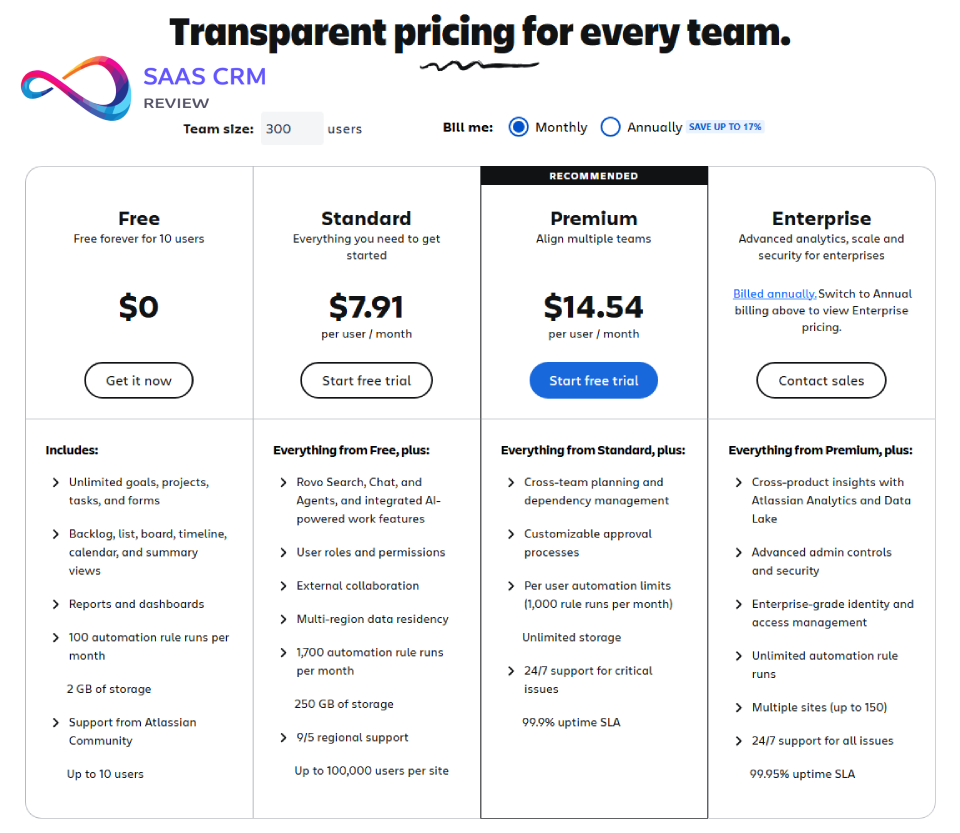
Jira Pricing in 2026

Pricing Model Overview

Jira uses a per-user, tiered subscription model with cloud-based pricing. The structure typically includes:

Free Tier:

  • Up to 10 users
  • 2GB storage
  • Community support only
  • Basic features (boards, backlogs, reporting)
  • Limited automation (100 rules/month globally)

Standard Tier:

  • Estimated $7-8/user/month (annual billing)
  • Up to 35,000 users (theoretically)
  • 250GB storage
  • Standard support
  • More automation (1,000 rules/month)
  • User roles and permissions
  • Audit logs (90 days)

Premium Tier:

  • Estimated $14-15/user/month (annual billing)
  • Unlimited users
  • Unlimited storage
  • 24/7 premium support with 1-hour SLA
  • Unlimited automation
  • Advanced roadmaps (cross-project planning)
  • IP allowlisting and SAML SSO
  • Audit logs (unlimited retention)
  • Release tracks and deployment gates

Enterprise Tier:

  • Custom pricing (contact sales)
  • Includes Premium features plus:
  • Centralized security and compliance
  • Data residency options (specific AWS regions)
  • Dedicated account management
  • Guaranteed uptime SLA (99.9%+)
  • Unlimited instances (sandbox environments)
  • Advanced user provisioning (SCIM)

Real Cost Drivers

Published per-user pricing is misleading because total cost of ownership includes:

1. Marketplace Apps ($2-10/user/month for essential apps) Common must-have additions:

  • Tempo Timesheets (time tracking)
  • ScriptRunner (advanced automation)
  • Zephyr Scale (test management)
  • Elements (custom reporting)
  • Automation add-ons for specific workflows

2. Confluence License ($6-12/user/month) Most Jira teams need Confluence for documentation, requirements, and meeting notes. Atlassian bundles these products, but they’re separately licensed.

3. Advanced Roadmaps Only included in Premium tier. Standard tier teams wanting portfolio planning must upgrade or purchase separately.

4. Support Upgrade Costs Standard tier’s support is often inadequate for production issues. Premium support represents a significant jump in cost.

5. Implementation and Training

  • External consultant rates: $150-250/hour
  • Typical small team implementation: $5,000-15,000
  • Enterprise implementation: $50,000-500,000+

Pricing Examples (Illustrative)

Small startup (10 engineers):

  • Free tier: $0 (but limiting)
  • Standard tier: $960/year + marketplace apps ($300) = ~$1,260/year
  • With Confluence Standard: ~$2,500/year total

Mid-size company (50 users):

  • Standard tier: ~$4,800/year
  • Marketplace apps: ~$2,000/year
  • Confluence: ~$4,000/year
  • Total: ~$10,800/year (~$18/user/month effective)

Enterprise (500 users):

  • Premium tier: ~$90,000/year
  • Marketplace apps: ~$25,000/year
  • Confluence Premium: ~$75,000/year
  • Implementation/consulting: ~$50,000
  • Total first year: ~$240,000 (~$40/user/month effective)

Cost Comparison

Jira’s pricing sits in the mid-to-high range for project management tools:

  • More expensive than: Trello, Asana (Basic), Monday.com (Basic), ClickUp
  • Comparable to: Azure DevOps, GitHub Projects (Enterprise), Monday.com (Pro)
  • Less expensive than: ServiceNow, Smartsheet (Enterprise), Wrike (Enterprise)

The value proposition depends on your needs. For software teams requiring robust agile tooling and deep dev integrations, Jira’s cost is justifiable. For non-technical teams doing basic task management, it’s overkill and overpriced.

Hidden Costs

User proliferation: Jira pricing scales linearly with users. Teams often add peripheral stakeholders, contractors, and observers who need occasional access, quickly inflating user counts. Unlike per-project pricing models, every login costs money.

Admin overhead: Maintaining Jira properly requires dedicated admin capacity—either part-time (5-10 hrs/week) or full-time for large instances. This labor cost isn’t in the license fee.

Migration costs: Switching away from Jira after years of customization and historical data is expensive (often $20,000-100,000 for enterprise migrations including data transformation and retraining).


Integrations & Ecosystem

Native Atlassian Integration

Jira’s tight integration with other Atlassian products creates ecosystem lock-in:

Confluence: Documentation platform with deep Jira linking. Create Jira issues directly from Confluence pages, embed Jira roadmaps in documentation, automatically link requirements docs to stories. The bidirectional sync makes Confluence + Jira the standard pairing for technical organizations.

Bitbucket: Atlassian’s Git repository hosting. Commit messages automatically transition Jira issues, pull requests link to stories, build status displays in Jira, deployment tracking flows through connected pipelines.

Trello: Simpler task board tool (also owned by Atlassian). Limited integration—teams sometimes use Trello for lightweight workflows and Jira for structured engineering projects.

Atlassian Access: Centralized user management and SSO across all Atlassian products. Essential for enterprises managing hundreds of users across Jira, Confluence, Bitbucket, and other tools.

Atlassian Marketplace

The Marketplace hosts 4,000+ apps extending Jira functionality:

Popular categories:

  • Developer tools: GitHub/GitLab integration, testing frameworks, CI/CD connectors
  • Reporting and analytics: Advanced charts, custom metrics, executive dashboards
  • Time tracking: Tempo Timesheets, Clockwork, Time in Status
  • Test management: Zephyr, Xray, TestRail
  • Automation: ScriptRunner (Groovy scripting), Enhanced Automation
  • Agile tools: Planning Poker, retrospective apps, capacity planning
  • Security/compliance: Audit logs, encryption, GDPR tools

Marketplace considerations: Apps vary wildly in quality. Established apps from vendors like Tempo, Adaptavist, and SmartBear are generally reliable. Lesser-known apps may have poor performance, security issues, or abandoned maintenance. Always trial apps carefully and check recent reviews.

Version compatibility: Cloud apps auto-update, but Data Center apps must match your Jira version. This creates technical debt as apps lag behind Jira upgrades.

Third-Party Integrations

Development tools:

  • GitHub/GitLab: Commit linking, PR status, build/deployment tracking
  • Jenkins/CircleCI/GitHub Actions: Build results in Jira issues
  • Sentry/Rollbar: Error tracking linked to bugs
  • Docker/Kubernetes: Deployment visibility

Communication platforms:

  • Slack: Issue notifications, create issues from messages, slash commands
  • Microsoft Teams: Similar capabilities to Slack integration
  • Zoom: Meeting links attached to issues

Documentation and knowledge:

  • Notion: Limited bi-directional sync
  • SharePoint: Document attachment and embedding
  • Google Drive: File linking and preview

Business tools:

  • Salesforce: Link support cases to development issues
  • Tableau/Power BI: Pull Jira data for analytics
  • ServiceNow: ITSM workflow integration
  • Slack/MS Teams: Notifications and issue creation

API Capabilities

Jira’s REST API enables custom integrations:

  • Issue CRUD operations: Create, read, update, delete issues programmatically
  • Search and filtering: Execute JQL queries via API
  • Workflow management: Trigger transitions, add comments
  • Project and configuration access: Read/modify project metadata
  • Webhook support: Real-time notifications of Jira events
  • OAuth 2.0 authentication: Secure third-party app access

Teams commonly build custom integrations for:

  • Automated issue creation from support tickets, monitoring alerts, or forms
  • Bi-directional sync with proprietary systems
  • Custom reporting pulling Jira data into business intelligence tools
  • Chatbot interfaces for Jira operations

The API is well-documented and mature, though rate limits apply (especially on Cloud). Enterprise plans offer higher rate limits and dedicated API capacity.

Two-Way Sync Considerations

While Jira integrates with many tools, maintaining clean two-way synchronization is challenging:

  • Conflicting updates from multiple systems
  • Field mapping incompatibilities (Jira’s custom fields rarely match other systems)
  • Sync lag creating temporary inconsistencies
  • Integration failures requiring manual remediation

Best practice: designate a “system of record” for each data type. For example, Jira owns technical issues, Salesforce owns customer requests, and a one-way sync populates Jira from Salesforce but not vice versa. Attempting full bidirectional sync between enterprise systems invites complexity and eventual failures.


Security, Compliance & Admin

Permission Schemes

Jira offers granular permissions at multiple levels:

Project permissions:

  • Browse projects
  • Create issues
  • Edit issues (own vs. all)
  • Assign issues
  • Delete issues
  • Close issues
  • Link issues
  • Manage watchers
  • View voters and watchers
  • Administer projects

Workflow permissions:

  • Transition issue (per-transition restrictions)
  • Assign during transition
  • Edit fields during transition

Issue-level security:

  • Security levels restricting issue visibility to specific roles or groups
  • Useful for sensitive bugs, customer data, or confidential initiatives

Global permissions:

  • Administer Jira
  • Create projects
  • Manage users and groups
  • System administrator access

In practice, most organizations use role-based access control (RBAC) with project roles like:

  • Developers: Can create, edit, transition issues in their projects
  • Project Leads: Full project administration
  • Viewers: Read-only access to specific projects
  • External Contractors: Limited permissions, specific project access

SSO and User Provisioning

Standard/Premium tiers include:

  • Google authentication (OAuth)
  • SAML 2.0 SSO integration (Premium tier)
  • Two-factor authentication (2FA) enforcement

Enterprise tier adds:

  • SCIM 2.0 for automated user provisioning
  • Atlassian Access for centralized identity management across products
  • Integration with Active Directory, Okta, OneLogin, Azure AD
  • Just-in-time provisioning
  • Automatic group sync

SSO is critical for enterprises but frustratingly locked behind the Premium tier, forcing Standard tier customers to manage user credentials separately.

Audit Logs and Compliance

Audit logging capabilities:

  • User access logs (who accessed what, when)
  • Issue change history (complete audit trail per issue)
  • Configuration changes (workflow modifications, permission updates)
  • Export capabilities (CSV, API access)

Retention:

  • Standard tier: 90-day retention
  • Premium tier: Unlimited retention
  • Enterprise tier: Granular retention policies, long-term archival

Compliance certifications: Atlassian maintains various compliance certifications for Jira Cloud (verify current status via Atlassian’s compliance documentation):

  • SOC 2 Type II
  • ISO 27001
  • GDPR compliance framework
  • HIPAA compliance (via business associate agreement for Enterprise customers)
  • FedRAMP Moderate (for government customers)

Data residency: Enterprise tier offers data residency selection (US, EU, AU regions), crucial for organizations with regulatory requirements.

Important note: Compliance capabilities vary between Cloud and Data Center deployments. Self-hosted Data Center gives organizations direct control but also direct responsibility for security, backups, and compliance maintenance.

Admin Controls and Governance

System administration tools:

  • Global configuration (defaults, look and feel)
  • Issue type schemes and workflows
  • Custom fields and screens
  • Permission schemes and project roles
  • Notification schemes
  • User and group management
  • Marketplace app administration
  • Project templates

Best practices for governance:

  1. Designate Jira administrators: At scale, assign dedicated admins (not just whoever set it up initially)
  2. Establish change management: Workflow/permission changes should follow approval processes
  3. Document configurations: Maintain wikis explaining custom fields, workflows, and conventions
  4. Regular audits: Quarterly reviews of permissions, unused fields, and active projects
  5. Training programs: Onboarding for new users, advanced training for power users
  6. Cleanup policies: Archive completed projects, remove inactive users, prune unused automation

Without governance, Jira instances become unmanageable within 1-2 years as configurations layer upon configurations without coordination.


Performance & Scalability

Startup and Small Team Performance

For teams under 25 users with straightforward configurations (1-3 projects, standard workflows), Jira Cloud performs well:

  • Page loads in 1-3 seconds
  • Board updates and issue transitions are responsive
  • Search returns results quickly with properly scoped filters

The Free tier imposes rate limits and resource constraints that occasionally cause slowdowns during heavy usage periods. Paid tiers receive higher allocation.

Mid-Market Considerations

At 25-500 users across 10-50 projects, performance depends heavily on configuration:

Performance killers:

  • Custom fields proliferating to 100+ per project
  • Overly complex workflows (15+ statuses, conditional branching)
  • Large backlogs (5,000+ issues) without proper filtering
  • Extensive automation rules that trigger recursively
  • Heavy marketplace app usage (10+ apps running on every page load)

Optimization tactics:

  • Archive old projects and issues annually
  • Limit custom fields to truly necessary ones
  • Use JQL-based filters to scope boards narrowly
  • Implement field configuration schemes that hide irrelevant fields
  • Monitor and optimize automation rule execution

Teams at this scale should budget for part-time Jira admin capacity (5-15 hrs/week) to maintain performance and usability.

Enterprise-Scale Capabilities

Jira Cloud supports organizations with 5,000+ users and hundreds of projects, though challenges emerge:

Scalability strengths:

  • Atlassian’s cloud infrastructure handles user concurrency well
  • Premium/Enterprise tiers receive dedicated resources and priority
  • Advanced Roadmaps supports cross-project portfolio views at scale
  • Admin APIs enable automation of governance at scale

Scalability challenges:

  • Complex permission schemes slow down issue loading
  • Global configurations (like custom fields visible across all projects) create bloat
  • Large organizations struggle with project taxonomy and naming conventions
  • Training and adoption vary wildly across business units

Data Center alternative: For organizations requiring maximum control, customization, and performance, Jira Data Center (self-hosted) offers:

  • Clustering for high availability
  • Near-zero downtime upgrades
  • Direct database access for advanced analytics
  • Unlimited customization (no Atlassian API restrictions)
  • Data locality (no cloud provider dependency)

However, Data Center requires significant infrastructure investment and DevOps capacity. It’s declining in popularity as Cloud capabilities improve, but remains essential for highly regulated industries or regions with strict data residency requirements.

Performance Benchmarks

Based on common implementation patterns:

Team SizeProjectsIssuesTypical Response TimeConfiguration Complexity
1-101-3<1,000<2 secondsLow
11-503-101,000-10,0002-4 secondsMedium
51-20010-5010,000-50,0003-6 secondsMedium-High
201-1,00050-20050,000-250,0004-8 secondsHigh
1,000+200+250,000+5-10 secondsVery High

These are illustrative ranges. Poorly configured small instances can perform worse than optimized enterprise deployments.


Pros and Cons

Pros

1. Unmatched Workflow Flexibility Jira’s customizable workflows, issue types, and field configurations enable precise process modeling. Whether running Scrum, Kanban, Scrumban, or hybrid methodologies, Jira adapts to your workflow rather than forcing you into opinionated templates. This flexibility is essential for enterprises with varied team needs.

2. Industry-Leading Agile Tooling Sprint planning, backlog grooming, velocity tracking, burndown charts, and release management are mature and comprehensive. The Scrum and Kanban implementations follow best practices and support ceremonies effectively. For teams serious about agile, Jira remains the gold standard.

3. Powerful Automation Engine The no-code automation builder eliminates substantial manual toil. Teams report 10-20% time savings through automation of status updates, notifications, assignments, and housekeeping tasks. The ability to trigger on virtually any event with conditional logic enables sophisticated workflows.

4. Extensive Integration Ecosystem The Atlassian Marketplace and native integrations create a comprehensive DevOps toolchain. Deep connections with GitHub, GitLab, Bitbucket, Slack, CI/CD tools, and monitoring platforms make Jira the central nervous system for software delivery.

5. Robust JQL for Power Users JQL provides SQL-like querying capabilities that enable complex searches, custom filters, and advanced reporting. Once mastered, JQL dramatically improves productivity by surfacing exactly the issues you need without manual filtering.

6. Enterprise-Grade Security and Compliance Granular permissions, audit logs, SSO, and compliance certifications make Jira suitable for regulated industries. Data residency options and enterprise-tier security controls meet stringent requirements.

7. Proven Scalability Jira handles organizations from startups to Fortune 100 companies. The platform scales both technically (performance) and organizationally (governance, multi-project management).

Cons

1. Steep Learning Curve and Complex UX New users find Jira intimidating and non-intuitive. The abundance of features, configuration options, and nested menus creates cognitive overload. Non-technical users particularly struggle with concepts like permission schemes, screen configurations, and workflow design. Onboarding requires significant training investment.

2. Setup and Maintenance Burden Achieving a polished Jira configuration demands substantial upfront effort (15-100+ hours) and ongoing administration. Without dedicated admin capacity, instances deteriorate into slow, cluttered messes. Small teams often lack resources for proper governance.

3. Performance Degradation with Poor Configuration Jira’s flexibility becomes a liability when teams over-customize. Excessive custom fields, complex workflows, and poorly scoped boards cause significant slowdowns. Performance management requires active monitoring and optimization.

4. Dated UI Compared to Modern Alternatives The interface feels dated compared to Linear, ClickUp, or Notion. The visual design, page layouts, and interaction patterns reflect Jira’s 2000s origins. While functional, the UX lacks the polish users expect from contemporary SaaS tools.

5. Pricing Complexity and Escalation Per-user pricing combined with essential Marketplace apps and Confluence dependencies drives costs higher than expected. Teams on Standard tier often hit limitations requiring Premium upgrades. The Free tier is too limited for meaningful use beyond tiny teams.

6. Notification Overload by Default Out-of-the-box notification settings generate overwhelming email volumes. Every issue update, comment, and transition triggers notifications to multiple users. Customizing notification schemes requires admin effort that teams often neglect.

7. Overkill for Simple Task Management Organizations using Jira for basic task lists or non-technical project tracking pay the complexity tax without leveraging Jira’s strengths. The workflow configuration, permission schemes, and agile tooling add friction when simple Kanban boards would suffice.


Jira for Different Teams

Software Development Teams

Ideal fit: Development teams running Scrum or Kanban with 5-50 engineers are Jira’s sweet spot.

Typical workflows:

  • Sprint-based development: 2-week sprints with planning, daily standups, and retrospectives
  • Issue hierarchy: Epics → Stories → Subtasks (or Tasks for smaller work)
  • Git integration: Branch naming linked to issue keys, commit messages transitioning issues
  • CI/CD visibility: Build status and deployment information in issues
  • Bug tracking: Dedicated bug workflow with triage, reproduction steps, and resolution verification

Configuration recommendations:

  • Use standard issue types (Story, Bug, Task, Epic) unless specialization is necessary
  • Implement simple workflows (To Do → In Progress → Code Review → Testing → Done)
  • Configure automation for status syncing (subtasks complete → parent transitions)
  • Integrate GitHub/GitLab for development visibility
  • Create team dashboards showing sprint health, velocity trends, and bug metrics

Real-world scenario: A 12-person engineering team ships weekly releases. They maintain a prioritized backlog of ~100 stories, run 1-week sprints with 15-20 story points committed, and use a Kanban board for bugs/hotfixes separate from feature development. Automation handles developer assignment based on component, and integration with GitHub shows PR status directly in Jira. The team references the Scrum board in daily standups and uses burndown charts to track sprint progress.

Product Management Teams

Use cases: Roadmap planning, feature prioritization, stakeholder communication, requirements documentation.

Typical workflows:

  • Opportunity management: Track feature requests, customer feedback, and competitive analysis as issues
  • Roadmap planning: Use Epics and Initiatives (linked groups of Epics) to map quarterly/annual plans
  • Requirements definition: Link Confluence pages with detailed specs to Jira stories
  • Prioritization frameworks: Custom fields for RICE scores, MoSCoW categories, or business value
  • Release tracking: Version-based organization with release dates and progress visibility

Configuration recommendations:

  • Enable Advanced Roadmaps (Premium tier) for portfolio planning
  • Create custom fields for opportunity sizing, business value, customer impact
  • Use labels for themes (e.g., “onboarding-flow”, “enterprise-features”)
  • Configure executive dashboards showing roadmap progress and key metrics
  • Implement workflows with stakeholder approval gates for high-priority features

Best practice: Product managers often serve as the interface between business stakeholders and engineering. They maintain the backlog in Jira, write detailed requirements in Confluence (linked to stories), and use Jira’s roadmap views to communicate plans to leadership. The key is balancing technical detail (for engineers) with high-level strategic visibility (for executives).

IT Service Management Teams

Jira Service Management specifically targets ITSM use cases:

Typical workflows:

  • Incident management: User-reported issues routed via service desk portal, SLA tracking, escalation workflows
  • Change management: Change requests with approval processes, rollback plans, implementation windows
  • Problem management: Root cause analysis, known error database, permanent fix tracking
  • Service catalog: Self-service portal for common requests (software access, hardware, etc.)

Configuration recommendations:

  • Use Jira Service Management rather than Jira Software for ITSM workflows
  • Implement SLA metrics aligned to support tiers (P1: 1hr response, P2: 4hr, etc.)
  • Create automation for auto-assignment based on request type or category
  • Integrate with monitoring tools (Datadog, New Relic) for incident creation
  • Configure customer satisfaction (CSAT) surveys post-resolution

When Jira Service Management makes sense: Mid-to-large IT organizations replacing legacy ticketing systems, DevOps teams implementing SRE practices, or companies wanting unified issue tracking across development and operations.

When to use alternatives: Small IT teams (<10 people) may find dedicated ITSM tools like Freshservice or Zendesk simpler and more affordable.

Marketing, Operations, and Business Teams

Verdict: Jira Work Management targets these audiences, but the fit is often poor.

Typical struggles:

  • Jira’s vocabulary (issues, sprints, epics) feels alien to non-technical teams
  • Workflow configuration requires technical aptitude marketing teams may lack
  • The UI complexity frustrates users expecting Asana or Monday.com simplicity
  • Integration ecosystem focuses on dev tools, not marketing/ops tools

When it works: Larger organizations standardizing on Atlassian products for consistency benefit from having all teams in Jira. Marketing teams managing complex, multi-phase campaigns with clear deliverables and dependencies can adapt Jira’s workflow engine to their needs.

When to use alternatives: Most marketing and operations teams are better served by Asana, Monday.com, ClickUp, or Notion—tools designed for their workflows without engineering baggage.

Configuration for non-technical teams:

  • Use Jira Work Management templates (content calendar, campaign management)
  • Simplify workflows (3-4 statuses maximum)
  • Hide technical features (sprints, story points, subtasks)
  • Emphasize visual boards over backlogs
  • Provide extensive training and documentation

Jira Alternatives

1. Linear

Best for: Software teams wanting modern UX with less configuration overhead.

Key differentiators:

  • Gorgeous, fast UI optimized for keyboard shortcuts
  • Opinionated defaults reduce setup complexity
  • Built-in roadmaps and cycle planning
  • GitHub/GitLab integration out of the box
  • Simpler permission model

When to choose Linear:

  • Startups/scale-ups with 5-50 engineers
  • Teams prioritizing UX and speed over customization
  • Organizations not heavily invested in Atlassian ecosystem
  • Teams comfortable with less workflow flexibility

Pricing: Generally $8-14/user/month—comparable to Jira but with fewer hidden costs.

Trade-offs: Less workflow customization, simpler reporting, smaller integration marketplace, no ITSM capabilities.

2. ClickUp

Best for: Teams wanting all-in-one work management beyond just issue tracking.

Key differentiators:

  • Combined tasks, docs, wikis, goals, and time tracking
  • Highly flexible views (list, board, calendar, Gantt, timeline)
  • Built-in collaboration features (chat, whiteboards)
  • Very affordable pricing
  • Extensive customization without technical configuration

When to choose ClickUp:

  • Cross-functional teams (engineering + product + marketing) on one platform
  • Budget-conscious organizations ($5-12/user/month)
  • Teams wanting flexibility without Jira-level complexity
  • Organizations consolidating multiple tools

Trade-offs: Less mature agile tooling than Jira, can feel overwhelming with feature overload, integration ecosystem smaller than Jira.

3. Asana

Best for: Non-technical project teams, marketing, operations, creative teams.

Key differentiators:

  • Intuitive, user-friendly interface
  • Minimal learning curve
  • Strong collaboration features (comments, file attachments, @mentions)
  • Portfolio and goal tracking (in paid tiers)
  • Cross-project reporting

When to choose Asana:

  • Business teams doing project/campaign management
  • Organizations prioritizing ease of use over technical features
  • Companies wanting quick deployment with minimal training
  • Teams uncomfortable with “developer tool” vocabulary

Pricing: $10-25/user/month depending on tier—mid-range pricing.

Trade-offs: Limited agile ceremony support, basic workflow customization, weaker developer integrations, no ITSM capabilities.

4. Monday.com

Best for: Operations teams, agencies, and process-driven organizations.

Key differentiators:

  • Highly visual, colorful interface
  • No-code workflow automation
  • Built-in forms and client portals
  • Extensive view customization (Gantt, timeline, calendar, map)
  • Strong support for repeatable processes

When to choose Monday.com:

  • Marketing agencies, creative teams, operations
  • Organizations with client-facing project needs
  • Teams managing repeatable, template-driven workflows
  • Budget sufficient for higher per-user costs

Pricing: $9-19/user/month (3-user minimum)—on the higher end.

Trade-offs: Overkill for simple issue tracking, less technical than Jira, can become expensive at scale, agile support limited.

5. Azure DevOps

Best for: Microsoft-centric organizations, enterprise development teams.

Key differentiators:

  • Integrated with Microsoft ecosystem (Azure, Visual Studio, Teams)
  • Built-in CI/CD pipelines, repos, test plans
  • Unlimited private Git repositories
  • Competitive pricing ($6/user/month for all features)
  • Strong enterprise security and compliance

When to choose Azure DevOps:

  • Organizations heavily using Microsoft stack
  • Teams wanting integrated DevOps platform (not just issue tracking)
  • Enterprises with Microsoft Enterprise Agreements
  • Teams migrating from TFS/VSTS

Trade-offs: UI less polished than modern alternatives, less third-party integration ecosystem than Jira, complex permissions model.

6. Shortcut (formerly Clubhouse)

Best for: Small-to-mid-size software teams wanting simplicity.

Key differentiators:

  • Balanced between Jira’s power and Linear’s simplicity
  • Story-centric workflow (emphasizes narrative over tasks)
  • Built-in iteration planning
  • Affordable pricing ($8.50-12/user/month)
  • Integrated docs and milestones

When to choose Shortcut:

  • Teams of 5-30 developers
  • Organizations finding Jira too complex, Linear too opinionated
  • Startups wanting room to grow without full Jira overhead

Trade-offs: Smaller integration ecosystem, limited ITSM features, less enterprise-grade admin controls.

7. Notion (with Projects)

Best for: Startup/small teams wanting all-in-one workspace.

Key differentiators:

  • Combined knowledge base, tasks, and collaboration
  • Extremely flexible database and view system
  • Beautiful, modern UI
  • Affordable pricing ($8-15/user/month)
  • Strong for internal documentation

When to choose Notion:

  • Small teams (<20 people) wanting unified workspace
  • Organizations prioritizing documentation + task management
  • Budget-conscious startups
  • Teams comfortable building custom workflows

Trade-offs: Not purpose-built for issue tracking, limited agile tooling, integration ecosystem less mature, performance issues at scale.


Head-to-Head Comparison: Jira vs. Asana vs. Trello vs. Monday.com

CriteriaJiraAsanaTrelloMonday.com
Best ForSoftware teams, agile devBusiness/marketing teamsSimple task boards, small teamsOperations, agencies, processes
Learning CurveSteep (2-3 weeks)Gentle (2-3 days)Minimal (<1 day)Moderate (1 week)
Setup EffortHigh (15-25+ hours)Low (2-5 hours)Minimal (<1 hour)Moderate (5-10 hours)
Workflow CustomizationExtensive (unlimited)Moderate (templates + sections)Limited (lists + power-ups)High (no-code builder)
Agile SupportExcellent (Scrum, Kanban)Basic (custom fields)Basic (Kanban only)Moderate (sprints via apps)
AutomationPowerful (no-code + scripting)Good (rules builder)Limited (Butler power-up)Excellent (visual builder)
ReportingAdvanced (JQL, dashboards)Good (portfolios, charts)Basic (power-ups required)Good (visual dashboards)
IntegrationsExtensive (4,000+ apps)Strong (200+ apps)Moderate (power-ups)Strong (200+ apps)
Dev Tool IntegrationExcellent (GitHub, GitLab, etc.)LimitedLimitedLimited
Pricing$0-15+/user/mo$0-25/user/mo$0-17.50/user/mo$0-19/user/mo
Total Cost (50 users)$10,000-15,000/yr$6,000-15,000/yr$5,000-10,000/yr$6,000-12,000/yr
ScalabilityEnterprise-readyMid-market maxSmall team focusMid-market focus
Mobile ExperienceAdequateGoodExcellentGood
UI ModernityDatedModernModernVery modern
DocumentationRequires ConfluenceBuilt-in descriptionsLimited (card descriptions)Built-in docs

Decision Guidance by Scenario

Choose Jira if:

  • You’re a software team (5+ engineers) running Scrum or Kanban
  • You need extensive workflow customization and automation
  • You’re invested in Atlassian ecosystem (Confluence, Bitbucket)
  • You require enterprise-grade security and compliance
  • You have admin capacity for setup and governance
  • Deep developer tool integration is critical

Choose Asana if:

  • You’re a non-technical team (marketing, operations, creative)
  • You prioritize ease of use and quick adoption
  • You need portfolio-level visibility across multiple projects
  • You want strong collaboration features without complexity
  • Your workflows are relatively straightforward

Choose Trello if:

  • You’re a small team (<10 people) with simple needs
  • You want visual Kanban boards without configuration overhead
  • Budget is very limited (generous free tier)
  • Your workflows fit simple “To Do → Doing → Done” patterns
  • You need quick deployment with zero training

Choose Monday.com if:

  • You manage client-facing projects or agency work
  • You want visual, colorful interfaces with strong visual customization
  • You need form-based intake and client portals
  • You’re managing repeatable, process-driven workflows
  • You prioritize aesthetics and stakeholder presentations

Implementation Playbook

Pre-Launch Planning (2-4 Weeks)

1. Define Scope and Objectives

  • Which teams will use Jira initially? (Pilot with one team vs. org-wide rollout)
  • What processes are you digitizing? (Scrum ceremonies, bug tracking, project management?)
  • What does success look like? (Metrics: adoption rate, cycle time reduction, visibility improvements)

2. Form Governance Team

  • Identify Jira administrators (technical + process owners)
  • Designate workflow designers per team type
  • Assign training coordinators
  • Establish change management process for future modifications

3. Document Current State

  • Map existing workflows (even if informal)
  • Catalog custom fields and data requirements
  • List required integrations
  • Identify compliance/security requirements

4. Make Architectural Decisions

  • Project structure: One large project vs. multiple team-specific projects?
  • Permission model: Simple (everyone sees everything) vs. granular?
  • Issue type strategy: Use defaults or create custom types?
  • Board approach: Team-specific boards vs. cross-functional?

Best practice: Start simple. Over-architecting Jira upfront creates complexity debt. Begin with minimal customization and add complexity only when clear needs emerge.

Initial Setup Steps (1-3 Weeks)

Week 1: Foundation

  1. Create Jira Cloud instance or request Data Center setup
  2. Configure SSO/user authentication
  3. Import initial user list and assign to groups
  4. Create first project using appropriate template (Scrum, Kanban, or Bug Tracking)
  5. Configure basic workflows (resist heavy customization initially)
  6. Set up default issue types (Story, Task, Bug, Epic)

Week 2: Customization

  1. Add essential custom fields (business value, customer impact, etc.)
  2. Configure screens to show/hide fields appropriately
  3. Design permission schemes (start with default, modify minimally)
  4. Create notification schemes (disable excessive notifications)
  5. Build initial boards (Scrum board for main team, Kanban for bugs)
  6. Import or create initial issues/backlog

Week 3: Automation and Polish

  1. Build core automation rules:
    • Auto-assign based on component/label
    • Status syncing (subtask → parent)
    • Notification routing
    • Housekeeping (close stale issues)
  2. Create team dashboards (sprint health, velocity, bug metrics)
  3. Set up integrations (Slack, GitHub/GitLab, Confluence)
  4. Configure email settings and templates
  5. Build initial reports and filters

Template Configuration

Software Team Template:

  • Issue types: Epic, Story, Task, Bug, Spike
  • Workflow: Backlog → To Do → In Progress → Code Review → Testing → Done
  • Board: Scrum board with 2-week sprints
  • Fields: Story points, sprint, fix version, component, labels
  • Automation: Subtask completion → parent auto-transition

Bug Tracking Template:

  • Issue types: Bug, Improvement
  • Workflow: Reported → Triaged → In Progress → Resolved → Closed
  • Board: Kanban board with WIP limits
  • Fields: Severity, affected version, environment, steps to reproduce
  • Automation: Severity = Critical → notify on-call, auto-assign

Product Management Template:

  • Issue types: Epic, Initiative, Story, Task
  • Workflow: Idea → Prioritized → In Development → In Review → Released
  • Fields: Business value (1-10), effort (T-shirt sizes), customer impact, theme
  • Reports: Roadmap view, epic progress, release burndown

Training and Onboarding Plan

Tier 1: All Users (1-2 hours)

  • Jira fundamentals: projects, issues, boards
  • Creating and updating issues
  • Searching and filtering
  • Notifications and watching issues
  • Mobile app overview

Tier 2: Power Users (4-6 hours)

  • Advanced search with JQL
  • Bulk operations
  • Dashboard creation
  • Filter sharing and subscriptions
  • Linking issues and managing dependencies
  • Using keyboard shortcuts

Tier 3: Administrators (8-12 hours)

  • Project configuration
  • Workflow design
  • Permission schemes
  • Automation building
  • Integration setup
  • Marketplace app evaluation

Training delivery methods:

  • Live workshops (interactive, Q&A opportunity)
  • Recorded sessions (on-demand reference)
  • Written documentation in Confluence
  • Hands-on sandbox environment for practice
  • Office hours for ongoing questions

Ongoing enablement:

  • Monthly “Jira tips” newsletters
  • Quarterly refresher sessions
  • New feature announcements
  • Champions program (power users in each team)

Phased Rollout Strategy

Phase 1: Pilot Team (2-4 weeks)

  • Single team (5-15 people) tests configuration
  • Daily feedback loops with admins
  • Rapid iteration on pain points
  • Measure baseline metrics (time to create issue, board update frequency)

Phase 2: Early Adopters (4-8 weeks)

  • 2-3 additional teams join
  • Validate configurations scale across team types
  • Refine training materials based on pilot learnings
  • Build team-specific customizations as needed

Phase 3: Broad Rollout (8-16 weeks)

  • Remaining teams migrate in waves
  • Ensure each wave has adequate support resources
  • Communicate wins and case studies from pilot
  • Monitor adoption metrics (active users, issues created, boards viewed)

Phase 4: Optimization (Ongoing)

  • Quarterly configuration reviews
  • Automation refinement
  • Performance tuning
  • User satisfaction surveys
  • Advanced feature enablement (roadmaps, advanced reporting)

Anti-pattern: “Big bang” rollouts where all teams start simultaneously. This overwhelms support resources, creates configuration conflicts, and prevents learning from early adopters.

Governance Framework

Configuration change process:

  1. Proposed change documented in Confluence
  2. Impact assessment (which teams/workflows affected?)
  3. Review by governance team
  4. Testing in sandbox project
  5. Communication to affected users
  6. Implementation during low-usage window
  7. Post-implementation verification

Regular governance activities:

  • Weekly: Review automation errors, permission issues
  • Monthly: Audit new custom fields, clean up unused workflows
  • Quarterly: User satisfaction survey, performance analysis, training needs assessment
  • Annually: Full configuration audit, archive old projects, major version planning

Documentation requirements:

  • Workflow diagrams with rationale
  • Custom field definitions and usage guidelines
  • Automation rule registry (trigger, purpose, owner)
  • Integration documentation (purpose, data flow, owner)
  • Troubleshooting guides for common issues

Common Mistakes & How to Avoid Them

1. Over-Customization Trap

Mistake: Teams customize every aspect of Jira immediately—dozens of custom fields, complex workflows with 15+ statuses, intricate permission schemes.

Why it happens: Jira’s flexibility invites experimentation. Teams try to model every edge case and process variation upfront.

Consequences:

  • New users overwhelmed by field bloat
  • Slow page loads from excessive fields
  • Maintenance burden tracking dependencies between configurations
  • Difficult to onboard new team members

How to avoid:

  • Start with default Jira templates and standard fields
  • Add custom fields only when clear, recurring need emerges (not hypothetical)
  • Use naming conventions (prefix custom fields with team name)
  • Quarterly audits to remove unused fields
  • Document the “why” for each customization

Recovery: Run field usage reports, deprecate fields with <5% usage, consolidate overlapping fields, hide unnecessary fields from screens.

2. Permission Complexity Hell

Mistake: Creating intricate permission schemes with role combinations, user groups, and security levels that nobody fully understands.

Why it happens: Initial enthusiasm for “proper security” plus incremental adjustments for edge cases.

Consequences:

  • Users can’t understand why they can’t edit specific issues
  • Admins spend hours troubleshooting permission problems
  • New projects inherit complex schemes by default
  • Security through obscurity (unclear who can access what)

How to avoid:

  • Start with Jira’s default permission scheme
  • Customize only when genuine security requirements demand it
  • Document permission schemes in plain English
  • Use consistent role naming across projects
  • Regular permission audits

Recovery: Map current permissions to actual requirements, identify redundant restrictions, consolidate schemes, retrain users on simplified model.

3. Workflow Over-Engineering

Mistake: Designing workflows with 12+ statuses, conditional transitions, validators, and post-functions that create labyrinthine logic.

Why it happens: Attempting to enforce every process rule through workflow mechanics.

Consequences:

  • Users can’t figure out how to transition issues
  • Workflows don’t match actual work patterns (workarounds emerge)
  • Changes require admin intervention
  • Onboarding nightmare for new users

How to avoid:

  • Keep workflows under 6-8 statuses maximum
  • Map workflows to actual handoffs, not internal team processes
  • Use automation for process enforcement instead of workflow conditions
  • Test workflows with actual users before deploying
  • Document transition logic clearly

Example: Instead of “To Do → Ready for Dev → In Dev → Dev Complete → Ready for QA → In QA → QA Complete → Ready for Deploy → Deploying → Done,” simplify to “To Do → In Progress → Review → Done” with automation and labels tracking substates.

4. Neglecting Automation Potential

Mistake: Manually updating status, assigning issues, sending notifications when automation could handle it.

Why it happens: Teams don’t realize automation capabilities or fear breaking things.

Consequences:

  • Wasted time on repetitive tasks
  • Inconsistent data (forgot to update parent issue)
  • Delayed notifications
  • User frustration with manual overhead

How to avoid:

  • Audit workflows for repetitive manual actions
  • Start with 3-5 simple automation rules (wins build confidence)
  • Use templates: “When subtask is done, update parent”
  • Monitor automation execution logs
  • Iterate based on user feedback

Common automation quick wins:

  • Auto-assign bugs to component owners
  • Sync parent/child issue status
  • Send Slack notifications for critical issues
  • Auto-close issues inactive for 30+ days
  • Update custom fields based on status changes

5. Inadequate User Training

Mistake: Assuming users will “figure it out” or providing only one training session at launch.

Why it happens: Budget constraints, urgency to get teams using Jira quickly, underestimating complexity.

Consequences:

  • Users create workarounds instead of using Jira properly
  • Low adoption rates
  • Duplicate issues, incorrect status updates, ignored conventions
  • Negative sentiment (“Jira is too complicated”)

How to avoid:

  • Multi-tiered training (basic, intermediate, admin)
  • Role-specific training (developer vs. product manager workflows)
  • On-demand video library
  • Written quick-start guides
  • Champions program (power users in each team)
  • Quarterly refreshers and advanced sessions

Recovery: Survey users on pain points, create targeted training addressing gaps, hold office hours for questions, build internal FAQ documentation.

6. Integration Sprawl

Mistake: Installing 10+ Marketplace apps “just in case” or because they look useful.

Why it happens: Atlassian Marketplace makes it easy to install apps. Teams explore options without evaluation criteria.

Consequences:

  • Performance degradation (apps add page load time)
  • Licensing costs accumulate
  • Conflicting functionality between apps
  • Security risks from poorly maintained apps
  • Complexity troubleshooting which app causes issues

How to avoid:

  • Define clear requirement before adding apps
  • Trial period evaluation with specific success criteria
  • Limit to 3-5 essential apps initially
  • Regular app audits (quarterly): Is it still used? Does it justify cost?
  • Prefer native Jira features over apps when possible

Essential apps (typical):

  • Time tracking (if needed): Tempo Timesheets
  • Advanced automation (if needed): ScriptRunner
  • Portfolio planning upgrade (if on Standard tier without Advanced Roadmaps)

Recovery: Generate app usage reports, survey teams on which apps they use, uninstall unused apps, consolidate overlapping functionality.


Decision Checklist

Use this scoring rubric to assess whether Jira fits your needs:

CriterionWeightScore (1-5)Weighted Score
Team Type: Software/TechnicalHigh (3x)______
We run Scrum, Kanban, or hybrid agileHigh (3x)______
Need extensive workflow customizationMedium (2x)______
Require deep dev tool integration (GitHub, CI/CD)High (3x)______
Have admin capacity (5-15 hrs/week ongoing)High (3x)______
Team size >10 usersMedium (2x)______
Budget allows $10-20/user/monthMedium (2x)______
Already use Atlassian tools (Confluence, Bitbucket)Medium (2x)______
Need enterprise security/complianceMedium (2x)______
Willing to invest in training (20+ hours total)High (3x)______
Team Type: Non-TechnicalLow (1x)______
Prioritize intuitive UX over configurabilityHigh (3x)______
Need quick deployment

(<2 weeks) | Medium (2x) | ___ | ___ | | Simple workflows sufficient (3-5 statuses) | Medium (2x) | ___ | ___ | | Limited IT/admin support available | Medium (2x) | ___ | ___ | | Total | | | ___ |

Scoring guide:

  • 1 = Strongly disagree / Not applicable
  • 2 = Somewhat disagree
  • 3 = Neutral
  • 4 = Somewhat agree
  • 5 = Strongly agree

Interpretation:

  • 80-120 points: Jira is likely a poor fit. Consider Asana, ClickUp, or Linear.
  • 120-180 points: Mixed fit. Jira could work but evaluate alternatives carefully.
  • 180-240 points: Good fit. Jira’s strengths align with your needs.
  • 240+ points: Excellent fit. Jira is likely your best option.

Quick “If You Only Do 3 Things” Checklist

If implementing Jira, prioritize:

1. Keep It Simple Initially

  • Use default templates and workflows
  • Limit custom fields to <10 per project
  • Resist the urge to model every edge case
  • Add complexity incrementally based on actual needs

2. Invest in Training

  • Budget 15-20 hours total training time
  • Role-specific sessions (not one-size-fits-all)
  • Create quick-start guides and video library
  • Establish office hours for ongoing questions

3. Automate the Obvious

  • Build 5-10 automation rules addressing repetitive tasks
  • Start with status syncing and assignment routing
  • Monitor automation logs and iterate
  • Document each rule’s purpose clearly

FAQ

Q: Is Jira suitable for non-technical teams?

Jira Work Management targets non-technical teams, but the fit is often poor. The interface, vocabulary, and configuration complexity are designed for technical workflows. Non-technical teams typically struggle with Jira’s learning curve and find tools like Asana, Monday.com, or ClickUp more intuitive. If your organization is standardizing on Atlassian products and willing to invest in training, Jira can work—but it’s not the natural choice for marketing, HR, or operations teams.

Q: What’s the difference between Jira Software, Jira Service Management, and Jira Work Management?

Jira Software focuses on software development with agile boards, sprint planning, backlog management, and developer tool integrations. Jira Service Management adds ITSM capabilities like incident management, SLA tracking, service catalogs, and customer portals for IT operations and support teams. Jira Work Management simplifies Jira for business teams, removing agile ceremonies and emphasizing task lists and project tracking. Most organizations use Jira Software; Service Management appeals to IT teams; Work Management rarely justifies choosing Jira over alternatives.

Q: Can small teams (5-10 people) use Jira effectively?

Yes, but with caveats. The Free tier supports up to 10 users and includes core features. However, small teams often lack admin capacity for proper setup and governance, making Jira feel heavyweight. If your small team is technical, runs agile workflows, and someone can invest 10-15 hours in setup, Jira works. For simpler needs or non-technical small teams, Linear, Trello, or Asana offer better effort-to-value ratios.

Q: How long does Jira implementation typically take?

For a single team with straightforward needs: 2-4 weeks from planning to launch, including 15-25 hours of configuration, training, and initial backlog setup. Enterprise implementations spanning multiple teams, complex workflows, and governance frameworks: 3-6 months including 100-300+ hours of effort. Pilot-based phased rollouts extend timelines but reduce risk.

Q: What are the hidden costs of Jira?

Beyond per-user licensing: (1) Marketplace apps add $2-10/user/month for essential functionality like advanced time tracking or reporting. (2) Confluence is practically required for documentation ($6-12/user/month additional). (3) Premium tier features like Advanced Roadmaps and enhanced support require tier upgrades. (4) Admin labor for ongoing governance (5-15 hrs/week). (5) Training costs including time spent and potential external trainers. Total cost of ownership often runs 30-50% higher than base license fees.

Q: How does Jira compare to Microsoft Azure DevOps?

Both are comprehensive platforms for software teams. Choose Jira if: You’re invested in Atlassian ecosystem, want broader third-party integration marketplace, prefer more mature agile tooling, or need strong non-Microsoft integrations. Choose Azure DevOps if: You’re Microsoft-centric, want integrated CI/CD pipelines and Git repos included, need tight Azure cloud integration, or have Microsoft Enterprise Agreements providing favorable pricing. Azure DevOps often costs less but has a steeper learning curve and less polished UX.

Q: Can Jira replace multiple tools (task management, documentation, time tracking)?

Jira excels at issue tracking and project management but deliberately doesn’t try to be all-in-one. You’ll need Confluence for documentation (separate license), Marketplace apps for time tracking (like Tempo), and Slack/Teams for communication. Some organizations pair Jira with Notion or other tools for lightweight collaboration. Tools like ClickUp or Monday.com attempt all-in-one approaches—Jira takes a best-of-breed integration strategy.

Q: What’s the learning curve for Jira?

Basic proficiency (create issues, update status, use boards): 1-2 weeks for technical users, 2-4 weeks for non-technical users. Intermediate skills (filters, bulk operations, dashboards): 1-2 months. Advanced usage (JQL, automation building, workflow configuration): 3-6 months. Admin-level configuration expertise: 6-12 months of regular usage. Jira has one of the steepest learning curves among project management tools but rewards investment with powerful capabilities.

Q: Is Jira Cloud or Data Center better?

Jira Cloud suits 90% of organizations: managed infrastructure, automatic updates, lower admin burden, better for distributed teams, predictable pricing. Jira Data Center (self-hosted) fits organizations requiring: maximum customization, direct database access, specific regulatory compliance, data locality guarantees, or integration with on-premises systems. Data Center demands significant DevOps capacity and infrastructure investment. Most new customers choose Cloud unless specific requirements mandate Data Center.

Q: How does Jira handle very large backlogs (1,000+ issues)?

Jira’s performance degrades with poorly scoped large backlogs. Best practices: (1) Archive old issues regularly (completed items older than 6-12 months). (2) Use filters liberally to scope boards and backlogs narrowly. (3) Break large projects into smaller projects or epics. (4) Leverage labels and components for organization rather than storing everything in one flat backlog. (5) Optimize custom fields—excessive fields slow rendering. Properly configured, Jira handles large issue counts, but requires active management.

Q: What are the best alternatives to Jira?

Linear: Modern UX, fast, great for software teams wanting less complexity. ClickUp: All-in-one, highly customizable, affordable. Asana: Intuitive, excellent for non-technical teams. Monday.com: Visual, process-driven, good for agencies/ops. Azure DevOps: Microsoft ecosystem, integrated DevOps platform. Shortcut: Balanced power and simplicity for dev teams. Choice depends on team type, technical sophistication, budget, and existing tool ecosystem.

Q: Can Jira integrate with Slack, Microsoft Teams, and other communication tools?

Yes. Jira offers official integrations for Slack and Microsoft Teams enabling: (1) Issue notifications posted to channels, (2) Creating issues from messages, (3) Slash commands for querying Jira, (4) Issue previews when links are shared. The integration quality is good but requires configuration. Teams often create dedicated channels for high-priority issue notifications and use general channels for selective updates to avoid notification fatigue.


Final Recommendation

Who Should Choose Jira

Jira is the right choice for:

Software development teams (5-50 engineers) running Scrum, Kanban, or hybrid agile methodologies who need robust sprint planning, backlog management, and development tool integration. If your team lives in GitHub/GitLab, discusses work in Slack, and tracks velocity and burndown charts, Jira is purpose-built for you.

Organizations heavily invested in Atlassian ecosystem already using Confluence for documentation and Bitbucket for code repositories. The tight integration between these products creates significant value, and adding Jira completes the toolchain.

Enterprises requiring extensive customization with complex workflows spanning multiple teams, detailed permission schemes, advanced automation, and portfolio-level roadmaps. Jira’s flexibility enables modeling intricate processes that simpler tools can’t accommodate.

DevOps-oriented organizations needing visibility across development, testing, deployment, and operations with strong CI/CD integration, deployment tracking, and incident management capabilities (via Jira Service Management).

Teams with dedicated admin capacity who can invest in proper setup, ongoing governance, and user training. Jira rewards organizations treating it as a platform requiring active management rather than a plug-and-play tool.

Who Should Look Elsewhere

Avoid Jira if:

You’re a small, non-technical team (<10 people) doing basic task management. The setup effort, learning curve, and ongoing complexity outweigh benefits. Choose Trello, Asana, or Notion instead.

You prioritize intuitive UX over configurability. If user adoption and ease-of-use are paramount, modern alternatives like Linear, ClickUp, or Asana offer dramatically better out-of-box experiences with gentler learning curves.

You lack admin capacity for setup and governance. Jira without proper administration becomes slow, cluttered, and frustrating. If you can’t dedicate 5-15 hours/week to governance, choose simpler tools with opinionated defaults.

Budget constraints are significant. Between base licensing, essential Marketplace apps, Confluence, and Premium tier features most teams eventually need, Jira’s total cost of ownership adds up quickly. More affordable alternatives deliver 80% of the value at 40% of the cost for many use cases.

You need immediate deployment (<1-2 weeks from decision to productive use). Jira implementation done properly takes 4-8 weeks minimum. If urgency drives your timeline, choose faster-to-deploy alternatives.

Next Steps

If leaning toward Jira:

  1. Start a free trial (Jira offers generous trial periods). Create a real project with actual work—don’t just explore features abstractly.
  2. Run a pilot with one team (4-8 weeks). Choose a technically proficient team willing to provide feedback. Track adoption metrics and satisfaction.
  3. Calculate total cost of ownership including Marketplace apps, Confluence, and Premium features you’ll likely need. Compare against 2-3 alternatives.
  4. Assess admin capacity. Identify who will own Jira configuration and governance. If nobody has 5+ hours/week available, reconsider or budget for external support.
  5. Map workflows explicitly. Document current processes before configuring Jira. Avoid the “we’ll figure it out as we go” trap.

If unsure:

Create a comparison matrix scoring Jira and 2-3 alternatives against your specific requirements (not generic feature comparisons). Weight criteria by importance to your context.

Talk to similar organizations. If you’re a 20-person SaaS startup, ask other similar-sized technical companies about their experience with Jira vs. alternatives. Real-world experiences often reveal considerations missing from marketing materials.

Consider hybrid approaches. Some organizations use Jira for engineering and Asana/ClickUp for other teams. While tool proliferation has costs, forcing non-technical teams into Jira creates friction.

The Bottom Line

Jira remains the dominant force in issue tracking and agile project management for software teams in 2026, but that dominance faces legitimate challenges from more user-friendly alternatives. For technical teams willing to invest in setup and governance, Jira delivers unmatched power, flexibility, and integration capabilities. For everyone else, the complexity tax makes simpler alternatives more attractive.

The right answer depends entirely on your context: team composition, workflows, existing tools, admin capacity, and budget. Jira isn’t universally “good” or “bad”—it’s powerfully appropriate for some scenarios and overkill for others.

If you’re a software team serious about agile methodologies and already swimming in the Atlassian ecosystem, Jira likely justifies its complexity. If you’re evaluating Jira because “it’s the industry standard” without matching those specific conditions, pause and honestly assess whether that standard serves your particular needs or simply reflects everyone else’s path dependency.

Choose deliberately. Jira’s switching costs—both financial and organizational—are high once you’re committed. Make that commitment eyes-open, with realistic expectations about implementation effort and ongoing governance requirements. Done right, Jira becomes the central nervous system for software delivery. Done poorly, it’s an expensive, frustrating bottleneck that teams work around rather than with.

About the Author

I’m Macedona, an independent reviewer covering SaaS platforms, CRM systems, and AI tools. My work focuses on hands-on testing, structured feature analysis, pricing evaluation, and real-world business use cases.

All reviews are created using transparent comparison criteria and are updated regularly to reflect changes in features, pricing, and performance.

Leave a Comment

Your email address will not be published. Required fields are marked *