
To share passwords with your team, put each shared login in a shared space of a business password manager and grant that space to a group, not to a chat thread or a spreadsheet. Bitwarden calls the space a collection, 1Password a shared vault, NordPass and Keeper a shared folder.
You need an Owner or Admin role and a plan with shared spaces: NordPass keeps Shared Folders for its Business and Enterprise plans. The routine earns its keep on the day someone leaves: NordPass deletes a deleted member’s untransferred items after 730 days, and a removed Bitwarden member’s offline device can keep a read-only copy for a short time. The eight steps below fit a company of 5 to 200 people.
- Task: share work logins with a team and take them back
- Result: shared spaces granted by group and a tested offboarding routine
- Prerequisites: a business plan with shared spaces, plus an Owner or Admin role
- Tools: Bitwarden, 1Password, NordPass or Keeper
- Limitation: a hidden password in Bitwarden can still be autofilled
In This Article (9 sections)
Why Not Share Passwords in Slack, Teams, Email or a Spreadsheet?
No, it isn’t safe to share passwords in Teams or any other chat app, in email or in a spreadsheet: nobody can list who holds a pasted password, and taking it back from one person means changing it for everyone.
Microsoft’s Entra documentation lists those drawbacks for the traditional sharing model: you can’t tell who has access, you can’t tell who accessed the application, and removing access means updating the credentials and redistributing them. LastPass adds the transport risk: unencrypted emails and texts travel as plain text, with no mechanism to restrict further sharing.
| Channel | Who can see it later | How you take it back |
|---|---|---|
| Chat or email | Anyone it was sent or forwarded to | Change the password and send it again |
| Shared spreadsheet | Everyone with the file | Change the password and update the file |
| Password manager shared space | The people and groups on its access list | Remove the person or group, then change only the passwords on that list |
Sources: Microsoft Entra shared accounts, LastPass password sharing, 1Password vaults, checked Nov 2026.
The last row is what sharing credentials securely means: one removal ends access inside the manager, and the access list bounds which passwords step 8 changes.
Microsoft’s own fix is a shared account in Microsoft Entra ID with password-based single sign-on: users don’t see the shared password, and each needs an Entra ID P1 or P2 (or Enterprise Mobility Suite) license.
My take
I would ban chat and email for any login more than one person uses. Entra password SSO fits a company whose users already hold P1 or P2 licenses and whose shared logins are all web applications. Everyone else needs a business password manager, and business password managers compared by team job is where to pick one.
Before You Start
You need a plan with shared spaces, an admin role, your current staff in the account and a list of roles before step 1.
Before you start
- A plan with shared spaces and groups (see the table)
- An admin role: owner or admin in Bitwarden, Owner or Admin in NordPass, Owners or Administrators in 1Password, the Keeper Administrator role in Keeper
- Current staff already in the account, invited the way step six invites a hire, so groups have members to add and test with
- Your roles or departments, which become groups
- A working inbox for each member: 1Password email invitations expire after 5 days
| Manager | Shared space | Groups | Finer control |
|---|---|---|---|
| Bitwarden | Collections, any organization type | Teams and Enterprise | Custom roles in Enterprise |
| 1Password | Shared vaults | Built-in groups; custom groups with Business | Three permissions in Teams, five in Business |
| NordPass | Shared Folders in Business and Enterprise | Business and Enterprise | Subfolders in Enterprise only |
| Keeper | Shared folders | Teams (Keeper’s group feature) | Team restrictions |
Sources: Bitwarden groups, 1Password groups, NordPass plans, Keeper roles, checked Nov 2026.
NordPass is the gate that costs money: its Teams plan is for up to 10 members, and Shared Folders and Groups arrive with Business, so check NordPass plans and prices before step 2.
On 1Password, a Finance group with its own vault rights needs Business, which makes 1Password Business pricing part of the plan. No vendor publishes a setup time.
How to Share Passwords With Your Team: Step by Step
The eight steps run in dependency order. On a first setup, send current staff through step 6’s invite path before step 3, so groups have members to add and test with; step 6 then serves later hires.
Step 1: List the shared accounts and who needs each
Write one row per login that more than one person uses: the account, the team that uses it and the access that team needs (fill only, view, edit or manage). Leave the passwords out.
Expected result: one row per shared login, each with a team and an access level, and no password in the file.
Step 2: Create a shared space for each team
Create one empty space per team or system on your list:
- Bitwarden: in the web app, select New, then Collection, enter a Name and select Save (Create Collections).
- 1Password: on 1Password.com, select Vaults, then New Vault, then Create Vault.
- NordPass: open Shared Folders, click Add new folder, then Create.
- Keeper: click Create New, then Shared Folder.
Items in a Bitwarden collection belong to the organization, not to any individual user, so a departure takes no shared item with it; my Bitwarden review covers what else that model changes.
Expected result: an empty collection, vault or shared folder for each team or system.
Step 3: Create groups that match roles
Create one group per role, so a new hire is one change instead of one per space:
- Bitwarden: in the Admin Console, go to Groups, select New Group, add people on the Members tab and select Save.
- 1Password: select Groups, then New Group, then Create Group; custom groups need 1Password Business.
- NordPass: in the Admin Panel, select Groups, click Create group, then Add Members (Groups guide).
- Keeper: on the Teams tab, select + Add Team, then + Add User.
In Keeper, Teams share folders while Roles set permissions and policies.
Expected result: one group or Keeper team per role, listing the people in that role.
Step 4: Set each group’s permission
Give each group one permission level on each space:
| Manager | Permission levels | Rule to know |
|---|---|---|
| Bitwarden | View items; View items, hidden passwords; Edit items; Edit items, hidden passwords; Manage collection | A member-level permission overrides a group-level one |
| 1Password Teams | Allow Viewing; Allow Editing; Allow Managing | Allow Managing includes no item viewing or editing |
| 1Password Business | View Items; Create Items; Edit Items; Archive Items; Delete Items; client settings such as View and Copy Passwords | The most permissive of an individual and a group permission applies |
| NordPass | Can edit; Can share; Can view; Can autofill | An expiration time only with Can view and Can autofill |
| Keeper classic folders | Can Manage Users; Can Manage Records; Can Manage Users & Records; No User Permissions | Team restrictions override folder permissions |
Sources: Bitwarden collection permissions, 1Password vaults and custom groups, NordPass Shared Folders, Keeper classic folders and teams, checked Nov 2026.
Bitwarden and 1Password Business settle a clash between a member’s own and a group’s permission by different rules, so grant through groups only. Whether five permissions earn the Business price is a question for my 1Password review.
- Bitwarden: open the collection, select Access and choose from the Permission dropdown.
- 1Password: open the vault, select Groups, then Manage.
- NordPass: open the Shared Folder, select Share and enter the group name.
- Keeper: add the team on the folder’s Users tab.
Warning
Test each level with one member before you assign it to a group: a level set too high lets the whole group edit or delete shared logins.
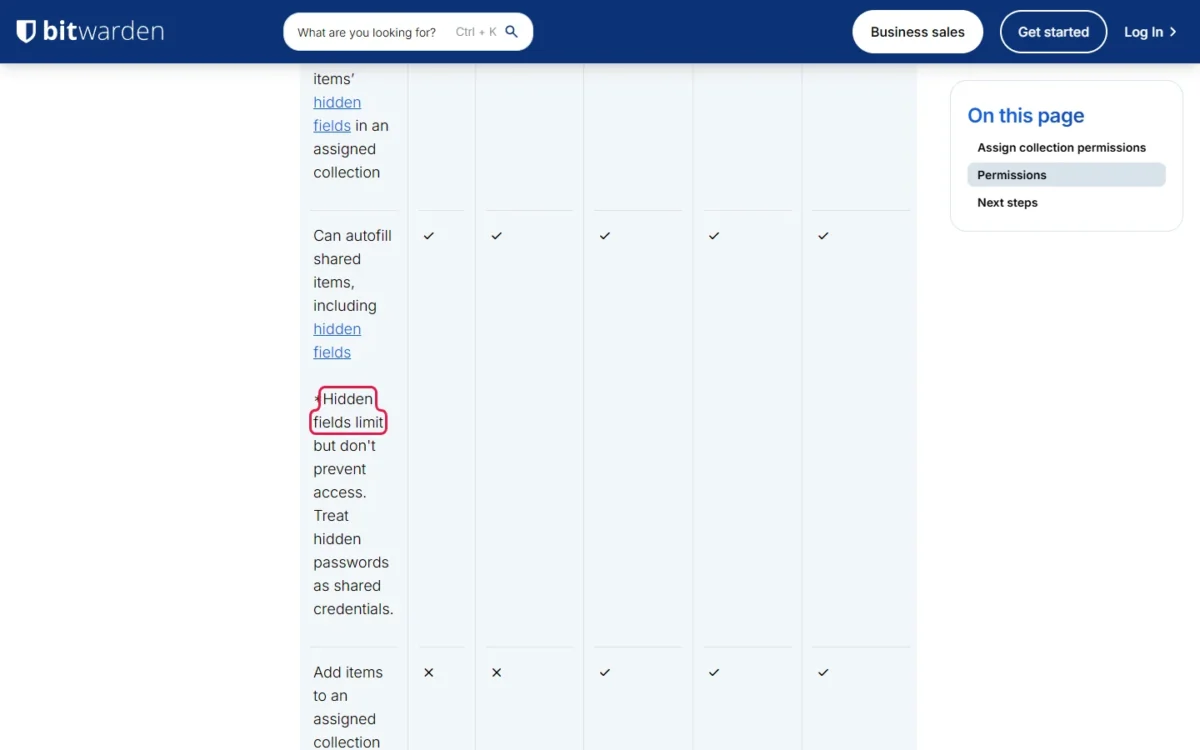
For logins people should use but not read, choose View items, hidden passwords in Bitwarden or Can autofill in NordPass. Neither is a secret: Bitwarden’s hidden fields limit but don’t prevent access, because members can still autofill.
Expected result: every space lists its groups, each with one level, and a test member sees what the map says.
Step 5: Move existing logins into the shared spaces
Move each login into its team’s space:
- Bitwarden: select the items, choose Assign to collections, set Move to organization and Select collections to assign, then select Assign (Share Items).
- 1Password: move or copy the items to the new vault.
- NordPass: click the three-dots button beside an item, select Move, then Shared Folders.
- Keeper: drag the record onto the folder and select Move.
Warning
Bitwarden transfers ownership of a moved item to the organization. In a NordPass Shared Folder, deleted items are removed permanently and are not moved to Trash. Test the move with one low-risk login first, and back up any item before you delete it.
My Bitwarden vs 1Password comparison weighs that ownership model against vaults. Give a login that sat in chat, email or a spreadsheet a new password as it moves, because everyone who received the old one still holds it; then delete the file or message that held the old copies.
Expected result: each shared login sits in its team’s space and opens for a member of that team’s group.
Step 6: Invite new hires and add them to their groups
Invite each person with their groups set, so access arrives with the account:
- Bitwarden: in the Admin Console, go to Members, select Invite member, pick a Member role and select groups on the Groups tab; the hire accepts and an admin confirms (Invite & Manage Members).
- 1Password: select Invitations, then Invite by email, and confirm the person once their account is set up.
- NordPass: in the Admin Panel, open Members and click Invite members (Admin Panel guide).
- Keeper: add the person to their team with + Add User.
Bitwarden’s email invitations expire after five days, so send them when the hire can act.
Employee onboarding checklist
The HR side of a new hire’s first days, to run alongside this step and step 7.
Expected result: the hire’s account is confirmed and shows only their groups’ spaces.
Step 7: Remove a leaver’s access without losing their items
Before the last day, note the leaver’s groups and spaces from step 1’s map for step 8. Then cut access first, move or transfer the work logins the person owned second, and delete the account last.
| Manager | Cut access | Their items | Watch for |
|---|---|---|---|
| Bitwarden | Members, Options, Revoke access or Remove | The organization owns all collections; the leaver keeps My vault items | An offline device may keep a read-only copy for a short time |
| 1Password | People, More Actions, Suspend or Delete | Delete permanently revokes access to vaults and items; keep work logins in shared vaults, not the Employee vault | Offline, items stay accessible until the person next opens 1Password while connected |
| NordPass | Admin Panel, Members, Suspend or Delete | An Owner transfers a deleted member’s items from the Deleted tab | No transfer above 2,100 items; deletion after 730 days |
| Keeper | Lock Account, then Transfer Account | Records and shared folders move to the recipient’s vault | Delete User deletes owned records and cannot be undone |
Sources: Bitwarden Remove, 1Password team members, NordPass item transfer, Keeper user lifecycle and Account Transfer, checked Nov 2026.
Start with a reversible move: a revoked Bitwarden member can’t access organization items, doesn’t occupy a seat and can be restored without a new invitation.
Warning
Two deletions cannot be undone. Keeper’s Delete User immediately deletes the user’s owned vault records, so lock and transfer first. NordPass deletes a deleted member’s untransferred items after 730 days, and Owners can’t see or choose which items move.
Keeper’s transfer works only if the Account Transfer policy was on for the user’s role and the user accepted it before leaving. It is on by default for the All Users role; check it now, and see my Keeper review for the rest of its admin model.
My NordPass review covers its admin roles.
Removed Bitwarden members still reach their personally-owned items, so have the leaver move any work login from My vault into its collection with step 5’s Assign to collections before you select Remove.
Expected result: the leaver shows as Revoked, Suspended, Locked or deleted, and every work login they used sits in a shared space a colleague can open.
Step 8: Change every shared password the leaver could see
Removing the account is not enough: when you expect misuse, Bitwarden advises updating the credentials the member had access to.
Take the rotation list from the groups and spaces you noted before step 7, as the worked example reads down the Marketing column. Change each password in the service and in the shared item in the same sitting, then test the sign-in.
Expected result: every login in the leaver’s spaces has a new password saved in its shared item, and a current member has signed in with it.
Check That It Worked
The setup works when a test member sees only their groups’ spaces and each access list matches your map.
Verification checklist
- A test member sees their group’s spaces and no others
- Each access list shows groups, not people added one by one
- Bitwarden Teams or Enterprise: the event log records “Viewed password for item” when the test member reveals a password
- 1Password Business: a usage report for the vault shows who has access
- The last leaver shows as Revoked, Suspended, Locked or deleted
Bitwarden’s event logs show up to 367 days at a time, enough for a yearly access review.
How I Verified the Steps
I built these steps from the help-center and documentation pages of Bitwarden, 1Password, NordPass, Keeper and LastPass, read in November 2026. Labels are the ones each vendor’s web app or admin console shows; other apps may differ. Keeper’s nested shared folders are available by invitation only, so its labels here are the classic folder ones.
How to Share Passkeys Inside a Team
To share a passkey with a team, save it in 1Password, Keeper or NordPass and put it in a shared vault or folder: each treats a passkey like any other item. When to use a passkey instead of a password is covered in passkeys vs passwords for a team.
| Where | What its page states |
|---|---|
| 1Password | A passkey is like any other item: you can view, edit, move and share it |
| Keeper | A passkey can be shared like any other record |
| NordPass | A passkey can be shared like other items; a group gets it only inside a Shared Folder |
| Bitwarden Share via link (the one-off link method, not collections) | Passkeys are not included in the shared item |
| Apple shared password groups | Passwords and passkeys, for family and trusted contacts on iOS 17, iPadOS 17, macOS 14 or later |
Sources: 1Password passkeys, Keeper passkeys, NordPass passkeys, Bitwarden sharing, Apple password groups, checked Nov 2026.
How to Share a Password With Someone Outside the Company
Give an outsider a time-limited link to one item instead of a seat in your account. For secure password sharing with a contractor, Bitwarden, 1Password and Keeper each document one:
| Method | Who can open it | Expiry | Limits |
|---|---|---|---|
| Bitwarden Send | Anyone with the link; a password can be required | 31 days at most | Text up to 1,000 characters, files up to 500 MB |
| Bitwarden Share via link | The email addresses you enter | A “Link expires after” setting | No attachments or passkeys; premium or paid organizations |
| 1Password item link | Anyone with the link, or specific people | You choose | A copy; later edits need a new link |
| Keeper One-Time Share | One device | 1 hour to 90 days, or custom up to 180 days | An Enterprise administrator can restrict it |
Sources: Bitwarden Send, 1Password item sharing, Keeper One-Time Share, checked Nov 2026.
Expiry limits the link, not the knowledge: a Bitwarden recipient who saved the item still has it after the link expires, so rotate the password when the job ends.
A contractor who stays for months fits a 1Password guest, who can only have access to one vault.
Worked Example: A 25-Person Company’s Sharing Map
Take an illustrative 25-person company with five groups and five shared spaces; every name and cell below is invented.
| Space | Owners | Finance | Marketing | Sales | IT |
|---|---|---|---|---|---|
| Banking and payroll | Manage | Edit | None | None | None |
| Social and ad accounts | View | None | Edit | Fill only | None |
| CRM and sales tools | View | View | View | Edit | Manage |
| Domains and cloud | Manage | None | None | None | Edit |
| Office Wi-Fi | View | View | View | View | Manage |
When a marketer leaves, read down the Marketing column: three of the five spaces were open to that group, so those three get new passwords in step 8 and the other two stay as they are.
Common Problems and Fixes
Each problem below has one place to check:
| Problem | Possible cause | What to check |
|---|---|---|
| A person removed from a 1Password vault still has access | They are in a group that has access | The vault’s people and groups list |
| A nested Bitwarden collection gives the team nothing | Nested collections don’t inherit items, access or permissions | Assign the group to the nested collection |
| NordPass won’t share one subfolder | Sharing works only at the top Shared Folder | Share the top folder |
| Keeper members can’t edit records a colleague added | Default folder settings leave added records View Only | Set default Record Permissions to Can Edit |
| Keeper can’t transfer a leaver’s vault | Account Transfer wasn’t enabled, or the user never accepted it | The role’s Enforcement Policies |
My take
The mistakes I would guard against first are the ones no setting undoes: deleting a leaver before transferring their items, and treating a hidden password as a secret. A plan gate is different, because only an upgrade or a move fixes it: if custom groups behind 1Password Business are the blocker, weigh the 1Password alternatives first.
FAQ
How do I add a password to Teams?
Not in a chat or a channel. In Microsoft Entra ID, an administrator selects Password-based as the single sign-on mode, assigns a security group and enters the shared credentials; members never see the password.
Is there a password keeper for Teams?
Yes: a business password manager. Bitwarden, 1Password, NordPass and Keeper each have the shared spaces, groups and permissions used in steps 2 to 4. LastPass shares folders with many team members too, with permissions by user; my LastPass vs 1Password comparison covers which fits a small team.
Can I share passwords with my team on an iPhone?
Yes. Apple’s own route is a shared password group in the Passwords app, for people in your contacts who have iOS 17, iPadOS 17, macOS 14 or later. I would keep it for a family or a two-person shop, because only the group’s creator can remove a member.