How to Make AI Videos: 7-Step Guide + Free Template

How to make AI videos step by step with text, image, and video workflows
Editorial. We review software independently. If you buy through our links we may earn a commission, which funds the testing. See our review methodology and affiliate disclosure.

If you have asked how to make AI video, tried once, and watched the model return something almost right, the hard part is telling which part of the prompt caused it. That guessing loop is what burns generation credits.

In This Article (20 sections)

The fix is not a better tool. It is deciding which of four workflows your starting material belongs to, then writing the shot brief that workflow expects before anything is generated.

Every product fact below is traced to the vendor’s own documentation, with the date it was read.

Quick Copy: The AI Video Shot Card Checklist

Copy these items into a note or a spreadsheet row before the first generation. Anything unanswered is a reason to stop, not a reason to hit Generate and find out.

  1. Project goal in one sentence: explain, sell, demonstrate, train, or entertain.
  2. Target audience and the single thing they should understand.
  3. Destination and aspect ratio, locked before prompting.
  4. Workflow mode, one only: text to video for an idea, image to video for a still you must keep, avatar script video for a presenter, video to video for a clip you already have.
  5. Shot ID and the job this shot does in the sequence.
  6. Target duration, kept inside the selected model’s supported window.
  7. Primary subject, plus a deliberate count of how many subjects appear.
  8. One primary visible action.
  9. Environment, described only when the model has to invent it.
  10. Camera motion, subject motion, and environmental motion written as three separate lines.
  11. Visual style, added only when the chosen mode needs it.
  12. Reference assets, each labeled with the role it plays.
  13. Rights confirmed for every uploaded image or clip.
  14. The exact prompt text, saved verbatim so iterations stay comparable.
  15. Model name and every exposed setting, re-read on the day of generation.
  16. Acceptance criteria that another person could check by watching the clip.
  17. Failure observed, limited to the single worst problem.
  18. Next change, limited to one variable.
  19. Final status: keep, revise, reject, or ready for edit.

Quick Decision: Which AI Video Workflow Fits Your Starting Material

The first mistake is choosing a tool. The starting asset decides the workflow, and the workflow decides what the prompt is allowed to say.

You Are Starting WithUse This WorkflowThe Prompt’s Job
An idea and nothing elseText to videoDescribe the scene and the motion, because the model invents both
A still you need to keep intactImage to videoDescribe motion and timing, because the still already fixes the look
A script and a presenterAvatar or agentic script videoSupply script, voice, brand assets, and scene order rather than camera language
A clip that is nearly rightVideo to video editDescribe the change, not the whole scene

Runway documents both text and image entry points for its video model, HeyGen documents a separate studio built around scripts and avatars, and Google documents conversational editing of an uploaded video. Those are four workflows built around four different input structures, which is why one prompt formula cannot serve all of them.

What do you
already have?
nothing to preserve
An idea only
model invents both
Text to video: describe scene and motion
look is fixed
A still you must
keep intact
image supplies composition, subject,
lighting, style
Image to video: describe motion and timing
delivery is the point
A script and a
presenter
no camera field in the
documented menu
Avatar script video: supply script, voice,
brand assets, scene order
footage exists
A clip that is
nearly right
edit rather than
regenerate
Video to video edit: describe only the change

Check Availability Before You Follow Any 2026 Tutorial

A product discontinued in April 2026 can still appear as a starting point in a tutorial written before that date. That is worth knowing before a reader spends an afternoon looking for a sign-up page.

ProductWhat the Documentation StatesWhat That Means for This Workflow
Runway Gen-4.5Documented and availableText to video and image to video shots
Adobe Firefly VideoDocumented and availableReference-driven shots inside an editing workspace
HeyGen AI Studio and Video AgentDocumented and availablePresenter-led and assembled video
Gemini Apps video generationDocumented and availableConversational generation and editing
OpenAI Sora web and appDiscontinued on April 26, 2026Not a path a beginner can follow

Source: official OpenAI discontinuation notice and the vendor documentation page linked in each section below. Checked: 2026-09-09.

OpenAI states that the Sora web and app experiences were discontinued on April 26, 2026, and that the Sora API will be discontinued on September 24, 2026. Any tutorial that still lists it as a starting point for a beginner was written against a product that has been retired.

How to Make an AI Video Step by Step

This is the workflow the shot card supports. It applies to every mode, and the mode only changes what goes into the prompt field.

Step 1: Name the use case and pick one mode. Write the job of the video in a sentence, then choose text to video, image to video, avatar script video, or video to video edit. Two modes on one shot is an error worth catching here, because the prompt ends up fighting itself.

Step 2: Lock the destination format. Set the aspect ratio and orientation before any prompt exists, so the framing decision is not made twice.

Step 3: Gather the required input for that mode. Text to video needs only a written scene, and image to video needs a still that Runway advises should be high quality and free of visual artifacts. An avatar workflow needs a script and a voice, and an edit needs the source clip.

Step 4: Confirm rights on every upload. Google’s help documentation is explicit that users must have rights to any images they upload, so this belongs in the template rather than in a footnote.

Step 5: Write the prompt using the grammar for the mode. The two prompt templates below are not stylistic variants of each other, because the official guidance for each mode asks for different information.

Step 6: Re-read the model settings. Adobe states that the availability of settings such as resolution, duration, and audio varies by the model selected. A settings recipe carried over from another tool workflow can therefore stop applying without any visible error.

Step 7: Generate one short shot, then score it. Review against the acceptance criteria in a fixed order, record the single worst failure, change one variable, and customize the shot card entry for the next attempt.

The example output further down completes the card for a seven-second product shot, at the level of detail each field needs.

Copy This AI Video Shot Card

The card below is the reusable template. Copy the whole thing per shot, not per video.

FieldWhat to WriteWhy It Changes the Result
Project goalOne sentence naming the job of the videoStops a shot drifting into decoration
AudienceWho watches, and what they must understandSets vocabulary, pace, and on-screen text
Destination and ratioPlatform plus aspect ratioFraming decisions cannot be undone later without a crop
Workflow modeExactly one of the four modesDecides which prompt grammar applies
Shot ID and roleA stable label plus the shot’s jobMakes an iteration log readable weeks later
Target durationSeconds, inside the model’s windowA duration outside the window cannot be generated as briefed
Subject and countThe primary subject, and how many appearAdobe recommends limiting subject count for Firefly, saying more than four can often confuse it
ActionOne primary visible actionOne action per shot keeps the brief unambiguous
EnvironmentThe setting, when the model must invent itRunway lists environment among the visual components for text to video, and advises omitting elements already present in a source image
Camera and motionCamera move, subject motion, environmental motionThree separate motions are three separate instructions
Visual styleLighting, grade, framing, moodOnly needed when the mode expects the model to invent the look
Reference assets and roleEach asset plus what it controlsA reference with no declared role is an untracked variable
Rights confirmedYes or stopAn upload without rights is a problem no regeneration fixes
PromptThe exact text sentIterations are only comparable when the previous text survives
Model and settingsModel name, duration, ratio, resolution, audioSettings vary by model, so they belong in the record
Acceptance criteriaObservable pass conditionsVague criteria produce vague reviews
Failure observedThe single worst problemOne named failure keeps the next change diagnosable
Next changeOne variableChanging three things teaches nothing about any of them
Final statusKeep, revise, reject, ready for editTurns a folder of clips into an edit list
Write the brief
before any upload
Confirm asset rights
rights confirmed
Write the prompt for the chosen mode
prompt saved verbatim
Re-read the model settings
settings recorded
Generate one short shot
fixed review order
Score against acceptance criteria
passes every criterion
Mark ready for edit
shot joins the edit list
Assemble and export
fails a criterion
Change one variable
one change per attempt

If You Only Have an Idea: The Text to Video Path

This is the path where the model invents everything, so the prompt has to carry both what the shot looks like and what moves in it.

Runway’s text to video prompting guide splits prompt content into visual components and motion components. The visual list is subject appearance, environment, lighting, composition and framing, and style.

The motion list is subject action, environmental motion, camera motion, motion style and timing, and direction and speed.

Its documented beginner formula is a camera shot of a subject or object performing an action in an environment, followed by supporting component descriptions.

Two things in that guidance are easy to miss. Runway says not every component is needed, and that omitting certain components grants the model creative freedom.

It also says structure and order matter far less than clearly conveying an idea and reducing ambiguity, and that the order in which elements are introduced does not matter.

So the formula is scaffolding for a beginner rather than a fixed syntax. Runway says both keywords and full sentences work, and that natural language usually gives more control, because full sentences provide context that helps guide how elements appear.

Adobe’s guidance for Firefly Video reaches a similar shape from a different angle. Its documented video prompt structure is shot type description, character, action, location, and aesthetic, with camera language drawn from pan, tilt, and dolly vocabulary.

The practical read across both vendors is that a text prompt answers what is in frame and what changes over time. Leave out the motion half and the model is left to invent it.

If You Have a Still Image: The Image to Video Path

Here the prompt’s job inverts.

Runway’s image to video prompting guide states that the input image acts as the first frame and supplies composition, subject matter, lighting, and style. The prompt’s role is to describe what should happen: the motion, camera work, and temporal progression.

The guidance is blunt about emphasis. Effective image to video prompts focus almost exclusively on motion, and rather than describing elements present in the image, the prompt should describe the motion of the scene.

Re-describing the product, the face, or the lighting works against that instruction.

Runway’s text to video guide notes that its prompts are typically longer than image to video prompts, which is what you would expect when half the information arrives as a picture.

Two Prompt Templates, Not One

Motion is what both modes need. The difference is everything else, and Runway’s image to video guide puts it as focusing almost exclusively on motion.

Prompt ElementText to VideoImage to Video
Subject appearanceWrite it, the model has nothing elseOmit, the image supplies it
EnvironmentWrite itOmit unless the scene needs it, per the motion-first instruction
Lighting and styleWrite itOmit; the image supplies it

Source: official Runway prompting documentation, one guide per mode. The omission column applies Runway’s instruction to describe motion rather than elements already present in the image.

Text to video
Prompt: look and motion
one input carries everything
Generated shot
Image to video
Input image: composition, subject matter, lighting, style
Prompt: motion, camera work, temporal progression
Generated shot
acts as the first frame
describes what should happen

Quality-Check the Still Before You Animate It

Runway’s input image guidance advises that the input image should be high quality and free of visual artifacts.

It adds that artifacts such as blurry hands or faces may be intensified once the image is transformed into a video.

So a defect that is easy to ignore in a still is not easy to ignore once the image moves. Repairing or replacing the image is the cheaper repair, because the image is handed to the model as the first frame.

Run this pass before any upload. Any row that fails is repaired in the still, not in the prompt.

CheckLook For
FacesSoft focus, distorted features, merged eyes
HandsExtra or fused fingers, blurred edges
Product geometryWarped handles, asymmetric shapes, broken edges
Text and logosGarbled letters, wrong spacing
Crop and framingSubject touching an edge that motion will cross
LightingBlown highlights or crushed shadows on the subject
Unwanted objectsAnything in frame you would edit out later

Source: official Runway image to video documentation states that the input image should be high quality and free of visual artifacts, and names blurry hands or faces. The remaining rows are this guide’s editorial extension of that principle.

1
2
3
4
5
6
7
1
Faces
2
Hands
3
Product geometry
4
Text and logos
5
Crop and framing
6
Lighting
7
Unwanted objects

If You Need a Presenter: The Script and Avatar Path

A training video, an onboarding walkthrough, or a product explainer is not a cinematic shot problem. It is a script, a voice, and a scene order.

HeyGen’s AI Studio overview documents an entry path through Create, then Create a Video, with an orientation choice. The documented start modes are creating in AI Studio, photo to video, a template, an uploaded PPT or PDF, and Video Agent.

The documented right side menu tells you what this workflow expects as input. Its items are Avatar, Script, AI, Media, Text, Music, Stylized Captions, Templates, and Layers.

None of those items is a camera field, though the AI menu lists a Motion Designer tool whose function the overview does not describe. Forcing camera language into a presenter workflow produces a shot card full of empty rows, because there is no field for that language to occupy.

HeyGen’s own step by step tutorial sets out an agentic version of the same shape. Set up a brand system of logo, fonts, and colors, then set the format by supplying video length and orientation.

Choose avatar and voice, upload assets such as a one-pager, product shots, or B-roll, then write a prompt covering who the video is for and how it should flow scene by scene.

The agent assembles a wireframe, and the creator refines scene by scene before export.

That is a vendor-authored walkthrough rather than an independent evaluation, so read it as a description of how the product is meant to be driven.

For this branch, the shot card changes shape. Replace camera and motion with script, presenter, voice, brand assets, captions, and scene order, and keep every other field.

If You Already Have a Clip: The Video to Video Path

Regenerating from text is the wrong instinct when footage already exists and only one element is wrong.

Google’s Gemini video help page documents video to video editing and multi-turn editing, described as continually editing a video within a single conversation. Aspect ratio is chosen before the video is created, and pre-made templates are offered as a starting point.

The documented input allowance is one video and up to five images. Google also states plainly that users should only upload photos they have the right to use, and that they must have rights to any images they upload.

Access is not uniform. Google states that uploading videos to use for video edits is unavailable in the EEA, Switzerland, the United Kingdom, and some US states, and the help page does not name which states.

That matters for a US reader who cannot find the upload control. The absence of a button is a region question before it is a user error.

Personal accounts need a Google AI plan for this feature, work and school accounts need a qualifying Workspace license, and the documentation says the feature is not available to users under 18.

Break the Video Into Shots Before You Generate

A thirty-second video is not one generation. Runway’s documented 2 to 10 second window for Gen-4.5 makes shot decomposition a production decision rather than a stylistic one.

Runway’s model specification page for Gen-4.5 documents supported durations of 2 to 10 seconds, output at 720p, and frame rate options of 24fps or 25fps. It documents a rate of 12 credits per second for both text to video and image to video, and access requires a Standard or higher plan.

Those numbers convert directly into a shot budget, and the arithmetic is worth doing before the storyboard, not after.

2 seconds
5 seconds
8 seconds
10 seconds
24
60
96
120 documented maximum
for one generation
0 20 40 60 80 100 120
Credits consumed
Clip LengthCredits ConsumedTypical Use in a Sequence
2 seconds24 creditsA cutaway or a reaction beat
5 seconds60 creditsA standard establishing or product shot
8 seconds96 creditsA shot carrying a full action
10 seconds120 creditsThe documented maximum for one generation

Source: official Runway model specification page, for supported durations and the per-second credit rate. Credit figures are model-specific and are not a dollar amount.

Read that as a planning constraint rather than a price. A thirty-second piece becomes at least three shots at the documented ten-second ceiling, and more when the shots are shorter.

Each shot is a separate card, revisable without touching the others.

Splitting also protects the parts that already work. Regenerating a whole sequence to fix one bad second is how a creator loses the shot they liked.

Add References Only When They Solve a Specific Problem

A reference asset is an instruction, and an instruction with no declared purpose is a variable nobody is tracking.

Adobe documents composition and camera motion as two different controls, each with its own requirement.

Reference RoleWhat It TransfersDocumented Requirement
Composition referenceThe arrangement of edges, depth, and composition5 to 10 seconds, 200 MB or less, 1080p recommended
Camera motion referencePans, zooms, tilts, and motion path5 to 10 seconds, under 200 MB
First and last frame imagesThe exact opening and closing framesAdded in the Frames section of the generation settings

Source: official Adobe composition reference documentation and camera motion documentation.

The two trim rules are not identical. Adobe states that a composition reference longer than the window is trimmed to the first five seconds, and separately that a camera motion reference exceeding five seconds uses only its first five seconds.

Composition reference
Where things sit in the frame
Camera motion reference
How the camera moves
First and last frame images
How the shot opens and closes

Pick the role first. If the problem is that the framing keeps drifting, the answer is a composition reference; if the problem is that the camera will not hold still, the answer is a motion reference.

Set the Generation Controls Before Every Run

Settings are an easy source of wasted generations, because a familiar model name inside an unfamiliar product does not guarantee a familiar control panel.

Adobe’s generation workspace documentation states that model-specific settings change when you switch between models. It adds that the availability of additional settings such as Resolution, Duration, and Audio will vary depending on the model you select.

That is the reason the shot card records settings per shot rather than once per project.

ControlWhat to ConfirmWhy It Moves
Model nameThe exact model selected for this runAdobe documents selecting from Adobe or partner models in one dropdown
Aspect ratioMatches the destination on the cardRunway documents a specific ratio list for one model and mode, so confirm your own
Duration, resolution and audioSet each one, or confirm it is absentAdobe documents that the availability of these settings varies by the model you select
Reference controlsWhich slot each asset sits inComposition, camera, and frame slots do different jobs

Source: official Adobe generation settings documentation, stating that available settings vary by selected model.

Keep Each Shot Simple Before Adding Detail

Adobe gives two instructions here that pull in different directions.

Adobe’s subject count guidance recommends limiting the number of subjects when building a prompt, and says more than four subjects can often confuse Firefly. That guidance is written for Firefly and should not be repeated as a universal ceiling for every model.

The transferable habit is the ordering. Adobe advises starting with a basic prompt and refining it with more detail in each iteration, and it recommends limiting subject count while doing so.

Score the Draft Before You Regenerate

“Looks wrong” is not a finding. A fixed review order turns a vague reaction into one named failure and one next change.

Work down the list in this order, scoring every row from 1 to 5 and multiplying by its weight.

Review OrderWeightPass ConditionScoring Below 4 Means
1. Identity and geometry5Subject, face, or product keeps its shape and colorReject the take
2. Intended action4The one action on the card actually happensReject the take
3. Text and logos4On-screen type and marks are intactReject the take
4. Camera behavior3The camera does what the prompt asked and nothing moreRevise the prompt
5. Continuity3The shot cuts cleanly against its neighborsRevise the prompt
6. Audio and captions2Voice, music, and captions match the scriptRevise in the editor
7. Aspect and crop2Nothing important sits outside the safe areaRevise the settings

Rights are not scored here. They are confirmed before upload at step 4, so a shot whose inputs were never cleared does not reach this review.

The three rows marked reject are the must-have rows: any of them below 4 rejects the take whatever the total. The seven weights sum to 23, so a perfect take scores 115.

Below 60 percent of that the brief is wrong rather than the generation, so rewrite the card before spending another run. Between 60 and 80 percent, change one variable and try again.

Above 80 percent with no must-have failure, mark the shot ready for edit.

Then record the failure and the next change. One variable per attempt is what makes the next result readable.

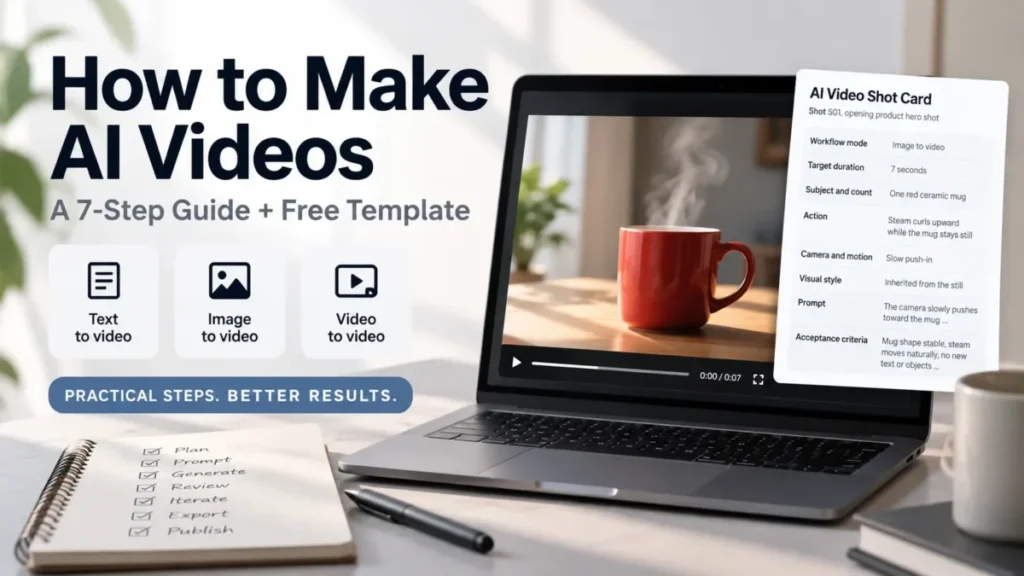
Example Filled-In Shot Card

Here is the template filled in for a short vertical product teaser. The duration entry stays inside the window Runway sets out on its model specification page.

The last four rows stay open because they are written after the first draft comes back.

FieldEntry
Project goalA seven-second vertical teaser presenting a ceramic coffee mug as a premium morning product
AudienceUS social viewers scrolling a vertical feed
Destination and ratioVertical short-form, 9:16
Workflow modeImage to video
Shot ID and roleS01, opening product hero shot
Target duration7 seconds, inside the selected model’s supported window
Subject and countOne red ceramic mug, single subject
ActionSteam curls upward while the mug stays still
EnvironmentAlready set by the licensed source photo, not restated
Camera and motionCamera: slow push-in. Subject: none. Environmental: steam rising gently
Visual styleInherited from the still, no change requested
Reference assets and roleLicensed product still, used as the first frame
Rights confirmedYes, licensed for commercial use
PromptThe camera slowly pushes toward the mug as thin steam curls upward. The mug stays fixed in place and keeps the same shape and red glaze. Morning light stays stable.
Model and settingsTo be recorded at generation time from the product you use
Acceptance criteriaMug shape and handle stable, red glaze unchanged, steam moves naturally, one smooth push-in, no new text or objects, crop safe for vertical
Failure observedTo be completed after the first draft
Next changeTo be completed after the first draft
Final statusNot yet generated
AI Video Shot Card
Shot S01, opening product hero shot
Project goal
A seven-second vertical teaser presenting a ceramic coffee mug as a premium morning product
Audience
US social viewers scrolling a vertical feed
Destination and ratio
Vertical short-form, 9:16
Workflow mode
Image to video
Target duration
7 seconds, inside the selected model’s supported window
Subject and count
One red ceramic mug, single subject
Action
Steam curls upward while the mug stays still
Environment
Already set by the licensed source photo, not restated
Camera and motion
Camera: slow push-in. Subject: none. Environmental: steam rising gently
Visual style
Inherited from the still, no change requested
Reference assets and role
Licensed product still, used as the first frame
Rights confirmed
Yes, licensed for commercial use
Prompt
The camera slowly pushes toward the mug as thin steam curls upward. The mug stays fixed in place and keeps the same shape and red glaze. Morning light stays stable.
Model and settings
To be recorded at generation time from the product you use
Acceptance criteria
Mug shape and handle stable, red glaze unchanged, steam moves naturally, one smooth push-in, no new text or objects, crop safe for vertical
After the first draft
Failure observed
Next change
Final status

Notice what the prompt does not say. It never describes the mug’s color temperature, the tabletop, or the background, because the still already carries all three and Runway advises describing motion rather than elements present in the image.

The acceptance criteria are all observable by watching the clip once. That is the test for a usable criterion: another person could mark it pass or fail without knowing the brief.

Red Flags That Should Stop a Generation

Each of these is a reason to fix the brief rather than spend another run.

Red FlagWhy It Stops the Run
Two workflow modes on one cardThe prompt will contradict itself
A shot longer than the selected model’s documented windowThe generation cannot be produced as briefed
A reference asset with no declared roleAn untracked variable in every later comparison
Acceptance criteria nobody else could checkReviews become opinions and iterations stop converging
A tutorial recommending a retired productThe workflow cannot be followed at all
A missing upload control blamed on user errorRegional availability limits exist and are documented

Common Mistakes When Making AI Videos

Treating one prompt formula as universal. The mode decides the grammar, and the two Runway guides ask for different content.

Expecting one generation to hold a whole story. Runway documents a 2 to 10 second window for its Gen-4.5 model, so a longer sequence is assembled from shots rather than requested in a sentence.

Fixing a bad still with a better prompt. The image acts as the first frame, and Runway says its visual artifacts may be intensified in the video.

Adding detail to a crowded scene. Adobe recommends limiting the number of subjects when building a prompt, and separately advises being specific about lighting and aesthetic style.

Changing several variables between attempts. The next clip may be better and the reason will be unrecoverable.

Skipping the rights question until publishing. The check belongs at upload, where Google’s documentation puts it.

Carrying settings between models. Adobe documents that model-specific settings change when you switch between models.

Tool-Specific Access Notes Worth Checking First

Access gates decide whether a documented workflow is available to a particular reader, and they are easy to miss inside a tutorial that assumes a paid account.

ProductDocumented GatePractical Effect
Runway Gen-4.5Standard plan or higherA lower plan cannot follow the documented generation path
Gemini video generation, personal accountsGoogle AI plan requiredWork and school accounts need a qualifying Workspace license instead
Gemini video uploads for editsUnavailable in some US states, the EEA, Switzerland, and the UKThe upload control may be absent rather than hidden
Gemini video generationNot available to users under 18Applies alongside the plan requirement, not instead of it
Adobe Firefly Video settingsAvailability varies by selected modelAdobe documents that resolution, duration and audio settings may or may not be exposed

Source: official Runway specification documentation and Google Gemini video documentation. Source: official Adobe generation settings documentation, for the final row.

How This Guide Was Researched

Every product fact here comes from the vendor’s own help center or product documentation, read on September 9, 2026, and each claim stays scoped to the product it was written about.

No authenticated product session sits behind this guide, and no clip was produced for it, so nothing here is presented as a first-hand result. Where a workflow is described, it is a reconstruction of the documented steps rather than a record of a completed run.

The selection criteria were narrow on purpose. A source qualified only if it was published by the product owner and stated the operational detail directly, which is why vendor blog content appears once and is labeled as vendor-authored.

What to Do After the Shot Passes

Mark the card ready for edit and move to the next shot rather than polishing a clip that already meets its criteria.

Once the shot list is complete, assemble in an editor and treat the generated clips as source footage: trim, order, add voice and captions, then export at the ratio on the card. A guide to video editing software covers that assembly stage.

If the prompts are the part that keeps failing, a library of AI video prompts gives worked examples to adapt rather than invent.

If the tool is the constraint, compare the field before committing credits. Reviews of the Runway platform and Adobe Firefly cover those two platforms in depth, and a roundup of AI video generators surveys the wider field.

For the conversational editing branch, a review of the Gemini apps covers the wider product the video features sit inside.

Frequently Asked Questions

The answers below stay inside what the vendor documentation states, and say where it does not cover the question.

How Do I Make an AI Video Step by Step as a Complete Beginner?

Pick the workflow that matches what you already have, fill in a shot card, write the prompt in that mode’s grammar, generate one short clip, score it against your acceptance criteria, and change one thing before trying again.

Should I Use Text to Video or Image to Video?

Use image to video whenever a specific look has to survive, because the still fixes composition, subject, lighting, and style. Use text to video when nothing needs preserving and the model is free to invent the frame.

Why Does My Image to Video Result Keep Changing the Picture?

Check first whether the prompt is describing things the image already supplies. Runway’s guidance is that an image to video prompt should focus almost exclusively on motion, so trimming the visual description is the first thing to try.

How Long Should Each AI Video Clip Be?

Long enough for one action and no longer. Runway documents a 2 to 10 second window for Gen-4.5, so the shot card records the window of whatever model is selected.

How Do I Keep the Same Character Across Several Shots?

Runway documents that the input image acts as the first frame and supplies composition, subject matter, lighting, and style, and that the prompt should focus on motion. Reusing one still across shots follows from that, though no documentation checked here covers consistency across several shots.

Do AI-Generated Clips Still Need Editing?

Yes. Short generations are source footage, and the sequence, pacing, captions, and audio are still assembled in an editor afterwards.

Can I Upload Any Image I Find Online?

No. Google’s documentation for its video features states that users must have rights to any images they upload, and treating that as the habit for every upload is this guide’s own recommendation.

Is Sora Still an Option for Making AI Videos?

Not as a consumer product. OpenAI ended the web and app experiences in April 2026, and says the API follows on September 24, 2026.

The Bottom Line

Route by the material already in hand, complete the shot card before generating, and keep each clip short and controlled. Generate one shot at a time, quality-check it against criteria another person could verify, and iterate by changing a single variable so each attempt teaches something.

Then assemble the shots that passed into the final video.

One habit outlasts the rest. Availability and settings move, so check the vendor’s own documentation before following any guide, including this one, several months from now.

About the author

Macedona is the founder and lead reviewer at SaaS CRM Review, where he has published 175+ in-depth reviews, pricing guides, and comparisons of CRM and SaaS tools. Each review is based on hands-on testing or verified documentation, and every article states clearly which method was used. Pricing and features are checked against official vendor sources, with the verification date noted in the article. Macedona follows a published review methodology and editorial policy. SaaS CRM Review earns affiliate commissions from some links, which never influence ratings or rankings. Read the full affiliate disclosure.

Follow the author: LinkedIn
Leave a Comment

Your email address will not be published. Required fields are marked *