Most failed AI video clips are not a model problem. They are a brief problem: a prompt that describes a mood, forgets to say what physically moves, and leaves the camera to guess.
This library fixes that with 123 copyable AI video prompts, each built from the same editable fields, and each written for one clear shot rather than a whole story. The prompt formula sits at the top, the 123 templates are grouped by the job you are actually doing, and the repair matrix at the end tells you which single field to change when a generation comes back wrong.
Every prompt here is ready to adapt, not a guaranteed result. Model behavior differs, so the sections on model rules and troubleshooting matter as much as the templates themselves.
If you have not chosen a tool yet, start with the best AI video generators and come back with one picked.
In This Article (20 sections)
Quick Copy: The 12-Point AI Video Prompt Checklist
Run a draft prompt through this before you spend a generation. Anything you cannot answer is the field most likely to fail.
| # | Check | Pass condition |
|---|---|---|
| 1 | Shot type | The framing is named (wide, medium, close-up, over-the-shoulder) |
| 2 | Subject | One primary visual anchor is identified |
| 3 | Subject motion | Something the subject physically does is stated |
| 4 | Camera motion | The camera either moves in a named way or is explicitly locked |
| 5 | Scene motion | Wind, water, dust, crowd, smoke, or fabric behavior is stated where relevant |
| 6 | Setting | Location, time of day, and weather are fixed |
| 7 | Lighting | The light source and direction are named, not just a mood word |
| 8 | Style | The treatment is named (realistic, animated, documentary, stop-motion) |
| 9 | One primary action | The clip contains one beat, not three |
| 10 | Constraint phrasing | Every constraint is written as what should happen, not what should not |
| 11 | Format | The aspect ratio matches where the clip will be published |
| 12 | Audio | Dialogue, sound effects, and ambience are separated, where the model supports audio |
Copy the checklist as-is. It is the same field set every prompt in this library uses, which is what makes the templates swappable.
The Two Prompt Formulas You Actually Need
Text-to-video and image-to-video are not the same brief, and treating them as one formula is the most common structural mistake in prompt libraries.
For text-to-video, the prompt carries everything. Google’s Veo guidance builds it from cinematography, subject, action, context, and style plus ambiance.
Adobe’s Firefly guidance uses shot type, character, action, location, and aesthetic. Runway’s own library uses camera movement, scene, action, and details.
They agree on the substance. The house version below merges them and splits motion into its three separately controllable parts.
Text-to-video formula
[shot type] of [subject] [subject action] in [SETTING, TIME, WEATHER]. The camera [CAMERA MOTION or “remains locked”]. [scene motion]. [lighting and color]. [style].
For image-to-video, the reference image has already done most of that work. Runway’s image-to-video guidance is explicit that the image defines composition, subject matter, lighting, and style while the prompt describes motion, camera work, and temporal progression.
Re-describing the image is not neutral padding. Runway’s Gen-4 guidance warns that repeating image details at length can reduce motion or produce unexpected results.
Image-to-video formula
The camera [CAMERA MOTION or “remains locked”] as [subject] [subject action]. [environmental motion]. [speed and direction]. [what stays stable].
The greyed blocks are the practical difference. A text-to-video prompt fills all eight, while an image-to-video prompt fills five and leaves the rest to the picture.
Motion Is Three Separate Controls, Not One
“Add motion” is not an instruction. Runway’s Gen-4 elements split it into subject motion, scene motion, and camera motion, and each one fails in a different way.
| Motion type | What it controls | Example phrase |
|---|---|---|
| Subject motion | What the person, animal, or object does | “The subject lifts the cup and drinks” |
| Scene motion | What the environment does around the subject | “Loose paper skitters across the pavement” |
| Camera motion | Whether and how the viewpoint moves | “The camera dollies in at a slow, even pace” |
Diagnose with the same split. A clip that feels dead usually has subject motion and nothing else.
A clip that feels chaotic usually has all three lanes set to high energy at once.
Which Prompt Family Do You Need?
Four questions route you to the right section without reading the whole library.
| If this is true | Go to |
|---|---|
| You are starting from a written idea and want a film-style shot | Filmmakers and story-led video |
| You already have a still image or product photo | Designers animating existing assets |
| The clip is going to Reels, Shorts, or TikTok | Marketers and social teams |
| The clip needs speech, sound effects, or room tone | Sound-led scenes |
The table above is the same routing in text form, so nothing in the diagram is load-bearing.
How to Use This Prompt Library
Use case. You have one shot in mind and need it written as instructions a video model can follow. Every template below is built for that job, and no template here is meant to carry a whole story.
Required input. A written idea, or a reference image plus the motion you want from it, and a model whose official documentation confirms the controls the template assumes.
Seven steps follow. Skipping step 5 is why most prompt libraries feel useless after the second generation.
- Pick the template family that matches the job, not the mood you want. The job decides the fields, because the mood is only one field inside it.
- Copy one prompt whole. Do not merge two prompts on the first pass.
- Customize the bracketed variables only. Leave the structural sentences intact until you have seen a result.
- Keep the clip to one primary action. Runway’s guidance is direct that trying to dictate several scene changes inside a short clip produces unintended results.
- Score the prompt against the matrix further down. If it lands below the threshold, repair it before you generate, because a weak brief wastes the render.
- Generate once, then look for the largest single failure, not every flaw at once.
- Change one field, regenerate. Adobe’s Firefly documentation describes the same loop: start basic, then refine with more detail in each iteration.
Example output. Step 3 of the rebuild section further down shows a finished prompt produced by exactly this loop, with every field filled and one action stated.
Common error. Readers change three fields between generations and cannot tell which change helped. That is why the loop is a controlled experiment, and why the tool workflow you choose should be confirmed against its official documentation before you write prompts around a control it lacks.
None of this is specific to video. It is the same discipline described in what prompt engineering is, applied to a medium where a wrong guess costs a render rather than a paragraph.
Prompts for Filmmakers and Story-Led Video
Thirty-nine prompts across three jobs: building a shot that carries a story beat, choosing a camera move that means something, and setting light that does more than look pretty.
15 Cinematic Shot and Storytelling Prompts
Each of these carries one beat. If your idea needs three beats, generate three clips and cut them together rather than asking one prompt to do all three.
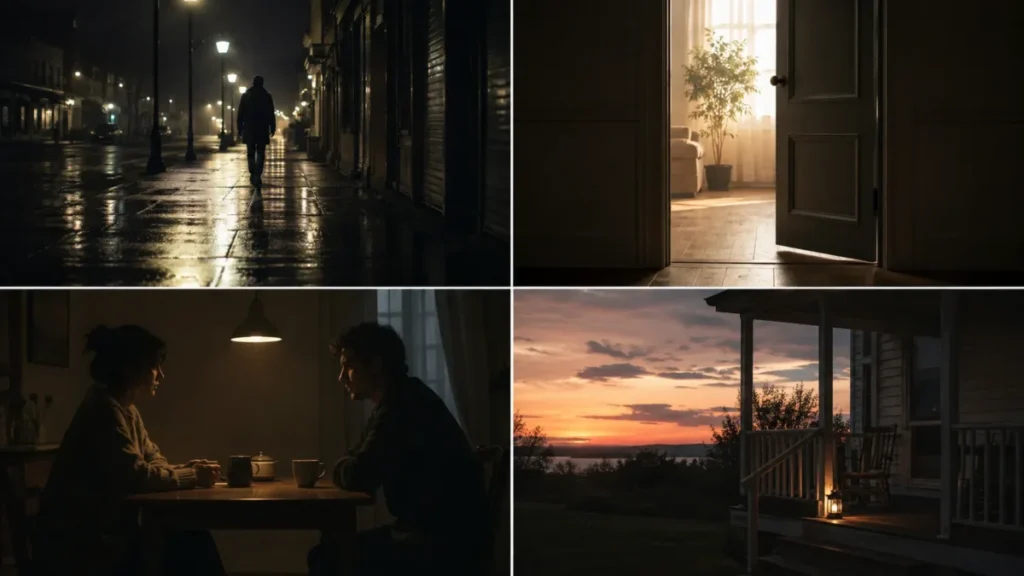
1. Rain-Slick Street Follow. Medium-wide tracking shot following [subject] along a wet downtown street at night. The camera tracks alongside at walking pace while pedestrians pass naturally behind. Storefront light ripples across the pavement. Realistic cinematic style, restrained contrast.
2. Doorway Reveal. Medium shot from a dim hallway as the camera pushes slowly through an open doorway into a brighter room. A seated figure looks up as the frame arrives. Dust drifts in the light from the window. Naturalistic film look.
3. Two-Hander Silence. Locked static two-shot of two people seated across a small table, neither speaking. One turns a coffee cup slowly while the other holds still and looks away. Late afternoon window light from frame left. Quiet drama style.
4. Morning Kitchen Beat. Handheld medium shot of [subject] pouring coffee at a kitchen counter in early morning. The camera breathes slightly with the operator. Steam rises and a curtain moves in a draft. Observational documentary style.
5. Porch at Last Light. Locked wide shot of a wooden porch as the sun drops below the tree line. A figure rocks slowly in a chair while long grass moves at the edge of frame. Warm low-angle sunlight, deep shadows. Filmic grain.
6. Corridor Walk From Behind. Smooth tracking shot following [subject] from behind down a long hospital corridor. The camera holds a fixed distance as overhead lights pass in rhythm. Cool clinical color, shallow focus on the far end.
7. Desk Confession Push. Medium shot of a person seated at a cluttered desk that slowly becomes a close-up as the camera pushes in. Their expression tightens by degrees and their hands stay folded. Single desk lamp as the only light source. Restrained cinematic style.
8. Passenger Window Drift. Interior car shot framed on the passenger window as [location] slides past outside. The camera is fixed to the car and does not move relative to the interior. Reflections cross the glass. Overcast daylight, muted color.
9. Empty Theatre Ascent. Wide shot from an empty stage as the camera cranes slowly upward, revealing rows of vacant chairs extending back into darkness. Dust hangs in a single work light. Desaturated, high-contrast film look.
10. Interrogation Stillness. Locked-off shot across a metal table with one figure seated under a hanging lamp. The subject shifts weight once and settles. Nothing else in the frame moves. Hard overhead light, heavy shadow, cold color.
11. Market Crowd Weave. Handheld camera moves forward through a busy outdoor market, passing stalls and shoppers on both sides. Fabric awnings move in the wind above. Bright midday light with strong color separation. Travel documentary style.
12. Rooftop at Dusk. Static wide shot of a figure standing at the edge of a rooftop, city behind them, coat and hair moving in a steady wind. The subject does not turn. Blue-hour light with warm windows behind. Cinematic realism.
13. Elevator Close. Locked frame on a pair of elevator doors as they slide shut on a waiting figure inside. The subject raises their eyes to the camera just before the doors meet. Flat corridor lighting, neutral color.
14. Library Over-the-Shoulder. Over-the-shoulder shot of [subject] turning a page at a long reading table. Distant figures move quietly in the background rows. Warm lamp pools against cool ambient light. Soft, quiet realism.
15. Rear-View Departure. Camera fixed to the back of a moving vehicle, facing rearward, as a figure on the road grows smaller. Dust rises in the vehicle’s wake. Late afternoon backlight, long shadows. Grainy film treatment.
Customize this family by changing the beat, not the scenery. If you swap the street for a beach and keep everything else, you have made a new location, not a new shot.
12 Camera Movement and Framing Prompts
Camera vocabulary is only useful when you know what each move is for. Each prompt below is labeled with its purpose so you can pick by outcome instead of memorizing terms.
| Move | Use it to | Feels like |
|---|---|---|
| Slow dolly in | Intensify | Attention narrowing |
| Dolly out | Reveal context | Isolation, scale |
| Pan | Establish | Surveying a space |
| Crane up | Show scale | Detachment |
| Orbit | Examine | Inspection |
| Handheld follow | Immerse | Presence, urgency |
| Locked-off | Hold tension | Observation |
| Rack focus | Redirect attention | A thought landing |
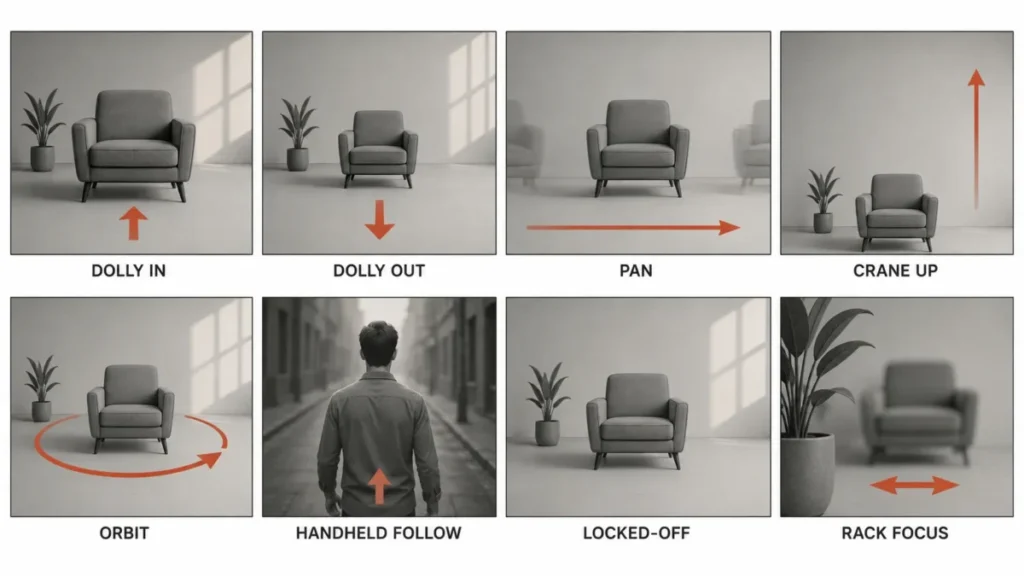
16. Slow Dolly In (intensify). Medium shot of [subject] as the camera dollies forward at a slow, even pace until the frame reaches a close-up. The subject holds position and does not react to the camera. Even soft light, shallow depth of field.
17. Dolly Out Reveal (context). Close-up of [subject] as the camera pulls steadily backward, revealing the full room and how much empty space surrounds them. The subject stays fixed in the center of frame. Cool ambient light.
18. Left-to-Right Pan (establish). The camera pans smoothly from left to right across [location] at a constant speed, holding a level horizon. No subject leads the move, because the space itself is the subject. Natural daylight.
19. Whip Pan Handoff (energy). Fast whip pan from a close-up of a hand releasing an object to the point where the object lands. Motion blur streaks the middle of the move. Bright, saturated color, high-energy commercial style.
20. Crane Ascent (scale). The camera starts low on a single figure and rises steadily until the figure is small against [landmark or terrain]. The subject remains still throughout. Soft morning light, wide-angle framing.
21. Low-Angle Push (dominance). Low-angle medium shot looking up at [subject] as the camera pushes slowly toward them. The subject looks down toward the lens once. Hard key light from above, strong shadow under the brow.
22. High-Angle Descent (vulnerability). High-angle shot looking down at a figure in an open space as the camera lowers slowly toward eye level. The figure stays seated and small in frame. Flat overcast light, cool tones.
23. Orbit Around Subject (examine). The camera arcs in a smooth semicircle around [subject] at a fixed radius while the subject holds a single pose. Background elements shift parallax behind them. Studio lighting, neutral backdrop.
24. Handheld Follow (immerse). Handheld camera follows just behind [subject] as they move through a narrow space. The frame breathes with each step and corrects slightly at turns. Available light only, naturalistic color.
25. Locked-Off Static (hold). The camera remains completely still on a wide frame while [subject] enters from the left, crosses the frame, and exits right. Nothing else in the composition moves. Even daylight.
26. Rack Focus Shift (redirect). Static frame with a foreground object sharp and a background figure soft. Focus shifts to the background figure as they begin to move. Everything else holds position. Shallow depth of field, warm interior light.
27. Dutch Tilt Drift (unease). The camera holds a slightly tilted horizon and drifts sideways at a slow, uneven pace across [location]. A figure stands motionless off-center. Green-tinted fluorescent light, low contrast.
One move per clip. Combining a dolly, an orbit, and a tilt in one short generation is the camera equivalent of asking for three scenes.
12 Lighting, Color, and Atmosphere Prompts
A light source with a direction beats a mood word every time. “Moody” is not a lighting instruction.
“Single practical lamp from frame left” is one.
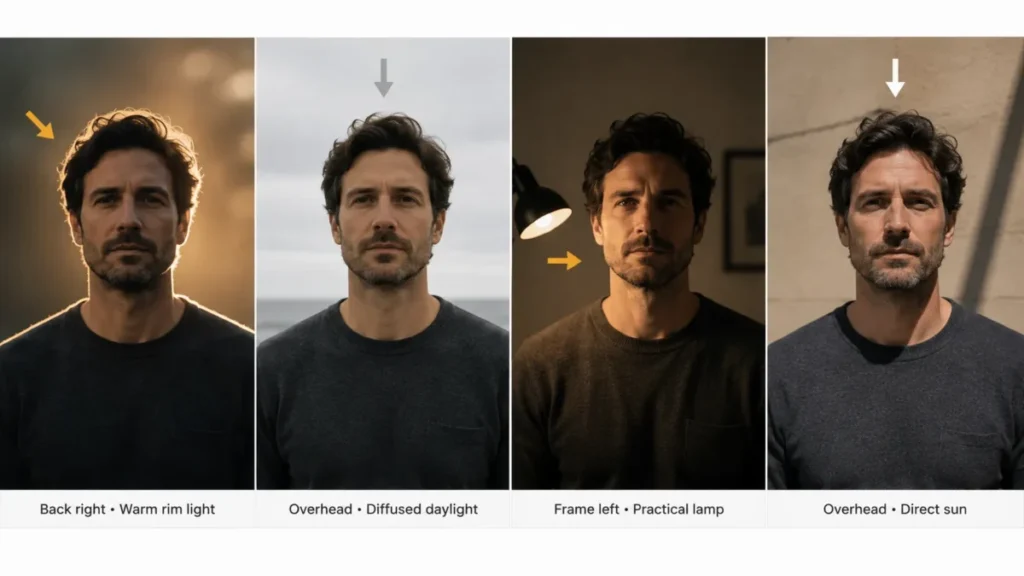
28. Golden Hour Rim Light. Medium shot of [subject] standing with the low sun directly behind them, edges of hair and shoulders catching a warm rim. They turn their head slowly toward the light. Dust and pollen drift through the beam.
29. Overcast Soft Diffusion. Wide shot under a flat grey sky with no visible shadows. [subject] walks slowly across the frame while light rain freckles the surface behind them. Muted, low-contrast color grade.
30. Single Practical Lamp. Night interior lit only by one table lamp at frame left. A figure leans into the pool of light to read, leaving the rest of the room in near-darkness. The camera remains locked. Warm tungsten color.
31. Neon on Wet Ground. Low-angle shot of a reflective wet street with saturated pink and cyan signage above. A figure walks through the reflections, breaking them into ripples. The camera holds still. Night, high color saturation.
32. Window Shaft With Dust. A hard shaft of daylight cuts diagonally across a dim interior. Dust turns slowly inside the beam while a seated figure stays just outside it. Locked camera, high contrast, warm-to-cool falloff.
33. Firelight Flicker. Close-up of a face lit only by an off-screen fire, warm light pulsing unevenly across the features. The subject blinks slowly and looks down. Deep black background, no fill light.
34. Candle-Only Close-Up. Extreme close-up of hands lit by a single candle flame just out of frame. The flame moves, and the shadow edges shift with it. Camera locked, very shallow depth of field.
35. Fog Backlight Silhouette. Wide shot of a figure walking toward the camera through heavy fog, backlit so they read as a silhouette with a glowing outline. The fog rolls slowly across the frame. Cold blue-grey palette.
36. Office Fluorescent Flatness. Static medium-wide of an open floor office under even overhead fluorescents. One person types while a chair rolls slightly at the next desk. Flat, shadowless light, slightly green cast.
37. Moonlit Blue Cast. Exterior night wide shot lit by a cool blue key from high frame right, standing in for moonlight. Long grass moves in a light wind. Deep shadows, minimal fill, desaturated color.
38. Storm Lightning Punch. Wide shot of [terrain] under heavy cloud, ambient light dim, punctuated twice by a hard lightning flash that briefly lifts the whole frame. Rain falls at a steady angle. Camera locked.
39. Hard Noon Contrast. Overhead midday sun creating short, hard shadows on a bright surface. [subject] crosses the frame and their shadow moves with them. High contrast, bleached highlights, warm color.
Change one light property at a time. Direction, hardness, color temperature, and intensity are four separate dials, and adjusting all four at once tells you nothing about which one fixed the shot.
Prompts for Marketers and Social Teams
Twenty prompts split between commercial work, where the product must survive the generation unchanged, and short-form social, where the frame shape changes the composition and not just the export setting.
10 Product and Commercial Prompts
Commercial prompts fail differently from creative ones. The shot can be beautiful and still be unusable because the logo warped or the bottle changed shape.
Every prompt in this family separates what must stay fixed from what is allowed to move. Copy the immutability line with the prompt.
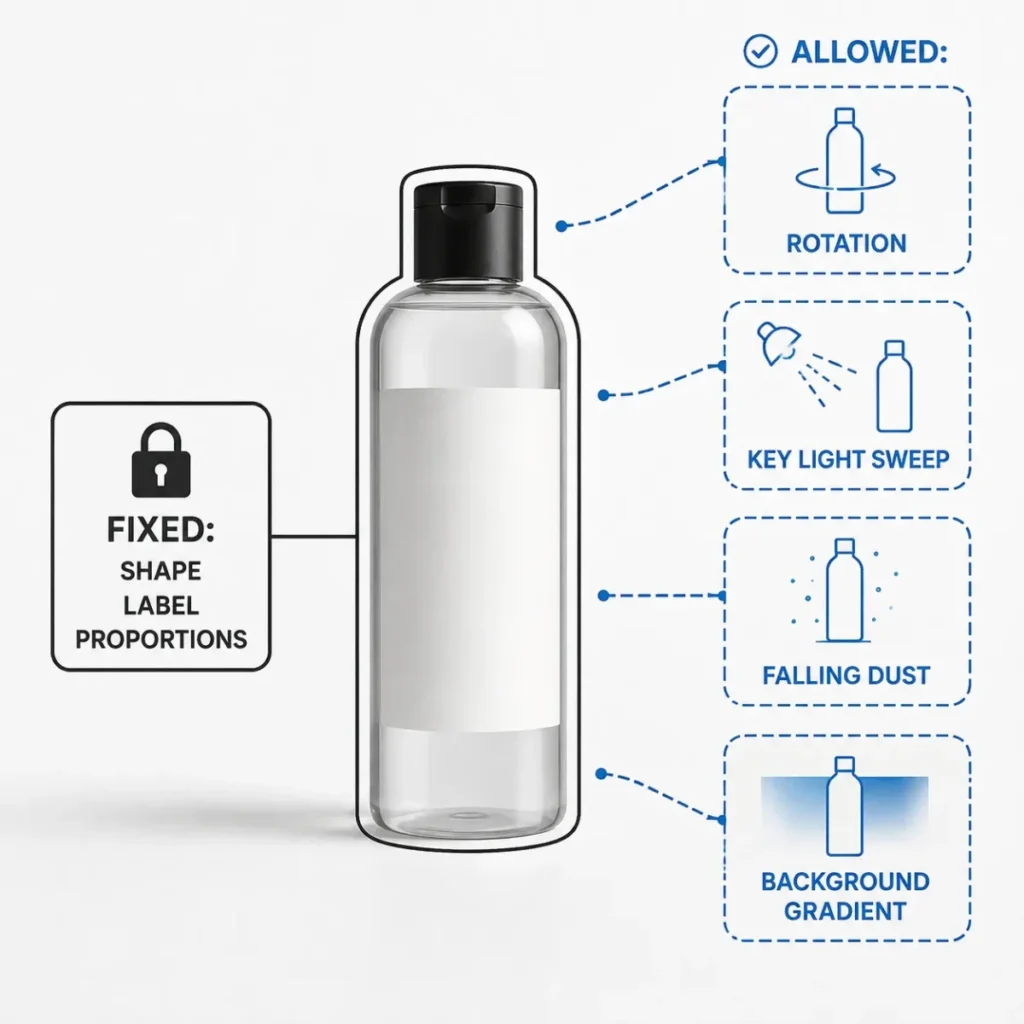
40. Hero Turntable. [product] rotates slowly on a continuous studio backdrop while a soft key light sweeps across its surface. The product shape, label, and proportions stay exactly as shown, and only the rotation and the light move. Locked camera, high-key commercial style.
41. Liquid Pour. Slow-motion pour of [liquid] into a clear glass, the stream twisting as it falls and the surface rising. The glass and liquid color stay constant. Backlit against a dark background, macro framing, camera locked.
42. Overhead Unboxing. Overhead shot of two hands lifting the lid from [product] packaging and setting it aside. Only the hands and the lid move, and the box position holds. Soft diffused daylight, neutral surface, no faces in frame.
43. Product Drop. [product] falls into frame and settles onto a matte surface with a short bounce, dust puffing outward on impact. Product geometry and label stay unchanged through the motion. Locked camera, high frame rate look.
44. Texture Macro Sweep. Extreme macro shot travelling slowly across the surface of [product], revealing grain, stitching, or finish. The surface itself is static, and only the camera moves. Raking side light to exaggerate texture.
45. In-Use Lifestyle. Medium shot of a person using [product] in a real setting, performing one complete natural action with it. The product stays visually identical to the reference and remains fully in frame. Window light, documentary realism.
46. Ingredient Float. [product] holds still at center frame while its component ingredients drift slowly inward around it and settle into position. The product does not rotate or change scale. Clean gradient background, soft studio light.
47. Surface Wipe Reveal. A cloth wipes across a dirty surface in one continuous stroke, leaving a clean band behind. The camera holds a locked overhead frame. Even light, no cuts, one pass only.
48. Label Focus Pull. Static close-up of [product] with the foreground soft and the label out of focus. Focus racks smoothly onto the label until the text is sharp. Nothing in the frame moves except the focus.
49. Studio Sweep With Moving Light. [product] stands still on a curved studio sweep while a hard light source travels from left to right behind the camera, moving the specular highlight across the product. The product itself is motionless.
The immutability line is the whole trick. State what must not change in positive terms, such as “the label stays exactly as shown”, rather than issuing a bare instruction not to alter it.
10 Social and Vertical Short-Form Prompts
A vertical clip is not a wide clip cropped. Adobe’s Firefly tutorial recommends widescreen 16:9 for horizontal destinations like YouTube.
The reverse case matters just as much. A 9:16 frame has room above and below the subject and almost none beside them.
Vertical framing changes three things. Subjects sit closer to the lens, background context shrinks, and the top and bottom thirds have to stay clear for captions and platform chrome.
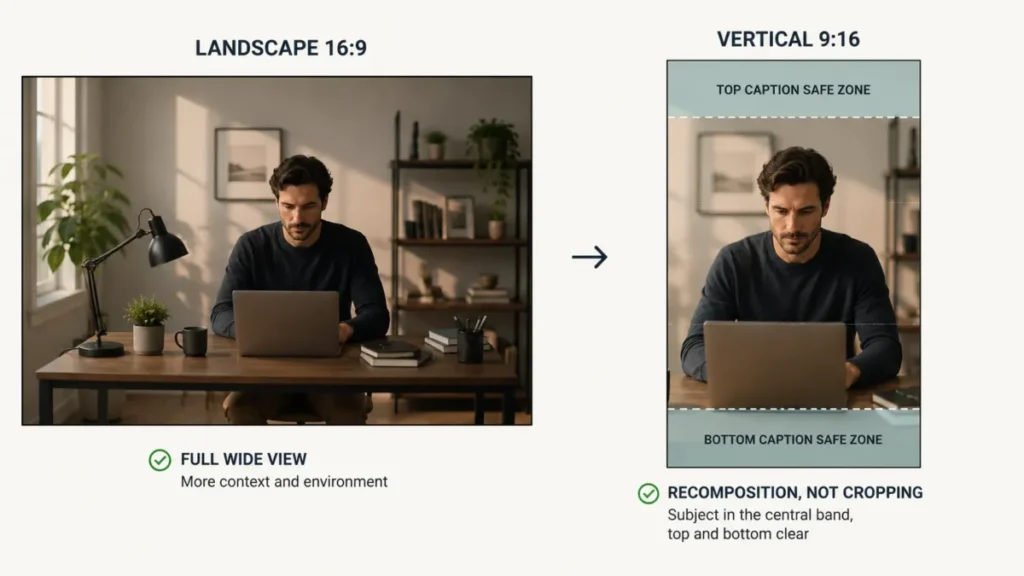
50. Vertical Hook Frame. Vertical 9:16 medium close-up of [subject] facing the lens directly, beginning to speak, filling the middle third of the frame. Head and shoulders centered with clear space above and below. Bright even front light.
51. Vertical Prep Sequence. Vertical 9:16 shot of hands arranging items in sequence on a small surface, one item placed per beat. The camera stays locked overhead. Clean bright light, high color separation.
52. Vertical Overhead Demo. Vertical 9:16 top-down shot of [product] on a plain surface with two hands entering from the bottom of frame to demonstrate one action. The product stays centered and unchanged. Soft shadowless light.
53. Vertical Walk-and-Talk. Vertical 9:16 shot of [subject] walking toward the camera along a path, the camera retreating at matched pace to hold the framing. Background compresses behind them. Natural daylight, handheld feel.
54. Vertical Caption-Safe Composition. Vertical 9:16 wide shot with the subject placed in the central band and the top and bottom fifths of the frame left visually quiet. The subject performs one small gesture. Even ambient light.
55. Vertical Reveal Turn. Vertical 9:16 shot of a figure standing with their back to the camera who turns once to face the lens, holding the final position. Nothing else moves. Single soft key from front left.
56. Vertical Two-Beat. Vertical 9:16 medium shot in which [subject] performs a small action, pauses, then reacts to it. Only those two beats occur. Locked camera, flat bright light.
57. Vertical Pet Reaction. Vertical 9:16 close-up of a dog lying on a rug who lifts its head sharply toward an off-screen sound, ears rising. Camera locked at floor level. Warm window light.
58. Vertical Top-Down Cook. Vertical 9:16 overhead shot of a pan on a stove as ingredients are added from the top of frame and begin to sizzle. Steam rises through the frame. Locked camera, warm kitchen light.
59. Same Idea, Two Formats. Landscape 16:9 version: wide shot of [subject] seated at a desk with the full room visible around them and the desk lamp in frame right. Vertical 9:16 version: medium close-up of the same subject, room reduced to a soft background band, lamp glow implied rather than shown.
Prompt 59 is the pattern to copy. Changing the ratio token alone gives you a cropped wide shot. Changing the composition description gives you a vertical shot.
Prompts for Designers Animating Existing Assets
Ten image-to-video prompts. Each one is deliberately short, because the reference image has already fixed the subject, the composition, the lighting, and the style.
10 Image-to-Video Prompts
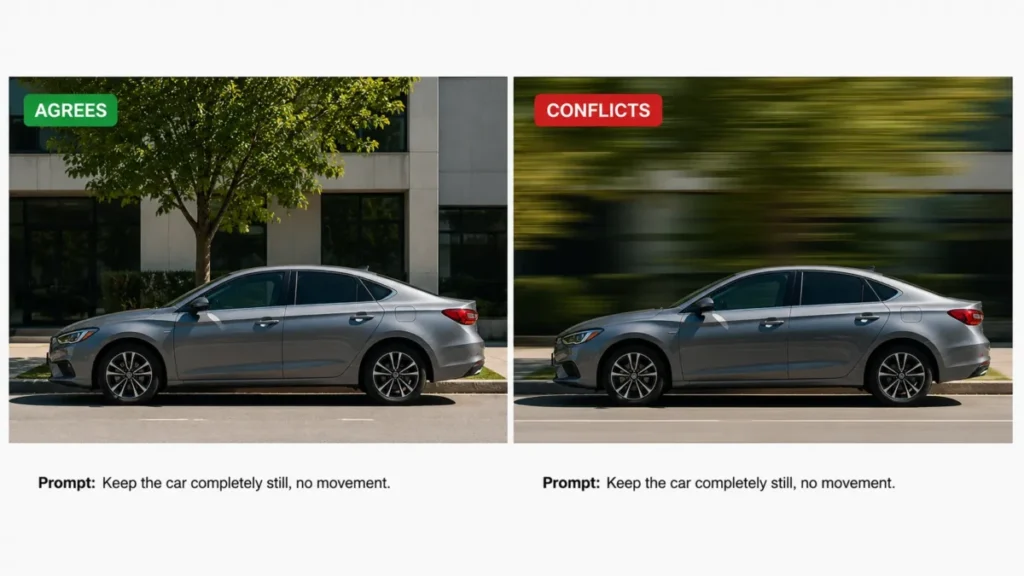
Before you rewrite a prompt for the fifth time, check the image. Runway documents that visual cues already present in a still, such as motion blur or a mid-action pose, can contradict the motion you are asking for and will need more iteration to resolve.
That is a diagnostic worth running first. A parked car photographed with a blurred background is asking to move, and no amount of prompt rewording will settle it down cheaply.
60. Portrait Micro-Motion. The subject blinks twice, breathes, and shifts weight slightly. The camera remains locked. Hair moves only where a light draft would move it.
61. Environmental Drift. The locked-off camera remains perfectly still while background elements move: leaves, steam, a passing figure at the far edge. The foreground subject holds position.
62. Slow Parallax Push. The camera pushes forward slowly into the scene, foreground elements passing faster than the background. Composition and framing stay centered on the original subject.
63. Fabric and Hair. A steady side wind moves fabric and hair in one consistent direction. The subject’s pose, position, and expression stay as they are.
64. Water Activation. The water surface begins to move with small ripples spreading outward, and reflections break and reform. Everything above the waterline stays still.
65. Sky Drift. Clouds move slowly across the sky from left to right while the light on the ground shifts with them. The horizon line and all structures stay fixed.
66. Product Rotation. [product] rotates slowly clockwise on its axis. The camera remains locked and the background, lighting, and product finish stay exactly as shown.
67. Crowd Activation. The people in the scene begin to move naturally at walking pace, some crossing the frame, some pausing. The camera stays locked and the architecture stays fixed.
68. Painting Comes Alive. Elements inside the painted scene begin to move at their own pace while the brushwork, palette, and canvas texture stay intact. The camera pushes in very slightly.
69. Sequential Timestamp Motion. [00:01] The subject turns their head toward the window. [00:03] They lift a hand to the glass. [00:05] They hold still and the camera settles.
Prompt 69 uses the timestamp pattern Runway documents for sequencing. Use it when order matters and plain prose keeps producing the beats in the wrong sequence.
Prompts for Creators Working With People and Places
Twenty-six prompts covering performance, outdoor scenery, and close-range food and texture work. Character continuity gets its own reusable block at the top, because it is the field most often rewritten and least often kept identical.
10 Character, People, and Performance Prompts
Keeping a character consistent across separate clips is a copy-paste discipline problem. Write the description once, then never retype it.
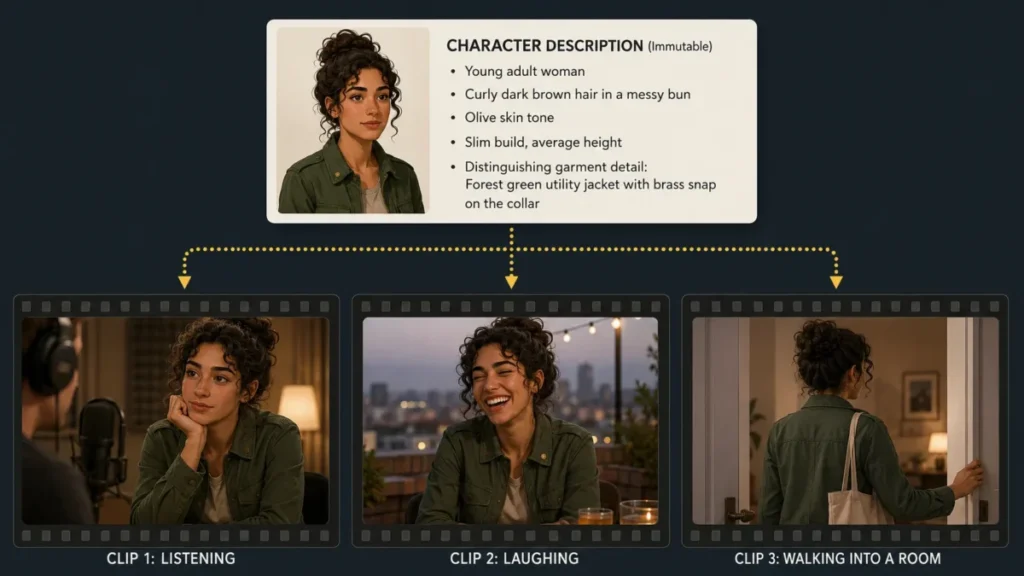
70. Immutable Character Block. [name], a [age]-year-old with [hair length, color and style], [build], wearing [garment color, cut and one distinguishing detail], with [one fixed feature such as a scar, glasses or jewelry].
Paste that block unchanged into every prompt in the sequence, then change only the action, setting, and camera fields underneath it. Google’s Veo guidance supports the same goal on the input side, where reference images maintain a consistent look across multiple shots.
Keep the cast small while you do it. Adobe states that more than four subjects can often confuse Firefly and recommends limiting the number of subjects, which is a Firefly-specific rule rather than a universal one.
71. Reaction Beat. Close-up of [character block] listening to someone off-screen. Their expression changes once, held rather than performed. The camera remains locked. Soft key from frame left.
72. Laugh Break. Medium shot of [character block] holding a serious expression that breaks into a genuine laugh, then settling. Shoulders move with the laugh. Warm natural light, handheld.
73. Hesitation Before Speaking. Close-up of [character block] opening their mouth to speak, stopping, and looking away instead. No words are spoken. Shallow focus, cool interior light.
74. Craftsperson at Work. Medium shot of [character block] performing one complete step of a manual craft with both hands, eyes down on the work. The camera holds a fixed frame. Practical workshop light.
75. Pre-Start Focus. Close-up of an athlete at the start line, breathing steadily, eyes fixed forward, body still. Only the breath and a slight muscle shift move. Backlit, high contrast.
76. Discovery Moment. Medium shot of a child crouching to look closely at something small on the ground, then leaning back with a change of expression. The camera stays at their eye level. Soft outdoor light.
77. Storyteller Close-Up. Close-up of an older person mid-story, hands entering frame occasionally to gesture. The camera is locked. Warm lamp light from frame right, dark surroundings.
78. Positional Two-Subject Motion. The subject on the left steps forward and turns to face the camera. The subject on the right remains still and watches. Locked wide frame, even daylight.
79. Entrance Performance. Wide shot of an empty room as [character block] enters through a door at the back, crosses to the center, and stops. Nothing else in the frame moves. Cool ambient light.
Prompt 78 uses positional identifiers on purpose. Runway’s guidance recommends distinguishing multiple subjects by position or a simple identifier rather than by long appearance descriptions.
8 Nature, Travel, and Outdoor Scenery Prompts
Outdoor prompts live or die on scene motion. Terrain does not move, but wind, water, cloud, and light do.
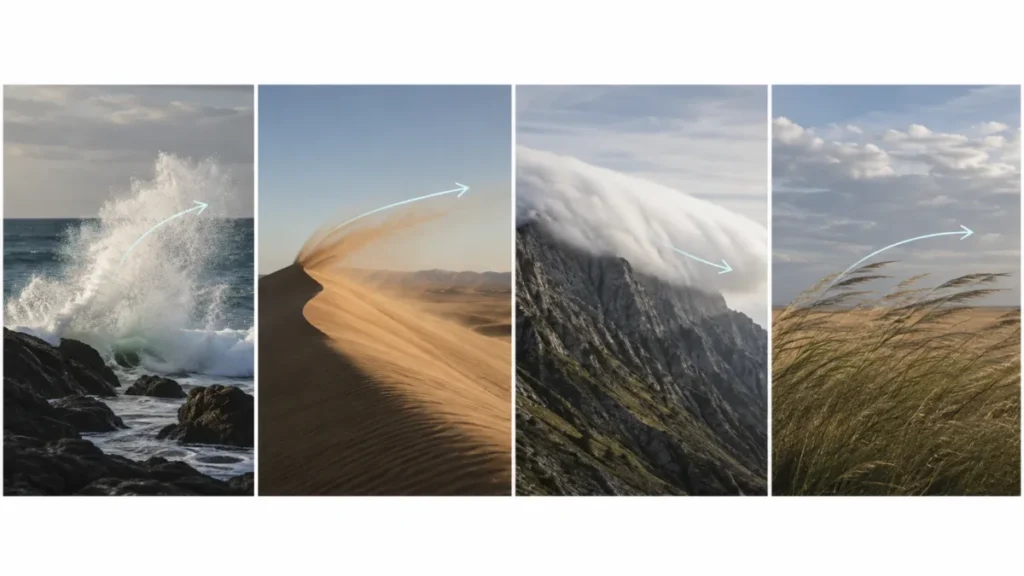
80. Wave Break. Wide shot of a rocky shoreline as a single large wave rises, breaks, and drains back through the rocks. The camera holds a locked frame. Overcast light, cool desaturated color.
81. Canopy Light Shift. Upward-facing shot through a forest canopy as branches move in the wind and shafts of sunlight swing across the lens. The camera stays fixed on its back. Warm backlight, deep green.
82. Dune Wind. Wide shot of a sand ridge with a steady wind lifting a fine sheet of sand off the crest. Nothing else moves. Low sun from frame left, long shadows across the slope.
83. Ridge Cloud Flow. Time-compressed wide shot of a mountain ridge as cloud pours over the crest and spills down the far side. The camera remains locked. Cold blue shadow, warm sunlit rock.
84. Rapid Close. Low, close shot just above a river rapid as white water surges past the lens. Spray crosses the frame. The camera holds position. Flat daylight, high shutter look.
85. Leaf Fall. Medium shot of a single tree in autumn as a gust pulls a scatter of leaves loose and carries them across the frame. The trunk stays fixed. Warm side light, shallow focus.
86. Skyline Dusk Compression. Time-compressed wide shot of a city skyline as daylight fades, building lights switch on in irregular sequence, and traffic streaks below. Locked camera, fixed exposure.
87. Grass Wave. Wide shot of a field of tall grass as a wind gust travels across it in a visible wave from left to right. No subject enters the frame. Late golden light, warm palette.
Time compression is a separate control from camera motion. Combining a timelapse with a moving camera in a short clip is two demanding instructions competing for the same seconds.
8 Food, Macro, and ASMR Prompts
Food prompts are texture prompts. State the physical change, then the sound if the model supports audio.
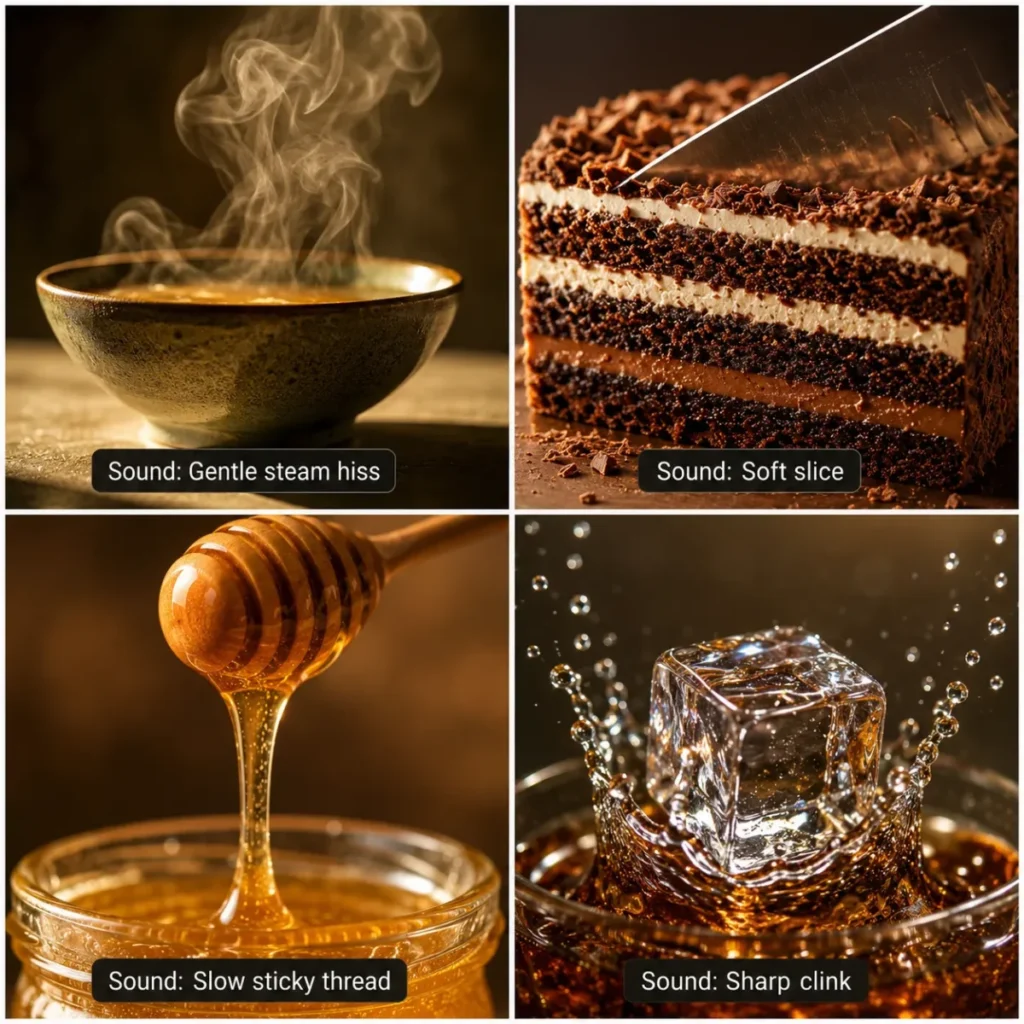
88. Steam Rise. Close-up of a bowl of hot broth as steam rises steadily and curls in the light. The bowl and surface stay still. Backlit against a dark background, warm color.
89. Layered Slice. A knife enters a layered cake from the top and travels down in one smooth cut, the layers separating cleanly. Locked overhead-angled frame. Soft directional light. SFX: a soft compression sound as the blade passes through.
90. Pan Sear. Close-up of a cut of meat placed into a hot pan, the surface reacting immediately with visible steam. The camera is locked at pan level. SFX: a sharp sizzle that settles into a steady crackle.
91. Honey Drip. Macro shot of honey falling from a dipper in one continuous thread and pooling below. The pour is slow and unbroken. Backlit, amber color, very shallow depth of field.
92. Crema Pour. Close-up of espresso pouring into a white cup, the crema forming and swirling on the surface. The cup stays fixed. Warm overhead light, dark background.
93. Bite Crunch. Extreme close-up of a hand bringing a crisp food to frame and one bite breaking through it. Crumbs fall. SFX: a single sharp crunch followed by quiet.
94. Dough Stretch. Close-up of two hands stretching dough slowly outward until it thins and light shows through it. The hands move, and the surface below does not. Soft window light, neutral color.
95. Ice Drop. Macro shot of a single ice cube dropping into a glass of clear liquid, displacing it upward in a crown. The glass stays fixed. Backlit, high-speed look. SFX: a sharp clink then a settling fizz.
Audio direction goes in its own sentence. Folding “sizzling” into the visual description gives the model a texture adjective. A separate SFX line gives it a sound instruction.
Prompts for Animation, Genre, and Effects Work
Twenty-two prompts for output that is not meant to look like live footage. Style here is a real instruction, not a decorative adjective, because it changes how motion itself is rendered.
8 Animation and Stylized Video Prompts
Each brief names the animation technique first, because the technique decides how the motion itself is drawn.
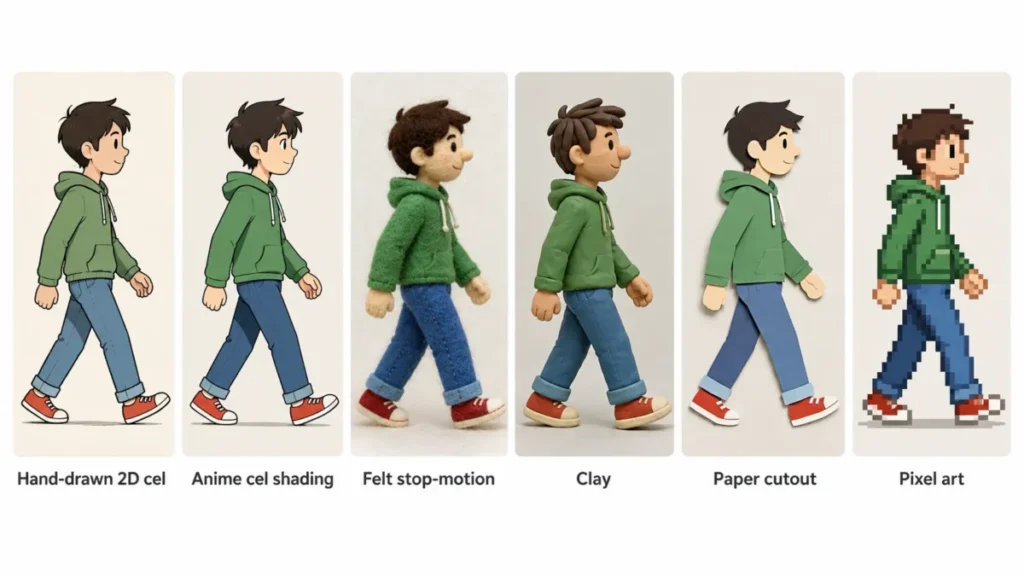
96. Cel Animation Walk. Hand-drawn 2D cel animation of a character walking across a flat painted background, held cels with visible line work and limited in-between frames. The background scrolls while the character stays centered.
97. Anime Wind Beat. Anime style medium shot of a character standing on a hill as a strong wind moves hair and clothing in long, exaggerated strokes. The character holds their gaze forward. Saturated sky, hard cel shading.
98. Stop-Motion Felt. Stop-motion animation of a felt character turning its head and raising one arm, with visible frame-to-frame stepping and slight material jitter. Handmade set, practical lighting.
99. Claymation Squash. Claymation character landing from a jump, squashing on impact and rebounding into a stretch. Fingerprints and tool marks stay visible in the clay. Warm studio light, shallow set depth.
100. Paper Cutout Slide. Layered paper cutout animation in which foreground, midground, and background planes slide horizontally at different speeds. Edges stay flat and hard. Even soft light, visible paper texture.
101. Pixel Side-Scroll. Pixel art side-scrolling scene with a character running right at a constant pace while the tiled background loops behind them. Limited palette, hard pixel edges, no anti-aliasing.
102. Watercolor Bleed. Watercolor-style scene in which pigment spreads slowly outward across wet paper, forming the shapes of [subject] as it travels. Paper grain stays visible throughout.
103. Toy Render Bounce. Glossy 3D toy-style render of a small character bouncing once on a plain colored floor and settling. Soft global illumination, rounded shapes, high specular finish.
8 Sci-Fi, Fantasy, and Surreal Prompts
An invented world still needs one concrete physical event. These eight keep the imagined element and give it something specific to do.
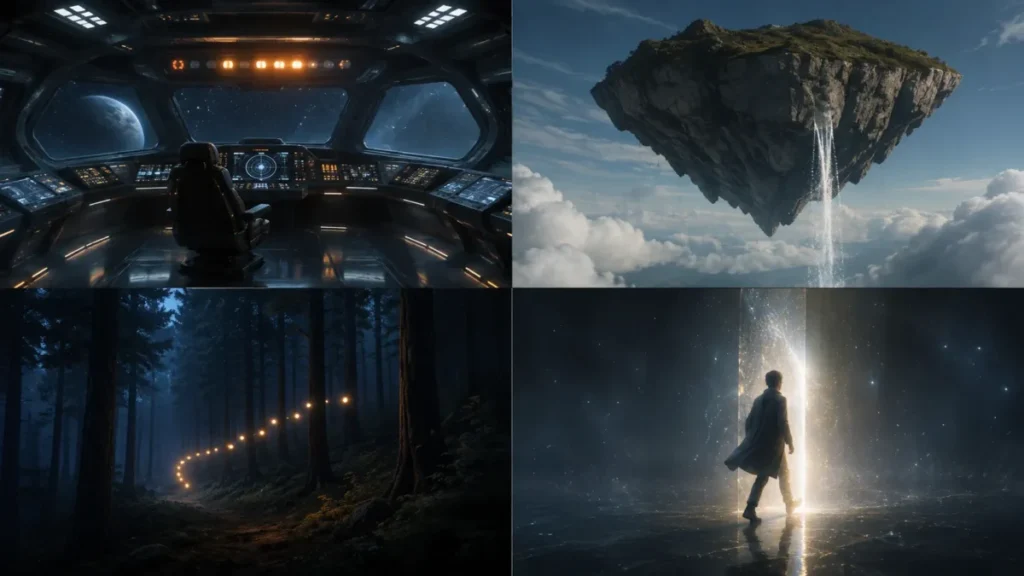
104. Bridge Ambient. Wide shot of a starship bridge with a crew member seated at a console, status lights cycling slowly around them. The camera is locked. Cool blue key with warm console spill. Ambient noise: a low steady hum.
105. Orbital Window. Static shot through a curved window as a planet rotates slowly below, terminator line creeping across its surface. Nothing in the interior moves. Hard white key from the planet side.
106. Spirit Light Trail. A trail of small floating lights moves slowly between the trees of a dark forest, drifting rather than flying. The camera pans gently to follow. Cool ambient light with warm point sources.
107. Floating Island Drift. Wide shot of a rock island suspended in open sky, slowly rotating, with water falling from its underside into cloud. The camera holds a fixed frame. Soft high-altitude light.
108. Portal Step. Medium shot of a figure stepping through a shimmering vertical opening and disappearing from frame. The opening distorts at the edges as they pass. The camera remains locked.
109. Underwater City Glide. The camera glides slowly forward between submerged structures as light shafts cut down through the water. Particles drift through the beams. Blue-green palette, low contrast.
110. Scale Reveal. Close-up of a textured surface that the camera pulls back from, revealing it to be part of a vastly larger creature or structure. The subject stays motionless throughout the pull.
111. Room Logic Shift. Static wide shot of an ordinary room in which one element changes state without a cut: a door becomes a window, a chair is somewhere else. The camera does not move. Flat even light.
6 Transition, Transformation, and VFX Prompts
A transition is the one case where a single prompt is allowed two states. These six move between them without a cut.
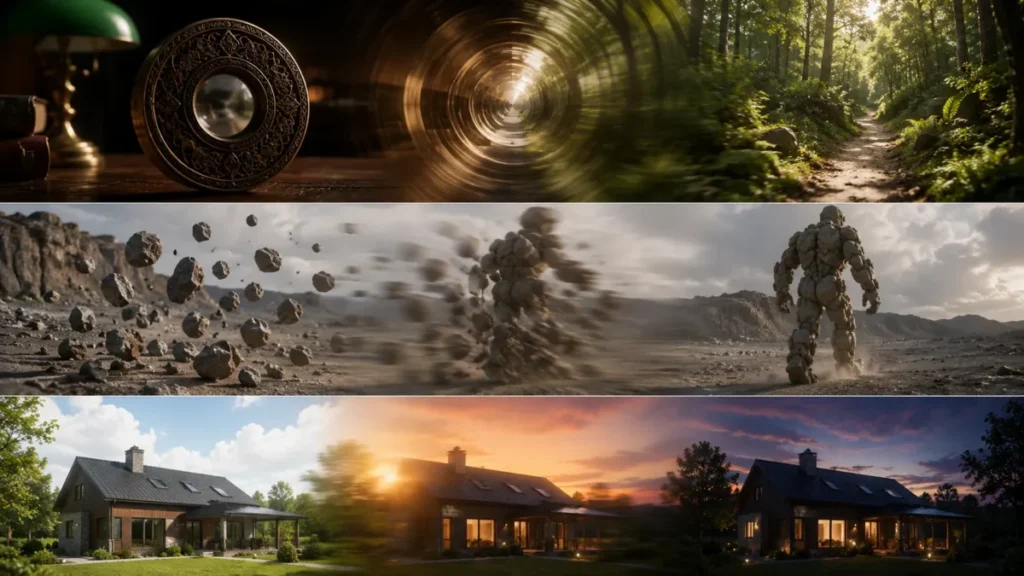
112. Match-Cut Through Object. The camera pushes into a circular object until the frame is filled by it, and emerges on the other side into [second location]. One continuous move, no cut.
113. Whip-Pan Location Change. A fast whip pan blurs the frame completely, and the motion resolves into a different setting at the same camera height and angle. One continuous move.
114. Material Transformation. A pile of loose rocks draws together and forms a walking humanoid figure made of the same rough stone. The figure then takes one step forward. Locked camera, hard side light.
115. Time-of-Day Morph. A single fixed exterior frame transitions continuously from midday to dusk, shadows lengthening and color warming without a cut. Nothing in the frame moves position.
116. First-and-Last-Frame Bridge. Generate a continuous move from the supplied start frame to the supplied end frame, holding the same subject, lighting, and lens throughout. No cut, no additional elements.
117. Particle Dissolve Exit. A standing figure breaks apart into fine particles from the feet upward and disperses on a light wind. The camera remains locked and the background stays intact.
Prompt 116 depends on the model supporting keyframes. Google documents a first and last frame transition mode for Veo, and Adobe’s Firefly tutorial covers start and end reference frames.
Check that your own tool exposes the control before writing a prompt around it.
Prompts for Sound-Led Scenes
Six prompts where audio is the point. Google’s Veo guidance treats sound as a directable layer with three separate handles: dialogue in quotation marks, sound effects introduced with an SFX label, and ambient noise defined as its own background.
Keep the visual sentence and the audio sentence apart. Merging them turns a sound instruction into a mood adjective.
6 Dialogue, Ambience, and Sound Prompts
The visual sentence and the audio sentence stay apart in all six.
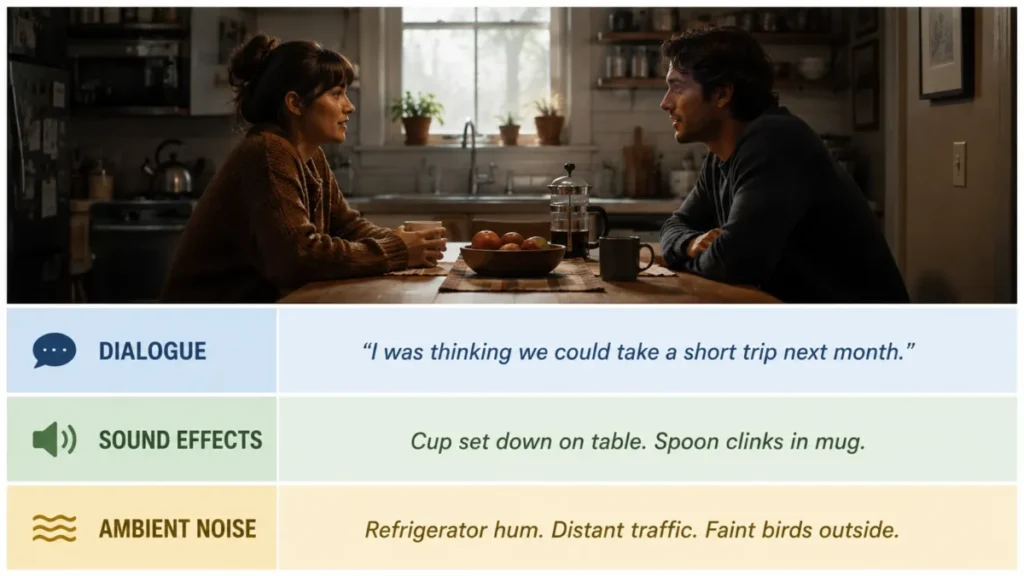
118. Two-Line Exchange. Medium two-shot at a kitchen table. A woman says, “You told me you’d be back by six.” A man replies, “I know.” Neither leaves the table. Warm evening interior light.
119. Room Tone Under Voice. Close-up of a person speaking quietly to someone off-screen. Ambient noise: the low hum of a refrigerator and distant traffic through a closed window. No music.
120. SFX-Led Action Beat. Wide shot of a heavy door at the end of a corridor. SFX: a bolt sliding, then a single heavy metal impact as the door swings inward. The camera holds still throughout.
121. Ambience Only. Wide exterior shot of an empty market square at dawn. Ambient noise: birds, a distant shutter rolling up, footsteps crossing stone. No dialogue and no music.
122. Crowd Murmur Layer. Medium shot inside a busy cafe with the subject seated at a window. Ambient noise: overlapping conversation, cups on saucers, and an espresso machine at intervals. No individual voice is intelligible.
123. Timed Music Cue. Static wide shot of a curtain that opens slowly to reveal the stage behind it. A gentle orchestral cue begins as the curtain starts to move and swells as it clears the frame.
Prompt 118 uses quotation marks deliberately. Google’s Veo guidance formats specific speech that way, so it is the safest default in a Veo prompt. In a model with no audio generation, the same line will be treated as visual context or ignored.
The counts in that chart are the section headings above, so the bars restate the article rather than adding data to it. Cinematic, camera, and lighting work carry the largest share because those three families are where the field-by-field structure pays off most.
Score Any Prompt Before You Spend a Generation
This matrix scores the prompt, not the output. It exists because every generation costs time and money, and most weak prompts are visible as weak before you press generate.
Score each criterion 1 to 5, multiply by the weight, and add the results. The weights reflect what the official prompting guidance from Google, Runway, and Adobe treats as load-bearing: a stated action, a stated camera behavior, and a controlled amount of instruction.
| Criterion | Weight | What a 5 looks like |
|---|---|---|
| One clear primary action | 20% | A single physical event, stated in a verb |
| Camera behavior | 20% | A named move, or an explicit locked camera |
| Motion split | 15% | Subject, scene, and camera motion are separately stated |
| Light source and direction | 15% | A named source with a direction, not a mood word |
| Style named | 10% | A treatment that changes how motion renders |
| Format fit | 10% | Composition written for the target aspect ratio |
| Positive constraint phrasing | 10% | Constraints written as what should happen |
Worked example. A prompt scoring 5 on action, 4 on camera, 3 on motion split, 5 on light, 4 on style, 5 on format, and 5 on phrasing gives:
weighted total = (5 x 0.20) + (4 x 0.20) + (3 x 0.15) + (5 x 0.15) + (4 x 0.10) + (5 x 0.10) + (5 x 0.10) = 4.40
Decision thresholds.
| Weighted total | Action |
|---|---|
| 4.2 and above | Generate now |
| 3.4 to 4.1 | Fix the highest-weighted criterion scoring below 4, then generate |
| Below 3.4 | Rebuild from the formula rather than patching |
Any criterion scoring 1 is a rejection on its own, whatever the total. A prompt with no stated action will produce a moving photograph no matter how well the other six fields are written.
The thresholds are deliberately unforgiving at the bottom. Two renders of a weak brief cost more than one careful rewrite, and the matrix exists to catch that before the render rather than after it.
A Vague Idea, Rebuilt Field by Field
Here is the same idea at three stages, which is the fastest way to see what the fields are actually doing.
Stage 1, the vague version. “Cinematic shot of a woman in a city, ultra detailed, beautiful lighting, film look.”
Nothing in that sentence says what moves. Style modifiers are stacked where a physical event should be, which is why prompts like this return a slow drift across a still-looking frame.
Stage 2, the structural rebuild. Fill the fields in order, one clause each.
| Field | Value |
|---|---|
| Shot type | Medium-wide |
| Subject | A woman in a dark coat |
| Subject action | Stops walking and looks up at a building |
| Setting | A narrow city street, early evening, light rain |
| Camera motion | Locked |
| Scene motion | Rain falls steadily, traffic passes behind |
| Lighting | Warm shopfront light from frame left, cool sky above |
| Style | Naturalistic film, restrained contrast |
Stage 3, the finished prompt.
Medium-wide shot of a woman in a dark coat who stops walking and looks up at a building on a narrow city street in early evening rain. The camera remains locked. Rain falls steadily and traffic passes behind her. Warm shopfront light from frame left against a cool sky. Naturalistic film look, restrained contrast.
Stage 3 is barely longer than stage 1. The difference is not length but the fact that every clause now controls something.
Which Models Read These Prompts Differently
Prompt guidance is not universal, and the three differences below are the ones that change what you actually type. Everything else in this library travels between models without edits.
| Rule | What the official guidance says | Practical effect |
|---|---|---|
| Constraint phrasing | Runway Gen-4 is built to read what should happen, not what should be avoided | Write “locked camera”, never “no camera movement” |
| Negative instructions | Google’s Veo guidance refines output by describing the excluded element as part of the scene | Fold the exclusion into the description rather than issuing a bare prohibition |
| Subject count | Adobe recommends limiting subjects in a Firefly prompt | Split a crowded scene into two clips rather than one busy prompt |
Runway’s official Gen-4 documentation states that the model interprets prompts describing what should happen rather than what should be avoided, and gives “Locked camera. The camera remains still.” as the correct form.
That phrasing is the safe cross-model default, which is why every constraint in this library is written positively.
Do not read that as a ban on negative prompting everywhere. Some models expose a separate field for it, and Google’s Veo guidance treats exclusion as a description task rather than a prohibition.
Check whether your tool has the field before assuming the syntax.
Capability differs too, and it decides which prompt families are even available to you. Google’s official Veo documentation describes Veo 3.1 generating at 720p or 1080p, in 16:9 or 9:16, in clips of 4, 6, or 8 seconds.
Runway’s Gen-4 documentation describes 5 and 10 second durations generated from an image and a text prompt. Those numbers set the ceiling on how much action one prompt can carry.
If you work mostly from reference images, the motion-first formula and the implied-motion check matter more than anything else here, and the Runway platform review covers where that workflow sits in a wider toolset.
One Freshness Note on Sora
Many prompt libraries still list Sora as a normal destination for copy-and-paste prompts. That is out of date.
OpenAI’s official help documentation states that the Sora web and app experiences were discontinued on April 26, 2026, and it schedules the Sora API for discontinuation on September 24, 2026.
Treat that as a signal about the whole page rather than one line. A library still routing readers to a product retired months earlier has not rechecked its other model claims either.
Fix a Bad AI Video Prompt
This is the section most prompt libraries skip. Match the symptom, change the one field named in the third column, and regenerate.
| Symptom | Likely cause | Field to change |
|---|---|---|
| The camera zooms or drifts when you wanted stillness | The constraint was phrased negatively or omitted | Camera motion: state “the camera remains locked” |
| Half the actions in the prompt never happen | Several beats competing inside one short clip | Primary action: cut to one, split the rest into new clips |
| The clip looks like a still photo with slight movement | No subject motion, only style modifiers | Subject action: state a physical verb |
| A face or product changes partway through | The identity description is being retyped and drifting | Character or product block: paste the identical block every time |
| The result cuts to an unrelated shot | The prompt implied a sequence the clip cannot hold | Sequence: reduce to one continuous shot, or use timestamps |
| Motion fights the reference image | The still already implies motion, such as blur or a mid-action pose | Source image: choose a still whose implied motion agrees |
| The frame is busy and nothing reads | Too many subjects or too much scene motion at once | Subject count and scene motion: reduce both |
| Vertical output looks like a cropped wide shot | Only the ratio token changed | Composition: rewrite framing for the vertical frame |
The diagram is the same mapping as the table, drawn as a flow. The rule it encodes is the important part: one symptom, one field, one regeneration.
Two of those rows come straight from documented behavior rather than folklore. Runway notes that implied motion in a source image can contradict a requested motion and require more iteration.
The same guide offers “The locked-off camera remains perfectly still” as the wording for suppressing unwanted camera movement.
Red Flags in a Prompt Before You Generate
Ten patterns that predict a wasted generation. Each one is fixable in under a minute.
- No verb attached to the subject. The prompt describes what something looks like and never says what it does.
- Style words doing the work of instructions. Terminology such as “cinematic” and “detailed” stacked in place of an action or a camera move.
- A negative constraint. Any phrasing built around what should not happen, in a model whose guidance asks for the opposite.
- Three or more beats in one clip. Runway’s guidance is explicit that stacking scene changes into a short generation produces unintended results.
- A reference image re-described in full. The single most reliable way to reduce motion in an image-to-video prompt.
- More than four named people. Firefly’s own guidance treats this as a confusion threshold.
- A conversational instruction. Requests addressed to the model rather than descriptions of the frame waste prompt space.
- Two camera moves in one sentence. A dolly and an orbit in the same clip usually resolve as neither.
- An aspect ratio with no matching composition. A vertical token on a wide-shot description.
- Audio folded into the visual sentence. Sound written as an adjective instead of its own instruction.
Common Mistakes That Survive Several Rewrites
These are the habits that persist after someone has already read a prompt guide, which makes them the expensive ones.
Adding detail when the fix is subtraction. Adobe’s guidance is direct that long prompts do not always yield better results, and it sets a 1,800-word ceiling in Firefly.
Almost nobody should approach that ceiling. When a generation is wrong, the useful move is usually to remove a competing instruction.
Changing four fields between generations. You get a different result and learn nothing about which change caused it.
Treating the reference image as a suggestion. The image is fixing composition, subject, lighting, and style whether the prompt acknowledges it or not.
Rewriting the character description each time. Small wording changes across clips produce small appearance changes, which read as a different person by the third shot.
Prompting for a story instead of a shot. A short generation is one moment. A sequence is several prompts and an edit.
Assuming every model exposes every control. Negative prompt fields, audio generation, keyframes, and aspect ratio settings are model-specific, and a prompt written around a control your tool lacks is ignored.
Check the Model Before You Write the Prompt
Six capability questions. Answer them once per tool and you will stop writing prompts around controls that do not exist.
| Capability | Why it changes the prompt | Pass condition |
|---|---|---|
| Clip length | Decides how many beats fit | You know the exact maximum in seconds |
| Aspect ratios offered | Decides the composition, not just the export | The vertical option is available if you need it |
| Image input | Switches you to the motion-first formula | You can supply a start frame |
| Keyframe or end-frame control | Enables the bridge and transition prompts | Start and end frames are both accepted |
| Audio generation | Decides whether the sound family applies | Dialogue and sound effects are generated, not muted |
| Separate negative field | Decides your constraint syntax | You can see the field, or you default to positive phrasing |
Fail any row and the matching prompt family becomes unusable rather than merely harder. There is no prompt wording that produces synchronized dialogue from a model that does not generate audio.
Do not assume a control exists because another guide mentions it. Documentation for one model is not a feature list for the one you are actually paying for.
Six Test Generations Before You Scale
Run these six before committing a batch. They surface the failure modes that cost the most later.
| Test | Prompt to use | What it proves |
|---|---|---|
| Locked camera | Prompt 25 | Whether positive constraint phrasing holds |
| Single action | Prompt 3 | Whether one beat renders cleanly |
| Character repeat | Prompt 70 plus 71, then 70 plus 79 | Whether identity survives across two clips |
| Image motion | Prompt 60 | Whether micro-motion works without redescription |
| Vertical framing | Prompt 54 | Whether the caption-safe bands stay quiet |
| Audio split | Prompt 120 | Whether an SFX line is read as sound |
If the locked-camera test fails, stop and check whether your tool has a separate negative field before rewriting anything else. That one answer changes the syntax of every constraint in the library.
Methodology: How This Prompt Library Was Built
The prompting rules in this article are drawn from current official sources. Those sources are Google Cloud’s Veo prompting guidance, Runway’s Gen-4 and image-to-video help-center guides, Adobe’s Firefly prompt documentation and video tutorial, and OpenAI’s help-center pages, last verified: 2026-08-19.
Each prompt template was built against the same buyer-focused criteria: one primary action per clip, an explicit camera behavior, motion separated into subject, scene, and camera, a named light source, a named style treatment, and a format that matches the publishing destination.
Greater weight was given to the factors that change a result rather than a mood: stated action, camera behavior, and controlled instruction volume. Model-specific rules were included only where an official source states them for that named product, and were not generalized across other models.
Claims that could not be traced to a current official source were excluded. Capability figures such as clip lengths and resolutions are attributed to the specific model version whose documentation states them, because those numbers change between releases.
What to Do After Your First Batch
Your next step depends on which of the six test generations failed, not on how the batch felt overall.
If the locked-camera test failed, your constraint syntax is wrong for the tool. Rewrite every negative constraint in your prompt set as a positive statement before generating anything else.
If the character repeat failed, the identity block is being retyped. Move it into a snippet or a note and paste it unchanged.
If the image-motion test failed, inspect the source stills for implied motion before touching the prompt. A still that already looks like it is moving will keep fighting you.
If everything passed, batch by family rather than by idea. Twelve camera-move prompts generated in a row will teach you more about the model than twelve unrelated scenes.
If the tool itself is the problem, that is a selection question rather than a prompting one, and a different model may expose the controls you are missing.
Running the six tests against a second model before committing a project is the cheapest comparison available. It answers the only question that matters: which one does what you asked.
Related Resources
- Seedance prompt templates for readers working in that specific model.
- Pika Art review for short-form generation as an alternative route.
- Adobe Firefly review for the keyframe and reference-frame workflow in context.
- text-to-video generators ranked when the missing control is a reason to switch tools.
- ChatGPT prompt library for the text-side prompts that feed a video brief.
FAQ
These are the questions the sections above deliberately leave open, answered directly.
What should an AI video prompt include?
A shot type, a subject, one physical action, a setting, an explicit camera behavior, scene motion, a light source with direction, and a style. Audio and aspect ratio are added where the model supports them and the destination requires them.
How do I stop an AI video from zooming in?
State the camera behavior positively, as “locked camera, the camera remains still”. Runway’s Gen-4 guidance gives that exact form as the correct alternative to a negative instruction, and it is the safer default even in models that also expose a negative field.
Should I use negative prompts for AI video?
It depends on the tool rather than on a universal rule. Runway’s guidance asks for positive phrasing in the main prompt, Google’s Veo guidance handles exclusion by describing what the scene should contain instead, and some interfaces expose a dedicated field that neither of those rules covers.
How do I keep the same character across separate clips?
Write the description once as a fixed block and paste it unchanged into every prompt, changing only action, setting, and camera. Where the model accepts reference images for consistency, use both together rather than relying on text alone.
Do I need to describe my reference image in the prompt?
No, and doing it at length works against you. Runway documents that repeating image detail can reduce motion, so the prompt should carry motion, camera work, and timing while the image carries appearance.
Are longer AI video prompts better?
No. Adobe’s Firefly documentation sets a high word ceiling and still states that longer prompts do not always yield better results, which matches the iterative approach of starting simple and adding one variable at a time.
Can I still use these prompts in Sora?
Not through the Sora app or website. OpenAI’s official discontinuation notice puts the app and web shutdown on April 26, 2026 and schedules the Sora API for discontinuation on September 24, 2026.
Treat any guide that still routes you there as out of date.
How many prompts should I generate before judging a model?
Six, using the test table above, and each one aimed at a different failure mode. Judging a model on six unrelated creative ideas tells you about the ideas rather than the model.