
Most Claude guides hand over a feature tour. That is the wrong shape for the problem, because the thing that decides whether Claude is useful on a Tuesday afternoon is not which buttons exist, it is where each of your instructions lives.
Claude has four separate places to put context: account settings that follow every chat, Project settings that follow one workstream, the prompt you type for one task, and the tools you switch on for that task alone. Put a rule in the wrong layer and Claude either forgets it or applies it where it does not belong.
This guide is a setup system rather than a walkthrough. It gives you a copyable configuration template, a router for deciding which capability a task needs, and the documented limits that decide what you can trust Claude to do with a file, a connector, or a published page.
In This Article (17 sections)
How to Use Claude: The 60-Second Version
Sign in, put durable preferences in account settings, write a structured prompt for the task in front of you, and switch on extra capabilities only when that specific task needs them. Everything below expands that sentence.
Claude runs on the web, on Mac and Windows desktop apps, and on iOS and Android phones. Source: official Claude getting started guide.
Because account-level settings are written once and applied across conversations, the setup below is worth doing properly rather than repeating it in every chat.
Here is the whole setup as a copyable checklist. Work down it once and the rest of this guide becomes reference material rather than homework.
Quick Copy: The Claude Setup Checklist
- Sign in on the surface you use most, then confirm the same account on your phone.
- Write account-wide Instructions covering how you want answers shaped, not the job in front of you.
- Strip every client name, campaign, and document title back out of those Instructions.
- Open Settings and decide whether memory should be generating from your chats.
- Choose the model and the effort level deliberately instead of leaving both untouched.
- Leave web search off until a task needs a fact that changes over time.
- Leave Research, connectors, and code execution off until a task needs them.
- Create a Project only for work that will repeat, and give it its own instructions.
- Put reusable reference files in that Project instead of re-attaching them to every chat.
- Delete Project files you have stopped using, and shorten Project instructions that have grown.
- Write each task prompt with a goal, inputs, constraints, an output format, and a verification rule.
- Put long source documents at the top of the prompt and the question at the bottom.
- Treat publishing an artifact as a sharing decision, never as a save button.
- On Pro, Max, Team, and seat-based Enterprise plans, check Settings and Usage before a long session.
How to Use Claude for the First Time
None of the configuration above has to happen before your first question. Four steps get a useful answer out of a brand new account, and the setup work makes more sense once you have seen what the defaults do.
Step 1: Open Claude on the surface you will keep open. The web app, the desktop apps and the phone apps are all documented entry points, and the control positions named below are the ones Anthropic describes for the chat window.
Step 2: Type the question, then say what you want back. Ask for “a two-paragraph summary of this policy for a non-technical manager” rather than “summarise this”.
That extra clause supplies the audience and the format, which a bare question leaves unstated.
Step 3: Attach a file or switch on search only when the question needs one. Attach the document to the chat, within the documented ceiling of up to 20 files per chat.
For anything that changes over time, prices, releases, this year’s rules, switch on web search first. It sits behind the plus button in the lower left corner of the chat window, and Research is in the same dropdown.
Step 4: Reply to the answer instead of starting over. Treating a wrong answer as a failed search and opening a fresh chat is the beginner habit worth breaking first.
Ask for the change rather than re-asking the question, because “shorter, and drop the third point” is quicker to type and easier to judge than a rewritten prompt. Start a new chat when the subject changes, not when the first answer misses.
One control is worth knowing on day one. The model name shown in the chat is a button rather than a label, and clicking it opens the list of models you can switch to.
How to Set Up Claude So It Actually Works
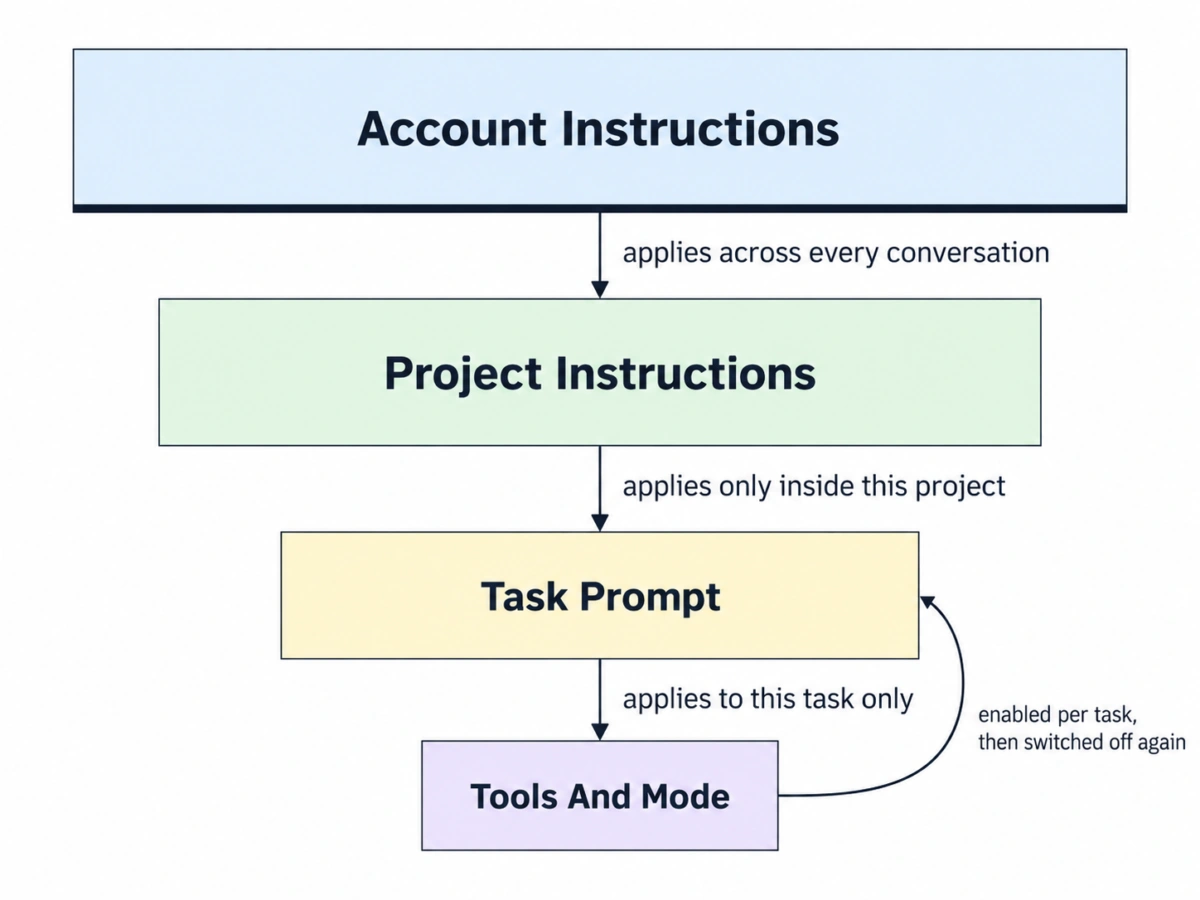
The setup works because it separates four scopes that most guides blur together. Each layer answers a different question, and a rule written into the wrong one is why Claude can seem inconsistent from one chat to the next.
Account-wide Instructions are settings that help Claude understand general instructions to consider in responses, and project instructions apply only to chats within that project. Source: official Claude personalization documentation.
That one distinction decides most of the rest. Anything that stays true across jobs moves up a layer, and anything tied to one job moves down.
| Layer | What belongs here | What breaks if you get it wrong |
|---|---|---|
| Account | How you want answers shaped: tone, structure, evidence rules, question-asking behaviour | Task details leak into unrelated chats and quietly distort them |
| Project | One recurring workstream: audience, definitions, source rules, reusable files | Unrelated work inherits constraints written for a different job |
| Task | This job only: goal, inputs, constraints, output format, verification | Rules you repeat every session that should have moved up a layer |
| Tool and mode | Model, effort, web search, Research, files, connectors | Capabilities left on by habit that spend usage on tasks that never needed them |
Source: layer boundaries follow the official Claude personalization documentation and the official Claude usage limits documentation. The four-layer framing is editorial.
The Ten-Minute Baseline
Six moves get you a working default. None of them commit you to a workflow you have not tried yet, and most of them are settings rather than purchases.
Write account Instructions that describe how you work. Working style, evidence standards, output habits, and how much clarification you want all belong here. A client name or a document title does not, because it will follow you into unrelated chats.
Decide about memory rather than inheriting it. Memory is on by default for Free, Pro, and Max plans on the web, desktop, and mobile, while on Team and Enterprise plans it is off by default and can be turned on by an owner. Source: official Claude memory documentation.
Choose a model and an effort level on purpose. Effort controls how much thinking Claude applies to a response, and higher effort means more thorough responses that take longer and use more tokens.
Leave the expensive capabilities off. Web search, Research, and connectors are task decisions, and leaving them all switched on spends a session allowance on work that never needed them.
Skip the Project until the work repeats. A one-off question does not need a workspace, and an empty Project is one more place for stale context to accumulate.
Write the first task prompt with structure. The next section supplies the shape.
Copy This Claude Setup Template
This is the reusable asset. Fill it once for a workstream, keep it in a note, and paste the relevant layer wherever it belongs.
Layer 1: Account Instructions (written once, applies everywhere)
Role and context: [what you do, at the level that stays true for months]
Answer shape: [length, structure, whether you want tables, whether you want headings]
Evidence rule: [how to handle facts that change; when to search; when to say the answer is not established]
Fabrication rule: never invent [prices, limits, plan gates, quotes, figures]
Clarification rule: ask a question only when the missing answer would change the result
Layer 2: Project Instructions (written once per recurring workstream)
Objective: [the recurring outcome this project produces]
Audience: [who reads the output and what they already know]
Definitions: [terms this project uses in a specific way]
Source rules: [what counts as evidence here; how to treat the project files]
Constraints: [scope, exclusions, anything the output must never do]
Layer 3: The Task Prompt (written every time)
Goal: [the single outcome this task must produce]
Context: [why this exists and what happens to the output next]
Inputs: [documents, figures, assumptions; long documents pasted above this block]
Constraints: [scope, exclusions, accuracy requirements]
Output: [format, length, structure, what "finished" looks like]
Verification: [how to handle uncertainty and what must carry a source]
Layer 4: Tools and Mode (decided per task)
Model and effort: [lowest capable model and effort for this task]
Web search: [on only if the task needs a fact that changes over time]
Research: [on only for deeper multi-source work, and only with web search on]
Files: [uploaded to this chat, or already sitting in the project]
Connectors: [off unless the task needs connected account data]
Code execution and file creation: [on only for artifacts, skills, or generated files]
How to Use This Template
The template has one use case: turning a repeated piece of knowledge work into a setup you do not rebuild from memory every session. Work through it in order, because each layer assumes the one above it is already settled.
The required input for layer one is a description of your working style that would still be accurate in six months. If a line names a client, a campaign, or a file, it belongs in layer two or three instead.
Customize layer two per workstream rather than per document, and apply layer three to every task without exception, because it is the layer that carries the goal and the verification rule.
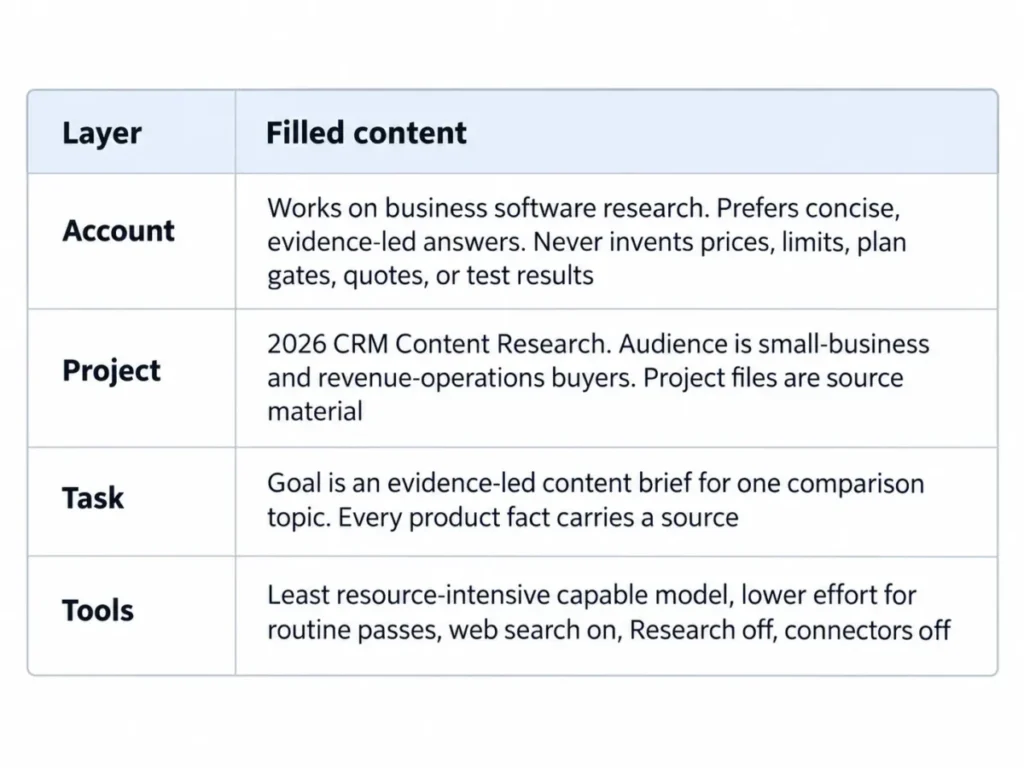
The example output below shows all four layers filled for one workstream, so you can see what the right level of specificity looks like before writing your own.
The most common error is a layer-one file that has quietly become a layer-three file. When account Instructions start naming this week’s deliverable, the tool workflow has drifted, and every unrelated chat inherits a constraint it should never have seen.
A Filled Example: Business Software Research
The persona is a researcher producing evidence-led briefs on business software for a small team.
| Layer | Filled content |
|---|---|
| Account | Works on business software research. Prefers concise, evidence-led answers. Distinguishes verified facts from inference. Uses web search for claims that change over time and cites sources. Never invents prices, limits, plan gates, quotes, or test results. Asks a question only when the missing answer would change the result |
| Project | Named “2026 CRM Content Research”. Audience is small-business and revenue-operations buyers. Project files are source material. Source dates are preserved. Unsupported numeric claims are flagged. Briefs are organised around buyer decisions, limitations, and evidence quality |
| Task | Goal is an evidence-led content brief for one comparison topic. Output is search intent, decision questions, a section plan, content gaps, and a fact ledger. Every product fact carries a source. Examples are added only when the required format is ambiguous |
| Tools | Least resource-intensive capable model, a lower effort level for routine passes and a higher one only for hard synthesis, web search on, Research off unless the topic needs multi-source investigation, connectors off, code execution on only when a generated file is required |
Source: this example is an editorial illustration. The layer boundaries it follows come from the official Claude personalization documentation, and the tool defaults follow the official Claude usage limits documentation.
Your First Claude Task: Use This Prompt Structure
The usual advice is to be specific. That is true and not very useful, because it never says which specifics matter.
Anthropic’s own prompting guidance is more concrete, and it is easier to follow with ready-made Claude prompts to adapt. It recommends including three to five examples for best results, and wrapping each type of content in its own XML tag so a mixed prompt parses unambiguously.
It also says where the material goes: put long documents near the top of the prompt, above the query, instructions, and examples. Source: official Claude prompting best practices.
The ordering point is the one people skip. If you paste a fifty-page contract and then ask your question underneath it, that is not a stylistic choice, it is the arrangement the documentation recommends.
So a working task prompt has six parts, in this order: the long source material, then the goal, the context, the constraints, the output specification, and the verification rule. Examples go in only when the required format is hard to describe in words.
The verification rule is the part worth writing every time. A line such as “if a figure is not in the supplied documents, say so rather than estimating” tells Claude what you want at the exact moment it would otherwise have to fill a gap.
When to Use a Claude Project
A Project is a workspace with its own instructions, its own files, and its own memory. It earns its place when work repeats and costs you attention when it does not.
Projects are available to all users, including those with free accounts, and free users can create a maximum of five projects. Enhanced project knowledge with retrieval-augmented generation is available only to users on paid plans, where it can expand capacity by up to 10 times.
Each project has its own separate memory space and dedicated project summary, so the context inside one project stays separate from other projects and from non-project chats.
That separation is the reason to split unrelated work into different Projects rather than growing one. Two workstreams sharing a Project also share every constraint written for either of them.
The maintenance rule matters as much as the setup. Anthropic recommends keeping project instructions concise and focused on essential information, and regularly cleaning up files you are no longer actively using.
There is also a real efficiency reason to keep reference material in a Project rather than re-attaching it to each chat. Documents uploaded to a project are cached for future use, and every time you reference that content, only new or uncached portions count against your limits.
Web Search vs Research vs Thinking
These three get listed together and confused constantly. They solve different problems, and picking the wrong one either wastes a session allowance or fails to fix the thing that was broken.
Web search is the freshness tool. Claude invokes a search tool to ground its responses with content from the live web, it is switched on from the plus button in the chat window, and on Team and Enterprise plans an owner must first enable it for the workspace in organization settings.
Research is the depth tool. It is available for users with paid plans, it requires web search to be turned on to function, and it operates agentically by conducting multiple searches that build on each other while determining what to investigate next.
Effort and thinking are the reasoning tools. Effort controls how much thinking Claude applies to a response, thinking and effort are separate settings, and neither of those definitions involves retrieving anything from the web.
| Your problem | The right control | Why the other two fail |
|---|---|---|
| A fact that changes over time | Web search | Effort changes how Claude reasons, not what it has read; Research is a larger version of the same search tool |
| A question needing many sources reconciled | Research, with web search on | A single search returns one pass; effort adds reasoning, not sources |
| A hard reasoning problem over material you supplied | Higher effort or thinking | Search adds pages you did not need and spends allowance doing it |
Source: official Claude web search documentation, official Claude Research documentation, and official Claude model and effort documentation.
web search required
slower
How to Upload Files and Work With PDFs
“Claude reads PDFs” is true and too vague to plan around, because the documented behaviour changes with document length.
Chat uploads support 500 MB per file and up to 20 files per chat, while project files are capped at 30 MB per file, and PDFs are limited to 1,000 pages.
The page-count rule is the one that changes how you prepare a document. Claude analyzes both text and visual elements in PDFs of 100 pages or fewer, and for PDFs from 101 to 1,000 pages it processes text only and does not analyze visual elements.
| Ingestion path | What Claude sees | Choose it when |
|---|---|---|
| Direct chat upload, PDF of 100 pages or fewer | Text and visual elements including images, charts, and graphics | Charts, layout, or diagrams carry part of the answer |
| Direct chat upload, PDF of 101 to 1,000 pages | Text only, with no analysis of visual elements | The argument lives in the prose and the length is unavoidable |
| Connected Google Drive document | Main text content only, without images, comments, or suggestions | The document is text and lives in Drive already |
Source: official Claude file upload documentation and official Claude Google Workspace connector documentation. Both pages checked 2026-09-09, and every other limit in this guide was checked on the same date.
The practical consequence sits in that third row. If a chart in a Drive document carries the finding, reading it through the connector will quietly miss it, and splitting a long report so the visual pages land under the 100-page boundary is the fix rather than a workaround.
Artifacts and File Creation
An artifact is the document, page, or app Claude builds beside the chat rather than inside it. Two things about them change what you should do.
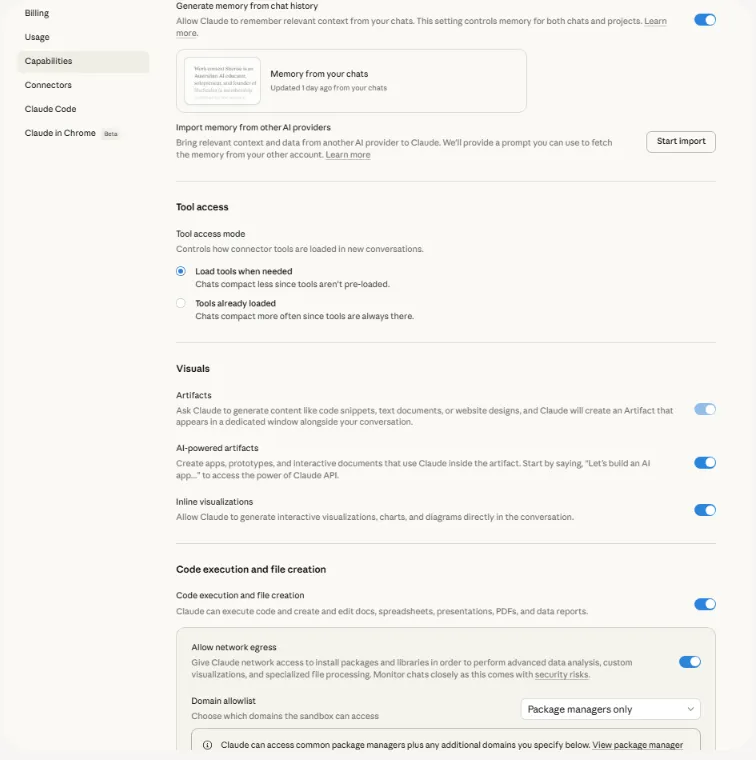
The first is a dependency. Artifacts require code execution and file creation enabled in settings and capabilities, and skills carry a documented code execution requirement of their own.
That overlap explains a confusing failure mode. When artifacts and skills are both unavailable at once, check the capability setting before assuming two separate faults.
The second is a sharing decision that looks like a save button. Artifacts you create in a conversation do not appear in your sidebar automatically, and adding one to your artifacts section means opening it and clicking Publish.
Read this before you publish. On Free, Pro, and Max plans, publishing makes your artifact publicly available, anyone with the link can view and interact with it, and non-users can view and interact with any published artifact without signing up. On Team and Enterprise plans, sharing can instead make an artifact available within your organization only, where viewers must be logged into that account. Source: official Claude artifact publishing documentation.
For finished files rather than pages, Claude can create Excel spreadsheets, PowerPoint presentations, Word documents, and PDF files, with a maximum file size of 30 MB per file for both uploads and downloads. Source: official Claude file creation documentation.
Memory, Skills, Plugins, and Connectors
These four are the optional layer. None of them belongs in a first-week setup, and each one adds a dependency worth understanding before switching it on.
Memory settings sit under Settings and Memory, where generating memory from chats is toggled. Bringing memory across from another assistant is possible but qualified.
Memory imports are available for Free, Pro, Max, and Team plans on the web and desktop, and they are experimental and still in active development, so Claude may not always successfully incorporate imported memories. Source: official Claude memory import documentation.
Skills and plugins are frequently treated as the same thing. They are not, and the difference decides which one you should reach for.
| Capability | Availability | The catch worth knowing |
|---|---|---|
| Skills | Free, Pro, Max, Team, and Enterprise plans | Requires code execution enabled; Anthropic advises installing skills only from trusted sources and reviewing one from a less-trusted source before enabling it |
| Plugins | All paid plans | Bundles skills, connectors, and sub-agents into a single package, so it installs more than the one capability you wanted |
Source: official Claude skills documentation. Source: official Claude plugins documentation.
Connectors carry their own boundary. Sending, replying to, and forwarding Gmail messages, and sharing, moving, and trashing Drive files, are all actions Claude asks approval for by default, which is a safeguard worth leaving in place.
Which Claude Model and Effort Level Should You Use?
Model guidance ages faster than any other part of a setup guide, so this section is dated rather than evergreen. On 1 September 2026, Anthropic’s release notes recorded two model launches, Claude Fable 5.1 and Claude Mythos 5.1.
Availability is not uniform across plans. Fable 5 and Fable 5.1 are available on all paid plans, Fable 5 is not available on the Free plan, and on Pro these models are not included in the plan’s usage limits and are used with usage credits instead.
Context capacity differs by model family too. Claude Fable 5.1, Opus 5, and Sonnet 5 support a 1 million token context window on all paid plans, while Opus 4.8, Opus 4.7, Opus 4.6, and Sonnet 4.6 support a 500K token context window.
A larger context window holds more material; it does not make a vague prompt produce a better answer. Choose the least resource-intensive model that handles the task, then raise effort only when a task is failing for a reasoning reason rather than an information reason.
How to Use Claude Without Wasting Usage
Usage feels mysterious until you separate two things that sound alike. Usage limits control how much you can use Claude across all your conversations, while length limits control how long any single conversation can become.
Anthropic’s own conservation guidance is specific and worth treating as a default rather than an emergency measure. It recommends a lower effort level for routine tasks that do not need the most thorough responses, temporarily disabling non-critical tools and connectors when they are not needed, keeping project instructions concise, and regularly cleaning up files you are no longer actively using.
You can also watch the meter rather than guessing at it. On Pro, Max, Team, and seat-based Enterprise plans, Settings and Usage shows progress bars for session and weekly limits, covering the five-hour session, the weekly allowance, and the time remaining in the session.
One habit does most of the work here: turn a capability on for the task that needs it, then turn it off again. Disabling non-critical tools is one of the four conservation moves Anthropic lists, and it is the one easiest to forget between tasks.
Common Claude Setup Mistakes
These are the failures that show up as “Claude is being inconsistent” when the real cause is a configuration decision.
Putting task details in account Instructions. A client name written into an account-wide setting follows you into every unrelated conversation. Account settings describe how you work; the task prompt describes what you are doing.
Assuming Research and web search are the same switch. Research requires web search to be turned on to function, so selecting Research with search off does not give you the deeper capability.
Treating higher effort as a quality dial. Higher effort produces more thorough responses that take longer and use more tokens, which helps a hard reasoning problem and does nothing for a stale fact.
Publishing an artifact to save it. On consumer plans publishing makes an artifact publicly available to anyone with the link, which is the correct action for something you meant to share and the wrong one for a draft.
Trusting a connected Drive document to carry its charts. Drive extraction covers main text content and cannot see images, comments, or suggestions, so a decision resting on a chart needs the file uploaded directly.
Letting a Project accumulate. Stale files and instructions that have doubled in length both cost context and clarity, and both are covered by Anthropic’s own guidance to shorten instructions and remove unused files.
Leaving every capability on permanently. Connectors, Research, and high effort are task decisions, and the documented conservation advice is to disable non-critical tools when they are not needed.
What Changed in Claude in 2026?
Older guides state several things about Claude that the documentation now contradicts, and three of those corrections change how you set it up.
Claude does search the live web. Web search grounds responses with content from the live web and is enabled from the chat window, with an organization-level switch on managed plans.
Claude does carry memory across chats by default on consumer plans. Memory is on by default for Free, Pro, and Max, and each project keeps a separate memory space.
And the model lineup moved. The launch of Fable 5.1 and Mythos 5.1 was recorded on 1 September 2026, so a guide written around an older lineup is describing a different set of choices.
Methodology and Evidence Boundary
This guide was built from Anthropic’s own published help centre articles, product documentation, and release notes, each opened and read on 9 September 2026. Every capability limit, plan gate, and file boundary here is traced to one of those pages.
Sources were selected against a strict hierarchy: official product documentation first, then the official help centre, then official release notes. Third-party reviews and community discussions were read only to surface recurring reader questions, never to establish a product fact.
The inclusion criteria for a claim were narrow. A statement earns a place when an official page states it plainly, when it changes a setup decision, and when its boundary conditions are stated alongside it.
Workflows here are reconstructed from that documentation, so the guide describes documented behaviour. Where a rule changes with document length, plan, or organization policy, the article states the boundary rather than generalising past it.
Frequently Asked Questions
A few questions survive the body of this guide, mostly about plan gates and about what the documentation does and does not settle.
Is Claude free to use?
There is a Free plan, and it reaches further than people expect. Projects are available to all users including free accounts, memory is on by default for Free plans, and skills are available on Free alongside every paid tier.
The documented gates are Research, plugins, and the Fable models, all of which the documentation places on paid plans.
Does Claude remember previous chats?
On Free, Pro, and Max plans memory is on by default, and on Team and Enterprise it is off by default until an owner turns it on. Each project keeps its own separate memory space and project summary, so project context does not bleed into unrelated chats.
What is the difference between Claude Research and web search?
Web search grounds a response with content from the live web. Research runs agentically, conducting multiple searches that build on each other, is available on paid plans, and needs web search turned on to function at all.
Can Claude read the charts inside a PDF?
Inside 100 pages, yes: Claude analyzes both text and visual elements in PDFs of that length. From 101 to 1,000 pages it processes text only, and PDFs above 1,000 pages cannot be uploaded.
Can Claude create Word, Excel, PowerPoint, and PDF files?
Yes. Claude can create Excel spreadsheets, PowerPoint presentations, Word documents, and PDF files, and the documented maximum is 30 MB per file for both uploads and downloads.
Does publishing an artifact make it public?
On Free, Pro, and Max plans it does. Publishing makes the artifact publicly available, anyone with the link can view and interact with it, and non-users can do so without signing up.
Team and Enterprise sharing can be restricted to the organization instead, where viewers must authenticate with that account.
Which Claude model should I use?
Start with the least resource-intensive model that handles the task and raise effort only when a task fails for reasoning reasons. Availability varies: Fable models sit on paid plans and are used with usage credits on Pro, while the 1 million token context window covers Fable 5.1, Opus 5, and Sonnet 5 on paid plans.
How do Claude usage limits work?
Usage limits govern how much you use Claude across all conversations; length limits govern how long one conversation can get. On Pro, Max, Team, and seat-based Enterprise plans, Settings and Usage shows progress bars for the five-hour session and the weekly limits.
What to Do Next
Configure account-wide defaults first, because every later decision inherits them. Ten minutes on Instructions plus a deliberate model and effort level is the part of this setup you only do once.
Then run one first task through the structured prompt, with the evidence rule written in, so you can see what the verification line changes about the answer that comes back.
Create one reusable Project only when the same work returns, and select the right task-specific Claude capability each time rather than leaving them all switched on. Durable settings live at the account layer, situational choices live in the task prompt, and nothing else should be running.
If prompt craft is the part you want to push further, the same structural habits transfer across assistants, and the ChatGPT prompts library covers the same goal, constraint, and output pattern. For choosing between assistants rather than configuring one, the best AI chatbots guide compares them on buyer criteria, and the best AI tools for content creation roundup covers the wider workflow these setups feed into.