ClickUp is worth it for teams willing to standardize a shared work system and assign someone to own it. It is a poor fit for anyone who wants a small board that runs itself.
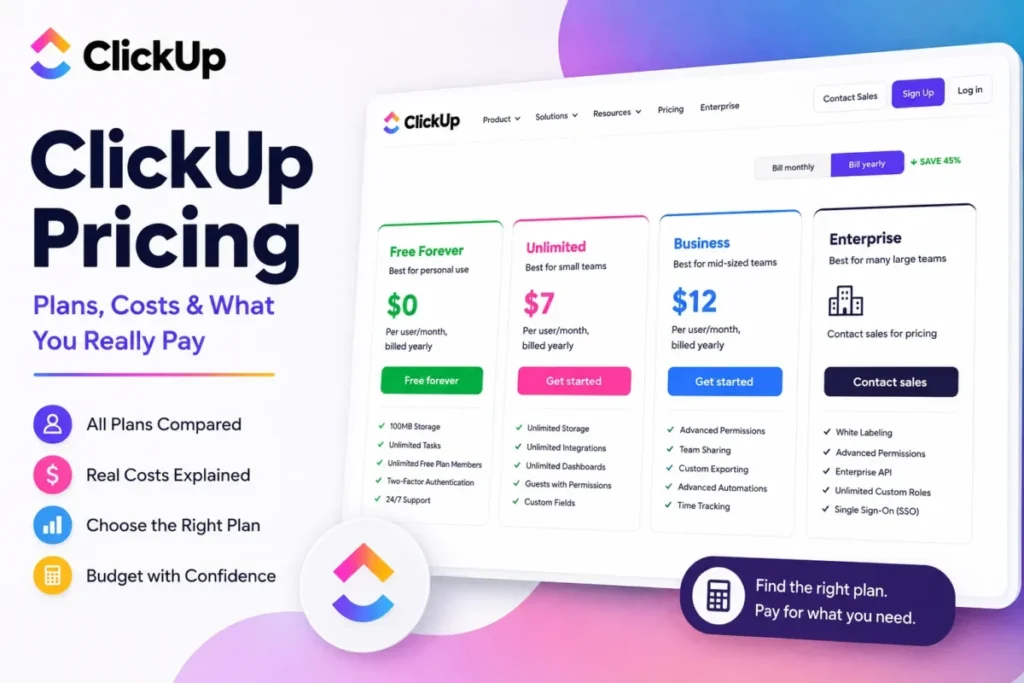
Pricing starts at $0 on Free Forever and $7 per user/month on Unlimited billed annually, though most operations teams land on Business at $12 per user/month annually because that is where webhook automations, advanced dashboards, and custom exports open up.
This ClickUp review covers the setup burden, the workflows that decide the purchase, the documented limits that can stop work mid-month, and the seat math that makes the invoice larger than the headcount. It also flags two places where ClickUp’s own pages disagree with each other, which matters if you are budgeting against a number you read on a help article.
If you are still shortlisting, the wider project management software category has cheaper and simpler options that may fit better.
In This Article (19 sections)
ClickUp Quick Verdict
| Category | Verdict |
|---|---|
| Best for | 5 to 25 person operations, agency, marketing, and product teams consolidating tasks, docs, intake, and reporting in one workspace |
| Not ideal for | Small teams wanting a minimal board, offline-first field crews, and buyers who need phone support or a published response-time SLA |
| Starting price | $0 on Free Forever, $7 per user/ |
| Best practical plan | Business at $12 per user/ |
| Free plan/ | Free Forever with unlimited tasks and members, capped at 60 MB storage, one Form, and 100 Automation actions per month |
| Setup difficulty | High. Hierarchy, statuses, custom fields, notifications, and Automations all need decisions before rollout |
| Main strength | Genuine breadth. Tasks, Docs, Chat, Forms, dashboards, time tracking, and Automations sit in one billable workspace |
| Main limitation | Automation actions are a hard monthly cap. Exceeding the allowance pauses Automations for the rest of the cycle |
| Best alternative | Asana for lower administration overhead, Jira for engineering-native issue tracking |
Pricing and plan limits in this review were checked on August 4, 2026 against ClickUp’s official pages. Prices change, and ClickUp is the legal entity Mango Technologies, Inc. DBA ClickUp, so any contract you sign will name that company.
How We Reviewed ClickUp
This review is based on ClickUp’s official pricing page, help-center documentation, developer API documentation, security and compliance pages, legal terms, and labeled third-party review evidence from G2, Capterra, and TrustRadius. Pricing, plan limits, and feature gates were checked on August 4, 2026.
ClickUp was assessed against the same buyer-focused criteria applied to every work-management platform on this site. Those criteria are workflow fit, plan gates, automation and API capacity, seat and billing mechanics, migration risk, security and admin controls, support scope, and total annual cost.
Greater weight went to the factors that change a purchase decision rather than a feature list. Those are the first limit a team hits, the plan that limit forces, the cost of that plan at 5, 10, and 25 seats, and the workflows that break when a limit is reached.
Claims that could not be verified from official sources were excluded or labeled. Where two ClickUp pages state different limits, both are reported and neither is presented as a settled entitlement.
Workflow assessments describe documented product behavior, plan requirements, and limit thresholds.
What Is ClickUp?
ClickUp is a work-management platform that bundles tasks, Docs, Chat, Forms, Goals, dashboards, time tracking, Automations, and AI into a single workspace. The vendor positions it as a converged AI workspace rather than a task tracker.
Structurally it runs on a hierarchy of Workspace, Space, Folder, and List, with tasks and subtasks underneath. That hierarchy is the reason ClickUp can absorb marketing, product, operations, and client delivery in one place, and also the reason two teams can configure it into two incompatible systems inside the same account.
ClickUp ships desktop applications alongside iOS and Android apps, so the platform is not browser-only.
Setup and First Configuration: Where the Real Work Lands
Setup difficulty is high, and not because the interface is hard to open. The difficulty is that ClickUp asks for architectural decisions before it asks for tasks.
Before a team can use it well, someone has to decide the Space and Folder structure, the status dictionary, which custom fields are canonical, which views are default, what notifications fire, and who owns Automations. None of those decisions is reversible for free once 200 tasks exist.
Across G2, Capterra, and TrustRadius, the recurring praise is flexibility, centralization, and customization. The recurring criticism is setup complexity, interface density, notification noise, intermittent performance concerns, and mobile limitations.
Those two lists describe the same design choice from opposite ends.
One Capterra reviewer put the notification problem plainly:
“The notifications often got ignored by my collaborators.” Katie T., VP Operations, Capterra
That is the adoption failure mode to plan against. A workspace that notifies everyone about everything trains people to ignore it, and an ignored workspace stops being the source of truth within a quarter.
I would treat the first 30 days as configuration work with a named owner, not as a rollout. Standardize the hierarchy, a short status list, field ownership, templates, notification defaults, an Automation owner, and a seat review before inviting the wider team.
By day 90 the test is whether people still open ClickUp to answer questions instead of asking in chat. If they do not, the problem is almost always governance rather than the product.
Migration: What Moves and What You Have to Reconcile
ClickUp documents native importers for Asana, Basecamp, Confluence, Jira, monday.com, Notion, Todoist, Teamwork, Trello, Slack, and Wrike, plus a spreadsheet importer that accepts CSV, XLS, XLSX, JSON, TSV, and TXT. User mapping by email and an import history are documented for the process.
The limits are where migration planning begins.
| Import path | Documented limit | What it means for cutover |
|---|---|---|
| All imports | 60 imports per day per Workspace | Large programs need sequencing across days |
| Spreadsheet importer | 10,000 rows per file | Bigger datasets must be split and reconciled batch by batch |
| Trello | 1 GB attachment limit, cover images unsupported | Attachment-heavy boards can silently lose visual context |
| Jira | 50 GB threshold, then Professional Services | Time spent is assigned to the person running the import |
| Workspace consolidation | Irreversible, source Workspace archived | Documented as a scheduled window with a few hours of downtime |
The Jira detail deserves attention if you report on utilization. Imported time entries are attributed to the importing user, which distorts historical time data unless it is reconciled afterwards.
Three things are not established by ClickUp’s documentation: universal duplicate handling across importers, a self-service rollback after an import, and complete preservation of comments, notes, attachments, email, and Automations for every source. Treat all three as unknown rather than as guarantees.
The practical sequence is a small representative pilot first, then a count-by-count reconciliation of tasks, attachments, time entries, and custom field values, then cutover with the original export retained. The same migration planning discipline that applies to CRM data applies here, and for the same reason: a partial import is harder to detect than a failed one.
The Workflows That Decide This Purchase
Five workflows determine whether ClickUp is the right operating system for a team. Each one has a plan gate and a limit worth knowing before purchase.
Forms to Task Intake
Form view turns an external request into a task in a chosen List, with submitted fields mapping to task fields and custom fields. Marketing, HR, IT, and agency intake teams use this to replace a shared inbox.
Free Forever includes exactly one Form. Public paid plans list unlimited Forms, which is the first hard reason a five-person marketing team outgrows the free tier: campaign requests, creative briefs, and bug reports are three intakes, not one.
The limit that bites later is not the Form itself. It is the Automation actions each submission consumes when routing, assignment, and status changes fire behind it.
Automations and Routing
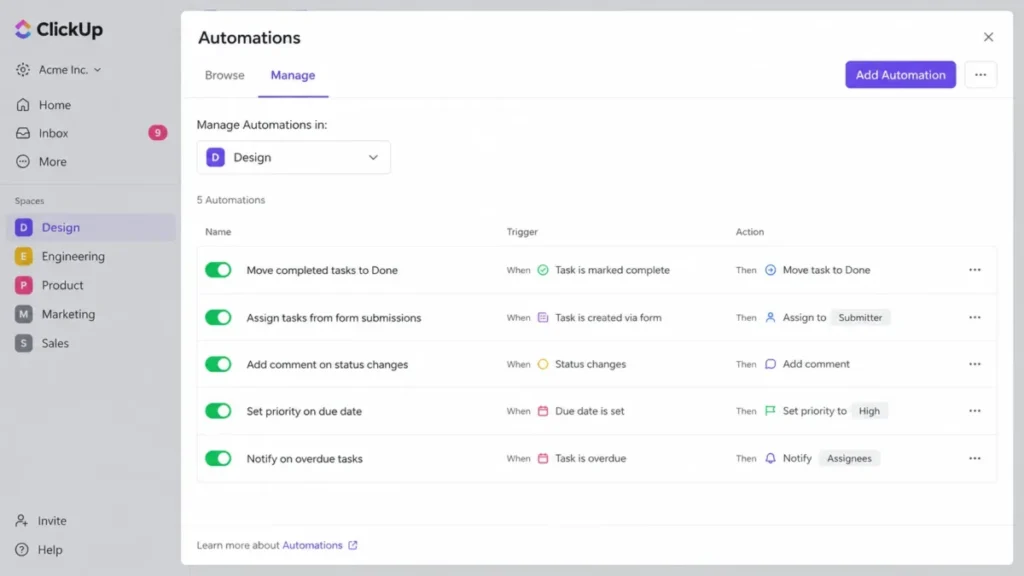
Automations are built from a trigger, an optional condition, and an action, and they are created and managed inside a specific Space, Folder, or List rather than from a single global view. The Manage tab lists the Automations for the location you are in, with search and a location switcher.
That location-specific model is fine at ten rules and awkward at eighty. Someone needs to own the inventory or nobody can answer why a task changed status.
Business is the plan where automation integrations and webhooks open up, which is the difference between routing inside ClickUp and routing across the stack.
Time Tracking and Client Delivery
Native time tracking begins on Unlimited. The controls agencies bill on, which are billable classification, labels, notes, and taskless time entries, sit at the Business level in the reviewed pricing and documentation.
That gap is the single clearest Unlimited-to-Business trigger for professional services teams.
ClickUp’s official sources establish time capture and time reporting. They do not establish a native end-to-end invoicing, margin, or profitability chain, so a firm that bills hourly should validate the full path from timer to invoice before assuming one tool replaces two.
Dashboards and Reporting
Dashboards are where ClickUp stops being a task list and starts being a management surface. Advanced dashboards and unlimited dashboard use are Business-level capabilities, with narrower allowances and less depth below that plan.
Workload management, which is the view a manager uses to see who is over capacity, is also gated to Business.
If executive reporting is the reason for buying, Unlimited will not hold. Budget Business from the start rather than upgrading three months in.
Docs, Chat, and AI
Docs and Chat are what let ClickUp argue it replaces a wiki and a messaging tool. Free Forever keeps Chat history for 30 days, so the free plan is not an archive.
AI is a separate purchase layer rather than an included feature, and it behaves as a credit budget. That is covered in its own section below, because the cost model changes the total more than most buyers expect.
Feature Gates: What You Get on Each Plan
The gate table below is the fastest way to find the plan a specific workflow forces.
| Capability | Free Forever | Unlimited | Business | Enterprise |
|---|---|---|---|---|
| Monthly Automation actions | 100 | 1,000 | 5,000 | 250,000 |
| Automation integrations and webhooks | No | No | Yes | Yes |
| Forms | 1 | Unlimited | Unlimited | Unlimited |
| Native time tracking | No | Yes | Yes, plus billable, labels, notes, taskless | Yes |
| Dashboards | Basic allowance | Wider allowance | Advanced and unlimited | Advanced and unlimited |
| API requests per minute per token | 100 | 100 | 100 | 10,000 |
| Identity and admin | Basic | Basic | Google SSO, SMS 2FA, workload management, custom exporting | SAML SSO, SCIM, audit log, session management |
| Compliance | SOC and ISO attestations apply product-wide | Same | Same | Data residency and HIPAA BAA available |
| Support | 24/7 resources | 24/7 plus live human chat | 24/7 plus live human chat | Priority Support |
Source: ClickUp pricing, Automations feature availability and limits, and ClickUp API rate limits, checked August 4, 2026.
Two rows in that table do more work than the rest. The Automation row decides whether a routing workflow survives a busy month, and the API row decides whether a custom integration throttles.
Automation Limits Are a Reliability Budget, Not a Soft Quota
Most reviews list Automations as a feature. The number that matters is what happens at the ceiling.
The official documentation records the warning thresholds, the reset cycle, and the pause behavior, so this is a documented capability rather than an inference.
ClickUp warns at 90% and again at 100% of the monthly Automation action allowance. The allowance resets on the first day of the month in Pacific Time.
When a Workspace exceeds the cap, Automations pause for the remainder of the cycle.
The workflow consequence is a full stop rather than an overage charge. The Workspace stays open and tasks keep working, but the routing behind Forms, status changes, notifications, and integrations goes quiet until the reset.
| Plan | Actions per month | What that supports in practice |
|---|---|---|
| Free Forever | 100 | A single light routing rule, not a team process |
| Unlimited | 1,000 | Roughly 33 actions per day across the whole Workspace |
| Business | 5,000 | Cross-team routing with webhook and integration triggers |
| Enterprise | 250,000 | Orchestration volume, though still a finite ceiling |
Estimate the number before choosing a plan, and estimate it correctly. The unit is actions, not rules.
One Automation with three actions that fires forty times a month consumes 120 actions, so a Workspace with a dozen active rules reaches 1,000 faster than the headline suggests.
I would choose the plan from modeled monthly volume rather than team size, with at least a 40% safety margin, because this plan gate is the trade-off that decides whether a routing workflow survives a busy month. A workflow that stops on the 22nd of every month is worse than one that never existed, because the team has already stopped doing the manual version.
ClickUp documents purchasable Automation Action add-ons for eligible plans, but the reviewed official pages did not expose a stable public price for them. Do not build a budget around buying overage until you have that number in writing.
Integrations and API Capacity
ClickUp’s official directory lists native integrations alongside public API access, webhooks, and connector platforms such as Zapier, whose costs I break down in my Zapier review. A logo count is not the useful measurement, though, because the connection type determines the engineering and licensing cost.
Three distinctions decide integration work. Native integrations are configured in-app.
Connector platforms carry their own subscription. Custom API and webhook work carries engineering time plus the rate ceiling below.
| Plan | API requests per minute per token | Behavior at the limit |
|---|---|---|
| Free Forever, Unlimited, Business | 100 | HTTP 429 with X-RateLimit headers exposing limit, remaining calls, and reset |
| Business Plus | 1,000 | HTTP 429 at exhaustion |
| Enterprise | 10,000 | HTTP 429 at exhaustion |
The row worth reading twice is the first one. Buying Business does not raise the API ceiling at all.
A team that assumes the mid-tier plan fixes a slow nightly sync will pay $5 more per user/month and hit exactly the same 100 requests per minute.
Anyone building a custom sync should design for backoff, caching, and batching from day one rather than treating throttling as a plan problem. If your team is newer to this, how an API works covers the basics before you scope the integration.
Business is also the gate for automation integrations and webhooks, so the two capacity limits interact. Below Business you cannot trigger external systems from an Automation, and at Business you can, but the API side of the same workflow stays at 100 requests per minute.
ClickUp AI Pricing and the Credit Model
AI is priced as a separate per-user layer on top of the core plan, and it runs on a credit budget rather than unlimited use.
| AI option | Price | Included capacity | Notes |
|---|---|---|---|
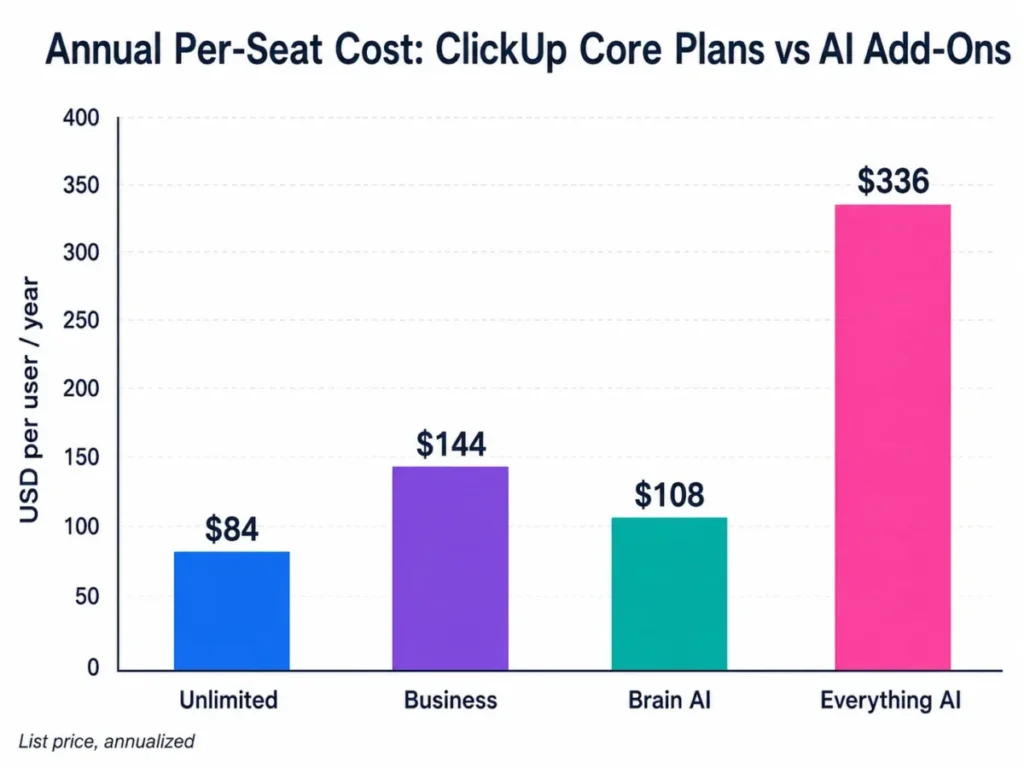
| Brain AI | $9 per user/ | 1,500 AI Super Credits per user/ | Sits on top of the core plan price |
| Everything AI | $28 per user/ | 5,000 AI Super Credits per user/ | Costs more than Business itself at list price |
| Additional credits | $10 per 10,000 credits | Pooled at Workspace level | Consumption varies by task complexity |
Free-plan AI trial allowances do not reset. The trial pool is 25 or 50 uses per Workspace depending on Workspace size, and once it is gone the next step is a paid add-on.
Automatic AI functions that depend on Super Credits pause when the available credits are exhausted.
Look at the Everything AI row against the Business row. At $28 per user/month, the AI layer costs more than the $12 per user/month core plan it sits on, which means a 10-person team choosing Everything AI more than triples the annual bill.
I would not buy the AI layer during evaluation. Run representative prompts against the trial allowance first, measure what a real workflow consumes, and only then decide whether Brain AI at 1,500 credits per user covers it.
The Pricing Math Nobody Shows You
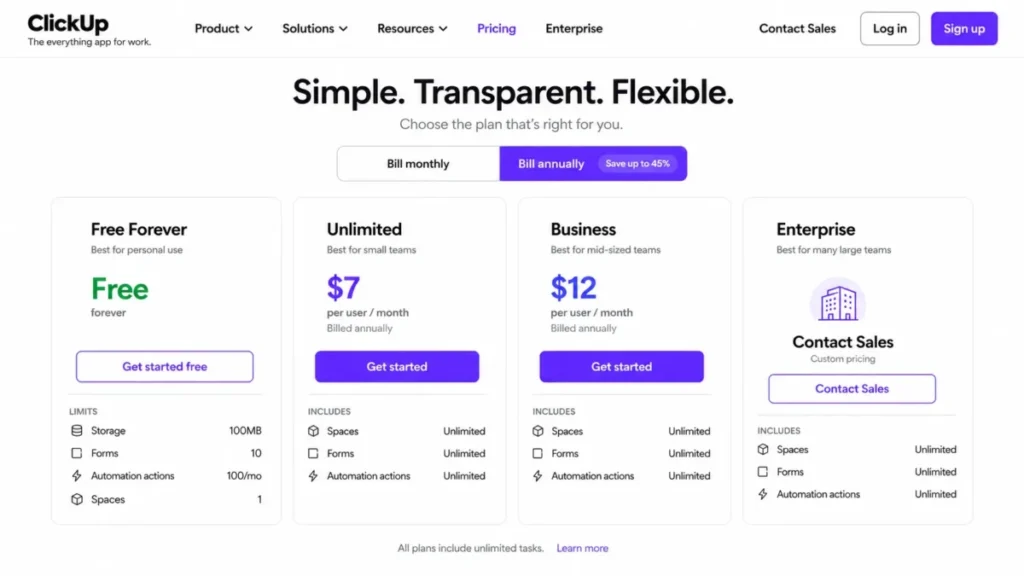
ClickUp’s headline prices are simple. The invoice is not, for three reasons: the plan applies to the whole Workspace, guests can convert into paid seats, and monthly billing costs materially more than annual.
| Plan | Annual billing | Monthly billing | Best for | First limit that bites |
|---|---|---|---|---|
| Free Forever | $0 | $0 | Sandbox evaluation and light personal coordination | 60 MB storage, one Form, 100 Automation actions |
| Unlimited | $7 per user/ | $10 per user/ | 3 to 10 person teams with modest automation volume | 1,000 Automation actions and no webhook triggers |
| Business | $12 per user/ | $19 per user/ | Operations, agency, and product teams that need dashboards, exports, and billable time | API stays at 100 requests per minute |
| Enterprise | Custom quote | Custom quote | Regulated or centrally governed organizations | No public price, so procurement needs a written quote |
Source: ClickUp pricing, checked August 4, 2026. Prices are US list prices in USD and exclude tax and negotiated discounts.
For a fuller breakdown of the tiers and add-ons, see the dedicated ClickUp pricing guide.
Cost at 5, 10, and 25 Users
| Team size | Unlimited annual | Unlimited monthly annualized | Business annual | Business monthly annualized |
|---|---|---|---|---|
| 5 users | $420 | $600 | $720 | $1,140 |
| 10 users | $840 | $1,200 | $1,440 | $2,280 |
| 25 users | $2,100 | $3,000 | $3,600 | $5,700 |
At list prices, annual billing saves $180, $360, and $900 per year on Unlimited for 5, 10, and 25 users. On Business the same comparison saves $420, $840, and $2,100.
Those totals cover the core plan only. They exclude tax, negotiated pricing, role changes, guest overages, implementation time, and any AI add-on.
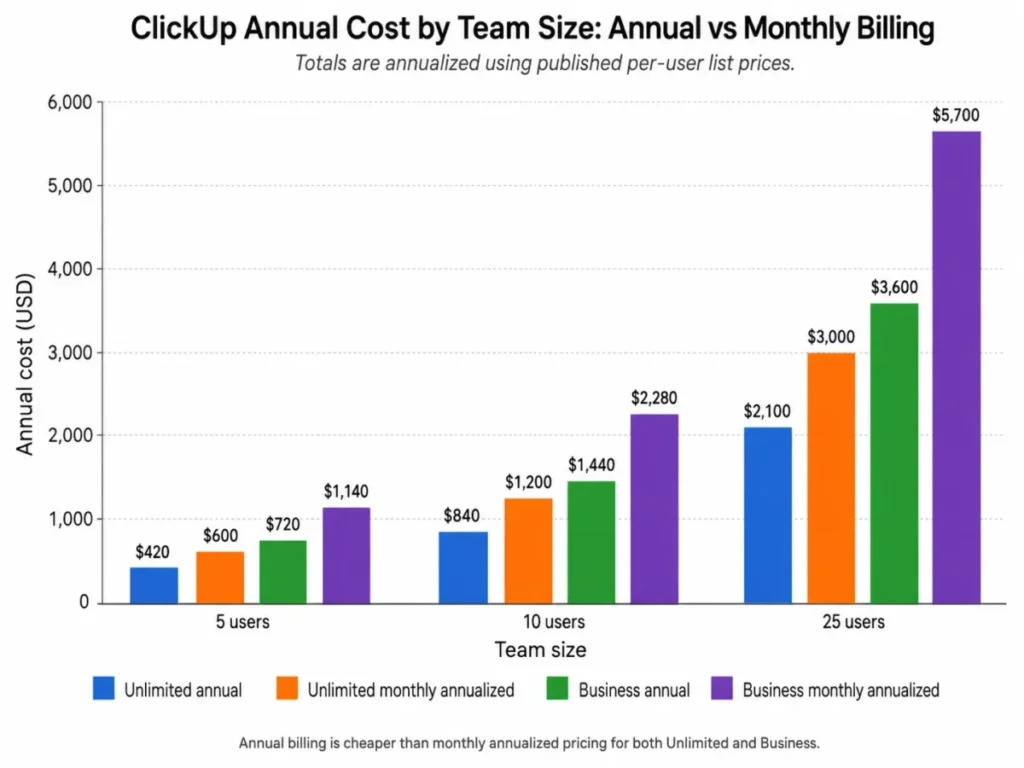
For reference, the AI layer at the same team sizes runs $540, $1,080, and $2,700 per year for Brain AI, and $1,680, $3,360, and $8,400 for Everything AI, assuming every seat takes the add-on. Whether every seat must take it was not established in the reviewed sources, so treat those as scenarios rather than mandatory totals.
Guest Seats and the Real Seat Count
This is the part that turns a clean budget into a surprise renewal.
A ClickUp Workspace cannot mix core plans. Upgrading applies the chosen plan to every billable member in that Workspace, so a single team that needs Business pulls everyone onto Business.
Owners, admins, members, limited members, and permission-controlled guests can all consume paid seats. Unlimited includes 5 permission-controlled guest seats for the first member plus 2 per additional member.
Business, Business Plus, and Enterprise include 10 plus 5 per additional member.
Cross that pool and ClickUp automatically adds a paid member seat.
For an agency running 8 internal staff and 25 client contacts, that mechanic is the whole budget conversation. View-only access behaves differently from permission-controlled access, so the safe pattern is to grant the narrowest permission that works, invite at the narrowest location, and audit seat counts before renewal rather than after.
I would build a seat ledger before purchase that counts every role class, not a headcount. The headcount is the number finance approves.
The seat count is the number that gets billed.
The Business Plus Question
ClickUp’s public pricing page shows no Business Plus card and no Business Plus price. ClickUp’s own upgrade page, support documentation, and API rate-limit documentation still reference the plan, and the upgrade page states it remains available in-app.
At least one widely ranking review reports the plan as discontinued, which does not match the current official pages.
The honest position is that the status and the price are unresolved. That matters because Business Plus is where the API ceiling rises to 1,000 requests per minute and where Priority Support begins.
If either of those is a requirement, ask ClickUp for a written quote rather than planning around a number that is not published.
Where the Free Plan Stops Working
Free Forever gives unlimited tasks and unlimited members, which is genuinely generous and also the reason its real limits get missed.
| Free limit | Documented value | First workflow it blocks |
|---|---|---|
| Storage | 60 MB total | Any attachment-heavy pilot or Trello import with files |
| Forms | 1 | A second intake process, such as bugs alongside campaign requests |
| Chat history | 30 days | Using Chat as a searchable record |
| Automation actions | 100 per month | Automated routing for a real team process |
| Hierarchy | 5 Spaces, 40 Lists per Space | Multi-department workspace architecture |
| AI | 25 or 50 non-resetting trial uses | Sustained AI use of any kind |
There is a documented conflict here that buyers need to see. The public pricing page lists 60 MB of storage and 40 Lists per Space.
A ClickUp import and export help article states 100 MB of attachments and 100 Lists or Folders per Space after imports.
Use the pricing page numbers for buying decisions, because that is the page ClickUp sells from, and verify the actual limit inside the account before starting a migration. Do not plan a pilot against the higher figure.
Free Forever is a sandbox. It is not a production plan for attachment-heavy work, multiple intakes, long Chat retention, or automated routing.
If a genuinely free tier is the requirement rather than a preference, the free project management software comparison covers tools built around that constraint.
Security, Support, and Admin Controls
ClickUp’s security page lists SOC and ISO attestations and describes data-residency options for Enterprise. Its compliance documentation covers GDPR-related controls, encryption statements, and places HIPAA Business Associate Agreement availability on Enterprise.
The governance controls follow the same pattern. SAML SSO, SCIM provisioning, audit logs, session management, and data residency are Enterprise decisions rather than product-wide features.
Business gets Google SSO and SMS two-factor authentication, which is a different tier of control.
If a compliance requirement exists, it sets the plan before price does. A healthcare team that needs a BAA is buying Enterprise regardless of how well Business fits the workflow.
Support is where marketing language and documented reality diverge most.
| Support element | What the documentation states |
|---|---|
| Availability | 24/7 support resources across all plans |
| Live human chat | Paid plans |
| Priority Support | Business Plus and Enterprise |
| Phone support | Not provided |
| Public response-time SLA | Not verified in the reviewed sources |
| Training | ClickUp University and ClickUp Assist services, with unused Assist services not rolling over |
Source: ClickUp support resources, checked August 4, 2026.
24/7 availability is not the same commitment as a response-time guarantee, and it is not phone support. A team running production workflows on ClickUp should negotiate written support terms rather than assuming the availability claim covers incident response.
Billing terms are worth noting alongside support. ClickUp documents a 30-day satisfaction guarantee on a first paid plan or add-on, and subscriptions renew automatically unless changed or canceled.
ClickUp Limitations
Six documented limitations matter enough to change a buying decision.
Automations stop rather than slow down. Exceeding the monthly action allowance pauses Automations for the rest of the cycle. Any process that depends on automated routing needs headroom built into the plan choice.
The API ceiling does not move until Enterprise. Free, Unlimited, and Business all share 100 requests per minute per token. High-volume syncing is an architecture problem at every self-serve tier.
Guest access can create paid seats. Permission-controlled guests draw from an included pool, and crossing it automatically adds a billable member seat. Client-facing teams carry this risk continuously, not once.
Exports can omit rows. Collapsed groups are excluded from List and Table view exports. An export used for reconciliation or an exit plan needs every group expanded first, then a row-count comparison against the source.
Offline mode is partial. ClickUp documents limited disconnected access with restrictions on editing and some creation actions. Field teams working without reliable connectivity should validate the exact behavior on current builds before committing.
Configuration breadth becomes administration work. The same flexibility that lets one workspace hold five departments produces the complexity, density, and notification noise that recur across independent review sites. Without an owner, that cost lands on everyone.
ClickUp Pros and Cons
| Pros | Cons |
|---|---|
| Genuine consolidation of tasks, Docs, Chat, Forms, dashboards, and time tracking in one billable workspace | Automation actions are a hard monthly cap that pauses workflows at 100% rather than charging overage |
| Free Forever includes unlimited tasks and unlimited members, which is rare at $0 | Free storage of 60 MB makes the free plan unsuitable for attachment-heavy or migration work |
| Unlimited at $7 per user/ | API stays at 100 requests per minute per token through Business, so mid-tier does not fix sync throughput |
| Business unlocks webhook automations, advanced dashboards, workload management, and custom exporting in one step | Permission-controlled guests can convert into paid member seats once the included pool is exceeded |
| Documented native importers for Asana, Jira, Trello, monday.com, Notion, Wrike, and more, plus a spreadsheet importer | Business Plus appears in official help and API pages but has no public price, so budgeting for it is guesswork |
| Enterprise carries SAML SSO, SCIM, audit logs, session management, data residency, and HIPAA BAA availability | No phone support and no publicly verified response-time SLA at any plan level |
Who Should Use ClickUp?
Operations and marketing teams of 5 to 25 people running multiple intakes. Forms feeding tasks, Automations routing them, and dashboards reporting on them is the workflow ClickUp is genuinely built for. Unlimited covers this until automation volume or reporting depth forces Business.
Agencies and client-service firms that will govern guest access. One system for delivery, intake, time tracking, and client collaboration is a real consolidation, provided someone monitors permissions and seat ratios monthly. Business is the plan, because billable time classification and custom exporting live there.
Product and engineering teams that want cross-functional visibility. ClickUp holds sprints, marketing, and operations in one hierarchy, which suits teams tired of translating between two tools. Budget Business for webhook automations, and plan integrations around the 100 requests per minute ceiling.
Cross-functional operations groups of around 25 people. Requests, approvals, resource planning, and dashboards in one place justify the administration overhead at this size, where the alternative is four disconnected tools. Enterprise becomes the answer only if centralized provisioning, audit trails, or data residency are mandatory.
Teams replacing a shared inbox with structured intake. The Form-to-task-to-Automation chain removes manual triage, which is measurable within a month.
Who Should Avoid ClickUp?
Teams of one to five who want a simple board. The configuration breadth is overhead, not value, at that size. Something narrower will be adopted faster, and project management tools for small teams covers options built for that constraint.
Offline-first field crews. Partial offline support with restricted editing is a workflow blocker for anyone who works without connectivity as the normal case, not the exception.
Buyers who need phone support or a contractual response time. The official documentation records no phone support, and no public SLA was verified. Negotiate Enterprise terms in writing or choose a vendor that publishes them.
Agencies expecting one tool to replace time tracking, invoicing, and profitability reporting. ClickUp’s sources establish time capture and reporting, not a native accounting and margin chain. Validate the whole billing path or keep a dedicated tool.
Organizations unwilling to assign a workspace owner. Hierarchy, statuses, fields, notifications, permissions, and Automations all need standardization. Without that ownership, the complaints in third-party reviews become your rollout.
ClickUp Alternatives
| Alternative | Better for | Why choose it instead |
|---|---|---|
| Asana | Teams that want lower administration overhead | A more constrained model means fewer configuration decisions before rollout |
| monday.com | Buyers who prefer visually guided templates | A board-centric setup approach suits teams that want structure supplied rather than designed |
| Jira | Software teams with established issue-tracking conventions | Deeper development workflow conventions and ecosystem fit for engineering-led organizations |
| Notion | Docs-first teams with lighter process requirements | Better fit when documentation is the center of gravity and tasks are secondary |
| Trello | Small teams that need a board and nothing more | Minimal setup cost when the requirement is genuinely a kanban board |
These are editorial fit judgments rather than a current head-to-head audit, and plan prices for each were not verified in this review. Check current pricing and plan gates directly before shortlisting.
Detailed breakdowns sit in the Asana review, the monday.com review, the Jira review, the Notion review, and the Trello review.
A dedicated time and billing tool remains the better answer for firms where invoicing, payroll, or profitability reporting is the primary requirement rather than project visibility.
Final Verdict: Is ClickUp Worth It?
ClickUp is worth it for teams that will treat it as a shared operating system and resource it properly. The breadth is real, the entry price is low, and the consolidation argument holds when tasks, intake, docs, time, and reporting genuinely need to live together.
It is not worth it for teams that want a task board with no owner. The same configuration depth that makes it capable is the reason it gets abandoned.
Choose Free Forever only for sandbox evaluation, and price the paid plan before importing anything real.
Choose Unlimited at $7 per user/month annually if the team is 3 to 10 people, needs multiple Forms and native time tracking, and will stay comfortably under 1,000 Automation actions per month.
Choose Business at $12 per user/month annually the moment one named workflow requires webhook automations, advanced dashboards, workload management, custom exporting, Google SSO, or billable time classification. That is a $5 per user/month step, or $600 a year at 10 users, and it buys a fivefold increase in automation headroom alongside the features.
Choose Enterprise when SAML SSO, SCIM, audit logs, session management, data residency, a HIPAA BAA, or a 10,000 requests per minute API ceiling is mandatory. Governance drives that decision, not team size.
Choose a different tool if the requirement is a minimal board, offline-first field work, contracted phone support, or a complete billing and profitability chain.
Before renewal, the question worth answering is whether the workspace is still where people go to find answers. If the automation allowance ran out twice, if guest seats quietly added members, or if the team drifted back to chat and spreadsheets, the plan was wrong or the governance was.
ClickUp Review FAQ
The questions below cover the points buyers raise most often before choosing a ClickUp plan: cost at a real team size, what the free tier blocks, how the automation cap behaves, and where guests turn into billable seats.
Is ClickUp worth it in 2026?
Yes, if the team will standardize a shared workspace and assign someone to own the configuration. ClickUp consolidates tasks, Docs, Chat, Forms, dashboards, and time tracking at $7 to $12 per user/month annually, which is competitive for the breadth.
No, if you want a simple board that runs without an administrator.
How much does ClickUp cost for 10 users?
Ten users cost $840 per year on Unlimited billed annually, or $1,200 per year if billed monthly. Business runs $1,440 per year annually, or $2,280 monthly.
Those figures cover the core plan at US list prices checked on August 4, 2026 and exclude tax, AI add-ons, and any guest seats that convert into billable members.
What happens when ClickUp automation actions run out?
Automations pause for the rest of the monthly cycle. ClickUp warns at 90% and 100% of the allowance, and the counter resets on the first day of the month in Pacific Time.
Tasks and the Workspace keep working, but automated routing, status changes, and integration triggers stop until the reset.
Is the ClickUp Free plan enough for a team?
No, unless the team is genuinely coordinating lightly. Free Forever gives unlimited tasks and members but caps storage at 60 MB, allows one Form, keeps Chat history for 30 days, and permits 100 Automation actions per month.
Those limits block attachment-heavy work, multiple intake processes, and any automated routing a real team relies on.
Does ClickUp charge for guests?
It can. Unlimited includes 5 permission-controlled guest seats for the first member plus 2 per additional member, while Business and above include 10 plus 5 per additional member.
Exceeding that pool automatically adds a paid member seat.
View-only access behaves differently, so grant the narrowest permission that still works.
Is ClickUp HIPAA compliant?
A HIPAA Business Associate Agreement is available on Enterprise according to ClickUp’s compliance documentation. Lower plans do not carry that option.
Any healthcare organization needing a BAA is therefore buying Enterprise, which uses custom pricing, so budget from a written quote rather than the published per-user rates.
Can ClickUp work offline?
Partially. ClickUp documents an Offline Mode with limited disconnected access, but editing and some creation actions are restricted.
That makes it unsuitable as an offline-first system for field crews, and the exact mobile behavior is worth verifying on current iOS and Android builds before rollout.
Is ClickUp better than Asana or monday.com?
It depends on how much configuration your team will absorb, and my ClickUp vs Asana comparison puts the two side by side. ClickUp wins on breadth and entry price, holding tasks, docs, chat, forms, and time tracking in one workspace.
Asana and monday.com win when a more constrained, lower-administration model gets adopted faster, which matters more than feature count for teams under ten people.
What are ClickUp’s biggest limitations?
The monthly Automation cap that pauses workflows, an API ceiling of 100 requests per minute that does not rise until Enterprise, and guest permissions that can create paid seats. Exports also omit collapsed groups, offline support is partial, and the flexibility itself creates administration work.
Each one has a documented source and a workaround.
Can you still buy ClickUp Business Plus?
Unclear. ClickUp’s upgrade page, support documentation, and API rate-limit documentation still reference Business Plus and state it remains available in-app, while the public pricing page shows no card and no price for it.
Since Business Plus is where the API limit rises and Priority Support starts, request a written quote before planning around it.