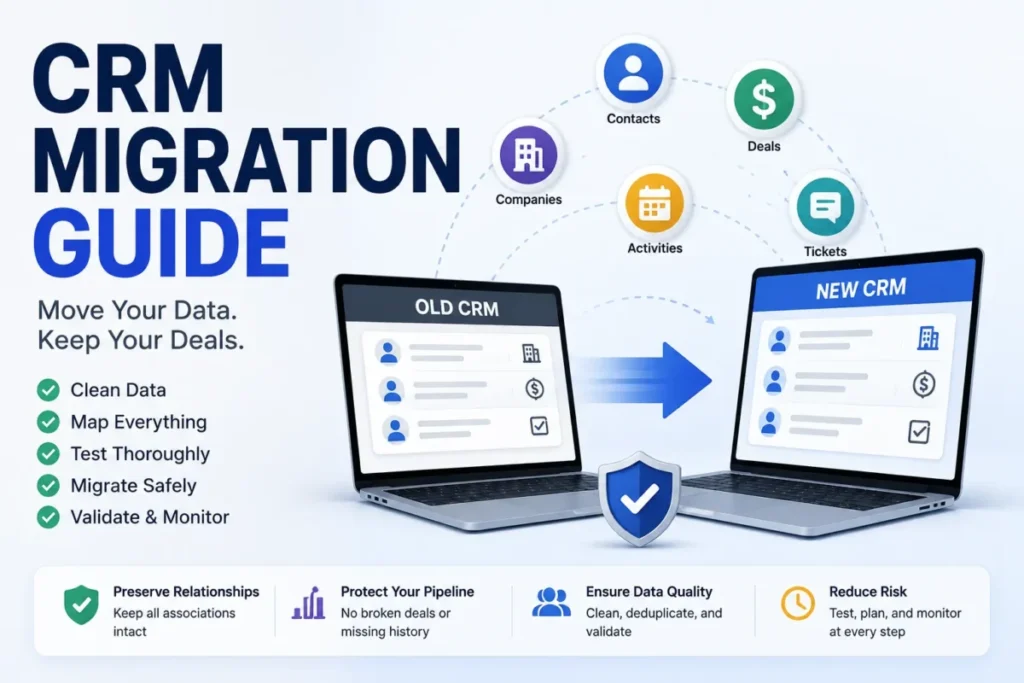
A CRM migration rarely fails on the import button. It fails three weeks later, when a rep opens a deal and the linked company, the last five calls, and the record owner are all gone.
This CRM migration guide is written for that risk, not for a clean spreadsheet demo. CRM migration is the planned transfer of customer records, relationships, activity history, users, permissions, and reporting context from one CRM or spreadsheet stack into another, without losing the connections that make the data usable.
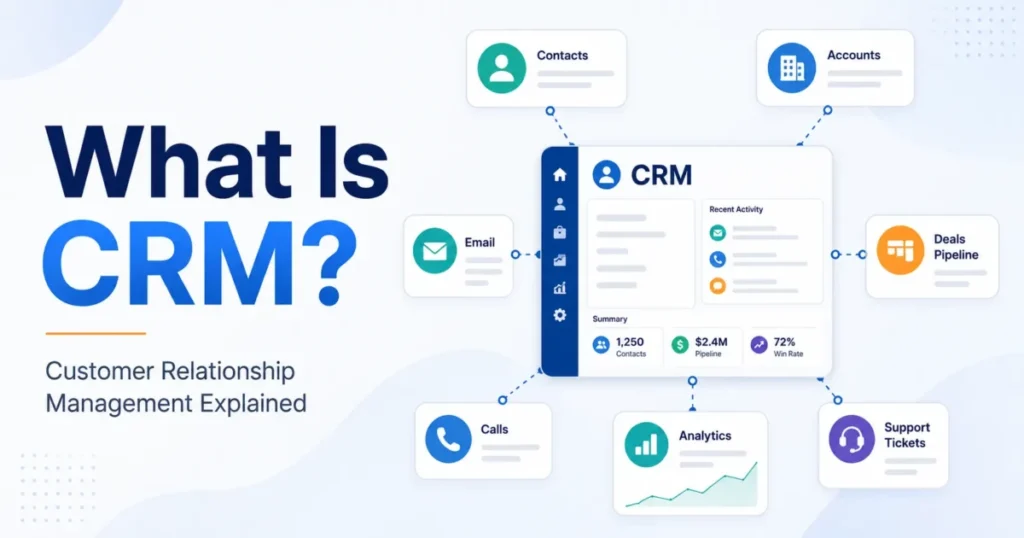
If you are still deciding what a CRM should do before you move into one, start with what CRM software is, then come back here to plan the move.
Most guides on this topic repeat the same four steps: audit, clean, map, test. Those steps are correct and incomplete.
They skip the parts that actually break a switch: native import limits, mandatory-field failures, ownership mapping, association loss, rollback behavior, and the reconciliation work that happens after go-live. This guide covers those, with the specific platform caveats that decide whether a do-it-yourself import is safe or reckless.
I write this as a CRM buying analyst, not a migration vendor. The goal is a migration your finance team can approve and your sales team keeps using past month two.
| Quick answer | What to know |
|---|---|
| What migration is | A one-time or phased move of CRM data, relationships, and history, not an ongoing sync |
| First decision | Choose the method by data volume and object complexity, not by brand preference |
| Biggest risk | Broken associations and skipped records, not the import itself |
| What to move first | Active pipeline and current customers, then history |
| How to prove success | Reconcile record counts, owners, and associations for 7 to 30 days after go-live |
In This Article (19 sections)
How We Built This Guide
We reviewed official CRM import and migration documentation, current migration guides, and platform-specific limits to build a practical CRM migration framework for sales and RevOps teams.
The platform details here come from official sources: HubSpot, Salesforce, Zoho, Pipedrive, and Microsoft help and product pages, checked in July 2026. This is documentation-based research, so nothing below claims hands-on testing.
Where a limit or behavior is specific to one platform, this guide says so. Import ceilings, undo rules, and permission requirements differ by vendor, and treating one CRM’s behavior as universal is how migration plans go wrong.
What CRM Migration Actually Is
Read the definition in three layers, because the layer you skip is the one that fails.
At the surface, CRM migration moves records: contacts, companies, deals, and leads from one system to another. That is the part everyone plans for.
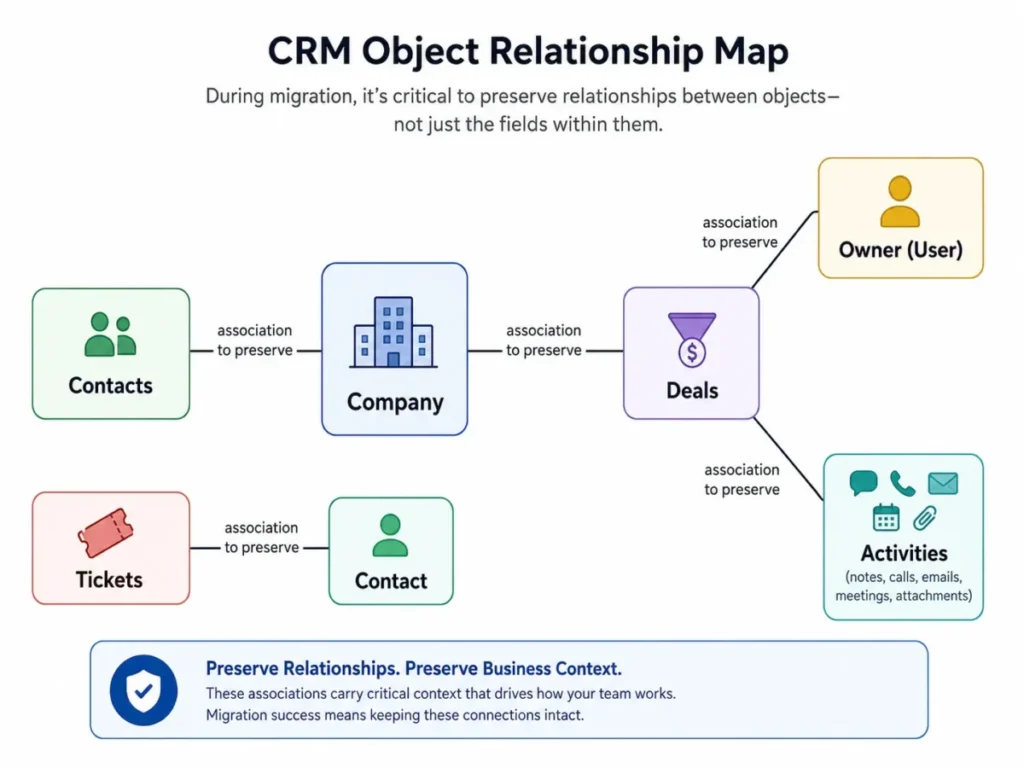
One layer down, it moves relationships and context: which contact belongs to which company, which deal is tied to which owner, and every note, call, email, and meeting attached to those records. This is the layer that makes a CRM worth using.
The deepest layer is business logic: pipeline stages, lifecycle statuses, mandatory fields, permissions, and the reporting that leadership trusts. Move the first two layers and skip the third, and you get a database that technically imported but no longer runs the revenue process.
A CRM migration is normally a one-time or phased project with a defined start and end, according to how data migration is described in general practice. That distinction matters for scope, because a migration is not the same as a permanent connection between two systems.
CRM Migration vs Integration vs Implementation
Teams under-budget when they confuse these three. The wrong label leads to the wrong plan, the wrong tool, and the wrong timeline.
| Term | Purpose | Timing | Typical owner |
|---|---|---|---|
| CRM migration | Move data and history into a new system | One-time or phased, with an end date | RevOps, Sales Ops, or CRM admin |
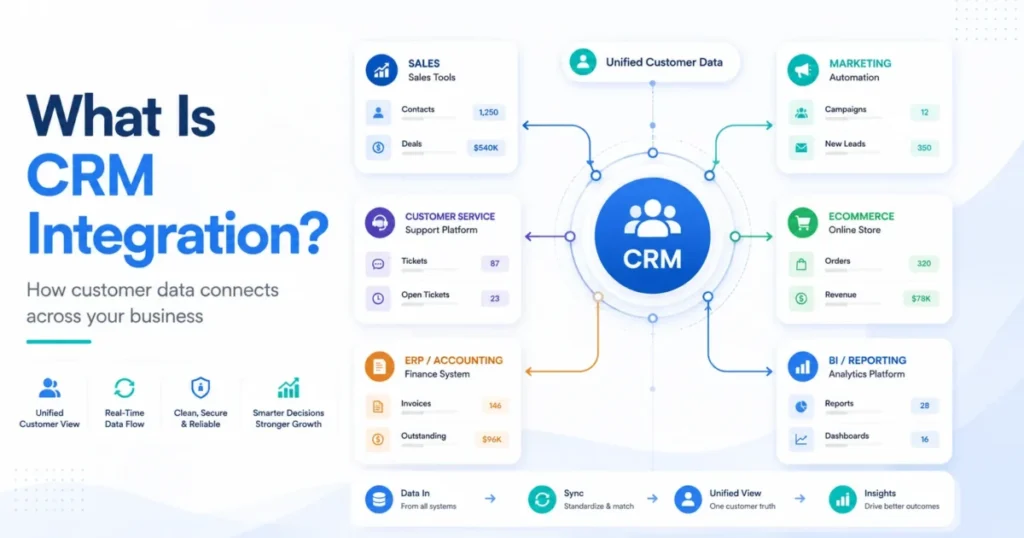
| CRM integration | Keep two systems connected and updated | Ongoing, continuous | Admin plus technical or API support |
| CRM implementation | Stand up the whole CRM: setup, config, data, training | Project spanning migration as one step | Project lead plus admin and vendor |
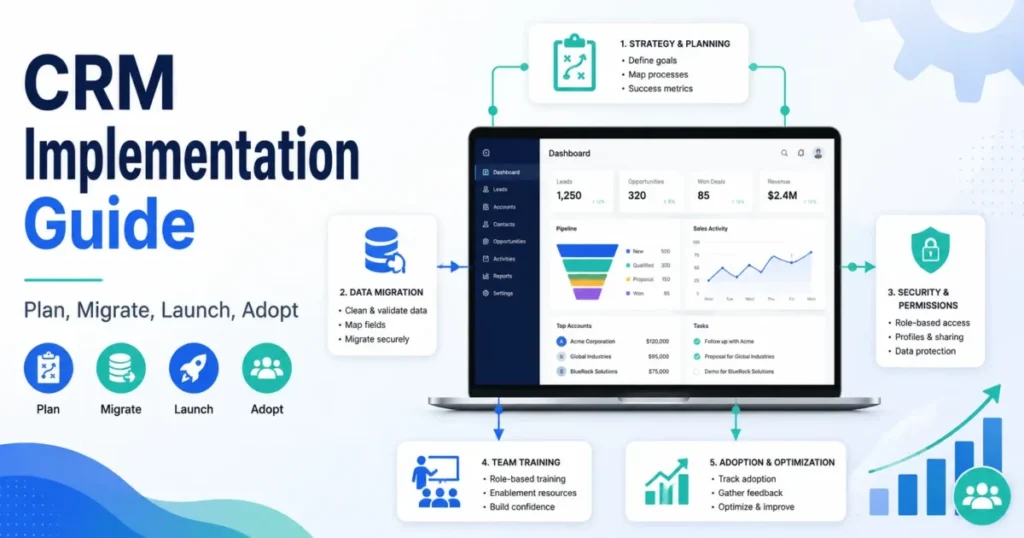
Salesforce treats data migration as one step inside a broader CRM implementation, while general data-migration practice frames migration as usually a one-time project and integration as ongoing synchronization. If your project also includes new pipelines, automation, and training, you are running an implementation, and migration is a phase inside it.
Scope this before you touch data. A team that budgets for a “migration” but actually needs an “implementation” runs out of time on workflows and user training.
What Actually Moves During a CRM Migration
“Map your fields” is the most repeated and least useful advice in this category. Fields are the easy part.
Objects and their relationships are where migrations break.
HubSpot’s import tooling treats records, objects, associations, and activities as distinct data categories, not one flat file. That structure is the reason a contact can import perfectly while its deal history, company link, and call log vanish.
Use this object relationship map to plan the move by object, not by spreadsheet.
| Object | Common matching key | Must preserve | Validation check after import |
|---|---|---|---|
| Contacts | Email, then phone | Owner, company link, activity history | Count matches, owner set, company associated |
| Companies | Domain, then name | Associated contacts and deals | Domain unique, contacts linked |
| Deals | Deal name plus company | Stage, owner, close date, associations | Pipeline totals match, owner correct |
| Tickets | Ticket ID or subject plus contact | Status, owner, contact link | Open/ |
| Activities | Timestamp plus related record | Notes, calls, emails, meetings, attachments | Sample records show full history |
| Users and owners | Role, owner mapping | Every active user exists before records import |
Activity history is where sales teams feel loss most sharply. A rep cares more about the last three calls on an account than about a clean contact row, so notes, calls, emails, meetings, and attachments deserve their own validation pass.
Attachments deserve special attention. Zoho notes that attachments often make up most of the migration data and can exceed upload limits, which means files can quietly fail even when records succeed.
The Nine Phases of a CRM Migration
A safe CRM migration process runs in phases, and each phase has a failure mode you can plan around.
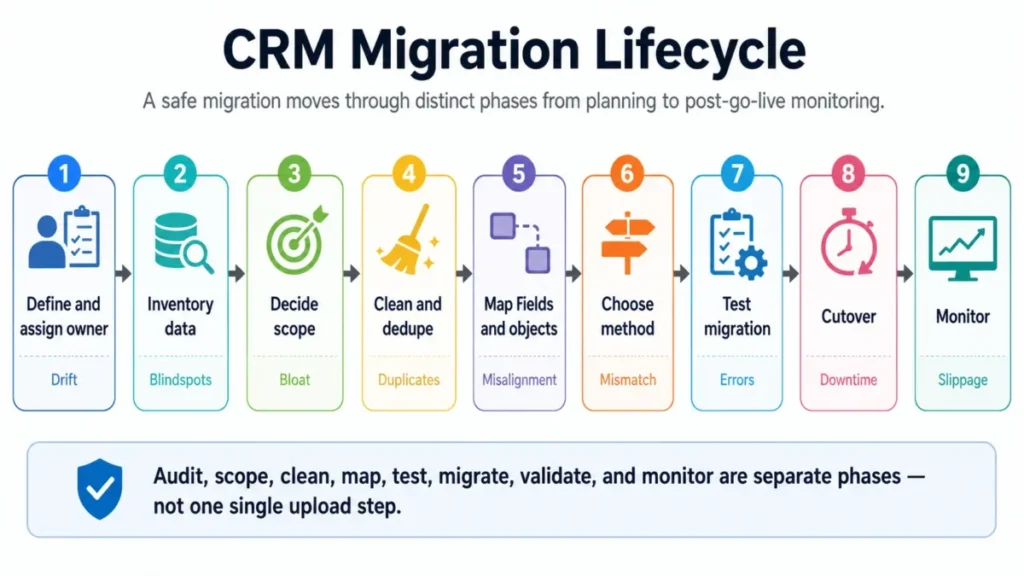
The sequence is: define the business reason and assign one owner, inventory source data by object, decide what to migrate versus archive, clean and deduplicate, map fields and objects to the new model, choose the migration method, run a test migration, execute cutover with a freeze and rollback plan, then monitor for 7 to 30 days after go-live.
The single most useful move here is naming one owner, ideally in RevOps, Sales Ops, or the CRM admin seat. Migrations that belong to “the team” tend to stall at the decisions nobody wants to make, like what history to leave behind.
Choose the Right CRM Migration Method
The method decides everything downstream: downtime, cleanup, and whether native import can even hold your data. Pick it by volume and object complexity, not by which tool a blog recommended.
Use this decision logic to match method to complexity:
- Simple contacts and deals in a spreadsheet go through native CSV import.
- A supported source CRM can use a guided transfer tool.
- Custom objects, high volume, or transformations point to API or ETL migration.
- Multi-system moves or high-risk cutovers justify partner support.
Native import limits often decide the method for you, and most guides never quantify them.
| Platform | Native import format | Stated limit | Watch for |
|---|---|---|---|
| Salesforce Data Import Wizard | Supported standard objects | Up to 50,000 records at a time | Duplicate values in unique fields can fail the import |
| Pipedrive spreadsheet import | XLS, XLSX, CSV | No more than 50,000 rows, file under 50 MB, one tab | Items missing mandatory fields are not imported |
| Zoho Data Migration Wizard | CSV | Larger file structures supported; module and field mapping required | Migration pauses if over 5,000 records in a module are skipped |
| HubSpot Smart Transfer | Supported source apps | Requires Super Admin; Data Hub required for custom field mappings | One-way transfer, not a two-way sync |
If your dataset is under those ceilings and mostly standard objects, native import is a reasonable path. Our Salesforce CRM review covers how its import tooling and admin overhead behave once volume and custom objects grow.
Cross a limit, or carry custom objects and heavy history, and I would plan for API, ETL, or partner support before you build the wrong plan around a spreadsheet.
One distinction saves teams from a bad assumption: a one-time transfer is not a sync. HubSpot Smart Transfer separates one-time transfers from ongoing data sync, and after a one-time move the old and new systems do not stay current with each other.
| Method | Direction | Stays connected after? | Best for |
|---|---|---|---|
| Native CSV import | One-time | No | Simple records from spreadsheets |
| Guided transfer (Smart Transfer) | One-time, one-way | No | Supported source CRMs |
| Recurring data sync | Two-way, ongoing | Yes | Running two systems in parallel |
| API migration | One-time or scripted | Depends on build | Custom objects, high volume |
| ETL migration | One-time, transformed | No | Complex mapping and cleanup |
Assisted transfer only helps if your source is supported. HubSpot Smart Transfer lists supported apps including Pipedrive, Zoho CRM, Dynamics 365, Copper, Keap, Salesforce, Zendesk, Freshdesk, and Monday.com, so an unsupported stack falls back to CSV, API, or partner work.
If HubSpot is your destination, our HubSpot CRM review looks at where Data Hub gating changes the migration math.
Before You Migrate: Permissions and Scope
Two prerequisites stall more migrations than data quality: who has permission to run the move, and how much data you decide to move.
Permissions are a prerequisite, not an admin afterthought. HubSpot Smart Transfer requires Super Admin access, and Zoho requires users to hold the Data Migration permission before they can run the wizard.
Confirm access on both sides before anyone exports a file. You need export rights on the source, import and user-creation rights on the target, permission to create custom fields, and the ability to delete or roll back if a test batch goes wrong.
Then decide scope, because more data is not better data. The safe order is active pipeline first, then current customers and active opportunities, then recent activity, then archived history if it earns its place.
Superleap recommends importing the active pipeline first and archiving older inactive contacts, which keeps the new CRM clean on day one. Migrating five years of dead leads into a fresh system adds clutter, duplicate risk, and the exact distrust you are trying to avoid.
Clean and Prepare Your Data
Cleanup is where “map your fields” advice quietly fails, because the real failures are mandatory fields, blank rows, and matching logic.
Run a mandatory-field preflight before any test import. Zoho states that missing mandatory fields can cause records to be ignored, and Pipedrive states that items missing mandatory fields are not imported.
Check the required fields for each object: contacts, companies, deals, tickets, and users. A record with a blank required field does not error loudly.
It silently drops, which is how teams lose data without noticing until reports look wrong.
File hygiene has its own failure modes. Zoho and Pipedrive import guidance point to specific requirements: a header row, no blank rows, one tab per import, correct file format, and dropdown values that match the target field.
Deduplication is the other trap, and “remove duplicates” is not a plan. You need a matching hierarchy per object so the importer merges the right records and keeps separate ones apart.
| Object | Primary match | Fallback match | Note |
|---|---|---|---|
| Contact | Email address | Phone number | Two people can share a company, not an email |
| Company | Domain | Company name | Names collide, domains rarely do |
| Deal | Deal name plus company | External deal ID | Avoid merging distinct opportunities |
| Ticket | Ticket ID | Subject plus contact | Preserve history per case |
Pipedrive recommends matching on identifiers such as email or phone, and layered deduplication practice uses email, company domain, a custom external ID, or phone in a set order. Our Pipedrive CRM review walks through its import and duplicate handling in more detail, but the rule holds anywhere: pick the hierarchy before import, not after you find duplicates in production.
Map Fields, Objects, and Ownership
Mapping is not a one-to-one spreadsheet exercise. Three things break it: custom fields, ownership, and different data models.
Custom fields are not just a mapping task. They often carry lead source, lifecycle stage, qualification, and compliance logic, and the target CRM has to be ready to receive them.
HubSpot requires a Data Hub subscription for custom field mappings in Smart Transfer, Pipedrive recommends creating custom fields before import, and Zoho can create new fields during migration but the field count depends on the edition. The Zoho CRM review covers how edition tiers gate custom fields, which matters when your source carries dozens of them.
Build a custom-field readiness list: field owner, target field type, required status, picklist values, and any plan or permission dependency.
Ownership is a hidden dependency that breaks routing. Zoho recommends migrating user details first and mapping the Owner ID before records move, so accounts land with the right rep.
Map and create users before contacts, companies, and deals. If ownership imports blank or wrong, sales routing, territory reporting, and accountability all fail on day one, and fixing owner assignments in bulk after the fact is slow.
Data models rarely match one-to-one, and field mapping alone cannot preserve business logic. HubSpot Smart Transfer creates workflows to manage differences between data models in the source app and HubSpot, which shows that migration is a business-process project, not a flat upload.
| Model difference | Source example | Target problem | Fix |
|---|---|---|---|
| Pipeline stages | 7 custom stages | Target has 5 defaults | Remap stages, keep close-date logic |
| Lifecycle status | Free-text status | Target uses fixed picklist | Standardize values before import |
| Owner fields | Single owner | Target splits owner and creator | Decide which maps to owner |
| Activity types | Custom call outcomes | Target has fixed types | Map to nearest type, note the loss |
Test Migration and Validation
Never run a full migration first. Run a representative sample, then read the logs before you trust the process.
A good test batch includes a mix: contacts with and without companies, deals across pipeline stages, records with attachments, and a few known-messy rows. The point is to trigger failures on purpose in a small batch, not to discover them across your whole database.
After the test, review the import history for skipped, merged, and updated records. Pipedrive shows import history with counts of added, updated, merged, and skipped records, and Zoho advises checking the import log and reimporting if the mapping was wrong.
If records are skipped, the fix is usually upstream: a missing mandatory field, a duplicate in a unique field, a blank row, or a dropdown value that does not match. Fix the source file, not the target, and rerun the sample before scaling up.
Cutover, Freeze Window, and Rollback
Cutover is the moment records created in the old system can fall through the gap. A freeze window and a rollback plan are what keep that from happening.
Plan a data freeze on the source during final cutover. The Higher Pitch recommends freezing critical data during final cutover so new records are not missed, and a short delta capture handles anything created during the switch.
The cutover sequence is: back up the source, freeze data entry, export a final delta, run the full migration, validate, then release users into the new CRM. Skipping the freeze is how a deal created on cutover morning ends up in neither system.
Rollback is not universal, and undo behavior differs by tool. HubSpot Smart Transfer provides a revert-transfer path, while Zoho limits undo or rerun to three times in some migrations, which changes how many attempts you get.
Do not assume a clean undo button. Your real rollback safety is the source backup and the import history, so keep both intact until reconciliation is complete and leadership signs off.
| Rollback asset | Why it matters |
|---|---|
| Source backup | The only guaranteed way back to the original state |
| Import history or log | Identifies exactly what was added, merged, or skipped |
| Test-batch results | Proves mapping before full run |
| Freeze plus delta plan | Prevents lost records during cutover |
| Tool-specific undo caveat | Native revert may be limited or one-shot |
Rollback assumptions also change your cutover timing, so confirm the undo behavior of your specific tool before you schedule go-live around it.
After Go-Live: Reconcile and Stabilize
Most checklists stop at import or training. That is where the real validation should start.
An import that “worked” can still be wrong in ways nobody sees until a report breaks or a rep loses an account. Run a structured reconciliation for the first 7 days, and keep a lighter watch through day 30.
Reconcile in a fixed order so nothing is assumed. Record counts by object, skipped-record log, owner assignments, associations on a sample of deals, pipeline totals against the old system, key dashboards, active workflows, permissions, and direct feedback from reps using the data.
| Day-7 reconciliation check | Pass condition |
|---|---|
| Record counts by object | Match source minus intentionally excluded records |
| Skipped records | Reviewed, root cause known, reimported or accepted |
| Owner assignments | Every active record has the correct owner |
| Associations | Sampled deals show company, contact, and activity links |
| Pipeline totals | New-system totals match old-system totals |
| Reports and dashboards | Core reports return expected numbers |
Reps are your best validators. If a salesperson opens three accounts and the history looks right, you are close, and if it looks wrong, you found the problem before it corrupted a quarter of reporting.
How to Measure CRM Migration Success
A technically complete migration can still fail on adoption and reporting. Define success metrics before cutover, not after.
Superleap points to adoption, data accuracy, and sales performance as success signals, and official import logs give you the record-level accuracy numbers. Turn those into thresholds your team agrees on.
| Category | Metric | Target signal |
|---|---|---|
| Migration quality | Skipped-record rate | Low and fully explained |
| Data accuracy | Sampled association integrity | Relationships intact on review |
| System readiness | Reports and dashboards live | Core reports match pre-migration |
| Adoption | Active users in week 2 | Team working in the new CRM daily |
| Pipeline continuity | Pipeline value parity | New-system totals match old |
Adoption is the metric I weight most heavily. A migration that imports perfectly but pushes reps back to spreadsheets has failed the only test that pays for itself, so I would plan training and a feedback loop into the first two weeks, not as an afterthought.
When CRM Migration Gets More Complex
Not every migration is a spreadsheet upload, and treating a complex move like a simple one is a common budgeting error.
On-premises migrations are a special case. Microsoft provides guidance for migrating Dynamics CRM on-premises databases to Dynamics 365 and Microsoft Dataverse, and its OP2OL migration support applies to supported versions such as Dynamics CRM V9.0 on-premises and later.
If you are moving from a self-hosted CRM, treat it as a platform migration with eligibility, tooling, and infrastructure questions beyond CSV import, and check the current Microsoft guidance before scoping it. Our Dynamics 365 Sales review covers the cloud destination if you are weighing that move.
API-driven migration is the other escalation point. API migration can work well but takes more effort and qualified specialists, per technical migration practice.
Custom objects, large volume, transformations, and multi-system dependencies are the signals that native import has run out of room.
The cost of that complexity varies, and I would not quote a fixed number. Cost depends on data volume, custom fields, integrations, and whether you use internal specialists or a partner, so get scope-based quotes rather than a headline price. Then include migration in your CRM budget as a one-time line alongside seats and training, so the first-year total reflects it.
What Not to Migrate
The instinct to move everything is the instinct to poison a new CRM on day one. Scope is a feature, not a shortcut.
Leave behind duplicate records you cannot cleanly merge, contacts with no activity in years, deals that closed and no longer inform anything, and any records that would fail current compliance or consent rules. Archived history can live in an export or a data warehouse without cluttering the working CRM.
The rule I use: a record earns migration if a rep or a report will act on it. Everything else can be archived and retrieved if needed, which keeps the live system fast and trusted.
Common CRM Migration Mistakes
The failures repeat across teams, and they are avoidable once named.
Migrating everything is the first. It inflates duplicate risk and buries active records under dead ones.
Skipping the test migration is the second, because a full run is the worst place to discover a mapping error. Ignoring ownership is the third, since blank or wrong owners break routing and reporting the moment reps log in.
Assuming a clean rollback is the fourth. Native undo may be limited, so your backup and import log are the real safety net.
Ending at import is the fifth and most common. Without post-go-live reconciliation, bad mapping surfaces only after it has corrupted reports and eroded trust.
CRM Migration Checklist
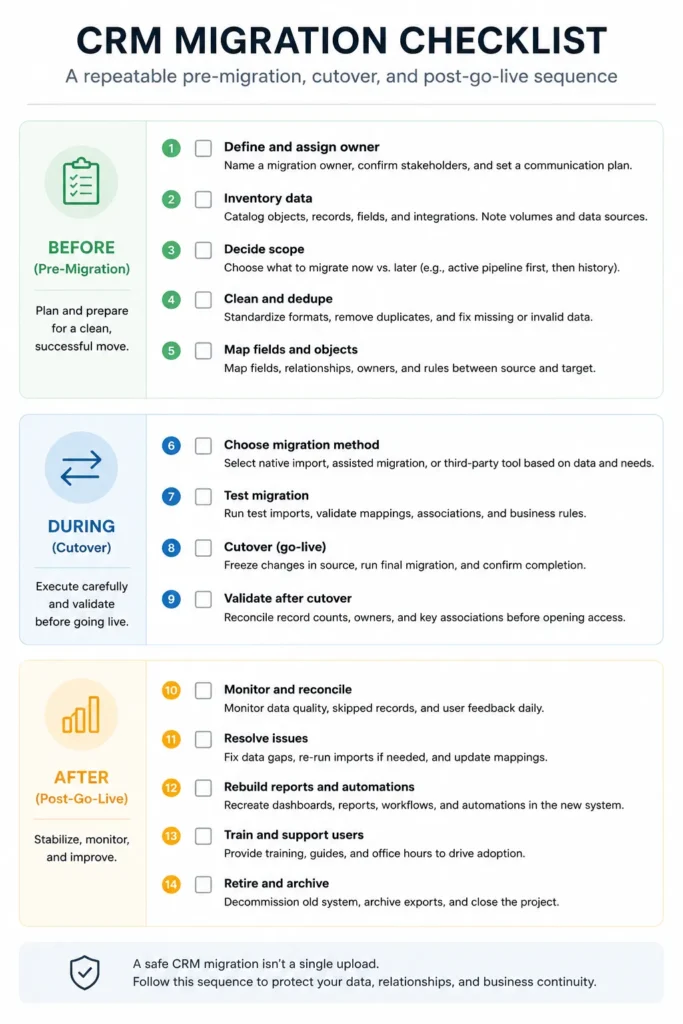
Use this as a condensed CRM migration checklist before go-live.
- Assign one owner in RevOps, Sales Ops, or CRM admin.
- Confirm permissions on source and target, including Super Admin or Data Migration rights where required.
- Inventory data by object: users, contacts, companies, deals, tickets, activities, attachments, custom objects.
- Decide scope: active pipeline first, archive the rest.
- Run a mandatory-field preflight per object.
- Set a deduplication matching hierarchy per object.
- Check import limits for your target CRM and choose the method accordingly.
- Map fields, custom fields, owners, pipelines, and data-model differences.
- Migrate or map users and owners before records.
- Run a test migration and review the import log.
- Plan cutover: backup, freeze, final delta, full run, validate, release.
- Confirm your tool’s rollback and undo behavior.
- Reconcile counts, owners, associations, and reports for 7 to 30 days.
- Track adoption and fix mapping, workflow, and training gaps.
Related CRM Guides
If you are still deciding where to move, the platform choice shapes the migration plan more than any tool. Compare options in our roundup of the best CRM software, because a platform with strong native import and supported-source transfer lowers migration risk.
Smaller teams have a shorter list to weigh, and our guide to the best CRM for small business narrows it further. Pick the destination with migration in mind, then use this guide to move safely.
FAQ
What is CRM migration?
CRM migration is the planned transfer of customer data, sales records, relationships, activity history, users, permissions, and reporting context from an old CRM or spreadsheet system into a new one. It is normally a one-time or phased project, not an ongoing sync, and its goal is to keep records usable and connected after the move, not just imported.
How is CRM migration different from CRM integration?
Migration moves data into a new system once or in phases and then ends, while integration keeps two systems connected and updated over time. General data-migration practice frames migration as a one-time project and integration as continuous synchronization, so a one-time transfer will not keep your old and new systems current with each other.
What data should you migrate to a new CRM?
Move records a rep or a report will act on: active pipeline, current customers, active opportunities, and recent activity history. Migrating active data first keeps the new CRM clean and trusted, and older or inactive records can be archived and retrieved later if needed, rather than cluttering the working system on day one.
What data should you not migrate?
Leave behind duplicates you cannot cleanly merge, contacts with no recent activity, closed deals that no longer inform decisions, and records that would fail current compliance rules. Archived history can live in an export or data warehouse, which keeps the live CRM fast and prevents the day-one clutter that erodes user trust.
How do you prevent duplicates during CRM migration?
Set a matching hierarchy per object before import: contacts on email then phone, companies on domain then name, and deals on name plus company. Pipedrive recommends identifiers such as email or phone, and choosing the hierarchy in advance stops the importer from either creating duplicates or merging records that should stay separate.
What is field mapping in CRM migration?
Field mapping connects source fields, objects, owners, and pipelines to the target CRM’s data model so records stay usable after import. It goes beyond one-to-one columns, because custom fields may need a subscription or pre-created fields and different data models may need workflow translation, which is why HubSpot Smart Transfer even creates workflows to manage those differences.
Why do some records get skipped during migration?
Records are usually skipped when a mandatory field is missing, a value duplicates a unique field, a row is blank, or a dropdown value does not match the target. Zoho ignores records missing mandatory fields and pauses migration if over 5,000 records in a module are skipped, and Pipedrive does not import items missing mandatory fields.
Can you roll back a CRM migration?
Sometimes, but undo behavior differs by tool: HubSpot Smart Transfer offers a revert path, while Zoho limits undo or rerun to three times in some migrations. Do not rely on a native undo button, because your real rollback safety is a full source backup and the import history, kept intact until reconciliation is complete.
How long does a CRM migration take?
There is no universal timeline, because it depends on data volume, custom fields, integrations, data quality, testing, and user training. A small spreadsheet-to-CRM move can be quick, while a multi-object cross-CRM migration with custom objects and history takes far longer, so plan against your own scope rather than a headline estimate.
Do you need a migration tool or can you use native import?
Native import works for simple, in-limit datasets: Salesforce Data Import Wizard handles up to 50,000 records at a time, and Pipedrive spreadsheet import allows up to 50,000 rows under 50 MB. Cross those limits, or carry custom objects and heavy history, and API, ETL, or partner-led migration becomes the safer path.
This is a practical guide based on official CRM documentation; import limits, undo rules, and permissions can change by vendor, plan, and date, so confirm the current details on each platform’s official pages before you migrate.