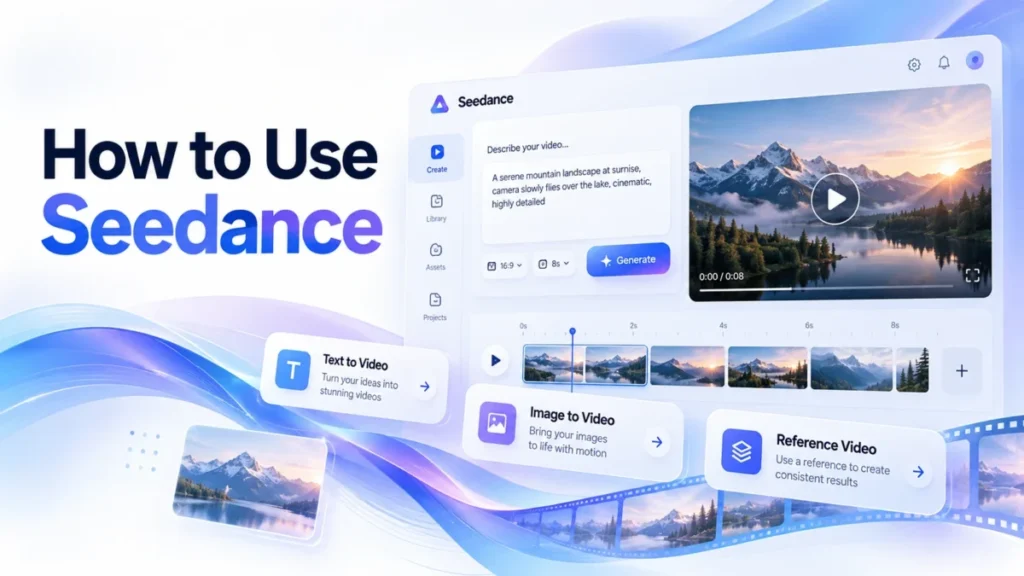
Here is how to use Seedance 2.5: open Dreamina’s AI Video page and select Dreamina Seedance 2.5 as the model. For text to video, describe the scene in the prompt.
For image to video, add your image with the “+” button and name it in the prompt with a tag such as @Image 1. Then set the aspect ratio and duration, click “Generate” and click “Download”. One generation runs up to 30 seconds.
Dreamina announced Seedance 2.5 on July 31, 2026, and US readers should check one detail first. The launch post lists the rollout for subscriber accounts in Europe, Asia, the Middle East and South America, but names the United States only for Seedream 5.0 Pro.
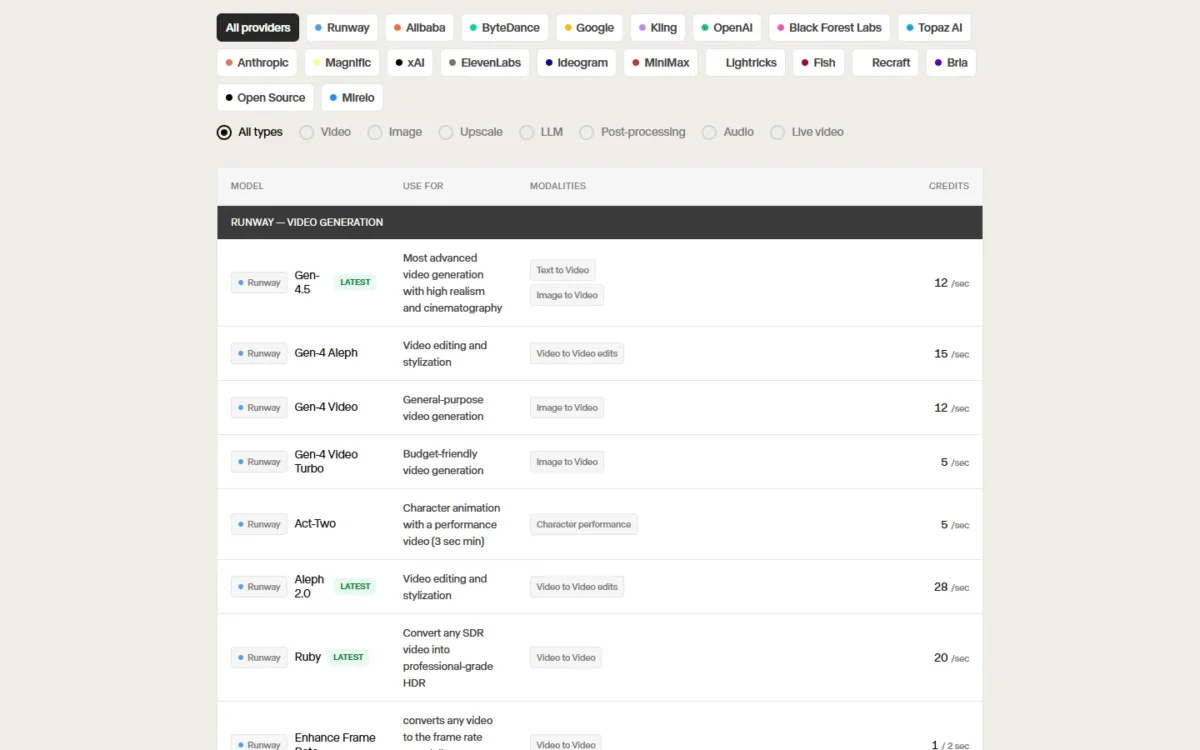
If your Dreamina model list lacks Seedance 2.5, Runway’s credits page lists the model in its app, and developers can follow the Runway Dev (API) section below.
- Task: make a Seedance 2.5 video from a text prompt, then from your own image
- Result: a downloaded clip of up to 30 seconds per generation
- Prerequisites: a Dreamina account with credits (or a Runway account), plus images you own
- Tools: Dreamina’s AI Video page; Runway as the second documented surface
- Limitation: up to 50 multimodal inputs per generation; Dreamina’s pages name no plan that includes the model
Every control name below comes from ByteDance’s, Dreamina’s and Runway’s own pages, checked October 2026.
In This Article (20 sections)
Where Can You Use Seedance 2.5?
You can use Seedance 2.5 in Dreamina, which calls itself the model’s official access, and in Runway, whose credits page lists it for the app and whose developer API (Runway Dev) documents it. ByteDance’s Seedance 2.5 page describes the model and links out with a “Try now” button.
| Surface | How you reach Seedance 2.5 | What the saved page documents |
|---|---|---|
| Dreamina (web app) | Log in, click “AI Video”, select Dreamina Seedance 2.5 | 30 seconds per generation, 50 multimodal inputs, Long Video mode of 5 to 180 seconds, local editing |
| Runway (app) | Seedance 2.5 in Runway’s model list | Text to Video, Image to Video, Video to Video; per-second credits at 480p, 720p and 1080p |
| Runway Dev (API) | Model ID seedance2_5 | 4 to 30 seconds; 30 images, 10 videos and 10 audio clips; a 480p draft mode |
| ByteDance Seed (model page) | seed.bytedance.com | Up to 30 seconds in one generation, with the option to extend twice |
Sources: Dreamina AI video generator page, Runway credits and models, Runway Dev API changelog, Seedance 2.5 by ByteDance Seed, checked Oct 2026.
I follow Dreamina for the nine steps because its pages cover prompt to download. Runway comes second because its documentation prints its reference limits and credit rates.
Before You Begin
You need a Dreamina account with credits, a written prompt and, for image to video, an image you have the right to use. Dreamina says you can start with free credits, and its launch post adds that no credit card is required.
- Account and plan: a Dreamina login you own; the launch rollout named subscriber accounts of people over 16, and Dreamina’s pages name no plan that includes Seedance 2.5
- Prompt: the subject, action, environment, camera movement, lighting, mood and visual style, as the FAQ on Dreamina’s Seedance 2.5 page lists them
- Images (image to video): your own product shots, characters or locations
- Limits: up to 30 seconds per generation and up to 50 multimodal inputs (text, images, videos and audio)
The launch post named subscriber accounts for the rollout, while Dreamina’s Seedance 2.5 page says free daily credits let you test the model before you subscribe. If the model is missing from your list, see the first Troubleshooting row.
Dreamina’s pages list no accepted image formats or file-size limit for Seedance 2.5, so start from full-quality source files.
Text to video uses Steps 1-3 and 6-9; image to video uses all nine.
If you still need a script or shot list, my guide on how to make AI videos covers that planning stage.
Step 1: Open AI Video in Dreamina
Log in to Dreamina and click “AI Video” to open the video workspace.
Expected result: the AI Video page opens with a prompt box and a “Generate” button.
Step 2: Select Seedance 2.5 as the Model
Select Dreamina Seedance 2.5 as the video model before you write anything. Dreamina’s pages list several Seedance versions side by side: Seedance 2.5, Seedance 2.5 Flash, Seedance 2.0, Seedance 1.5 Pro and Seedance 1.0.
Expected result: the selected model reads Dreamina Seedance 2.5, not Flash and not an earlier version.
The check matters because the 30-second length is a Seedance 2.5 limit: on Runway’s API, Seedance 2.0 runs 4 to 15 seconds.
Step 3: Write the Prompt for Text to Video
For text to video, describe the subject, motion, camera style, lighting and mood in the prompt box; no image is needed. Dreamina’s AI video generator page lists those five parts.
The longer list in Before You Begin comes from Dreamina’s Seedance 2.5 page. The AI video generator page adds that Seedance 2.5 can generate background music, sound effects and voice dialogue from the same prompt.
An example written for this page:
A barista in a small corner café pours latte art into a white cup. Slow push-in from a low angle. Warm morning light through the window, calm mood. Soft café chatter and the hiss of the steam wand.Dreamina’s own example prompts also mark time ranges, such as “0–4s” and “4–10s”, to pace a scene in beats. For ready-made structures, my Seedance 2.5 prompt templates fit this box. Text-to-video readers skip to Step 6.
Expected result: a prompt that names what moves, how the camera follows it and what the clip sounds like.
Step 4: Upload Your Image as a Reference
To turn an image into a video, click “+” on the AI Video page and add the image as a reference. Dreamina’s AI video page puts it as “Upload any asset as reference if needed”, and its Seedance 2.5 page names the “+” button for adding a reference image.
Expected result: the image appears as a reference beside the prompt, ready for the generation.
One generation takes up to 50 multimodal inputs, so a product shoot can carry the product, the set and a style frame at once. The interface may label the upload panel differently by account or region.
Use only images you own or may use. Dreamina’s launch post lists policies against the unauthorized use of likeness and technology that blocks unauthorized generation of intellectual property. A celebrity face or a branded character can stop the run.
If you need consistent product or character frames first, an AI image generator can make them.
Step 5: Tag Each Image With @ in the Prompt
Name each upload in the prompt with its tag, such as @Image 1 or @Image 2, and say what it is for. Dreamina’s own example prompts work this way: “Use @Image 1 for the venue. Reference @Image 2 for the pianist.”
An example with two tagged images, written for this page:
Use @Image 1 for the product: a matte black travel mug. Use @Image 2 for the setting: a wooden desk by a window. The camera circles the mug once, slow and steady. Soft daylight, quiet room tone.Dreamina’s examples tag video and audio the same way (@Video 1, @Audio 1).
Expected result: every upload is named once in the prompt, with one job each.
Step 6: Set Aspect Ratio and Duration
Set the aspect ratio for the platform and the video duration before you generate; one Seedance 2.5 generation runs up to 30 seconds. Use a vertical ratio for TikTok or YouTube Shorts and widescreen for a cinematic cut.
For a longer piece, Dreamina offers a Long Video mode with durations from 5 to 180 seconds. Its Seedance 2.5 page calls that mode beta, so keep it for a second pass once a 30-second take works.
Expected result: the settings match the platform where the clip will run.
Step 7: Click Generate and Watch the Preview
Click “Generate” to render the clip; it opens in the preview with the audio the prompt asked for.
Warning
Each generation you run on Runway Dev costs credits: Runway bills each Seedance 2.5 generation per second of output, with an 80-credit minimum. Dreamina’s plans come with monthly credit allowances. Test a new prompt on a short duration before a full 30-second take; per-second rates and plans are on my Seedance 2.5 pricing and credits page.
Expected result: a playable clip in the preview, with sound if you described sound.
Step 8: Refine, Upscale or Regenerate
Refine a close take with Dreamina’s upscale and interpolation tools rather than starting over, or change the prompt and regenerate.
- Upscale: sharper detail on the same take; Dreamina’s paid plans list “Increase video resolution”
- Interpolation: smoother motion; the paid plans list a frame rate of up to 60 FPS
- Local editing: remove an object, change a selected element, adjust the camera angle or edit audio without regenerating the whole clip
- Extend: ByteDance’s model page says a clip can be extended twice, and Dreamina’s paid plans list “Extend video length”
Keep the earlier take until the new version is better.
Expected result: a sharper, smoother or corrected version of the take you chose.
Step 9: Download the Video
Click “Download” to save the final clip to your device. Dreamina’s paid plans list “Remove the Dreamina watermark in downloads”, so check a free-credit download for the watermark before you publish it.
Expected result: a video file on your device that opens and plays outside Dreamina.
How to Run the Same Steps in Runway (App and API)
In the Runway app, Seedance 2.5 is in the model list, and Runway’s credits page lists it for Text to Video, Image to Video and Video to Video. Choose the model and one of those modes; the app’s other menu names are not on the saved official pages.
The model’s controls are documented on Runway’s developer pages (Runway Dev), so the table below is the API path for developers: each Dreamina control next to the parameter Runway Dev names.
| Job | In Dreamina | Runway Dev (API), for developers |
|---|---|---|
| Choose the model | Select Dreamina Seedance 2.5 | Model ID seedance2_5 |
| Text to video | Describe the scene in the prompt box | promptText on a text to video request |
| Image to video | “+” adds a reference image | Image to video request; up to 30 reference images |
| Name each input | @Image 1, @Video 1 in the prompt | Not listed on Runway Dev’s saved pages |
| Shape and length | Aspect ratio and video duration, up to 30 seconds | ratio (such as 1920:1080) and duration, 4 to 30 seconds or auto |
| Resolution | Upscale; “Increase video resolution” on paid plans | 480p, 720p or 1080p, set through the ratio |
| Cheap preview | Not listed on Dreamina’s pages | draft: true renders a 480p preview |
| Final render | “Generate” | A full request, or enhance a draft with draftTaskId within 7 days |
| Get the file | “Download” | Poll the task until its status is SUCCEEDED |
Sources: Runway Dev models and draft mode, Runway Dev API changelog, Dreamina Seedance 2.5 page, checked Oct 2026.
Runway’s draft mode is the control Dreamina’s pages do not list. A draft is always 480p and billed at the 480p rate. Enhancing it to 1080p reuses the draft’s prompt, references, duration, seed and audio setting.
Runway also caps the reference budget more precisely than Dreamina’s 50-input line: 30 images, 10 videos and 10 audio clips, with reference video and audio under 30 seconds combined. Resolution is the other difference. Dreamina’s Seedance 2.5 page advertises 4K output, while Runway Dev says 4K stays on Seedance 2.0, so Seedance 2.5 on Runway tops out at 1080p.
How to Verify Your Seedance 2.5 Video
The clip worked when it plays at the ratio and length you set, with each tagged image in its role and the audio you asked for.
Verification checklist
- The clip plays in the preview from start to end
- The frame matches the aspect ratio you chose (vertical or widescreen)
- The length matches the duration you set, up to 30 seconds
- Image to video only: the subject from @Image 1 appears where the prompt placed it
- The audio is present when the prompt described music, effects or dialogue
- The downloaded file opens and plays on your device, with or without the Dreamina watermark you expected
Dreamina’s launch post lists invisible watermarks, C2PA Content Credentials and visible AI labels among the models’ guardrails. Leave them in place: they help viewers know the clip is AI-generated.
Practical Example: A 10-Second Product Clip (Illustrative)
Take an illustrative 10-second, 16:9 product shot made from one photo of a travel mug, tagged @Image 1 with the prompt from Step 5. On Runway, the cost of one approved take depends on whether you preview first.
Runway’s rates for Seedance 2.5 are 68 credits per second at 1080p and 20 credits per second at 480p, and a draft bills at the 480p rate. Reference images add no credits on Runway’s API, so the photo itself costs nothing.
| Path | Takes | Credits (formula) |
|---|---|---|
| Direct 1080p, first take approved | 1 full take | 68 x 10 = 680 |
| Direct 1080p, first take rejected | 2 full takes | 68 x 10 x 2 = 1,360 |
| One draft approved, then enhanced | 1 draft, 1 enhance | 20 x 10 + 68 x 10 = 880 |
| Two drafts, then the second enhanced | 2 drafts, 1 enhance | 20 x 10 x 2 + 68 x 10 = 1,080 |
Sources: Runway Dev API pricing and Runway credits and models, checked Oct 2026; the clip and its takes are illustrative.
A draft costs 880 – 680 = 200 credits more when the first take was already right. It saves 1,360 – 1,080 = 280 credits as soon as one full take would have been rejected. With a new prompt, I would draft first; with a prompt that already worked, I would render at 1080p directly.
A 5-second reference video changes the math: Runway adds 34 credits per second of reference video at 1080p, so 34 x 5 = 170 credits per full take.
Common Mistakes
Most failed or wasted first runs come from one of five mistakes:
- Leaving another model selected. Seedance 2.5 Flash and Seedance 2.0 sit in the same list. Read the model name before Step 3.
- Uploading images without naming them. Dreamina’s examples give every upload a tag and a role. Write @Image 1 and its job into the prompt.
- Using a face or brand you have no rights to. Dreamina blocks prompts under its likeness and intellectual-property policies. Use your own assets.
- Adding settings to a Runway enhance request. Runway rejects an enhance request that also sends promptText, ratio, duration, seed, audio, references or draft. Send the model and draftTaskId only.
- Waiting too long to enhance a draft. Runway enhances previews only within 7 days of creation. Enhance the take you want that week.
Troubleshooting
When Seedance 2.5 will not appear or a request will not run, possible causes are access, a length limit or a Runway Dev request the API rejects; each row names its source’s condition.
| Problem | Possible cause | What to check |
|---|---|---|
| Seedance 2.5 is missing from Dreamina’s model list | The launch rollout named subscriber accounts in Europe, Asia, the Middle East and South America | Your account’s region and subscription; Runway lists the model too |
| The clip stops at 30 seconds | One generation runs up to 30 seconds | Long Video mode (5 to 180 seconds) or extend the clip |
| The download carries a Dreamina watermark | Watermark removal is listed on the paid plans | Your plan before you publish |
| A Runway draft will not enhance | The draft is older than 7 days, did not succeed, or belongs to another account | The draft’s date, status and account |
| A Runway extend request is rejected | Extend matches the input aspect ratio, so a ratio may not be sent | Remove ratio and keep promptText |
| A Runway reference video is rejected | Input videos must be at least 480p, and reference video and audio must stay under 30 seconds combined | The clip’s resolution and the total reference length |
Sources: Dreamina Seedance 2.5 launch post, Runway Dev models and draft mode, Runway Dev API changelog, checked Oct 2026.
Related Templates and Checklists
The site’s Seedance 2.5 prompt templates fill Step 3 and Step 5 with copyable prompts.
Seedance 2.5 prompt templates
Copyable Seedance 2.5 video prompts, grouped by scene type, to paste into the prompt box in Step 3 or adapt with your own @ tags in Step 5.
How I Verified These Steps
I built these steps from the vendors’ own pages, read on October 18, 2026: three Dreamina pages, ByteDance Seed’s model page, Runway’s credits page and three Runway Dev guides.
I ran no generation, so output quality, render time and how closely the model follows each tag are not judged here. The interface may differ by account or region.
FAQ
Can a Seedance 2.5 video be longer than 30 seconds?
Yes, with Dreamina’s Long Video mode, which runs from 5 to 180 seconds and is labelled beta on Dreamina’s Seedance 2.5 page. ByteDance’s model page also says a clip can be extended twice.
What changed from Seedance 2.0?
The single-generation length doubled. On Runway’s API, Seedance 2.0 runs 4 to 15 seconds and Seedance 2.5 runs 4 to 30 seconds. Dreamina’s launch post adds up to 50 multimodal references per clip and editing of specific timestamps, characters or other elements.
Which languages can I prompt in?
Dreamina’s Seedance 2.5 page lists Chinese, English, Spanish, Indonesian, Malay, Thai, Arabic, Portuguese, Vietnamese, Japanese and Korean.
Is there a Seedance 2.5 API?
Yes, through Runway Dev, where Seedance 2.5 (seedance2_5) became available on August 7, 2026. Runway added 1080p output on August 15, 2026 and draft mode on September 28, 2026.
Next Steps
Once the first clip passes the checklist, change a detail with Dreamina’s local editing or extend the clip instead of regenerating it.
To compare Seedance with other tools, my list of the best AI tools for content creation matches them to the job.
If Google’s video tool is on your shortlist, how to use Google Flow covers Google’s tool step by step.