

Using Claude Code takes one install command, a sign-in on a paid Claude plan or a Console account, and a first session in your project that ends with a planned, approved edit and a Git commit. On macOS, Linux or WSL the install is curl -fsSL https://claude.ai/install.sh | bash; Step 1 has the PowerShell and CMD versions. Unlike the Claude chat app, Claude Code works inside the project: it reads your files, edits them and runs commands, from the terminal or an IDE.
The free claude.ai plan does not include Claude Code, so you need Pro, Max, Ultra, Team, Enterprise or a Console account. Pro is the entry route at $17 a month on an annual subscription ($200 billed up front) or $20 billed monthly, and your coding draws on the same usage pool as your chats.
This guide is for developers with a code project; if the terminal is the obstacle, the Desktop app’s Code tab includes Claude Code. One trap costs money: an ANTHROPIC_API_KEY variable left on your machine makes Claude Code bill API usage instead of your plan.
As of November 2026, Anthropic’s docs mark the native installer as the recommended method and list npm under advanced setup, so this guide starts with the native command. Every command, label and price below comes from Anthropic’s documentation and the claude.com pricing page, read on November 7, 2026.
- Task: install Claude Code and run a first working session in your own project
- Result: a passing version check, a signed-in prompt, a CLAUDE.md, one approved edit and one commit
- Prerequisites: a Pro, Max, Ultra, Team, Enterprise or Console account, a supported OS, a project under Git
- Tools: a terminal, a browser for the login, Git
- Limitation: the Free plan excludes Claude Code, and plan usage is shared with Claude chat
In This Article (16 sections)
Which Claude Code Surface to Start With
Claude Code runs on five surfaces, and this guide uses the terminal CLI as the main path:
- Terminal CLI: the full-featured tool that edits files, runs commands and manages the project.
- VS Code and Cursor: an extension with inline diffs, @-mentions, plan review and conversation history.
- JetBrains IDEs: a plugin for IntelliJ IDEA, PyCharm and WebStorm that requires the CLI, installed separately.
- Desktop app: includes Claude Code, so no CLI install is needed; a paid subscription is required.
- Web: claude.ai/code runs sessions in the browser with no local setup.
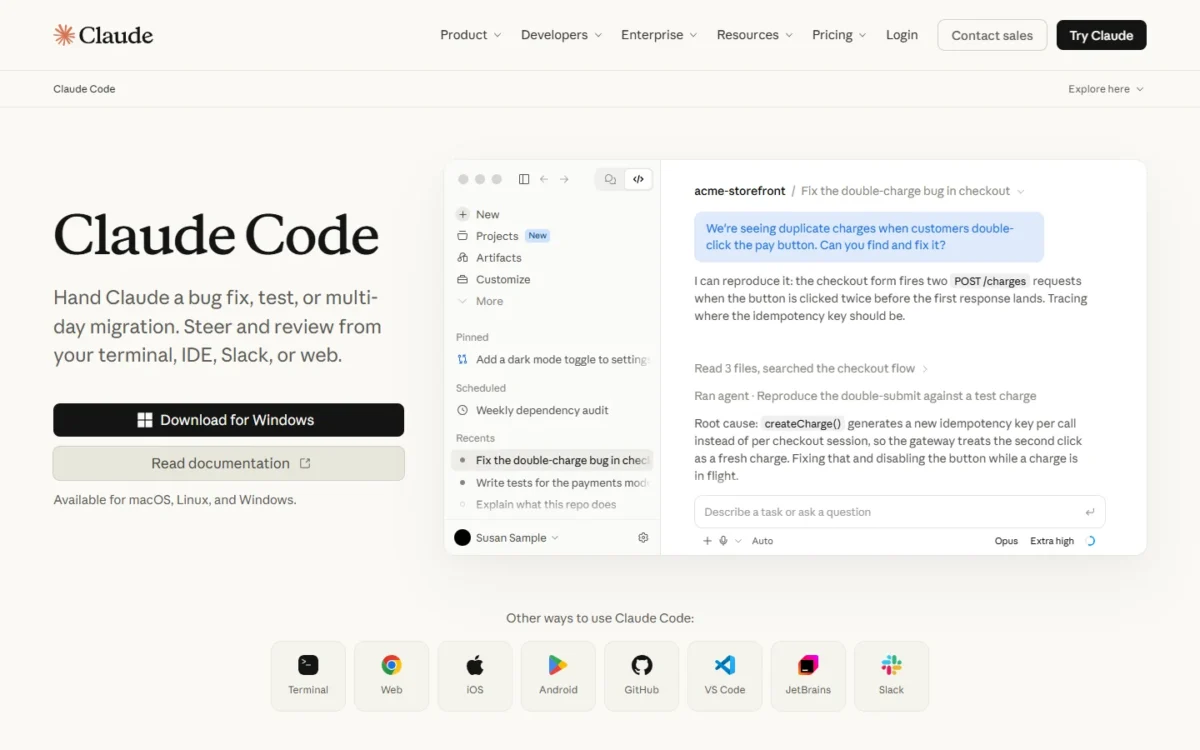
Each surface connects to the same Claude Code engine, so your repo’s CLAUDE.md files, settings and MCP servers work in all of them (Claude Code overview). If you came for the chat app instead, my guide to using the Claude app covers conversations and Projects; this page stays on the coding tool.
My take
Start with the terminal CLI if you write code most days: the JetBrains plugin needs it anyway, and the CLAUDE.md and settings you create there carry over to every other surface. Pick the Desktop app only if the terminal is what stops you.
Most surfaces need a Claude subscription or Console account, so check that first.
Before You Begin: Plan, System and Account
Before step 1, confirm three things: your account includes Claude Code (Free does not), your machine meets the system requirements with 4 GB or more of RAM, and your project is committed in Git. That last check means every change Claude Code makes shows up in a diff you can review or revert.
Anthropic’s quickstart also expects a terminal or command prompt and a code project to work with. The install itself is one command.
Which Plans Include Claude Code
Every paid Claude plan includes Claude Code; the table shows what each costs and how it bills.
| Plan | Claude Code | Price | Billing | Usage |
|---|---|---|---|---|
| Free | No | $0 | No charge | Limited every 5 hours and every week |
| Pro | Yes | $17 per month ($200 billed up front) or $20 per month | Annual or monthly | More than Free |
| Max | Yes | $100 per month | Monthly | 5x Pro every 5 hours and every week |
| Ultra | Yes | $200 per month | Monthly | 10x Pro weekly; no 5-hour limit for verified accounts |
| Team, Standard seat | Yes | $20 per seat per month billed annually, $25 billed monthly | Annual or monthly; 2 to 150 seats | More usage than Pro |
| Enterprise | Yes | US$20 per seat per month plus usage at API rates | Annual; 20-seat minimum | Cost scales with model and task |
Sources: Claude pricing page, checked Nov 2026. Prices exclude applicable tax.
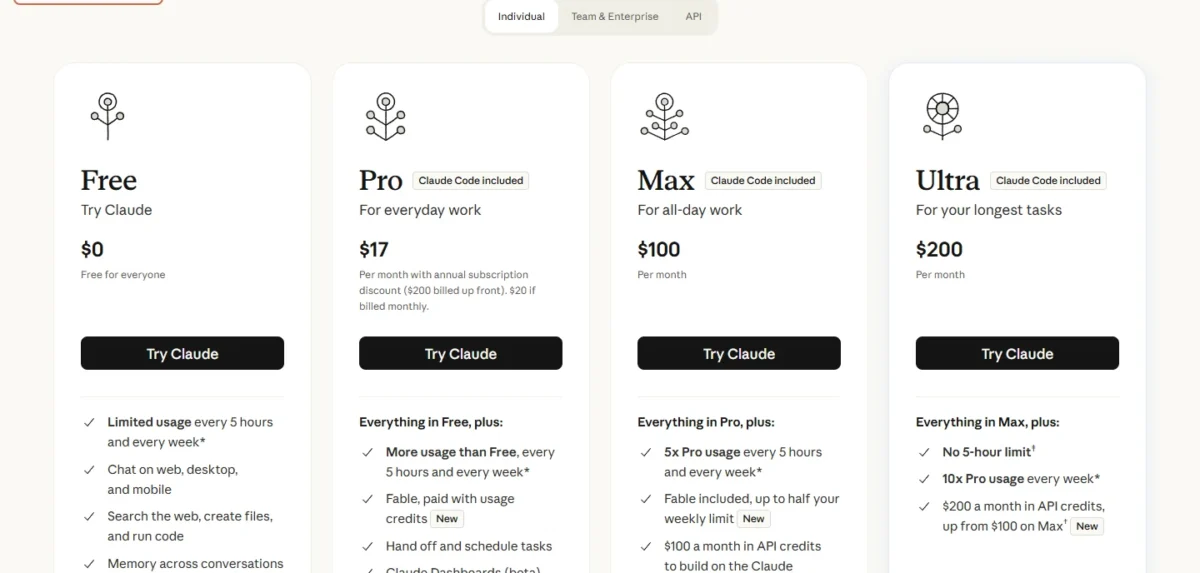
For a first try, Pro billed monthly at $20 is the plan to buy. Paying monthly for a year costs $20 x 12 months = $240, which is $40 more than the $200 annual price, so switch to annual only once Claude Code is part of your daily work.
The bigger catch is the shared pool: Claude Code shares your plan’s limits with chat, and Pro and Max carry both a five-hour session limit and a weekly limit (Claude Code with your Pro, Max or Ultra plan). If you hit those limits every week, Max at $100 a month is the next step; if you hit them now and then, waiting for the reset costs nothing. My Claude Code pricing guide compares what each plan costs.
A Claude Console account is the pay-per-token route. Across enterprise deployments Anthropic puts the average at about $13 per developer per active day, below $30 per active day for 90% of users (Manage costs). By that average, two active days ($13 x 2 = $26) already cost more than a month of Pro at $20, so the Console suits short sprints or per-token cost tracking, not a cheaper Pro.
On the API, Sonnet 5.5 lists $2 per million input tokens and $10 per million output tokens; Opus 5.5 lists $4 and $20. The full Claude plan and API pricing breaks down every limit.
System Requirements
Claude Code needs one of these systems, per Anthropic’s setup page:
- macOS: version 13.0 or later
- Windows: Windows 10 1809+ or Windows Server 2019+
- Linux: Ubuntu 20.04+, Debian 10+ or Alpine Linux 3.19+
- Machine: at least 4 GB of RAM, an x64 or ARM64 processor and an internet connection
- Shell: Bash, Zsh, PowerShell or CMD
Alpine ships without bash or curl, so add them first (apk add bash curl libgcc libstdc++ ripgrep). With the account and machine settled, the install is one command.
Step 1: Install Claude Code with the Native Installer
Open a terminal and run the native installer for your system: Anthropic’s docs label it “Native Install (Recommended)”, and native installs update themselves in the background.
macOS, Linux or WSL:
curl -fsSL https://claude.ai/install.sh | bashWindows PowerShell (your prompt starts with PS C:\):
irm https://claude.ai/install.ps1 | iexWindows CMD (your prompt starts with C:\ and no PS):
curl -fsSL https://claude.ai/install.cmd -o install.cmd && install.cmd && del install.cmdExpected result: the command shows no progress while it downloads, then finishes; open a new terminal window before Step 2.
Homebrew (brew install --cask claude-code) and WinGet (winget install Anthropic.ClaudeCode) also work but do not auto-update, so you run brew upgrade claude-code or winget upgrade Anthropic.ClaudeCode yourself.
npm also works: npm install -g @anthropic-ai/claude-code sits under advanced setup and requires Node.js 22 or later. Never run it with sudo, because an install that needs sudo cannot update automatically. Unless your team standardizes on npm, start with the native command above.
Native Windows or WSL 2
On Windows, install natively for Windows-native projects and inside WSL 2 for Linux toolchains or sandboxed command execution. Native Windows needs no administrator rights, but it does not support sandboxing.
Git for Windows is optional on native Windows: with it, Claude Code uses Git Bash for its Bash tool; without it, shell commands run through PowerShell. In WSL 2, run the Linux installer and launch claude inside the WSL terminal, not from PowerShell or CMD. Either way the install finishes silently, so confirm it next.
Step 2: Confirm the Install
Open a new terminal and run two checks:
claude --version
claude doctor
Expected result: claude --version prints a version number followed by (Claude Code), such as 2.1.211 (Claude Code), and claude doctor prints read-only diagnostics: install health, settings-file errors and any warnings with suggested fixes.
A “not found” or “not recognized” error means the install directory is not on your PATH yet; the Fix your PATH instructions linked from the quickstart cover each shell. A clean install still says nothing about who pays for the work, which the next step settles.
Step 3: Start a Session in Your Project and Sign In
Move into the project folder and start Claude Code; on first use it opens a browser login. Read the warning before you launch.
Warning
If an ANTHROPIC_API_KEY environment variable is set on your system, Claude Code uses that key instead of your plan, and the work is charged as API usage. Remove the variable before the first launch if your plan should pay, and do not approve the key if Claude Code asks whether to use it. Already signed in through a Console account? Run /login to switch to your subscription.
cd /path/to/your/project
claude- Follow the browser prompts and sign in with the credentials you use for Claude.
- Pick the account that should pay: a Pro, Max, Ultra, Team or Enterprise plan (Anthropic’s recommended option) or a Claude Console account with pre-paid API credits.
- Type
/statusto see your remaining plan allocation.
Expected result: the Claude Code prompt appears with the version, current model and working directory above it. Your credentials are stored, and /login switches accounts later.
Signed in on the right account, the first prompts should check that Claude Code reads your project correctly before it changes anything.
Step 4: Ask Read-Only Questions First
Start with questions that only make Claude Code read your code, such as these from Anthropic’s quickstart:
what does this project do?where is the main entry point?explain the folder structure
Claude Code reads project files as needed, so you never paste code by hand, and /help lists the commands. For tasks beyond these first questions, a set of copy-paste Claude prompts for coding gives you a starting point.
Expected result: a summary built from your own files that names the stack you know the project has. If it describes the wrong folder, you started claude in the wrong directory. Once the summary matches, give Claude Code the project’s rules.
Step 5: Create a CLAUDE.md with /init
Run /init inside the session: Claude Code analyzes the codebase and writes a starting CLAUDE.md with the build commands, test instructions and conventions it finds.
- Type
/initand wait for the file. - Add what Claude Code cannot discover itself, such as “use pnpm” or your branch naming rule.
- Put private notes in a CLAUDE.local.md at the project root and add it to .gitignore so it is never committed.
Expected result: a CLAUDE.md in the project root. If one already exists, /init suggests improvements to it, and a repo set up for other agents can keep its AGENTS.md, which Claude Code reads in place of a CLAUDE.md (how Claude remembers your project). Claude Code loads CLAUDE.md at the start of every session, so you stop repeating instructions. With the rules written, the next step is the one that changes code.
Step 6: Plan First, Then Approve the First Edit
Switch to plan mode, ask for one small change, approve the plan, then approve the edit itself.
Warning
This step edits source files. Commit or stash your work first so git diff shows exactly what Claude Code changed. Keep bypassPermissions for containers or VMs only: it skips permission prompts, including for writes to protected paths such as .git and .claude.
- Press Shift+Tab until the status bar shows
⏸ plan mode on, or start a session withclaude --permission-mode plan. - Ask for a small task, such as
add input validation to the user registration form. - Read the plan: in plan mode Claude Code reads files and proposes changes, but edits nothing until you approve.
- Approve the plan. Claude Code then displays the proposed change; when it asks for approval, select Yes.
Expected result: one edit you have read twice, once as a plan and once as a diff. If Claude Code heads the wrong way, press Escape to stop it, then use /rewind or double Escape to restore the conversation and code to an earlier checkpoint.
Permission Modes at a Glance
The permission mode sets what Claude Code may do without asking, and Shift+Tab cycles through default (labeled Manual), acceptEdits, plan and, when available, bypassPermissions and auto.
| Mode | What it does | Use it when |
|---|---|---|
| default (Manual) | Prompts on first use of each tool | Your first sessions and any repo you care about |
| acceptEdits | Auto-accepts file edits and commands such as mkdir, mv and cp in the working directory | You have read the plan and work on a committed branch |
| plan | Reads files and runs read-only commands; no edits to source files | Before any change you want to review |
| auto | Runs without routine prompts; a background classifier checks actions | Longer tasks, once you accept the classifier’s review |
| dontAsk | Auto-denies calls that would prompt; pre-approved tools still run | Locked-down runs |
| bypassPermissions | Skips permission prompts, including writes to .git and .claude | Containers or VMs only |
Sources: Configure permissions, checked Nov 2026.
My pick for a first week is Manual for anything that edits and plan mode for anything larger than a one-file change. The change is now on disk, so the last step saves it.
Step 7: Commit the Change and Manage the Session
Have Claude Code run your tests, ask what changed, then ask it to commit:
run tests for the changed codewhat files have I changed?commit my changes with a descriptive message
The first request is your own wording of the check Anthropic’s common workflows guide puts after a refactor (run tests for the refactored code); Claude Code can use the test command your CLAUDE.md records.
Expected result: a new commit with a descriptive message in git log. Other Git requests work the same way, such as create a new branch called feature/quickstart.
These commands keep later sessions fast and inside your plan limits:
| Command | Where | What it does |
|---|---|---|
| /clear | In a session | Clears the conversation before unrelated work |
| /compact | In a session | Summarizes a long conversation to shrink the context |
| /usage | In a session | Plan usage bars on a subscription, token cost on API billing |
| /model | In a session | Switches the model mid-session |
| claude -c | Terminal | Continues the latest conversation in this directory |
Sources: Claude Code quickstart and Manage costs, checked Nov 2026.
The two highest-impact habits are /clear between unrelated tasks, because stale context costs tokens on every later message, and matching the model to the job: Sonnet handles most coding work at a lower price than Opus, so keep Opus for complex architecture or multi-step reasoning. The same habits carry over into your editor.
Use Claude Code in VS Code, Cursor or JetBrains
You can run Claude Code inside your editor with the same login and the same usage limits as the terminal.
VS Code or Cursor:
- Search for “Claude Code” in the Extensions view (Cmd+Shift+X on Mac, Ctrl+Shift+X on Windows or Linux) and install it.
- Open the Command Palette (Cmd+Shift+P or Ctrl+Shift+P), type “Claude Code” and select Open in New Tab.
- Log in with the Claude credentials you use in the terminal.
JetBrains (IntelliJ IDEA, PyCharm, WebStorm):
- Install the Claude Code plugin from the JetBrains Marketplace and restart the IDE.
- Install the CLI with Step 1, because the plugin requires it.
Expected result: Claude Code opens in a new editor tab, signed in to the same account as your terminal. IDE usage counts toward the limits shared across Claude and Claude Code. With no terminal and no editor, the Desktop app works too: launch Claude, sign in and click the Code tab.
How to Verify Claude Code Is Set Up Correctly
The setup is right when all six of these checks pass:
Claude Code setup checklist
claude --versionprints a version number followed by (Claude Code)claude doctorshows install health with no warnings left to fix- The prompt shows the version, the model and your project as the working directory
- No ANTHROPIC_API_KEY variable is set and
/usageshows plan usage bars when your plan should pay - A CLAUDE.md sits in the project root with your build and test commands
git logshows the commit Claude Code made in Step 7
A session cost figure in /usage does not by itself mean API billing: subscribers see it too, and for them it isn’t relevant for billing. If you meant Pro or Max to pay, confirm that no ANTHROPIC_API_KEY variable is set (the warning in Step 3) before you continue.
Practical Example: A First Session on a Small Web Project
Here is an illustrative first session for a small web app with a registration form, built from the prompts in Anthropic’s quickstart and the plan-mode flow in its common workflows guide.
| Order | Prompt or action | Mode | What to check |
|---|---|---|---|
| 1 | what does this project do? | Manual | The summary names your real stack |
| 2 | /init | Manual | CLAUDE.md lists the build and test commands you use |
| 3 | add input validation to the user registration form | Plan | The plan touches only the form files |
| 4 | Approve the plan, then select Yes | Manual | git diff matches the plan |
| 5 | run tests for the changed code | Manual | The tests your CLAUDE.md lists pass |
| 6 | commit my changes with a descriptive message | Manual | git log shows the new commit |
Sources: Claude Code quickstart and common workflows, checked Nov 2026.
The order is the point: one read-only prompt, one rules file, one planned change, one test run and one commit. Swap the form for a small, real task in your repo, and keep the first change small enough to read in one diff.
Claude prompts for coding
Ready-made Claude prompts, including coding prompts, to use in place of the example tasks once your first session works.
Common Mistakes
Watch for these seven mistakes in a first install and session; the first one charges API usage to your account:
- Leaving ANTHROPIC_API_KEY set: Claude Code bills API usage instead of your plan. Remove the variable and confirm with
/status. - Signing in on Free: the free claude.ai plan does not include Claude Code. Start on Pro or a Console account.
- Installing with
sudo npm install -g: Anthropic warns of permission issues and security risks. Use the native installer. - Mixing up PowerShell and CMD: each shell rejects the other’s install command. Check whether your prompt starts with
PS. - Expecting Homebrew or WinGet to update: neither does by default. Run the upgrade command on a schedule.
- Making the first edit in bypassPermissions or auto: Claude Code then acts without your approval. Stay in Manual or plan mode at first.
- Never clearing between tasks: stale context wastes tokens. Run
/clearwhen you switch work.
If something still breaks, the table below maps the symptom to a fix.
Troubleshooting
These are the failures Anthropic’s docs list for a first install and session, each with its fix:
| Problem | Possible cause | What to check |
|---|---|---|
| claude isn’t found or isn’t recognized | The install directory is not on PATH yet | Open a new terminal, then follow Fix your PATH |
| The token ‘&&’ is not a valid statement separator | The CMD command ran in PowerShell | Run the PowerShell command |
| ‘irm’ is not recognized as an internal or external command | The PowerShell command ran in CMD | Run the CMD command |
| Your Pro, Max or Ultra plan is not offered at login | An outdated Claude Code | /logout, claude update, restart the terminal, run claude |
| The session hangs | An operation that does not finish | Ctrl+C; if needed restart and run claude –resume |
| You are not sure what is wrong | No error message to match | /doctor inside Claude Code, or claude doctor from the shell |
Sources: Claude Code troubleshooting, Claude Code quickstart and Claude Help Center, checked Nov 2026.
An install that fails with syntax error near unexpected token ‘<‘ or a 403, and a login that loops or returns OAuth errors or 403 Forbidden, each have their exact match on Anthropic’s Troubleshoot installation and login page, which also lists alternative install methods.
Frequently Asked Questions
Is Claude Code free?
No. The free claude.ai plan does not include Claude Code, and the lowest-priced plan with it is Pro at $17 a month billed annually or $20 billed monthly. A Claude Console account bills API usage from pre-paid credits instead of a subscription.
Is Claude Code good for beginners?
Yes, for a beginner who already has a code project. Anthropic’s quickstart links a terminal guide for first-time terminal users, plan mode proposes changes without editing, and the Desktop app runs Claude Code without the terminal.
My take
Claude Code is worth starting as a beginner if you have a real project under Git: stay in plan mode until its plans make sense to you. If you have no project yet, start with the Claude chat app instead.
Is Claude Code the same as Claude?
No. Claude is the chat assistant on the web, desktop and mobile apps; Claude Code is the coding tool in your terminal or IDE. Pro, Max and Ultra include both in one subscription with one shared usage pool.
Next Steps
Your next move depends on what the first session showed you:
- Still choosing a coding agent: see how Claude Code compares with Codex before you commit to an annual plan.
- Using Claude beyond code: my Claude review weighs the plan gates for chat and coding.
- Comparing assistants overall: the AI chatbots I rank by job and budget set Claude against its rivals.
- Debugging web apps in a browser: Claude Code’s Chrome browser integration (
claude --chrome) handles web automation and testing, and my guide to using Claude in Chrome covers the browser side. - Adding automation: MCP servers, skills and hooks are the next layer, listed in the Claude Code overview linked above.
Before any of these, run the six checks once more on a second project; if they pass there too, the setup is ready for daily work.