
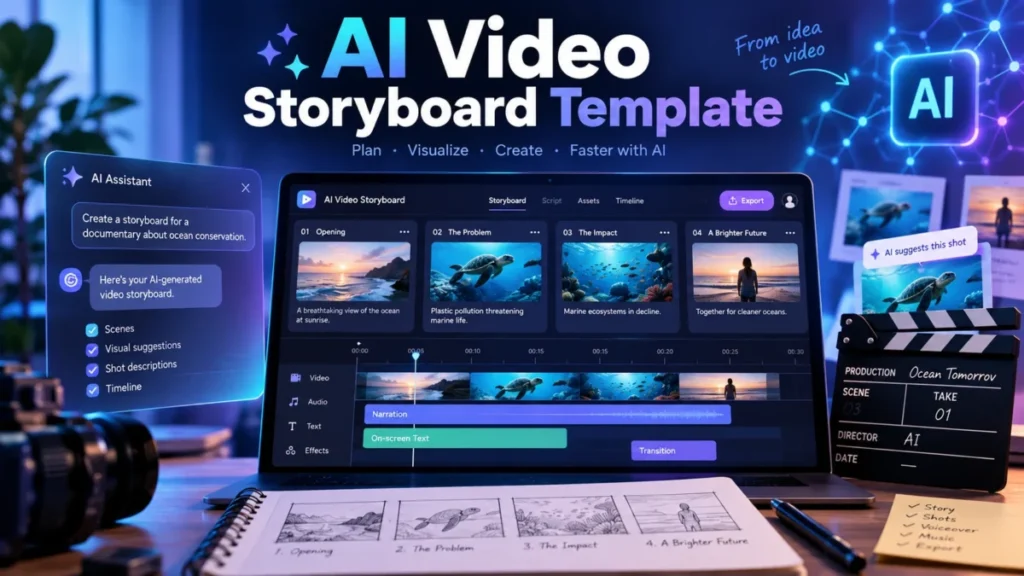
This AI video storyboard template is a free Excel workbook, with a CSV copy, where each row is one AI-generated clip. Creators, marketers and small teams get 20 columns, an Elements sheet that keeps characters and products consistent, and a formula that drafts each clip’s prompt for you to complete with the Elements sheet’s locked descriptions. The rule that makes it work: no row runs longer than the longest clip your generator makes.
AI video storyboard template (Excel)
The full workbook: drop-downs for framing, angle, movement and take status, running-time and prompt formulas, an Elements sheet, instructions and six sample rows.
AI video storyboard template (CSV)
The Shots sheet as plain CSV with the same 20 columns and six sample rows. It holds values only: Running time and Video prompt calculate in the xlsx.
In This Article (8 sections)
What’s in the AI Video Storyboard Template
The workbook has three sheets (Shots, Elements and Instructions), and the Shots sheet holds 20 columns, one row per clip. Two columns fill themselves: Running time adds up the durations, and Video prompt joins framing, action, setting and lighting into one sentence.
| Field | What to enter | Example |
|---|---|---|
| Shot # | The clip’s position | 3 |
| Scene | The story beat | Trail climb |
| Duration (sec) | Seconds, within your generator’s longest clip | 4 |
| Running time (sec) | Nothing: a formula adds it up | 14 |
| Shot type | Framing, from wide (the place) to close-up (a face or product) | Close-up |
| Camera angle | Height and tilt; bird’s eye looks straight down, dutch tilt tilts the horizon | Low angle |
| Camera movement | One move per clip | Tracking |
| Subject and action | Who does what | Runner lifts the bottle and drinks |
| Elements used | IDs from the Elements sheet | C1; P1; L1 |
| Setting | Place and time of day | Pine trail at sunrise |
| Lighting and mood | Light and tone | Warm backlight, energetic |
| Dialogue or voiceover | Words spoken in this clip | Cold for 24 hours. |
| On-screen text | Captions or titles | Stays cold all day |
| Audio and SFX | Music and sound cues | Upbeat track, cap click |
| Aspect ratio | Frame shape, same in every row | 9:16 |
| Reference image file | The still you upload | brightside_ |
| Video prompt | Nothing: a formula builds it | Shown for shot 3 below |
| Tool or model | Where the clip is generated | Your generator |
| Take status | Progress | Needs retake |
| Notes | Retake reasons | Bottle logo blurred; regenerate |
The Camera angle list holds the bird’s eye, low angle and dutch tilt that Storyboarder.ai names; over-the-shoulder, which Storyboarder.ai also lists, sits in the Shot type list. Dialogue gets a column per shot because Canva’s storyboard guide puts the script under each panel, and the file names follow Canva’s advice to label panels in order.
Tool or model sits apart from the prompt on purpose. Google shut down Veo 3.1 Preview in the Gemini API on October 22, 2026 and points developers to Gemini Omni Flash. With the model in its own column, a change like that means editing one column, not every prompt.
A silent b-roll reel can hide Dialogue or voiceover and On-screen text. Hide columns rather than delete them, so the sheet keeps the same 20 columns as the CSV and you can bring them back for the next video.
The Elements sheet: keep characters and products consistent
Give each recurring character, product, location or prop an ID, one locked description and a reference image, then paste that exact description into the prompt of every shot that lists it.
| Element ID | Type | Name | Locked description | Reference image file | Used in shots |
|---|---|---|---|---|---|
| C1 | Character | Trail runner | Woman in her 30s, short black hair, teal running jacket, gray shorts, white trail shoes | brightside_c1_ref.png | 1; 2; 3; 5 |
| P1 | Product | Brightside Bottle | Matte orange 24 oz steel bottle, white flip cap, small white sun logo | brightside_p1_ref.png | 3; 4; 5; 6 |
| L1 | Location | Pine trail | Narrow dirt trail through tall pines on a granite ridge | brightside_l1_ref.png | 1; 2; 3; 4; 5 |
Sources: Sample data: an invented brand, character and location.
Vendors build features around the same drift problem: LTX Studio’s Elements hold AI Characters, Objects and Locations across scenes, and Storyboarder.ai locks a character’s face, clothing and body proportions from a reference. The locked description is the tool-neutral version.
How to Use the Template
Fill the Elements sheet first, so every shot points to an element that already exists. Seven steps take a script or idea to a storyboard you can generate from:
- Set the target length and one aspect ratio: note the target in row 1’s Notes cell and enter the ratio in every row’s Aspect ratio cell.
- Fill the Elements sheet, one row per recurring element.
- Split the script into shots, each within your generator’s longest clip. Storyboarder.ai’s Video 2.0, for example, makes clips of up to 15 seconds; check your own tool.
- Choose a shot type, a camera angle and one camera movement.
- Write the subject and action, setting and lighting, list the Element IDs, then add dialogue, on-screen text and audio.
- Copy the Video prompt into your generator, add the listed elements’ locked descriptions, and upload the reference image.
- Log each take’s status and compare the last Running time with your target.
Generate shot 1 as a trial before you fill every row: output depends on the tool and your reference images.
Example: A 30-Second Product Ad Storyboard
This sample storyboard is invented: a 30-second vertical ad for a fictional brand, Brightside Bottle, in six shots of 5 + 5 + 4 + 6 + 5 + 5 = 30 seconds, all at 9:16.
| Shot # | Duration (sec) | Framing and movement | Subject and action | Elements used | Dialogue or voiceover |
|---|---|---|---|---|---|
| 1 | 5 | Extreme wide, bird’s eye, tracking | Runner jogs up the trail, small in frame | C1; L1 | None |
| 2 | 5 | Medium, eye level, handheld | Runner shakes a warm plastic bottle and frowns | C1; L1 | Warm water by mile two? |
| 3 | 4 | Close-up, low angle, tracking | Runner lifts the bottle and drinks | C1; P1; L1 | Cold for 24 hours. |
| 4 | 6 | Extreme close-up, eye level, orbit | Bottle stands on a rock as condensation beads on the steel | P1; L1 | Double-wall steel, leak-proof cap. |
| 5 | 5 | Wide, low angle, dolly out | Runner reaches the summit and raises the bottle | C1; P1; L1 | None |
| 6 | 5 | Medium, eye level, static | Bottle stands beside a card with the Brightside logo | P1 | Brightside. Stay cold out there. |
Sources: Sample data: an invented brand and scenes, the same six rows as the downloadable files.
The problem fills the first 10 seconds, the product appears at second 10, and the last 5 seconds hold the call to action. The longest row, the 6-second orbit, fits one generation on a tool with a 15-second ceiling.
Platform specs sit outside the storyboard; the guide to making ecommerce video ads with AI covers them.
How Each Row Becomes a Video Prompt
The Video prompt formula joins six cells in a fixed order: shot type, camera angle, camera movement, subject and action, setting, then lighting. Before you paste, add the locked descriptions of the listed elements. For sample shot 3 with C1 and P1:
Close-up shot, Low angle, Tracking: Runner lifts the bottle and drinks. Runner: woman in her 30s, short black hair, teal running jacket, gray shorts, white trail shoes. Bottle: matte orange 24 oz steel bottle, white flip cap, small white sun logo. Setting: Pine trail at sunrise. Lighting: Warm backlight, energetic.
Adobe’s tips for consistent Firefly storyboards point the same way: reuse the same character and style references across panels, and name camera angles or shot types in the prompt. Three rules keep rows working in any tool:
- Paste the same element text every time.
- Give each clip one camera move.
- Keep the aspect ratio fixed, so clips cut together without reframing.
Treat the sentence as a draft and adjust wording per tool; the library of AI video prompts by style and shot has phrasing to borrow. Filling 20 columns by hand takes time, though.
Can AI Tools Fill the Storyboard for You?
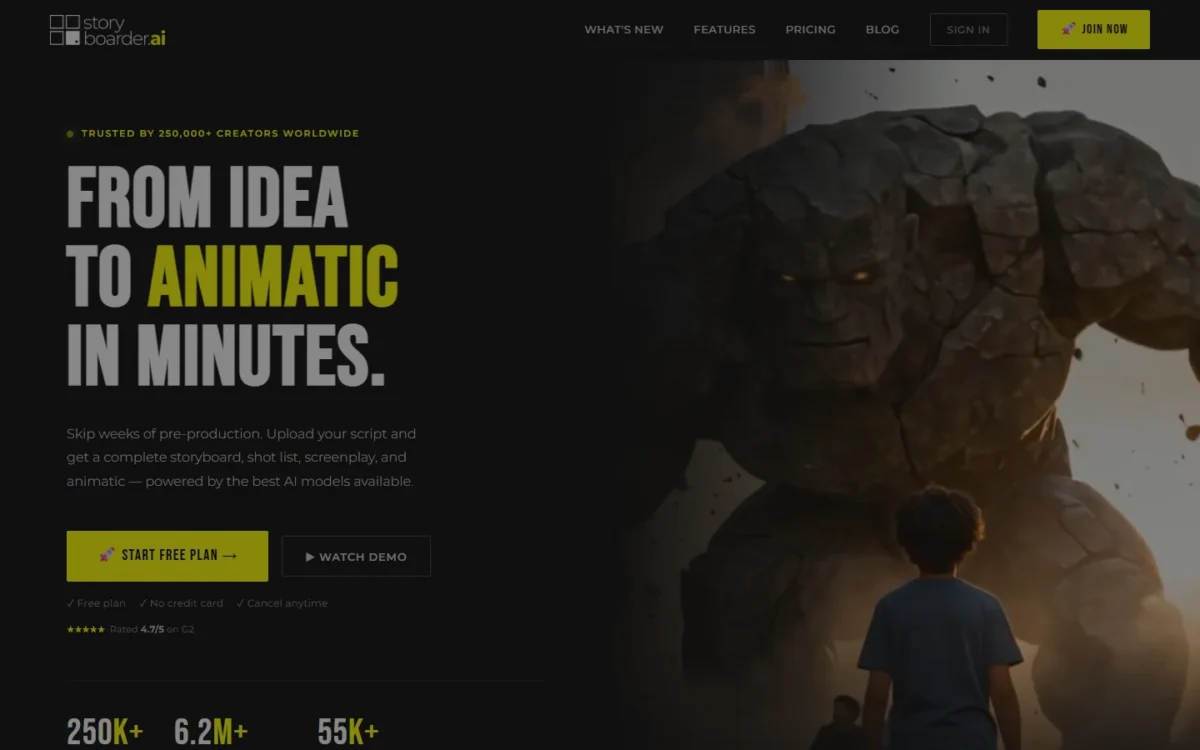
Yes: Storyboarder.ai, Adobe Firefly Boards and LTX Studio generate storyboards from a script or prompts, and Canva offers storyboard templates a team can fill together. The spreadsheet still earns its place when you mix generators, track takes or hand the plan to someone else.
| Tool | Starts from | Gives you | Consistency feature | Free option |
|---|---|---|---|---|
| Storyboarder.ai | A script (PDF, FDX, Fountain, Word, TXT), an Excel shot list or an idea | Shot list, storyboard, screenplay; PDF, MP4 animatic or pitch deck | Locks a character’s face, clothing and proportions | 2 projects, 50 image generations |
| Adobe Firefly Boards | Text prompts, image references or sketches | Frames or the storyboard as JPEG, PNG or MP4 | Adobe says it keeps lighting, character style and tone consistent | Free Adobe account, free daily generations |
| LTX Studio | An uploaded script or a prompt | Scenes, storyboards and video | Elements for characters, objects and locations | Free and paid plans |
| Canva storyboard creator | Storyboard templates | Panels edited with your team in real time | Not listed on the storyboard page | Described as free |
Sources: Storyboarder.ai, Adobe Firefly storyboard generator, LTX Studio, Canva storyboard creator, checked October 2026.
Pick a generator when you start from a finished script and want frames for a client. Script length decides the Storyboarder.ai plan: Starter takes up to 10 pages, Pro Unlimited up to 30, and Production Unlimited has no cap. Its homepage says you can import a shot list via Excel but lists no required columns, so test a two-row copy of this file first.
Keep the spreadsheet when clips come from several tools or you want a take log that outlives a subscription. LTX Studio puts script, storyboard and edit in one workspace. If you are choosing between it and Google Flow, Google’s AI studio for video and images, start with my list of Google Flow alternatives.
For the clips themselves, my guide to AI video generators matched to the job sorts the choice by use case.
Common Mistakes With AI Video Storyboards
These mistakes turn into retakes once generation starts:
- Shots longer than one clip. You end up stitching two takes. Split the row.
- An element described differently per row. The generator gets different instructions for the same person. Paste from the Elements sheet.
- Mixed aspect ratios. A 16:9 clip does not match the frame of a 9:16 ad. Fix the ratio in step 1 and repeat it in every row.
- Several camera moves in one clip. A pan, a dolly and an orbit are three instructions for one shot.
- Voiceover too long for the shot. Read each line aloud against the Duration.
- Prompts tied to one model. Veo 3.1 Preview’s shutdown left model-specific prompts without a target. Keep the model in its own column.
Where to Go After the Storyboard
With the storyboard finished, the step-by-step guide to making AI videos takes the clips through voice, editing and export.
If the plan showed you also need tools for scripts, images or captions, my ranking of AI tools for content creation covers those jobs.
FAQ
Can ChatGPT make storyboards?
Partly. ChatGPT drafts plans and other writing and creates images from a prompt, so it can draft the text columns: paste your script with the template’s column headers and ask for one row per clip. Check each row against the Elements sheet, and use a storyboard generator from the table above for frames.
Is there a free AI storyboard generator that can create videos?
LTX Studio is the clearest case: it offers free and paid plans that let users create videos, with basic features free. Firefly Boards starts with a free Adobe account and free daily generations, and its storyboard page lists JPEG, PNG and MP4 exports without naming a plan. Storyboarder.ai’s free plan includes 2 projects and 50 image generations; its homepage does not say whether video is included. For generators beyond storyboards, see my ranking of free AI video generators by free-plan limits.
Can I use the template in Google Sheets?
Yes. Upload the xlsx to Google Drive and double-click it: Google Sheets opens and converts .xlsx files. Then confirm that Running time and Video prompt still calculate. The CSV also imports through File > Import, but it carries the sample values only, so start from the xlsx when you want the formulas.
Is there a PDF version?
No. The template comes as xlsx and csv because an AI video storyboard changes with every take. If a client needs a fixed copy, export the Shots sheet from your spreadsheet app.