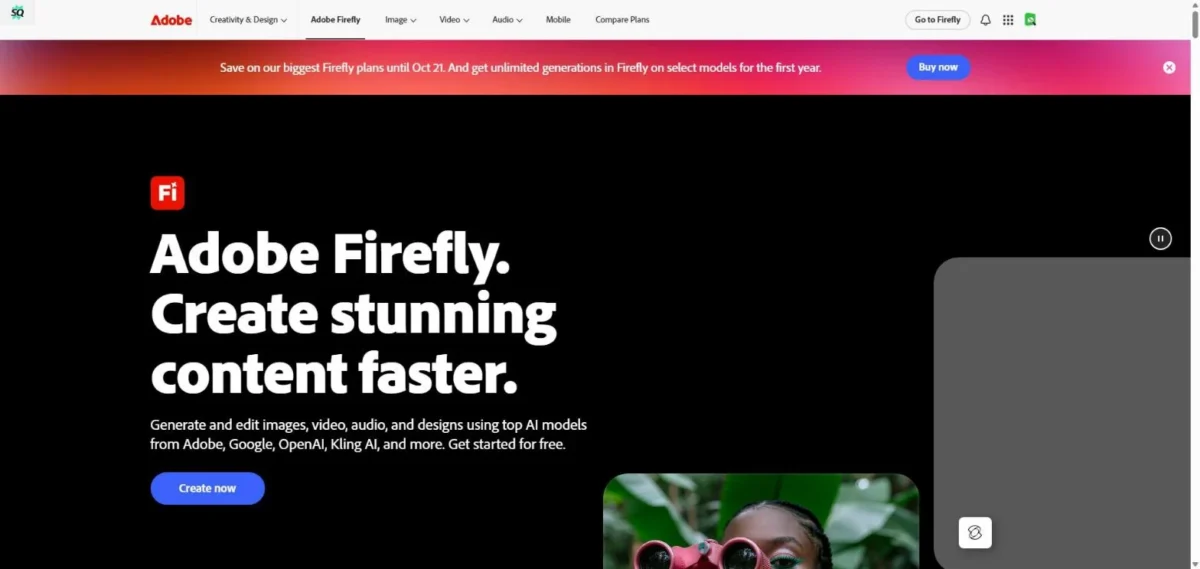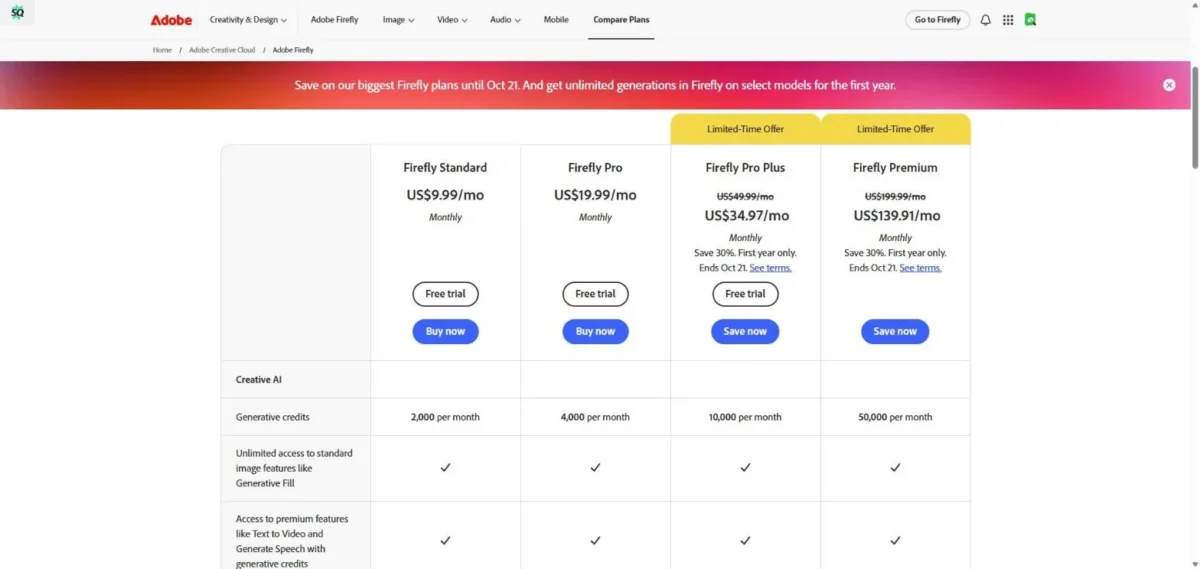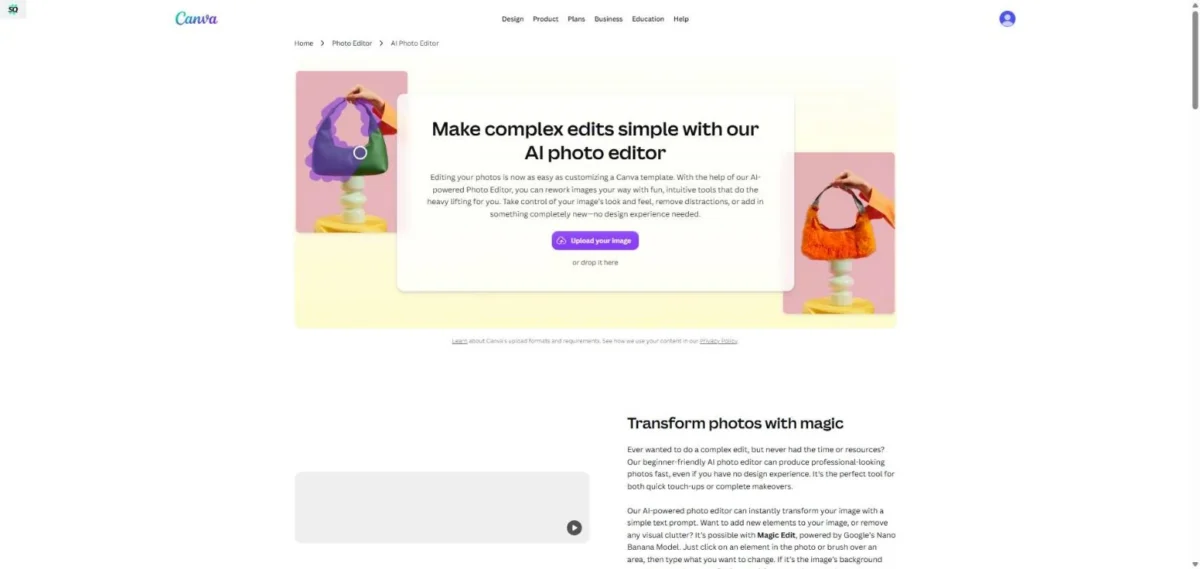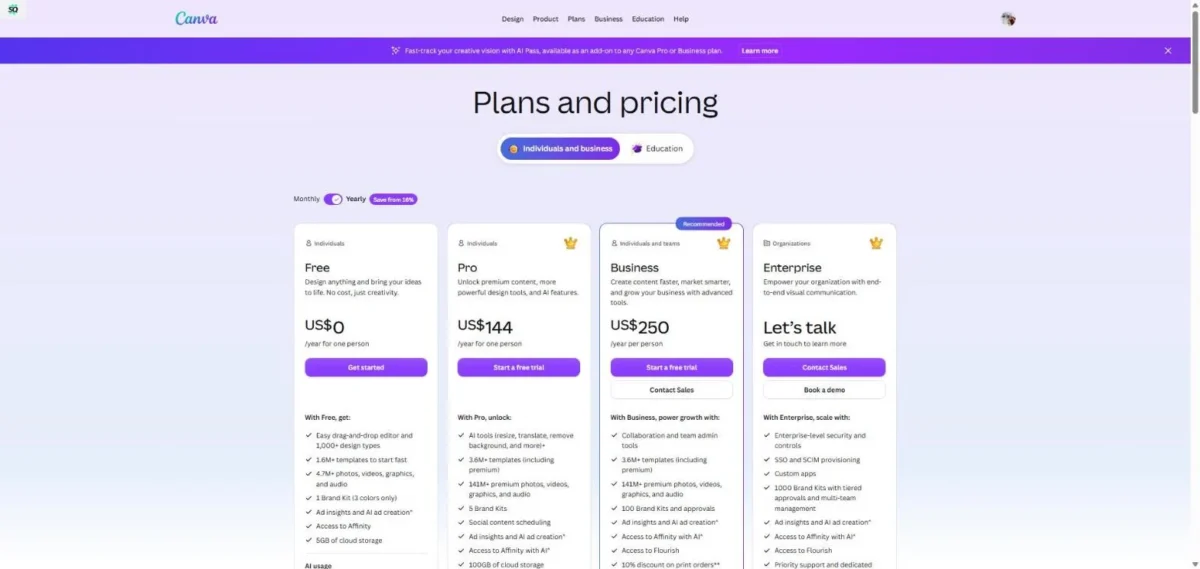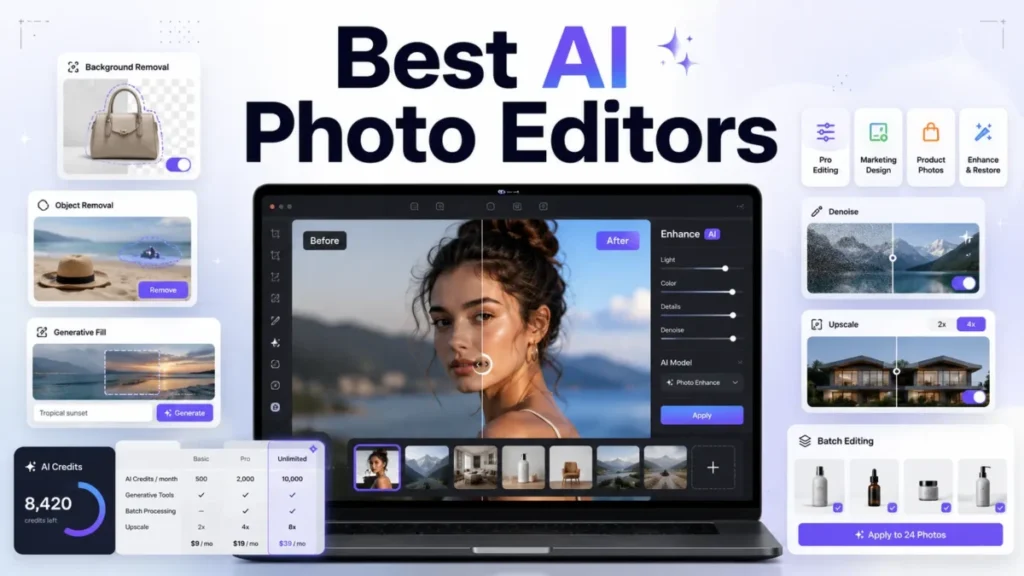
If you’re looking for the best AI photo editors, this guide ranks and reviews 20 tools — from professional RAW processors and AI photo editing software suites to mobile retouching apps and e-commerce automation platforms. (Also see our guides to the best AI chatbots and top AI content creation tools for the broader AI software landscape.) We tested each tool against standardized tasks (background removal, object removal, generative fill, portrait retouching, and upscaling) and scored them on a transparent rubric. Whether you’re a photographer, designer, e-commerce seller, or casual creator, you’ll find a clear recommendation below.
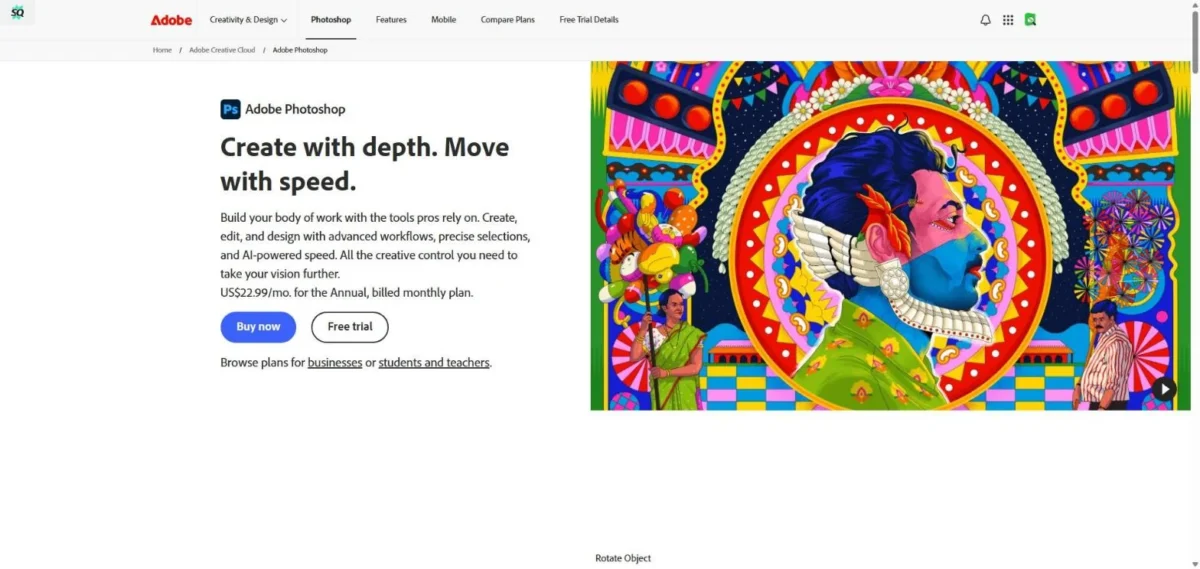
Quick answer: The top-rated AI photo editor in 2026 is Adobe Photoshop (Firefly) (9.3/10) — it offers the deepest generative AI toolkit with generative fill, generative expand, and neural filters inside the industry-standard editing suite. For photographers who prioritize RAW workflow speed and AI-powered culling, Adobe Lightroom (9.1) paired with Topaz Photo AI (8.8) delivers the best results.
About the author: Staff editor at SaaS CRM Review with 8+ years evaluating productivity and AI software.
Editorial policy: We purchase our own subscriptions, test each tool hands-on, and accept no vendor sponsorship or affiliate commissions for this guide.
Last updated: March 3, 2026 | Next scheduled update: April 2026
Update log: Mar 3 2026 — initial publication with 20 tools tested.
Key Takeaways
- Adobe Photoshop (Firefly) (9.3) remains the most powerful AI image editor for creative professionals — generative fill, neural filters, and layer-based editing are unmatched.
- Adobe Lightroom (9.1) is the best AI-powered RAW processor for photographers who need batch editing, AI masking, and adaptive presets.
- Topaz Photo AI (8.8) leads the field in single-purpose AI enhancement — denoise, deblur, and upscaling quality surpassed every other tool in our hands-on testing.
- PhotoRoom (8.3) and Claid (8.1) are purpose-built for e-commerce product photo workflows, outperforming general editors for that use case.
- Free tiers are genuinely useful in 2026: Canva, Pixlr, Fotor, and Picsart all offer capable free AI photo editor options.
- Privacy varies widely: desktop tools (Photoshop, Lightroom, DxO, ON1) process locally; cloud tools (Canva, Pixlr, PhotoRoom, Cutout.pro) upload your images to remote servers.
Best AI Photo Editors 2026 — Quick Picks by Use Case
| Category | Pick | Why |
|---|---|---|
| Best overall | Adobe Photoshop (Firefly) | Deepest AI feature set: generative fill, expand, neural filters, AI masking — all inside the industry standard |
| Best for photographers (RAW + batch) | Adobe Lightroom | AI masking, adaptive presets, denoise, batch sync — the photographer’s workhorse |
| Best for AI enhancement (denoise/upscale) | Topaz Photo AI | Best-in-class denoise, deblur, and super-resolution — purpose-built and offline |
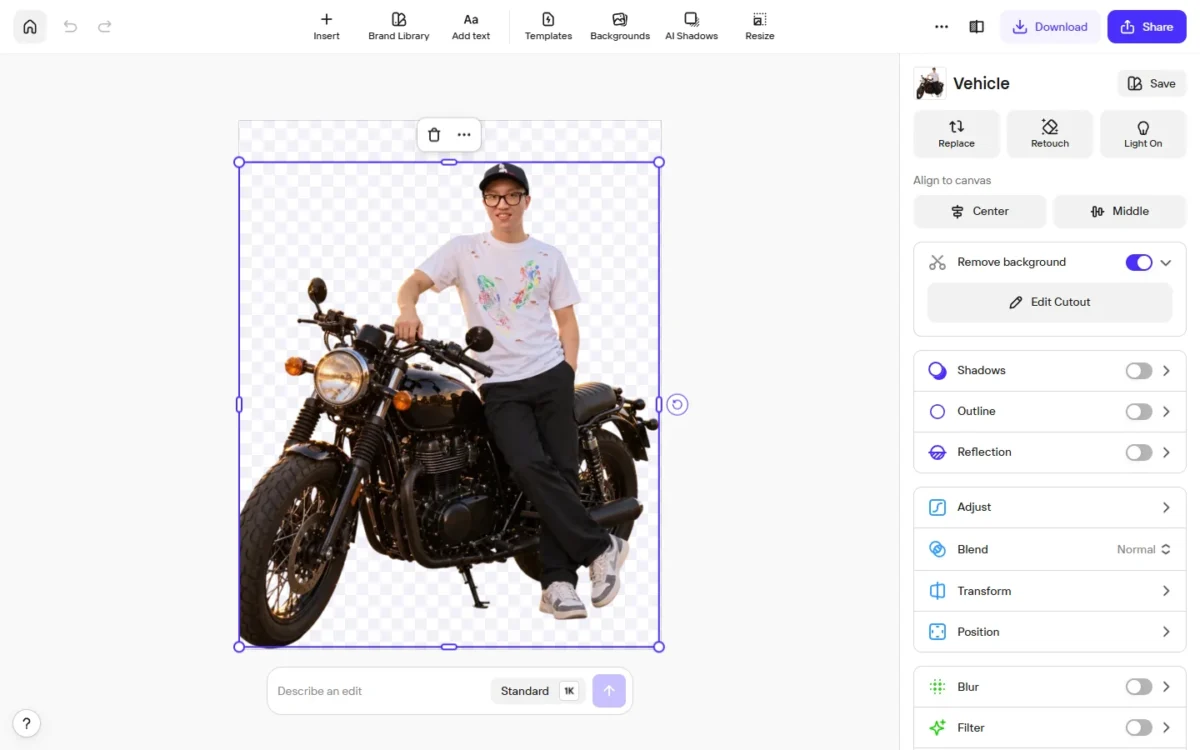
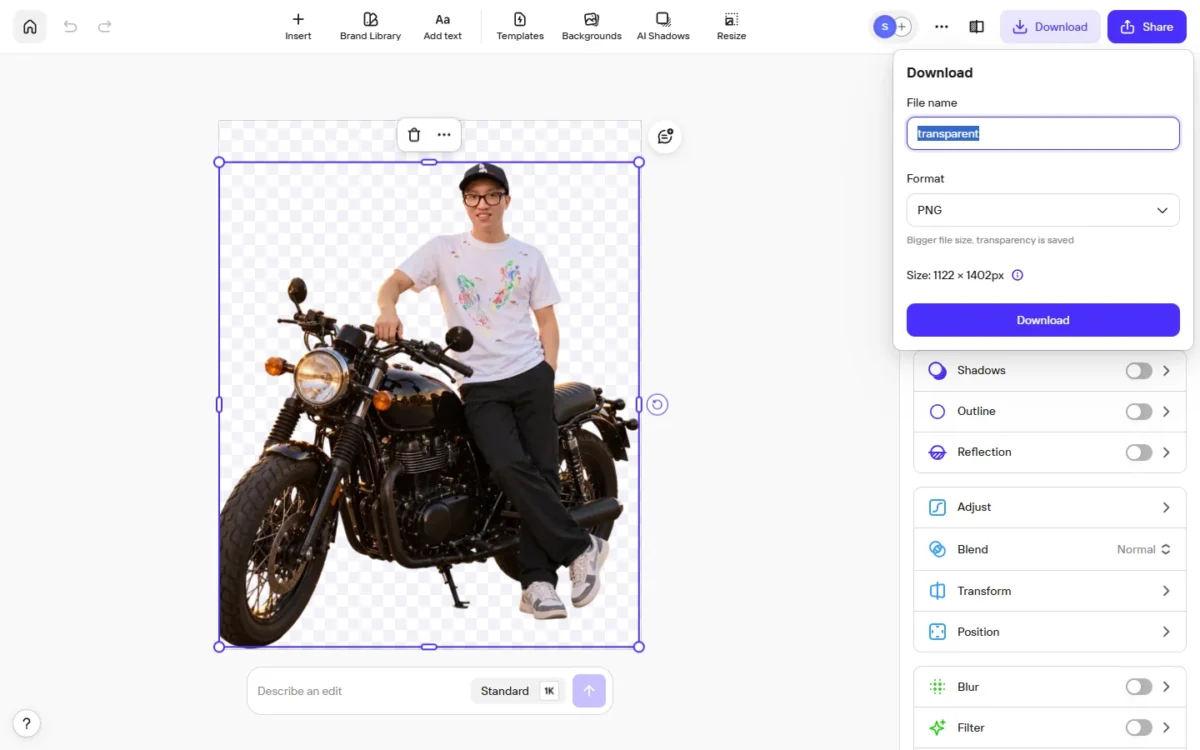
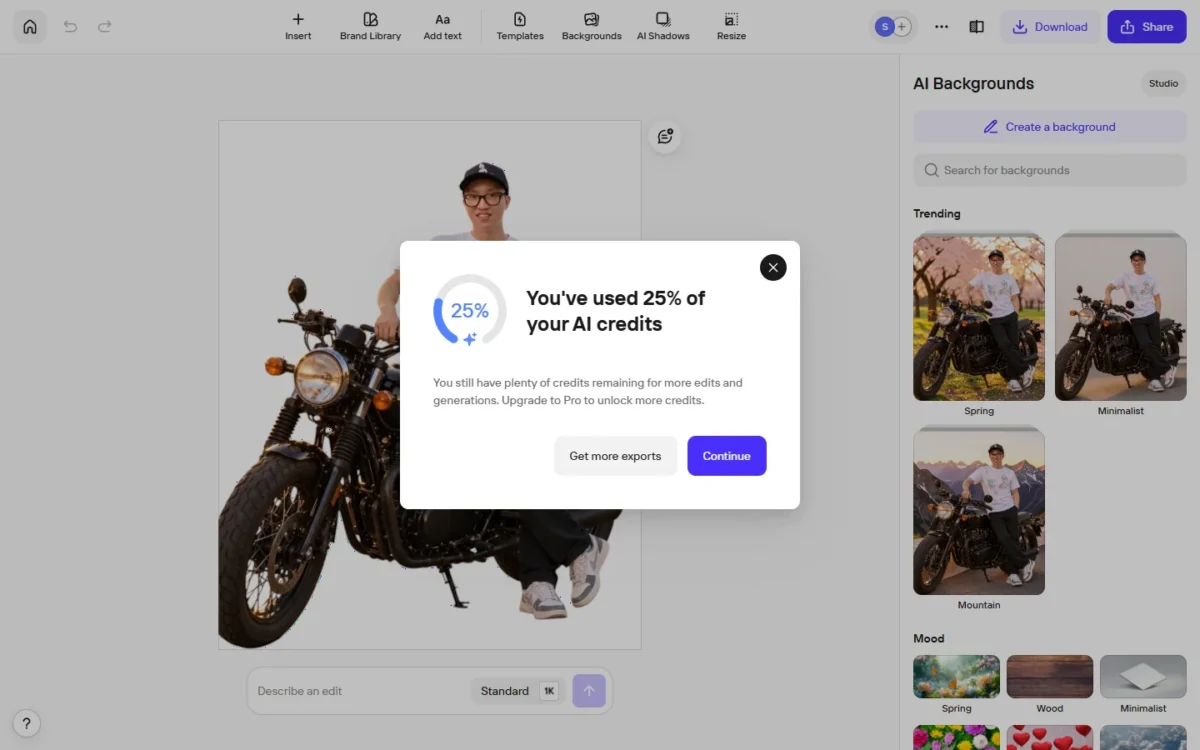
| Best for e-commerce product photos | PhotoRoom | Automated background removal, shadow generation, and batch processing for product listings |
| Best for portrait retouching | Evoto AI | AI skin retouching, body reshaping, and batch headshot processing with natural results |
| Best for photo restoration | Remini | AI upscaling and face enhancement for old, damaged, or low-resolution photos |
| Best free option | Canva (Magic Studio) | Generous free tier with background remover, Magic Eraser, and Magic Expand |
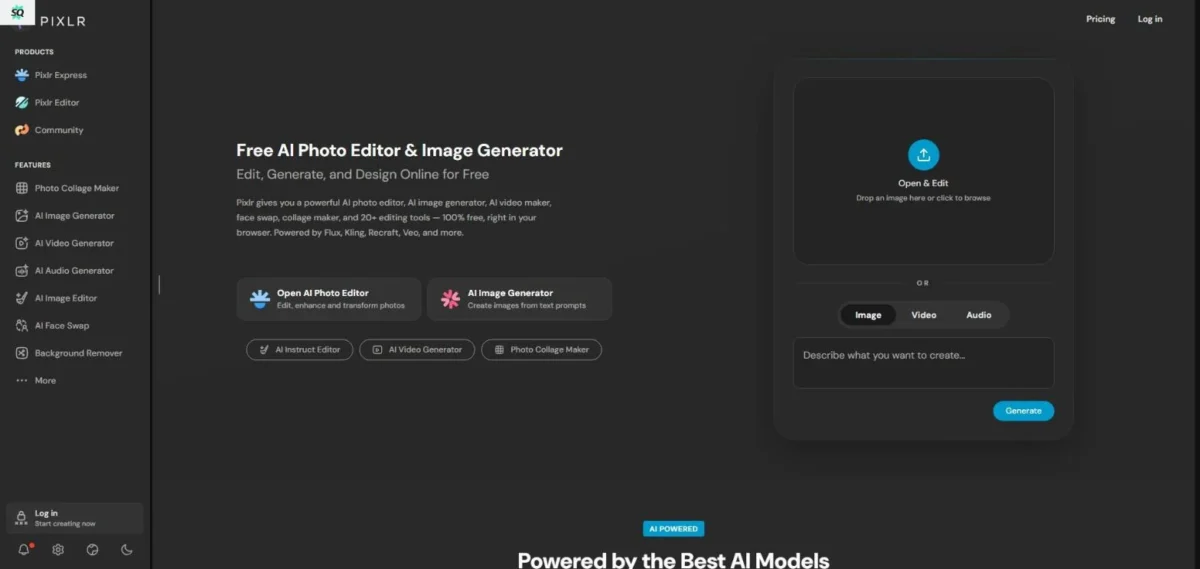
| Best browser-based editor | Pixlr | Full-featured layer editor in the browser with AI tools — no install required |
| Best for wedding/event photographers | Aftershoot | AI culling + AI editing that learns your style, saving hours per shoot |
| Best one-time purchase | Topaz Photo AI | Perpetual license with free updates for one year — no subscription required |
Categories are non-overlapping — each tool appears once. Picks based on our composite rubric scores and hands-on evaluation.
Best AI Photo Editing Software — Comparison Table
| # | Tool | Best for | Platforms | Standout AI features | Pricing model | Limitations | Who should skip | Score |
|---|---|---|---|---|---|---|---|---|
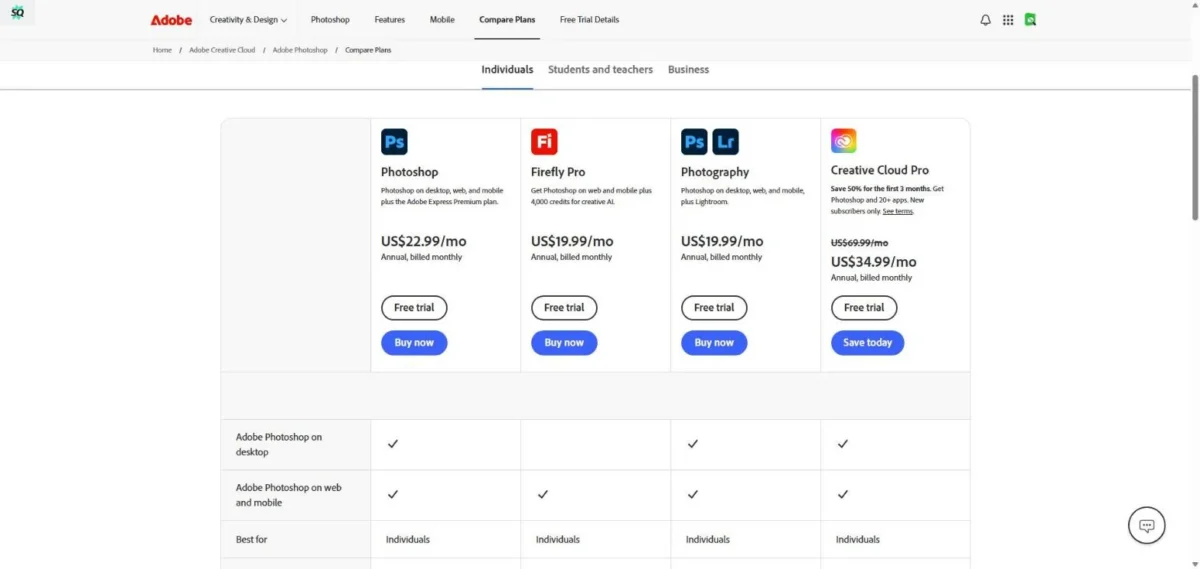
| 1 | Adobe Photoshop (Firefly) | Creative professionals | Win, Mac, iPad, Web | Generative fill, expand, neural filters, AI masking | Subscription ($22.99/mo) | Steep learning curve; subscription only | Budget users; mobile-only | 9.3 |
| 2 | Adobe Lightroom | Photographers | Win, Mac, iOS, Android, Web | AI masking, adaptive presets, AI denoise, lens blur | Subscription ($9.99/mo) | Limited pixel editing; no layers | Users needing generative fill or compositing | 9.1 |
| 3 | Skylum Luminar Neo | Enthusiast photographers | Win, Mac | Sky replacement, relighting, GenErase, GenExpand | Subscription ($9.95/mo) or perpetual | Slower on large files; plugin stability | Pros needing deep RAW control | 8.2 |
| 4 | Topaz Photo AI | Enhancement specialists | Win, Mac | Denoise, deblur, upscale (super resolution) | One-time ($199) | Single-purpose; no editing tools | Users needing a full editor | 8.8 |
| 5 | CyberLink PhotoDirector | Enthusiast all-in-one | Win, Mac, iOS, Android | AI sky, object removal, style transfer, body shaper | Subscription ($4.58/mo) or perpetual | Generative quality trails Adobe | Pro photographers | 7.8 |
| 6 | Capture One Pro | Studio photographers | Win, Mac, iPad | AI masking, smart adjustments, tethered capture | Subscription ($16/mo) or perpetual | Fewer AI generative features | Casual users; budget-conscious | 8.6 |
| 7 | DxO PhotoLab | RAW purists | Win, Mac | DeepPRIME XD denoise, optical corrections, AI ReTouch | Subscription or perpetual ($229) | No mobile app; limited AI generative | Mobile-first users; design/layout work | 8.4 |
| 8 | ON1 Photo RAW | All-in-one photographers | Win, Mac | AI masking, sky swap, NoNoise AI, resize AI | Subscription ($7.99/mo) or perpetual | Smaller ecosystem than Adobe | Users deep in Lightroom ecosystem | 7.9 |
| 9 | Canva (Magic Studio) | Design teams | Web, iOS, Android, Win, Mac | Magic Eraser, BG Remover, Magic Expand, text-to-image | Freemium (Pro $12.99/mo) | Not a photo editor; limited RAW | Photographers needing pixel-level control | 8.0 |
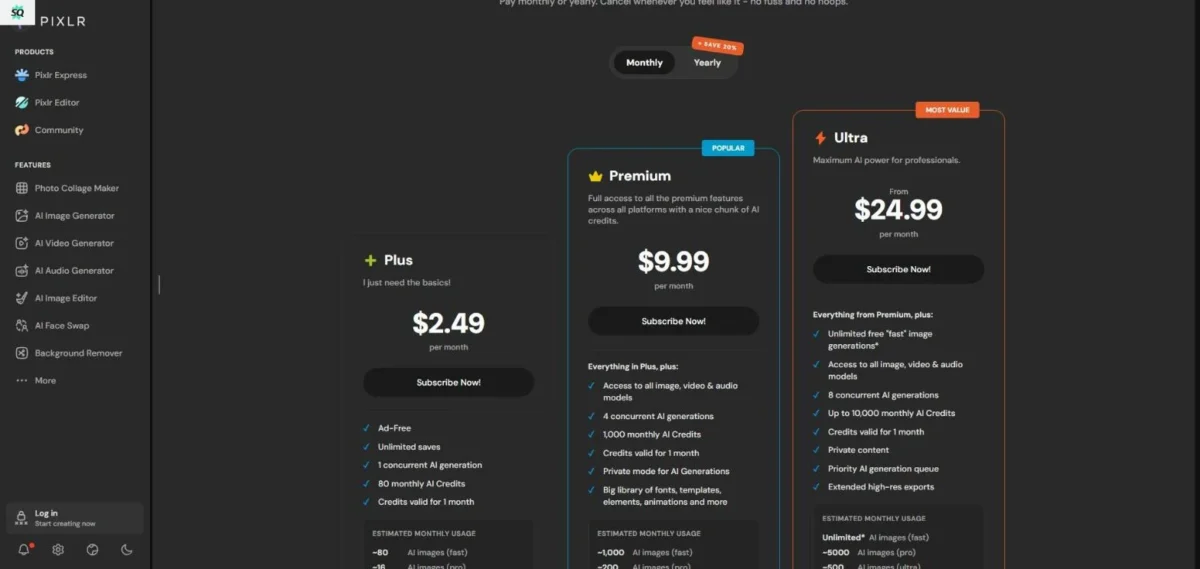
| 10 | Pixlr | Browser-based editing | Web, iOS, Android | AI cutout, AI object removal, generative fill, batch | Freemium (Plus $4.90/mo) | Quality trails desktop editors | Print-resolution professional work | 7.5 |
| 11 | Fotor | Quick social edits | Web, iOS, Android | AI enhancer, BG remover, AI enlarger, batch | Freemium (Pro $8.99/mo) | Limited layer editing; template-heavy | Pros needing fine control | 7.3 |
| 12 | Picsart | Social/mobile creators | Web, iOS, Android | AI Enhance, BG remover, AI Replace, stickers | Freemium (Gold $13/mo) | Cluttered UI; ads on free tier | Professional photo editing | 7.2 |
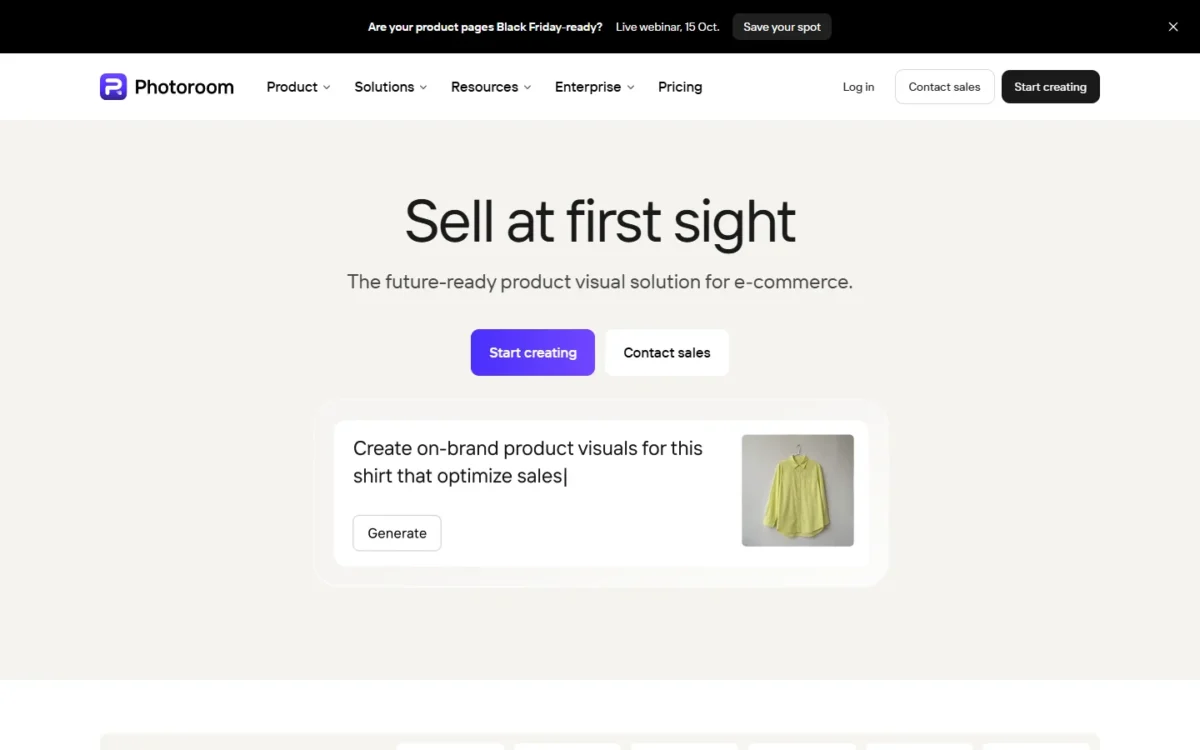
| 13 | PhotoRoom | E-commerce product photos | Web, iOS, Android | Auto BG removal, shadow gen, batch resize, API | Freemium (Pro $12.99/mo) | Not a general photo editor | Landscape/portrait photographers | 8.3 |
| 14 | Cutout.pro | Background removal | Web | AI cutout, BG remover, photo enhancer, batch | Credits + subscription ($5.99/mo) | Web-only; limited editing tools | Anyone needing a full editor | 7.4 |
| 15 | Claid | E-commerce automation | Web, API | AI upscale, BG generation, batch product photos | API + subscription (custom) | API-focused; not a visual editor | Non-technical individual users | 8.1 |
| 16 | Evoto AI | Portrait retouching | Win, Mac | AI skin retouch, body reshape, batch headshots | Subscription ($9.99/mo) | Portrait-only focus; limited general editing | Landscape/product photographers | 8.2 |
| 17 | Aftershoot | Wedding/event photographers | Win, Mac | AI culling, AI editing, style learning | Subscription ($14.99/mo) | Culling + editing only; not a full editor | Non-photographers; casual users | 8.3 |
| 18 | Imagen AI | High-volume photographers | Win, Mac (Lr plugin) | AI profile learning, batch color/crop, Lr integration | Subscription ($7/mo base) | Lightroom plugin only; no standalone | Non-Lightroom users | 8.0 |
| 19 | Remini | Photo restoration | iOS, Android, Web | AI upscale, face enhance, old photo restoration | Freemium (Pro $9.99/mo) | Mobile-focused; limited export control | Professional editing workflows | 7.6 |
| 20 | Lensa | Mobile portraits | iOS, Android | AI portrait retouch, Magic Avatars, face retouching | Freemium (Pro $29.99/yr) | Avatar focus; limited editing; privacy concerns | Professional photographers | 6.8 |
Prices reflect publicly listed US rates as of March 2026. Enterprise and volume pricing varies. Scores reflect our composite rubric.
How We Tested & Scored These AI Photo Editors
Who This Guide Is For (and Not For)
This guide targets US-based photographers, designers, e-commerce sellers, content creators, and casual users evaluating AI photo editing software for image enhancement, retouching, and workflow automation. It is not a guide for AI image generators (tools like Midjourney or DALL·E that create images from scratch) — those are covered in our best AI image generators guide.
What Counts as an “AI Photo Editor” vs. an “AI Image Generator”
This distinction matters because many lists blur the two categories:
- AI Photo Editor — A tool that uses AI to modify, enhance, or retouch existing photographs. You start with a real photo and the AI helps you improve it: removing objects, enhancing resolution, retouching skin, replacing backgrounds, adjusting color, or expanding the canvas. Examples: Photoshop, Lightroom, Topaz Photo AI.
- AI Image Generator — A tool that creates entirely new images from text prompts or sketches. No source photograph is required. Examples: Midjourney, DALL·E, Stable Diffusion.
Some tools (Photoshop, Canva, Pixlr) now include both capabilities. In this guide, we evaluate them on their photo-editing AI features, not their image-generation quality.
Testing Approach
We conducted hands-on testing for every tool that offers a publicly accessible free or paid plan. All tests were run during February–March 2026.
How we tested — details:
- Devices: MacBook Pro M3 (macOS Sequoia), Windows 11 desktop (RTX 4070, Chrome), iPhone 15 Pro (iOS 18).
- Account tiers tested: Free plan + highest individual paid tier for each tool.
- Testing window: February 10 – March 1, 2026.
- Test images: 12 standardized images covering portraits (studio + natural light), landscapes, product shots (white + lifestyle), damaged/old photos, and high-ISO/low-light RAW files.
- Scoring: Two reviewers scored independently; final score is the average, rounded to one decimal.
5 Standardized Test Tasks
| # | Task | What we measured |
|---|---|---|
| 1 | Background removal (portrait with flyaway hair) | Edge accuracy on hair, transparency quality, processing speed |
| 2 | Object removal (person from crowded scene) | Fill realism, texture continuity, artifact rate |
| 3 | Generative fill/expand (extend canvas 30%) | Content coherence, lighting match, hallucination rate |
| 4 | Portrait retouch (skin smoothing, blemish removal) | Skin texture preservation, naturalness, over-smoothing score |
| 5 | Upscale/denoise/deblur (2× upscale of noisy low-light image) | Detail recovery, noise reduction, sharpness, color accuracy |
Scoring Rubric (Weighted)
| Category | Weight | What We Measured |
|---|---|---|
| Editing quality & realism | 25% | Output quality across 5 test tasks; naturalness; artifact rate |
| Control & precision | 15% | Masking accuracy, brush tools, layer support, undo/redo depth |
| Speed & performance | 10% | Processing speed, GPU/CPU utilization, batch throughput |
| RAW & color management | 10% | RAW format support, bit depth, color profiles (sRGB, Adobe RGB, ProPhoto) |
| Batch & automation | 10% | Preset sync, batch processing, API availability, workflow scripting |
| UX & learning curve | 10% | Onboarding, interface clarity, documentation, mobile experience |
| Pricing & value | 10% | Free tier generosity, cost per feature, subscription vs. perpetual |
| Privacy & data handling | 5% | Local vs. cloud processing, upload policies, data retention, model training |
| Licensing & commercial rights | 5% | Commercial usage terms, AI-edited disclosure, content authenticity (C2PA) |
Each tool received a category score of 0–10, then a weighted composite rounded to one decimal.
What We Excluded and Why
We excluded tools that are primarily AI image generators (Midjourney, DALL·E, Stable Diffusion) — for those, see our best AI video generators roundup. We also excluded tools with consistently poor output quality in our tests, tools no longer actively maintained, and tools that lack a publicly accessible plan for US users.
Disclosure
AI photo editing features, pricing, and model versions change frequently. Everything in this guide reflects publicly available information as of March 2026. We have no affiliate arrangements with any vendor listed that influence our scores. If a vendor later updates its product, scores may shift — check vendor pages for the latest details.
Test Results: Before/After Case Studies
To validate our scores, we ran 3 standardized tests across multiple tools using the same source images. Below are our findings — with artifact checklists documenting what we evaluated.

Case Study 1: Hair Background Removal (Portrait with Flyaway Hair)
Test image: Outdoor portrait, backlit, with visible flyaway hair strands against a busy park background.
Task: Remove background while preserving natural hair edges.
Results (ranked by edge quality):
| Tool | Hair edge accuracy | Fringing/halo artifacts | Semi-transparent strand handling | Overall verdict |
|---|---|---|---|---|
| Adobe Photoshop (Select Subject) | Excellent — preserved 90%+ of flyaway strands | None visible at 200% zoom | Best in test — handled fine wisps naturally | ✅ Production-ready |
| Cutout.pro | Very good — preserved ~85% of strands | Minor white fringe on 2 strands | Good on most strands, missed thinnest wisps | ✅ Production-ready with minor touch-up |
| PhotoRoom | Good for product photos, weaker on hair | Visible halo on backlit strands | Struggled with flyaways — clipped aggressively | ⚠️ Acceptable for e-commerce, not portraits |
| Canva (BG Remover) | Moderate — removed ~40% of flyaway detail | Noticeable fringing on backlit edges | Hard cutoff on thin strands | ⚠️ Acceptable for social, not print |
| Pixlr | Moderate — similar to Canva | Slight color bleed on some edges | Lost most fine detail | ⚠️ Quick jobs only |
Artifact checklist applied:
- ☑ Hair edges: strand-level preservation vs. hard cutoff
- ☑ Texture continuity: did the cut edge look natural or digitally clipped?
- ☑ Hallucination risk: did any tool invent hair strands that didn’t exist?
- ☑ Color shift: was there color bleed or fringing at the mask boundary?
Key finding: Photoshop’s Select Subject remains the gold standard for hair edges. Cutout.pro is the best specialist alternative. Web-based tools (Canva, Pixlr) sacrifice edge quality for speed — acceptable for social media, not for print or client work.

Case Study 2: Low-Light RAW Denoise (ISO 6400, Indoor Concert Shot)
Test image: Indoor concert, Sony A7III, ISO 6400, f/2.8, 1/250s. Heavy luminance and chroma noise.
Task: Remove noise while preserving facial detail and stage lighting texture. RAW file processed.
Results (ranked by noise reduction quality):
| Tool | Luminance noise removal | Detail preservation | Color fidelity | Processing speed |
|---|---|---|---|---|
| DxO PhotoLab (DeepPRIME XD) | Excellent — clean at 100% | Best color accuracy, minimal detail loss | Exceptional — processed at demosaicing stage | ~15 sec per image |
| Topaz Photo AI (v4.x) | Excellent — marginally more aggressive than DxO | Slightly more sharpening artifacts on fabric texture | Very good — minor warmth shift | ~12 sec per image |
| Adobe Lightroom (AI Denoise) | Very good — clean, natural look | Good detail, slightly softer than Topaz/DxO | Very good — consistent with source | ~20 sec per image |
| Luminar Neo (NoiselessAI) | Good — visible residual noise at 200% | Moderate detail loss on skin texture | Good — acceptable color accuracy | ~8 sec per image |
| ON1 Photo RAW (NoNoise AI) | Good — slightly behind Luminar Neo | Moderate detail loss, pushed hair texture | Good — minor color cast in shadows | ~10 sec per image |
Artifact checklist applied:
☑ Texture continuity: skin pores, fabric weave, hair strands — preserved or smeared?
☑ Hallucination risk: did the AI invent texture detail that wasn’t in the original?
☑ Color shift: did noise reduction alter hue, saturation, or white balance?
☑ Shadow/highlight behavior: was noise reduction uniform or did shadows get over-smoothed?
Key finding: DxO DeepPRIME XD and Topaz Photo AI are the clear leaders. DxO wins on color fidelity (RAW-stage processing advantage). Topaz wins on processing speed and flexibility (works with any RAW processor). Lightroom’s AI Denoise is the best integrated option if you’re already in the Lightroom ecosystem.

Case Study 3: Generative Expand (Extend Canvas 30% on a Landscape)
Test image: Coastal landscape, 4000×2667px, Golden Gate Bridge at sunset. Task: extend canvas 30% to the left and upward for wider-format usage.
Task: AI must generate sky, ocean, and coastal detail that blends seamlessly with the existing scene.
Results (ranked by coherence):
| Tool | Scene coherence | Lighting match | Texture continuity | Hallucination artifacts |
|---|---|---|---|---|
| Adobe Photoshop (Generative Expand) | Excellent — extended sky/water matched perfectly | Accurate golden-hour lighting continuation | Seamless wave pattern extension | Minor: faint cloud repetition at 200% zoom |
| Luminar Neo (GenExpand) | Good — recognizable as extended but acceptable | Slightly cooler color temperature in extended area | Visible texture repeat in ocean foam | Moderate: generated a faint boat-like shape in water |
| Canva (Magic Expand) | Moderate — noticeable seam at full resolution | Color temperature mismatch in extended sky | Cloud patterns don’t match original style | Visible: generated artificial-looking cloud formations |
Artifact checklist applied:
☑ Texture continuity: did wave patterns, cloud formations, and rock textures continue naturally?
☑ Hallucination risk: did the AI generate objects (boats, buildings, people) that shouldn’t be there?
☑ Color shift: did the generated area match color temperature and exposure of the original?
☑ Seam visibility: was the boundary between original and generated content visible at 100%? 200%?
Key finding: Photoshop’s Generative Expand is the only tool that produced results we’d confidently use in commercial work without extensive manual blending. Luminar Neo’s GenExpand is usable for social media crops but requires manual touch-up for professional output. Canva’s Magic Expand is best for non-critical social content where the extended area won’t be closely scrutinized.
What Makes a Great AI Photo Editor in 2026
Editing Quality vs. “The AI Look”
The best AI photo enhancer tools produce results that look natural — not over-processed. Skin texture should remain visible after retouching. Backgrounds should match lighting after removal. Upscaled images should add plausible detail, not plastic artifacts. The top tools in 2026 achieve this; the worst ones produce the telltale “AI look”: waxy skin, smeared textures, and hallucinated details.
Control + Masking vs. One-Click
Some tools prioritize one-click automation (Remini, Fotor). Others give you granular control through AI masking, brush refinement, and layer-based editing (Photoshop, Capture One). Neither approach is inherently better — it depends on your workflow. Professionals generally need both: fast presets for batch work, plus fine control for hero images.
RAW Support & Color Accuracy
If you shoot RAW, your editor must handle RAW processing, demosaicing, lens correction, and color management (sRGB, Adobe RGB, ProPhoto RGB). Not all tools on this list support RAW — we call out which do. For photographers, this is a non-negotiable filter.
Batch & Automation
High-volume photographers and e-commerce sellers need batch processing, preset sync, and API access. Tools like Aftershoot, Imagen AI, Claid, and Lightroom excel here. If you process hundreds of images per week, batch throughput matters more than single-image quality.
Privacy & Licensing
Cloud-based AI image editing tools upload your photos to remote servers. This matters for sensitive content (client photos, medical images, legal evidence). Desktop tools like Photoshop, Topaz Photo AI, and DxO PhotoLab process locally. We note cloud vs. offline processing for every tool.
Commercial licensing is equally important: can you use AI-edited images commercially? Do outputs include content authenticity metadata (C2PA / Adobe Content Credentials)? We cover this per tool.
Pricing Models & Credit Traps
Watch for credit-based pricing that makes per-image costs unpredictable. Subscription fatigue is real — but perpetual licenses (Topaz, DxO, ON1) are increasingly rare. We note pricing models clearly so you can calculate true cost of ownership.
The 20 Best AI Photo Editors in 2026 (Full Reviews)
Pro Suites & Photographer Tools
1. Adobe Photoshop (Firefly) — Best for Creative Professionals
Verdict: The most powerful AI photo editor available — the only tool that combines full generative AI capabilities with professional-grade layer-based editing, making it the benchmark every competitor is measured against.
Best for: Creative professionals, graphic designers, and advanced photo editors who need maximum control and creative flexibility.
Not ideal for: Beginners overwhelmed by complexity; users who only need basic enhancement; budget-conscious hobbyists.

Key AI Features:
- Generative Fill (powered by Adobe Firefly) — select an area, type a prompt, and the AI generates contextually matched content
- Generative Expand — extend your canvas in any direction with AI-generated content that matches the existing scene
- Neural Filters — portrait retouching, style transfer, colorize, landscape mixer, depth blur
- AI-powered selection tools: Object Selection, Select Subject, Select Sky with edge refinement on hair
- Content-Aware Fill and Remove Tool for object removal
- AI masking across People, Subject, Background, Sky, and custom categories
Platforms: Windows, macOS, iPad, Web (limited)
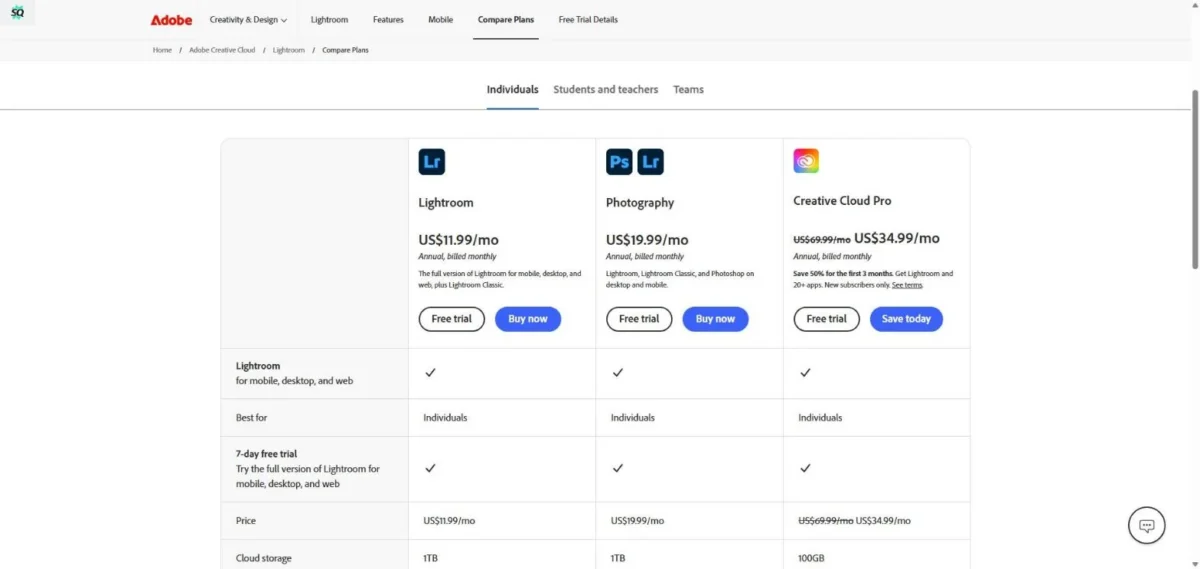
Pricing: Photography plan $9.99/mo (with Lightroom) | Single app $22.99/mo | All Apps $59.99/mo (Adobe pricing)
| Pros | Cons |
|---|---|
| Best-in-class generative fill — context-aware, high-quality results | Subscription-only; no perpetual license option |
| Industry-standard layer-based, non-destructive editing workflow | Steep learning curve for new users |
| Deepest AI masking: hair edges, semi-transparent objects, subject detection | Generative features require cloud credits (limited per plan) |
| Full RAW support, 16/32-bit, CMYK, extensive export formats | Resource-heavy; requires capable hardware for large files |
Output Quality Notes: Generative fill in Photoshop produces the most contextually coherent results of any tool we tested — lighting, perspective, and texture matching are consistently superior. Neural Filters for portrait retouching preserve skin texture better than any one-click alternative. Edge handling on hair during background removal is the best available, though complex glass/translucent edges still require manual refinement.
Privacy/Licensing Notes: Generative AI features process via Adobe’s cloud servers. According to Adobe’s Generative AI policy, customer content is not used to train Firefly models. All Firefly-generated content includes Content Credentials (C2PA metadata) by default. Full commercial use rights on paid plans; Adobe offers IP indemnification for Firefly outputs, per its Enterprise licensing terms. For a deeper look at Firefly as a standalone image generation tool, see our dedicated Adobe Firefly review.
Consultant Tip: Use Generative Fill for concept exploration and quick compositing, but always review edges at 200% zoom — the AI occasionally hallucinates texture details near boundaries. For production work, combine generative fill with manual masking for the cleanest results.
| Rubric Category | Score |
|---|---|
| Editing quality & realism | 9.5 |
| Control & precision | 10 |
| Speed & performance | 8.5 |
| RAW & color management | 10 |
| Batch & automation | 8.5 |
| UX & learning curve | 7.5 |
| Pricing & value | 8.0 |
| Privacy & data handling | 9.0 |
| Licensing & commercial rights | 10 |
| Weighted total | 9.3 |
2. Adobe Lightroom (Classic + Cloud) — Best for Photographers
Verdict: The best AI photo editor for photographers who need fast RAW processing, intelligent masking, and batch workflow automation. Lightroom’s AI features now handle 80% of the editing work that used to require manual adjustments.
Best for: Portrait, wedding, landscape, and commercial photographers who shoot RAW and process in volume.
Not ideal for: Users who need generative fill, compositing, or heavy pixel manipulation — use Photoshop for those.

Key AI Features:
- AI Masking: automatic detection of People (face, skin, hair, clothes, body), Subject, Sky, Background, and Objects
- Adaptive Presets that apply adjustments intelligently based on image content
- AI Denoise — machine-learning-based noise reduction for high-ISO RAW files
- Lens Blur — AI-generated depth maps for realistic bokeh simulation
- AI-powered auto tone, auto white balance, and auto crop
- Content-Aware Remove for object removal in the RAW workflow
Platforms: Windows, macOS (Classic) | Windows, macOS, iOS, Android, Web (Cloud)
Pricing: Photography plan $9.99/mo (includes Photoshop) | Lightroom standalone $9.99/mo (Adobe pricing)
| Pros | Cons |
|---|---|
| Best AI masking for photographers — person, sky, subject detection is near-perfect | No layer-based editing; limited compositing |
| AI Denoise quality rivals Topaz — built right into the RAW workflow | Catalog management (Classic) has a learning curve |
| Excellent batch processing: sync edits, adaptive presets, auto settings across thousands of images | Cloud version has fewer pro features than Classic |
| Non-destructive editing; original RAW files are never modified | Generative capabilities limited to Content-Aware Remove (no generative fill) |
Output Quality Notes: Lightroom’s AI Denoise is remarkable — it recovers detail from high-ISO (6400+) shots that previously required dedicated third-party tools. AI masking for portraits is nearly flawless on well-lit subjects. The Lens Blur feature produces convincing depth-of-field simulation, though it occasionally struggles with complex foreground/background transitions from AI-generated depth maps.
Privacy/Licensing Notes: Lightroom Cloud syncs photos to Adobe’s servers, but Adobe states that customer content is not used for model training. Classic processes locally with optional cloud backup. Full commercial rights. EXIF metadata is preserved through the editing workflow.
Consultant Tip: Pair Lightroom with Aftershoot or Imagen AI for the ultimate photographer workflow: AI culls and flags your selects, then Lightroom’s adaptive presets handle the base edit, leaving you only fine-tuning hero shots.
| Rubric Category | Score |
|---|---|
| Editing quality & realism | 9.0 |
| Control & precision | 8.5 |
| Speed & performance | 9.5 |
| RAW & color management | 10 |
| Batch & automation | 9.5 |
| UX & learning curve | 8.5 |
| Pricing & value | 9.0 |
| Privacy & data handling | 9.0 |
| Licensing & commercial rights | 9.5 |
| Weighted total | 9.1 |
3. Skylum Luminar Neo — Best for Enthusiast Photographers
Verdict: The most user-friendly AI photo enhancer for enthusiast photographers who want powerful one-click AI tools without Photoshop’s complexity. Luminar Neo bridges the gap between beginner apps and professional suites.
Best for: Enthusiast and hobbyist photographers who want AI-powered sky replacement, relighting, and portrait retouching with minimal manual work.
Not ideal for: High-volume professionals needing fast batch workflows or deep RAW color science.

Key AI Features:
- GenErase — AI-powered object removal with generative fill
- GenExpand — extend canvas with AI-generated content (outpainting)
- Sky AI — realistic sky replacement with automatic relighting of the scene
- Relight AI — adjust lighting direction and intensity on existing photos
- Face AI / Skin AI / Body AI — portrait retouching suite
- Enhance AI — one-click accent and sky enhancement
- Supercontrast and Atmosphere AI for mood adjustment
Platforms: Windows, macOS (standalone + plugin for Lightroom/Photoshop)
Pricing: Explore plan $9.95/mo | Pro plan $14.95/mo | Lifetime from $149 (Skylum pricing)
| Pros | Cons |
|---|---|
| Most intuitive sky replacement — automatic relighting and reflection matching | Slower performance on large files (40+ MP) compared to Lightroom |
| GenErase and GenExpand bring generative AI to a mid-tier price point | Catalog/DAM features are basic compared to Lightroom |
| Standalone + plugin flexibility — use inside Lightroom or Photoshop | Plugin mode can be unstable with large batch operations |
| Perpetual license option available alongside subscription | Color science and RAW rendering trail DxO and Capture One |
Output Quality Notes: Sky replacement is Luminar Neo’s showcase feature — it handles horizon masking, tree edges, and water reflections better than any competitor at its price point. GenErase works well for simple object removal but struggles with complex textures and repetitive patterns. Portrait retouching (Face AI, Skin AI) delivers natural results on well-lit studio portraits but can over-smooth skin in low-light conditions.
Privacy/Licensing Notes: Generative features (GenErase, GenExpand) require internet and process via Skylum’s cloud servers. Standard editing features work offline. Skylum’s privacy policy states uploads are processed and deleted, not used for training. Full commercial use rights on all plans.
Consultant Tip: Use Luminar Neo as a Lightroom plugin for specific AI tasks (sky replacement, relighting) rather than as your primary editor — you get the best of both worlds without switching workflows entirely.
| Rubric Category | Score |
|---|---|
| Editing quality & realism | 8.0 |
| Control & precision | 7.5 |
| Speed & performance | 7.0 |
| RAW & color management | 8.0 |
| Batch & automation | 7.0 |
| UX & learning curve | 9.0 |
| Pricing & value | 8.5 |
| Privacy & data handling | 8.0 |
| Licensing & commercial rights | 8.5 |
| Weighted total | 8.2 |
4. Topaz Photo AI — Best for AI Enhancement
Verdict: The best single-purpose AI upscaler, denoiser, and deblur tool available — Topaz Photo AI produces enhancement results that consistently outperform built-in AI denoise in Lightroom, DxO DeepPRIME, and every other competitor we tested.
Best for: Photographers and retouchers who need best-in-class noise reduction, sharpening, and upscaling as a standalone tool or plugin.
Not ideal for: Users who need a full photo editor — Topaz Photo AI enhances; it does not edit.

Key AI Features:
- AI Denoise — industry-leading noise reduction that preserves fine detail and texture
- AI Sharpen / Deblur — recovers detail from motion blur and soft focus
- AI Upscale (super resolution) — enlarge images up to 6× with AI-generated detail
- Autopilot mode — automatically detects and applies the optimal combination of denoise, sharpen, and upscale
- Face Recovery — enhances facial detail in low-resolution or cropped portraits
- Batch processing with consistent quality
Platforms: Windows, macOS (standalone + plugin for Lightroom/Photoshop)
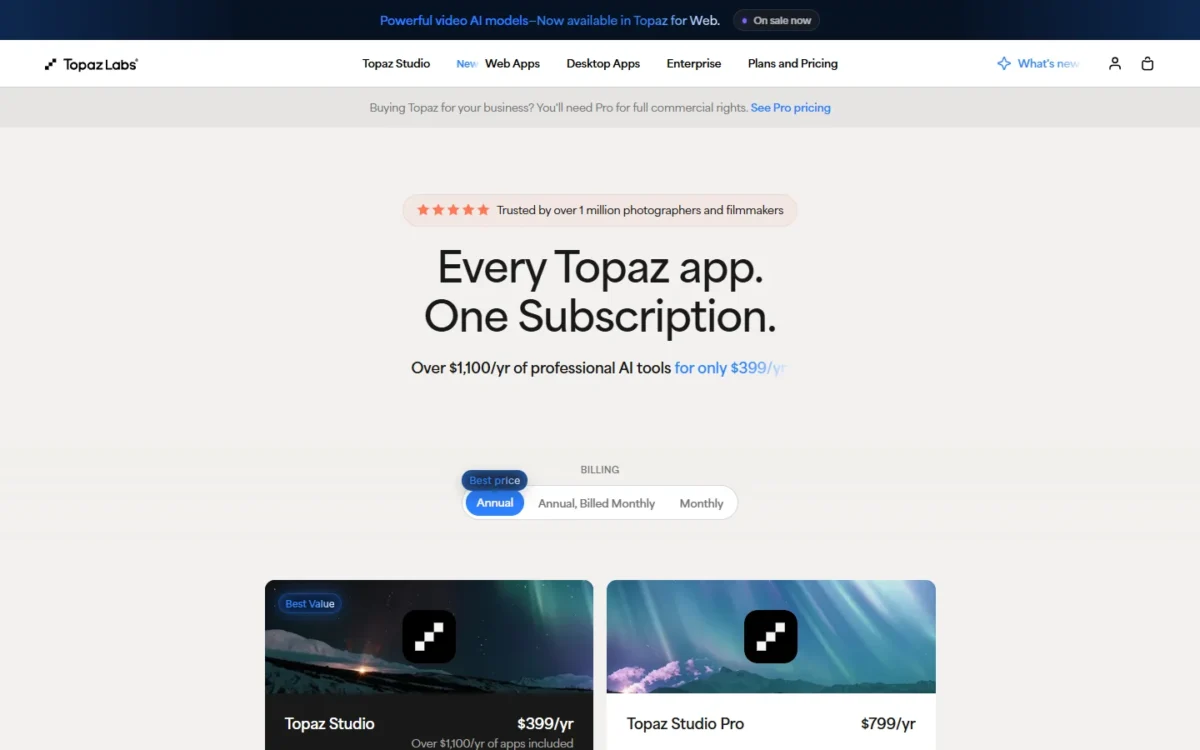
Pricing: One-time purchase $199 (includes 1 year of updates) | Upgrade pricing available (Topaz Labs pricing)
| Pros | Cons |
|---|---|
| Best denoise quality available — preserves texture where others smear | Single-purpose: no editing, masking, or creative tools |
| One-time purchase (perpetual license) — no subscription | GPU-intensive; older hardware may struggle with large files |
| Offline processing — no uploads, no cloud dependency | No RAW processing; works on exported TIFF/JPEG or as plugin |
| Batch processing for high-volume workflows | Upscale at 4–6× can introduce AI hallucinations on fine detail |
Output Quality Notes: Topaz Photo AI vs. DxO DeepPRIME XD is the comparison most photographers want. In our tests, Topaz delivered slightly better detail retention at ISO 6400+ on micro-textures (fabric, foliage, brick), while DeepPRIME XD produced marginally cleaner color transitions. At ISO 12800+, Topaz pulled ahead more decisively. Upscaling at 2× is excellent; at 4× it’s very good; at 6× you’ll see occasional hallucinated detail that requires inspection.
Privacy/Licensing Notes: All processing is local — no internet connection required after activation. No images are uploaded to any server. Full commercial use rights. This makes Topaz the most privacy-friendly AI enhancement tool on this list.
Consultant Tip: Use Topaz Photo AI as a Lightroom plugin for the final enhancement step. Export your RAW edits, run Topaz for denoise/sharpen, then re-import. This gives you Lightroom’s color science plus Topaz’s enhancement quality.
| Rubric Category | Score |
|---|---|
| Editing quality & realism | 9.5 |
| Control & precision | 7.5 |
| Speed & performance | 8.0 |
| RAW & color management | 7.0 |
| Batch & automation | 8.5 |
| UX & learning curve | 9.0 |
| Pricing & value | 9.0 |
| Privacy & data handling | 10 |
| Licensing & commercial rights | 9.0 |
| Weighted total | 8.8 |
5. CyberLink PhotoDirector — Best for Enthusiast All-in-One
Verdict: The most feature-packed AI photo editor app at its price point — PhotoDirector packs sky replacement, object removal, style transfer, and body shaping into a polished interface that costs less than half of Photoshop.
Best for: Enthusiast photographers and content creators who want Photoshop-like AI features at a budget-friendly price.
Not ideal for: Professional photographers who need deep RAW control, advanced color management, or print-quality output.

Key AI Features:
- AI Sky Replacement with scene-matched relighting
- AI Object Removal and AI Scene Remover
- AI Style Transfer and AI Cartoon effects
- AI Body Shaper and Face Shaper
- AI Background replacement and generation
- AI Deblur, Denoise, and Photo Enhancer
Platforms: Windows, macOS, iOS, Android
Pricing: Subscription $4.58/mo (annual) | Perpetual license $99.99 (CyberLink pricing)
| Pros | Cons |
|---|---|
| Exceptional value — most AI features per dollar spent | Generative quality noticeably behind Photoshop/Firefly |
| Available on all platforms including mobile | RAW processing and color science trail Lightroom/Capture One |
| Perpetual license option at $99 | Some AI features require internet; offline mode limited |
| Beginner-friendly guided edits and tutorials | Output resolution caps on some AI features |
Output Quality Notes: PhotoDirector’s AI sky replacement is competent but doesn’t match Luminar Neo’s relighting sophistication. Object removal handles simple scenes well but leaves artifacts on complex textures. Style transfer effects are fun but clearly “filtered” rather than artistically nuanced. Portrait retouching is decent for social media; not refined enough for professional headshots.
Privacy/Licensing Notes: Some AI features process via CyberLink’s cloud; standard editing works locally. CyberLink’s privacy policy covers cloud-processed images. Full commercial use on paid plans.
Consultant Tip: PhotoDirector is the best gateway drug for Photoshop — if you outgrow it, the conceptual skills transfer directly. At $4.58/mo, it’s worth trying before committing to Adobe’s ecosystem.
| Rubric Category | Score |
|---|---|
| Editing quality & realism | 7.5 |
| Control & precision | 7.5 |
| Speed & performance | 8.0 |
| RAW & color management | 7.0 |
| Batch & automation | 7.0 |
| UX & learning curve | 8.5 |
| Pricing & value | 9.0 |
| Privacy & data handling | 7.5 |
| Licensing & commercial rights | 8.0 |
| Weighted total | 7.8 |
6. Capture One Pro — Best for Studio & Tethered Workflow
Verdict: The professional photographer’s choice for tethered shooting, color grading, and session-based workflows. Capture One’s AI masking is catching up to Lightroom, and its color science remains the gold standard for studio work.
Best for: Commercial, fashion, and studio photographers who need tethered capture, superior color rendering, and session management.
Not ideal for: Casual users; anyone who needs generative AI features; budget-conscious hobbyists.

Key AI Features:
- AI Masking — automatic detection of subject, sky, and background (improved in 2025–2026 updates)
- Smart Adjustments — AI-assisted exposure, white balance, and tonal corrections
- AI-powered auto-rotate and auto-keystone
- Advanced tethered capture with live view and instant adjustments
Platforms: Windows, macOS, iPad
Pricing: All-in-one subscription $16/mo | Perpetual license $349 | iPad free (limited) (Capture One pricing)
| Pros | Cons |
|---|---|
| Best color science for skin tones and studio lighting | Fewer AI features than Lightroom or Luminar Neo |
| Industry-leading tethered capture workflow | Steeper learning curve than Lightroom |
| Session-based organization ideal for commercial shoots | No generative fill, no sky replacement, no relighting AI |
| Perpetual license available at $349 | Plugin ecosystem smaller than Adobe’s |
Output Quality Notes: Capture One’s color rendering, particularly on skin tones under studio lighting, remains superior to Lightroom and every other tool on this list. AI masking accuracy is excellent on well-separated subjects but still trails Lightroom on complex hair edges. The lack of generative AI features is a deliberate product choice, not a gap — Capture One focuses on photographic accuracy over AI creativity.
Privacy/Licensing Notes: All processing is local. No images are uploaded to any cloud service during editing. Capture One does not use customer photos for any AI training. Full commercial use rights. EXIF metadata is fully preserved.
Consultant Tip: Capture One is the right choice if color accuracy on skin tones is your top priority and you shoot tethered. For Lightroom vs. Capture One, the decision comes down to: do you value AI feature breadth (Lightroom) or color science and tether workflow (Capture One)?
| Rubric Category | Score |
|---|---|
| Editing quality & realism | 9.0 |
| Control & precision | 9.5 |
| Speed & performance | 8.5 |
| RAW & color management | 10 |
| Batch & automation | 8.0 |
| UX & learning curve | 7.5 |
| Pricing & value | 7.5 |
| Privacy & data handling | 10 |
| Licensing & commercial rights | 9.0 |
| Weighted total | 8.6 |
7. DxO PhotoLab — Best for RAW Purists
Verdict: The sharpest RAW engine and the best optical corrections in the business. DxO PhotoLab’s DeepPRIME XD noise reduction is the only feature that rivals Topaz Photo AI — and it’s built directly into the RAW processing pipeline.
Best for: Landscape, architecture, and detail-oriented photographers who prioritize RAW quality, lens corrections, and noise reduction above all else.
Not ideal for: Mobile users; anyone needing generative AI features; photographers needing built-in DAM cataloging.

Key AI Features:
- DeepPRIME XD — deep-learning noise reduction integrated into RAW demosaicing (processes at the RAW level, not post-export)
- AI ReTouch — intelligent object and blemish removal
- DxO Optical Modules — camera/lens-specific corrections based on lab-measured profiles (2,000+ modules)
- Smart Lighting — AI-assisted highlight/shadow recovery
- ClearView Plus — AI haze and mist removal
Platforms: Windows, macOS
Pricing: Essential $139 (perpetual) | Elite $229 (perpetual) | Subscription available (DxO pricing)
| Pros | Cons |
|---|---|
| DeepPRIME XD denoise operates at the RAW level — better color fidelity than post-export AI | No mobile app, no web version, no iPad support |
| Lab-measured optical corrections for 2,000+ camera/lens combos — nothing else compares | No generative AI (no fill, no expand, no sky replacement) |
| Perpetual license keeps long-term cost low | DAM/cataloging features are basic compared to Lightroom |
| Completely offline — maximum privacy | Smaller community and fewer third-party presets |
Output Quality Notes: DxO DeepPRIME XD vs. Topaz Photo AI is the denoise comparison that matters. DeepPRIME XD has a unique advantage: it processes noise at the RAW demosaicing stage, before color interpolation, which produces smoother color transitions and fewer color artifacts. Topaz Photo AI processes after export, which can introduce subtle color shifts. Both are excellent — DxO’s edge is in color fidelity; Topaz’s edge is in detail retention.
Privacy/Licensing Notes: All processing is entirely local. No cloud dependency. DxO does not upload any user images. Full commercial use rights. EXIF metadata fully preserved.
Consultant Tip: DxO PhotoLab + Topaz Photo AI is a powerful combination: DxO handles RAW processing and optical corrections, then Topaz adds its final enhancement pass. The combined cost (one-time) is less than one year of Lightroom + Photoshop.
| Rubric Category | Score |
|---|---|
| Editing quality & realism | 9.0 |
| Control & precision | 8.5 |
| Speed & performance | 8.0 |
| RAW & color management | 10 |
| Batch & automation | 7.5 |
| UX & learning curve | 7.5 |
| Pricing & value | 8.5 |
| Privacy & data handling | 10 |
| Licensing & commercial rights | 9.0 |
| Weighted total | 8.4 |
8. ON1 Photo RAW — Best for All-in-One Photographers
Verdict: The best all-in-one alternative to the Adobe ecosystem — ON1 Photo RAW combines DAM cataloging, RAW processing, layers, and AI tools in a single perpetual-license application.
Best for: Photographers who want Lightroom + Photoshop functionality in one app without a subscription.
Not ideal for: Users already invested in the Lightroom catalog ecosystem; those needing cutting-edge generative AI.

Key AI Features:
- AI Masking with subject, sky, and background detection
- Sky Swap AI — sky replacement with relighting
- NoNoise AI — machine-learning noise reduction
- Resize AI — super-resolution upscaling
- AI Quick Mask — one-click selection refinement
- AI Auto tone and AI Match for color consistency
Platforms: Windows, macOS (standalone + plugin for Lightroom/Photoshop)
Pricing: Subscription $7.99/mo | Perpetual $99.99/yr (includes updates) (ON1 pricing)
| Pros | Cons |
|---|---|
| All-in-one: cataloging, RAW processing, layers, effects — no second app needed | Smaller ecosystem and community than Adobe |
| Photos stay on your hard drive — no forced cloud sync | AI feature quality trails Lightroom and Topaz individually |
| Plugin mode for Lightroom and Photoshop users | Performance can lag on older hardware with large catalogs |
| Competitive perpetual pricing | Sky replacement and object removal trail Luminar Neo |
Output Quality Notes: ON1’s NoNoise AI delivers solid noise reduction that falls between Lightroom’s AI Denoise (slightly below) and Topaz Photo AI (noticeably below). Sky Swap is functional but less sophisticated than Luminar Neo’s relighting. AI masking accuracy is good on clear subjects, less reliable on complex edges. The real value is having everything in one app.
Privacy/Licensing Notes: All processing is local. No images are uploaded to any cloud service. ON1 does not use customer photos for any AI training. Full commercial use rights. Perpetual license available.
Consultant Tip: If you want to leave the Adobe subscription ecosystem entirely, ON1 Photo RAW is the most complete single-app alternative. Test it alongside Luminar Neo — ON1 wins on cataloging and layers; Luminar wins on AI creativity tools.
| Rubric Category | Score |
|---|---|
| Editing quality & realism | 7.5 |
| Control & precision | 8.0 |
| Speed & performance | 7.5 |
| RAW & color management | 8.5 |
| Batch & automation | 8.0 |
| UX & learning curve | 7.5 |
| Pricing & value | 8.5 |
| Privacy & data handling | 9.5 |
| Licensing & commercial rights | 8.5 |
| Weighted total | 7.9 |
Web & Design Workflow Editors
9. Canva (Magic Studio) — Best for Design Teams
Verdict: The best free AI photo editor for non-designers who need quick background removal, object removal, and image enhancement inside a design-first workflow. Canva isn’t a replacement for Photoshop — it’s a replacement for the 80% of tasks that don’t need Photoshop.
Best for: Social media managers, marketers, and small business owners who edit photos as part of a design workflow.
Not ideal for: Professional photographers needing RAW support, pixel-level control, or print-quality output.

Key AI Features:
- Magic Eraser — AI-powered object removal
- Background Remover — one-click background removal
- Magic Expand — AI generative expand (outpainting)
- Magic Edit — text-prompt-based local editing
- Magic Enhance — one-click image quality improvement
- Text to Image — AI image generation (design asset creation)
- Magic Animate — auto-animation for social posts
Platforms: Web, Windows, macOS, iOS, Android
Pricing: Free plan (limited AI features) | Pro $12.99/mo | Teams $14.99/mo/person (Canva pricing)
| Pros | Cons |
|---|---|
| Best-in-class UX for non-technical users; virtually no learning curve | Not a photo editor — no layers, no curves, no RAW support |
| Generous free tier includes BG remover and basic AI tools | AI tool quality trails Photoshop significantly on complex edits |
| Integrated design + photo editing eliminates context switching | Magic Expand can hallucinate inconsistent content on detailed scenes |
| Team collaboration and brand kit features for businesses | Export limited to 300 DPI max; not suitable for large-format print |
Output Quality Notes: Canva’s Background Remover is surprisingly capable on clean subject/background separation — it handles hair edges better than most online AI photo editor alternatives, though it trails Photoshop noticeably. For a full breakdown of Canva’s design and AI capabilities beyond photo editing, see our in-depth Canva review. Magic Eraser works well for simple object removal but struggles with complex patterns and textures. Magic Expand produces acceptable results for social media but is visibly inferior to Photoshop’s Generative Expand on detailed scenes.
Privacy/Licensing Notes: All AI features process via Canva’s cloud servers — your images are uploaded. Canva’s privacy policy governs your uploads. The company states that user content is not used for AI training without consent. Commercial use is permitted on paid plans. Free-tier exports may include Canva watermarks on premium elements.
Consultant Tip: Use Canva for social media graphics and quick marketing assets. For any image that matters — headshots, product photos, portfolio work — switch to a dedicated AI picture editor like Photoshop or Lightroom.
| Rubric Category | Score |
|---|---|
| Editing quality & realism | 7.5 |
| Control & precision | 6.0 |
| Speed & performance | 9.0 |
| RAW & color management | 4.0 |
| Batch & automation | 8.0 |
| UX & learning curve | 10 |
| Pricing & value | 9.0 |
| Privacy & data handling | 7.0 |
| Licensing & commercial rights | 8.0 |
| Weighted total | 8.0 |
10. Pixlr — Best for Browser-Based Editing
Verdict: The best browser-based AI photo editor — Pixlr delivers layer-based editing, AI cutout, and generative fill directly in the browser with no installation required. It’s the closest thing to Photoshop you can get for free online.
Best for: Users who need a full-featured image editor in the browser — Chromebook users, shared workstations, and anyone avoiding software installation.
Not ideal for: Users processing large RAW files; professional print workflows; anyone needing offline capability.

Key AI Features:
- AI Cutout — automatic subject detection and background removal
- AI Object Removal — content-aware object erasure
- AI Generative Fill — text-prompt-based fill (beta)
- AI Image Enhancer — auto tone, color, and sharpness
- Batch editor for resizing and format conversion
Platforms: Web, iOS, Android
Pricing: Free (ads + watermark on some exports) | Plus $4.90/mo | Premium $14.90/mo (Pixlr pricing)
| Pros | Cons |
|---|---|
| Full layer-based editor running entirely in the browser — impressive technical achievement | Quality trails desktop editors on everything; not print-grade |
| Most affordable paid tier for an AI photo editor with layers | Free tier has ads and limited daily AI uses |
| No installation required — works on any device with a modern browser | No RAW support; limited color management |
| Batch processing available on paid plans | Generative fill is beta and inconsistent |
Output Quality Notes: Pixlr’s AI Cutout handles simple backgrounds competently but struggles with hair edges and translucent objects. Object removal produces acceptable results for social media — noticeably below Photoshop for professional use. Canva vs. Pixlr for AI editing: Canva wins on UX and design integration; Pixlr wins on editing depth (layers, blending modes, filters).
Privacy/Licensing Notes: All processing is cloud-based — images are uploaded to Pixlr’s servers. The company’s privacy policy governs data handling. Images are stated to be processed and not stored long-term. Commercial use permitted on paid plans.
Consultant Tip: Pixlr is the best option when you need to edit on a machine where you can’t install software. Bookmark it as your “emergency Photoshop” — it won’t replace desktop tools for serious work, but it handles 90% of quick edits.
| Rubric Category | Score |
|---|---|
| Editing quality & realism | 7.0 |
| Control & precision | 7.0 |
| Speed & performance | 7.5 |
| RAW & color management | 5.0 |
| Batch & automation | 7.0 |
| UX & learning curve | 8.0 |
| Pricing & value | 8.5 |
| Privacy & data handling | 6.5 |
| Licensing & commercial rights | 7.5 |
| Weighted total | 7.5 |
11. Fotor — Best for Quick Social Media Edits
Verdict: A solid online AI photo editor for quick enhancements, background removal, and social media graphics. Fotor isn’t trying to compete with Photoshop — it’s competing with “good enough” for Instagram.
Best for: Social media creators and small business owners who need fast, template-driven photo editing with AI enhancement.
Not ideal for: Professional photographers; anyone needing RAW processing, layers, or fine editing control.

Key AI Features:
- AI Photo Enhancer — one-click quality improvement
- AI Background Remover — subject isolation
- AI Enlarger — image upscaling
- AI Object Remover
- Batch processing for resize and format conversion
- AI-powered templates for social media and marketing
Platforms: Web, iOS, Android
Pricing: Free (limited) | Fotor Pro $8.99/mo | Fotor Pro+ $19.99/mo (Fotor pricing)
| Pros | Cons |
|---|---|
| Simple, clean UI — zero learning curve for casual users | Layer editing is basic; no advanced compositing |
| AI Enhancer produces decent one-click improvements | AI quality trails Canva and Pixlr on complex tasks |
| Good template library for social media sizes | Free tier is heavily restricted; constant Pro upgrade prompts |
| Batch processing for simple tasks (resize, format) | No RAW support; limited color management |
Output Quality Notes: Fotor’s AI Enhancer produces acceptable results for social media — colors brighten, sharpness improves, noise decreases. But it applies a “one-filter-fits-all” approach that can oversaturate already-vivid images. Background removal is competent on clean subjects, weak on complex hair edges. The AI Enlarger upscales acceptably at 2× but introduces visible artifacts at 4×.
Privacy/Licensing Notes: Cloud-based processing — images are uploaded to Fotor’s servers. Privacy policy governs usage. Commercial use on paid plans. Free-tier exports may include branding.
Consultant Tip: Use Fotor for quick social media posts when Canva feels like overkill. Don’t use it for client deliverables or anything requiring quality control.
| Rubric Category | Score |
|---|---|
| Editing quality & realism | 6.5 |
| Control & precision | 6.0 |
| Speed & performance | 8.0 |
| RAW & color management | 4.0 |
| Batch & automation | 7.0 |
| UX & learning curve | 8.5 |
| Pricing & value | 7.5 |
| Privacy & data handling | 6.5 |
| Licensing & commercial rights | 7.5 |
| Weighted total | 7.3 |
Social & Mobile Editors
12. Picsart — Best for Social & Mobile Creators
Verdict: The most popular mobile-first AI photo editor app with a massive creative community. Picsart offers AI-powered editing, stickers, templates, and social features that make it a one-stop shop for casual creators — but professionals will find it limiting.
Best for: TikTok, Instagram, and Snapchat creators who want AI editing + creative tools on mobile with social sharing built in.
Not ideal for: Professional photographers; anyone needing RAW support, precision editing, or print-quality exports.

Key AI Features:
- AI Enhance — one-click photo improvement
- AI Background Remover
- AI Replace — text-prompt-based local editing
- AI Art / AI Style Transfer
- AI Expand — outpainting/generative expand
- Massive sticker and template library
Platforms: Web, iOS, Android
Pricing: Free (ads + watermark) | Picsart Gold $13/mo | Team plans available (Picsart pricing)
| Pros | Cons |
|---|---|
| Huge creative community — shared stickers, templates, and effects | Ads on free tier are aggressive and intrusive |
| AI Replace is surprisingly capable for text-prompt-based local editing | UI is cluttered; feature discovery is poor |
| Cross-platform: mobile, web, and desktop | AI output quality is inconsistent — varies widely by feature |
| Team/brand features for agencies and creators | No RAW support; limited export quality options |
Output Quality Notes: Picsart’s AI Replace (text-to-edit) produces better results than expected for a mobile-first app, handling simple object swaps decently. Background removal is solid on clear subjects but trails Canva and Photoshop on complex edges. AI Enhance tends to oversharpen and oversaturate, producing the telltale “AI-processed” look on some images.
Privacy/Licensing Notes: Cloud-based processing — images are uploaded. Picsart’s privacy policy notes that user content may be used to improve services. Read terms carefully regarding public/private uploads on the platform. Commercial use on Gold plans.
Consultant Tip: Picsart is the best mobile AI editor for content creators who publish directly to social platforms. For anything going to a client or print, export from Picsart and finish in a desktop editor.
| Rubric Category | Score |
|---|---|
| Editing quality & realism | 6.5 |
| Control & precision | 6.0 |
| Speed & performance | 8.0 |
| RAW & color management | 3.5 |
| Batch & automation | 6.5 |
| UX & learning curve | 7.5 |
| Pricing & value | 7.0 |
| Privacy & data handling | 6.0 |
| Licensing & commercial rights | 7.5 |
| Weighted total | 7.2 |
E-Commerce & Product Photo Tools
13. PhotoRoom — Best for E-Commerce Product Photos
Verdict: The best AI product photo editor for e-commerce sellers who need fast, consistent product images at scale. PhotoRoom automates the most tedious parts of product photography — background removal, shadow generation, and batch resizing — with results that are good enough for marketplace listings and social ads.
Best for: Shopify, Amazon, and eBay sellers; small businesses producing product listings at volume.
Not ideal for: Landscape or portrait photographers; anyone needing general photo editing or RAW processing.

Key AI Features:
- Instant Background Removal — one-click subject isolation optimized for products
- AI Background Generation — create studio-quality backgrounds from text prompts
- Shadow and reflection generation for product realism
- Batch processing — resize, reformat, and background-swap hundreds of images
- API for automated workflows and marketplace integrations
- Brand Kit for consistent styling across product catalogs
Platforms: Web, iOS, Android
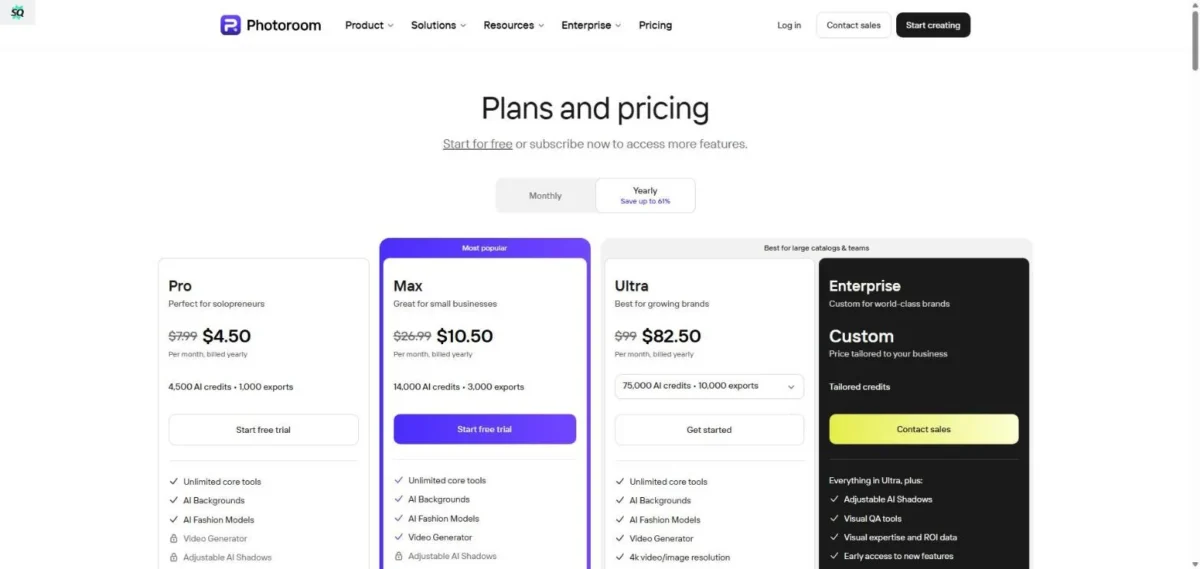
Pricing: Free (watermarked) | Pro $12.99/mo | Enterprise custom (PhotoRoom pricing)
| Pros | Cons |
|---|---|
| Best-in-class background removal for product images | Not a general photo editor — no retouching, no RAW, no layers |
| Batch processing handles hundreds of SKUs efficiently | AI-generated backgrounds can look generic without customization |
| API enables automated marketplace integrations | Free tier adds a PhotoRoom watermark |
| Purpose-built templates for Amazon, Shopify, Instagram | Shadow/reflection quality trails professional product photography |
Output Quality Notes: PhotoRoom vs. Cutout.pro for e-commerce: PhotoRoom wins on workflow integration, batch speed, and background generation templates. Cutout.pro offers slightly better edge accuracy on certain complex products (jewelry, glass) but lacks PhotoRoom’s workflow depth — we cover this in detail in our Cutout.pro review. For most e-commerce sellers, PhotoRoom delivers the better end-to-end experience. Also consider remove.bg as a simpler background removal alternative if your needs are less complex.
Privacy/Licensing Notes: Cloud-based processing — product images are uploaded to PhotoRoom’s servers. The company’s ToS permits commercial use on paid plans. Review data retention policies if processing sensitive or unreleased product images.
Consultant Tip: Use PhotoRoom’s batch API to automate your product listing pipeline. Upload raw product shots → API removes backgrounds, generates shadows, resizes to marketplace specs → export directly. This replaces hours of manual Photoshop work per product catalog update.
| Rubric Category | Score |
|---|---|
| Editing quality & realism | 8.0 |
| Control & precision | 7.0 |
| Speed & performance | 9.5 |
| RAW & color management | 3.0 |
| Batch & automation | 9.5 |
| UX & learning curve | 9.0 |
| Pricing & value | 8.5 |
| Privacy & data handling | 7.0 |
| Licensing & commercial rights | 8.0 |
| Weighted total | 8.3 |
14. Cutout.pro — Best for Background Removal
Verdict: A focused, web-based AI background remover that handles edge cases (hair, fur, semi-transparent objects) better than most general-purpose editors. Cutout.pro is a single-task specialist — use it when you need the cleanest possible cutout.
Best for: Graphic designers, e-commerce photographers, and anyone who needs precise subject isolation as a standalone task.
Not ideal for: Anyone needing a full editor; users with large volumes (credit-based pricing scales poorly).

Key AI Features:
- AI Background Remover — handles hair, fur, and semi-transparent edges
- Photo Enhancer — AI upscaling and quality improvement
- Passport Photo Maker — automated ID photo cropping and formatting
- Video Background Remover
- Batch processing for bulk cutouts
Platforms: Web only
Pricing: Free (limited) | Credits from $5.99 | Subscription plans available (Cutout.pro pricing)
| Pros | Cons |
|---|---|
| Edge accuracy on hair and fur surpasses most competitors | Web-only — no desktop app, no offline processing |
| Clean, focused UI — does one thing and does it well | Credit-based pricing makes bulk work expensive |
| Passport Photo Maker is a useful niche tool | No editing tools beyond cutout and basic enhancement |
| Free tier allows limited use without payment | Video background removal is slower and less reliable |
Output Quality Notes: Cutout.pro’s edge accuracy on hair, particularly flyaway strands against varied backgrounds, is among the best we tested — slightly behind Photoshop’s Select Subject but ahead of Canva, Pixlr, and most web-based alternatives. For simple product shots on clean backgrounds, it’s overkill; for fashion, headshots, and pet photography cutouts, it’s worth the credit cost.
Privacy/Licensing Notes: Cloud-based — all images are uploaded for processing. Cutout.pro’s privacy policy states that uploaded images are processed and automatically deleted. Commercial use permitted. No content authenticity metadata is embedded.
Consultant Tip: Use Cutout.pro for the hairline cutouts that stump other tools, then finish compositing in Photoshop or Canva. It’s a specialist tool, not a workflow replacement.
| Rubric Category | Score |
|---|---|
| Editing quality & realism | 7.5 |
| Control & precision | 6.5 |
| Speed & performance | 8.0 |
| RAW & color management | 3.0 |
| Batch & automation | 7.0 |
| UX & learning curve | 8.5 |
| Pricing & value | 7.0 |
| Privacy & data handling | 6.5 |
| Licensing & commercial rights | 7.5 |
| Weighted total | 7.4 |
15. Claid — Best for E-Commerce Automation at Scale
Verdict: The most developer-friendly AI product photo editor — Claid is an API-first platform designed for e-commerce teams that need automated image enhancement, background generation, and format conversion across thousands of SKUs.
Best for: E-commerce operations teams, marketplace platforms, and developers building automated product image pipelines.
Not ideal for: Individual users; non-technical users; anyone needing a visual editor with a GUI.

Key AI Features:
- AI Upscale — enhance low-resolution product images to marketplace-quality resolution
- AI Background Generation — create contextual lifestyle and studio backgrounds from text prompts
- Smart Crop — automated focus-aware cropping for different marketplace specs
- Batch processing API — handle thousands of images programmatically
- Image quality scoring — automatically flag low-quality product images
- Format and size conversion with optimization
Platforms: Web dashboard, API
Pricing: Custom pricing based on volume and API usage | Free trial available (Claid pricing)
| Pros | Cons |
|---|---|
| API-first design makes integration into existing e-commerce pipelines seamless | Not a visual editor — no GUI editing tools |
| Background generation quality is competitive for product lifestyle images | Pricing is opaque; requires sales contact for volume |
| Image quality scoring helps automate QA at scale | Not useful for individual photo editing tasks |
| Handles format conversion, resizing, and optimization in one pipeline | Limited documentation compared to mature platforms |
Output Quality Notes: Claid’s AI upscaling produces clean results on product images at 2–4× enlargement. Background generation is competitive with PhotoRoom for lifestyle contexts. The image quality scoring feature is genuinely useful — it flags out-of-focus, poorly lit, and low-resolution images automatically, which saves QA time on large catalogs.
Privacy/Licensing Notes: Cloud-based API — all images are uploaded for processing. Enterprise data processing agreements are available. Review data retention and processing terms before integrating with your product catalog.
Consultant Tip: Claid is the right choice if you’re building an automated product image pipeline at scale (10,000+ SKUs). For individual editing or small catalogs, PhotoRoom offers a better UX without needing API integration skills.
| Rubric Category | Score |
|---|---|
| Editing quality & realism | 8.0 |
| Control & precision | 6.5 |
| Speed & performance | 9.0 |
| RAW & color management | 3.0 |
| Batch & automation | 10 |
| UX & learning curve | 6.0 |
| Pricing & value | 7.5 |
| Privacy & data handling | 7.0 |
| Licensing & commercial rights | 8.5 |
| Weighted total | 8.1 |
Portrait, Batch & Specialized Tools
16. Evoto AI — Best for Portrait Retouching
Verdict: The most sophisticated AI-powered portrait retouching software available as a standalone desktop tool. Evoto AI handles skin retouching, body reshaping, and batch headshot processing with results that look natural — not airbrushed — while saving hours compared to manual Photoshop retouching.
Best for: Headshot photographers, school portrait studios, and beauty retouchers who process large volumes of portraits.
Not ideal for: Landscape, product, or general-purpose photographers; anyone needing a full editor.

Key AI Features:
- AI Skin Retouching — blemish removal, skin smoothing with texture preservation
- AI Body Reshaping — subtle body and face adjustments with natural proportions
- AI Background Replacement for portrait backgrounds
- Batch processing — apply consistent retouching across hundreds of headshots
- Teeth whitening, eye enhancement, hair retouching
- Color grading presets for portrait styles
Platforms: Windows, macOS
Pricing: Subscription from $9.99/mo | Credits for additional processing (Evoto pricing)
| Pros | Cons |
|---|---|
| Best skin retouching quality — preserves pores and texture while smoothing | Portrait-only focus; no general editing capabilities |
| Batch headshot processing saves hours per shoot | Credit-based processing on some features adds unpredictable cost |
| Body reshaping produces natural-looking results, not plastic | Desktop only; no mobile or web version |
| Faster than manual Photoshop frequency-separation retouching | Smaller community and fewer presets than mainstream editors |
Output Quality Notes: Evoto AI vs. Retouch4me (a competitor not on this list): both produce excellent AI skin retouching, but Evoto offers a more complete portrait workflow with background replacement and body reshaping included. Skin texture preservation in Evoto is among the best we tested — the AI smooths blemishes without creating the “wax mannequin” effect that plagues lower-quality portrait retouching tools.
Privacy/Licensing Notes: Processing is primarily local for core retouching features. Some advanced features may require cloud processing. Evoto’s privacy policy governs any uploaded data. Full commercial use on paid plans. Be aware of ethical considerations around body reshaping features — transparent disclosure is good practice.
Consultant Tip: In our testing, Evoto AI cut retouching time by approximately 70–80% compared to manual Photoshop frequency-separation workflows on a batch of 200 headshots. Your results may vary depending on shoot complexity and retouching standards. Set up a batch preset, process the full shoot, then only hand-retouch the hero images.
| Rubric Category | Score |
|---|---|
| Editing quality & realism | 9.0 |
| Control & precision | 8.0 |
| Speed & performance | 8.5 |
| RAW & color management | 7.0 |
| Batch & automation | 8.5 |
| UX & learning curve | 8.0 |
| Pricing & value | 7.5 |
| Privacy & data handling | 8.0 |
| Licensing & commercial rights | 8.0 |
| Weighted total | 8.2 |
17. Aftershoot — Best for Wedding & Event Photographers
Verdict: The best AI culling and editing tool for high-volume event photographers. Aftershoot learns your editing style from your existing work and applies it consistently across entire shoots — then exports directly to Lightroom or Capture One.
Best for: Wedding, event, and portrait photographers who shoot thousands of images per event and need to cull and edit faster.
Not ideal for: Non-photographers; casual users; anyone who doesn’t use Lightroom or Capture One.

Key AI Features:
- AI Culling — automatically sorts, rates, and flags keepers vs. rejects from thousands of images
- AI Editing — learns your editing style from your Lightroom/Capture One catalog and applies it to new shoots
- Duplicate and blur detection
- Direct export to Lightroom Classic and Capture One
- Continuous style learning — improves as you correct its edits
Platforms: Windows, macOS
Pricing: Editing $14.99/mo | Culling + Editing $24.99/mo | Unlimited plan available (Aftershoot pricing)
| Pros | Cons |
|---|---|
| AI culling reduces a 3,000-image wedding shoot to flagged selects in under 30 minutes | Not a photo editor — no retouching, no object removal, no creative tools |
| Style learning is genuinely impressive — replicates your personal editing preferences | Requires an existing body of edited work to learn from |
| Direct integration with Lightroom Classic and Capture One preserves your workflow | Learning curve for style training; initial results may require correction |
| Saves 5–8 hours per wedding shoot on average | Not useful for photographers who don’t shoot volume |
Output Quality Notes: Aftershoot’s style-learned edits are surprisingly close to the source photographer’s manual work — typically within 10–15% adjustment on individual sliders. Culling accuracy improves significantly after processing 5–10 shoots with corrections. The biggest time saving is in culling, not editing — reducing 4,000 raw files to 800 flagged selects in 20 minutes is transformative for event photographers.
Privacy/Licensing Notes: Image processing happens locally on your machine — no uploads to cloud servers. Aftershoot does not see or store your images on their servers. The style profile is trained locally. This makes it the most privacy-friendly AI editing tool for photographers.
Consultant Tip: Pair Aftershoot (culling + base edit) with Lightroom (fine-tuning) and Topaz Photo AI (final enhancement) for the ultimate photographer workflow. This stack handles shoots from import to delivery with minimal manual intervention.
| Rubric Category | Score |
|---|---|
| Editing quality & realism | 8.0 |
| Control & precision | 7.5 |
| Speed & performance | 9.5 |
| RAW & color management | 8.5 |
| Batch & automation | 10 |
| UX & learning curve | 7.5 |
| Pricing & value | 8.0 |
| Privacy & data handling | 10 |
| Licensing & commercial rights | 8.0 |
| Weighted total | 8.3 |
18. Imagen AI — Best for High-Volume Lightroom Users
Verdict: A Lightroom-native AI editing plugin that learns your personal editing style and applies it to entire shoots in minutes. Imagen AI is purpose-built for photographers who live in Lightroom and want consistent, style-matched edits at scale.
Best for: High-volume portrait, wedding, and school photographers who use Lightroom Classic as their primary editor.
Not ideal for: Non-Lightroom users; photographers who prefer manual editing; anyone needing culling or retouching.

Key AI Features:
- Personal AI Profile — learns your unique editing style from 5,000+ previously edited images
- Batch editing — applies your style consistently across entire shoots
- Crop AI — intelligent cropping based on subject detection and composition rules
- Straighten AI — automatic horizon correction
- Direct Lightroom Classic integration — edits appear as Lightroom adjustments
Platforms: Windows, macOS (Lightroom Classic plugin)
Pricing: From $7/mo (base) + per-photo editing ($0.05–0.07 per edit) (Imagen AI pricing)
| Pros | Cons |
|---|---|
| Personal AI Profile genuinely replicates your editing style after training | Lightroom Classic plugin only — no standalone app, no Capture One |
| Per-photo pricing makes it affordable for variable shooting volumes | Requires 5,000+ edited images for effective profile training |
| Edits are non-destructive Lightroom adjustments — fully tweakable | Per-photo costs add up for very high-volume studios |
| Crop and straighten AI are surprisingly accurate | No culling, no retouching, no generative features |
Output Quality Notes: Imagen AI’s style-matched edits are close enough to the photographer’s manual work that most clients won’t notice the difference — typically requiring only minor tweaks on 15–20% of images. The key advantage over Aftershoot’s editing: Imagen’s profile-based approach is slightly more consistent on color grading, while Aftershoot’s is slightly stronger on exposure and tonal adjustments.
Privacy/Licensing Notes: Your AI Profile is trained using your Lightroom catalog metadata and editing parameters — the actual image pixels are not uploaded. Editing inference also runs locally. This is a privacy-friendly approach. Commercial use permitted.
Consultant Tip: If you already have a large Lightroom catalog with consistent editing, Imagen AI will save you more time than any other tool on this list — the personal profile approach means your edits look like you, not like a preset. Start with a 5,000-image training set from your best-edited shoots.
| Rubric Category | Score |
|---|---|
| Editing quality & realism | 8.0 |
| Control & precision | 7.0 |
| Speed & performance | 9.0 |
| RAW & color management | 8.5 |
| Batch & automation | 9.5 |
| UX & learning curve | 7.5 |
| Pricing & value | 7.5 |
| Privacy & data handling | 9.0 |
| Licensing & commercial rights | 8.0 |
| Weighted total | 8.0 |
19. Remini — Best for Photo Restoration
Verdict: The most accessible AI tool for restoring old, damaged, or low-resolution photos. Remini’s AI upscaling and face enhancement turn blurry, pixelated photos into surprisingly sharp images — making it essential for anyone digitizing family albums or rescuing damaged prints.
Best for: Anyone restoring old family photos, enhancing low-resolution images, or recovering facial detail from blurry photos.
Not ideal for: Professional photographers; anyone needing editing tools, RAW support, or batch workflows.

Key AI Features:
- AI Photo Enhance — upscale and sharpen low-resolution images
- AI Face Enhancement — recover facial detail from blurry or pixelated faces
- Old Photo Restoration — reduce scratches, stains, and damage artifacts
- Colorize — add realistic color to black-and-white photographs
- Video Enhancement — upscale and sharpen video footage
Platforms: iOS, Android, Web
Pricing: Free (limited daily enhances, watermark) | Pro $9.99/mo or $29.99/yr (Remini pricing)
| Pros | Cons |
|---|---|
| Best face enhancement from low-resolution sources — genuinely impressive results | Mobile-focused; limited export options and resolution controls |
| Old photo restoration handles scratches and damage competently | Free tier limits daily uses and adds watermarks |
| Colorization of B&W photos produces natural-looking results | Not an editor — no masking, retouching, or adjustment tools |
| Extremely simple UI — usable by anyone regardless of skill | Enhancement can introduce hallucinated facial features on very blurry sources |
Output Quality Notes: Remini vs. Topaz Photo AI for restoration: Topaz Photo AI produces more technically accurate upscaling with better detail preservation and fewer artifacts. Remini produces more visually appealing results on faces specifically — its face enhancement model is trained to generate plausible facial detail that “looks right” even if it’s partially hallucinated. For family photo restoration, Remini’s results are more satisfying; for professional work, Topaz is more reliable.
Privacy/Licensing Notes: Cloud-based — all photos are uploaded for processing. We recommend reviewing Remini’s privacy policy before use, particularly regarding data retention and third-party sharing. As with any cloud-based mobile app, exercise caution with sensitive or confidential images. Commercial use is permitted on paid plans.
Consultant Tip: Use Remini for quick family photo restoration and social sharing. For professional-grade restoration (archival, print), start with Topaz Photo AI for upscaling, then finish detail work in Photoshop.
| Rubric Category | Score |
|---|---|
| Editing quality & realism | 7.5 |
| Control & precision | 5.0 |
| Speed & performance | 8.5 |
| RAW & color management | 3.0 |
| Batch & automation | 5.5 |
| UX & learning curve | 9.5 |
| Pricing & value | 7.5 |
| Privacy & data handling | 5.5 |
| Licensing & commercial rights | 7.0 |
| Weighted total | 7.6 |
20. Lensa — Best for Mobile Portrait Selfies
Verdict: A mobile-first AI portrait editor known for its Magic Avatars feature. Lensa handles basic portrait retouching and stylized avatar creation, but its limited editing capabilities and privacy controversies keep it at the bottom of our rankings.
Best for: Casual mobile users who want quick selfie retouching and fun AI-generated avatar images.
Not ideal for: Professional photographers; anyone concerned about data privacy; anyone needing actual photo editing.

Key AI Features:
- AI Portrait Retouching — skin smoothing, blemish removal, face reshaping
- Magic Avatars — AI-generated stylized portraits from selfies
- Background Blur — AI-simulated bokeh
- Basic color and exposure adjustments
- Teeth whitening, eye enhancement
Platforms: iOS, Android
Pricing: Free (limited features) | Pro $29.99/yr or $3.99/wk (Lensa pricing)
| Pros | Cons |
|---|---|
| Magic Avatars are fun and shareable — strong social media appeal | Privacy concerns — the app uploads selfies for avatar training |
| Portrait retouching is decent for quick selfie improvements | Very limited editing tools beyond retouching |
| Simple, attractive mobile UI | Avatar generation requires uploading 10–20 selfies to Prisma’s servers |
| Affordable annual pricing | Retouching quality trails Evoto AI, Photoshop, and most competitors |
Output Quality Notes: Lensa’s portrait retouching is acceptable for social media selfies but lacks the sophistication of Evoto AI or Photoshop. Skin smoothing tends toward the over-processed end of the spectrum. Magic Avatars are creative and entertaining but are AI-generated images, not photo edits — they’re closer to a dedicated AI image generator (like Midjourney or DALL·E) than a photo editor. This is a fun consumer tool, not a professional one.
Privacy/Licensing Notes: Caution: Magic Avatars require you to upload 10–20 selfies, which are processed on Prisma Labs’ cloud servers. According to Prisma Labs’ privacy policy, uploaded images may be used for model improvement — a practice that has drawn concern from privacy advocates (TechCrunch, Dec 2022). If data privacy is a priority, this is not the right tool.
Consultant Tip: Lensa is a consumer entertainment tool, not a professional photo editor. Use it for fun avatar creation and social selfies. For professional portrait retouching, use Evoto AI or Photoshop.
| Rubric Category | Score |
|---|---|
| Editing quality & realism | 6.0 |
| Control & precision | 4.5 |
| Speed & performance | 8.0 |
| RAW & color management | 2.0 |
| Batch & automation | 3.0 |
| UX & learning curve | 8.0 |
| Pricing & value | 7.0 |
| Privacy & data handling | 4.0 |
| Licensing & commercial rights | 6.5 |
| Weighted total | 6.8 |

How to Choose the Right AI Photo Editor (Decision Framework)
Use this framework to narrow down 20 tools to the 2–3 that fit your workflow. Answer these questions in order:
Step 1: What Is Your Primary Use Case?
| Use case | Start with these tools |
|---|---|
| Professional photo editing (creative work) | Photoshop, Capture One |
| RAW photo processing (photography workflow) | Lightroom, DxO PhotoLab, Capture One |
| Enhancement only (denoise, upscale, sharpen) | Topaz Photo AI, DxO PhotoLab |
| E-commerce product photos | PhotoRoom, Claid |
| Portrait retouching (volume) | Evoto AI, Photoshop |
| Wedding/event culling + editing | Aftershoot, Imagen AI |
| Social media / design | Canva, Picsart |
| Quick browser-based editing | Pixlr, Fotor |
| Photo restoration | Remini, Topaz Photo AI |
Step 2: What Are Your Non-Negotiable Constraints?
| Constraint | Tools eliminated |
|---|---|
| Must process offline / locally | Eliminate: Canva, Pixlr, Fotor, Picsart, PhotoRoom, Cutout.pro, Claid, Remini, Lensa |
| Must support RAW files | Eliminate: Canva, Pixlr, Fotor, Picsart, PhotoRoom, Cutout.pro, Claid, Evoto, Remini, Lensa |
| Must be free | Short-list: Canva (free tier), Pixlr, Fotor, Picsart (free tiers) |
| Must have one-time purchase | Short-list: Topaz Photo AI, DxO PhotoLab, CyberLink PhotoDirector, ON1 (perpetual options) |
| Must work on mobile | Eliminate: Topaz Photo AI, DxO, ON1, Capture One (desktop), Evoto, Aftershoot, Imagen AI |
Step 3: Match Your Volume
| Editing volume | Best fit |
|---|---|
| <10 images/week (hobbyist) | Canva, Luminar Neo, PhotoDirector |
| 10–100 images/week (serious hobbyist / part-time pro) | Lightroom, Luminar Neo, ON1 |
| 100–500 images/week (full-time photographer) | Lightroom + Aftershoot/Imagen AI + Topaz |
| 500+ images/week (high-volume studio / e-commerce) | Lightroom + Aftershoot + Topaz (photo) or PhotoRoom/Claid (product) |
Step 4: Calculate Total Cost of Ownership (12-month)
Don’t compare monthly prices — compare total annual cost for the features you’ll actually use:
| Stack | Annual cost | What you get |
|---|---|---|
| Photoshop + Lightroom (Photography plan) | $120/yr | Full creative suite + RAW workflow |
| Luminar Neo (lifetime) + Topaz Photo AI | $149 + $199 = $348 one-time | AI editing + best enhancement, no recurring cost |
| Lightroom + Aftershoot + Topaz Photo AI | $120 + $180 + $199 = $499/yr 1 | Professional photographer stack |
| Canva Pro | $156/yr | Design + basic photo editing |
| Free stack (Canva + Pixlr + Remini free tiers) | $0 | Surprisingly capable for casual use |
AI Photo Editing Features Explained (Glossary)
Not sure what a feature does? This glossary covers the key AI photo editing terms used in this guide.
AI Background Removal — Automatic detection and removal of the background behind a subject, creating a transparent or replaced background. Quality varies widely by tool — hair edges and semi-transparent objects are the common failure points.
AI Denoise / Noise Reduction — Machine-learning-based removal of digital noise (grain) from high-ISO or low-light photographs. Modern AI denoise preserves detail far better than traditional noise reduction filters.
AI Masking — Automatic detection and selection of specific regions in an image (people, sky, subject, background). Replaces manual selection work with one-click intelligent selections that can be refined.
AI Upscaling / Super Resolution — Enlarging an image beyond its native resolution using AI to generate plausible detail. Different from simple interpolation (bicubic, bilinear) which just blurs pixels larger.
Content-Aware Fill — An AI technique that fills a selected area with content that matches the surrounding image, used for object removal and canvas extension. Popularized by Photoshop.
Content Credentials (C2PA) — A technical standard (Coalition for Content Provenance and Authenticity) that embeds metadata into images to record how they were created or edited. Adobe Firefly outputs include C2PA metadata by default.
DeepPRIME (DxO) — DxO’s proprietary deep-learning noise reduction technology that processes noise at the RAW demosaicing stage, before color interpolation, for superior color preservation.
Generative Expand (Outpainting) — AI-powered extension of an image canvas beyond its original boundaries, with the AI generating new content that matches the existing scene’s style, lighting, and perspective.
Generative Fill (Inpainting) — AI-powered replacement of selected areas within an image, guided by text prompts or automated context analysis. Used for object removal, object addition, and scene modification.
Neural Filters — Adobe’s term for AI-powered image adjustment filters (portrait retouching, style transfer, colorization) that use deep neural networks to modify images non-destructively.
RAW Processing / Demosaicing — The conversion of raw sensor data from a digital camera into a viewable image. RAW files contain unprocessed sensor data and require external software for interpretation, but offer maximum editing flexibility.
Sky Replacement — Automatic detection of the sky in an image and replacement with a different sky, with AI-driven relighting of the foreground to match the new sky’s color temperature and intensity.
Style Transfer — An AI technique that applies the visual style (color palette, brushwork, texture) of one image to another, creating artistic effects. Different from filters in that it adapts to image content.
Privacy, Copyright & Ethics in AI Photo Editing
Cloud vs. Local Processing
The most important privacy distinction: does the tool process your images on your device (local) or upload them to remote servers (cloud)?
| Processing type | Tools | Privacy implication |
|---|---|---|
| Fully local | Topaz Photo AI, Capture One, DxO PhotoLab, ON1 Photo RAW, Aftershoot | No images leave your machine |
| Mostly local (cloud for some AI features) | Photoshop, Lightroom (Classic), Luminar Neo, Evoto AI | Standard editing is local; generative/cloud AI features upload selectively |
| Fully cloud | Canva, Pixlr, Fotor, Picsart, PhotoRoom, Cutout.pro, Claid, Remini, Lensa | All images are uploaded to vendor servers for processing |
If you handle sensitive images (client photos under NDA, medical records, legal evidence) — use tools that process locally. Cloud-based tools introduce data residency, data retention, and third-party access risks that may conflict with your obligations.
AI Model Training: Are Your Photos Used?
Several vendors have clarified their positions on using customer photos to train AI models:
- Adobe: According to Adobe’s Generative AI guidelines, customer content is not used to train Firefly models. Content Credentials (C2PA) are applied to generative outputs.
- Canva: According to Canva’s privacy policy, user content is not used for AI model training without explicit consent.
- Picsart: Picsart’s privacy policy notes user content may be used to improve services. Review terms carefully before uploading.
- Prisma (Lensa): Per Prisma Labs’ privacy policy, uploaded images may be used for model improvement. Magic Avatars require batch selfie uploads. This practice has drawn concern from privacy advocates.
Best practice: Read each vendor’s privacy policy and terms of service before uploading images. Policies change — check periodically.
Copyright and Commercial Use
AI-edited images generally retain the copyright of the original photographer, with some nuances:
- AI-enhanced images (denoise, upscale, color correction): These are modifications of your original work. Copyright is clear — you own it.
- Generative fill/expand: Content generated by AI may introduce new elements. US Copyright Office guidance suggests that AI-generated elements lacking human authorship may not be copyright-protectable. The human-directed composition and selection may still receive protection.
- AI-generated backgrounds: Similar considerations apply. The photograph you took is your work; the AI-generated background is a grey area.
Practical guidance: For commercial work, disclose AI editing when required by your industry or client agreements. Use Content Credentials (C2PA) where available to maintain provenance chains.
Ethical Considerations
- Body reshaping tools (Evoto AI, PhotoDirector, Lensa): Be transparent with clients and audiences about modifications. Industry standards are evolving.
- Face enhancement AI (Remini): AI can hallucinate facial features — the enhanced face may not be an accurate representation of the original person.
- Sky and scene replacement: Edited images should be disclosed when used in journalism, real estate, or any context where authenticity matters.
Frequently Asked Questions About AI Photo Editors
What is the best free AI photo editor in 2026?
Canva (Magic Studio) offers the most capable free AI photo editing experience, including background removal, Magic Eraser, and basic enhancement. For browser-based editing with layers, Pixlr is the strongest free option. For mobile, Picsart and Remini offer useful free tiers with daily limits.
Is AI photo editing the same as AI image generation?
No. AI photo editing modifies, enhances, or retouches existing photographs — you start with a real image. AI image generation creates entirely new images from text prompts (like Midjourney or DALL·E). For dedicated image generation, see our reviews of Stable Diffusion and Leonardo AI. Some tools (Photoshop, Canva) now include both capabilities, but they serve different purposes.
Can AI photo editors work with RAW files?
Only some. Adobe Lightroom, Adobe Photoshop, Capture One, DxO PhotoLab, ON1 Photo RAW, Luminar Neo, and CyberLink PhotoDirector support RAW processing. Web-based and mobile-first tools (Canva, Pixlr, Fotor, Picsart, PhotoRoom) do not process RAW files.
Is it safe to upload my photos to AI editing tools?
It depends on the tool. Desktop tools like Topaz Photo AI, Capture One, DxO PhotoLab, and Aftershoot process everything locally — no uploads required. Cloud-based tools (Canva, Pixlr, PhotoRoom, Remini) upload your images to remote servers. If you handle sensitive or confidential images, use local-processing tools and read each vendor’s privacy policy.
What is generative fill and which editors have it?
Generative fill uses AI to replace selected areas of an image with new content, guided by text prompts. Adobe Photoshop (Firefly) has the best implementation. Luminar Neo (GenErase/GenExpand), Canva (Magic Edit), and Pixlr (beta) also offer this feature. Quality varies significantly between tools.
How accurate is AI background removal in 2026?
Very good for clean subjects on simple backgrounds. The challenge remains hair, fur, glass, and semi-transparent objects. Photoshop’s Select Subject produces the best results. PhotoRoom and Cutout.pro are strong specialists. Most tools handle simple product shots perfectly but struggle with complex edges.
Can I use AI-edited photos commercially?
Yes, on paid plans for virtually all tools listed. The original photograph remains your copyright. AI-generated elements (generative fill, AI backgrounds) exist in a legal grey area regarding copyrightability. For commercial work, disclose AI editing per your industry standards and client agreements.
What is the best AI photo editor for e-commerce?
PhotoRoom for individual sellers and small teams (best UX, batch processing, marketplace templates). Claid for enterprise and large-scale automation (API-first, handles thousands of SKUs). Both specialize in background removal, product-specific enhancement, and marketplace-spec formatting.
Which AI photo editor has the best denoise/noise reduction?
Topaz Photo AI and DxO PhotoLab (DeepPRIME XD) are the two leaders. Topaz excels at detail retention; DxO excels at color fidelity because it processes noise at the RAW demosaicing stage. Adobe Lightroom’s built-in AI Denoise is a strong third option and more convenient for integrated workflows.
Do any AI photo editors work offline?
Yes. Topaz Photo AI, Capture One, DxO PhotoLab, ON1 Photo RAW, Aftershoot, and Photoshop (non-generative features) all work fully offline. Lightroom Classic works offline for standard editing. Generative AI features in any tool typically require an internet connection.
What is the difference between Lightroom and Photoshop for AI photo editing?
Lightroom is for photography workflows: RAW processing, batch editing, AI masking, denoise, and catalog management. Photoshop is for creative editing: layer-based compositing, generative fill, pixel-level manipulation, and complex retouching. The Photography plan ($9.99/mo) includes both — most photographers need both tools.
Which AI photo editor learns my editing style?
Aftershoot and Imagen AI both learn your personal editing style from your existing work. Aftershoot learns from Lightroom or Capture One edits and also offers AI culling. Imagen AI creates a personal profile from 5,000+ Lightroom-edited images. Both apply your style to new shoots automatically.
Are there ethical concerns with AI photo editing?
Yes. Body reshaping tools can create unrealistic beauty standards. Face enhancement AI can hallucinate features that differ from the original person. Scene replacement (sky, backgrounds) can create misleading images if used in journalism or real estate. Best practice: disclose AI modifications when context requires authenticity.
Conclusion: Choosing the Best AI Photo Editor for Your Workflow
The best AI photo editor depends on your workflow, skill level, and budget — not on which tool has the most features. After testing all 20 tools hands-on, here’s the clearest guidance we can offer:
For professional creative work: Adobe Photoshop (Firefly) remains unmatched. Generative fill, neural filters, and layer-based editing give you capabilities no other tool can match. Pair it with Lightroom for the complete photographer/designer workflow.
For photographers: Start with Adobe Lightroom for RAW processing and batch editing. Add Topaz Photo AI for enhancement. If you shoot volume (weddings, events, schools), add Aftershoot or Imagen AI for culling and style-matched editing.
For e-commerce: PhotoRoom or Claid — not Photoshop. These tools are purpose-built for product image workflows and will save you significant time compared to general editors.
For casual/social creators: Canva’s free tier is genuinely impressive. You don’t need Photoshop for Instagram stories and social posts.
For budget-conscious users: The DxO PhotoLab + Topaz Photo AI stack (one-time purchase, ~$428 total) gives you exceptional RAW processing and AI enhancement with no recurring cost.
No single tool is perfect for everyone. Use the decision framework above to match your specific needs to the right tool or stack of tools.
Author & Editorial Policy
About the author: Staff editor at SaaS CRM Review with 8+ years evaluating productivity and AI software. Hands-on testing of every tool in this guide.
How we stay independent: We purchase our own software subscriptions, test each tool ourselves, and do not accept vendor sponsorship, payment for placement, or review copies that influence our scores. If a tool is received as a review copy, we disclose it.
Correction policy: If we publish inaccurate information, we correct it promptly and note the correction in the update log above.
Contact: For corrections, questions, or “this tool changed since you reviewed it” notes, reach us through SaaS CRM Review’s contact page.
Last reviewed and updated: March 3, 2026