A trending prompt that forgets to protect your face gives you a nice picture of a stranger. Every Gemini AI photo prompt here is ready to copy and paste, and each one names what must stay the same and what may change.
By Macedona
Evidence basis: the author’s own Gemini runs plus Google’s Gemini Apps Help and Google Cloud’s Nano Banana prompting guide, checked 2026-09-28. Baseline templates were run from March to September 2026; cards marked “Tested with” were run on 28 September 2026, or 30 September 2026 for five headshot variants, on Google AI Ultra, model set to Pro.
The library follows the way people search: who is in the photo, then the occasion or look (saree, festivals, birthdays, retro, bike and car, Instagram DP), then editing jobs. Each card says what to upload, gives the full prompt, and notes what to check before you keep the result.
After the prompts come the practical parts: step-by-step use on a computer, Android and iPhone, which Gemini model to pick, free vs paid limits, the age rule for editing a photo, and what Google does with your upload.
In This Article (21 sections)
Quick Copy: The Preserve-and-Change Checklist
Run through this list before you paste any prompt on this page.
Before you paste:
[ ] Replace every UPPERCASE_VALUE with your own detail
[ ] Upload the photo the card asks for (one clear, front-facing, well-lit photo)
[ ] Keep the preserve line: face, skin tone, hairstyle, apparent age
[ ] Run the card's look as written; add extra changes one turn at a time
[ ] Keep the aspect ratio line at the end
[ ] Two people from two photos? Switch the Gemini model to Flash or Pro first
[ ] Editing someone else's photo? Ask them first
Which Prompt Should I Use?
Pick the row that matches the photo you have and the look you want, then jump to that section.
| Your photo and goal | Start with | Upload |
|---|---|---|
| Solo photo of a boy or man, trending look | Street Style Portrait for Boys | One photo |
| Solo photo of a girl or woman, soft outdoor look | Golden-Hour Portrait | One photo |
| One photo of a couple | Couple Cinematic Portrait | One photo of both |
| Two separate selfies of a couple | Couple Portrait From Two Separate Selfies | Two photos, with the model set to Flash or Pro |
| Two friends, or a brother and sister | Adapt the Couple Prompts for Friends or Siblings | One photo of both, or two photos with the model set to Flash or Pro |
| Family group, or parent with child | Restyle a Family Group Photo | One photo |
| Saree, lehenga or kurta look | Saree Look Portrait | One photo |
| Diwali, Navratri, Independence Day, Eid or Christmas | The matching festival prompt | One photo |
| Birthday post | Birthday Studio Portrait | One photo |
| Nineties, eighties or Y2K look | Era Swap Portrait (1990s) or 1980s Mall Studio Portrait | One photo |
| Bike or car shot | Bike or Car Portrait | One photo |
| Square profile picture | Aesthetic Instagram DP | One photo |
| LinkedIn or work photo | Professional Headshot | One photo |
| Background, object, color or old-photo fix | The matching editing prompt | One photo |
Source: Gemini Apps Help, generate and edit images, checked 2026-09-28, says Flash-Lite’s image model isn’t designed for multiple image references. Setting Flash or Pro for two photos, and for the one-photo rows too, is our own recommendation; the model section below explains why.
Gemini AI Photo Prompts for Boys and Men
Looks for boys and men, from a neon street shot and a cricket pitch to a podcast cover and a boxed action figure. Swap the outfit words freely; leave the preserve line alone.
Street Style Portrait for Boys
- Best for:
- the trending city-street look for a DP or a post.
Upload: one clear photo of your face, front or three-quarter, in daylight.
Copy this Gemini prompt:
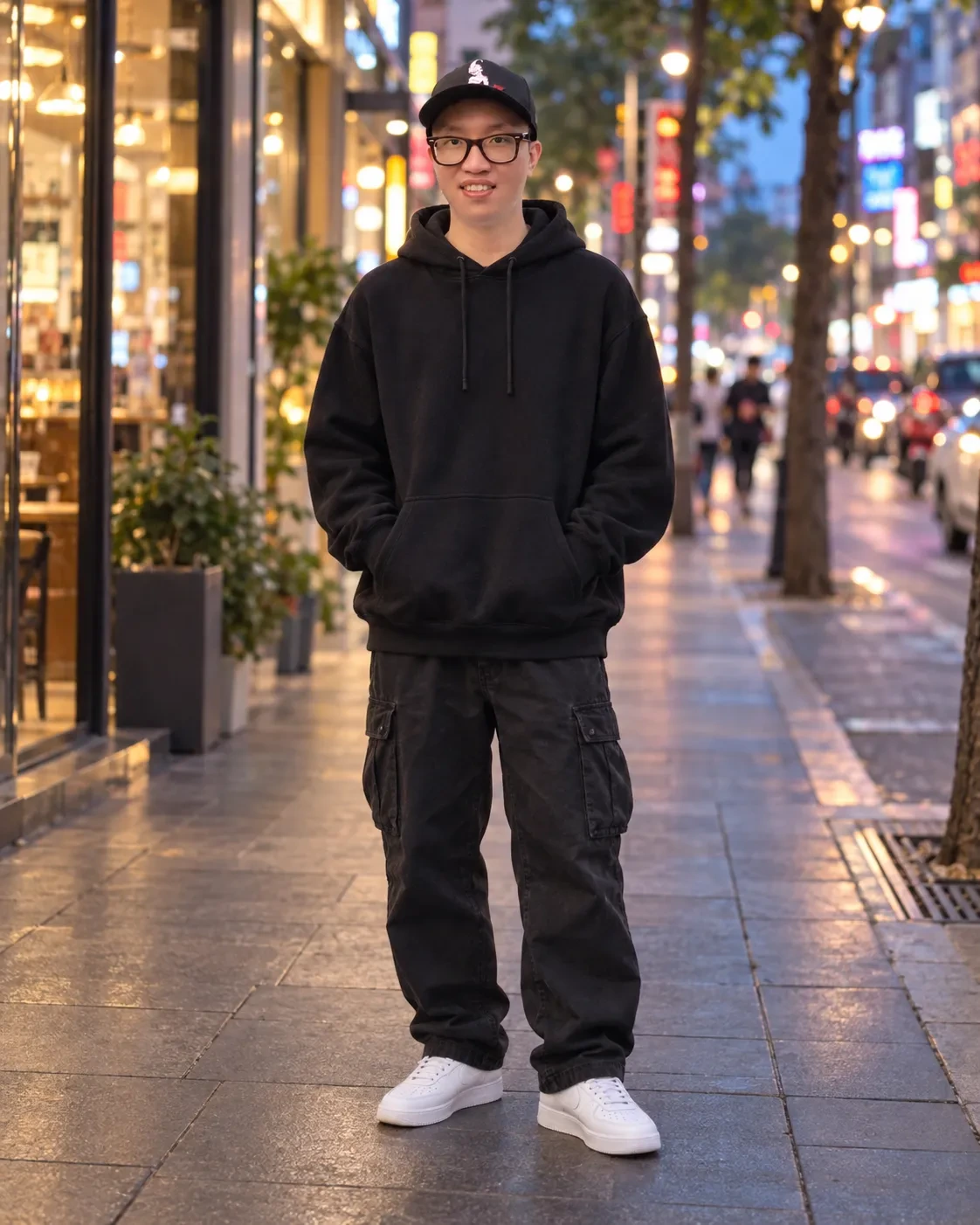
Use the uploaded photo as the identity reference. Preserve the exact face, facial structure, skin tone, hairstyle, beard or no beard, apparent age and body proportions. Change only the outfit to OUTFIT_VALUE (for example an oversized black hoodie, cargo pants and white sneakers) and place the person on a city street at dusk with neon shop signs softly out of focus behind him. Use a full-length standing pose with hands in pockets, a 35mm street-photography look, natural skin texture and realistic fabric folds. Output 4:5, photorealistic, with no text, logos or brand marks on the clothing.
Tested with: “an oversized black hoodie, cargo pants and white sneakers” for OUTFIT_VALUE, on a man’s hip-length photo.
What our run returned: The same face and glasses in a black hoodie, black cargo pants and white sneakers, standing with hands in pockets on a wet city pavement at dusk, with lit shopfronts and neon signs out of focus behind. The black cap from the upload stayed on, small graphic included, even though the prompt asks for no logos on the clothing.
Swap in: for daytime, replace “at dusk with neon shop signs softly out of focus behind him” with “at noon under a clear sky with shopfronts softly out of focus behind him”. For OUTFIT_VALUE, try “a denim jacket over a white T-shirt, black jeans and white sneakers”.
Known limitation (check: visible artifacts): full-length poses put hands and shoes in frame. Check both at full zoom, and ask for a waist-up crop instead if either looks distorted. If you want the cap gone, add “bare head, no cap” to the outfit sentence.
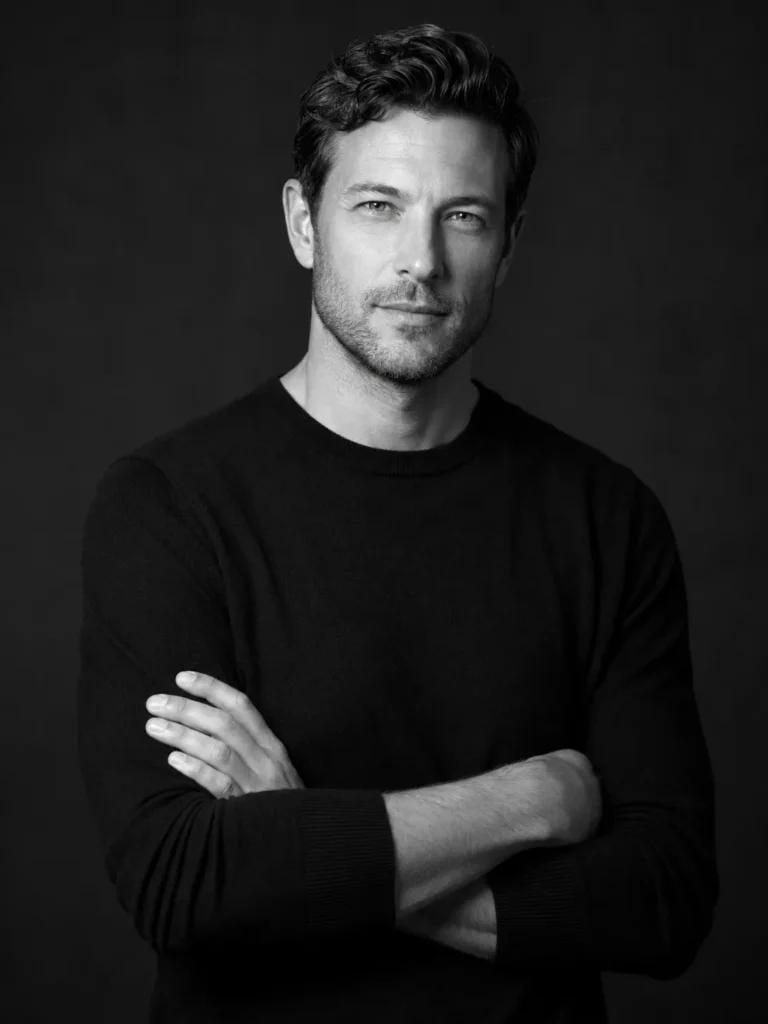
Black-and-White Portrait for Men
- Best for:
- a serious black-and-white portrait for a profile, a bio or a post.
Upload: one portrait, waist-up if you have one.
Create a high-contrast black-and-white founder portrait from the uploaded image. Preserve identity, expression, facial proportions, and hairstyle. Change the setting to a minimal studio with a charcoal backdrop. Use a single large side light, gentle shadow falloff, crisp eyes, realistic skin texture, and a waist-up composition. The mood should read calm, credible, and decisive rather than dramatic. Output 3:4 with no text or props.
Customize: the mood words if the result reads too severe. Leave the lighting sentence as it is and change only the adjectives.
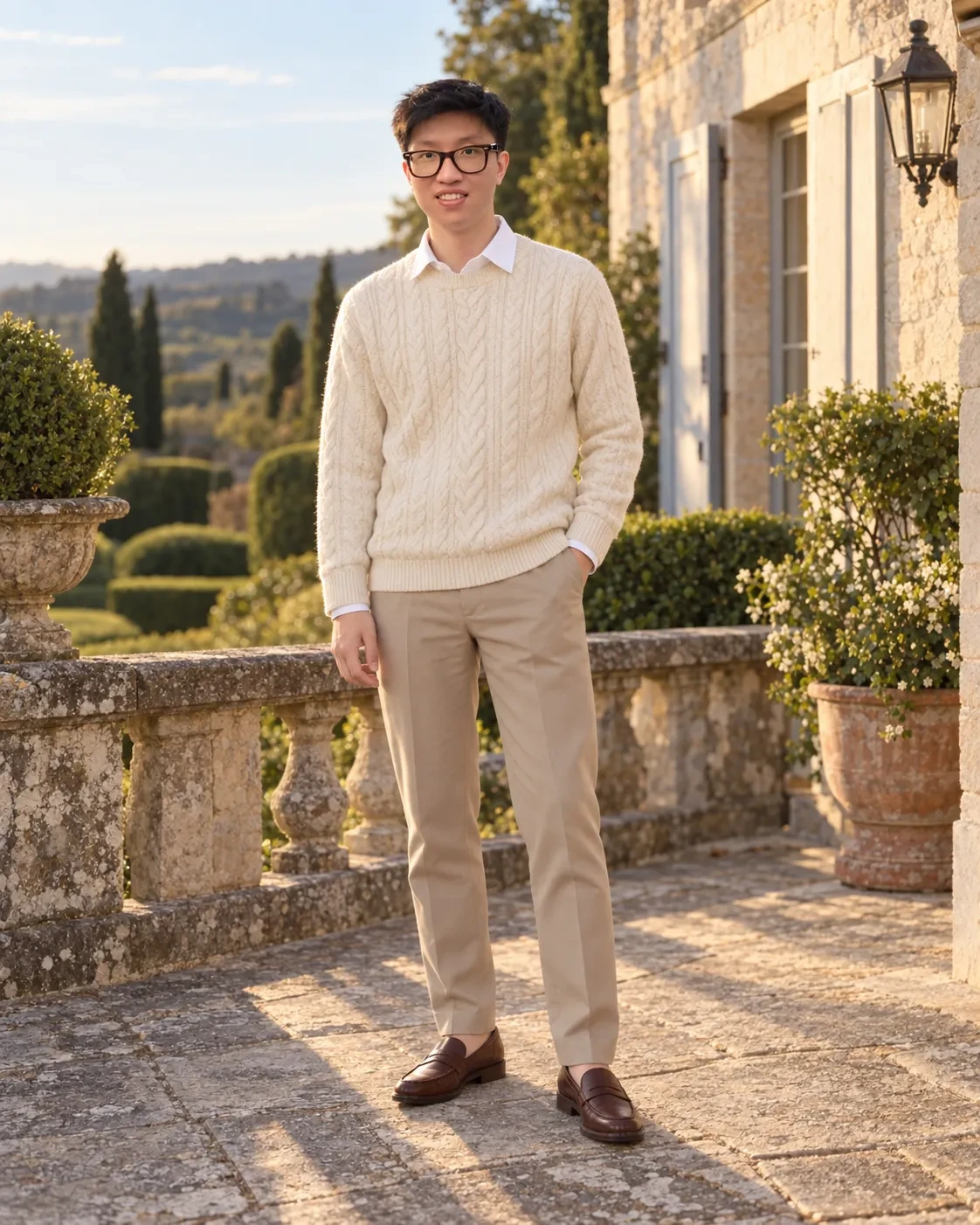
Old Money Style Portrait
- Best for:
- the quiet-luxury “old money” look for a post or a DP.
Upload: one waist-up or full-length photo taken in daylight.
Copy this Gemini prompt:
Use the uploaded photo as the identity reference. Preserve the exact face, facial structure, skin tone, hairstyle, beard or no beard, apparent age and body proportions. Change only the outfit to a cream cable-knit sweater over a white collared shirt, beige tailored trousers and brown leather loafers, and place the person on the terrace of an old stone country house with trimmed hedges and soft late-afternoon sun. Use a relaxed standing pose with one hand in a pocket, a 50mm look, muted warm tones and natural skin texture. Output 4:5, photorealistic, with no text, logos or brand marks.
Tested with: the prompt exactly as printed, on a man’s hip-length photo.
What our run returned: The same face and glasses in a cream cable-knit sweater over a white collar, beige tailored trousers and brown penny loafers, one hand in a pocket. He stands on a stone terrace with a balustrade, clipped hedges and cypress trees in low afternoon sun. The cap from the upload is gone.
Swap in: replace the outfit with “a navy blazer over a white shirt, cream chinos and brown loafers”, or the terrace with “a wood-paneled library with tall windows”.
Known limitation (check: visible artifacts): check the shirt collar and the knit at the neckline at full zoom. If the knit looks painted on, add “realistic knit texture” to the outfit sentence and rerun.
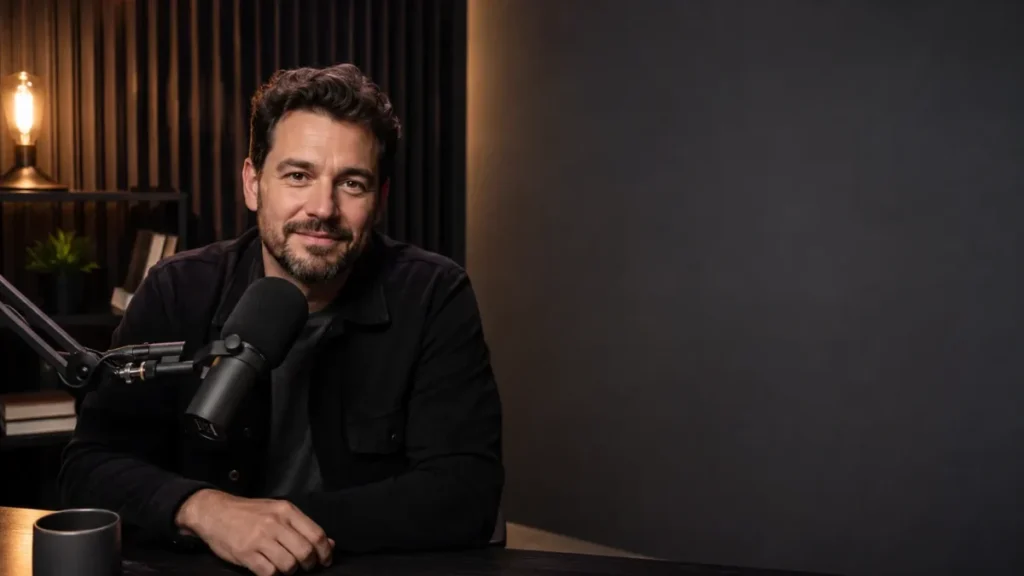
Podcast Portrait With Title Space
- Best for:
- a podcast cover, a channel banner or a creator post with room for a title.
Upload: one portrait.
Use the uploaded portrait as the exact identity reference. Preserve face, hairstyle, apparent age, and skin tone. Place the subject in a premium podcast studio wearing the same clothing, seated beside a professional microphone with warm practical lights and acoustic panels behind. Create a three-quarter medium shot, natural hand placement, shallow depth of field, and realistic low-light photography. Output 16:9 with empty space on the right for a title.
Customize: which side the empty space sits on, to match your cover layout. Check the hands near the microphone at full zoom.
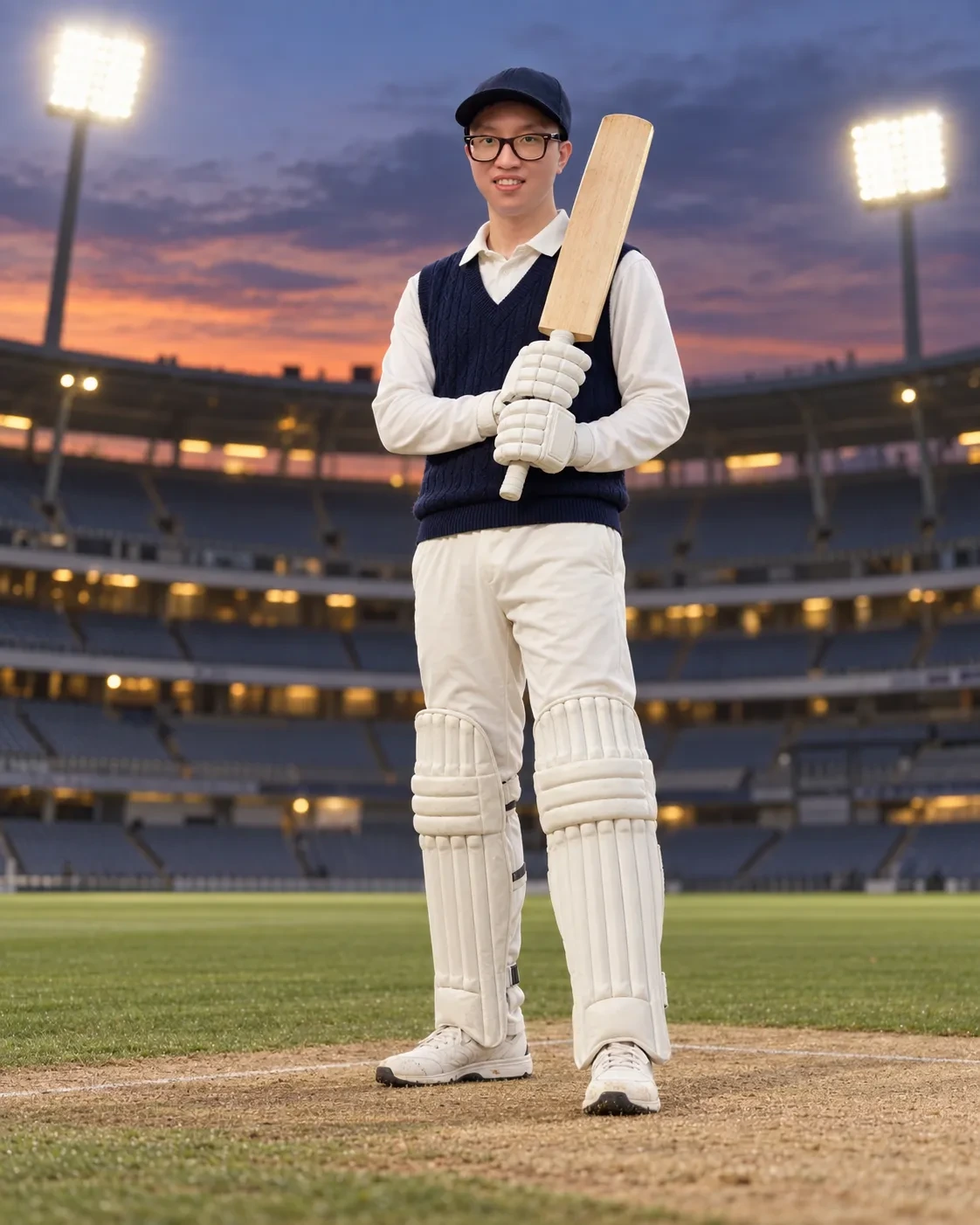
Cricket Stadium Portrait
- Best for:
- a sporty post or DP for cricket fans.
Upload: one clear photo of your face; a full-length photo gives the pose more room.
Copy this Gemini prompt:
Use the uploaded photo as the identity reference. Preserve the exact face, facial structure, skin tone, hairstyle, beard or no beard, apparent age and body proportions. Change only the outfit to plain cricket whites with a navy sweater vest, pads and batting gloves, with a bat resting on one shoulder, and place the person on the pitch of an empty stadium at dusk under floodlights, with the stands softly out of focus. Use a low three-quarter angle and a 70mm look. Output 4:5, photorealistic, with no team logos, sponsor marks, numbers or text.
Tested with: the printed prompt with no edits, on a man’s hip-length photo.
What our run returned: The same face and glasses under a navy cap, in cricket whites with a navy cable-knit sweater vest, pads and batting gloves, holding the bat upright at his shoulder with both hands. He stands on the pitch of an empty floodlit stadium under a sunset sky. No logo, badge or number is visible on the kit.
Swap in: replace “at dusk under floodlights” with “on a bright afternoon”, or “with a bat resting on one shoulder” with “holding a red ball at chest height”.
Known limitation (check: instruction compliance): check the hands on the bat handle at full zoom, and look for any logo, badge or number on the clothing before posting.
YouTube Thumbnail
- Best for:
- a creator thumbnail with you on one side and a product or screen on the other.
Upload: one clear photo of yourself as the first image, plus a product photo as the second image if the thumbnail shows one. Two images need the Flash or Pro model.
Use IMAGE_1 as the host identity reference and preserve the recognizable face, hairstyle, skin tone, and expression. Use IMAGE_2 only as the product or interface reference when provided. Create a high-contrast thumbnail with the host on the left, the product visual on the right, and strong lighting separation. Render the exact short headline "EXACT_TEXT" in large bold lettering with high readability. Output 16:9 and avoid tiny type.
Customize: the headline. Keep it to three words or fewer so it stays readable at thumbnail size.
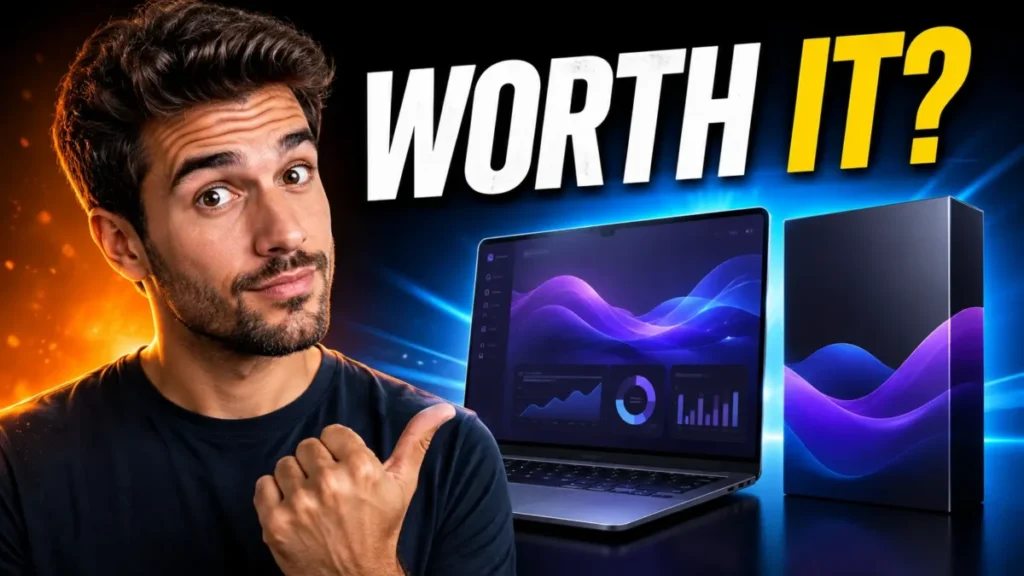
Rainy Night Umbrella Portrait
- Best for:
- a moody monsoon or winter-evening DP.
Upload: one clear portrait, waist-up.
Copy this Gemini prompt:
Use the uploaded photo as the identity reference. Preserve the exact face, facial structure, skin tone, hairstyle, beard or no beard, expression and apparent age. Change the outfit to a dark overcoat over a knit sweater, holding a black umbrella, and place the person on a wet city street at night in light rain, with warm street lamps reflected on the pavement and soft bokeh behind. Light the face with a soft warm glow from a shop window. Output 4:5, photorealistic, no text, no logos.
Tested with: the prompt exactly as printed, on a woman’s waist-up photo.
What our run returned: The same face and long dark hair, smiling, in a black overcoat over a cream knit sweater, holding a black umbrella on a rain-wet street at night, with warm lamp reflections on the pavement and bokeh behind. The rain stays in the background and the face is sharp and dry. A black shoulder bag appeared that the prompt does not mention.
Swap in: replace the street with “a monsoon evening beside a roadside tea stall with warm bulbs”, or the overcoat with “a dark trench coat”.
Known limitation (check: visible artifacts): check that the rain stays in the background and the face is sharp. If rain streaks cross the face, add “face sharp and dry” and rerun.
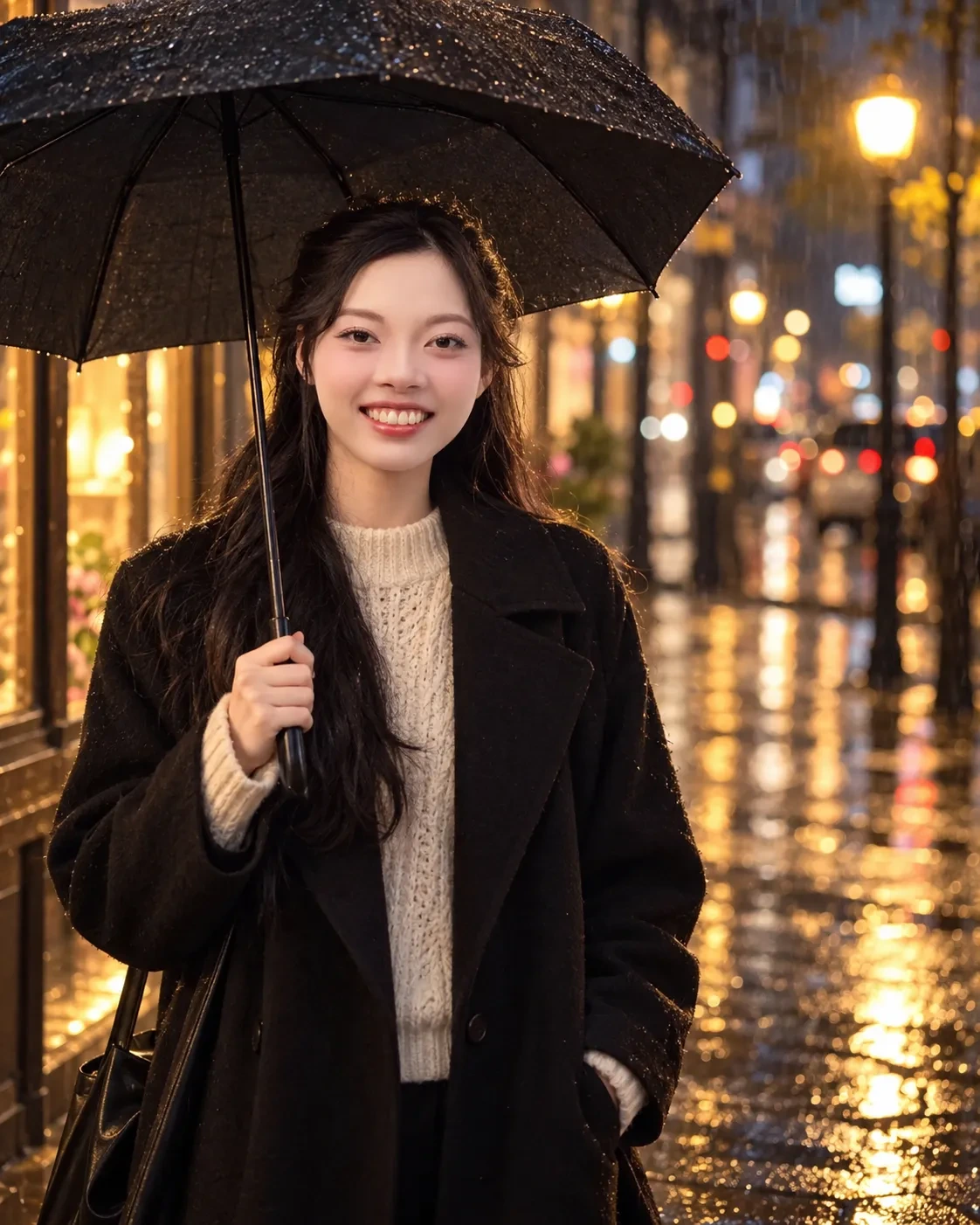
Mountain Trek Portrait
- Best for:
- a trekking or travel post when your own hiking photos did not come out well.
Upload: one full-length or waist-up photo.
Copy this Gemini prompt:
Use the uploaded photo as the identity reference. Preserve the exact face, facial structure, skin tone, hairstyle, beard or no beard, apparent age and body proportions. Change the outfit to a dark green hiking jacket, trekking trousers and hiking boots with a small backpack, and place the person on a rocky mountain ridge at sunrise with layered peaks and low clouds in the valley behind. Use a 24mm wide look from slightly below, warm side light on the face and natural skin texture. Output 4:5, photorealistic, no text, no brand logos.
Tested with: no edits to the printed prompt; the upload was a man’s hip-length photo.
What our run returned: The same face and glasses under the black cap from the upload, in a dark green jacket, black trekking trousers, hiking boots and a backpack, one foot up on a rock. He stands on a ridge at sunrise, with layered peaks and low cloud filling the valleys. The face is large enough in frame to judge at full size. The cap’s small graphic stayed on, although the prompt asks for no brand logos.
Swap in: replace the ridge with “a snowy mountain pass” and the jacket with “a red down jacket”, or the sunrise with “golden hour on a forest trail”.
Known limitation (check: composition): a wide mountain view can leave the face small in frame. If you cannot judge the face at full zoom, add “the person fills the lower half of the frame” and rerun.
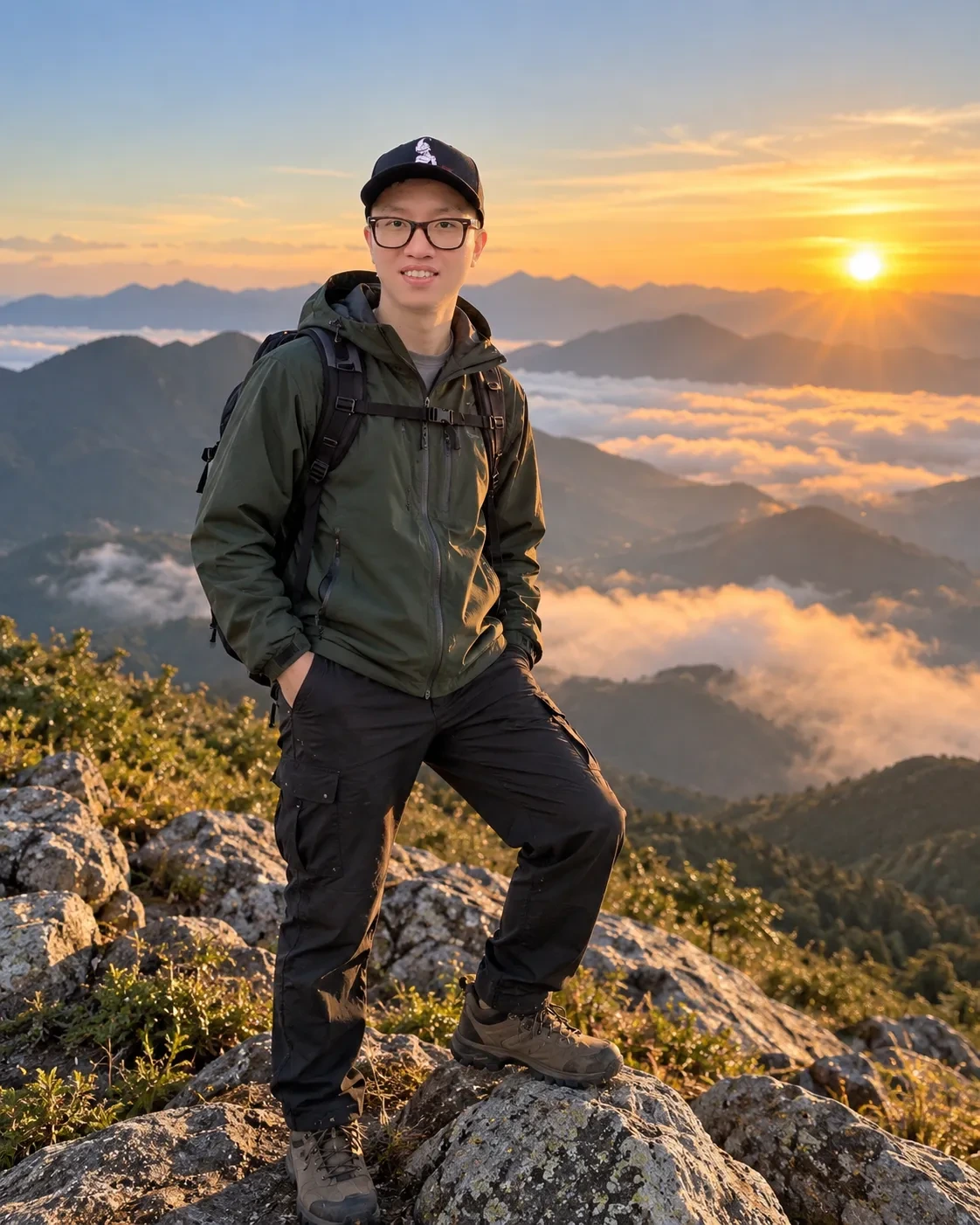
Fantasy Hero Portrait
- Best for:
- the armored-hero look, with you as an original character.
Upload: one portrait.
Preserve the uploaded person's recognizable face, hairstyle, apparent age, and body proportions. Recast the subject as an original fantasy hero wearing ARMOR_STYLE_VALUE in SETTING_VALUE. Use dramatic but plausible lighting, detailed materials, atmospheric depth, and a heroic three-quarter pose. Keep the design original and avoid protected franchise symbols. Output 4:5.
Customize: armor and setting. Describing the armor in materials rather than by franchise name is what keeps it original.
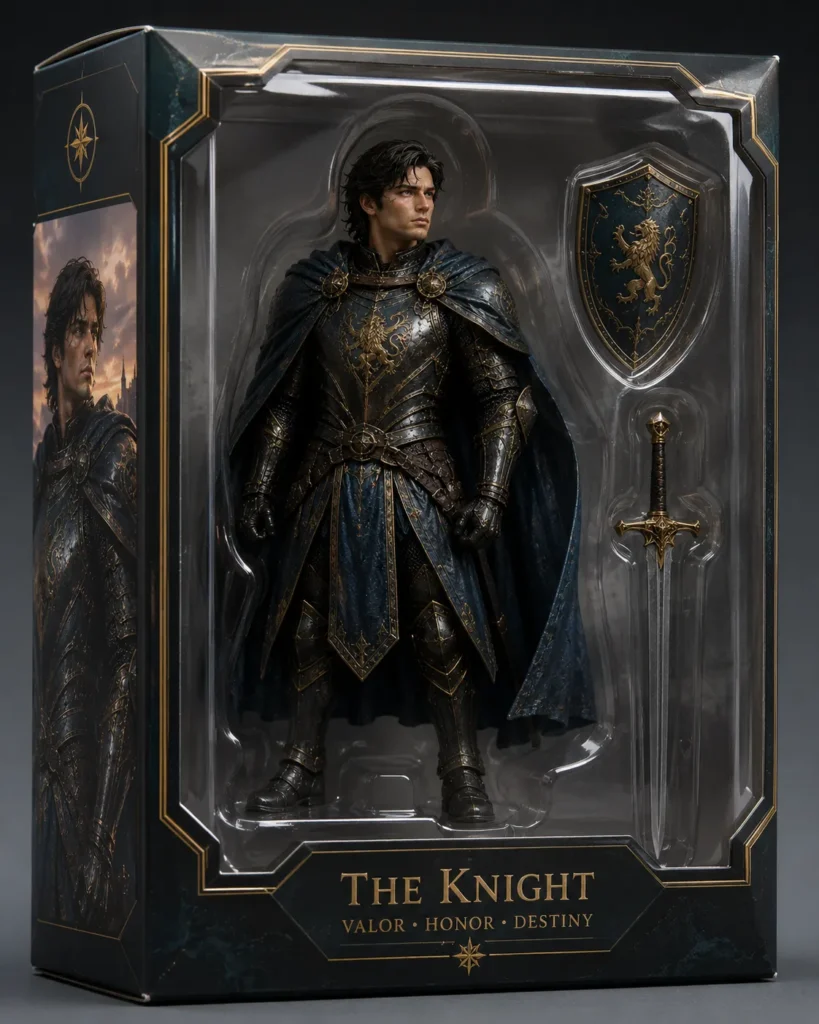
Boxed Collectible Figurine
- Best for:
- the boxed action-figure trend, with you as the toy.
Upload: one portrait.
Use the uploaded portrait as the identity reference and preserve recognizable facial features, hairstyle, skin tone, and key clothing details. Transform the subject into a stylized collectible three-dimensional figurine inside original toy packaging. Include accessories related to HOBBY_VALUE, realistic molded plastic, a clear window, studio reflections, and premium product photography. Use an original generic package design with no copyrighted brand or franchise. Output 4:5 with no text unless approved copy is supplied.
Customize: the hobby and its accessories. The generic-packaging clause is what keeps a real toy brand off the box.
Gemini AI Photo Prompts for Girls and Women
Looks for girls and women, from a golden-hour rooftop and a sunflower field to a film-camera portrait and an anime version of your photo. For a saree or lehenga look, go to the traditional-wear section further down.
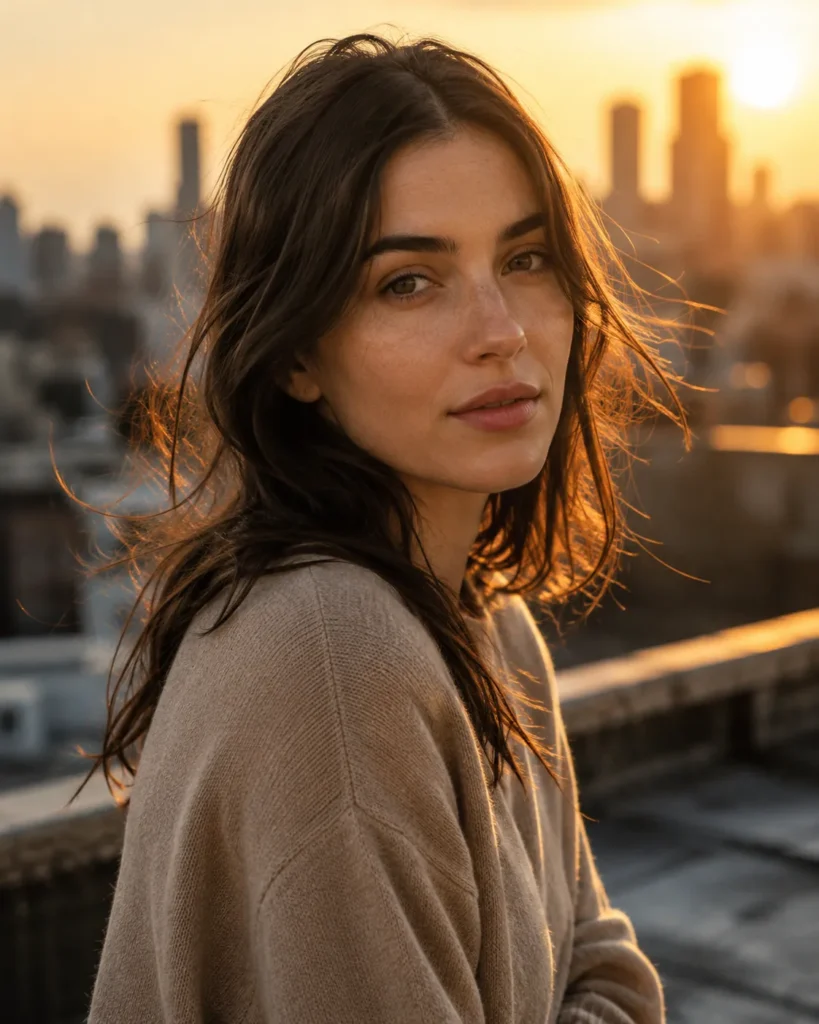
Golden-Hour Portrait
- Best for:
- a warm, cinematic sunset portrait.
Upload: one portrait.
Use the uploaded photo as the identity source. Preserve the same person, face shape, hairstyle, skin tone, and apparent age. Place the subject on a quiet city rooftop at golden hour with warm rim light, a soft breeze, and distant buildings in creamy bokeh. Create a cinematic medium close-up with an 85mm lens look, shallow depth of field, realistic pores, subtle film grain, and warm amber highlights balanced by cool shadows. Keep the pose natural and the wardrobe simple. Output 4:5.
Customize: the rooftop for a beach or open field. Keep the realistic pores clause; it is the line that asks for natural skin texture.
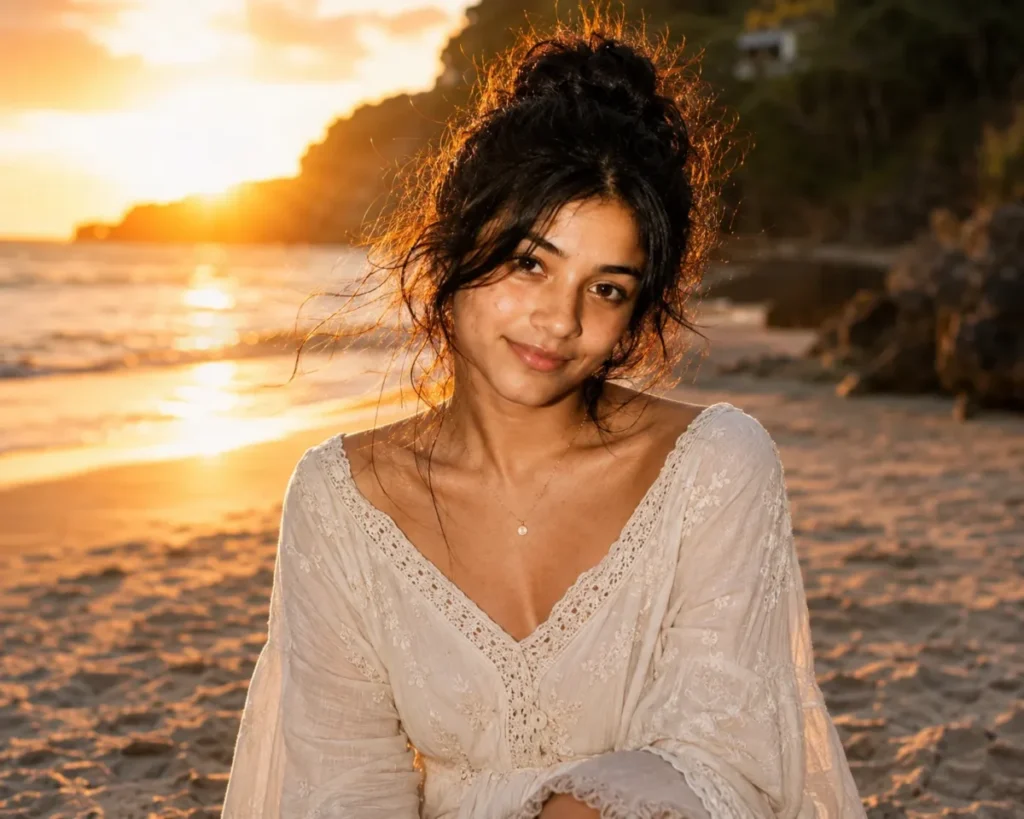
Beach Golden Hour Portrait
Upload: one portrait.
Use the uploaded portrait as the identity reference. Preserve the face, hairstyle, skin tone, and body proportions. Place the subject on an open beach at golden hour with warm backlight, soft rim light on the hair, gentle wind in the clothing, and distant water in creamy bokeh. Change only the background, lighting, wardrobe, and color grade. Output 4:5 with realistic skin texture and no beauty smoothing.
Customize: the time of day, and name the outfit you want (for example a casual, fully clothed summer look) so the wardrobe change is yours. Keep the backlight line when you move the hour.
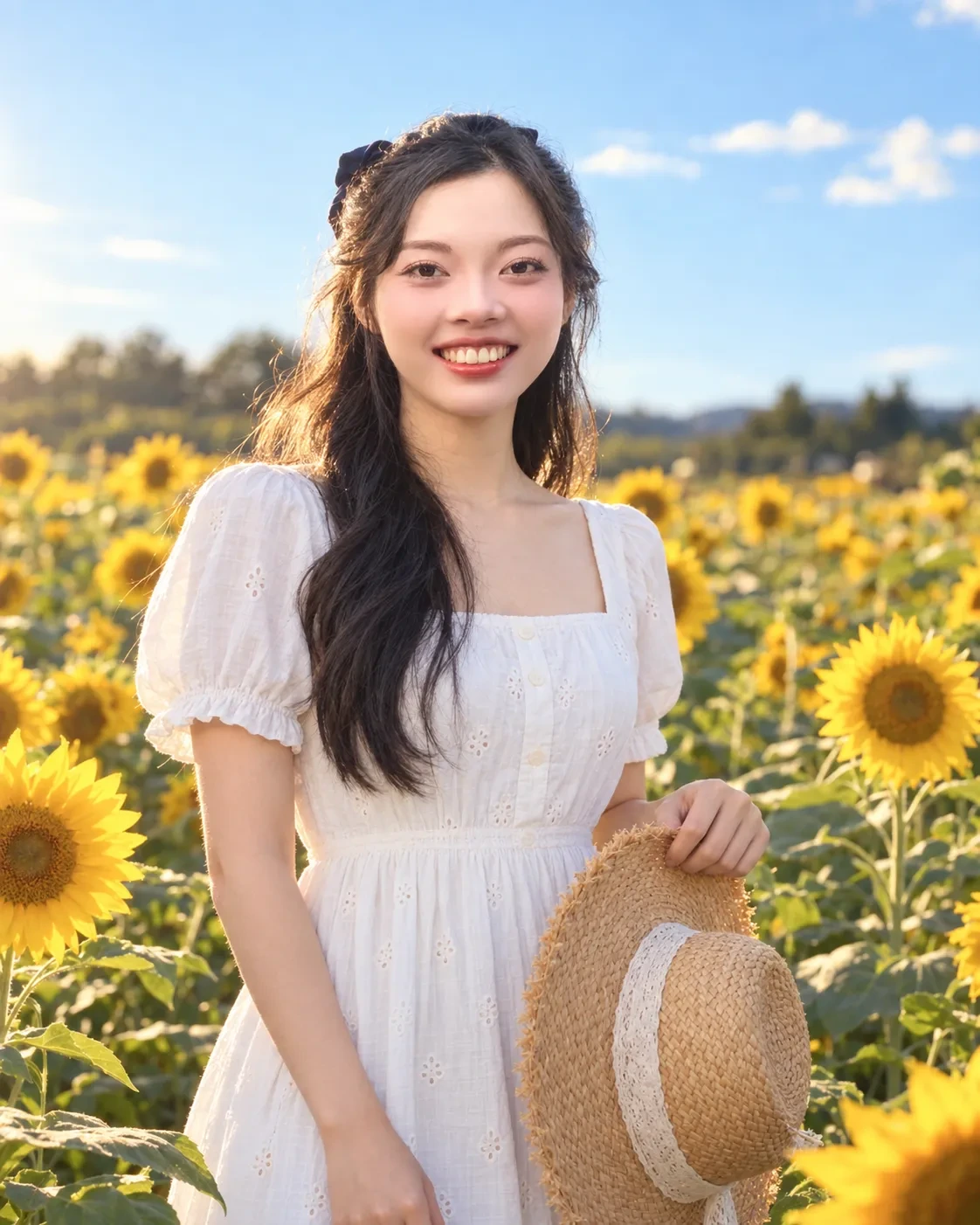
Sunflower Field Portrait
- Best for:
- a bright summer post or DP.
Upload: one waist-up photo taken in daylight.
Copy this Gemini prompt:
Use the uploaded photo as the identity reference. Preserve the exact face, facial structure, skin tone, hairstyle, expression and apparent age. Change the outfit to a simple white cotton sundress with short sleeves, with a straw hat held in one hand, and place the person in a tall sunflower field on a clear late afternoon, with sunflowers around the waist and blue sky behind. Use warm backlight on the hair, an 85mm portrait look and natural skin texture with no beauty smoothing. Output 4:5, photorealistic, no text.
Tested with: the printed prompt with no edits, on a woman’s waist-up photo.
What our run returned: The same face and long hair in a white short-sleeved cotton sundress, holding a straw hat by its brim in one hand, among sunflowers under a clear blue sky, with sunlight from behind on the hair. The fingers on the brim look natural and no petal overlaps the face.
Swap in: replace “a tall sunflower field” with “a lavender field” or “a yellow mustard field”, or the white sundress with “a pale blue cotton dress”.
Known limitation (check: visible artifacts): check the fingers on the hat brim and the flowers nearest the face at full zoom. A petal growing into the hair or cheek is a reason to rerun.
Fashion Editorial With Negative Space
Upload: one full-length photo.
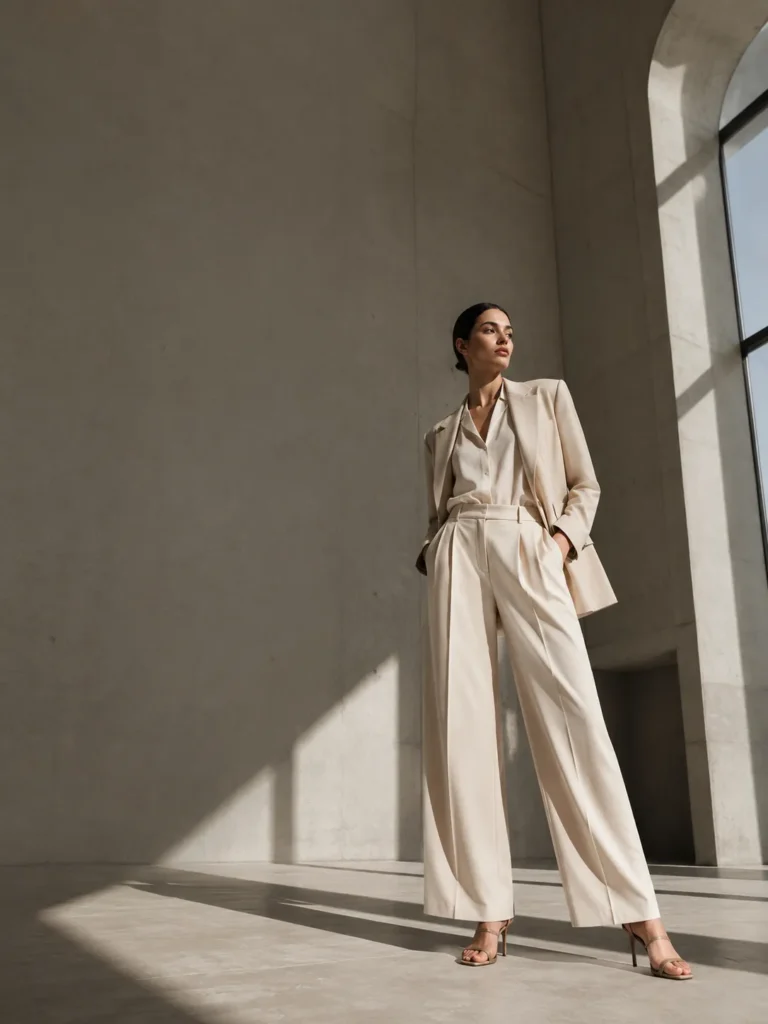
Use the uploaded person as the identity and body-proportion reference. Preserve the face, hairstyle, body proportions, and outfit structure. Create a high-fashion editorial photo in a minimalist concrete gallery with directional window light and long clean shadows. Use a full-body low-angle composition, a controlled pose, premium fabric detail, a muted neutral palette, and magazine-quality realism. Leave empty space in the upper left for typography. Output 3:4 and render no text.
Customize: the setting. The negative-space instruction is what makes the frame usable for a story or a post with a caption on top.
Travel Editorial Portrait
Upload: one full-length photo.
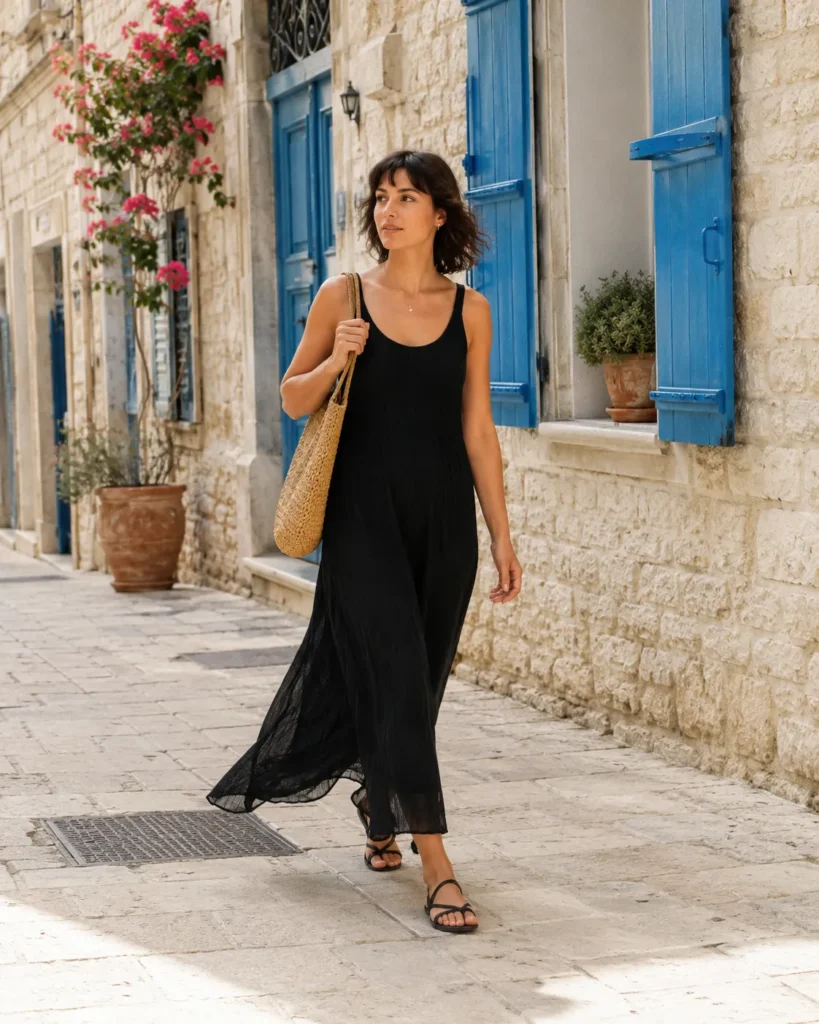
Preserve the uploaded person's recognizable identity, face, body proportions, and outfit silhouette. Place the subject on a sunlit Mediterranean street with pale stone walls, blue shutters, and soft morning shadows. Create a candid walking pose, natural wind in the clothing, and a documentary travel-photography feel. Use a 35mm lens look, an eye-level perspective, balanced colors, realistic fabric texture, and a vertical 4:5 crop.
Customize: the location. Keep the documentary framing for a candid, unposed look.
Cafe Window Portrait
- Best for:
- a soft, everyday aesthetic post.
Upload: one clear portrait.
Copy this Gemini prompt:
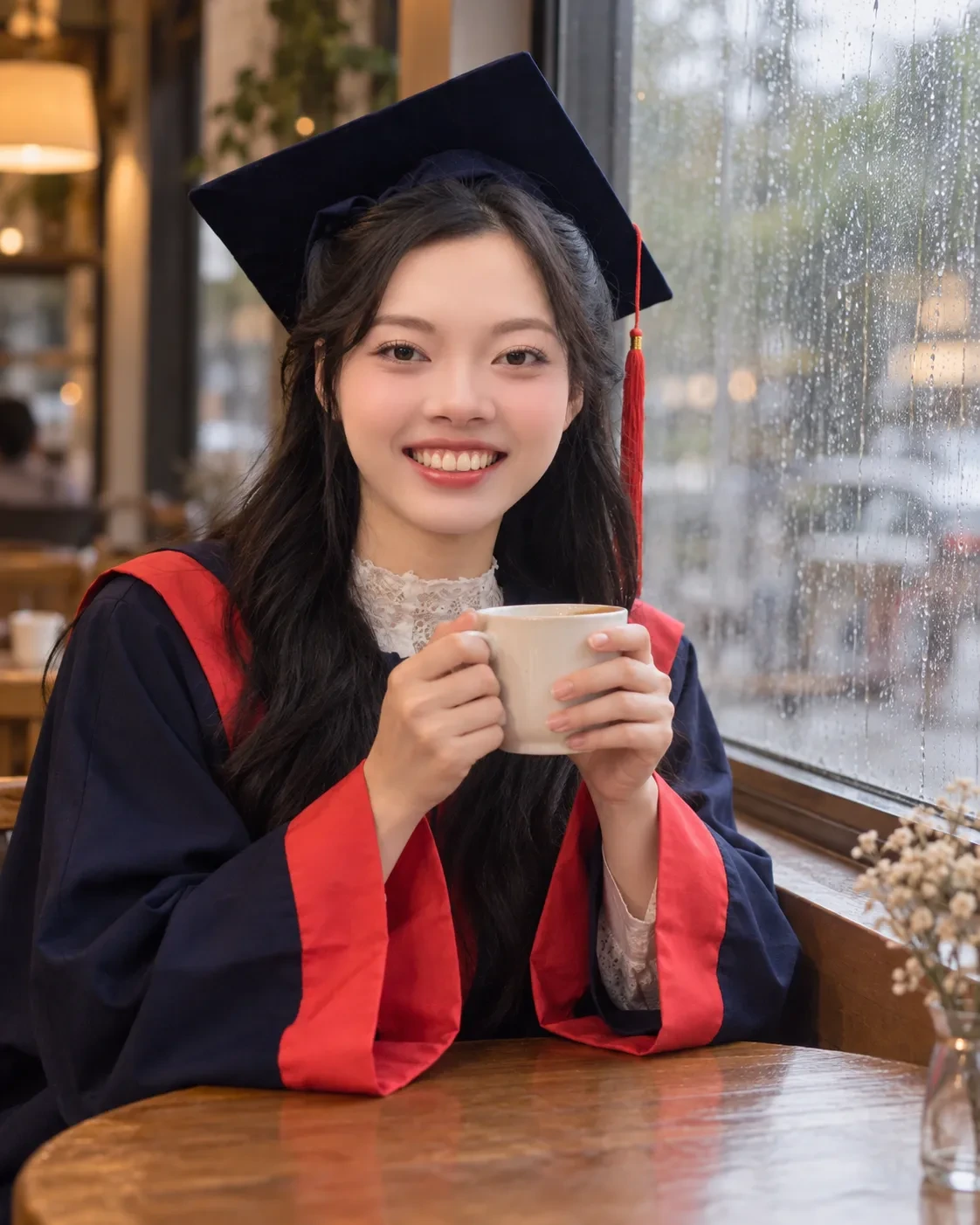
Use the uploaded photo as the identity reference. Preserve the exact face, facial structure, skin tone, hairstyle, expression, apparent age and clothing. Place the person at a small wooden table by the window of a quiet cafe on a rainy morning, both hands around a plain ceramic coffee cup, with soft gray window light on the face and raindrops on the glass. Use a 50mm look, shallow depth of field and a muted warm grade. Output 4:5, photorealistic, no text, no logos.
Tested with: the printed prompt, unchanged, on a woman’s waist-up photo.
What our run returned: The same face, with the clothes from the upload kept as the prompt asks: a navy graduation gown with red trim, a lace collar and the mortarboard with its red tassel. She sits at a wooden table by a rain-streaked window, holding a plain cream cup in both hands, in soft window light.
Swap in: replace “on a rainy morning” with “on a sunny morning” and drop “raindrops on the glass”, or the cup with “an open paperback book”.
Known limitation (check: visible artifacts): check the hands around the cup at full zoom. If the fingers look wrong, change the pose to “one hand resting beside the cup” and rerun. Because “clothing” is in the preserve line, what you wear in the upload is likely to come along, as the graduation gown did in our run; delete “and clothing” and name an outfit if you want different clothes.
Imperfect Film Portrait
- Best for:
- the grainy film-camera look for a post or a DP.
Upload: one portrait.
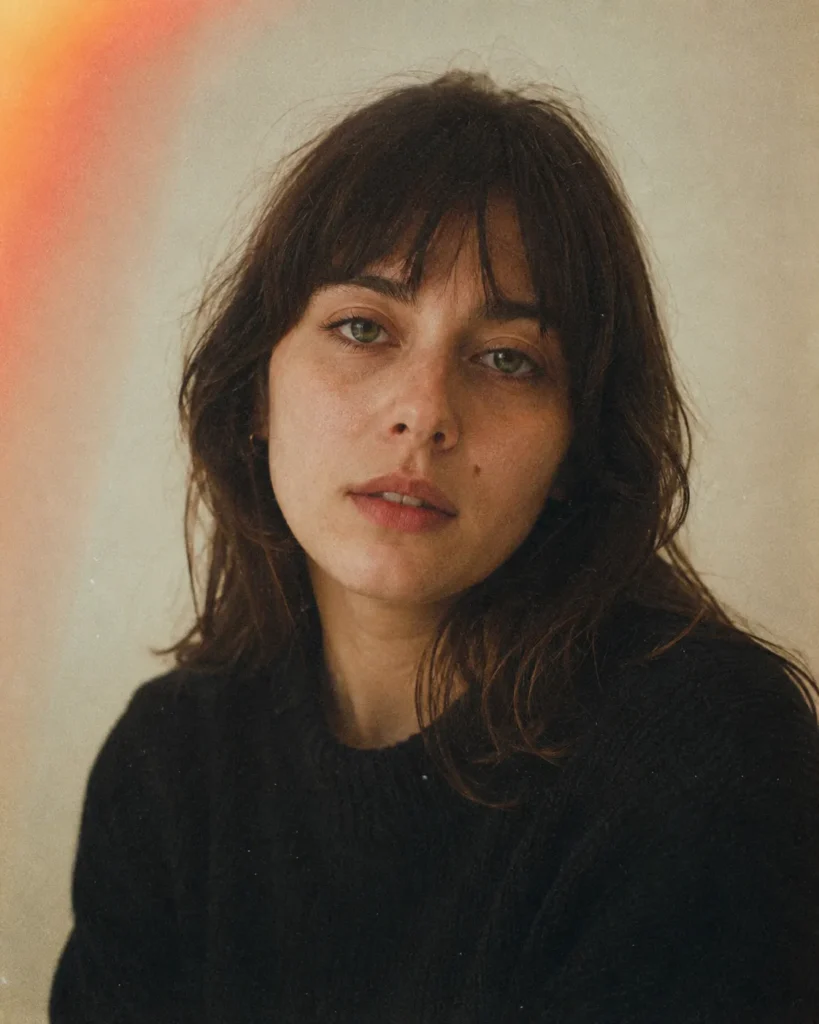
Restyle this photo as an imperfect 35mm film photograph. Add fine grain, one soft light leak in a corner, mild halation on highlights, faded blacks, and slightly warm desaturated color. Preserve the face, bone structure, skin tone, expression, and hair. Change only the color grade, grain, and background softness. Output 4:5. Do not smooth skin or remove blemishes.
Customize: swap the film look for FILM_STOCK_VALUE, such as a disposable camera or a home-movie look. The do-not-smooth clause stays in every version.
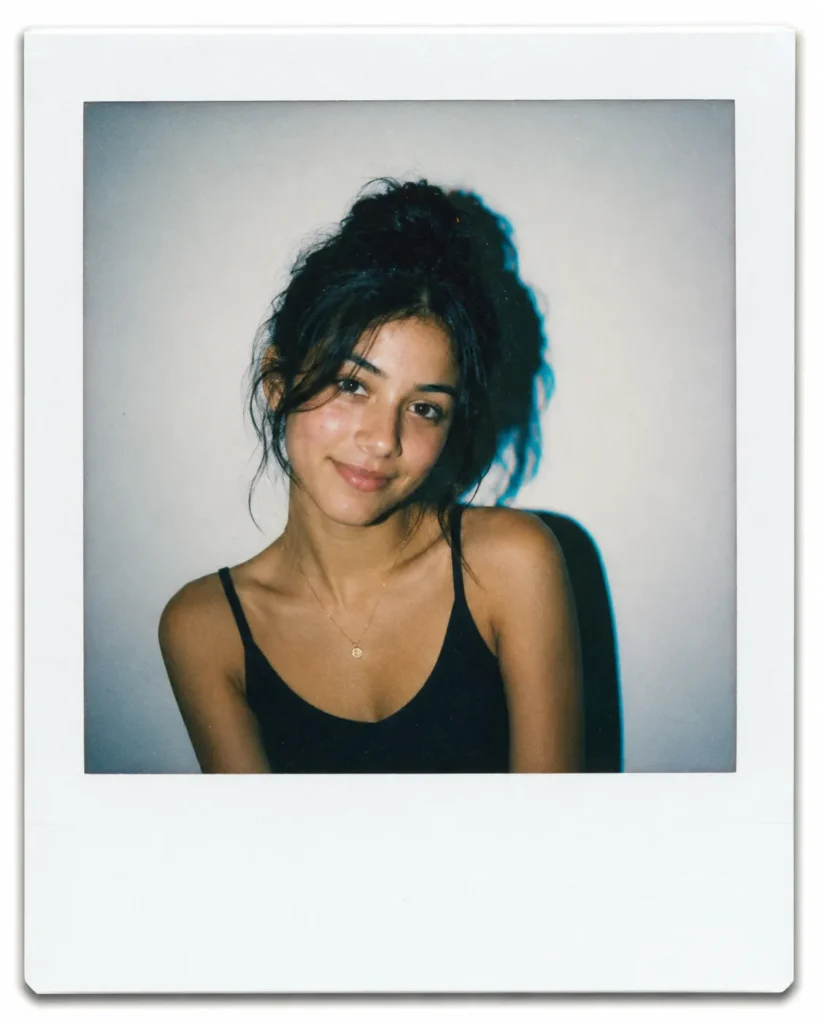
Instant Film Frame
- Best for:
- an instant-photo look with a white border and flash.
Upload: one portrait.
Place the uploaded photo inside an instant film frame with a wide white border and a slightly off-center image window. Apply a soft direct flash look with a hard shadow behind the subject, a mild cyan shift in the shadows, and a gentle vignette. Preserve the face and identity exactly. Change only the framing, grade, and lighting. Output 1:1 with no text, handwriting, or date stamp.
Customize: keep it to your own face or someone who agreed. Swapping in a celebrity is the version with the clearest consent problem.
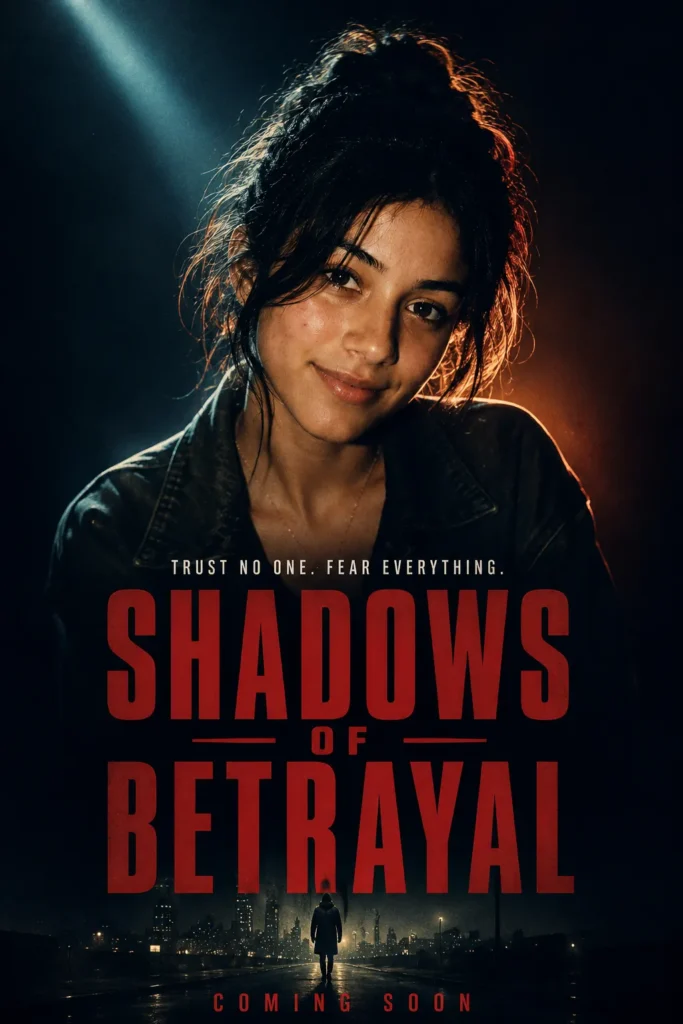
Key Art Poster
- Best for:
- a movie-poster post with a title you choose.
Upload: one portrait.
Build a cinematic poster around the uploaded person. Use dramatic low-key lighting, a strong rim light, and a muted teal and amber grade. Render the exact title "EXACT_TEXT" in large condensed type across the lower third, with a small credits block beneath in a clean sans-serif. Preserve the person's face and identity. Output 2:3 with sharp, fully legible text.
Customize: the title, and keep it under six words. Shorten it before changing anything else when the type comes back broken.
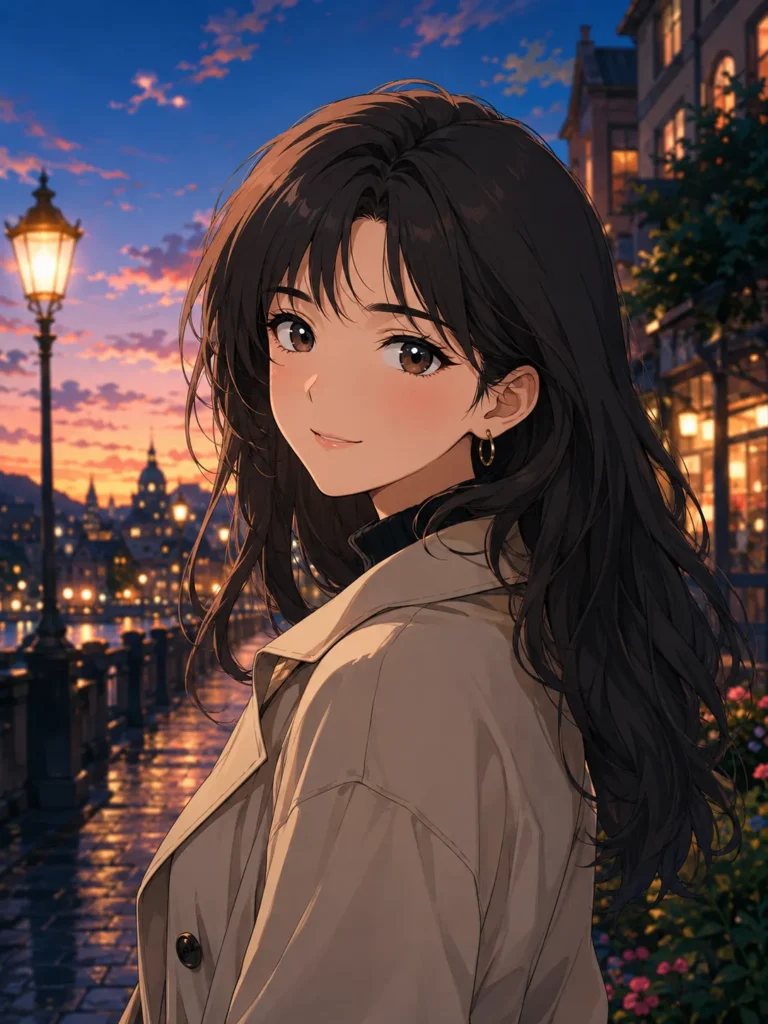
Anime Character Adaptation
- Best for:
- an anime version of your photo that still looks like you.
Upload: one portrait.
Use the uploaded person as the identity reference. Preserve recognizable facial structure, hairstyle, skin tone, outfit silhouette, and expression. Reinterpret the portrait as an original high-quality anime illustration with clean linework, controlled cel shading, detailed eyes, and a cinematic background inspired by SETTING_VALUE. Do not imitate a named living artist or a copyrighted franchise. Output 3:4.
Customize: the setting. The originality clause stays, so the result is an original style rather than a copy of someone else’s work. Crop to a square afterwards for a DP.
Couple and Husband-Wife Photo Prompts
The couple prompts keep both faces, their expressions and their positions, and change the setting and grade around them. Each one also tells Gemini not to add or remove anyone.
Couple Cinematic Portrait
- Best for:
- an anniversary print, a save-the-date, or a social post made from a photo you already have.
Upload: one photo containing both people. For two separate selfies, use the next prompt instead.
Copy this Gemini prompt:
Use the uploaded photo of two people as the identity reference. Preserve both faces, expressions, relative positions, and clothing. Restyle the frame as a cinematic film still with anamorphic widescreen framing, a teal and amber grade, shallow depth of field, and soft practical lighting in the background. Change only the lighting, background, and color grade. Do not add or remove people. Output 16:9, photorealistic.
What to expect: the same two people, same positions, in a graded cinematic frame. Change the background setting freely.
Known limitation: keep the do-not-add-or-remove clause, and compare each face with the same person in your upload before you keep the result.
This one template covers a single look, so the fifty Gemini couple photo prompts go further on the same constraint.
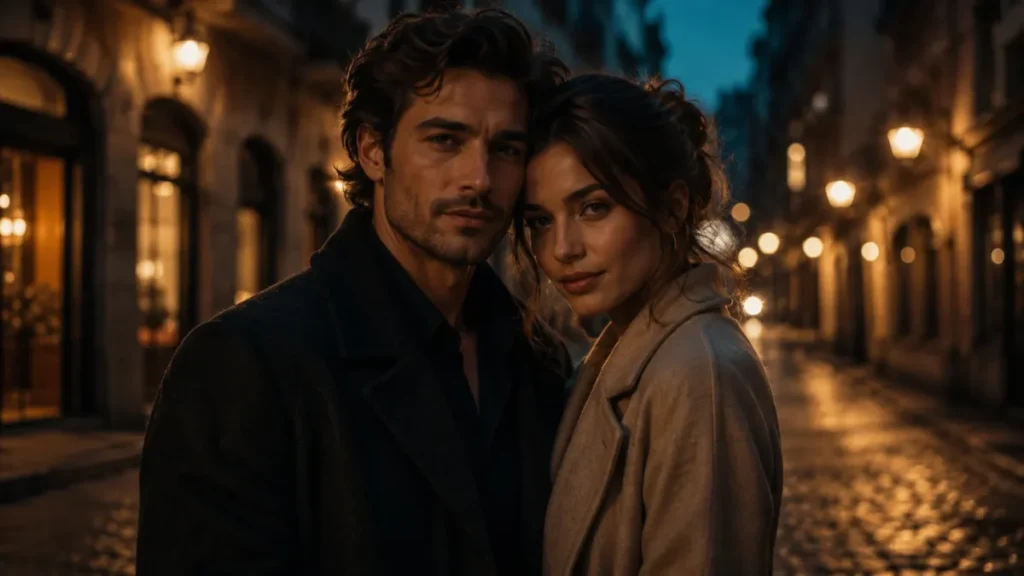
Couple Portrait From Two Separate Selfies
- Best for:
- husband and wife, or partners, who do not have a good photo together.
Upload: two photos, one of each person, taken in similar light, and only with both people’s agreement. Set the Gemini model to Flash or Pro before you send it.
Copy this Gemini prompt:
Use IMAGE_1 as the identity reference for the first person and IMAGE_2 as the identity reference for the second person. Preserve each person's exact face, facial structure, skin tone, hairstyle, apparent age and body proportions from their own photo, and do not blend features between them. Place the two of them standing side by side in SETTING_VALUE (for example a garden at golden hour), shoulders close and both looking at the camera with relaxed smiles, wearing CLOTHING_VALUE. Match the light direction, color temperature and camera height on both people so they read as one photograph. Output 4:5, photorealistic, no text.
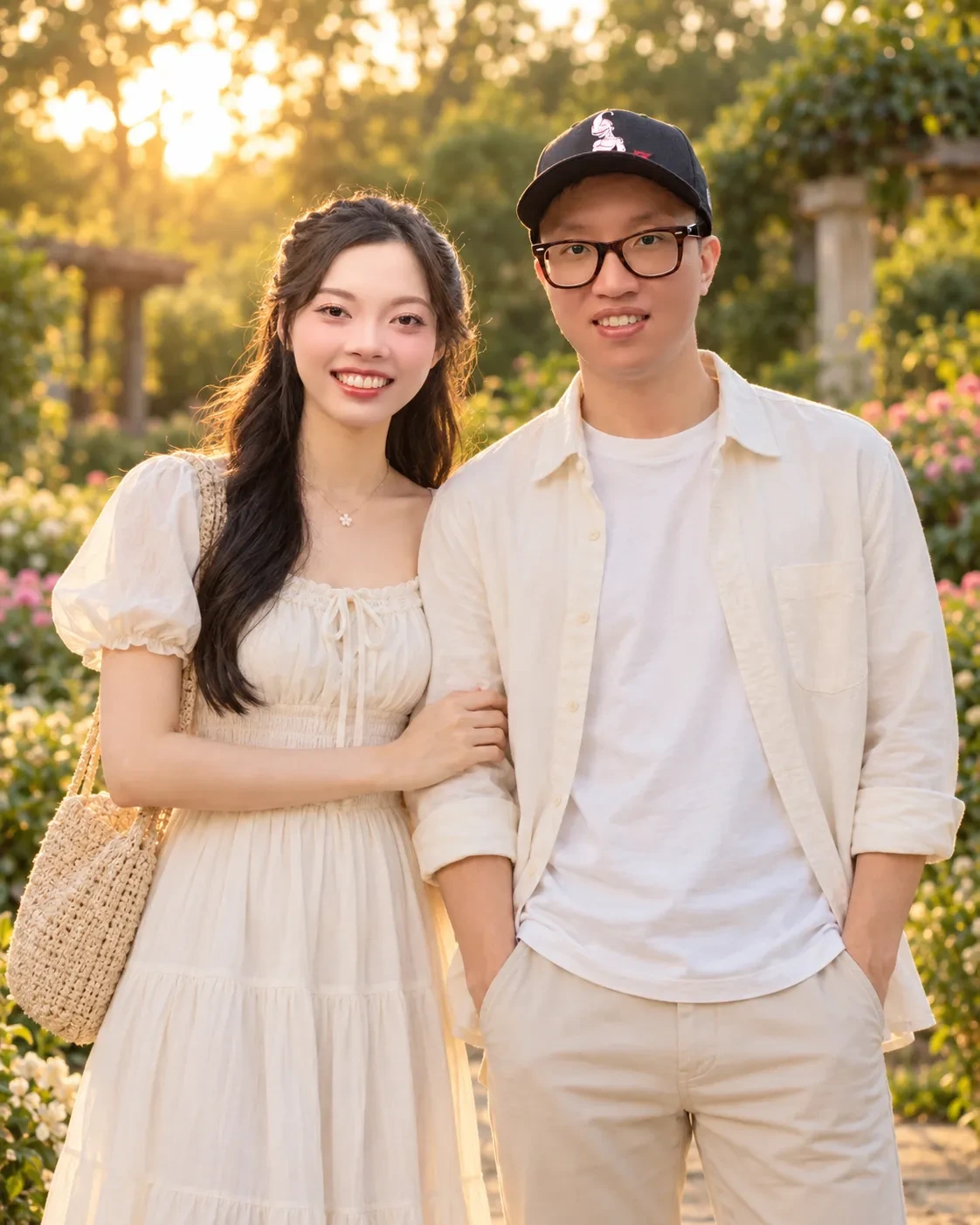
Tested with: “a garden at golden hour” for SETTING_VALUE and “coordinated cream and white outfits” for CLOTHING_VALUE, with a woman’s photo as IMAGE_1 and a man’s photo as IMAGE_2, both cropped from one original photo.
What our run returned: Both faces kept, each from its own photo, standing side by side in a garden with the sun low behind the trees. She wears a cream puff-sleeved dress; he wears an open cream shirt over a white T-shirt, beige trousers and the black cap from his photo. Her hand rests on his arm and both look at the camera. Because both crops came from one original photo, this run does not show how the light-matching sentence handles photos taken in different light.
Swap in: for SETTING_VALUE, “a beach at sunset” or “a rooftop at night with string lights”; for CLOTHING_VALUE, “matching white linen outfits” or “festive Indian wear”.
Known limitation (check: identity preservation): compare each face with its own source photo before you keep the result, and rerun with the images swapped if one face looks like a mix of both.
Best Friend and Brother-Sister Photo Prompts
A photo of friends or siblings should read as friendship or family, so keep the pose relaxed, keep everyone at their real age, and never pose two people as a romantic couple. The couple prompts above carry no relationship words of their own; the pose and clothing words are what make a result read as a couple, so those are the only parts to change.
Adapt the Couple Prompts for Friends or Siblings
Adapted, not run separately: the prompt below is the tested Couple Portrait From Two Separate Selfies prompt with only the pose words and the example setting changed. We ran the couple version in our second test round; this friends version is an adaptation without a test run of its own, so check each face against its own photo before you keep the result.
Upload: two photos, one of each person, taken in similar light, and only once both people have agreed. Set the Gemini model to Flash or Pro first.
Copy this best-friends prompt (adapted from the tested couple prompt):
Use IMAGE_1 as the identity reference for the first person and IMAGE_2 as the identity reference for the second person. Preserve each person's exact face, facial structure, skin tone, hairstyle, apparent age and body proportions from their own photo, and do not blend features between them. Place the two of them standing side by side in SETTING_VALUE (for example a college campus lawn in the afternoon), with a little space between them, laughing, in a relaxed, friendly pose, wearing CLOTHING_VALUE. Match the light direction, color temperature and camera height on both people so they read as one photograph. Output 4:5, photorealistic, no text.
For a brother and sister: replace “with a little space between them, laughing, in a relaxed, friendly pose” with “in a relaxed family pose, both smiling at the camera”. For a Rakhi post, set CLOTHING_VALUE to something like “a kurta for him and a salwar suit for her”.
What changed from the tested prompt, and what did not:
- Changed: the pose words (“shoulders close and both looking at the camera with relaxed smiles” in the couple version) and the example setting.
- Your choice: CLOTHING_VALUE, for example “matching black hoodies” for friends.
- Unchanged: the preserve sentence, “do not blend features between them” and the light-matching sentence. Those are the sentences that ask Gemini to keep the two faces apart.
For a photo the two of you already took together, use the Couple Cinematic Portrait prompt as written; it names no relationship and keeps its do-not-add-or-remove clause.
Ask both people before you upload either photo, and use the result only if both of you are happy with it. These edits are for adult friends and siblings; for children, the family section below has the rule that a parent uploads the photo.
Family and Parent-Child Photo Prompts
Every family and parent-child prompt below names each face in its preserve line, and none asks Gemini to make anyone older or younger.
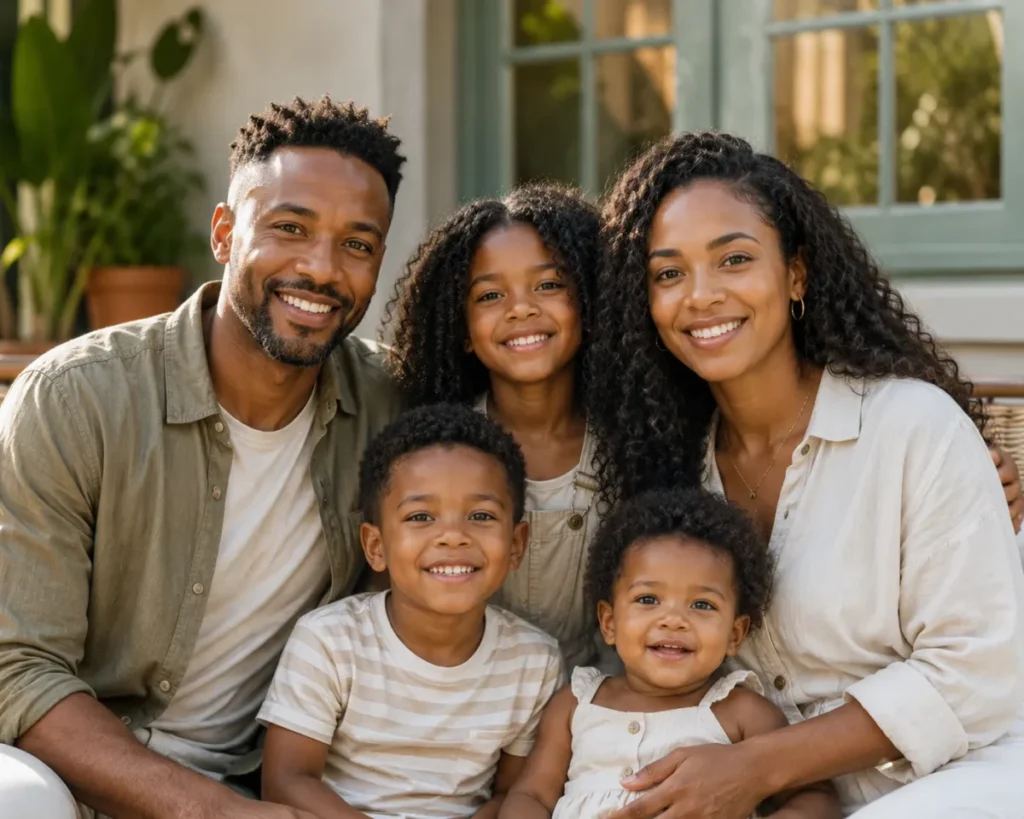
Restyle a Family Group Photo
- Best for:
- giving a snapshot a consistent setting and an even light across every face.
Upload: one family photo with all faces visible and reasonably sharp. If children are in it, a parent should upload it from their own account.
Copy this Gemini prompt:
Use the uploaded family photo as the identity reference for every person in frame. Preserve each face, apparent age, hairstyle, skin tone, clothing, and position. Restyle the setting to SETTING_VALUE with soft even daylight across all faces, a matched color grade, and natural group spacing. Change only the background, lighting, and grade. Do not add, remove, or reposition anyone. Output 4:5.
What to expect: a new setting and an even light, with everyone in the same place they were.
Known limitation: check every child’s face against the source at full zoom. A small face in frame is the hardest part of a group edit to catch by eye.
Father and Child Portrait
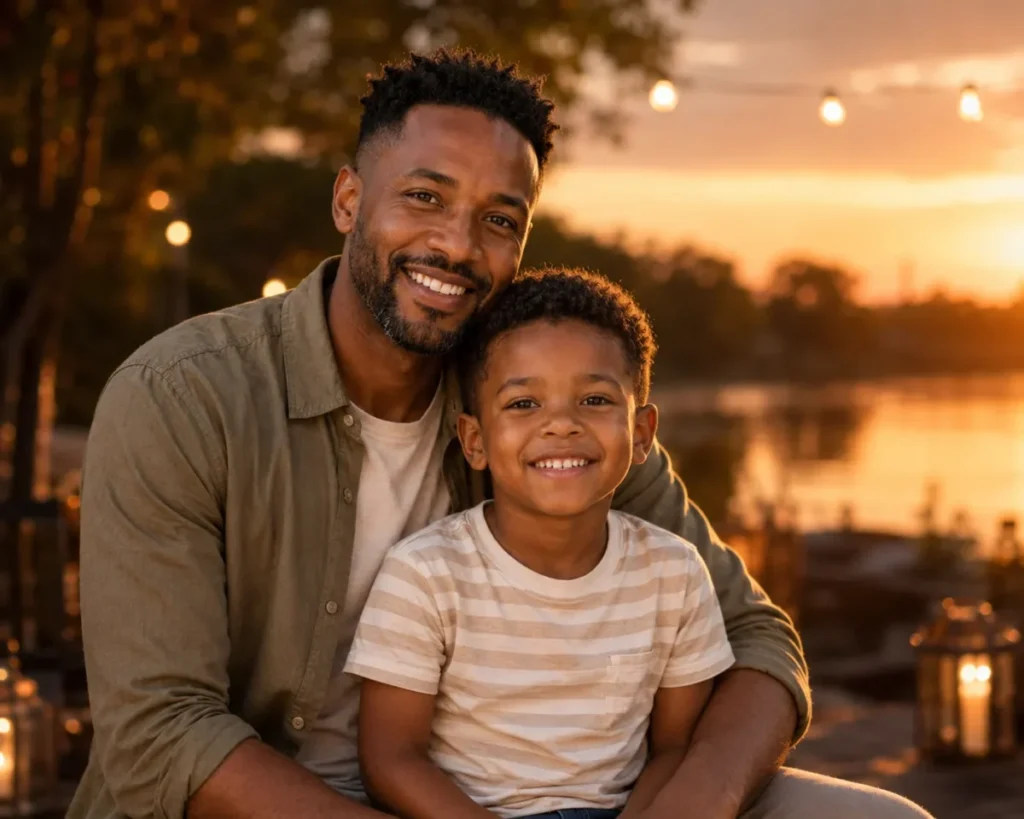
Upload: one photo containing both people, uploaded by the parent. The wording says “adult and child”, so the same prompt works for mother and daughter, mother and son, or dad and son.
Use the uploaded photo of the adult and child as the identity reference. Preserve both faces, apparent ages, expressions, relative height, and clothing. Restyle the setting to SETTING_VALUE with warm directional light, a soft background, and a natural candid composition. Change only the background, lighting, and color grade. Do not age either person up or down, and do not add or remove people. Output 4:5.
Customize: the setting. Keep the do-not-age clause in every version.
Then and Now Composite
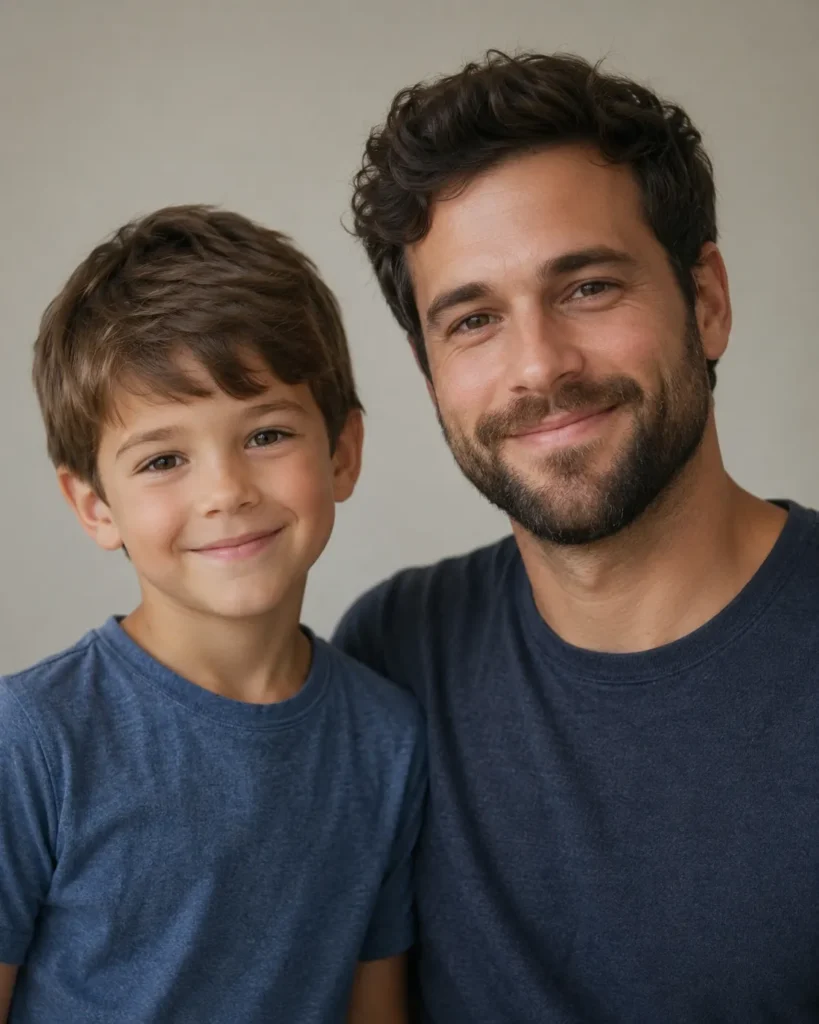
Upload: one current photo and one childhood photo of the same person. This is a two-photo prompt, so set the model to Flash or Pro first.
Combine the two uploaded photos into a single frame. Place the adult and the child in the same scene with the same lighting and the same color grade, against a plain soft background. Preserve both faces exactly as they appear in their source photos. Change the background and lighting only, and do not age either face up or down. Output 4:5, photorealistic.
Customize: nothing. Compare each face with its own source photo, and rerun if one face looks like a mix of both.
Saree, Lehenga and Kurta Prompts
In these saree, lehenga and kurta prompts, name the garment, fabric and color yourself. Name the drape, the border and the jewellery as well, so the prompt describes one specific outfit rather than an occasion.
Festival Traditional Wear Portrait
Upload: one portrait.
Use the uploaded portrait as the identity reference. Preserve the facial structure, skin tone, expression, and apparent age. Change the wardrobe to GARMENT_VALUE in COLOR_PALETTE_VALUE with realistic fabric weight, drape, and embroidery detail, and place the subject in FESTIVAL_SETTING_VALUE with warm practical lighting. Change only the wardrobe, setting, lighting, and grade. Output 4:5, photorealistic, with no invented religious symbols or brand marks.
Customize: the garment, palette, and setting. For men, a silk kurta with a Nehru jacket works in GARMENT_VALUE; for women, a lehenga with dupatta or a saree. Name the garment specifically rather than by occasion.
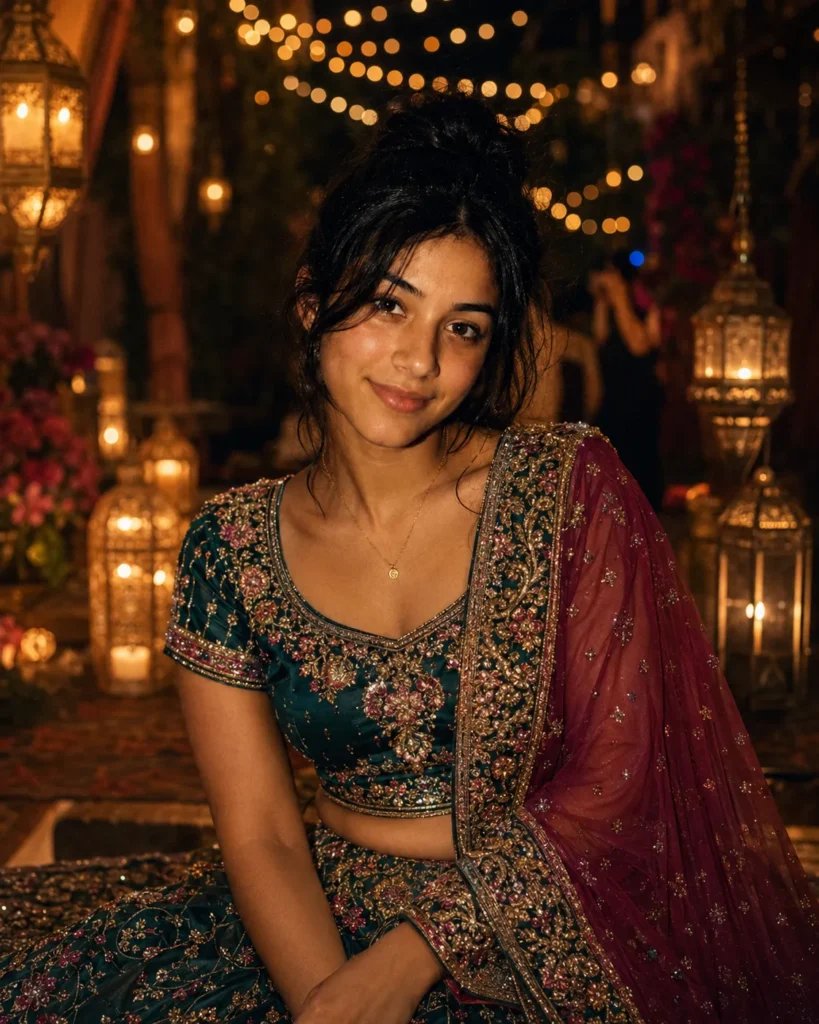
Saree Look Portrait
- Best for:
- the saree look for girls and women, from any everyday photo.
Upload: one photo showing your face clearly; a waist-up or full-length photo gives the drape more room.
Copy this Gemini prompt:
Use the uploaded photo as the identity reference. Preserve the exact face, facial structure, skin tone, hairstyle, apparent age and body proportions. Change only the clothing to a SAREE_COLOR_VALUE silk saree with a gold zari border, draped in the classic Nivi style with the pallu over the left shoulder, a matching blouse, small jhumka earrings and a few glass bangles. Place her in a sunlit old haveli courtyard with soft window light and warm shadows. Use a three-quarter standing pose, an 85mm portrait look and natural skin texture with no beauty smoothing. Output 4:5, photorealistic, no text.
Tested with: “deep red silk with a gold zari border” for SAREE_COLOR_VALUE, on a woman’s waist-up photo. That value repeats the border phrase the prompt already has; “deep red” alone is the cleaner fill.
What our run returned: The same face and long hair in a deep red silk saree with a wide gold zari border and small gold motifs, the pallu over her left shoulder. She wears a matching red blouse with gold-bordered sleeves, gold jhumka earrings and red and gold bangles, in a sunlit courtyard of carved sandstone pillars. The drape shows real folds rather than a painted-on look.
Swap in: replace “draped in the classic Nivi style with the pallu over the left shoulder” with “draped in the Bengali style, white with a red border” or “draped in the Gujarati style with the pallu in front”. For the setting, replace the haveli with “a rooftop at dusk with fairy lights”.
Known limitation (check: visible artifacts): check the drape and the pallu at full zoom. If the pleats look painted on, rerun once with “realistic fabric folds and pleats” added to the clothing line.
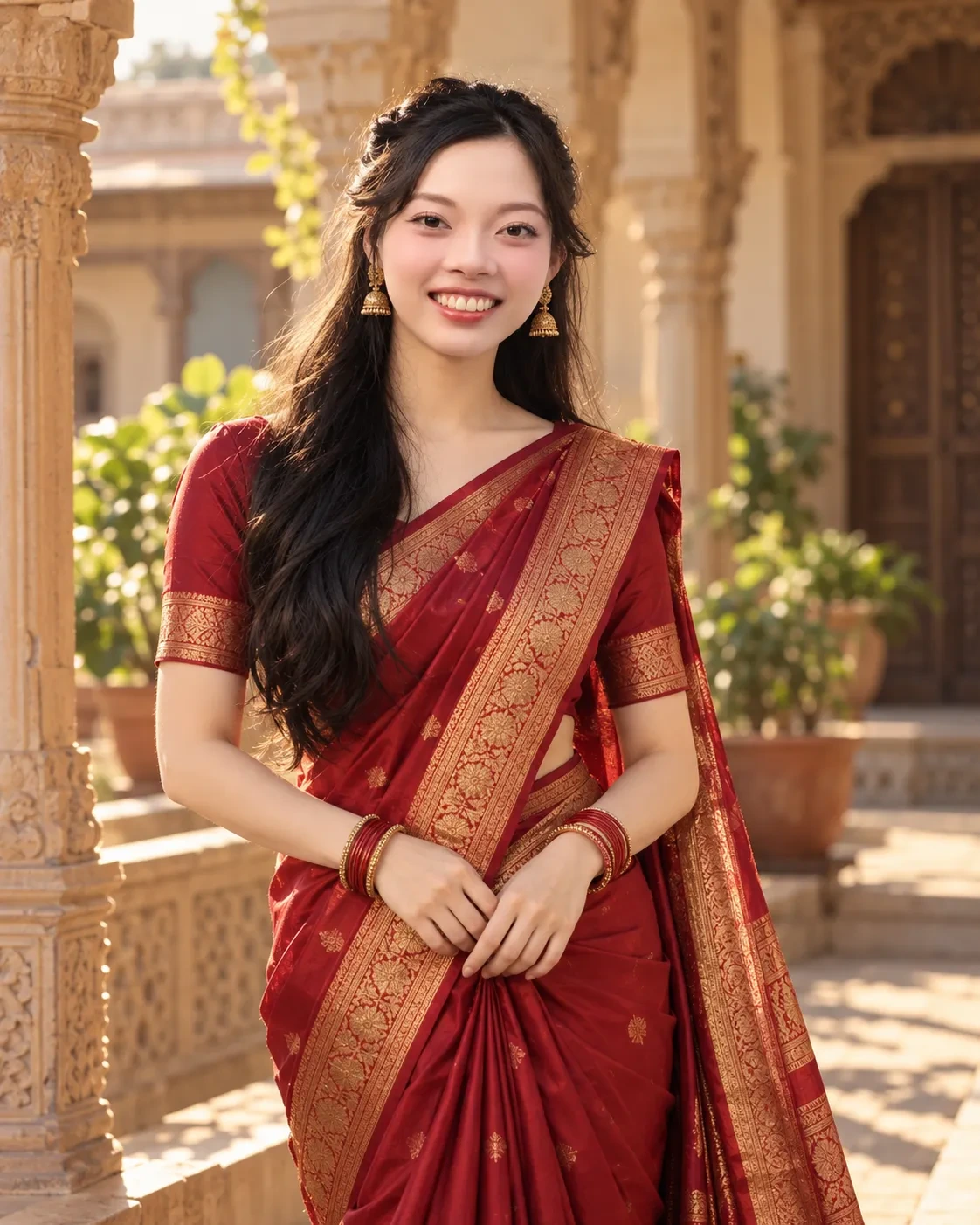
Festival and National Day Photo Prompts
These festival prompts build the celebration from lights, clothing and setting around your locked face. None of them adds a deity, a religious figure or text, and none puts your face on a religious image: a festival post does not need them, and they can easily cause offense.
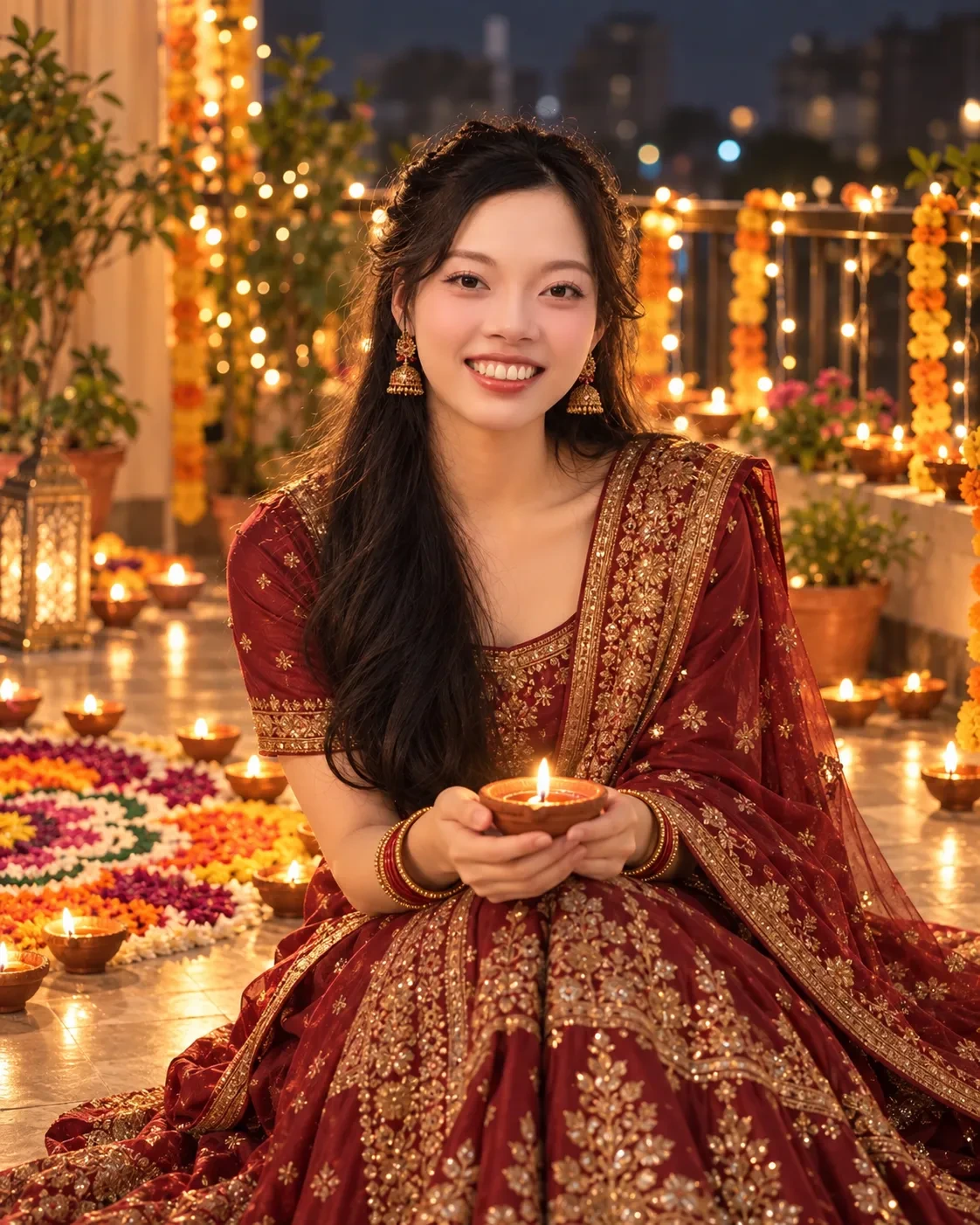
Diwali Portrait With Diyas
Upload: one portrait.
Use the uploaded photo as the identity reference. Preserve the exact face, skin tone, hairstyle, expression and apparent age. Change the clothing to festive Diwali wear in COLOR_VALUE (a silk kurta for men, a lehenga or saree for women) and place the person on a home balcony at night surrounded by lit clay diyas, a colorful rangoli on the floor and warm string lights behind. Light the face mainly with the warm glow of the diyas. Output 4:5, photorealistic, no text, no deity images.
Tested with: “maroon and gold” for COLOR_VALUE, on a woman’s waist-up photo.
What our run returned: The same face in a maroon lehenga and dupatta with dense gold embroidery, gold jhumkas and bangles, seated on a balcony at night and holding a lit clay diya in both hands. Around her are rows of diyas, a flower-petal rangoli on the floor, marigold garlands and string lights. The face is well lit, and no deity image or text appears.
Swap in: replace the balcony with “a front doorway decorated with marigold torans”, or add “holding a lit sparkler at arm’s length”.
Known limitation (check: visible artifacts): check that the face is bright enough in the candle-lit scene. If it looks too dim, add “soft fill light on the face” to the lighting sentence.
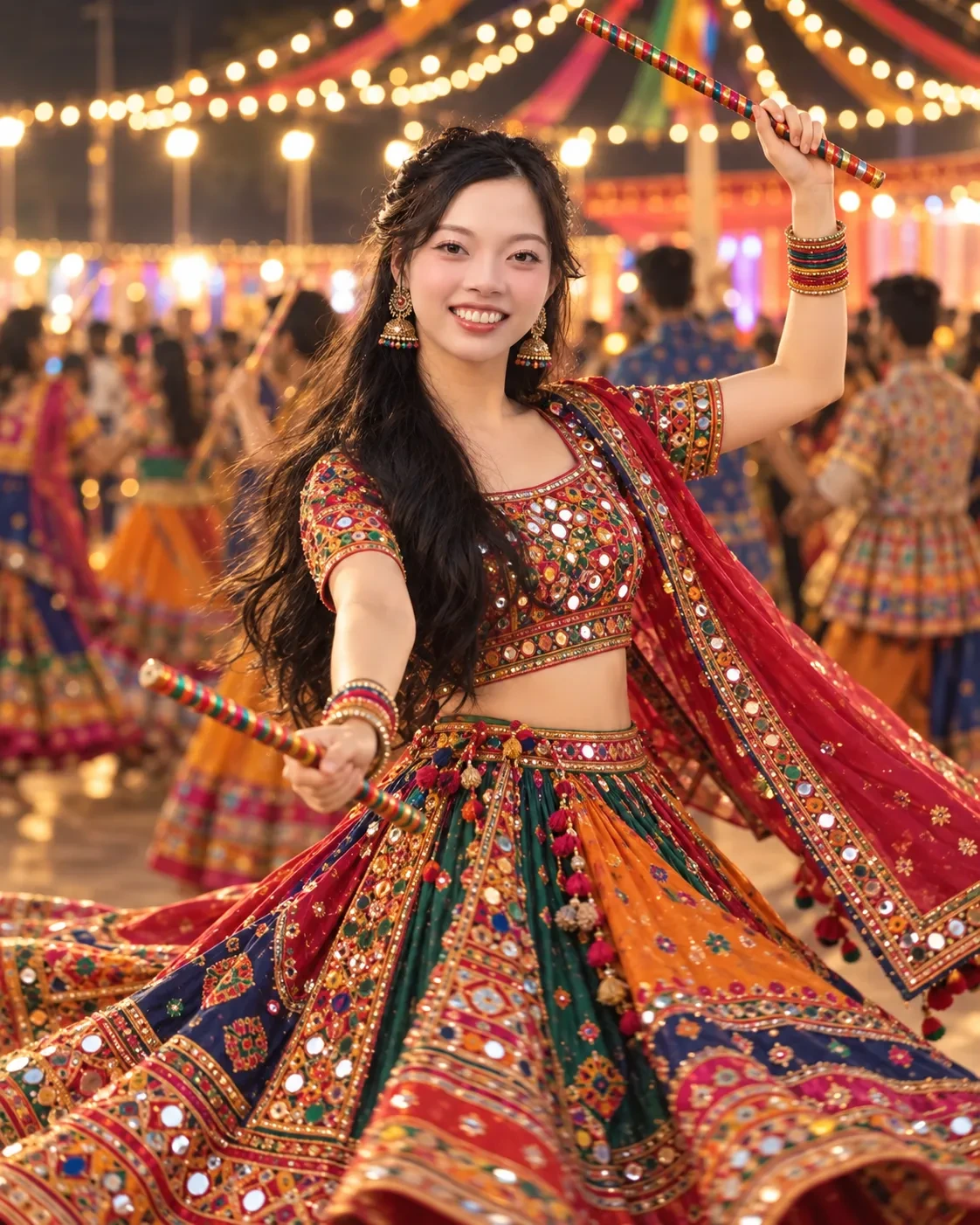
Navratri Garba Portrait
Upload: one waist-up or full-length photo.
Use the uploaded photo as the identity reference. Preserve the exact face, skin tone, hairstyle, expression, apparent age and body proportions. Change the clothing to a colorful mirror-work chaniya choli with an embroidered dupatta for women, or a kediyu and dhoti for men, and add a pair of decorated dandiya sticks. Place the person at a night garba celebration with strings of lights and a softly blurred crowd dancing behind, mid-twirl with the fabric in motion. Output 4:5, photorealistic, no text, no deity images.
Tested with: no edits to the printed prompt; the upload was a woman’s waist-up photo.
What our run returned: The same face mid-twirl in a mirror-work chaniya choli with a red embroidered dupatta, one decorated dandiya stick raised and the other held out, with strings of lights and a blurred crowd of dancers behind. The motion sits in the swirling skirt; the face is sharp. No deity image or text appears.
Swap in: replace the chaniya choli with “a bandhani chaniya choli in red and yellow”, or the night celebration with “a daytime courtyard garba”.
Known limitation (check: visible artifacts): check that the twirl’s motion stays in the fabric and the face is sharp. If the face looks soft, add “face sharp and unblurred” and rerun.
Independence Day Portrait
Upload: one portrait. Written for India’s Independence Day; for another country, replace the colors and the flag with your own.
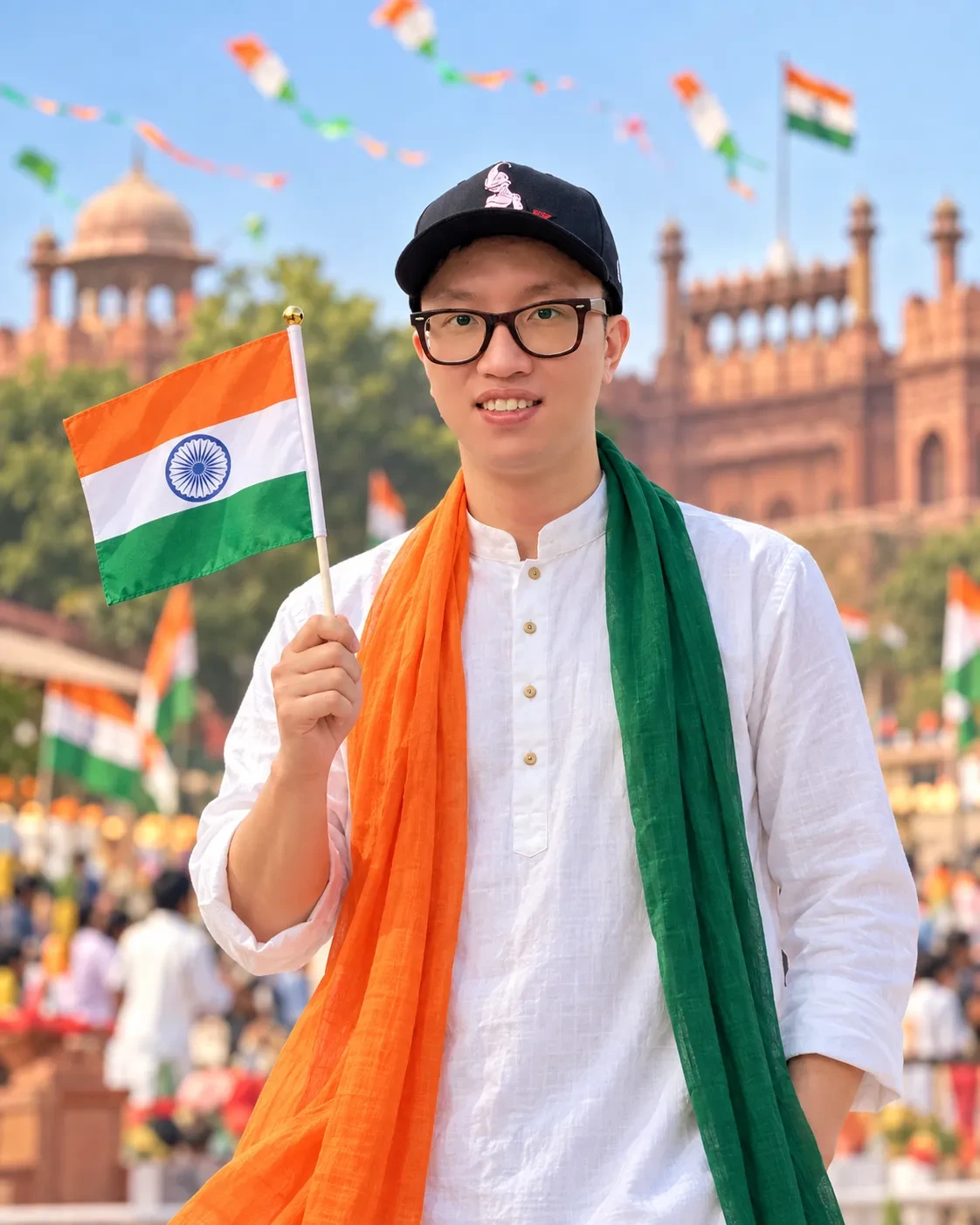
Use the uploaded photo as the identity reference. Preserve the exact face, skin tone, hairstyle, expression and apparent age. Change the clothing to a crisp white kurta with a saffron and green dupatta or scarf, and have the person hold a small paper Indian flag upright in one hand. Place them outdoors on a bright morning with tricolor kites and soft bokeh in the sky behind. Keep the flag upright, clean and off the clothing. Output 4:5, photorealistic, no text.
Tested with: the prompt exactly as printed, on a man’s photo.
What our run returned: The same face and glasses under the black cap from the upload, in a white kurta with a saffron scarf and a green scarf around the neck. He holds a small flag upright in one hand, its colors in the right order with a blue chakra at the center. Behind him are tricolor bunting and kites, a crowd and a red sandstone fort in soft focus; the prompt does not ask for the fort. No flag is printed on the clothing.
Swap in: replace the kites with “a school flag-hoisting ground in soft focus”; keep the flag handheld and upright in every version.
Known limitation (check: instruction compliance): check the flag’s colors, their order and the Ashoka Chakra at full zoom before posting, and treat any printed or worn flag in the result as a reason to rerun.
Eid Portrait With Lanterns
Upload: one portrait.
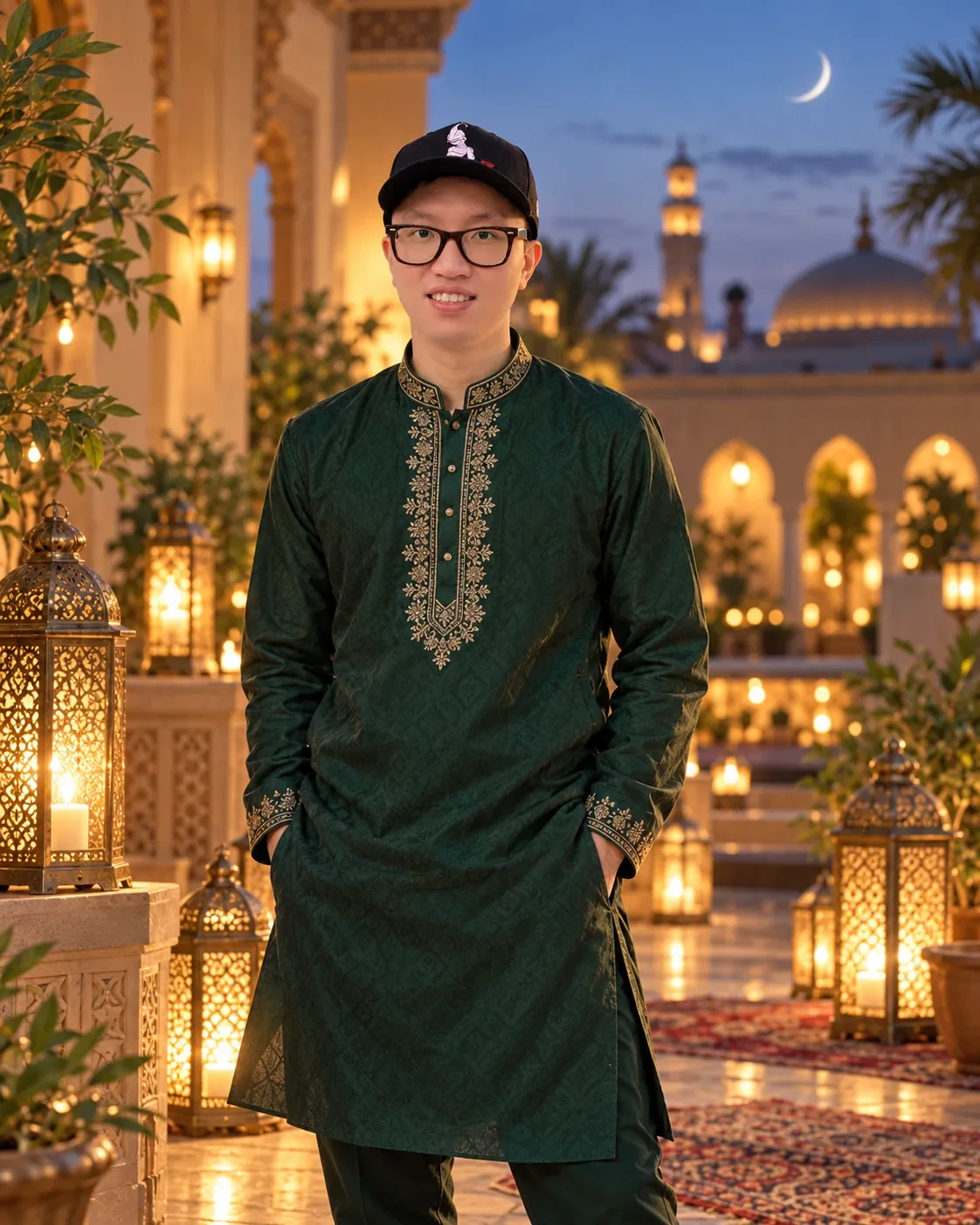
Use the uploaded photo as the identity reference. Preserve the exact face, skin tone, hairstyle, expression and apparent age. Change the clothing to elegant Eid wear in COLOR_VALUE (an embroidered kurta pajama for men, an embroidered sharara or anarkali with a dupatta for women) and place the person in a courtyard at dusk with glowing brass lanterns, a thin crescent moon in the sky and warm lamplight. Output 4:5, photorealistic, no text.
Tested with: “emerald green” for COLOR_VALUE, on a man’s hip-length photo.
What our run returned: The same face and glasses under the cap from the upload, in an emerald green kurta pajama with gold embroidery at the collar, placket and cuffs, hands in pockets. He stands in a courtyard at dusk with pierced brass lanterns, rugs, arches and a domed building behind, and one thin crescent moon at a natural size.
Swap in: replace the courtyard with “a rooftop at dusk”, or COLOR_VALUE with “pastel mint” or “ivory”.
Known limitation (check: visible artifacts): check that only one crescent moon appears, at a natural size. If it looks wrong, delete the moon from the prompt; the lanterns carry the scene on their own.
Christmas Portrait by the Tree
Upload: one portrait, or one photo of the whole family; if children are in it, a parent uploads it and everyone in it has agreed.
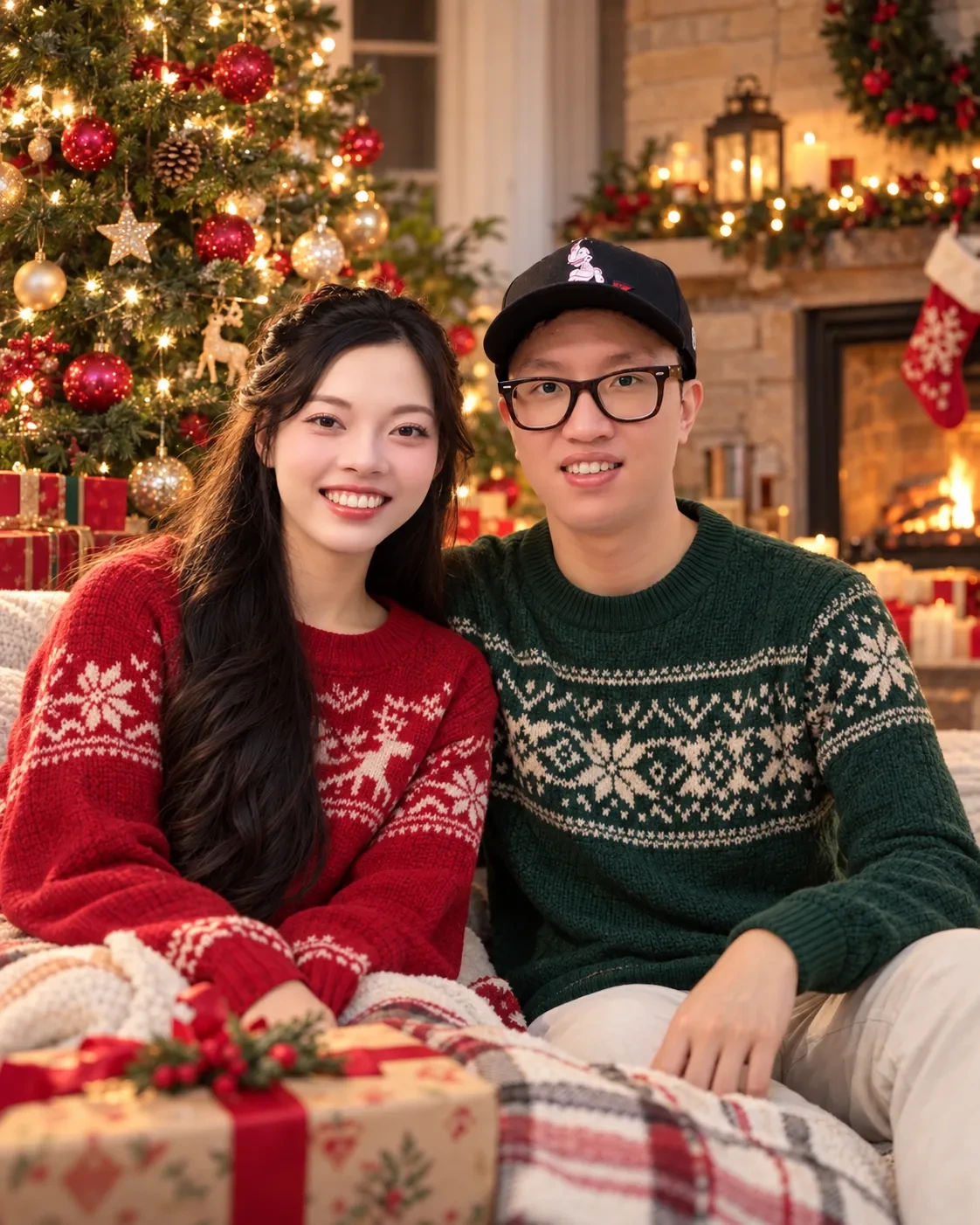
Use the uploaded photo as the identity reference for everyone in it. Preserve each face, skin tone, hairstyle, expression, apparent age and position. Change the clothing to cozy knit sweaters in red, green and cream, and place them in a living room beside a decorated Christmas tree with warm fairy lights, wrapped gifts and a softly glowing fireplace. Change only the clothing, background and light. Do not add or remove anyone. Output 4:5, photorealistic, no text.
Tested with: the prompt exactly as printed, on one photo of two adults, a woman and a man.
What our run returned: Both faces kept, with no one added or removed. The woman wears a red knit sweater with a cream snowflake and reindeer pattern and the man a green knit with a cream snowflake band. They sit beside a decorated tree with red and gold baubles, wrapped gifts, a lit fireplace with a stocking and a plaid blanket. His cap from the upload stayed on.
Swap in: replace “cozy knit sweaters in red, green and cream” with “matching plaid pajamas”, or the living room with “a snowy window seat”.
Known limitation (check: visible artifacts): check necklines and hairlines at full zoom, where a knit pattern can blur into skin or hair.
Birthday Photo Prompts for a Boy, Girl or Baby
One birthday prompt on this page has a test image: the studio portrait below, run on an adult’s photo. The girl, boy and child versions after it are adapted from that prompt without test runs of their own, and each one says so.
All of them leave the age and any name out of the picture. Add those afterwards as a sticker or text overlay in your photo app, where you can check the spelling yourself.
Birthday Studio Portrait
- Best for:
- a birthday post or Story made from an adult’s portrait.
Upload: one portrait.
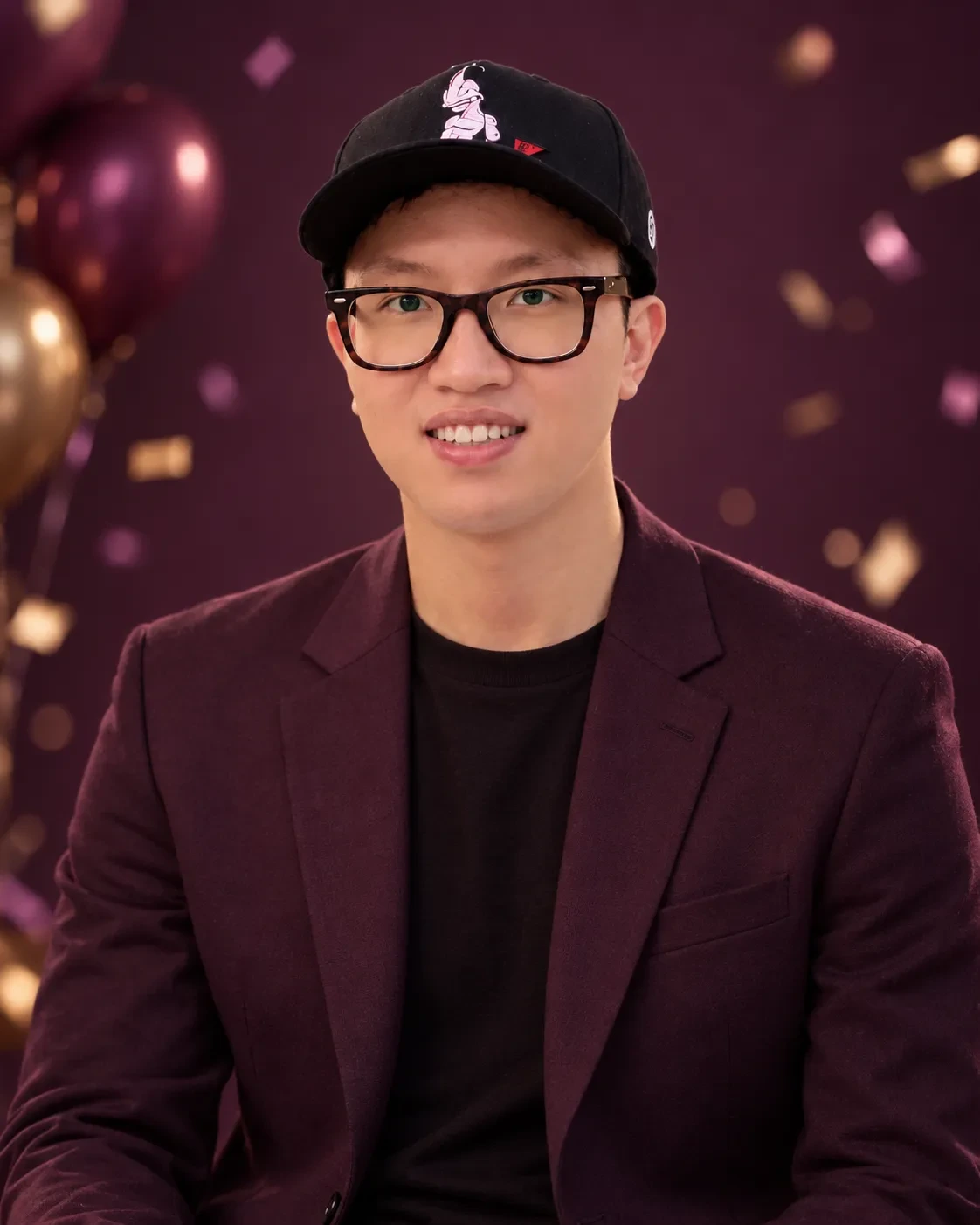
Use the uploaded portrait as the identity reference. Preserve the face, expression, skin tone, and hairstyle. Restyle the frame as a birthday studio portrait in COLOR_THEME_VALUE with a single spotlight, a deep plain studio backdrop with no visible seam, controlled confetti or bokeh in the background, and restrained props. Change only the wardrobe, backdrop, lighting, and grade. Output 4:5 with no rendered text or numbers.
Tested with: deep plum for COLOR_THEME_VALUE, on a man’s portrait.
What our run returned: The same face, black cap and glasses, now in a burgundy blazer over a black top, against a deep plum backdrop. Gold and plum balloons sit at the left edge and confetti bokeh drifts behind him. No text or numbers were rendered into the frame; the only marks are the small graphic and tag already on the cap in the upload.
Customize: the color theme. Leave the no-numbers line in and add the age as an overlay afterwards.
Birthday Prompts for a Girl or a Boy
Adapted, not run separately: each prompt below is the tested Birthday Studio Portrait prompt with one outfit sentence added. We have no test image for either version, so compare the face with your upload at full zoom before you post.
Upload: one portrait of the person whose birthday it is, with their agreement if it is not you. If the birthday person is a minor, use the child’s version below, uploaded by a parent.
Copy the birthday prompt for a girl (adapted):
Use the uploaded portrait as the identity reference. Preserve the face, expression, skin tone, and hairstyle. Restyle the frame as a birthday studio portrait in COLOR_THEME_VALUE with a single spotlight, a deep plain studio backdrop with no visible seam, controlled confetti or bokeh in the background, and restrained props. Dress the person in OUTFIT_VALUE (for example a satin midi dress in the theme color). Change only the wardrobe, backdrop, lighting, and grade. Output 4:5 with no rendered text or numbers.
Copy the birthday prompt for a boy (adapted):
Use the uploaded portrait as the identity reference. Preserve the face, expression, skin tone, and hairstyle. Restyle the frame as a birthday studio portrait in COLOR_THEME_VALUE with a single spotlight, a deep plain studio backdrop with no visible seam, controlled confetti or bokeh in the background, and restrained props. Dress the person in OUTFIT_VALUE (for example a fitted shirt under a blazer in the theme color). Change only the wardrobe, backdrop, lighting, and grade. Output 4:5 with no rendered text or numbers.
Swap in: for COLOR_THEME_VALUE, “blush pink and gold” or “midnight blue and silver”; for OUTFIT_VALUE, anything you would actually wear to the party.
Keep: “no rendered text or numbers”. Add the age as an overlay afterwards, as with the tested card.
Birthday Prompt for a Child’s Photo
Adapted, not run separately: this is the tested Birthday Studio Portrait prompt with the wardrobe change taken out and an age line added. This page has no test image of a child’s birthday edit.
Upload: one photo of the child, uploaded by a parent from the parent’s own account. Gemini’s editing age rule is covered in the age and privacy section below.
Copy the child’s birthday prompt (adapted):
Use the uploaded photo of the child as the identity reference. Preserve the child's face, expression, skin tone, hairstyle and apparent age, and do not make the child look older or younger. Restyle the frame as a birthday studio portrait in COLOR_THEME_VALUE with a single spotlight, a deep plain studio backdrop with no visible seam, controlled confetti or bokeh in the background, and restrained props such as a few balloons. Keep the child's own clothing. Change only the backdrop, lighting, and grade. Output 4:5 with no rendered text or numbers.
What changed from the tested prompt: the preserve sentence names the child and their apparent age, the wardrobe change is gone so the child keeps their own clothes, and the props give one example. For a baby’s photo, paste the same prompt without changing the wording.
Check before you share: put the result next to the original photo and confirm the child still looks their real age, with no smoothed or grown-up features. Add the age and name as an overlay afterwards, never in the prompt.
Retro 80s and 90s Photo Prompts
Retro looks change the decade, not the person. Every retro prompt here keeps the identity line, because a style pass is still a face edit.
Pick one decade per attempt: the 1990s and 1980s prompts below each spell out the look for their own decade.
For a whole library built around one decade, the 80s flashback photo prompts go deeper.
Era Swap Portrait
- Best for:
- a 1990s photo of yourself, with period clothes, hair and film grain.
Upload: one portrait.
The prompt as tested, with the decade set to the 1990s:
Restyle the uploaded portrait as if photographed in the 1990s. Use period-correct wardrobe, hairstyle, film stock characteristics, and lighting, with a background consistent with the era. Preserve the facial structure, skin tone, and identity. Change the wardrobe, hair styling, background, and grade. Output 4:5, photorealistic rather than illustrated.
What the test output shows: period denim, a 1990s hairstyle and vintage film grain around the same face.
Customize: for another decade, replace “the 1990s” with one decade, never a range.
1980s Mall Studio Portrait
- Best for:
- the 1980s portrait-studio look: soft flash, a mottled backdrop and big hair.
Upload: one clear, front-facing portrait.
Copy this Gemini prompt:
Use the uploaded photo as the identity reference. Preserve the exact face, facial structure, skin tone, eye color and apparent age. Restyle the photo as an authentic 1980s mall portrait-studio photograph: a mottled blue-gray canvas backdrop, soft on-camera flash with a faint shadow behind the head, slightly warm color film with visible grain and a gentle soft-focus edge. Change the hairstyle to a 1980s style matched to the current hair length, such as feathered layers or a voluminous perm, and the clothing to a period outfit such as a bright color-block sweater or a denim jacket with rolled sleeves. Keep natural skin texture with no beauty smoothing. Output 4:5, photorealistic, no text.
Tested with: the printed prompt with no edits, on a man’s head-and-shoulders photo.
What our run returned: The same face and glasses with the cap gone and the hair restyled into full, feathered 1980s layers, in a stonewashed denim jacket with rolled sleeves over a white T-shirt. The backdrop is mottled blue-gray canvas, with warm, grainy color and darker soft edges while the face stays sharp.
Swap in: for the outfit, “a pastel satin blouse with shoulder pads” or “a varsity jacket over a striped shirt”; for the backdrop, “a laser-beam school-photo backdrop”.
Known limitation (check: identity preservation): put the result next to your upload and check the eyes and face shape at full zoom; the soft-focus edge belongs at the frame edges, not on the face.
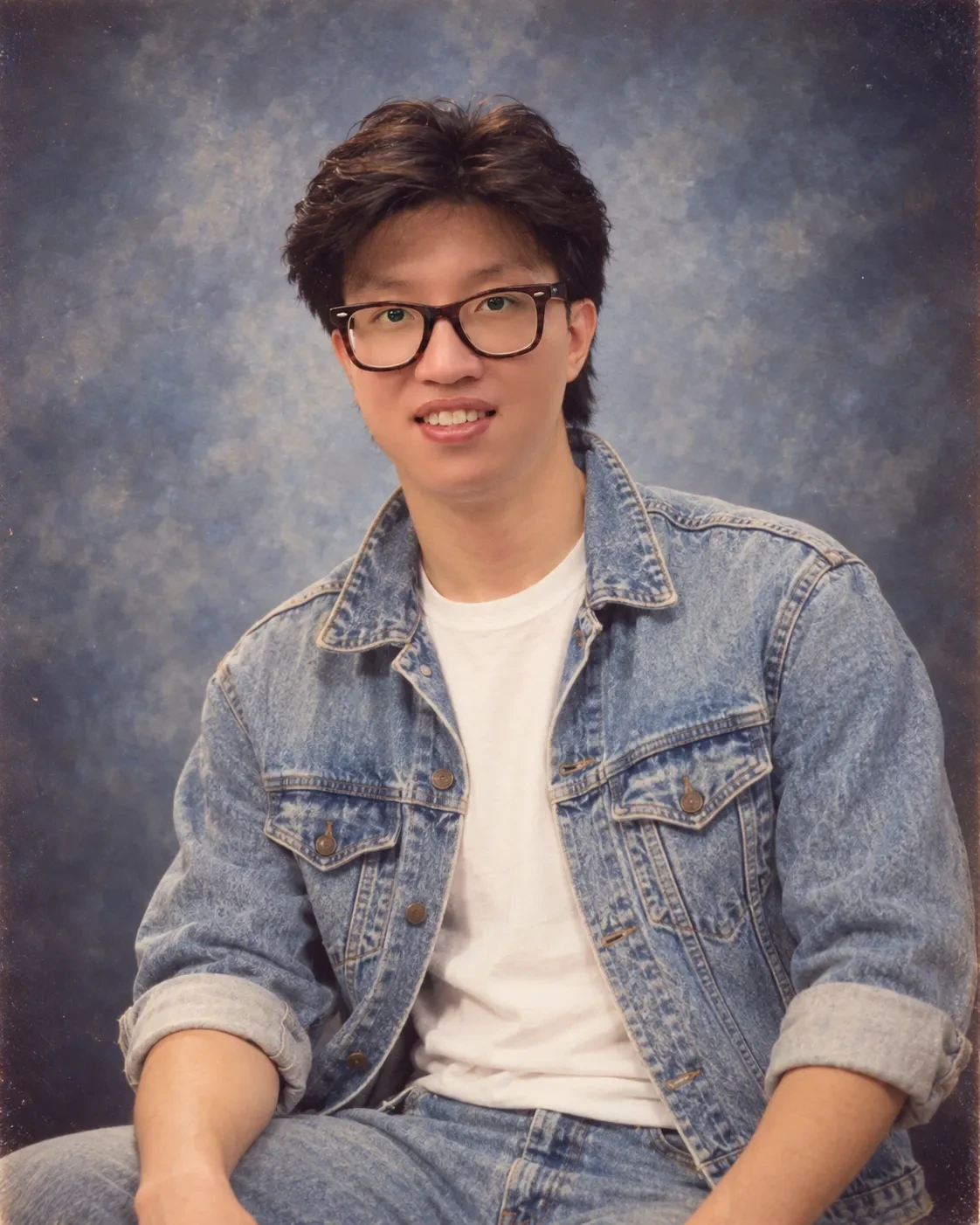
What each part of the prompt asks for, and what our run returned:
| Part of the prompt | What it asks for | What our run returned |
|---|---|---|
| Identity reference and preserve sentence | The face, facial structure, skin tone, eye color and apparent age from your upload | The same face and glasses as the upload |
| Studio description | A mottled blue-gray canvas backdrop and soft on-camera flash with a faint shadow behind the head | A mottled blue-gray canvas backdrop |
| Film description | Slightly warm color film, visible grain and a gentle soft-focus edge | Warm, grainy color, with darker, softer edges while the face stays sharp |
| Hairstyle sentence | A 1980s style matched to the current hair length | Full, feathered 1980s layers, and the cap from the upload was gone |
| Clothing sentence | A period outfit, with a color-block sweater or a rolled-sleeve denim jacket as examples | A stonewashed denim jacket with rolled sleeves over a white T-shirt |
Why the flash is soft: the prompt asks for a soft flash with only a faint shadow, a gentler take on the studio look. For a harsher, more direct look, replace “soft on-camera flash with a faint shadow behind the head” with “direct on-camera flash with a hard shadow behind the head”. That swap is an untested variation.
Adjusting after your first result (editorial guidance built on our one run, not measured failure rates):
| If your result shows | Change this |
|---|---|
| Your cap or hat is gone and you wanted to keep it | Add “the same cap” to the preserve sentence |
| Your glasses are gone or have a new frame | Add “the same glasses” to the preserve sentence; our run kept them without that line |
| The dark, soft edges reach too far into the frame | Change “a gentle soft-focus edge” to “a very slight soft-focus edge at the corners” |
| The look is too gentle for the photos you remember | Use the direct-flash swap above |
Source-photo checklist, based on what our run changed and kept:
- Headwear: our run dropped the cap in the upload. Keep it on only if you also add “the same cap” to the preserve sentence.
- Glasses: our run kept them unprompted. Name them in the preserve sentence if their frame matters to you.
- Hair: enough of it showing for the model to match its length, since the hairstyle sentence depends on it.
- Crop: head and shoulders, the same framing as the upload in our run.
Retro Result Checks
Run these checks on any decade prompt before you post the result.
| What you see | Fix |
|---|---|
| The face looks smoothed or younger | Add or keep “natural skin texture with no beauty smoothing” and restate the preserve line in a follow-up turn |
| The outfit mixes two decades | Name one decade per attempt, never a range |
| The outfit looks generic rather than from one decade | Replace “period outfit” with named garments, such as a color-block sweater or acid-wash jeans |
| The photo looks painted, not photographed | Add or keep “photorealistic rather than illustrated” at the end |
| Your hair changed when you wanted to keep it | Add “hairstyle” to the preserve line and delete the hair change |
Restyle a Photo as a Y2K Camcorder Still
- Best for:
- a retro-looking social post made from a photo you already own.
Upload: one portrait or group photo.
Restyle the uploaded photo as an early-2000s camcorder still. Use a direct on-camera flash look, blown highlights, slight interlacing artifacts, and low saturation, with a timestamp in the lower right reading "DATE_VALUE". Preserve the faces, identities, and positions of everyone in frame. Change only the grade, lighting, and artifacts. Output 4:3 with no other text.
What to expect: flash-lit, desaturated, slightly degraded. The grade and artifacts change; the faces do not.
Known limitation: if the timestamp comes back wrong twice, delete that clause and add the date as an overlay afterwards.
Retro Bollywood-Style Poster
- Best for:
- the hand-painted 90s Indian film poster look, with you as the lead.
Upload: one clear portrait. Use your own photo; do not ask for an actor’s face or a real film’s title.
Copy this Gemini prompt:
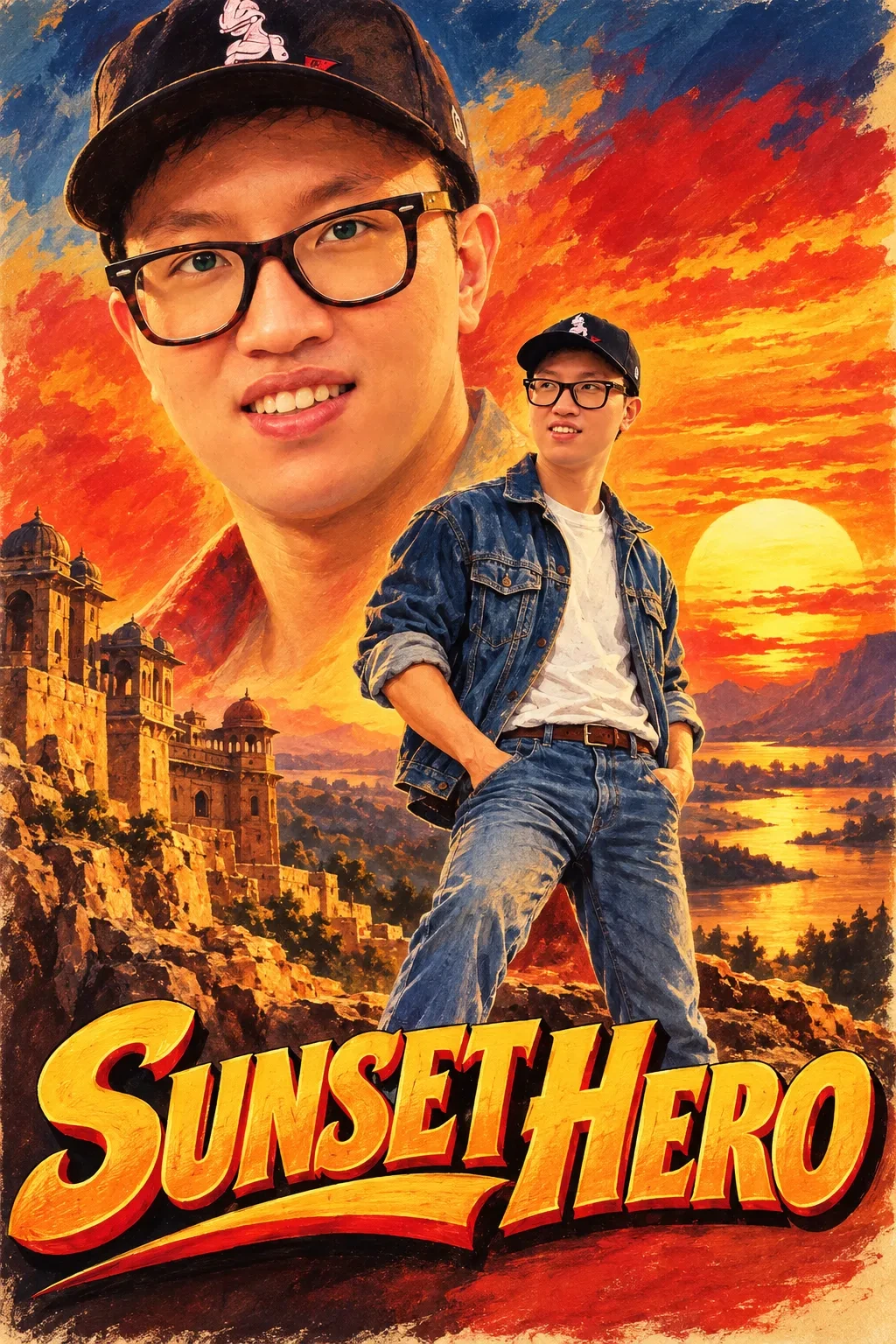
Use the uploaded photo as the identity reference. Preserve the exact face, facial structure, skin tone, hairstyle and apparent age. Turn the person into the hero of an original hand-painted 1990s Indian film poster: bold painted brush texture, saturated reds and yellows, a dramatic sunset sky, a large painted close-up of the face on the upper half and a smaller full-length action pose below. Keep the action pose unarmed, with no weapons, guns, soldiers or violence. Render the original title "EXACT_TEXT" in big retro hand-lettered type across the bottom. Do not copy any real film, actor or studio logo. Output 2:3.
Tested with: “SUNSET HERO” for EXACT_TEXT, on a man’s photo.
What our run returned: A hand-painted poster with a large painted close-up of the face, glasses and cap on the upper half, a sunset sky, a hilltop fort and a river. Below it is a smaller standing figure in a denim jacket and jeans, hands in pockets, cropped at the shins by the title: SUNSET HERO in big hand-lettered yellow type across the bottom. The figure is unarmed, and no real film, actor or studio logo appears.
Swap in: replace “saturated reds and yellows” with “a 1970s orange and teal palette”, or “a smaller full-length action pose” with “a smaller full-length pose on a motorcycle”.
Known limitation (check: identity preservation): check that the painted close-up still looks like you. If it does not, reply in the same chat with the correction line from the how-to section.
Why the unarmed line is there: our first run used a version without it and with the title placeholder left unfilled. That run printed the placeholder as the title and added weapons the prompt never asked for. The version above, with a named title and the unarmed sentence, is the one that produced the poster below. Keep that sentence in every version.
Bike and Car Photo Prompts
Bike and car photo prompts put you with a vehicle while your face, build and clothes stay the same. Describe the vehicle by type, color and era rather than by brand, so no logo ends up on the result.
Motion Without Blur
Upload: one action shot, such as you riding or standing beside a bike.
Add directional motion to the uploaded photo. Streak the background with horizontal motion blur and add subtle light trails in the direction of travel. Preserve the subject completely sharp, with the face, clothing detail, and edges unblurred and unchanged. Change the background only. Output 16:9.
Customize: nothing. The split between the preserve and change clauses is the whole template.
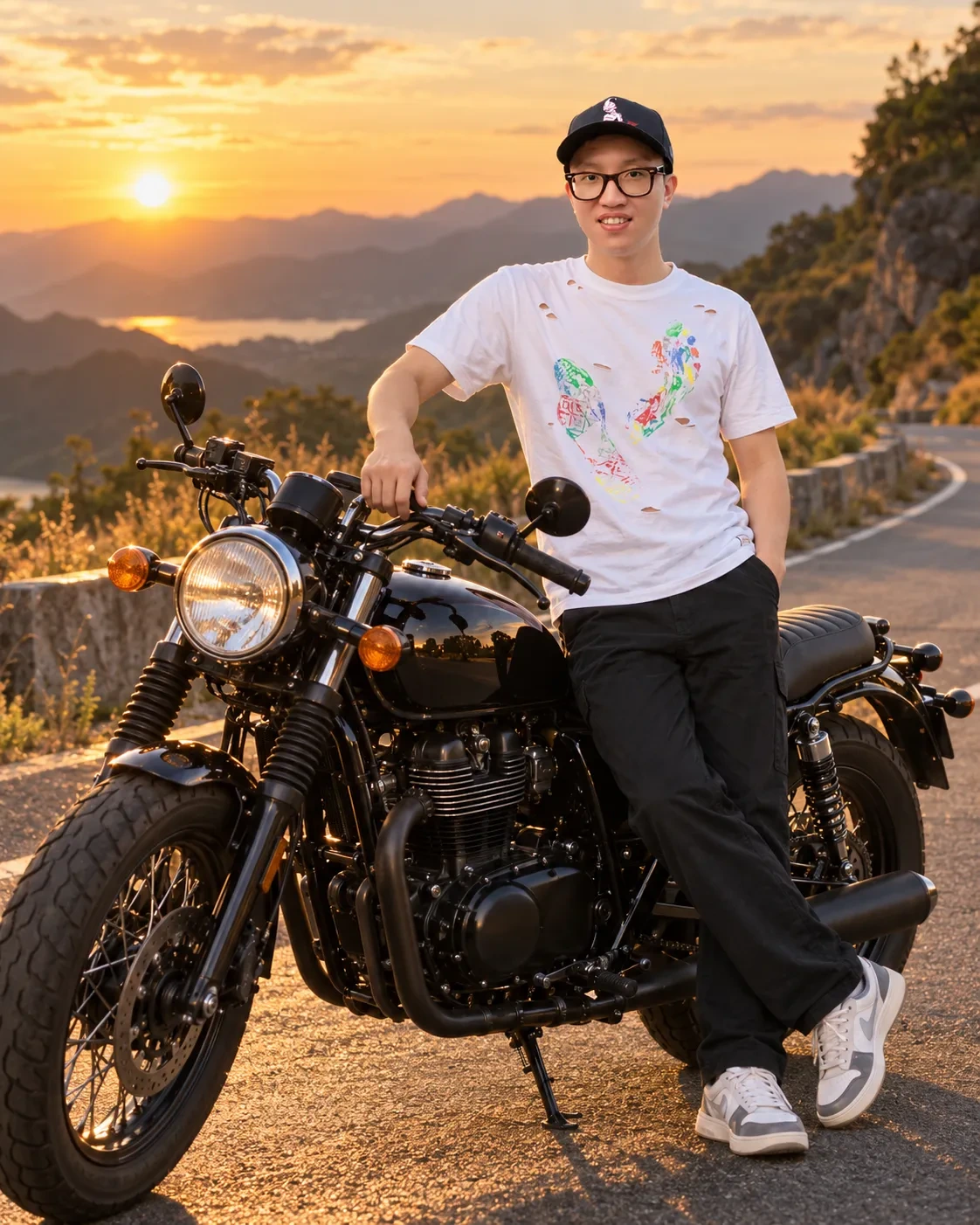
Bike or Car Portrait
- Best for:
- the trending boy-with-bike or car shot when you do not have the vehicle in your photo.
Upload: one full-length or waist-up photo of yourself.
Copy this Gemini prompt:
Use the uploaded photo as the identity reference. Preserve the exact face, facial structure, skin tone, hairstyle, apparent age, body proportions and clothing. Place the person leaning against VEHICLE_VALUE (for example a black retro-style cruiser motorcycle, or a red vintage sports car) parked on an empty mountain road at golden hour, with warm low sun and long shadows. Show the vehicle with no brand badges, logos or number plates. Use a low three-quarter angle, a 35mm look and realistic reflections on the paintwork. Output 4:5, photorealistic, no text.
Tested with: “a black retro-style cruiser motorcycle” for VEHICLE_VALUE, on a man’s hip-length photo.
What our run returned: The same face, cap, glasses and white paint-print T-shirt from the upload, now with black trousers and sneakers, leaning against a black retro motorcycle with a round headlamp and spoked wheels. One hand rests on the handlebar, on an empty mountain road with the sun low over the hills. No brand badge or readable number plate is visible.
Swap in: for VEHICLE_VALUE, “a vintage cream scooter” or “an open-top off-road jeep”; replace the mountain road with “a coastal highway at sunset”.
Known limitation (check: edit boundaries): check the hands on the handlebar or car door at full zoom, and look for any badge or logo on the vehicle before posting.
Instagram DP and Profile Photo Prompts
This prompt asks for a square frame, a centered face and a soft pastel backdrop, so a DP or profile photo still reads when it is shown at thumbnail size. The Anime Character Adaptation in the girls and women section is another option for a DP.
Aesthetic Instagram DP
- Best for:
- a clean, aesthetic square profile picture that still looks like you.
Upload: one clear, front-facing photo in soft light.
Copy this Gemini prompt:
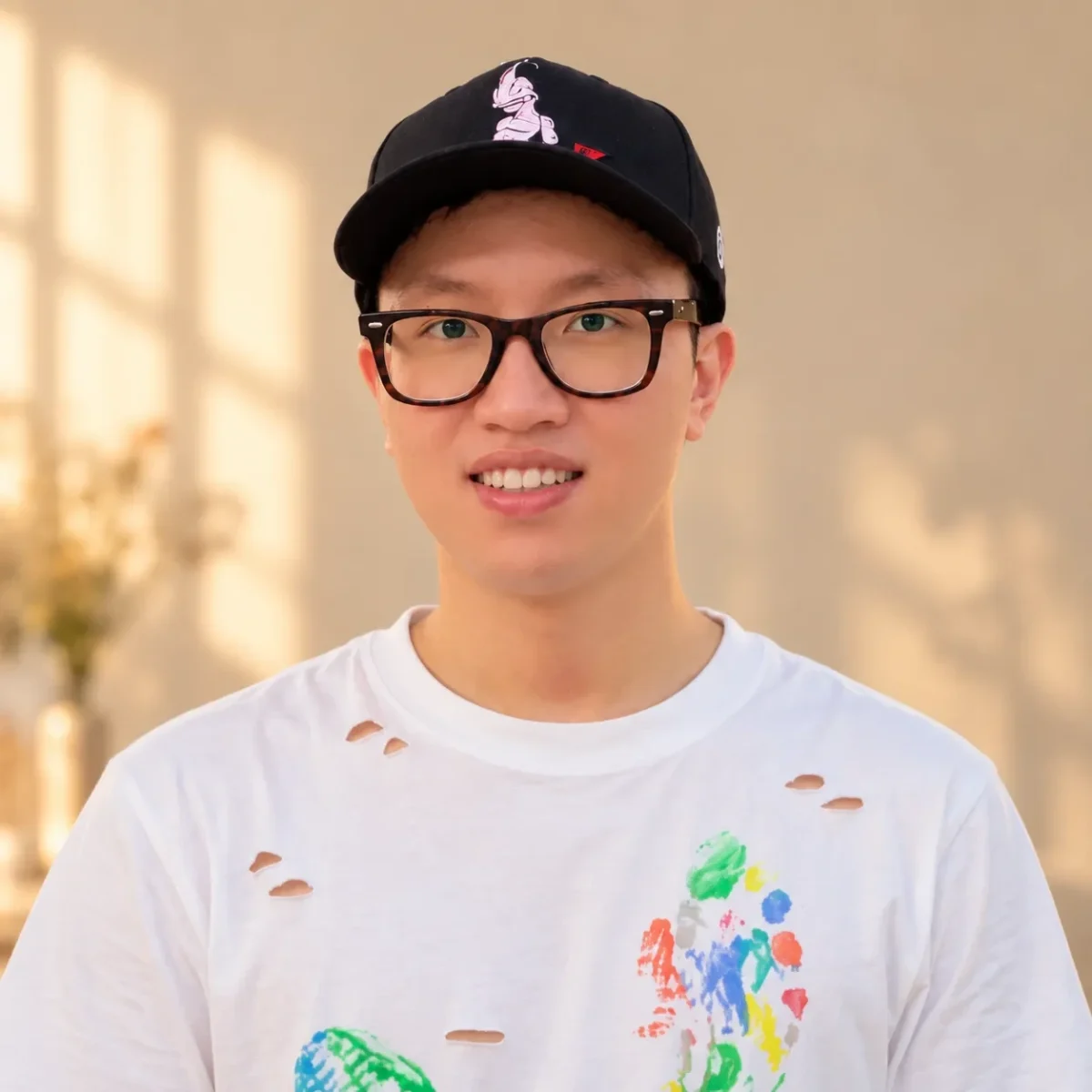
Use the uploaded photo as the identity reference. Preserve the exact face, facial structure, skin tone, hairstyle, expression and apparent age. Create a square head-and-shoulders portrait with the face centered and generous space around the head, against a soft pastel BACKGROUND_COLOR_VALUE backdrop with gentle window light from one side. Keep the clothing as in the photo, the skin texture natural with no beauty filter, and the eyes sharp. Output 1:1, photorealistic, no text, no frame.
Tested with: “beige” for BACKGROUND_COLOR_VALUE, on a man’s photo. The prompt has no gendered words, so nothing needs changing for a woman’s photo.
What our run returned: A square head-and-shoulders portrait of the same face, cap and glasses, with the clothes from the upload kept (a white T-shirt with paint prints). The face is centered against a soft beige wall with window light falling across it, eyes sharp and skin texture natural.
Swap in: for BACKGROUND_COLOR_VALUE, “sage green”, “dusty pink” or “powder blue”; for a monochrome DP, add “black-and-white” before “head-and-shoulders portrait”.
Known limitation (check: visible artifacts): check the skin at full zoom. If the result looks airbrushed, rerun with “visible pores and natural skin texture” added.
For an illustrated avatar instead of a photo, the Clean Profile Avatar prompt sits in the headshot section just below.
Professional Headshot Prompts
Six chest-up headshot prompts: the tested Professional Headshot, and five variants of it for other settings. Each variant changes only the clauses it names and keeps the tested preserve line and crop.
Tested, 30 September 2026: we ran all five variants exactly as printed, on the same Google AI Ultra account as the second-round cards, with the model set to Pro, each in a new chat. All five kept the uploaded person’s recognizable face in the chest-up frame the prompts ask for, with no text or logos.
None of them carried over the headwear from either source photo (the author’s cap, the other adult’s graduation cap); the prompts do not mention headwear. Every variant asks for natural skin texture and bans beauty-filter smoothing, so put the result next to your upload and check that the skin was not smoothed.
Each variant takes the same upload as the Professional Headshot card: one clear, well-lit, front-facing portrait.
For a bigger set, the thirty AI headshot prompts with likeness checks add a nine-point check for whether the face survived the edit.
| Headshot you need | Prompt to use |
|---|---|
| Corporate office look, tested | Professional Headshot |
| LinkedIn or resume photo on a plain backdrop, tested | LinkedIn Studio Headshot |
| Board, investor or speaker page, tested | Executive Headshot |
| Friendly, customer-facing profile, tested | Approachable Headshot |
| Outdoor, less formal profile, tested | Outdoor Natural-Light Headshot |
| Byline or press photo in black and white, tested | Black-and-White Headshot |
| Illustrated avatar, tested | Clean Profile Avatar |
| Team page photo from separate portraits, tested | Team Group Portrait |
Professional Headshot
- Best for:
- a LinkedIn, resume or business profile photo that still looks like you.
Upload: one clear, well-lit, front-facing portrait.
Using the uploaded portrait as the identity reference, create a polished professional headshot. Preserve the recognizable facial structure, skin tone, hairstyle, eye color, and natural proportions. Change only the clothing to a tailored navy blazer over a neutral shirt, and replace the background with a softly blurred modern office. Use flattering softbox lighting, an eye-level camera, an 85mm portrait-lens look, natural skin texture, and a confident relaxed expression. Crop from chest up in 4:5. Do not add text, logos, jewelry, or beauty-filter smoothing.
Known limitation: keep the wardrobe and background clause, and use the same wording for every person when you want a matching team set.

LinkedIn Studio Headshot
- Best for:
- a LinkedIn or resume photo on a plain studio background, with the same blazer as the tested card.
Copy the LinkedIn studio headshot prompt:
Using the uploaded portrait as the identity reference, create a polished professional headshot. Preserve the recognizable facial structure, skin tone, hairstyle, eye color, and natural proportions. Change only the clothing to a tailored navy blazer over a neutral shirt, and replace the background with a plain light gray studio backdrop. Use flattering softbox lighting, an eye-level camera, an 85mm portrait-lens look, natural skin texture, and a confident relaxed expression. Crop from chest up in 4:5. Do not add text, logos, jewelry, or beauty-filter smoothing.
Tested with: the prompt exactly as printed, with nothing to fill in, on the author’s photo.
What our run returned: The same face and glasses in a navy blazer over an open-collar white shirt, against a plain light gray backdrop, cropped from the chest up with soft, even light and a relaxed smile.
What changed: the background clause now asks for a plain light gray studio backdrop instead of an office. Swap in: for a warmer look, “a plain warm white studio backdrop”.

Executive Headshot
- Best for:
- a board, investor or speaker page, where a darker, more formal frame fits.
Copy the executive headshot prompt:
Using the uploaded portrait as the identity reference, create a polished professional headshot. Preserve the recognizable facial structure, skin tone, hairstyle, eye color, and natural proportions. Change only the clothing to a charcoal suit jacket over a white shirt, and replace the background with a plain dark gray studio backdrop. Use flattering softbox lighting, an eye-level camera, an 85mm portrait-lens look, natural skin texture, and a composed, confident expression. Crop from chest up in 4:5. Do not add text, logos, jewelry, or beauty-filter smoothing.
Tested with: the prompt exactly as printed, with nothing to fill in, on the author’s photo.
What our run returned: The same face and glasses in a charcoal suit jacket over an open-collar white shirt, against a plain dark gray backdrop, cropped from the chest up with a broad smile. The prompt asks for a composed expression, so rerun if you want a more reserved look.
What changed: a charcoal suit jacket, a dark gray backdrop and a composed expression. Swap in: for the clothing, “a black blazer over a black crew-neck top”.

Approachable Headshot
- Best for:
- coaches, recruiters, teachers and customer-facing roles, where a smile matters more than a suit.
Copy the approachable headshot prompt:
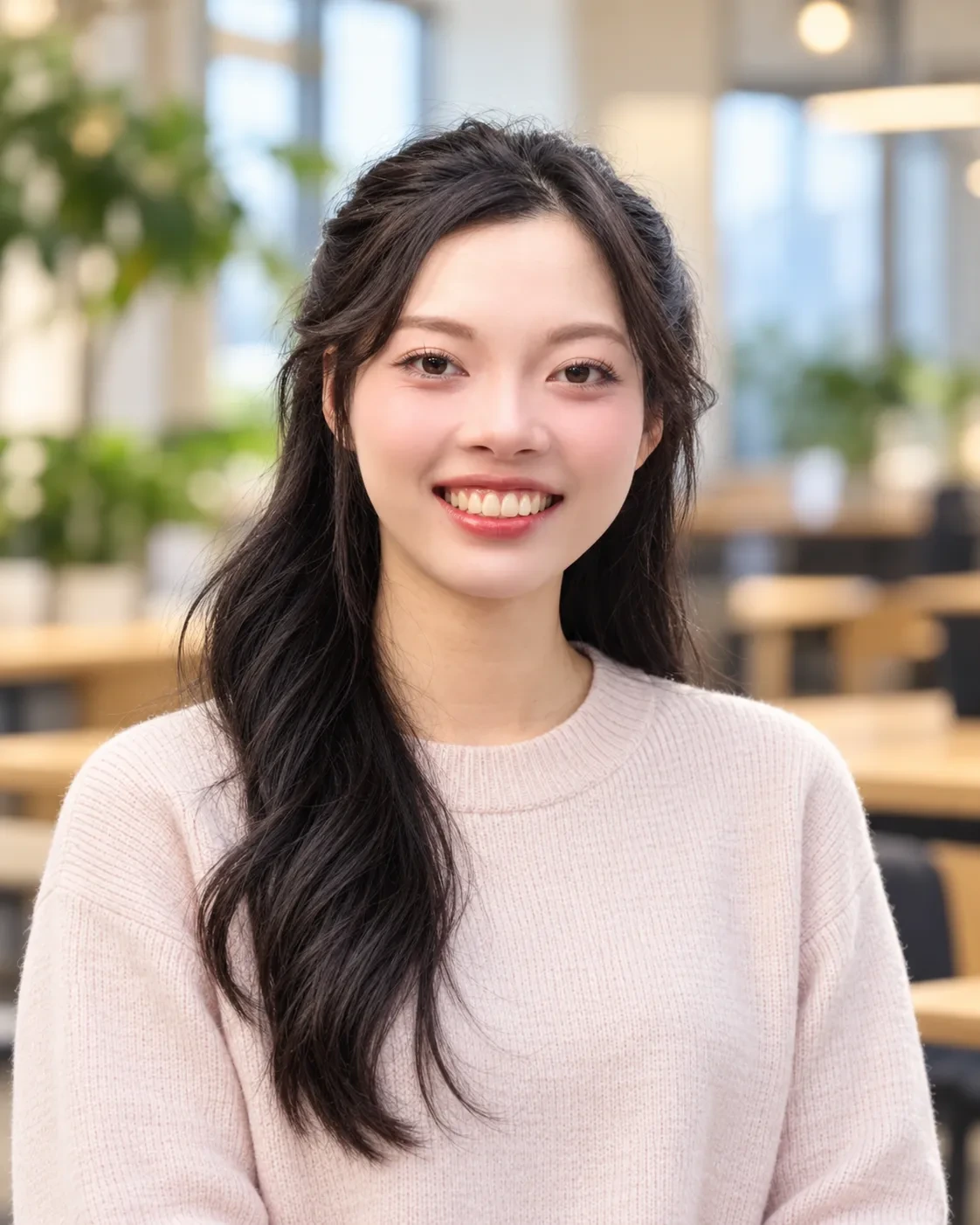
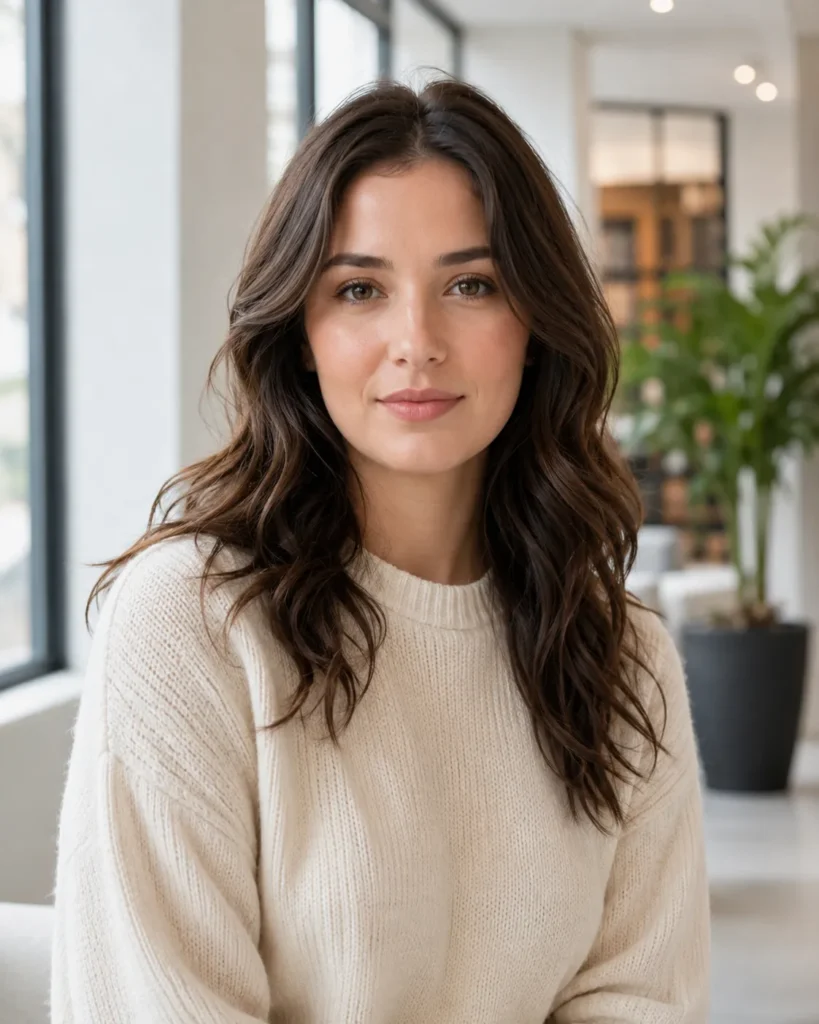
Using the uploaded portrait as the identity reference, create a polished professional headshot. Preserve the recognizable facial structure, skin tone, hairstyle, eye color, and natural proportions. Change only the clothing to a soft-colored crew-neck sweater, and replace the background with a softly blurred bright co-working space. Use flattering softbox lighting, an eye-level camera, an 85mm portrait-lens look, natural skin texture, and a warm, natural smile. Crop from chest up in 4:5. Do not add text, logos, jewelry, or beauty-filter smoothing.
Tested with: the prompt exactly as printed, with nothing to fill in, on a woman’s photo, from the adult who agreed to the upload and to publication.
What our run returned: The same face and long dark hair in a pale pink crew-neck sweater, smiling widely, in front of a softly blurred bright co-working space with plants, wooden tables and tall windows, cropped from the chest up.
What changed: a crew-neck sweater, a bright co-working space and a warm smile. Swap in: for the background, “a softly blurred bright cafe”.
Outdoor Natural-Light Headshot
- Best for:
- a realtor, consultant or freelancer profile that should feel less formal than an office.
Copy the outdoor natural-light headshot prompt:
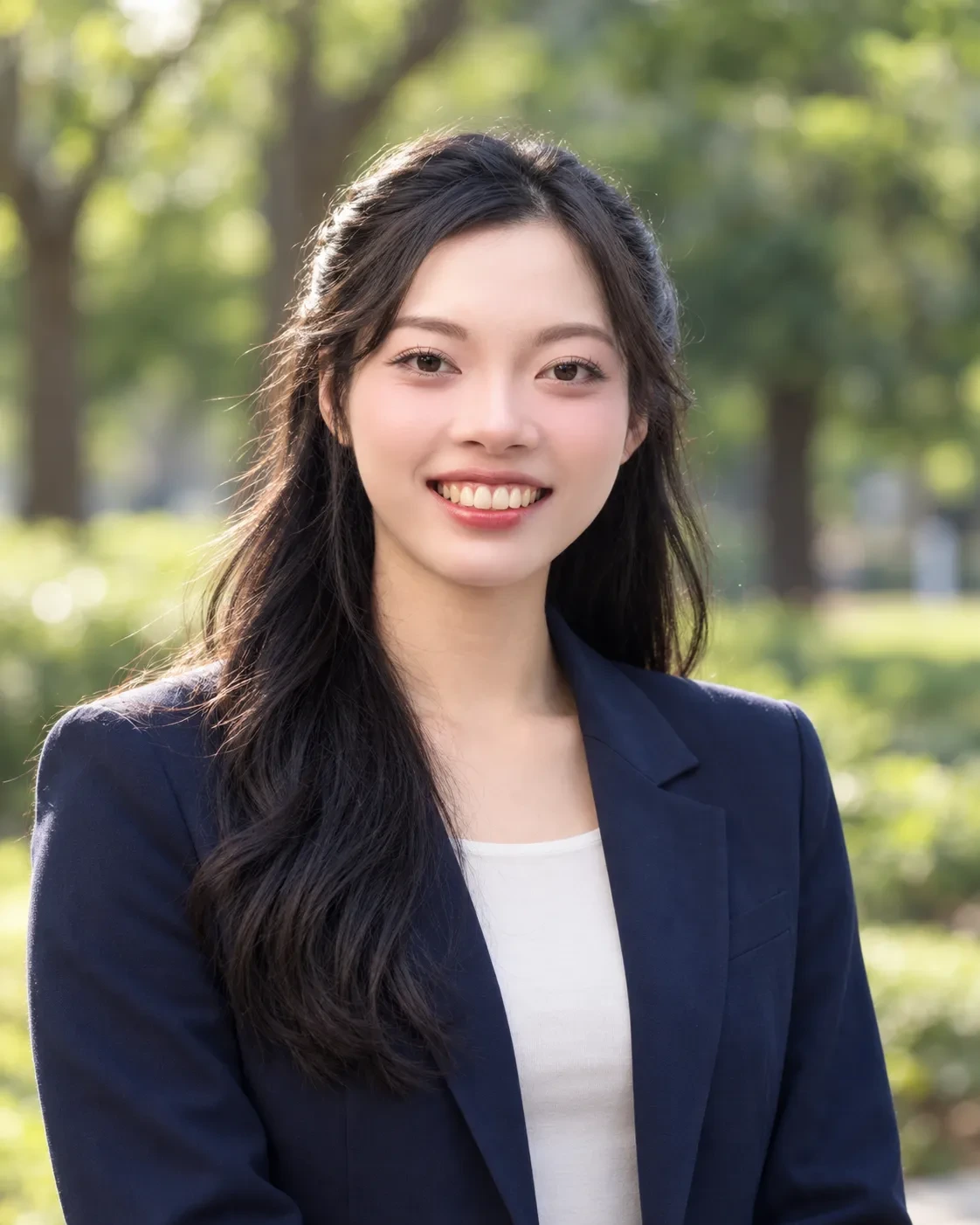
Using the uploaded portrait as the identity reference, create a polished professional headshot. Preserve the recognizable facial structure, skin tone, hairstyle, eye color, and natural proportions. Change only the clothing to a tailored navy blazer over a neutral shirt, and replace the background with a softly blurred park with green trees. Use soft natural daylight from one side, an eye-level camera, an 85mm portrait-lens look, natural skin texture, and a confident relaxed expression. Crop from chest up in 4:5. Do not add text, logos, jewelry, or beauty-filter smoothing.
Tested with: the prompt exactly as printed, with nothing to fill in, on a woman’s photo, from the adult who agreed to the upload and to publication.
What our run returned: The same face and long dark hair in a navy blazer over a plain white top, in soft daylight in front of a blurred green park with trees, cropped from the chest up.
What changed: the background and lighting clauses. Swap in: for the background, “a softly blurred city street in the morning”.
Black-and-White Headshot
- Best for:
- a chest-up black-and-white headshot for a byline, a book jacket or a press kit.
Copy the black-and-white headshot prompt:
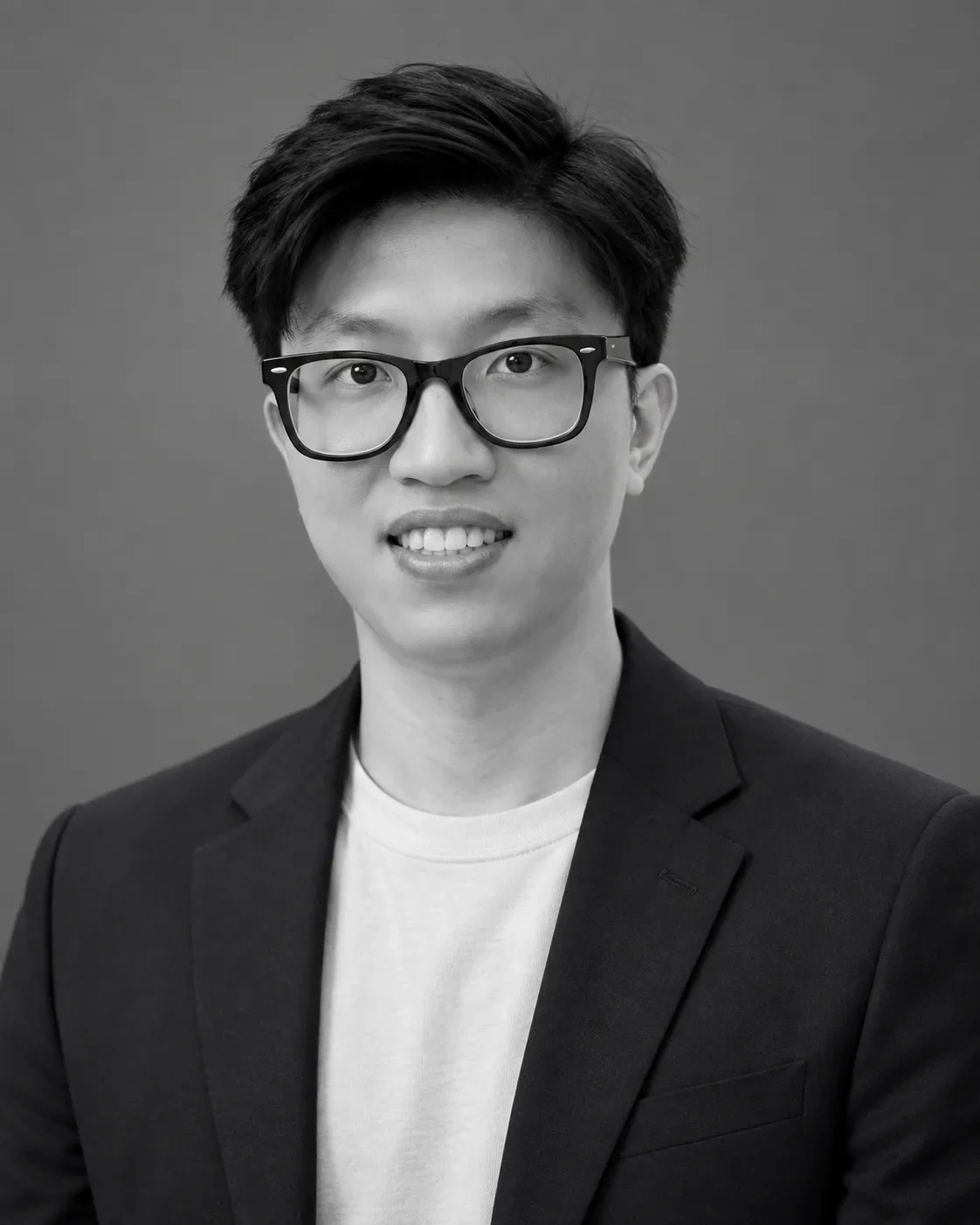
Using the uploaded portrait as the identity reference, create a polished professional headshot. Preserve the recognizable facial structure, skin tone, hairstyle, eye color, and natural proportions. Change only the clothing to a tailored navy blazer over a neutral shirt, and replace the background with a plain mid-gray studio backdrop. Use flattering softbox lighting, an eye-level camera, an 85mm portrait-lens look, natural skin texture, and a confident relaxed expression. Render the final image in black and white with rich midtones. Crop from chest up in 4:5. Do not add text, logos, jewelry, or beauty-filter smoothing.
Tested with: the prompt exactly as printed, with nothing to fill in, on the author’s photo.
What our run returned: A black-and-white frame of the same face and glasses in a dark blazer over a white crew-neck T-shirt, against a plain gray backdrop, cropped from the chest up. The prompt asks for a neutral shirt, and the run returned a T-shirt rather than a collared shirt.
What changed: the background clause, plus one sentence that asks for black and white. Swap in: for a softer grade, “with soft, low-contrast midtones”.
More Tested Portrait Looks for a Profile
Three tested cards elsewhere on this page also work as profile photos, although none is a chest-up headshot:
- Black-and-White Portrait for Men (boys and men section): a waist-up studio portrait with one side light; the prompt has no gendered words.
- Golden-Hour Portrait (girls and women section): a warm rooftop medium close-up.
- Podcast Portrait With Title Space (boys and men section): a wide studio frame with room for a show name, for a channel banner rather than a profile picture.
Clean Profile Avatar
- Best for:
- an illustrated profile picture for a work account, a community profile or a team page.
Upload: one portrait.
Turn the uploaded portrait into a clean professional avatar while preserving the person's recognizable features, hairstyle, skin tone, and expression. Use a centered head-and-shoulders composition, a simple geometric background in two brand colors, soft even lighting, and a refined semi-realistic illustration style with crisp edges. Keep the face natural and avoid exaggerated features. Output a 1:1 square with generous safe space around the head and no text.
Customize: name your two colors explicitly, as hex values when they must match a brand.

Team Group Portrait
- Best for:
- a team page photo when everyone was photographed separately.
Upload: one portrait per person. This is a multi-photo prompt, so set the model to Flash or Pro first, and ask each colleague before you upload their photo.
Combine the uploaded team portraits into one believable group photo. Treat each image as an identity reference and preserve each person's recognizable face, hairstyle, skin tone, body proportions, and clothing. Place everyone naturally around a wooden meeting table in a bright studio office with large windows. Match the lighting direction, camera height, perspective, shadows, and color temperature across all people. Use a 35mm group-photo look, relaxed professional expressions, and a 16:9 horizontal crop. The result must read as one photograph, not a collage.
Customize: the setting, never the identity clause.

Gemini Photo Editing Prompts: Backgrounds, Clothing & Restoration
Looking for a specific editing job? This page keeps a short set of eight tested editing prompts. The full library is our AI photo editing prompts page, written for ChatGPT, Gemini and Midjourney and covering many more editing jobs than fit here.
The eight below each fix or change one thing in a photo and leave the rest alone: a background, an object, a color, a hairstyle, the light, damage, the frame shape or a product photo. Two more sit elsewhere on the page: Motion Without Blur in the bike and car section, and the Then and Now Composite in the family section.
The ChatGPT versions of these prompts use the same structure in different wording.
Replace the Background Only
Upload: one photo with a clearly separated subject.
Use the uploaded image as the subject and identity reference. Preserve the subject's face, hair, body proportions, clothing, pose, edges, and expression. Replace only the background with SETTING_VALUE. Match the new environment's light direction, color temperature, depth of field, contact shadows, and perspective to the subject. Keep the original crop and aspect ratio.
Known limitation: change the setting freely, but leave the match clause alone. It asks the new background to match the subject’s light direction and shadows.
Remove One Distracting Object From a Photo
Upload: the original photo, uncropped.
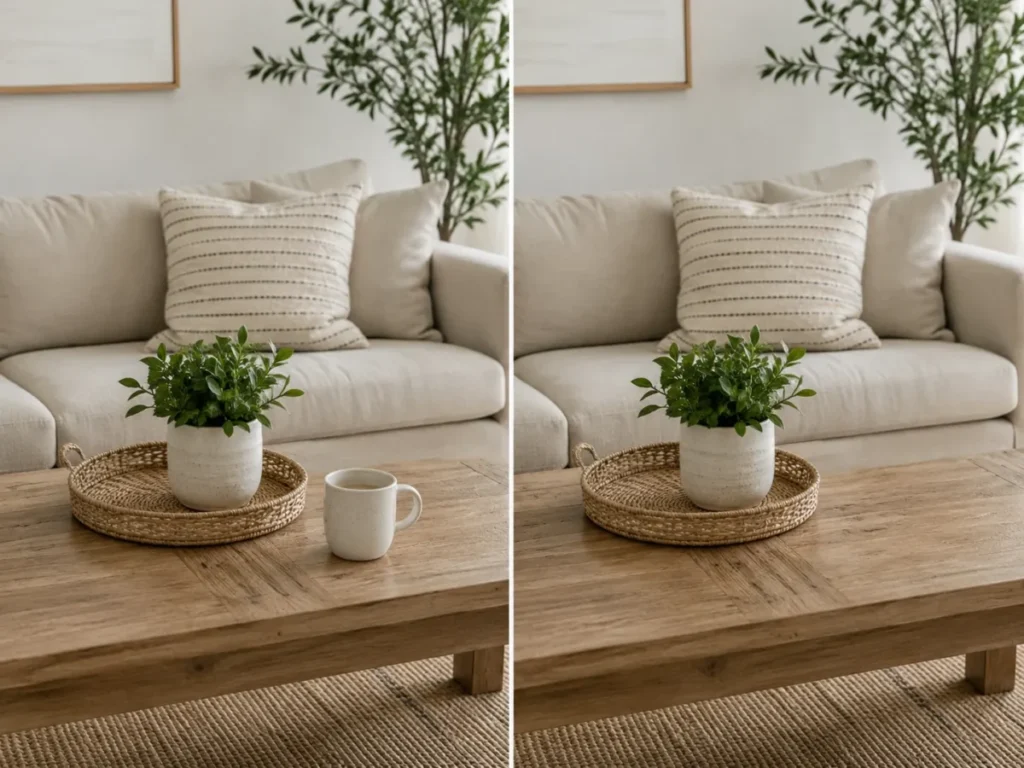
Using the uploaded image, remove only OBJECT_VALUE. Reconstruct the hidden background naturally using nearby texture, lighting, perspective, and shadows. Preserve every other person, object, color, crop, camera angle, and detail exactly as in the original. Do not beautify, relight, sharpen, or redesign the image. Keep the original aspect ratio.
Known limitation: one object per attempt. For a second object, send a new turn on the returned image.
Change Clothing Color Only
Upload: one portrait where the garment is clearly lit.
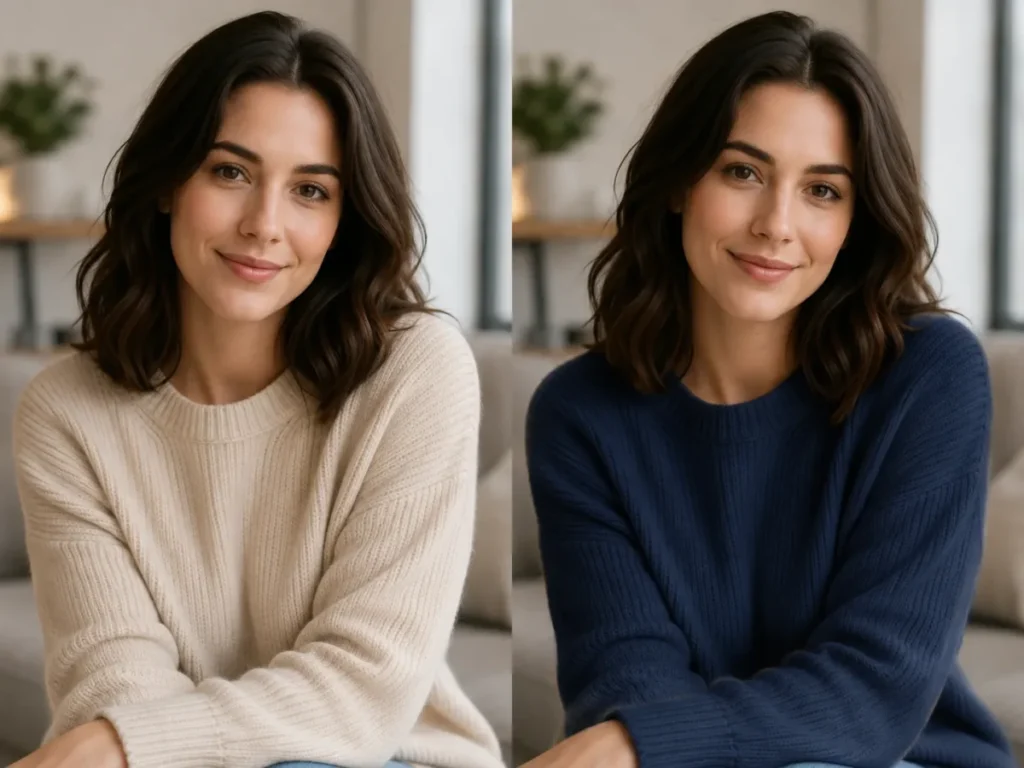
Using the uploaded portrait, change only the clothing color from ORIGINAL_COLOR_VALUE to NEW_COLOR_VALUE. Preserve the person's face, skin tone, hair, body proportions, pose, fabric texture, garment design, folds, lighting, shadows, background, crop, and every other detail. Make the new color respond realistically to highlights and shadows. Keep the original aspect ratio.
Known limitation: use a hex value instead of a color name when an exact shade matters.
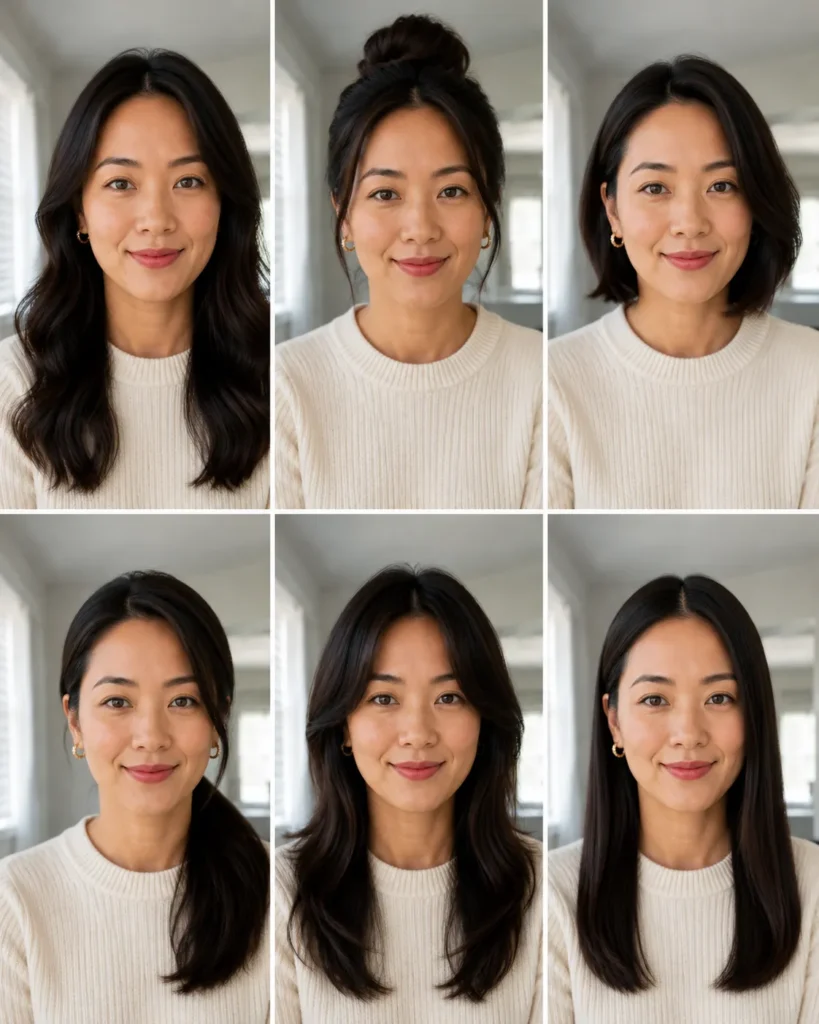
Change the Hairstyle Only
Upload: one portrait.
Use the uploaded portrait as the identity reference. Preserve the person's facial structure, skin tone, eye color, expression, apparent age, body proportions, clothing, background, and lighting. Change only the hairstyle to HAIRSTYLE_VALUE with a realistic hairline, density, strand direction, volume, and shadows. Keep the hair color COLOR_VALUE unless another color is explicitly approved. Output 4:5.
Customize: hair or wardrobe, not both in one attempt. Send the second change as a new turn.
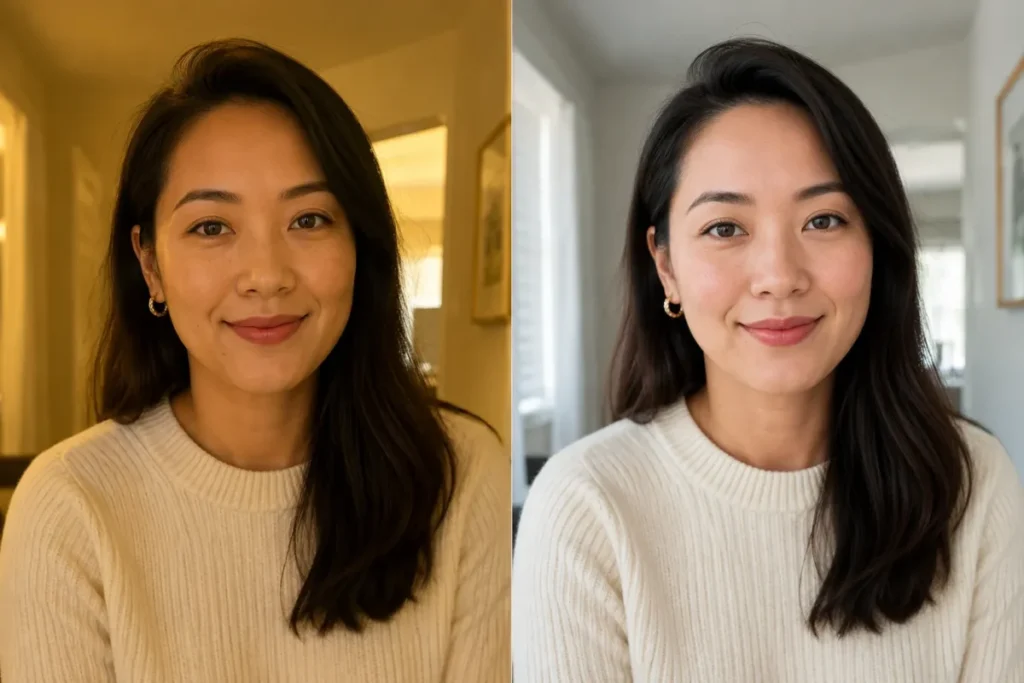
Indoor-to-Daylight Correction
Upload: one indoor portrait.
Correct the uploaded indoor portrait so it reads as if photographed in soft natural daylight. Preserve the same person, pose, expression, clothing, background layout, and crop. Remove the color cast, reduce sensor noise, recover realistic skin tone, soften harsh highlights, and keep pores and hair edges natural. Do not change facial features or apply beauty smoothing. Keep the source aspect ratio.
Customize: name the cast you have, for example an orange tungsten cast or a green fluorescent cast, if the first pass overshoots.
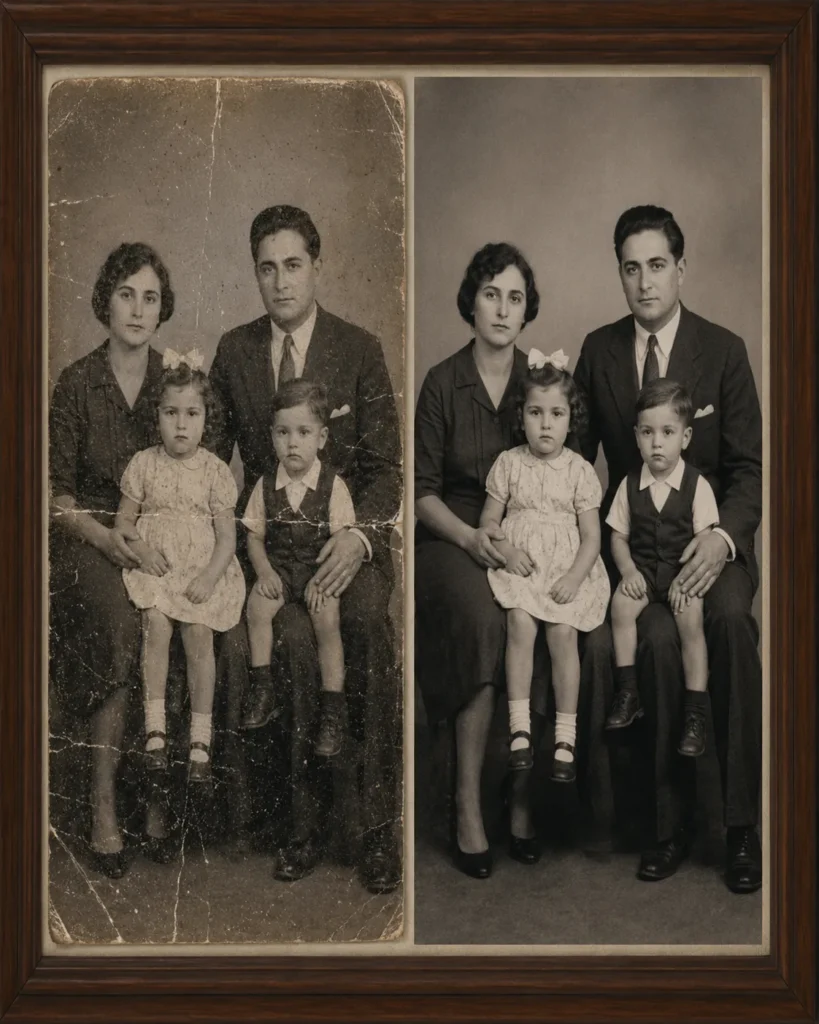
Old Photo Restoration
Upload: the highest-resolution scan you have. Photograph the print flat and evenly lit if you cannot scan it.
Restore the uploaded old photograph while preserving every person's recognizable identity, apparent age, pose, clothing, and the original composition. Remove dust, scratches, stains, fading, and fold marks. Rebuild only damaged areas, recover natural tonal range, and keep authentic film texture. Do not modernize faces, change expressions, invent missing people, or alter the historical setting. Keep the original aspect ratio. If colorizing, use historically plausible restrained colors.
Known limitation: this is the one template where loosening a preserve clause does real harm. A restoration that modernizes a face is no longer a restoration.
Compare the output against the scan at full zoom before you keep it.
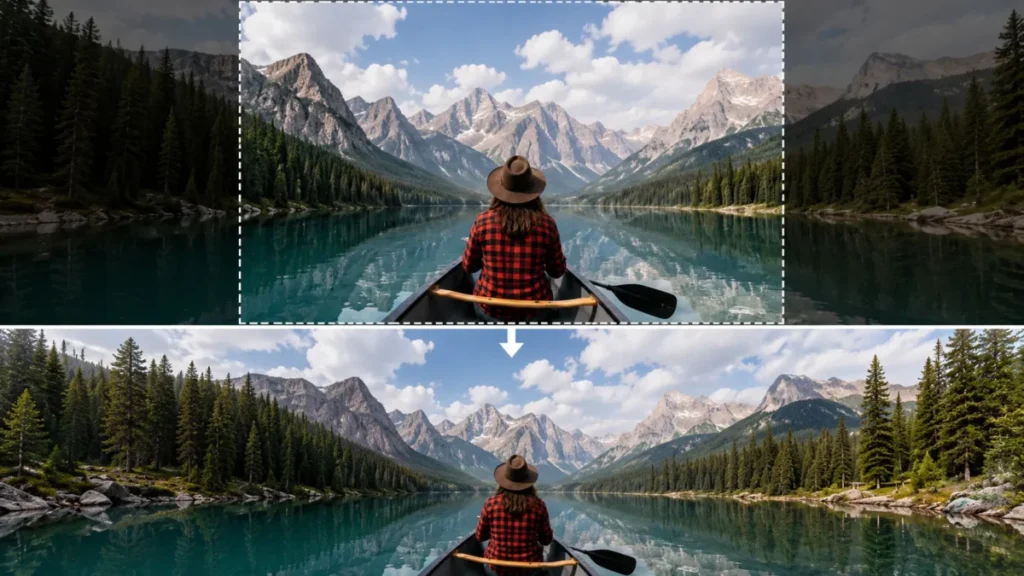
Extend the Canvas of an Image
- Best for:
- turning a square or wide photo into a vertical Story, or the reverse, without cropping anyone out.
Extend the uploaded image to ASPECT_RATIO while preserving the original content, subject identity, camera angle, lighting, and scale. Generate only the missing canvas areas so the extension continues the existing environment naturally with matching perspective, texture, depth, and shadows. Do not crop, resize, or alter the original central content. Keep important subjects inside the safe area for OUTPUT_USE.
Known limitation: extend in one direction per turn when the original has strong perspective lines, and check that walls, horizons and roads still line up with the original.
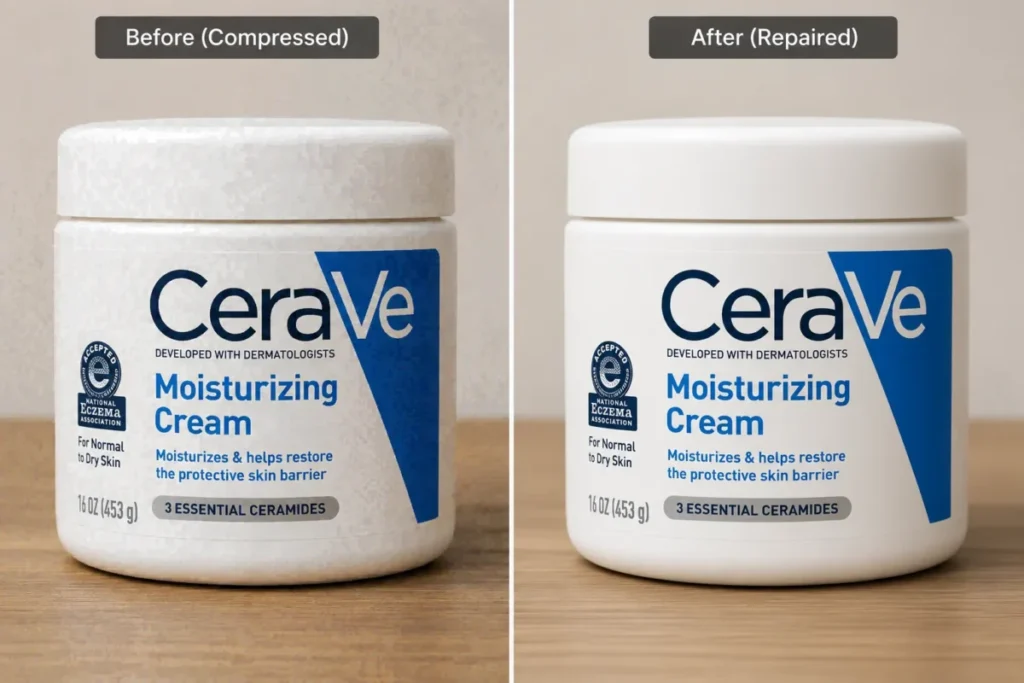
Repair a Compressed Product Photo
- Best for:
- a blurry, over-compressed photo of something you sell, such as a marketplace listing picture.
Upload: the best copy of the photo you have.
Restore the uploaded product photo without redesigning the product. Preserve exact geometry, proportions, material, color, logo, label wording, reflections, and camera angle. Remove compression artifacts and noise, recover clean edges, improve micro-contrast, and rebuild only damaged pixels. Keep the background and crop unchanged. Do not invent wording, alter claims, smooth away material texture, or create a new product.
Customize: nothing. If the label is unreadable in the source, reshoot rather than let the model guess it.
How to Use Gemini Photo Prompts
Google’s own help page describes the basic move in one line: upload an image and ask Gemini to make edits. The steps below add where each control sits, taken from Google’s help pages for the computer, Android and iPhone versions of Gemini.
On a Computer (gemini.google.com)
These steps follow Google’s help page for Gemini on a computer. The avatar help page names the Add Files button in the text box.
- Open the image tools. At the top left, click Open Sidebar, then Images.
- Pick the model. Choose Flash or Pro in the model picker. Flash-Lite runs Nano Banana 2 Lite, which isn’t designed for multiple image references or for multiple edits, so it is the wrong pick for two-photo prompts and for refining one image over several replies.
- Attach your photo. Click Add Files in the text box at the bottom and upload one clear, well-lit, front-facing photo without heavy filters.
- Paste the prompt and send it. Replace every
UPPERCASE_VALUEfirst; in our poster run, a title placeholder left in the prompt was printed on the poster as its title. Leave the preserve and change lines as written. - Adjust the result. Under the image, click Chat, then enter your follow-up in the text box at the bottom.
- Download it. Hover over the image and click Download full size.
In the Android App
These steps follow Google’s help page for the Android app. The upload step comes from its Android page on uploading files.
The model and file-size details come from the main image help page.
- Open the image tools. Open the Gemini app. At the top left, tap Menu, then Images.
- Pick the model. Choose Flash or Pro in the model picker before any two-photo prompt.
- Attach your photo. Tap Add files, then Photos, and pick the photo from your device that you want to edit. To take a new photo instead, tap Camera under Add files.
- Paste the prompt and send it. Fill in every placeholder first.
- Adjust the result. Reply in the same chat. Our own tip, not Google’s: repeat the preserve line in each reply.
- Download it. Touch and hold the finished image, then tap Save. The file is 2K with a Google AI plan and 1K without one.
In the iPhone App
These steps follow Google’s help page for Gemini on iPhone and iPad. The upload step comes from its iPhone page on uploading files.
- Open the image tools. Open the Gemini app on your iPhone or iPad. At the top left, tap Menu, then Images.
- Pick the model. Choose Flash or Pro in the model picker before any two-photo prompt.
- Attach your photo. Tap Add files, then Photos, and pick the photo from your library.
- Paste the prompt and send it. Fill in every placeholder first.
- Adjust the result. Under the image, tap Chat, enter your follow-up in the text box at the bottom, and tap Submit.
- Download it. Touch and hold the finished image, then tap Save.
On any device, run a card’s look as written, then add any extra change, such as a new hairstyle or one more object to remove, as its own turn in the same chat. Then check faces at full zoom, read every rendered word, and confirm the frame shape is the one you asked for.
To customize a copied prompt with your own details, change only the words in capitals and the example in brackets; the preserve line and the ratio line stay as written. Reply to the returned image in the same chat for small corrections, and judge the first result against what you wanted instead of regenerating a batch and picking a favorite.
When the Face Still Changes: A Correction Line to Copy
If the result no longer looks like you, reply in the same chat with this line, filling in the change you actually wanted:
The face changed. Restore the exact face, facial structure, skin tone, hairstyle and apparent age from the original uploaded photo, and change only CHANGE_VALUE. Keep everything else from the last image.
Restate the preserve line in every follow-up turn, not only in the first prompt. Google’s prompting guide for Nano Banana advises being explicit about what to keep exactly the same, and each follow-up is a new edit that needs its own keep list.
If the face is still wrong after two corrections, stop editing the edited image. Start a new chat, upload your original photo again, and send the full prompt with the change written into it.
Use a Gemini Avatar Instead of Re-Uploading
If you run trend prompts every week, Gemini offers a shortcut.
According to Google’s image help page, you can record your face and voice to create an avatar to use when you create images with Nano Banana. That saves you from uploading the same selfie for every new look.
Google’s avatar setup page gives the steps:
- On gemini.google.com, in the text box at the bottom, click Add Files, then More uploads, then Avatar.
- With your phone or tablet, scan the QR code, then record your face and voice.
- Once it is set up, your avatar shows in your prompt as @ followed by your Google username.
To create an avatar, you must be 18 or over, and Google’s recording tips say not to allow minors to record themselves.
When the page was checked on 2026-09-28, avatars were not available in the EEA, Switzerland or the United Kingdom.
To use one with a prompt on this page, replace “the uploaded photo” in the first line with your avatar’s @ name. These prompts were written for an uploaded photo, so compare your first avatar result with a real photo of yourself.
The preserve line still matters, because the avatar supplies the face and the prompt still decides what may change around it.
Which Nano Banana Model You Are Using
Google’s help page groups the image models behind Gemini as Nano Banana models, and in the Gemini app the image model follows the Gemini model you pick. Google’s help page on image editing says Nano Banana 2 is used when the Gemini model is set to Flash or Pro. Nano Banana 2 Lite is used when the model is set to Flash-Lite.
| Gemini model you pick | Image model that runs | Two photos in one prompt |
|---|---|---|
| Flash | Nano Banana 2 | Accepts multiple reference images |
| Pro | Nano Banana 2 | Accepts multiple reference images |
| Flash-Lite | Nano Banana 2 Lite | Not designed for multiple references or multiple edits |
| Redo with Pro (paid plans) | Nano Banana Pro | Regenerates an image you already made |
That model choice matters most for two-photo prompts, such as couple, best-friend and sibling photos made from separate selfies. Nano Banana 2 can accept multiple reference images, while Nano Banana 2 Lite isn’t designed for multiple image references or for multiple edits.
Google also says you can upload multiple images and ask Gemini to create a new image based on them, so the two-photo prompts on this page are a supported use.
Nano Banana Pro is the model behind Redo with Pro. The same help page says Nano Banana Pro has the highest level of world knowledge, advanced text and language capabilities, higher consistency, and more precise creative control.
Save a Pro redo for a keeper that needs one of those: a poster or thumbnail title that came back misspelled, or fine detail you want held more tightly.
Google’s page says Redo with Pro is available when the Gemini model is set to Pro and you want to redo an image when additional detail is needed. On the web, click More at the bottom right of the image, then Redo with Pro.
This arrangement is Google’s to change, so treat any description of it, including this one, as current rather than permanent. If you are still deciding which tool to run these edits in, see how Gemini compares with other image generators.
Aspect Ratios Google Lists as Supported
State the aspect ratio in every prompt, in its own sentence at or near the end. Google Cloud’s Nano Banana prompting guide gives the models’ tech specs for use through the API and Vertex AI.
It lists 1:1, 3:2, 2:3, 3:4, 4:3, 4:5, 5:4, 9:16, 16:9, and 21:9 as the aspect ratios both Nano Banana 2 and Nano Banana Pro support. The Gemini 3.1 Flash Image preview adds 1:4, 4:1, 1:8 and 8:1.
Google’s Gemini Apps Help page on images gives no ratio list for the Gemini app itself, so treat that list as a guide for the app rather than a promise.
Use the table to pick the ratio to ask for. It pairs each kind of image with one of the ten ratios both models support and the cards on this page that already use it.
These are the shapes to request from Gemini, not any app’s posting rules, so check the size your app asks for before you post.
| What you are making | Ratio to ask for | Cards on this page that use it |
|---|---|---|
| Square profile picture or avatar | 1:1 | Aesthetic Instagram DP (tested), Clean Profile Avatar |
| Vertical portrait post or headshot | 4:5 | Most portrait cards, including every festival card and all six headshots |
| Slightly taller vertical portrait | 3:4 | Black-and-White Portrait for Men, Fashion Editorial With Negative Space, Anime Character Adaptation |
| Poster | 2:3 | Retro Bollywood-Style Poster (tested), Key Art Poster |
| Tall full-screen vertical frame, such as a Story | 9:16 | None; it is the tallest of the ten ratios both models support |
| Wide banner, thumbnail, cover or group shot | 16:9 | YouTube Thumbnail, Podcast Portrait With Title Space, Couple Cinematic Portrait, Team Group Portrait, Motion Without Blur |
| Retro camcorder frame | 4:3 | Restyle a Photo as a Y2K Camcorder Still |
| Extra-wide cinematic strip | 21:9 | None; it is the widest of the ten ratios both models support |
Every accepted output from our second and third rounds (see How We Tested) came back in the ratio its prompt asked for, from the square DP to the tall poster. Five first-round images are a different shape from the ratio their card prints: Beach Golden Hour Portrait, Instant Film Frame, Restyle a Family Group Photo, Father and Child Portrait and Era Swap Portrait.
If your result comes back in the wrong shape, ask for the printed ratio again in a follow-up turn.
To switch a card to another ratio, change the number in its ratio line. “Output 4:5” becomes “Output 9:16” for a tall vertical frame, or “Output 16:9” for a wide banner.
On the headshot cards the ratio sits in the “Crop from chest up in” sentence. If the prompt also names the shape elsewhere, with a word such as “vertical”, “square” or “horizontal”, change that word too.
We ran the second- and third-round cards only at the ratio printed in them, so check the crop after a switch.
In the Extend the Canvas prompt, replace ASPECT_RATIO with a ratio from the table, such as 9:16 to turn a square photo into a tall vertical frame, and OUTPUT_USE with where the image will go, such as a phone wallpaper or a website banner. If you need a shape that is not among the ten ratios Google lists for both models, ask for the nearest of them and crop.
Free vs Paid Gemini: Limits, Downloads and Redo With Pro
A paid Google AI subscription changes three things for photo prompts: the file size you download, how much you can make before you hit the limit, and access to Redo with Pro.
| What you get | Without a Google AI plan | Google AI Plus | Google AI Pro |
|---|---|---|---|
| Download resolution | 1K | 2K | 2K |
| Usage limit | Standard limits | 2x standard limits | 4x standard limits |
| How the limit refreshes | Every 5 hours, up to a weekly limit | Every 5 hours, up to a weekly limit | Every 5 hours, up to a weekly limit |
| Redo with Pro (Nano Banana Pro) | Not included | Included until the daily Nano Banana 2 image quota runs out | Included until the daily Nano Banana 2 image quota runs out |
| When you reach the limit | Wait for the refresh, or upgrade | Wait, or continue the chat with Flash-Lite | Wait, or continue the chat with Flash-Lite |
| Visible Gemini sparkle watermark (announced November 2025) | Google said it would keep it | Not addressed in Google’s watermark statement | Google said it would keep it |
Sources: Gemini Apps Help, generate and edit images and Gemini Apps limits and upgrades, checked 2026-09-28; watermark row from Google’s Nano Banana Pro announcement of November 2025, checked 2026-09-30.
Google AI Ultra, the plan our newest cards were tested on, is not in this comparison.
Gemini downloads images at 2K resolution with a Google AI plan and at 1K without one.
According to Google’s limits page, Gemini Apps have compute-based usage limits, and your limit refreshes every 5 hours until you reach your weekly limit. Without a Google AI plan you get the standard limits.
Google AI Plus has 2x higher than standard limits and Google AI Pro has 4x. Google’s pages give no fixed number of images per day.
To see where you stand, visit gemini.google.com and, at the bottom left, select Settings, then Usage Limits. Gemini also notifies you when you’re close to your limit, based on your plan’s level.
If you reach your five-hour or weekly limit, you can wait for it to refresh or upgrade to a Google AI subscription with higher limits.
If you have a Google AI subscription and reach your limit, you can continue your conversation with Flash-Lite. Flash-Lite runs Nano Banana 2 Lite, which isn’t designed for multiple image references, so hold two-photo prompts until the limit refreshes.
Fix a prompt with the checklist above before you regenerate it, so each attempt you spend goes to a changed prompt rather than a repeat.
Redo with Pro has a trap worth knowing before you count on it.
Paid subscribers can use Nano Banana Pro to regenerate an image, but if you reach your daily quota of Nano Banana 2 images, you can’t redo any additional images with Nano Banana Pro. If you pay for Gemini, run the Pro redo on your best result early in the day, before you use up the day’s images on variations.
This page does not list plan prices; the Gemini pricing breakdown keeps the current figures.
Age, Privacy and Consent Before You Upload
Before you upload a face photo, know the three rules that decide whether you can edit a photo at all and what happens to it after you upload it.
The 18+ Rule for Editing Your Own Photo
Google’s image help page says you must be 18 or over to generate and edit images. Generating images from text alone requires you to be 13 (or the applicable age in your country) or over. That split explains one kind of “prompt not working” case: a teenager uploads a selfie, pastes a trend prompt, and the edit does not go through.
Rewriting the prompt will not change that. Readers under that age who meet the text-only age rule can still use text-only prompts that describe an invented person instead of editing an uploaded photo.
What Google Does With Your Uploaded Photo
The Gemini Apps Privacy Hub explains what happens to chats, and a photo you upload travels with the chat. A subset of chats is reviewed by human reviewers, including Google’s trained service providers, and reviewed chats are retained for up to three years.
Temporary chats and chats you have with Keep Activity off are retained with your account for 72 hours.
In practice, if the photo is personal, turn Keep Activity off or use a temporary chat before you upload it. Never upload an ID card, a passport photo page or anything with an address or number on it just to get a background change.
Permission and Consent
The same Privacy Hub page says Google uses an image you add to a prompt just like any other prompt. When the face belongs to someone else, a partner, a friend, a sibling or a child, their photo goes through that same handling, so ask them first.
For children, the parent decides, and the parent’s own account is the one that uploads.
Never run an edit on a face you do not have permission to use. It is the one rule on this page that is not about output quality.
5 Common Gemini Photo Prompt Errors That Cause Retries
If your result came back with the face changed, nothing changed or the wrong crop, check these five prompt problems first. Each is fixable in the text of the prompt.
| Common error | What you see | Fix |
|---|---|---|
| Placeholder left unfilled | The model describes SETTING_VALUE instead of using a setting | Search the pasted prompt for uppercase text before you send it |
| Extra changes stacked onto a card | One added change lands, another is missing or different | Run the card as written, then add each extra change as its own turn in the same chat |
| Preserve clause weakened | The output is a convincing photo of someone else | Name specifics: facial structure, skin tone, hairstyle, eye color |
| Long rendered text | Letters or digits come back broken | Shorten the string, or add it as an overlay afterwards |
| Ratio outside Google’s list | You need a shape that is not among the ten ratios Google lists for both models | Ask for the nearest of those ten in the prompt’s last line, then crop to your exact size |
When the Problem Is Not the Prompt
Some failures have nothing to do with wording. Check these before you rewrite anything.
| What happens | Likely cause | What to do |
|---|---|---|
| The edit of your uploaded photo does not go through | Account holder under 18 | Use a text-only prompt that describes an invented person |
| Two-person merge from two photos keeps failing | Model set to Flash-Lite | Switch the model to Flash or Pro |
| Redo with Pro is unavailable | Daily Nano Banana 2 image quota reached | Run the Pro redo earlier next time, before variations use up the day’s quota |
| You reach your usage limit | Five-hour or weekly limit used up | Wait for the refresh or upgrade; a paid plan can continue on Flash-Lite, which is not for two-photo prompts |
| Quality drops after several edits of the same image | Each follow-up edits the last result, not your original photo | Start a new chat from the original upload and ask for the change in one prompt |
| Face changed even with the preserve line | Low-quality or heavily filtered source photo | Upload a sharper, unfiltered photo and send the correction line from the how-to section |
| Gemini declines the edit or removes the image | Gemini Apps may remove images when Google’s systems detect a possible violation of its Terms of Service, including the Prohibited Use Policy | Remove any real public figure, brand, franchise character, weapon or person who has not agreed, check the 18+ rule, and rephrase rather than resending the same request |
Sources: Gemini Apps Help, generate and edit images and Gemini Apps limits and upgrades, for the age, model, quota and usage-limit rows and the cause in the removed-image row. The quality and source-photo rows, and the fix in the removed-image row, are editorial guidance.
How We Tested These Gemini AI Photo Prompts
Every prompt card on this page that carries a test image was run in the Gemini web app (gemini.google.com) before publication, in one of three rounds.
Baseline templates, March to September 2026. Every template shown with a published test image and no “Tested with” line was run across a mix of Gemini plans. Each returned image was reviewed against six criteria: instruction compliance, identity preservation, edit boundaries, composition, text accuracy, and visible artifacts. The image under each of those prompts is the output that review produced. Individual outputs from this round were not logged with a specific Nano Banana model identifier, so we do not attribute each image to a particular Nano Banana variant.
Second round, 28 September 2026. Every card with a “Tested with” line outside the headshot section, including the reworded birthday prompt, was run on a Google AI Ultra plan with the Gemini model set to Pro, each in a new chat. The photos came from two adults: the author and one adult who agreed to the upload and to publication. With the model set to Pro, Google’s help page on generating images says the image model is Nano Banana 2.
Each result was downloaded at full size, one accepted output per template. Two first runs were rejected for mistakes in our own prompt sheet (an unfilled poster title, a malformed background value) and rerun with the corrected prompts printed here.
Every accepted output from the second round’s new templates kept the uploaded person’s recognizable face, and the couple prompt combined two separately cropped photos into one image.
Third round, 30 September 2026. The five headshot variants (LinkedIn Studio, Executive, Approachable, Outdoor Natural-Light and Black-and-White) were run exactly as printed, on the same account and Google AI Ultra plan with the model set to Pro, each in a new chat, on the author’s photo and on the other adult’s photo. Each result was downloaded at full size, one accepted run per variant. All five kept the uploaded person’s recognizable face in the chest-up frame the prompts ask for, with no text or logos.
Each card’s “Tested with” line gives the values we ran that prompt with, and “What our run returned” describes that one output. Results can differ on other plans, on the Flash or Flash-Lite model, with other source photos and after later model updates, so check your own result against the six criteria below.
Facts about Gemini itself, such as age rules, usage limits, download resolution, model behavior and privacy, come from Google’s Gemini Apps Help pages and Google Cloud’s Nano Banana prompting guide, checked on 2026-09-28. The visible-watermark policy comes from Google’s Nano Banana Pro announcement.
Check a Result Before You Keep It
Use the same six criteria on your own result. A result that fails identity preservation is rejected however good the rest looks.
| Criterion | Keep the result when | Redo when |
|---|---|---|
| Identity preservation | The face, skin tone and age match your photo | Anyone looks like a different person |
| Instruction compliance | Every requested change is there | A change is missing or a different one appeared |
| Edit boundaries | Only the things you asked to change changed | Hair, body or background moved without being asked |
| Composition | The frame shape and crop match the ratio line | Heads or hands are cut off |
| Text accuracy | Any rendered word is spelled correctly | Letters or digits are broken |
| Visible artifacts | Hands, edges and fabric look natural at full zoom | Extra fingers, melted edges or painted-on fabric |
How to Write Better Nano Banana Prompts
Once you understand the pattern, you can write a prompt for any look yourself from one reusable formula, instead of hunting for a new trend post each week.
The Preserve-and-Change Pairing
This is the mechanism the whole page rests on, and it is how you keep your own face unchanged in the result.
A prompt that names only what to keep gives Gemini nothing to change. A prompt that names only what to change gives it no instruction to keep your face.
Both clauses have to be explicit, in the same prompt, every time.
The 12-Point Prompt Checklist
Answer twelve fields and the prompt is ready. On an edit of your own photo, four are never optional: job type, preserve, change and aspect ratio.
| Field | What it covers |
|---|---|
| Job type | Generate, restyle, replace, remove, restore, or composite |
| Subject | Concrete nouns describing the focus |
| Action or pose | What the subject is doing |
| Setting | A single location only |
| Framing | Shot size and camera angle |
| Lighting | Direction and quality |
| Medium | Photography, illustration, or 3D |
| Text | Any on-image words, in quotation marks |
| Preserve | Elements that must not change |
| Change | Elements allowed to shift |
| Aspect ratio | A specific numeric value |
| Exclusions | What must not appear |
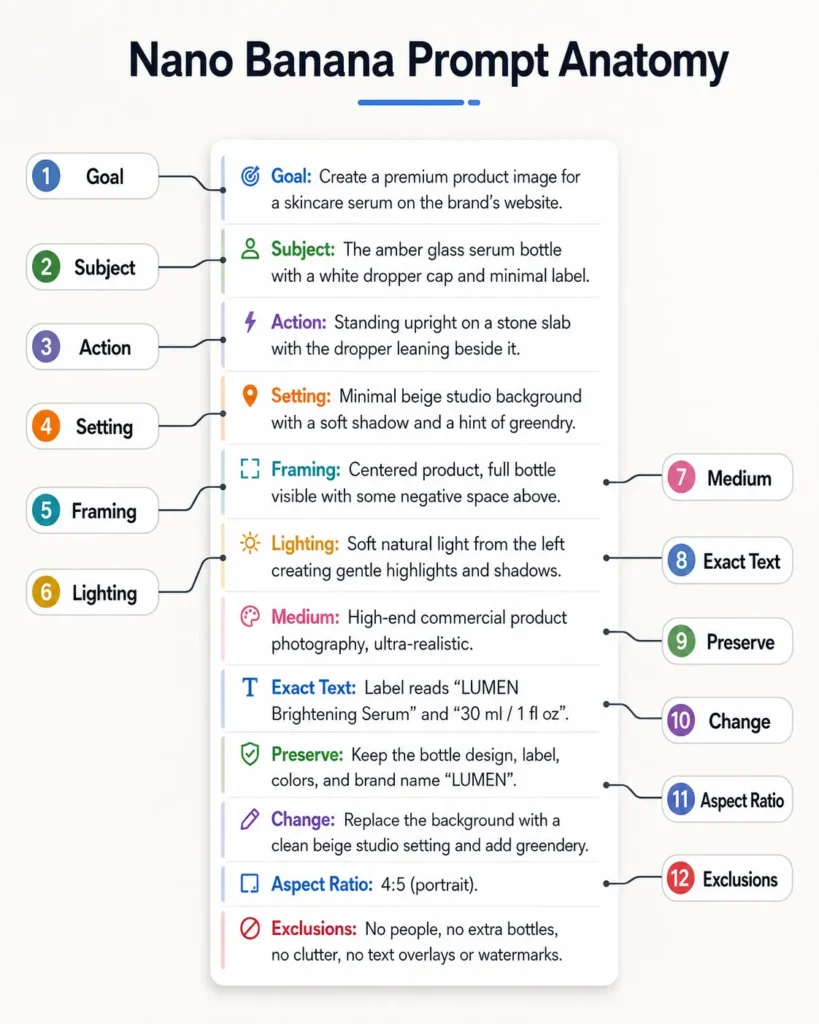
Why “Keep” Clauses Beat “Do Not” Clauses
Google Cloud’s Nano Banana prompting guide recommends positive framing: describe what you want, not what you don’t want. For editing, it advises you to be explicit about what to keep exactly the same. Those two rules point the same direction, and together they are why every prompt on this page carries an explicit preserve clause.
So write Preserve the facial structure, skin tone and hairstyle rather than do not change the face. The first names three things to keep, as the guide asks, and says it positively.
Keep the exclusions at the end of these templates (no text, no logos, no beauty smoothing) short, and let the preserve and change lines carry the main instruction.
Write Your Own Prompt in Five Lines
Every template on this page is a variation of one structure:
Edit the uploaded photo. Preserve SUBJECT_ELEMENTS_VALUE exactly and keep the original identity. Change only CHANGE_ELEMENTS_VALUE. Add STYLE_VALUE, LIGHTING_VALUE and MOOD_VALUE. Keep skin texture and fine detail natural. Output ASPECT_RATIO_VALUE.
Line one carries the job verb (edit, restyle, replace, remove or restore), so the request reads as an edit of your photo.
Line two is the identity lock, the difference between an improved photo of you and a good photo of a stranger.
Line three says what may change. Without it, the prompt gives the edit nothing to do.
Line four sets the look. The word list below gives you terms for it.
Line five does two jobs at once: it asks for natural skin and detail, and it tells the model the frame shape instead of leaving it to chance.
From Weak to Strong: A Worked Example
Here is the same idea written twice. The weak version:
Make the person in the photo look cool in the city at night.
The strong version:
Edit the uploaded photo. Preserve the exact face, facial structure, skin tone, hairstyle and apparent age of the person in it. Change only the outfit to a black leather jacket over a white T-shirt and the background to a rain-wet city street at night. Add neon reflections on the pavement, a soft rim light from behind and a 35mm street-photography look. Keep skin texture and fine detail natural. Output 4:5, photorealistic, no text.
The weak version names no job, nothing to keep and no frame, so each of those is left to Gemini. The strong version fills all five lines: the job verb, the keep list, the one change, the look and the output.
It is a teaching example with no test image, so check its first result the way you would check any new prompt.
Words to Use in the Style Line
Pick one lighting term and one lens term per prompt, so the style line asks for a single look.
| Category | Terms to try |
|---|---|
| Lighting | golden-hour backlight, warm rim light, soft window light, softbox light, single side light, direct on-camera flash |
| Lens and camera | 24mm wide, 35mm street look, 50mm, 85mm portrait lens, shallow depth of field, eye-level, low three-quarter angle |
| Composition | head-and-shoulders, waist-up, full-length, three-quarter pose, centered, empty space on one side for a title |
| Mood and grade | warm amber highlights, teal and amber, muted neutral palette, high-contrast black-and-white, faded film, soft pastel |
| Realism | natural skin texture, visible pores, realistic fabric folds, fine film grain, photorealistic |
Frequently Asked Questions
Can I copy and paste Gemini AI image prompts?
Yes. Copy a prompt from this page, replace the words in capitals with your own details, attach your photo in Gemini, and send it.
Keep the preserve line, because that is the part that keeps your face.
What is the Nano Banana prompt checklist, and do I need all twelve fields?
The checklist is the twelve fields a prompt has to answer before it stops wasting attempts. You do not need all twelve on a simple generation.
You do need job type, preserve, change and aspect ratio on every edit of an existing photo, because those four tell Gemini what to keep, what to change and which frame to return.
How do I change a copied prompt to fit my own photo?
Replace every uppercase placeholder with your own subject, setting, color or style details, then paste the completed prompt into Gemini. Keep the preserve and change clauses unless you deliberately want to move the edit boundary.
If the result comes back too close to your upload, reply in the same chat asking for the restyle to be visible, rather than starting a new chat.
How do I score a prompt before I run it?
Check it against the five common errors above, then judge the result with the six criteria in the result check table. A result that fails identity preservation is a redo, whatever the other five say.
Which parts of an image must I preserve, and which can I let the model change?
Preserve anything a viewer would recognize: a real person’s face, skin tone, age, and any on-image text. Let the model change what you want changed, which is usually background, lighting, clothing and color grade.
Locking the background and the lighting and then asking for a restyle leaves the prompt nothing to restyle.
Why does Gemini hand back my photo almost unchanged?
Check three things: that the prompt opens with an action verb, that it states which elements must visibly differ from the original, and that your preserve list does not include the things you wanted restyled.
If it persists after two rewrites, check whether the preserve list and the change list name the same thing, and take it out of one of them.
Are Nano Banana prompts and Gemini AI photo prompts the same thing?
Yes, for practical purposes. Google’s help page calls the image models in the Gemini app Nano Banana models, so a Gemini photo prompt runs on one of them.
Which Nano Banana model runs depends on the Gemini model you pick, as the model table above shows.
How many photos can I edit per day in the Gemini app?
Google’s pages give no fixed daily number. According to Google’s limits page, without a Google AI plan you get the standard limits, AI Plus gets 2x and AI Pro 4x.
Limits are compute-based and refresh every 5 hours up to a weekly limit, and you can check yours under Settings, then Usage Limits, at the bottom left of gemini.google.com.
Google does refer to a daily quota of Nano Banana 2 images, which is what switches off Redo with Pro when you reach it.
Do Nano Banana images carry a watermark?
Yes, and there are two kinds: an invisible one, and on some plans a visible one.
The invisible watermark. According to Google’s verification help page, SynthID uses invisible watermarks to identify images generated or edited by Google’s AI models. The same page explains how to check an image: upload it to Gemini and ask a verification question such as “Was this image created or edited by Google AI?”
The visible watermark. In its Nano Banana Pro announcement of November 2025, Google said it would keep a visible watermark, the Gemini sparkle, on images generated by free and Google AI Pro tier users. It said it would remove the visible watermark from images generated by Google AI Ultra subscribers and within the Google AI Studio developer tool. That is the policy as Google announced it then; the announcement’s watermark statement does not mention Google AI Plus.
This page offers no prompt that tries to remove either one.
Why is Gemini ignoring my aspect ratio?
Put the ratio in its own sentence at or near the end of the prompt and write it as numbers, 9:16 rather than “vertical”. Use one of the ratios listed in the aspect ratio section.
If the frame comes back the wrong shape, ask for the crop as a follow-up turn on the returned image.
What do I do after a prompt works?
Download the result at full size, and put it beside your original photo once more: keep it only if it still looks like you.
Save the prompt with the input type it expects and the crop it produces. Then run the identical prompt a second time on a different photo before you rely on it, because a prompt that produces one good image and one unusable one is not ready for a whole set.