
A Gemini couple photo prompt is a copy-ready image instruction that tells the Gemini app to restyle one photo of two people, or merge two separate portraits, while keeping both faces recognizable.
These prompts are written for the Gemini model set to Flash or Pro. Flash-Lite runs Nano Banana 2 Lite, which Google says isn’t designed for multiple image references or for multiple edits.
The quick start:
- Set the Gemini model to Flash or Pro before you make the image request.
- Upload one photo of both of you (prompts 1-40) or two separate portraits (prompts 41-50).
- Paste one prompt unedited and submit it.
- Check each face on its own at full zoom, then repair one thing per turn.
Every Gemini fact here comes from Google’s own Help, policy and blog pages, checked October 16, 2026. Nano Banana 2, introduced on February 26, 2026 as Gemini 3.1 Flash Image, is the image model behind Flash and Pro. The image under each prompt is the example image for that prompt.
In This Article (14 sections)
50 Gemini Couple Photo Prompts to Copy and Paste
Prompts 1-40 start from one photo that already shows both people; prompts 41-50 start from two separate portraits, usually one selfie each. Pick a couple photo idea by the photo you have and the occasion:
| Group | Prompts | Input | Good for | Ratios |
|---|---|---|---|---|
| Romantic and cinematic | 1-10 | One shared photo | Romance and love posts: anniversaries, date nights, travel looks | Mostly 4:5; 3 is 9:16, 6 is 1:1, 9 is 3:2 |
| Everyday and candid | 11-20 | One shared photo | Natural shots that should not look staged | Mostly 4:5; 16 is 1:1; 13, 18 and 20 are 3:2 |
| Retro, black and white and film | 21-30 | One shared photo | Aesthetic feeds: 90s flash, monochrome, instant film, editorial | 4:5, plus 1:1 (22, 23, 29) and 3:2 (26, 28) |
| Anniversary, engagement and holiday | 31-40 | One shared photo | Milestones, save-the-dates, holiday cards | Mostly 4:5; 35 is 9:16, 36 is 1:1, 38 is 3:2 |
| Two-photo | 41-50 | Two separate portraits | Long-distance couples with no shared photo | Mostly 4:5; 42 and 45 are 3:2, 46 is 9:16 |
| Trending variants | A-D | One shared photo | Mirror selfie, matching outfits, photo strip | 9:16 (A, D) and 4:5 (B, C) |
To pick by look instead of occasion:
- Romance and love: start in prompts 1-10. The touch carries the romance there (hand holding in prompts 1 and 4, a hand on the arm in prompt 6), so check the hands first. For a Valentine’s Day love post, use prompt 36, which bans hearts and words.
- Luxury: use prompts 5, 25, 30 or 35, which already ask for evening wear, tailored outfits or elegant dark clothing. Steer a luxury look by naming the fabric or cut in the wardrobe words. Keep each prompt’s ban on logos or readable text, so no brand name renders.
- Aesthetic: prompts 8, 23 and 27 give a soft, faded or neutral palette. Change the color words, never the preserve clause.
Every prompt carries a preserve clause, a change scope, an output ratio and an exclusion line. The two-photo prompts swap the change scope for a role per upload and a rule against blending the faces.
For a headshot of one person, the AI headshot prompt library is the closer fit.
For good Gemini prompts for photos of other subjects, start from the broader Nano Banana prompt hub instead.
Romantic and Cinematic Gemini Couple Prompts (1-10)
These ten romantic couple photo ideas restyle one photo of the two of you as a golden-hour, blue-hour, rainy neon, beach, candlelit, studio, lakeside, window-light, street or fairground scene. Each keeps both faces as the reference and changes the setting, light and grade; where a prompt also moves the pose or clothing, its change scope says so.
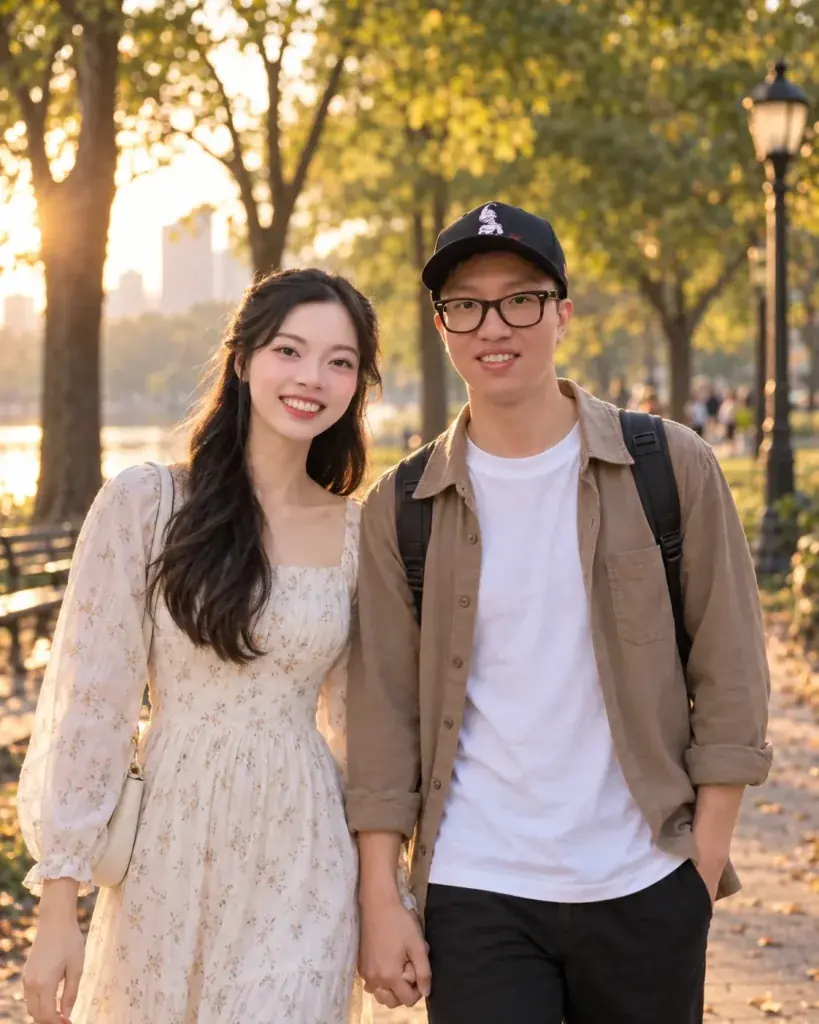
1. Golden Hour Park Walk
Use it for: an anniversary post built from a photo you already like. Input: one photo of both people.
Use the uploaded couple photo as the identity reference for both people. Keep both faces recognizable, keep their relative positions and their natural proportions, and restyle the scene as a quiet park walk at golden hour. Add warm backlight through the trees, long soft shadows, relaxed hand holding, natural smiles and shallow depth of field with realistic skin texture. Change only the background, the lighting, the color grade and small adjustments to pose direction. Output 4:5. Add no extra people and no readable text.Check first: both faces, the hand contact, and whether the frame came back at the ratio you asked for.
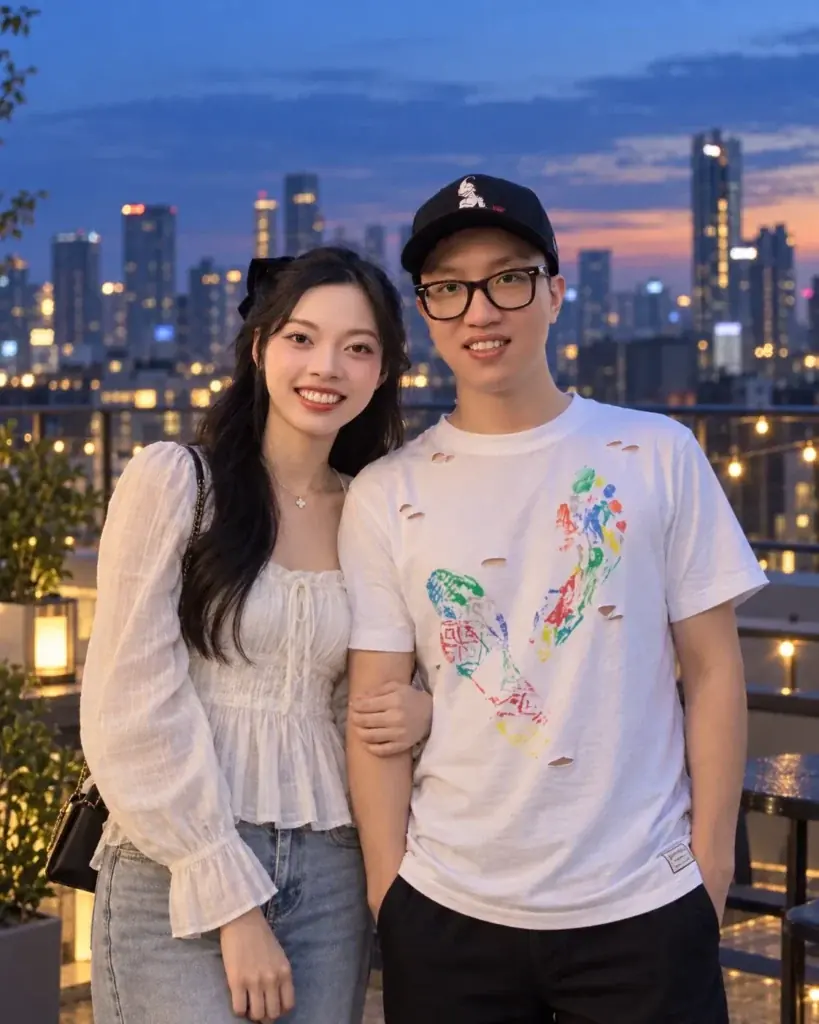
2. Rooftop at Blue Hour
Use it for: a city couple portrait with depth behind it. Input: one photo of both people.
Edit the uploaded couple photo into a rooftop portrait at blue hour. Preserve both recognizable faces, both hairstyles, both skin tones and the overall proportions of each person. Keep the couple close together and shoulder to shoulder, both fully visible and looking toward the camera with calm expressions. Add a softly blurred skyline, warm practical lights, a cool evening sky and cinematic contrast that still looks like a photograph. Change only the setting, the lighting and the color treatment. Output 4:5. Render no readable signage.Check first: that neither face has borrowed features from the other, and that no skyline signage rendered as garbled lettering.
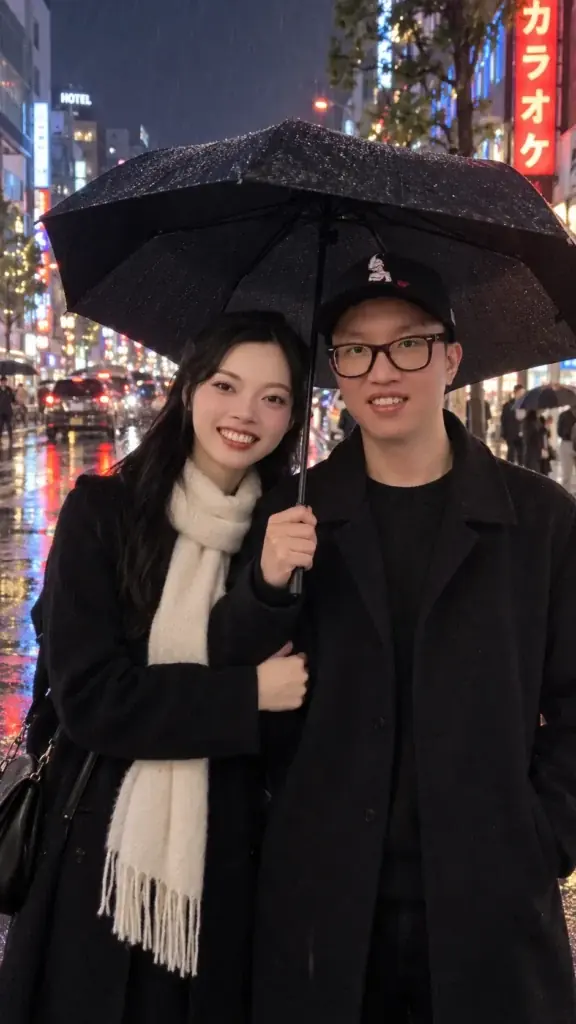
3. Rain and Neon Street
Use it for: a moody rainy-night image that hides a plain original background. Input: one photo of both people.
Use the uploaded couple photo as the identity reference. Keep both people recognizable and preserve their basic pose and clothing silhouette. Place them under one dark umbrella on a rain-wet city street at night, with soft neon reflections on the pavement, gentle side light falling on both faces, realistic raindrops and a restrained cinematic color grade. Change only the environment, the lighting and the weather. Output 9:16 for a vertical story frame. Add no extra people in the foreground.Check first: umbrella geometry, both sets of hands, and whether the reflections invented a third figure.
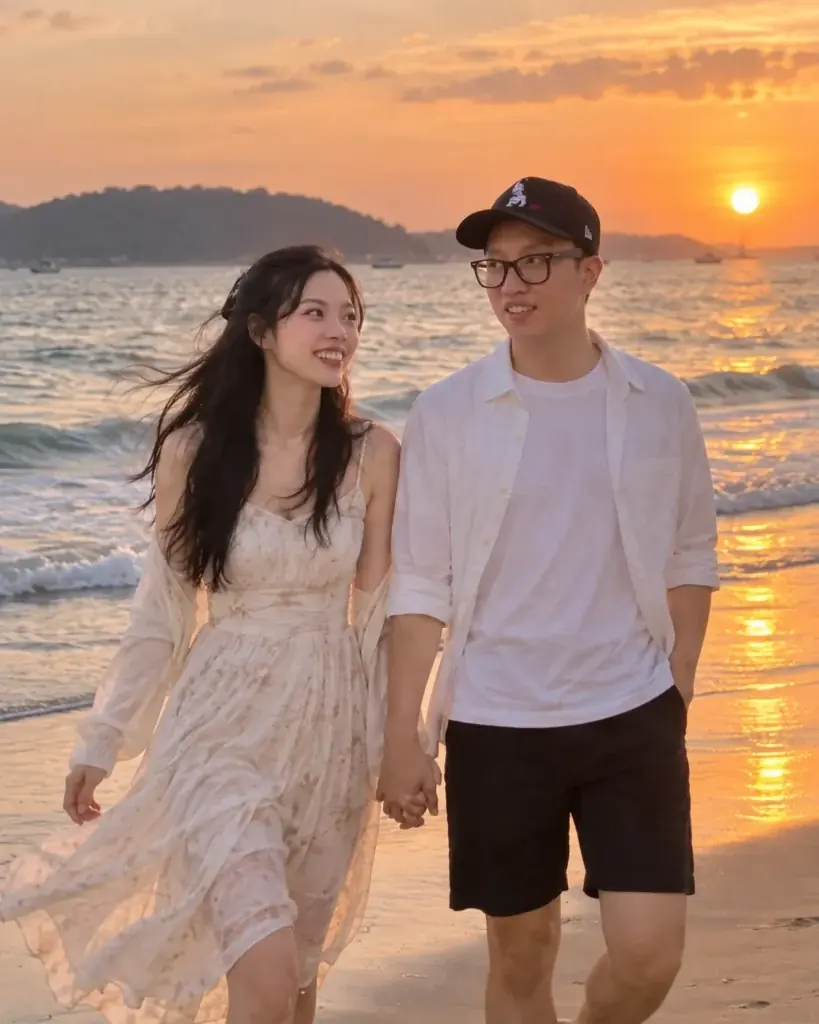
4. Beach Walk at Sunset
Use it for: a warm travel-style image without a real trip. Input: one photo of both people.
Restyle the uploaded couple photo as a quiet beach walk at sunset. Preserve both recognizable faces, both hairstyles, both skin tones and natural proportions. Show the couple walking side by side near the waterline with hands loosely connected, low warm sunlight, gentle reflections on wet sand, wind moving their clothing naturally and a soft cinematic background. Change only the pose direction, the environment and the lighting. Output 4:5. Add no extra people.Check first: hands, feet and both faces, because the pose change is the part of this prompt that touches likeness.
5. Candlelit Dinner
Use it for: a date-night image with a controlled, flattering light source. Input: one photo of both people.
Edit the uploaded couple photo into an intimate restaurant dinner portrait. Keep both people recognizable, preserve their apparent ages and natural facial proportions, and seat them across a small table turning slightly toward each other. Add warm candlelight, soft window reflections behind them, a dark neutral background, shallow depth of field and realistic skin texture. Change only the setting, the seated pose, the lighting and the clothing, which should read as understated evening wear. Output 4:5. Keep menus and labels free of readable text.Check first: fingers near glassware or cutlery, and any lettering that appeared on menus or labels.
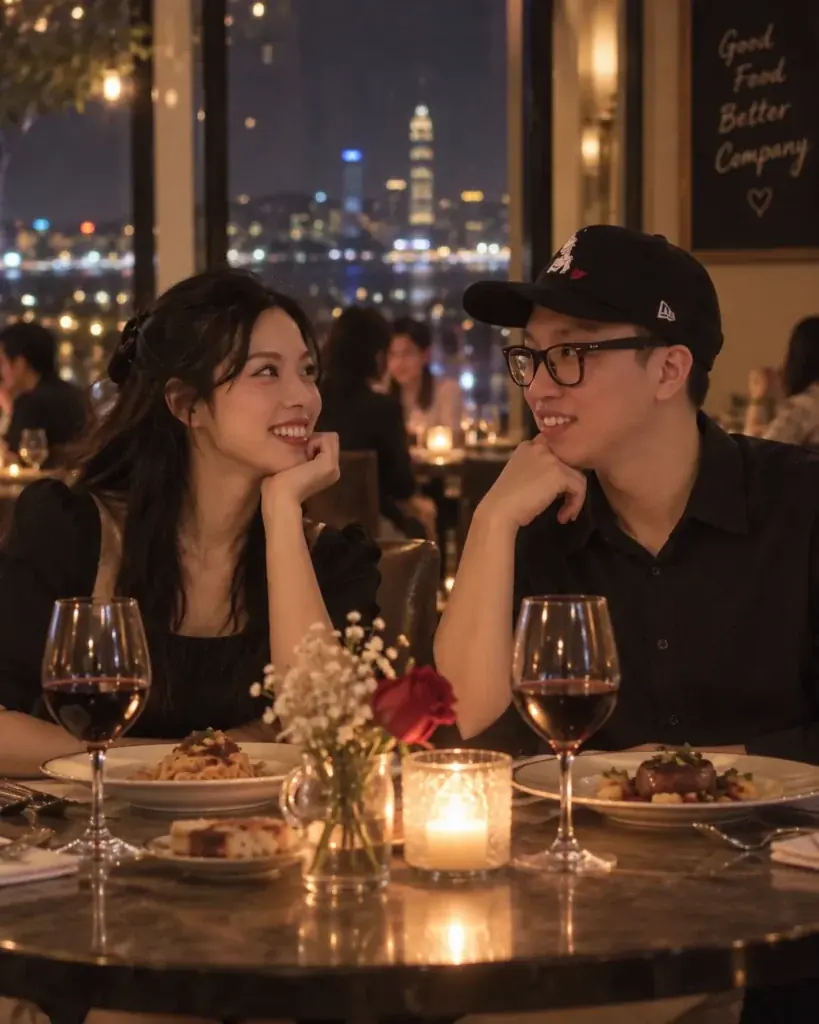
6. Soft Studio Embrace
Use it for: a clean portrait that will crop well for a profile or a print. Input: one photo of both people.
Use the uploaded couple photo as the identity reference. Keep both people recognizable and preserve their natural proportions. Recompose them into a waist-up studio portrait with shoulders touching and one person's hand resting naturally on the other's upper arm. Use a warm gray backdrop, one large soft key light, gentle fill, realistic skin texture and restrained retouching. Change only the pose, the background, the lighting and the clothing, which should be coordinated neutral tones. Output 1:1. Add no props and no text.Check first: hand placement, both jawlines and both sets of eyes.
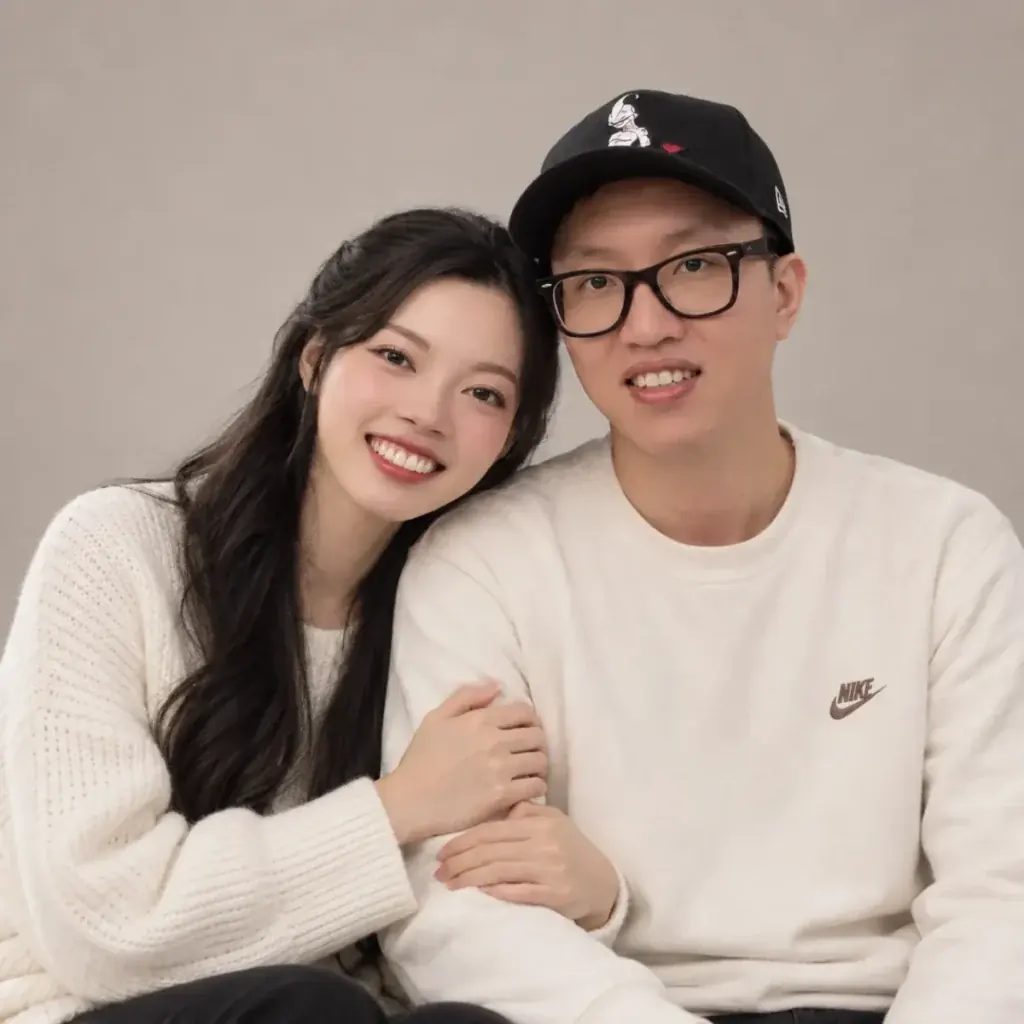
7. Lakeside After Dark
Use it for: a calm, low-key portrait with almost no background clutter. Input: one photo of both people.
Transform the uploaded couple photo into a calm lakeside evening portrait. Preserve both recognizable faces, both hairstyles, both skin tones and their body proportions. Place the couple close together near still water with soft moonlit ambience, a faint warm lantern glow from one side, subtle reflections, deep blue tones and natural expressions. Keep the mood understated rather than fantastical. Change only the location, the lighting and the color grade. Output 4:5. Add no extra people and no text.Check first: whether the low light flattened or altered either face.
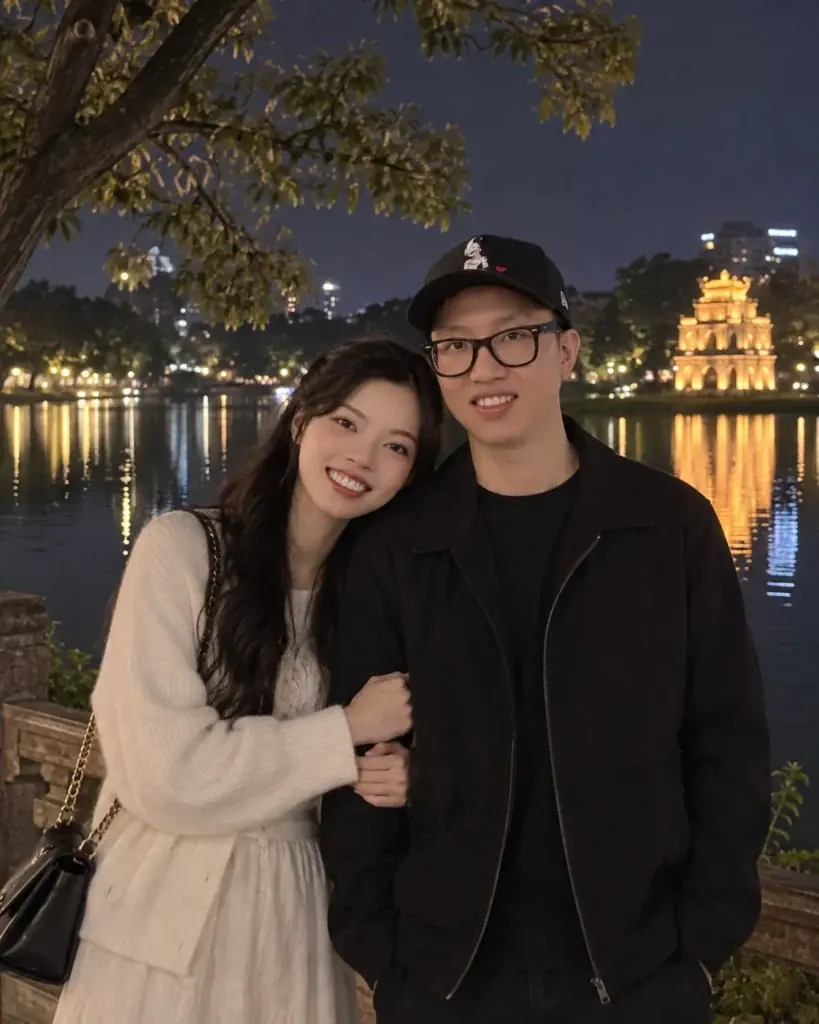
8. Window Light in the Morning
Use it for: a soft, honest-looking image that needs no props. Input: one photo of both people.
Edit the uploaded couple photo into a quiet morning portrait beside a large window. Preserve both recognizable identities, both hairstyles, both skin tones and natural proportions. Show them standing close with relaxed expressions, soft overcast daylight wrapping both faces evenly, sheer curtains, neutral interior colors and a documentary photography feel. Change only the setting, the light and the clothing, which should be simple casual loungewear. Output 4:5. Add no extra people and no readable text.Check first: skin texture, facial symmetry, and whether one face is blown out by the window while the other is not.
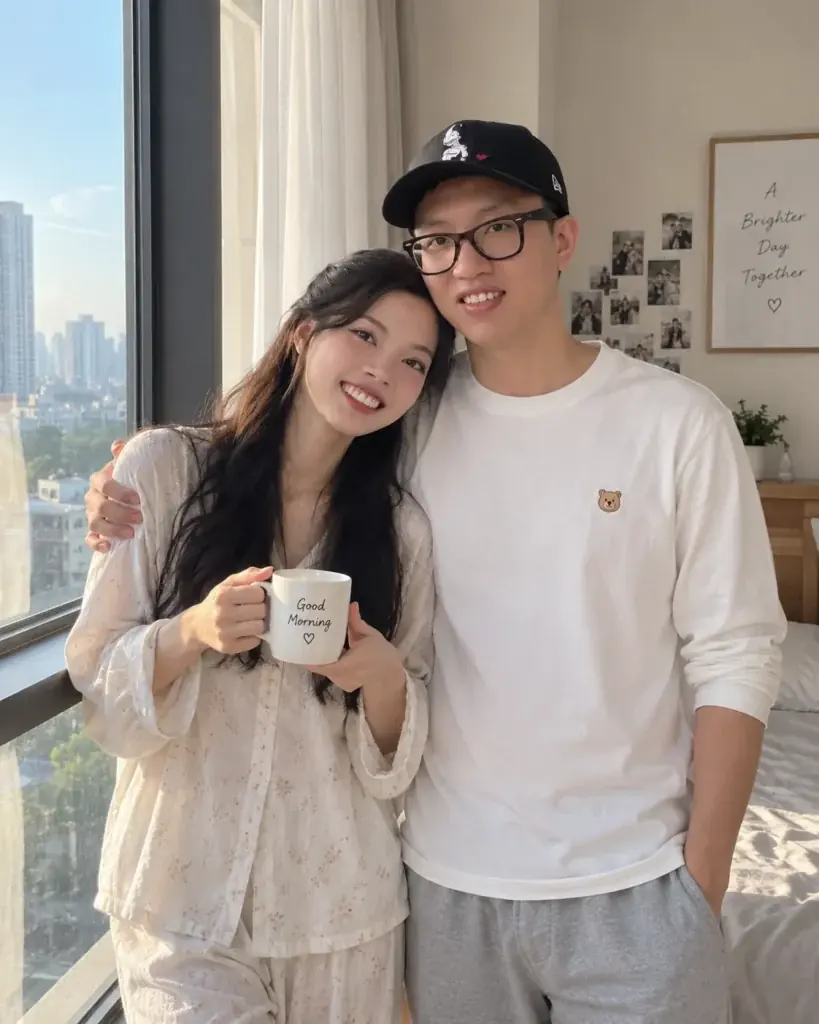
9. Downtown Crosswalk
Use it for: a candid street image with motion in it. Input: one photo of both people.
Use the uploaded couple photo as the reference for both people. Keep their faces recognizable and preserve their natural body proportions. Create a candid image of them crossing a broad downtown street together, mid-step and smiling, in late afternoon light with gentle background motion, crisp faces, realistic street perspective and coordinated casual outfits. Change the environment and the walking pose while keeping both identities stable. Output 3:2. Avoid readable brand names, storefront signs or license plates.Check first: legs and feet, both faces, and any text that crept into the background.
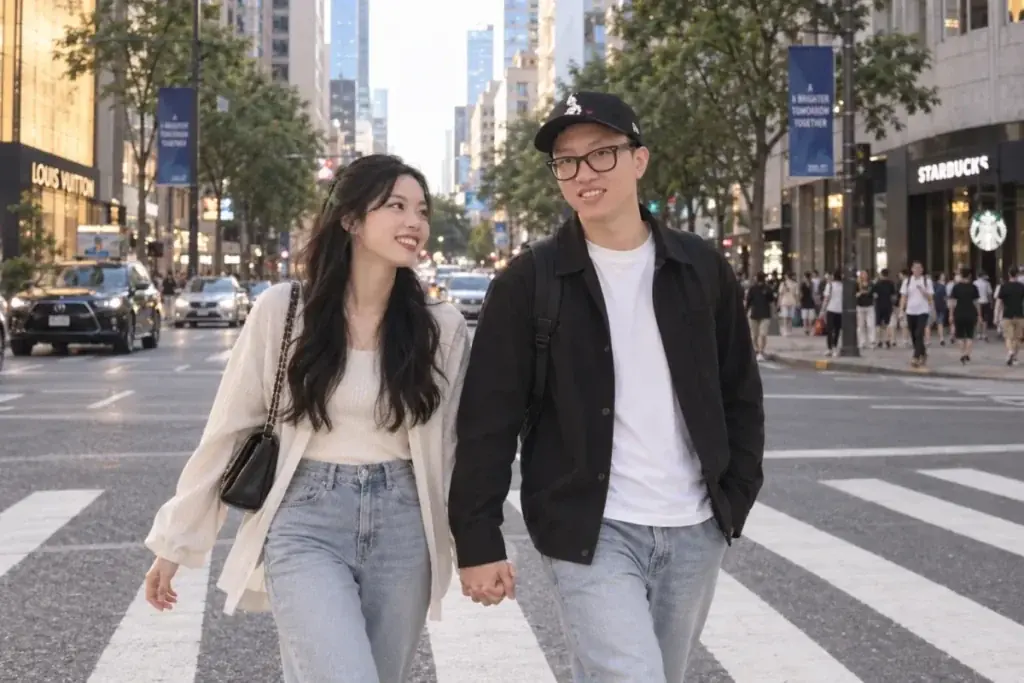
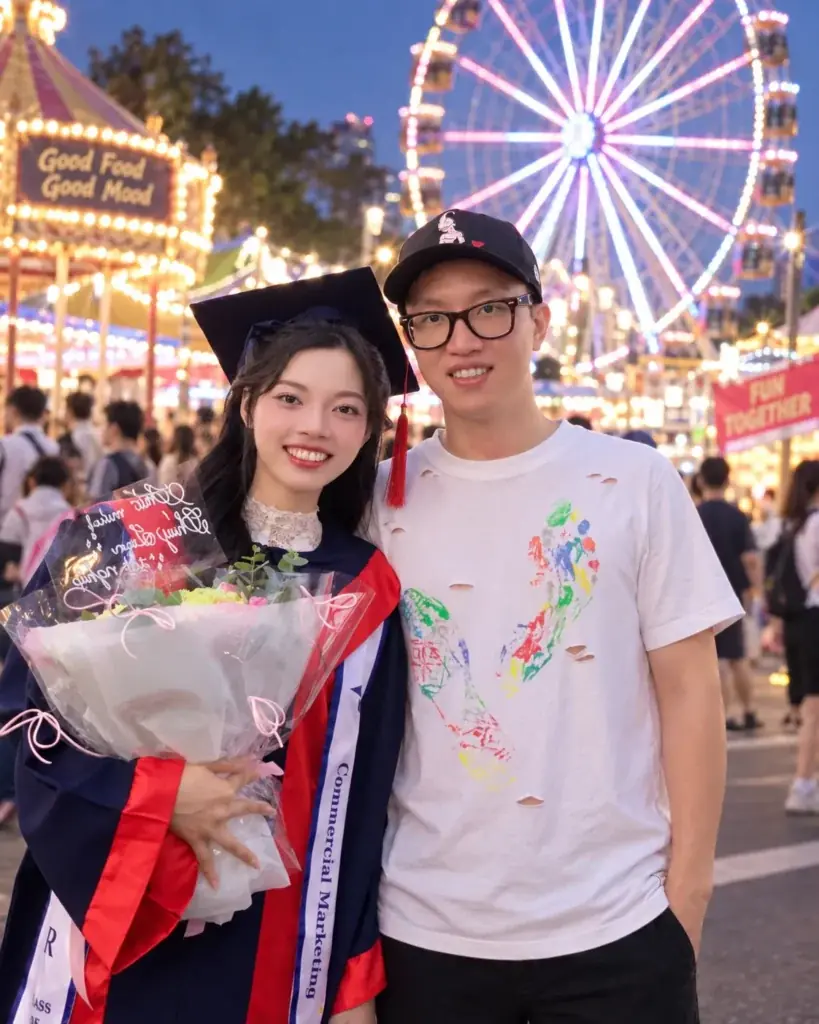
10. Ferris Wheel Evening
Use it for: a warm, high-contrast image with soft bokeh behind the couple. Input: one photo of both people.
Restyle the uploaded couple photo as an evening fairground portrait near a softly glowing Ferris wheel. Preserve both recognizable faces, both hairstyles, both skin tones and their proportions. Keep the couple close together in a natural standing pose with warm bulbs behind them, a cool twilight sky, subtle bokeh and candid smiles. Change only the background, the lighting, the clothing colors and minor pose direction. Output 4:5. Do not add extra people in the foreground.Check first: both faces, and the hair edges where the bulbs sit directly behind them.
Everyday, Candid and Cozy Couple Photo Prompts (11-20)
These ten one-photo prompts turn a posed picture into a candid everyday moment, from a coffee shop window seat to a neighborhood dog walk. They change the scene and the pose, so each one names both identities before it moves anyone.
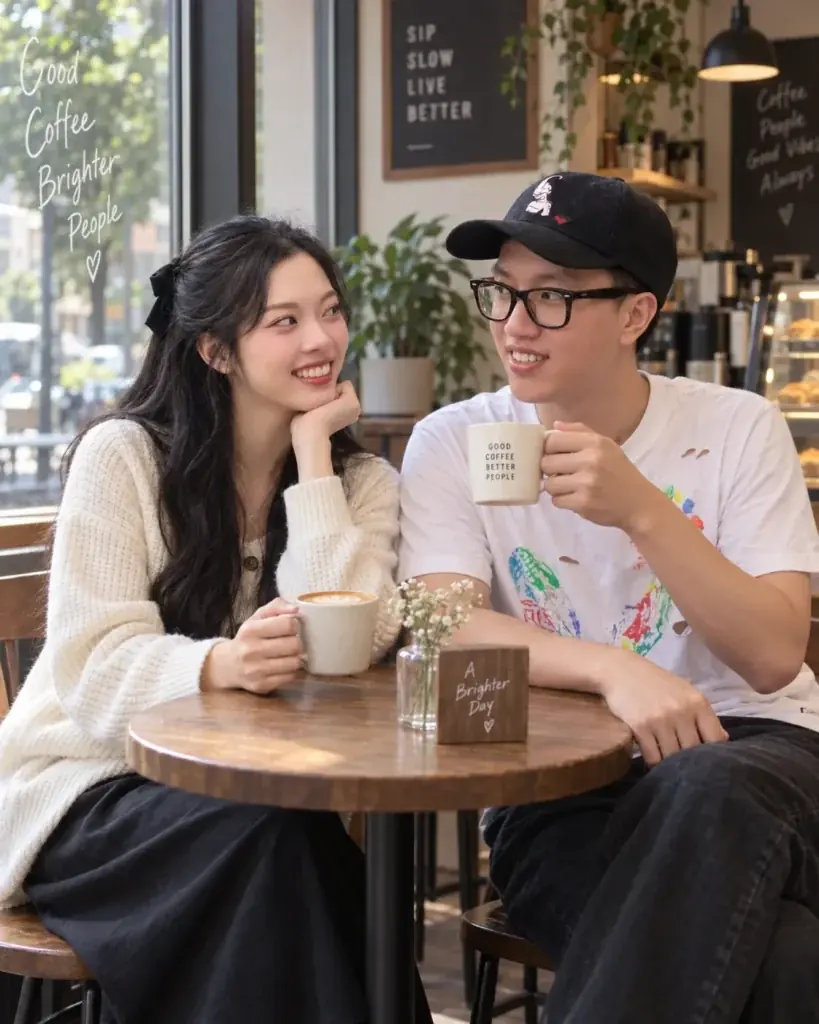
11. Coffee Shop Window Seat
Use it for: a natural image that does not look staged. Input: one photo of both people.
Edit the uploaded couple photo into a candid coffee shop scene. Keep both people recognizable and preserve their natural facial proportions. Seat them near a window with one cup each, talking and smiling naturally, in soft morning daylight with warm wood textures, mild background activity held in soft focus and realistic casual clothing. Change only the setting, the seated pose and the lighting. Output 4:5. Keep any background text unreadable or absent.Check first: hands around the cups, and both faces in three-quarter view.
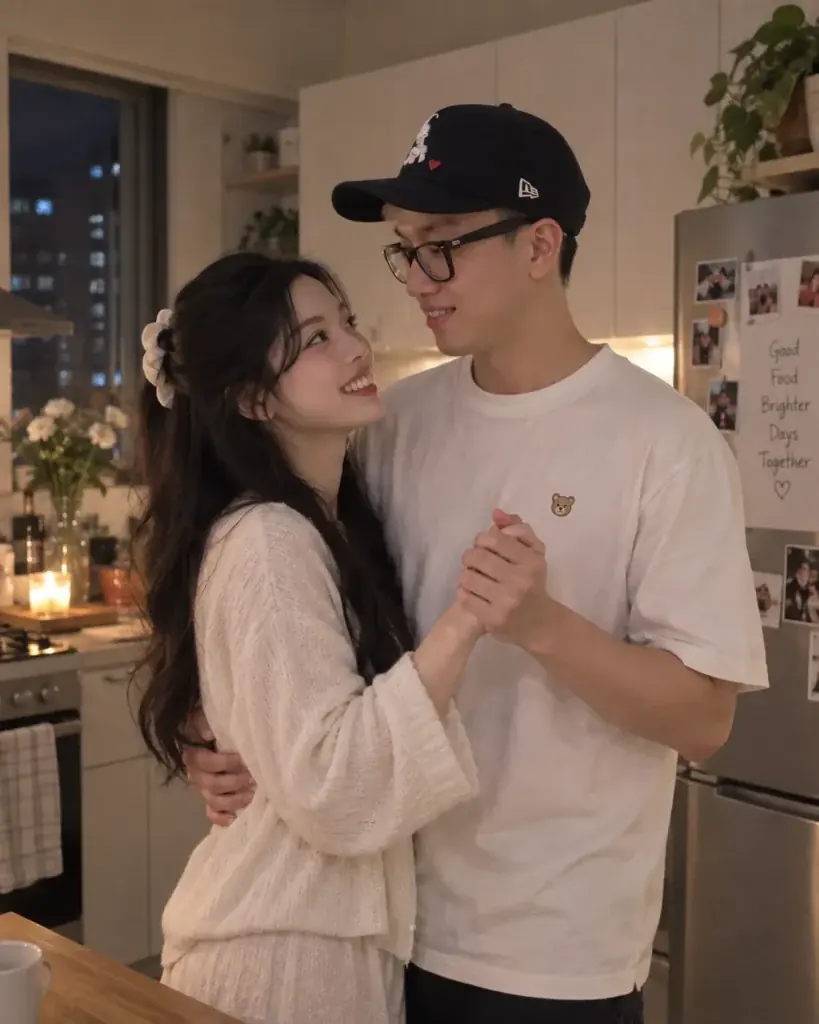
12. Kitchen Slow Dance
Use it for: a warm at-home image with real body language. Input: one photo of both people.
Use the uploaded couple photo as the identity reference. Preserve both recognizable faces, both hairstyles, both skin tones and their body proportions. Recompose the couple slow dancing in a modest home kitchen at night, with warm pendant lights, relaxed smiles, natural hand placement, subtle movement in the clothing and a documentary snapshot feel. Change only the pose, the setting and the lighting. Output 4:5. Do not add other people.Check first: the interlocked hands, both arms, and whether the closer pose blended the two faces.
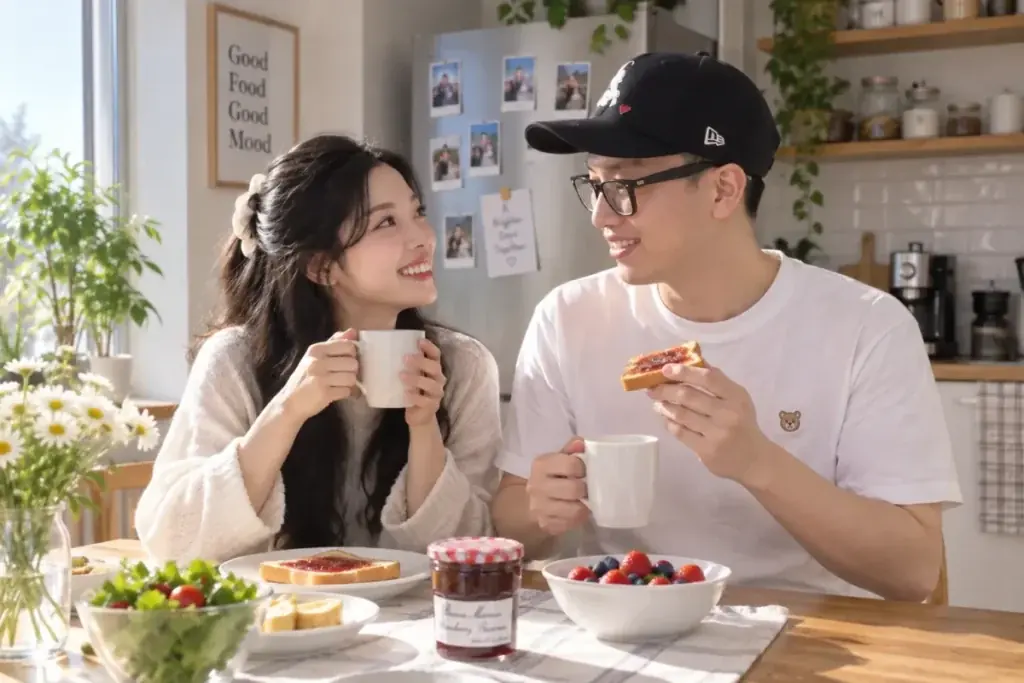
13. Sunday Breakfast
Use it for: a bright, low-drama lifestyle image. Input: one photo of both people.
Transform the uploaded couple photo into a bright Sunday breakfast scene at a small kitchen table. Keep both people recognizable and preserve their apparent ages and proportions. Show them sharing coffee and toast with relaxed expressions, soft morning window light, simple neutral decor and realistic everyday clothing. Change only the setting, the seated pose and the lighting, and keep a natural lifestyle photograph look. Output 3:2. Render no readable text.Check first: fingers, cup handles and both faces.
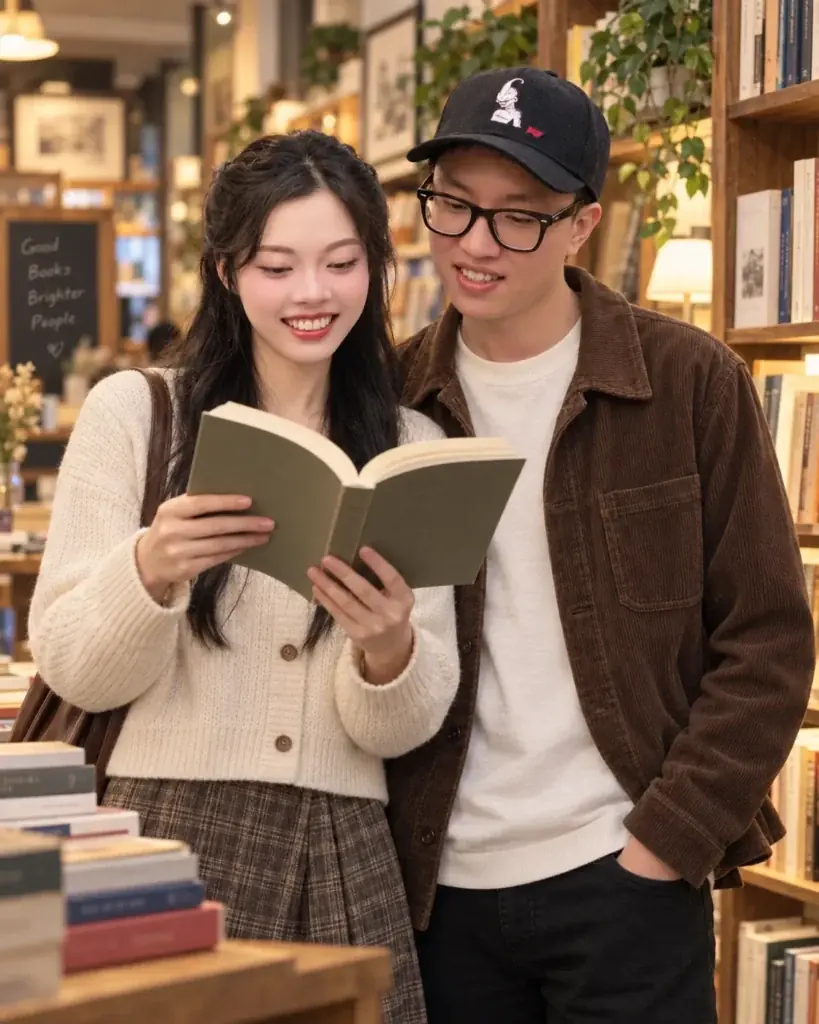
14. Bookstore Browse
Use it for: a quiet image with a strong sense of place. Input: one photo of both people.
Edit the uploaded couple photo into a candid independent bookstore scene. Preserve both recognizable faces, both hairstyles, both skin tones and natural proportions. Place one person holding an open book while the other looks over with a small smile, surrounded by softly blurred wooden shelves and warm window light. Change only the setting, the pose and the clothing, which should read as smart casual. Output 4:5. Keep book covers and shelf signs free of invented readable text.Check first: the hands on the book, and any lettering the model tried to render on the spines.
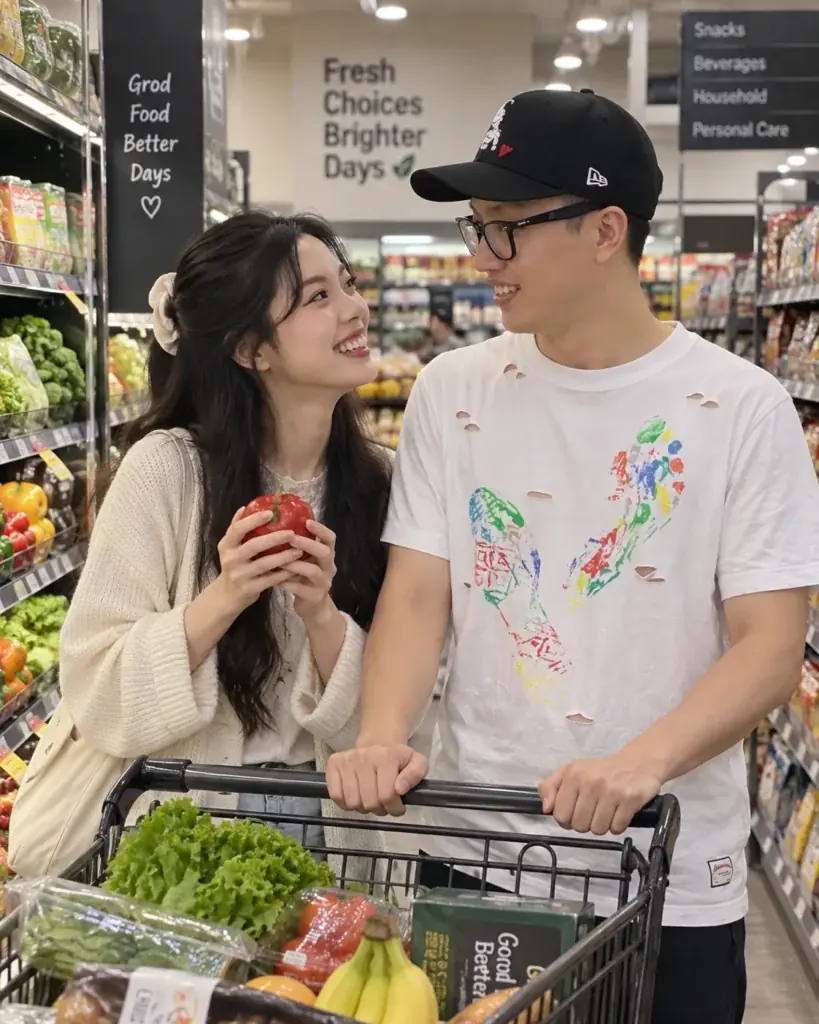
15. Grocery Aisle Laugh
Use it for: an unglamorous, believable everyday image. Input: one photo of both people.
Use the uploaded couple photo as the reference and keep both identities recognizable. Create a casual grocery store moment where the couple stands beside a cart laughing at each other, with soft overhead lighting, realistic shelves behind them, candid body language and everyday clothing. Change only the environment and the pose. Output 4:5. Do not render legible product labels and do not add other shoppers in the foreground.Check first: cart geometry, both sets of hands, both faces, and packaging text.
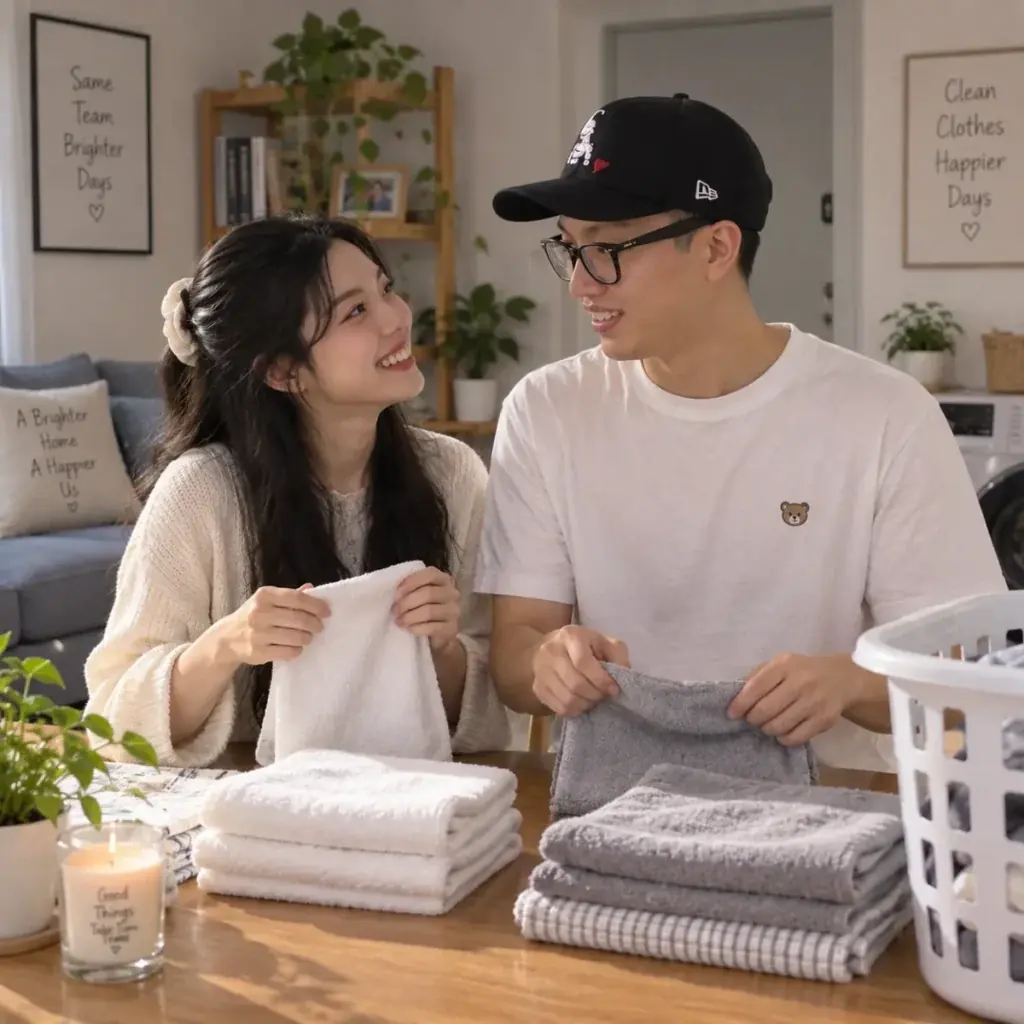
16. Laundry Day Snapshot
Use it for: a playful image that needs no location. Input: one photo of both people.
Restyle the uploaded couple photo as a playful home laundry day snapshot. Preserve both recognizable faces, both hairstyles, both skin tones and their proportions. Show them folding clean towels together at a table, with bright diffuse daylight, neutral home colors, slight candid movement and relaxed smiles. Change only the setting, the pose and the casual clothing, and keep the result photorealistic and uncluttered. Output 1:1. Add no extra people and no text.Check first: fingers, fabric edges and both faces.
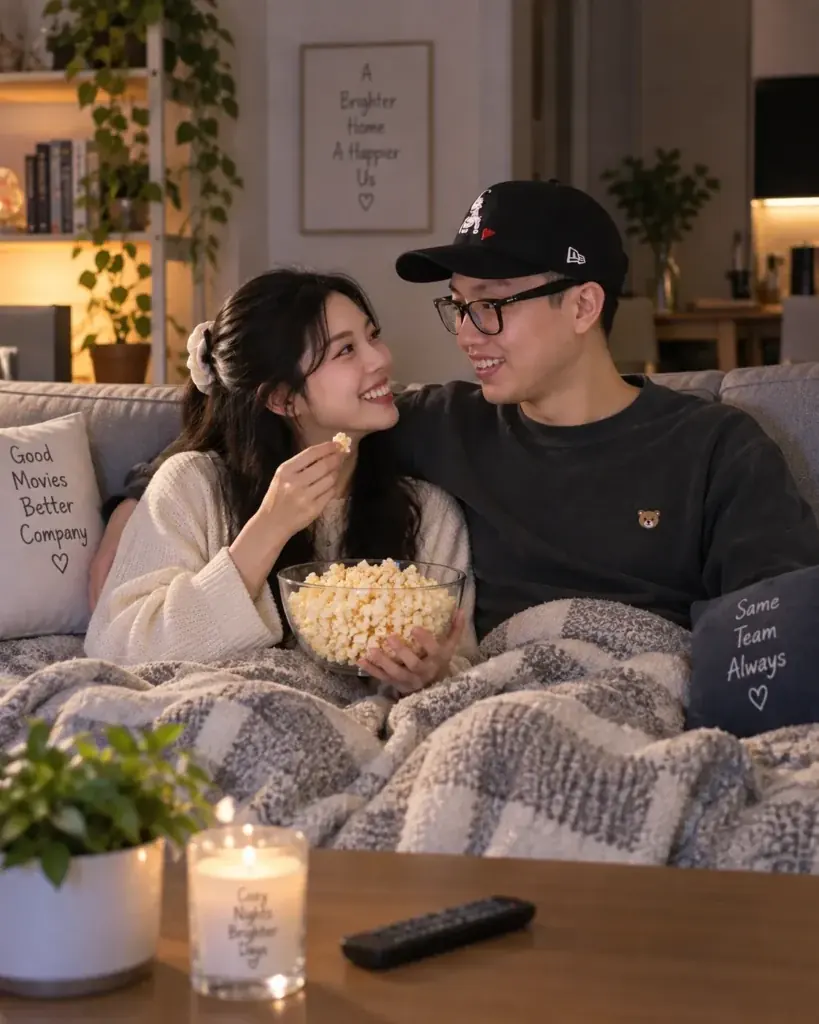
17. Sofa Movie Night
Use it for: a cozy image where both faces stay close to camera. Input: one photo of both people.
Edit the uploaded couple photo into a cozy movie night portrait on a sofa. Keep both people recognizable and preserve their natural proportions. Seat them close together under a simple blanket with one person holding a bowl of popcorn, warm lamp light, a subtle screen glow, relaxed expressions and realistic home textures. Change only the setting, the seated pose and the lighting. Output 4:5. Do not render readable text on any screen.Check first: hands, the bowl, the blanket overlap where the two bodies meet, and both faces.
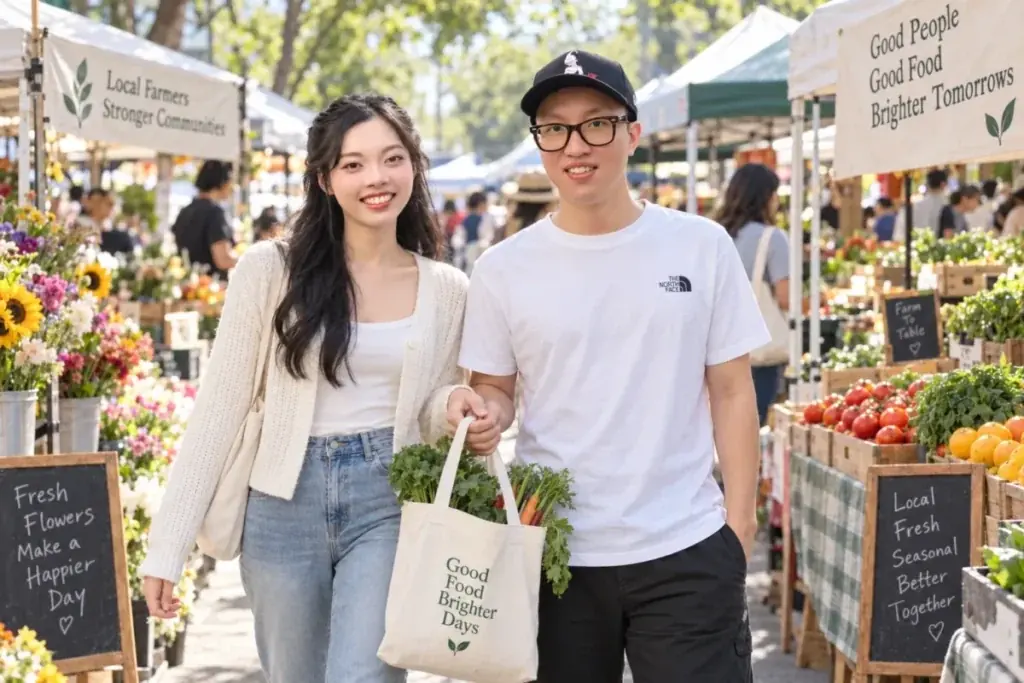
18. Farmers Market Morning
Use it for: a colorful outdoor image with soft light. Input: one photo of both people.
Use the uploaded couple photo as the identity reference. Preserve both recognizable faces and natural proportions. Place the couple walking through an outdoor farmers market in soft morning light, carrying one small reusable bag between them, with colorful produce and flowers blurred behind them, candid smiles and casual weekend clothing. Change only the environment, the walking pose and the lighting. Output 3:2. Keep all stall signs unreadable.Check first: fingers, the bag handles, both faces, and background signage.
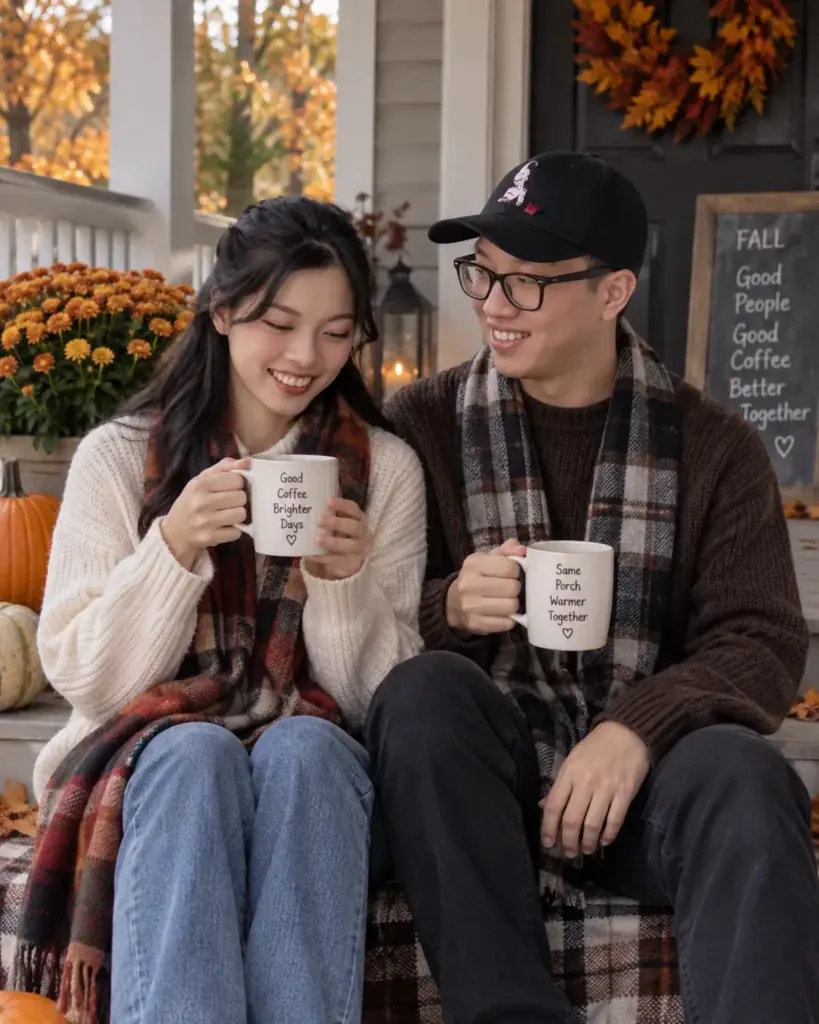
19. Porch Coffee in Fall
Use it for: a seasonal image with a restrained palette. Input: one photo of both people.
Transform the uploaded couple photo into a quiet autumn porch scene. Preserve both recognizable faces, both hairstyles, both skin tones and their body proportions. Seat them side by side with warm mugs, muted orange leaves behind them, soft overcast light, knit layers and natural relaxed expressions. Change only the setting, the clothing and the light. Output 4:5. Keep the image understated and realistic, and render no readable text.Check first: mug handles, hands, and whether the wardrobe change altered either jawline or hairline.
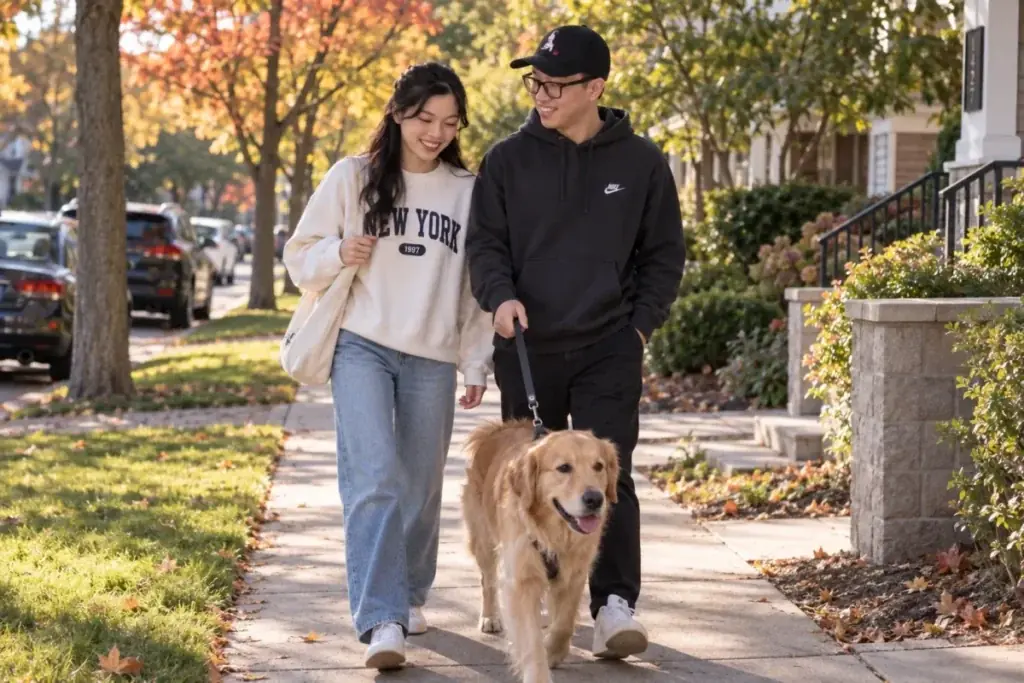
20. Neighborhood Dog Walk
Use it for: an image that adds a pet without a photo of one. Input: one photo of both people.
Edit the uploaded couple photo into a neighborhood dog walk scene. Preserve both recognizable faces and natural proportions. Show the couple walking side by side in early evening light with one calm medium-sized dog on a leash, relaxed smiles, realistic sidewalk perspective and casual clothing. Change only the environment and the walking pose, and add the dog. Output 3:2. Keep the leash and both hands anatomically coherent, and render no readable signage.Check first: leash continuity from hand to collar, the dog’s anatomy, and both faces.
Retro, Black and White and Film Couple Prompts (21-30)
Put the preserve clause right next to the look, because a style instruction reaches the whole frame. Each of these ten prompts names both faces beside its 90s flash, black and white, sepia, instant film (the Polaroid look) or editorial treatment.
If you want one fixed decade rather than a general retro look, the 1985 flashback couple prompts set the same clause against a fixed year.
21. Nineties Direct Flash Snapshot
Use it for: a deliberately imperfect image that reads as a real old photo. Input: one photo of both people.
Restyle the uploaded couple photo as a 1990s direct flash snapshot. Preserve both recognizable faces, both hairstyles, both skin tones and their basic pose. Add a modest indoor party background, hard on-camera flash, gentle grain, a slightly warm color cast, natural imperfections and simple period-neutral clothing without logos. Change only the visual treatment, the background and the wardrobe. Output 4:5. Do not add date stamps or any text overlay.Check first: whether the retro treatment changed either person’s apparent age or facial structure.
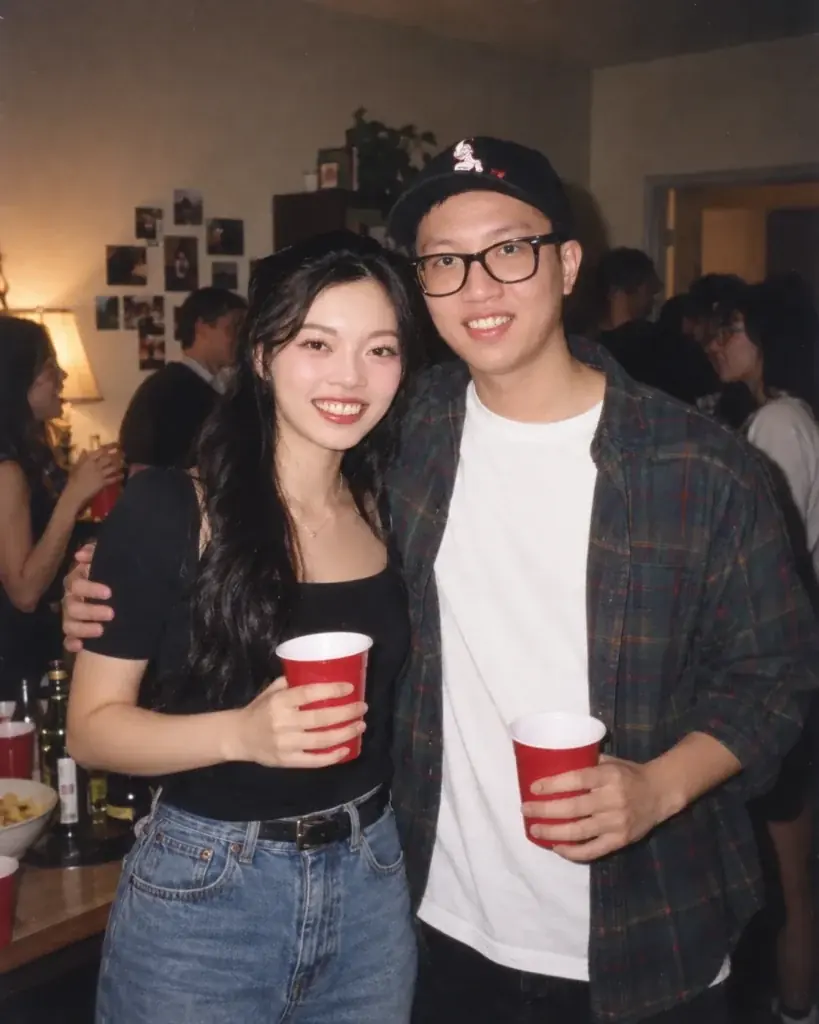
22. Black and White Studio
Use it for: a formal portrait that survives heavy cropping. Input: one photo of both people.
Use the uploaded couple photo as the identity reference. Keep both people recognizable and preserve their natural proportions. Create a classic black and white studio portrait against a dark gray studio sweep, with one soft directional key light, detailed shadow retention, subtle film grain and calm expressions. Recompose to a waist-up pose with shoulders touching. Change only the pose, the background, the monochrome treatment and the clothing, which should be simple and dark. Output 1:1. Add no props and no text.Check first: both sets of eyes, both jawlines, and whether shadow detail survived on the darker skin tone.
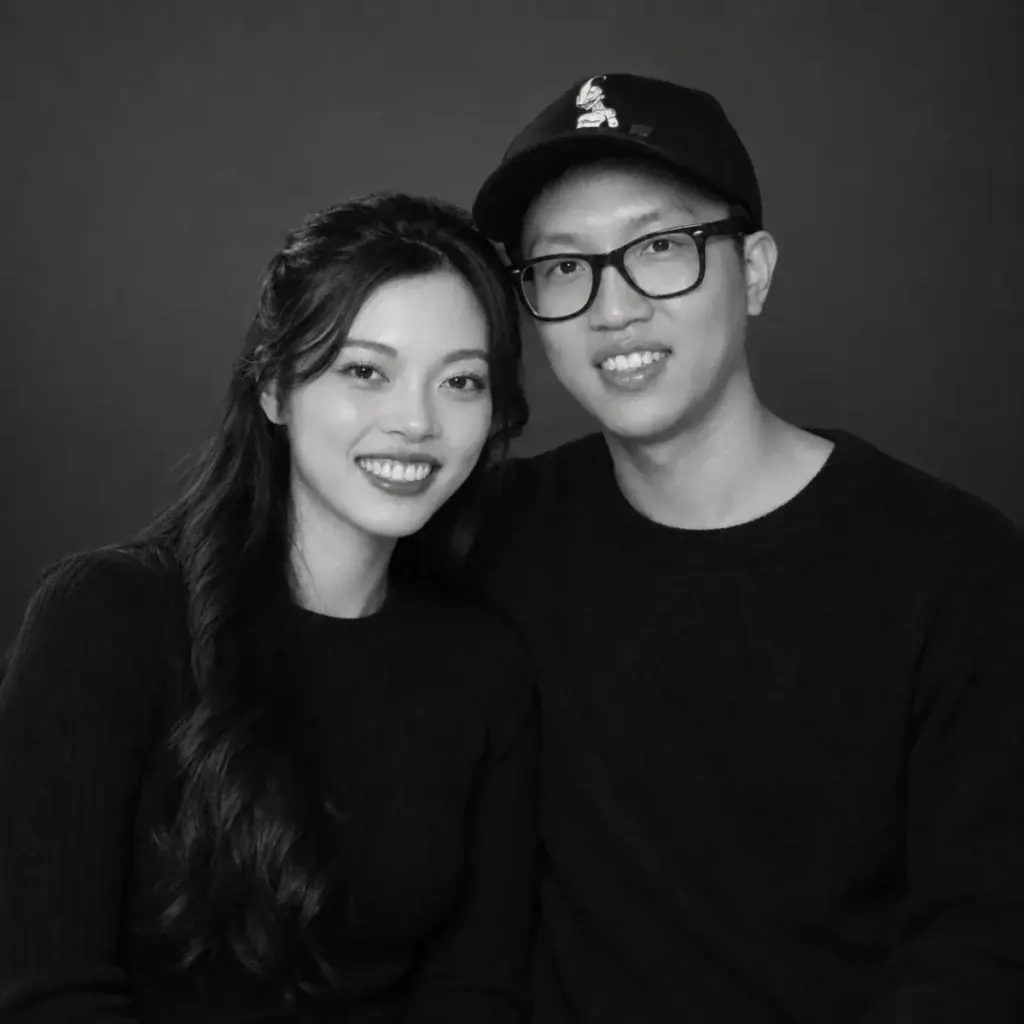
23. Instant Film Living Room
Use it for: a casual keepsake look, the one most people call a Polaroid. Input: one photo of both people.
Edit the uploaded couple photo into a casual instant film style living room snapshot. Preserve both recognizable faces, both hairstyles, both skin tones and their proportions. Keep the couple standing close with one arm around the other, use soft direct flash, slight softness toward the edges of the frame, warm faded colors, plain curtains and simple home decor. Change only the setting, the lighting and the treatment. Output 1:1 with no border text.Check first: both faces under flash, and the arm overlap where the two bodies meet.
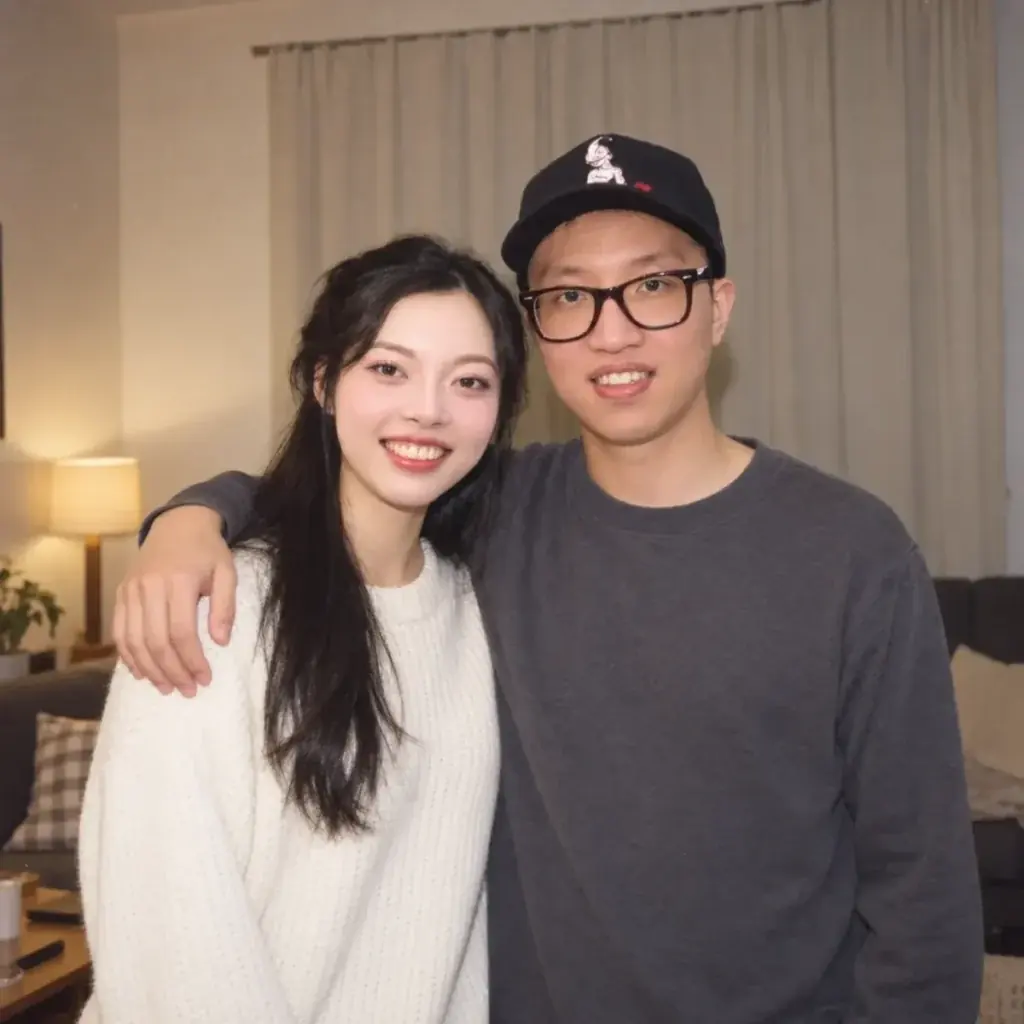
24. Vintage Diner Booth
Use it for: a themed image with strong props and color. Input: one photo of both people.
Transform the uploaded couple photo into a mid-century diner booth portrait while keeping both people recognizable. Seat them opposite each other with milkshake glasses between them, soft window light, restrained red and cream decor, realistic chrome reflections and subtle film grain. Change the setting, the seated pose, the color treatment and the wardrobe, which should read as simple vintage-inspired clothing. Output 4:5. Avoid readable menu or signage text.Check first: hands, glassware, the chrome reflections, and both faces.
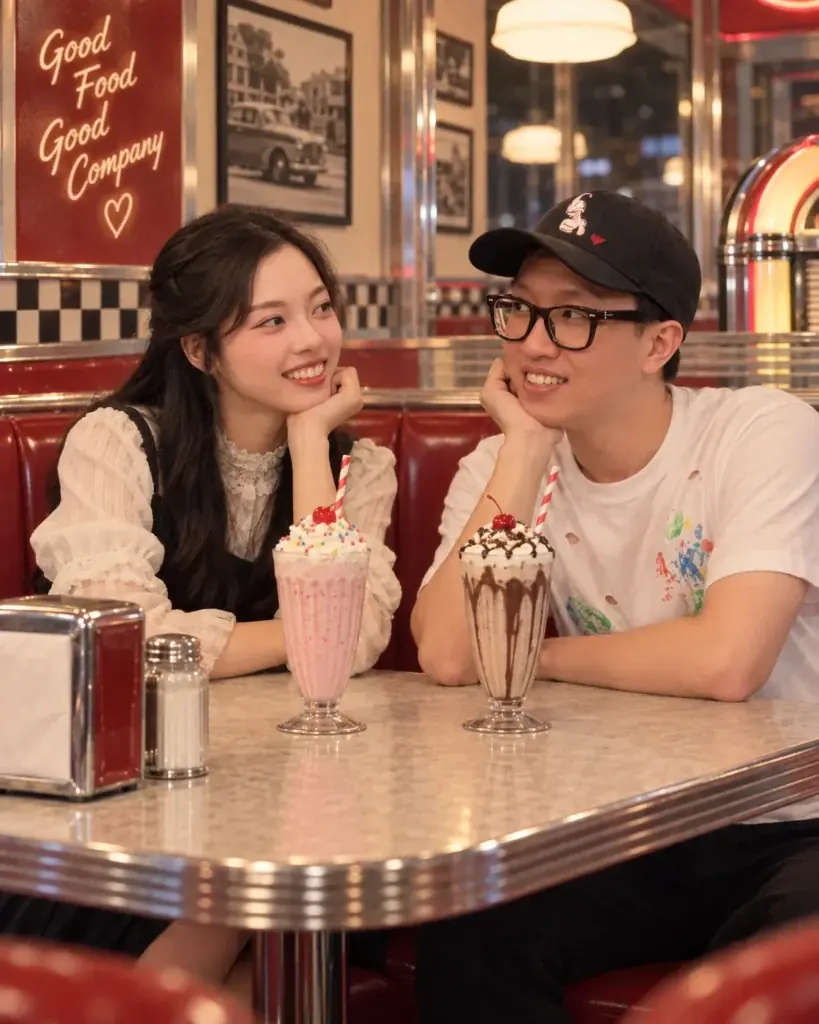
25. Minimal Fashion Editorial
Use it for: a full-length image where clothing is the point. Input: one photo of both people.
Use the uploaded couple photo as the reference for both people. Preserve both recognizable faces, both natural skin tones, both hairstyles and their body proportions. Recompose into a full-length editorial frame against clean concrete architecture, with believable directional daylight, coordinated black and cream outfits, confident relaxed posture and crisp composition. Change only the clothing, the pose, the environment and the lighting. Output 4:5. Add no logos and no text.Check first: full-body proportions, fingers, and whether the wardrobe change pulled either face off its reference.
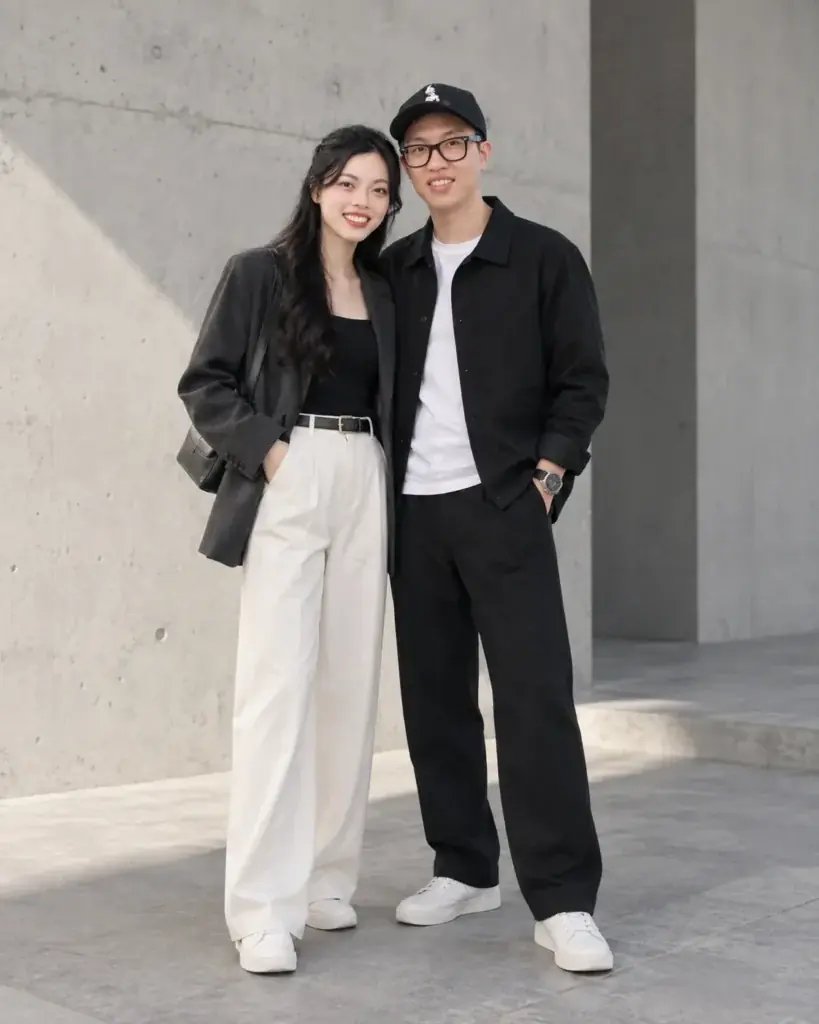
26. Hard Flash Gallery Portrait
Use it for: a contemporary look with clean separation between the two people. Input: one photo of both people.
Edit the uploaded couple photo into a modern art gallery portrait. Keep both people recognizable, with one of them slightly left of center and the other slightly right. Use white gallery walls, hard direct flash, deep clean shadows, minimal monochrome clothing and a contemporary editorial feel. Change only the setting, the wardrobe, the pose and the lighting. Output 3:2. Keep any artwork abstract with no readable text.Check first: face consistency under hard flash, and the shadow edges where the two figures overlap.
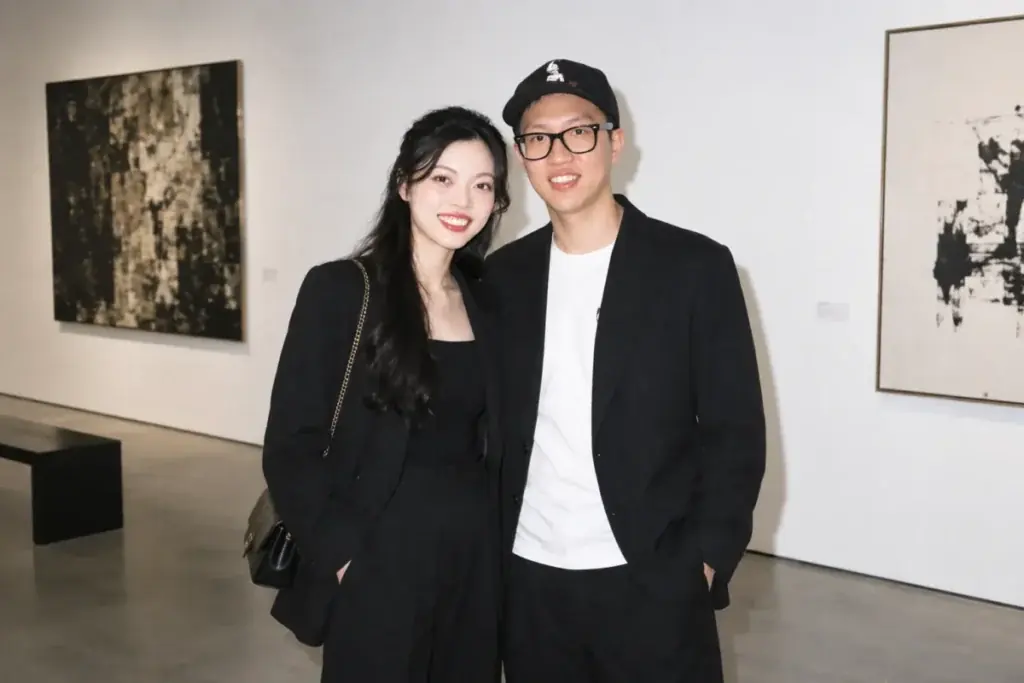
27. Soft Prism Light Portrait
Use it for: a stylized image that still keeps faces clean. Input: one photo of both people.
Restyle the uploaded couple photo as a soft editorial portrait with subtle prism light. Preserve both recognizable faces, both hairstyles, both skin tones and their proportions. Keep the couple in a simple waist-up pose against a neutral studio wall, with one narrow rainbow reflection crossing the background rather than either face, soft key light, natural skin texture and understated neutral outfits. Change only the lighting, the background and the wardrobe. Output 4:5. Add no text.Check first: that the prism effect stayed off both faces, which is the whole risk in this one.
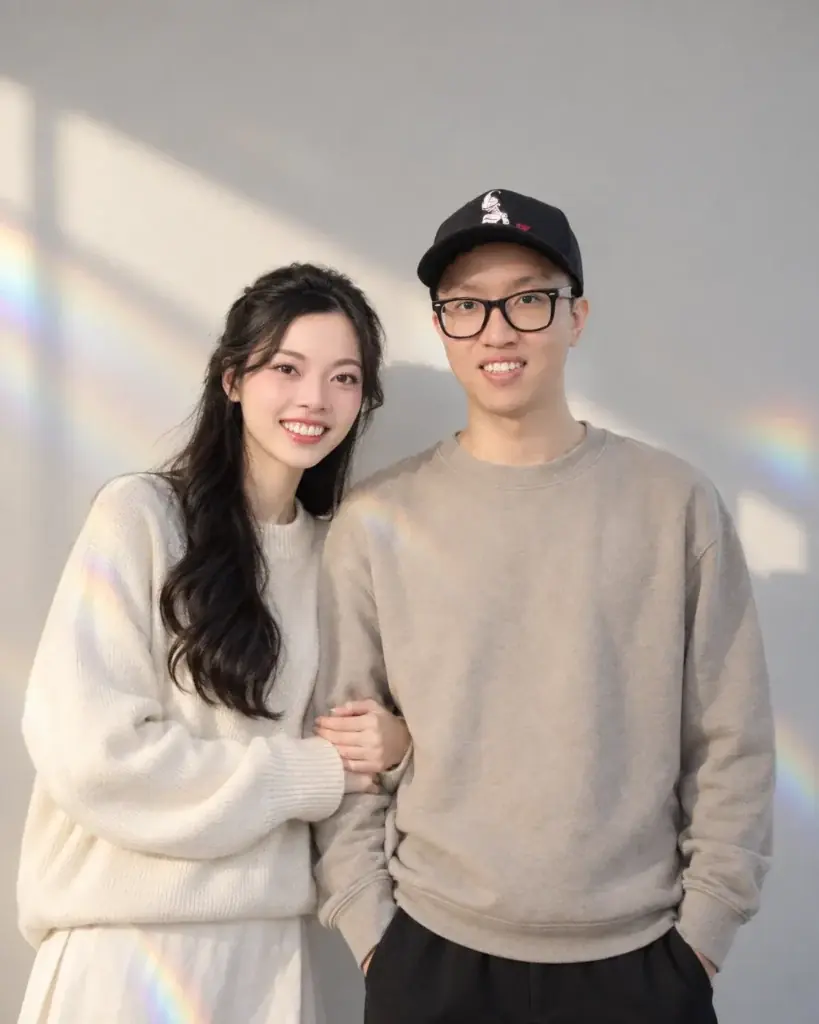
28. Monochrome Architectural Walk
Use it for: a graphic image with strong lines. Input: one photo of both people.
Use the uploaded couple photo as the identity reference and keep both people recognizable. Create a black and white street editorial of them walking beside modern geometric architecture, with clear leading lines, soft overcast light, realistic movement, clean tonal separation and minimalist clothing. Change only the environment, the walking pose, the wardrobe and the monochrome treatment. Output 3:2. Avoid signs and logos.Check first: legs, hands, and both faces at walking scale.
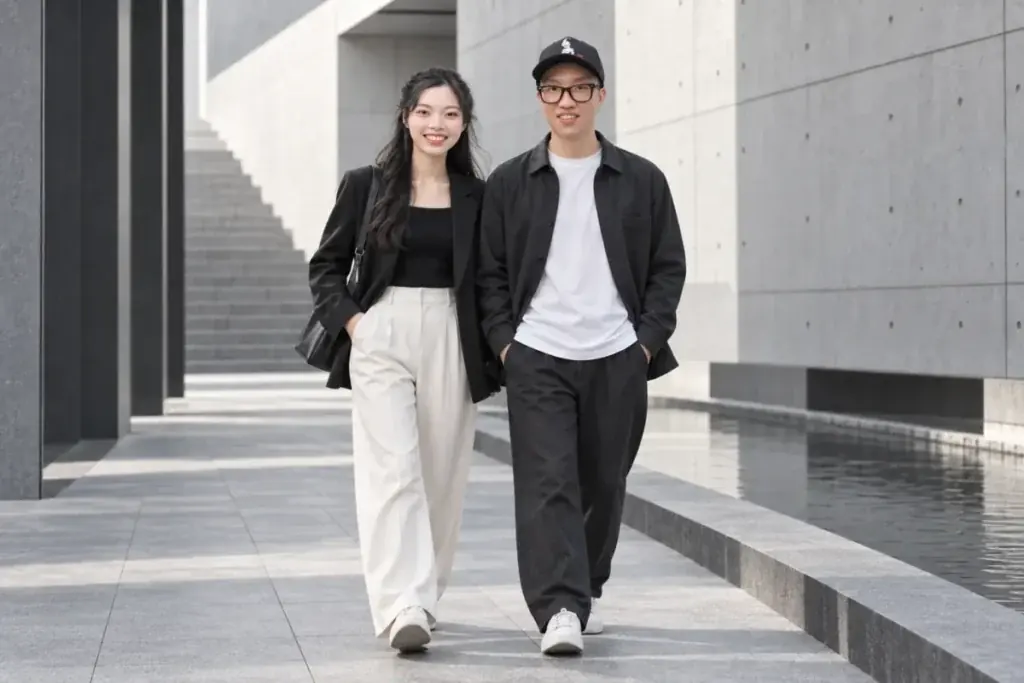
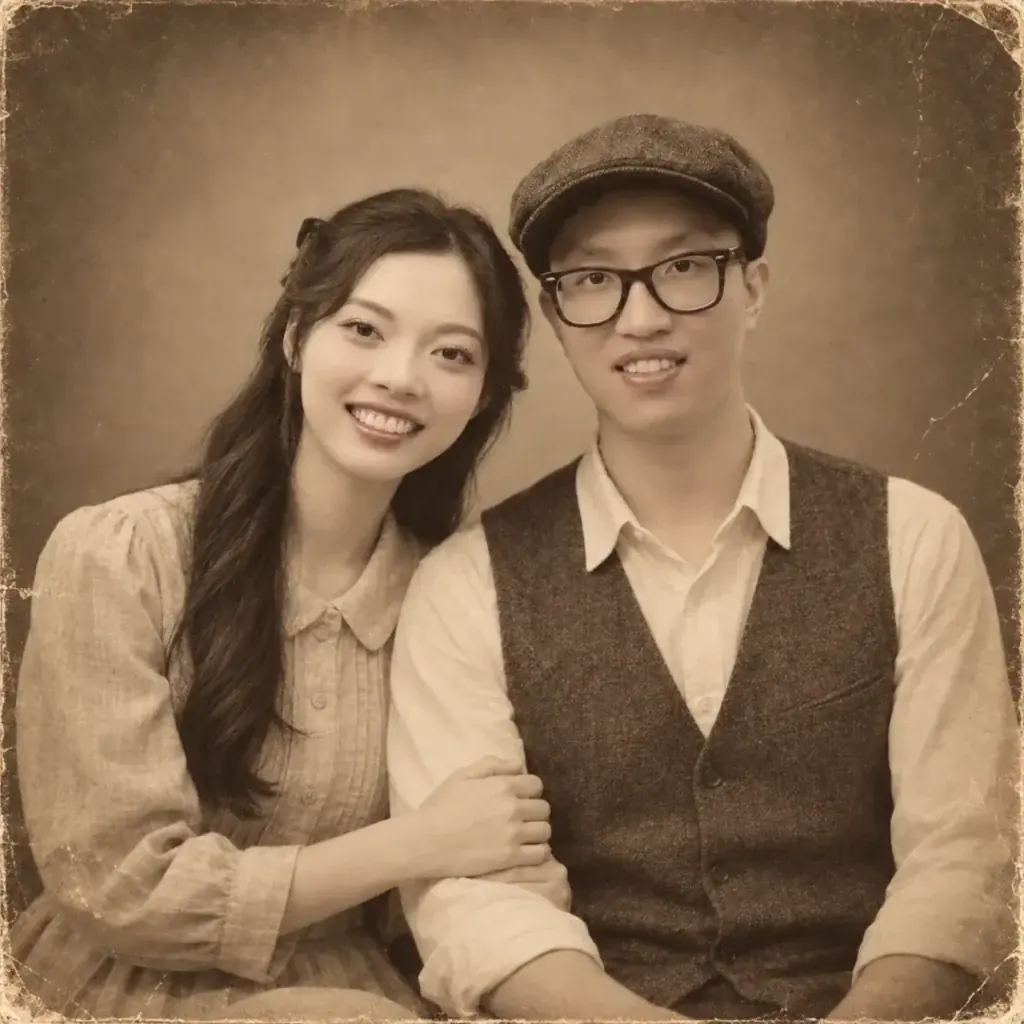
29. Old Album Sepia Portrait
Use it for: a heritage-style image for a family print. Input: one photo of both people.
Edit the uploaded couple photo into an old album sepia portrait. Preserve both recognizable faces, both apparent ages, both hairstyles and their proportions. Use a simple studio composition, soft frontal light, gentle paper texture, restrained fading toward the edges and period-neutral clothing. Change only the color treatment, the background and the wardrobe. Output 1:1. Do not add invented dates, signatures or handwriting.Check first: facial detail under the texture layer, and whether the paper grain washed out either set of eyes.
30. Magazine Cover Without Typography
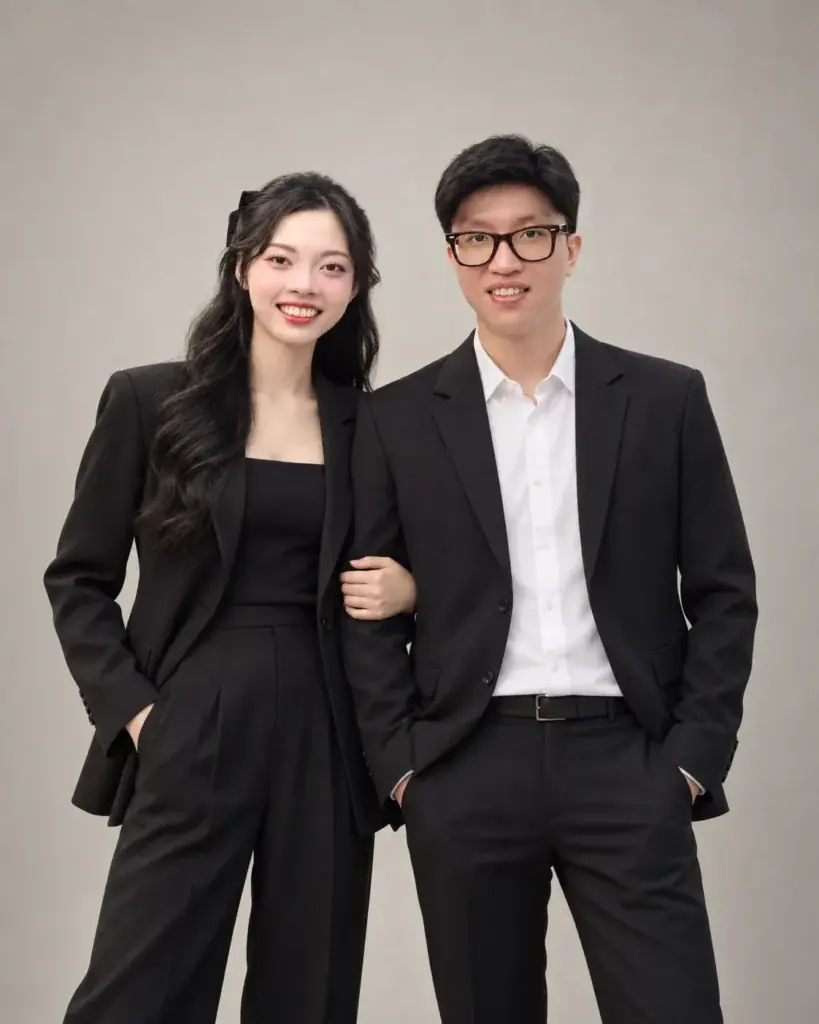
Use it for: a polished hero image you will add your own text to later. Input: one photo of both people.
Transform the uploaded couple photo into a clean high-fashion cover-style portrait with no typography. Keep both people recognizable and preserve both skin tones and their proportions. Use a minimalist studio, sculptural soft lighting, coordinated tailored outfits, confident but natural posture and crisp editorial framing with clear space above their heads. Change only the wardrobe, the pose, the setting and the lighting. Output 4:5. Add no masthead, logo, caption or other text.Check first: hands, shoulder proportions, both faces, and the amount of clear space left for your own headline.
Anniversary, Engagement and Holiday Couple Prompts (31-40)
These ten one-photo prompts cover anniversaries, engagements, a courthouse wedding, the holidays, a graduation and a birthday.
All but prompt 37 ban invented lettering of some kind, such as anniversary numbers, greeting text, signs or diploma text. Prompt 37 bans only extra people, so check its background for stray lettering.
The August 2025 Gemini prompting guide lists text rendering as a current limitation: the model “may occasionally misspell words or struggle with complex typography.” Leave the space and add your own type afterward.
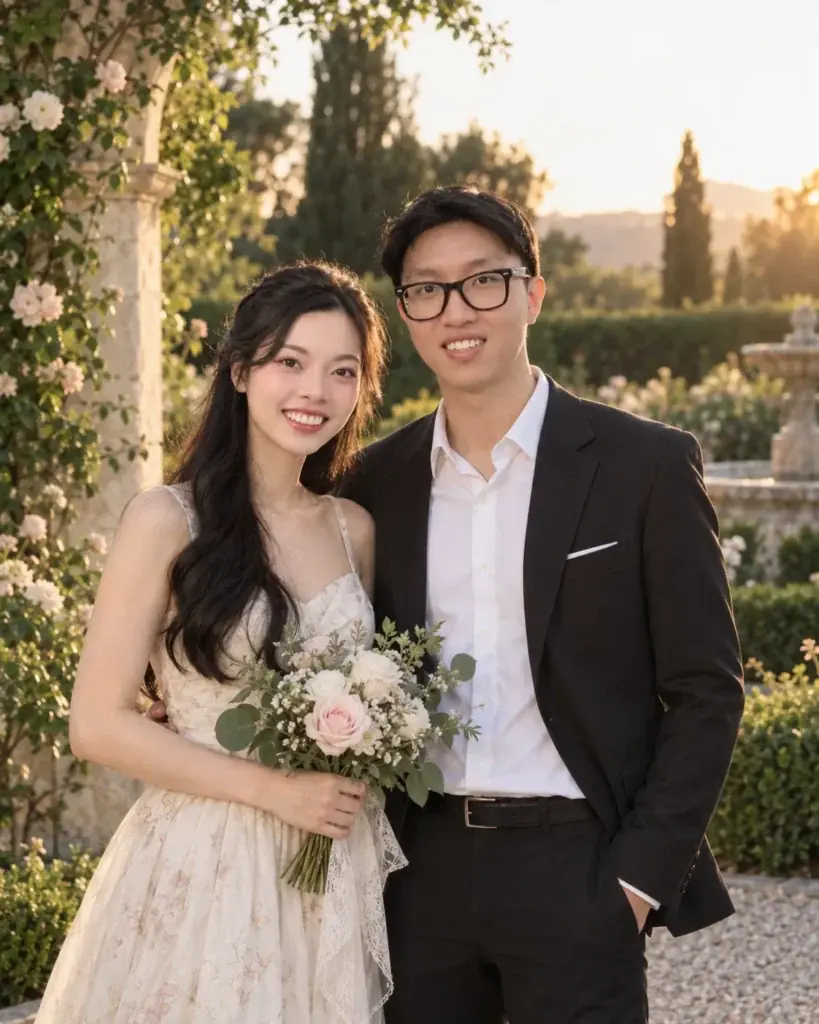
31. Anniversary Garden Portrait
Use it for: an anniversary image that does not shout the number. Input: one photo of both people.
Use the uploaded couple photo as the identity reference. Preserve both recognizable faces, both hairstyles, both skin tones and their natural proportions. Create an elegant anniversary portrait in a garden in late afternoon light, with soft flowers behind them, warm side light, a relaxed close pose and understated formal clothing. Change only the setting, the wardrobe, the lighting and small pose direction. Output 4:5. Do not add anniversary numbers or any text.Check first: both faces, and whether foreground flowers cut across a hand or an arm unnaturally.
32. Engagement Save-the-Date Frame
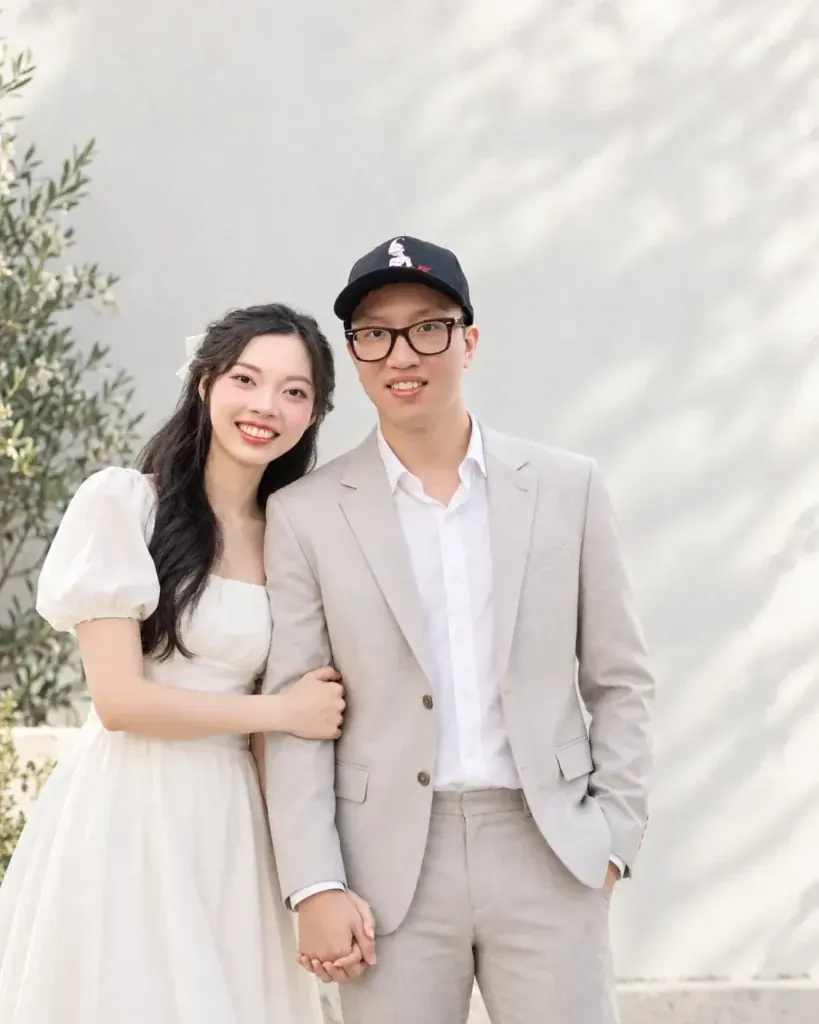
Use it for: a layout-ready image with room for text you add yourself. Input: one photo of both people.
Edit the uploaded couple photo into a clean engagement-style portrait suitable for a save-the-date layout, but render no text of any kind. Keep both people recognizable and preserve their natural proportions. Place them against a bright neutral outdoor wall in soft evening light, in coordinated semi-formal clothing, with relaxed hand holding and generous empty space above them and to one side. Change only the setting, the wardrobe, the pose and the framing. Output 4:5.Check first: hands, both faces, and whether the empty space is actually large enough for your own type.
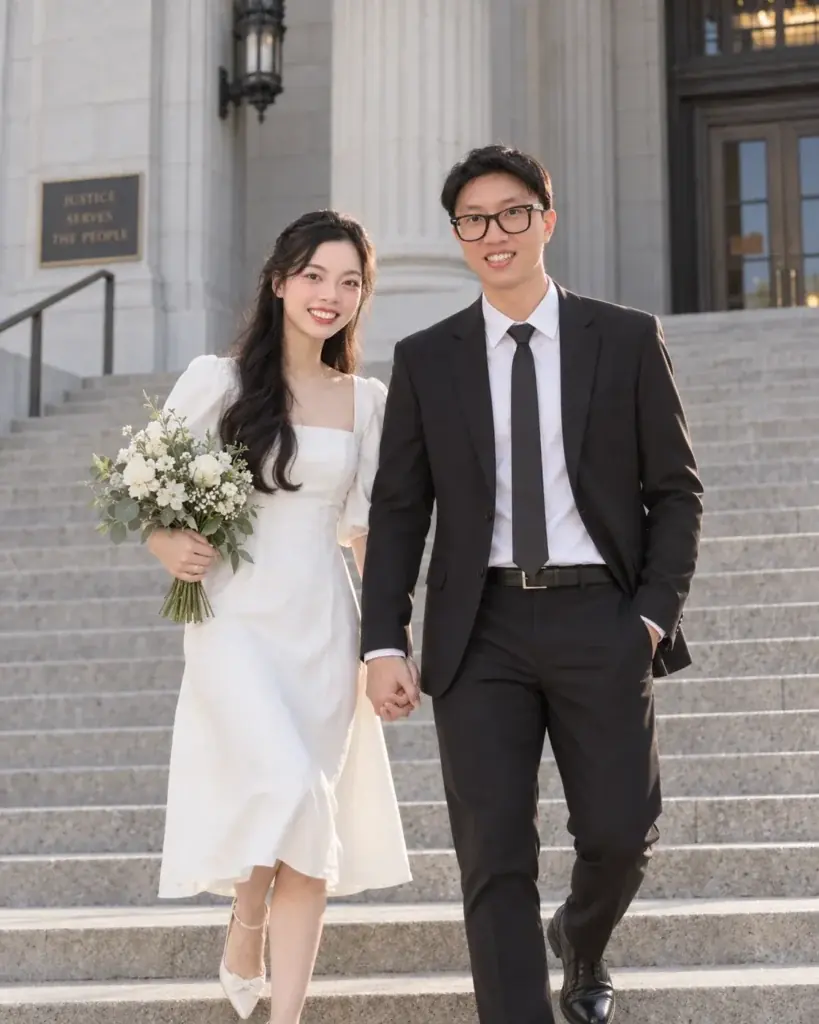
33. Courthouse Steps
Use it for: a small-wedding image without a venue. Input: one photo of both people.
Transform the uploaded couple photo into a refined courthouse steps portrait. Preserve both recognizable faces, both hairstyles, both skin tones and their proportions. Dress both in simple modern formalwear, place them on broad stone steps in soft morning light, and use a candid walking pose with subtle smiles. Change only the wardrobe, the environment, the pose and the lighting. Output 4:5. Avoid readable building names, seals or plaques.Check first: legs and steps geometry, hands, both faces, and any lettering on the building.
34. Holiday Lights Card
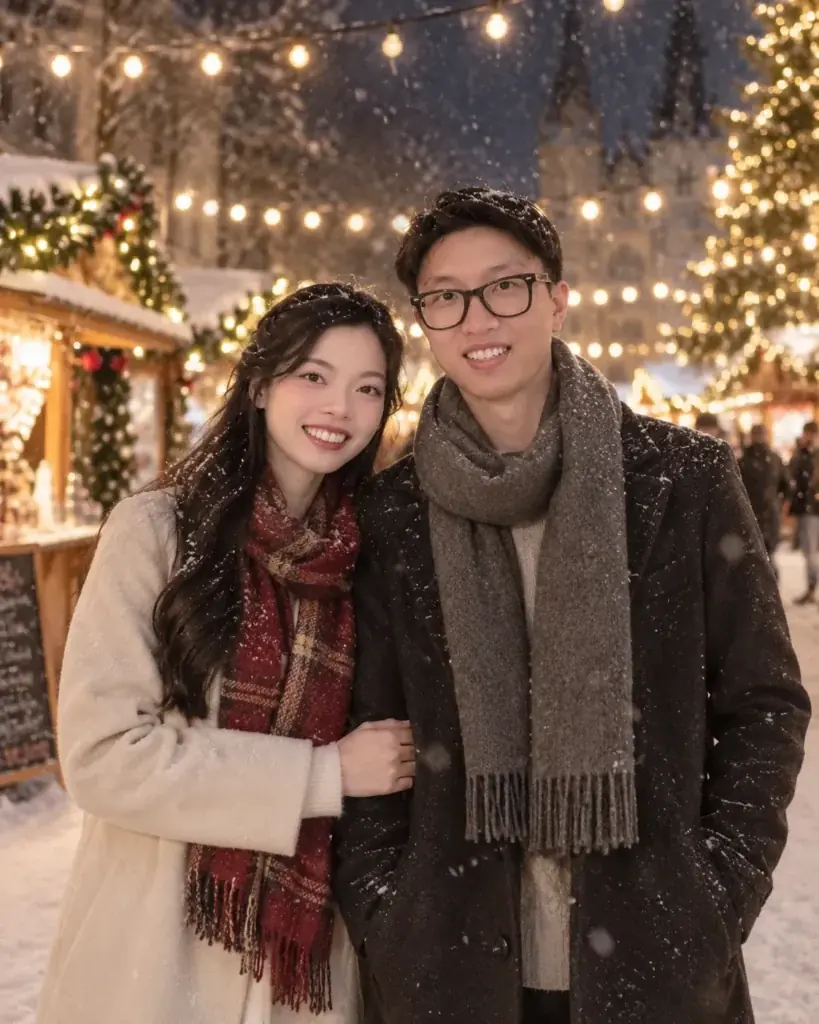
Use it for: a winter card image with warm bokeh. Input: one photo of both people.
Use the uploaded couple photo as the reference. Keep both people recognizable and preserve their natural proportions. Create a cozy winter holiday portrait outdoors beneath warm string lights, in neutral coats and scarves, with gentle evening bokeh, light falling snow and relaxed smiles. Change only the wardrobe, the setting, the lighting and the weather. Output 4:5. Do not add greeting text, dates or logos.Check first: scarves near both jawlines, both sets of hands, and snow artifacts sitting on top of facial detail.
35. New Year Rooftop
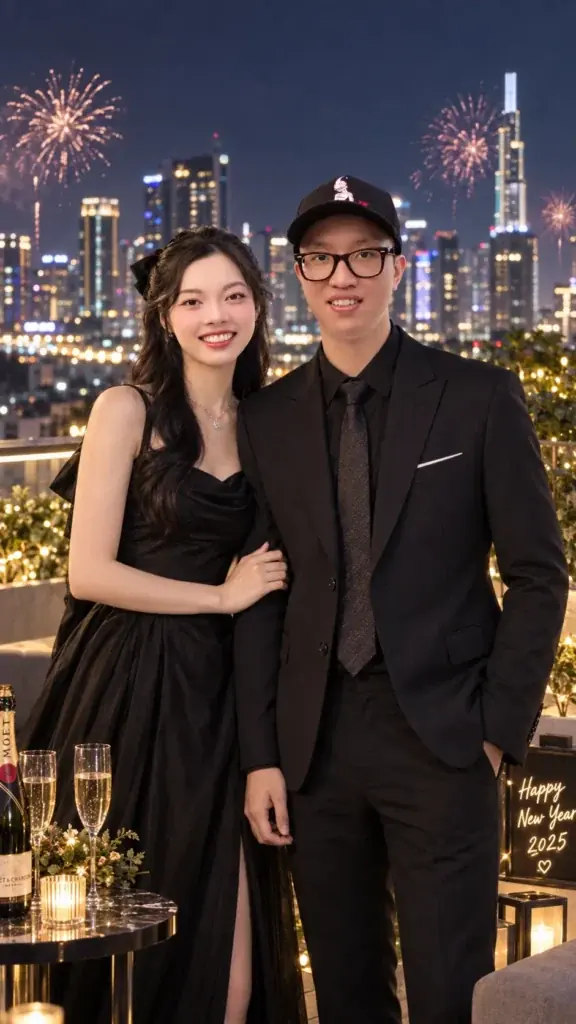
Use it for: a celebratory image that stays tasteful. Input: one photo of both people.
Edit the uploaded couple photo into an understated New Year rooftop portrait. Preserve both recognizable faces, both hairstyles, both skin tones and their body proportions. Show the couple standing together with city lights behind them and subtle distant fireworks, elegant dark clothing, warm rim light and candid celebratory expressions. Change only the setting, the wardrobe, the lighting and the background effects. Output 9:16 for a vertical story frame. Add no year numbers and no readable signs.Check first: how the rim light shaped both faces, and whether firework artifacts landed on either person.
36. Modern Valentine Studio
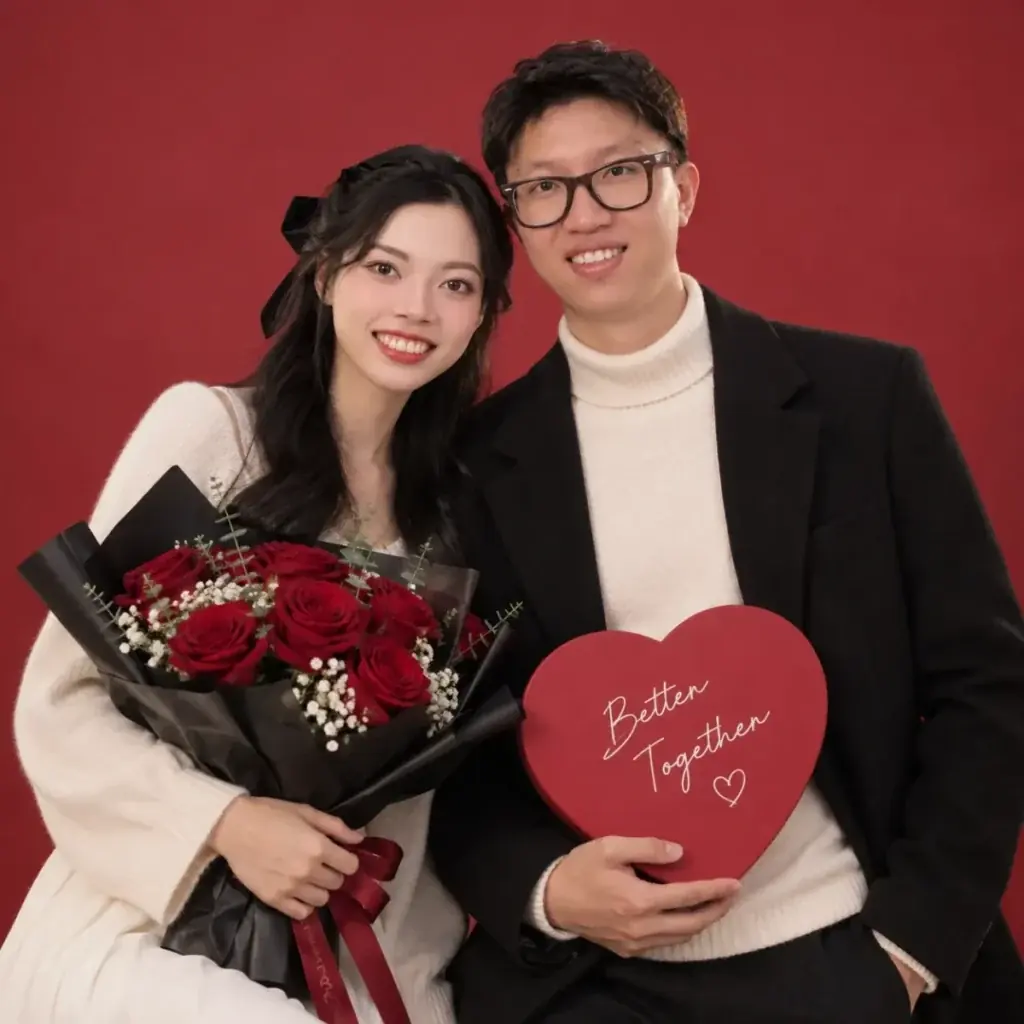
Use it for: a February image without the usual clichés. Input: one photo of both people.
Restyle the uploaded couple photo as a modern Valentine portrait with no clichéd symbols. Keep both people recognizable and preserve their natural proportions. Use a simple rose-red studio sweep, soft frontal light, coordinated cream and black clothing, relaxed close posture and a few out-of-focus flowers at the edge of the frame. Change only the background, the wardrobe, the pose and the lighting. Output 1:1. Do not add hearts, words or logos.Check first: how both skin tones read against the red backdrop, and where the hands ended up.
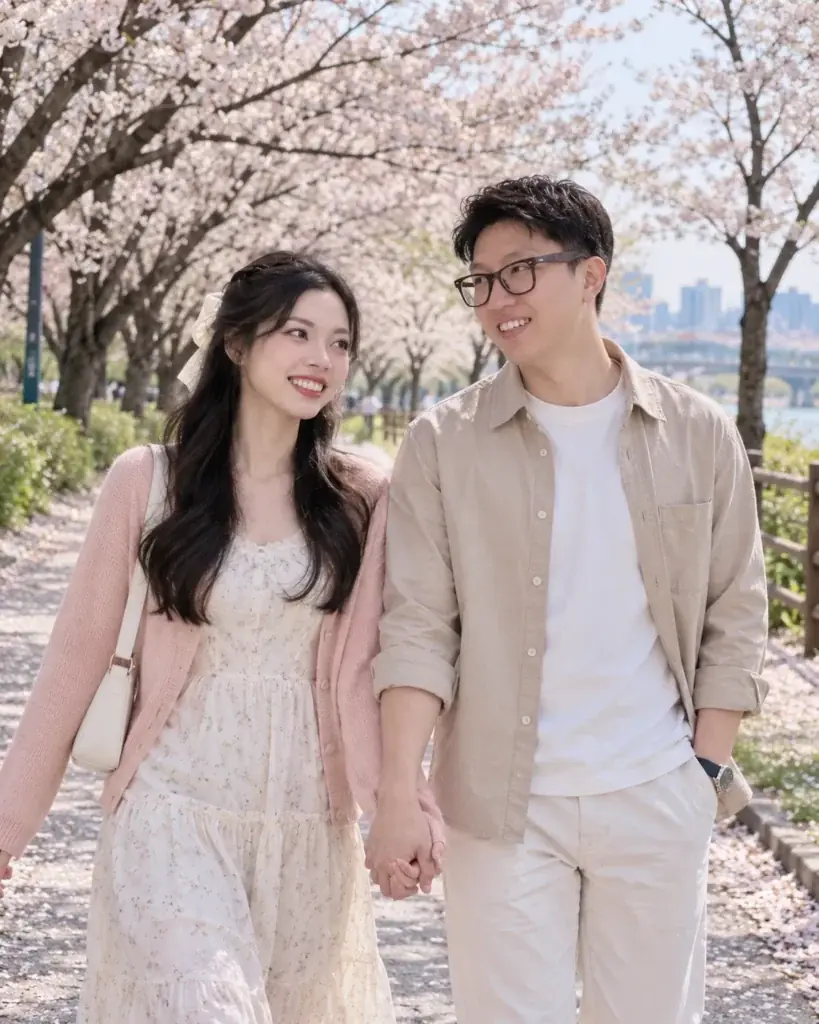
37. Spring Blossom Path
Use it for: a bright seasonal image with soft color. Input: one photo of both people.
Use the uploaded couple photo as the identity reference. Preserve both recognizable faces, both hairstyles, both skin tones and their proportions. Create a spring portrait on a tree-lined path with pale blossoms, soft morning light, a gentle breeze, coordinated pastel-neutral clothing and a natural walking pose. Change only the environment, the wardrobe, the lighting and the pose direction. Output 4:5. Keep the scene realistic rather than fantastical, and add no extra people.Check first: blossoms overlapping either face, hands, walking anatomy, and any stray lettering in the background.
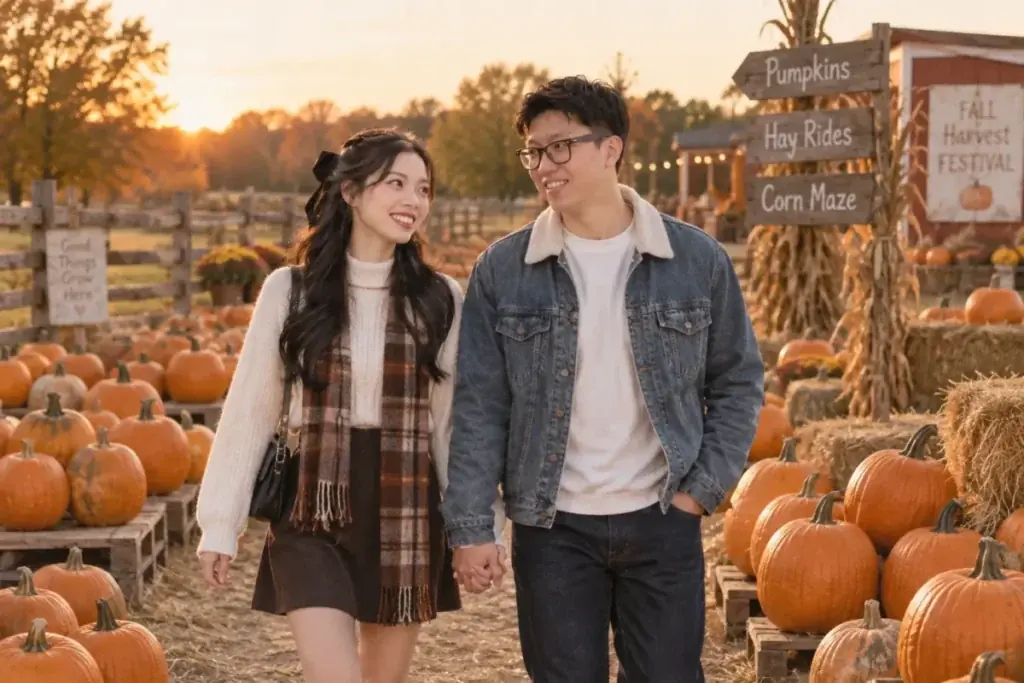
38. Pumpkin Patch Afternoon
Use it for: a relaxed fall image with obvious season cues. Input: one photo of both people.
Edit the uploaded couple photo into a casual fall pumpkin patch scene. Keep both people recognizable and preserve their natural proportions. Show them walking between rows of pumpkins in late afternoon light, wearing simple denim and knit layers, with candid smiles and a warm but natural color palette. Change only the setting, the clothing, the pose and the lighting. Output 3:2. Avoid signs and text.Check first: feet against uneven ground, hands, both faces, and background clutter.
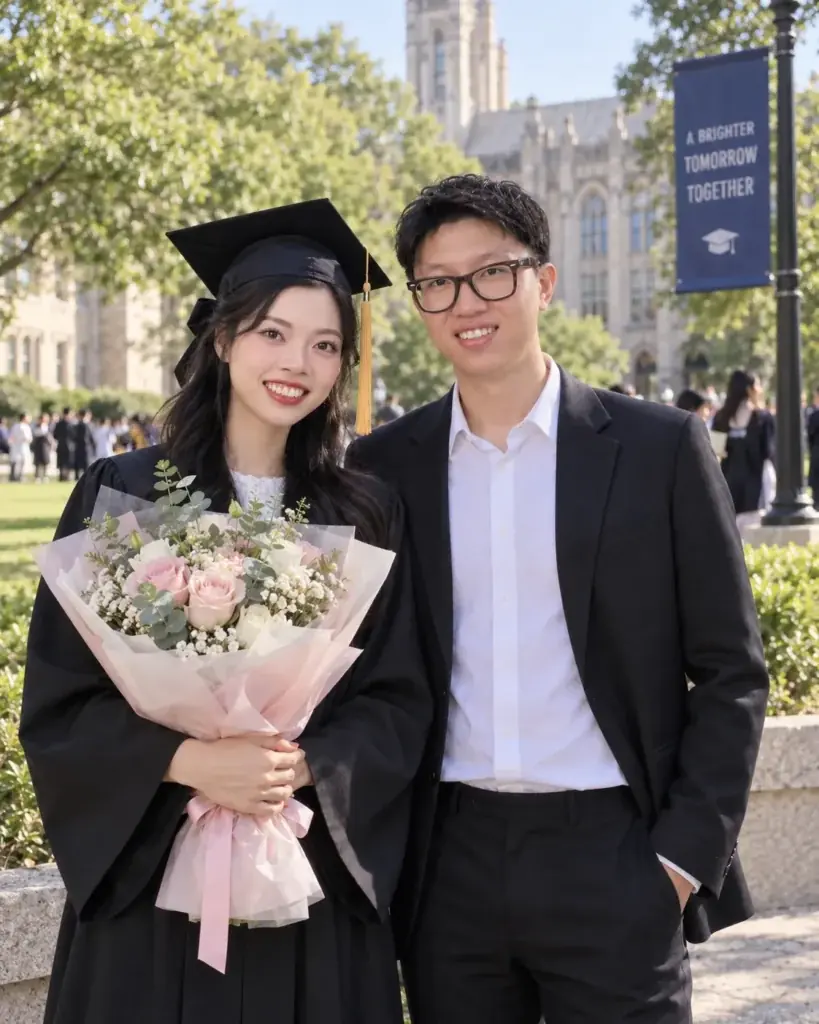
39. Graduation Day Together
Use it for: a milestone image where only one person is graduating. Input: one photo of both people.
Transform the uploaded couple photo into a graduation celebration portrait in which the person on the left wears a plain graduation gown and cap and the person on the right wears semi-formal clothing. Preserve both recognizable faces, both skin tones, both hairstyles and their proportions. Place them outdoors near a campus lawn in soft daylight, in a proud and relaxed pose. Change only the clothing, the setting and the pose. Output 4:5. Do not add school logos, institution names or diploma text.Check first: where the cap meets the hair, both sets of hands, and both faces.
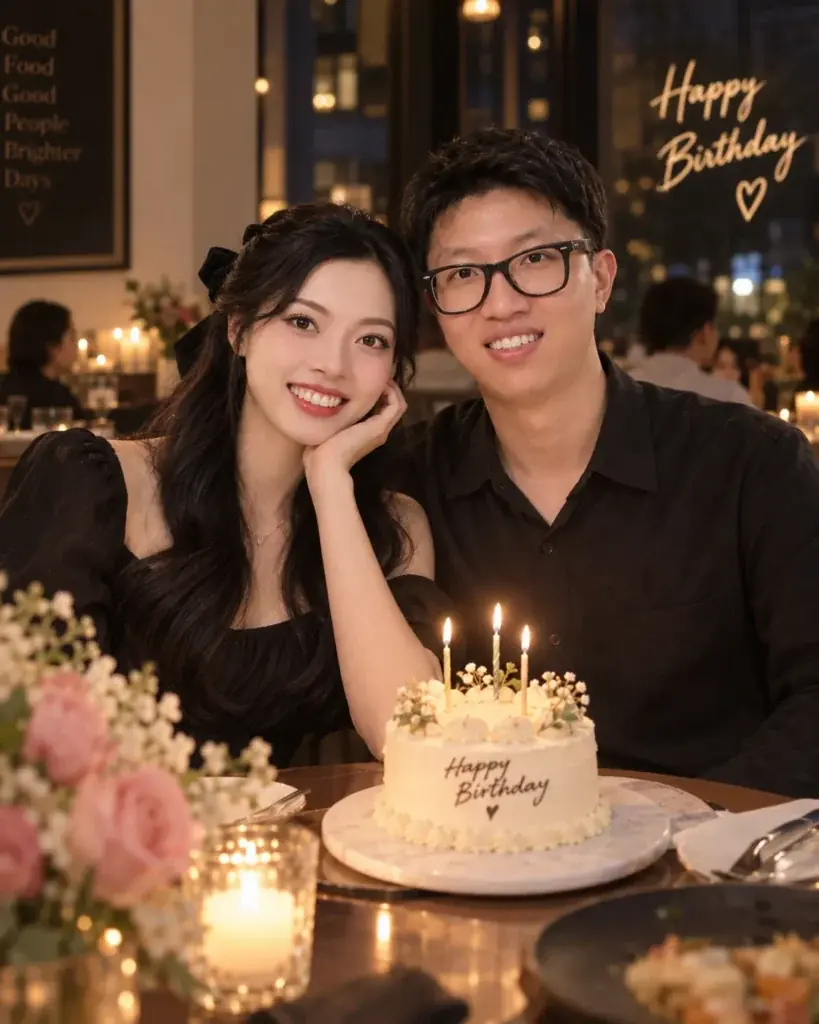
40. Birthday Dinner Portrait
Use it for: a warm indoor celebration image. Input: one photo of both people.
Use the uploaded couple photo as the reference. Keep both people recognizable and preserve their natural proportions. Create a warm birthday dinner scene with one small cake on the table, a few subtle candles, soft restaurant lighting, tasteful evening clothing and natural smiles. Change only the setting, the wardrobe, the seated pose and the lighting. Output 4:5. Do not add age numbers or readable writing on the cake.Check first: candlelight falling on both faces, fingers near the cake, and any lettering on the icing.
Two-Photo Prompts: Combine Separate Portraits Into One Couple Photo (41-50)
Gemini can combine two separate portraits into one couple photo when the Gemini model is set to Flash or Pro. Google’s Help page lists uploading multiple images and asking Gemini to create a new image as one way to edit with Nano Banana 2.
Each prompt below ties the first upload to the person on the left and the second to the person on the right, and tells the model not to blend the faces. Start with prompt 41, the neutral composite, before a field, a mountain cabin or a road-trip car.
Google states that Nano Banana 2 Lite “isn’t designed for multiple image references or for multiple edits”, and Lite is what runs when your Gemini model is set to Flash-Lite.
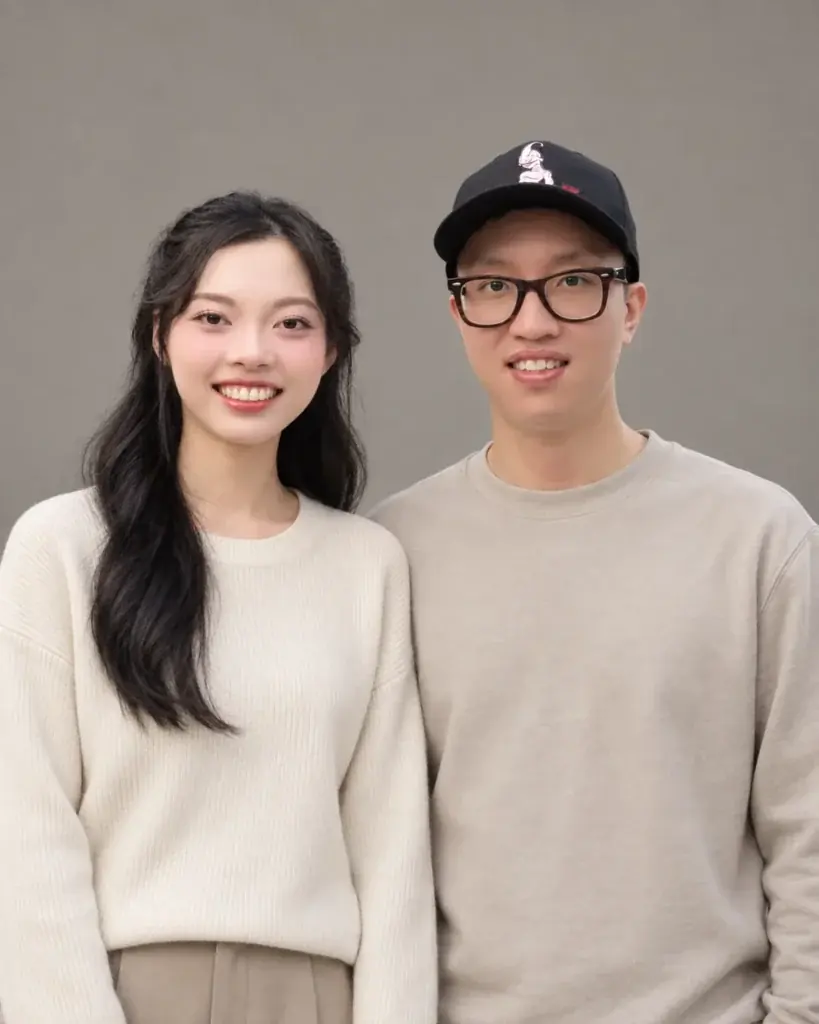
41. Neutral Base Composite
Use it for: the first turn of any two-photo job, before you style anything. Input: two separate portraits.
Use the first uploaded portrait as the person on the left and the second uploaded portrait as the person on the right. Create one neutral waist-up photo of both people standing side by side against a plain warm-gray background. Keep each person recognizable from their own reference, do not blend or average their facial features, and match their scale and lighting so the two look photographed together. Use soft even studio light and dress both in simple neutral clothing. Output 4:5. Add no props and no text.Check first: each face against its own source, and relative head size. Fix both here before you add any scene.
42. Golden Hour Field
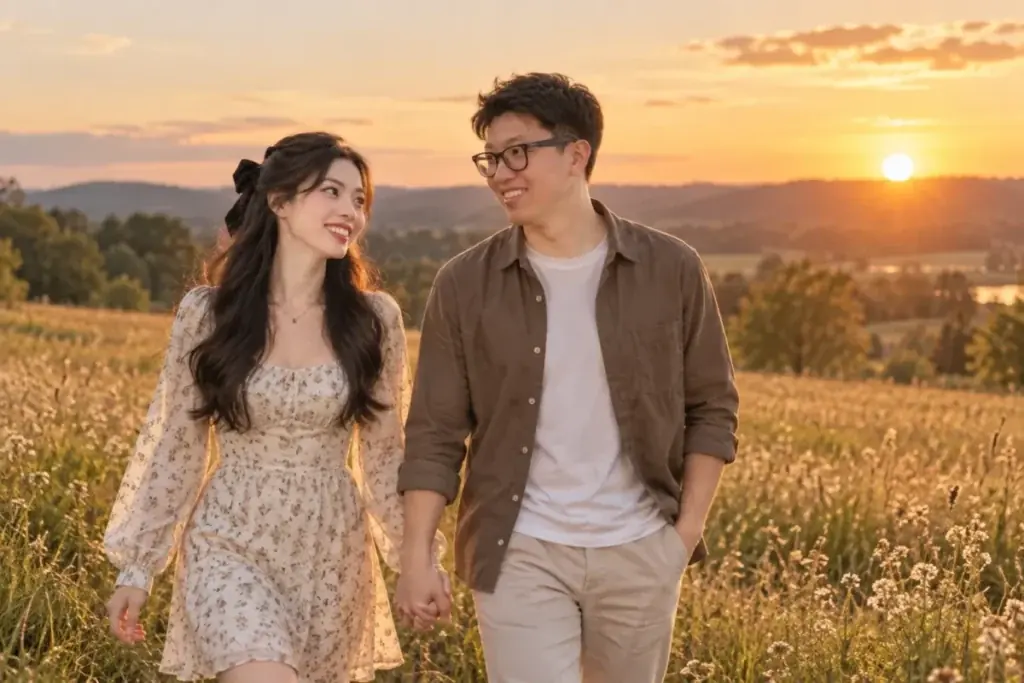
Use it for: a warm outdoor scene from two indoor selfies. Input: two separate portraits.
Use the first uploaded portrait for the person on the left and the second uploaded portrait for the person on the right. Keep each person recognizable from their own reference and do not blend their facial features. Place them walking side by side through an open field at golden hour, hands loosely connected, with warm backlight, realistic ground shadows and coordinated casual clothing. Match the skin lighting and body scale on both so the scene reads as one photograph. Output 3:2. Add no text and no extra people.Check first: both identities, the hand contact, and whether the light direction agrees on both faces.
43. Coastal Boardwalk
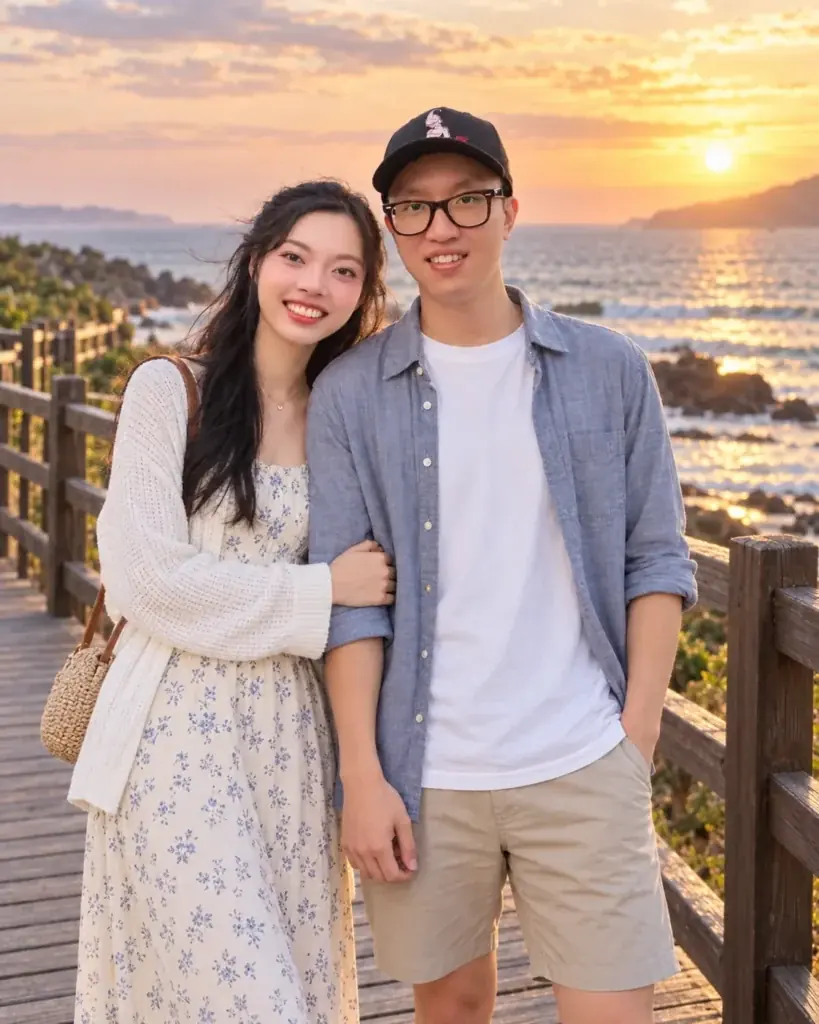
Use it for: a travel-style image neither person has a photo of. Input: two separate portraits.
Use the first reference as the left person and the second reference as the right person. Preserve each person's recognizable face, hairstyle, skin tone and apparent age without averaging any feature between them. Create a relaxed coastal boardwalk portrait at sunset with both people standing close, a soft ocean background, warm side light, light breeze and simple travel clothing. Match the camera perspective and body scale. Output 4:5. Add no text and no extra people in the foreground.Check first: relative scale, the separation between the two faces, hair edges, and perspective agreement.
44. Mountain Cabin in Winter
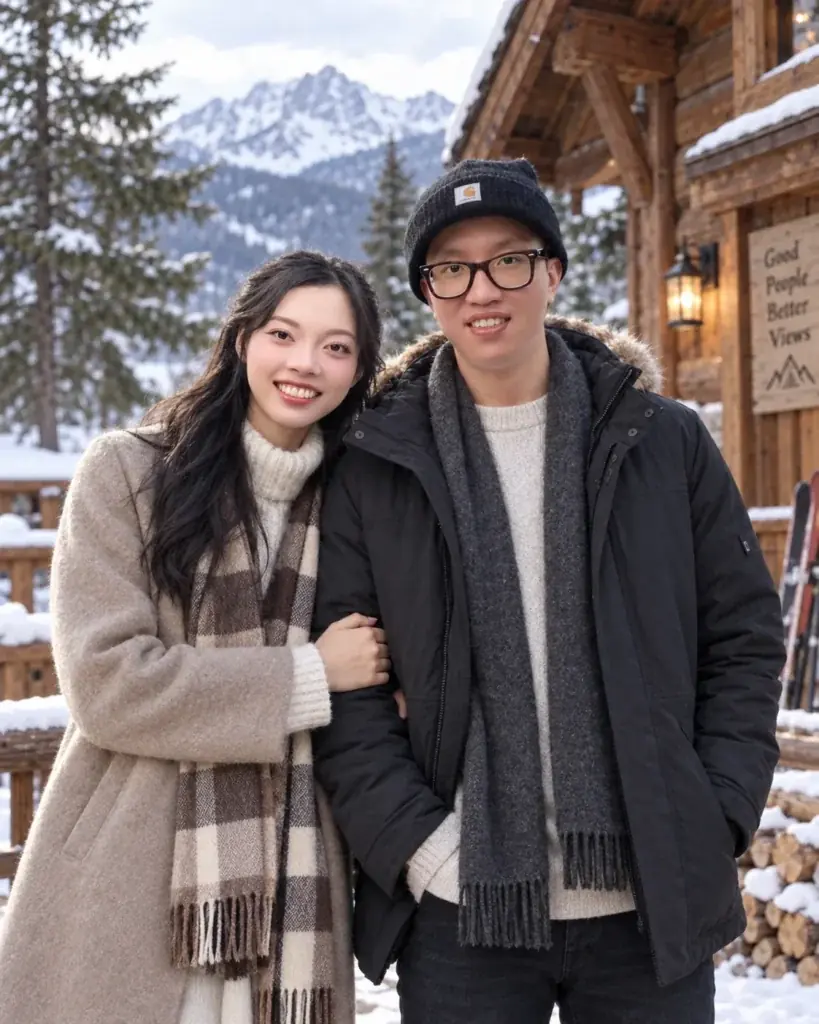
Use it for: a cold-weather scene with heavy clothing. Input: two separate portraits.
Use the first uploaded portrait for the person on the left and the second for the person on the right. Keep each person recognizable from their own reference and do not merge any facial characteristics. Place them outside a wooden mountain cabin in early winter wearing neutral coats, with soft overcast light, faint snow, a warm window glow behind them and a natural close standing pose. Match the lighting and the proportions on both. Output 4:5. Render no readable signage and add no extra people.Check first: coat collars against both jawlines, the arm overlap, relative scale, and both identities.
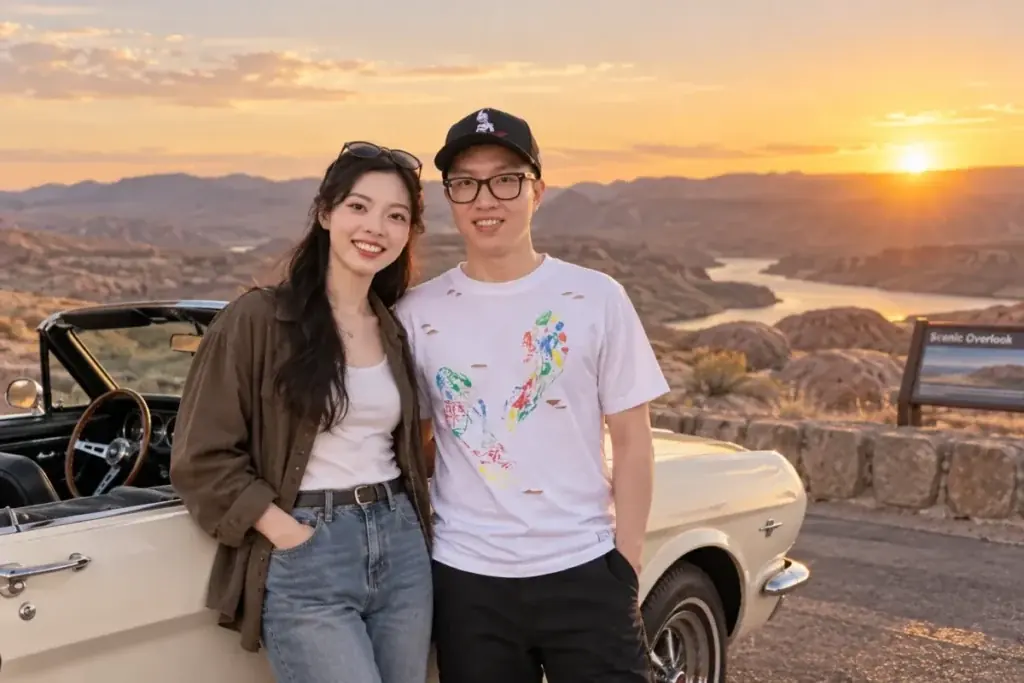
45. Desert Overlook Road Trip
Use it for: a wide scenic frame with a strong prop. Input: two separate portraits.
Use the first uploaded portrait as the left person and the second as the right person. Preserve each person's recognizable facial features, hairstyle and skin tone, and keep the two faces distinct. Create a candid road trip portrait beside a parked vintage-style convertible at a desert overlook near sunset. Place the couple close together but not overlapping, with warm low light, realistic shadows and casual travel clothing. Match body scale and camera angle. Output 3:2. Add no logos and no license plate text.Check first: both identities, the car’s geometry, relative scale, and any text on the vehicle.
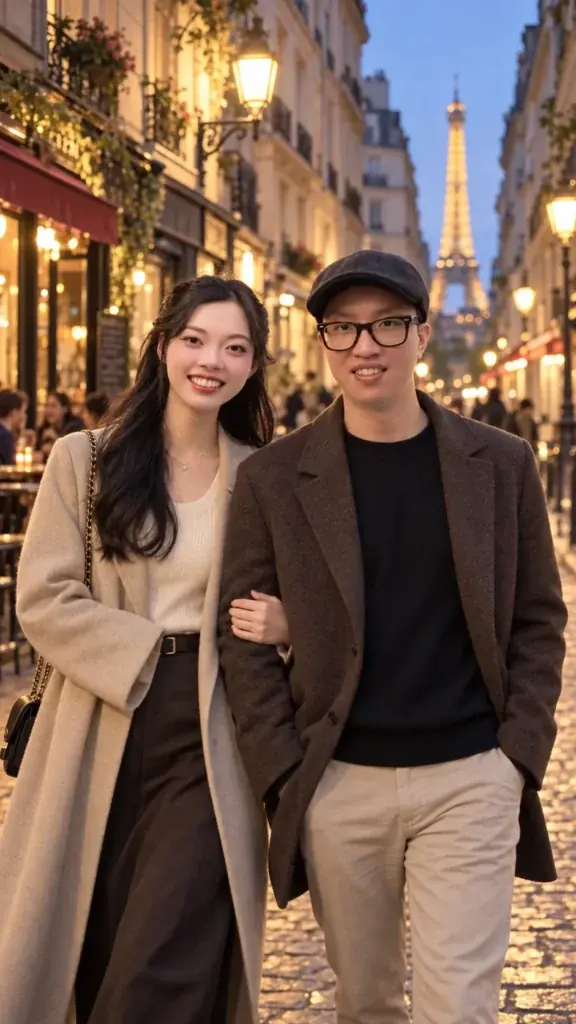
46. Evening Street in Paris
Use it for: a classic city-break image with warm practicals. Input: two separate portraits.
Use the first uploaded portrait for the left person and the second for the right person. Keep each person recognizable from their own source and do not blend their faces. Create a romantic evening travel portrait on a narrow Parisian street with warm cafe lights, a soft blue-hour sky, wet pavement reflections, understated smart-casual clothing and a relaxed walking posture. Match the lighting, the scale and the perspective on both people. Output 9:16 for a vertical story frame. Keep storefront text unreadable or absent.Check first: both faces, walking anatomy, perspective agreement, and background lettering.
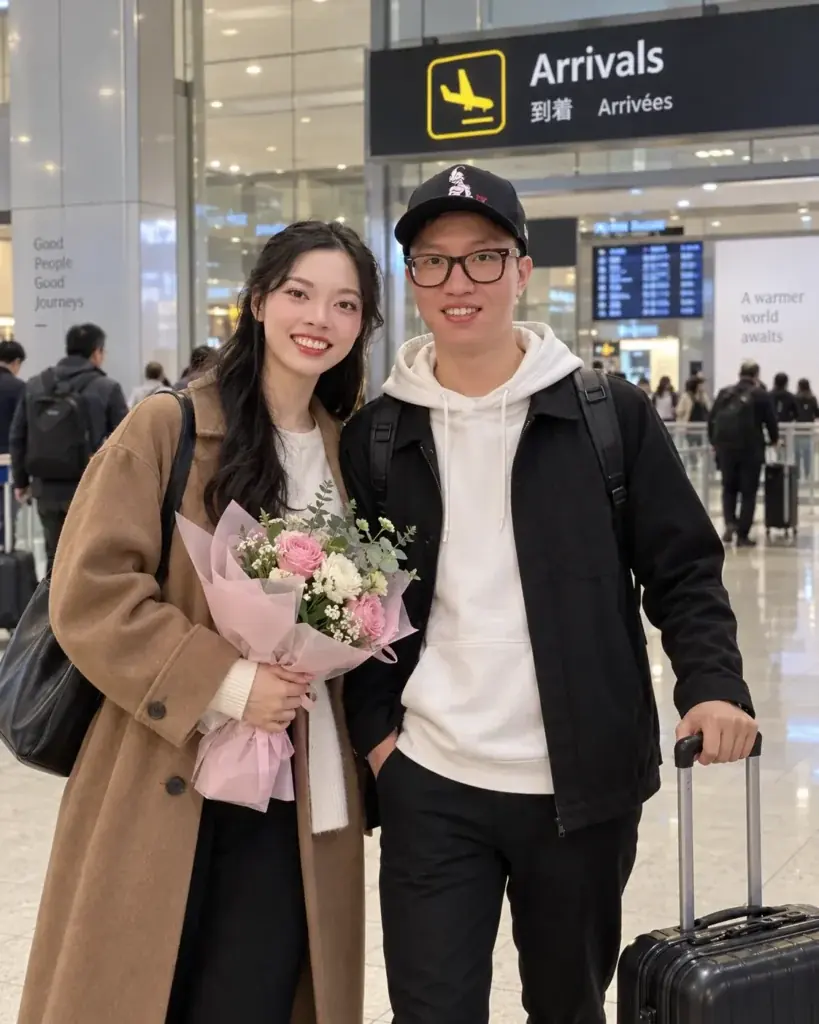
47. Airport Arrivals Reunion
Use it for: a long-distance couple image with real emotion in it. Input: two separate portraits.
Use the first uploaded portrait as the person on the left and the second portrait as the person on the right. Preserve each person's recognizable identity from their own reference. Create a warm airport arrivals scene with the two standing close and smiling, one small carry-on bag beside them, soft overhead light, shallow background blur and natural casual clothing. Keep the pose affectionate but calm, match scale and lighting, and do not blend the two faces. Output 4:5. Avoid readable flight board or signage text.Check first: hands, the bag handle, both faces, and any text on the boards behind them.
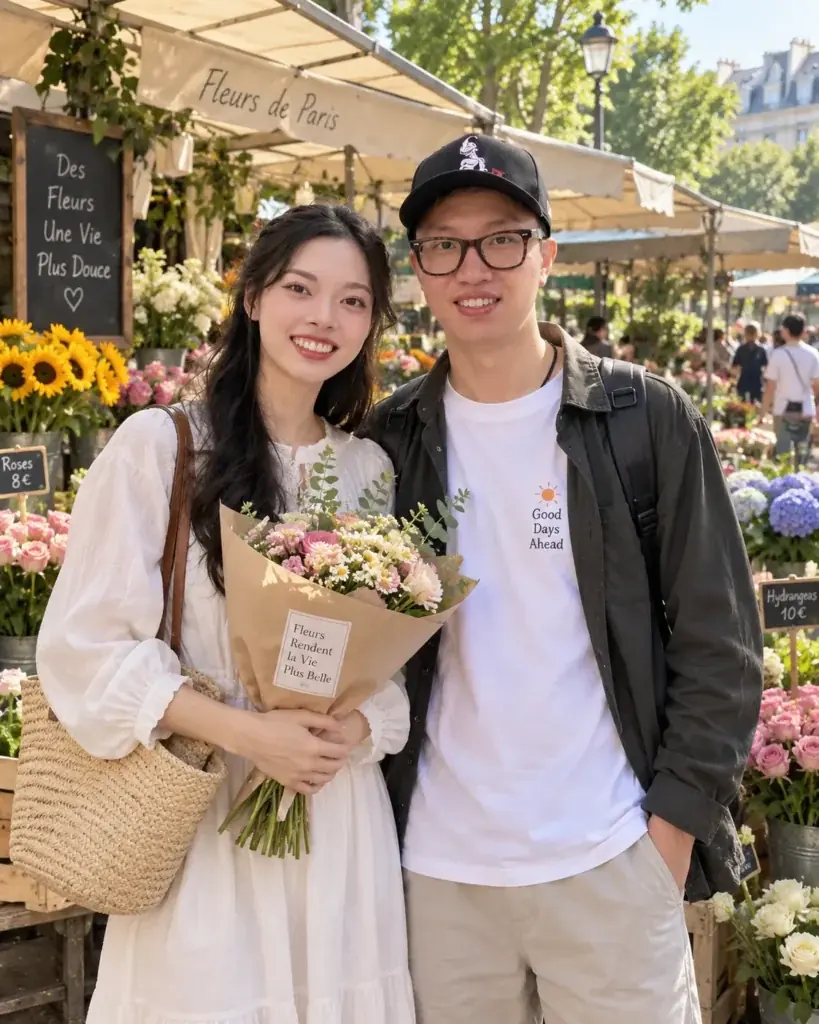
48. Flower Market Morning
Use it for: a colorful daytime image with a natural prop. Input: two separate portraits.
Use the first portrait as the left person and the second portrait as the right person. Keep each person recognizable from their own reference and prevent any facial blending between them. Place them together at an outdoor flower market in soft morning light, with one person holding a small bouquet and the other standing close, natural smiles, colorful flowers softly blurred behind them and coordinated casual clothing. Match body scale, camera perspective and light direction. Output 4:5. Render no readable signs.Check first: the bouquet and hand geometry, the separation between the two faces, and relative scale.
49. Snowy City Walk
Use it for: a winter street image with strong practical light. Input: two separate portraits.
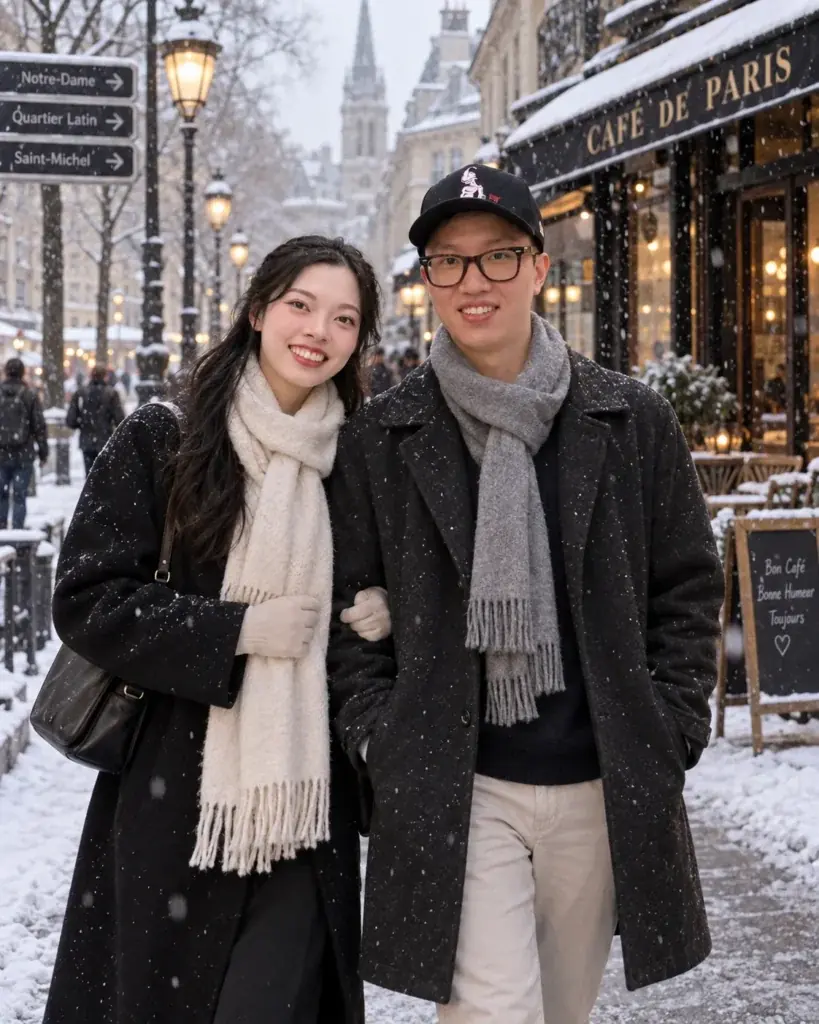
Use the first reference as the person on the left and the second reference as the person on the right. Preserve each person's recognizable face, hair, skin tone and apparent age from their own source. Create a winter city walk portrait during light snowfall, with a warm shop window glow, neutral coats and scarves, a natural side-by-side posture and realistic pavement reflections. Match scale and lighting on both and do not blend the faces. Output 4:5. Keep all signs unreadable.Check first: scarf boundaries, fingers, both faces, and snowfall sitting over facial detail.
50. Restrained Double Exposure
Use it for: an artistic image that still has to look like both of you. Input: two separate portraits.
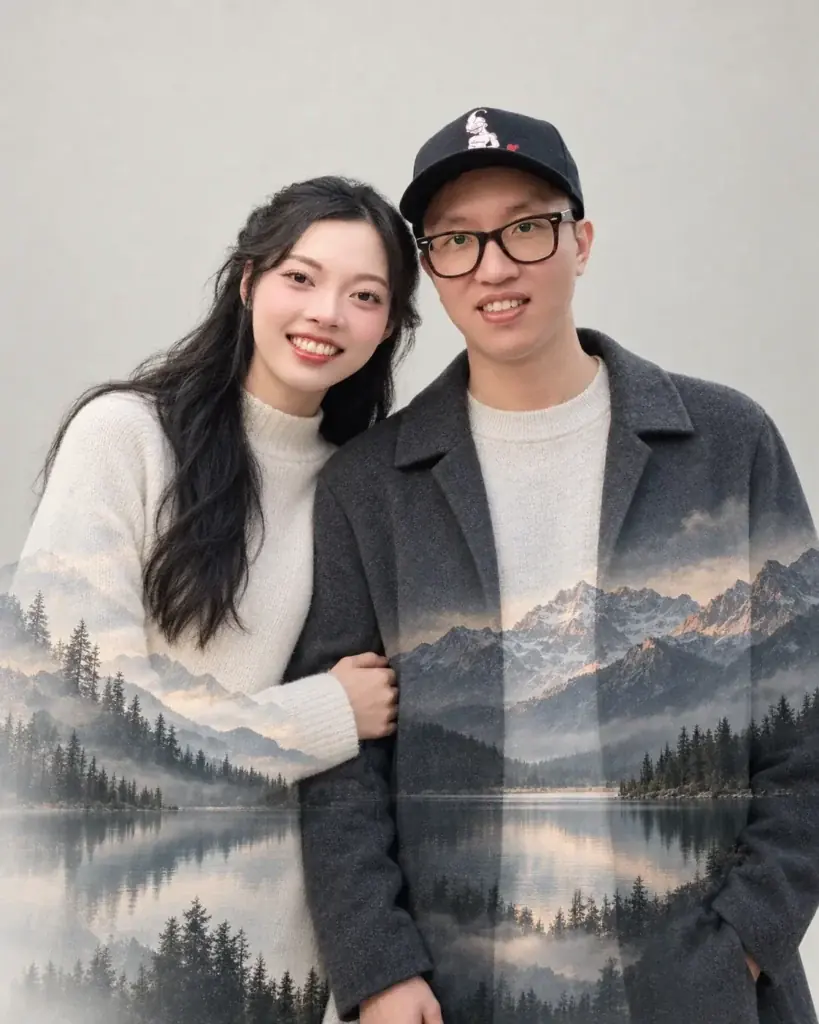
Use the first uploaded portrait for the left person and the second for the right person. Keep each person recognizable from their own reference and keep the two faces fully separate. Create a clean double exposure portrait in which a waist-up image of the couple stays clearly visible while subtle mountain and lake scenery fades into the lower half of their clothing and the background. Keep both facial areas realistic and untouched by the effect. Use soft neutral light and restrained color. Output 4:5. Add no text.Check first: that the effect stopped below both chins and left both sets of eyes clean.
Trending Variants: Mirror Selfie, Matching Outfits and Photo Strip
The four one-photo variants below cover the couple mirror selfie, matching outfits and the photo-booth strip. They have no example image on this page, so judge your result by each Check first line. The mirror prompts keep the phone below both faces, because a raised phone covers the face the model must preserve.
A. Hotel Mirror Selfie
Use it for: the couple mirror selfie trend, built from a photo you already have. Input: one photo of both people. No example image.
Use the uploaded couple photo as the identity reference for both people. Keep both faces recognizable and preserve their natural proportions. Restyle the scene as a mirror selfie in a bright hotel bathroom, the couple standing side by side facing a large mirror, one person holding a phone at chest height so it stays below both faces, with soft vanity lighting and clean white tiles. Change only the setting, the pose and the lighting. Output 9:16. Show exactly two people in the reflection and render no readable text.Check first: that the phone and the hand holding it sit below both faces, and that the mirror shows exactly two people.
B. Elevator Mirror Flash
Use it for: a night-out mirror shot with hard flash. Input: one photo of both people. No example image.
Use the uploaded couple photo as the identity reference. Keep both faces recognizable and preserve their proportions. Restyle it as a candid elevator mirror selfie with hard on-camera flash, brushed-metal walls and evening clothing, the couple standing close with one phone held at chest height below both faces. Change only the setting, the clothing and the lighting. Output 4:5. Keep the flash glare off both faces, show only two people in the reflections, and render no floor numbers or text.Check first: flash glare on either face, and whether the facing mirrors repeated the couple into a third figure.
C. Matching Outfits Street Style
Use it for: the matching-outfit trend without buying the outfits. Input: one photo of both people. No example image.
Use the uploaded couple photo as the identity reference for both people. Keep both faces, both hairstyles and both skin tones recognizable. Dress the couple in matching outfits, the same cream knit sweaters and dark denim, and place them walking side by side on a quiet city sidewalk in soft afternoon light, with street-style framing and natural smiles. Change only the clothing, the setting and the walking pose. Output 4:5. Add no logos, no readable signs and no extra people in the foreground.Check first: that the matching clothes did not make the two faces or body shapes more alike.
D. Photo-Booth Strip
Use it for: a playful four-frame keepsake. Input: one photo of both people. No example image.
Use the uploaded couple photo as the identity reference. Keep both faces recognizable in every frame. Create a vertical photo-booth strip of four frames of the same couple against a plain curtain backdrop: smiling at the camera, laughing, cheek to cheek, and a playful look at each other, with even booth flash and slight film grain. Change only the poses, the backdrop and the treatment. Output 9:16. Add no dates, captions or text on the strip.Check first: all eight faces, two per frame, because one drifting frame spoils the strip.
How to Use These Prompts in the Gemini App
Seven steps take a prompt from this page to a finished couple photo, on a computer or a phone:
- Ask first and check the age line. Get your partner’s agreement, and confirm you are 18 or over: Google says editing images isn’t available to users under 18.
- Switch the Gemini model to Flash or Pro. Do it before you create the image request, since the setting picks the image model.
- Open the image flow. On a computer, go to gemini.google.com and click Open Sidebar, then Images, or upload your photo and ask Gemini to edit it. On an Android phone, open the Gemini mobile app and tap Menu, then Images. The iPhone and iPad app uses the same Menu, Images and Library steps.
- Upload and paste one prompt, unedited. Upload the shared photo, or both portraits for a two-photo prompt, paste the prompt and submit it. The first run shows what the model does with the original wording.
- Check each person separately. One face at full zoom, then the other, then the hands and the crop.
- Repair one element per turn. To edit an earlier result, open Library from the sidebar or Menu, pick the image, choose Chat and enter the fix.
- Download. On the web, use Download full size; in the mobile app, touch and hold the image and tap Save. Files are 2K with a Google AI plan and 1K without one.
Before you paste a couple prompt
- Your partner agreed to the edit, and you are 18 or over
- Both faces are unobstructed and in focus: no sunglasses, mask or low hat brim
- You know whether you have one shared photo or two separate portraits
- The Gemini model is Flash or Pro, not Flash-Lite
- You picked one prompt and know the ratio the image is for
- You will change one thing per turn and inspect each person separately
The step that most often breaks a couple image is the model setting.
Pick the Gemini Model Before You Upload
Pick Flash or Pro: both run Nano Banana 2, the image model Google says can accept multiple reference images. The table shows why Flash-Lite is the one setting to avoid.
| Gemini model setting | Image model that runs | What Google’s Help page says |
|---|---|---|
| Flash-Lite | Nano Banana 2 Lite | Optimized for speed; isn’t designed for multiple image references or for multiple edits |
| Flash | Nano Banana 2 | Can accept multiple reference images |
| Pro | Nano Banana 2 | Can accept multiple reference images |
| Pro, with a Google AI plan | Nano Banana Pro, through Redo with Pro | Higher consistency and more precise creative control |
Sources: Gemini Apps Help: generate and edit images, checked October 2026.
Lite is also a poor fit for a one-photo prompt if you expect to repair the result in a follow-up turn. Multiple edits are the second job Google says Lite isn’t designed for.
Paid subscribers can redo an image with Nano Banana Pro from More, then Redo with Pro. That stops once you reach your daily quota of Nano Banana 2 images, and the Help page that mentions the quota states no number for it.
What a Google AI plan changes beyond images is a separate buying decision, and my Gemini review weighs it.
Google’s Help page also lists enhanced instruction following among the key features of Nano Banana 2: “The model can follow more complex requests, to capture details.” A multi-field couple prompt is that kind of request, though a followed instruction still does not make a likeness certain.
One Couple Photo or Two Separate Portraits
Upload the shared photo whenever the grouping already looks right and use prompts 1-40. Use two portraits only when no usable shared photo exists, starting with prompt 41.
| What you have | Use this mode | Start with |
|---|---|---|
| One photo where both people already look right together | Edit the existing composition | Prompts 1 to 40 |
| One photo of both people, but the pose or grouping is wrong | Edit, then repair the placement in a second turn | Prompts 1 to 40, then the placement repair below |
| Two separate portraits or selfies, one of each person | Build a new shared composition | Prompt 41, then 42 to 50 |
| Two photos of the same person and none of the other | Neither. Get a usable second portrait first | Nothing yet |
Nano Banana 2 edits in three ways. You can edit an image generated in Gemini Apps, upload an image and ask for edits, or upload multiple images and ask for a new one. The third is the two-portrait path, the one the model setting decides.
Build the Base Composite Before You Style It
Run prompt 41 before any styled two-photo prompt. A two-photo prompt places two identities and builds a scene at once, and when both happen in one turn a failure hides which job broke.
Prompt 41 asks for a plain warm-gray background, even studio light, simple clothing and no props, so nothing competes with the faces. Once both people come back recognizable, style the composite in the next turn; a new failure then has one obvious suspect.
Example: Planning a Fifth-Anniversary Post
Take an illustrative couple planning a fifth-anniversary feed post from one photo of them at a kitchen table. This is a plan, not a recorded run:
| Decision | Choice | Reason |
|---|---|---|
| Input mode | One shared photo | Both people already look right together |
| Gemini model | Flash | Multiple edits are likely, and Lite is not built for them |
| Starting prompt | 31, Anniversary Garden Portrait | Formal enough for a milestone, no text to render |
| Output ratio | 4:5 | Portrait feed post |
| Change scope | Setting, wardrobe, lighting, small pose direction | The grouping already works, so it stays |
On the first result, check both faces at full zoom, then the hands, which the pose-direction clause lets the model move, then whether the garden foreground cuts across an arm. Stop once both faces are recognizable, the hands are plausible, the crop is 4:5 and no text appeared.
How a Couple Prompt Is Built (and What It Cannot Guarantee)
Each prompt here combines the six components in the Gemini prompting guide with four fields I add for two people. The guide’s six are subject, composition, action, location, style and editing instructions; mine are a preserve clause, a change scope, an output request and exclusions.
Google’s editing instruction says what to modify, not what to leave alone, and a couple photo depends on the second half. That gap is why each prompt here adds a preserve clause and a change scope. For the term itself, see my explainer on prompt engineering.
| Field | From | What it does | In prompt 1 |
|---|---|---|---|
| Subject | Gemini guide | Who is in the image | The identity reference for both people |
| Composition | Gemini guide | How the shot is framed | Keep their relative positions |
| Action | Gemini guide | What is happening | Relaxed hand holding, natural smiles |
| Location | Gemini guide | Where the scene takes place | A quiet park walk at golden hour |
| Style | Gemini guide | The overall look | Warm backlight, shallow depth of field |
| Editing instructions | Gemini guide | What to modify in the uploaded photo | Restyle the scene |
| Preserve clause | Editorial | Names what must stay recognizable | Keep both faces recognizable |
| Change scope | Editorial | Closes the list of what may change | Change only the background, the lighting, the color grade |
| Output request | Editorial | States the crop to check against | Output 4:5 |
| Exclusions | Editorial | Names what must not appear | No extra people and no readable text |
Sources: Google’s image prompting guide, checked October 2026.
I pair the preserve clause with the change scope because a prompt that protects the faces but never closes the list of changes leaves the rest of the frame open.
Google’s Help page also suggests starting a prompt with words like draw, generate and create. These prompts open with use, edit, restyle or transform instead, because each one starts from photos you upload rather than from nothing.
What the Prompt Cannot Guarantee
Google’s prompting guide says the model excels at character consistency but may not always get it right. It also struggles with maintaining aspect ratios, and may occasionally misspell words or struggle with complex typography.
Those three limits become three rules:
- Inspect each face every time. A preserve clause tells the model what not to change; it cannot make a likeness certain.
- Check the frame. Every prompt states a ratio so you have something to check against; crop by hand when it comes back wrong.
- Ban readable text. A blurred storefront is background, while invented lettering is one more thing to repair.
Size for Instagram, Stories and Print (and the 2K Download Limit)
I write the prompts at 4:5 for a feed post, and use 9:16 for a story frame, 1:1 for a profile picture or square print, and 3:2 for a wide print.
Google’s Help page lists downloads at 2K with a Google AI plan and 1K without one. So I ask for fine detail and realistic skin texture rather than typing 4K or 8K.
| Ratio | What I write it for | Prompts written for it |
|---|---|---|
| 4:5 | Portrait feed post | Every prompt not listed below |
| 9:16 | Vertical story frame | 3, 35, 46, A, D |
| 1:1 | Profile picture, square print | 6, 16, 22, 23, 29, 36 |
| 3:2 | Wide print, desktop wallpaper | 9, 13, 18, 20, 26, 28, 38, 42, 45 |
Sources: Instagram Help: image resolution, checked October 2026.
Instagram keeps a photo’s original resolution when its aspect ratio is between 1.91:1 and 3:4, and crops a ratio it does not support to fit a supported one. Preview a tall story frame in the feed crop before you post it there.
Instagram also sizes shared photos down to a width of 1080 pixels, so the 2K download matters more for a print than for a feed post.
Check Both Faces Before You Keep the Image
Check one person at a time at full zoom. Each failed check gets its own repair, one per turn; rebuild only when both faces are wrong or both show feature bleed.
A couple image read as a whole hides the failure, because your eye fills in the face you know best.
| Check | It passes when | If it fails |
|---|---|---|
| Person A face | Recognizable against their own source at full zoom | Single-person repair, see below |
| Person B face | Recognizable against their own source at full zoom | Single-person repair, see below |
| Feature bleed | Neither face has borrowed the other’s nose, jaw or eye shape | One face affected: single-person repair. Both: rebuild |
| Hands and contact | Correct finger count, plausible grip, no fused limbs | Targeted repair naming the hands only |
| Relative position | Scale and eye level agree, nobody is floating | Placement repair, see below |
| Wardrobe and background | Only what the change scope allowed has changed | Targeted repair naming the drifted element |
| Requested crop | The frame matches the ratio you asked for | Reframe in a follow-up, or crop by hand |
| Unwanted text | No invented signage, labels or captions | Targeted repair naming the text location |
Google’s prompting guide says the model struggles with maintaining aspect ratios, so a wrong crop may survive a reframe prompt. An AI photo editor changes the frame without re-rendering either face.
A failed check names one element, and the fix-it prompts below repair only that element.
Fix-It Prompts: Repair One Thing Without Rebuilding the Scene
Name the one wrong element and what must not move, and send nothing else. Google’s prompting guide describes direct, conversational commands that modify specific elements within the image without re-generating the entire scene.
| Symptom | Repair scope | What to send |
|---|---|---|
| One face drifted, the other is fine | That person only | The single-person repair below |
| Both faces drifted or blended | Whole composite | The rebuild below, which differs by input mode |
| An extra person appeared | Removal only | “Remove the person in the background. Change nothing else about either subject, the pose or the lighting.” |
| Background is wrong, people are right | Background only | The background-only prompt below |
| Clothing is wrong | Wardrobe only | “Change only the clothing on the person on the left to a plain cream sweater. Keep both faces, both hairstyles, the pose and the background exactly as they are.” |
| Color grade is too heavy | Grade only | “Reduce the warm color grade to a neutral, natural photograph look. Keep both faces, the pose, the wardrobe and the background unchanged.” |
| Placement or pose is wrong, faces are right | Placement only | “Keep both faces, both hairstyles, the clothing, the lighting and the background exactly as they are. Move the two people closer together at the same eye level, both facing the camera. Change nothing else.” |
| Crop is wrong | Framing only, with your own ratio in place of 4:5 | “Reframe this as a 4:5 vertical portrait with both people fully in frame and space above their heads. Change nothing else in the image.” |
| Invented text appeared | Text region only | “Remove the lettering on the sign behind them and replace it with a plain, blank surface. Change nothing else.” |
Repairing Only the Drifting Partner
Attach the drifting person’s original photo and send this; it is the failure only a two-person frame has.
The prompt is written for the person on the left; if the person on the right is the one who drifted, swap left and right throughout before you send it.
Keep this image exactly as it is, including the person on the right, the pose, the clothing, the background and the lighting. Using the attached reference photo of the person on the left, correct only that person's face so their features, face shape, hairline and apparent age match their reference. Do not change the person on the right in any way, and do not restyle the scene.Check first: that the corrected face now matches its reference, and that the untouched person is genuinely untouched.
If Both Faces Failed
Go back to a plain starting point. With two separate portraits, that is prompt 41. With one shared photo, start a fresh edit from the original photo rather than from the failed result, and ask for less:
Using the uploaded couple photo, keep both people recognizable, keep their pose and their relative positions exactly as they are, and change only the background to a plain warm-gray studio wall with soft even light. Change nothing about either face, the clothing or the framing. Output the same aspect ratio as the source photo.Check first: both faces against the original photo. If they hold at this level of change, add the scene you wanted in a second turn. If they do not, the source photo is the problem rather than the prompt.
Changing Only the Background
Use this when both people are right and only the setting is wrong.
Keep both people exactly as they are, including both faces, both hairstyles, the pose, the hand positions, the clothing and the scale. Replace only the background with a quiet tree-lined path at golden hour, and match the light on both people to that new background. Change nothing else. Keep the same aspect ratio.Check first: the edges around hair and shoulders, and whether the relit faces still match their sources.
Most repairs trace back to a handful of avoidable habits.
Tips and Common Mistakes
Each of these ten habits can waste a generation, and each has a cheaper alternative:
| Mistake | Do this instead |
|---|---|
| Leaving the Gemini model on Flash-Lite | Switch to Flash or Pro before the image request |
| A source photo with sunglasses, a mask or a low hat brim | Replace the photo before you spend a turn |
| A pose that puts one face behind the other | Use a photo where both faces are fully visible |
| One preserve clause for “the couple” | Name both faces, or each reference by its role |
| A two-photo prompt that never says which upload is which | Tie the first upload to the left, the second to the right |
| Styling and merging in the same first turn | Build the neutral composite (prompt 41) first |
| Rewriting the whole prompt to fix one element | Send a targeted edit naming only that element |
| Counting on 4K or 8K in the prompt for a bigger file | Expect the download sizes Google lists (2K with a Google AI plan, 1K without) and ask for fine detail and realistic skin texture |
| A scene built around signs, menus or banners | Ask for unreadable or absent text, add your own type later |
| An effect such as double exposure with no boundary | Keep the effect off both faces, as prompts 27 and 50 do |
When the real job is retouching one face rather than building a scene, the AI photo editing prompts are the closer fit.
The last limits are not technical: they concern the other person’s face.
Consent, Age and Watermarks
Ask your partner first. Google’s Generative AI Prohibited Use Policy bars violating others’ privacy rights, for example by using personal data or biometrics without legally required consent.
The same policy covers non-consensual intimate imagery, impersonating an individual without explicit disclosure in order to deceive, and claiming generated content was created solely by a human in order to deceive.
The age line is 18: Google’s Help page requires 18 or over to generate and edit images, and 13 (or the applicable age in your country) to generate only. Every prompt here edits a photo, so 18 applies.
Every image also leaves Gemini marked. All media created or edited with Gemini Apps carries an invisible SynthID watermark and C2PA Content Credentials metadata.
Only the visible watermark is a setting. Google’s watermark Help page documents a Media Watermark control that doesn’t affect SynthID or Content Credentials. In India, South Korea and Vietnam the control appears only with an AI Ultra subscription; otherwise visible watermarks are applied automatically.
Skip these prompts:
- Without permission from every identifiable person in the source photos
- To deceive anyone about who a person is or what they did
- For intimate or sexually explicit images, which Google’s policy prohibits
- When an exact likeness is legally required, such as an ID photo or evidence
- When Flash-Lite is the only setting you can use and the job needs two references or a follow-up repair turn
If Gemini fights a prompt on every turn, the tool may be the wrong fit, and my comparison of AI image generators is the next place to look.
Frequently Asked Questions
What is the prompt for a couple photo in Gemini?
Start with prompt 1, Golden Hour Park Walk, if you have one photo of both of you. It changes only the background, light, grade and small pose direction, and asks for 4:5. With two separate selfies, start with prompt 41.
How do I prompt Gemini to combine two photos?
Set the Gemini model to Flash or Pro, upload both portraits, and tie the first upload to the person on the left and the second to the right. Tell Gemini not to blend the faces, and run prompt 41’s plain composite before any scene.
Is the Gemini couple photo prompt free to use?
Yes. The prompts are free to copy, and Gemini Apps downloads images at 1K without an AI plan.
A Google AI plan adds 2K downloads and Redo with Pro. Google mentions a daily Nano Banana 2 image quota, and the Help page states no number for it.
What size should a couple photo be for Instagram?
I ask for 4:5 for a feed post and 9:16 for a story frame. Instagram crops a feed photo whose ratio falls outside 1.91:1 to 3:4, so preview a story frame in the feed first. Gemini may not hold the ratio you asked for, so check the frame before you post.
Why did Gemini change only one person’s face?
Google’s prompting guide says that while the model excels at character consistency, “it may not always get it right,” and a couple photo gives it two faces to keep. Send the single-person repair with that person’s own photo, and tell Gemini to leave everyone and everything else untouched.
How do I tell Gemini which person goes on the left?
Assign the roles in the first sentence, as every two-photo prompt here does: first uploaded portrait on the left, second on the right. Repeat that wording verbatim in every follow-up turn: Google’s guide says a character defined in the first prompt can be reused in follow-up prompts, and that the model “may not always get it right.”
Are Gemini couple photos watermarked?
Yes, invisibly: every image created or edited in Gemini Apps carries a SynthID watermark and C2PA Content Credentials metadata. Only the visible watermark can be switched off, and in India, South Korea and Vietnam only with AI Ultra.
Can I use my Gemini avatar instead of uploading my photo?
For yourself, yes. Google says an avatar, made by recording your face and voice, lets you create custom images of yourself without the need to upload a photo each time. For a couple image, I would still upload both people’s photos.
Can I use my partner’s photo without asking?
No. Google’s use policy prohibits using personal data or biometrics without legally required consent, and asking takes a few seconds.
Pick one prompt that fits your photo and your occasion, and set the Gemini model to Flash or Pro before you upload. Then check each face on its own before you keep the image.