21 Best AI Photo Editors in 2026: Tested, Ranked & Reviewed

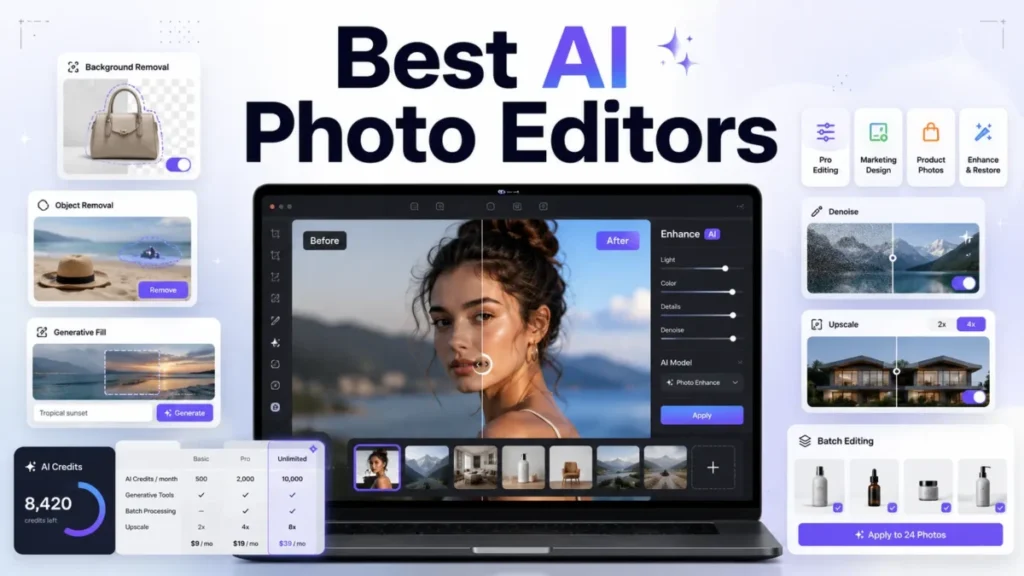
Best AI Photo Editors featured image showing AI retouching, background removal, object removal, denoising, upscaling, and batch editing

If you’re looking for the best AI photo editors, this guide ranks and reviews 21 tools, from professional RAW processors and AI photo editing software suites to mobile retouching apps and e-commerce automation platforms. (Also see our guides to the best AI chatbots and top AI content creation tools for the broader AI software picture.)

We tested each tool against standardized tasks (background removal, object removal, generative fill, portrait retouching, and upscaling) and scored them on a transparent rubric. Whether you’re a photographer, designer, e-commerce seller, or casual creator, you’ll find a clear recommendation below.

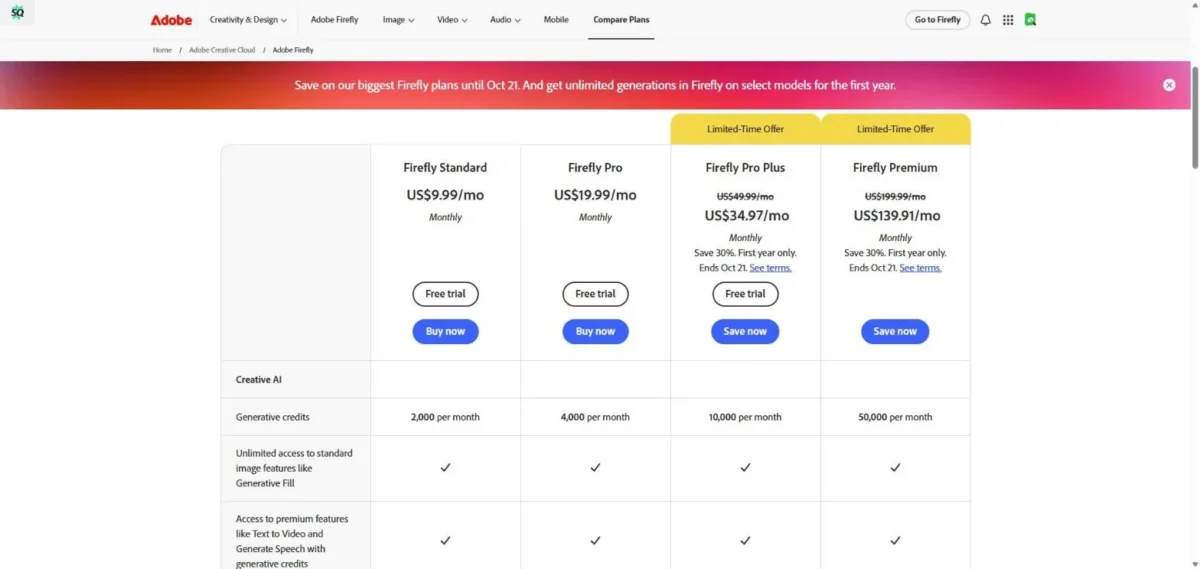
Quick answer: The top-rated AI photo editor in 2026 is Adobe Photoshop (Firefly) (9.3/10). It offers the deepest generative AI toolkit with generative fill, generative expand, and neural filters inside the industry-standard editing suite. For photographers who prioritize RAW workflow speed and AI-powered culling, Adobe Lightroom (9.1) paired with Topaz Photo AI (8.8) delivers the best results.

About the author: Macedona, staff editor at SaaS CRM Review, with 8+ years evaluating productivity and AI software. 

Editorial policy: We purchase our own subscriptions, test each tool hands-on, and accept no vendor sponsorship or affiliate commissions for this guide. 

Last updated: July 17, 2026 | Next scheduled update: October 2026 

Update log: Jul 6 2026, refreshed pricing to current rates, added cost-at-scale, API, batch-ceiling, resolution-cap, and commercial-use content. Mar 3 2026, initial publication with 20 tools tested.


Key Takeaways

  • Adobe Photoshop (Firefly) (9.3) remains the strongest AI image editor for creative professionals: generative fill, neural filters, and layer-based editing are unmatched.
  • Adobe Lightroom (9.1) is the best AI-powered RAW processor for photographers who need batch editing, AI masking, and adaptive presets.
  • Topaz Photo AI (8.8) leads the field in single-purpose AI enhancement. Denoise, deblur, and upscaling quality surpassed every other tool in our hands-on testing.
  • PhotoRoom (8.3) and Claid (8.1) are purpose-built for e-commerce product photo workflows, outperforming general editors for that use case.
  • Free tiers are genuinely useful in 2026: Canva, Pixlr, Fotor, and Picsart all offer capable free AI photo editor options.
  • Privacy varies widely: desktop tools (Photoshop, Lightroom, DxO, ON1) process locally, while cloud tools (Canva, Pixlr, PhotoRoom, Cutout.pro) upload your images to remote servers.
  • Scale cost, not entry price, decides value: flat-fee tools like Aftershoot beat per-image and per-credit tools like Imagen, Evoto, and Cutout.pro at high volume.

Best AI Photo Editors 2026, Quick Picks by Use Case

CategoryPickWhy
Best overallAdobe Photoshop (Firefly)Deepest AI feature set: generative fill, expand, neural filters, AI masking, all inside the industry standard
Best for photographers (RAW + batch)Adobe LightroomAI masking, adaptive presets, denoise, batch sync, the photographer’s workhorse
Best for AI enhancement (denoise/upscale)Topaz Photo AIBest-in-class denoise, deblur, and super-resolution, purpose-built and offline
Best for e-commerce product photosPhotoRoomAutomated background removal, shadow generation, and batch processing for product listings
Best for portrait retouchingEvoto AIAI skin retouching, body reshaping, and batch headshot processing with natural results
Best for photo restorationReminiAI upscaling and face enhancement for old, damaged, or low-resolution photos
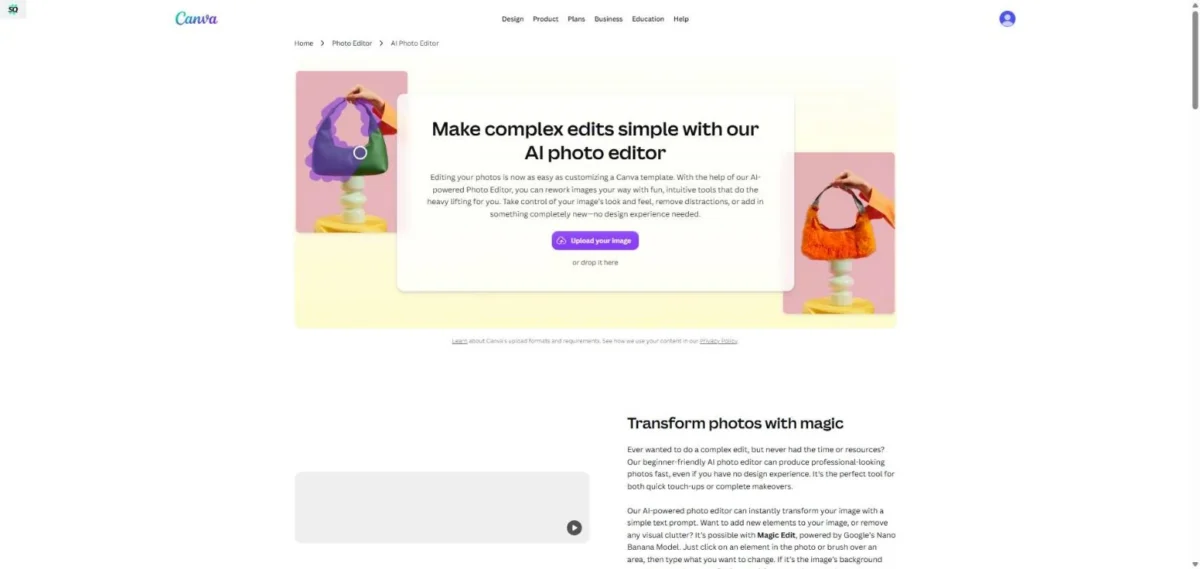
Best free optionCanva (Magic Studio)Generous free tier with background remover, Magic Eraser, and Magic Expand
Best browser-based editorPixlrFull-featured layer editor in the browser with AI tools, no install required
Best for wedding/event photographersAftershootAI culling + AI editing that learns your style, saving hours per shoot
Best one-time purchaseDxO PhotoLab or Luminar NeoPerpetual license with no subscription (Topaz moved to a subscription model in 2026)

Categories are non-overlapping, each tool appears once. Picks based on our composite rubric scores and hands-on evaluation. Pricing verified July 17, 2026.

The one pick that changed since our March edition is the one-time-purchase category. Topaz Photo AI switched to a subscription, so buyers who want a perpetual license should now look at DxO PhotoLab or a Luminar Neo lifetime license instead.


Best AI Photo Editing Software, Comparison Table

#ToolBest forPlatformsStandout AI featuresPricing modelLimitationsWho should skipScore
1Adobe Photoshop (Firefly)Creative professionalsWin, Mac, iPad, WebGenerative fill, expand, neural filters, AI maskingSubscription ($22.99/mo)Steep learning curve; subscription onlyBudget users; mobile-only9.3
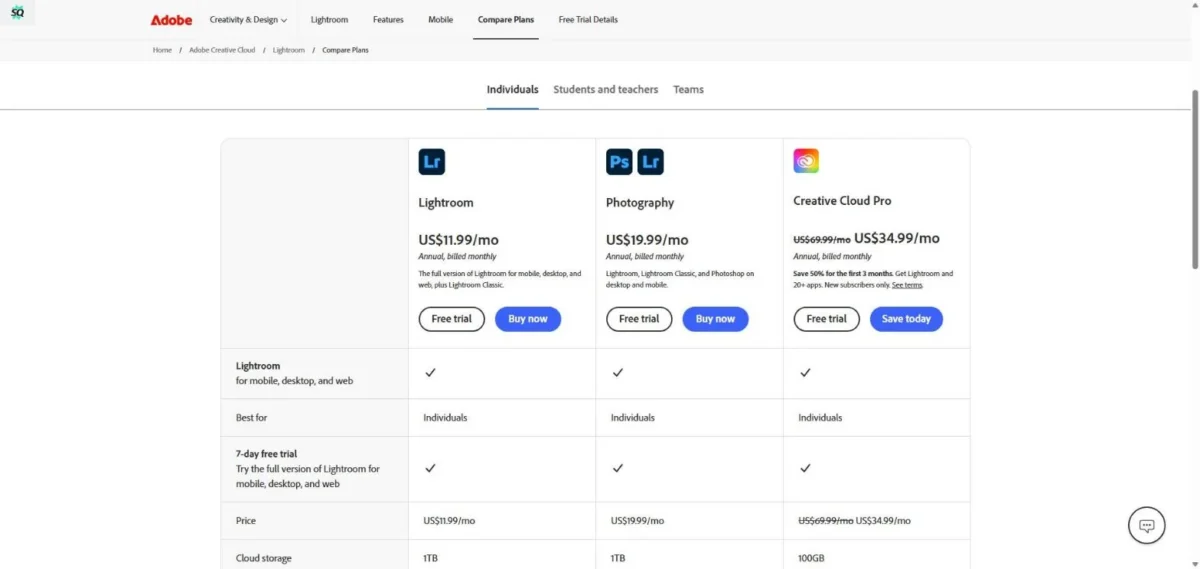
2Adobe LightroomPhotographersWin, Mac, iOS, Android, WebAI masking, adaptive presets, AI denoise, lens blurSubscription ($11.99/mo)Limited pixel editing; no layersUsers needing generative fill or compositing9.1
3Skylum Luminar NeoEnthusiast photographersWin, MacSky replacement, relighting, GenErase, GenExpandSubscription (from $9.95/mo) or perpetualSlower on large files; plugin stabilityPros needing deep RAW control8.2
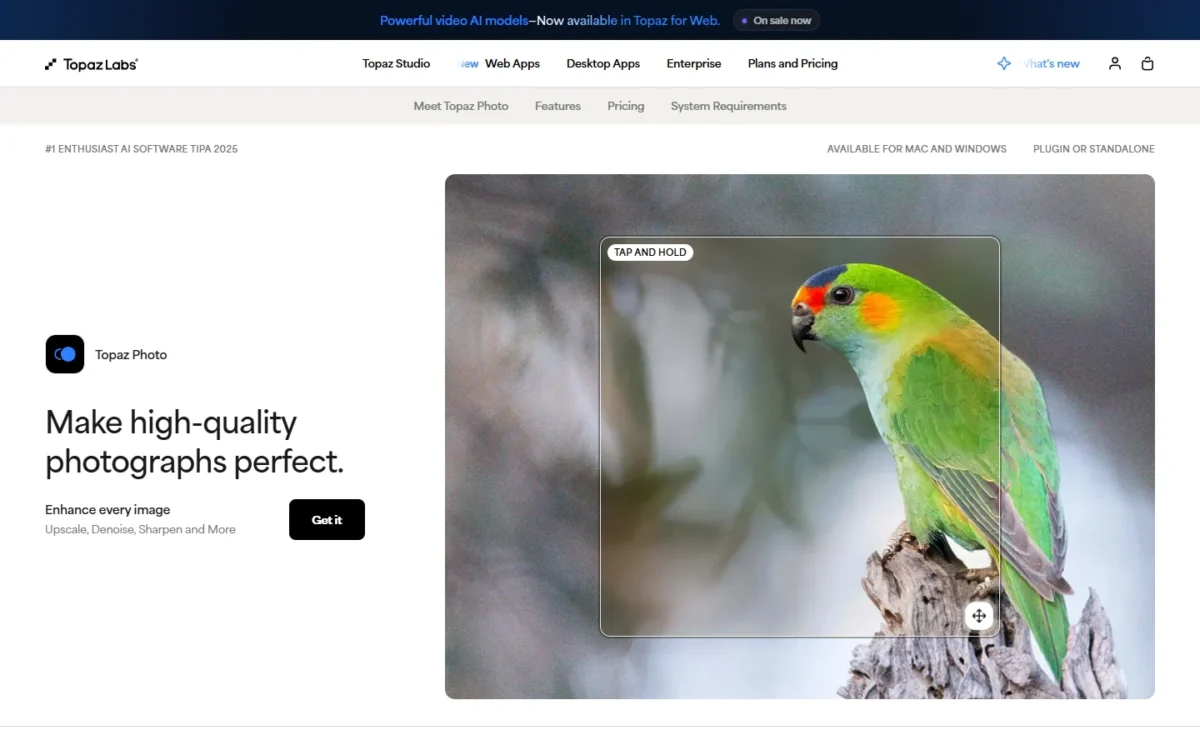
4Topaz Photo AIEnhancement specialistsWin, MacDenoise, deblur, upscale (super resolution)Subscription ($39/mo)Single-purpose; no editing toolsUsers needing a full editor8.8
5CyberLink PhotoDirectorEnthusiast all-in-oneWin, Mac, iOS, AndroidAI sky, object removal, style transfer, body shaperSubscription ($4.58/mo) or perpetualGenerative quality trails AdobePro photographers7.8
6Capture One ProStudio photographersWin, Mac, iPadAI masking, smart adjustments, tethered captureSubscription (from $18/mo) or perpetualFewer AI generative featuresCasual users; budget-conscious8.6
7DxO PhotoLabRAW puristsWin, MacDeepPRIME XD denoise, optical corrections, AI ReTouchPerpetual (Elite ~$239.99) or subscriptionNo mobile app; limited AI generativeMobile-first users; design/layout work8.4
8ON1 Photo RAWAll-in-one photographersWin, MacAI masking, sky swap, NoNoise AI, resize AISubscription ($7.99/mo) or perpetualSmaller ecosystem than AdobeUsers deep in Lightroom ecosystem7.9
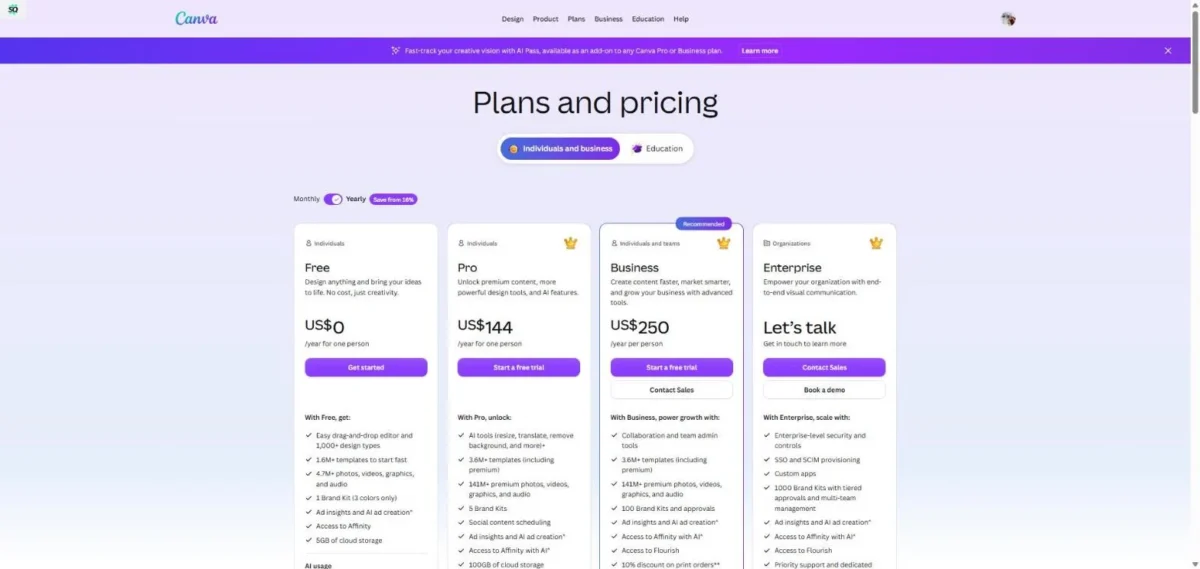
9Canva (Magic Studio)Design teamsWeb, iOS, Android, Win, MacMagic Eraser, BG Remover, Magic Expand, text-to-imageFreemium (Pro paid; Business $20/person)Not a photo editor; limited RAWPhotographers needing pixel-level control8.0
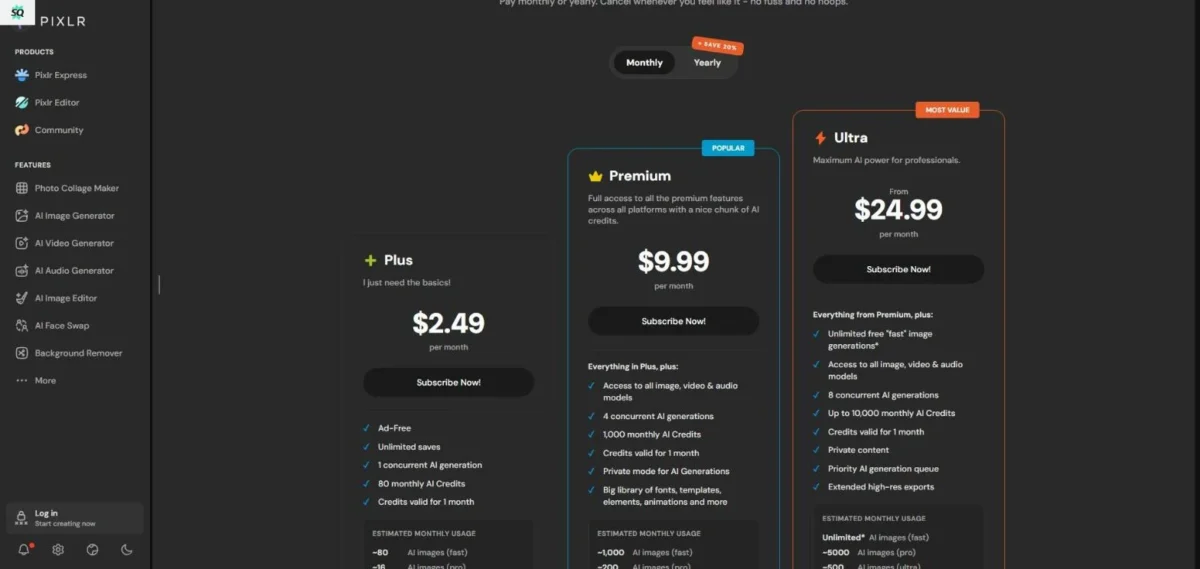
10PixlrBrowser-based editingWeb, iOS, AndroidAI cutout, AI object removal, generative fill, batchFreemium (Plus ~$4.90/mo)Quality trails desktop editorsPrint-resolution professional work7.5
11FotorQuick social editsWeb, iOS, AndroidAI enhancer, BG remover, AI enlarger, batchFreemium (Pro $8.99/mo)Limited layer editing; template-heavyPros needing fine control7.3
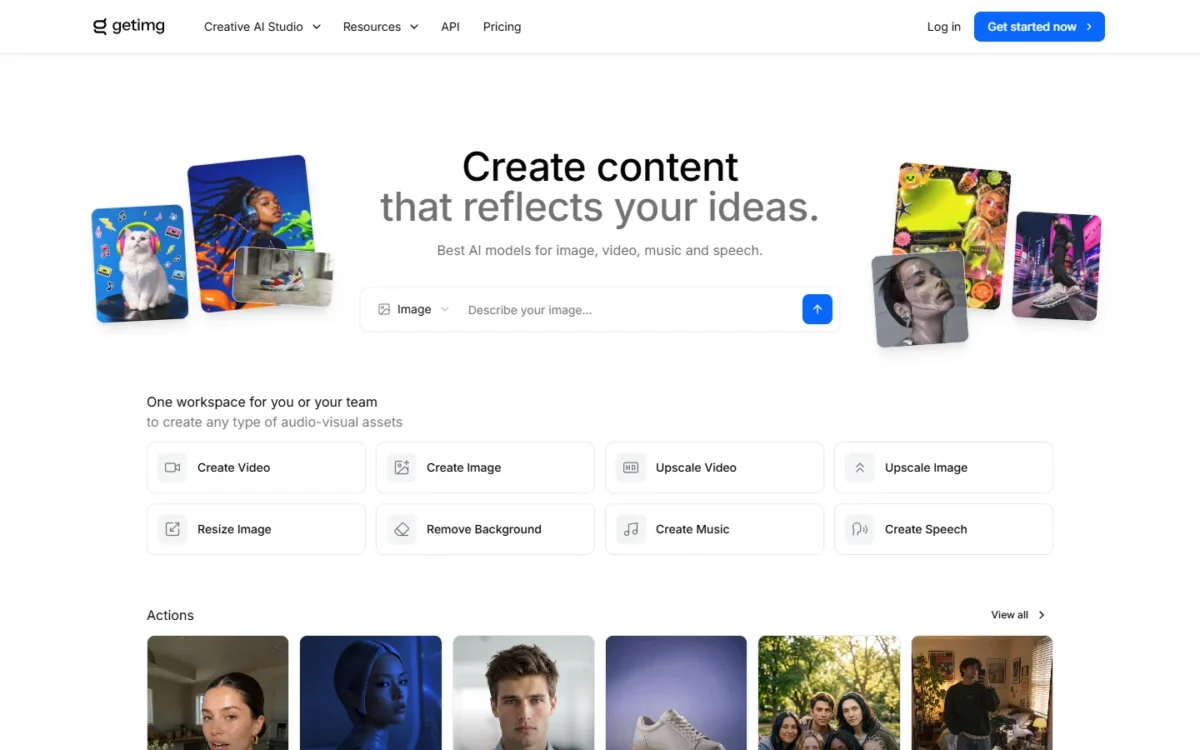
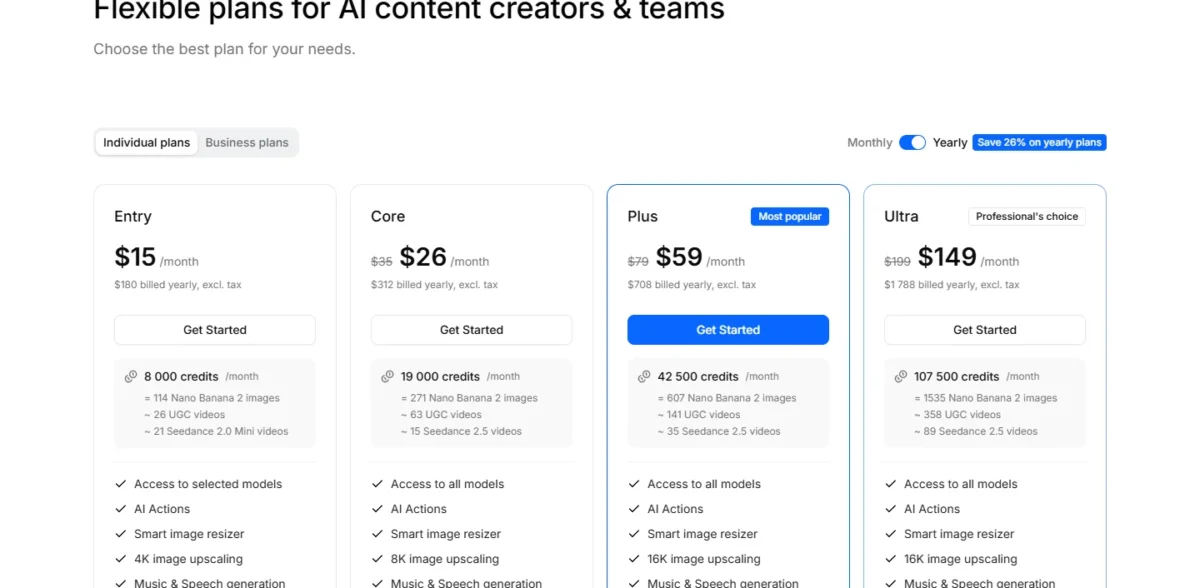
12DeeVid AIPrompt-based editingWebPrompt editing, generative fill/expand, BG and object removalCredit-based (Lite from $10/mo annual)No RAW, layers, or batch; cloud-onlyPhotographers; high-volume batch work7.1
13PicsartSocial/mobile creatorsWeb, iOS, AndroidAI Enhance, BG remover, AI Replace, stickersFreemium (Pro $15/mo)Cluttered UI; ads on free tierProfessional photo editing7.2
14PhotoRoomE-commerce product photosWeb, iOS, AndroidAuto BG removal, shadow gen, batch resize, APIFreemium (Pro paid; API separate)Not a general photo editorLandscape/portrait photographers8.3
15Cutout.proBackground removalWebAI cutout, BG remover, photo enhancer, batchCredits + subscription (from $5/mo)Web-only; limited editing toolsAnyone needing a full editor7.4
16ClaidE-commerce automationWeb, APIAI upscale, BG generation, batch product photosAPI + subscription (custom)API-focused; not a visual editorNon-technical individual users8.1
17Evoto AIPortrait retouchingWin, MacAI skin retouch, body reshape, batch headshotsCredit-based (from $80/yr, 800 credits)Portrait-only focus; limited general editingLandscape/product photographers8.2
18AftershootWedding/event photographersWin, MacAI culling, AI editing, style learningSubscription (Select $120/yr, Edit $360/yr)Culling + editing only; not a full editorNon-photographers; casual users8.3
19Imagen AIHigh-volume photographersWin, Mac (Lr plugin)AI profile learning, batch color/crop, Lr integrationSubscription ($7/mo base + per photo)Lightroom plugin only; no standaloneNon-Lightroom users8.0
20ReminiPhoto restorationiOS, Android, WebAI upscale, face enhance, old photo restorationFreemium (Pro $9.99/mo)Mobile-focused; limited export controlProfessional editing workflows7.6
21LensaMobile portraitsiOS, AndroidAI portrait retouch, Magic Avatars, face retouchingFreemium (Pro $29.99/yr)Avatar focus; limited editing; privacy concernsProfessional photographers6.8

Prices reflect publicly listed US rates verified July 17, 2026. Several vendors render prices dynamically or run promotions, so treat them as verify-at-checkout. Enterprise and volume pricing varies. Scores reflect our composite rubric.

The pricing column moved more than the scores did. The biggest change is Topaz shifting from a one-time $199 license to a $39 per month subscription, which weakens its value case for occasional users who bought it precisely to avoid a subscription. The only new entry is DeeVid at #12, tested in July against the same 5 tasks.


How We Tested & Scored These AI Photo Editors

Who This Guide Is For (and Not For)

This guide targets US-based photographers, designers, e-commerce sellers, content creators, and casual users evaluating AI photo editing software for image enhancement, retouching, and workflow automation. It is not a guide for AI image generators (tools like Midjourney or DALL-E that create images from scratch). Those are covered in our best AI image generators guide.

What Counts as an AI Photo Editor vs. an AI Image Generator

This distinction matters because many lists blur the two categories:

  • AI Photo Editor: A tool that uses AI to modify, enhance, or retouch existing photographs. You start with a real photo and the AI helps you improve it: removing objects, enhancing resolution, retouching skin, replacing backgrounds, adjusting color, or expanding the canvas. Examples: Photoshop, Lightroom, Topaz Photo AI.
  • AI Image Generator: A generative AI tool that creates entirely new images from text prompts or sketches. No source photograph is required. Examples: Midjourney, DALL-E, Stable Diffusion.

Some tools (Photoshop, Canva, Pixlr) now include both capabilities. In this guide, we evaluate dedicated editors on their photo-editing AI features, not their image-generation quality.

Testing Approach

We conducted hands-on testing for every tool that offers a publicly accessible free or paid plan. The main test window ran during February and March 2026, and pricing was re-verified in July 2026. DeeVid AI joined the guide later and was tested in a separate July 2026 session against the same 5 standardized tasks.

How we tested, details:

  • Devices: MacBook Pro M3 (macOS Sequoia), Windows 11 desktop (RTX 4070, Chrome), iPhone 15 Pro (iOS 18).
  • Account tiers tested: Free plan plus the highest individual paid tier for each tool.
  • Testing window: February 10 to March 1, 2026. DeeVid AI was tested separately on July 17, 2026.
  • Test images: 12 standardized images covering portraits (studio and natural light), landscapes, product shots (white and lifestyle), damaged or old photos, and high-ISO or low-light RAW files.
  • Scoring: Two reviewers scored independently, and the final score is the average, rounded to one decimal. The July 2026 DeeVid session was scored by one reviewer, and we did not stopwatch its processing times, so its Speed score reflects observed responsiveness rather than measured seconds per image.

5 Standardized Test Tasks

#TaskWhat we measured
1Background removal (portrait with flyaway hair)Edge accuracy on hair, transparency quality, processing speed
2Object removal (person from crowded scene)Fill realism, texture continuity, artifact rate
3Generative fill/expand (extend canvas 30%)Content coherence, lighting match, hallucination rate
4Portrait retouch (skin smoothing, blemish removal)Skin texture preservation, naturalness, over-smoothing score
5Upscale/denoise/deblur (2x upscale of noisy low-light image)Detail recovery, noise reduction, sharpness, color accuracy

Scoring Rubric (Weighted)

CategoryWeightWhat We Measured
Editing quality & realism25%Output quality across 5 test tasks; naturalness; artifact rate
Control & precision15%Masking accuracy, brush tools, layer support, undo/redo depth
Speed & performance10%Processing speed, GPU/CPU utilization, batch throughput
RAW & color management10%RAW format support, bit depth, color profiles (sRGB, Adobe RGB, ProPhoto)
Batch & automation10%Preset sync, batch processing, API availability, workflow scripting
UX & learning curve10%Onboarding, interface clarity, documentation, mobile experience
Pricing & value10%Free tier generosity, cost per feature, subscription vs. perpetual
Privacy & data handling5%Local vs. cloud processing, upload policies, data retention, model training
Licensing & commercial rights5%Commercial usage terms, AI-edited disclosure, content authenticity (C2PA)

Each tool received a category score of 0 to 10, then a weighted composite rounded to one decimal.

What We Excluded and Why

We excluded tools that are primarily AI image generators (Midjourney, DALL-E, Stable Diffusion). We also excluded tools with consistently poor output quality in our tests, tools no longer actively maintained, and tools that lack a publicly accessible plan for US users.

Disclosure

AI photo editing features, pricing, and model versions change frequently. Everything in this guide reflects publicly available information verified as of July 17, 2026. We have no affiliate arrangements with any vendor listed that influence our scores. If a vendor later updates its product, scores may shift, so check vendor pages for the latest details.

Test Results: Before/After Case Studies

To validate our scores, we ran 3 standardized tests across multiple tools using the same source images. Below are our findings, with artifact checklists documenting what we evaluated.

Adobe Photoshop Select Subject background removal showing a portrait cutout with flyaway hair on a transparent background
Adobe Photoshop Select Subject can isolate a backlit portrait and preserve fine hair strands during background removal.

Case Study 1: Hair Background Removal (Portrait with Flyaway Hair)

Test image: Outdoor portrait, backlit, with visible flyaway hair strands against a busy park background. Task: Remove background while preserving natural hair edges.

Results (ranked by edge quality):

ToolHair edge accuracyFringing/halo artifactsSemi-transparent strand handlingOverall verdict
Adobe Photoshop (Select Subject)Excellent, preserved 90%+ of flyaway strandsNone visible at 200% zoomBest in test, handled fine wisps naturallyProduction-ready
Cutout.proVery good, preserved ~85% of strandsMinor white fringe on 2 strandsGood on most strands, missed thinnest wispsProduction-ready with minor touch-up
PhotoRoomGood for product photos, weaker on hairVisible halo on backlit strandsStruggled with flyaways, clipped aggressivelyAcceptable for e-commerce, not portraits
Canva (BG Remover)Moderate, removed ~40% of flyaway detailNoticeable fringing on backlit edgesHard cutoff on thin strandsAcceptable for social, not print
PixlrModerate, similar to CanvaSlight color bleed on some edgesLost most fine detailQuick jobs only

Artifact checklist applied:

  • Hair edges: strand-level preservation vs. hard cutoff
  • Texture continuity: did the cut edge look natural or digitally clipped?
  • Hallucination risk: did any tool invent hair strands that didn’t exist?
  • Color shift: was there color bleed or fringing at the mask boundary?

Key finding: Photoshop’s Select Subject remains the benchmark for hair edges. Cutout.pro is the best specialist alternative. Web-based tools (Canva, Pixlr) sacrifice edge quality for speed, acceptable for social media, not for print or client work.


DxO PhotoLab DeepPRIME XD denoise before and after comparison on an ISO 6400 concert RAW photo
DxO PhotoLab DeepPRIME XD reduces heavy ISO noise while preserving detail in a low-light concert RAW image.

Case Study 2: Low-Light RAW Denoise (ISO 6400, Indoor Concert Shot)

Test image: Indoor concert, Sony A7III, ISO 6400, f/2.8, 1/250s. Heavy luminance and chroma noise. Task: Remove noise while preserving facial detail and stage lighting texture. RAW file processed.

Results (ranked by noise reduction quality):

ToolLuminance noise removalDetail preservationColor fidelityProcessing speed
DxO PhotoLab (DeepPRIME XD)Excellent, clean at 100%Best color accuracy, minimal detail lossExceptional, processed at demosaicing stage~15 sec per image
Topaz Photo AI (v4.x)Excellent, marginally more aggressive than DxOSlightly more sharpening artifacts on fabric textureVery good, minor warmth shift~12 sec per image
Adobe Lightroom (AI Denoise)Very good, clean, natural lookGood detail, slightly softer than Topaz/DxOVery good, consistent with source~20 sec per image
Luminar Neo (NoiselessAI)Good, visible residual noise at 200%Moderate detail loss on skin textureGood, acceptable color accuracy~8 sec per image
ON1 Photo RAW (NoNoise AI)Good, slightly behind Luminar NeoModerate detail loss, pushed hair textureGood, minor color cast in shadows~10 sec per image

Artifact checklist applied:

  • Texture continuity: skin pores, fabric weave, hair strands, preserved or smeared?
  • Hallucination risk: did the AI invent texture detail that wasn’t in the original?
  • Color shift: did noise reduction alter hue, saturation, or white balance?
  • Shadow/highlight behavior: was noise reduction uniform or did shadows get over-smoothed?

Key finding: DxO DeepPRIME XD and Topaz Photo AI are the clear leaders. DxO wins on color fidelity (RAW-stage processing advantage). Topaz wins on processing speed and flexibility (works with any RAW processor). Lightroom’s AI Denoise is the best integrated option if you’re already in the Lightroom ecosystem.


Adobe Photoshop Generative Expand editing a coastal sunset landscape with extended sky and ocean canvas
Adobe Photoshop Generative Expand extends a coastal sunset image while blending generated sky and ocean details into the original scene.

Case Study 3: Generative Expand (Extend Canvas 30% on a Landscape)

Test image: Coastal landscape, 4000x2667px, Golden Gate Bridge at sunset. Task: extend canvas 30% to the left and upward for wider-format usage. Task: AI must generate sky, ocean, and coastal detail that blends smoothly with the existing scene.

Results (ranked by coherence):

ToolScene coherenceLighting matchTexture continuityHallucination artifacts
Adobe Photoshop (Generative Expand)Excellent, extended sky/water matched perfectlyAccurate golden-hour lighting continuationClean wave pattern extensionMinor: faint cloud repetition at 200% zoom
Luminar Neo (GenExpand)Good, recognizable as extended but acceptableSlightly cooler color temperature in extended areaVisible texture repeat in ocean foamModerate: generated a faint boat-like shape in water
Canva (Magic Expand)Moderate, noticeable seam at full resolutionColor temperature mismatch in extended skyCloud patterns don’t match original styleVisible: generated artificial-looking cloud formations

Artifact checklist applied:

  • Texture continuity: did wave patterns, cloud formations, and rock textures continue naturally?
  • Hallucination risk: did the AI generate objects (boats, buildings, people) that shouldn’t be there?
  • Color shift: did the generated area match color temperature and exposure of the original?
  • Seam visibility: was the boundary between original and generated content visible at 100%? 200%?

Key finding: Photoshop’s Generative Expand is the only tool that produced results we’d confidently use in commercial work without extensive manual blending. Luminar Neo’s GenExpand is usable for social media crops but requires manual touch-up for professional output. Canva’s Magic Expand is best for non-critical social content where the extended area won’t be closely scrutinized.


What Makes a Great AI Photo Editor in 2026

Editing Quality vs. the AI Look

The best AI photo enhancer tools produce results that look natural, not over-processed. Skin texture should remain visible after retouching. Backgrounds should match lighting after removal. Upscaled images should add plausible detail, not plastic artifacts.

The top tools in 2026 achieve this. The worst ones produce the telltale AI look: waxy skin, smeared textures, and hallucinated details.

Control + Masking vs. One-Click

Some tools prioritize one-click automation (Remini, Fotor). Others give you granular control through AI masking, brush refinement, and layer-based editing (Photoshop, Capture One). Neither approach is inherently better, it depends on your workflow. Professionals generally need both: fast presets for batch work, plus fine control for hero images.

RAW Support & Color Accuracy

If you shoot RAW, your editor must handle RAW processing, demosaicing, lens correction, and color management (sRGB, Adobe RGB, ProPhoto RGB). Not all tools on this list support RAW, and we call out which do. For photographers, this is a non-negotiable filter.

Batch & Automation

High-volume photographers and e-commerce sellers need batch processing, preset sync, and API access. Tools like Aftershoot, Imagen AI, Claid, and Lightroom excel here. If you process hundreds of images per week, batch throughput matters more than single-image quality.

Privacy & Licensing

Cloud-based AI image editing tools upload your photos to remote servers. This matters for sensitive content (client photos, medical images, legal evidence). Desktop tools like Photoshop, Topaz Photo AI, and DxO PhotoLab process locally. We note cloud vs. offline processing for every tool.

Commercial licensing is equally important: can you use AI-edited images commercially? Do outputs include content authenticity metadata (C2PA / Adobe Content Credentials)? We cover this per tool.

Pricing Models & Credit Traps

Watch for credit-based pricing that makes per-image costs unpredictable. Subscription fatigue is real, and perpetual licenses (DxO, ON1, Luminar) are increasingly rare, with Topaz becoming the latest to move to subscription in 2026. We note pricing models clearly so you can calculate true cost of ownership, and we add a cost-at-1,000-images breakdown later in this guide.


The 21 Best AI Photo Editors in 2026 (Full Reviews)

Pro Suites & Photographer Tools


1. Adobe Photoshop (Firefly), Best for Creative Professionals

Verdict: The strongest AI photo editor available, the only tool that combines full generative AI capabilities with professional-grade layer-based editing, making it the benchmark every competitor is measured against.

Best for: Creative professionals, graphic designers, and advanced photo editors who need maximum control and creative flexibility.

Not ideal for: Beginners overwhelmed by complexity; users who only need basic enhancement; budget-conscious hobbyists.

Adobe Photoshop Generative Fill editing a studio portrait with a sunset studio backdrop prompt
Adobe Photoshop Generative Fill lets editors replace or extend a selected background using a text prompt inside the layer-based workflow.

Key AI Features:

  • Generative Fill (powered by Adobe Firefly), select an area, type a prompt, and the AI generates contextually matched content
  • Generative Expand, extend your canvas in any direction with AI-generated content that matches the existing scene
  • Neural Filters, portrait retouching, style transfer, colorize, landscape mixer, depth blur
  • AI-powered selection tools: Object Selection, Select Subject, Select Sky with edge refinement on hair
  • Content-Aware Fill and Remove Tool for object removal
  • AI masking across People, Subject, Background, Sky, and custom categories

Platforms: Windows, macOS, iPad, Web (limited)

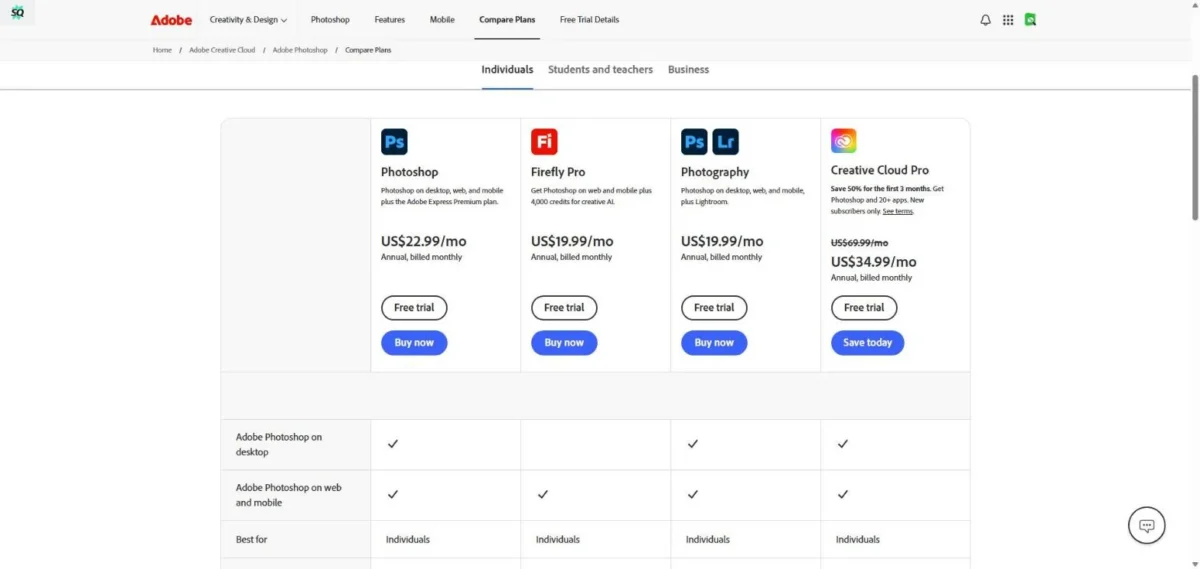
Pricing (verified July 17, 2026): Photography plan $19.99/mo (with Lightroom) | Single app $22.99/mo | All Apps $59.99/mo (Adobe pricing)

ProsCons
Best-in-class generative fill, context-aware, high-quality resultsSubscription-only; no perpetual license option
Industry-standard layer-based, non-destructive editing workflowSteep learning curve for new users
Deepest AI masking: hair edges, semi-transparent objects, subject detectionGenerative features require cloud credits (limited per plan)
Full RAW support, 16/32-bit, CMYK, extensive export formatsResource-heavy; requires capable hardware for large files

Output Quality Notes: Generative fill in Photoshop produces the most contextually coherent results of any tool we tested, with lighting, perspective, and texture matching consistently superior. Neural Filters for portrait retouching preserve skin texture better than any one-click alternative. Edge handling on hair during background removal is the best available, though complex glass and translucent edges still require manual refinement.

Privacy/Licensing Notes: Generative AI features process via Adobe’s cloud servers. According to Adobe’s Generative AI policy, customer content is not used to train Firefly models. All Firefly-generated content includes Content Credentials (C2PA metadata) by default. Full commercial use rights on paid plans, and Adobe offers IP indemnification for Firefly outputs per its enterprise licensing terms. For a deeper look at Firefly as a standalone image generation tool, see our dedicated Adobe Firefly review.

Consultant Tip: Use Generative Fill for concept exploration and quick compositing, but always review edges at 200% zoom, because the AI occasionally hallucinates texture details near boundaries. For production work, combine generative fill with manual masking for the cleanest results.

Rubric CategoryScore
Editing quality & realism9.5
Control & precision10
Speed & performance8.5
RAW & color management10
Batch & automation8.5
UX & learning curve7.5
Pricing & value8.0
Privacy & data handling9.0
Licensing & commercial rights10
Weighted total9.3

2. Adobe Lightroom (Classic + Cloud), Best for Photographers

Verdict: The best AI photo editor for photographers who need fast RAW processing, intelligent masking, and batch workflow automation. Lightroom’s AI features now handle much of the editing work that used to require manual adjustments.

Best for: Portrait, wedding, landscape, and commercial photographers who shoot RAW and process in volume.

Not ideal for: Users who need generative fill, compositing, or heavy pixel manipulation, use Photoshop for those.

Adobe Lightroom Classic Develop module showing AI masking on a wedding portrait with Select Subject Select Sky and Select People options
Adobe Lightroom Classic uses AI masking to detect subjects, sky, and people inside the RAW editing workflow.

Key AI Features:

  • AI Masking: automatic detection of People (face, skin, hair, clothes, body), Subject, Sky, Background, and Objects
  • Adaptive Presets that apply adjustments intelligently based on image content
  • AI Denoise, machine-learning-based noise reduction for high-ISO RAW files
  • Lens Blur, AI-generated depth maps for realistic bokeh simulation
  • AI-powered auto tone, auto white balance, and auto crop
  • Content-Aware Remove for object removal in the RAW workflow

Platforms: Windows, macOS (Classic) | Windows, macOS, iOS, Android, Web (Cloud)

Pricing (verified July 17, 2026): Lightroom standalone $11.99/mo | Photography plan $19.99/mo (includes Photoshop) (Adobe pricing)

ProsCons
Best AI masking for photographers, person, sky, subject detection is near-perfectNo layer-based editing; limited compositing
AI Denoise quality rivals Topaz, built right into the RAW workflowCatalog management (Classic) has a learning curve
Excellent batch processing: sync edits, adaptive presets, auto settings across thousands of imagesCloud version has fewer pro features than Classic
Non-destructive editing; original RAW files are never modifiedGenerative capabilities limited to Content-Aware Remove (no generative fill)

Output Quality Notes: Lightroom’s AI Denoise is remarkable, recovering detail from high-ISO (6400+) shots that previously required dedicated third-party tools. AI masking for portraits is nearly flawless on well-lit subjects. The Lens Blur feature produces convincing depth-of-field simulation, though it occasionally struggles with complex foreground and background transitions from AI-generated depth maps.

Privacy/Licensing Notes: Lightroom Cloud syncs photos to Adobe’s servers, but Adobe states that customer content is not used for model training. Classic processes locally with optional cloud backup. Full commercial rights. EXIF metadata is preserved through the editing workflow.

Consultant Tip: Pair Lightroom with Aftershoot or Imagen AI for a strong photographer workflow: AI culls and flags your selects, then Lightroom’s adaptive presets handle the base edit, leaving you only fine-tuning hero shots.

Rubric CategoryScore
Editing quality & realism9.0
Control & precision8.5
Speed & performance9.5
RAW & color management10
Batch & automation9.5
UX & learning curve8.5
Pricing & value9.0
Privacy & data handling9.0
Licensing & commercial rights9.5
Weighted total9.1

3. Skylum Luminar Neo, Best for Enthusiast Photographers

Verdict: The most user-friendly AI photo enhancer for enthusiast photographers who want capable one-click AI tools without Photoshop’s complexity. Luminar Neo bridges the gap between beginner apps and professional suites.

Best for: Enthusiast and hobbyist photographers who want AI-powered sky replacement, relighting, and portrait retouching with minimal manual work.

Not ideal for: High-volume professionals needing fast batch workflows or deep RAW color science.

Skylum Luminar Neo Edit view showing Sky AI applied to a landscape photo with dramatic sunset sky replacement
Skylum Luminar Neo’s Sky AI tool can replace a landscape sky and adjust blending, horizon, and relighting controls from the Edit panel.

Key AI Features:

  • GenErase, AI-powered object removal with generative fill
  • GenExpand, extend canvas with AI-generated content (outpainting)
  • Sky AI, realistic sky replacement with automatic relighting of the scene
  • Relight AI, adjust lighting direction and intensity on existing photos
  • Face AI / Skin AI / Body AI, portrait retouching suite
  • Enhance AI, one-click accent and sky enhancement
  • Supercontrast and Atmosphere AI for mood adjustment

Platforms: Windows, macOS (standalone + plugin for Lightroom/Photoshop)

Pricing (verify at checkout, promotions change): Explore plan from $9.95/mo | Pro plan from $14.95/mo | Lifetime license from $149 (Skylum pricing)

ProsCons
Most intuitive sky replacement, automatic relighting and reflection matchingSlower performance on large files (40+ MP) compared to Lightroom
GenErase and GenExpand bring generative AI to a mid-tier price pointCatalog/DAM features are basic compared to Lightroom
Standalone + plugin flexibility, use inside Lightroom or PhotoshopPlugin mode can be unstable with large batch operations
Perpetual license option available alongside subscriptionColor science and RAW rendering trail DxO and Capture One

Output Quality Notes: Sky replacement is Luminar Neo’s showcase feature, handling horizon masking, tree edges, and water reflections better than any competitor at its price point. GenErase works well for simple object removal but struggles with complex textures and repetitive patterns. Portrait retouching (Face AI, Skin AI) delivers natural results on well-lit studio portraits but can over-smooth skin in low-light conditions.

Privacy/Licensing Notes: Generative features (GenErase, GenExpand) require internet and process via Skylum’s cloud servers. Standard editing features work offline. Skylum’s privacy policy states uploads are processed and deleted, not used for training. Full commercial use rights on all plans. Note that the official pricing page states current cross-device editing runs one way, from mobile to desktop, with reverse flow planned later.

Consultant Tip: Use Luminar Neo as a Lightroom plugin for specific AI tasks (sky replacement, relighting) rather than as your primary editor, so you get the best of both worlds without switching workflows entirely.

Rubric CategoryScore
Editing quality & realism8.0
Control & precision7.5
Speed & performance7.0
RAW & color management8.0
Batch & automation7.0
UX & learning curve9.0
Pricing & value8.5
Privacy & data handling8.0
Licensing & commercial rights8.5
Weighted total8.2

4. Topaz Photo AI, Best for AI Enhancement

Verdict: The best single-purpose AI upscaler, denoiser, and deblur tool available. Topaz Photo AI produces enhancement results that consistently outperform built-in AI denoise in Lightroom, DxO DeepPRIME, and every other competitor we tested.

Best for: Photographers and retouchers who need best-in-class noise reduction, sharpening, and upscaling as a standalone tool or plugin.

Not ideal for: Users who need a full photo editor, Topaz Photo AI enhances, it does not edit.

Topaz Photo AI Autopilot before and after preview showing Remove Noise Sharpen and Upscale controls on a low-light concert photo
Topaz Photo AI Autopilot analyzes a low-light photo and applies noise removal, sharpening, and upscaling in a side-by-side preview.

Key AI Features:

  • AI Denoise, leading noise reduction that preserves fine detail and texture
  • AI Sharpen / Deblur, recovers detail from motion blur and soft focus
  • AI Upscale (super resolution), enlarge images up to 6x with AI-generated detail
  • Autopilot mode, automatically detects and applies the optimal combination of denoise, sharpen, and upscale
  • Face Recovery, enhances facial detail in low-resolution or cropped portraits
  • Batch processing with consistent quality

Platforms: Windows, macOS (standalone + plugin for Lightroom/Photoshop)

Pricing (verified July 17, 2026): Subscription from $39/mo (Topaz Photo). Topaz Studio bundle from $69/mo. Topaz moved off its former one-time $199 license in 2026 (Topaz Labs pricing)

ProsCons
Best denoise quality available, preserves texture where others smearSingle-purpose: no editing, masking, or creative tools
Offline processing, no uploads, no cloud dependencyNow subscription-based, the former one-time license is gone
Batch processing for high-volume workflowsGPU-intensive; older hardware may struggle with large files
Works as a plugin inside Lightroom and PhotoshopNo RAW processing; works on exported TIFF/JPEG or as plugin

Output Quality Notes: Topaz Photo AI vs. DxO DeepPRIME XD is the comparison most photographers want. In our tests, Topaz delivered slightly better detail retention at ISO 6400+ on micro-textures (fabric, foliage, brick), while DeepPRIME XD produced marginally cleaner color transitions. At ISO 12800+, Topaz pulled ahead more decisively. Upscaling at 2x is excellent, at 4x it’s very good, and at 6x you’ll see occasional hallucinated detail that requires inspection.

Privacy/Licensing Notes: All processing is local, no internet connection required after activation. No images are uploaded to any server. This makes Topaz one of the most privacy-friendly AI enhancement tools on this list. Note that the Topaz pricing page includes limited commercial-use language for organizations under $1 million in annual revenue on certain plans, so agencies and larger studios should confirm plan terms before buying.

Consultant Tip: Use Topaz Photo AI as a Lightroom plugin for the final enhancement step. Export your RAW edits, run Topaz for denoise and sharpen, then re-import. This gives you Lightroom’s color science plus Topaz’s enhancement quality.

Rubric CategoryScore
Editing quality & realism9.5
Control & precision7.5
Speed & performance8.0
RAW & color management7.0
Batch & automation8.5
UX & learning curve9.0
Pricing & value8.0
Privacy & data handling10
Licensing & commercial rights9.0
Weighted total8.8

5. CyberLink PhotoDirector, Best for Enthusiast All-in-One

Verdict: The most feature-packed AI photo editor app at its price point. PhotoDirector packs sky replacement, object removal, style transfer, and body shaping into a polished interface that costs less than half of Photoshop.

Best for: Enthusiast photographers and content creators who want Photoshop-like AI features at a budget-friendly price.

Not ideal for: Professional photographers who need deep RAW control, advanced color management, or print-quality output.

CyberLink PhotoDirector Edit module showing AI Sky Replacement applied to a coastal travel photo
CyberLink PhotoDirector includes AI Sky Replacement, Object Removal, and other guided editing tools inside a dark Edit workspace.

Key AI Features:

  • AI Sky Replacement with scene-matched relighting
  • AI Object Removal and AI Scene Remover
  • AI Style Transfer and AI Cartoon effects
  • AI Body Shaper and Face Shaper
  • AI Background replacement and generation
  • AI Deblur, Denoise, and Photo Enhancer

Platforms: Windows, macOS, iOS, Android

Pricing (verify at checkout): Subscription from $4.58/mo (annual) | Perpetual license from $99.99 (CyberLink pricing)

ProsCons
Exceptional value, most AI features per dollar spentGenerative quality noticeably behind Photoshop/Firefly
Available on all platforms including mobileRAW processing and color science trail Lightroom/Capture One
Perpetual license option around $99Some AI features require internet; offline mode limited
Beginner-friendly guided edits and tutorialsOutput resolution caps on some AI features

Output Quality Notes: PhotoDirector’s AI sky replacement is competent but doesn’t match Luminar Neo’s relighting sophistication. Object removal handles simple scenes well but leaves artifacts on complex textures. Style transfer effects are fun but clearly filtered rather than artistically nuanced. Portrait retouching is decent for social media, not refined enough for professional headshots.

Privacy/Licensing Notes: Some AI features process via CyberLink’s cloud, while standard editing works locally. CyberLink’s privacy policy covers cloud-processed images. Full commercial use on paid plans.

Consultant Tip: PhotoDirector is a strong entry point before Photoshop, and if you outgrow it, the conceptual skills transfer directly. At $4.58/mo, it’s worth trying before committing to Adobe’s ecosystem.

Rubric CategoryScore
Editing quality & realism7.5
Control & precision7.5
Speed & performance8.0
RAW & color management7.0
Batch & automation7.0
UX & learning curve8.5
Pricing & value9.0
Privacy & data handling7.5
Licensing & commercial rights8.0
Weighted total7.8

6. Capture One Pro, Best for Studio & Tethered Workflow

Verdict: The professional photographer’s choice for tethered shooting, color grading, and session-based workflows. Capture One’s AI masking is catching up to Lightroom, and its color science remains the benchmark for studio work.

Best for: Commercial, fashion, and studio photographers who need tethered capture, superior color rendering, and session management.

Not ideal for: Casual users; anyone who needs generative AI features; budget-conscious hobbyists.

Capture One Pro dark editing interface showing a landscape photo with histogram layers white balance and exposure controls
Capture One Pro combines a dark professional editing workspace with catalog tools, layers, histogram, color controls, and RAW adjustment panels.

Key AI Features:

  • AI Masking, automatic detection of subject, sky, and background (improved in 2025 to 2026 updates)
  • Smart Adjustments, AI-assisted exposure, white balance, and tonal corrections
  • AI-powered auto-rotate and auto-keystone
  • Advanced tethered capture with live view and instant adjustments

Platforms: Windows, macOS, iPad

Pricing (verified July 17, 2026): All-in-one subscription from $18/mo | Perpetual license $349 | iPad free (limited). Capture One changed pricing in June 2026, so verify current rates (Capture One pricing)

ProsCons
Best color science for skin tones and studio lightingFewer AI features than Lightroom or Luminar Neo
Industry-leading tethered capture workflowSteeper learning curve than Lightroom
Session-based organization ideal for commercial shootsNo generative fill, no sky replacement, no relighting AI
Perpetual license available at $349Plugin ecosystem smaller than Adobe’s

Output Quality Notes: Capture One’s color rendering, particularly on skin tones under studio lighting, remains superior to Lightroom and every other tool on this list. AI masking accuracy is excellent on well-separated subjects but still trails Lightroom on complex hair edges. The lack of generative AI features is a deliberate product choice, not a gap, since Capture One focuses on photographic accuracy over AI creativity.

Privacy/Licensing Notes: All processing is local. No images are uploaded to any cloud service during editing. Capture One does not use customer photos for any AI training. Full commercial use rights. EXIF metadata is fully preserved.

Consultant Tip: Capture One is the right choice if color accuracy on skin tones is your top priority and you shoot tethered. For Lightroom vs. Capture One, the decision comes down to whether you value AI feature breadth (Lightroom) or color science and tether workflow (Capture One).

Rubric CategoryScore
Editing quality & realism9.0
Control & precision9.5
Speed & performance8.5
RAW & color management10
Batch & automation8.0
UX & learning curve7.5
Pricing & value7.5
Privacy & data handling10
Licensing & commercial rights9.0
Weighted total8.6

7. DxO PhotoLab, Best for RAW Purists

Verdict: The sharpest RAW engine and the best optical corrections in the business. DxO PhotoLab’s DeepPRIME XD noise reduction is the only feature that rivals Topaz Photo AI, and it’s built directly into the RAW processing pipeline.

Best for: Landscape, architecture, and detail-oriented photographers who prioritize RAW quality, lens corrections, and noise reduction above all else.

Not ideal for: Mobile users; anyone needing generative AI features; photographers needing built-in DAM cataloging.

DxO PhotoLab dark interface editing a RAW landscape photo with histogram essential tools and ClearView Plus controls
DxO PhotoLab provides a dark RAW editing workspace with histogram, essential adjustment tools, ClearView Plus, optical modules, and a bottom image browser.

Key AI Features:

  • DeepPRIME XD, deep-learning noise reduction integrated into RAW demosaicing (processes at the RAW level, not post-export)
  • AI ReTouch, intelligent object and blemish removal
  • DxO Optical Modules, camera and lens-specific corrections based on lab-measured profiles (2,000+ modules)
  • Smart Lighting, AI-assisted highlight and shadow recovery
  • ClearView Plus, AI haze and mist removal

Platforms: Windows, macOS

Pricing (verified July 17, 2026): Essential from $139 (perpetual) | Elite (PhotoLab 9) around $239.99 (perpetual) | Subscription available (DxO pricing)

ProsCons
DeepPRIME XD denoise operates at the RAW level, better color fidelity than post-export AINo mobile app, no web version, no iPad support
Lab-measured optical corrections for 2,000+ camera/lens combos, nothing else comparesNo generative AI (no fill, no expand, no sky replacement)
Perpetual license keeps long-term cost lowDAM/cataloging features are basic compared to Lightroom
Completely offline, maximum privacySmaller community and fewer third-party presets

Output Quality Notes: DxO DeepPRIME XD vs. Topaz Photo AI is the denoise comparison that matters. DeepPRIME XD has a unique advantage: it processes noise at the RAW demosaicing stage, before color interpolation, which produces smoother color transitions and fewer color artifacts. Topaz Photo AI processes after export, which can introduce subtle color shifts. Both are excellent, DxO’s edge is in color fidelity, Topaz’s edge is in detail retention. Note that a third-party review found the Essential edition lacks DeepPRIME and AI masking, so serious buyers usually need Elite.

Privacy/Licensing Notes: All processing is entirely local. No cloud dependency. DxO does not upload any user images. Full commercial use rights. EXIF metadata fully preserved.

Consultant Tip: DxO PhotoLab plus Topaz Photo AI is a strong combination: DxO handles RAW processing and optical corrections, then Topaz adds its final enhancement pass. Budget both correctly, since Topaz is now a subscription rather than a one-time cost.

Rubric CategoryScore
Editing quality & realism9.0
Control & precision8.5
Speed & performance8.0
RAW & color management10
Batch & automation7.5
UX & learning curve7.5
Pricing & value8.5
Privacy & data handling10
Licensing & commercial rights9.0
Weighted total8.4

8. ON1 Photo RAW, Best for All-in-One Photographers

Verdict: The best all-in-one alternative to the Adobe ecosystem. ON1 Photo RAW combines DAM cataloging, RAW processing, layers, and AI tools in a single perpetual-license application.

Best for: Photographers who want Lightroom plus Photoshop functionality in one app without a subscription.

Not ideal for: Users already invested in the Lightroom catalog ecosystem; those needing cutting-edge generative AI.

ON1 Photo RAW Edit module showing Sky Swap AI applied to a landscape photo with NoNoise AI and Resize AI panels
ON1 Photo RAW combines RAW editing, layers, AI Masking, Sky Swap AI, NoNoise AI, and Resize AI in one dark editing workspace.

Key AI Features:

  • AI Masking with subject, sky, and background detection
  • Sky Swap AI, sky replacement with relighting
  • NoNoise AI, machine-learning noise reduction
  • Resize AI, super-resolution upscaling
  • AI Quick Mask, one-click selection refinement
  • AI Auto tone and AI Match for color consistency

Platforms: Windows, macOS (standalone + plugin for Lightroom/Photoshop)

Pricing (verify at checkout, promotions change): Subscription from $7.99/mo | Perpetual license available. The MAX edition adds Adobe plugin support and Restore AI (ON1 pricing)

ProsCons
All-in-one: cataloging, RAW processing, layers, effects, no second app neededSmaller ecosystem and community than Adobe
Photos stay on your hard drive, no forced cloud syncAI feature quality trails Lightroom and Topaz individually
Plugin mode for Lightroom and Photoshop users (MAX edition)Performance can lag on older hardware with large catalogs
Competitive perpetual pricingSky replacement and object removal trail Luminar Neo

Output Quality Notes: ON1’s NoNoise AI delivers solid noise reduction that falls between Lightroom’s AI Denoise (slightly below) and Topaz Photo AI (noticeably below). Sky Swap is functional but less sophisticated than Luminar Neo’s relighting. AI masking accuracy is good on clear subjects, less reliable on complex edges. The real value is having everything in one app. Note that the perpetual license includes updates to the current version but not major future upgrades, and MAX is required for plugin support and Restore AI.

Privacy/Licensing Notes: All processing is local. No images are uploaded to any cloud service. ON1 does not use customer photos for any AI training. Full commercial use rights. Perpetual license available.

Consultant Tip: If you want to leave the Adobe subscription ecosystem entirely, ON1 Photo RAW is the most complete single-app alternative. Test it alongside Luminar Neo, since ON1 wins on cataloging and layers while Luminar wins on AI creativity tools.

Rubric CategoryScore
Editing quality & realism7.5
Control & precision8.0
Speed & performance7.5
RAW & color management8.5
Batch & automation8.0
UX & learning curve7.5
Pricing & value8.5
Privacy & data handling9.5
Licensing & commercial rights8.5
Weighted total7.9

Web & Design Workflow Editors


9. Canva (Magic Studio), Best for Design Teams

Verdict: The best free AI photo editor for non-designers who need quick background removal, object removal, and image enhancement inside a design-first workflow. Canva isn’t a replacement for Photoshop, it’s a replacement for the everyday tasks that don’t need Photoshop.

Best for: Social media managers, marketers, and small business owners who edit photos as part of a design workflow.

Not ideal for: Professional photographers needing RAW support, pixel-level control, or print-quality output.

Canva Magic Studio photo editor showing BG Remover Magic Edit Magic Expand and Magic Eraser tools
Canva Magic Studio brings BG Remover, Magic Edit, Magic Expand, and other AI tools into a design-first editing workspace.

Key AI Features:

  • Magic Eraser, AI-powered object removal
  • Background Remover, one-click background removal
  • Magic Expand, AI generative expand (outpainting)
  • Magic Edit, text-prompt-based local editing
  • Magic Enhance, one-click image quality improvement
  • Text to Image, AI image generation (design asset creation)
  • Magic Animate, auto-animation for social posts

Platforms: Web, Windows, macOS, iOS, Android

Pricing (verified July 17, 2026): Free plan (limited AI features) | Pro (paid, verify current price) | Canva Business $20 per person per month, which replaced the older Teams plan for new buyers (Canva pricing)

ProsCons
Best-in-class UX for non-technical users; virtually no learning curveNot a photo editor, no layers, no curves, no RAW support
Generous free tier includes BG remover and basic AI toolsAI tool quality trails Photoshop significantly on complex edits
Integrated design plus photo editing eliminates context switchingMagic Expand can hallucinate inconsistent content on detailed scenes
Team collaboration and brand kit features for businessesExport limited to 300 DPI max, not suitable for large-format print

Output Quality Notes: Canva’s Background Remover is capable on clean subject and background separation, and it handles hair edges better than most online AI photo editor alternatives, though it trails Photoshop noticeably. For a full breakdown of Canva’s design and AI capabilities beyond photo editing, see our in-depth Canva review. Magic Eraser works well for simple object removal but struggles with complex patterns and textures. Magic Expand produces acceptable results for social media but is visibly inferior to Photoshop’s Generative Expand on detailed scenes.

Privacy/Licensing Notes: All AI features process via Canva’s cloud servers, so your images are uploaded. Canva’s privacy policy governs your uploads, and the company states that user content is not used for AI training without consent. Commercial use is permitted on paid plans. Free-tier exports may include Canva watermarks on premium elements.

Consultant Tip: Use Canva for social media graphics and quick marketing assets. For any image that matters, such as headshots, product photos, or portfolio work, switch to a dedicated AI picture editor like Photoshop or Lightroom.

Rubric CategoryScore
Editing quality & realism7.5
Control & precision6.0
Speed & performance9.0
RAW & color management4.0
Batch & automation8.0
UX & learning curve10
Pricing & value9.0
Privacy & data handling7.0
Licensing & commercial rights8.0
Weighted total8.0

10. Pixlr, Best for Browser-Based Editing

Verdict: The best browser-based AI photo editor. Pixlr delivers layer-based editing, AI cutout, and generative fill directly in the browser with no installation required. It’s the closest thing to Photoshop you can get for free online.

Best for: Users who need a full-featured image editor in the browser: Chromebook users, shared workstations, and anyone avoiding software installation.

Not ideal for: Users processing large RAW files; professional print workflows; anyone needing offline capability.

Pixlr E dark browser editor showing a photo canvas with left toolbar right layers panel and AI tools menu
Pixlr E offers browser-based photo editing with a dark workspace, layer controls, adjustment tools, and AI-powered editing options.

Key AI Features:

  • AI Cutout, automatic subject detection and background removal
  • AI Object Removal, content-aware object erasure
  • AI Generative Fill, text-prompt-based fill (beta)
  • AI Image Enhancer, auto tone, color, and sharpness
  • Batch editor for resizing and format conversion

Platforms: Web, iOS, Android

Pricing (verify at checkout, prices render dynamically): Free (ads plus watermark on some exports) | Plus around $4.90/mo | Premium around $14.90/mo (Pixlr pricing)

ProsCons
Full layer-based editor running entirely in the browser, impressive technical achievementQuality trails desktop editors on everything, not print-grade
Most affordable paid tier for an AI photo editor with layersFree tier has ads and limited daily AI uses
No installation required, works on any device with a modern browserNo RAW support; limited color management
Batch processing available on paid plansGenerative fill is beta and inconsistent

Output Quality Notes: Pixlr’s AI Cutout handles simple backgrounds competently but struggles with hair edges and translucent objects. Object removal produces acceptable results for social media, noticeably below Photoshop for professional use. Canva vs. Pixlr for AI editing: Canva wins on UX and design integration, Pixlr wins on editing depth (layers, blending modes, filters).

Privacy/Licensing Notes: All processing is cloud-based, so images are uploaded to Pixlr’s servers. The company’s privacy policy governs data handling, and images are stated to be processed and not stored long-term. Commercial use permitted on paid plans.

Consultant Tip: Pixlr is the best option when you need to edit on a machine where you can’t install software. Bookmark it as your emergency Photoshop: it won’t replace desktop tools for serious work, but it handles most quick edits.

Rubric CategoryScore
Editing quality & realism7.0
Control & precision7.0
Speed & performance7.5
RAW & color management5.0
Batch & automation7.0
UX & learning curve8.0
Pricing & value8.5
Privacy & data handling6.5
Licensing & commercial rights7.5
Weighted total7.5

11. Fotor, Best for Quick Social Media Edits

Verdict: A solid online AI photo editor for quick enhancements, background removal, and social media graphics. Fotor isn’t trying to compete with Photoshop, it’s competing with good enough for Instagram.

Best for: Social media creators and small business owners who need fast, template-driven photo editing with AI enhancement.

Not ideal for: Professional photographers; anyone needing RAW processing, layers, or fine editing control.

Fotor web editor showing AI tools 1-Tap Enhance AI Enlarger Magic Remove and Background Remover on a photo canvas
Fotor combines browser-based photo editing with one-click AI tools such as 1-Tap Enhance, AI Enlarger, Magic Remove, and Background Remover.

Key AI Features:

  • AI Photo Enhancer, one-click quality improvement
  • AI Background Remover, subject isolation
  • AI Enlarger, image upscaling
  • AI Object Remover
  • Batch processing for resize and format conversion
  • AI-powered templates for social media and marketing

Platforms: Web, iOS, Android

Pricing (verify at checkout): Free (limited, watermarked exports) | Fotor Pro $8.99/mo | Fotor Pro+ $19.99/mo (Fotor pricing)

ProsCons
Simple, clean UI, zero learning curve for casual usersLayer editing is basic; no advanced compositing
AI Enhancer produces decent one-click improvementsAI quality trails Canva and Pixlr on complex tasks
Good template library for social media sizesFree tier is heavily restricted with constant Pro upgrade prompts
Batch processing for simple tasks (resize, format)No RAW support; limited color management

Output Quality Notes: Fotor’s AI Enhancer produces acceptable results for social media: colors brighten, sharpness improves, noise decreases. But it applies a one-filter-fits-all approach that can oversaturate already-vivid images. Background removal is competent on clean subjects, weak on complex hair edges. The AI Enlarger upscales acceptably at 2x but introduces visible artifacts at 4x.

Privacy/Licensing Notes: Cloud-based processing, images are uploaded to Fotor’s servers. Privacy policy governs usage. Commercial use on paid plans. Free-tier exports carry a watermark, so it is an evaluation tier rather than a production plan.

Consultant Tip: Use Fotor for quick social media posts when Canva feels like overkill. Don’t use it for client deliverables or anything requiring quality control.

Rubric CategoryScore
Editing quality & realism6.5
Control & precision6.0
Speed & performance8.0
RAW & color management4.0
Batch & automation7.0
UX & learning curve8.5
Pricing & value7.5
Privacy & data handling6.5
Licensing & commercial rights7.5
Weighted total7.3

12. DeeVid AI Image Editor, Best for Prompt-Based Photo Editing

Verdict: A browser-based AI photo editor for people who want to make substantial changes with plain-English prompts instead of learning traditional editing tools. DeeVid pairs everyday cleanup with generative editing, which makes it a fast option for social content, product visuals, profile photos, and quick marketing assets.

Best for: Content creators, marketers, e-commerce sellers, and small teams that need to remove objects, swap backgrounds, retouch portraits, expand images, or spin up visual variations without a complicated workflow.

Not ideal for: Professional photographers who need RAW processing, advanced color management, layer-based compositing, or pixel-level manual control. Anyone editing more than a handful of images at a time will also hit its lack of batch processing quickly.

DeeVid AI Image Editor interface demonstrating AI background removal with a transparent PNG output.
The DeeVid AI Image Editor uses AI-powered inpainting and background removal to create transparent PNG images from uploaded photos.

Key AI Features (verified on the DeeVid AI Image Editor page):

  • Prompt-based photo editing driven by natural-language instructions
  • Generative Fill and Expand for replacing content or extending the canvas
  • Background removal and replacement
  • One-click object and people removal
  • Generative object addition with lighting and perspective matching
  • Portrait retouching and headshot cleanup
  • Old-photo restoration and colorization
  • Image upscaling, lighting correction, and color enhancement
  • Image-to-image restyling and reference-image workflows

Platforms: Web (browser canvas), with iOS and Android apps for the wider DeeVid platform

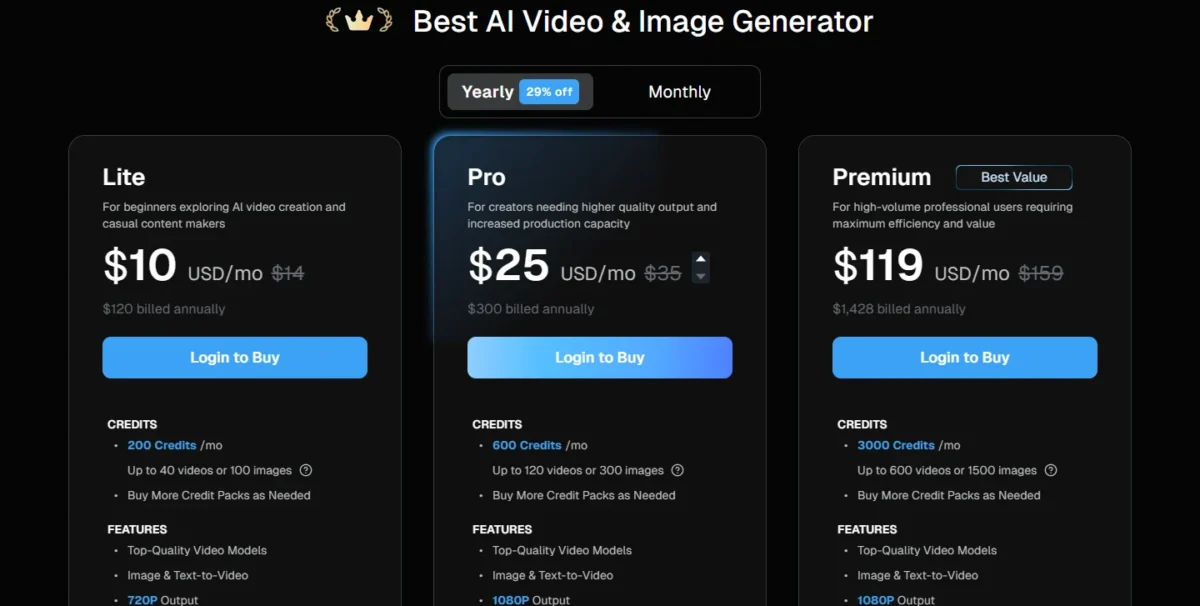
Pricing (verified July 15, 2026): New users get 20 free starter credits, and free-tier output carries a watermark. The Lite plan is $14/mo, or $10/mo billed annually ($120/year), and includes 200 credits per month (roughly 100 images), private creation, watermark-free output, and full commercial-use rights. Pro is $25/mo and Premium is $119/mo for higher credit ceilings (DeeVid pricing).

ProsCons
Prompt-driven edits landed cleanly on simple backgrounds across our removal testsFine backlit hair strands were clipped, and a light fringe remained at the hair edge
Light-touch retouch prompts cleared blemishes while preserving visible skin textureBusy or repeating backgrounds produced smearing and needed a second pass
Generative Expand matched source color, lighting, and perspective on simple scenesNo batch processing, which rules it out for the volume work Pixlr and Fotor handle above
Paid plans include private creation, watermark-free output, and commercial-use rightsCredit-based pricing gets expensive at volume, and the 20-credit free tier trails Canva and Pixlr

Where it fits against the browser-based picks: DeeVid overlaps most with Pixlr and Fotor, the two tools directly above it, and it trades their manual controls and batch queues for a prompt-first workflow. Pick DeeVid when the edit is easier to describe than to mask, and pick Pixlr when you need layers, precision, or volume.

Output Quality Notes: Background removal held the main hair mass and most visible flyaway strands, though the finest backlit wisps were clipped and a light fringe remained along the hair edge. Object removal filled cleanly against simple backgrounds like walls, sky, and tabletops, while busy or repeating patterns produced smearing and duplicated texture that needed a second pass.

Generative Expand matched the source color, lighting, and perspective, and simple scenes came back without implausible objects, though complex images occasionally invented small details or repeated texture. Portrait retouching cleared blemishes and under-eye shadows while preserving most skin texture on a light-touch prompt, and pushing the prompt harder over-smoothed the skin and lost pore detail.

2x upscaling improved perceived sharpness enough for web, social, and product use. It did not recover true detail already lost in the source file, so treat it as a finishing step rather than a rescue for soft originals.

Privacy/Licensing Notes: DeeVid is cloud-based, so uploaded images are processed on its servers rather than locally. Paid plans add private creation and full commercial-use rights, though DeeVid does not publish a model-training policy for uploaded content, and outputs carry no C2PA content credentials.

Consultant Tip: DeeVid works best when each prompt requests one specific edit. Rather than redesigning an image in a single step, remove the unwanted object first, then replace the background, adjust the lighting, and upscale the result in separate passes.

DeeVid provided 200 credits for evaluation. It did not review this entry before publication, and the credits did not influence our assessment or its placement.

Rubric CategoryScore
Editing quality & realism8.5
Control & precision6.5
Speed & performance8.5
RAW & color management2.0
Batch & automation4.0
UX & learning curve9.0
Pricing & value8.0
Privacy & data handling8.0
Licensing & commercial rights8.5
Weighted total7.1

Social & Mobile Editors


13. Picsart, Best for Social & Mobile Creators

Verdict: The most popular mobile-first AI photo editor app with a large creative community. Picsart offers AI-powered editing, stickers, templates, and social features that make it a one-stop shop for casual creators, but professionals will find it limiting.

Best for: TikTok, Instagram, and Snapchat creators who want AI editing plus creative tools on mobile with social sharing built in.

Not ideal for: Professional photographers; anyone needing RAW support, precision editing, or print-quality exports.

Picsart web editor showing a selfie design with AI Enhance Remove Background AI Replace stickers and layers panel
Picsart combines mobile-first creative editing with AI Enhance, Remove Background, AI Replace, stickers, layers, and social-style design tools.

Key AI Features:

  • AI Enhance, one-click photo improvement
  • AI Background Remover
  • AI Replace, text-prompt-based local editing
  • AI Art / AI Style Transfer
  • AI Expand, outpainting/generative expand
  • Large sticker and template library

Platforms: Web, iOS, Android

Pricing (verified July 17, 2026): Free (ads plus watermark) | Picsart Pro $15/mo (promotional around $10.50/mo) | Ultra and team plans available (Picsart pricing)

ProsCons
Large creative community, shared stickers, templates, and effectsAds on free tier are aggressive and intrusive
AI Replace is surprisingly capable for text-prompt-based local editingUI is cluttered; feature discovery is poor
Cross-platform: mobile, web, and desktopAI output quality is inconsistent, varies widely by feature
Team/brand features for agencies and creatorsCredits are consumed differently by AI model, so heavy use depletes them fast

Output Quality Notes: Picsart’s AI Replace (text-to-edit) produces better results than expected for a mobile-first app, handling simple object swaps decently. Background removal is solid on clear subjects but trails Canva and Photoshop on complex edges. AI Enhance tends to oversharpen and oversaturate, producing the telltale AI-processed look on some images. Note that Picsart credits are not a fixed image count, since different AI models cost different credits based on compute and quality.

Privacy/Licensing Notes: Cloud-based processing, images are uploaded. Picsart’s privacy policy notes that user content may be used to improve services. Read terms carefully regarding public and private uploads on the platform. Commercial use on paid plans.

Consultant Tip: Picsart is the best mobile AI editor for content creators who publish directly to social platforms. For anything going to a client or print, export from Picsart and finish in a desktop editor.

Rubric CategoryScore
Editing quality & realism6.5
Control & precision6.0
Speed & performance8.0
RAW & color management3.5
Batch & automation6.5
UX & learning curve7.5
Pricing & value7.0
Privacy & data handling6.0
Licensing & commercial rights7.5
Weighted total7.2

E-Commerce & Product Photo Tools


14. PhotoRoom, Best for E-Commerce Product Photos

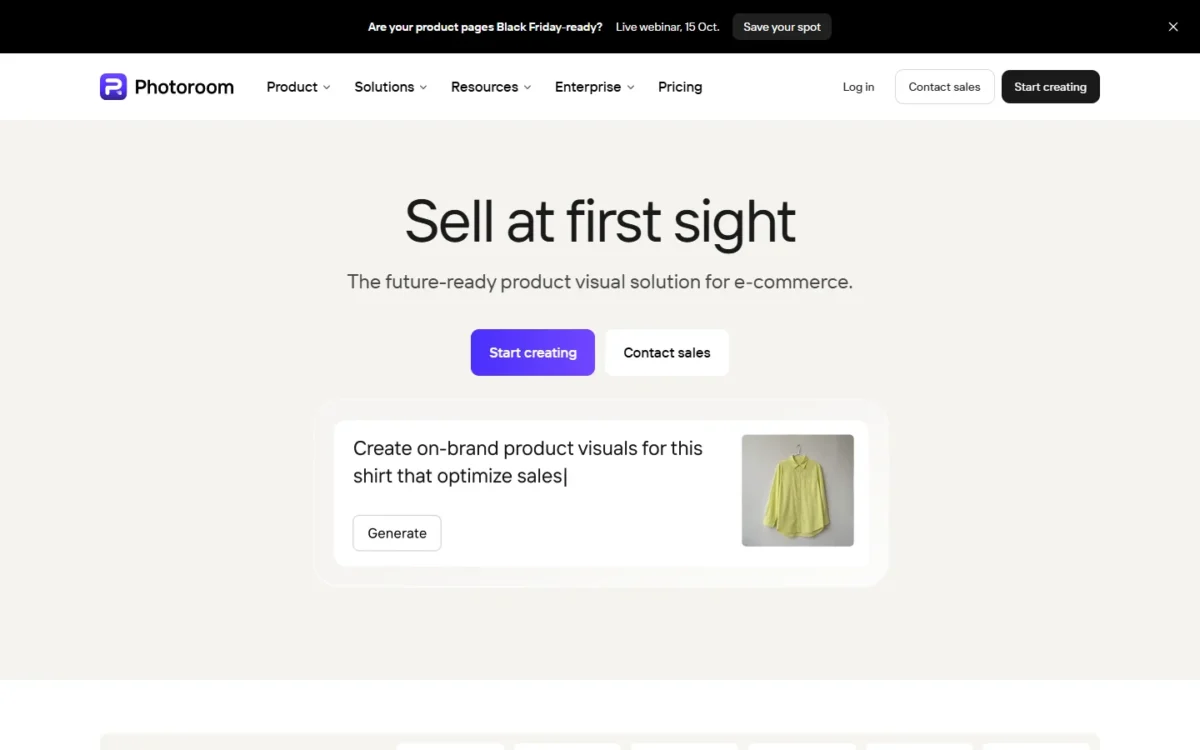
Verdict: The best AI product photo editor for e-commerce sellers who need fast, consistent product images at scale. PhotoRoom automates the most tedious parts of product photography, background removal, shadow generation, and batch resizing, with results good enough for marketplace listings and social ads.

Best for: Shopify, Amazon, and eBay sellers; small businesses producing product listings at volume.

Not ideal for: Landscape or portrait photographers; anyone needing general photo editing or RAW processing.

PhotoRoom product editor showing a handbag product cutout with background removal AI shadows and batch editing thumbnails
PhotoRoom helps ecommerce teams create clean product images with background removal, AI backgrounds, shadows, resizing, and batch editing tools.

Key AI Features:

  • Instant Background Removal, one-click subject isolation optimized for products
  • AI Background Generation, create studio-quality backgrounds from text prompts
  • Shadow and reflection generation for product realism
  • Batch processing, resize, reformat, and background-swap hundreds of images
  • API for automated workflows and marketplace integrations
  • Brand Kit for consistent styling across product catalogs

Platforms: Web, iOS, Android

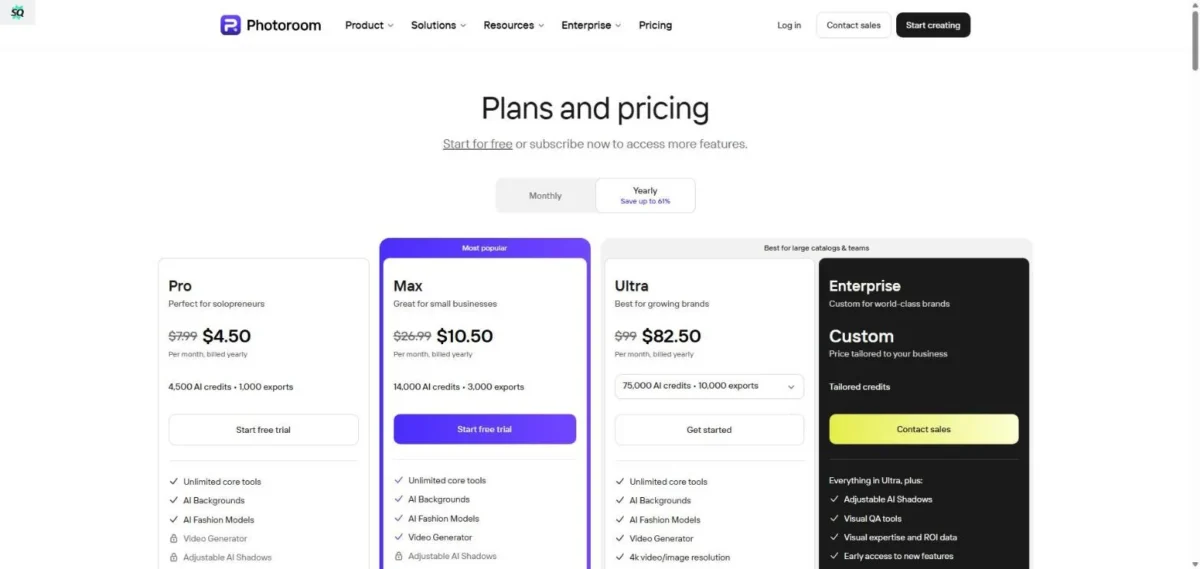
Pricing (verified July 17, 2026): Free (watermarked) | Pro (paid, verify current price) | Max, Ultra, and Enterprise tiers | API pricing is separate (PhotoRoom pricing)

ProsCons
Best-in-class background removal for product imagesNot a general photo editor, no retouching, no RAW, no layers
Batch processing handles hundreds of SKUs efficientlyPro includes 500 batch exports per month, a real ceiling at volume
API enables automated marketplace integrationsAPI pricing is separate from the consumer subscription
Purpose-built templates for Amazon, Shopify, InstagramFree tier adds a PhotoRoom watermark

Output Quality Notes: PhotoRoom vs. Cutout.pro for e-commerce: PhotoRoom wins on workflow integration, batch speed, and background generation templates. Cutout.pro offers slightly better edge accuracy on certain complex products (jewelry, glass) but lacks PhotoRoom’s workflow depth, which we cover in detail in our Cutout.pro review. For most e-commerce sellers, PhotoRoom delivers the better end-to-end experience. Also consider remove.bg as a simpler background removal alternative if your needs are less complex.

Privacy/Licensing Notes: Cloud-based processing, product images are uploaded to PhotoRoom’s servers. The company’s ToS permits commercial use on paid plans. Review data retention policies if processing sensitive or unreleased product images.

Consultant Tip: Match the plan to your monthly listing volume. Pro includes 500 batch exports per month, so a seller pushing 800 listing images will hit that ceiling and need a higher tier. If you automate through the API, budget it separately, because API usage is not covered by the consumer subscription credits.

Rubric CategoryScore
Editing quality & realism8.0
Control & precision7.0
Speed & performance9.5
RAW & color management3.0
Batch & automation9.5
UX & learning curve9.0
Pricing & value8.5
Privacy & data handling7.0
Licensing & commercial rights8.0
Weighted total8.3

15. Cutout.pro, Best for Background Removal

Verdict: A focused, web-based AI background remover that handles edge cases (hair, fur, semi-transparent objects) better than most general-purpose editors. Cutout.pro is a single-task specialist, use it when you need the cleanest possible cutout.

Best for: Graphic designers, e-commerce photographers, and anyone who needs precise subject isolation as a standalone task.

Not ideal for: Anyone needing a full editor; users with large volumes (credit-based pricing scales poorly).

Cutout.pro background removal result screen showing a sneaker cut out on a transparent checkerboard with download and AI editing tools
Cutout.pro shows a clean background-removal result with transparent checkerboard preview, free and HD download options, and additional AI editing tools.

Key AI Features:

  • AI Background Remover, handles hair, fur, and semi-transparent edges
  • Photo Enhancer, AI upscaling and quality improvement
  • Passport Photo Maker, automated ID photo cropping and formatting
  • Video Background Remover
  • Batch processing for bulk cutouts

Platforms: Web only

Pricing (verified July 17, 2026): Free (limited) | Subscription from $5/mo for 80 image credits, with credit rollover up to 5x the monthly budget | Higher tiers lower per-credit cost (Cutout.pro pricing)

ProsCons
Edge accuracy on hair and fur surpasses most competitorsWeb-only, no desktop app, no offline processing
Clean, focused UI, does one thing and does it wellCredit-based pricing makes bulk work expensive
Passport Photo Maker is a useful niche toolNo editing tools beyond cutout and basic enhancement
Free tier allows limited use without paymentCredit cost varies by operation, and video/API work is separate

Output Quality Notes: Cutout.pro’s edge accuracy on hair, particularly flyaway strands against varied backgrounds, is among the best we tested, slightly behind Photoshop’s Select Subject but ahead of Canva, Pixlr, and most web-based alternatives. For simple product shots on clean backgrounds it’s overkill, but for fashion, headshots, and pet photography cutouts, it’s worth the credit cost.

Privacy/Licensing Notes: Cloud-based, all images are uploaded for processing. Cutout.pro’s privacy policy states that uploaded images are processed and automatically deleted. Commercial use permitted. No content authenticity metadata is embedded.

Consultant Tip: Use Cutout.pro for the hairline cutouts that stump other tools, then finish compositing in Photoshop or Canva. It’s a specialist tool, not a workflow replacement.

Rubric CategoryScore
Editing quality & realism7.5
Control & precision6.5
Speed & performance8.0
RAW & color management3.0
Batch & automation7.0
UX & learning curve8.5
Pricing & value7.0
Privacy & data handling6.5
Licensing & commercial rights7.5
Weighted total7.4

16. Claid, Best for E-Commerce Automation at Scale

Verdict: The most developer-friendly AI product photo editor. Claid is an API-first platform designed for e-commerce teams that need automated image enhancement, background generation, and format conversion across thousands of SKUs.

Best for: E-commerce operations teams, marketplace platforms, and developers building automated product image pipelines.

Not ideal for: Individual users; non-technical users; anyone needing a visual editor with a GUI.

Claid web dashboard showing AI product image tools credits balance recent images and ecommerce image processing actions
Claid provides an AI product-image dashboard for background removal, AI background generation, image enhancement, upscaling, credits, and recent ecommerce image assets.

Key AI Features:

  • AI Upscale, enhance low-resolution product images to marketplace-quality resolution
  • AI Background Generation, create contextual lifestyle and studio backgrounds from text prompts
  • Smart Crop, automated focus-aware cropping for different marketplace specs
  • Batch processing API, handle thousands of images programmatically
  • Image quality scoring, automatically flag low-quality product images
  • Format and size conversion with optimization

Platforms: Web dashboard, API

Pricing (verify with vendor): Custom pricing based on volume and API usage | Free trial available (Claid pricing)

ProsCons
API-first design makes integration into existing e-commerce pipelines smoothNot a visual editor, no GUI editing tools
Background generation quality is competitive for product lifestyle imagesPricing is opaque; requires sales contact for volume
Image quality scoring helps automate QA at scaleNot useful for individual photo editing tasks
Handles format conversion, resizing, and optimization in one pipelineLimited documentation compared to mature platforms

Output Quality Notes: Claid’s AI upscaling produces clean results on product images at 2x to 4x enlargement. Background generation is competitive with PhotoRoom for lifestyle contexts. The image quality scoring feature is genuinely useful, flagging out-of-focus, poorly lit, and low-resolution images automatically, which saves QA time on large catalogs.

Privacy/Licensing Notes: Cloud-based API, all images are uploaded for processing. Enterprise data processing agreements are available. Review data retention and processing terms before integrating with your product catalog.

Consultant Tip: Claid is the right choice if you’re building an automated product image pipeline at scale (10,000+ SKUs). For individual editing or small catalogs, PhotoRoom offers a better UX without needing API integration skills.

Rubric CategoryScore
Editing quality & realism8.0
Control & precision6.5
Speed & performance9.0
RAW & color management3.0
Batch & automation10
UX & learning curve6.0
Pricing & value7.5
Privacy & data handling7.0
Licensing & commercial rights8.5
Weighted total8.1

Portrait, Batch & Specialized Tools


17. Evoto AI, Best for Portrait Retouching

Verdict: The most sophisticated AI-powered portrait retouching software available as a standalone desktop tool. Evoto AI handles skin retouching, body reshaping, and batch headshot processing with results that look natural, not airbrushed, while saving hours compared to manual Photoshop retouching.

Best for: Headshot photographers, school portrait studios, and beauty retouchers who process large volumes of portraits.

Not ideal for: Landscape, product, or general-purpose photographers; anyone needing a full editor.

Evoto AI desktop retouching interface showing a studio headshot with skin retouching sliders and batch portrait filmstrip
Evoto AI focuses on batch portrait retouching with AI blemish removal, skin retouching, facial reshape, makeup, hair, and body adjustment controls.

Key AI Features:

  • AI Skin Retouching, blemish removal, skin smoothing with texture preservation
  • AI Body Reshaping, subtle body and face adjustments with natural proportions
  • AI Background Replacement for portrait backgrounds
  • Batch processing, apply consistent retouching across hundreds of headshots
  • Teeth whitening, eye enhancement, hair retouching
  • Color grading presets for portrait styles

Platforms: Windows, macOS

Pricing (verified July 17, 2026): Credit-based. Starter annual plan around $80/year for 800 credits, from 1 credit per exported image. Basic color adjustments, cropping, and file management are free (Evoto pricing)

ProsCons
Best skin retouching quality, preserves pores and texture while smoothingPortrait-only focus; no general editing capabilities
Batch headshot processing saves hours per shootCredit-per-export pricing adds cost that scales with volume
Body reshaping produces natural-looking results, not plasticDesktop only; no mobile or web version
Faster than manual Photoshop frequency-separation retouchingSmaller community and fewer presets than mainstream editors

Output Quality Notes: Evoto AI vs. Retouch4me (a competitor not on this list): both produce excellent AI skin retouching, but Evoto offers a more complete portrait workflow with background replacement and body reshaping included. Skin texture preservation in Evoto is among the best we tested, smoothing blemishes without creating the wax-mannequin effect that plagues lower-quality portrait retouching tools.

Privacy/Licensing Notes: Processing is primarily local for core retouching features. Some advanced features may require cloud processing. Evoto’s privacy policy governs any uploaded data. Full commercial use on paid plans. Be aware of ethical considerations around body reshaping features, since transparent disclosure is good practice.

Consultant Tip: In our testing, Evoto AI cut retouching time by roughly 70 to 80% compared to manual Photoshop frequency-separation workflows on a batch of 200 headshots. Your results may vary depending on shoot complexity and retouching standards. Because most premium exports consume credits, Evoto is cheapest when you export selectively, so set up a batch preset, process the shoot, then only hand-retouch the hero images.

Rubric CategoryScore
Editing quality & realism9.0
Control & precision8.0
Speed & performance8.5
RAW & color management7.0
Batch & automation8.5
UX & learning curve8.0
Pricing & value7.5
Privacy & data handling8.0
Licensing & commercial rights8.0
Weighted total8.2

18. Aftershoot, Best for Wedding & Event Photographers

Verdict: The best AI culling and editing tool for high-volume event photographers. Aftershoot learns your editing style from your existing work and applies it consistently across entire shoots, then exports directly to Lightroom or Capture One.

Best for: Wedding, event, and portrait photographers who shoot thousands of images per event and need to cull and edit faster.

Not ideal for: Non-photographers; casual users; anyone who doesn’t use Lightroom or Capture One.

Aftershoot AI culling view showing wedding photo thumbnails with star ratings colored flags selected maybe and rejected labels
Aftershoot helps photographers review large wedding galleries with AI culling, star ratings, color flags, selected images, maybes, and rejected blurry shots.

Key AI Features:

  • AI Culling, automatically sorts, rates, and flags keepers vs. rejects from thousands of images
  • AI Editing, learns your editing style from your Lightroom/Capture One catalog and applies it to new shoots
  • Duplicate and blur detection
  • Direct export to Lightroom Classic and Capture One
  • Continuous style learning, improves as you correct its edits

Platforms: Windows, macOS

Pricing (verified July 17, 2026): Select plan (culling) around $120/year | Edit plan around $360/year | 30-day free trial, no credit card. Local processing keeps files on your machine (Aftershoot pricing)

ProsCons
AI culling reduces a 3,000-image wedding shoot to flagged selects in under 30 minutesNot a photo editor, no retouching, no object removal, no creative tools
Style learning is genuinely impressive, replicates your personal editing preferencesRequires an existing body of edited work to learn from
Direct integration with Lightroom Classic and Capture One preserves your workflowCulling can still misclassify frames, so review selections you cannot lose
Local processing, no image uploads, strong for client privacyNot useful for photographers who don’t shoot volume

Output Quality Notes: Aftershoot’s style-learned edits are surprisingly close to the source photographer’s manual work, typically within 10 to 15% adjustment on individual sliders. Culling accuracy improves significantly after processing 5 to 10 shoots with corrections. The biggest time saving is in culling, not editing, since reducing 4,000 raw files to 800 flagged selects in 20 minutes is a major change for event photographers. User sentiment does note that culling can still pick the wrong frames, so keep a human review step on images that matter.

Privacy/Licensing Notes: Image processing happens locally on your machine, no uploads to cloud servers. Aftershoot does not see or store your images on their servers. The style profile is trained locally. This makes it one of the most privacy-friendly AI editing tools for photographers.

Consultant Tip: Pair Aftershoot (culling and base edit) with Lightroom (fine-tuning) and Topaz Photo AI (final enhancement) for a strong photographer workflow. This stack handles shoots from import to delivery with minimal manual intervention.

Rubric CategoryScore
Editing quality & realism8.0
Control & precision7.5
Speed & performance9.5
RAW & color management8.5
Batch & automation10
UX & learning curve7.5
Pricing & value8.0
Privacy & data handling10
Licensing & commercial rights8.0
Weighted total8.3

19. Imagen AI, Best for High-Volume Lightroom Users

Verdict: A Lightroom-native AI editing plugin that learns your personal editing style and applies it to entire shoots in minutes. Imagen AI is purpose-built for photographers who live in Lightroom and want consistent, style-matched edits at scale.

Best for: High-volume portrait, wedding, and school photographers who use Lightroom Classic as their primary editor.

Not ideal for: Non-Lightroom users; photographers who prefer manual editing; anyone needing culling or retouching.

Imagen AI dark photo review interface showing wedding thumbnails with culling labels star ratings and AI culling profile
This mockup shows an Imagen-style wedding photo review interface with culling labels, ratings, filters, and AI profile controls, but it does not clearly show the Lightroom editing workflow.

Key AI Features:

  • Personal AI Profile, learns your unique editing style from 5,000+ previously edited images
  • Batch editing, applies your style consistently across entire shoots
  • Crop AI, intelligent cropping based on subject detection and composition rules
  • Straighten AI, automatic horizon correction
  • Direct Lightroom Classic integration, edits appear as Lightroom adjustments

Platforms: Windows, macOS (Lightroom Classic plugin)

Pricing (verified July 17, 2026): From $7/mo base plus per-photo editing (about $0.05 per edit). A Limitless plan is available at $179/mo billed annually, and new users get 1,000 free edits (Imagen AI pricing)

ProsCons
Personal AI Profile genuinely replicates your editing style after trainingLightroom Classic plugin only, no standalone app, no Capture One
Per-photo pricing makes it affordable for variable shooting volumesRequires 5,000+ edited images for effective profile training
Edits are non-destructive Lightroom adjustments, fully tweakablePer-photo costs add up for very high-volume studios
Crop and straighten AI are surprisingly accurateNo culling, no retouching, no generative features

Output Quality Notes: Imagen AI’s style-matched edits are close enough to the photographer’s manual work that most clients won’t notice the difference, typically requiring only minor tweaks on 15 to 20% of images. The key advantage over Aftershoot’s editing: Imagen’s profile-based approach is slightly more consistent on color grading, while Aftershoot’s is slightly stronger on exposure and tonal adjustments. At steady high volume, model the Limitless plan against per-photo billing, since a busy month can pass $179 in per-photo fees.

Privacy/Licensing Notes: Your AI Profile is trained using your Lightroom catalog metadata and editing parameters, and the actual image pixels are not uploaded. Editing inference also runs locally. This is a privacy-friendly approach. Commercial use permitted.

Consultant Tip: If you already have a large Lightroom catalog with consistent editing, Imagen AI will save you more time than any other tool on this list, because the personal profile approach means your edits look like you, not like a preset. Start with a 5,000-image training set from your best-edited shoots.

Rubric CategoryScore
Editing quality & realism8.0
Control & precision7.0
Speed & performance9.0
RAW & color management8.5
Batch & automation9.5
UX & learning curve7.5
Pricing & value7.5
Privacy & data handling9.0
Licensing & commercial rights8.0
Weighted total8.0

20. Remini, Best for Photo Restoration

Verdict: The most accessible AI tool for restoring old, damaged, or low-resolution photos. Remini’s AI upscaling and face enhancement turn blurry, pixelated photos into surprisingly sharp images, making it useful for anyone digitizing family albums or rescuing damaged prints.

Best for: Anyone restoring old family photos, enhancing low-resolution images, or recovering facial detail from blurry photos.

Not ideal for: Professional photographers; anyone needing editing tools, RAW support, or batch workflows.

Remini mobile app showing a before and after restoration of an old damaged black and white family photo
Remini restores low-resolution and damaged family photos with a before-and-after slider, sharper faces, and one-tap enhancement tools.

Key AI Features:

  • AI Photo Enhance, upscale and sharpen low-resolution images
  • AI Face Enhancement, recover facial detail from blurry or pixelated faces
  • Old Photo Restoration, reduce scratches, stains, and damage artifacts
  • Colorize, add realistic color to black-and-white photographs
  • Video Enhancement, upscale and sharpen video footage

Platforms: iOS, Android, Web

Pricing (verify at checkout): Free (limited daily enhances, watermark) | Pro $9.99/mo or $29.99/yr (Remini pricing)

ProsCons
Best face enhancement from low-resolution sources, genuinely impressive resultsMobile-focused; limited export options and resolution controls
Old photo restoration handles scratches and damage competentlyFree tier limits daily uses and adds watermarks
Colorization of B&W photos produces natural-looking resultsNot an editor, no masking, retouching, or adjustment tools
Extremely simple UI, usable by anyone regardless of skillEnhancement can introduce hallucinated facial features on very blurry sources

Output Quality Notes: Remini vs. Topaz Photo AI for restoration: Topaz Photo AI produces more technically accurate upscaling with better detail preservation and fewer artifacts. Remini produces more visually appealing results on faces specifically, since its face enhancement model is trained to generate plausible facial detail that looks right even if it’s partially hallucinated. For family photo restoration, Remini’s results are more satisfying, but for professional work, Topaz is more reliable.

Privacy/Licensing Notes: Cloud-based, all photos are uploaded for processing. We recommend reviewing Remini’s privacy policy before use, particularly regarding data retention and third-party sharing. As with any cloud-based mobile app, exercise caution with sensitive or confidential images. Commercial use is permitted on paid plans.

Consultant Tip: Use Remini for quick family photo restoration and social sharing. For professional-grade restoration (archival, print), start with Topaz Photo AI for upscaling, then finish detail work in Photoshop.

Rubric CategoryScore
Editing quality & realism7.5
Control & precision5.0
Speed & performance8.5
RAW & color management3.0
Batch & automation5.5
UX & learning curve9.5
Pricing & value7.5
Privacy & data handling5.5
Licensing & commercial rights7.0
Weighted total7.6

21. Lensa, Best for Mobile Portrait Selfies

Verdict: A mobile-first AI portrait editor known for its Magic Avatars feature. Lensa handles basic portrait retouching and stylized avatar creation, but its limited editing capabilities and privacy controversies keep it at the bottom of our rankings.

Best for: Casual mobile users who want quick selfie retouching and fun AI-generated avatar images.

Not ideal for: Professional photographers; anyone concerned about data privacy; anyone needing actual photo editing.

Lensa mobile app screens showing selfie retouch controls Magic Avatars portrait styles and privacy notice
Lensa focuses on mobile-first selfie editing with face retouching, Magic Avatars, portrait effects, and privacy messaging around uploaded selfies.

Key AI Features:

  • AI Portrait Retouching, skin smoothing, blemish removal, face reshaping
  • Magic Avatars, AI-generated stylized portraits from selfies
  • Background Blur, AI-simulated bokeh
  • Basic color and exposure adjustments
  • Teeth whitening, eye enhancement

Platforms: iOS, Android

Pricing (verify at checkout): Free (limited features) | Pro $29.99/yr or $3.99/wk (Lensa pricing)

ProsCons
Magic Avatars are fun and shareable, strong social media appealPrivacy concerns, the app uploads selfies for avatar training
Portrait retouching is decent for quick selfie improvementsVery limited editing tools beyond retouching
Simple, attractive mobile UIAvatar generation requires uploading 10 to 20 selfies to Prisma’s servers
Affordable annual pricingRetouching quality trails Evoto AI, Photoshop, and most competitors

Output Quality Notes: Lensa’s portrait retouching is acceptable for social media selfies but lacks the sophistication of Evoto AI or Photoshop. Skin smoothing tends toward the over-processed end of the spectrum. Magic Avatars are creative and entertaining but are AI-generated images, not photo edits, so they’re closer to a dedicated AI image generator (like Midjourney or DALL-E) than a photo editor. This is a fun consumer tool, not a professional one.

Privacy/Licensing Notes: Caution: Magic Avatars require you to upload 10 to 20 selfies, which are processed on Prisma Labs’ cloud servers. According to Prisma Labs’ privacy policy, uploaded images may be used for model improvement, a practice that has drawn concern from privacy advocates. If data privacy is a priority, this is not the right tool.

Consultant Tip: Lensa is a consumer entertainment tool, not a professional photo editor. Use it for fun avatar creation and social selfies. For professional portrait retouching, use Evoto AI or Photoshop.

Rubric CategoryScore
Editing quality & realism6.0
Control & precision4.5
Speed & performance8.0
RAW & color management2.0
Batch & automation3.0
UX & learning curve8.0
Pricing & value7.0
Privacy & data handling4.0
Licensing & commercial rights6.5
Weighted total6.8

How to Choose the Right AI Photo Editor (Decision Framework)

Use this framework to narrow 21 tools down to the 2 or 3 that fit your workflow. Answer these questions in order.

Step 1: What Is Your Primary Use Case?

Use caseStart with these tools
Professional photo editing (creative work)Photoshop, Capture One
RAW photo processing (photography workflow)Lightroom, DxO PhotoLab, Capture One
Enhancement only (denoise, upscale, sharpen)Topaz Photo AI, DxO PhotoLab
E-commerce product photosPhotoRoom, Claid
Portrait retouching (volume)Evoto AI, Photoshop
Wedding/event culling plus editingAftershoot, Imagen AI
Social media / designCanva, Picsart
Quick browser-based editingPixlr, Fotor
Photo restorationRemini, Topaz Photo AI

Step 2: What Are Your Non-Negotiable Constraints?

ConstraintEffect on the shortlist
Must process offline / locallyEliminate: Canva, Pixlr, Fotor, Picsart, PhotoRoom, Cutout.pro, Claid, Remini, Lensa
Must support RAW filesEliminate: Canva, Pixlr, Fotor, Picsart, PhotoRoom, Cutout.pro, Claid, Evoto, Remini, Lensa
Must be freeShort-list: Canva (free tier), Pixlr, Fotor, Picsart (free tiers)
Must have one-time purchaseShort-list: DxO PhotoLab, CyberLink PhotoDirector, ON1, Luminar Neo (perpetual options). Topaz moved to subscription in 2026
Must work on mobileEliminate: Topaz Photo AI, DxO, ON1, Capture One (desktop), Evoto, Aftershoot, Imagen AI

Step 3: Match Your Volume

Editing volumeBest fit
Under 10 images/week (hobbyist)Canva, Luminar Neo, PhotoDirector
10 to 100 images/week (serious hobbyist / part-time pro)Lightroom, Luminar Neo, ON1
100 to 500 images/week (full-time photographer)Lightroom + Aftershoot/Imagen AI + Topaz
500+ images/week (high-volume studio / e-commerce)Lightroom + Aftershoot + Topaz (photo) or PhotoRoom/Claid (product)

Step 4: Calculate Total Cost of Ownership (12-month)

Don’t compare monthly prices, compare total annual cost for the features you’ll actually use. Figures verified July 17, 2026.

StackAnnual costWhat you get
Photoshop + Lightroom (Photography plan)About $240/yrFull creative suite plus RAW workflow
Luminar Neo (lifetime) + Topaz Photo AI$149 one-time + about $468/yr (Topaz subscription)AI editing plus best enhancement
Lightroom + Aftershoot + Topaz Photo AIAbout $972/yrProfessional photographer stack
Canva ProVerify current Pro priceDesign plus basic photo editing
Free stack (Canva + Pixlr + Remini free tiers)$0Capable for casual use

The one-time-purchase math changed this year. Because Topaz now bills monthly, the old lifetime enhancement stack carries a recurring cost, so if you want a true no-subscription setup, pair DxO PhotoLab with ON1 or Luminar Neo perpetual licenses instead.


Cost at 1,000 Edited Images

Entry price is the wrong comparison point when billing models differ this much. Credit and per-export tools change from cheap to costly the moment volume climbs, so this table shows how each model behaves at roughly 1,000 exported images a month.

ToolBilling modelBehavior at ~1,000 images/moBuyer read
AftershootFlat annualNo per-image cost above the planLowest cost per image at volume
Adobe LightroomFlat subscriptionNo per-image costPredictable for RAW volume
PhotoRoom ProBatch capExceeds the 500 batch export ceilingNeeds a higher plan
Cutout.proCredits per operationNeeds large credit packsMid-cost, plan up
Evoto AI1 credit per exportAbout 1,000 credits, size the packSelective export saves money
Imagen AI$0.05/photo + baseRoughly $50 in per-photo fees plus baseModel Limitless instead

For steady high volume, flat-fee and flat-subscription tools win, and credit tools only make sense when export is selective. A wedding shooter editing thousands of frames should model Aftershoot or Imagen Limitless, while a seller doing occasional cutouts stays cheaper on credits.


Hidden Costs, Credits, and API Pricing

Three costs surprise buyers after purchase, and each can change the recommendation. Check them before you commit.

API pricing is separate from the app. PhotoRoom, Picsart, Claid, and Cutout.pro all treat API usage as distinct from the consumer subscription, so a Shopify or automation team that assumes app credits cover API calls will under-budget the automation. Price the API against your call volume, not the app plan.

Resolution and export caps decide print usability. Free background removers cap output resolution (for example, remove.bg free previews are limited to 0.25 megapixels), some upscalers tie megapixel limits to each tier, and Topaz Image Web caps export at 32 megapixels on its lower plan. Confirm the cap before you rely on output for print or product listings.

Commercial-use terms can disqualify a plan. The Topaz pricing page includes limited commercial-use language for organizations under $1 million in annual revenue on certain plans, and several free tiers permit only personal use. Agencies and larger studios should confirm plan terms before buying.

The pattern across all three is that the sticker price rarely names the real budget. Match the plan to your volume, your output resolution, and your commercial-use needs, not to the cheapest number on the page.


AI Photo Editing Features Explained (Glossary)

Not sure what a feature does? This glossary covers the key AI photo editing terms used in this guide.

AI Background Removal: Automatic detection and removal of the background behind a subject, creating a transparent or replaced background. Quality varies widely by tool, and hair edges and semi-transparent objects are the common failure points.

AI Denoise / Noise Reduction: Machine-learning-based removal of digital noise (grain) from high-ISO or low-light photographs. Modern AI denoise preserves detail far better than traditional noise reduction filters.

AI Masking: Automatic detection and selection of specific regions in an image (people, sky, subject, background). Replaces manual selection work with one-click intelligent selections that can be refined.

AI Upscaling / Super Resolution: Enlarging an image beyond its native resolution using AI to generate plausible detail. Different from simple interpolation (bicubic, bilinear), which just blurs pixels larger.

Content-Aware Fill: An AI technique that fills a selected area with content that matches the surrounding image, used for object removal and canvas extension. Popularized by Photoshop.

Content Credentials (C2PA): A technical standard (Coalition for Content Provenance and Authenticity) that embeds metadata into images to record how they were created or edited. Adobe Firefly outputs include C2PA metadata by default.

DeepPRIME (DxO): DxO’s proprietary deep-learning noise reduction technology that processes noise at the RAW demosaicing stage, before color interpolation, for superior color preservation.

Generative Expand (Outpainting): AI-powered extension of an image canvas beyond its original boundaries, with the AI generating new content that matches the existing scene’s style, lighting, and perspective.

Generative Fill (Inpainting): AI-powered replacement of selected areas within an image, guided by text prompts or automated context analysis. Used for object removal, object addition, and scene modification.

Neural Filters: Adobe’s term for AI-powered image adjustment filters (portrait retouching, style transfer, colorization) that use deep neural networks to modify images non-destructively.

RAW Processing / Demosaicing: The conversion of raw sensor data from a digital camera into a viewable image. RAW files contain unprocessed sensor data and require external software for interpretation, but offer maximum editing flexibility.

Sky Replacement: Automatic detection of the sky in an image and replacement with a different sky, with AI-driven relighting of the foreground to match the new sky’s color temperature and intensity.

Style Transfer: An AI technique that applies the visual style (color palette, brushwork, texture) of one image to another, creating artistic effects. Different from filters in that it adapts to image content.


Privacy, Copyright & Ethics in AI Photo Editing

Cloud vs. Local Processing

The most important privacy distinction is whether the tool processes your images on your device (local) or uploads them to remote servers (cloud).

Processing typeToolsPrivacy implication
Fully localTopaz Photo AI, Capture One, DxO PhotoLab, ON1 Photo RAW, AftershootNo images leave your machine
Mostly local (cloud for some AI features)Photoshop, Lightroom (Classic), Luminar Neo, Evoto AIStandard editing is local; generative or cloud AI features upload selectively
Fully cloudCanva, Pixlr, Fotor, Picsart, PhotoRoom, Cutout.pro, Claid, Remini, LensaAll images are uploaded to vendor servers for processing

If you handle sensitive images (client photos under NDA, medical records, legal evidence), use tools that process locally. Cloud-based tools introduce data residency, data retention, and third-party access risks that may conflict with your obligations.

AI Model Training: Are Your Photos Used?

Several vendors have clarified their positions on using customer photos to train AI models.

  • Adobe: According to Adobe’s Generative AI guidelines, customer content is not used to train Firefly models. Content Credentials (C2PA) are applied to generative outputs.
  • Canva: According to Canva’s privacy policy, user content is not used for AI model training without explicit consent.
  • Picsart: Picsart’s privacy policy notes user content may be used to improve services. Review terms carefully before uploading.
  • Prisma (Lensa): Per Prisma Labs’ privacy policy, uploaded images may be used for model improvement. Magic Avatars require batch selfie uploads. This practice has drawn concern from privacy advocates.

Best practice: read each vendor’s privacy policy and terms of service before uploading images. Policies change, so check periodically.

AI-edited images generally retain the copyright of the original photographer, with some nuances.

  • AI-enhanced images (denoise, upscale, color correction): These are modifications of your original work. Copyright is clear, you own it.
  • Generative fill/expand: Content generated by AI may introduce new elements. US Copyright Office guidance suggests that AI-generated elements lacking human authorship may not be copyright-protectable, though the human-directed composition and selection may still receive protection.
  • AI-generated backgrounds: Similar considerations apply. The photograph you took is your work, and the AI-generated background is a grey area.

Practical guidance: for commercial work, disclose AI editing when required by your industry or client agreements. Use Content Credentials (C2PA) where available to maintain provenance chains.

Ethical Considerations

  • Body reshaping tools (Evoto AI, PhotoDirector, Lensa): Be transparent with clients and audiences about modifications. Industry standards are evolving.
  • Face enhancement AI (Remini): AI can hallucinate facial features, so the enhanced face may not be an accurate representation of the original person.
  • Sky and scene replacement: Edited images should be disclosed when used in journalism, real estate, or any context where authenticity matters.

Frequently Asked Questions About AI Photo Editors

What is the best free AI photo editor in 2026?

Canva (Magic Studio) offers the most capable free AI photo editing experience, including background removal, Magic Eraser, and basic enhancement. For browser-based editing with layers, Pixlr is the strongest free option. For mobile, Picsart and Remini offer useful free tiers with daily limits.

Is AI photo editing the same as AI image generation?

No. AI photo editing modifies, enhances, or retouches existing photographs, so you start with a real image. AI image generation creates entirely new images from text prompts (like Midjourney or DALL-E). Some tools (Photoshop, Canva) now include both capabilities, but they serve different purposes.

Can AI photo editors work with RAW files?

Only some. Adobe Lightroom, Adobe Photoshop, Capture One, DxO PhotoLab, ON1 Photo RAW, Luminar Neo, and CyberLink PhotoDirector support RAW processing. Web-based and mobile-first tools (Canva, Pixlr, Fotor, Picsart, PhotoRoom) do not process RAW files.

Is it safe to upload my photos to AI editing tools?

It depends on the tool. Desktop tools like Topaz Photo AI, Capture One, DxO PhotoLab, and Aftershoot process everything locally, with no uploads required. Cloud-based tools (Canva, Pixlr, PhotoRoom, Remini) upload your images to remote servers. If you handle sensitive or confidential images, use local-processing tools and read each vendor’s privacy policy.

What is generative fill and which editors have it?

Generative fill uses AI to replace selected areas of an image with new content, guided by text prompts. Adobe Photoshop (Firefly) has the best implementation. Luminar Neo (GenErase/GenExpand), Canva (Magic Edit), and Pixlr (beta) also offer this feature. Quality varies significantly between tools.

How accurate is AI background removal in 2026?

Very good for clean subjects on simple backgrounds. The challenge remains hair, fur, glass, and semi-transparent objects. Photoshop’s Select Subject produces the best results. PhotoRoom and Cutout.pro are strong specialists. Most tools handle simple product shots well but struggle with complex edges.

Can I use AI-edited photos commercially?

Yes, on paid plans for virtually all tools listed. The original photograph remains your copyright. AI-generated elements (generative fill, AI backgrounds) exist in a legal grey area, since US Copyright Office guidance indicates that content lacking human authorship may not be protectable. Your human-directed choices in composition and selection can still receive protection. For any high-stakes commercial use, disclose AI editing where your client or industry requires it, keep Content Credentials (C2PA) where available, and confirm the vendor’s commercial-use terms, because some plans limit commercial use for larger organizations.

How much does an AI photo editor cost per 1,000 images?

It depends entirely on the billing model. Flat-subscription and flat-fee tools (Lightroom, Aftershoot) carry no per-image cost, so 1,000 images cost the same as 100. Credit and per-export tools (Evoto, Cutout.pro, Imagen) scale with volume, so 1,000 images can add real cost on top of the base plan. Model your true monthly volume before choosing, since the cheapest entry price is often the most expensive at scale.

Did Topaz Photo AI stop offering a one-time license?

As of July 2026, Topaz Photo AI is billed as a subscription (from $39/mo, with a Topaz Studio bundle from $69/mo) rather than the former one-time license around $199. If a perpetual license is a hard requirement, DxO PhotoLab, ON1 Photo RAW, and Luminar Neo still offer one-time purchase options. Always verify current terms on the vendor’s pricing page before buying.

Which AI photo editors process images locally for privacy?

Fully local tools include Topaz Photo AI, Capture One, DxO PhotoLab, ON1 Photo RAW, and Aftershoot. Photoshop, Lightroom Classic, Luminar Neo, and Evoto are mostly local but send some generative or advanced AI tasks to the cloud. For NDA, medical, or legal work, start from a fully local tool and keep a record of which images were AI-edited.


Final Recommendation

The best AI photo editor is the one that matches your job, your volume, and your privacy needs, not the one with the longest feature list. For most creative professionals, Adobe Photoshop (Firefly) remains the benchmark, while photographers who live in RAW get more day-to-day value from Adobe Lightroom paired with Topaz Photo AI.

If budget or subscription fatigue is the deciding factor, a perpetual stack of DxO PhotoLab with ON1 or Luminar Neo avoids recurring fees now that Topaz has moved to a subscription. E-commerce sellers should start with PhotoRoom and watch the batch and API ceilings, high-volume shooters should model Aftershoot or Imagen against their real frame counts, and casual creators are well served by the free tiers in Canva, Pixlr, and Remini. Whatever you choose, price it at your true monthly volume, confirm the current rate at checkout, and check the privacy and commercial-use terms before you upload client work.

About the author

Macedona is the founder and lead reviewer at SaaS CRM Review, where he has published 175+ in-depth reviews, pricing guides, and comparisons of CRM and SaaS tools. Each review is based on hands-on testing or verified documentation, and every article states clearly which method was used. Pricing and features are checked against official vendor sources, with the verification date noted in the article. Macedona follows a published review methodology and editorial policy. SaaS CRM Review earns affiliate commissions from some links, which never influence ratings or rankings. Read the full affiliate disclosure.

Follow the author: LinkedIn
Leave a Comment

Your email address will not be published. Required fields are marked *