Most ChatGPT photo editing prompts fail for one reason: they tell the model what to add and forget to tell it what to leave alone. You ask for a new background, and the face shifts.
You ask to fix one word of text, and the layout moves. This library gives you 45 copy-paste prompts plus a repeatable way to state what must change and protect what must stay fixed.
That system targets the four failures that ruin most edits: identity drift, wrong text, altered product details, and changed composition.
Use it if you edit existing photos in ChatGPT Images and need publishable results, whether you are a creator, marketer, ecommerce seller, or job seeker. For non-image tasks, the broader ChatGPT prompts hub helps instead.
One boundary up front. This analysis draws on OpenAI’s official ChatGPT Images documentation, the OpenAI Academy guide, developer docs, and one independent 2025 study, all checked 2026-07-22.
The prompts below are original templates built from that documented behavior. They are starting points you adapt and verify, not guaranteed one-click results, because identity, text, and composition remain documented weak spots.
Quick Copy: The 12-Point Photo Edit Checklist
Copy this before you paste any prompt. It is the fastest way to avoid a wasted edit.
CHATGPT PHOTO EDIT CHECKLIST
[ ] 1. Source image is a clear static file (PNG, JPEG, or non-animated GIF)
[ ] 2. You have permission to use any real person's likeness in the photo
[ ] 3. Sensitive or confidential details are removed or the risk is acceptable
[ ] 4. You named the ONE exact change you want
[ ] 5. You listed what must stay unchanged (face, text, product, layout)
[ ] 6. You chose whole-image chat OR a narrow selection for a local edit
[ ] 7. You stated the visual treatment (light direction, style, framing)
[ ] 8. You set the output need (aspect ratio, transparent background)
[ ] 9. You reviewed the WHOLE image, not just the edited area
[ ] 10. You checked identity, text spelling, object count, and edges at full size
[ ] 11. You made only one change per follow-up turn
[ ] 12. You kept the original file before saving the edit
Every item maps to a documented ChatGPT behavior or a known limitation covered below. Items 5, 9, and 11 are the ones competitors skip, and they are the reason most edits drift.
How to Use This Checklist and Library
Work through these seven steps once, and the prompts do the rest.
- Prepare the source. Upload one clear static image, or a small numbered set of reference images. According to OpenAI’s image-input documentation, supported types are PNG, JPEG, and non-animated GIF, and image inputs are static, not video.
- Confirm consent and privacy. OpenAI Academy advises using a reference photo for real-person accuracy and confirming you have permission to use that person’s likeness. Handle sensitive photos before upload, not after.
- Pick the edit mode. Use whole-image chat for scene-wide changes. Use the selection tool for a specific region, knowing the edit can still extend beyond the highlighted area.
- Build the prompt from the five-part formula. State source context, the exact change, the protected details, the visual treatment, and the output constraint.
- Review the entire result. Do not trust the edited region alone. Check the face, hands, text, object count, edges, and reflections.
- Refine one detail per turn. Repeat the protected details every time. Stop when a new turn degrades the image.
- Verify, then save. Set the aspect ratio or transparency, check every character and label at full size, and keep the original.
The person responsible for scoring the result is you, not the model. If a must-protect element failed, the edit is rejected regardless of how good the rest looks.
The Five-Part Prompt Formula
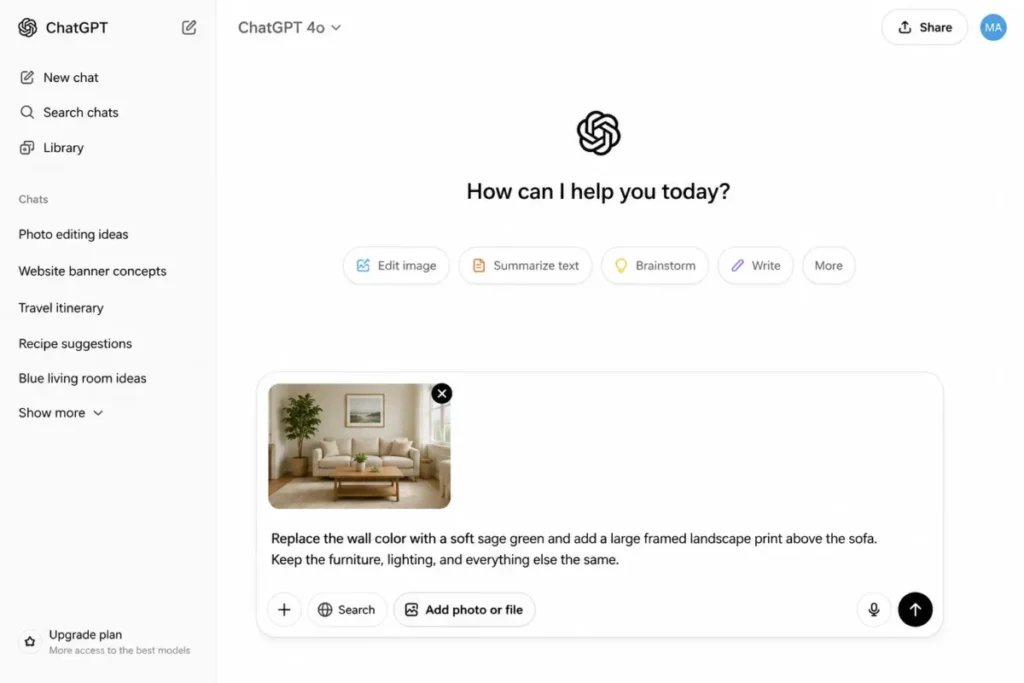
Every precision edit in this library follows the same shape. OpenAI’s Academy guidance says a good image prompt usually needs only one to three clear sentences and should state what changes and what stays the same.
This formula turns that into a fill-in template.
| Part | What it does | Example clause |
|---|---|---|
| 1. Source context | Names the subject and scene | “In this portrait of one person seated indoors” |
| 2. Exact change | The single thing to change | “replace the background with a plain warm-gray studio wall” |
| 3. Protected invariants | What must stay identical | “keep the face, hairstyle, expression, clothing, and pose unchanged” |
| 4. Visual treatment | Light, style, framing | “match the existing front-left light and keep natural shadows” |
| 5. Output constraint | Format or crop | “produce a vertical 4:5 crop” |
Source: OpenAI Academy image guide, checked 2026-07-22.
Weak prompt: “make this a professional headshot.” Strong prompt: “turn this into a professional headshot with a plain warm-gray background and soft front-left light. Keep the exact face, skin tone, hairstyle, expression, and clothing unchanged. Use a chest-up crop.”
The strong version protects identity. That gives the model less room to invent a new face.
Prompt Quality Scorecard (score your prompt before you send it)
Before you submit, rate your draft prompt against these eight criteria. This is a self-check rubric for your prompt, not a rating of any product.
| Criterion | Weight | Score 1-5: does the prompt state it plainly? |
|---|---|---|
| Purpose and use case | 15% | |
| Exact single change | 20% | |
| Protected invariants | 20% | |
| Subject and scene named | 10% | |
| Visual treatment (light, style) | 10% | |
| Framing or crop | 10% | |
| Output format need | 10% | |
| One-change discipline | 5% |
Weighted total = sum of (score / 5 x weight). Decision thresholds: 0.85 and above means send it, 0.70 to 0.84 means add the missing invariants first, and below 0.70 means rewrite before you waste an edit.
The two criteria that carry the most weight, exact change and protected invariants, are the two most competitors leave out.
Choose the Edit Mode
ChatGPT Images documents two edit routes, and the choice changes how much you must review afterward.
| Your goal | Use this mode | Review burden |
|---|---|---|
| Scene-wide change (background, lighting, style) | Describe it in chat, no selection | Review the whole image |
| One region (object, clothing area, a word of text) | Selection tool, highlight the region | Review the region AND the full image |
| Identity-critical or label-critical edit | Select narrowly, state protected surroundings | High: compare against the original at full size |
Source: ChatGPT Images documentation, checked 2026-07-22.
Here is the catch with the selection tool. OpenAI states that selection highlights are not always precise and that edits may extend beyond the selected area.
So a highlighted region is guidance, not a pixel-exact mask. Treat every localized edit as if it could touch the surrounding pixels, and inspect the full frame before you accept it.
Starter Prompts: Everyday Quick Edits
Start here if you mostly clean up personal photos, portraits, and social snaps. These edits are lower risk because the change is usually one clear property, but identity still drifts if you do not protect it.
Basic Cleanup
Protect the subject, the composition, and the natural texture. Inspect the reconstructed background and the skin texture after each edit.
P1.
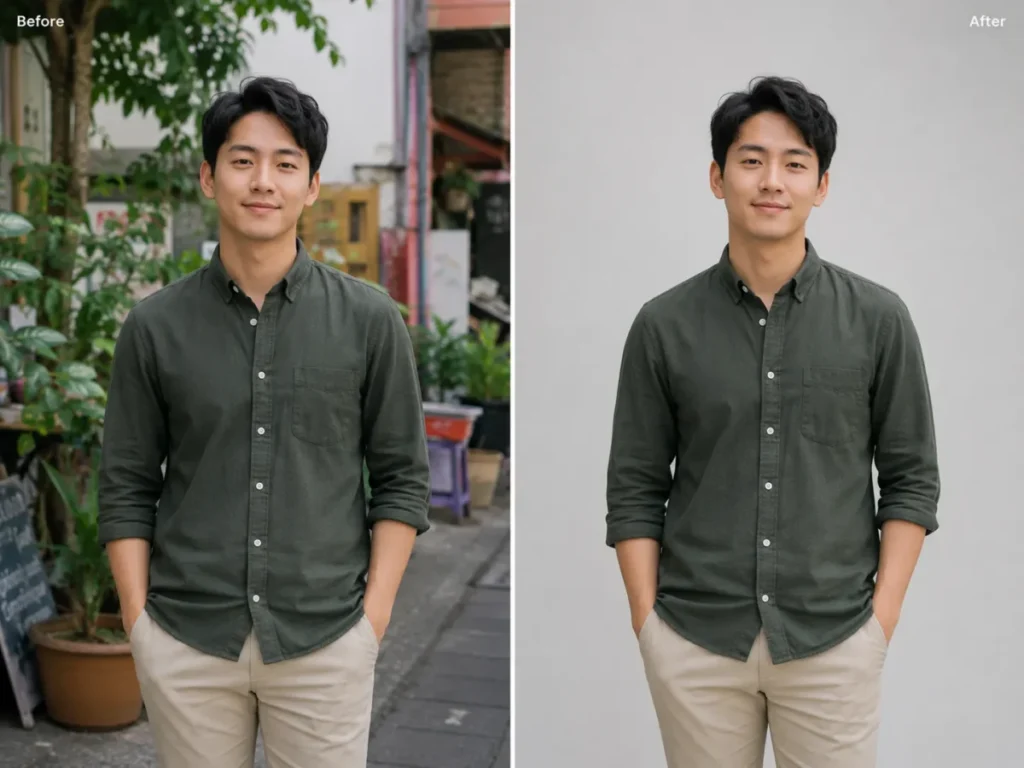
Remove the entire background and replace it with a clean neutral light-gray studio backdrop. Keep the subject's face, hair, body shape, clothing, pose, camera angle, and edge detail unchanged. Match the existing light direction and preserve natural shadows.
P2.
Remove the distracting person standing in the far-left background only. Reconstruct the wall and floor behind that person so texture, perspective, lighting, and shadows match the original. Keep the main subject and every other object unchanged.
P3.
Correct the exposure and white balance so the photo looks naturally lit by soft daylight. Recover detail in bright and dark areas without changing the subject, facial features, clothing colors, background objects, or composition. Avoid an HDR or over-processed look.
P4.
Reduce visible digital noise and mild compression artifacts while preserving natural skin texture, hair strands, fabric texture, small printed details, and original color. Do not smooth the image into a plastic appearance.
P5.
Clean dust spots, tiny sensor marks, and small temporary blemishes from the image only. Keep permanent facial features, freckles, moles, scars, texture, lighting, and all non-distracting details unchanged.
Portrait and Headshot
This is the highest-drift category in the starter band. One independent 2025 study of 83,000 image-editing requests reported that identity preservation was a recurring failure across the leading editors it evaluated, so treat every portrait output as unverified until you compare it with the source.
Get consent before you edit anyone else’s face.
P6.
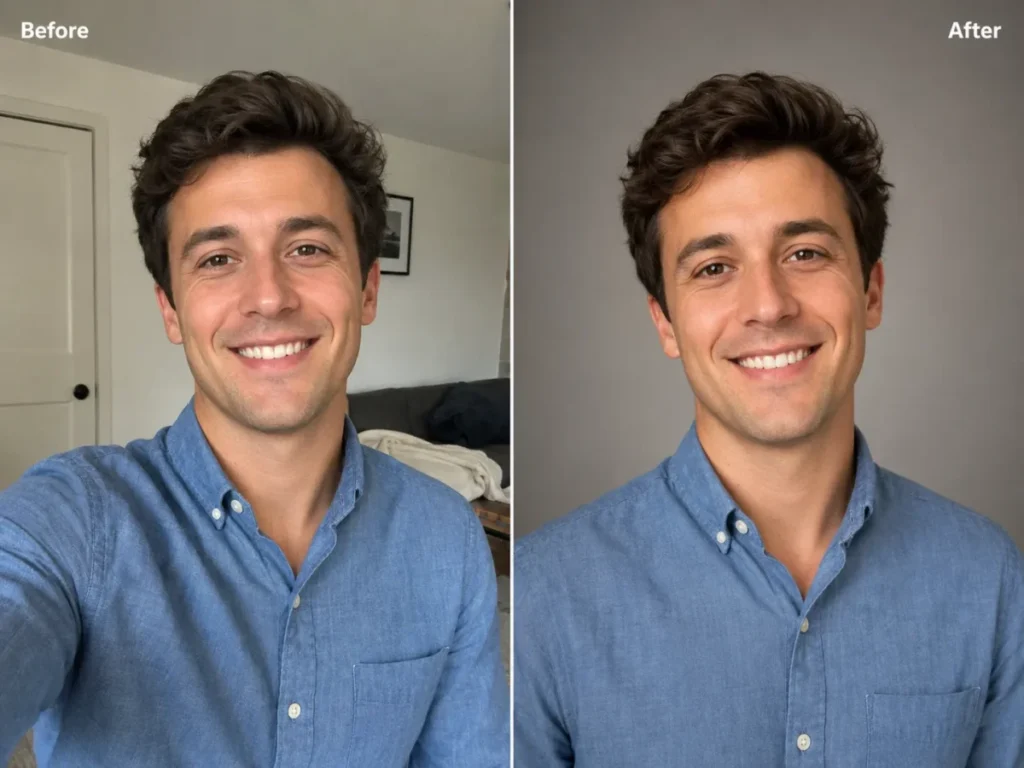
Turn this portrait into a professional LinkedIn-style headshot with a simple warm-gray background, soft window light from the front-left, and a chest-up crop. Keep the person's exact identity, facial proportions, skin tone, hairstyle, expression, and clothing details unchanged. Retain natural skin texture.
P7.
Change only the clothing to a tailored navy business jacket over a plain white shirt. Keep the face, hair, body proportions, pose, hands, background, lighting direction, camera angle, and expression exactly the same. Make the fabric and shadows realistic.
P8.
Change only the hair color to a natural medium chestnut brown. Preserve the exact hairstyle, hairline, strand direction, face, eyebrows, skin tone, expression, lighting, and background. Do not alter age or facial structure.
P9.
Make the expression slightly warmer by adding a subtle closed-mouth smile. Keep the person's identity, eye shape, nose, jawline, teeth visibility, hairstyle, pose, clothing, background, and lighting unchanged. Avoid exaggerated emotion.
P10.
Create a founder-profile portrait suitable for a company About page. Use a clean modern office background with shallow depth of field and soft natural daylight. Keep the person's exact identity, age, body proportions, clothing, expression, and camera perspective unchanged.
Lighting and Color
Relighting is forgiving because it rarely needs to touch identity, but it can shift skin tone and background layout if you do not lock them.
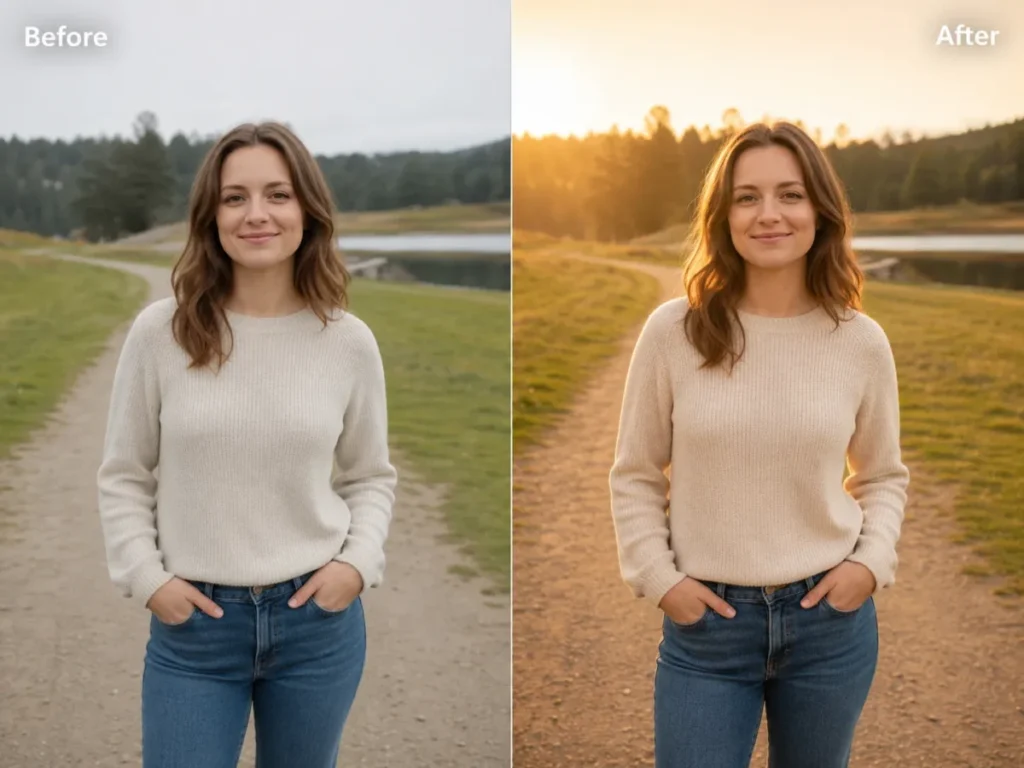
P11.
Relight the scene as soft golden hour with warm light coming from the back-left, gentle rim light around the subject, and natural long shadows. Keep the subject, face, pose, objects, camera angle, geometry, and background layout unchanged.
P12.
Apply a subtle cinematic color grade with slightly cooler shadows, gently warmer highlights, natural skin tones, restrained contrast, and fine film grain. Keep all subjects, objects, text, composition, and lighting direction unchanged.
P13.
Convert the harsh overhead lighting into soft diffused window light from the right. Reduce hard facial shadows while preserving the exact identity, skin texture, expression, hair, clothing, background, and camera angle.
P14.
Transform the daytime exterior into a realistic blue-hour scene just after sunset. Preserve the buildings, road layout, vehicles, people, signs, perspective, and weather. Adjust only sky color, ambient light, window glow, and corresponding shadows.
P15.
Create a clean bright editorial look with neutral whites, accurate skin tones, moderate contrast, and soft highlights. Keep the image content, product colors, clothing colors, facial features, background, and composition unchanged. Avoid oversaturation.
Intermediate Prompts: Business and Marketing Assets
Move here when the output has to earn its place in a store listing, an ad, or a customer-facing page. The stakes rise because a wrong label, a changed price, or a distorted product is unusable, not just imperfect.
Product and Ecommerce
Protect the product’s shape, color, quantity, logo position, and label spelling. After every edit, zoom to 100% and read the packaging text character by character.
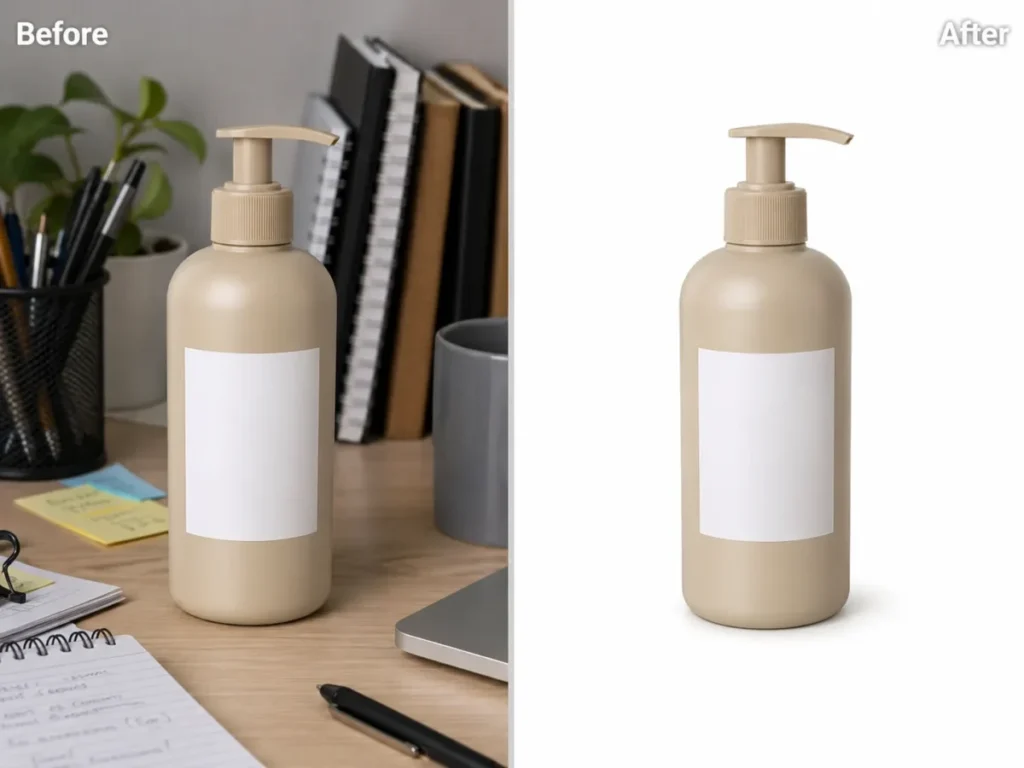
P16.
Place the product on a pure white ecommerce background with a soft realistic contact shadow. Keep the product's exact shape, color, dimensions, quantity, logo position, label spelling, packaging text, surface texture, and camera angle unchanged.
P17.
Replace only the background with a warm minimalist kitchen counter scene using soft morning light. Keep the product, packaging, label text, cap, proportions, color, reflections, and placement unchanged. Match the original perspective and create realistic shadows.
P18.
Create a premium hero image by placing the product centered on a dark matte stone surface with controlled rim lighting and subtle negative space on the right. Preserve the product's exact geometry, color, branding, text, quantity, and orientation. Add no extra accessories.
P19.
Remove fingerprints, dust, and minor surface smudges from the product and tabletop only. Preserve the material texture, reflections, edges, label text, logo, color, shape, and all intentional design details. Do not redesign the product.
P20.
Make the background transparent while keeping the complete product, fine edges, transparent parts, shadows inside the product, label text, logo, color, and proportions intact. Do not crop or add a new background.
OpenAI documents that ChatGPT Images can add text, add image details, and make a background transparent, so P20 is a supported request. The risk is not whether it can produce a cutout; it is whether the fine edges and label survive, which is why the verification step is not optional.
Social and Marketing
Text is the failure point here. OpenAI documents remaining limitations in text placement and clarity, so keep in-image copy short, quote it exactly, and read every character before you publish.
P21.
Reformat this photo for a square social post while keeping the main subject centered and fully visible. Extend the background naturally where needed. Preserve the subject's identity, pose, clothing, product details, lighting, and perspective. Add no text or logo.
P22.
Create a clean vertical story image using the uploaded photo as the main visual. Keep the subject in the lower two-thirds and extend the background upward with matching texture and light. Preserve the subject exactly and leave clear empty space at the top for later text.
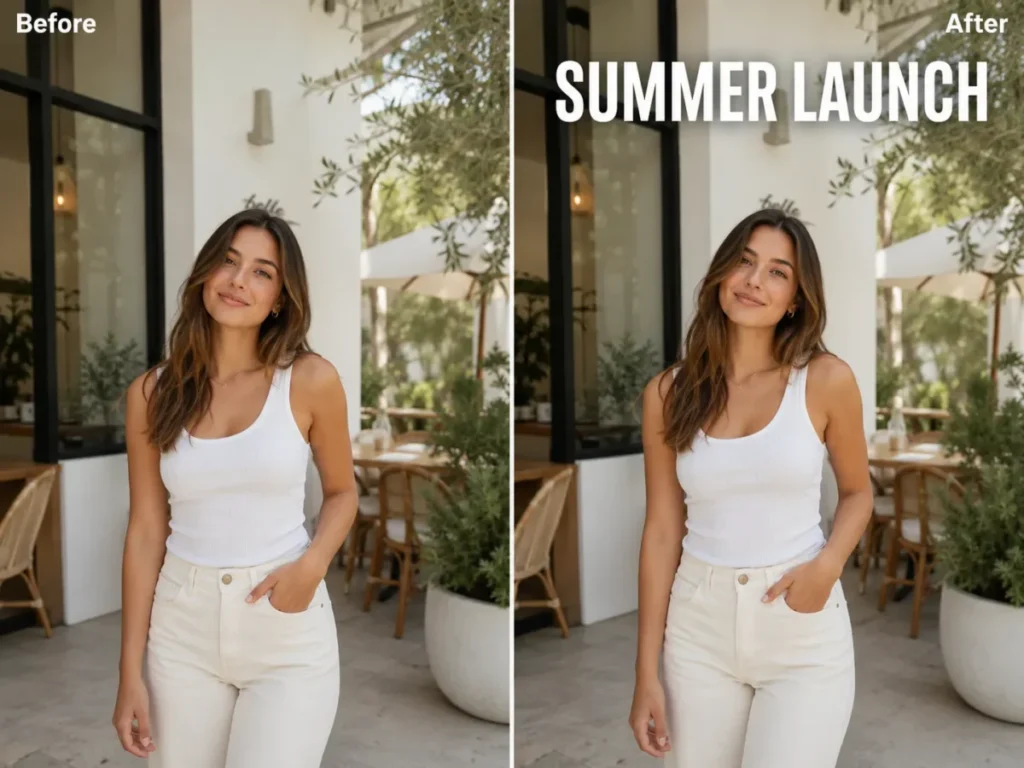
P23.
Add the headline "SUMMER LAUNCH" in bold white sans-serif text, centered at the top, with high contrast and generous spacing. Keep the headline exactly as written and add no other text. Do not change the subject, product, background, colors, or layout.
P24.
Turn this photo into a polished YouTube thumbnail with stronger subject-background separation, brighter face lighting, and clean negative space on the left. Keep the person's identity, expression, clothing, hand position, and background objects unchanged. Add no text.
P25.
Create a professional profile picture with a circular-safe composition, a softly blurred neutral background, balanced natural light, and a head-and-shoulders crop. Keep the exact identity, skin texture, hair, expression, clothing, and camera angle unchanged.
Restoration and Repair
Here you need a different trust standard. Generative editing can invent plausible detail that was never in the original, so separate faithful cleanup from creative reconstruction and never present a restored family photo as historically exact.
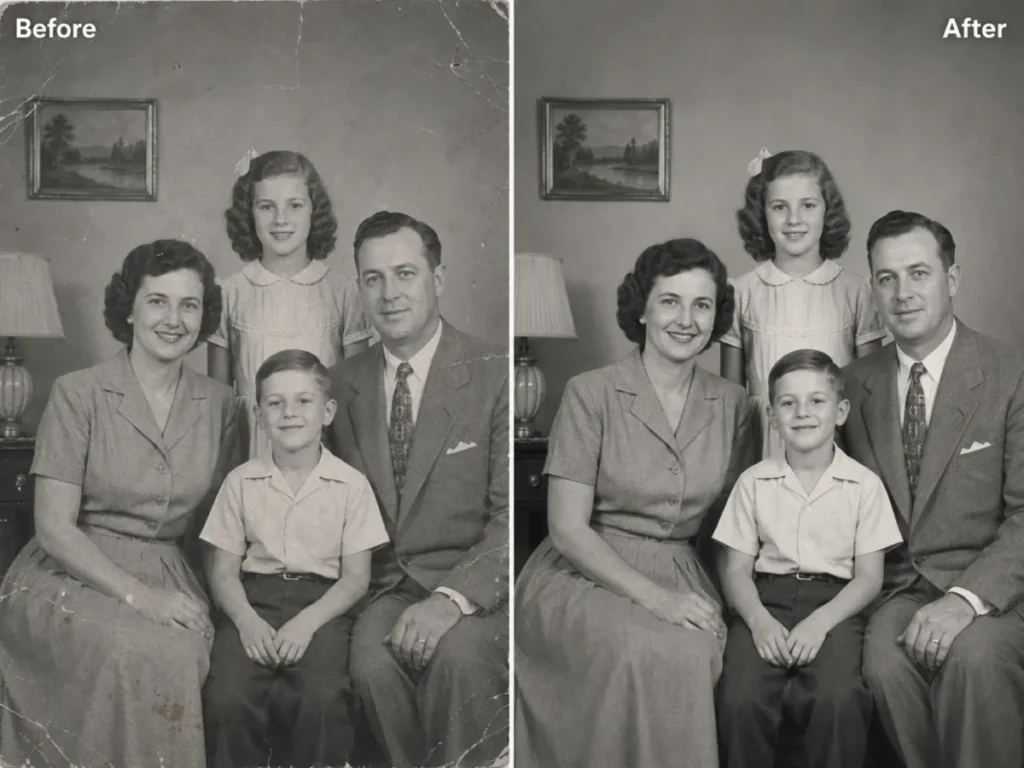
P26.
Restore this old black-and-white family photo by reducing scratches, dust, stains, and fold marks while preserving every identifiable face, pose, clothing detail, background object, framing, and original grayscale character. Do not invent missing people or objects.
P27.
Colorize this black-and-white portrait using restrained, historically plausible skin, hair, clothing, and background colors. Preserve the exact faces, expressions, pose, composition, lighting, and visible details. Treat uncertain colors conservatively and avoid modern styling.
P28.
Repair the torn corner by extending only the surrounding background texture and border pattern. Keep all people, objects, text, dates, framing, and undamaged areas unchanged. Do not create new facial or historical details.
P29.
Improve legibility and tonal balance in this faded photograph. Restore moderate contrast, reduce the yellow color cast, and clarify existing edges without changing faces, clothing, objects, composition, or period character. Avoid aggressive sharpening.
P30.
Reduce blur and compression artifacts enough to make the existing subject clearer, but preserve the original facial proportions, expression, hair, background, and texture. Do not invent fine details that are not supported by the source image.
Advanced Prompts: Composites, Transformations, and Recovery
These edits combine inputs, restyle whole scenes, or repair a near-miss result. They carry the most drift risk, so the multi-image and recovery prompts lean hardest on repeated invariants.
Creative Transformations
Style transfers are lower stakes for identity, but they still drift on pose and object count. Keep real-person likeness and brand imitation in check: OpenAI Academy recommends generic or ownable design directions rather than copying a specific brand or artwork.
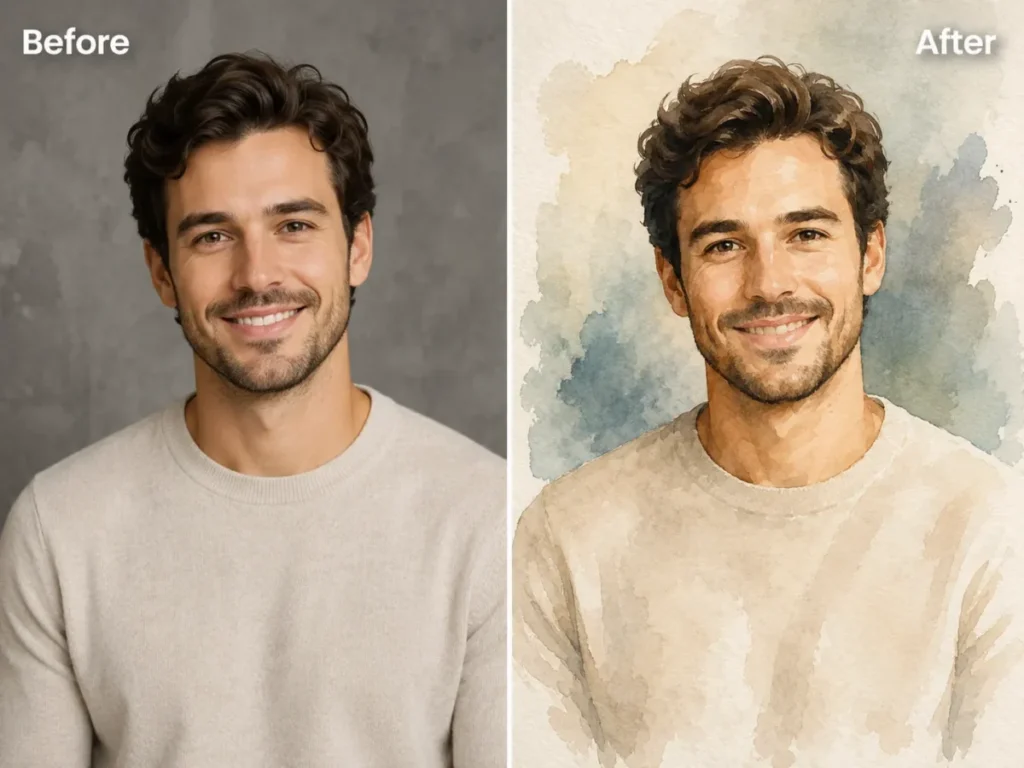
P31.
Transform the photo into a refined watercolor illustration with soft paper texture, controlled brush edges, and muted natural colors. Preserve the subject's recognizable identity, pose, clothing silhouette, background composition, and major objects. Add no text or watermark.
P32.
Convert the image into a clean graphic-novel illustration with precise ink lines, restrained halftone shading, and a limited warm-and-cool palette. Preserve the original composition, identity, pose, clothing, object count, and perspective.
P33.
Turn the portrait into a tasteful three-dimensional collectible figurine displayed in plain transparent packaging. Preserve the person's recognizable hairstyle, facial structure, clothing colors, and accessories. Use generic packaging with no brand names or logos.
P34.
Reimagine the scene as a vintage 1970s editorial photograph with warm film tones, subtle grain, slightly faded contrast, and period-neutral styling. Preserve the people, identities, pose, composition, and key objects. Do not add branded props.
P35.
Create a layered editorial collage using the uploaded portrait as the central element, with abstract paper shapes, subtle handwritten-style marks that contain no readable words, and a restrained neutral palette. Preserve the face, hair, clothing, and pose exactly.
Composite and Environment
When you combine images, name each one by order and give it a single role. OpenAI guidance supports multiple uploaded images and recommends a small, manageable set with each image referred to by order and its relationship explained.
P36.
Use Image 1 as the main portrait and Image 2 only as a lighting reference. Apply Image 2's soft side lighting and color temperature to Image 1 while keeping Image 1's person, identity, pose, clothing, background layout, and camera angle unchanged.
P37.
Use Image 1 as the product source and Image 2 as the background reference. Place the unchanged product from Image 1 on the center of the surface shown in Image 2. Match perspective, light direction, reflections, and shadows. Preserve all product text, shape, color, and quantity.
P38.
Combine the two uploaded portraits into one natural group photo with Person 1 on the left and Person 2 on the right. Preserve each person's exact identity, clothing, body proportions, and expression. Match scale, eye level, light direction, and shadows. Add no other people.
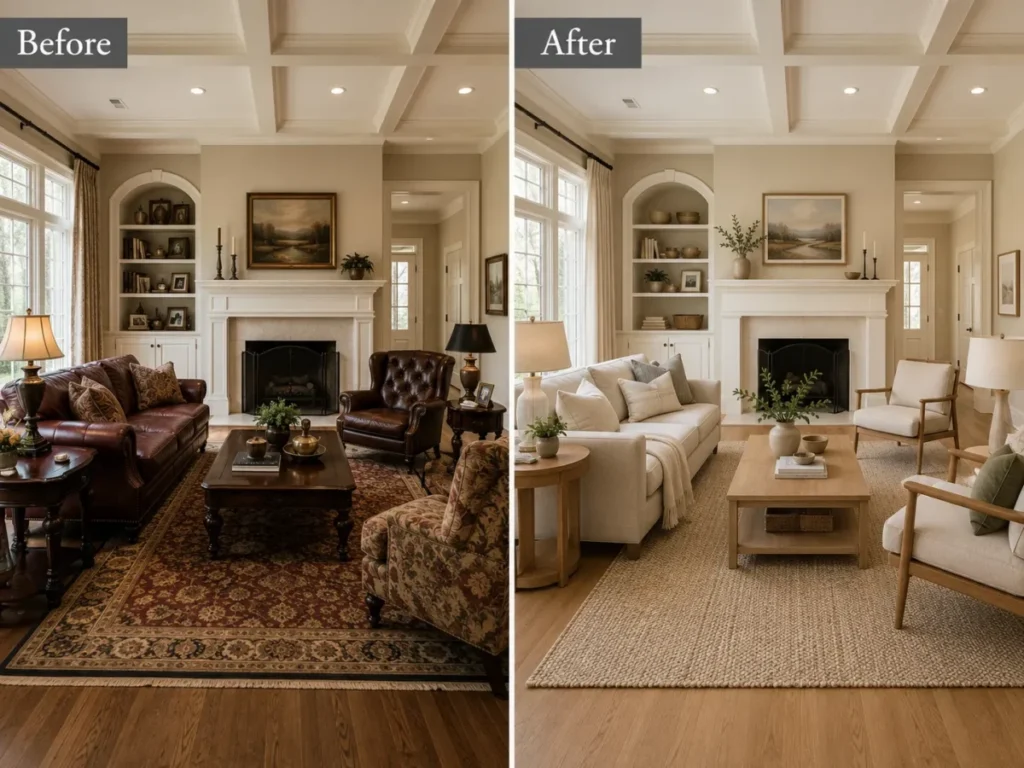
P39.
Redesign only the furniture and decor in this living room using light oak, neutral fabrics, a textured rug, and warm ambient lamps. Keep the walls, windows, doors, floor plan, ceiling, camera position, room dimensions, and exterior view unchanged.
P40.
Change the season from summer to winter by adding realistic snow to roofs, ground, and branches, overcast cold light, and light snowfall. Preserve the buildings, roads, people, vehicles, signs, perspective, and object placement unchanged.
For real estate work, treat P39 as a staging concept, not property documentation. Precise composition control is a documented limitation, so a redesigned room that quietly moves a window or wall could misrepresent the space.
Precision Fixes and Recovery
These are the prompts you paste when the first edit is almost right and one thing is wrong. Each changes a single issue while restating what already worked.
This is the section most prompt libraries skip, and it is often more useful than another inspiration prompt.
P41.
Restore the person's face to match the original uploaded photo. Change only the facial identity and proportions back to the source. Keep the current background, clothing, pose, crop, lighting, and all other successful edits unchanged.
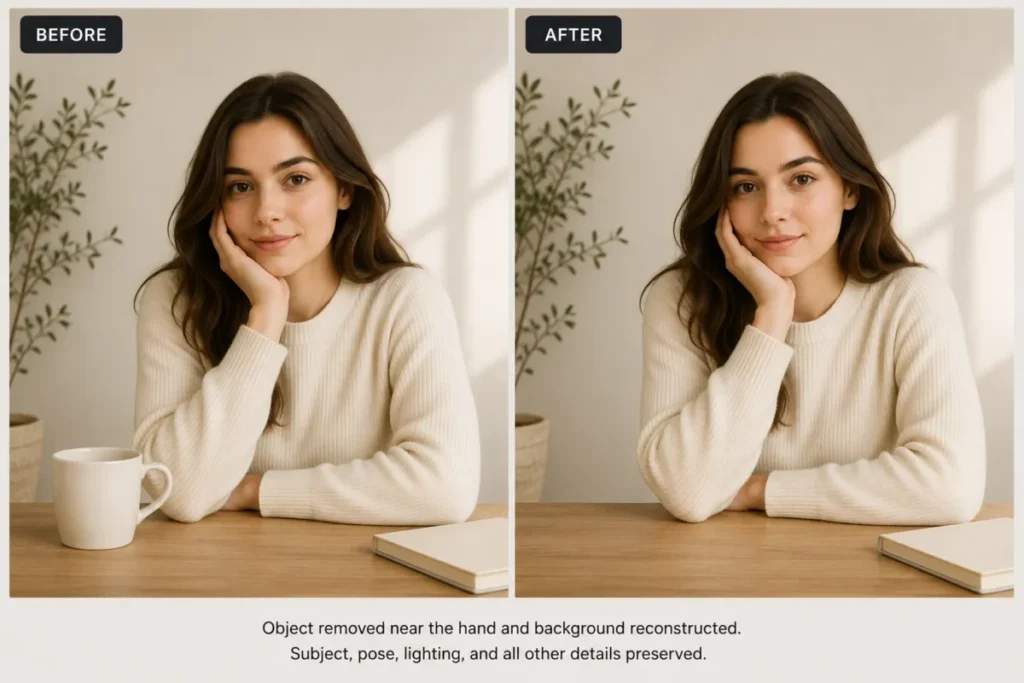
P42.
Remove the extra object that appeared near the subject's right hand. Reconstruct the hidden background naturally. Keep the subject, hands, fingers, clothing, face, pose, lighting, crop, and every other object unchanged.
P43.
Correct only the headline so it reads "SUMMER LAUNCH" exactly, with the same font style, size, color, and position. Change no other text, image element, layout, subject, product, color, or background.
P44.
Reduce the skin smoothing and restore natural pores, fine lines, and realistic texture while keeping the person's identity, expression, hairstyle, makeup, lighting, clothing, background, and crop unchanged.
P45.
Return the image to the original composition and camera framing while preserving the successful lighting and color adjustments. Restore the original subject position, object placement, crop, perspective, and negative space. Add or remove nothing else.
Preservation Clause Bank
Append the right clause to any prompt above. This is the language that reduces unintended change.
It does not guarantee perfect preservation, but it removes the ambiguity that lets the model wander.
| Risk | Copy-paste clause |
|---|---|
| Identity | “Keep the exact face, facial proportions, skin tone, hairline, and expression unchanged.” |
| Product | “Preserve the product’s shape, color, quantity, logo position, and label spelling exactly.” |
| Room and geometry | “Keep the walls, windows, doors, floor plan, camera position, and room dimensions unchanged.” |
| Text | “Keep all existing text exactly as written; change no wording, font, size, or placement.” |
| Restoration | “Preserve every identifiable feature; do not invent missing faces, objects, or details.” |
| Background | “Reconstruct only the hidden area so texture, perspective, light, and shadows match the original.” |
The clause bank is the reusable core of this whole library. A prompt without at least one of these clauses is the prompt most likely to drift.
Refine One Detail at a Time
OpenAI recommends small, targeted revisions and adjusting one element at a time, and it recommends repeating important details on each turn to reduce drift. That turns refinement into a fixed ladder.
- Turn 1, core edit. Make the single main change with full invariants stated.
- Turn 2, lighting. Adjust light only. Restate identity, product, and layout invariants.
- Turn 3, cleanup. Remove one leftover artifact. Restate the invariants again.
- Turn 4, output. Set aspect ratio or transparency. Restate the subject-preservation clause.
Stop the moment a new turn makes the image worse. A broad second-round prompt is the fastest way to undo a good first result, so never fix three things in one message.
Fix a Bad Edit: Recovery Prompt Bank
When an edit is close but wrong, do not restart from scratch. Paste the matching recovery prompt, change one issue, and restate what already worked.
| Problem | Recovery prompt to paste |
|---|---|
| Face changed | Prompt P41: restore the face to the original, keep everything else. |
| Extra object appeared | Prompt P42: remove the object, reconstruct the background, keep the rest. |
| Text misspelled | Prompt P43: correct only the text to the exact wording, change nothing else. |
| Over-retouched skin | Prompt P44: reduce smoothing, restore natural texture, keep identity. |
| Wrong crop or composition | Prompt P45: return to the original framing, keep the good color and light. |
| Background changed by accident | “Restore the original background exactly, keep the subject and the intended edit.” |
Recovery works because it re-anchors the model to a known-good state. Without it, each new broad attempt is a fresh roll of the dice.
Cost, Limits, and Availability
Free access does not mean unlimited editing, and that shapes how you should batch your work.
| Factor | What the documentation says |
|---|---|
| ChatGPT Images 2.0 availability | Available on all tiers, checked 2026-07-22 |
| Images with thinking | Listed for Plus, Pro, and Business; coming to Enterprise and Edu |
| Image creation and upload limits | Can be separate from the main chat limit and can vary |
| Reset timing | Shown in-product when a limit is reached |
| Platforms | Web, iOS, and Android |
Sources: ChatGPT Images documentation and ChatGPT Free Tier FAQ, checked 2026-07-22.
Plan tiers and their limits are detailed in the ChatGPT pricing guide.
I would not plan a 40-image batch on a free account without expecting an interruption. The image allowance can be capped separately from chat, and OpenAI does not publish a single fixed number, so the practical move is to do your highest-priority edits first and let the in-product notice tell you when you have hit the wall.
There is no official RAW support in the cited input documentation, so convert a copy to JPEG or PNG before you upload rather than building a workflow around camera raw files.
Privacy, Consent, and Data Controls
Editing a personal photo is a data decision before it is a creative one. The controls below are documented, but none of them make an upload risk-free.
PRIVACY CHECKLIST BEFORE UPLOAD
[ ] I have permission to use every identifiable person's likeness
[ ] The image holds no confidential, financial, or intimate content I cannot risk
[ ] I have set Data Controls to match my preference on model improvement
[ ] I enabled Temporary Chat if the conversation should expire
[ ] I removed metadata or sensitive details the edit does not need
OpenAI’s Data Controls let you decide whether your conversations help improve its models, and OpenAI states that Temporary Chats are deleted from its systems within 30 days. Those are real levers, but a home interior, an ID, or a family photo can still be sensitive, so I would keep anything I could not risk exposing off the platform entirely.
Sources: Data Controls FAQ and chat and file retention policy, checked 2026-07-22.
Example: A Filled-In Prompt Workflow
Here is one complete pass, scored with the rubric above, so you can see the system in action.
Scenario. A job seeker has one casual phone photo and needs a clean LinkedIn headshot. Budget: a free ChatGPT account. Goal: a usable, credible headshot without a studio.
| Step | Action | Result to verify |
|---|---|---|
| Prompt | Paste P6 (LinkedIn-style headshot) | Background, light, crop as asked |
| Score | Purpose, change, invariants all stated: weighted total 0.90 | Above the 0.85 send threshold |
| Review | Compare face against the original at full size | Identity intact, no new features |
| Drift found | Jaw looks slightly narrowed | Fails the identity check |
| Recovery | Paste P41 to restore the original face | Face matches source, background kept |
| Output | Ask for a 4:5 crop, verify edges | Ready to download |
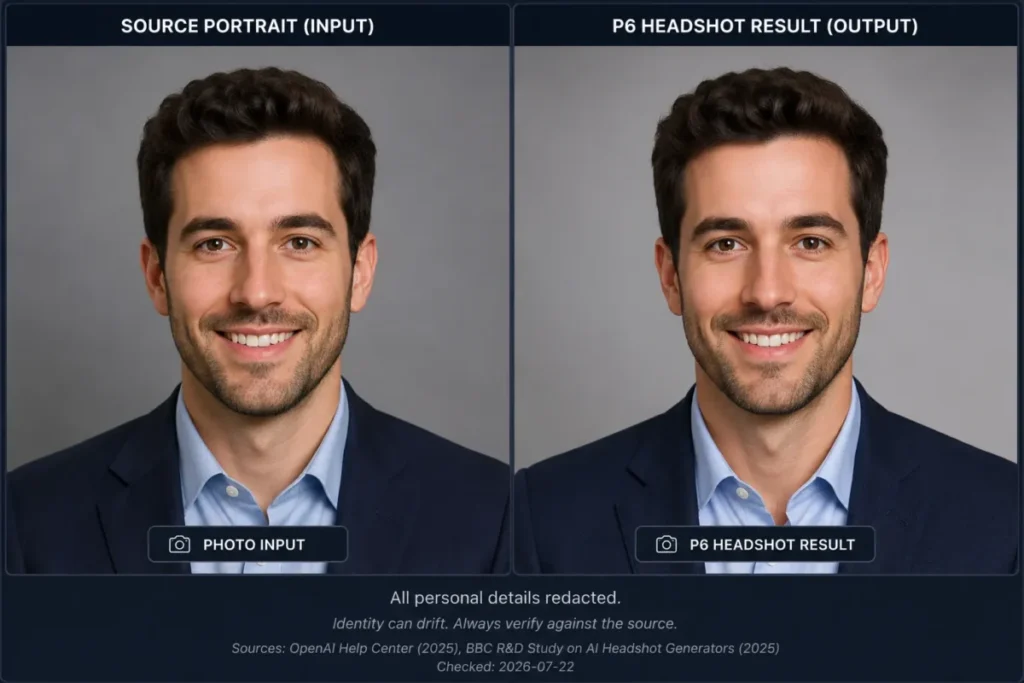
The lesson is in the middle rows. The first output looked professional, but it failed the identity check, and only a side-by-side comparison caught it.
That comparison is the difference between a headshot that represents the person and one that quietly does not.
Verify Before You Download
Run this pass on every edit before you use it. It converts the documented weak spots into a short review.
| Check | Look for |
|---|---|
| Identity | Face and proportions match the original |
| Anatomy | Hands, fingers, and ears are correct |
| Object count | Nothing added or removed by accident |
| Product integrity | Shape, color, and quantity unchanged |
| Text spelling | Every character correct, no invented words |
| Edges | Clean hair and product edges, no halos |
| Reflections and shadows | Consistent with the light direction |
| Perspective | Geometry and camera angle unchanged |
| Background | No new artifacts or altered details |
| Unintended changes | Anything edited that you did not request |
A generative edit can change details outside the area you asked about, so this pass is not busywork. For a headshot, a product shot, or a restored family photo, it is the step that decides whether the file is publishable.
Red Flags in an Edited Image
Treat any of these as a reason to reject or redo, not to publish.
- The face looks slightly different from the original, even if it looks good on its own.
- Text is misspelled, warped, or has invented extra words.
- A product label, logo, or color has shifted from the real item.
- The object count changed: an item appeared or vanished.
- Hands, fingers, or teeth look distorted.
- The background gained an artifact, a seam, or a repeated pattern.
- Reflections or shadows point the wrong way for the stated light.
- A room edit moved a window, wall, or door.
- Skin looks plastic, with pores and texture erased.
- The crop or composition changed when you only asked for a color or light edit.
- A selection edit changed pixels well outside the highlighted area.
- A restored photo added a person, object, or detail that was never in the original.
The first red flag is the most dangerous because it is the easiest to miss. An edit that is visually strong but subtly off-identity will pass a casual glance and fail the person it represents.
Common Mistakes
Each mistake below has a one-line fix.
| Mistake | Fix |
|---|---|
| Vague instruction like “make it better” | Name the exact change, the protected details, and the output use. |
| Changing many things in one turn | Split the job into small, single-change revisions. |
| Not repeating protected details on follow-ups | Restate identity, geometry, labels, and layout on every turn. |
| Assuming a selection is a perfect boundary | Inspect the full image; edits can extend past the highlight. |
| Trusting a face or label without a zoomed check | Compare with the original and verify spelling, color, and count. |
| Requesting long in-image copy | Keep text short, quote it exactly, and verify every character. |
| Mixing ChatGPT UI steps with API-only settings | The consumer app has no input_fidelity control; that is API-only. |
| Uploading many references with no roles | Number each image and assign one role per image. |
The API note matters because several guides borrow developer settings. In OpenAI’s API, GPT Image 2 processes image inputs at high fidelity automatically and does not expose a user-adjustable input_fidelity parameter, and its masking is prompt-guided and may not follow the mask shape exactly.
Those are API behaviors, not switches in the ChatGPT app.
When ChatGPT Is Not Enough
ChatGPT Images is fast and conversational, and for lower-risk creative and business edits that manual review can catch, that speed is the point. It is not the right final tool for every job.
| Use case | Better final step |
|---|---|
| Forensic or evidence images | A verifiable pixel editor and human review |
| Regulated or legal documentation | A controlled, auditable workflow |
| Exact product-label or packaging production | A design tool with precise typography |
| Pixel-perfect masks and cutouts | A conventional layer-based editor |
| High-stakes identity work at volume | Manual verification of every output |
The reason is evidence, not opinion. One 2025 study of 83,000 requests reported that only about 33% could be fulfilled by the leading editors it evaluated, and OpenAI’s own documentation lists text, consistency, and precise composition as remaining limitations.
If you need exact reproduction rather than a strong generative approximation, prompt in ChatGPT to concept fast, then finish in a tool built for precision. The roundup of the best AI photo editors covers dedicated options for that final step.
What to Do After You Finish an Edit
Pick the path that matches your outcome.
- The edit worked and you want more control next time. Build your own prompts with the prompt engineering guide, then reuse the five-part formula here.
- You want a second prompt library to compare styles. The Nano Banana photo editing prompts cover portraits and products with a different model’s phrasing.
- You need to generate images, not just edit them. Compare tools in the best AI image generators guide.
- The edit missed and you want a purpose-built editor. Move to a dedicated photo tool for exact masks and typography.
Frequently Asked Questions
These answers cover the questions people most often ask before editing a photo in ChatGPT.
Can ChatGPT edit an existing photo?
Yes. According to OpenAI’s ChatGPT Images documentation, you can upload an existing image and describe the changes you want, either by describing the edit in chat or by selecting part of the image first.
It creates a new edited image from your instructions rather than editing the original file pixel by pixel.
What is the best ChatGPT prompt for photo editing?
The best prompt is the one that names the exact change and protects everything else. Use the five-part formula: source context, exact change, protected invariants, visual treatment, and output constraint.
A prompt that says “change only the background and keep the face, pose, and clothing unchanged” beats “make this look professional” every time.
How do I stop ChatGPT from changing my face?
State the identity clause explicitly: “keep the exact face, facial proportions, skin tone, and expression unchanged.” Then compare the result against the original at full size, because identity drift is a documented weak spot. If the face still shifts, paste the recovery prompt (P41) to restore it to the source while keeping the rest of the edit.
How do I edit only one part of a photo in ChatGPT?
Use the selection tool to highlight the region, then describe the local change and name the surrounding details to protect. OpenAI notes that selection highlights are not always precise and edits may extend beyond the selected area, so review the whole image afterward, not just the region you highlighted.
Can ChatGPT remove or replace a background?
Yes, and it can also make the background transparent, according to OpenAI’s documentation. Ask it to replace or remove the background while keeping the subject, edges, and shadows intact.
Check the hair and product edges at full size, since fine edges are where background edits most often break.
Can ChatGPT combine two uploaded photos?
Yes. Upload a small set, refer to each image by order, and give each one a single role such as subject, background, or lighting reference.
State how they relate, for example “place the product from Image 1 on the surface in Image 2,” and verify scale, light direction, and shadows in the result.
Why does ChatGPT change details I did not ask it to change?
Because it regenerates an updated image from your instructions rather than editing pixels directly, so anything you do not lock down is open to change. OpenAI documents remaining limits in consistency and composition.
The fix is to repeat your protected invariants on every turn and change only one thing at a time.
How do I fix misspelled text in an edited image?
Ask for a text-only correction: quote the exact wording, keep the same font, size, color, and position, and forbid every other change. Keep in-image copy short, since text placement and clarity are documented limitations.
Then read every character at full size before you accept it.
Can ChatGPT restore an old photo accurately?
It can reduce scratches, dust, and fading, but it can also invent plausible detail that was never in the original. Ask it to preserve every identifiable feature and to avoid creating new faces or objects, and compare the result with the source at full size.
Treat colorization and reconstruction as an interpretation, not a historical record.
Is ChatGPT photo editing free?
ChatGPT Images 2.0 is available on all tiers as of 2026-07-22, so basic editing is accessible on a free account. Image creation and uploads can carry limits that are separate from the main chat limit and can change, and ChatGPT shows the reset timing in-product when you hit one.
There is no stable published quota, so plan your most important edits first.
About the author

Macedona is the founder and lead reviewer at SaaS CRM Review, where he has published 175+ in-depth reviews, pricing guides, and comparisons of CRM and SaaS tools. Each review is based on hands-on testing or verified documentation, and every article states clearly which method was used. Pricing and features are checked against official vendor sources, with the verification date noted in the article. Macedona follows a published review methodology and editorial policy. SaaS CRM Review earns affiliate commissions from some links, which never influence ratings or rankings. Read the full affiliate disclosure.