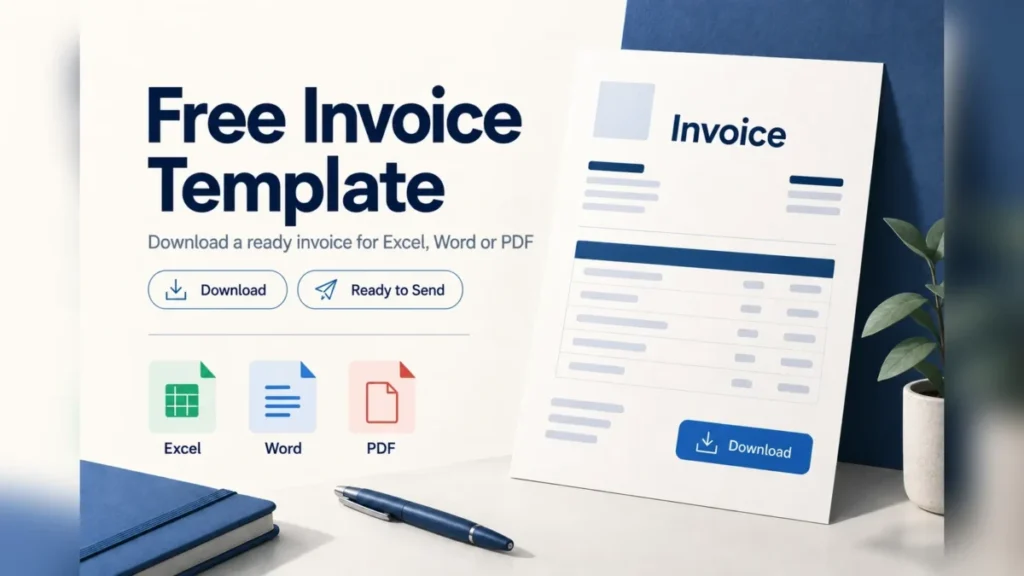
This free invoice template comes in three files: an Excel workbook that calculates the totals, a Word document and a printable PDF. Each holds the same 20 fields a US client invoice needs: your details, the client’s, the invoice number, dates, payment terms, line items and totals. All three download free, with no sign-up.
Invoice template (Excel)
An Excel workbook with the 20 fields as columns and formulas for line amounts, subtotal, sales tax and total due. A Print view sheet lays the invoice out for printing.
Invoice template (Word)
A Word invoice with the same fields under From, Client and Invoice details, plus a line-items table and a totals table. The Word file has no formulas, so you type the Subtotal, Sales tax and Total due.
Printable invoice template (PDF)
A blank one-page invoice with ten line-item rows and a totals table, made to print and fill in by hand.
In This Article (8 sections)
Excel, Word or PDF: Which Free Invoice Template to Download
Pick the Excel file if you want the line amounts, sales tax and total due calculated for you. Pick Word if you mostly change wording and layout and can add up a few lines yourself. Pick the PDF if you print invoices and write them by hand.
| File | Best for | What calculates |
|---|---|---|
| Excel (.xlsx) | Several line items and a sales tax rate | Amount, Subtotal, Sales tax, Total due |
| Word (.docx) | Changing wording, layout or adding a logo | Nothing: you type Amount, Subtotal, Sales tax and Total due |
| Printing and filling in by hand | Nothing: you write Amount, Subtotal, Sales tax and Total due |
Google Sheets users can work from the Excel file: in Sheets, choose File > Import, upload the .xlsx and pick Create new spreadsheet or Insert new sheets. Whichever file you fill in, send the client a PDF.
Sources: Google Docs Editors Help on importing spreadsheets, checked October 2026.
What’s in the Invoice Template
The template has 20 fields in five groups: your business, the client, the invoice details, the line items and the totals.
The Example column shows the invented sample data that ships in the Excel and Word files.
| Field | What to enter | Example |
|---|---|---|
| Business name | Your business or trading name | Sample Business Name |
| Business address | Your mailing address | 100 Sample Street, Anytown, ST 00000 |
| Business email | Where the client sends questions | billing@example.com |
| Business phone | A number the client can call | 555-0100 |
| Bill to | The client’s name or company | Sample Client Name |
| Client address | The client’s billing address | 200 Sample Avenue, Anytown, ST 00000 |
| Client email | The address you send the invoice to | client@example.com |
| Invoice number | A unique number you never reuse | INV-0001 |
| Invoice date | The date you issue the invoice | 11/02/2026 |
| Due date | The date payment is due under the terms | 12/02/2026 |
| Payment terms | Due on receipt, Net 15, Net 30 or Net 60; Net 30 means due 30 days after the invoice date | Net 30 |
| Description | What you did or delivered, one line per item | Website copywriting (sample) |
| Quantity | Hours, units or items | 4 |
| Rate | Price per hour or per unit, in dollars | 85 |
| Amount | Quantity x Rate (formula) | 340.00 (calculated) |
| Subtotal | Sum of the Amount column (formula) | 595.00 (calculated) |
| Sales tax rate | The rate you charge, or 0% (you type it) | 5% |
| Sales tax | Subtotal x Sales tax rate (formula) | 29.75 (calculated) |
| Total due | Subtotal + Sales tax (formula) | 624.75 (calculated) |
| Payment instructions | How to pay you: methods, a payment link or check payee | Pay by bank transfer or card link (sample) |
Sources: sample data from the template files; every name, address, email, phone number and amount is invented.
In the Excel file these 20 names are the column headers of the Invoice sheet, in this order; the Word and PDF files use them as labels.
How the Excel file calculates the total
Four fields calculate in the Excel file: Amount, Subtotal, Sales tax and Total due. You type everything else.
- Amount (column O, rows 2-11):
=IF(OR(M2="",N2=""),"",ROUND(M2*N2,2))multiplies Quantity by Rate and rounds to cents. A line with no quantity or rate stays blank instead of showing $0.00. - Subtotal (P2):
=SUM(O2:O11)adds the ten Amount cells. - Sales tax (R2):
=ROUND(P2*Q2,2)multiplies the Subtotal by the rate you type in Q2. - Total due (S2):
=P2+R2adds the tax to the Subtotal.
Enter 0% in Sales tax rate when you charge no sales tax, and the Total due equals the Subtotal. Row 2 holds your details, the client, the invoice details, line item 1 and the totals; rows 3-11 hold line items 2 to 10.
The Print view sheet reads those cells and lays them out as a printable invoice, so you type in one sheet and print the other.
How to Fill Out the Invoice Template
Fill the template top to bottom in seven steps, and finish by saving a PDF to send.
- Clear the sample data. In Excel, clear Description, Quantity and Rate on the three sample lines, and their Amount cells go blank; never clear the Amount, Subtotal, Sales tax or Total due formula cells. In Word, delete the sample lines and typed totals.
- Type your business name, address, email and phone over the sample ones, then save that copy as your blank master.
- Enter the client’s name in Bill to, with their billing address and the email you send invoices to.
- Give the invoice the next unused number (INV-0002 follows INV-0001) and today’s date as the Invoice date.
- Pick the payment terms and set the Due date to match: Net 30 on an invoice dated 11/02/2026 makes it due 12/02/2026.
- Add one line per item with its quantity and rate; Excel fills in the Amount, while in Word you type it.
- Enter your sales tax rate or 0%, check the Total due, add payment instructions and save a PDF named after the invoice, such as INV-0001.pdf.
Example: A Filled-In Sample Invoice
This sample invoice in the Excel and Word files is invented data.
INV-0001’s three sample lines work out as 4 x $85.00 = $340.00, 2 x $60.00 = $120.00 and 3 x $45.00 = $135.00, which add up to $340.00 + $120.00 + $135.00 = $595.00.
Then $595.00 x 5.00% = $29.75, and $595.00 + $29.75 = $624.75, the Total due at a sample 5.00% rate on the sales subtotal.
| Description | Quantity | Rate | Amount |
|---|---|---|---|
| Website copywriting (sample) | 4 | $85.00 | 4 x $85.00 = $340.00 |
| Logo design revision (sample) | 2 | $60.00 | 2 x $60.00 = $120.00 |
| Project management (sample) | 3 | $45.00 | 3 x $45.00 = $135.00 |
Sources: sample data from the template files; the names, addresses and numbers are invented, and the 5.00% rate is a sample, not a state rate.
Customize the Template for Your Work
Three changes fit most readers: freelancers and consultants bill hours, contractors split labor and materials, and businesses that receive purchase orders add a PO number.
- Freelancers and consultants: use Quantity for hours and Rate for your hourly rate, one line per task or per week.
- Contractors: put labor and materials on separate lines, so the client sees what each part of the job cost.
- Purchase orders: add a PO number line under the invoice details in Word or the PDF. In Excel, add a PO number column U after Payment instructions; the formulas stay in place. Print view reads only columns A to T, so also type the PO number in its blank row under Payment instructions.
Also add your logo at the top of the Word file or the Print view sheet, and paste any payment link into Payment instructions. A discount is its own line with Quantity 1 and a negative Rate; mention a late fee only when your contract states one.
Common Invoice Mistakes That Delay Payment
Five template mistakes hold up payment, and each has a fix inside the template’s own fields.
- Reused or skipped invoice numbers. Two invoices with one number confuse both sets of records; always take the next number.
- No due date or terms. An invoice without a deadline has no date to miss; fill Payment terms and Due date every time.
- Typing over a formula cell. A number typed into Amount, Subtotal, Sales tax or Total due replaces the formula, so later edits stop updating the total.
- Tax on the wrong amount. The rate belongs on the Subtotal. Excel applies it there; in Word, multiply the Subtotal, never one line or the Total due.
- Sending the editable file. A .xlsx or .docx can be changed after it leaves you, so send the PDF.
When to Move From a Template to Invoicing Software
Move to invoicing software when you chase late payments, bill a client on a schedule, split projects into milestones or want online payment. QuickBooks Online’s invoicing page covers all four; Xero’s covers reminders, repeat billing and online payment. When you outgrow a template, see my Zoho Invoice pricing guide.
QuickBooks Online sets up recurring invoices that auto-send every day, week, month or year. Progress invoicing, which splits an estimate into invoices by milestone, stage or percentage of work completed, sits on the Plus and Advanced plans.
That plan gate matters for project billing: on a plan below Plus, milestone invoices stay a manual job. My QuickBooks Online pricing and plans breakdown covers Plus and Advanced.
Xero sends automated reminders before and after the due date and stops once payment arrives. It also repeats regular invoices and tracks when a customer opens one. For paid invoicing software, see my FreshBooks pricing guide.
The Xero plan to watch is Early, which lists “Send quotes and 20 invoices”; the limit counts invoices you approve as well as send. Growing lists invoices with no number. Xero does not state the period the 20 covers, and transactions from connected apps may count toward it.
Compare your usual invoice volume with the 20 listed on Early, and ask Xero what period that limit covers before you choose it. The step up to Growing is in my Xero pricing by plan guide.
| Trigger | Template | QuickBooks Online | Xero |
|---|---|---|---|
| Chasing late payments | You send each reminder | Payments AI helps draft reminders | Automated reminders before and after the due date |
| Billing on a schedule | You copy last period’s file | Recurring invoices daily, weekly, monthly or yearly | Repeated invoicing |
| Milestone billing | One invoice per milestone, by hand | Progress invoicing on Plus and Advanced | Not listed on Xero’s invoicing page |
| Online payment | The client pays by the method you list | Cards, ACH, Apple Pay, PayPal, Venmo; pay-as-you-go processing rates | Cards, ACH debit, Apple Pay; payment fees apply |
Sources: QuickBooks invoicing page, Xero invoicing page and Xero pricing plans, checked October 2026.
My rule: stay on the template while each invoice is a one-off and clients pay on time. Move once you repeat the same invoice monthly or write reminders weekly: milestone billing points to QuickBooks Online Plus, automatic reminders to Xero. For a full comparison, see my list of the best invoicing software.
FAQ
Is this invoice template really free?
Yes. The Excel, Word and PDF files are free to download, and none of them asks for a sign-up or an email address.
Can I use the invoice template in Google Sheets?
Yes. Google Sheets imports .xlsx files, so the Excel version opens there.
Do I have to charge sales tax on an invoice?
That depends on your state and on what you sell, so check your state’s rules or ask your accountant. The template applies only the rate you enter.
What is the difference between an invoice and a receipt?
An invoice asks the client to pay; a receipt confirms that they already have.