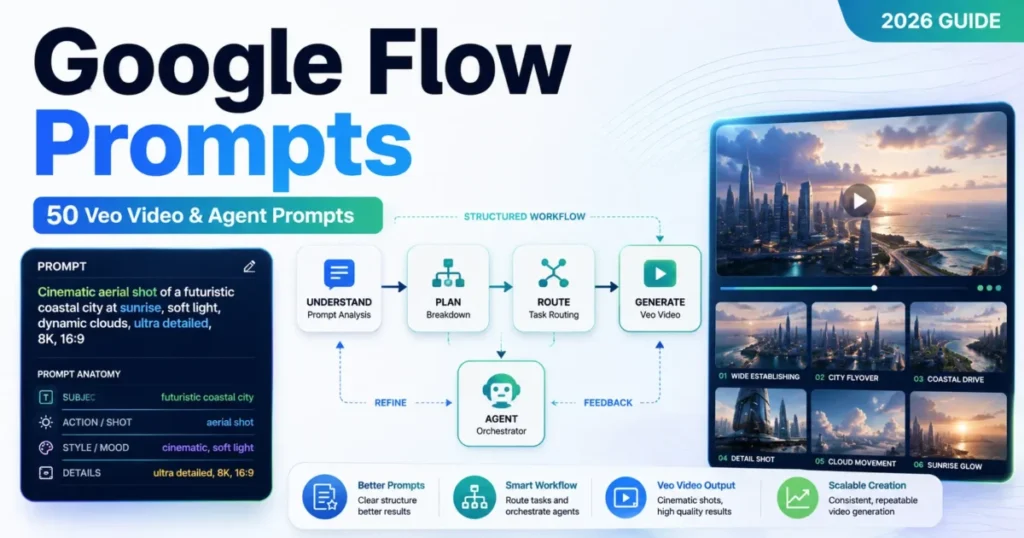
Most Google Flow prompts do not fail because the wording was weak. They fail because the prompt asked for something the selected model or workflow does not do, and the credit was spent before anyone noticed.
That is the gap this library closes. Below are 50 copy-ready Google Flow prompts, thirty for Veo video generation and twenty for the built-in Flow Agent, each tied to the workflow it actually runs in.
If you are new to structuring instructions for a generative model, the prompt engineering primer covers the underlying habits. For prompts aimed at other video models, the AI video prompts library sits alongside this one.
In This Article (20 sections)
10 Google Flow Prompts to Copy First
These ten cover the jobs people open Flow to do: a cinematic scene, a product ad, a character who has to look the same twice, spoken dialogue, a vertical short, and a still image turned into motion.
Each one carries the workflow and the settings it needs, because that pairing is what decides whether the prompt runs. The required input is the same in every case: a Flow project, the workflow named on the line, and any reference the line asks for.
Unless a line says otherwise, these run on any Veo 3.1 tier at 4s, 6s or 8s, or on Gemini Omni Flash for a 10s cut. Those model and clip lengths come from Google’s model and feature documentation.
The note under each prompt names the common error that use case runs into.
1. Cinematic Establishing Shot
Opens a piece by placing the geography before the subject.
Workflow Text to Video · Orientation horizontal
A rain-darkened coastal town just before sunrise. Wide establishing shot from above the harbor, then a slow descending crane move toward one small fishing boat leaving the pier. Sodium streetlights fade as cool blue dawn grows across the clouds. Wet roofs reflect the light. Natural harbor ambience, distant gulls, low engine rumble, no dialogue.
Common failure in testing: the crane move and the light change compete, so neither finishes. Cut one if the shot reads busy.
2. Slow Cinematic Camera Move
One deliberate move that reveals the subject and the work at once.
Workflow Text to Video · Orientation horizontal
A ceramic artist works alone beside a large studio window. Start behind the artist's shoulder, then perform one slow semicircular dolly move to reveal the spinning clay vessel and the artist's concentrated expression. Soft north-facing daylight, earthy tones, tactile clay detail, wheel motor hum and wet clay sounds.
Common failure in testing: a semicircular move written without a start position, which the model resolves as a cut.
3. Product Ad Hero Reveal
The advertising shot: macro detail opening into a centred hero frame.
Workflow Text to Video · Length 6s or 8s on Veo · Orientation horizontal
A matte-black wireless earbud case rests on dark stone with a thin layer of mist. Begin on an extreme macro detail of the hinge, then pull back into a centered hero shot as the lid opens smoothly. Controlled rim lighting, crisp reflections, premium minimalist advertising style, quiet mechanical click and soft atmospheric sound, no visible brand logo.
Common failure in testing: a brand logo appears anyway. Keep the negative instruction in the prompt and reject the take if it does.
4. Product Ad Feature Demo
One hand, one interaction, product geometry held stable throughout.
Workflow Text to Video · Orientation horizontal or vertical
A compact desk lamp on a clean white desk. Medium product shot as a hand rotates the lamp head downward, taps the control once to warm the light, then folds the arm flat. Keep product geometry stable and readable. Soft studio lighting, realistic hand interaction, subtle click sounds, no brand text.
Common failure in testing: the hand deforms the product. Name the parts that must keep their shape, not just the action.
5. Character Consistency Scene
Reuses a named character so identity survives from one shot to the next.
Workflow Ingredients and References to Video · Required input a saved character reference · Model Veo 3.1 Lite or Fast, or Omni Flash
Use the selected named character reference as the identity anchor. Show the same character walking into a small record store, removing a raincoat, and smiling at the clerk. Medium tracking shot, warm practical lights, rainy street visible through the window. Preserve facial features, hair, clothing colors, and age; natural footsteps and door-bell sound.
Flow supports named character references typed as an at-sign followed by the character’s name, and @me pulls in your own avatar. Naming the character is what makes the reference addressable, and describing what should stay fixed is what makes it hold.
Common failure in testing: Veo 3.1 Quality is selected. That tier does not accept references at all, so the character description is not what broke.
6. Dialogue Portrait
A single spoken line delivered to camera, with the room audible behind it.
Workflow Text to Video · Length 6s or 8s on Veo · Orientation horizontal or vertical
Medium close-up of a tired night-shift baker in a flour-dusted apron standing beside a warm oven at 4am The camera makes a very slow push-in as she smiles and says, "First loaf is always the quietest." Soft tungsten light on her face, cool darkness beyond the shop window, subtle oven hum and street ambience.
Common failure in testing: a line too long for the clip, so delivery speeds up. Write for roughly half the clip length.
7. Dialogue Two-Shot
Two speakers, one exchange, one camera move holding both in frame.
Workflow Text to Video · Length 8s on Veo · Orientation horizontal
Two friends sit across from each other in a quiet late-night diner booth. Stable medium two-shot with a gentle lateral slider move. One friend asks, "Are you really leaving tomorrow?" The other pauses, looks down at the coffee, then answers, "Before sunrise." Warm neon spill, refrigerator hum, distant dish clatter.
Common failure in testing: an exchange written for twelve seconds inside an eight-second clip. Cut a line rather than the pause.
8. Vertical Short
Built for a 9:16 placement, readable with the sound off.
Workflow Text to Video · Orientation vertical
Vertical short-form shot of a clear glass bottle on a bright kitchen counter. A hand enters frame, adds sliced citrus and mint, then sparkling water fizzes to the top. Fast but readable single-shot choreography, clean daylight, crisp macro detail, satisfying pour and fizz sounds, leave uncluttered upper space for captions.
Common failure in testing: the orientation was left on the horizontal default in settings, which no wording in the prompt overrides.
9. Image to Video, One Frame
Animates a still you already have, holding its style and palette.
Workflow Frames to Video: First · Required input a start frame saved to the project
Use the selected illustrated first frame as the visual starting point. The paper kite lifts from the child's hand, catches a gust, and rises above the grassy hill while the child takes two quick steps forward. Slow upward camera tilt follows the kite. Preserve the illustration style, character clothing, color palette, and hill layout.
Save the frame to the project first. A frame you paused on inside a video is not available as a start frame until you have saved it.
Common failure in testing: the start frame was paused inside a video and never saved, so it is not selectable as a frame.
10. Image to Video, Two Frames
Moves from a start image to an end image and lets the model fill the middle.
Workflow Frames to Video: First and last · Required input a start frame and an end frame · Note the Omni route is web only
Use the selected start and end frames as visual anchors. Transition from the empty subway platform in the first frame to the train fully stopped in the final frame: headlights appear in the tunnel, reflected light grows across the tiles, the train enters smoothly, decelerates, and settles into the final composition. Keep architecture and camera position unchanged.
Every Veo 3.1 tier supports this at 4s, 6s or 8s. Omni Flash reaches 10 seconds and its start-and-end-frame feature is documented as web only, so this is not a prompt to plan on a phone.
Common failure in testing: the two frames disagree on camera position, so the model invents a move to reconcile them.
Quick Copy: The Google Flow Prompt Preflight Checklist
Run this before you press Generate. It is fourteen lines, and it catches the mismatches that turn a good prompt into a wasted credit.
GOOGLE FLOW PROMPT PREFLIGHT

[ ] I can state the one job this clip or task has, in a single sentence.
[ ] The prompt names a subject specific enough to recognise twice.
[ ] The prompt describes visible action, not just adjectives.
[ ] The location is described, not implied.
[ ] There is exactly one camera behaviour, or the moves are sequenced in order.
[ ] Lighting and style are stated once, and they do not contradict each other.
[ ] Dialogue, ambience, or deliberate silence is specified.
[ ] Anything that must stay identical between shots is named as fixed.
[ ] The workflow I selected supports every reference I am relying on.
[ ] The active model supports the clip length I want.
[ ] I have checked the model and its credit cost in the prompt box settings.
[ ] If this is an Agent request, I have said whether it may generate media.
[ ] If this is an edit or extension, the source clip qualifies for that mode.
[ ] I know what a failed result looks like before I look at the output.
The five items about references, model, clip length, credits and edit mode are what separate this from a wording checklist. Most prompt libraries cover only the wording half.
How to Use These Prompts
Google recommends English prompts for best results while supporting a long list of other languages, so every template below is written in English. Translate the scene details if you prefer, and expect output quality to move with the language.
Step 1. Pick the use case, not the prompt. Decide whether you are generating, editing, extending, planning, or organising, because those are four different Flow surfaces.
Step 2. Route it to a workflow. Match the task to text-to-video, frames-to-video, references-to-video, extension, Omni video editing, or the Agent before you touch the wording.
Step 3. Copy the closest template. Check the required input the line names, then replace the scene-specific nouns with yours and leave the structural scaffolding alone.
Step 4. Score it. Run the weighted matrix further down and fix anything scoring below a 3.
Step 5. Check the settings layer. Confirm model, orientation, clip length, and output count in the prompt box, then read the cost shown there.
Step 6. Describe the example output you will accept, then generate one. A single test generation tells you whether the prompt or the routing is at fault, and the common error under each prompt tells you which to suspect first.
Step 7. Keep, revise, or re-route. The decision rules near the end of this article turn that test result into a next move.
Google Flow Prompt Formula
Google’s own Veo prompt guide names seven elements worth controlling: shot framing and motion, style, lighting, character descriptions, location, action, and dialogue. It states the operating principle plainly, that the more detail you add, the more control you get over the final output.
Those seven are the creative layer. Flow adds an eighth that no prompt-writing guide can cover for you, which is the routing decision, and a ninth, which is the generation setting you pick in the product.
I treat that as the working anatomy: subject, visible action, location, framing and camera, lighting and style, dialogue and audio, and continuity or reference. Two more decisions sit outside the prompt box entirely.
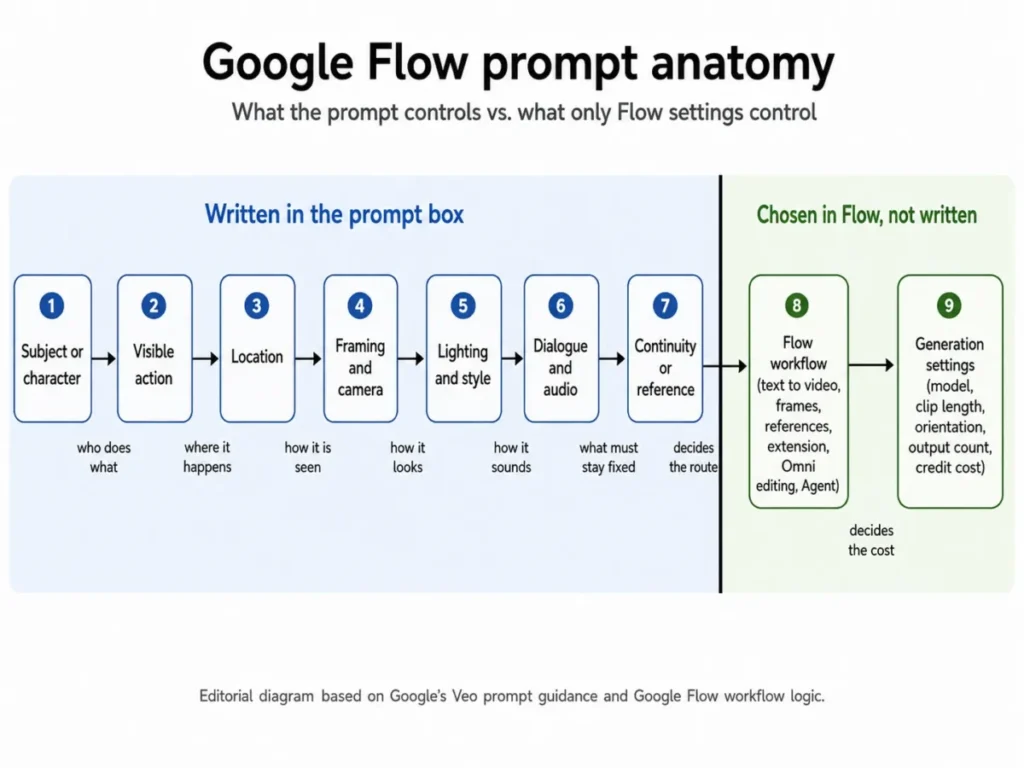
Step 1: Define the Shot or the Task
Write the job before you write the prose. A shot that has no stated job collects instructions until the model has to choose between them.
| Field | What to write | Example from the worked brief below |
|---|---|---|
| Job | The one thing this asset has to accomplish | Show the product opening, in a way that reads on a phone |
| Audience | Who sees it and where | Instagram Reels viewers, sound off by default |
| Subject | The thing that must stay recognisable | A matte-black earbud case, hinge visible |
| Success | What the output must contain to be usable | The lid opens fully, on-screen, in one continuous move |
| Failure | The result you will reject | A cut, a second camera angle, or a visible logo |
Of the five, the failure row is the one people skip. Naming what you will reject before you generate stops a mediocre output from being accepted because it arrived first.
Step 2: Separate Prompt Content From Flow Settings
This is the split most prompt libraries collapse, and collapsing it is expensive. A prompt asking for a 10-second clip on a Veo 3.1 model is not a wording problem, and rewriting the sentence will never fix it.
| Decision | Where it belongs | What happens when it goes in the wrong place |
|---|---|---|
| Scene, action, camera, light, sound | The prompt box, as prose | Nothing. This is the prompt’s actual job |
| Model choice | Generation settings | Flow may route you to a compatible model instead |
| Clip length | Generation settings | The prompt asks for a duration the model cannot produce |
| Orientation and aspect ratio | Generation settings | You get a horizontal hero shot for a vertical placement |
| Number of outputs | Generation settings | One credit spend becomes four |
| Which reference constrains what | The prompt, plus a selected asset | The reference is attached but never described, so it drifts |
Flow will switch you to a compatible model when it detects that a selected feature is unavailable on your chosen one. It shows the model and its credit cost in settings before you confirm.
The fallback is helpful, and it is also why a careful prompt can come back from a model you did not pick.
Step 3: Score the Prompt Before You Spend a Credit
Six criteria, weighted by how much each one affected whether a prompt produced a usable result during testing. Score each criterion from one to five, multiply by the weight, and read the total against the thresholds beneath the matrix.
The weights are an editorial testing framework rather than a statistical model. Workflow and model fit receive the highest weight because an unsupported capability can invalidate an otherwise well-written prompt.
| Criterion | Weight | A 5 looks like | A 1 looks like |
|---|---|---|---|
| Workflow and model fit | 25% | Every reference, frame, and duration is supported by the active model | The prompt assumes a mode the model does not offer |
| Subject specificity | 20% | A stranger could pick the subject out of a line-up from the text | “A person”, “a product”, “a city” |
| Action clarity | 20% | The visible action has a start, a middle, and an end | A list of adjectives with no verb |
| Camera discipline | 15% | One movement, or several stated in sequence | Three simultaneous moves in one sentence |
| Light and style coherence | 10% | One lighting condition, one visual treatment | Golden hour and hard noon sun in the same shot |
| Audio direction | 10% | Dialogue, ambience, or silence is specified | Audio is not mentioned at all |
Read the weighted total this way. At 4.2 and above, generate.
Between 3.5 and 4.1, fix the lowest-scoring criterion first and re-score. Below 3.0, the prompt is not ready and another rewrite will not save it.
There is one override. A 1 on workflow and model fit is an automatic reject regardless of the total, because no amount of creative quality survives a mode the model does not support.
Which Flow Mode Fits the Prompt?
Model capabilities differ by workflow, and the differences are specific enough to change what you write. Google’s own guidance is to check the active model, resolution, and current credit cost in the prompt box settings before you generate.
| Flow workflow | Models that support it | Clip lengths | The constraint to check first |
|---|---|---|---|
| Text to Video | Veo 3.1 Lite, Fast, Quality, and Gemini Omni Flash | 4s, 6s, 8s on Veo; 4s, 6s, 8s, 10s on Omni | Omni Flash is the only route to a 10-second clip |
| Frames to Video: First | Veo 3.1 Lite, Fast, Quality, and Omni Flash | 4s, 6s, 8s on Veo; 4s, 6s, 8s, 10s on Omni | The start frame must already be saved in the project |
| Frames to Video: First and last | Veo 3.1 Lite, Fast, Quality, and Omni Flash | 4s, 6s, 8s on Veo; 4s, 6s, 8s, 10s on Omni | Omni’s start-and-end-frame feature is documented as web only |
| Ingredients and References to Video | Veo 3.1 Lite and Fast, and Omni Flash | 8s only on Veo; 4s, 6s, 8s, 10s on Omni | Veo 3.1 Quality does not support references at all |
| Extend videos | Veo 3.1 Lite only | 8-second source clips only | Extension is listed as coming soon for Omni Flash |
| Video to Video editing | Gemini Omni Flash only | Up to a 10-second segment | No Veo 3.1 model supports it |
Source: Google Flow models and supported features, checked 2026-09-03.
Three rows there change what you write. Veo 3.1 Quality is the model you reach for on a clean single shot and the one that will refuse your reference images, so a character-continuity prompt belongs on Lite, Fast, or Omni.
Extension is narrower still. All Veo 3.1 eight-second videos can be extended, but Veo 3.1 Lite is the model that has to do it, and other edit modes such as insert, remove, and camera cannot be applied to a clip you have already extended.
The third row is a cost lever. Omni 360p generates and edits at half the credit cost of 720p, which makes it the sensible place to test a prompt you are unsure about.
Pro and Ultra subscribers can then upscale a 360p generation to 720p for zero credits, once the take is right.
30 Google Flow Veo Video Prompts
The ten above are the fast start. These twenty go wider, grouped by how much of Flow you are already using, and the annotation under an advanced prompt is the part that decides whether it runs at all.
Starter Prompts: One Subject, One Camera Move
These run on text-to-video and need no references, no saved frames, and no prior assets.
11. Food macro
Texture, steam, and audible sizzle.
Extreme macro shot of hot honey being drizzled over a freshly baked pepperoni pizza. The camera tracks the honey stream as it catches warm restaurant light, then shifts focus to bubbling cheese and crisp crust. Steam rises naturally. Audible sizzle, faint kitchen ambience, no dialogue.
12. Fashion walk
A backward tracking shot at walking pace.
A model in a charcoal oversized coat walks through a narrow concrete gallery. Full-body tracking shot at walking speed, camera moving backward smoothly while keeping the model centered. Soft top light creates long clean shadows. Muted editorial fashion-film look, fabric movement and footsteps audible, no music.
13. Travel destination
Static frame into a following pan.
Early morning in a quiet Kyoto side street after rain. A cyclist crosses the frame while paper lanterns sway slightly under wooden eaves. Start with a static wide shot, then pan slowly to follow the cyclist. Soft overcast light, wet pavement reflections, bicycle chain and distant city ambience, restrained documentary realism.
14. Architecture reveal
A sideways dolly that opens the space.
Interior of a modern desert house with a floor-to-ceiling glass wall. Start close on textured rammed-earth plaster, then dolly sideways to reveal the living room opening toward a sunlit canyon. Warm late-afternoon light, realistic material textures, quiet wind outside and subtle room tone.
15. Nature and weather
A locked frame that becomes a push-in.
A lone pine tree on a mountain ridge as a summer storm approaches. Wide locked-off shot for the first beat, then a slow push-in as wind increases and low clouds race behind the tree. Natural green and slate-gray palette, distant thunder, strong wind through needles, no dialogue.
16. Tutorial B-roll
Overhead instructional framing with an ordered sequence.
Close overhead shot of hands assembling a compact travel coffee dripper on a wooden table. Show the parts laid out first, then a clear sequence: unfold stand, place filter, add coffee, pour water. Neutral daylight, clean instructional framing, no distracting background movement, soft tabletop sounds, no dialogue.
17. Real-estate walkthrough
One continuous move through a room.
Smooth eye-level walkthrough entering a bright apartment living room from the hallway, continuing toward the balcony doors without cuts. Keep vertical lines straight and room proportions realistic. Midday natural light, light oak floor, white walls, gentle city ambience from outside, no people.
Intermediate Prompts: Story, Sound, and Timing
These still run on text-to-video, and they add dialogue, beat sequencing, or audio direction. Google’s guide is explicit that Veo can generate dialogue and that you can integrate audio cues into the prompt or state them in a separate section.
18. Vehicle action
One continuous readable action beat.
A vintage red rally car enters a wet forest hairpin at speed. Low roadside camera: the car brakes, rotates through the corner, sprays water outward, then accelerates past camera. Keep the action readable in one continuous shot. Overcast daylight, realistic tire grip and suspension motion, engine roar and tire spray.
19. Stop-motion comedy
A style declaration doing most of the work.
Stop-motion claymation: a tiny office plant notices an empty coffee mug beside it, slowly stretches one leaf like an arm, steals a single drop of coffee, then straightens innocently as a human hand returns. Locked medium shot, warm desk lamp, tactile clay texture, soft comedic foley, no spoken dialogue.
20. Documentary interview
Handheld realism plus one scripted line.
Documentary-style medium shot of an elderly bicycle mechanic seated inside a cluttered workshop. Handheld camera with very subtle natural movement, shallow depth of field, daylight from the open storefront. He looks slightly off-camera and says, "You learn a bicycle by listening before you touch it." Quiet street noise and tool clinks.
21. POV sequence
First-person motion with a hand in frame.
First-person point of view walking through a crowded night market. The viewer's hand reaches for a paper cup of tea while steam crosses the frame. Natural walking motion, brief glance toward a sizzling food stall, colorful practical lights, dense crowd ambience, distant vendor calls, realistic handheld movement.
22. Phone hardware concept
A studio-render treatment with an orbit.
A fictional slim smartphone rests on a neutral pedestal. Begin with a side-profile macro showing the camera bump, orbit slowly around the device, then end on the front glass catching a soft gradient reflection. Photoreal studio-render style, precise edges, restrained highlights, quiet cinematic whoosh, no readable interface text.
23. Ambient loop concept
Deliberately cyclical, low-amplitude motion.
A cozy reading nook at night with rain on the window. Static medium-wide composition: candle flame flickers, curtain moves slightly, raindrops trail down glass, and steam rises from a mug. Keep all movement subtle and cyclical, warm interior light against cool blue window light, rain and room tone, no dialogue.
24. Sound-led scene
Audio carries the shot and the prompt says so.
A deserted school gym after hours. Slow dolly toward a basketball rolling alone across the wooden floor until it loses momentum and stops under the hoop. Cool overhead lights, long reflections on polished wood. Make sound central: rolling ball, two soft bounces, building ventilation, distant metal creak. No dialogue, no music.
25. Beat-by-beat action
The play-by-play pattern Google recommends for fast scenes.
One continuous eight-second shot: first, a skateboarder pushes once toward a low stair set; next, the camera tracks parallel as the rider crouches; then the rider pops an ollie, clears the three steps, lands with both feet stable, and rolls past camera. Late-afternoon side light, realistic board physics, wheel noise and landing impact.
26. Suspense without gore
Tension built from light and sound only.
Empty motel corridor at 2am, lit by flickering fluorescent fixtures. Slow centered push-in toward a door that is slightly open. Halfway through the shot, the hallway light behind the camera clicks off and the door moves a few centimeters. No visible person, no gore. Low electrical hum, distant rain, one quiet hinge creak.
27. Science-fiction world
Sensory worldbuilding at scale.
A maintenance worker crosses a vast orbital greenhouse where trees grow under artificial daylight and Earth fills the observation windows. Wide cinematic shot with slow lateral tracking, realistic scale and atmospheric haze, restrained futuristic design, leaves moving in ventilation airflow, distant machinery and soft public-address ambience.
28. Beginning, middle, and end micro-story
A complete arc inside one shot.
A small paper receipt blows across an empty cafe floor. Beginning: it catches under a chair leg. Middle: a gust from the opening door frees it and sends it spinning through a shaft of morning light. End: a customer's shoe gently stops it beside the counter. Low camera at floor level, natural cafe ambience, no dialogue.
Advanced Prompts: References and Continuation
Both of these depend on a specific workflow, and the note under each one is the constraint that decides whether it can run.
29. Object reference continuity
Ingredients and References to Video.
Use the selected product image as the object reference. Place the same ceramic teapot on a rustic breakfast table as morning sunlight moves across it. A hand pours tea into a matching cup. Keep the teapot's silhouette, glaze color, handle shape, and surface pattern consistent with the reference. Gentle steam and pouring sounds.
On a Veo 3.1 model this workflow produces 8-second clips only. If you need 4s or 6s with a reference attached, Omni Flash is the route, and if you have Veo 3.1 Quality selected the reference will not apply at all.
30. Extend a generated clip
Extend videos.
Continue the existing Veo-generated clip from its final motion and camera direction. The runner exits the tunnel into open daylight, takes three more strides, slows slightly, and looks toward the river on the right. Maintain the same wardrobe, weather, lens feel, movement speed, and ambient sound. Do not introduce a new camera angle.
Extension has to clear three conditions at once. Only Veo-generated videos can be extended, and Veo 3.1 Lite is the tier that has to do it.
Once a clip is extended you can no longer apply insert, remove, or camera edits to it.
For the image ingredients that the frames and references workflows run on, the Nano Banana prompts library covers the frame-generation half of the job.
20 Google Flow Agent Prompts
The Agent is a separate prompting surface, and it has a cost model of its own. As the Agent documentation stood on 2026-09-03, Agent queries do not currently cost Flow credits and a daily quota applies to them instead.
Media the Agent generates does spend credits, and by default the Agent asks permission before any action that uses them.
Thinking is close to free and generating is not, which is the asymmetry worth prompting around. The Agent itself runs on web and PC.
So the first eight prompts below open with an explicit instruction not to generate media. It reads as belt-and-braces next to the confirmation setting, and it is worth the words: if anyone on the project has set “Confirm before generating” to Never, the Agent can spend credits on your behalf without pausing.
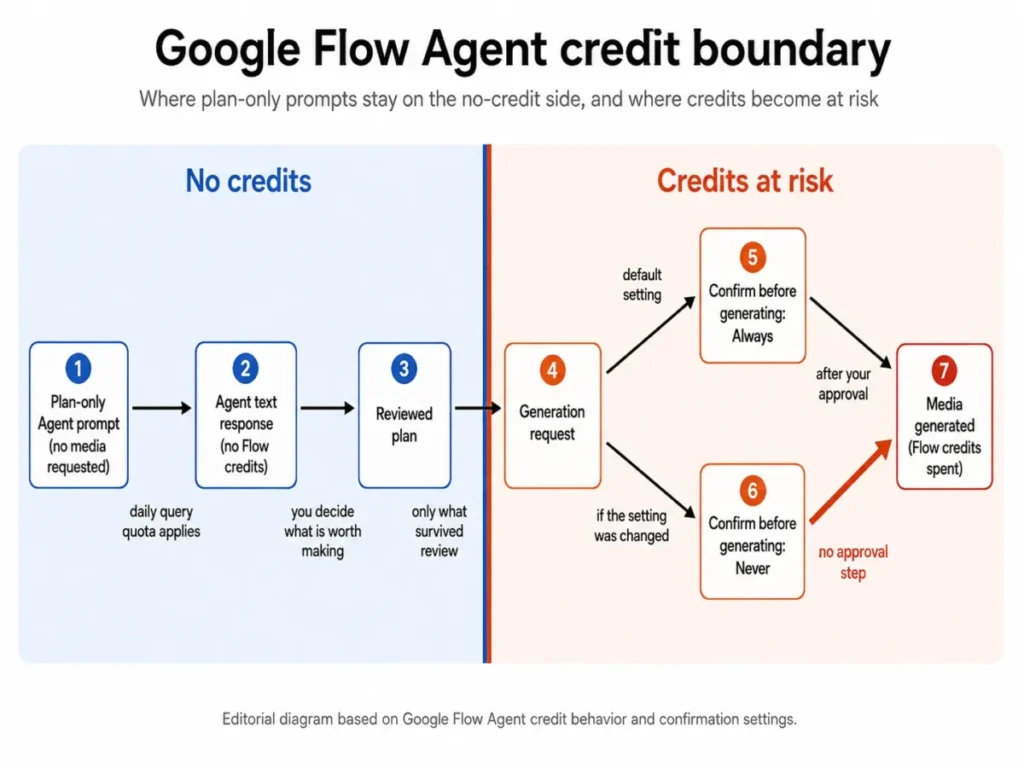
One more boundary is worth setting before you start. Agent conversations save automatically as Sessions, and Sessions belong to the project you are working in, so context you built in one project does not follow you into the next.
Deleting a Session clears the chat history and leaves the generated media in your assets.
Plan-Only Agent Prompts
Every prompt in this band opens by refusing media generation, so the whole band runs on the free side of the credit boundary.
31. Concept directions
Do not generate images or video. Work only in text. Read the creative brief already in this project and propose three distinct video concepts. For each, give the core idea, target emotion, one-sentence visual hook, recommended shot count, and the single biggest production risk. End by asking me to choose one direction before you create any media.
32. Turn a concept into a shot list
Do not generate media. Convert the current project concept into a six-shot list. For each shot, provide its purpose, subject action, location, shot size, one camera movement, lighting, audio or dialogue, and the continuity detail that must remain fixed from the previous shot. Keep every shot achievable as a short Flow clip.
33. Storyboard planner
Do not generate media. Build a storyboard plan for the current project using only the brief and selected references. Return eight numbered panels in text. Each panel needs a visual description, camera framing, action beat, transition logic, audio cue, and the asset or reference it depends on. Flag any panel that may require a different Flow mode or model.
34. Rewrite a rough idea into a Veo-ready prompt
Do not generate media. Rewrite my latest rough scene idea into one production-ready video prompt. Preserve the intended story, but make the subject, visible action, location, shot framing, camera movement, lighting, style, dialogue, and sound explicit. Then list any assumptions you had to make so I can correct them before generation.
35. Lighting variations
Do not generate media. Keep the current subject, action, camera, wardrobe, and location unchanged. Propose five lighting directions only: soft overcast daylight, warm sunrise, hard noon sun, practical neon night, and low-key dramatic interior. For each, explain in one sentence how the lighting changes mood without changing scene content.
36. Camera variations
Do not generate media. Keep the current scene, characters, action, lighting, and dialogue fixed. Propose five camera treatments that each use one clear movement: locked-off, slow push-in, lateral track, gentle orbit, and handheld follow. State what each movement emphasizes and which one best matches the scene's emotional goal.
37. Style variations without concept drift
Do not generate media. Keep the subject, action, location, composition, and story beat unchanged. Re-express the same scene in five visual styles: naturalistic documentary, polished commercial, 35mm film drama, tactile stop-motion, and restrained retro VHS. Change only style-related language and list the exact words that differ.
38. Character continuity bible
Do not generate media. Using the selected character reference, create a compact continuity bible for this project. Record stable appearance, hair, age range, clothing colors, accessories, voice qualities, posture, recurring mannerisms, and details that must never change. Separate fixed identity traits from scene-specific traits.
Agent Instructions and Prompt QA
Agent Instructions are a project-level control, set from the prompt box rather than typed into a chat, and they take a reference image alongside your written guidelines. Anything you would otherwise retype into every message belongs there instead.
39. Project Agent Instructions
Paste this into Agent Instructions, not into the chat.
Preserve named-character identity and wardrobe unless I explicitly approve a change. Preserve location geography across adjacent shots. Prefer one clear camera movement per shot. Keep dialogue concise. Treat selected references as continuity anchors. Show a text plan before media generation. Ask for confirmation before any credit-using generation or batch action.
40. Dialogue alternatives
Do not generate media. For the selected scene, write six short dialogue alternatives that communicate the same story beat with different subtext: hopeful, defensive, resigned, playful, suspicious, and tender. Keep each exchange brief enough for one short video shot and do not change the scene action.
41. Prompt conflict checker
Do not generate media. Audit my latest prompt for conflicting instructions. Check subject identity, action sequence, camera movement, location, time of day, lighting, style, dialogue, sound, references, and output intent. Return a table with the conflict, why it may confuse generation, and the smallest edit that resolves it. If no conflict exists, say so.
42. Mode and model routing
Do not generate media. Analyze the task in my latest request and tell me which current Flow workflow fits best: text-to-video, first-frame video, first-and-last-frame video, references-to-video, video extension, or Gemini Omni Flash video editing. Explain the deciding capability and any documented duration or availability limit. Do not guess if current project settings are not visible.
43. Reference asset plan
Do not generate media. Review the selected project assets and propose the minimum reference set needed for the next three shots. Separate references for character identity, wardrobe, location, hero object, and visual style. For each reference, state what it should constrain and what should remain free to change.
44. Compare generated options
Do not generate new media. Compare the selected candidate clips using five criteria: prompt fidelity, character or object continuity, camera readability, physical plausibility, and audio or dialogue fit. Score each criterion qualitatively as strong, mixed, or weak, explain only evidence visible in the selected assets, and recommend one clip to keep. Do not invent details you cannot inspect.
45. Still image to video motion plan
Do not generate media. Use the selected still image as the visual starting point and write three alternative motion plans for turning it into a short video. Each plan must preserve the main subject and composition while changing only action and camera behavior. Include one conservative motion option, one cinematic option, and one playful option.
46. Next-shot continuity planner
Do not generate media. Review the final visible state of the selected clip and design the next shot so it feels continuous. State the exact continuity handoff for character position, direction of movement, wardrobe, lighting, environment, camera axis, and sound. Then write one prompt for the next shot and one shorter fallback prompt if the first is too complex.
47. Rename and organize project assets
Do not generate media. Organize the selected assets for this project. Propose consistent names using scene number, shot number, asset type, and version. Then group the selected assets into Collections for approved selects, alternates, references, and archive candidates. Show the proposed changes first and wait for approval before applying them.
The rename and organize request is plan-only, but it touches your library rather than your credits, and it is the one place I would insist on seeing the proposal before approving. The Agent can rename files, group media into a Collection, or delete unused assets, and a rename you did not intend is harder to reverse than a generation you did not want.
Agent Prompts That Spend Credits
The next two prompts ask the Agent to make or change media. Each one opens by requiring the Agent to state its intent first, which keeps the approval step meaningful instead of reflexive.
48. Batch image look matching
Using the selected images, create a consistent visual treatment across all of them while preserving each image's subject and composition. Match white balance, contrast, shadow depth, highlight roll-off, and overall color mood to the first selected image. Do not alter faces, logos, product geometry, or scene content. Before generating edits, summarize the intended changes and output count.
49. Batch video edit consistency
For the selected video clips, apply one consistent color and atmosphere direction while preserving each clip's existing action, timing, framing, and character identity. Match exposure, color temperature, contrast, and overall mood across the set. Do not add or remove objects. Before generating edits, list the clips you intend to change and ask for confirmation.
Advanced: Turn a Repeated Workflow Into a Flow Tool
Flow builds a reusable mini-app from a description: you write the requirements, Flow writes the code and the interface, and you review it before saving. A prompt-writing routine you repeat every week is a candidate for one.
50. Reusable Flow Tool specification
Do not generate media. Draft requirements for a reusable Flow Tool that takes a one-sentence video idea and outputs a prompt brief with fields for subject, visible action, location, shot size, camera movement, lighting, style, dialogue, sound, reference notes, and recommended Flow workflow. Include a Reset action and a Copy Prompt action. Flag any step that could trigger media generation or consume credits.
Whether that Tool is worth building depends on three things. Tools are documented as web and PC only, and media a Tool generates spends your credits with a warning banner shown before it does.
Anyone holding a shared link can also access the Tool’s code, name, and thumbnail.
Sharing is also frozen in time. A shared link carries the version that existed when you generated it, later edits do not reach the people you sent it to, and the only way to stop sharing a Tool is to delete it.
Creating a Tool is gated in a way that using one is not. Google’s Flow announcement states that all Flow users globally can use existing Tools, while creating and remixing them is for Google AI subscribers.
If the Tool specification returns nothing usable, check your subscription before you rewrite the specification.
How to Prompt a Story Longer Than One Clip
No Flow workflow generates a two-minute narrative from one prompt. The longest single clip in the documented matrix is 10 seconds on Gemini Omni Flash, and everything else tops out at 8.
Several short prompts and Scenebuilder do the job instead. Scenebuilder arranges clips in a sequence, reorders them, trims each one with handles, previews the whole run, and downloads the result.
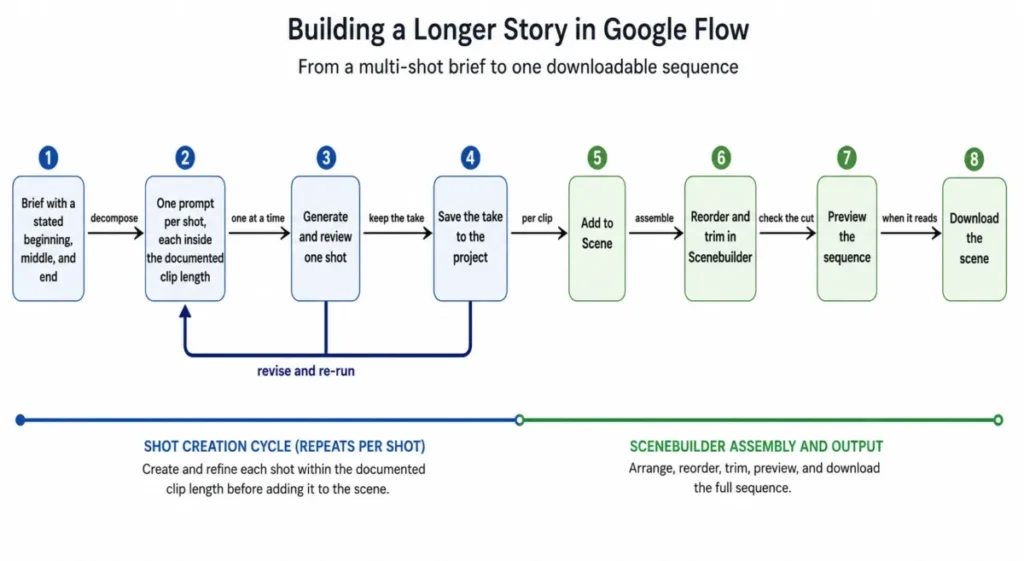
Write the three shots as one continuity chain rather than three independent prompts. Shot two inherits wardrobe, light, and screen direction from shot one, and the next-shot continuity planner exists to make that handoff explicit.
History is what makes the loop cheap. Flow keeps previous versions of an edited video and the prompts behind them, so a revision is a comparison rather than a gamble.
An older take can be saved back into the project if the newer one turns out worse.
Copyable Prompt Scoring Matrix
GOOGLE FLOW PROMPT SCORE                      score 1-5    weight    weighted

Workflow and model fit ........................ [   ]  x   0.25  =  [      ]
Subject specificity ........................... [   ]  x   0.20  =  [      ]
Action clarity ................................ [   ]  x   0.20  =  [      ]
Camera discipline ............................. [   ]  x   0.15  =  [      ]
Light and style coherence ..................... [   ]  x   0.10  =  [      ]
Audio direction ............................... [   ]  x   0.10  =  [      ]
                                                            TOTAL  [      ]

4.2 and above ....... generate
3.5 to 4.1 .......... fix the lowest criterion, re-score, then generate
3.0 to 3.4 .......... rewrite the weakest two criteria before generating
below 3.0 ........... do not generate

OVERRIDE: workflow and model fit scored 1  ->  reject regardless of total
Example: A Filled-In Prompt Brief
A working example, using the vertical short above. The team is a two-person social crew with a 9:16 placement to fill and no reference assets.
| Field | Filled in |
|---|---|
| Job | Show a drink being made, readable with sound off |
| Workflow | Text to video, no references needed |
| Model and length | Whichever tier the mode table allows for this workflow |
| Subject | A clear glass bottle on a bright kitchen counter |
| Visible action | Hand enters, adds citrus and mint, water fizzes to the top |
| Camera | One static macro framing, no move |
| Light and style | Clean daylight, crisp macro detail |
| Audio | Pour and fizz, no music, no dialogue |
| Continuity | Nothing to carry, this is a standalone shot |
| Reject if | A cut appears, or the caption area at the top is covered |
Scored against the matrix, this brief clears the generate threshold: full marks on workflow and model fit, action clarity, camera discipline and audio direction, one point down on subject specificity and on light and style coherence.
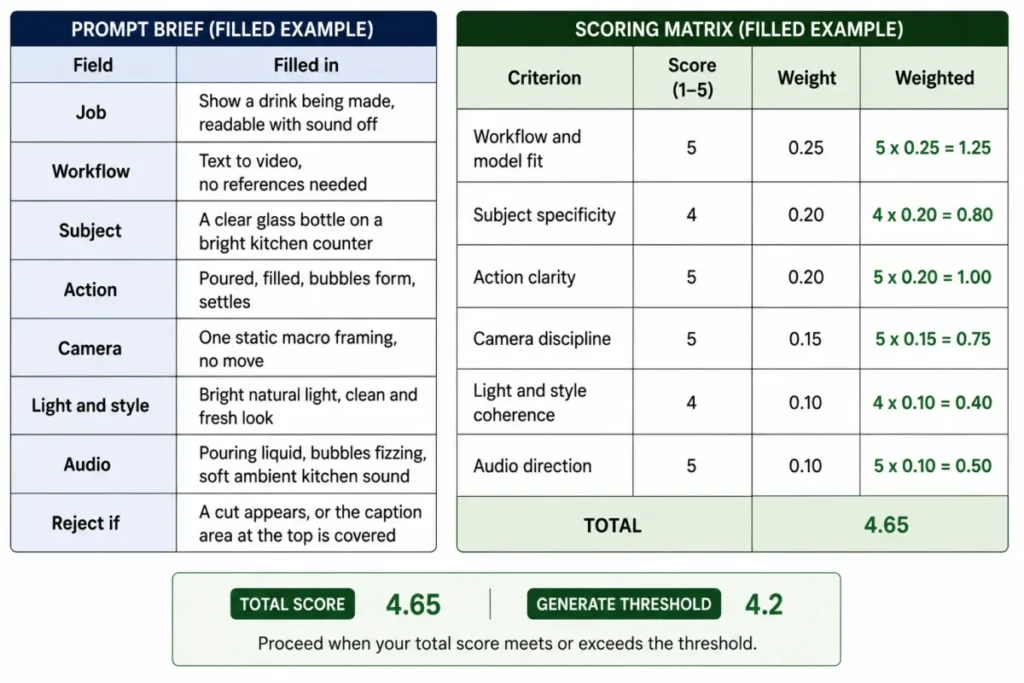
How to Fix Bad Flow Outputs
A bad Flow output is a diagnosis before it is a rewrite. Work through these three passes in order, because the first one tells you whether the wording is even the problem.
Read the Failure Before You Rewrite
One generation tells you where a prompt is failing. Run it, then read the result against these five checks before you spend anything else.
| Test check | What a pass looks like | What the failure tells you |
|---|---|---|
| The subject is recognisable | You could identify it from the prompt text alone | Subject specificity, not model choice |
| The action completes | The described movement starts and finishes on screen | The action was described as a state, not a sequence |
| The camera did one thing | The move you asked for, and nothing else | Two camera instructions were competing |
| The audio matches the picture | Dialogue, ambience, or silence as specified | Audio direction was missing from the prompt |
| Continuity held | Wardrobe, light, and geography match the reference | The reference was attached but never described |
Now decide. If four or five checks pass, keep the take and move to the next shot.
If two or three pass, revise the single lowest-scoring criterion in the matrix and re-run once, changing one variable only. If fewer than two pass, stop rewriting and re-route, because the odds are that the workflow rather than the wording is wrong.
The re-route rule is where the savings are. A prompt failing on continuity while Veo 3.1 Quality is selected is not a prompt problem at all, because that model does not accept references, and no rewrite will change it.
Red Flags in a Google Flow Prompt
Ten signals that a prompt will cost you a credit and return something unusable. Each one is fixable before you generate.
| Red flag | What it costs you | The fix |
|---|---|---|
| Two camera moves in one sentence | The model picks one, usually not yours | Keep one move, or sequence them with “then” |
| A subject described only by category | A different person or object each run | Name age, clothing, material, or silhouette |
| Adjectives instead of a verb | A still frame with slight drift | State what visibly happens, start to finish |
| Contradictory light | Muddy grading that matches neither | One lighting condition per shot |
| A reference attached but never described | The reference drifts and you blame the model | Say which attributes the reference controls |
| A duration the model does not offer | A silent fallback to another length or model | Check the mode table before writing |
| Resolution adjectives standing in for direction | Nothing changes, and the prompt got longer | Cut them and describe the frame instead |
| An extension prompt with a new camera angle | The continuation reads as a cut | Continue the existing motion, do not restage it |
| A story with three locations in one clip | A montage the model cannot fit in a single clip | Split it into shots and use Scenebuilder |
| An Agent request with no generation boundary | Credits spent before you saw the plan | Open with a text-only instruction |
Google Flow Prompt Mistakes to Avoid
Treating a mode limit as a wording problem. When a prompt fails on a capability the active model does not have, every rewrite makes it longer and the output no better. The tell is a failure that repeats identically across three different phrasings.
Stacking quality tokens. A string of resolution and prestige adjectives gives the model nothing to render. Google’s guidance asks for detail about the shot rather than adjectives about the file, and one sentence describing rim light on wet stone does more than a list of resolutions.
Letting the Agent generate before you have read the plan. The confirmation setting defaults to asking, and it can be turned off, so a shared or inherited project may not behave the way yours does. Open planning prompts with a text-only instruction and the setting stops mattering.
Assuming Agent context carries across projects. Sessions are project-specific. A continuity bible built in one project is not visible in the next, which is why the continuity bible is worth re-running rather than remembered.
Changing five variables between takes. A revision that alters subject, camera, light, style, and audio at once teaches you nothing about which change helped. Move one variable, keep History open, and compare the two versions side by side.
Writing a reference prompt on the wrong model. Veo 3.1 Quality does not support references at all, so a character-consistency prompt there fails for a reason that has nothing to do with the character description.
Treating rate limiting as a credit problem. A throttle message after a heavy generation day is a throughput limit, not an empty balance, and buying credits does not clear it.
Check Your Access Before You Plan a Project
Two official Google pages disagree about what Flow costs to get into, and both said so on 2026-09-03. The Flow product page offers a tier headed “without a Google AI subscription, free of charge”, listing 50 daily Flow credits.
That tier’s feature list names Agent, Veo 3.1, Gemini Omni Flash, Scenebuilder, video extension, video-to-video editing, characters, and avatars.
The Flow help centre states something else. To use Flow you must be subscribed to Google AI Plus, Pro, or Ultra, with qualifying Workspace plans getting access at no extra charge with 50 daily credits.
I would not plan a project around either statement without opening my own account page first. Where two official surfaces contradict each other, the one that governs you is whichever one your account actually enforces, and that is a five-second check.
What is consistent across both pages is more useful anyway. Credit costs move, Google says so directly and points you at the prompt box settings for the figure that applies to your account.
This article deliberately publishes no per-generation cost, because any number here would be wrong within weeks. The Google Flow pricing guide tracks the plan side.
Three Credit Behaviours That Change How You Iterate
Each of these changes how often you regenerate, so they are worth knowing without looking them up.
- A failed generation is not charged. You are not charged credits for failed generations, and an audio-generation failure refunds them too.
- Rate limiting is separate from credits. After a large number of generations in a day, the number you can make per minute drops, and Google notes this applies particularly to zero-credit models. Running out of throughput is not the same as running out of credits.
- Omni 360p halves the cost of a test. Draft at 360p, and upscale the take you want to keep.
Where Uploaded-Video Editing Is Available
Region matters for exactly one workflow in this library. Editing an uploaded video is unavailable in the EEA, Switzerland, and the United Kingdom, which leaves it available to United States readers, and avatars carry the same three-region restriction.
Uploaded-video editing has hard input limits too. The file has to be 60 seconds or shorter and under 1 GB, and anything over 30 seconds must be trimmed to 30 seconds inside Flow.
The editable window is a ten-second segment, and follow-up prompts keep the context of your earlier edits for three conversational turns.
Before You Publish What Flow Made
Watermarking is decided by the model, so no prompt in this library changes it. Every output made with Veo, Omni, or Nano Banana carries an invisible SynthID watermark.
A visible watermark is a separate control, available as a toggle under your profile picture. It is applied automatically for users in India, South Korea, and Vietnam.
For a client deliverable that setting matters more than it does for a personal test. Decide it before you start a batch, while the credits are still unspent.
What to Do After You Copy a Prompt
When the output came back close, revise one criterion from the scoring matrix, regenerate once, and compare both versions in History before you choose. When it came back wrong in a way that repeats, re-route instead of rewriting, which is why the mode and model routing prompt sits in the library.
Needing a sequence rather than a shot changes the next step again. Run the shot-list prompt, generate each shot on its own, then assemble the run in Scenebuilder.
Sometimes the honest answer is that Flow was the wrong choice for this job. Compare the field before committing a project to one model, starting with the AI video generators roundup and the text-to-video generators comparison.
And if the real bottleneck sits around the generation rather than inside it, a prompt library will not move it. The AI content creation tools guide covers the rest of that stack.
FAQ
The questions below are the ones the sections above leave open rather than restate.
How do I write a prompt for Google Flow?
Name the subject, the visible action, and the location first, then add framing and one camera movement, then lighting and style, then dialogue or ambience. Check that your selected model supports every reference and clip length the prompt assumes before you generate.
What is the best prompt structure for Veo 3.1?
Google’s Veo guidance points at seven elements: shot framing and motion, style, lighting, character descriptions, location, action, and dialogue. Ordering them subject, action, location, camera, light, sound is a workable default, because it puts the things that break a generation ahead of the things that only refine it.
Can Google Flow generate dialogue and audio?
Yes. Veo can generate dialogue from either a topic or specific scripted lines, and Google’s guidance recommends stating the sounds you want explicitly, either inside the prompt or in a separate audio section.
How do I keep characters consistent in Google Flow?
Use a named character reference, typed as an at-sign followed by the character’s name, and use @me for your own avatar. Then describe in the prompt which attributes the reference controls, because naming the character makes it addressable and describing the fixed traits is what keeps them fixed.
Does the Google Flow Agent use credits?
Google documents Agent queries as not costing Flow credits, with a daily query quota applied to them instead, which is worth knowing when learning how to use Google Flow. Media the Agent generates does spend credits, and by default the Agent asks permission first, so the setting worth checking is whether “Confirm before generating” is still on Always.
Can Google Flow extend or edit a video I already made?
Both, with different rules. Extension works on Veo-generated eight-second clips and has to run on Veo 3.1 Lite, while video-to-video editing runs on Gemini Omni Flash and covers a ten-second segment.
Why did Flow change the model I selected?
Flow routes you to a compatible model when it detects that a selected feature is not available on your chosen one. Re-check the model and its credit cost in settings before confirming, because the generation you get is priced by the model that actually ran.
Why am I rate-limited when I still have credits?
Google documents dynamic rate limiting on generation volume, applied particularly to zero-credit models, where the number of generations allowed per minute falls after a heavy day. No fixed threshold is published, so the practical response is to slow down rather than to buy credits.
Do Google Flow outputs carry a watermark?
Every output generated with Veo, Omni, or Nano Banana carries an invisible SynthID watermark. A visible watermark is available as a toggle under your profile picture, and it is applied automatically for users in India, South Korea, and Vietnam.
Can I use these prompts on the Google Flow mobile app?
Some of them. The Agent and Tools are documented as web and PC only, and Omni’s start-and-end-frame feature is listed as web only, so the frames, Agent, and Tool prompts belong on a computer.
Methodology
This guide combines hands-on testing in Google Flow with verification against Google’s official documentation.
I tested Google Flow directly while developing and reviewing the workflows covered in this guide, including text-to-video generation, prompt iteration, reference-based generation, character consistency, dialogue and audio prompts, Flow Agent workflows, and the model and workflow settings that determine whether a prompt can run as intended.
During testing, I evaluated how clearly each prompt communicated the subject, visible action, camera direction, lighting and style, dialogue or audio, continuity requirements, and workflow-specific constraints. I also compared failed or weak generations with revised prompts to identify practical failure patterns, including conflicting camera instructions, overloaded action sequences, reference mismatches, dialogue that was too long for the clip, and prompts routed to an incompatible model or workflow.
The “common failure” notes and troubleshooting recommendations throughout this guide are based on those hands-on observations. They should be treated as practical patterns rather than guarantees, because generative results can vary between runs even when the prompt and settings remain unchanged.
Product-specific facts were separately verified against primary Google sources on September 3, 2026. These include model and workflow support, clip lengths, reference availability, regional restrictions, Flow Agent behaviour, credit rules, video extension, uploaded-video editing, Scenebuilder, Flow Tools, and SynthID.
The prompt framework applies the same evaluation criteria throughout: a clear task, a recognisable subject, visible action with a beginning and an end, disciplined camera direction, coherent lighting and style, explicit audio direction, and a workflow that supports the requested inputs.
Workflow and model compatibility receive greater weight than creative polish because they are hard constraints. In testing, rewriting the prose did not solve cases where the selected workflow itself did not support the requested reference, duration, or editing action.
Hands-on observations and documented product facts are kept separate.
Testing supports the practical recommendations, prompt examples, failure patterns, and troubleshooting guidance. Google’s documentation is used for factual claims about model capabilities, limits, availability, credits, and workflow requirements.
Where two official Google pages state different information, as with the current Flow access requirements, the disagreement is reported rather than resolved by preference.
Where to Start
Choose a prompt that matches the use case in front of you, then identify the compatible Google Flow workflow and model from the mode table before you touch the wording.
Customize the scene-specific details, review the current settings and the credit implications in the prompt box, and generate one asset rather than a batch. If the result misses, the fix sections above tell you whether to revise the prompt or plan the shot a different way.