The word “free” hides the decision that matters most. A free collaboration tool is only useful when its plan limits, retention windows, and role rules survive contact with a real team.
Most roundups stop at “it has a free plan.” That is where the risk starts, because a free plan can seat two people or a hundred, keep your history for 90 days or forever, and block new work the moment you cross a record or board cap.
For a 5- to 20-person team that wants tasks, docs, chat, and light automation in one place, ClickUp Free is the broadest starting point. Slack is the cleaner pick when chat is the whole job, Notion wins for a shared wiki, and Google Workspace Essentials Starter is the one to know if you want Docs and Drive without buying new email accounts.
No single free tool is genuinely best at chat, tasks, documents, meetings, whiteboards, structured data, and design at the same time, and the broad team collaboration tools roundups rarely say so. The honest answer for many teams is a deliberate two- or three-tool stack, which is why this guide ends with stack recipes instead of one winner.
Every tool here is SaaS software, and this comparison is built on official pricing pages, help centers, and API documentation checked on July 27, 2026. The goal is to tell you which plan can seat your team, what happens the moment you hit a cap, and which paid tier is waiting on the other side.
In This Article (20 sections)
Quick Verdict: Best Free Collaboration Tool by Job
Pick by the job you are trying to do for free, not by the longest feature list.
| Job to be done | Best free pick | Why it fits |
|---|---|---|
| Overall work hub | ClickUp | Widest no-cost surface: tasks, Docs, Chat, and Goals in one workspace |
| Best simple task board | Trello | Kanban that a 2- to 10-person team understands on day one |
| Best chat-first coordination | Slack | Clearest channel model and the deepest app ecosystem |
| Best shared wiki and notes | Notion | Docs plus flexible databases in the same page |
| Best two-person task system | Asana | Polished list and board views, but free seats are capped at two |
| Best visual workshop | Miro | Strongest free canvas for brainstorming and mapping |
| Best docs with your own email | Google Workspace Essentials Starter | Drive, Docs, Sheets, Slides, and Meet without a new Gmail account |
| Best Microsoft-friendly meetings | Microsoft Teams Free | Chat plus 60-minute meetings for up to 100 people |
| Best external video calls | Zoom Workplace Basic | Familiar join flow for short client-facing calls |
| Best structured data | Airtable | A shared database instead of forcing every workflow into a task list |
| Best design review | Figma Starter | Real-time interface design for a few active files |
Every pick above is free to start, and every one of them has a cap that decides whether it lasts. The rest of this guide is about finding that cap before it finds you.
How We Chose and Ranked These Tools
These rankings are based on official US pricing pages, product help centers, current feature pages, developer documentation, and labeled third-party review sentiment. Pricing and plan limits were checked on July 27, 2026.
Each tool was assessed against the same buyer-focused criteria: which team it can seat for free, the primary workflow cap, retention and privacy behavior, external-collaborator roles, automation and API capacity, and the first paid tier that resolves the limit.
Greater weight went to the factors that decide adoption: true multi-user eligibility, documented behavior at the ceiling, and the cost of scaling past the free plan. Brand popularity, vendor marketing, and affiliate relationships did not influence the order.
Claims that could not be verified from official sources were excluded, and product workflows are reconstructed from official documentation and current feature pages. Prices that vary by billing term are shown for both monthly and annual where the official page lists them.
The Three Problems Every Free Collaboration Buyer Faces
Free collaboration is not one purchase. It is three separate problems, and the tools that lead each one rarely overlap.
The first problem is a shared work hub: one place to hold tasks, documents, and records so the team stops losing work in inboxes. The catch is that the free tiers here fail on different units, so a plan can cap you on seats, blocks, boards, or records depending on which tool you pick.
The second problem is communication: chat and meetings that do not lose history or charge per seat. Here the caps are about time and memory, from a 40-minute Zoom ceiling to Slack deleting content older than a year.
The third problem is shared creation with people outside the core team: co-editing documents, running a whiteboard, or reviewing a design with a client. This is where privacy and guest roles matter more than feature counts, and where free plans quietly force an upgrade.
We grouped the 11 tools by which problem they solve best. A tool can appear strong in one group and be the wrong choice in another, so read the group that matches your actual pain.
Best Free Tools for a Shared Work Hub
These five tools compete to be the single place your team runs work, and several double as general project management software. They fail on different units, so the right pick depends on whether your ceiling is seats, blocks, boards, or records.
1. ClickUp: Best Overall Free Work Hub

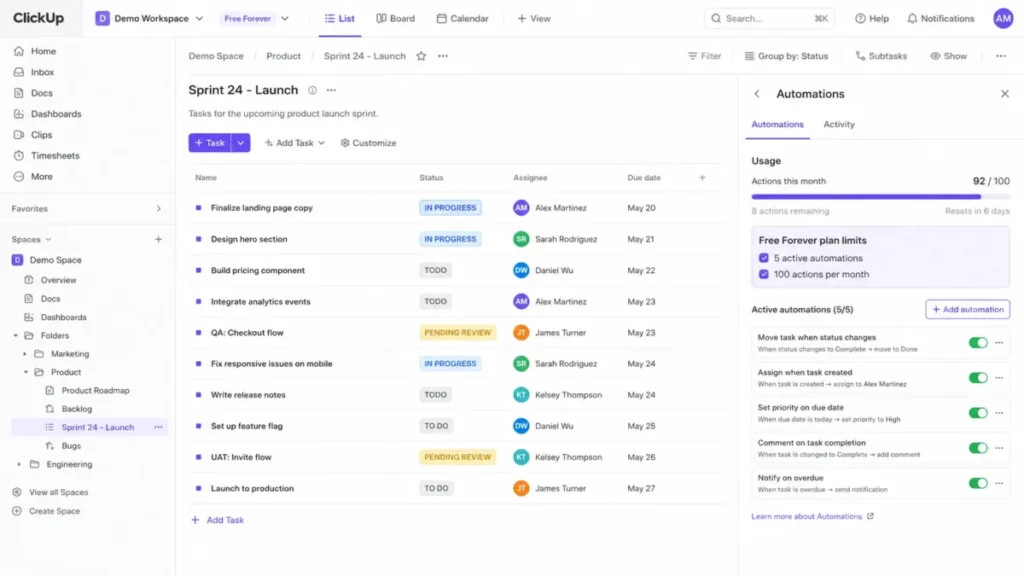
ClickUp Free Forever is the widest no-cost surface in this comparison, and that breadth is the whole reason it ranks first. Tasks, collaborative Docs, built-in Chat, and Goals live in one workspace, so a small cross-functional team can consolidate several tools before paying anything (Source: ClickUp pricing, checked July 27, 2026).
The catch is that the free plan meters almost everything a growing team leans on. Free Forever includes 60 MB of total storage, one Form, a 1,000-message cap on Chat, five active automations, and 100 automation actions per month that reset on the first of the month (Source: ClickUp Automations documentation and ClickUp feature limits, checked July 27, 2026).
Custom fields are the sharpest edge. The free plan allows 60 custom-field uses, and once you hit the cap you cannot add new values, though you can still clear existing ones, which makes ClickUp Free weak for data-heavy tracking despite its generous feature list (Source: ClickUp Custom Fields limits, checked July 27, 2026).
Permissions are the other thing to check before you invite a contractor. On Free Forever, people who join the workspace get broad create-and-edit access rather than the granular controls that arrive on paid plans, so sensitive work belongs in a separate space (Source: ClickUp permissions documentation, checked July 27, 2026).
Pros and cons
| Pros | Cons |
|---|---|
| Tasks, Docs, Chat, and Goals in one free workspace reduce the number of tools a small team maintains | 60 MB of total storage is exhausted by a handful of image or document uploads |
| 100 monthly automation actions are enough to pilot a low-volume workflow | 60 custom-field uses make the free plan poor for structured, data-heavy tracking |
| Free Forever seats a full 5- to 20-person team without per-seat charges | Broad free-plan permissions give contractors more access than most teams want |
Best for a 5- to 20-person cross-functional team that wants one free workspace and can keep durable files linked from external storage. Avoid ClickUp Free if you need private-by-default spaces, real file storage, or automation that runs at production volume.
The ClickUp review breaks down how the paid Unlimited tier changes storage and permissions.
Setup difficulty is medium: the workspace is fast to open, but the storage, custom-field, and permission limits mean you should plan the structure before you invite people. Upgrade when shared files pass 60 MB or five active automations become an operational constraint, which points to Unlimited at $7 per user/month billed annually, or $9 billed monthly (Source: ClickUp pricing, checked July 27, 2026).
Our verdict: choose ClickUp Free if you want the most collaboration surface for zero dollars and you treat the caps as a countdown rather than a ceiling you will never reach.
2. Trello: Best Simple Free Kanban
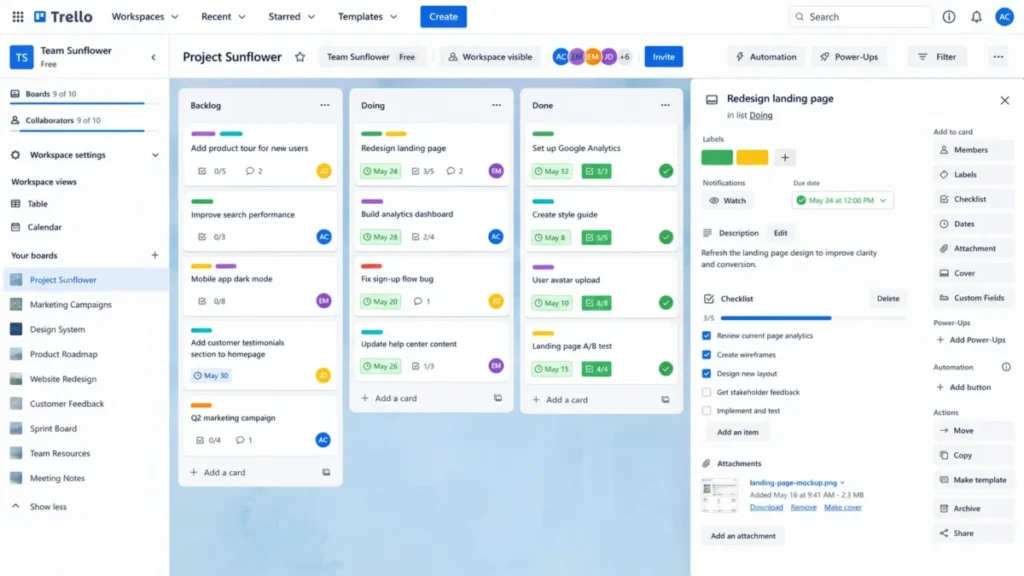
Trello wins the opposite way from ClickUp. It does less, and that restraint is the point for a team that just wants cards moving through a few stages without a setup project.
Trello Free supports up to 10 collaborators per workspace, 10 boards per workspace, unlimited cards and Power-Ups, and 10 MB per file attachment (Source: Trello pricing, checked July 27, 2026). For a single small team running two or three repeatable processes, that is enough to be genuinely useful rather than a trial.
The board and collaborator caps are what end the free ride, and boards usually go first. A workspace that spreads across several teams or processes hits the 10-board limit before card volume ever becomes a problem, so process sprawl, not headcount, is the real upgrade trigger.
Automation is present but small. Trello Free includes 250 Workspace command runs per month through Butler, which covers a few repetitive card moves but not high-volume operations (Source: Trello pricing, checked July 27, 2026).
On third-party review sites, the recurring pattern is praise for how quickly people understand the board and complaints that boards get crowded as work grows more complex (Source: Trello reviews on G2).
Pros and cons
| Pros | Cons |
|---|---|
| The free plan is understandable on day one, so adoption is fast for non-technical teams | 10 boards per workspace ends the free plan once several processes share one workspace |
| Unlimited cards and Power-Ups keep a single team’s board flexible | 250 monthly Butler command runs are too few for high-volume automation |
| Up to 10 collaborators fits a small delivery team without paying | 10 MB per file makes it weak for asset-heavy or creative work |
Best for a 2- to 10-person team that organizes repeatable work as cards through a small number of stages. Avoid Trello Free if you need portfolio views, advanced reporting, or more than 10 boards or 10 collaborators in one workspace.
The Trello review covers the Standard and Premium tiers in detail.
Setup difficulty is low: create a board, add lists, and move cards, with no field mapping to plan. Upgrade when you cross 10 boards or need 250 MB file uploads, which points to Standard at $5 per user/month billed annually, or $6 billed monthly (Source: Trello pricing, checked July 27, 2026).
Our verdict: choose Trello Free when the workflow is simple enough that its clarity is a feature, and plan to move once several teams need to share the same workspace.
3. Notion: Best Free Wiki and Lightweight Database
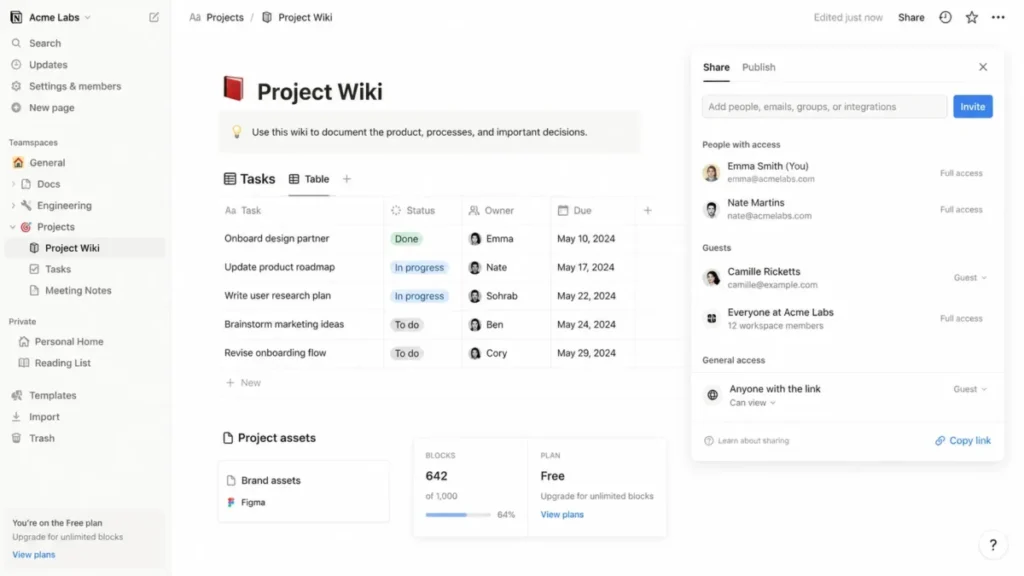
Notion earns its spot on a single strength: it holds documentation and flexible structured data in the same page better than anything else with a free tier. A founder-led team can run a wiki, meeting notes, and a simple project database without stitching tools together (Source: Notion pricing, checked July 27, 2026).
The decision that makes or breaks Notion Free is membership, not features. A free workspace with more than one member is capped at 1,000 blocks, and every heading, paragraph, toggle, and database row counts toward it, so a shared wiki can hit a hard content ceiling faster than teams expect (Source: Notion block usage documentation, checked July 27, 2026).
There is a documented way to manage this. Inviting collaborators as guests on specific pages, rather than as full members, keeps the workspace on the single-member rules where the 1,000-block cap does not apply, which is a real design choice rather than a universal loophole (Source: Notion block usage documentation, checked July 27, 2026).
Two smaller limits shape day-to-day use. Free uploads are capped at 5 MB per file, and page history is limited to seven days, so large assets and slower review cycles both push toward paid (Source: Notion file upload limits and Notion page history, checked July 27, 2026).
Pros and cons
| Pros | Cons |
|---|---|
| Documents and flexible databases share one page, so a wiki and a tracker live together | A multi-member free workspace stops at 1,000 blocks, which a shared wiki reaches quickly |
| Guest-based sharing keeps small teams on the single-member rules where the block cap does not apply | 5 MB per file blocks storing images, PDFs, or recordings directly in the workspace |
| Comments, mentions, and templates make it a usable free knowledge base | Seven-day page history is too short for slower review or audit cycles |
Best for a founder-led team that wants a shared wiki, meeting notes, and simple project databases, and is willing to configure membership deliberately. Avoid Notion Free as a multi-member workspace if you expect unlimited collaborative blocks, large uploads, or long version history.
The full Notion review covers the Plus tier, and the Notion alternatives guide helps when the block cap is a dealbreaker.
Setup difficulty is medium: the editor is approachable, but the member-versus-guest choice is a real governance decision you should make on day one. Upgrade when multi-member block use nears 1,000 or files exceed 5 MB, which points to Plus at $10 per member/month billed annually, or $12 billed monthly, with 30-day history (Source: Notion pricing and Notion page history, checked July 27, 2026).
Our verdict: choose Notion Free for documentation-first teams that will treat the membership model as a setup step, not a surprise.
4. Asana: Best Free Task System for a Solo or Two-Person Team

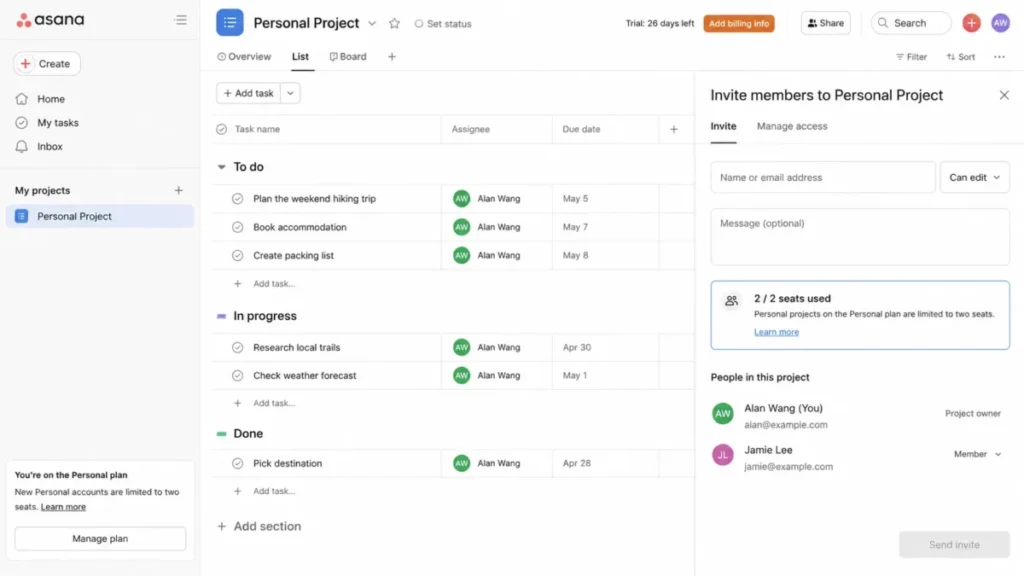
Asana is the tool most likely to be mis-recommended in 2026, so the seat rule comes first. For new accounts, Asana Personal is limited to two seats per project or team, a sharp reduction from the 10-seat positioning that older comparisons still repeat (Source: Asana Personal help documentation, checked July 27, 2026).
There is a legacy caveat worth stating precisely. Certain accounts created before November 12, 2025 may retain a 10-seat allowance, but a team signing up should plan around two seats, not ten (Source: Asana Personal help documentation, checked July 27, 2026).
Within that two-seat box, the product is genuinely good. The task model with list and board views is more structured and easier to govern than many flexible do-everything tools, which is exactly why solo operators and pairs like it (Source: Asana reviews on G2).
The planning features that make Asana compelling are all paid. Timeline and Gantt views, dashboards, forms, custom fields, and unlimited automations arrive on Starter, so Personal is a clean task list rather than a project-management system (Source: Asana pricing, checked July 27, 2026).
Pros and cons
| Pros | Cons |
|---|---|
| The task model is more structured and easier to govern than most flexible do-everything tools | New Personal accounts cap free collaboration at two seats, which excludes an ordinary three-person team |
| List and board views cover core personal and pair workflows cleanly | Timeline, dashboards, forms, custom fields, and automations are all paid-only |
| Polished interface keeps a solo operator organized without setup work | Stale roundups still cite a 10-seat free plan, which can send a small team to an unusable tier |
Best for a solo operator or two-person team that wants a polished task system and does not need planning features yet. Avoid Asana Free if you have three or more people, or if you need timeline, dashboards, forms, or automation without paying.
The Asana review details the Starter feature set.
Setup difficulty is low for one or two people, and irrelevant beyond that because the seat cap stops you first. Upgrade the moment a third active collaborator is required, which points to Starter at $10.99 per user/month billed annually, or $13.49 billed monthly (Source: Asana pricing, checked July 27, 2026).
Our verdict: choose Asana Free only for solo or pair work; for a real small team, treat it as a paid tool or pick something with a larger free seat count.
5. Airtable: Best Free Structured-Data Collaboration
Airtable is the one tool here that gives a non-technical team a shared database instead of forcing every workflow into a task list. That makes it the right free pick for content calendars, request intakes, and lightweight inventories (Source: Airtable pricing, checked July 27, 2026).
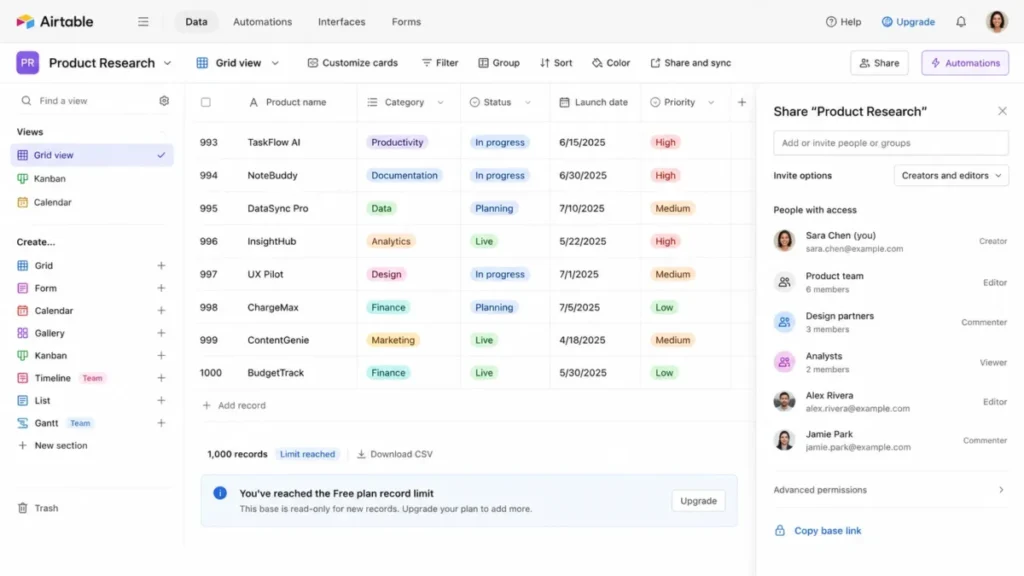
The free plan is real but small, and one limit dominates. Each base is capped at 1,000 records, and when a base exceeds it, existing records stay readable while new records are blocked until you reduce the base or upgrade (Source: Airtable plans and limits, checked July 27, 2026).
For a production intake, that is a hard operational failure the day you cross the line, so record growth is worth monitoring.
Seats and integration capacity are the other ceilings. Free allows five editor or creator collaborators, 50 commenters, and unlimited read-only users, so a larger team collaborates by watching rather than editing
The API allowance is 1,000 calls per workspace per month, and every plan retains a limit of five requests per second per base, so any real integration needs batching and backoff (Source: Airtable Web API rate limits, checked July 27, 2026).
Pros and cons
| Pros | Cons |
|---|---|
| A flexible shared database fits content, requests, and inventories better than a task list | 1,000 records per base can block new entries in the middle of a live workflow |
| Grid, calendar, and form views plus comments make it usable for non-technical teams | Only five editor or creator seats push larger teams into read-only roles |
| Unlimited read-only users let stakeholders watch without paying | 1,000 API calls per month and five requests per second per base limit real integrations |
Best for an operations or content team that coordinates structured records and stays under 1,000 rows per base. Avoid Airtable Free if you will exceed that record cap, need more than five editors, or depend on high-volume API access.
The Airtable review covers the 50,000-record Team plan.
Setup difficulty is medium: building the base is quick, but you should watch record growth so the read-only wall does not surprise you. Upgrade before you cross the cap, which points to Team at $20 per collaborator/month billed annually, or $24 billed monthly, with 50,000 records per base (Source: Airtable pricing, checked July 27, 2026).
Our verdict: choose Airtable Free for a small, structured workflow, and set a reminder to upgrade at roughly 800 records rather than at 1,000.
Best Free Tools for Team Chat and Meetings
Communication is a different problem from work tracking, and the free caps here are about time and memory rather than seats. A 40-minute call ceiling or a deleted year of history changes the fit immediately.
6. Slack: Best Free Chat-First Collaboration
Slack gives the clearest chat-first model in this group, and for a small distributed team that coordinates through channels and threads, it is the most natural pick (Source: Slack pricing, checked July 27, 2026). The mature app ecosystem is the other draw, and reviewers consistently praise the integrations even while flagging the free history limit (Source: Slack reviews on Capterra).
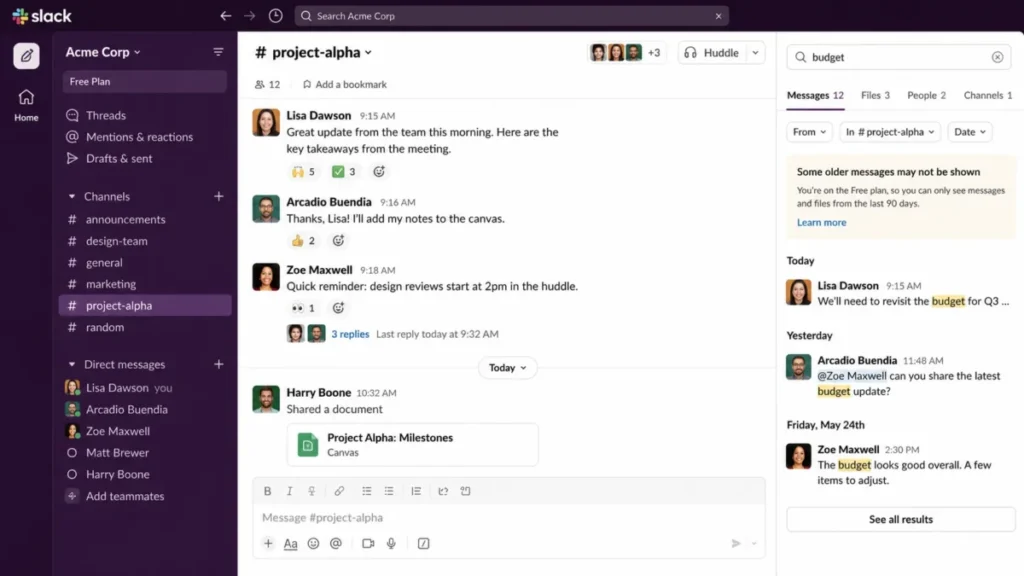
The free plan runs on two separate clocks, and confusing them is the classic mistake. Only the most recent 90 days of messages and files are visible, and separately, content older than one year is deleted, so Slack Free is a poor long-term knowledge base and durable decisions should be copied elsewhere (Source: Slack free-plan limitations, checked July 27, 2026).
Several collaboration controls are also gated or disabled. Free workspaces allow up to 10 app integrations and do not include Workflow Builder, and huddles are one-to-one and capped at 30 minutes (Source: Slack free-plan limitations and Slack huddles documentation, checked July 27, 2026).
External collaboration has a downgrade trap. On a free workspace, guest accounts are deactivated and Slack Connect channels disconnect after a paid workspace drops to Free, so a team that relies on outside collaborators should not treat the free tier as a safe fallback (Source: Slack free-plan limitations, checked July 27, 2026).
Pros and cons
| Pros | Cons |
|---|---|
| The channel and thread model is the clearest chat-first structure for a distributed team | Only 90 days of history is visible, and content older than one year is deleted |
| A mature app ecosystem connects Slack to most common tools | Free workspaces allow just 10 app integrations and no Workflow Builder |
| One-to-one huddles cover quick calls without a separate tool | Guests deactivate and Slack Connect disconnects when a workspace downgrades to Free |
Best for a small distributed team that coordinates mostly through channels, threads, and short one-to-one huddles. Avoid Slack Free if you need durable searchable history, group huddles, guest accounts, Slack Connect continuity, or more than 10 integrations.
The Slack review covers the Pro and Business Plus tiers.
Setup difficulty is low, but you should decide early where durable decisions live because Slack Free will not keep them. Upgrade when history beyond 90 days matters, which points to Pro at $7.25 per user/month billed annually, or $8.75 billed monthly (Source: Slack pricing, checked July 27, 2026).
Our verdict: choose Slack Free for fast coordination, and treat it as conversation, not memory, until you can justify Pro.
7. Microsoft Teams Free: Best Microsoft-Friendly Chat and Meetings
Teams Free is the practical pick when your people already live in Microsoft accounts and want chat and meetings in one familiar place, without a paid Microsoft 365 plan (Source: Microsoft Teams Free, checked July 27, 2026).
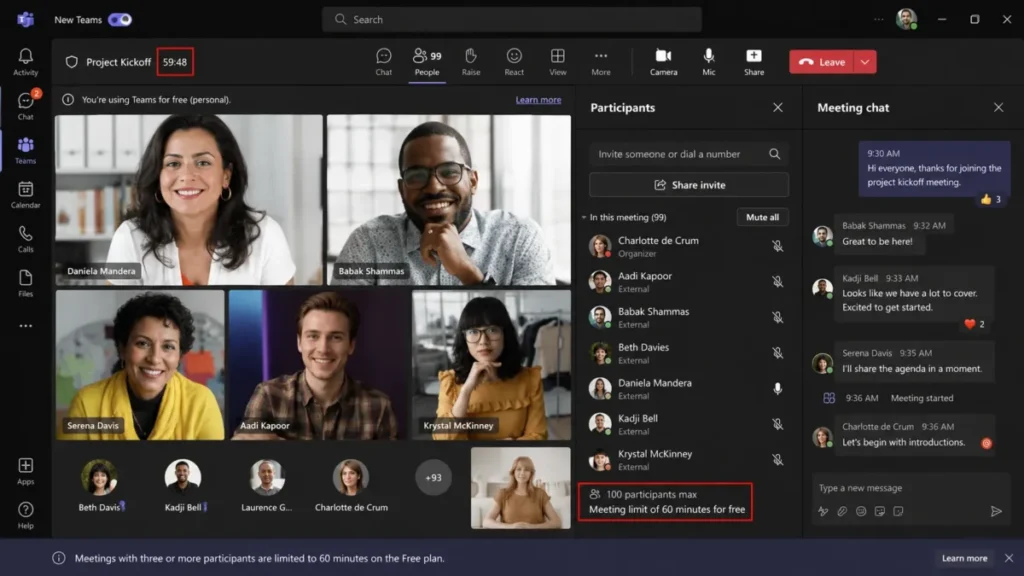
The free plan is capable but capped on the two limits that decide meeting fit. Free meetings run up to 60 minutes with up to 100 participants, and cloud storage is 5 GB per user, alongside unlimited chat, file sharing, tasks, and polls (Source: Microsoft Teams Free, checked July 27, 2026).
The 60-minute ceiling leaves no buffer for a meeting that runs long, which is the recurring complaint for recurring calls. Reviewers tend to praise the combined chat, video, and file sharing while noting interface complexity and the strongest fit inside Microsoft-centric environments (Source: Microsoft Teams reviews on G2).
Pros and cons
| Pros | Cons |
|---|---|
| Chat and meetings share one familiar Microsoft environment with no paid Microsoft 365 plan | Free meetings end at 60 minutes, with no buffer for overruns |
| Up to 100 participants covers ordinary team meetings | 5 GB of storage per user is modest for long-running collaboration |
| Unlimited chat, file sharing, tasks, and polls cover daily coordination | Interface complexity rises with many channels and apps |
Best for a small team already comfortable with Microsoft accounts that needs persistent chat plus meetings up to 100 people. Avoid Teams Free if you regularly run meetings longer than an hour or need more than 5 GB per user.
The Microsoft Teams review covers the Essentials upgrade.
Setup difficulty is medium: sign-in is easy, but keep the channel and app structure simple to avoid clutter. Upgrade when meetings exceed 60 minutes or storage runs short, which points to Teams Essentials at $4 per user/month paid yearly, with 30-hour meetings and 300 participants (Source: Microsoft Teams plan comparison, checked July 27, 2026).
Our verdict: choose Teams Free when the surrounding stack is already Microsoft, and budget for Essentials if a one-hour meeting is your normal length.
8. Zoom Workplace Basic: Best Free External Video Calls

Zoom Basic is the free tool external participants already know how to join, which is exactly why it stays useful for client-facing calls (Source: Zoom Workplace Basic, checked July 27, 2026). The recognizable flow lowers friction with people outside your team, and reviewers reliably cite that ease of joining and scheduling (Source: Zoom Workplace reviews on G2).
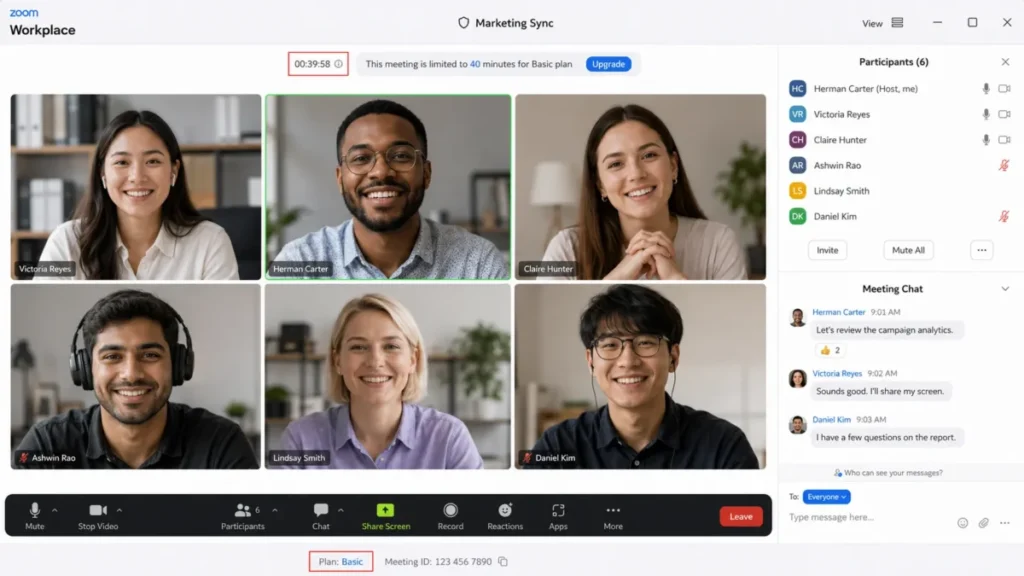
One limit defines the plan. Most meetings hosted by Basic users are capped at 40 minutes, even with up to 100 participants, so a standard 45- or 60-minute agenda gets interrupted (Source: Zoom meeting duration limits and Zoom Workplace Basic, checked July 27, 2026).
Zoom Basic is a meeting tool, not a workspace, so it belongs beside a document or task system rather than as your hub. Pairing it with a separate source of truth for notes and follow-ups is the intended pattern.
Pros and cons
| Pros | Cons |
|---|---|
| External participants recognize the join flow, which lowers friction for client calls | Most meetings hosted by Basic users end at 40 minutes |
| Up to 100 participants covers ordinary external sessions | It is a meeting tool only, not a project workspace |
| Screen sharing, team chat, and whiteboard access come at no cost | Recurring internal meetings need restarts or an upgrade |
Best for consultants, agencies, and small teams that host short external calls with up to 100 people. Avoid Zoom Basic if your standard meetings exceed 40 minutes or you need a persistent workspace.
The Zoom Workplace review covers the paid Pro tier.
Setup difficulty is low: schedule, share the link, and join. Upgrade when restarts become disruptive, which points to Pro at $15.99 per user/month on the official US monthly-pricing page (Source: Zoom Workplace Pro pricing, checked July 27, 2026).
Our verdict: choose Zoom Basic as the meeting layer in a larger stack, and keep the 40-minute cap in mind for anything recurring.
Best Free Tools for Documents and Visual Work
Shared creation with people outside the core team is the third problem, and here privacy and guest roles matter more than feature counts. Free plans in this group are strong for occasional work and quietly restrictive for ongoing client collaboration.
9. Miro: Best Free Visual Workshop

Miro is the strongest free canvas for synchronous visual thinking, and for facilitators running the occasional brainstorm or mapping session, it is the clear pick (Source: Miro pricing, checked July 27, 2026). Free allows unlimited team members, so the whole group can join a session without seat math (Source: Miro pricing, checked July 27, 2026).
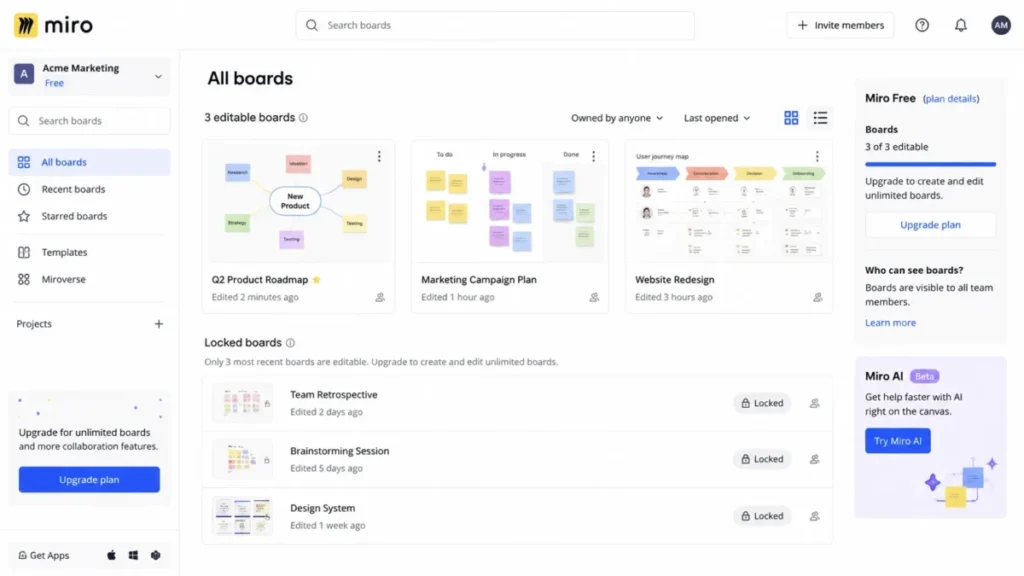
The catch is a combination of two limits, not one. Only the three most recently created boards stay editable, and free-team boards are visible to all team members by default, so Miro Free suits occasional internal workshops rather than a private, growing board archive (Source: Miro plans and features and Miro pricing, checked July 27, 2026).
External collaboration and AI are both trial-scale on free. Guest and visitor roles require a paid plan, and free teams get 10 AI credits per month, so recurring client workshops and heavy AI use both push toward Starter (Source: Miro pricing and Miro AI credits, checked July 27, 2026).
Pros and cons
| Pros | Cons |
|---|---|
| The strongest free canvas for synchronous brainstorming and mapping | Only the three most recently created boards remain editable |
| Unlimited team members can join a session without seat math | Free-team boards are visible to all team members, so private client work is exposed |
| Templates, voting, and comments support real facilitation | Guest and visitor roles are paid, and free AI is capped at 10 credits per month |
Best for facilitators and small product, design, or strategy teams that run occasional workshops. Avoid Miro Free if you need more than three active boards, private team boards, guest roles, or frequent AI-assisted sessions.
The Miro review covers the Starter and Business plans.
Setup difficulty is low for a single session, and the friction appears only when you try to keep an archive. Upgrade when you need a fourth active board or a private workspace, which points to Starter at $8 per member/month billed annually, or $10 billed monthly (Source: Miro pricing, checked July 27, 2026).
Our verdict: choose Miro Free for internal workshops, and move to Starter the moment recurring or client-facing sessions need privacy.
10. Google Workspace Essentials Starter: Best Free Docs With Your Own Email

Essentials Starter is the under-covered option that fits teams keeping another email provider. It adds Google document collaboration at no cost for up to 100 users on existing work email addresses, without requiring a new Gmail account (Source: Google Workspace Essentials Starter and Essentials Starter admin setup, checked July 27, 2026).
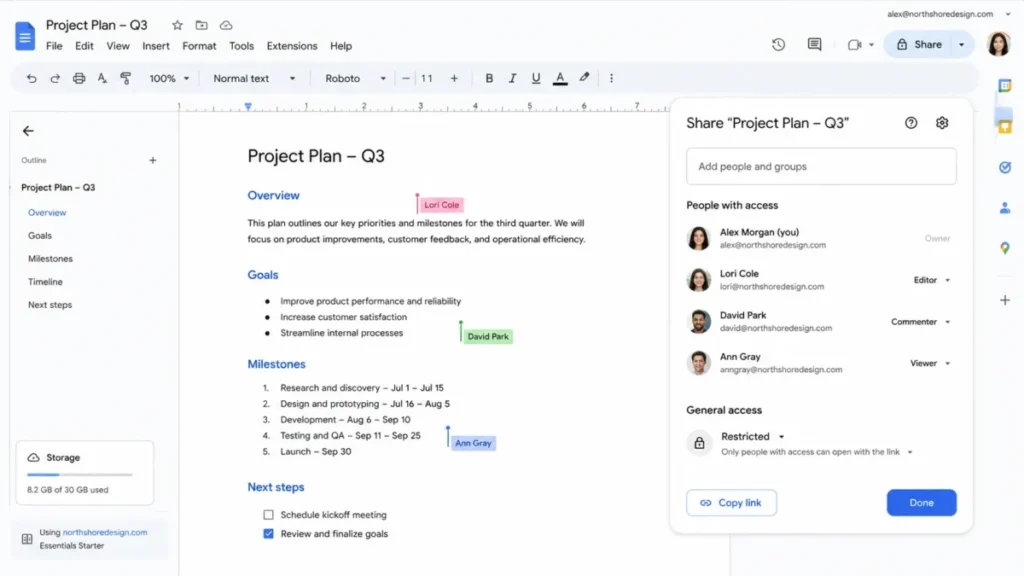
The bundle is deliberately scoped to collaboration, not communication, and it does not include Gmail. It provides Drive, Docs, Sheets, Slides, and Meet with 15 GB of storage per user (Source: Google Workspace Essentials features, checked July 27, 2026).
A useful detail for mixed-format teams is that it edits Office files without conversion. That scope is the whole value proposition and the whole limitation, and reviewers praise the real-time document collaboration while noting that fit depends on the wider Google suite (Source: Google Workspace reviews on G2).
Pros and cons
| Pros | Cons |
|---|---|
| Adds Google document collaboration without a new Gmail account or paid Workspace plan | It is a collaboration bundle, not a project-management system |
| Up to 100 users with 15 GB of storage per user covers a bounded team | The free edition does not include Gmail |
| Edits Microsoft Office files without conversion, easing mixed-format teams | Advanced administration and a public self-serve paid upgrade path are limited |
Best for a team of up to 100 people that already uses company email and mainly needs shared Drive files, Docs, Sheets, Slides, and Meet. Avoid Essentials Starter if you need Gmail, centralized enterprise administration, or advanced retention.
The Google Workspace review covers the paid editions.
Setup difficulty is medium: it depends on verifying your work-email domain, after which document collaboration is immediate. The upgrade path is a different Google edition rather than a simple in-app tier, so treat it as a document layer with a defined 100-user ceiling.
Our verdict: choose Essentials Starter when documents are your collaboration hub and you have no intention of replacing your email provider.
11. Figma Starter: Best Free Design Review

Figma Starter is the strongest free real-time environment for interface design and visual feedback, and for a tiny design team working on a few files, nothing else compares (Source: Figma pricing, checked July 27, 2026). The multiplayer editing that made Figma popular is fully present, and reviewers praise the live collaboration while noting performance strain on very large files (Source: Figma reviews on G2).
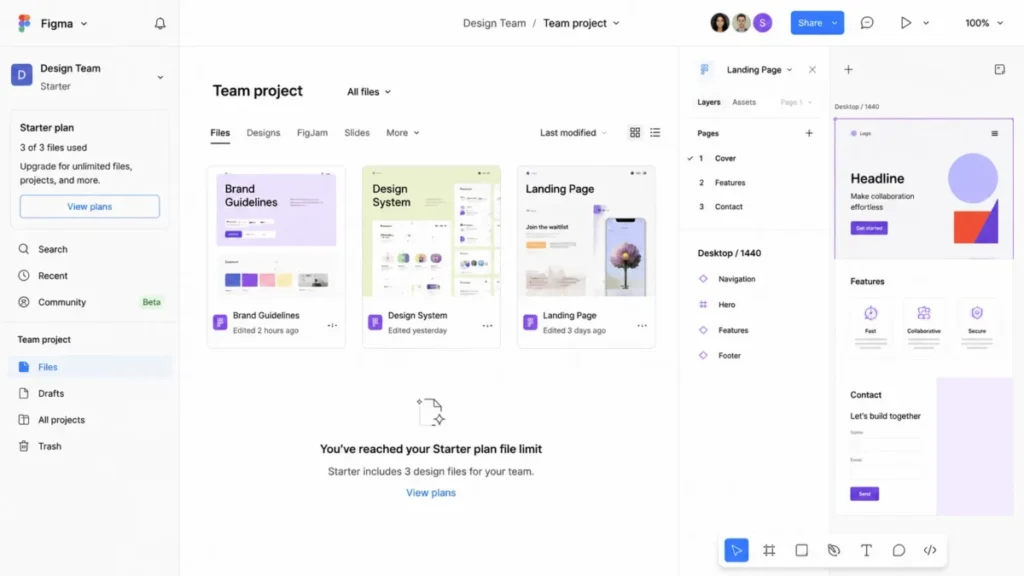
The limits compound, which is the part most roundups miss. Starter teams get three total Figma Design and Sites files, three FigJam files, and three Slides files, and each design file is capped at three pages, so the file and page ceilings squeeze a real product together (Source: Figma plans and features, checked July 27, 2026).
Governance features are absent on Starter. There are no team libraries and no Dev Mode, no private projects or advanced security such as SSO, and version history is 30 days, so a production design system needs the paid tier (Source: Figma plans and features, checked July 27, 2026).
Drafts are unlimited, but a shared draft is view-only rather than a collaborative edit space, so drafts are not a workaround for the file cap (Source: Figma plans and features, checked July 27, 2026).
Pros and cons
| Pros | Cons |
|---|---|
| The strongest free real-time environment for interface design and visual feedback | Only three design files, three FigJam files, and three Slides files per team |
| Multiplayer editing and comments support tight design review | Three pages per design file compound with the file cap to squeeze real products |
| Unlimited drafts give room to sketch before committing to a team file | No team libraries, no Dev Mode, no private projects, and 30-day version history |
Best for a tiny design team and stakeholders collaborating on a few active interface, whiteboard, or slide files. Avoid Figma Starter if you need more than three team files, more than three pages per design file, team libraries, Dev Mode, or private projects.
The Figma review covers Professional and Organization.
Setup difficulty is low to open and medium to keep organized once the file and page caps force you to fragment work. The upgrade is Figma Professional, whose US price was not captured from an accessible official page during this research, so confirm it on the live pricing page before budgeting (Source: Figma pricing, checked July 27, 2026).
Our verdict: choose Figma Starter for a small, active design review, and expect to upgrade the moment the work grows past three files.
Best Free Collaboration Tools at a Glance
This table lists all 11 tools in ranked order with the single fact that decides fit: the limit each free plan puts on a working team.
| Rank | Tool | Best for | Free team eligibility | Primary free limit | First paid tier (annual) |
|---|---|---|---|---|---|
| 1 | ClickUp | Overall work hub | Unlimited members | 60 MB storage, 100 automation actions/mo | Unlimited, $7/user/mo |
| 2 | Trello | Simple Kanban | Up to 10 collaborators | 10 boards per workspace | Standard, $5/user/mo |
| 3 | Slack | Chat-first coordination | Unlimited members | 90-day visible history | Pro, $7.25/user/mo |
| 4 | Notion | Wiki and databases | Multi-member (block-capped) | 1,000 blocks in a multi-member workspace | Plus, $10/member/mo |
| 5 | Asana | Solo or pair tasks | 2 seats (new accounts) | 2 seats | Starter, $10.99/user/mo |
| 6 | Miro | Visual workshops | Unlimited members | 3 editable boards | Starter, $8/member/mo |
| 7 | Google Essentials Starter | Docs with your own email | Up to 100 users | No Gmail; 15 GB per user | Separate Google edition |
| 8 | Microsoft Teams Free | Microsoft-friendly meetings | Up to 100 per meeting | 60-minute meetings | Essentials, $4/user/mo |
| 9 | Zoom Workplace Basic | External video calls | Up to 100 per meeting | 40-minute meetings | Pro, $15.99/user/mo (monthly) |
| 10 | Airtable | Structured data | 5 editors, 50 commenters | 1,000 records per base | Team, $20/collaborator/mo |
| 11 | Figma Starter | Design review | Small team | 3 files, 3 pages per design file | Figma Professional |
Sources: official pricing and help pages for ClickUp, Trello, Slack, Notion, Asana, Miro, Google Workspace Essentials, Microsoft Teams, Zoom, Airtable, and Figma, checked July 27, 2026.
Notice that these tools fail on different units. ClickUp meters storage and automation, Trello meters boards, Slack meters memory, Notion meters blocks, Asana meters seats, Airtable meters records, and Figma meters files, which is exactly why comparing them by “has a free plan” tells you nothing.
Free Plan Limits That Matter Most
The headline allowance is less important than what happens when you reach it. This matrix pairs each tool’s primary cap with its documented behavior at the ceiling.
| Tool | Primary workflow cap (free) | Documented behavior at the limit |
|---|---|---|
| ClickUp | 60 custom-field uses; 100 automation actions/mo | New custom-field values are blocked while existing values can be cleared; automations alert at 90% and 100% |
| Trello | 10 boards; 250 Butler runs/mo | Additional boards are blocked; post-cap automation behavior is not publicly verified |
| Slack | 90 days of visible history | Older messages become inaccessible, and content older than one year is deleted |
| Notion | 1,000 blocks in a multi-member workspace | Further content creation is blocked until you upgrade or change the membership model |
| Asana | 2 seats (new accounts) | Collaboration beyond two seats is blocked and requires an upgrade |
| Miro | 3 editable boards | Older boards become view-only; the exact transition state is not publicly verified |
| Airtable | 1,000 records per base | Existing records stay readable; new records are blocked until you reduce the base or upgrade |
| Figma Starter | 3 team files; 3 pages per design file | Additional team files and pages are blocked; overflow goes to view-only drafts or a paid plan |
Sources: ClickUp custom fields and Automations; Trello pricing; Slack free-plan limitations; Notion block usage; Asana Personal; Miro plans; Airtable plans; Figma plans, checked July 27, 2026.
Two behaviors deserve extra attention because they interrupt live work rather than just capping it. Airtable turns a base read-only for new records at 1,000, and Notion stops content creation at 1,000 blocks in a multi-member workspace, so both can halt an active workflow on the day you cross the line.
Where a source did not document the exact post-limit state, we marked it “not publicly verified” rather than guessing. That gap is itself a buyer signal: test the ceiling on a throwaway board before you depend on it.
Data retention and recovery windows
Retention decides whether a free tool can hold institutional memory or only current work. The windows vary widely and are rarely compared side by side.
| Tool | Free retention or history window |
|---|---|
| Slack | 90 days visible; content older than one year is deleted |
| Notion | 7 days of page history |
| Airtable | 2 weeks of revision history |
| Figma Starter | 30 days of version history |
| ClickUp, Trello, Asana, Miro, Google Essentials, Teams, Zoom | Not publicly documented as a free-plan retention window |
Sources: Slack free-plan limitations, Notion page history, Airtable plans, and Figma plans, checked July 27, 2026.
Slack is the sharpest case because it runs two clocks at once: a 90-day visibility window and a one-year deletion rule. A team that treats Slack Free as its knowledge base will lose decisions it assumed were permanent, so copy anything durable into a wiki or task tool.
Meeting limits, normalized
Chat and video tools are usually discussed separately, which hides the one number that decides fit: how long a free meeting can run.
| Tool | Free participants | Free duration |
|---|---|---|
| Slack huddle | 2 | 30 minutes |
| Zoom Workplace Basic | Up to 100 | 40 minutes |
| Microsoft Teams Free | Up to 100 | 60 minutes |
| Google Meet (Essentials Starter) | Not verified from an accessible official source |
Sources: Slack huddles, Zoom meeting duration limits, and Microsoft Teams Free, checked July 27, 2026.
For a team whose normal call is 45 to 60 minutes, Teams Free is the only option here that fits without a restart, and Slack huddles are strictly for one-to-one. We left the Meet duration blank rather than repeat an unverified number, because a wrong meeting cap is exactly the kind of error that sends a buyer to the wrong tool.
Pricing Comparison: Free Plan vs First Paid Tier
The free plan is the entry point, but the first paid tier is the real budget question once a cap forces the upgrade. This table pairs each free plan with the tier that resolves its main limit.
| Tool | Free plan | First paid tier | Annual per seat | Monthly per seat | What the upgrade buys |
|---|---|---|---|---|---|
| ClickUp | Free Forever, $0 | Unlimited | $7 | $9 | More storage, automations, and granular permissions |
| Trello | Free, $0 | Standard | $5 | $6 | Unlimited boards and 250 MB file uploads |
| Slack | Free, $0 | Pro | $7.25 | $8.75 | Full history, Workflow Builder, group huddles |
| Notion | Free, $0 | Plus | $10 | $12 | Unlimited blocks and 30-day page history |
| Asana | Personal, $0 | Starter | $10.99 | $13.49 | More seats, timeline, dashboards, automations |
| Miro | Free, $0 | Starter | $8 | $10 | Unlimited and private boards, visitor editing |
| Microsoft Teams | Free, $0 | Essentials | $4 (annual only) | Not sold separately | 30-hour meetings, 300 participants, 10 GB per user |
| Airtable | Free, $0 | Team | $20 | $24 | 50,000 records and 100,000 API calls per month |
| Zoom | Basic, $0 | Pro | Annual not verified | $15.99 | Meetings beyond 40 minutes |
| Google Essentials Starter | Free (up to 100 users) | Separate Google edition | Not publicly captured | Not publicly captured | Gmail and centralized administration |
| Figma | Starter, $0 | Professional | Not publicly captured | Not publicly captured | Team libraries, Dev Mode, private projects |
Sources: ClickUp, Trello, Slack, Notion, Asana, Miro, Microsoft Teams plan comparison, Airtable, Zoom Pro, and Figma, checked July 27, 2026. Prices can change; verify on the official page before budgeting.
The cheapest paid tier is not always the right comparison point. Teams Essentials at $4 looks like the bargain, but it only fixes meetings, while Airtable Team at $20 fixes a hard record wall that can stop production intake, so the paid price should be judged against the limit it removes.
Two prices are deliberately absent. Figma Professional and the paid Google edition were not captured from an accessible official US page during this research, so we left them blank rather than repeat a third-party number that may be stale; the Google Workspace pricing guide tracks that upgrade path.
Cost at 5, 10, and 25 seats
A per-seat price is not a budget. This table computes the monthly cost of the first paid tier at three team sizes for the tools with a verified per-seat price.
| First paid tier | 5 seats/mo | 10 seats/mo | 25 seats/mo |
|---|---|---|---|
| ClickUp Unlimited ($7) | $35 | $70 | $175 |
| Trello Standard ($5) | $25 | $50 | $125 |
| Slack Pro ($7.25) | $36.25 | $72.50 | $181.25 |
| Notion Plus ($10) | $50 | $100 | $250 |
| Asana Starter ($10.99) | $54.95 | $109.90 | $274.75 |
| Miro Starter ($8) | $40 | $80 | $200 |
| Microsoft Teams Essentials ($4) | $20 | $40 | $100 |
| Airtable Team ($20) | $100 | $200 | $500 |
| Zoom Pro ($15.99, monthly billing) | $79.95 | $159.90 | $399.75 |
Calculation: annual-effective monthly per seat multiplied by the number of paid seats, with Zoom on monthly billing because its annual rate was not verified, and Google Essentials Starter and Figma Professional excluded for lack of a captured paid price. Sources: ClickUp, Trello, Slack, Notion, Asana, Miro, Microsoft Teams Essentials, Airtable, and Zoom Pro, checked July 27, 2026.
The spread at 25 seats is the number to sit with. The same team pays $100 a month on Trello and $500 on Airtable Team, so the “cheap” collaboration decision depends entirely on which layer you are paying to enable.
Feature Gate Comparison
Free plans differ most in what they lock, not what they show. This table maps the four gates that most often force an upgrade.
| Tool | Free automation | External guest editing (free) | Private or granular access (free) | Tier that adds control |
|---|---|---|---|---|
| ClickUp | 5 automations, 100 actions/mo | Broad workspace access, not scoped | No granular permissions | Unlimited and above |
| Trello | 250 Butler runs/mo | Board sharing | Limited | Standard and above |
| Slack | No Workflow Builder | Guests deactivate on downgrade | Limited | Pro and above |
| Notion | Limited | Guest page sharing | Teamspace controls are paid | Plus and Business |
| Asana | Paid only | Blocked beyond two seats | Paid only | Starter and above |
| Miro | Not a free feature | Visitor and guest editing are paid | Private boards are paid | Starter and above |
| Airtable | Included, limited volume | 50 commenters, unlimited read-only | Editors capped at 5 | Team and above |
| Figma Starter | Not a free feature | Drafts shared view-only | No private projects | Professional and above |
| Microsoft Teams Free | Not a core free feature | Guest access supported | Limited | Essentials and above |
| Zoom Basic | Not applicable | External join supported | Not applicable | Pro and above |
| Google Essentials Starter | Not applicable | Drive sharing roles | Admin limited | Separate Google edition |
Sources: ClickUp permissions, Trello pricing, Slack free-plan limitations, Notion block usage, Asana pricing, Miro pricing, Airtable pricing, and Figma plans, checked July 27, 2026.
The pattern is consistent: free plans give you the workflow but not the governance around it. If contractors or clients touch your workspace, the gate that matters is external access and private spaces, and that gate is paid on almost every tool here.
Automation and API Limits
Automation and integration exist on several free plans, but only three of these tools publish enough detail to judge production fit.
| Tool | Free automation allowance | Free API and rate limits |
|---|---|---|
| ClickUp | 5 active automations, 100 actions/mo (resets monthly) | 100 requests per minute per token, all plans |
| Trello | 250 Workspace command runs/mo | No separate free API allowance published on the pricing page |
| Airtable | Automations included, limited volume | 1,000 API calls per workspace/mo; 5 requests per second per base, all plans |
Sources: ClickUp Automations and ClickUp API rate limits; Trello pricing; Airtable Web API rate limits, checked July 27, 2026.
None of these allowances supports a high-volume integration. Airtable’s 1,000 calls per month is the tightest for a production workflow, and even paid plans keep the five-requests-per-second-per-base rate limit, so any real build needs caching, batching, and backoff regardless of tier.
Security, Privacy, and External Collaborators
The fastest way to disqualify a free plan is to check who can see and edit your work. Free tiers trade governance for zero cost, and the trade shows up the moment an outsider joins.
| Tool | Free privacy and role reality |
|---|---|
| ClickUp | People who join the workspace get broad create-and-edit access; granular permissions are paid |
| Slack | Guests deactivate and Slack Connect disconnects when a workspace drops to Free |
| Miro | Free-team boards are visible to all team members; guest and visitor editing are paid |
| Notion | Guests can be scoped to specific pages; workspace-level governance is paid |
| Airtable | Five editors, 50 commenters, and unlimited read-only users, so control comes from role assignment |
| Figma Starter | No private projects; shared drafts are view-only rather than collaborative |
| Google Essentials Starter | Standard Drive sharing roles apply, but centralized admin is limited |
Sources: ClickUp permissions, Slack free-plan limitations, Miro pricing, Notion block usage, Airtable pricing, and Figma plans, checked July 27, 2026.
Two of these are outright disqualifiers for client work. Miro exposing every free-team board to all members, and ClickUp granting broad access to anyone who joins, both mean sensitive projects need either a separate workspace or a paid plan before an outsider is invited.
Setup and Migration Difficulty
Free tools are easy to open and harder to leave, so setup and switching cost belong in the same view.
| Tool | Setup difficulty | Why |
|---|---|---|
| ClickUp | Medium | Plan the space and permission structure before inviting, because the caps punish sprawl |
| Trello | Low | Create a board, add lists, move cards, with no field mapping |
| Slack | Low | Channels work immediately; the real task is deciding where durable decisions live |
| Notion | Medium | The member-versus-guest choice is a governance decision on day one |
| Asana | Low | Simple for one or two people; the seat cap stops you before complexity does |
| Miro | Low | A single workshop is quick; friction appears only when you keep an archive |
| Google Essentials Starter | Medium | Requires verifying your work-email domain before collaboration begins |
| Microsoft Teams Free | Medium | Sign-in is easy, but channel and app sprawl adds complexity fast |
| Zoom Basic | Low | Schedule, share the link, and join |
| Airtable | Medium | Building a base is quick; watch record growth so the read-only wall does not surprise you |
| Figma Starter | Low to open | Medium to keep organized once the file and page caps force fragmentation |
The harder question is what happens when you outgrow the free plan and want to leave. Product-specific migration fidelity was not fully verified for most of these tools, so treat the checklist below as due diligence, not a guarantee.
Before you commit a team to any free tool, confirm the switching path: the export format, whether comments and history come with the data, how attachments and record relationships transfer, who owns the exported data, whether automations and permissions survive, how duplicates are handled, and whether you can run a pilot import and roll back. Slack adds a timing wrinkle, because its retention limits mean durable decisions should be exported before they age out.
Which Free Collaboration Tool Should You Avoid?
No tool here is bad, but each has a buyer it does not fit. These are the conditions that should stop you.
Avoid ClickUp Free if you need private-by-default spaces or real file storage, because 60 MB and broad permissions work against sensitive or asset-heavy teams. Avoid Trello Free once several teams share one workspace, because 10 boards ends the free ride before card volume does.
Avoid Slack Free as a system of record, because 90-day visibility and one-year deletion make it conversation, not memory. Avoid Asana Free for any team of three or more, because new Personal accounts stop at two seats.
Avoid Miro Free for recurring client workshops, because free boards are visible to all team members and only three stay editable. Avoid Airtable Free for production intake that will pass 1,000 records, because the base goes read-only for new entries at the cap.
Avoid Figma Starter for a real design system, because three files, three pages per file, no team libraries, and no Dev Mode force fragmentation. Avoid Google Essentials Starter if you need Gmail or centralized administration, because it is a document layer, not a full suite.
How to Choose the Right Free Collaboration Tool
Choosing a free collaboration tool is a process of elimination by limit, not a search for the longest feature list. Work through these questions in order.
- Which problem are you solving first: a work hub, communication, or shared creation? Pick the group before you pick the tool.
- How many people need to edit for free, at launch and within six months? This alone removes Asana Free for most teams and shapes the Airtable and Miro decisions.
- What is the dominant unit of your work: tasks, boards, blocks, records, messages, or files? Match it to the tool that meters something else.
- Does anyone outside the core team need access? If yes, check guest roles and privacy before features, because that gate is paid on most plans.
- How long must your history survive? If you need memory, rule out Slack Free as a record and confirm retention windows.
- What is the first paid tier, and what does it cost at your real team size? Use the cost-at-scale numbers, not the per-seat price.
- Can you export cleanly if you leave? Confirm the switching path before you standardize a team on any free plan.
After those seven answers, most teams find that no single tool clears every hurdle, which is the signal to build a small stack rather than force one tool to do everything.
Common Mistakes When Choosing Free Collaboration Tools
The same errors show up whenever a team adopts free collaboration software without reading the plan limits.
The first mistake is treating “free” as “usable by the whole team,” when a plan like Asana Personal seats two people. The second is choosing by feature list instead of by the cap that hits first, which is how teams land on Airtable and then hit the 1,000-record wall mid-project.
The third mistake is trusting a free chat tool as a knowledge base, then losing Slack history after a year. The fourth is inviting a client into a workspace with broad free permissions, exposing work that should have been private.
The fifth is ignoring retention, so a rollback or audit request finds a seven-day or two-week window instead of the history the team assumed existed. The sixth is skipping the export question, so a “free” tool becomes an expensive migration six months later.
The seventh is forcing one free tool to cover chat, tasks, docs, meetings, and design, which stretches every cap at once and satisfies no workflow well.
Recommended Free Collaboration Stacks
Because no single free tool leads every category, the better free system is often a small, deliberate stack, and revenue teams often add free CRM software to it. Each recipe below names a single source of truth and the first limit you will hit.
The single-hub stack is ClickUp plus external file storage. ClickUp is the source of truth for tasks, docs, and chat, and you link large files from Drive or Dropbox to work around the 60 MB cap, with the first real limit being 100 automation actions per month.
The lightweight stack is Trello for tasks, Slack for chat, and Google Workspace Essentials Starter for documents. Google Docs is the source of truth for durable content, Trello holds the work, and Slack carries conversation, with the first limits being Slack’s 90-day history and Trello’s 10 boards.
The visual and product stack is Notion for docs, Miro for workshops, and Figma for design. Notion is the source of truth, Miro handles synchronous sessions, and Figma holds interface work, with the first limits being Notion’s 1,000 blocks, Miro’s three boards, and Figma’s three files.
Each stack trades a little duplication for a much larger effective free plan. The discipline that makes it work is naming one source of truth so the same decision does not live in three places.
The Free Tool Nobody Should Force to Do Everything
The honest anti-recommendation here is not a product. It is the instinct to make one free tool cover chat, tasks, documents, meetings, whiteboards, and design at once.
That single-tool dream fails on the evidence, because the caps are on different units and no free plan is strong across all of them. A team that pushes ClickUp into being its meeting platform, or Slack into being its wiki, ends up stretching every limit and trusting a workflow the tool was never shaped for.
The tool nobody needs is the imaginary free do-everything app. The moment you accept that, the real decision gets easier: pick the strongest free tool for your primary problem, then add a second for the next one.
Final Verdict
For a 5- to 20-person team that wants the most collaboration for zero dollars, ClickUp is the stronger free pick, because it puts tasks, docs, chat, and goals in one workspace that a whole team can use without per-seat charges. Treat its storage, automation, and custom-field caps as a countdown, and upgrade to Unlimited when files or automations outgrow the free ceiling.
If your problem is communication, Slack is the free pick for chat and Zoom or Teams for meetings, with the caveat that Slack Free forgets and Zoom Basic stops at 40 minutes. If your problem is shared creation, Notion leads for docs, Miro for workshops, and Figma for design review, each excellent for a few active files and restrictive beyond that.
For structured data, Airtable is the strongest free option until 1,000 records, and for teams keeping their own email, Google Workspace Essentials Starter adds real document collaboration without a new Gmail account. Asana is the outlier: a polished free task tool that, for new accounts, only seats two people.
Our recommendation for most teams is to skip the search for one perfect free tool and build a two- or three-tool stack around a single source of truth. Pick the tool that solves your primary problem, add one for the next, and let the caps, not the marketing, tell you when to pay.
Frequently Asked Questions
These answers cover the questions buyers ask most before adopting a free collaboration tool, from the best overall pick to seat limits, video meetings, security, and upgrade timing.
What are the best free collaboration tools for teams?
For most small teams, ClickUp is the strongest all-round free collaboration tool because it combines tasks, docs, chat, and goals in one workspace. Slack leads for chat, Notion for documents, Miro for whiteboards, and Airtable for structured data.
No single free tool is best at everything, so many teams combine two or three.
Which collaboration tool is completely free?
Several plans are free with no time limit, including ClickUp Free Forever, Trello Free, Slack Free, Notion Free, and Miro Free. Each is genuinely free to use, but each caps something important, such as storage, boards, history, blocks, or editable boards.
The free plan lasts until your team crosses that specific limit.
What is the best free alternative to Slack?
Microsoft Teams Free is the closest free alternative if you want longer meetings, since it allows 60-minute calls for up to 100 people versus Slack’s one-to-one, 30-minute huddles. For chat memory, though, the honest answer is that no free plan keeps unlimited history, so treat any free chat tool as conversation rather than a permanent record.
Is Trello free for more than 10 people?
No, unless you upgrade. Trello Free supports up to 10 collaborators per workspace, so an eleventh person requires the Standard plan at $5 per user per month billed annually.
The free plan also caps a workspace at 10 boards, which usually forces an upgrade even before you reach the collaborator limit.
How many people can use Asana for free?
For new accounts, Asana Personal supports up to two seats, which surprises teams relying on older articles that cite 10. Certain legacy accounts created before November 12, 2025 may keep a 10-seat allowance, but a team signing up should plan around two seats and budget for Starter if a third person needs access.
What is the best free tool for document collaboration?
Google Workspace Essentials Starter is the strongest free pick for pure document collaboration, offering Docs, Sheets, Slides, Drive, and Meet for up to 100 users on your existing work email, without a new Gmail account. Notion is the better choice if you want documents and lightweight databases together, though a multi-member free workspace is capped at 1,000 blocks.
Which free collaboration tool has video meetings?
Zoom Workplace Basic includes free video meetings for up to 100 participants, capped at 40 minutes.
Microsoft Teams Free also allows up to 100 participants and runs to 60 minutes.
Slack Free offers only one-to-one huddles limited to 30 minutes, so it is not a meeting platform on its own.
Are free collaboration tools secure enough for client work?
Yes, if you configure roles carefully and avoid a few traps. On free plans, Miro shows every team board to all members, and ClickUp grants broad access to anyone who joins, so client work often needs a separate workspace or a paid tier.
Check guest roles and private-space options before inviting anyone outside your team.
When should a team upgrade from a free collaboration plan?
Upgrade when a specific cap starts blocking work, not on a schedule. Common triggers include a third teammate on Asana, the 1,001st record in Airtable, needing Slack history beyond 90 days, a fourth Miro board, or a fourth Figma team file.
Use the cost of the first paid tier at your real team size to decide.
What is the best free collaboration stack for a small remote team?
A common free stack is Trello for tasks, Slack for chat, and Google Workspace Essentials Starter for documents, with Google Docs as the source of truth. Teams doing visual or product work often use Notion, Miro, and Figma instead.
The key is naming one source of truth so the same decision does not live in three tools.