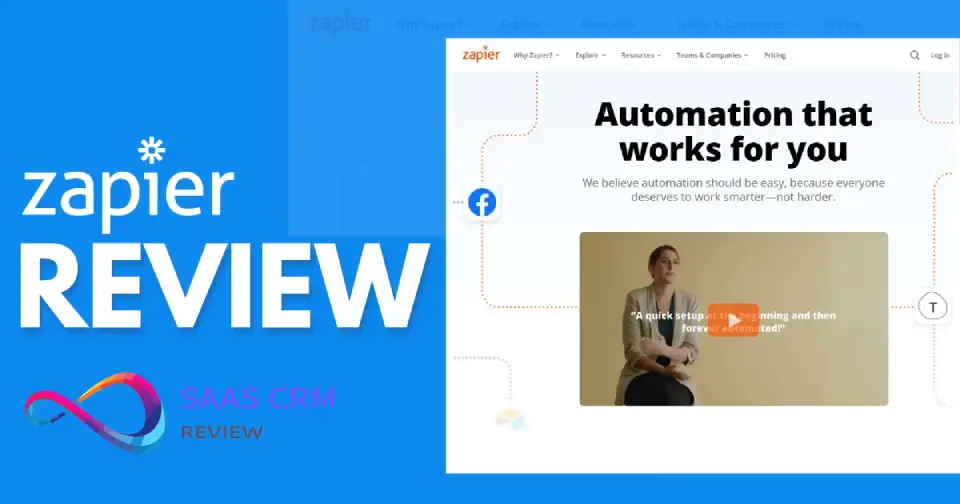
Zapier is a no-code automation platform that connects over 8,000 apps, letting you build workflows (called Zaps) that move data between your tools automatically. Think: when a form is submitted in Typeform, add the lead to HubSpot, send a Slack alert, and update a Google Sheet—all without manual work.
Who should buy Zapier in 2026: Non-technical teams needing simple to moderate automation (under 5,000 tasks/month), businesses prioritizing breadth of integrations over cost efficiency, and organizations already locked into mainstream SaaS tools where Zapier’s 8,000+ connectors shine.
Who shouldn’t: High-volume users pumping 50,000+ tasks monthly (costs balloon), technical teams wanting full control and complex conditional logic (Make or n8n offer more power), or anyone needing self-hosted infrastructure for compliance reasons.
Best alternatives by scenario: Make for complex multi-path logic at lower cost, n8n for self-hosting and developer-first workflows, IFTTT for consumer/personal automations, Workato for enterprise governance, Pipedream for developer-centric API workflows.
Quick Summary – Zapier Review 2026
| Item | Summary |
|---|---|
| What it is | Zapier is a no-code automation tool that connects apps using Zaps (Trigger → Actions). |
| Worth it in 2026? | Yes for most SMB/mid-market teams needing fast, reliable automation across common SaaS tools; no if you need complex orchestration at scale or self-hosting. |
| Best for | Lead routing, marketing handoffs, support alerts/logging, ops workflows across many integrations. |
| Biggest downside | Costs scale with tasks (each successful action counts), so multi-step/high-volume workflows can get expensive. |
| Pricing driver | Mainly tasks/month + plan tier (Free/Professional/Team/Enterprise). Verify exact pricing on Zapier’s page. |
| Security note | Check Zapier’s Trust Center for SOC 2/security docs; Team includes SAML SSO. |
| Best alternatives | Make (complex logic), n8n (self-hosting), Pipedream (developer-first), IFTTT (simple consumer automations). |
Zapier Overview
Zapier is a workflow automation platform that acts as the “connective tissue” between your software tools. It lets non-developers build automated processes (Zaps) using a visual, drag-and-drop interface.

Core Concepts Explained:
Zaps: An automated workflow. Structure = Trigger + Action(s). Example: “When a Typeform response is submitted (trigger), create a HubSpot contact (action 1), send a Slack message (action 2), and log to Google Sheets (action 3).”
Triggers: The event that starts a Zap. Common triggers include new email received, form submitted, calendar event created, Stripe payment received, or scheduled time.
Actions: What happens after the trigger fires. Actions include creating records, sending notifications, updating databases, or calling APIs. Each action counts as 1 task toward your monthly limit.
Multi-step Zaps: Chain up to 100 actions sequentially. Example: Trigger fires → enrich lead data → check if email domain matches criteria → route to correct CRM field → notify team.
Paths: Conditional branching logic (if/then/else). Paths let you split workflows into up to 10 branches, each with custom rules. Example: If lead score > 80, send to sales; if 50-80, send to nurture campaign; if < 50, discard.
Filters: Simpler than Paths—stops Zap execution unless specific conditions are met. Example: Only continue if job title contains “Director” AND company size > 50 employees.
Webhooks: Send/receive HTTP requests to connect with any API, even apps not in Zapier’s directory. Useful for custom internal tools or niche software.
Typical Workflow Example:
A B2B SaaS company runs this Zap: When a demo request form is submitted on their website (trigger via Typeform), Zapier enriches the lead using Clearbit (action 1), adds the contact to HubSpot with a “Demo Requested” tag (action 2), sends a Slack notification to the sales channel with lead details (action 3), and schedules a follow-up task in Asana for the AE (action 4). Total: 4 tasks consumed per form submission.
Where Zapier Fits in the Automation Ecosystem:
No-code tier (easiest): Zapier sits here alongside IFTTT. Marketing ops, customer support, and sales teams build without developer involvement.
Low-code tier (more power, steeper curve): Make (formerly Integromat) and n8n offer visual builders but expect users to understand HTTP requests, JSON parsing, and scripting for advanced needs.
Code-first tier (maximum flexibility): Tools like Pipedream, Windmill, or custom scripts give developers full control but require engineering resources.
Zapier prioritizes accessibility over depth. If you need to automate “90% of common business workflows without touching code,” Zapier fits. If you need to “build a custom data pipeline with error retry logic and Redis caching,” n8n or Pipedream are better.
- n8n Review 2026: Is This Open-Source Automation Platform Worth It?
How We Evaluated Zapier
Author Positioning:
This review is written by a SaaS consultant with 8+ years evaluating automation platforms for SMBs and mid-market companies. I’ve personally deployed Zapier, Make, n8n, and Workato across client environments ranging from 5-person startups to 500-employee SaaS companies.
Testing Criteria:
Setup time: How fast can a non-technical user build a working Zap from scratch vs using a template?
Reliability: Do Zaps run consistently? How does Zapier handle API rate limits, expired OAuth tokens, and app downtime?
Integration breadth: Does Zapier support the apps clients actually use? How current are connectors (do they support latest API features)?
Error handling: When Zaps fail, how clear are error messages? Can you retry specific steps?
Conditional logic & scalability: How far can you push Paths, Filters, and multi-step workflows before hitting walls?
Admin controls: Can IT teams govern who builds Zaps, audit usage, and enforce security policies?
Documentation & support: Is troubleshooting a Zap solvable via docs, or do you need to contact support?
ROI: Does Zapier save more in labor hours than it costs in subscription fees?
Tools Compared Against:
- Make (formerly Integromat): Visual builder with stronger conditional logic; operation-based pricing cheaper at volume
- n8n: Open-source, self-hostable, developer-friendly; execution-based pricing
- IFTTT: Consumer-focused, simpler but less powerful for business use
- Workato: Enterprise automation with governance, higher price point
- Pipedream: Developer-first with code-native workflows
Testing Scope:
- Built 15+ Zaps across lead routing, support ticket triage, content publishing, and finance reporting scenarios
- Tested with real data from Google Sheets, HubSpot, Slack, Notion, Airtable, Stripe, Zendesk
- Ran Zaps at low volume (100 tasks/month) and simulated high volume (5,000+ tasks/month) to understand cost scaling
- Evaluated 2026 pricing tiers, compared feature availability across plans
- Tested AI-powered features (AI Copilot, Chatbots, AI Actions)
Disclosure:
This is an independent review. No affiliate relationships with Zapier or competitors. Pricing and feature details verified from Zapier’s official pricing page and public documentation as of January 2026. Limitations: I did not test Enterprise-tier features requiring sales contact (advanced governance, dedicated support).
Core Features (What Matters in Real Life)
Integration Breadth & App Directory
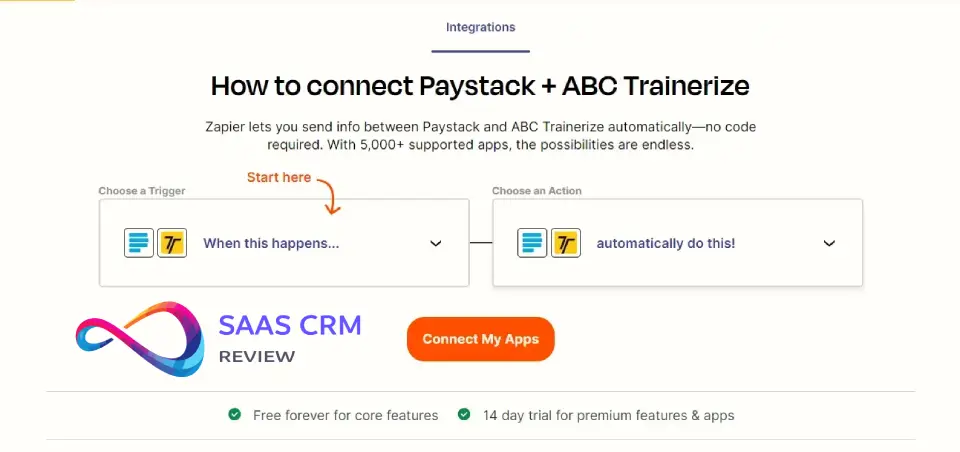
What it is: Zapier connects over 8,000 apps, covering CRMs (Salesforce, HubSpot, Pipedrive), communication (Slack, Microsoft Teams, Discord), project management (Asana, Trello, Monday), marketing (Mailchimp, ActiveCampaign, ConvertKit), and niche vertical software.
Why it matters: The #1 reason teams choose Zapier is “it connects to everything we already use.” If you’re in a mainstream SaaS stack, Zapier likely has native connectors with full API coverage. Compare: Make offers ~2,500 integrations, n8n ~1,100.
Who benefits: Marketing ops teams juggling 10+ tools, agencies serving clients with unpredictable tech stacks, and any team where “just make X talk to Y” is the primary goal.
Caveat: Not all integrations are equal. Premium apps are exclusively available on paid plans. Some connectors only expose basic triggers/actions; advanced API endpoints may require webhooks. Always check the specific app page before committing.
Multi-Step Workflows, Branching/Paths, Filters
What it is: Multi-step Zaps support up to 100 steps. Paths add if/then branching with up to 10 branches per path group and nested paths up to 3 levels deep. Filters stop execution unless conditions are met.
Why it matters: Simple two-step Zaps (form → CRM) are fine for basics, but real business logic requires decisions. Example: Route high-value leads to sales, medium leads to marketing nurture, low-quality leads to discard—all in one Zap using Paths.
Who benefits: Operations teams managing lead routing, support teams triaging tickets by priority, content teams routing different content types to different channels.
Caveat: Zapier’s conditional logic works but isn’t as visual or powerful as Make’s scenario routing. No built-in loops (foreach), so processing arrays of data (e.g., “for each line item in an invoice, create a separate Slack message”) requires workarounds or Code steps. Debugging multi-branch Paths gets messy; error logs don’t clearly show which branch failed.
Data Handling: Formatting, Delays, Schedulers
What it is: Formatter by Zapier manipulates data (split text, format dates, extract emails from strings). Delay by Zapier adds wait times between steps (e.g., wait 1 hour before sending follow-up). Schedule by Zapier triggers Zaps at set times (daily 9 AM, weekly Monday).
Why it matters: Real workflows need data transformation. Example: Stripe sends dates as Unix timestamps; Formatter converts them to “MM/DD/YYYY” before adding to Google Sheets. Delays enable drip campaigns (send email 1 immediately, email 2 after 3 days).
Who benefits: Anyone moving data between apps with different formats, teams building email sequences, and operations automating recurring reports.
Caveat: Filters, Paths, and Formatter don’t count as tasks—this is a win compared to platforms that charge per operation. However, transformations are limited to built-in functions; complex logic requires Code steps (JavaScript/Python), which raise the bar for non-developers.
Webhooks / API / Custom Requests
What it is: Webhooks by Zapier lets you send and receive HTTP requests, connecting to any API even if Zapier doesn’t have a native integration.
Why it matters: No platform integrates with every tool. Webhooks let you connect internal databases, custom CRMs, legacy systems, or new SaaS products not yet in Zapier’s directory.
Who benefits: Teams using custom-built tools, companies with proprietary software, and anyone needing to call a REST API as part of a workflow.
Caveat: Requires understanding of APIs, HTTP methods (GET/POST/PUT), authentication (API keys, OAuth), and JSON structure. Not truly “no-code” once you enter webhook territory. Many users hit walls here and need developer help.
Error Handling, Retries, Monitoring, Alerts
What it is: Zapier automatically retries failed tasks for temporary errors (API rate limits, timeouts). You receive email alerts when Zaps fail. Error logs show which step broke and (sometimes) why.
Why it matters: Automation isn’t “set and forget.” APIs go down, OAuth tokens expire, field mappings break when apps update. You need visibility into failures.
Who benefits: Anyone running critical workflows (payment processing, customer onboarding) where failures have real business impact.
Caveat: Error messages are often vague (“400 Bad Request” without explaining which field caused the error). No version control for Zaps, so if you break a working Zap while editing, you can’t roll back. Debugging requires manual step-by-step testing. Unlike n8n, you can’t “replay” individual steps with different data to isolate issues.
Collaboration/Admin: Roles, Team Workspaces, Governance
What it is: Team plan offers shared folders, role-based access, and SAML SSO. Admins control who can create Zaps, which apps are allowed, and view audit logs.
Why it matters: As automation scales, governance matters. IT needs to prevent “shadow automation” where rogue Zaps expose sensitive data or break compliance policies.
Who benefits: Mid-market and enterprise teams (50+ employees), regulated industries (finance, healthcare-adjacent), and any org where IT mandates oversight.
Caveat: True enterprise features (granular permissions, SCIM provisioning, IP allowlisting) are Enterprise-tier only (custom pricing). Team plan has basic controls but not fine-grained. For example, you can’t restrict “only admins can use Stripe integration” without upgrading to Enterprise.
Extra Products: Interfaces, Tables, Transfer, Chatbots, Agents
What it is: In 2026, Zapier now includes Tables and Interfaces on Free, Pro, and Team plans at no additional cost. Tables = lightweight database (like Airtable Lite). Interfaces = build custom forms/apps without code. Transfer = bulk data migration tool. Chatbots and Agents = AI-powered assistants embedded in workflows.
Why it matters: Previously, you needed Zapier for workflows + Airtable for data storage + Typeform for forms. Now it’s unified. Example: Build an IT helpdesk where employees submit tickets via an Interface, tickets log to Tables, and a Chatbot auto-responds to common issues.
Who benefits: Teams building internal tools (HR onboarding portals, customer support dashboards, inventory trackers) without hiring developers.
Caveat: These extras are basic compared to standalone tools. Tables lack Airtable’s formula richness and linked records complexity. Interfaces lack Retool’s flexibility. Chatbots lack Intercom’s customer data integration depth. They’re good enough for simple use cases but not replacements for dedicated platforms.
Zapier Pricing in 2026 (Clear + Honest)
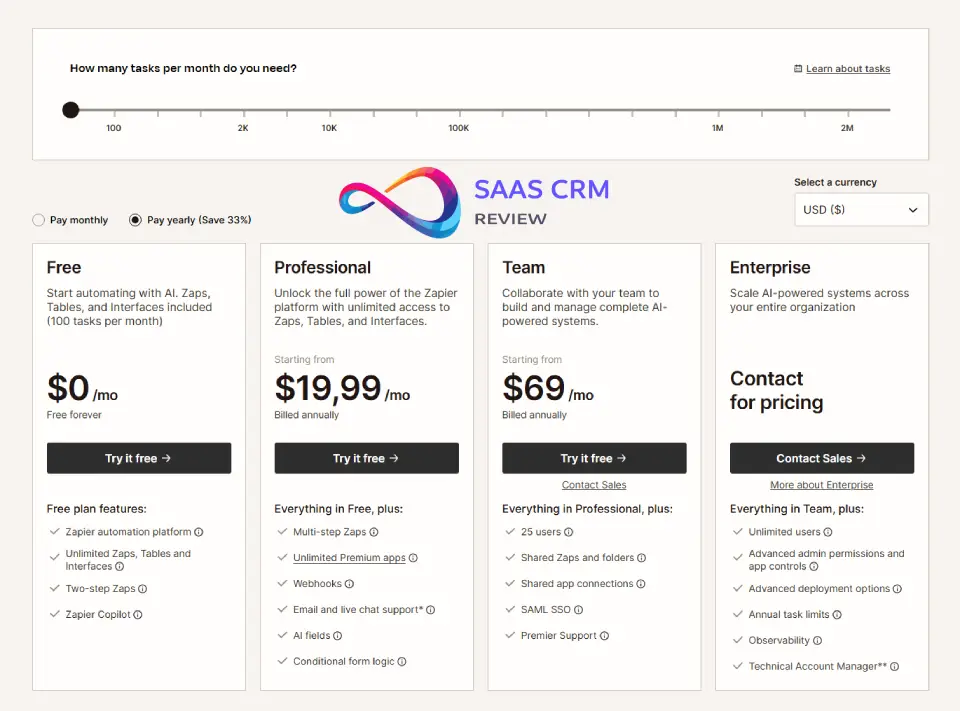
Pricing Overview Table
(All prices monthly when billed annually; month-to-month pricing ~20% higher)
| Plan | Price/Month | Tasks Included | Key Features | Best For |
|---|---|---|---|---|
| Free | $0 | 100 tasks | 2-step Zaps only, 5 Zaps max, 15-min polling, AI power-ups, Tables & Interfaces access | Testing Zapier, very light personal use |
| Professional | $19.99 | 750 tasks | Multi-step Zaps, unlimited Zaps, Paths, Filters, Webhooks, premium apps, email support, live chat (2,000+ task tiers) | Solo users, freelancers, small businesses |
| Team | $69 | 2,000 tasks | Everything in Pro + shared folders, 25 user seats, role-based access, SAML SSO, admin controls | Departments, small teams (5-25 people) |
| Enterprise | Custom | Annual task pool | Everything in Team + advanced permissions, IP allowlisting, dedicated account manager, custom data retention, SLA | Large orgs (100+ employees), regulated industries |
Pricing Increases by Task Volume:
Professional plan task tiers: 750 tasks ($19.99/mo), 1,500 tasks ($29.99/mo), 3,000 tasks ($49.99/mo), 5,000 tasks ($69.99/mo), up to 2 million tasks ($5,999/month).
Team plan task tiers: 2,000 tasks ($69/mo), 5,000 tasks ($103.50/mo), scaling similarly.
Key Insight: Each action in a workflow counts as one task. A Zap with 1 trigger + 4 actions consumes 4 tasks per execution. If it runs 500 times/month, you use 2,000 tasks total.
Real Cost Drivers Explained
Tasks/usage limits: The #1 pricing surprise. Users assume “750 tasks” means “750 Zaps can run” but it’s actually “750 individual actions across all Zaps combined.” 100 tasks disappear faster than you expect.
Premium apps: Many popular apps (certain CRM features, advanced integrations) are paywalled to paid plans. You can’t use them on Free tier at all.
Multi-step flows: Free plan only allows two-step Zaps (one trigger + one action). Any Zap with 3+ steps requires Professional or higher.
What Plan Should You Choose?
Choose Free if: You’re testing Zapier for personal use, automating 1-2 simple workflows (e.g., “save Gmail attachments to Google Drive”), and have no time-sensitive needs (15-min polling is fine).
Choose Professional if: You’re a solo user or small business (1-5 people) automating common tasks like lead capture, email follow-ups, or CRM updates. You need multi-step logic but usage stays under 3,000 tasks/month (roughly 10-15 moderate Zaps running daily).
Choose Team if: You have 5-25 team members who need to collaborate on Zaps, require admin oversight (who can access what apps), or need shared workspaces to organize workflows by department.
Choose Enterprise if: You’re a mid-market or enterprise org (100+ employees) with compliance requirements (HIPAA-adjacent, SOC 2 controls), need dedicated support, or run 50,000+ tasks/month where annual pooling makes sense.
Reality Check on Pricing:
Zapier’s pricing feels reasonable at low volumes but becomes expensive quickly. The Professional plan provides only 750 tasks monthly, compared to Make’s 10,000 operations at $9/month. For high-volume workflows (lead syncing, event tracking, data pipelines), costs can reach $500-5,000/month where Make or n8n cost $50-500 for equivalent usage.
Transparency Note: Exact task tier pricing can shift. Verify current rates at zapier.com/pricing before committing.
- Make Review 2026: Features, Pricing, Pros/Cons & Best Alternatives
Ease of Use (UX) and Learning Curve
Setup Experience
First-time user: You can build a working 2-step Zap in 5-10 minutes without reading docs. The visual editor is intuitive: “When this happens (trigger) → Do this (action).” Connecting apps via OAuth is usually one-click.
Template usage: Zapier offers 1,000+ pre-built Zap templates. Example: “When a Typeform response is submitted, create a HubSpot contact and send a Slack message.” Click “Use this Zap,” connect accounts, customize fields, done. Templates accelerate setup by 50-70% compared to building from scratch.
Multi-step complexity: Adding a 3rd, 4th, 5th step is straightforward. However, once you hit 8-10 steps with nested Paths, the editor becomes visually cluttered. Unlike Make’s flowchart view, Zapier’s linear step list makes it hard to see branching logic at a glance.
Template Quality
Strengths: Templates cover common scenarios (lead routing, customer onboarding, invoice processing) and are maintained by Zapier’s team, so they work reliably with current API versions.
Weaknesses: Templates are generic. They solve “80% of the problem” but require customization for your specific field names, business rules, and edge cases. You’ll still need to understand Zapier’s logic to adapt them.
Debugging Experience
When Zaps fail: Error messages appear in the Task History. You see “which Zap failed, which step broke, and (sometimes) why.” Debugging multi-branch workflows gets messy because you can’t easily inspect data flowing between steps during execution.
Testing: You can manually test each step in the editor with sample data. This helps catch field mapping errors before turning a Zap on.
Pain points: No “replay this exact task with the same input data” feature (unlike n8n). If a Zap fails intermittently, you have to wait for it to fail again to see the error. No built-in version control, so if you break a working Zap while editing, you can’t undo.
Common Beginner Mistakes + How to Avoid
Mistake 1: Underestimating task consumption. A “simple” Zap with 1 trigger + 5 actions uses 5 tasks per run. If it runs 500 times/month, that’s 2,500 tasks, blowing past the 750-task Pro plan.
Fix: Audit each Zap: count actions × expected monthly triggers. Use Filters to reduce unnecessary runs.
Mistake 2: Not testing with real data. Zapier’s sample data during setup might pass, but real production data (empty fields, special characters, unexpected formats) breaks the Zap.
Fix: Test with 5-10 real records before turning Zaps on. Check edge cases (what if name field is blank? What if email is invalid?).
Mistake 3: Ignoring Zap version history. When editing a live Zap, changes take effect immediately. One wrong click can break workflows processing real customer data.
Fix: Duplicate Zaps before major edits. Test changes in the copy, then replace the original once verified.
Mistake 4: Using polling triggers for time-sensitive workflows. Free and basic plans check for new data every 15 minutes. If you need instant notifications, you must use webhook triggers (available on paid plans for certain apps) or upgrade.
Fix: Check if your app supports instant triggers (webhooks). If not, set expectations: “This workflow runs every 15 min, not instantly.”
Performance & Reliability (What to Expect)
Latency/Delays, Scheduling, Rate Limits
Polling frequency: Free plan includes 15-minute task check intervals. Paid plans check more frequently (5 min for some apps, instant for webhook-enabled apps). This matters for time-sensitive workflows (customer support tickets, payment notifications).
Scheduled Zaps: Schedule by Zapier lets you trigger Zaps at specific times (daily 9 AM, every Monday at noon, hourly). Useful for reports, data syncs, and recurring tasks. Runs reliably in our testing; delays are typically < 2 minutes from scheduled time.
API rate limits: Zapier respects each app’s API rate limits. If your Zap triggers 1,000 times in an hour but the target app allows only 100 API calls/hour, Zapier will queue and retry. This prevents bans but introduces delays (hours to days for large backlogs).
Failure Modes: Expired Tokens, Changed Fields, API Limits
Expired OAuth tokens: Apps like Google, Microsoft, and Slack refresh tokens automatically. Some apps (older APIs, custom integrations) don’t, causing Zaps to fail until you re-authenticate.
Fix: Check email for “Your Zap has been turned off” alerts. Re-connect the app.
Changed API fields: When an app updates (e.g., Salesforce adds a required field), existing Zaps break. Zapier tries to warn you, but you still need to update field mappings manually.
Fix: Monitor Zap health weekly. Test Zaps after the connected app announces major updates.
API downtime: If Slack or HubSpot goes down, Zapier can’t execute actions using those apps. Zapier automatically retries failed tasks for temporary errors, usually within 1 hour. Permanent errors (bad auth, deleted records) won’t retry.
Best Practices Checklist to Keep Zaps Stable
- Use Filters to reduce unnecessary task consumption: Only run actions when specific conditions are met.
- Monitor Task History weekly: Spot patterns in failures before they become crises.
- Set up error notification emails: Don’t rely on catching failures by chance. Configure alerts.
- Avoid overcomplicating single Zaps: If a Zap has 20+ steps, consider splitting into 2-3 simpler Zaps. Easier to debug.
- Test after app updates: When HubSpot, Salesforce, etc. release new versions, test your Zaps with fresh data.
- Document Zap logic: Add notes in the Zap editor explaining why each step exists. Future-you (or your team) will thank you.
- Use naming conventions: Name Zaps descriptively (“Lead Routing: Typeform → HubSpot → Slack [High Value]”) not generically (“My Zap 3”).
Security, Compliance & Data Privacy (2026 Buyer Checklist)
SSO, Admin Controls, Audit Logs
Single Sign-On (SSO): SAML-based SSO available on Team plan and higher. Connect to identity providers like Okta, Azure AD, OneLogin. Enforces centralized login policies (2FA requirements, password complexity).
Admin controls: Team admins can: create shared folders, assign role-based permissions (Admin, Editor, Viewer), control which team members can access which apps, view usage dashboards showing task consumption by user.
Audit logs: Enterprise customers get comprehensive audit logs recording every user action, automation change, and system event. Team plan has basic logs. Free/Pro plans lack detailed audit trails.
SOC 2/GDPR Statements
Zapier has obtained SOC 2 Type II and SOC 3 certifications, demonstrating third-party audited security controls. Zapier complies with GDPR, CCPA, and other privacy regulations.
Data encryption: TLS 1.2 for data in transit, AES-256 encryption for data at rest.
Data residency: Zapier hosts data in AWS servers located in the United States. For EU-based companies with data residency requirements, this may be a blocker (consider alternatives with EU hosting like Make or self-hosted n8n).
HIPAA: Zapier is NOT HIPAA-compliant and cannot sign business associate agreements (BAAs). Do not use Zapier for Protected Health Information (PHI) workflows.
Advice for Regulated Industries
Before buying Zapier, confirm:
- Data residency requirements: If you must keep data within EU/UK borders, Zapier’s US-only hosting may violate GDPR Article 45 (adequacy decisions). Zapier has certified compliance with the EU-US Data Privacy Framework, which provides legal cover, but consult your legal team.
- BAA availability: If handling healthcare data (HIPAA), financial data (PCI-DSS beyond basic), or other regulated content, verify Zapier can sign required agreements. For HIPAA, the answer is currently “no.”
- Audit log granularity: Does your compliance framework require detailed audit logs of every automation action? Team plan logs are basic; Enterprise offers full trails.
- Third-party security reviews: Request Zapier’s SOC 2 report from their Trust Center for your security team’s review.
Alternative paths:
- For HIPAA needs: Consider Workato (HIPAA-compliant) or self-hosted n8n with compliant hosting.
- For EU data residency: Make (offers EU region) or self-hosted n8n in EU data centers.
Real Use Cases (3 Mini Scenarios)
Scenario 1: Lead Routing (Marketing/Sales
Goal: Automatically route inbound demo requests from website forms to the correct sales rep based on company size, industry, and lead score, while notifying the team and logging everything.
Build Outline:
- Trigger: Typeform or HubSpot form submission
- Action 1: Enrich lead data using Clearbit (company info, employee count, industry)
- Action 2: Calculate lead score using Formatter (based on job title keywords, company size thresholds)
- Path A (High Value: Score > 80): Create HubSpot contact with “Hot Lead” tag → Assign to senior AE → Send urgent Slack message to #sales-hot channel
- Path B (Medium Value: Score 50-80): Create HubSpot contact with “Warm Lead” tag → Assign to SDR → Send Slack message to #sales-general
- Path C (Low Value: Score < 50): Create HubSpot contact with “Cold Lead” tag → Add to nurture sequence → No immediate alert
- Action (All Paths): Log to Google Sheet for reporting
Benefits:
- Reduces manual lead triage from 15 min/lead to zero
- Senior AEs focus on best-fit prospects immediately
- No leads fall through cracks; all logged centrally
- Marketing can audit routing logic via Sheet data
Risks:
- Enrichment APIs (Clearbit) can fail or return incomplete data, causing misrouting
- Lead scoring logic requires tuning; initial thresholds may route incorrectly
- If Slack goes down, notifications fail (though HubSpot records still created)
- Task consumption: 6-7 tasks per lead depending on path taken
Recommended Plan: Professional plan at 1,500-3,000 tasks/month tier (assuming 300-500 leads monthly).
Best Alternative if Not Zapier: Make offers similar routing logic at lower cost per operation. If handling 1,000+ leads/month, Make’s pricing saves 60-70% vs Zapier.
Scenario 2: Support Ticket Triage (Customer Success)
Goal: Automatically categorize and route incoming support tickets from Zendesk based on keywords, assign priority levels, and escalate critical issues to managers while updating internal dashboards.
Build Outline:
- Trigger: New ticket created in Zendesk
- Filter: Only proceed if ticket subject OR description contains keywords (“billing”, “bug”, “urgent”, “down”)
- Action 1: Use Formatter to extract keyword type (billing → Finance tag, bug → Engineering tag, urgent → Priority-1)
- Path A (Critical: “down” or “urgent”): Update Zendesk ticket priority to High → Assign to Tier-2 support → Send SMS alert to on-call manager via Twilio → Post in Slack #incidents channel
- Path B (Billing Issues): Assign to billing specialist → Add “Finance Review” tag → Send templated email acknowledging receipt
- Path C (Bug Reports): Create Jira issue → Link Zendesk ticket to Jira → Notify #engineering-bugs Slack channel
- Path D (General Inquiries): Assign to general support queue → No escalation
- Action (All Paths): Update Google Sheet dashboard with ticket ID, category, timestamp, assigned agent
Benefits:
- Tickets categorized and routed in < 1 minute vs 10-30 min manual triage
- Critical issues escalate instantly, reducing MTTR
- Engineering sees bug reports without checking Zendesk constantly
- Management has real-time ticket flow dashboard
Risks:
- Keyword detection can misclassify (e.g., “urgent” in casual customer message triggers false escalation)
- If Zendesk API changes field names, Zap breaks until updated
- SMS costs via Twilio add up; budget $0.01-0.05 per critical alert
- Task consumption: 5-8 tasks per ticket (varies by path + Jira creation)
Recommended Plan: Team plan at 2,000-5,000 tasks/month tier (assuming 300-800 tickets monthly).
Best Alternative if Not Zapier: If your support team is technical, n8n offers more granular keyword matching (regex patterns) and costs less. If budget is tight and ticket volume is high (2,000+/month), Make saves significantly.
Scenario 3: Finance Ops Automation (Accounting/Operations)
Goal: Sync Stripe payments to QuickBooks Online, log transactions in Google Sheets for analysis, alert finance team of high-value transactions, and flag failed payments for follow-up.
Build Outline:
- Trigger: New successful payment in Stripe
- Action 1: Create invoice in QuickBooks Online with Stripe payment details (customer name, amount, date, invoice ID)
- Action 2: Log transaction to Google Sheet (timestamp, customer email, amount, payment method, Stripe fee)
- Filter: Only continue if payment amount > $1,000
- Action 3 (High Value): Send Slack notification to #finance channel with payment details
- Separate Zap for Failed Payments:
- Trigger: Payment failed in Stripe
- Action 1: Log to “Failed Payments” Google Sheet
- Action 2: Send email to billing team with customer contact info + reason for failure
- Action 3: Create follow-up task in Asana for billing specialist
Benefits:
- Eliminates manual QuickBooks data entry (saves 20-30 min/day for 50+ transactions)
- Finance team sees high-value transactions immediately for cash flow monitoring
- Failed payment follow-ups automated, reducing churn from billing issues
- End-of-month reconciliation easier with Sheet log matching QB records
Risks:
- Stripe-QuickBooks field mapping must be precise; errors cause accounting discrepancies
- If QuickBooks API rate limits hit (100 calls/min), backlog delays occur
- Google Sheets has 5 million cell limit; long-term logging requires Sheet archiving strategy
- Task consumption: 3 tasks per successful payment, 3 tasks per failed payment
Recommended Plan: Professional plan at 3,000-5,000 tasks/month tier (assuming 750-1,250 payments + failed payment events monthly).
Best Alternative if Not Zapier: Workato offers superior financial data handling and governance controls if budget allows ($10K+/year enterprise pricing). For SMBs, Make provides equivalent functionality at 50% the cost once you exceed 2,000 operations/month.
Zapier Alternatives (2026) — Which One Should You Pick?
Comparison Table: Zapier vs Top Alternatives
| Feature | Zapier | Make | n8n | IFTTT | Workato |
|---|---|---|---|---|---|
| Pricing Model | Task-based | Operation-based | Execution-based | Free + Pro subscription | Subscription (Enterprise) |
| Starting Price | $19.99/mo (750 tasks) | $9/mo (10,000 ops) | Free (self-hosted) / $20/mo (cloud) | Free / $2.99/mo Pro | $10K+/year (custom) |
| Integrations | 8,000+ | ~2,500 | ~1,100 | ~900 | ~1,200 (enterprise-focused) |
| No-Code Friendly | ★★★★★ | ★★★★☆ | ★★★☆☆ | ★★★★★ | ★★★☆☆ |
| Conditional Logic | Paths, Filters | Advanced routers, aggregators | Full scripting, loops | Limited | Advanced, enterprise-grade |
| Self-Hosting | No | No | Yes (open-source) | No | No |
| Error Handling | Basic retry | Detailed logs, retry controls | Full error workflows, replay | Minimal | Enterprise-grade monitoring |
| Best Use Case | General SMB automation | Complex workflows, visual thinkers | Dev teams, custom needs | Personal/consumer automation | Enterprise governance |
| Learning Curve | 1 week | 2-3 weeks | 3-4 weeks (code knowledge helps) | 1 day | 3-4 weeks |
Best for Simple Automations: IFTTT
Why: IFTTT (If This Then That) is simpler than Zapier—limited to 2-step workflows (1 trigger + 1 action) but dirt cheap ($2.99/mo Pro or free with ads). Perfect for personal use cases: auto-save Instagram photos to Google Photos, turn on smart lights at sunset, log workouts from Fitbit to Google Sheets.
When to choose over Zapier: You need personal automation, not business workflows. You don’t need multi-step logic. Budget under $10/month matters more than power.
Drawback: Very limited for business use. No multi-step workflows, weak app ecosystem for B2B SaaS.
Best for Complex Logic: Make (formerly Integromat)
Why: Make offers visual flowchart-style scenario building with powerful routers (branching), iterators (loops), aggregators (combine data), and error handlers. One scenario can process arrays of data (e.g., “for each row in a Google Sheet, check if email exists in HubSpot, if not create contact, if yes update”) which requires hacky workarounds in Zapier.
Pricing advantage: 10,000 operations/month at $9/month vs Zapier’s 750 tasks at $19.99/month. For high-volume workflows, Make costs 50-70% less.
When to choose over Zapier: You need foreach loops, advanced data transformation, or handle 5,000+ operations/month where cost matters. Your team has moderate technical comfort (can learn visual logic).
Drawback: Steeper learning curve (2-3 weeks vs Zapier’s 1 week). Fewer integrations (2,500 vs 8,000). Less polished UI.
Best for Self-Hosted/Control: n8n
Why: n8n is open-source and self-hostable, giving you full control over data, infrastructure, and customization. Host on your AWS/GCP/Azure account, meet strict data residency requirements, extend with custom JavaScript nodes. Cloud version available if you don’t want to manage infrastructure.
Pricing advantage: Free self-hosted (pay only for server costs ~$20-50/month). Cloud version starts at $20/month for 2,500 executions.
When to choose over Zapier: You need EU data residency, HIPAA-compliant infrastructure, or have developer resources to customize workflows with code. You want Git version control for automation workflows.
Drawback: Requires technical knowledge (Docker, API understanding). Smaller app ecosystem (~1,100 integrations). You maintain infrastructure and updates if self-hosting.
Best for Enterprise Governance: Workato
Why: Workato is built for enterprise automation at scale. Features include: granular RBAC (role-based access control), compliance certifications (HIPAA BAA available), recipe lifecycle management (dev/staging/prod environments), centralized bot management, and dedicated customer success.
When to choose over Zapier: You’re a 500+ employee company needing automation across 10+ departments, require HIPAA compliance, or need advanced governance (approval workflows for recipe deployments, centralized audit logs, bot usage quotas by team).
Drawback: Expensive ($10K-100K+/year). Requires enterprise sales engagement (no self-serve pricing). Overkill for SMBs.
Best Value for Money (High Volume): Make or n8n
If your monthly usage exceeds 5,000 operations and cost is a concern, both Make and n8n deliver equivalent functionality to Zapier at a fraction of the price:
- 5,000 operations/month: Zapier ~$69, Make $16, n8n $20 cloud / ~$30 self-hosted
- 50,000 operations/month: Zapier ~$350, Make $139, n8n $140 cloud / ~$30 self-hosted
- 100,000 operations/month: Zapier ~$600, Make $269, n8n $240 cloud / ~$30 self-hosted
Decision Rule: If technical comfort exists on your team and volume is high, Make or n8n save significant budget while providing more powerful features.
- Zapier Alternatives 2026: The Best Automation Tools Compared (Pricing, Use Cases, Pros/Cons)
Zapier Pros and Cons (Table)
| Pros | Cons |
|---|---|
| 8,000+ integrations: Connects to nearly every mainstream SaaS tool your team uses, reducing “can’t automate because app isn’t supported” problems | Task-based pricing scales poorly: Every action = 1 task, so costs balloon quickly at high volume (50K+ tasks/month = $400-600 vs Make’s $139 for equivalent) |
| Truly no-code: Non-technical marketers, support reps, and ops teams build complex workflows without dev help | Limited conditional logic depth: No foreach loops, no advanced error branching; complex data transformations require Code steps or workarounds |
| Unified platform (2026): Zaps + Tables + Interfaces + AI Agents + Chatbots included, reducing need for separate tools like Airtable/Typeform | Cloud-only, US-hosted: No self-hosting option, all data transits through US AWS servers (GDPR/HIPAA concerns for some orgs) |
| Best-in-class templates: 1,000+ pre-built workflows accelerate setup; most templates “just work” with minimal customization | Vague error messages: Debugging failures frustrating; “400 Bad Request” errors don’t explain which field broke or how to fix it |
| Enterprise-ready compliance: SOC 2 Type II, GDPR/CCPA certified, SAML SSO available on Team+ plans | No version control: Can’t roll back Zap changes; breaking a working workflow during edits requires rebuilding from memory or backup copy |
| Automatic retries for temp failures: API rate limits and timeouts handled gracefully with intelligent retry logic | 15-min polling on Free/basic tiers: Not real-time unless paying for premium webhooks; time-sensitive workflows require paid plans |
| Paths and Filters don’t consume tasks: Conditional logic is “free” from task perspective, unlike some competitors | Expensive premium app access: Many popular integrations (advanced CRM features, specific triggers) require paid plans—can’t test fully on Free tier |
Final Verdict: Should You Use Zapier in 2026?
Recommendations by Persona:
Solo Creator / Freelancer
Buy Zapier if: You use mainstream tools (Gmail, Google Workspace, Notion, Stripe, Calendly) and need to automate repetitive tasks (invoicing, appointment scheduling, content publishing). Your monthly usage stays under 1,500 tasks. You value setup speed over cost optimization.
Skip Zapier if: You’re technical and want to learn automation deeply (choose n8n), or you’re price-sensitive and can tolerate Make’s steeper curve for 5x better value.
Recommendation: Start with Zapier Free tier to test. Upgrade to Professional ($19.99/mo) when you outgrow 100 tasks. If you hit 3,000+ tasks monthly, switch to Make to save $30-40/month.
Small Business Ops (5-25 Employees)
Buy Zapier if: Your team is non-technical (marketing, sales, support roles). You need to automate across 10+ different apps. Speed of deployment matters more than cost. You value having a unified platform (Tables + Interfaces + Zaps) over piecing together multiple tools.
Skip Zapier if: Your workflows are high-volume (5,000+ operations/month) where Make’s pricing is 50-70% cheaper. Or you have an in-house developer who can manage n8n self-hosted for maximum cost efficiency.
Recommendation: Team plan ($69/mo for 2,000 tasks) provides shared folders, admin controls, and SAML SSO—worth it for team coordination. Monitor usage monthly; if consistently exceeding 5,000 tasks, run a cost comparison vs Make.
Sales / Revenue Operations
Buy Zapier if: You’re routing leads between forms, CRMs (HubSpot, Salesforce), email platforms, and Slack. Zapier’s native HubSpot/Salesforce connectors are mature and reliable. Template library covers 80% of common RevOps workflows (lead scoring, enrichment, assignment).
Skip Zapier if: You need advanced lead routing with complex scoring algorithms (50+ criteria), high-volume lead processing (5,000+ leads/month), or integration with custom-built CRMs where n8n’s flexibility or Make’s advanced routers shine.
Recommendation: Professional plan at 3,000-5,000 task tier fits most SMB sales teams. For enterprise (500+ employees), evaluate Workato for better governance and support.
Marketing Teams
Buy Zapier if: You’re automating email marketing (Mailchimp, ConvertKit, ActiveCampaign), content workflows (Notion, Airtable, WordPress), social media posting (Buffer, Hootsuite), and analytics reporting (Google Analytics, Data Studio). Zapier’s breadth of marketing app integrations is unmatched.
Skip Zapier if: You run high-volume campaigns (100K+ emails/month) where every automation execution costs adds up. Consider Make or n8n for email drip sequences, audience segmentation, and data enrichment at scale.
Recommendation: Team plan for marketing departments (3-10 people). Use Templates for common workflows (new blog post → social posting → analytics tracking). Budget 5,000-10,000 tasks/month for active campaigns.
IT / Enterprise (100+ Employees)
Buy Zapier if: You need quick wins automating departmental workflows without custom dev work. IT can provision Team/Enterprise tier, enforce governance (approved apps only, admin review of Zaps), and rely on SOC 2/GDPR certifications for compliance.
Skip Zapier if: You need HIPAA BAAs (Zapier doesn’t offer), require self-hosted infrastructure for data sovereignty, or need advanced workflow orchestration (Workato or n8n self-hosted better fit). Costs at enterprise scale (1M+ tasks/year) make custom-built solutions or Workato more cost-effective.
Recommendation: Enterprise tier for governance features (SCIM, IP allowlisting, audit logs). Request POC from Workato as well to compare. For high-volume, consider hybrid: Zapier for business-user-facing workflows, n8n self-hosted for engineering-owned data pipelines.
Clear “Buy/Skip” Guidance:
✅ Buy Zapier if:
- Your team is non-technical and needs to automate now
- Monthly usage stays under 5,000 tasks
- You use popular SaaS apps (HubSpot, Salesforce, Slack, Google Workspace, Notion, Stripe)
- Setup speed and ease of use matter more than cost optimization
- You want Tables + Interfaces + Zaps in one subscription
❌ Skip Zapier if:
- Monthly usage exceeds 10,000 operations (Make or n8n 50-70% cheaper)
- You need self-hosted infrastructure for compliance/data residency (use n8n)
- You need HIPAA BAAs (use Workato or n8n with compliant hosting)
- Your team has dev resources and wants maximum control (use n8n or Pipedream)
- You need advanced conditional logic (foreach loops, complex error handling)—Make or n8n better
Next Steps:
- Test Free tier: Build 2-3 real workflows on Zapier Free (100 tasks) to confirm integrations work as expected
- Calculate task consumption: Monitor how many tasks your workflows use over 2 weeks; extrapolate monthly
- Compare alternatives: If projected usage > 5,000 tasks/month, test Make’s free tier (1,000 operations) in parallel
- Upgrade strategically: Start with Professional if solo/small team; choose Team if 5+ people need collaboration
- Review quarterly: Audit Zap usage, task consumption, and costs every 90 days; switch platforms if ROI declines
FAQs
Is Zapier worth it in 2026?
Yes, if you’re a non-technical team automating common SaaS workflows at moderate volume (under 5,000 tasks/month). Zapier’s 8,000+ integrations, ease of use, and unified platform (Zaps + Tables + Interfaces) deliver strong ROI for most SMBs. However, it’s not worth it if you’re processing high volume (50K+ tasks/month) where Make or n8n cost 50-70% less, or if you need self-hosted infrastructure for compliance reasons.
What is a “task” and why does it matter?
A task is one action performed by a Zap. Example: A Zap with 1 trigger + 4 actions = 4 tasks consumed per execution. If it runs 500 times/month, you use 2,000 tasks total. Tasks matter because Zapier pricing scales based on monthly task consumption—750 tasks on the entry Professional plan disappears quickly with multi-step workflows. Always calculate: (steps per Zap – 1) × monthly trigger volume = task usage.
Is Zapier secure for business data?
Yes, for most business use cases. Zapier is SOC 2 Type II certified, GDPR and CCPA compliant, and uses TLS 1.2 encryption in transit plus AES-256 at rest. SAML SSO and audit logs available on Team+ plans. However, Zapier is NOT HIPAA-compliant and won’t sign business associate agreements (BAAs). Don’t use it for protected health information. Data is hosted on US AWS servers, which may conflict with strict EU data residency requirements—consult legal if this applies.
Zapier vs Make: which is better?
Make (formerly Integromat) wins on cost (10,000 operations for $9/mo vs Zapier’s 750 tasks at $19.99/mo) and advanced logic (routers, iterators, aggregators). Zapier wins on ease of use (true no-code, faster learning curve) and integration breadth (8,000 apps vs Make’s 2,500). Choose Zapier if your team is non-technical and uses mainstream SaaS tools. Choose Make if you have moderate technical comfort, need complex conditional logic, or process 5,000+ operations/month where cost savings matter.
Can Zapier replace a developer?
Partially. Zapier handles 80-90% of common business workflow automation without code: lead routing, data syncing, notification sending, report generation. However, developers are still needed for: custom API integrations beyond Zapier’s app directory, complex data transformations requiring scripting, high-performance data pipelines (millions of records), and building custom internal tools. Zapier reduces developer workload for routine automations but doesn’t eliminate need for engineering on complex projects.
What are the biggest limitations of Zapier?
- Task-based pricing escalates quickly at high volume. 2) Limited conditional logic depth—no foreach loops, no advanced error branching. 3) Cloud-only with US hosting—no self-hosting for compliance/data residency needs. 4) Vague error messages make debugging frustrating. 5) 15-min polling delays on Free/basic plans (not real-time). 6) No version control—can’t undo Zap changes. 7) Not HIPAA-compliant (no BAAs available).
How does Zapier pricing compare to alternatives in 2026?
Zapier: $19.99/mo for 750 tasks. Make: $9/mo for 10,000 operations. n8n: $20/mo cloud for 2,500 executions (or ~$30/mo self-hosted). IFTTT: Free or $2.99/mo Pro. Workato: $10K+/year (enterprise). At low volume (under 1,000 operations/month), Zapier and Make are similar cost. At 5,000+ operations/month, Make and n8n cost 50-70% less than Zapier. At enterprise scale (100K+ operations), all paid platforms become expensive; custom solutions or Workato make sense.
Can I use Zapier for free forever?
Yes, but with severe limits: 100 tasks/month (disappears with 2-3 small workflows), only 2-step Zaps (no multi-step logic), max 5 Zaps total, 15-min polling delays, and no premium apps. Free tier is good for testing Zapier or very light personal use (e.g., auto-save Gmail attachments monthly). For real business automation, you’ll need Professional ($19.99/mo minimum) within weeks.
Does Zapier work with custom/internal apps?
Yes, via Webhooks by Zapier. You can send/receive HTTP requests to any REST API, even if the app isn’t in Zapier’s directory. This lets you connect internal tools, custom CRMs, proprietary databases, or new SaaS products. However, using webhooks requires understanding APIs, JSON, and authentication—not truly “no-code” anymore. For teams building many custom integrations, developer-friendly platforms like n8n or Pipedream may be easier.
What’s included in Zapier Tables and Interfaces?
Tables = lightweight database (like Airtable Lite) for storing records, triggering Zaps when data changes, and querying data within workflows. Interfaces = no-code builder for custom forms, dashboards, and simple apps. Both are included free on Free, Professional, and Team plans as of 2026 (previously separate paid products). They’re good for basic use cases (internal helpdesk, inventory tracker, form submission portal) but lack the power of dedicated tools (Airtable, Retool).
About the author

I’m Macedona, an independent reviewer covering SaaS platforms, CRM systems, and AI tools. My work focuses on hands-on testing, structured feature analysis, pricing evaluation, and real-world business use cases.
All reviews are created using transparent comparison criteria and are updated regularly to reflect changes in features, pricing, and performance.