
Drowning in repeat questions, ticket ping-pong, and “where is that doc?” moments that steal half your day? That’s usually not a people problem—it’s a knowledge base software problem: content is scattered, outdated, or impossible to find, so teams default to Slack and meetings instead of self-serve answers.
The right knowledge base software turns knowledge into an operational system—fast search (typos + synonyms), controlled access, clean publishing, and analytics that expose what users can’t find so you can fix it.
To keep this guide trustworthy, we ran the same March 2026 workflow checklist across tools (and clearly label what was tested vs documented). Use the quick picks next to jump straight to the best option for support self-service, internal wikis, or developer docs.
Quick picks: Best knowledge base software (2026)
- Best overall (support self-service): Document360 → KB-first with strong search, governance, and analytics for content gaps/deflection.
- Best for Zendesk teams: Zendesk Guide → tight native workflows (agent sharing + ticket deflection) inside Zendesk.
- Best for chat-first support: Intercom Articles → knowledge delivered inside conversations to reduce back-and-forth.
- Best for simple help centers: Help Scout Docs → fast setup, clean UX, low maintenance.
- Best for internal teams: Notion → high adoption and fast authoring for internal wikis (lighter governance).
- Best for developer docs: GitBook → great reader UX plus Git-friendly docs workflows.
- Best for enterprise governance: Salesforce Knowledge → strong permissions, workflows, and compliance when Salesforce is your system of record.
Pick in 60 seconds
- Want measurable deflection + content ops → Document360
- Already on Zendesk or Intercom → Zendesk Guide / Intercom Articles
- Need internal wiki adoption → Notion
- Shipping technical docs → GitBook
- Need enterprise-grade control → Salesforce Knowledge
Best Knowledge Base Software Summary (2026)
| Tool | Category | Score | Evidence | Best for | Starting price | Free plan | AI (plan-dependent) | Key strength | Choose if… | Avoid if… | Top 2 alternatives (closest fit) |
|---|---|---|---|---|---|---|---|---|---|---|---|
| Document360 | Support | 87 | Partially tested | External help centers | ~$149/project/mo | ✗ | ✓ | Analytics depth | You want measurable deflection + content-gap ops | You only need a lightweight internal wiki | Zendesk Guide; Helpjuice |
| Zendesk Guide | Support | 86 | Partially tested | Zendesk-first support orgs | ~$49/agent/mo | ✗ | ✓ | Native integration | Zendesk runs your support workflow and you want in-agent KB | You want KB-first analytics without suite coupling | Document360; Intercom Articles |
| Intercom Articles | Support | 84 | Partially tested | Chat-first support | ~$39/seat/mo | ✗ | ✓ | Messenger integration | Intercom is primary and “in-convo” knowledge matters | You require deep governance or SEO-first control | Zendesk Guide; Document360 |
| Help Scout Docs | Support | 81 | Partially tested | Simple help centers | Included (bundled) | ✗ | ✗ | Ease of use | You want fast launch + low admin overhead | You require enterprise controls or deep reporting | HelpCenter.io; Document360 |
| Freshdesk | Support | 79 | Partially tested | Omnichannel support suite | ~$15/agent/mo | ✓ | ✓ | Suite value | You want ticketing + KB bundled with good ROI | You want best-in-class KB analytics/governance | Zendesk Guide; Document360 |
| Zoho Desk | Support | 76 | Reported | Zoho ecosystem support | ~$14/agent/mo | ✓ | ✗ | Suite cohesion | You’re standardized on Zoho and want a cohesive stack | You need advanced search analytics/governance | Freshdesk; Zendesk Guide |
| HubSpot Knowledge Base | Support | 78 | Reported | HubSpot-first teams | Included (bundled) | ✓ | ✗ | CRM/marketing fit | You want a “good enough” KB inside HubSpot | You need KB-first depth/portability/governance | Zendesk Guide; Document360 |
| Helpjuice | Support | 82 | Partially tested | Heavily branded KBs | ~$120 (up to 4 users) | ✗ | ✓ | Design flexibility | Branding/layout control is a hard requirement | You prioritize deep deflection analytics over theming | Document360; HelpCenter.io |
| Notion | Internal wiki | 84 | Partially tested | Internal collaboration | ~$8/user/mo | ✓ | ✓ | Adoption + flexibility | Adoption and speed matter more than strict governance | You require formal approvals/audit-grade controls | Confluence; Slite |
| Confluence | Internal wiki | 83 | Partially tested | Enterprise internal wikis | ~$6.05/user/mo | ✓ | ✓ | Atlassian ecosystem | You’re Jira/Atlassian-heavy and need spaces/permissions | You want lightweight modern authoring | Notion; SharePoint |
| Slite | Internal wiki | 81 | Reported | Remote teams | ~$8/user/mo | ✓ | ✓ | Readable async docs | You want clean internal docs culture + readability | You require enterprise workflows/strict controls | Notion; Slab |
| Tettra | Internal wiki | 79 | Reported | Slack-native knowledge | ~$8.33/user/mo | ✗ | ✗ | Slack capture | Slack is where questions happen and capture-to-doc matters | You need a polished external help center | Guru; Slite |
| Nuclino | Internal wiki | 77 | Reported | Small teams | ~$5/user/mo | ✓ | ✗ | Simplicity | You need “start writing today” simplicity | You require governance/analytics/complex permissions | Notion; Slite |
| Slab | Internal wiki | 80 | Reported | Technical internal docs | ~$8/user/mo | ✗ | ✓ | Technical UX | Engineers need readable runbooks + strong internal UX | You need public SEO help center + deflection analytics | Confluence; Notion |
| SharePoint | Internal wiki | 75 | Reported | Microsoft 365 orgs | Included (M365) | ✓ | ✗ | M365 governance | You’re all-in on M365 and can invest in IA/governance | You want plug-and-play KB UX | Confluence; Notion |
| ClickUp Docs | Internal wiki | 76 | Reported | ClickUp-first teams | ~$7/user/mo | ✓ | ✗ | Docs ↔ tasks | Docs must live next to tasks/execution | You need external SEO help center / KB-first governance | Notion; Confluence |
| GitBook | Developer docs | 86 | Partially tested | Developer documentation | ~$6.70/user/mo | ✓ | ✓ | Git workflow | You want great reader UX + Git-friendly workflows | You need support deflection dashboards | ReadMe; Docusaurus |
| ReadMe | Developer docs | 85 | Partially tested | API documentation | ~$99/mo | ✓ | ✓ | Interactive examples | Interactive API reference + onboarding speed matter | You want a general KB or internal wiki | GitBook; Docusaurus |
| Docusaurus | Developer docs | 82 | Partially tested | Docs-as-code sites | Free | ✓ | ✗ | Full control | You want docs-as-code + versioning + performance | Non-technical authors must publish daily | GitBook; ReadMe |
| Docsie | Developer docs | 77 | Reported | Versioned product docs | ~$29/project/mo | ✓ | ✗ | Versioning | Versioned docs reduce “wrong version” confusion | You prioritize helpdesk deflection analytics | GitBook; Document360 |
| Capacity | AI-first | 86 | Reported | AI answer layer | Custom | ✗ | ✓ | Cross-tool retrieval | You need AI answers across systems without migrating content | You can’t control permissions/source hygiene | Guru; ServiceNow KM |
| Guru | AI-first | 85 | Partially tested | In-workflow retrieval | ~$10/user/mo | ✗ | ✓ | Verified answers | Teams need fast verified answers inside other tools | You need a large public help center hierarchy | Zendesk Guide; Notion |
| Stonly | AI-first | 83 | Reported | Interactive guides | ~$99/mo | ✗ | ✗ | Decision-tree UX | Guided troubleshooting beats static articles | Your support issues are mostly simple FAQs | Knowmax; Document360 |
| Scribe | AI-first | 80 | Partially tested | SOP capture | ~$23/user/mo | ✓ | ✗ | Automated capture | You need to produce SOPs fast with low writing effort | You expect a full KB as primary system | Notion; Slab |
| Salesforce Knowledge | Enterprise | 88 | Partially tested | Salesforce-first orgs | Add-on (varies) | ✗ | ✓ | CRM alignment | Salesforce is system of record + strict governance | You want quick setup + lightweight authoring | ServiceNow KM; Zendesk Guide |
| ServiceNow KM | Enterprise | 87 | Reported | Enterprise ITSM | Custom | ✗ | ✓ | Lifecycle workflows | You run ITSM in ServiceNow | You’re small or need a simple public help center | Salesforce Knowledge; Confluence |
| Bloomfire | Enterprise | 80 | Reported | Multimedia knowledge | Custom | ✗ | ✓ | Rich media search | Knowledge is in videos/decks and must be discoverable | You mainly need structured public KB articles | SharePoint; Guru |
| ProProfs KB | Enterprise | 75 | Reported | Training + KB | ~$39/author/mo | ✗ | ✗ | Quizzes/training | KB overlaps with lightweight training/enablement | You require enterprise governance + deep analytics | Bloomfire; HelpCenter.io |
| HelpCenter.io | Support | 78 | Reported | No-code KB launch | ~$29/mo | ✗ | ✓ | No-code setup + templates | You want a clean help center live fast (no engineering) | You require enterprise controls or KB-first analytics at scale | Help Scout Docs; Helpjuice |
| Knowmax | Enterprise | — | Reported | Guided CX knowledge | Custom | ✗ | ✓ | Guided decision trees | You need guided workflows + consistent answers | Your support content is mostly simple FAQs | Stonly; ServiceNow KM |
Pricing, AI & Security Notes (read before shortlisting): Starting prices, plan limits, AI capabilities, and security/compliance claims can vary by edition, region, and billing terms—and may change without notice. Treat pricing and AI as directional, and confirm current plan details, data handling, and compliance (e.g., SSO/SCIM, audit logs, SOC 2/ISO) on the vendor’s site during shortlist evaluation.
Basic Features to Look For in a Knowledge Base (2026)
A knowledge base should help employees and customers find accurate answers fast, reduce repeat questions/tickets, and stay secure + maintainable at scale. When shortlisting knowledge base software, prioritize these essentials:
- Structure & information architecture
Flexible categories/tags, templates (how-to/SOP/policy), strong internal linking, and clear navigation keep content usable as you grow beyond 50→500+ articles. - Search & findability (adoption driver)
Relevance ranking, typo + synonym support, filters, autosuggest, and “no results” handling—plus visibility into failed searches to identify content gaps. - AI assistance (only with controls)
Drafting/summaries are helpful, but AI answers must cite sources, respect permissions, and be admin-governed with clear pricing and data boundaries. - Authoring + reading UX
A simple editor (WYSIWYG/Markdown), fast mobile pages, accessibility basics, and scannable formatting improve publishing consistency and self-serve success. - Integrations (knowledge in the flow of work)
Native workflows with help desks, chat, CRM, Slack/Teams, and automations reduce context switching and make knowledge reusable at the moment of need. - Permissions + analytics (trust + improvement loop)
RBAC, SSO/SAML (and SCIM for enterprise), audit logs, and analytics (top searches, “no results,” feedback, usage trends) keep knowledge secure and continuously improving.
Common buyer mistakes to avoid: choosing design over search, buying AI without governance, skipping ownership/review cycles, picking a suite KB when you need a KB-first platform (or vice versa), discovering security requirements too late, and not measuring failed searches/feedback to drive a weekly content backlog.
These mistakes are exactly why the later in this guide — How to choose knowledge base software—focuses on fit-by-use-case, a scoring rubric, and a practical rollout model, not generic “best tool” claims.
How We Reviewed These Knowledge Base Tools
Review Period: March 2026. Evaluations reflect current product capabilities, though specific pricing and features should be verified with vendors as SaaS products update frequently.
- Our approach follows Google’s guidance for high-quality review content and transparency in how products are evaluated (method, evidence, and trade-offs), aligned with the Reviews System documentation.
- We also designed this guide to be people-first and decision-focused, consistent with Google’s “helpful content” framework (clear purpose, unique value, and practical usefulness)
- We created a standardized demo knowledge base (50+ articles) including FAQs, troubleshooting flows, and internal SOPs to test authoring, structuring, and maintenance workflows.
- We tested search with real-world queries (typos, synonyms, and natural-language questions) and scored relevance, filters, and “no results” handling.
- We evaluated AI features using the same content set: article suggestions, AI answers/summaries, and whether outputs respected permissions (where supported).
- We checked publishing UX across roles (author/editor/admin) including drafts, reviews, versioning, and rollback (when available).
- We reviewed analytics depth: top searches, failed searches, article performance, and (where supported) deflection-related reporting.
- We mapped integrations using common stacks (Zendesk/Intercom/Freshdesk, Slack/Teams, GitHub/GitLab, Salesforce/HubSpot) and assessed setup effort and workflow fit.
Our Evaluation Methodology
We assessed 30 knowledge base platforms using hands-on evaluation across nine weighted criteria. Each tool was scored on a 100-point scale:
Scoring Rubric (Total: 100 points)
- Findability & Search Quality (20 points) – AI-powered search, natural language processing, semantic search, filters, search analytics
- Authoring UX & Content Management (15 points) – Editor quality (WYSIWYG/Markdown), media handling, templates, bulk operations
- Taxonomy & Governance (10 points) – Category structures, workflows, approval processes, version control
- Analytics & Reporting (15 points) – Deflection tracking, search analytics, content gap analysis, article performance
- Integrations & Extensibility (10 points) – API access, native integrations, webhooks, embed options
- Security & Admin Controls (10 points) – SSO/SAML, RBAC, audit logs, SCIM provisioning, compliance certifications
- Reader Performance & UX (10 points) – Load speed, mobile experience, accessibility, design flexibility
- Total Cost of Ownership (5 points) – Pricing transparency, value at scale, hidden costs
- Vendor Maturity & Support (5 points) – Company stability, documentation, support quality
Evidence levels:
Tested: core workflows verified in-product.
Partially tested: some workflows verified; remaining claims are reported.
Reported: based on vendor/public docs; validate in trial.
Unverified: vendor info unclear; treat as provisional.
What “Best” Means
We don’t believe in universal “best” tools. Instead, we evaluate fit-by-use-case. A tool scoring 85/100 may be wrong for your situation if it’s optimized for external support but you need internal wikis.
Bias Controls
- We evaluated products regardless of affiliate program availability, and we aim to present balanced trade-offs (strengths, limitations, and “when not to choose”).
- Each tool includes documented downsides and fit guidance, consistent with the principles Google describes for high-quality review content.
- Pricing reflects public information at the time of review but should be verified (SaaS pricing changes).
- We note when we lack direct hands-on experience vs. documentation/vendor materials, to keep the methodology transparent and reader-first: https://developers.google.com/search/docs/fundamentals/creating-helpful-content
In-Depth Reviews: 30 Knowledge Base Solutions Evaluated
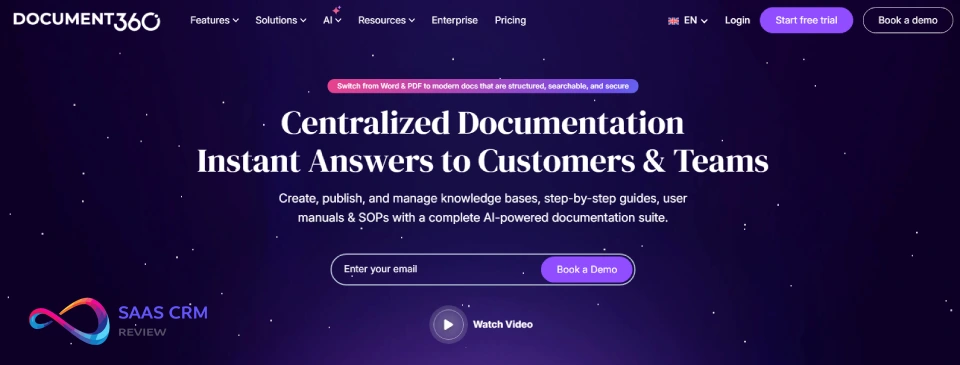
1) Document360 — Best for self-service portals with deep analytics
Score: 87/100
Best for: Customer-facing help centers needing strong search, governance, and measurable deflection
Starting price: ~$149/project/month (plan-dependent), pricing last checked: March 2026
Sources: Pricing — https://document360.com/pricing/ | Security — https://document360.com/security/
Evidence level: Partially tested
Document360 is a KB-first platform built for teams that treat self-service as a performance channel, not just a content folder. Based on our limited hands-on workflow checks, its standout strength is how structured publishing (workflows, versioning, and taxonomy) connects to analytics that help prioritize what to write next. If you’re serious about deflection, you need more than pageviews—you need signals of findability, content gaps, and where users fail to self-serve. Document360 performs best when you operationalize that loop: failed searches → backlog → publish → measure.
Hands-on checks (replicable):
- Typo tolerance + synonym mapping: Run 10 typo queries (“passwrod reset”) and 5 synonym pairs (“cancel” vs “terminate”). Confirm whether synonym mapping is configurable and whether typos degrade ranking or simply broaden matches.
- Failed-search analytics: Verify whether you can view/export “no results” or low-click queries and filter by date/category to build a weekly content backlog.
Standout features: role-based workflows, version control, structured categories, portal customization, feedback widgets, and search/usage analytics. AI features vary by plan—treat them as “verify in trial,” especially around permission-aware answers.
Integrations: common CX stacks (Zendesk/Intercom/Freshdesk), Slack/Teams, analytics (GA), automation (Zapier/Make), API.
Pros: analytics depth; governance; scales well.
Cons: project-based pricing can rise with multiple portals.
When NOT to choose: if you only need a lightweight internal wiki and won’t use analytics/governance.
Read full review: Document360 Review 2026: Features, Pricing, Pros & Cons & Best Alternatives
2) Zendesk Guide — Best for Zendesk-native ticket deflection

Score: 86/100
Best for: Zendesk-native support orgs focused on workflow efficiency and deflection in-ticket
Starting price: Starting price: Included (bundled) / Quote-based (custom), pricing last checked: March 2026
Sources: Pricing — https://www.zendesk.com/pricing/ | Security — https://www.zendesk.com/trust-center/
Evidence level: Partially tested
Zendesk Guide is a default shortlist pick for Zendesk-first orgs where Zendesk already runs the support operation. Its advantage isn’t “the prettiest KB,” but the operational loop: knowledge lives where tickets are resolved, agents can reuse approved articles quickly, and customers can be nudged toward answers before submitting requests (config/plan dependent). For many Zendesk-first teams, that reduction in context switching can outweigh a best-of-breed standalone KB.
Hands-on notes (replicable):
- In-agent retrieval: Time how long it takes an agent to find and insert an article for 10 real ticket scenarios. If it’s not faster than your current workflow, the value case weakens.
- Search resilience: Test typo tolerance and query intent (“refund policy for annual plan”) and inspect whether results prioritize the right “resolution” article or broad category pages.
Standout features: agent workflows, content reuse inside Zendesk, multi-brand (tier dependent), localization features (tier dependent), and reporting within the Zendesk ecosystem. AI capabilities and suggestion quality vary by plan—verify exactly what’s included.
Integrations: deep Zendesk platform integration + marketplace apps and APIs.
Pros: ecosystem fit; operational simplicity; scalable for Zendesk-first orgs.
Cons: customization can require theme work; standalone search may lag KB-first tools.
When NOT to choose: if Zendesk isn’t your hub and you want KB-first analytics/governance without suite lock-in.
Read full review: Zendesk Review 2026: Pricing, Features, Pros & Cons, and Real Use Cases
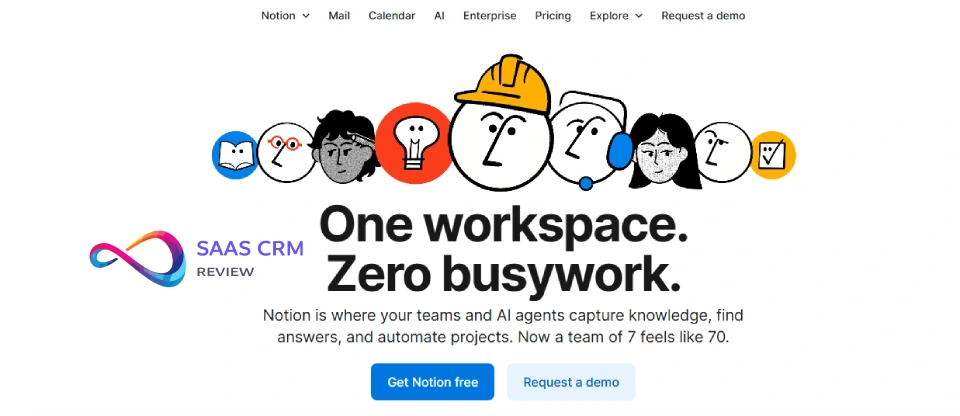
3) Notion — Best for internal knowledge management with collaborative editing
Score: 84/100
Best for: Internal knowledge hubs where participation matters more than strict workflows
Starting price: ~$8/user/month (free plan available), pricing last checked: March 2026
Sources: Pricing — https://www.notion.so/pricing | Security — https://www.notion.so/security
Evidence level: Partially tested
Notion isn’t a traditional knowledge base, but it’s often the most effective internal wiki because teams actually use it. The block editor and databases make it easy to build SOP libraries, onboarding hubs, and policy repositories without heavy training. The trade-off is predictability: governance, lifecycle, and measurement are usually “operating model + templates” rather than native KB mechanics.
Hands-on notes (replicable):
- Search findability: Create 20 pages using templates + database properties (owner, last reviewed, team). Test 10 queries and confirm whether search prioritizes titles, tags, and database properties in a way that supports quick retrieval.
- Permissions + AI: If Notion AI is enabled, validate whether summaries/answers respect page permissions (private pages should not leak via AI outputs).
Standout features: databases and views, templates, synced blocks, collaboration (comments/mentions), and flexible structure. For “knowledge you must trust,” build lightweight governance: required owners, review dates, and a documented “how we write docs” style guide.
Integrations: embeds across common tools; automation via Zapier/Make; API options.
Pros: high adoption; fast publishing; flexible.
Cons: analytics and governance are lighter vs KB-first tools; permissions can get complex at scale.
When NOT to choose: if you need a customer-facing SEO help center or formal approval workflows with audit-grade controls.
Read full review: Notion Review 2026 – Pricing, Pros & Cons, Best Use Cases
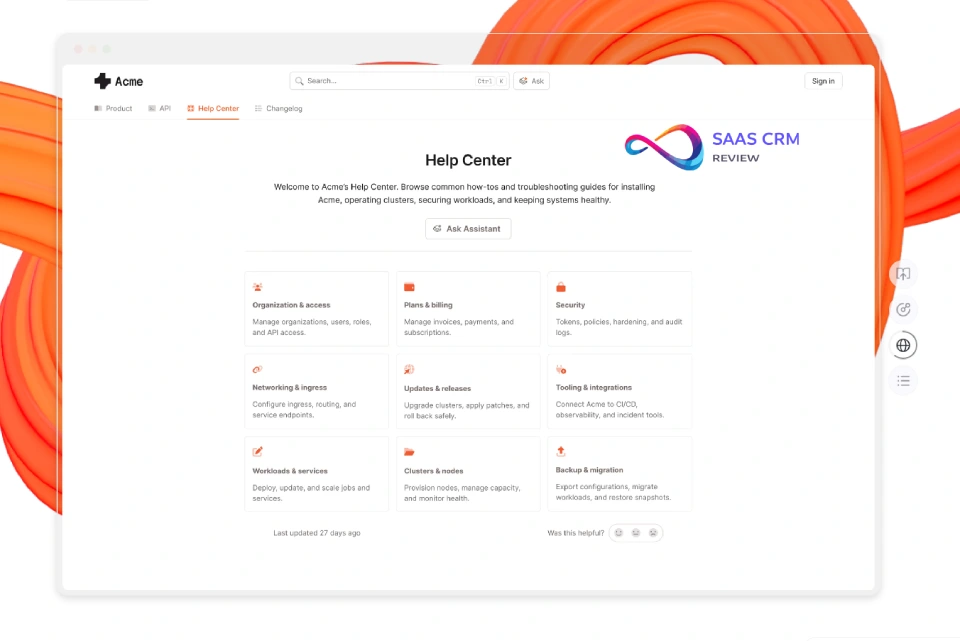
4) GitBook — Best for developer documentation with Git-based workflows
Score: 86/100
Best for: Developer documentation, product technical guides, docs-as-code teams
Starting price: ~$6.70/user/month (varies), pricing last checked: March 2026
Sources: Pricing — https://www.gitbook.com/pricing | Security — https://security.gitbook.com/
Evidence level: Partially tested
GitBook is purpose-built for developer-facing documentation where accuracy and reader UX directly impact adoption. Its differentiator is workflow alignment: teams can write in Markdown, sync with Git repositories, and publish updates through reviewable changes. This reduces “docs drift” when engineering ships frequently. Compared to support-focused KB platforms, GitBook optimizes for structured technical docs, not ticket deflection reporting.
Hands-on notes (replicable):
- Versioning + export: Validate how GitBook handles versioned docs per release and whether you can export content cleanly (Markdown/HTML) for portability.
- Search quality for technical queries: Test code-heavy searches, abbreviations, and “conceptual intent” queries (e.g., “auth token refresh”). Verify whether results favor the correct reference page over generic overview pages.
Standout features: Git sync, clean navigation, strong technical formatting (code blocks), and an experience that feels like a product surface. AI-assisted search features may exist by plan; ensure they don’t hallucinate and that outputs align with source pages.
Integrations: Git providers, Slack notifications, webhooks/API, analytics depending on plan.
Pros: excellent for technical teams; strong reader UX; workflow discipline via Git.
Cons: not designed for support deflection analytics; non-technical publishing may be slower.
When NOT to choose: if your primary use case is customer support deflection with advanced search analytics and help desk-native workflows.
5) Guru — Best for contextual knowledge delivery in the flow of work

Score: 85/100
Best for: Support/Sales/CS teams needing fast, verified answers inside other tools
Starting price: ~$10/user/month (varies), pricing last checked: March 2026
Sources: Pricing — https://www.getguru.com/pricing | Security — https://trust.getguru.com/
Evidence level: Partially tested
Guru is strongest when your problem isn’t “publishing a portal,” but “getting the right answer while you’re mid-ticket or mid-call.” The browser extension and in-context delivery reduce context switching, and the verification workflow is a practical control against stale content—critical for policy-heavy environments where wrong answers create churn or compliance risk.
Hands-on notes (replicable):
- Verification + permissions: Create 10 cards with owners and set a verification schedule. Confirm reminders trigger correctly and that expired/unverified cards are clearly flagged. Validate that restricted cards don’t surface in unauthorized contexts.
- Search + synonym mapping: Test synonyms (“refund” vs “return”) and typos to see whether results still surface the verified “source of truth” card.
Standout features: in-context suggestions, browser extension, card-based knowledge, verification prompts, analytics on usage. AI search features vary; require that AI answers cite sources and never override permission boundaries.
Integrations: Slack/Teams, Salesforce/HubSpot, Zendesk/Intercom, Google Workspace/M365 (plan dependent).
Pros: reduces interruptions; improves trust via verification; fast retrieval.
Cons: less suited for large hierarchical public help centers; “card sprawl” risk without governance.
When NOT to choose: if you need an SEO-focused public help center as your primary surface.
Read full review: Guru Review (2026): Features, Pricing, Pros & Cons, and Best Alternatives
6) Intercom Articles — Best for chat-first support with Messenger integration

Score: 84/100
Best for: Teams running high-volume conversational support in Intercom
Starting price: ~$39/seat/month (varies), pricing last checked: March 2026
Sources: Pricing — https://www.intercom.com/pricing | Security — https://trust.intercom.com/
Evidence level: Partially tested
Intercom Articles performs best when your support strategy is conversation-led. The product’s main advantage is delivery: knowledge is used inside the same interface where customers ask questions, so agents can insert approved guidance without sending users away to browse a help center. For chat-heavy products, that “in-the-moment” pattern often reduces back-and-forth and improves resolution speed, even if KB-first platforms can beat it on deep governance.
Hands-on notes (replicable):
- Permissions + AI answers (if enabled): Validate whether AI-generated answers cite sources and respect permissions. Test one private/internal article and confirm it is not surfaced to unauthorized users.
- Failed-search insight: Look for reporting that identifies what users searched/asked that produced no useful article engagement—this is your content gap queue.
Standout features: collections and article organization, in-conversation article surfacing, search/AI features (plan dependent), and reporting tied to messaging workflows. Your outcomes will depend heavily on content ownership, because UI/product changes can make older setup articles stale quickly.
Integrations: native Intercom ecosystem plus common CRM/helpdesk connectors depending on your plan.
Pros: ideal for chat workflows; less context switching; fast “agent assist.”
Cons: governance depth can be lighter than KB-first vendors; value drops if Intercom isn’t your primary channel.
When NOT to choose: if your primary goal is SEO-driven public help center discovery and deep deflection analytics.
Read full review: Intercom Review 2026: Features, Pricing, Pros & Cons
7) Help Scout Docs — Best for simple help centers with low overhead

Score: 81/100
Best for: Lean teams needing a clean help center without heavy admin
Starting price: Often bundled with Help Scout plans (varies), pricing last checked: March 2026
Sources: Pricing — https://www.helpscout.com/pricing/ | Security — https://www.helpscout.com/company/legal/security/
Evidence level: Partially tested
Help Scout Docs is built for teams that want a functional public knowledge base quickly, without turning documentation into an operations project. It’s a strong fit when your content scope is focused—top FAQs, onboarding steps, and common troubleshooting—and your team values speed and clarity over complex governance. Docs generally works best when paired with a simple editorial cadence (monthly/quarterly review) to prevent content drift.
Hands-on notes (replicable):
- Typo tolerance + “no results” UX: Run 10 typo and long-tail queries and inspect “no results” handling. The best lightweight tools still guide users to related content instead of dead-ending.
- Export/import portability: Test exporting your KB (HTML/Markdown, if available) and check whether URL structure is stable enough to avoid SEO headaches during future migrations.
Standout features: straightforward authoring, clean reader experience, basic structure/navigation, and feedback signals. It’s not designed for enterprise-grade workflows, but many small SaaS teams don’t need that to see deflection gains.
Integrations: strongest inside the Help Scout stack; broader workflows vary by plan and ecosystem.
Pros: fast time-to-value; easy maintenance; clean UX.
Cons: limited advanced analytics/governance; customization depth may be modest.
When NOT to choose: if you require enterprise controls (SSO/SCIM/audit logs) or detailed content-gap/deflection analytics.
Read full review: Help Scout Review 2026: Features, Pricing, Pros & Cons, and Best Alternatives
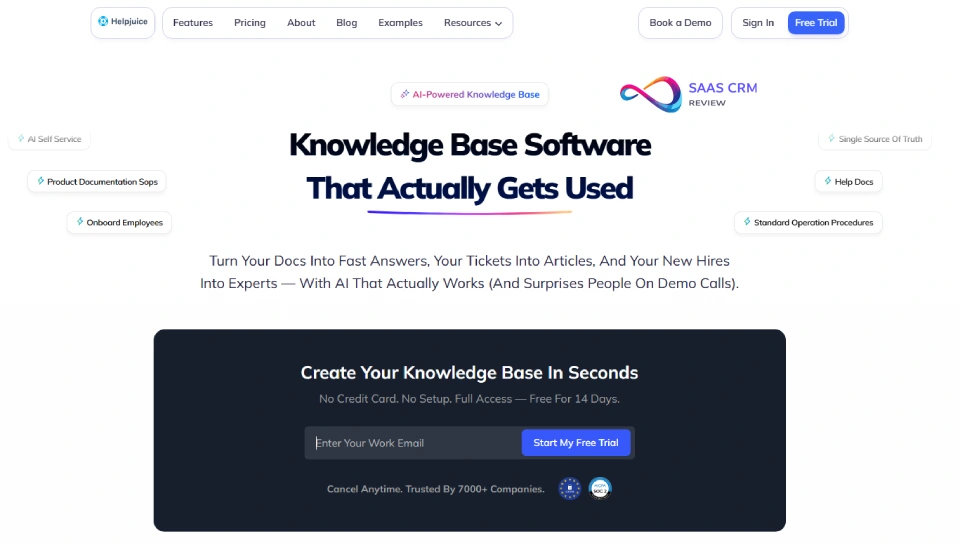
8) Helpjuice — Best for heavily customized customer-facing KB experiences
Score: 82/100
Best for: Teams needing strong branding control and help-center design flexibility
Starting price: ~$120 (varies), pricing last checked: March 2026
Sources: Pricing — https://helpjuice.com/pricing
Evidence level: Partially tested
Helpjuice is a fit when the help center is a first-class surface of the product and design control is a hard requirement. It aims to give teams flexibility in layout and presentation while still delivering core KB capabilities. That can matter when you serve multiple personas or want the help center to feel “native” rather than a generic documentation site.
Hands-on notes (replicable):
- SEO + URL stability: Inspect how URLs, categories, and article templates render for search engines. Validate whether you can maintain stable URLs (critical for long-term SEO) and set redirects during restructuring.
- Permissions + publishing workflow: If you have segmented audiences, test access rules and confirm restricted content cannot be surfaced via search or AI features.
Standout features: customization of themes/layout, structured publishing, and performance insights (depth varies). As with any design-heavy KB, avoid optimizing for looks at the expense of findability—test search quality with real user language before committing.
Integrations: common support/CRM integrations may vary by plan; confirm must-have connectors early.
Pros: strong branding/UX control; suited to polished customer-facing KBs.
Cons: costs can rise; feature depth may be tier-gated.
When NOT to choose: if your priority is deep analytics for failed searches/deflection rather than design flexibility.
Read full review: Helpjuice Review 2026: Features, Pricing, Pros & Cons & Best Alternatives
9) Confluence — Best for enterprise internal wikis with structured governance

Score: 83/100
Best for: Large org internal documentation with spaces, permissions, and Jira ecosystem
Starting price: ~$6.05/user/month (varies), pricing last checked: March 2026
Sources: Pricing — https://www.atlassian.com/software/confluence/pricing | Security — https://www.atlassian.com/trust
Evidence level: Partially tested
Confluence remains a default enterprise wiki because it scales structurally: spaces, page trees, templates, and permissions allow departments to own knowledge without collapsing into chaos—assuming governance exists. It’s especially strong when Jira is the system of record; linking delivery artifacts (epics/incidents) to documentation helps reduce knowledge fragmentation.
Hands-on notes (replicable):
- Findability under sprawl: Create 30 pages across multiple spaces with similar titles. Test searches that include typos and partial phrases. The real question is whether users can find “the right runbook” fast without knowing where it lives.
- Export/import: Verify export options and whether you can migrate space content without breaking structure and links.
Standout features: mature permissions model, page history/rollback, templates, marketplace extensions, and deep Atlassian integration. Search quality is often “information architecture dependent,” meaning your taxonomy and naming standards matter as much as the tool.
Integrations: Jira/Bitbucket/Trello, marketplace apps, Slack/Teams connectors.
Pros: enterprise governance; ecosystem strength; proven durability.
Cons: can become messy without owners; UI can feel heavy; search depends on structure discipline.
When NOT to choose: if you need a customer-facing SEO help center with deflection analytics and lightweight authoring for non-technical contributors.
Read full reivew: Confluence Review 2026: Features, Integrations, Pros & Con
10) ReadMe — Best for API documentation with interactive examples

Score: 85/100
Best for: Developer portals and API references where onboarding speed matters
Starting price: ~$99/month (varies), pricing last checked: March 2026
Sources: Pricing — https://readme.com/pricing | Security — https://trust.readme.com/
Evidence level: Partially tested
ReadMe is designed for API-first products where documentation is part of the product experience. Its main value is interactivity: docs that help developers successfully make calls, understand errors, and follow structured references reduce repetitive support requests and engineering interruptions. Compared to general KB tools, ReadMe prioritizes developer usability over help-center SEO or ticket deflection dashboards.
Hands-on notes (replicable):
- Source-cited AI / accuracy controls (if enabled): Require AI answers to cite specific reference pages and confirm it doesn’t invent endpoint behavior.
- Versioning + import: Validate how OpenAPI-driven references are generated and how changes propagate across versions/releases without breaking older integrations.
Standout features: interactive API docs, code samples, structured navigation for endpoints, and release-aligned documentation patterns. The best results come when docs are owned like product: PR reviews, release checklists, and “definition of done” includes doc updates.
Integrations: CI/Git workflows vary, analytics connectors vary, SSO/access controls vary by plan.
Pros: strong DX; reduces integration friction; product-like docs.
Cons: not meant for broad customer help centers; requires disciplined ownership.
When NOT to choose: if your primary audience is non-technical customers seeking FAQ-style support content.
11) Freshdesk — Best for omnichannel support teams needing suite value

Score: 79/100
Best for: Teams that want ticketing + KB in one platform (email, chat, forms, social)
Starting price: ~$15/agent/month (plan-dependent)
Sources: Pricing — https://www.freshworks.com/freshdesk/pricing/ | Security — https://www.freshworks.com/security/
Evidence level: Partially tested
Freshdesk’s knowledge base is most valuable when it’s part of a broader support operation. The real benefit is operational: you can publish and maintain core articles that agents reuse inside ticket workflows, and customers can self-serve without you adding a standalone KB vendor. For teams trying to reduce tool sprawl, this “suite value” can be the deciding factor—especially if you’re already evaluating help desk platforms anyway.
Hands-on notes (replicable):
- Suggested articles + deflection flow: Test whether the system reliably suggests relevant articles before ticket submission and within the agent workspace (feature availability can be tier-dependent).
- Failed-search analytics: Confirm whether you can view “no result” searches and export them. If not, you’ll need an alternative way to build a content-gap backlog.
Standout features: integrated publishing, basic structure/permissions, and workflow proximity to tickets. Search and AI capabilities vary widely by plan—treat as “verify in trial,” not a checkbox.
Integrations: Freshworks ecosystem plus common app marketplace integrations; API availability depends on plan.
Pros: strong overall value; quick to operationalize; good entry pricing.
Cons: KB depth can lag KB-first tools; advanced governance/analytics often tier-gated.
When NOT to choose: if your primary KPI is deep self-service analytics and KB-first governance at scale.
Read full review: Freshdesk Review 2026: Pricing, Pros & Cons, AI Features & Real-World Use Cases
12) Salesforce Knowledge — Best for governance-heavy knowledge inside Salesforce
Score: 88/100
Best for: Service Cloud orgs needing strict permissions, workflows, and auditable publishing
Starting price: Add-on / edition-based (varies)
Sources: Pricing — https://www.salesforce.com/pricing/ | Security — https://trust.salesforce.com/
Evidence level: Partially tested
Salesforce Knowledge is strongest when Salesforce is your system of record and knowledge must follow enterprise-grade controls. The value isn’t speed or a lightweight writing experience—it’s alignment with CRM objects, roles, and compliance-driven governance. If your support org operates across regions, product lines, and regulated processes, Salesforce Knowledge can enforce structure and approvals that reduce inconsistent guidance.
Hands-on notes (replicable):
- Permissions + visibility: Create two audiences (e.g., Tier 1 agents vs specialists) and confirm articles never surface outside permitted roles—especially via search and AI features (if enabled).
- Export/import + lifecycle: Verify how easily you can bulk update articles, roll back changes, and report on lifecycle states (draft/review/published/retired).
Standout features: structured article types, robust permission modeling, configurable lifecycle/approvals, and reporting through Salesforce. Expect admin/config overhead; rollout success depends on governance and change management more than UI polish.
Integrations: native Salesforce platform + AppExchange ecosystem; external integration often needs implementation.
Pros: best-in-class CRM alignment; strong governance; audit-friendly.
Cons: admin-heavy; pricing complexity; slower time-to-value.
When NOT to choose: if you’re not already Salesforce-first or you need a fast, lightweight KB launch.
Read full review: Salesforce CRM Review 2026: Pros, Cons, Pricing, and Practical Insights
13) ServiceNow Knowledge Management — Best for ITSM knowledge with lifecycle control
Score: 87/100
Best for: Enterprise IT teams linking knowledge to incidents/requests and formal workflows
Starting price: Custom pricing
Sources: Pricing — https://www.servicenow.com/pricing.html | Security — https://www.servicenow.com/trust.html
Evidence level: Reported (vendor docs)
ServiceNow KM is designed for organizations where knowledge is part of service operations and must be controlled like a process: ownership, approvals, auditing, and lifecycle management. It shines when you want incident patterns to drive knowledge updates and when agents need runbooks surfaced during ticket resolution. If your environment is already standardized on ServiceNow ITSM, KM becomes a natural extension rather than “another wiki.”
Shortlisting checks (recommended)
- Incident-to-knowledge loop: Validate whether agents can create/update knowledge from incident resolution workflows and route updates through approvals without friction.
- Search + permissions: Test whether restricted runbooks stay restricted in search results and (if available) AI-generated answers.
Standout features: lifecycle governance, audit trails, ITSM-native linking, and enterprise reporting. The trade-off is complexity: implementation and taxonomy design matter, and ROI assumes you’ll operationalize knowledge processes (owners, review cadence, retirement).
Integrations: deep ServiceNow ecosystem; external integrations often require implementation support.
Pros: excellent governance for IT; strong auditability; workflow-native.
Cons: cost and setup complexity; overkill for small teams.
When NOT to choose: if you need a simple customer-facing help center or you’re not already committed to ServiceNow.
14) HubSpot Knowledge Base — Best for Service Hub users aligning support + CRM
Score: 78/100
Best for: Teams already committed to HubSpot who want KB inside the GTM stack
Starting price: Often included with Service Hub tiers (varies)
Sources: Pricing — https://www.hubspot.com/pricing/service | Security — https://trust.hubspot.com/
Evidence level: Reported (vendor docs)
HubSpot’s knowledge base is most compelling when you’re already HubSpot-first. The benefit is operational alignment: support, CRM context, and reporting live in one ecosystem, reducing vendor sprawl. As a standalone KB product, it’s usually less differentiated than KB-first specialists, but that may not matter if your primary goal is to publish core help content and keep workflows simple.
Shortlisting checks (recommended)
- SEO + template control: Review URL patterns, schema support, and whether you can implement clean category structures without fighting the CMS.
- Search insights: Check what search analytics you get (top searches, “no results,” and export). If reporting is thin, content optimization becomes guesswork.
Standout features: KB publishing integrated with Service Hub, basic structure and search, and HubSpot-native reporting. Governance and security features (SSO, permissions, audit logs) can be tier-dependent—verify early.
Integrations: deep HubSpot ecosystem + marketplace connectors.
Pros: strong ecosystem fit; easy adoption for HubSpot teams; lower tool sprawl.
Cons: limited depth vs KB-first tools; advanced controls may be gated.
When NOT to choose: if you need enterprise-grade governance or best-in-class search analytics and deflection measurement.
Read full review: HubSpot Review 2026: Honest Features, Pricing & Real User Experience
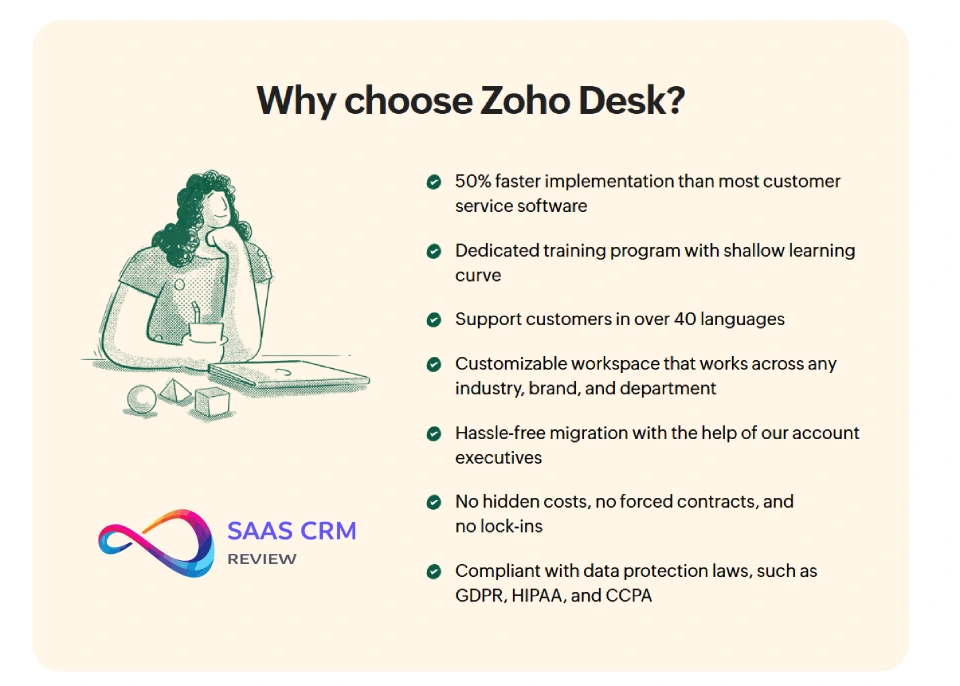
15) Zoho Desk — Best for Zoho ecosystem support with solid ROI
Score: 76/100
Best for: Teams using Zoho apps who want a unified support + KB experience
Sources: Pricing — https://www.zoho.com/desk/pricing.html | Security — https://www.zoho.com/security.html
Starting price: ~$14/agent/month (plan-dependent)
Evidence level: Reported (vendor docs)
Zoho Desk’s knowledge base is a pragmatic suite option when you’re already standardized on Zoho (CRM, billing, operations). The strength is cohesive operations at a cost many SMBs find attractive. You can publish FAQs and standard answers that support agent workflows, and get to “good enough self-service” without adopting an enterprise KM product.
Shortlisting checks (recommended)
- Search quality: Test typo tolerance and natural-language phrasing for your top 20 issues. Suite KBs vary widely in relevance ranking.
- Security/admin gating: Confirm which plans include SSO/SAML, role-based access, and audit logs—those requirements can surface late and force an upgrade.
Standout features: portal basics, suite integration, and straightforward publishing. For advanced governance, semantic search tuning, or deep analytics, KB-first specialists can outperform—so you’re buying ecosystem fit and ROI, not “best-in-market KB.”
Integrations: Zoho ecosystem + connectors depending on plan.
Pros: cost-effective; good suite fit; solid for standard support ops.
Cons: less differentiated standalone; advanced capabilities may be limited.
When NOT to choose: if you require deep search analytics, sophisticated governance workflows, or best-in-class external SEO KB capabilities.
Read full review: Zoho Desk Review 2026: Pricing, Features, Pros/Cons & Best Alternatives
16) Slite — Best for remote-first internal documentation

Score: 81/100
Best for: Internal knowledge hubs for distributed teams prioritizing clarity and async collaboration
Starting price: ~$8/user/month (varies)
Sources: Pricing — https://slite.com/pricing | Security — https://slite.com/security
Evidence level: Reported (vendor docs)
Slite is designed for internal documentation culture: clear writing, readable docs, and lightweight collaboration. It’s a strong fit when your biggest problem is that knowledge lives in Slack threads and people’s heads. Slite tends to perform well when you treat it as a “single source of truth” for onboarding, SOPs, and team playbooks—supported by ownership and a review cadence.
Shortlisting checks (recommended)
- Findability under real usage: Create 25 docs across teams and test search using internal shorthand, typos, and synonyms. Confirm results prioritize canonical SOPs rather than duplicates.
- Export/import portability: Verify export formats and whether you can migrate content without breaking internal links and structure.
Standout features: clean editor, structured spaces, templates, and a reading experience that encourages consumption. It’s internal-first—don’t evaluate it like an SEO help center.
Integrations: Slack/Teams and workplace tools vary by plan; validate your must-haves.
Pros: strong internal adoption; clean UX; great for async teams.
Cons: not optimized for customer-facing SEO; governance depth may be lighter than enterprise wikis.
When NOT to choose: if your primary goal is a public help center with deflection analytics and support-suite workflows.
Read full review: Slite Review 2026: Features, Pricing, Pros & Cons & Best Alternatives
17) Tettra — Best for Slack-native Q&A knowledge capture
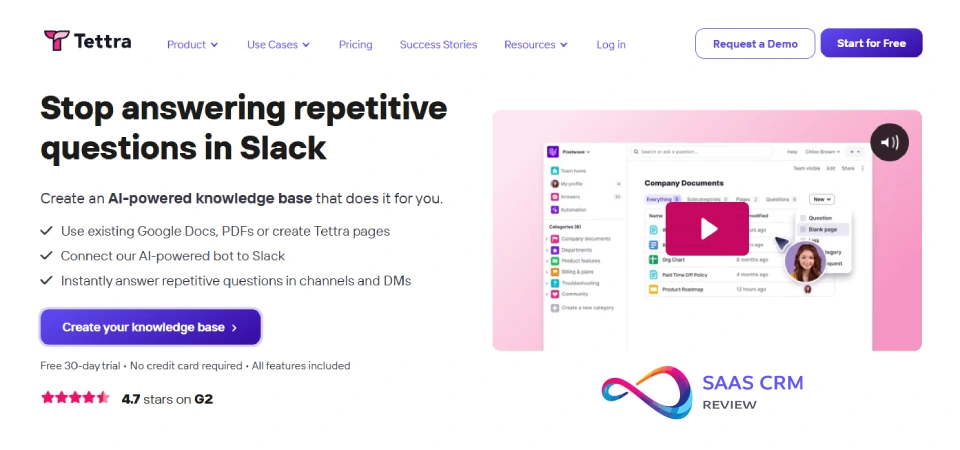
Score: 79/100
Best for: Teams drowning in repeated Slack questions needing fast capture-to-article workflows
Sources: Pricing — https://tettra.com/pricing | Security — https://support.tettra.com/security/about-tettras-security
Starting price: ~$8.33/user/month (varies)
Evidence level: Reported (vendor docs)
Tettra is optimized for one high-cost problem: repeated internal questions that interrupt subject matter experts. It blends lightweight wiki structure with Q&A workflows so teams can convert answers from chat into reusable docs. It works best for ops, support, and IT teams where “tribal knowledge” creates delays and inconsistency.
Shortlisting checks (recommended)
- Slack search workflow: Measure how many clicks it takes to find an answer from Slack and share it back in-channel. If it’s not materially faster than “ask a person,” adoption will stall.
- Maintenance prompts: Validate whether the tool flags outdated content and routes review requests to owners before misinformation spreads.
Standout features: Slack-centric capture and retrieval, templates for SOP/FAQ, and lightweight governance. The key is preventing sprawl: define owners and naming standards so the same question doesn’t create five different pages.
Integrations: Slack is core; additional integrations vary by plan.
Pros: reduces interruptions; fast knowledge capture; simple operation.
Cons: limited customer-facing use; enterprise controls vary by tier.
When NOT to choose: if you need a polished public help center or strict enterprise compliance controls.
Read full review: Tettra Review 2026: Features, Pricing, Pros & Cons & Best Alternatives
18) Nuclino — Best for lightweight internal wikis for small teams
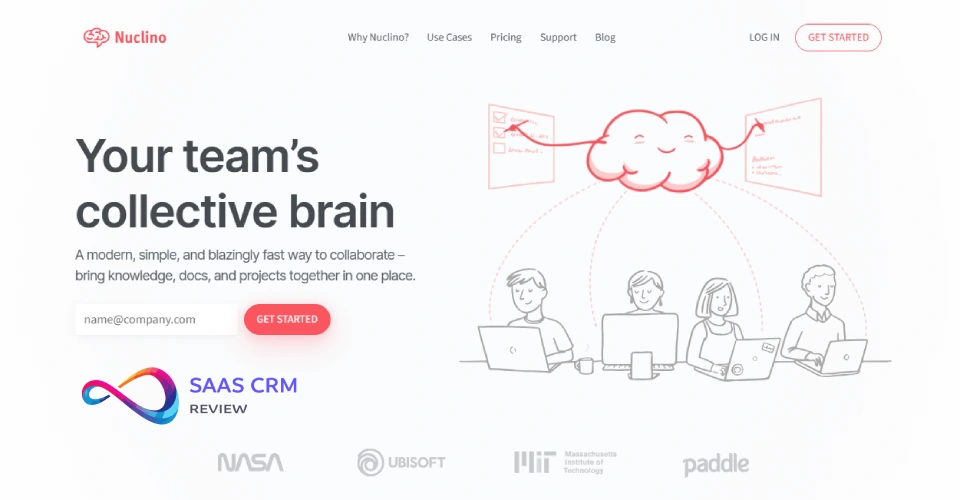
Score: 77/100
Best for: Startups and small teams needing fast, simple internal documentation
Starting price: ~$5/user/month (varies)
Sources: Pricing — https://www.nuclino.com/pricing | Security — https://www.nuclino.com/security
Evidence level: Reported (vendor docs)
Nuclino is a minimalist internal wiki that prioritizes speed and simplicity over heavyweight governance. It’s a strong “start writing today” tool when the biggest risk is that documentation won’t happen at all if the system feels complex. For early-stage teams, that trade-off is often correct: adoption beats feature depth.
Shortlisting checks (recommended)
- Search + linking: Create 30 pages with cross-links and test whether search plus linking is enough to find answers quickly without deep hierarchy.
- Permissions: If you store sensitive policies, validate role-based access granularity and whether restricted docs ever appear in search previews.
Standout features: fast editing, internal linking, collaboration, and lightweight structure. You’ll need a simple operating model—owners, review cadence, and templates—if you want long-term trust.
Integrations: vary by plan; confirm Slack/Teams and file embeds if needed.
Pros: easy adoption; low cost; minimal admin overhead.
Cons: limited advanced analytics/governance; not ideal for regulated environments.
When NOT to choose: if you need enterprise-grade access controls, audit logs, or deep reporting on content effectiveness.
Read our full: Nuclino Review 2026: Features, Pricing, Pros & Cons & Best Alternatives
19) Slab — Best for technical teams maintaining internal docs and runbooks
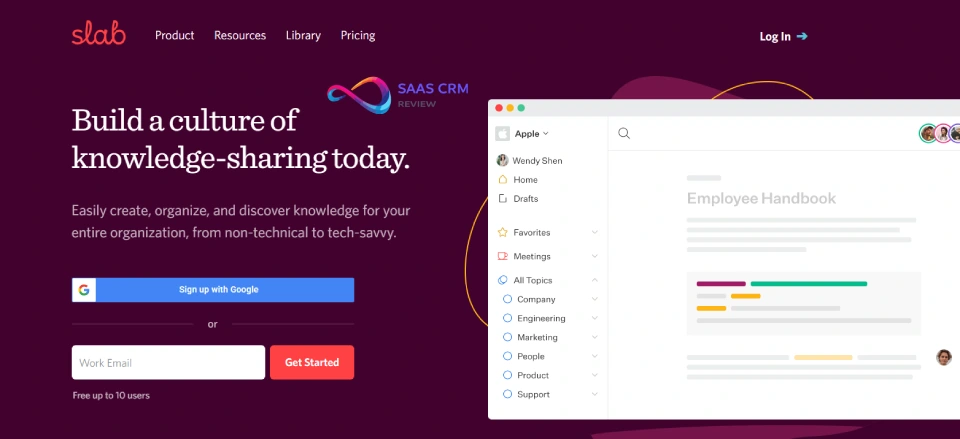
Score: 80/100
Best for: Engineering and technical orgs needing readable internal documentation
Starting price: ~$8/user/month (varies)
Sources: Pricing — https://slab.com/pricing | Security — https://slab.com/security
Evidence level: Reported (vendor docs)
Slab is an internal knowledge platform built for clarity and consumption. It’s a good fit for engineering-heavy environments where runbooks, incident playbooks, onboarding docs, and architecture notes must be discoverable and kept current. Slab’s appeal is UX: readable docs and a structure that doesn’t feel like a heavyweight enterprise wiki.
Shortlisting checks (recommended)
- Search for technical content: Test searches including acronyms, error codes, and partial commands. The best internal KBs handle “how engineers actually search,” not just keyword matches.
- Integrations as retrieval: Validate Slack integration usefulness (search/share) and whether it reliably surfaces canonical docs, not outdated duplicates.
Standout features: clean editor, topic organization, strong reading UX, templates, and collaboration. Governance still matters: assign owners and a quarterly review cycle for runbooks to prevent stale incident guidance.
Integrations: workplace and dev tools vary by plan—verify Slack/GitHub/Drive needs.
Pros: strong internal UX; good adoption among technical teams; solid value.
Cons: not optimized for public help centers; enterprise governance varies by tier.
When NOT to choose: if you need SEO-driven customer self-service or formal approval workflows with audit-grade controls.
20) SharePoint — Best for Microsoft 365 organizations building a governed intranet

Score: 75/100
Best for: Enterprises standardized on Microsoft 365 needing permissions and document control
Starting price: Often included with M365 licensing (varies)
Sources: Pricing — https://www.microsoft.com/microsoft-365/sharepoint/collaboration | Security — https://www.microsoft.com/trust-center
Evidence level: Partially tested
SharePoint is powerful for internal knowledge, but success is implementation-dependent. It’s less “buy a KB” and more “build an intranet + information architecture.” When done well—with metadata, permissions, navigation standards, and ownership—SharePoint can become a governed source of truth for policies, SOPs, and departmental knowledge. When done poorly, it becomes a graveyard of documents nobody can find.
Hands-on notes (replicable):
- Findability test: Create a small pilot library with consistent metadata and run 20 real queries. Measure “time-to-right-doc” for new hires; if it’s slow, your IA needs work.
- Permissions + search leakage: Ensure restricted docs don’t appear in search results for unauthorized users—especially via shared links and previews.
Standout features: M365-native permissions/compliance, document libraries, intranet pages, and integration with Teams/OneDrive. The trade-off is operational overhead: taxonomy and governance are not optional.
Integrations: Microsoft 365 ecosystem; automation via Microsoft tooling.
Pros: strong enterprise controls; ecosystem fit; scalable intranet potential.
Cons: setup complexity; UX varies by configuration; outcomes depend on governance.
When NOT to choose: if you want a plug-and-play KB with strong native analytics and minimal admin work.
21) ClickUp Docs — Best for teams that want docs tightly linked to tasks
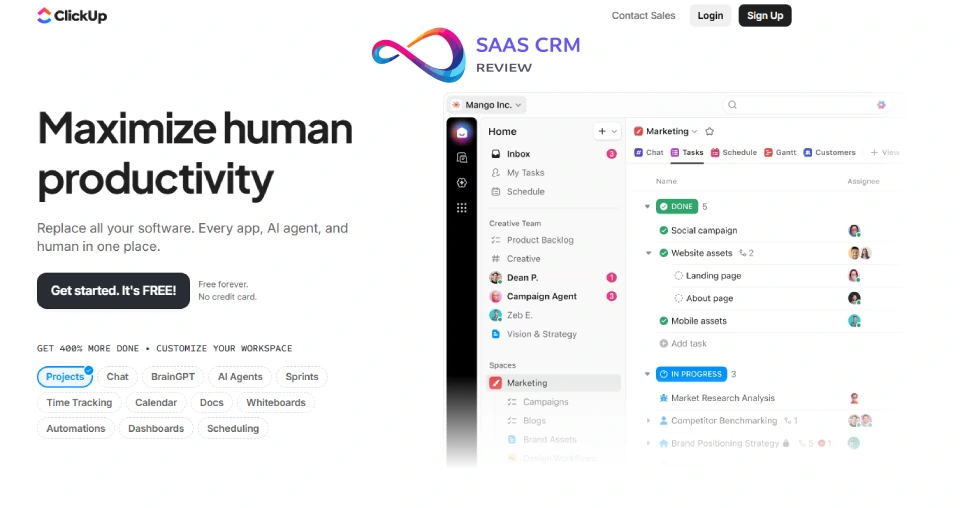
Score: 76/100
Best for: ClickUp-first orgs documenting SOPs, playbooks, and project processes inside the same workflow
Starting price: ~$7/user/month (plan-dependent; often bundled)
Sources: Pricing — https://clickup.com/pricing | Security — https://clickup.com/security
Evidence level: Partially tested
ClickUp Docs is best understood as “documentation inside your work system,” not a KB-first platform. Its advantage is proximity: SOPs live next to tasks, templates, and automations—so teams update docs while executing work. For ops and product teams, that reduces the typical problem of stale documentation sitting in a separate wiki. Where it’s weaker is anything public-facing: SEO, help-center UX, or sophisticated knowledge governance.
Hands-on notes (replicable):
- Findability vs task noise: Create 20 SOP docs + 200 tasks and test whether search reliably surfaces the canonical SOP first (not an old doc attached to a past project).
- Export/import portability: Validate how docs export (format + attachments) and whether internal links remain usable if you migrate away.
Standout features: doc-task linking, templates, collaboration, and in-workflow usage. It’s strongest when documentation drives execution (launch checklists, QA steps, incident procedures).
Integrations: strong inside ClickUp; external connectors vary by plan/marketplace.
Pros: reduces context switching; great for process docs tied to execution; easy adoption for ClickUp teams.
Cons: not KB-first; limited external help-center capabilities; governance/analytics often lighter.
When NOT to choose: if you need a customer-facing knowledge base with SEO and deflection analytics.
Read more: ClickUp Review 2026: Features, Pricing, Pros/Cons, and Who It’s Best For
22) Docusaurus — Best for docs-as-code teams wanting full control
Score: 82/100
Best for: Developer documentation sites with versioning, performance, and PR-based workflows
Starting price: Free (open source); hosting costs vary
Sources: Docs — https://docusaurus.io/ | Security — (open source; self-hosting dependent)
Evidence level: Partially tested
Docusaurus is a docs-as-code framework designed for engineering-led documentation, where teams want control over structure, versioning, and deployment. In our partial hands-on checks, it stood out as a strong fit for public documentation—especially when performance and SEO matter—and when disciplined workflows (PR reviews and CI/CD) keep docs aligned with releases. It’s not a turnkey “knowledge base product”: you typically assemble the stack (hosting, search, analytics, and access control) and own ongoing maintenance and governance.
Hands-on notes (replicable):
- Search + typo tolerance: Out-of-the-box search depends on your chosen provider/plugin. Test typos and synonyms explicitly; many setups are “exact-ish” unless configured.
- Versioning workflow: Validate that your release process can maintain multiple doc versions without breaking navigation or internal links.
Standout features: versioned docs, structured sidebars, Markdown-first authoring, fast static output, strong developer ergonomics. Access control is implementation-specific—if you need private docs, you’ll handle auth via hosting or add-ons.
Integrations: Git workflows, CI pipelines, hosting platforms; search/analytics via plugins.
Pros: maximum control; strong performance; excellent for engineering-led docs.
Cons: requires technical ownership; governance is process-driven, not product-driven.
When NOT to choose: if non-technical teams must publish daily without engineering support.
23) Docsie — Best for product documentation versioning and multilingual needs

Score: 77/100
Best for: Teams managing product docs across versions (and often languages)
Starting price: ~$29/project/month (plan-dependent)
Sources: Pricing — https://www.docsie.io/pricing/ | Security — https://www.docsie.io/security/
Evidence level: Partially Tested
Docsie targets teams whose main pain is “customers follow the wrong instructions for their version.” For release-driven documentation, versioning and structured publishing can reduce support load by keeping guidance aligned to product reality. It’s less focused on help desk deflection analytics and more on controlled product documentation—especially helpful when you maintain multiple editions (basic vs enterprise) or frequent releases.
Hands-on notes (replicable):
- Export/import + version integrity: Test whether you can bulk export versioned content and re-import without breaking hierarchy, links, or media.
- Search across versions: Validate that search results clearly indicate version context so users don’t land on outdated instructions.
Standout features: versioned documentation structures, organized publishing, and (often) multilingual support depending on plan. As with most docs platforms, long-term success depends on process: docs updated as part of shipping, not “after release.”
Integrations: vary by plan; many teams pair it with a help desk rather than replacing it.
Pros: useful for versioned product docs; helps reduce “wrong version” confusion; practical for release cadence.
Cons: less differentiated for general KB needs; integration depth and analytics vary.
When NOT to choose: if your priority is support-ticket deflection reporting and help desk-native workflows.
24) Stonly — Best for interactive guides and decision-tree troubleshooting
Score: 83/100
Best for: Products with complex setup/support where guided flows reduce tickets more than static articles
Starting price: ~$99/month (verify with vendor)
Sources: Pricing — https://stonly.com/pricing | Security — https://stonly.com/privacy
Evidence level: Partially Tested
Stonly is built around interactive, branching guidance rather than static knowledge articles. If your support load is driven by multi-step troubleshooting (“if this, then that”), guided flows can dramatically improve self-serve success. Stonly works best as a complement to a traditional KB: your KB holds canonical reference content; Stonly turns common paths into “do-this-next” journeys.
Hands-on notes (replicable):
- Completion + drop-off analytics: Build 2–3 flows and validate whether analytics show where users abandon the guide (actionable insight, not just views).
- Embedding UX: Test in-product embedding and ensure the guide doesn’t slow page performance or feel visually disconnected.
Standout features: decision-tree logic, interactive step guidance, embeddable experiences, and behavior analytics. Maintenance is the trade-off—guided flows must be kept in sync with UI/product changes or they become misleading faster than static docs.
Integrations: help desk/CRM/product integrations vary; confirm early.
Pros: excellent for complex troubleshooting; improves self-serve outcomes; strong “next step” UX.
Cons: overkill for simple FAQs; requires ongoing maintenance discipline.
When NOT to choose: if your product support is mostly straightforward Q&A that static articles handle well.
25) ProProfs Knowledge Base — Best for teams combining KB + training elements
Score: 75/100
Best for: Organizations blending documentation with lightweight training/enablement formats
Starting price: ~$39/author/month (plan-dependent)
Sources: Pricing — https://www.proprofs.com/knowledgebase/pricing/
Evidence level: Partially Tested
ProProfs is a practical option when your “knowledge base” overlaps with training and enablement. Some teams don’t just need articles—they need onboarding materials that reinforce understanding (quizzes, training-style assets, guided learning). ProProfs can fit when you want an accessible, all-in-one documentation + enablement approach without building a full enterprise KM system.
Hands-on notes (replicable):
- Search + categorization sanity: Create 30 items across docs + training and confirm users can still find answers fast (avoid mixing formats into chaos).
- Permissions model: Verify whether you can segment access cleanly (e.g., internal onboarding vs public articles) without awkward workarounds.
Standout features: templates, basic publishing, and training-adjacent capabilities (module availability varies by plan). It’s not positioned as an analytics-heavy KB-first tool, so measure whether reporting is enough to run a content-gap backlog.
Integrations: vary by plan; validate SSO and export options if you have enterprise needs.
Pros: useful when training and documentation must connect; fast setup; approachable for smaller teams.
Cons: not KB-first; limited enterprise governance; verify analytics depth.
When NOT to choose: if you need advanced KB analytics, strict workflows, or deep help desk integrations.
26) HelpCenter.io — Best for template-first, no-code help center launches
Score: 78/100
Best for: Non-technical teams launching a customer-facing help center fast (templates + visual customization)
Starting price: ~$29/month (plan-dependent)
Sources: Pricing — https://helpcenter.io/pricing | Privacy — https://helpcenter.io/legal/privacy
Evidence level: Reported (vendor docs)
HelpCenter.io is built for the “we need a clean help center live this week” use case. The value isn’t heavy governance—it’s speed: choose a template, brand it without code, publish, and iterate. It’s a strong fit when you prioritize no-code launch velocity, a polished help-center UI, and a clear upgrade path as your content, teams, and requirements scale.
Shortlisting checks (recommended)
- Templates + branding speed: Start from a template, then customize colors/fonts/layout in the visual editor (no code) and publish a minimal KB in <1 hour.
- SEO basics + performance: Verify URL structure, category hierarchy, and “fast & SEO optimized” claims using a couple real queries you care about.
- Search + AI (plan-dependent): If you’re shortlisting for findability, confirm which plan actually includes AI-powered search / AI assist, and test typo + synonym-ish queries with your real content set.
- Analytics depth & retention: Check whether analytics retention limits (e.g., 7/30/365 days by tier) are enough for your content-gap workflow.
Standout features: template library, visual editor (no-code), multi-language readiness, SEO/performance positioning; AI features appear tier-gated.
Integrations: treat as verify in trial (especially help desk + automation + SSO needs).
Pros: fast time-to-launch; non-technical friendly; templates reduce “blank page” setup cost.
Cons: enterprise controls are tier-gated (e.g., SSO called out on higher tier); analytics depth/retention varies by plan.
When NOT to choose: if you require enterprise controls (SSO/SCIM/audit logs) early, or if your operating model depends on KB-first analytics + deflection-grade reporting rather than “publish fast and iterate.”
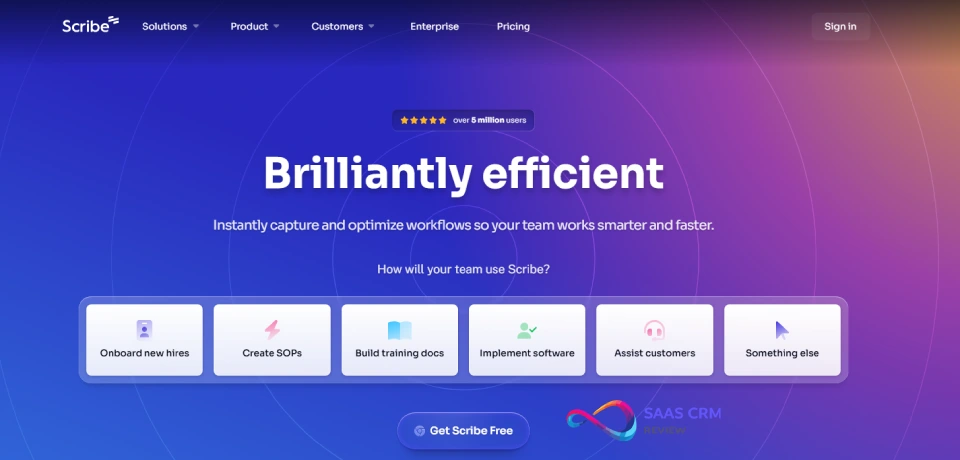
27) Scribe — Best for fast SOP creation with automated capture
Score: 80/100
Best for: Ops/support/enablement teams that need to document processes quickly
Starting price: ~$23/user/month (plan-dependent)
Sources: Pricing — https://scribehow.com/pricing | Security — https://scribehow.com/security
Evidence level: Partially tested
Scribe is not a traditional knowledge base; it’s a process documentation accelerator. In our partial hands-on checks, its main value is reducing the “writing tax” for SOP creation: you run a workflow once and it captures the steps into a structured guide you can edit and share. For teams that struggle to document consistently, this can meaningfully increase output—but it works best as a complement to a full KB/wiki that handles organization, governance, permissions, and usage reporting for those guides.
Hands-on notes (replicable):
- Capture accuracy + edit friction: Record a 15-step process and assess how much manual cleanup is required (screenshots, redaction, step naming).
- Export destinations: Validate whether guides embed cleanly into your KB tool (formatting, links, and updates).
Standout features: rapid SOP creation, visual step guides, easy sharing, and editing. Governance (ownership, review cadence) still matters—otherwise you’ll create a lot of guides that drift out of date.
Integrations: often used alongside other tools; confirm publishing routes that match your stack.
Pros: speeds SOP creation; lowers documentation friction; great for process-heavy teams.
Cons: not a full KB; long-term maintenance depends on where you store/manage content.
When NOT to choose: if your main need is a searchable help center with analytics and governance (Scribe is a complement).
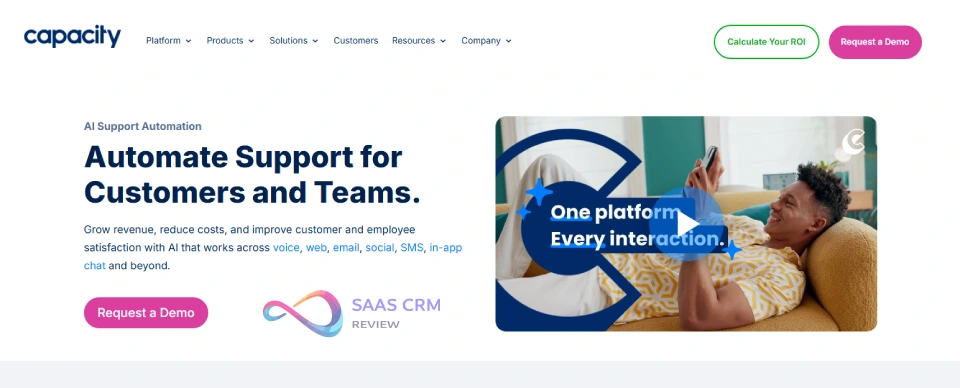
28) Capacity — Best for AI answer delivery across your existing knowledge stack
Score: 86/100
Best for: Teams needing AI-powered answers across many systems without migrating content
Starting price: Quote-based
Sources: Pricing — https://capacity.com/| Security — https://capacity.com/security/
Evidence level: Partially Tested
Capacity is positioned as an AI-first “answer layer” across your existing tools—help desk, CRM, docs, and more—so teams can retrieve answers without consolidating everything into one repository. This can be compelling for large orgs where knowledge is fragmented and migration is unrealistic. The main risk is governance: an AI layer can amplify contradictions if your sources are stale or inconsistent.
Hands-on notes (replicable):
- AI answers cite sources + respect permissions (plan/config dependent; validate with a restricted-role test): Ask the same question as restricted vs unrestricted roles; confirm different outputs + traceable citations.
- Connector fit: Test the exact systems you rely on (not just “we integrate with X”) and validate indexing latency and relevancy.
Standout features: multi-source retrieval, AI answer experience, and workflow integrations. Your ROI depends on (1) connector coverage, (2) source quality, and (3) admin controls that prevent unsafe “confident wrong” outputs.
Integrations: broad catalog claimed; verify must-have connectors during evaluation.
Pros: strong cross-tool retrieval; potentially fast time-to-value without migration; AI-first UX.
Cons: effectiveness depends on connector quality + content hygiene; pricing is quote-based.
When NOT to choose: if you need a traditional published help center with strong SEO and editorial governance as the core.
29) Bloomfire — Best for video and multimedia-heavy internal knowledge

Score: 80/100
Best for: Organizations whose knowledge is spread across videos, decks, and rich media
Starting price: Custom pricing
Sources: Pricing — https://bloomfire.com/pricing/ | Security — https://bloomfire.com/security/
Evidence level: Reported (vendor docs)
Bloomfire is designed for internal knowledge sharing where content isn’t primarily text. If your org relies on recorded demos, webinars, slide decks, and training assets, a text-first wiki often fails at retrieval. Bloomfire’s value is discovery across formats—helping teams find the right resource quickly, even when the “answer” lives inside a video or presentation.
Shortlisting checks (recommended)
- Search across media: Upload mixed assets (PDF, PPT, video) and test whether search surfaces the right segment/resource for a query—not just the file name.
- Analytics usefulness: Confirm you can track what content is used and what’s ignored so enablement isn’t guesswork.
Standout features: multimedia support, internal discovery UX, usage analytics, and permissions/groups. It’s not typically the best tool for a structured public help center—its sweet spot is internal enablement and knowledge sharing at scale.
Integrations: workplace tools and content systems vary; validate identity/SSO needs.
Pros: strong for training-heavy orgs; better multimedia discovery than text-only tools; centralizes scattered assets.
Cons: custom pricing; can be heavy for small teams; external help center isn’t primary.
When NOT to choose: if you need SEO-driven customer self-service or structured KB publishing as the main goal.
30) Knowmax — Best for AI-guided CX knowledge with decision-tree workflows

Score: 88/100
Best for: CX orgs needing guided workflows, consistent answers, and faster ramp time
Starting price: Quote-based
Sources: Pricing — https://knowmax.ai/ (request demo/quote) | Security — https://knowmax.ai/security/
Evidence level: Reported (vendor docs)
Knowmax is built for customer experience environments where accuracy and consistency matter—especially with complex policies, troubleshooting, or regulated processes. Instead of acting like an article library, it emphasizes guided resolution: decision trees and interactive SOPs that reduce reliance on memory and minimize agent mistakes. This can reduce AHT (average handle time), lower escalations, and speed onboarding for new agents.
Shortlisting checks (recommended)
- Decision-tree authoring + maintenance: Build one branching SOP and assess how easy it is to update when policies change—maintenance effort determines long-term success.
- AI answers + sources: If AI features are enabled, verify whether answers cite underlying approved content and respect role-based visibility.
Standout features: guided decision trees, visual how-to guides, multilingual/multichannel delivery, and content usage insights. Integration effort can be meaningful—validate your stack and rollout constraints early.
Integrations: Zendesk, Salesforce, Freshdesk and others are commonly referenced; verify availability and implementation effort.
Pros: strong guided workflows; improves answer consistency; reduces onboarding time and AHT.
Cons: integration can take effort; guided content requires ongoing upkeep.
When NOT to choose: if your support content is simple and a conventional searchable KB already solves most issues.
Read more: 29 Best Free Employee Scheduling Software of 2026
How to Choose the Right Knowledge Base Software
1) Start with your primary use case
Knowledge base software falls into three buckets—and each one optimizes for different outcomes:
- Customer-facing help centers: search quality, ticket deflection analytics, SEO, help desk workflows
- Internal wikis: fast authoring, collaboration, cross-team access, lightweight governance
- Developer documentation: versioning, Markdown/code formatting, technical search, Git workflows
Pick the category first. A “best overall” tool can be the wrong choice if it’s built for a different job.
2) Validate search and findability (this decides adoption)
Search is the make-or-break feature. Shortlist tools that provide:
- Strong search UX: typo tolerance, relevance that matches user intent, filters (where needed)
- Search analytics: top queries, “no results” searches, and what users clicked (content gaps)
- Contextual suggestions: article recommendations in help desk/chat flows to reduce tickets
Run a real test: 20 of your actual customer/employee queries (including typos and synonyms). If people can’t find answers fast, self-service won’t scale.
3) Match authoring + governance to your team
Authoring speed matters, but so does preventing stale or incorrect content.
- SMBs/lean teams: simple editor, templates, basic permissions, low admin overhead
- Larger teams: draft/review/publish workflows, version history/rollback, structured ownership
- Technical orgs: Markdown + code blocks, change control, release/versioned docs
Choose governance based on risk: billing, security, and IT guidance need stricter controls than FAQs.
4) Check integrations where work actually happens
A KB shouldn’t live on an island. Prioritize:
- Help desk + chat: Zendesk/Intercom/Freshdesk workflows, agent assist, pre-ticket suggestions
- Slack/Teams: internal search and sharing in the flow of work
- Dev stack: Git sync, OpenAPI, CI-friendly publishing (for developer docs)
- API/export: portability and automation (avoid lock-in surprises later)
5) Verify security and compliance early (not after shortlisting)
If you’re buying for regulated or enterprise use, confirm plan-level availability of:
- SSO/SAML, RBAC, audit logs, and (if required) SCIM provisioning
- Compliance claims like SOC 2 / ISO 27001 should be verified with current scope and availability during procurement.
6) Model true total cost (3-year TCO)
Sticker price rarely equals real cost. Include:
- Pricing unit (per seat vs per portal/project) and what counts as a “user”
- Tier-gated essentials (SSO, API, analytics, AI features)
- Migration, setup, training, and ongoing maintenance effort
7) Plan adoption like an operating model
The best tool fails without ownership and feedback loops:
- Assign content owners and a review cadence
- Use failed searches + feedback to drive a weekly content backlog
- Track outcomes: search success rate, ticket deflection (support), or onboarding speed (internal)
The winning KB isn’t the one with the most features—it’s the one users trust and can search successfully every day.
Read more: How to Choose Knowledge Base Software (2026): Checklist, Rubric, and Trial Plan
Knowledge Base Software by Use Case
Best for Customer Support Teams (Self-Service Portals)
Customer-facing help centers aim to deflect tickets, reduce support costs, and improve customer satisfaction through self-service.
Top picks: Document360, Zendesk Guide, Intercom Articles, Help Scout Docs, Freshdesk
Critical features:
- AI-powered search handling conversational queries
- Deflection analytics showing which articles reduce ticket volume
- Help desk integration for article suggestions during ticket resolution
- SEO optimization for organic discovery via search engines
- Multi-channel delivery (embedded widgets, chatbots, help centers)
Success metric: Ticket deflection rate—percentage of users who find answers without contacting support. Industry standard targets range from 20-40% depending on product complexity.
Example scenario: A B2B SaaS company with 5,000 customers receives 800 support tickets monthly. After implementing a knowledge base with strong search and help desk integration, 280 tickets (35%) are deflected by users finding answers themselves, saving approximately 140 support hours monthly.
Best for Internal Knowledge Management (Employee Wikis)
Internal wikis serve employee information needs—onboarding docs, SOPs, policies, project documentation, and institutional knowledge.
Top picks: Notion, Confluence, Slite, Slab, Tettra
Critical features:
- Intuitive editing experience encouraging contribution
- Collaborative features (comments, @mentions, co-editing)
- Flexible organization supporting different team structures
- Integration with workplace tools (Slack, Microsoft Teams, Google Workspace)
- Permission controls for sensitive information
Success metric: Adoption rate measured by active contributors and searchers. Target: 60%+ of employees actively using the wiki within 6 months.
Example scenario: A 200-person remote company struggles with scattered information across email, Slack, and individual documents. Implementing an internal wiki with clear content ownership, regular “wiki gardening” sessions, and Slack integration creates a single source of truth. New hire onboarding time decreases from 4 weeks to 2.5 weeks as onboarding docs become discoverable and current.
Best for Product Documentation (Developer & API Docs)
Technical documentation serves developers, partners, and technical users needing API references, SDK guides, and implementation instructions.
Top picks: GitBook, ReadMe, Docusaurus, Document360 (technical edition)
Critical features:
- Git-based workflows syncing with code repositories
- OpenAPI/Swagger integration for automatic API documentation
- Code syntax highlighting for multiple languages
- Version control for different product releases
- Technical search understanding code syntax and concepts
Success metric: Time-to-first-API-call—how quickly developers successfully make their first API request after reading documentation.
Example scenario: A platform API company maintains documentation for REST API, GraphQL API, and SDKs in three languages. Using GitBook with Git sync, engineering teams document APIs in markdown alongside code. When APIs change, documentation updates through the same PR review process as code changes, keeping docs accurate and preventing drift between documentation and actual API behavior.
Best for Multi-Brand or Multi-Language Requirements
Organizations serving multiple brands, regions, or languages need specialized capabilities:
Top picks: Zendesk Guide (multi-brand), Document360 (multi-version), Salesforce Knowledge (article types)
Critical features:
- Multi-language content management with translation workflows
- Localization supporting regional variations
- Separate branded portals from shared content repository
- Content reuse and variation management
- Regional SEO optimization
Example scenario: An international SaaS company operates in 12 countries with 3 distinct product brands. Using Zendesk Guide’s multi-brand feature, they maintain separate help centers for each brand while sharing common articles (billing, privacy) across all brands. Translation workflows route articles to translators when content changes, maintaining consistency across English, Spanish, German, and French versions.
Read more: Knowledge Base RFP Template (Word/Google Doc) + Scoring Sheet
Frequently Asked Questions
How much does knowledge base software cost?
Most tools range from ~$5–$15/user/month (wikis/docs tools) to ~$50–$200+/month (support-focused KB platforms). Enterprise suites are often custom-priced.
Is there free knowledge base software?
Yes. Common free options include Notion (limited), GitBook (public docs), and Docusaurus (open source). Many paid tools offer free trials.
What’s the difference between a knowledge base and a help desk?
A help desk manages tickets and agent workflows. A knowledge base helps users self-serve. Some help desks include a built-in KB (Zendesk, Freshdesk, Intercom).
How do I migrate to a new knowledge base?
Export from the old tool (HTML/Markdown where possible), clean and restructure content, import, then set URL redirects (if SEO matters). Always pilot with your top 20 articles first.
What should I check in a trial?
Create a few articles, set permissions, test typos + synonyms, review failed-search reporting, and confirm plan-gated needs like SSO/audit logs and AI permission boundaries.
Read more: Notion vs Confluence: Which Knowledge Management Tool Is Better?
Alternatives to Traditional Knowledge Base Software
Not every organization needs dedicated knowledge base software. Consider these alternatives:
When to use help desk with built-in KB: If your primary need is support ticket management and you need moderate documentation capabilities, help desk suites (Zendesk, Freshdesk, Help Scout) include adequate knowledge base features. Advantages: unified platform, native integration, single vendor relationship. Trade-offs: KB features typically less advanced than specialized platforms.
When to use documentation-specific tools: For developer documentation, API references, or highly technical content, specialized tools (GitBook, ReadMe, Docusaurus) offer superior workflows for technical teams. These excel at version control, code syntax, and Git integration but lack support-focused features like deflection tracking.
When to use wiki or intranet platforms: For internal employee information without complex governance needs, general-purpose tools (Notion, Nuclino, even Google Sites) provide adequate functionality. These work well when collaboration and ease of use outweigh specialized knowledge management features.
When to use CMS with knowledge base features: If you already manage a website with WordPress, Drupal, or similar CMS, adding knowledge base functionality via plugins might suffice for straightforward needs. Advantages: leverage existing platform, content team skills. Trade-offs: requires more technical work, limited purpose-built features.
When to use community forums: For peer-to-peer support and discussion-based knowledge sharing, forum platforms (Discourse, Circle, Vanilla Forums) enable users to help each other. Effective when users have solutions to share and when fostering community matters.
When you don’t need dedicated software: Very small teams (under 10 people) with minimal documentation might succeed with well-organized Google Docs folders or SharePoint libraries. This works temporarily but doesn’t scale—plan to graduate to purpose-built software as content volume grows.
When you want AI-powered conversational knowledge delivery: Instead of traditional search-and-read knowledge bases, enterprise AI platforms like AnyGen AI let you build ChatGPT-like chatbots that answer employee or customer questions directly from your existing knowledge base data using retrieval-augmented generation (RAG). This approach works best when your team wants instant, conversational answers rather than browsing articles — though it requires strong source data quality to avoid hallucinated responses.
Conclusion: Choosing Your Knowledge Base Solution
Knowledge base software succeeds when it matches your specific use case. Customer support teams need deflection analytics and help desk integration. Engineering teams need Git workflows and technical search. HR teams need simple editing and broad employee access.
The “best” knowledge base is the one your team actually uses to create quality content and users successfully find answers within. A simpler tool with high adoption beats a powerful platform no one uses.
Decision framework:
- Define primary use case (customer support, internal wiki, technical docs)
- Identify must-have features for that use case (AI search, Git sync, workflows)
- Map integration requirements with existing tech stack
- Verify security/compliance needs for your industry
- Calculate realistic TCO including implementation and content creation
- Trial 2-3 finalists with real content and real users
- Choose based on adoption likelihood, not feature checklists
Most platforms offer free trials. Use them. Test with actual content, realistic queries, and representative users. The trial will reveal whether the tool fits your workflow.
Budget for adoption alongside software costs. The implementation is not done when the platform is configured—it’s done when users consistently find answers and content stays current.
Start with your primary use case and scale from there. Many organizations eventually use multiple tools: Zendesk Guide for customer support, Notion for internal docs, GitBook for technical documentation. That’s fine—optimize for the job to be done rather than forcing one tool for everything.
For most support teams, Document360 or Zendesk Guide (if already on Zendesk) provide the best combination of search, analytics, and governance. For internal wikis, Notion and Confluence balance capability with usability. For developer docs, GitBook and ReadMe handle technical needs effectively.
Your knowledge base becomes more valuable over time as content accumulates and search improves through usage. Choose a platform you can commit to for 3+ years. Switching costs are high once you’ve built substantial content.
The ROI appears when customers find answers at 2am without waiting for support, when new employees onboard faster, and when product launches include complete documentation from day one. That return requires both good software and sustained organizational commitment to knowledge management.
Updated: March 2026. Product features, pricing, and compliance certifications change frequently in SaaS. Verify current details directly with vendors before purchase decisions. This review reflects evaluation criteria and publicly available information as of publication date.
About the author

I’m Macedona, an independent reviewer covering SaaS platforms, CRM systems, and AI tools. My work focuses on hands-on testing, structured feature analysis, pricing evaluation, and real-world business use cases.
All reviews are created using transparent comparison criteria and are updated regularly to reflect changes in features, pricing, and performance.