Google Gemini Review summary: Gemini is Google’s flagship AI platform—spanning a free consumer app, paid subscription tiers (AI Plus, AI Pro, AI Ultra), deep Workspace integration, a developer API, and enterprise-grade Vertex AI. In early 2026, it’s one of the most capable multimodal AI assistants available, but its value depends heavily on how embedded you are in Google’s ecosystem and which tier you actually need.
Recent changelog:
- March 2026: Updated pricing to reflect current US rates ($7.99 / $19.99 / $249.99). Added AI credit allocations per tier (200 / 1,000 / 25,000). Added Temporary Chats privacy details. Updated model references (Gemini 3.1 Pro, Gemini 3 Pro assignments by product).
- February 2026: Initial publish covering new AI Plus / AI Pro / AI Ultra tiers, Gemini 3.1 Pro & 3 Pro models, Veo 3/3.1, Imagen 4, Project Mariner, Jules, and more.
TL;DR — Verdict at a Glance
| Best for | Google Workspace power users, researchers needing Deep Research, developers in Google’s ecosystem, multimodal tasks (image/video/audio) |
| Not best for | Privacy-first users who won’t trade data for convenience, creative fiction writers, teams locked into Microsoft 365 |
| Biggest strengths | Native Google app integration, strong multimodal capabilities (Veo 3, Imagen 4), Deep Research for multi-page reports, generous free tier, massive context windows |
| Biggest risks | Privacy trade-offs on free/consumer tiers, hallucination rates on par with competitors, plan complexity (three paid tiers + API + Workspace + Vertex), “AI credits” system can be confusing |
| Price range | Free → $7.99/mo (AI Plus) → $19.99/mo (AI Pro) → $249.99/mo (AI Ultra) |
| Our take | If you live in Google Workspace, Gemini is the obvious AI assistant. If you don’t, compare carefully against ChatGPT and Claude before committing. |
Consumer Plans at a Glance
| Plan | Price (USD/mo) | Storage | Pooled AI Credits/mo | Key AI Features | Best For |
|---|---|---|---|---|---|
| Free | $0 | — | Limited | Basic Gemini access, limited model usage | Casual users, testing |
| Google AI Plus | $7.99 | 200 GB | 200 | Gemini 3.1 Pro access, Deep Research, Veo 3.1 Fast video gen, Imagen, Lyria 3 music, NotebookLM | Students, light productivity |
| Google AI Pro | $19.99 | 2 TB | 1,000 | Higher limits on all AI features, Chrome auto browse, Personal Intelligence, Jules coding agent, Gemini CLI, $10/mo GCP credits, Google Home Premium | Professionals, developers, power users |
| Google AI Ultra | $249.99 | 30 TB | 25,000 | Highest limits, Deep Think reasoning, Project Mariner, Gemini Agent, Project Genie, $100/mo GCP credits, YouTube Premium | Heavy AI users, developers, creators, teams |
Note: Pricing shown reflects current US rates as listed on the official Google AI plans page. Prices may vary by country. Google frequently updates plan packaging—always verify before purchasing.
Gemini Ecosystem Map (60-Second Overview)
| Entity | What It Is | Who It’s For | How You Access It |
|---|---|---|---|
| Gemini app | Consumer AI assistant (web, Android, iOS) | Everyone | gemini.google.com or mobile app |
| Gemini in Workspace | AI features inside Gmail, Docs, Sheets, Slides, Drive, Meet | Workspace subscribers (personal or business) | Built into Google apps with AI plan |
| Gemini API (Google AI Studio) | Developer API for building AI-powered apps | Developers, startups | ai.google.dev |
| Vertex AI | Enterprise AI/ML platform on Google Cloud | Enterprises, large teams | Google Cloud Console |
| NotebookLM | AI-powered research and note-taking tool | Students, researchers | notebooklm.google.com |
What Is Google Gemini (in 2026)?
Google Gemini is Google DeepMind’s family of multimodal generative AI models and the consumer-facing AI assistant built on top of them. It ranks among the best AI chatbots available today. Think of it as three things at once:
- A model family — Gemini 3.1 Pro, Gemini 3 Pro, Gemini 2.5 Pro/Flash, and specialized variants (Flash-Lite, image models, TTS models)
- A consumer app — the Gemini app (formerly Bard), available on web, Android, and iOS
- An infrastructure layer — APIs and enterprise services that let developers and businesses build on Gemini models
Key terminology you’ll encounter:
- Flash vs. Pro: Flash models are optimized for speed and cost; Pro models prioritize capability and accuracy. The current flagship is Gemini 3.1 Pro.
- Multimodal: Gemini natively processes text, images, audio, and video in a single model—no separate plugins needed.
- Context window: How much information the model can “see” at once. Gemini 2.5 Flash supports up to 1M tokens (~750K words). Newer models continue to push these limits.
- Deep Research: An agentic workflow where Gemini autonomously browses, reads, and synthesizes multi-page research reports.
- Deep Think: An advanced reasoning mode (AI Ultra only) for complex multi-step problems.
- Agentic actions: Gemini can take actions on your behalf—booking, browsing, form-filling—via Project Mariner and Chrome auto browse.
What’s New in Google Gemini in 2026?
The Gemini landscape has shifted significantly from 2025. Here’s what matters:
Subscription Repackaging
Google retired the “Gemini Advanced” branding and reorganized into three tiers under Google One:
- Google AI Plus ($7.99/mo) — entry-level paid tier with 200 GB storage and 200 pooled AI credits/mo
- Google AI Pro ($19.99/mo) — the sweet spot for most power users, with 2 TB storage and 1,000 pooled AI credits/mo
- Google AI Ultra ($249.99/mo) — premium tier with 30 TB, YouTube Premium, 25,000 pooled AI credits/mo, and exclusive features
AI Plus vs. Google One Premium 2TB: Which is better value? If you already subscribe to Google One Premium (2 TB), you may automatically receive AI Plus features at no additional cost in supported countries. Check whether your existing Premium plan includes AI Plus benefits before upgrading—it could save you $7.99/mo. If you need more AI credits or developer tools, AI Pro remains the better option.
New & Expanded Features
- Gemini 3.1 Pro is now the flagship model in the Gemini app; Gemini 3 Pro powers AI Mode for Google Search (access varies by plan tier)
- Veo 3 / Veo 3.1 video generation built into the Gemini app (text-to-video and photo-to-video)
- Imagen 4 (including Ultra and Fast variants) for higher-quality image generation—competitive with the best AI image generators on the market
- Lyria 3 music generation directly in the Gemini app
- Project Mariner — agentic browser automation for repetitive web tasks (Ultra only, US)
- Chrome auto browse — automated browsing for routine tasks (Pro and Ultra)
- Project Genie — interactive world generation in real-time (Ultra only, US)
- Personal Intelligence — personalized AI responses based on your Google activity (Pro and Ultra, US)
- Jules — asynchronous coding agent for shipping code faster
- Deep Search in Google Finance for complex financial queries (US only)
- Flow — professional-quality scene direction using Veo 3.1
Developer & Coding Expansions
- Gemini CLI and Gemini Code Assist IDE extensions with tiered rate limits
- Google Antigravity — Google’s agentic development platform with model access scaling by plan
- $10/mo (Pro) or $100/mo (Ultra) Google Cloud credits included with subscriptions
Key Features (With Real-World Context)
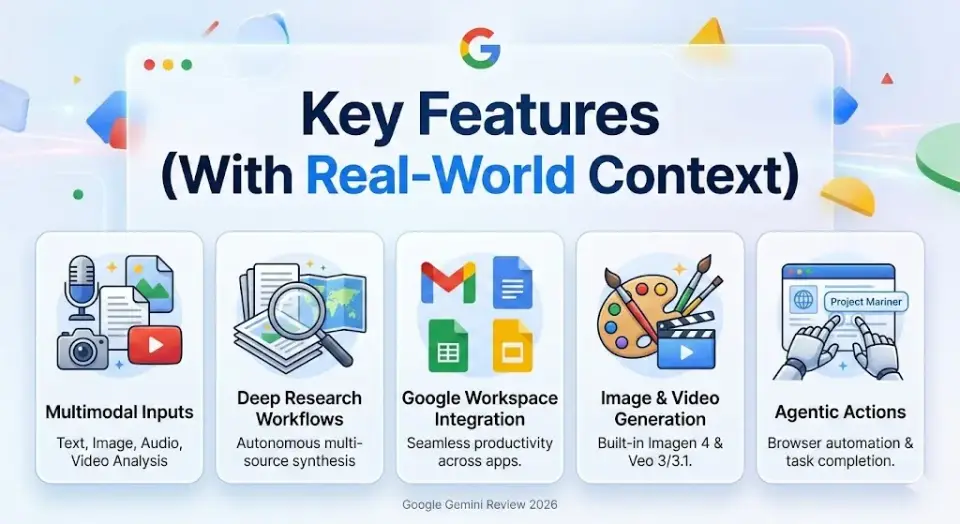
Multimodal Inputs (Text / Image / Audio / Video)
What it does: Upload images, PDFs, audio files, or video clips alongside text prompts. Gemini processes them natively—no separate tools or plugins.
Who it’s for: Analysts comparing visual data, students working with lecture recordings, marketers analyzing competitor creative.
Limitations: Video understanding works best with shorter clips. Complex diagrams with small text may lose fidelity. Audio transcription quality varies by language.
Example prompt: “Here’s a screenshot of our competitor’s landing page. Identify the value propositions, CTAs, and suggest improvements for our version.”
Deep Research Workflows
What it does: Gemini autonomously plans a research strategy, browses multiple sources, cross-references findings, and produces a structured multi-page report—often in under 10 minutes.
Who it’s for: Analysts, consultants, students, and anyone who currently spends hours synthesizing information from multiple sources.
Limitations: Reports can include hallucinated citations. Always verify sources. Works best with factual/analytical queries; less reliable for niche or very recent topics.
When it’s better than Search: When you need a synthesized answer from 10+ sources rather than a list of blue links.
Google Workspace Integration (Docs / Gmail / Sheets / Drive)
What it does: Gemini appears as a sidebar or inline assistant across Google Workspace apps. Draft emails in Gmail, generate formulas in Sheets, summarize documents in Docs, create presentations in Slides.
Who it’s for: Anyone already using Google Workspace daily—especially teams that live in Gmail and Google Docs.
Limitations: Workspace integration requires an AI plan (personal) or Workspace add-on (business). Quality of spreadsheet automation varies with complexity. Generated Slides presentations are functional but rarely design-polished.
Image & Video Generation
What it does: Generate images via Imagen 4 (including an Ultra variant for higher quality) and videos via Veo 3/3.1 directly in the Gemini app. Photo-to-video conversion is available on paid plans. Veo 3/3.1 places Gemini among the best AI video generators currently available.
Who it’s for: Content creators, marketers, social media managers who need quick visual assets. For broader use cases, see our guide to the best AI tools for content creation.
Limitations: Video generation has quota limits that vary by plan tier. Generated videos max out at short durations. Photorealistic human faces can trigger safety filters. Commercial usage terms should be reviewed.
Voice / Live Mode
What it does: Have real-time voice conversations with Gemini. Useful for hands-free brainstorming, meeting prep, or on-the-go task management.
Who it’s for: Mobile users, people who prefer speaking over typing, meeting facilitators.
Limitations: Live mode is subject to rate limits. Complex multi-step conversations can lose context. Background noise affects accuracy.
Coding & Debugging
What it does: Write, debug, and explain code across major languages (Python, JavaScript, Go, Java, etc.). The Jules coding agent can handle asynchronous tasks like bug fixes and feature implementation. Gemini CLI and Code Assist IDE extensions bring AI directly into your development workflow.
Who it’s for: Developers at all levels, from beginners learning to code to professionals debugging production issues.
Limitations: Like all LLM coding assistants, Gemini can generate plausible-looking but incorrect code. Always review and test. Performance on very large codebases depends on context window utilization.
Long-Context Analysis & Document Summarization
What it does: Process documents up to hundreds of thousands of words. Summarize legal contracts, research papers, financial reports, or entire book manuscripts.
Who it’s for: Legal professionals, academics, financial analysts, anyone dealing with long documents.
Limitations: Accuracy degrades on extremely long documents near context limits. Critical details in the middle of very long documents may receive less attention (the “lost in the middle” problem, though Gemini handles this better than most competitors).
Connected Apps & Automation
What it does: Gemini can connect to your Google apps (Calendar, Keep, Maps, YouTube, etc.) to take actions on your behalf. Chrome auto browse automates routine browser tasks. Project Mariner goes further with full agentic web browsing.
Who it’s for: Productivity-focused users willing to grant Gemini access to their Google account data.
What to disable if privacy-focused: Go to Gemini Settings → Connected Apps and review/revoke permissions for any services you don’t want Gemini accessing. More details in the Privacy section below.
Performance & Testing: How to Evaluate Gemini Yourself
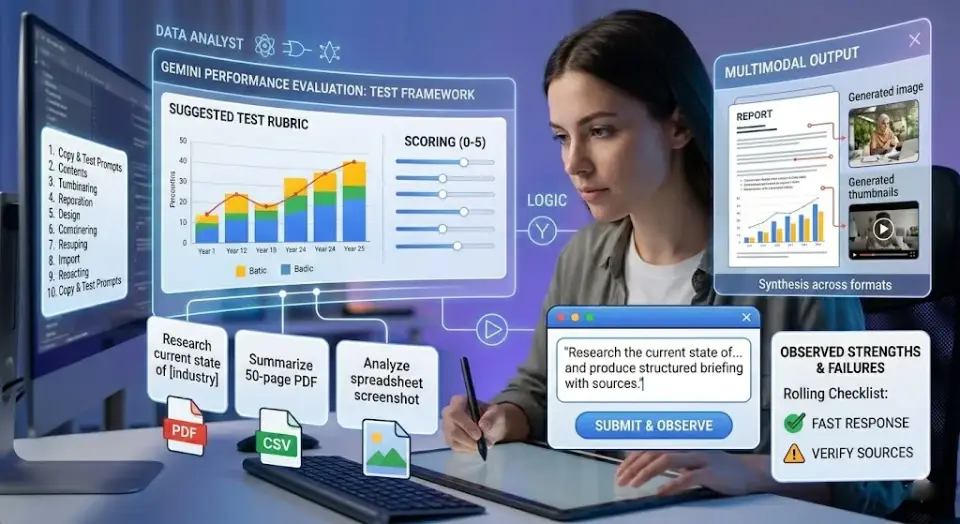
Rather than claim hands-on benchmark results, here’s a repeatable evaluation framework you can use to test Gemini (or any AI assistant) for your specific needs.
Suggested Test Categories & Rubric
| Category | What to Test | Scoring (0–5) |
|---|---|---|
| Writing quality | Clarity, tone matching, structure, originality | 0 = unusable, 5 = publish-ready |
| Research accuracy | Factual correctness, source quality, hallucination rate | 0 = mostly wrong, 5 = fully accurate with sources |
| Citation quality | Does it cite real, verifiable sources? | 0 = fabricated sources, 5 = all sources verified |
| Coding | Correctness, efficiency, explanation quality | 0 = doesn’t run, 5 = production-quality |
| Multimodal | Image/video understanding accuracy, generation quality | 0 = misinterprets input, 5 = accurate and useful |
| Productivity | Time saved on real tasks vs. manual approach | 0 = no time saved, 5 = 80%+ time reduction |
Prompt Pack (Copy & Test)
Use these prompts across Gemini, ChatGPT, Claude, and others to compare:
- “Summarize the key arguments in this 50-page PDF and list any data points that support each argument.” (attach a real document)
- “Write a professional email declining a vendor proposal while keeping the relationship warm. Tone: diplomatic but clear.”
- “Debug this Python function and explain what’s wrong:” (paste a function with a subtle bug)
- “Analyze this spreadsheet screenshot and identify the top 3 trends.” (attach a chart image)
- “Research the current state of [your industry topic] and produce a structured briefing with sources.”
- “Generate a product comparison table for [3 competitors] including pricing, features, and limitations.”
- “Explain [complex technical concept] to a non-technical executive in 3 paragraphs.”
- “Create a weekly meal plan for a family of 4 with a $150 grocery budget. Include a shopping list.”
- “Review this contract clause and flag any risks for the buyer.” (paste real contract language)
- “Write a unit test for this function:” (paste a function)
What Users Commonly Report
Observed strengths:
- Excellent at tasks involving Google ecosystem data (summarizing Gmail threads, analyzing Sheets)
- Deep Research produces genuinely useful multi-page reports
- Multimodal understanding (especially image analysis) is competitive with GPT-4o
- Fast response times on Flash models
Observed failure modes:
- Hallucinated citations in research-heavy prompts
- Overly cautious safety filters on creative content (especially image generation involving people)
- Inconsistent quality between sessions (same prompt, different quality)
- Connected Apps features can feel intrusive if not carefully configured
How to Get the Best Results: Prompting Playbook
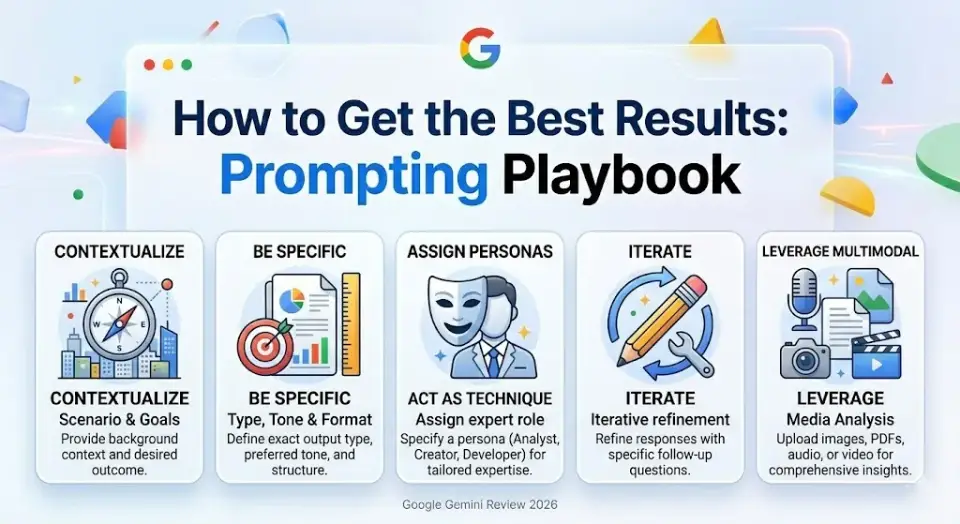
Getting consistent, high-quality output from Gemini requires more than typing a question. These 10 prompt templates are optimized for Gemini’s strengths—multimodal input, Google ecosystem integration, and Deep Research capabilities. Copy, customize, and use them immediately.
For a broader set of 150 prompts tested across ChatGPT, Claude, and Gemini, see our dedicated prompt library.
10 Prompt Templates for Common Tasks
1. Deep Research Report
Act as a senior research analyst. Research [TOPIC] thoroughly. Produce a structured report with: executive summary (3 bullets), key findings (with sources), data points or statistics, counterarguments, and a 'what this means for [AUDIENCE]' section. Cite all sources with URLs.When to use: Market research, competitive analysis, industry briefings. Activate Deep Research mode for best results.
2. Professional Email (Any Tone)
Write a [TONE: diplomatic / direct / enthusiastic] email to [RECIPIENT ROLE] about [SUBJECT]. Context: [BRIEF SITUATION]. The email should be under [NUMBER] sentences. End with a clear call to action: [DESIRED NEXT STEP].When to use: Sales follow-ups, vendor negotiations, internal updates. Works well with Gemini in Gmail.
3. Data Analysis (Spreadsheet / Chart)
Analyze the attached [spreadsheet screenshot / CSV data]. Identify the top 3 trends, any anomalies, and provide actionable recommendations. Present findings as: (1) a bullet summary, (2) a table of key metrics, (3) suggested next steps for a [ROLE].When to use: Upload a screenshot or paste data. Strongest with Gemini in Google Sheets.
4. Code Debugging & Explanation
Here's a [LANGUAGE] function that [EXPECTED BEHAVIOR] but instead [ACTUAL BEHAVIOR]. Debug it, explain the root cause in plain English, provide the corrected code, and add inline comments explaining the fix. Also suggest one improvement for readability or performance.When to use: Paste buggy code directly. For larger projects, use Jules or Gemini CLI for async fixes.
5. Content Creation (Blog / Social / Ad Copy)
Write a [CONTENT TYPE: blog intro / LinkedIn post / ad headline] about [TOPIC] for [TARGET AUDIENCE]. Tone: [TONE]. Include: a hook in the first sentence, [NUMBER] key points, and a CTA. Length: [WORD COUNT]. Avoid: [THINGS TO EXCLUDE, e.g., jargon, clichés].When to use: Content marketing, social media, ad copywriting. Pair with Imagen 4 for accompanying visuals.
6. Document Review & Risk Flagging
Review the attached document. Summarize it in 5 bullets. Then flag: (1) any ambiguous language, (2) potential risks for [YOUR ROLE/SIDE], (3) missing clauses or gaps, and (4) sections that need expert legal/financial review. Format as a table with columns: Section, Issue, Severity (Low/Medium/High), Recommendation.When to use: Contracts, proposals, policy documents. Upload PDFs directly—Gemini handles long documents well.
7. Brainstorming & Idea Generation
Generate [NUMBER] ideas for [OBJECTIVE, e.g., 'increasing user retention for a SaaS product']. For each idea, provide: (1) the concept in one sentence, (2) estimated effort (Low/Medium/High), (3) expected impact (Low/Medium/High), (4) one risk or downside. Rank them by impact-to-effort ratio.When to use: Strategy sessions, product planning, marketing campaigns. Good starting point before Deep Research.
8. Learning & Explanation (Any Complexity Level)
Explain [CONCEPT] at three levels: (1) for a complete beginner (use an analogy), (2) for someone with basic knowledge (include key terminology), (3) for a practitioner (include technical details, edge cases, and common mistakes). End with 3 follow-up questions I should explore next.When to use: Self-study, onboarding, preparing to present technical topics to mixed audiences.
9. Meeting Prep & Stakeholder Brief
I have a meeting with [STAKEHOLDER ROLE] about [TOPIC] in [TIME]. Prepare a 1-page brief with: (1) background context (3 bullets), (2) their likely priorities and concerns, (3) 3 talking points I should raise, (4) 2 questions I should be prepared to answer, (5) a recommended outcome / ask.When to use: Client meetings, executive briefings, board prep. Combine with Google Calendar context if Connected Apps are enabled.
10. Image Generation (Specific & Constrained)
Generate an image of [DETAILED DESCRIPTION]. Style: [STYLE, e.g., flat illustration / photorealistic / watercolor]. Mood: [MOOD, e.g., professional / playful / dramatic]. Include: [SPECIFIC ELEMENTS]. Exclude: [THINGS TO AVOID, e.g., text, people's faces]. Aspect ratio: [RATIO, e.g., 16:9 / 1:1]. Purpose: [USE CASE, e.g., blog header / social post / presentation slide].When to use: Marketing assets, presentation visuals, social media content. Uses Imagen 4 on paid plans. For more options, see our roundup of top AI photo editing tools.
Pro Tips for Better Gemini Prompts
- Be specific about format: Gemini responds well to explicit structure requests (tables, bullets, numbered lists, headers)
- Set the role: Starting with “Act as a [role]” consistently improves output quality. For 50 role-based prompt examples applied to a specific profession, see our ChatGPT prompts for real estate agents — the same techniques work in Gemini.
- Constrain length: Always specify word count or sentence limits to avoid bloated responses
- Iterate, don’t restart: Use follow-up messages to refine rather than re-prompting from scratch
- Leverage multimodal: Upload images, screenshots, or documents alongside text—this is where Gemini outperforms text-only prompting
- Use Deep Research for anything requiring multiple sources: It’s significantly better than a single prompt for research tasks
Google Gemini Review 2026: Pricing, Plans (What You Actually Pay)
Free vs. AI Plus vs. AI Pro vs. AI Ultra
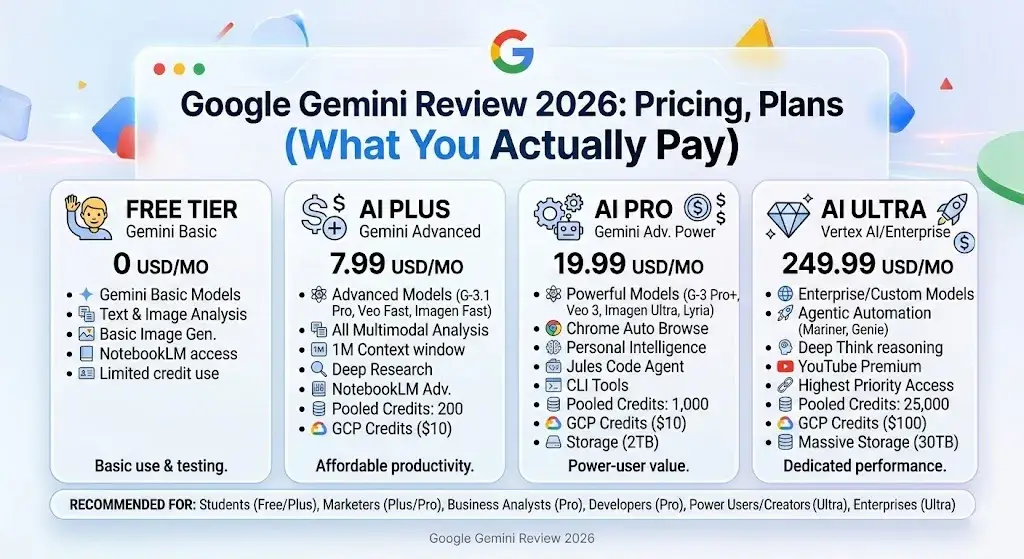
Free tier: Basic Gemini access with limited model usage. Good enough for occasional use, but you’ll hit rate limits quickly on advanced features.
Google AI Plus ($7.99/mo): The entry-level paid plan. You get 200 GB cloud storage, 200 pooled AI credits/mo, more access to Gemini 3.1 Pro and Deep Research, Veo 3.1 Fast video generation, Imagen image generation, Lyria 3 music generation, and enhanced NotebookLM access. Family sharing for up to 5 people.
Google AI Pro ($19.99/mo): The power-user tier. Everything in AI Plus with 1,000 pooled AI credits/mo and higher limits, plus: Chrome auto browse, Personal Intelligence, Jules coding agent, Gemini CLI and Code Assist IDE extensions, Google Antigravity access, $10/mo in Google Cloud credits, 2 TB storage, and Google Home Premium.
Google AI Ultra ($249.99/mo): The everything tier. 25,000 pooled AI credits/mo and highest limits on all features, plus exclusive access to: Deep Think reasoning model, Gemini Agent, Project Mariner (agentic browser automation), Project Genie (interactive world generation), $100/mo in Google Cloud credits, 30 TB storage, YouTube Premium, and Google Home Premium on the Advanced plan.
AI Credits Explained
Google publishes pooled AI credit allocations per plan: 200 (AI Plus), 1,000 (AI Pro), and 25,000 (AI Ultra) credits per month. Each AI action—generating an image, running Deep Research, creating a video—consumes credits, though the exact cost per action can vary by feature and may change over time.
Typical credit burn estimates (approximate):
| Action | Est. Credits | Notes |
|---|---|---|
| Standard text prompt | 1 | Basic Gemini conversations |
| Deep Research report | 5–15 | Varies by complexity and sources browsed |
| Image generation (Imagen 4) | 2–5 | Per image; Ultra variant costs more |
| Video generation (Veo 3.1 Fast) | 10–25 | Per clip; higher-quality Veo 3 costs more |
| Music generation (Lyria 3) | 5–10 | Per track |
| Code generation (Jules task) | 5–20 | Varies by task complexity |
Disclaimer: These are community-observed estimates, not official Google figures. Actual credit consumption may vary. Google may update credit costs as features evolve—always check your credit usage in account settings.
Practical guidance: Light users (a few AI tasks per day) will be fine on AI Plus. Daily power users who rely on coding agents, video generation, and Deep Research should start with AI Pro. If you’re constantly hitting rate limits on Pro, Ultra is worth evaluating.
Gemini API Pricing (Developer Perspective)
| Tier | Price | Data Used for Training? | Key Limits |
|---|---|---|---|
| Free | $0 | Yes | Limited access to models, lower rate limits |
| Paid | Pay-per-use (per token) | No | Higher rate limits, context caching, Batch API (50% cost reduction) |
| Enterprise (Vertex AI) | Custom / pay-per-use | No | Dedicated support, compliance, provisioned throughput, volume discounts |
The free API tier is generous for prototyping. For production, the paid tier offers access to all models (including Gemini 3.1 Pro, Imagen 4, Veo 3/3.1) without your data being used for training. Enterprise needs should go through Vertex AI.
Always check the official Gemini API pricing page for current per-token rates, as Google updates these frequently. For a comparison of how ChatGPT pricing and Claude pricing stack up against Gemini’s plans, see our dedicated guides.
Total Cost by Persona
| Persona | Recommended Plan | Estimated Monthly Cost | Why |
|---|---|---|---|
| Student | Free or AI Plus | $0–$7.99 | Deep Research for papers, basic coding help |
| Marketer / Content Creator | AI Plus or AI Pro | $7.99–$19.99 | Image/video generation, email drafting, research |
| Business Analyst | AI Pro | $19.99 | Sheets automation, long-doc analysis, Deep Research |
| Developer | AI Pro | $19.99 | Jules, Gemini CLI, Code Assist, GCP credits |
| Small Team (5 people) | AI Pro (family sharing) | $19.99 total | Shared plan with 2 TB storage |
| Power User / Creator | AI Ultra | $249.99 | Maximum limits, all exclusive features, YouTube Premium |
| Enterprise | Vertex AI | Custom | Compliance, SLAs, provisioned throughput |
Google Gemini Review: Pros & Cons
Pros
- Deep Google ecosystem integration — Gemini inside Gmail, Docs, Sheets, Drive, and Meet is genuinely useful if you’re already in that ecosystem
- Strong multimodal capabilities — Native text/image/audio/video processing without plugins
- Deep Research is a standout feature — Produces multi-page research reports that save hours of manual work
- Generous free tier — More accessible than most competitors for casual use
- Competitive model performance — Gemini 3.1 Pro is competitive with GPT-4o and Claude 3.5 Sonnet on most benchmarks
- Developer tool integration — Jules, Gemini CLI, Code Assist, and Antigravity make it a serious coding platform
- Video and image generation built in — Veo 3/3.1 and Imagen 4 are competitive quality without separate subscriptions
- AI Plus is affordable — At $7.99/mo, it’s the cheapest paid AI assistant tier among major competitors
Cons
- Privacy trade-offs on free tier — Your conversations may be used for model training (see Privacy section)
- Plan complexity — Three consumer tiers + API tiers + Workspace + Vertex AI creates confusion
- AI credits system needs more transparency — Google publishes credit allocations (200/1,000/25,000), but per-action costs can shift, making budgeting difficult
- Hallucinations — Like all current LLMs, Gemini fabricates information, especially citations
- Safety filters can be overly restrictive — Creative and image generation requests sometimes get blocked unnecessarily
- Ultra is expensive — At $249.99/mo, it’s a significant commitment and only makes sense for heavy users
- US-centric feature rollout — Many new features (Project Mariner, Personal Intelligence, Project Genie) are US-only at launch
- Workspace AI requires separate consideration — Business users need to evaluate Workspace add-on pricing separately from consumer plans
Who Should Use Gemini in 2026?
- Google Workspace power users — the integration alone justifies the cost
- Researchers and analysts — Deep Research is best-in-class for synthesized reports
- Developers in Google’s ecosystem — Jules + CLI + Cloud credits make AI Pro compelling
- Students — the free tier and affordable AI Plus are great starting points for research and writing; for flashcard-based studying and exam prep, pair it with a dedicated study app like Quizlet
- Content creators — built-in image, video, and music generation reduces tool-switching
Who Should Avoid It?
- Privacy-first users — if you’re uncomfortable with Google having access to your conversations and connected app data, look at Claude or local models
- Creative fiction writers — safety filters and writing style tend to be more conservative than ChatGPT or Claude
- Microsoft 365 teams — Copilot will integrate better with your existing stack
- Users needing maximum transparency — the AI credits system and feature-gating by tier can be frustrating
Privacy, Security, Data Usage & Safety
This is the section most reviews skip, but it’s what serious buyers actually need to know.
Consumer: What Data Is Collected?
- Free tier and AI Plus/Pro/Ultra (Gemini app): By default, your Gemini conversations are saved as “Gemini Apps Activity.” Google states this data may be reviewed by human reviewers and used to improve products. You can turn this off.
- Retention: When Gemini Apps Activity is on, conversations are retained with auto-delete options of 3, 18, or 36 months (you choose). You can also manually delete past conversations at any time.
- Connected Apps: When you grant Gemini access to Gmail, Drive, Calendar, etc., it can read and act on that data. Review and revoke access at any time in settings.
- Temporary Chats: For sensitive queries, use Temporary Chats mode. Conversations in this mode do not appear in your recent chats or Gemini Apps Activity, are not used to personalize responses or train models, but are retained for up to 72 hours for abuse monitoring and feedback processing. This is not full ephemeral—be aware of the 72-hour window.
Privacy Settings Checklist
Use this checklist to lock down your Gemini privacy:
- Go to myactivity.google.com → Gemini Apps Activity
- Turn off “Gemini Apps Activity” to stop saving conversations
- Set auto-delete to 3 months if you keep it on
- Review Connected Apps in Gemini settings and disable any you don’t need
- Use Temporary Chats for sensitive queries (not stored in activity history, but retained up to 72 hours)
- Review your Google Privacy settings periodically
For full details on Gemini’s data practices, see the official Gemini Apps Privacy Hub.
Workspace / Enterprise Privacy
- Workspace with Gemini: Google states that Workspace data processed by Gemini is not used to train models. Admin console controls allow organizations to enable/disable AI features per user or group.
- Vertex AI: Enterprise-grade data isolation, compliance certifications (SOC 2, ISO 27001, HIPAA eligible), customer-managed encryption keys, and VPC-SC support.
API (Developer) Privacy
- Free API tier: Content is used to improve Google products, per the API terms.
- Paid API tier: Content is not used for training.
Safety Considerations
Gemini, like all large language models, can generate incorrect, biased, or inappropriate content. Google applies safety filters, but these are imperfect—sometimes too strict (blocking legitimate creative requests), sometimes insufficient (allowing subtle misinformation).
Responsible use checklist:
- Don’t rely on Gemini for medical, legal, or financial advice without professional verification
- Verify all citations and factual claims, especially in Deep Research reports
- Review generated content before publishing
- Be aware that AI-generated images and videos may carry metadata identifying them as AI-generated
- Report problematic outputs via the feedback tools in the app
For official guidance, refer to the Google AI Safety page.
Best Alternatives to Google Gemini (2026)
Comparison Matrix
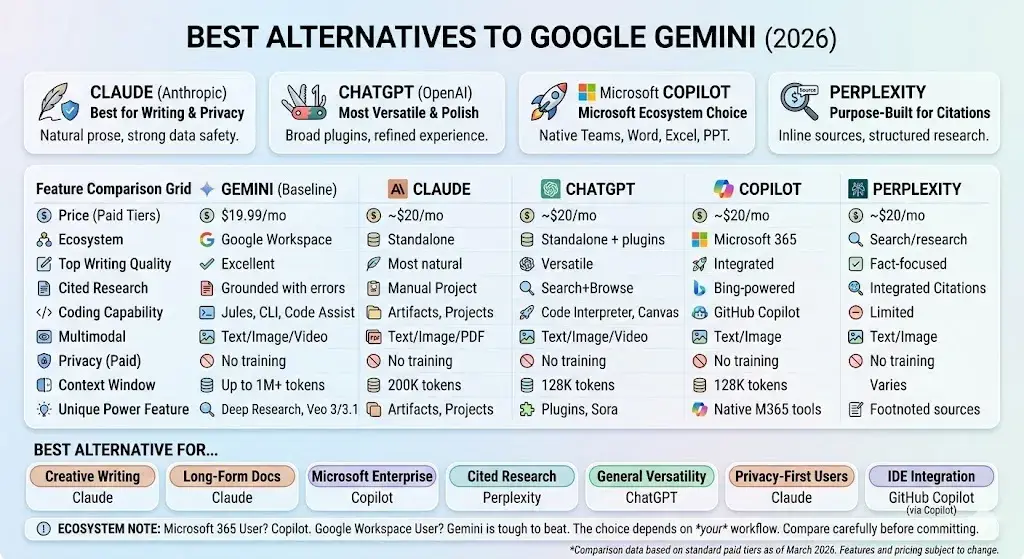
| Feature | Gemini (AI Pro) | ChatGPT (Plus) | Claude (Pro) | Copilot (Pro) | Perplexity (Pro) |
|---|---|---|---|---|---|
| Price | $19.99/mo | ~$20/mo | ~$20/mo | ~$20/mo | ~$20/mo |
| Best ecosystem | Google Workspace | Standalone + plugins | Standalone | Microsoft 365 | Search/research |
| Multimodal | Text/image/audio/video | Text/image/audio/video | Text/image/PDF | Text/image | Text/image |
| Image generation | Imagen 4 (built-in) | DALL-E 3 (built-in) | Limited | DALL-E 3 | Limited |
| Video generation | Veo 3/3.1 (built-in) | Sora | None | None | None |
| Coding | Jules, CLI, Code Assist | Code interpreter, Canvas | Artifacts, Projects | GitHub Copilot | Limited |
| Research | Deep Research | Search + Browse | Projects (manual) | Bing-powered | Purpose-built with citations |
| Context window | Up to 1M+ tokens | 128K tokens | 200K tokens | 128K tokens | Varies |
| Privacy (paid) | Data not used for training (API paid tier) | Data not used for training | Data not used for training | Data not used for training | Data not used for training |
| Strength | Google integration, Deep Research | Versatility, plugin ecosystem | Writing quality, safety | Microsoft 365 integration | Source-cited research |
| Weakness | Plan complexity, safety filters | Expensive for teams | No native image gen | Limited outside Microsoft | Not a general assistant |
Best Alternative For…
- Creative writing: Claude — more natural prose style, fewer safety filter interruptions for fiction. Read our full Anthropic Claude review for details.
- Long-form document analysis: Claude — 200K context window with strong recall; Gemini is competitive with higher token limits
- Enterprise Microsoft stack: Microsoft Copilot — native integration with Teams, Outlook, Word, Excel, PowerPoint
- Cited research: Perplexity — purpose-built for search with inline source citations
- General versatility: ChatGPT — the broadest plugin ecosystem and most polished consumer experience. See our OpenAI ChatGPT review for a detailed breakdown.
- Privacy-first users: Claude — Anthropic’s focus on safety and transparency; no ecosystem lock-in
- Coding (IDE integration): GitHub Copilot (via Microsoft Copilot) — deepest IDE integration; though Jules + Gemini CLI are catching up
- Budget users: Google Gemini Free or AI Plus — more generous free tier and cheaper entry-level paid plan than most competitors
- AI-powered image editing: For dedicated AI photo editing beyond Gemini’s built-in generation, see our guide to the best AI photo editors
Switching Costs & Ecosystem Lock-In
Consider these factors before choosing:
- Google Workspace dependency: If your organization uses Gmail, Docs, Sheets, and Drive, switching to a non-Google AI means losing native integration. This is Gemini’s strongest moat. For teams already using Google Workspace CRM tools like Copper, Gemini enhances rather than replaces your existing stack.
- Microsoft 365 dependency: Same logic applies—Copilot wins if you’re in the Microsoft ecosystem.
- Data portability: Prompts and conversation history in Gemini aren’t easily exported to other platforms.
- API migration: If you build on the Gemini API, switching to OpenAI or Anthropic APIs requires code changes (though libraries like LiteLLM reduce this friction).
Google Gemini Review – FAQ
What is Google Gemini?
Gemini is Google’s AI assistant and model family. It includes the Gemini consumer app, AI features in Google Workspace (Gmail, Docs, Sheets), a developer API, and enterprise services through Vertex AI. The underlying models are built by Google DeepMind.
Is Google Gemini free?
Yes, there’s a free tier with basic access to Gemini models. However, advanced features like Deep Research, higher usage limits, video generation, and coding agents require a paid plan starting at $7.99/mo (AI Plus).
How much does Gemini cost in 2026?
Three consumer tiers: AI Plus ($7.99/mo), AI Pro ($19.99/mo), and AI Ultra ($249.99/mo). The API has a free tier and pay-per-use paid tier. Enterprise pricing through Vertex AI is custom. Check the official plans page for current pricing.
Is Gemini better than ChatGPT?
It depends on your use case. Gemini wins for Google Workspace users, Deep Research, and built-in video generation. ChatGPT wins for general versatility, plugin ecosystem, and creative writing. Performance on reasoning and coding tasks is competitive between Gemini 3.1 Pro and GPT-4o.
Is Gemini better than Claude?
Claude tends to produce better long-form writing and has fewer safety filter issues for creative content. Gemini excels at multimodal tasks, Google integration, and research automation. For PDF/document analysis, both are strong—Gemini’s larger context window gives it an edge for very long documents.
What is Google AI Pro vs. AI Ultra?
AI Pro ($19.99/mo) is the power-user tier with 1,000 AI credits/mo, coding tools (Jules, CLI), 2 TB storage, and Chrome auto browse. AI Ultra ($249.99/mo) adds 25,000 credits/mo and exclusive features: Deep Think reasoning, Project Mariner (agentic browsing), Project Genie, 30 TB storage, YouTube Premium, and $100/mo in Google Cloud credits.
Can Gemini access Google Docs and Gmail?
Yes, with a paid AI plan. Gemini integrates directly into Gmail, Docs, Sheets, Slides, Drive, and Meet. It can draft emails, generate formulas, summarize documents, and create presentations within these apps.
Does Gemini use my data for training?
On the free consumer tier with Gemini Apps Activity enabled: yes, conversations may be reviewed and used to improve products. On paid API tier: no. On Workspace/enterprise: no. You can disable Gemini Apps Activity at any time to opt out. Temporary Chats are not used for training but are retained up to 72 hours.
Is Gemini good for coding?
Yes, increasingly so. Gemini offers Jules (asynchronous coding agent), Gemini CLI, Code Assist IDE extensions, and Antigravity (agentic development platform). Performance on coding tasks is competitive with GPT-4o and Claude. Best for developers already in Google’s ecosystem.
What are the best alternatives to Gemini?
ChatGPT for general versatility, Claude for writing and safety-focused use, Microsoft Copilot for Microsoft 365 users, and Perplexity for research with source citations. See the comparison matrix above for a detailed breakdown.
Does Gemini hallucinate?
Yes. All current large language models produce incorrect information sometimes. Gemini is no exception. Always verify factual claims, especially citations in Deep Research reports. Google’s grounding features help but don’t eliminate the problem.
Is Google Gemini worth it in 2026?
If you’re deeply embedded in the Google ecosystem (Workspace, Android, Google Cloud), Gemini delivers genuine productivity gains that justify even the AI Pro price. If you primarily use Microsoft tools or are privacy-sensitive, evaluate alternatives first.
How do I turn off Gemini activity / data retention?
Go to myactivity.google.com → Gemini Apps Activity → toggle off. You can also set auto-delete periods (3, 18, or 36 months) and manually delete past conversations. For sensitive queries, use Temporary Chats (retained up to 72 hours, not saved to activity).
How many AI credits do I get per month?
AI Plus includes 200 pooled credits/mo, AI Pro includes 1,000, and AI Ultra includes 25,000. Credit consumption varies by feature—text prompts cost less than image or video generation.
Conclusion
This Google Gemini Review comes down to ecosystem fit. If Google Workspace is your daily operating system, Gemini is the most natural AI assistant you can add—the integration quality alone justifies AI Plus or AI Pro. Deep Research, strong multimodal capabilities, and an increasingly powerful developer toolkit (Jules, CLI, Antigravity) make it a serious platform, not just a chatbot.
But Gemini isn’t the best choice for everyone. Privacy-conscious users should understand the data trade-offs before committing. Creative writers may find Claude less restrictive. Microsoft 365 teams will get more value from Copilot. And the three-tier consumer pricing—while now better documented with published AI credit allocations—still adds complexity for users choosing between plans.
Next steps:
- Try the free tier at gemini.google.com — test it with the prompt pack above
- Evaluate AI Plus ($7.99/mo) if you find the free tier too limited — it’s the cheapest paid AI assistant on the market
- Check the official plans page for the latest pricing and features before committing
The AI assistant market is evolving fast. What matters most in 2026 isn’t which model scores highest on benchmarks—it’s which one actually integrates into your workflow.
About the author

I’m Macedona, an independent reviewer covering SaaS platforms, CRM systems, and AI tools. My work focuses on hands-on testing, structured feature analysis, pricing evaluation, and real-world business use cases.
All reviews are created using transparent comparison criteria and are updated regularly to reflect changes in features, pricing, and performance.