Notion is worth paying for when one workspace has to hold your notes, wiki and project tracker, and it is overrated if you expect the Free plan to carry a team or Plus to include full Notion AI.
In my own Notion account on the Free Plan, a blank page became a database whose first row saved with nothing but a name, and a related Projects and Tasks setup with sub-items and dependencies worked without an upgrade prompt.
The limits showed up in the same session: the Automations button opened a card with a single Upgrade now button, and a new chart view showed only an upgrade message because the workspace had already used its one free chart.
This Notion review pairs that session with Notion’s pricing page and help center, checked from 2026-10-03 to 2026-10-05, to settle three questions: which plan to buy, what the Free plan stops once a second member joins, and what AI and agents cost.
In This Article (19 sections)
Quick Verdict on Notion
| Decision point | My verdict |
|---|---|
| Best for | Individuals, students and small teams that want docs, a wiki and task tracking in one workspace |
| Skip it if | Your process depends on chained automations, deep reporting or full offline access |
| Starting price | Free at $0; Plus at $10 and Business at $20 per member per month billed annually, or $12 and $24 billed monthly |
| Practical plan | Plus as soon as a second member joins the workspace |
| Notion AI | A limited trial on Free and Plus; Notion Agent, AI Meeting Notes and Enterprise Search come with Business |
| Main strength | Docs, databases, relations and dependencies in one workspace, all usable on Free |
| Main limitation | Database automations start on Plus and form logic on Business |
| Best alternative | A dedicated project, automation or reporting tool when that single job is the requirement |
Source: Notion pricing and plan table
Notion Pros and Cons
| Pros | Cons |
|---|---|
| Relations, sub-items, dependencies and a board grouped by project all worked on the Free Plan with no upgrade prompt | Database automations showed only an Upgrade now card on my Free Plan board, with no trigger or action editor |
| Notion AI answered a question about my test tasks correctly, and the panel showed Worked for 9s | Notion AI is a Business and Enterprise feature; Free and Plus get a limited number of complimentary responses |
| Page export offered PDF, HTML and Markdown & CSV, with no plan gate shown for the default format | A workspace export cannot recreate the workspace, and its download link expires after 7 days |
| The import screen listed 14 items, including Asana, Confluence, Trello and Word files | Form conditional logic needs Business, and forms cannot be created or customized on mobile |
| The connections gallery features Slack, Google Drive, GitHub and Figma as Public API connections, plus AI connectors for Jira, Linear and MS Teams | A database with many pages or visible properties can load slower, and each database stops at 250,000 rows and 500 properties |
Sources: Notion AI availability, backup and export rules, forms guide, connections gallery, database performance guide
What Is Notion?
Notion is a workspace app in which a page can hold text, files and databases, and a database can be shown in different views.
Notion’s own Start here page calls it a set of building blocks for documents, databases, public websites, knowledge bases and project management systems.
In my Free workspace, the Add a new view menu offered Table, Board, Gallery, List, Chart, Dashboard, Timeline, Feed, Map, Calendar and Form layouts.
That flexibility is the product: Notion hands you building blocks rather than a finished project tool, so someone has to decide how the databases connect.
How I Tested Notion
Tests were run in Macedona’s own Notion account on 2026-10-03, with an AI assistant operating the browser under Macedona’s direction; every result below was recorded during that session and checked by Macedona.
The session covered page and database setup, a related Projects and Tasks board, one Notion AI question, the automation and form controls, the in-app plan page, the import and export dialogs and the chart view on the Free Plan. Paid-plan features, work with other members, wikis, templates, search, a real CSV import, large-workspace performance and long-term use were outside it, so those parts rest on Notion’s pricing page, help center and developer documentation.
Prices, plan limits and feature gates come from Notion’s pricing page, help center, developer documentation and security page, checked from 2026-10-03 to 2026-10-05. Each part was assessed against the same buyer criteria: workflow fit for one person and for a small team, plan gates, credit and API costs, admin controls, and how easy it is to leave.
Greater weight went to limits that stop a workflow or change an invoice. A claim that neither the session nor Notion’s documentation supports was left out of this review, and Hacker News comments appear only as attributed user reports, which show what some users ran into rather than how often.
The Problems Notion Solves
Three jobs worked on the Free Plan in my session: a database built from a blank page, a related Projects and Tasks board, and a correct Notion AI answer about that data.
From a blank page to a first database
I started from a blank page, and the slash menu offered inline and full-page databases plus Table, Board, Gallery, List, Feed and Dashboard views.
Choosing an inline database and New empty data source gave me a table with a single Name property. I timed it from the session log: my first row saved 43 seconds after I created the page.
With the browser operated as the methodology above describes, that figure shows a short path to a first record, not a newcomer’s pace.
Connected projects and tasks
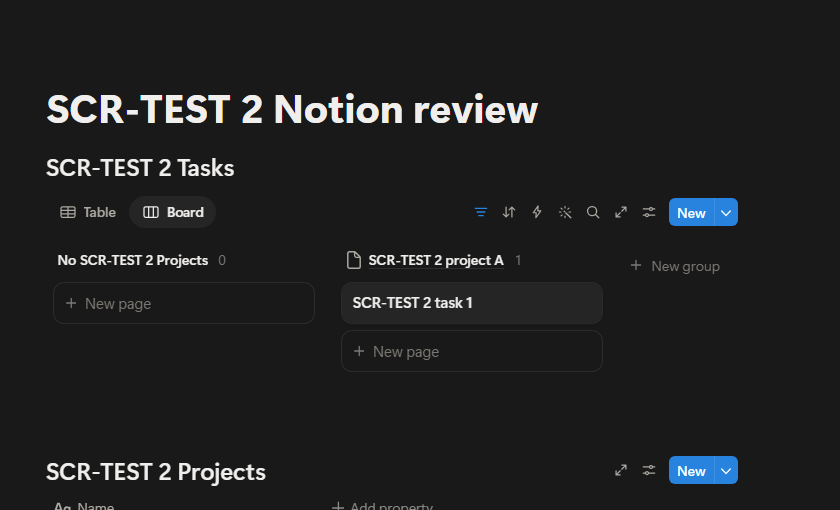
I added a Projects database next to Tasks, linked the two with a Relation property, and then switched on sub-items and dependencies from the database settings.
The task gained a toggle for sub-items plus Blocked by and Blocking columns, and no upgrade prompt appeared on the Free Plan.
The dependency settings also offered automatic date shifting and an Avoid weekends option, and a new Board view grouped by the relation put the task in its project’s column.
How Notion AI performs in use
I asked Notion AI which project my test task was linked to and whether anything blocked it, and the answer, labelled as having worked for 9 seconds, was correct on both points.
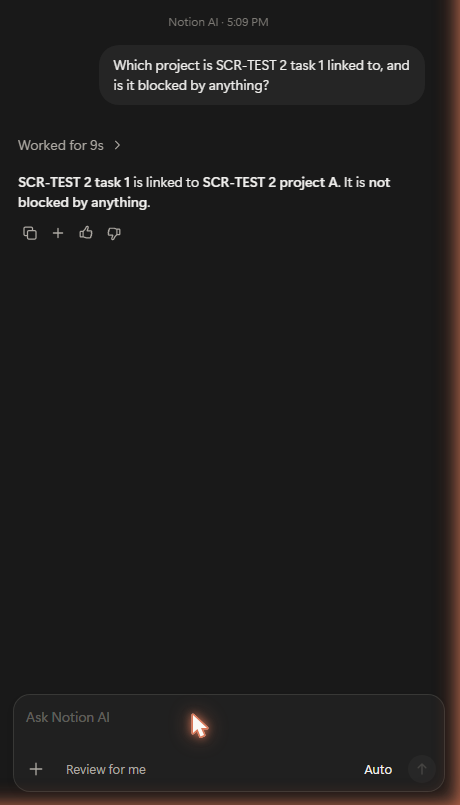
The Notion AI FAQ explains why it felt unrestricted: Free and Plus users get a limited number of complimentary AI responses, while Notion AI proper is a Business and Enterprise feature.
On 2026-10-03, the model menu in my Free Plan workspace sat on Auto, which it described as balancing speed, effort and cost, with no lock or upgrade label. Under Recommended it listed Opus 5.5, GPT-6.1 Sol, Kimi K3 and GPT-6 Luna, plus an Other models entry.
Notion’s Notion Agent guide, checked on 2026-10-04, names a different set: available models include Claude Fable 5.1 on Business and Enterprise plans only, Claude Sonnet 5, the newest GPT models, Gemini and Grok.
It also says a workspace admin has to turn each premium model on before it shows up for a member, and that the admin decides how many credits each person can spend. So the menu you see can depend on your plan and your admin’s settings.
The same guide warns that, depending on the model chosen, the Agent may look only at information from the web and may not see the workspace or connected apps.
It also lists what the Agent cannot do: create database automations, database templates, page layouts or advanced properties such as formulas, rollups and buttons, start AI Meeting Notes, create reminders, or manage workspace settings such as member roles, billing and security.
On Hacker News, the praise covers several jobs: finding information, answering questions about a commenter’s own documents, writing and meeting notes.
In April 2025, one commenter called RAG-based information discovery like Notion AI already extremely useful, in the AI Horseless Carriages discussion.
In June 2025, another listed Notion AI for questions on their own documents and said it works well, in an Ask HN thread on everyday AI tools.
An undated comment called Notion AI pretty great for both search and writing, in a thread about AI side projects. Another undated comment said the commenter’s team uses it to transcribe meetings and that it picked out the tasks and actual points while skipping the jokes, in a thread on software costs.
The clear failure on Hacker News was a different job. An undated commenter who tried Notion AI to build a mermaid diagram called it totally useless and said they would probably not bother with it again, in a thread on selling AI apps.
So test Notion AI on the exact job you need before paying for Business.
Docs, Wikis, and Collaboration
Notes and a wiki are half of my verdict, so this section covers the editor, wikis, shared work on a page, and Enterprise Search. My session reached only the editor, so the rest of this section comes from Notion’s help center.
On my test page, an empty line read Press space for AI or / for commands. Notion’s editing guide calls that / menu the easiest way to add content to a page or act on a block.
A Page block adds a sub-page, so pages can nest inside other pages, and a database can sit inline in the body of a page, which keeps a project brief and its task list together.
The same guide says Notion has no traditional text alignment options at the moment.
Any page, though not a database, can be turned into a wiki that opens with three default views, Home, All pages and one listing the pages you own, per the wikis guide. Ownership keeps it current: whoever creates a wiki page owns it, and a page can be verified for a set period or indefinitely.
A verified page shows a blue check mark in search results and mentions, and its owner hears by inbox and email when verification expires.
Verifying pages outside a wiki, or pages in a database, is a Business and Enterprise feature, so a handbook kept as loose pages needs one of those plans for the badge.
Notion’s sharing guide gives each person, group or teamspace on a page its own level: Full access, Can edit, Can comment or Can view. A subpage takes its parent’s permissions, and the broadest access a person holds wins.
A page can also be opened to the whole workspace or to anyone on the web with the link, which can be set to expire, though visitors must log in to Notion to comment or edit.
A guest, such as a contractor or a client, needs their own Notion account. Guests join individual pages, not the whole workspace, and reach a page’s sub-pages by default, per the members and guests guide.
On paid plans Notion charges per member, so turning a guest into a member adds a seat to the bill.
When several people work on a page at once, their avatars move next to the blocks they are reading or editing.
Notion’s members and guests guide says there is no limit on how many people can view and edit the same page or database at once. The help pages checked for this review do not say how conflicting live edits are resolved, so test real co-editing with the whole team during a pilot.
Comments attach to a selection or open a discussion at the top of a page, per the comments guide. Typing @ mentions a person or group, links another page or adds a date, but someone mentioned on a page they cannot open is not notified.
Reminders use @remind followed by a time or date. On recurring reminders, Notion’s reminders FAQ said “not at the moment” when it was checked on 2026-10-05.
The inbox guide says the desktop app pushes a mention after 10 seconds, with a phone push if it stays unseen for 5 minutes.
Searching beyond the workspace is a Notion AI job. Notion’s Enterprise Search guide describes Enterprise Search as a Notion AI feature that searches the workspace and connected apps like Slack, Google Drive and Jira.
Enterprise Search always cites its sources, and a search can be limited to one source or kept off the web, which makes its answers checkable before anyone acts on them.
| Control | Plan Notion names |
|---|---|
| Can create access, which adds database pages without showing existing ones | Business and Enterprise |
| Page-level database access for the people in a person property | Business and Enterprise |
| Verified pages outside a wiki or in a database | Business and Enterprise |
| Private teamspaces | Business and Enterprise |
| Enterprise Search across the workspace and connected apps | Business and Enterprise |
| Teamspace settings that disable guests, export or publishing, and custom member permissions | Enterprise |
Sources: sharing and permissions guide, wikis guide, plan comparison, Enterprise Search guide, teamspaces guide
For notes, docs and shared pages, Notion fits a person working alone, who keeps unlimited blocks on Free, and a small team on Plus, where a second member no longer meets the block cap described below. Business pays off here only for a control in the table, and Enterprise only for the teamspace lockdowns.
The Problems Notion Creates (Its Limitations)
The drawbacks show up the moment a second member joins, one automation needs to set off another, a report needs a second chart, or a database grows large enough to slow down.
The 1,000-block wall for shared Free workspaces
Notion’s rules for Free workspace blocks set the wall: Free workspaces with more than one member get 1,000 lifetime blocks, while paid and single-member Free workspaces have unlimited blocks.
Deleting blocks does not restore capacity, guests do not count as members, and the REST API now enforces the same limit for internal connections and for OAuth connections restricted to selected workspaces.
Notion’s block usage guide says emptying the trash does not lower the count either. Notion also offers a three-day grace period when a workspace hits the cap, and the guide notes that people added to a Free workspace can only join as workspace owners.
Per Notion’s import guide, imported blocks do not count toward the block limit, although blocks created inside imported pages do.
The Free plan’s other limits apply whether one person or several use it: 10 external guests, 7 days of page history, 5MB per uploaded file and one chart, according to Notion’s plan comparison.
If a second member will join the workspace, budget for Plus from the start rather than building a team system that stalls at the block cap.
The documented alternative is to keep a single member: the block usage guide says a one-member workspace keeps unlimited blocks and can add collaborators as guests, in a more limited capacity. Guests are invited to specific pages and get access at the page level, per Notion’s billing help, and Free allows 10 of them.
That route suits one owner sharing a few pages with clients or helpers, not a team that builds the workspace together.
Database automations
I clicked the Automations button on my Free Plan board, and it opened a card reading Automatically edit properties, create pages, send updates, and more, with a single Upgrade now button and no trigger or action editor.
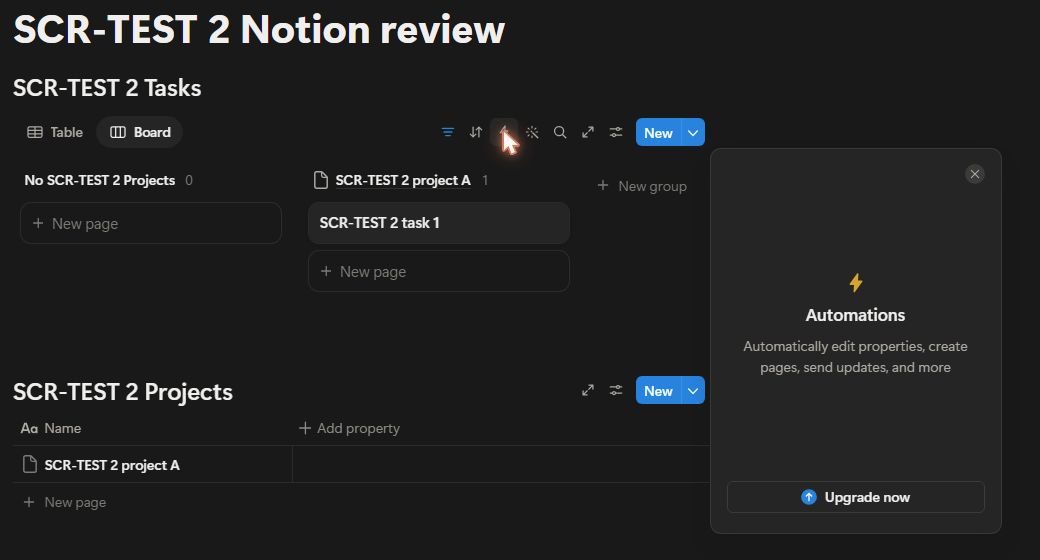
Notion’s pricing table explains the card: Free gets basic buttons only, and custom database automations start on Plus.
The automations help page adds two ceilings that outlast any upgrade: one database automation cannot be triggered by another, although a button can trigger one, and several is-edited triggers must land within about three seconds.
Once a paid plan unlocks them, an automation starts from one of three triggers: a page added to the database, a property edited, or a recurring Every {frequency} schedule. A recurring trigger cannot be paired with another trigger type, and it works with every action except Edit property.
Actions can edit properties, add or edit pages in a database, send a Notion notification, send mail from a Gmail account, send a webhook or post a Slack notification.
The failure mode deserves a plan of its own: an automation that worked before and then hits an error is paused, and Notion may not notify the owner when a formula fails or a webhook has issues.
When one automation has to set off the next, the documented routes are a button, which can trigger an automation, or a Send webhook action that hands the step to another tool.
Forms and intake
When I added a Form view to the Tasks database, Notion offered to create questions from the existing properties, and the builder said only members of my workspace could fill out the form.
Form settings tagged Submit screen as a Plus feature, and a search of the whole builder for logic found nothing, locked or unlocked. My test form had no multiple-choice question, though, and that is the question type Notion attaches logic to, so the search alone does not prove the plan gate.
Notion’s forms guide settles it: conditional logic, which changes the questions a respondent sees, is only available on Business and Enterprise, and forms cannot be created or customized on a mobile device.
Forms themselves are not a paid feature: the same guide says all members on all Notion plans can create and use them, and that a form can collect answers from people outside the workspace or who do not use Notion at all.
An intake owner who needs branching questions should price Business, and one who manages everything from a phone cannot build the form at all.
Charts and dashboards
When I added a new Chart view, it showed no chart, only the message Your workspace has already used its 1 free chart and an Upgrade now button.

Notion’s charts guide puts the limit in writing, one chart on Free and unlimited charts on paid plans, and caps any chart at 200 groups and 50 subgroups at a time.
When I opened the settings of the workspace’s existing chart, its Chart type buttons read Vertical bar, Horizontal bar, Line, Donut and Number. The same guide lists those five types, keeps X and Y axis settings for bar and line charts, and sets up a donut by choosing what each slice represents.
Not every property can be plotted: the axes cannot show rollups, buttons, unique IDs, files and media, or formulas that return a list of outputs, and a donut cannot show those types or certain formulas. Clicking part of a chart opens the data points behind it, and the guide says drilldowns appear only as table views; a chart can be copied as a PNG or downloaded as a PNG or SVG.
Dashboard views are a Business and Enterprise feature, and they hold up to 4 widgets per row and 12 widgets in total.
Each widget shows a database view, such as a table, board, calendar, chart or timeline, and one dashboard can mix widgets from one or several databases. Global filters narrow several widgets at once but skip any widget whose view lacks the filtered property.
The Dashboard option still appeared in my Free menus, so check the plan table or Notion’s dashboards guide rather than the menu before planning a dashboard.
Offline pages
Offline access exists but it is selective: Notion’s offline guide says it needs the desktop or mobile apps and does not work in a web browser.
Subpages of a downloaded page do not download automatically, and a database brings only the first 50 rows of its first view offline.
Free users choose pages to download by hand, while paid plans also auto-download Recents and Favorites, per the offline row of the plan table.
Performance in large databases
Notion’s database performance guide names three things that slow a database down: many pages, many visible properties, and sorts or filters on title, text, formula or rollup properties.
It also sets hard ceilings: a database holds up to 250,000 rows and 500 properties.
All property data on one page is capped at 2.5 MB and the properties of a whole database at 1.5 MB, and once those size limits are hit, new changes are not saved.
Formula chains that run through rollups take longer to calculate, while filters on simple properties such as select, status, number and date may improve speed. For very large databases, Notion suggests filtering out old pages with a Created time filter and hiding properties nobody needs.
User comments describe trouble far below the row ceiling. On a Hacker News thread from 2024, one commenter wrote in September that Notion was unusable after more than a few hundred items in a database.
Another commenter in that thread wrote in October 2024 that Notion is not useful for a large dataset and that they duplicate and archive databases so the ones in daily use keep their speed.
That workaround echoes the guide’s own advice to filter out old pages, so test speed on a copy of your largest real database before moving a team in.
Notion Pricing and Plans
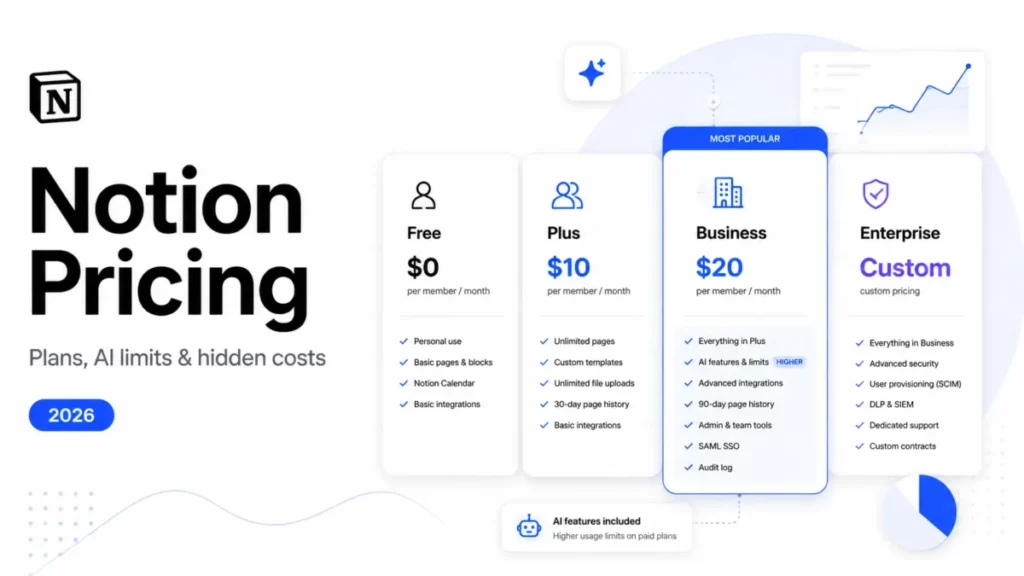
Notion sells four plans, and the pricing page lists Free at $0, Plus at $10 and Business at $20 per member per month, with Enterprise listed as custom pricing.
Those are the annual-billing rates: Notion’s product page says paid plans start at $10 per member per month, billed annually.
Paying month to month costs more. With Pay monthly selected, the same pricing page lists Plus at $12 and Business at $24 per member per month, and its billing toggle says yearly billing saves up to 20%.
| Plan | Billed annually, per member per month | Billed monthly, per member per month | Best for | Where it stops |
|---|---|---|---|---|
| Free | $0 | $0 | One person, or a team trying Notion | Blocks are limited once 2+ members join; 10 guests; 7 days of page history |
| Plus | $10 | $12 | Small teams and professionals sharing docs and projects | No form conditional logic; Notion Agent is a limited trial |
| Business | $20 | $24 | Teams that need Notion Agent, branching forms or 90 days of page history | Custom Agents need Notion credits on top of seats |
| Enterprise | Custom pricing | Custom pricing | Organizations that need zero data retention with LLM providers or unlimited page history | No public list price; organizations over 100 employees go through sales |
Sources: Notion plan comparison, annual billing note on the product page, plan change guide
The plan page inside my Free workspace showed the same Plus and Business rates for both billing options, with Free marked as the current plan.
For every plan compared side by side, hidden costs included, the Notion pricing plans guide goes further than a review needs to.
What ten seats cost on Plus and Business
Each figure below is ten seats at the listed per-member rate times 12 months, with annual and monthly billing in separate columns.
| Ten seats | Per member per month, billed annually | Per year, billed annually | Per member per month, billed monthly | Per year, billed monthly |
|---|---|---|---|---|
| Plus | $10 | $1,200 | $12 | $1,440 |
| Business | $20 | $2,400 | $24 | $2,880 |
| Business minus Plus | $10 | $1,200 | $12 | $1,440 |
Source: Notion pricing page for the per-member rates, with Pay monthly selected for the monthly columns
Business has to replace $1,200 a year of tools or manual work for a ten-person team before the upgrade pays its way.
Monthly billing adds $240 a year to ten Plus seats and $480 to ten Business seats, which is what it costs not to commit to a year.
Seat changes, refunds and the first invoice
Removing a member earns no credit, although the freed seat can be reused for the rest of the billing period, according to Notion’s plan FAQ.
Plan upgrades are applied and charged immediately, and added members are reviewed and invoiced monthly even on a yearly plan, per the billing guide.
Refund windows are short: Notion can refund a monthly invoice if you ask within three days, or an annual invoice within 30 days, per its refund policy. Separately, it refunds prorated charges for members added by mistake within three days of the invoice.
For a team with turnover, that means checking each invoice within three days and reassigning a freed seat before buying a new one.
Feature Gates: What You Get on Each Plan
| Capability | Free | Plus | Business | Enterprise |
|---|---|---|---|---|
| Pages and blocks | Unlimited for one member, limited for 2+ members | Unlimited | Unlimited | Unlimited |
| Page history | 7 days | 30 days | 90 days | Unlimited |
| External guests | 10 | Unlimited | Unlimited | Unlimited |
| File uploads | Up to 5MB per file | About 5GB per file | About 5GB per file | About 5GB per file |
| Charts | 1 | Unlimited | Unlimited | Unlimited |
| Forms | Basic | Custom | Custom with conditional logic | Custom with conditional logic |
| Database automations | Basic buttons only | Custom database automations | Same as Plus | Same as Plus |
| Webhook actions | Not included | Included | Included | Included |
| Notion Agent | Limited trial | Limited trial | Included | Included |
| AI Meeting Notes | Limited trial | Limited trial | Included | Included |
| AI data retention with LLM providers | 30 days | 30 days | 30 days | Zero data retention |
| API requests per minute per connection | 180 | 180 | 600 | 600 |
| Offline downloads | Pages you choose | Pages you choose plus Recents and Favorites | Pages you choose plus Recents and Favorites | Pages you choose plus Recents and Favorites |
| Dashboard views | Not included | Not included | Included | Included |
Sources: Notion plan comparison table, API request limits, dashboards guide, webhook actions guide
Notion AI, Credits, and the Second Price System
Notion AI is a Business and Enterprise feature, and Free and Plus users get a limited number of complimentary AI responses to try it, according to Notion’s Notion AI FAQ.
On Business, the pricing page’s plan card names three AI features. Notion Agent completes multi-step tasks using context from Notion, connected apps and the web, AI Meeting Notes automate meeting notes and follow-ups without a bot, and Enterprise Search (Beta) searches connected apps like Slack and GitHub.
Image generation is a Business and Enterprise feature too, and while it is in Beta each user gets 10 generations or edits per 24 hours and 30 per 30 days.
Notion’s plan change guide adds that moving from Free to Plus does not renew the trial AI usage.
Custom Agents run on Notion credits, free to try and then $10 per 1,000 monthly credits, per the pricing page’s Custom Agents note.
Notion’s credits guide lists monthly credits at $10 per 1,000 credits per month, billed alongside the monthly subscription, and annual credits at $13 per 1,000, paid upfront in one payment.
Annual credits are not cheaper, only more flexible, and neither kind carries over: monthly credits reset each month and annual credits expire at renewal.
The same guide says credits are an add-on for Business and Enterprise plans, shared across the workspace to run Custom Agents, Workers, premium AI models and Notion AI use beyond the usage allowance. When billing is managed in the product, annual credits are only available on annual Business and Enterprise plans, so a workspace has to switch to an annual plan first.
So a Plus workspace that wants Custom Agents beyond the free trial has to budget for Business seats before the first credit.
The AI usage allowance on Business and Enterprise
The Business and Enterprise allowance is measured in two windows, a six-hour window and a monthly window, according to Notion’s usage allowance guide.
It covers the personal Notion Agent, including chat, plus image generation and page translation.
AI Meeting Notes sits outside it with its own 10-hour daily cap, and Custom Agents, Workers and premium models spend Notion credits instead.
Near the full allowance, some AI features may pause until usage refreshes, which happens within six hours, or at the next billing cycle if the monthly allowance is used up.
By default a member who uses the full allowance waits for the reset, but workspace owners and admins can let members keep going on Notion credits instead.
What 1,000 credits buys
Notion publishes its own cost estimates for Custom Agents, and they are the numbers to budget against before switching one on.
| Custom Agent | Runs per 1,000 credits |
|---|---|
| Q&A agent answering policy questions in Slack | About 90 to 333 |
| Task routing agent | About 65 to 190 |
| Weekly status update agent | About 57 to 133 |
| Mail triage agent | About 100 to 250 |
| Daily brief agent | About 33 to 100 |
Source: Notion credits and pricing for Custom Agents
Agent spend follows how often an agent runs, how many steps it takes and which model it uses, so budget by task volume rather than by seat count.
Auto Adjust raises the plan, not a one-time top-up
Auto Adjust is off by default, and once switched on it buys credits at a threshold the admin sets, which Notion’s own walkthrough puts at 80% of the limit, according to its Auto Adjust guide.
Each adjustment is a permanent plan change rather than a one-time purchase, and the recommended spending cap sets the most Notion will spend on adjustments in a billing period.
Leave Auto Adjust off until a month of agent usage is known, or set the cap first, because one busy month otherwise becomes a higher recurring bill.
Workers are free in beta, then use credits
During the beta, Workers are free to try on Business and Enterprise, and Notion says they will eventually require credits, on its Workers pricing page.
The same page estimates that 1,000 monthly credits cover about 4,348 typical Worker runs.
Ease of Use, Setup, and the Mobile Boundary
Notion’s own Start here page is candid about the curve. It says Notion is different from other software in a few ways, and that once you master the basics you can pretty much build whatever you want.
My session showed where the basics end. The first row needed nothing beyond a name, but the property menu then offered types from Text, Select and Date through Relation, Rollup, Formula and Button, and turning on dependencies brought its own choices about automatic date shifting and weekends.
Most of the effort goes into deciding which property, relation and view each piece needs, and that design work is the learning curve.
Comments from other users describe the same curve. In a Hacker News discussion from May 2020, one commenter said they were so overwhelmed by the many ways to handle simple needs in Notion that they gave up on it.
In an undated comment on another thread, a commenter who had not used Notion for a couple of years said its learning curve is a little longer than one expects.
The practical shortcut is to start from a template rather than a blank page. When I created my first database, the New database panel offered Suggested templates (Campaign Management, Content Calendar and Event Management) next to New empty data source.
Notion’s template guide adds starter templates in a new account’s sidebar, picked from the answers given during onboarding, and free or paid Marketplace templates built by Notion users.
For a structure the team already uses, the guide suggests keeping an empty copy of a page to duplicate, a template button for repeated chunks, and database templates that create entries with properties and page contents already filled in. Per the database templates guide, those templates can repeat daily, weekly, monthly or yearly, but each works only in the database where it was made.
A borrowed template carries two cautions in Notion’s Marketplace guide. On the Free Plan its automations can be used or turned off but not edited.
A template that contains a form needs that form rebuilt from scratch, so responses go to you rather than to the template’s creator.
Have the owner set one template per recurring page, which covers the templates part of the day-thirty check below.
Mobile is the boundary: forms cannot be created or customized on a phone, per Notion’s forms help. Notion also limits mobile purchases: a Plus plan bought in the mobile app covers only workspaces with one member, per its plan change guide.
Writing on a phone is narrower too: Notion’s editing guide says the mobile app has no / commands, so content is built from the toolbar above the keyboard.
The 30 and 90 day adoption check
By day thirty, one named owner should have set the property names, relations and templates the team uses, and new pages should land inside that structure.
By day ninety, a filtered board or table should answer a project status question without anyone opening a second tool, and if it cannot, fix the ownership before paying for a higher plan.
Security, Compliance, and Admin Controls
| Control | Where it applies |
|---|---|
| Certifications for four ISO standards and a SOC 2 Type 2 audit report | Company-wide |
| Uptime of 99.9%, which the security page presents as a guarantee | Company-wide |
| Service-level agreement | None as standard; a custom SLA for teams over 100 members |
| HIPAA use with a signed Business Associate Agreement | With Enterprise-grade security features |
| SAML single sign-on (SSO) | Business and Enterprise |
| Private teamspaces that only the people you add can see or discover | Business and Enterprise |
| User provisioning (SCIM) | Enterprise |
| Security and compliance connections to DLP and SIEM tools, which centralize audit logs and detect sensitive content | Enterprise |
| Zero data retention with LLM providers | Enterprise |
| Audit log | Enterprise, recording from the upgrade onward |
| Control over which connections members can install | Enterprise |
Sources: Notion security page, plan comparison, SLA answer in the plan guide, audit log guide, connections guide
A certification describes Notion’s controls, not your compliance, so a healthcare team still needs Enterprise-grade features and a signed BAA before protected health information goes in.
The audit log only records from the day of the Enterprise upgrade, so a company that upgrades after an incident has no earlier trail.
Migration and Export: The Switching Cost Nobody Prices
I opened Settings and then Import, and the screen listed 14 items: CSV, PDF, Text & Markdown, HTML and Word files, plus Asana, Confluence, Trello, Workflowy, Evernote, Jira, Monday.com, Quip and Google Docs.
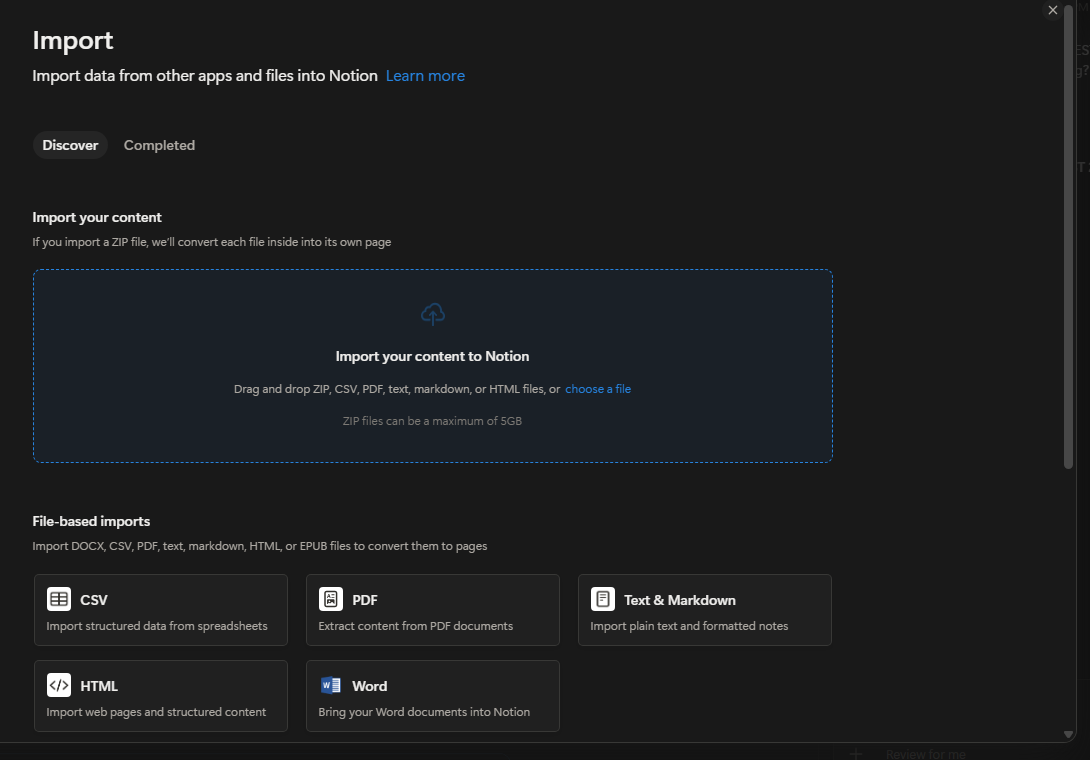
Choosing CSV opened a dialog that can create a new database or add the rows to an existing one, and I stopped there without importing a file.
Notion’s import guide says imports run on desktop and web, not yet on mobile.
Imported files are limited to 5 MB each on Free and 50 MB on paid plans. ZIP imports can reach 5 GB, though 10,000 or more files are likely to fail or import only in part.
A new CSV import cannot create relations, although a CSV added to an existing database can map a column to an existing relation property. Imports add rows rather than updating existing ones, so a second import of the same file creates duplicates.
Rollups and formulas do not come across in a new CSV import either and have to be rebuilt in Notion, dates import in MM/DD/YYYY format, and a column with mixed data types may arrive as text.
| Import source | Documented limit | What is lost or at risk |
|---|---|---|
| CSV | Creates a new database, with rows as pages and columns as properties | New relations, rollups and formulas |
| Excel | Export the sheet as a .csv file first, then import the CSV | The same as a CSV import |
| Evernote | Reliable up to about 5,000 notes | Larger imports may fail |
| Trello | About 5,000 cards per board, and up to 10 boards at a time | Power-Ups, automations and permissions |
| Google Docs | One document at a time | Suggestions, comments, colors, dividers, headers and footers, complex layouts |
| Word (.docx) | Complex tables with merged cells may not import correctly | Comments, tracked changes, text boxes, SmartArt and WordArt |
| 5 MB on Free and 20 MB on paid plans | Search in scanned or image-only PDFs unless OCR is run first | |
| ZIP | DOCX, CSV, text, Markdown, HTML, XLSX/ | PDFs and HWP files are not accepted |
Source: Notion import guide
Run a pilot import of one real dataset, map or rebuild its relations, and keep the source system read-only until the record counts match.
Export is not a restore system
On the test page, I opened Export and found three formats, PDF, HTML and Markdown & CSV, plus settings for database views, page content and subpages, and with the default Markdown & CSV format selected the dialog showed no plan gate.
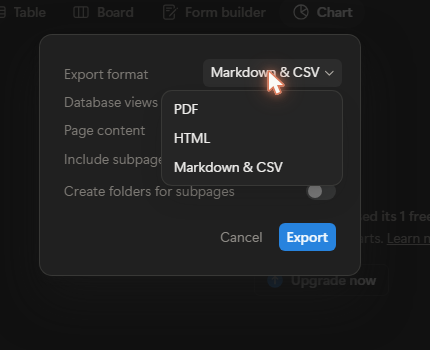
A page export is a copy, not a restore point. Notion’s backup guide is blunt about workspace exports: the download link expires after 7 days, pages the exporter cannot access are left out, and re-uploading an export does not recreate the workspace.
Workspace-wide PDF export is in limbo. Re-checked on 2026-10-04, the same guide still says the option to export workspace content as a PDF is going away.
The page still gives the roll-out window as between now and August 31, 2026, and still says a Business or Enterprise Plan can export an entire workspace to PDF.
That window has passed and the page announces no completion, while the pricing page still listed workspace PDF export on 2026-10-04, so check your own workspace’s export menu before counting on it.
Workspace content can still be exported as HTML, Markdown or CSV. Any single page or database can still be saved as a PDF, per the export guide, though a PDF that includes subpages needs Business or Enterprise.
Plan the exit before you commit: schedule regular exports, store them outside Notion, and test a restore of one teamspace into another tool once a quarter.
Integrations, Connections, and API Limits
| Connection type | Examples Notion lists | What to know before building on it |
|---|---|---|
| Public API connections | Slack, Google Drive, GitHub and Figma | Each connection gets 180 requests per minute, or 600 on Business and Enterprise |
| AI connectors | Jira, Linear and MS Teams | Enterprise Search, listed on the Business plan card in Beta, searches across connected apps |
| Partner connections | Zapier and Typeform | Added through OAuth, and Notion does not troubleshoot partner connections |
| Webhook actions | Zapier, Make and other low-code platforms | Paid plans only, up to five per automation, page properties only |
| Connection webhooks | Any integration a developer builds | Events can arrive out of order and do not carry the full content that changed |
Sources: connections gallery, pricing page, API request limits, connections guide, webhook actions guide, webhook events reference
The pricing page grades connections as Basic (Slack and Google Drive), Premium (GitHub and Asana) and Advanced (even more tools), so check which tier your tool sits in before choosing a plan.
Notion’s own pages name apps rather than give one total, so check your stack against these lists. The AI Connectors guide lists Slack, Google Drive, Jira (beta), Gmail, Microsoft Teams, Microsoft SharePoint and OneDrive, GitHub, Microsoft Outlook, Linear and Google Calendar as available for Notion AI Connectors.
Connecting them requires the Business or Enterprise Plan, except the personal Gmail connector, which is free on all plans; setup needs the workspace owner plus admin rights in the connected app, and ingesting can take up to 36 hours.
For Custom Agents, Notion’s agents page adds Notion MCP, which connects to external apps through the Model Context Protocol, with pre-configured partner integrations including Linear, Figma, HubSpot, Ramp, Wiz, Stripe, GitHub, Intercom, Amplitude, Attio and Sentry.
I would pair webhooks with a scheduled API check for any sync that must not miss a change, because at-most-once delivery leaves room for an event to be lost.
The REST API allows each connection 600 requests per minute on Business and Enterprise and 180 on every other plan, per Notion’s request limits.
That gap decides whether Plus can carry a busy sync, because 180 requests per minute averages 3 calls per second against 10 on Business.
Who Should Use Notion, by Buyer Type
Solo consultants, freelancers, and personal knowledge systems
Free covers a personal system: the project board and the AI answer in my session worked without a paid plan, and the page export dialog showed no plan gate, though database automations and a second chart were blocked.
The workspace menu read Free Plan · 1 member, and the plan page described my current Free plan as Unlimited blocks.
Students and educators can also get the Plus plan free with a one-member limit, according to Notion’s pricing FAQ.
Move a solo workspace to Plus when file size, page history, a second chart or database automations start to matter, which comes to $120 a year for one seat at the listed Plus rate, billed annually, or $144 billed monthly.
For a personal knowledge system, search and scale are the tests. In August 2024, a Hacker News commenter replying to someone who wanted AI to work through about 4,500 personal notes, clippings and documents called Notion’s AI decent for this.
In the same reply, posted in a Digital Tools I Wish Existed thread, they added that it is not very good at finding things.
Before moving years of notes in, import a copy and try search and load speed on it, and keep finished material in an archive database so the one you use every day stays small.
Teams of 5 to 15 people
A shared Free workspace is subject to the block cap described above, so plan a team this size on Plus and budget it per seat.
Ten Plus seats come to $1,200 a year billed annually, or $1,440 billed monthly, which is the number to compare against the separate doc, wiki and task tools the team pays for now.
Teams that need Notion AI, branching forms or API headroom
Business costs $10 more per member per month than Plus when billed annually, and $12 more when billed monthly.
It pays off only against a named need, such as Notion Agent, branching forms, private teamspaces for sensitive pages, longer page history or a higher API limit.
Regulated or audited organizations
Enterprise is a control purchase: buy it when zero data retention with LLM providers, an audit log, DLP and SIEM connections or HIPAA processing under a signed Business Associate Agreement is mandatory, and upgrade before an audit trail is needed.
Why Some Users Leave Notion
On a Hacker News thread from April 2025, one commenter said they had totally abandoned Notion the year before because it got too slow.
In the same thread, another commenter said Notion now has too many features and that its core functionality has suffered. A third said their team had moved task tracking from Notion to Linear and was still looking for a way to cover the wiki part.
Before a renewal, ask two questions drawn from those exits: does the largest database still load fast enough, and has any core job, such as task tracking, already drifted to another tool?
Who Should Avoid Notion
Teams that need chained automations. One database automation cannot trigger another, per Notion’s automation rules, so read the Zapier automation review before connecting a second tool to Notion.
Field teams that work offline. Offline needs the desktop or mobile app and brings only the first 50 rows of a database’s first view, per the offline pages guide.
Managers who report from Notion. Dashboards stop at 12 widgets, per Notion’s dashboard limits, which pushes a team with many metrics toward a dedicated BI tool.
Teams that publish a knowledge base behind a password. Notion’s Sites help page says a published page cannot be password protected at the moment, so start from these knowledge base software picks.
Sales teams that need a pipeline. If forecasting deals comes first, compare purpose-built options in these CRM software rankings, since this review judges Notion as a workspace, not a sales tool.
Teams that want a ready-made project system. Notion leaves the structure to whoever builds the workspace, so a team that needs enforced resource and portfolio controls should compare the best PM software tools instead.
For named products, the roundup of Notion alternatives compared covers ten platforms side by side.
Final Verdict: Is Notion Worth It in 2026?
Notion is worth it for a person or small team that wants notes, a wiki and connected project tracking in one place and will name someone to own the structure.
Stay on Free while you work alone and can do without database automations, a second chart, larger files or longer page history, and buy Plus when a second member joins or any of those matters. Move to Business for Notion Agent, SAML single sign-on, branching forms, longer page history or the higher API limit, and to Enterprise when zero data retention, an audit log or a HIPAA agreement is mandatory.
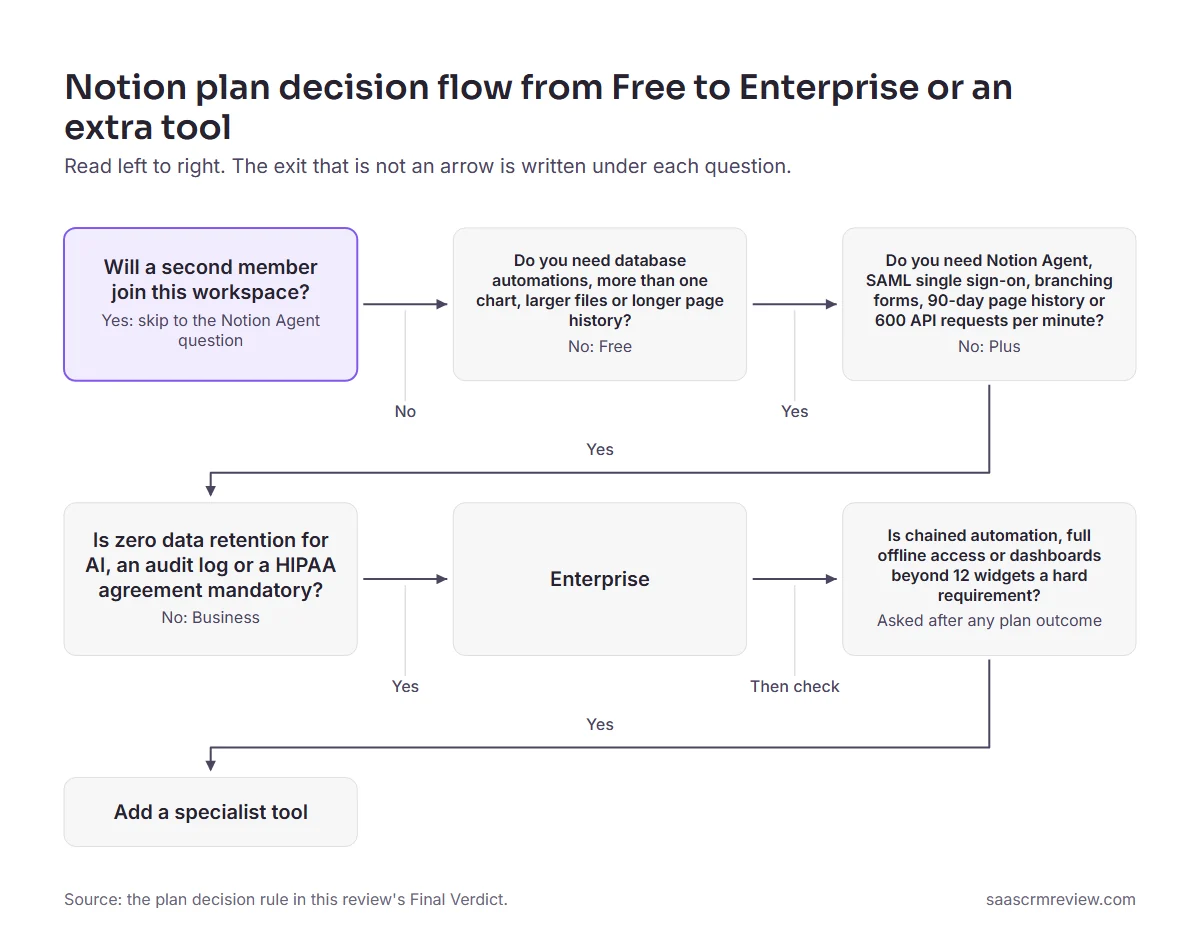
Before paying for a team plan, run a scoped pilot in Notion with one real project and one named owner, then pick Free, Plus, Business or a different tool by the gate that pilot actually hits.
FAQ
Is Notion worth paying for in 2026?
Yes for a team that shares one workspace: from the second member on, Plus at $10 per member per month billed annually or $12 billed monthly in Notion’s published plan prices is the practical plan. No for anyone whose hard requirement is chained automation, full offline access or deep reporting.
How much does Notion cost for a 10-person team?
Ten seats cost $1,200 a year on Plus at the listed per-member rate, billed annually, or $1,440 billed monthly. The same ten seats cost $2,400 a year on Business, or $2,880 billed monthly, before tax and any Notion credits for Custom Agents.
Is Notion AI included in the Plus plan?
Not in full: Notion’s AI help center answers say Free and Plus get a limited number of complimentary AI responses, while Notion AI proper starts on Business.
Is there a free Notion plan, and what breaks on it?
Yes: Free costs $0 and has unlimited blocks while one member uses it. Once a second member joins, the workspace is capped at 1,000 lifetime blocks.
Is Notion good for small business project management?
For a small team, yes, if someone owns the structure: relations, sub-items, dependencies and a grouped board all worked on the Free Plan in my session.
Can Notion work fully offline?
No. Offline needs the desktop or mobile app, subpages download one by one, and a database brings only the first 50 rows of its first view.
What are the biggest Notion limitations?
Four change buying decisions: the Free plan’s limits once a second member joins, automation rules that no plan lifts, and reporting that tops out quickly on charts and dashboards. The fourth is scale: a large database loads slower, with a hard ceiling of 250,000 rows.
Does Notion slow down with large databases?
It can. Notion’s performance guide says a database loads slower with many pages, many visible properties and sorts or filters on text, formula or rollup properties.
Is Notion good for a company wiki?
It can be, for a team willing to design the structure: Notion keeps wiki pages, databases and project tracking in one workspace, so documentation sits beside the work it describes.
For the full head-to-head as knowledge management tools, see the Notion versus Confluence comparison.
Can a Notion workspace be backed up and restored?
Only partly: a workspace export cannot recreate the workspace, leaves out other members’ private pages, and its download link expires after 7 days.
Is Notion overkill for personal use?
Not if you keep it small: my first database needed only a Name property before its first row saved, and relations or automations can wait until you need them.
Pilot one real project first, and move to Plus only when that pilot needs something the Free plan holds back.