You can turn one product page into a set of AI video ads sized for TikTok, Meta and YouTube in eight steps. The tools are Higgsfield’s Ads Studio, Marketing Studio and Ad Multiplier, plus each platform’s own spec pages.
This is how to make ecommerce video ads with AI without a video team. You import the store, generate one product video, check it against the product page, then multiply it into variants for a small paid test.
I built the steps from Higgsfield’s tool and pricing pages and from Meta’s, TikTok’s and Google’s ad spec pages, read on October 27, 2026.

- Task: make ecommerce video ads with AI from a product page
- Result: one product-accurate video ad plus variants sized per placement
- Prerequisites: a product page, a Higgsfield account with credits, ad accounts
- Tools: Ads Studio, Marketing Studio, Ad Multiplier, safe-zone templates
- Limitation: generation spends credits; Unlimited models do not apply through Claude or ChatGPT
In This Article (16 sections)
Before You Begin
Have these ready before you generate anything:
- a live product page with clear photos and the current price
- a Higgsfield account with credits
- Claude or ChatGPT connected to Higgsfield, for Ad Multiplier
- ad accounts on TikTok, Meta and Google Ads
- the rights to any music you add
If AI video itself is new to you, my guide on how to make AI videos covers the basics first.
Ad Multiplier needs no API key: in Claude, add Higgsfield’s connector URL in Claude’s settings and sign in. In ChatGPT, search for Higgsfield at chatgpt.com/plugins, click Add Higgsfield plugin, sign in, then pin it from the three-dot menu in the sidebar.
What generation costs in credits
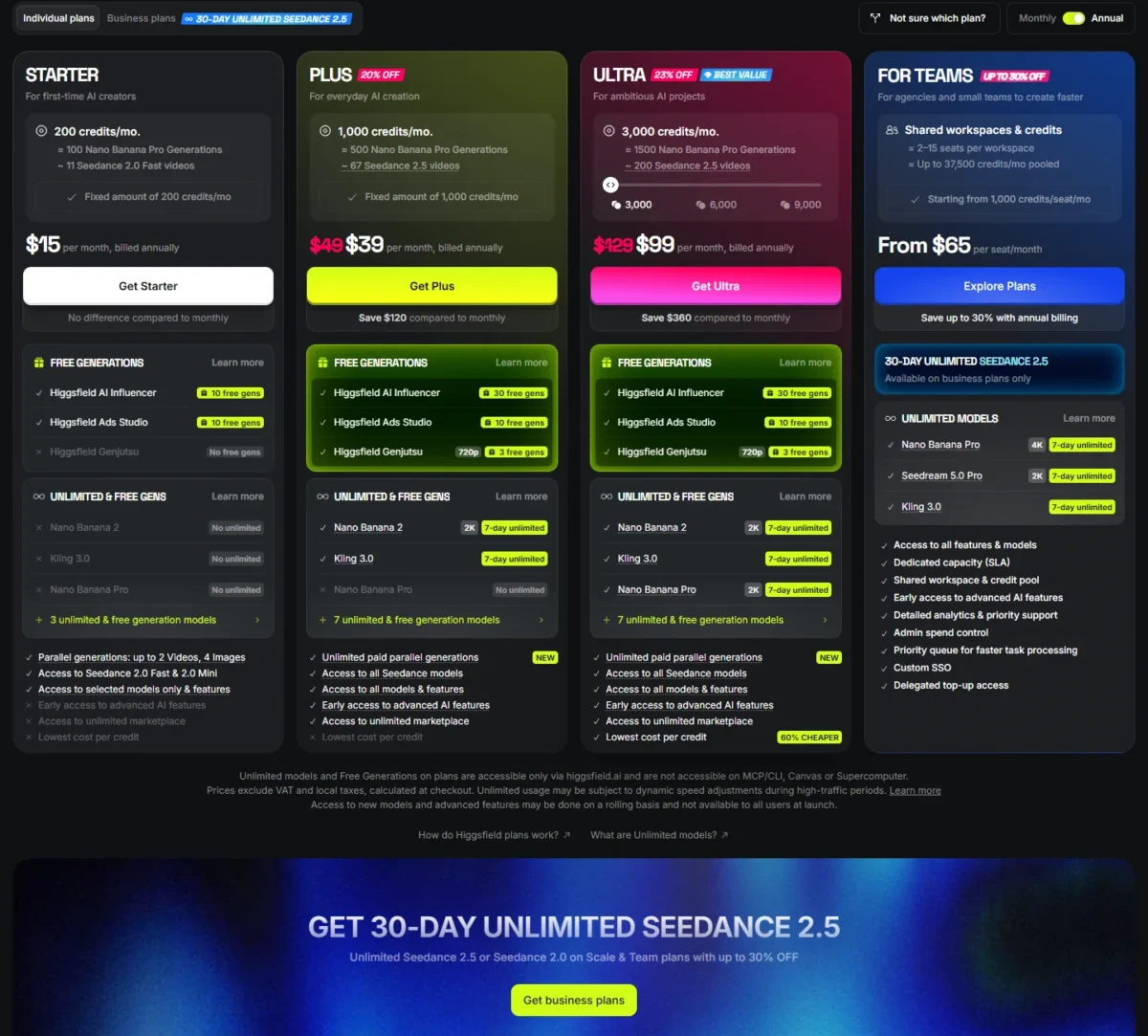
Higgsfield charges in credits: about 14 per Kling 3.0 generation (8 seconds, 720p) and 2 per Nano Banana Pro image, so 700 credits cover about 50 such videos.
If each generation costs what a Kling 3.0 video does, one base ad and four variants come to 5 x 14 credits = 70 credits of a plan’s balance.
Unlimited models and Free Generations work only on higgsfield.ai, not through MCP, CLI, Canvas or Supercomputer. Plan prices on Higgsfield’s pricing page exclude VAT and local taxes.
With credits ready, the next question is where the product data comes from.
Step 1: Import Your Store Into Ads Studio
Type your store’s address under Enter your website in Ads Studio, and your logo, colors, brand voice and selling points load automatically. Products come in from the same site with their names, images and prices.
Review the brand kit before you make a single ad: Edit anything that is off, and upload any product the import missed. Check each imported price, because an old price in an ad promises a deal your checkout will not honor.
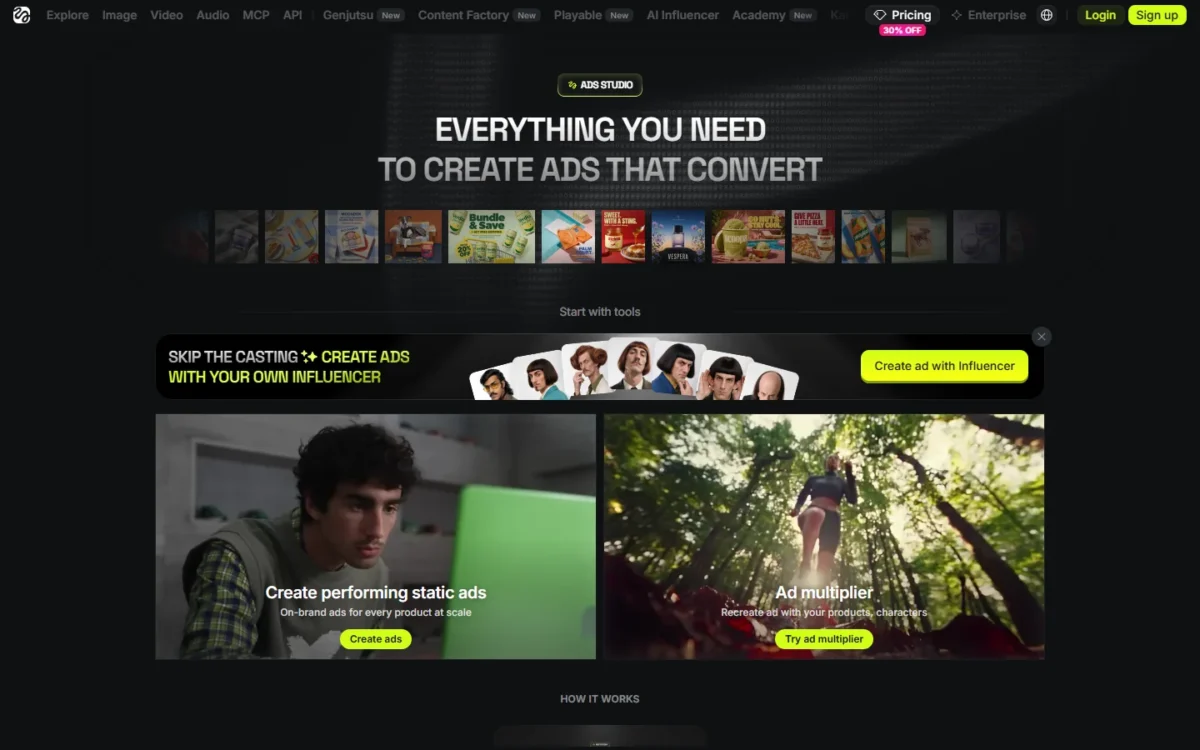
Ads Studio’s tool card reads “Create performing static ads”, and it builds square (1:1), 4:5 and vertical 9:16 versions of each product’s ad, each with a headline and a CTA. Run them beside your video and mine them for hook lines.
Expected result: your logo, colors and voice are right, every product shows its current name, image and price, and static versions exist in three ratios.
Before the video exists, fix the shape and length each placement needs.
Step 2: Choose the Ratio and Length for Each Platform
Facebook Feed video wants 4:5, Instagram Reels and TikTok In-Feed want 9:16, and YouTube recommends 16:9, 9:16 or 1:1 at 1080p, with a length limit that changes by format.
| Placement | Ratio | Recommended size | Length | Note |
|---|---|---|---|---|
| Facebook Feed | 4:5 | 1440 x 1800 | 1 second to 241 minutes | Captions and sound recommended |
| Instagram Reels | 9:16 | 1440 x 2560 | 0 seconds to 15 minutes | No licensed music |
| TikTok In-Feed (Non-Spark) | 9:16 recommended; 16:9 or 1:1 | At least 540 x 960 vertical | Listed on TikTok’s spec page | Safe-zone files on the same page |
| YouTube Shorts | 16:9, 9:16 or 1:1 | 1080 x 1920 vertical | Under 60 seconds recommended | Shown between organic Shorts |
| YouTube skippable in-stream | 16:9, 9:16 or 1:1 | 1920 x 1080 horizontal | No max; under 3 minutes recommended | Skippable after 5 seconds |
| YouTube bumper | 16:9, 9:16 or 1:1 | 1080p | 6 seconds (5 seconds minimum) | Non-skippable |
Sources: Meta Facebook Feed specs, Meta Reels specs, TikTok In-Feed specs, Google Ads video formats and Google Ads video specs, checked Oct 2026.
TikTok, Reels and YouTube all take 9:16, and YouTube also accepts 4:5, so a 9:16 master plus a 4:5 cut covers TikTok, Feed, Reels and Shorts. Make a 16:9 version only for YouTube in-stream, and a separate bumper cut built on one product shot.
With the vertical master fixed, the ad itself comes next.
Step 3: Generate Your First Video Ad in Marketing Studio
In Marketing Studio, choose Video, pick a template under EXPLORE TEMPLATES, add your product under PRODUCT (plus an AVATAR for a UGC ad), then click GENERATE.
Templates are filtered as Product shot, Motion, UGC, TikTok, Ads, Posters and Marketplace. A UGC ad is a video styled as a customer filming the product; here it means the UGC filter plus an avatar.
A template lets you pick a format instead of writing a scene. The prompt box (“Describe what you want to create…”) suits a scene you want to direct, and my AI video prompts for every style and shot give you starting lines.
Carry your strongest hook line from Step 1 into the prompt box with the scene, then check that the finished ad uses it.
Generate one template on one product first: a batch made before the product check spends credits on formats you may reject.
The composer shows a ratio setting (3:4 on the public page); switch it to 9:16 if your template offers it.
Expected result: one short video ad of your product in the template’s format.

The AI made an ad. Does it still show the product you ship?
Step 4: Check the Product Against Your Product Page
Compare the video with your product page frame by frame, regenerate any version that changes the product, and add an AI label where your audience’s rules require one.
Higgsfield’s pages do not say how faithfully a video keeps product details, so this check is yours:
- name and logo on the product or packaging
- color and finish
- shape, size cues and number of items in the set
- any on-screen price against the live price
- no accessory the product does not include
Google Ads says AI rules in the European Union, India and New York require disclosures or labels on ads with certain AI-generated or edited assets. Add the label to the creative or use the AI label setting in Google Ads; for Meta and TikTok, read each platform’s ad policy.
Warning
An ad that shows a product unlike the one you ship misleads buyers and invites returns. Do not run a version that fails this check: regenerate it from your original product photos.
Expected result: a base video that matches the product page on every point, labelled for EU, Indian or New York audiences.
Next: what people hear and read, often with the sound off.
Step 5: Add Captions and Set the Sound
Caption the base ad now, keep sound on for Reels and use original or royalty-free audio; after Steps 6 and 7, caption each variant and placement version again.
Meta recommends captions on Feed and Reels video and calls sound strongly recommended on Reels. Reels ads should not contain licensed music: use original audio or the Meta Sound Collection.
Meta’s recommended Reels primary text is 44 characters, so the hook must land in one short line. TikTok shows a Non-Spark ad caption in white, in a font you cannot change, with no clickable links, @ symbols or hashtags.
Ad Multiplier keeps the original audio or lets you customize the narration, and it can remove burned-in captions, which is why variants get captioned again. Translation is an extra step you ask for, with new captions and a synthetic voiceover, so a translated variant loses your original voice.
Expected result: captions on the base ad, original or royalty-free audio on Reels, and text within each placement’s limit.
One finished ad is one guess; the next step makes several.
Step 6: Multiply the Ad Into Test Variants
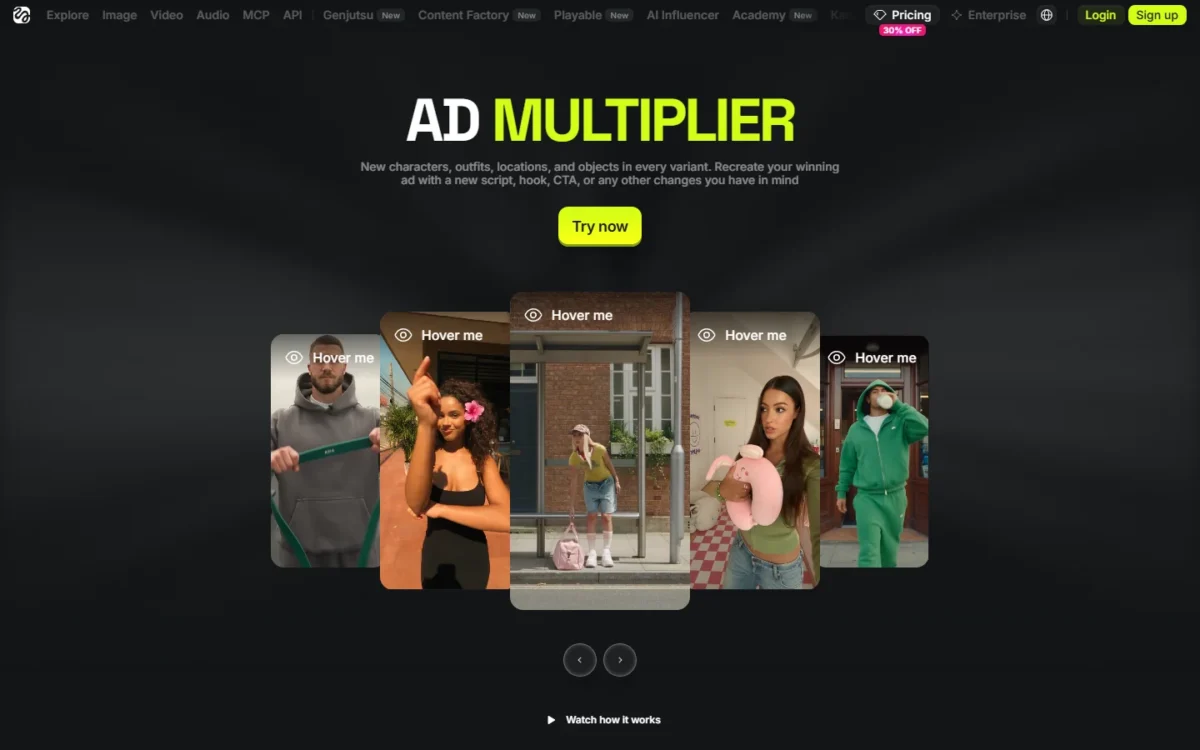
Ask Ad Multiplier in Claude or ChatGPT for variants of your checked ad: it swaps characters, clothes, locations or objects and keeps the performance, cut and pacing.
Your product is an object in the frame, so tell the agent to keep it unchanged.
Ask for one swap per variant, even though Ad Multiplier accepts all of them at once. When a variant wins, you want to know whether the person, the outfit or the setting did it.
Each variant shows its credit cost by model and resolution.
Warning
Connecting Claude or ChatGPT lets the agent generate with your Higgsfield account and spend its credits. Put the number of variants in your request, for example “make 4 variants”, so it cannot turn into a large batch.
Expected result: variants with the same cut and audio as the base ad, each with one new element and its credit cost shown.
Each variant now has to leave the tool fitted to its placement.
Step 7: Export One Version per Placement
Make each placement version as its own generation. Keep the template and product, check the output’s ratio against that placement’s ratio from Step 2, and run the result through Step 4 again.
Then caption it and lay it over that platform’s safe-zone guide:
- Reels: Meta’s Reels specs ask you to keep 14% at the top, 35% at the bottom and 6% per side free of text and logos; files up to 4GB.
- Facebook Feed: the 4:5 cut, files up to 4GB.
- YouTube: Google’s safe-zone PNG templates for horizontal, vertical and square video; files up to 256 GB.
- TikTok: the downloadable safe-zone files on its In-Feed spec page, sized by ratio and caption length.
Expected result: one file per placement, in its ratio and size limit, captions on, with text, logo and product inside the safe area.
The files are ready; the last step shows which one to scale.
Step 8: Launch a Small Test and Read the Results
Run the variants in one campaign with equal budgets, a daily cap and an end date, compare them on one metric, and send the winner back to Ad Multiplier.
Pick the metric your objective pays for, such as purchases. On YouTube skippable in-stream ads with CPV bidding, a paid view comes at 30 seconds (or the full ad if shorter) or at an interaction. On Shorts, a TrueView view counts at 10 seconds or the end.
Google Ads has called that metric “TrueView views” since October 2025. Because platforms define views differently, rank variants within one platform, never across.
On Facebook, the Awareness objective, or a reach, 2-second view, impressions or engagement goal, hides the headline, description and call-to-action button on mobile Feed. Run a sales test under another goal.
Warning
A live campaign spends money from the moment it publishes. Set the daily cap and the end date before you click publish.
Expected result: a ranking of variants on one metric within one platform, and a winner for the next round.
Before launch, run one last check on every file.
How to Verify Your Ecommerce Video Ads Are Ready to Launch
A variant is ready when it passes these nine checks.
Pre-launch checklist
- The product matches the product page (Step 4)
- Any on-screen price matches the live price (Step 4)
- Captions are on (Steps 5 and 7)
- Reels versions carry no licensed music (Step 5)
- The ratio matches the placement (Step 2)
- The length fits the format (Step 2)
- Text, logo and product sit in the safe zone (Step 7)
- An AI label is set where required (Step 4)
- Each variant changes one element (Step 6)
A full set for one product shows how the checks fit together.
Practical Example
Take an illustrative store selling a ceramic pour-over coffee set. The scenes and lengths are invented; the ratios and limits come from Step 2.
| Version | What changes | Placement | Ratio | Length |
|---|---|---|---|---|
| Base | Avatar pours a cup at a kitchen counter | Instagram Reels | 9:16 | 20 seconds |
| Variant A | New avatar | Instagram Reels | 9:16 | 20 seconds |
| Variant B | Office desk instead of kitchen | Instagram Reels | 9:16 | 20 seconds |
| Variant C | New outfit | Instagram Reels | 9:16 | 20 seconds |
| Feed cut | Base template regenerated at 4:5 | Feed placement | 4:5 | 20 seconds |
| Bumper cut | The pour shot alone | YouTube bumper | 16:9 | 6 seconds |
Sources: illustrative example; limits from Meta’s Reels specs and Google Ads video formats, checked Oct 2026.
Variants A, B and C each change one thing, so the Reels result names the element that mattered. The Feed and bumper cuts are placement versions and compete only on their own platform.
Most wasted credits in a plan like this come from a few mistakes.
Common Mistakes When You Make Ecommerce Video Ads With AI
The mistakes below waste credits or ad budget:
- One 16:9 export everywhere. A horizontal file does not fill Reels or Feed; export per placement.
- Licensed music on Reels. Reels ads should not contain it; use original audio.
- Free object swaps. Ad Multiplier can swap your product; name it as fixed.
- Several changes per variant. The result cannot tell you which change worked.
When an ad is rejected or looks wrong, start with the table below.
Troubleshooting
Match the symptom, then check what the third column names.
| Problem | Possible cause | What to check |
|---|---|---|
| CTA button missing on Facebook mobile Feed | Awareness objective or a reach, view, impressions or engagement goal | Objective and performance goal |
| Reels ad rejected | Licensed music, a face or camera effect, a GIF or product tags | Audio, effects and tags in the file |
| Text or logo covered | Elements outside the safe zone | The export over the safe-zone guide |
| Product changed in a variant | An object swap reached the product | The variant against the product page |
| Credits run out early | Agent runs spend credits; Unlimited applies only on higgsfield.ai | Credit cost per variant before a batch |
Sources: Meta Feed specs, Higgsfield Ad Multiplier and Higgsfield pricing, checked Oct 2026.
If the problem is the tool rather than the ad, look wider.
Related Software and Guides
If Higgsfield’s credits or templates do not suit your products, my ranking of the best AI video generators compares other tools.
If your strongest asset is product photos, my list of AI image to video generators covers tools that animate a still. If you still need the product visuals themselves, my FancyAI review looks at an e-commerce AI platform for them.
AI video prompts for every style, shot and scene
A prompt collection organized by style, shot and scene, for sellers who would rather direct Marketing Studio’s prompt box than start from a template.
FAQ
Can AI make an ad for my business?
Yes. Ads Studio builds static ads from your website, and Marketing Studio turns a product into a video ad from a template. Check either result against your product page (Step 4) before any spend.
Can I make ecommerce video ads with AI for free?
Not through Ad Multiplier: Free Generations work only on higgsfield.ai, so agent runs spend credits. For Ads Studio and Marketing Studio, check the plan list on Higgsfield’s pricing page before you count on a free route. To start without paying, see my list of free AI video generators.
Can I run AI-made variants as paid ads?
Yes. Higgsfield says Ad Multiplier variants are yours to publish across organic and paid channels, subject to its Terms of Use. Music and logos you add still need your own rights.
Do I have to label AI-generated ads?
For certain AI-generated or edited assets, yes, where EU, Indian or New York rules apply. Google says its AI labels do not break its text-overlay and watermark policies, but its label setting does not guarantee compliance, so take legal advice.
Next Steps
Start with one product: import the store, make one 9:16 ad, check it against the product page, then multiply it into three or four variants for a capped test.
Once ads work, my guide to AI tools for content creation covers images, posts and scripts from the same catalog.