The best project management software for small teams should fit the workflow without creating surprise costs, restrictive automation caps, or an expensive plan upgrade.
Most roundups quote a starting price and move on. That price is almost never what a five, ten, or fifteen person team ends up paying once seat minimums, member-versus-contributor rules, automation ceilings, and paid add-ons are counted.
This guide ranks 10 tools for the way small teams buy: by workflow fit first, then by what the practical plan costs at real headcount, and finally by what breaks when you try to leave. For most mixed small teams, monday.com Work Management is the safest starting point, provided you accept its three-seat minimum.
If your work is billable, Teamwork.com is the stronger fit, and if it is software, Jira’s free tier is hard to beat. The full shortlist sits inside the broader project management software market, but the picks below are chosen only for teams under roughly 20 people.
Prices, plan limits, and automation caps in this guide were checked against official pricing and documentation pages on July 24, 2026.
In This Article (15 sections)
Quick Verdict: Best Project Management Software for Small Teams by Use Case
Start here, then read the section that matches your situation. Every pick below is explained with its practical plan and its main trade-off further down.
| Use case | Best pick | Why it fits |
|---|---|---|
| Best all-round for a mixed team | monday.com Work Management | Visual boards, forms, and dashboards with tiered automation; Standard suits 5 to 15 people |
| Best configurable value | ClickUp | Tasks, docs, and dashboards at a $7 per user annual rate, if one person owns the setup |
| Best for structured process | Asana | Clean intake, ownership, and portfolios without designing a database first |
| Best budget Kanban | Trello | A usable $5 per user Standard tier for board-sized work and fast adoption |
| Best free plan for software teams | Jira | Free for up to 10 users with issues, sprints, and releases built in |
| Best for billable client work | Teamwork.com | Budgets, retainers, and invoices are native to the product on Accelerate |
| Best docs-first workspace | Notion | Projects, notes, and wiki share one flexible database at $10 per member |
| Best flat-fee for larger simple teams | Basecamp | $299 per month for unlimited users, with clients and guests free |
| Best spreadsheet-native | Smartsheet | Grid plus Gantt, and you pay only for true Members, not viewers |
| Best for governance as you grow | Wrike | Structured planning with a clear path into resource control, up to 15 on Team |
How We Chose and Ranked These Tools
These rankings are based on official pricing pages, product and help documentation, live feature pages, and labeled third-party review patterns. Pricing, seat rules, and automation caps were checked on July 24, 2026.
Each tool was assessed against the same small-team criteria: workflow fit, setup burden, entry-plan limits, automation ceilings, external-collaborator rules, the practical plan cost at 5 and 10 seats, and migration risk.
Greater weight was given to the factors that change a real budget: seat minimums, member models, the tier that unlocks the workflow a team needs, and the cost of scaling past the entry plan. Brand popularity, marketing presentation, and affiliate relationships did not affect the ranking.
Claims that could not be verified from reliable evidence were excluded. Dynamic and sales-led prices, such as Jira’s paid tiers and Wrike’s custom plans, are labeled rather than guessed, and every price is a list price checked on the date above.
Best Project Management Software for Small Teams at a Glance
The table below sets the entry price against the plan most small teams land on, plus the first limit that tends to force an upgrade.
| Tool | Award | Starting price | Practical tier | First upgrade trigger |
|---|---|---|---|---|
| monday.com Work Management | Best all-round | $9 per seat/mo (Basic, annual) | Standard, $12 per seat/mo | Automation volume or Gantt critical path |
| ClickUp | Best configurable value | $7 per user/mo (Unlimited, annual) | Unlimited, $7 per user/mo | 1,000 monthly automations or webhooks |
| Asana | Best structured workflows | $10.99 per user/mo (Starter, annual) | Starter, $10.99 per user/mo | Portfolios, workload, or budgets |
| Trello | Best budget Kanban | $5 per user/mo (Standard, annual) | Standard or Premium, $5 to $10 | 1,000 command runs or advanced views |
| Teamwork.com | Best for client services | $9.99 per user/mo (Basics, annual) | Accelerate, $24.99 per user/mo | Budgets, retainers, invoices |
| Notion | Best docs-first PM | $10 per member/mo (Plus) | Plus, $10 per member/mo | SSO and granular permissions (Business) |
| Jira | Best for software teams | Free up to 10 users | Free, then dynamic Standard | 11th user or 100 automation runs |
| Basecamp | Best flat-fee simplicity | $15 per user/mo (Pro) | Pro or Pro Unlimited, $299/mo flat | Dependencies or resource planning |
| Smartsheet | Best spreadsheet-native | $9 per member/mo (Pro, annual) | Pro, $9 per member/mo | 11th Member or 250 automations |
| Wrike | Best for growing governance | $10 per user/mo (Team) | Team, $10 per user/mo | 16th user forces Business at $25 |
Source: official pricing pages for each product, checked July 24, 2026. Read the starting price and the practical tier as two different numbers, because the cheapest paid plan is rarely the one that runs your workflow.
The Three Problems Every Small-Team PM Buyer Faces
Small-team buying goes wrong in three predictable places. Name the one that fits you, then read that group first.
The first problem is cost transparency. A four-person team on monday.com pays for five seats, a Smartsheet team pays only for the people who build sheets, and a 20-person Basecamp team can pay less with a flat fee than with per-seat pricing.
The sticker price rarely survives contact with real headcount.
The second problem is the ceiling. Entry plans cap automation actions, command runs, members, or users, and a team can hit that ceiling in month two without adding a single person.
Automation limits force upgrades before headcount does.
The third problem is fit, and it is the one that sets your shortlist. A billable agency, a docs-first startup, and a software team need three different products, and each one has to let its data leave without a rebuild.
The ten tools below are grouped by the job they do best, so start with the group that matches your work.
Problem 1: General Cross-Functional Work, Without a Heavy Build
Most small teams are not agencies or engineering shops. They are five to fifteen people in marketing, operations, and delivery who need shared boards, owners, dates, and light automation without a month of configuration.
These four tools compete for that team, and the difference between them is how much setup and budget discipline they demand.
monday.com Work Management: Best Overall for Mixed Teams

monday.com is the tool I would hand to a general small team that has outgrown spreadsheets but does not want to run an issue tracker. It balances visual boards, Timeline and Gantt views, forms, dashboards, and automation better than the other generalists here.
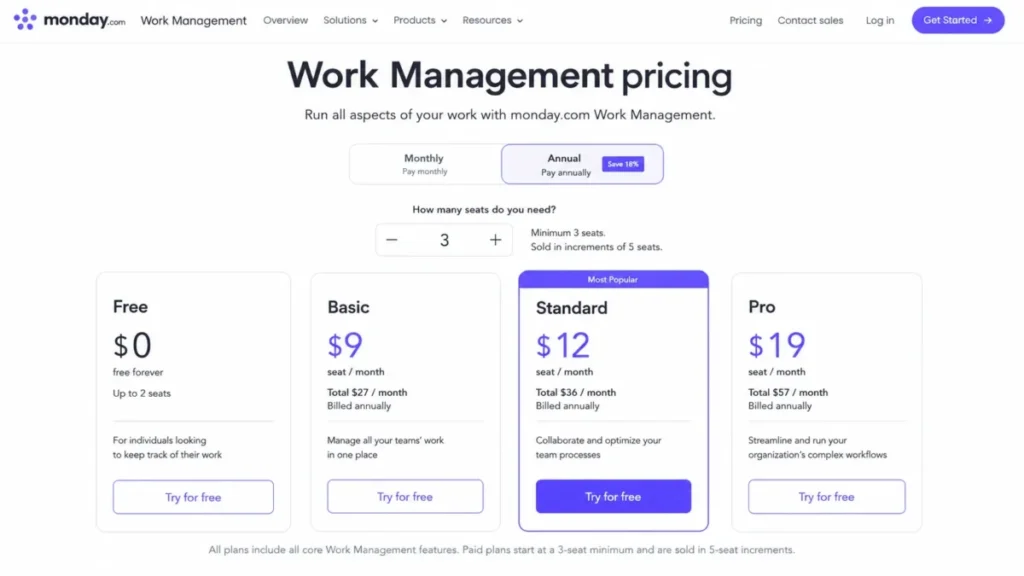
Pricing starts at $9 per seat per month on Basic (annual), but the practical tier is Standard at $12 per seat per month, because Timeline and Gantt only appear at Standard and above. Free covers up to two seats, which is a demo, not a team plan.
Here is the budget trap most roundups skip. Paid plans require at least three seats, and after three, seats are sold in buckets of five.
A four-person team is billed for five seats, and a six-person team is billed for ten, so a small team can pay for capacity it will not use for months.
The automation ceiling matters just as much. Standard includes 250 automation actions and 250 integration actions per month, while Pro jumps to 25,000.
A team running recurring status, assignment, and notification rules can exhaust the Standard pool without hiring anyone, and critical path, milestones, time tracking, and private boards all sit behind Pro at $19 per seat.
For migration, monday.com documents an Excel and CSV importer with column mapping. It moves rows into a board, but the documentation does not prove that update history, connected boards, dashboards, or automation rules transfer, so treat it as a data lift, not a full move.
- Best for:
- 5 to 15 person marketing, operations, and cross-functional teams that want visual planning plus light automation.
- Avoid if:
- you are a two-person team allergic to paying for a third seat, or a software team that needs issue-centric development workflows.
| Pros | Cons |
|---|---|
| Strong balance of visual boards, forms, dashboards, and automation | Three-seat minimum and five-seat buckets overcharge tiny teams |
| Timeline and Gantt land at the affordable Standard tier | Standard caps automation at 250 actions per month |
| Adoption-friendly for non-technical teams | Critical path, milestones, and time tracking need Pro at $19 per seat |
| Documented Excel and CSV import to seed boards | Import does not confirm history, automations, or dashboard transfer |
- Setup difficulty:
- Medium. You decide columns, statuses, and views up front, and a standard template keeps that light.
See the full monday.com review for how the board model holds up as work scales.
- Verdict:
- Choose monday.com Standard if you want the safest general default and can budget for its seat rules and a likely Pro upgrade once automation or scheduling gets serious.
ClickUp: Best Configurable Value

ClickUp packs the most into a low headline price. Tasks, Docs, Goals, dashboards, time tracking, Gantt, and workload all sit inside one workspace at $7 per user per month on Unlimited (annual), with a genuinely usable Free Forever tier underneath it.
The catch is governance, not price. That density only pays off when one person owns the Spaces, statuses, templates, and automation model, because an unmanaged workspace fragments reporting fast.
Two rules decide whether the low price holds. First, the whole workspace upgrades together, so one team that needs a Business feature raises the bill for every member.
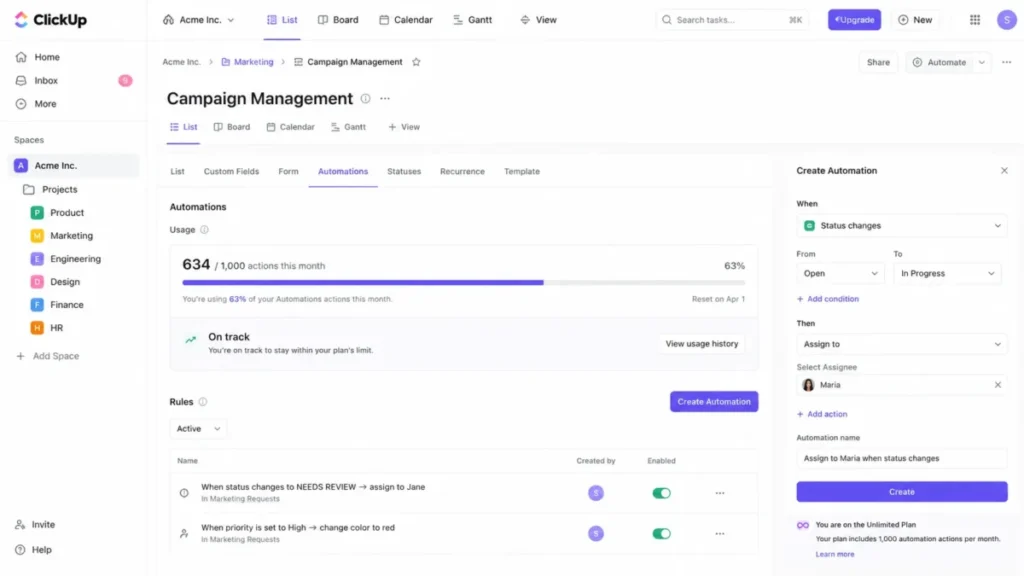
Second, automation is capped at 100 actions per month on Free and 1,000 on Unlimited, with alerts at 90 and 100 percent and a reset on the first of each month in Pacific time.
An automation-heavy small team can outgrow Unlimited’s 1,000 actions while $7 pricing still looks cheap, and task webhooks and some automation integrations only arrive on Business at $12 per user. AI is a separate line entirely: Brain is $9 per user per month, Everything AI is $28, and Super Credits run $10 per 10,000, so treat AI as its own budget, not an included feature.
- Best for:
- 3 to 20 person operations-heavy teams willing to appoint a workspace owner.
- Avoid if:
- you want a minimal tool with near-zero configuration, or nobody will own governance.
| Pros | Cons |
|---|---|
| Broad work stack (tasks, docs, dashboards, workload) at $7 per user | Feature density needs a dedicated workspace owner |
| Capable Free Forever tier for a real pilot | Whole workspace must upgrade together, raising cost for all |
| Time tracking and Gantt included on paid tiers | Unlimited caps automation at 1,000 actions per month |
| Clear alerts at 90 and 100 percent of the automation cap | AI (Brain $9, Everything AI $28) is billed separately |
- Setup difficulty:
- High, mostly because of choices, not complexity. Publish one template and status model before rollout.
The full ClickUp review digs into how the workspace model behaves as a small team scales.
- Verdict:
- Choose ClickUp Unlimited if one owner will govern it and you want the widest toolset per dollar; skip it if you want simple out of the box.
Asana: Best Structured Workflows

Asana is the pick when a team values clear process over maximum customization. It gives you task ownership, dependencies, forms, rules, dashboards, and portfolios without asking you to design a database first, which is what separates it from Notion and ClickUp.
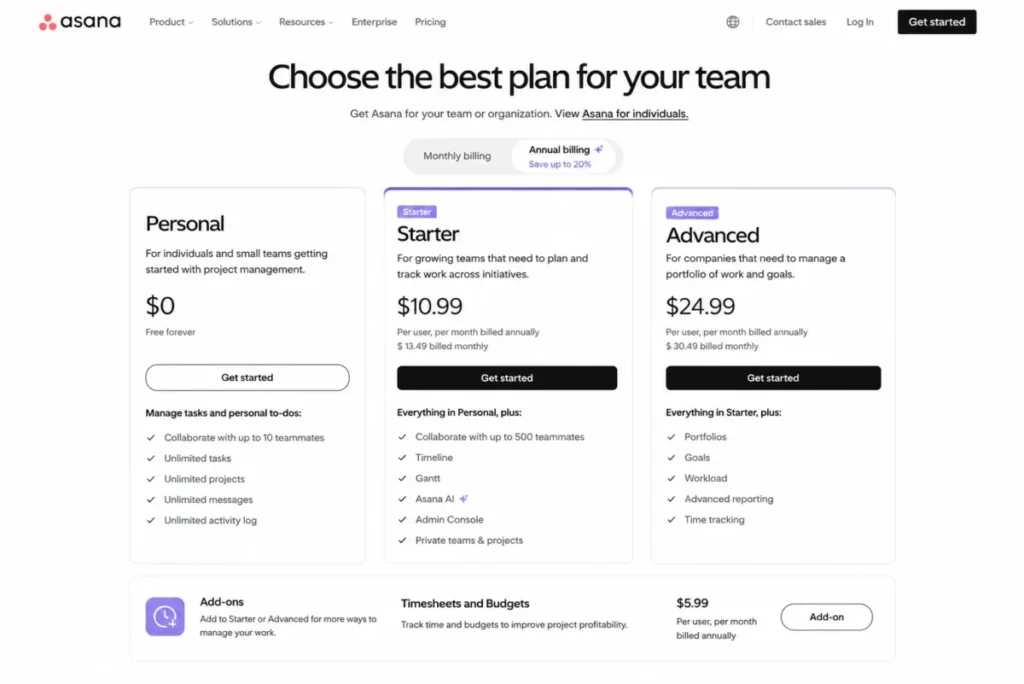
The free Personal plan tops out at two users, so it validates nothing for a real team. Starter is the first true team plan at $10.99 per user per month on annual billing ($13.49 monthly), and it unlocks Timeline, Gantt, forms, dashboards, unlimited automation actions, and guests.
The cost trap is not the base plan. It is the workflow you need, because portfolios, goals, workload, and approvals only appear on Advanced at $24.99 per user per month, so a team that needs cross-project visibility is shopping for Advanced, not Starter.
Service teams hit a second cost. Time and budget tracking is a Timesheets and Budgets add-on at $5.99 per user per month on annual billing, billed on top of the plan, so a five-person team that wants budgets pays roughly $17 per user, not $11.
Automation actions are unlimited on paid tiers, but the rule architecture still caps at 50 rules per project and 20 triggers or actions per custom rule.
CSV import handles projects, tasks, sections, assignees, dates, and mapped custom fields, with documented subtask conventions. It does not promise full transfer of comments, attachments, rule history, or portfolios, so plan to rebuild governance assets after a move.
- Best for:
- 5 to 25 person marketing, creative, and operations teams that want repeatable process and stakeholder visibility.
- Avoid if:
- you run billable services and expect budgets and profitability without paying for an add-on.
| Pros | Cons |
|---|---|
| Clean task ownership and mature cross-functional structure | Free Personal plan is capped at two users |
| Timeline, forms, and unlimited automation on Starter | Portfolios, workload, and approvals require Advanced at $24.99 |
| Predictable process without database design | Time and budgets cost an extra $5.99 per user add-on |
| Documented CSV import with field mapping | Import does not guarantee history, attachments, or portfolios |
- Setup difficulty:
- Medium. The task-first model is quick to learn, and the real decision is which tier your reporting needs.
The Asana review covers how Starter holds up before a team needs Advanced.
- Verdict:
- Choose Asana Starter for clean execution and stakeholder visibility; move to Advanced only when portfolios, workload, or approvals block the workflow, and look elsewhere if native profitability is a hard requirement.
Trello: Best Budget Kanban

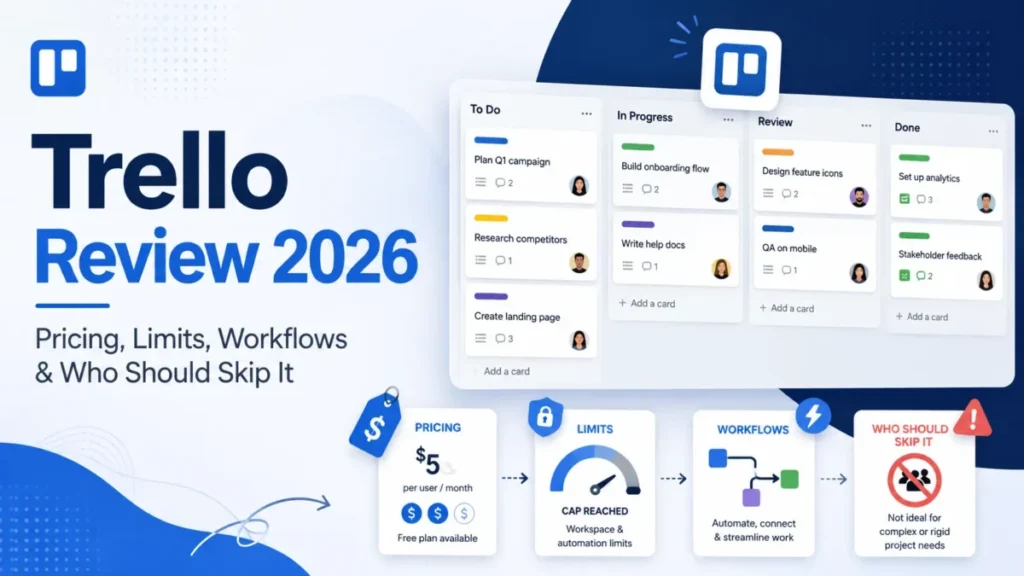
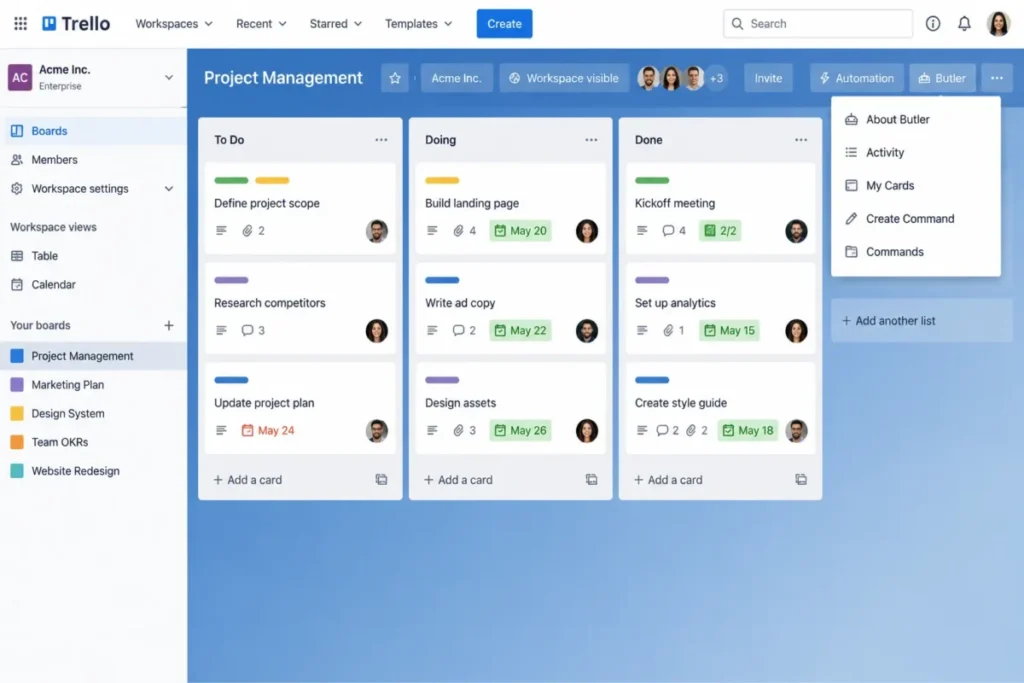
Trello wins on speed and price for board-sized work. A small team can create boards, cards, checklists, and light Butler automation in an afternoon, with almost no training, which is the lowest setup burden in this guide.
Free covers up to 10 collaborators per Workspace, 10 boards, 10 MB file uploads, and 250 command runs. Standard at $5 per user per month (annual) adds unlimited boards, Custom Fields, 250 MB files, and 1,000 command runs, and Premium at $10 adds Calendar, Timeline, Table, Dashboard, and unlimited Butler runs.
The Butler allowance is usually the first upgrade trigger. A team automating recurring card movement can burn through Standard’s 1,000 monthly command runs while still fitting by seats and boards, which pushes it toward Premium sooner than expected.
The bigger limitation is structural, and review patterns confirm it: boards get cluttered as projects grow, and there is no native portfolio, resource, or dependency layer. Migration is the sharpest catch, because Trello has no generic importer.
You copy and paste simple lists, use the API, or buy a third-party Power-Up, and exported CSV or JSON does not rebuild a board on re-import.
- Best for:
- 2 to 10 person teams managing straightforward work through visual boards.
- Avoid if:
- you need native portfolio, resource, dependency, or complete migration tooling.
| Pros | Cons |
|---|---|
| Fastest onboarding of any tool here | Boards clutter as projects grow |
| Usable $5 Standard tier with unlimited boards | Standard caps Butler at 1,000 command runs per month |
| Free plan works for a small real pilot | No native portfolio, resource, or dependency views |
| Simple card model non-technical teams adopt fast | No generic importer; structured migration is manual or paid |
- Setup difficulty:
- Low. One workflow per board and archived cards keep it clean.
The Trello review shows where the board model stops scaling for a growing team.
- Verdict:
- Choose Trello Standard when the work is genuinely board-sized; upgrade to Premium only for cross-board views or unlimited automation, and pick a heavier tool if leadership needs reliable portfolio reporting.
Problem 2: Specialized Work a Generic Tool Fights You On
Some teams do not need a general workspace. They bill clients by the hour, run on shared documents, or ship software, and a generic board tool makes that work harder, not easier.
These three products are bought for a specific job, and each one is the wrong choice for the other two situations.
Teamwork.com: Best for Client Services

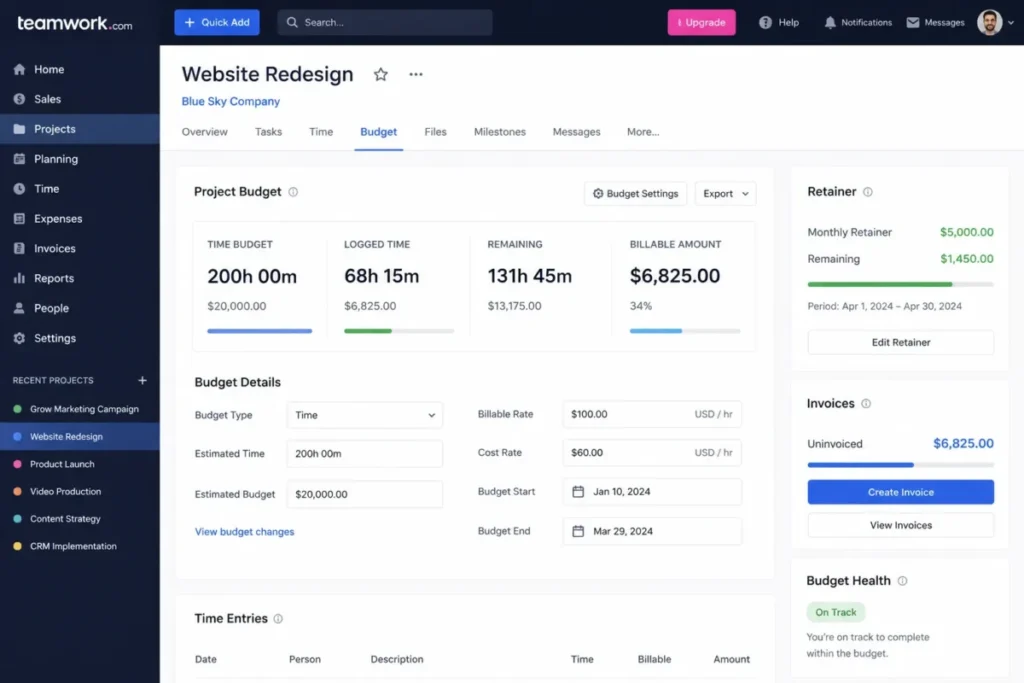
Teamwork.com is built for agencies and consultancies, not for internal task tracking. Projects, time, workload, budgets, retainers, and invoices belong to one product model, which means a services team can connect delivery to profit without bolting a time tracker onto a generic PM tool.
Free covers up to five users, five projects, and 100 automations, which is a pilot. Basics at $9.99 per user per month (annual) handles delivery, but the practical agency tier is Accelerate at $24.99 per user, because that is where workload, budgets, retainers, invoices, smart forms, and 20,000 automations live.
That price is only justified when profitability is actively managed. The intake-to-invoice workflow, task to workload to time budget to invoice, mostly requires Accelerate, and Optimize (custom pricing) adds quotes, role and skill scheduling, multi-currency budgets, and profitability insights for firms that need them.
One freshness flag matters for 2026 budgeting. TeamworkAI is included for an introductory period, with usage-based AI credits scheduled for September 2026 at a price the company has not disclosed, so do not assume AI stays free on your plan.
Task import from Excel exists, but it does not carry historical time entries, budgets, retainers, invoices, or attachments, so the financial record needs separate setup.
- Best for:
- 5 to 30 person agencies, consultancies, and professional-services teams tracking billable client delivery.
- Avoid if:
- your team does not manage billable time, retainers, budgets, or client profitability.
| Pros | Cons |
|---|---|
| Budgets, retainers, and invoices are native, not add-ons | The practical agency tier is Accelerate at $24.99 per user |
| 20,000 automations on Accelerate suit real client volume | Free plan caps at five users and five projects |
| Workload and time budgets tie delivery to profit | September 2026 AI credit pricing is undisclosed |
| SOC 2 and two-factor authentication on all plans | Task import excludes financial and client history |
- Setup difficulty
- : Medium. The client and finance model is the point, so budget time to configure rates, budgets, and retainers.
The deeper Teamwork.com review covers how the profitability workflow holds up across retainers.
- Verdict:
- Choose Teamwork.com Accelerate when project profitability is a core metric; if your work is internal, its specialization is cost you do not need.
Notion: Best Docs-First PM

Notion fits the team whose projects, notes, wiki, and meeting records should live in one place. Pages, databases, board and timeline views, forms, and dependencies share a single flexible model, so context and execution stop living in separate tools.
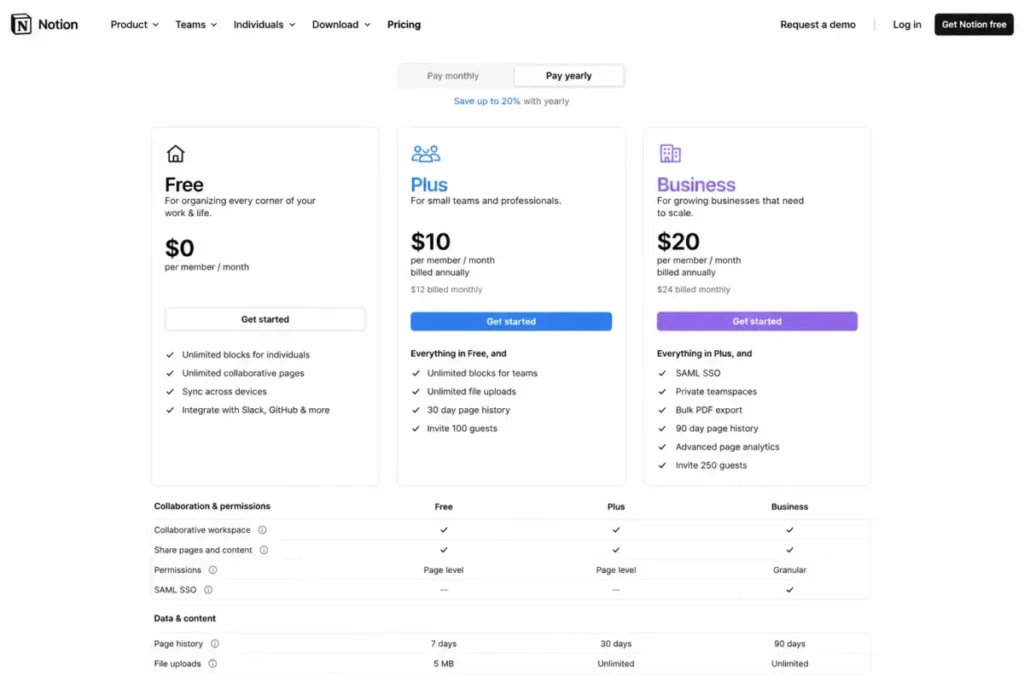
Pricing runs $0 for Free, $10 per member per month on Plus, and $20 on Business. The practical collaboration tier is Plus, because Free throttles multi-member workspaces: 5 MB file uploads, 10 guests, a 7-day page history, and limited collaborative blocks once you pass one member.
The flexibility is also the risk. Notion hands schema design to you, so without a database owner, teams build inconsistent properties, statuses, and relations that are hard to report across, and review patterns note that large or complex databases can feel slow.
Governance sits higher than most small teams expect. SAML SSO, granular database permissions, private teamspaces, and domain verification are Business-only at $20 per member, and Custom Agents credits are billed separately at $10 per 1,000 monthly credits.
Migration has a specific boundary: CSV import seeds databases, but exported CSV does not recreate relations, so rollups, linked views, and formulas need rebuilding.
- Best for:
- 3 to 15 person teams whose tasks, notes, wiki, and lightweight databases should share one workspace.
- Avoid if:
- you need ready-made workload planning, governed portfolio reporting, or low-maintenance structure.
| Pros | Cons |
|---|---|
| Projects and knowledge live in one flexible data model | Team owns schema design and status consistency |
| Plus removes file and collaborative-block limits at $10 | Large databases can slow down per user reports |
| Board, timeline, form, and dependency views included | SSO and granular permissions need Business at $20 |
| Strong fit when documentation is central | CSV import does not rebuild database relations |
- Setup difficulty:
- Medium to High, depending on ambition. Start from one shared template and name a schema owner.
The Notion review looks at where the database model helps and where it drifts without an owner.
- Verdict:
- Choose Notion Plus when knowledge and projects must be co-located and the team will maintain the database; choose a governed PM tool if you need workload and portfolio controls out of the box.
Jira: Best for Software Teams

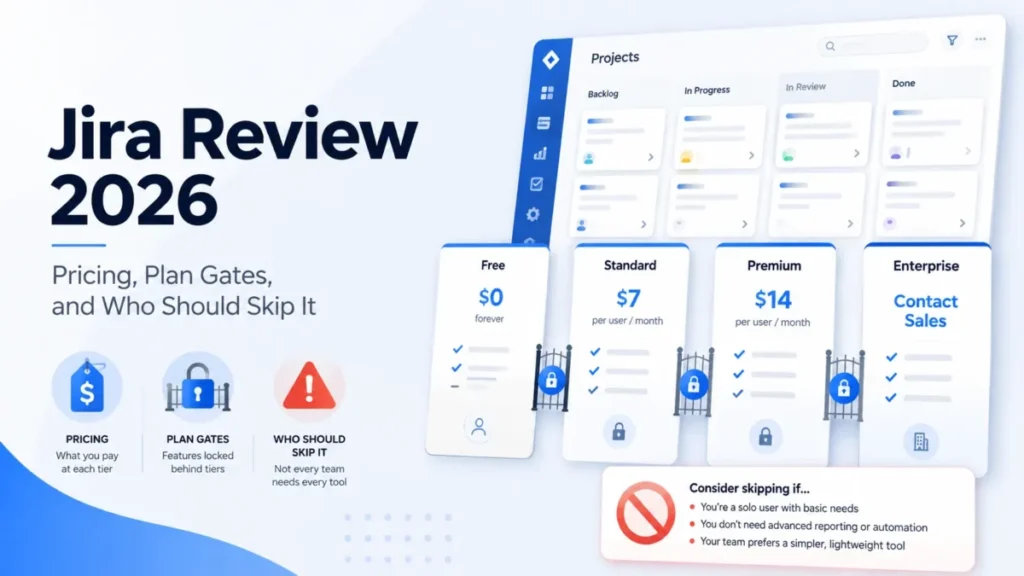
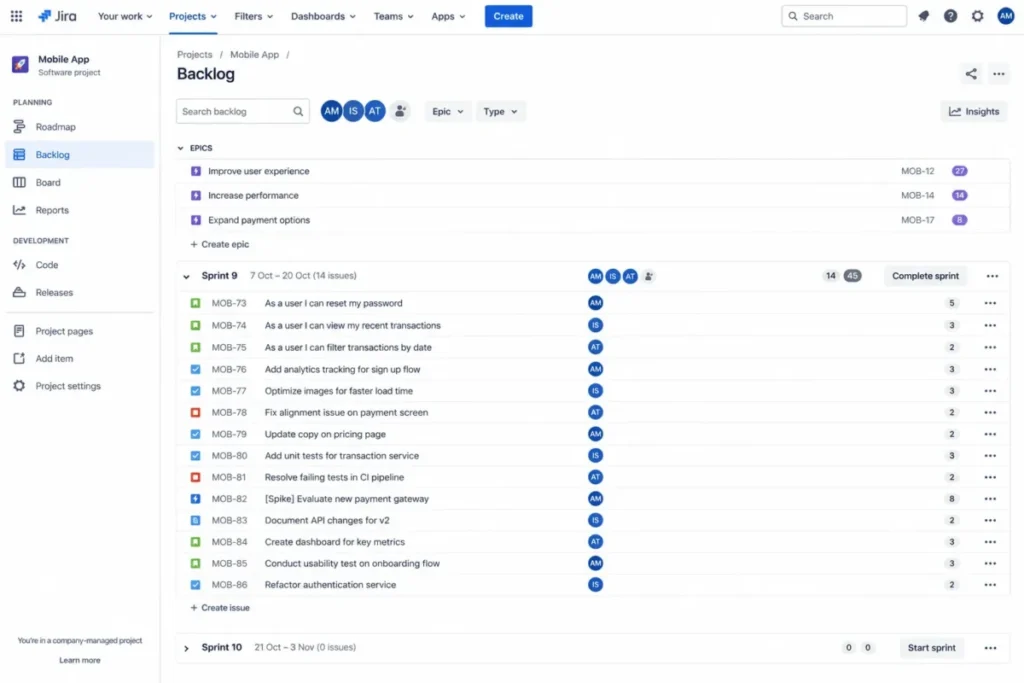
Jira is the specialist here, and its free tier is genuinely strong for a small engineering team. Issues, Scrum and Kanban boards, backlogs, sprints, releases, and automation match how software gets built, and Free supports up to 10 users.
The reason it is not a general small-business pick is terminology and configuration. A marketing or operations team has to adopt issues, workflows, and agile concepts it may not need, and review patterns flag configuration complexity as the recurring cost.
Free is compelling only when the workflow fits. Automation runs 100 rule executions per month on Free and 1,700 on Standard, so a ten-user team can sit inside the free seat cap and still exhaust its automation allowance.
Paid Jira is calculated dynamically by user tier and billing selection, so I would not quote a fixed Standard price; check the official calculator for your exact seat count on the day you buy.
CSV and direct import handle issues with field mapping, and documented examples cover comments and attachment references when formatted correctly. Complete workflow, hierarchy, and Marketplace app parity is not guaranteed, so a real migration still needs a staged test.
- Best for:
- software teams of up to 10 that need issues, backlogs, sprints, releases, and development integrations.
- Avoid if:
- your team is non-technical and does not use agile or issue-centric terminology.
| Pros | Cons |
|---|---|
| Purpose-built software delivery workflow | Issue and agile terms overwhelm non-technical teams |
| Free for up to 10 users with sprints and releases | Free caps automation at 100 rule runs per month |
| One of the deeper CSV import paths here | Paid Standard price is dynamic, not a fixed number |
| Strong development-tool integrations | Configuration complexity is a recurring user complaint |
- Setup difficulty:
- Medium to High for non-engineers, lower for teams already fluent in agile. Use a Scrum or Kanban template and limit statuses.
The Jira review covers how the issue model lands with non-engineers before you commit.
- Verdict:
- Choose Jira Free for a software team of ten or fewer if 100 automation runs are enough; do not adopt it just because Free supports ten users when the work is not software.
Problem 3: Predictable Cost and Real Planning as You Grow
The last group is about the money curve and the planning ceiling. One tool flips the math with a flat fee, one bills only the people who build, and one trades a low entry price for a hard 15-user wall.
Each fits a different growth story.
Basecamp: Best Flat-Fee Simplicity

Basecamp is the calm, standardized option for teams that want one predictable place for messages, to-dos, files, schedules, and chat. Message Boards, To-dos, Campfire, Schedule, Docs and Files, and Card Tables come in a fixed layout, which cuts the setup decisions that slow down ClickUp or Notion rollouts.
The pricing flips at scale. Pro is $15 per user per month, and clients and guests are free, but Pro Unlimited is a flat $299 per month billed annually ($3,588 per year) for unlimited users and projects.
On list prices, a per-user team crosses that flat rate around 20 employees, so the flat plan is a growth play, not a small-team discount.
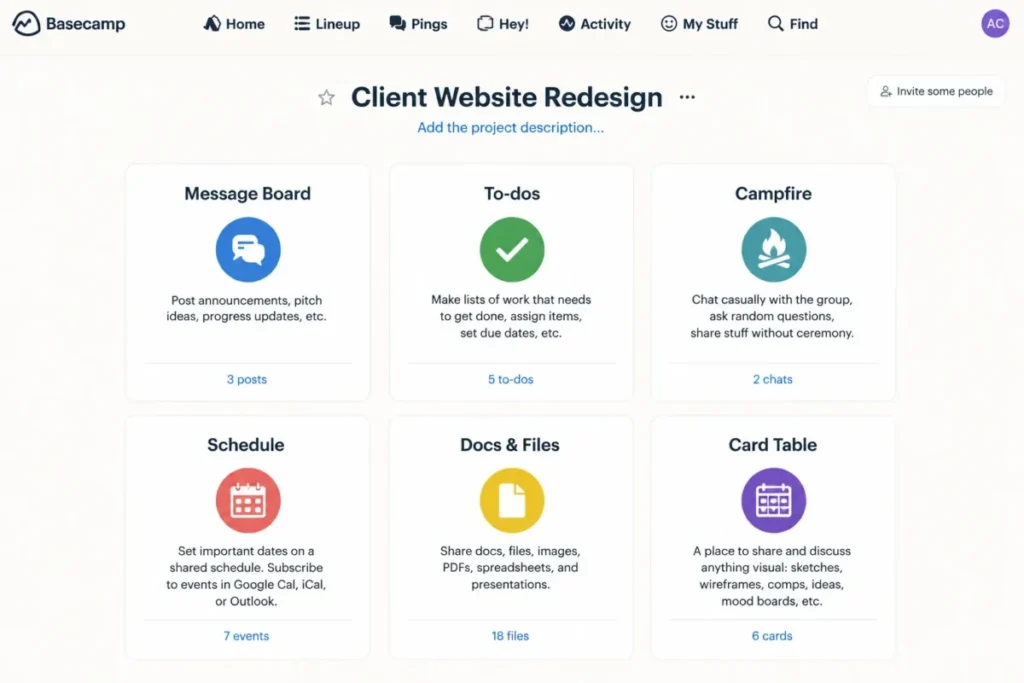
The ceiling appears fast for complex work. Basecamp has Card Tables for Kanban-style tracking, but it has no native Gantt, dependency mapping, or resource planning, so the flat-fee saving only holds while the workflow stays simple.
- Best for:
- client-facing teams wanting one predictable place for messages, to-dos, files, schedules, and chat.
- Avoid if:
- you require native dependency mapping, advanced resource planning, or portfolio analytics.
| Pros | Cons |
|---|---|
| Standardized projects cut setup decisions | No native Gantt, dependencies, or resource planning |
| Flat $299 covers unlimited users and projects | Flat rate only beats per-seat near 20 employees |
| Clients and guests are free on Pro | Free plan holds just one active project |
| Card Tables cover basic Kanban needs | Reporting depth is thin for complex portfolios |
Setup difficulty: Low. The fixed structure is the feature.
The full Basecamp review covers where the simplicity ceiling bites for interdependent work.
Verdict: Choose Basecamp Pro Unlimited when a larger simple team values flat pricing and calm collaboration over planning depth; skip it the moment you need dependencies or portfolio analytics.
Smartsheet: Best Spreadsheet-Native PM

Smartsheet suits teams that think in grids and want real PM views on top. A sheet switches to Gantt, board, or calendar, and forms, reports, dashboards, and automations sit around it, which is a natural home for a spreadsheet-native PMO.
The pricing model is the differentiator, and most tables get it wrong. Pro is $9 per member per month on annual billing for 1 to 10 Members, and Contributors who only update work are unlimited and free, so you pay for builders, not viewers.
That keeps cost low, until an eleventh Member or heavy automation forces Business at $19 per member, which also lifts the 250-automation Pro cap.
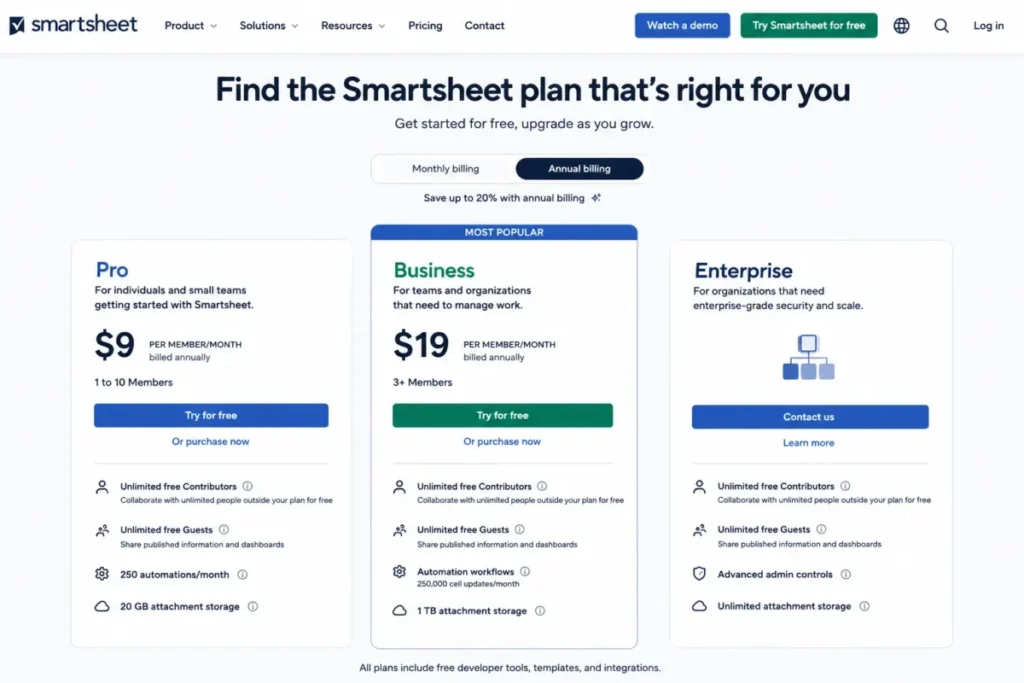
Add-ons can move the total too, since Dynamic View starts at $125 per month and Data Shuttle at $100, and review patterns note a real learning curve for advanced sheet solutions. File import from Excel or CSV creates new sheets cleanly, but formulas, cross-sheet references, reports, and dashboards need rebuilding.
- Best for:
- 3 to 10 person PMO or operations teams that think in grids and need forms, reports, dashboards, and automations.
- Avoid if:
- you are Kanban-first or unwilling to manage Member and Contributor roles and paid add-ons.
| Pros | Cons |
|---|---|
| You pay only for Members, not free Contributors | Pro caps at 10 Members and 250 automations |
| Spreadsheet familiarity plus Gantt and reporting | Advanced views can require $100-plus add-ons |
| Forms, reports, and dashboards on Pro | Solution design carries a real learning curve |
| Clean flat-file import to new sheets | Formulas and cross-sheet logic do not migrate |
- Setup difficulty:
- Medium to High for advanced solutions. Classify builders as Members and everyone else as Contributors before pricing it.
See the Smartsheet review for how the role model plays out in practice.
- Verdict:
- Choose Smartsheet Pro when a small builder group works in grids and the rest only update; skip it if your team wants visual boards first.
Wrike: Best for Growing Governance

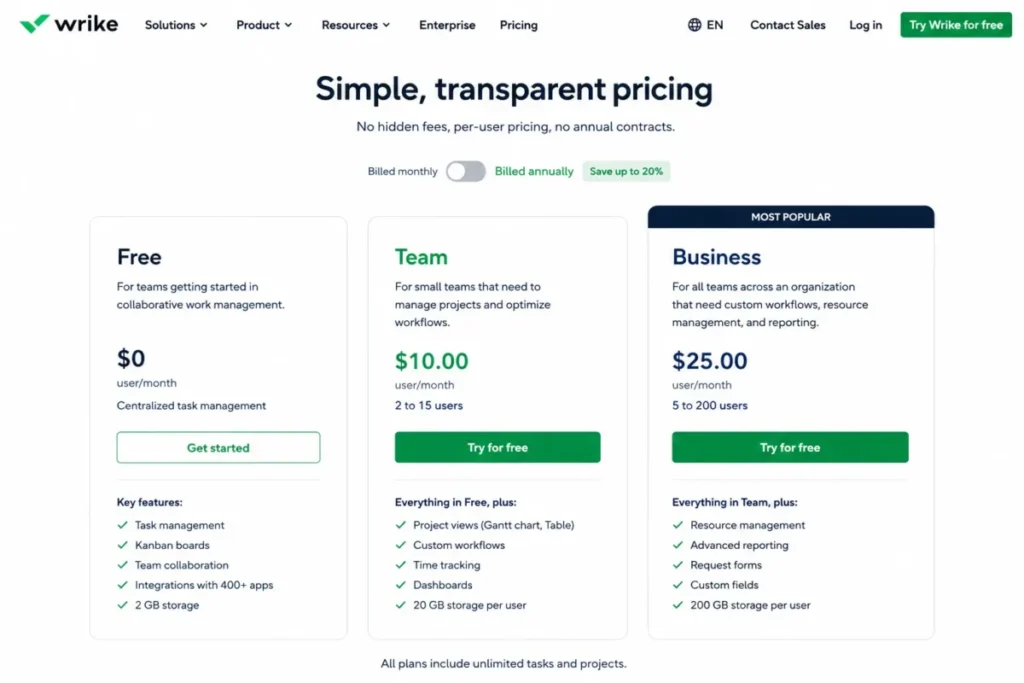
Wrike is the pick for a process-mature small team that expects to need real resource and reporting control soon. Team at $10 per user per month adds Gantt, dashboards, and structured planning, and Business and higher layer on templates, integrations, and resource governance.
The wall is the seat range. Team is built for 2 to 15 users, so the sixteenth user cannot stay on Team and moves the whole group to Business at $25 per user, which turns a $150 monthly bill for 15 into $400 for 16.
That is a growth cliff a 14-person team should model before buying.
Review patterns flag a steep learning curve, which makes onboarding capacity a real purchase criterion. XLS import creates new tasks, folders, and projects on Team and higher, but it cannot update existing work and does not preserve formulas.
- Best for:
- 8 to 15 person teams already using structured projects and expecting stronger reporting or resource control.
- Avoid if:
- you need simple task tracking, or you are likely to cross 15 seats without a Business-tier budget.
| Pros | Cons |
|---|---|
| Strong structured planning with Gantt and dashboards | Team plan tops out at 15 users |
| Clear path into resource and capacity governance | The 16th user forces Business at $25 per user |
| Team tier is affordable at $10 per user | Steep learning curve is a recurring complaint |
| Structured XLS import on Team and up | Import creates new items only; no updates or formulas |
- Setup difficulty:
- High. The planning depth that makes Wrike valuable is also what slows onboarding.
The Wrike review details where the governance features earn their keep.
- Verdict:
- Choose Wrike Team when process maturity and near-term resource governance justify the learning curve and you can stay under 16 seats; pick an easier tool for light coordination.
Pricing Comparison: Starting Price vs Practical Tier
The number that matters is not the starting price. It is what the plan your workflow needs costs at your real headcount, plus the add-ons that hide behind the plan card.
The table below uses each tool’s practical tier at annual billing where offered, with monthly-equivalent cost for five and ten users, checked July 24, 2026.
| Tool | Practical tier | 5-user monthly | 10-user monthly | Free plan | Main hidden cost |
|---|---|---|---|---|---|
| monday.com Work Management | Standard, $12 per seat | $60 (5 seats) | $120 (10 seats) | Up to 2 seats | Five-seat buckets; Pro for critical path |
| ClickUp | Unlimited, $7 per user | $35 | $70 | Capable Free Forever | Brain AI $9 to $28 per user |
| Asana | Starter, $10.99 per user | $54.95 | $109.90 | Up to 2 users | Timesheets and Budgets add $5.99 per user |
| Trello | Standard, $5 per user | $25 | $50 | Up to 10 collaborators | Premium for advanced views |
| Teamwork.com | Accelerate, $24.99 per user | $124.95 | $249.90 | 5 users, 5 projects | September 2026 AI credits, price undisclosed |
| Notion | Plus, $10 per member | $50 | $100 | Limited for 2+ members | Business for SSO; AI credits $10 per 1,000 |
| Jira | Free, up to 10 users | $0 | $0 | Up to 10 users | Dynamic paid pricing above 10 |
| Basecamp | Pro, $15 per user | $75 | $150 | 1 project, 20 users | Flat $299 wins near 20 employees |
| Smartsheet | Pro, $9 per Member | $45 | $90 | Trial only | Dynamic View $125-plus, Data Shuttle $100-plus |
| Wrike | Team, $10 per user | $50 | $100 | Basic free tier | 16th user forces Business at $400 per month |
Source: official pricing pages for all ten products, checked July 24, 2026. Prices are US list prices and exclude tax and negotiated discounts.
Read three rows together and the pattern is clear. Trello, ClickUp, and Smartsheet keep a ten-person team under $100 a month, while Teamwork.com sits near $250 because you are buying a profitability system, not a task tracker.
Jira’s $0 is real only while the team stays software-shaped and under eleven users, so teams sizing a paid move should check current ClickUp pricing and Jira pricing plans against their actual seat count on the day they buy.
The costlier truth is the add-on line. Asana’s budget workflow adds $5.99 per user, monday.com’s seat buckets can bill you for capacity you do not use, and Smartsheet’s Dynamic View starts at $125 a month, so the practical bill often sits above the plan card.
Feature Gate Comparison
A small team rarely upgrades for more seats. It upgrades because the one workflow it needs, automation volume, portfolios, budgets, or SSO, is locked one tier up.
This table shows where the gate sits.
| Tool | Automation ceiling (entry paid) | Scheduling (Timeline/Gantt) | Reporting/portfolios | Budgets/time | SSO and admin |
|---|---|---|---|---|---|
| monday.com Work Management | 250 actions/mo (Standard) | Standard | Dashboards on Standard, critical path on Pro | Time tracking on Pro | Enterprise |
| ClickUp | 1,000 actions/mo (Unlimited) | Included | Dashboards included, deeper on Business | Time tracking included | Business and up |
| Asana | Unlimited actions, 50 rules/project | Starter | Portfolios and workload on Advanced | Timesheets add-on ($5.99) | Enterprise |
| Trello | 1,000 command runs/mo (Standard) | Premium | Dashboard on Premium | Not native | Enterprise |
| Teamwork.com | 20,000 automations (Accelerate) | Included | Profitability on Optimize | Budgets and retainers on Accelerate | Higher tiers |
| Notion | Not action-metered | Included | Charts included, governed views on Business | Not native | Business |
| Jira | 100 rule runs/mo (Free), 1,700 (Standard) | Board and roadmap | Reports included | Not native | Paid tiers |
| Basecamp | Not action-metered | Not native | Thin | Timesheet on Pro Unlimited | Pro Unlimited admin pack |
| Smartsheet | 250 automations/mo (Pro) | Included | Reports and dashboards on Pro | Not native | Business and up |
| Wrike | Included on Team | Team | Dashboards on Team, deeper on Business | Resource planning on higher tiers | Business and up |
Source: official pricing and plan documentation for all ten products, checked July 24, 2026.
The gate that catches the most small teams is automation, not reporting. A five-person operations team on monday.com Standard or ClickUp Unlimited can hit the action cap in a single busy month, and the fix is a full-tier upgrade, so estimate your monthly rule volume before you pick the entry plan.
Setup and Migration Difficulty
Fast onboarding does not mean easy migration. A simple board can be up in an hour and still leave your old history stranded, because most importers move task rows, not comments, attachments, automations, or dashboards.
| Tool | Setup difficulty | Why | Migration path |
|---|---|---|---|
| monday.com Work Management | Medium | You design columns, statuses, and views | Excel/CSV import; history and automations not confirmed |
| ClickUp | High | Dense hierarchy needs a governance owner | Spreadsheet importer (Excel, CSV, JSON, TSV, TXT) |
| Asana | Medium | Task-first model is quick to learn | CSV import with field mapping |
| Trello | Low | Boards and cards need almost no config | No generic importer; copy/paste, API, or Power-Ups |
| Teamwork.com | Medium | Rates, budgets, and retainers need setup | Excel task import; no financial history |
| Notion | Medium to High | You build the schema yourself | CSV import; relations do not survive |
| Jira | Medium to High | Agile terms and config for non-engineers | CSV and direct import with mapping |
| Basecamp | Low | Fixed structure is the feature | Connector-specific; no universal importer |
| Smartsheet | Medium to High | Advanced sheet solutions take expertise | Excel/CSV to new sheets; formulas rebuild |
| Wrike | High | Planning depth slows onboarding | XLS import creates new items only |
Source: official import and help documentation for all ten products, checked July 24, 2026.
Trello is the sharp exception worth repeating: it has no generic importer, so a team switching from a structured tool rebuilds boards by hand, through the API, or through a paid Power-Up. Across all ten, treat any move as a task-level import plus a manual rebuild of automations, dashboards, and permissions, and keep the source system until you have validated the copy.
Which Project Management Tool Should You Avoid?
None of these tools is bad. Each one is wrong for a specific team, and the expensive mistakes come from buying the right tool for the wrong situation.
Avoid Jira if your work is not software. The free ten-user tier is tempting, but a marketing or operations team pays for it in configuration and terminology it does not need, and adoption stalls.
Avoid Wrike if you are a light-coordination team near the 15-user line. The learning curve is real, and the sixteenth user pushes you from $150 to $400 a month, so the entry price is a poor guide to the real one.
Avoid monday.com and Teamwork.com at the extremes: monday.com if a two or three person team resents paying for unused seats, and Teamwork.com if nobody bills time, because its budgets and retainers are cost without a payoff.
The tool most small teams overbuy is a broad platform they never govern. If no one will own ClickUp’s or Notion’s structure, a $5 Trello board the team keeps up to date beats a heavier tool that quietly rots.
How to Choose the Right Project Management Software
Work through these questions in order. The first one that gives a hard answer usually decides the shortlist.
- What kind of work is this? Software goes to Jira, billable client work to Teamwork.com, docs-heavy work to Notion, and general mixed work to monday.com, Asana, ClickUp, or Trello.
- How many people need paid access now and within a year? Model the seat count against minimums and ceilings, especially monday.com’s five-seat buckets and Wrike’s 15-user wall.
- Which one workflow is non-negotiable? Name it, then find the lowest tier that unlocks it, because that tier, not the starting price, is your budget.
- How much automation will you run monthly? If it is more than a few hundred actions, price the tier above the entry plan now.
- Who is billable or external? Check whether clients, contractors, or viewers consume paid seats, since Basecamp and Smartsheet keep them free while others do not.
- Who owns setup and governance? A dense tool with no owner is a liability, so match tool complexity to the person who will maintain it.
- What has to survive a future switch? Confirm the importer covers your real objects before you commit years of data to it.
If two tools still tie after these questions, weigh the head-to-head directly. A close Asana vs monday.com decision, for instance, usually comes down to whether you value clean process or visual flexibility more.
Common Mistakes When Choosing Project Management Software
- Budgeting from the starting price. The practical tier and add-ons, not the cheapest plan, set the real cost, and teams comparing Trello pricing against a heavier tool often miss that Standard caps automation.
- Ignoring seat rules. monday.com’s three-seat minimum and five-seat buckets, and Wrike’s 15-user cap, change the math before features do.
- Treating all free plans as equal. A two-user cap, a ten-user cap, and a one-project cap are very different pilots, so match the free tier to a real test.
- Assuming automation is unlimited. Entry plans meter actions or command runs, and hitting the cap forces a full-tier upgrade.
- Underpricing external users. Clients, contractors, and viewers can outnumber staff, and whether they are free changes the cheapest tool for an agency.
- Believing easy setup means easy migration. Fast onboarding and complete data transfer are different problems, and Trello proves it with no generic importer.
- Buying power nobody will govern. An ungoverned platform fragments reporting, so match tool depth to the owner you have.
Final Verdict
For most small teams, monday.com Work Management is the pick I would default to, because it balances visual planning, forms, dashboards, and tiered automation better than any other generalist here, and its practical Standard tier stays affordable at five to fifteen seats. The condition is real: budget for the three-seat minimum and a likely Pro upgrade once automation or critical-path scheduling matters.
By buyer type, the shortlist is clean. Choose ClickUp when one owner will govern the widest toolset per dollar, Asana when clean process beats flexibility, and Trello when the work is genuinely board-sized and budget is tight.
For specialized teams, follow the workflow. Teamwork.com wins for billable client delivery, Notion for docs-first teams that will maintain a database, and Jira for software teams of ten or fewer on its free tier.
For the growth curve, Basecamp’s flat $299 rewards larger simple teams, Smartsheet suits grid-native groups that pay only for builders, and Wrike fits process-mature teams heading toward resource governance, as long as they stay under sixteen seats. Match the tool to the job, price the practical tier, and confirm the exit path before you commit.
FAQ
What is the best project management software for a small team?
For a mixed small team that needs a general workspace and can accept a three-seat minimum, monday.com Work Management is the pick I would default to, because it balances visual boards, forms, dashboards, and light automation on an affordable Standard tier.
Software teams are better served by Jira’s free plan, and billable agencies by Teamwork.com. Match the tool to your work before you compare prices.
Which project management tool is cheapest for small teams?
Trello is the cheapest usable paid option at $5 per user per month on Standard, which is $50 a month for ten users. ClickUp Unlimited ($7) and Smartsheet Pro ($9 per Member, with free Contributors) are close behind.
Jira is free for up to ten users if your work is software.
Which project management software has the best free plan?
It depends on your team. Jira’s free plan is strongest for software teams at up to ten users, ClickUp’s Free Forever is the most capable for general work, and Trello’s free tier suits up to ten collaborators on simple boards.
Notion and Asana free plans are too limited for a real multi-person pilot.
Is monday.com worth it for a 5-person team?
Yes, if you want a general workspace and can accept the seat rules. A five-person team on Standard pays about $60 a month, but paid plans require at least three seats and sell in five-seat buckets, so a four-person team still pays for five.
Budget for a Pro upgrade if you need critical path or time tracking.
Do small teams need Gantt charts?
Not always. Small teams with short, independent tasks manage fine on boards and lists, and a Gantt view mainly earns its place when work has real dependencies and deadlines that shift. monday.com, Asana, ClickUp, Smartsheet, and Wrike all include timeline or Gantt views on their practical tiers if you need them.
How much does project management software cost for 10 users?
At the practical tier, ten users run roughly $50 a month on Trello, $70 on ClickUp, $90 on Smartsheet, $100 on Notion or Wrike, $120 on monday.com, and about $250 on Teamwork.com. Jira stays free at ten users for software teams.
Add-ons like AI credits and time tracking sit on top of these figures.
Which project management tool is best for a small agency?
Teamwork.com is the strongest fit for a billable agency, because budgets, retainers, invoices, and workload are native on its Accelerate tier at $24.99 per user. It only pays off when you actively manage project profitability.
An internal team without billable work should choose monday.com or Asana instead.
What is the best project management tool for a software team under 10 users?
Jira is the clear pick for a software team of ten or fewer, and its free plan includes issues, backlogs, sprints, and releases. Watch the automation ceiling, which is 100 rule runs per month on Free, and confirm the workflow suits agile delivery.
Non-technical teams should avoid it despite the free seats.
Can I migrate my data between project management tools easily?
Rarely without effort. Most tools import task rows from Excel or CSV but not comments, attachments, automations, or dashboards, and Trello has no generic importer at all.
Treat any switch as a task-level import plus a manual rebuild, and keep your old system until the copy is validated. Beyond PM tools, the same caution applies to team collaboration tools you connect alongside it.