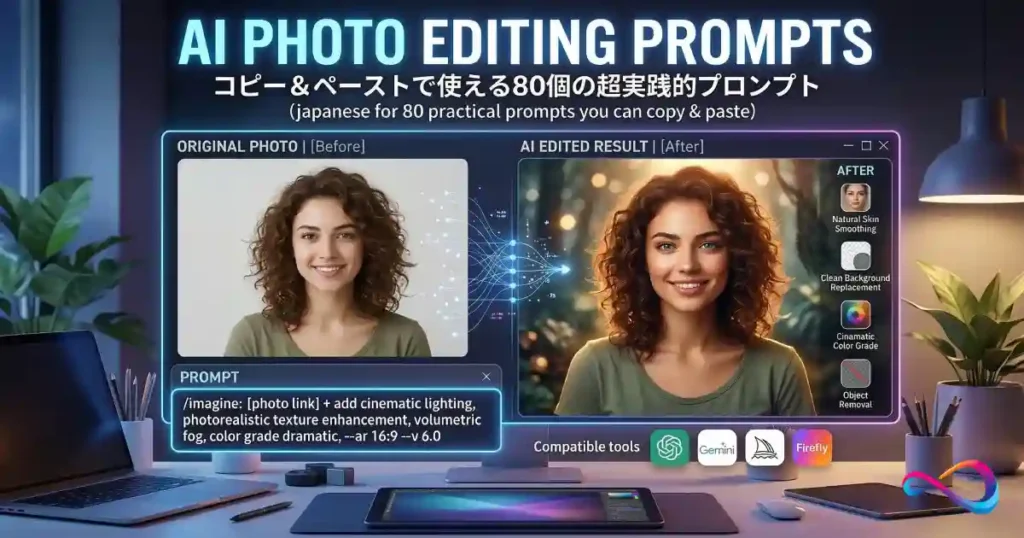
AI photo editing prompts are text-based instructions that tell an AI tool — such as ChatGPT, Gemini, Midjourney, or Adobe Firefly — exactly how to modify an existing photograph. You describe the change you want (remove a background, smooth skin, shift lighting) and the AI applies it. The quality of your prompt directly determines the quality of the edit.
This guide gives you 80 practical, copy-and-paste prompts organized by tool and use case — plus an honest comparison of four major AI photo editing tools. Whether you need LinkedIn headshots, ecommerce product cleanup, real estate photo enhancement, or cinematic color grading, you will find the right prompt for the right tool below.
This is not a generic prompt dump. It is a pillar reference built around the editing workflows each tool actually supports — from ChatGPT’s conversational image edits to Midjourney’s Smart Select and Retexture features, Gemini’s uploaded-image editing, and Adobe Firefly’s Prompt to Edit and Generative Fill tools. For deeper prompt libraries, see our dedicated guides to ChatGPT photo editing prompts and Gemini photo editing prompts.
TL;DR
ChatGPT is often strongest for natural-language conversational edits and identity-preserving portraits. Gemini is well-suited for fast uploaded-image edits and accessibility. Midjourney is often preferred for stylized transformations, retexturing, and artistic compositing. Adobe Firefly is a strong option for precision commercial work, Generative Fill, and brand-safe licensing. Scroll to your tool or jump to prompts by use case.
Quick Answer — Which AI Tool Is Best for Photo Editing Prompts?
There is no single best tool. Each AI photo editor handles prompts differently, and the right choice depends on what you are editing and why.
- ChatGPT (OpenAI) — Often strongest for conversational, iterative photo edits where you want to describe changes in plain English and refine step by step. A solid choice for identity-preserving portrait retouching and natural-language instructions. For a deeper look at the platform, see our ChatGPT review.
- Google Gemini — Well-suited for quick edits to uploaded images, especially when you want speed and simplicity. Gemini in Chrome and the Nano Banana model make casual edits accessible without specialized tools. For a detailed breakdown, read our Gemini review.
- Midjourney — Often preferred for stylized edits, artistic transformation, retexturing, and scene compositing. The Midjourney Editor with Smart Select, layers, and Retexture offers the most creative control among these four tools. Our Midjourney review covers its full capabilities.
- Adobe Firefly — A strong option for commercial-safe, precision edits. Prompt to Edit and Generative Fill in Photoshop give you fine-grained control over adding, removing, and replacing elements with clear commercial licensing. For a deeper look at the platform, see our Adobe Firefly Review.
Use ChatGPT when you want to talk through edits naturally. Use Gemini when you need fast results with minimal setup. Use Midjourney when the edit is creative or artistic. Use Adobe Firefly when you need commercial licensing and pixel-level control.
AI Photo Editing Prompts by Tool — Comparison at a Glance
| Feature | ChatGPT | Gemini | Midjourney | Adobe Firefly |
|---|---|---|---|---|
| Best for | Conversational edits, portraits | Quick uploaded-image edits | Stylized / artistic edits | Commercial precision edits |
| Ease of use | Very easy (natural language) | Very easy (upload + describe) | Moderate (Editor UI + prompts) | Moderate (requires Photoshop or web app) |
| Precision | Medium | Medium | High (Smart Select, layers) | Very high (Generative Fill, masks) |
| Creativity | High | Medium | Very high | Medium–High |
| Ideal user | Anyone, content creators | Beginners, casual users | Artists, designers, creators | Professionals, ecommerce, agencies |
| Biggest limitation | Can alter identity on complex edits | Less precise control | Learning curve, subscription cost | Requires Adobe ecosystem |
| Commercial licensing | Check OpenAI terms | Check Google terms | Midjourney license applies | Designed for commercial use |
AI Photo Editing Tool Scoring Table
This scoring table summarizes how each tool performs across eight criteria relevant to photo editing workflows. Scores reflect editorial assessment based on publicly documented capabilities, official tool documentation, and practical prompt-engineering patterns. These are not automated benchmark scores.
| Criteria | ChatGPT | Gemini | Midjourney | Adobe Firefly |
|---|---|---|---|---|
| Ease of use | 9/10 | 9/10 | 6/10 | 7/10 |
| Editing precision | 6/10 | 6/10 | 8/10 | 9/10 |
| Identity preservation | 7/10 | 6/10 | 5/10 | 8/10 |
| Creative / artistic control | 7/10 | 5/10 | 10/10 | 7/10 |
| Commercial readiness | 6/10 | 6/10 | 7/10 | 10/10 |
| Speed (time to result) | 8/10 | 9/10 | 6/10 | 7/10 |
| Best for beginners | 9/10 | 9/10 | 5/10 | 6/10 |
| Best for pros | 6/10 | 5/10 | 9/10 | 9/10 |
Key takeaway: ChatGPT and Gemini are the most accessible. Midjourney leads in creative control. Adobe Firefly leads in precision and commercial safety. No tool scores highest across all criteria — which is exactly why matching the tool to the task matters.
Best Tool for Each Editing Task
Use this quick-reference matrix to match your specific editing job to the strongest tool.
| Editing Task | Recommended Tool | Why |
|---|---|---|
| Portrait retouching (skin, eyes, wrinkles) | ChatGPT | Natural-language identity preservation |
| Quick background swap | Gemini | Fastest time to result |
| Object removal (clean fill) | Adobe Firefly | Generative Fill precision |
| Artistic color grade / film look | Midjourney | Strongest stylistic control |
| Product photo (white background) | Adobe Firefly | Commercial licensing + clean output |
| Real estate virtual staging | Adobe Firefly | Object placement + lighting match |
| Sky replacement | Gemini or Midjourney | Speed (Gemini) or drama (Midjourney) |
| Old photo restoration | ChatGPT | Conversational refinement |
| Material / texture transformation | Midjourney | Retexture is unique to this tool |
| Branded consistency across photos | Adobe Firefly | Repeatable commercial-grade output |
| Social media format optimization | Gemini | Quick canvas extension |
| Before/after comparison images | Adobe Firefly | Split-edit precision |
If you also need AI-generated images from scratch, that is a different workflow — see our separate guide. For a broader look at how generative AI powers these editing tools, we cover the underlying technology in our knowledge hub.
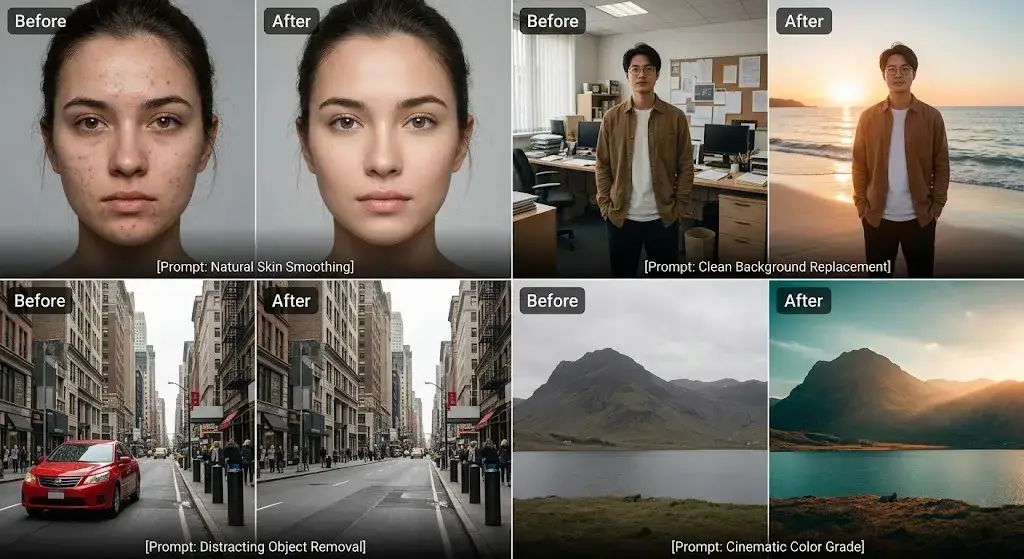
Top 10 Most Useful AI Photo Editing Prompts
Before diving into tool-specific prompt lists, here are the ten AI photo editing prompts we consider the most universally useful — the ones that solve the most common editing problems across all four tools.
1. Natural Skin Smoothing (ChatGPT)
Smooth the skin on this portrait subtly — reduce blemishes and minor imperfections while keeping all skin texture, pores, and freckles visible. Do not change the face shape, eye color, or hair. Keep the lighting exactly as it is.2. Clean Background Replacement (ChatGPT)
Remove the entire background behind the person and replace it with a clean, solid light gray (#E5E5E5) studio backdrop. Keep the subject perfectly intact — hair edges, clothing, and all details. Match the lighting on the background to the existing lighting on the subject.3. Quick Exposure Correction (Gemini)
This photo is underexposed. Brighten the entire image by two stops. Recover detail in the shadow areas. Keep the sky from blowing out to white. Maintain the natural colors.4. Sky Replacement (Gemini)
Replace the overcast gray sky in this photo with a dramatic sunset sky — warm orange, pink, and purple clouds above the horizon, transitioning to deeper blue at the top. Match the warm light of the sunset to the lighting on the buildings and landscape below.5. Retexture Material (Midjourney)
[Select the jacket] Retexture to worn brown leather with visible grain, natural creasing at the elbows, and subtle sheen on the shoulders. Keep the garment shape and fit identical.6. Cinematic Color Grade (Midjourney)
Apply a cinematic grade — teal shadows, warm amber highlights, lifted black point, subtle film grain. Let the subject's face stay naturally warm. Overall mood: moody thriller.7. Remove Unwanted Object with Generative Fill (Adobe Firefly)
[Select the unwanted object] Fill with the surrounding natural background — grass, pavement, or wall texture that matches the surrounding area.8. Product Lifestyle Background (Adobe Firefly)
[Select the background area] Create a bright, modern kitchen countertop scene with marble surface, fresh herbs in a pot, and morning sunlight streaming in from the left.9. White Background Product Shot (ChatGPT)
Remove the background of this product photo and replace it with a pure white (#FFFFFF) background. Keep the product's colors, shadows, and details perfectly accurate. Add a subtle natural drop shadow beneath the product so it does not look like it is floating.10. Professional Color Grade for Branding (Adobe Firefly)
Apply a consistent color grade for brand photography — warm midtones, slightly lifted shadows, and clean whites. Desaturate blues by 20 percent and boost oranges subtly. Keep skin tones natural.These ten prompts cover the most common editing needs: portraits, backgrounds, exposure, products, color grading, and object removal. Each one is designed to work on the first try with minimal customization.
How We Evaluated These Tools and Prompts
Evaluation criteria for tools:
- Editing precision (how accurately the tool follows the prompt)
- Identity and detail preservation (does the subject still look like themselves?)
- Ease of prompt writing (how natural is the input language?)
- Range of supported edits (background, object, color, style, text)
- Commercial viability (licensing clarity for business use)
Prompt quality standards:
- Each prompt targets a specific, real-world editing task
- Prompts are written in the format each tool responds to best
- Every prompt includes customization guidance
- Prompts are organized by job-to-be-done, not by abstract category
Trust note: This guide does not fabricate test results or claim tool capabilities that are not publicly documented. Where a feature is new or behavior may vary, that is noted. Recommendations are based on publicly available tool documentation, widely reported user workflows, and practical prompt-engineering principles. Where we describe tool behavior (such as identity preservation quality or typical failure modes), these observations come from editorial evaluation during prompt development, not from controlled lab testing.
The Prompt Formula That Works Across All AI Photo Editors
A strong AI photo editing prompt follows a consistent structure regardless of tool. Here is the universal anatomy:
[Action] + [Subject/Area] + [Desired Result] + [Style/Mood Constraint] + [Preservation Instruction]
Example:
Remove the background behind the person and replace it with a soft-focus coastal sunset. Keep the subject's face, hair, and clothing exactly as they are. Maintain natural lighting on the subject.Why this works:
- Action tells the AI what to do (remove, replace, enhance, retouch)
- Subject/Area tells it where to apply the edit
- Desired Result describes the target outcome
- Style/Mood Constraint controls the aesthetic
- Preservation Instruction protects what should not change
Pro tip: The more specific your preservation instruction, the better your result. Telling the AI what not to change is just as important as telling it what to change.
Tool-specific prompt tips are included in each section below. If you are new to prompt engineering in general, our complete guide to prompt engineering covers foundational techniques, workflows, and common mistakes. For ready-to-use templates, see our ChatGPT prompts collection.
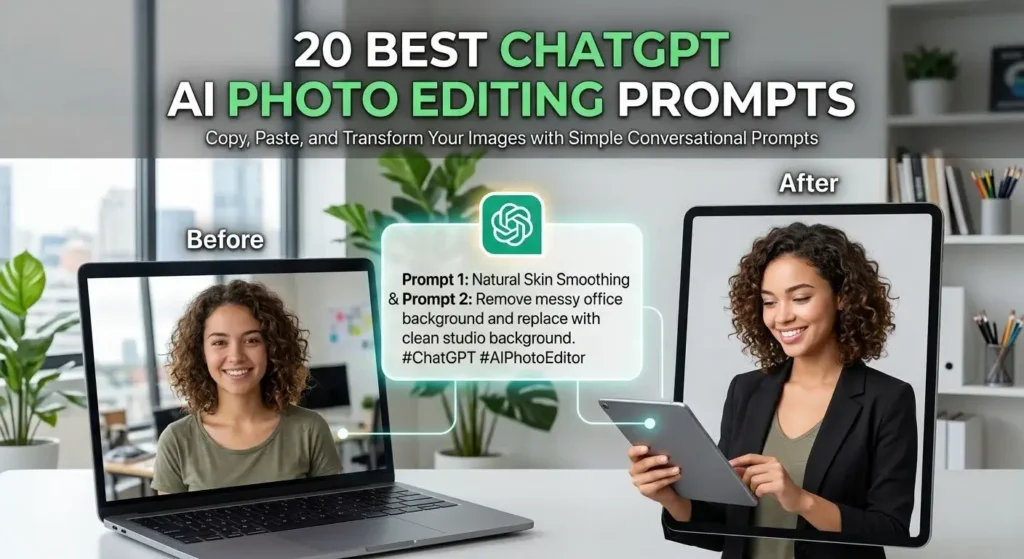
20 Best ChatGPT AI Photo Editing Prompts
ChatGPT processes photo editing prompts as natural-language conversations. You upload an image and describe what you want changed — then refine iteratively. This makes ChatGPT one of the most accessible tools for people who think in words, not pixels. These are the 20 most useful prompts selected from our full library.
Tool-specific tip: Be conversational but specific. ChatGPT responds well to “keep the face exactly as it is” and “only change the background.” Use follow-up messages to refine.
Portrait Retouching
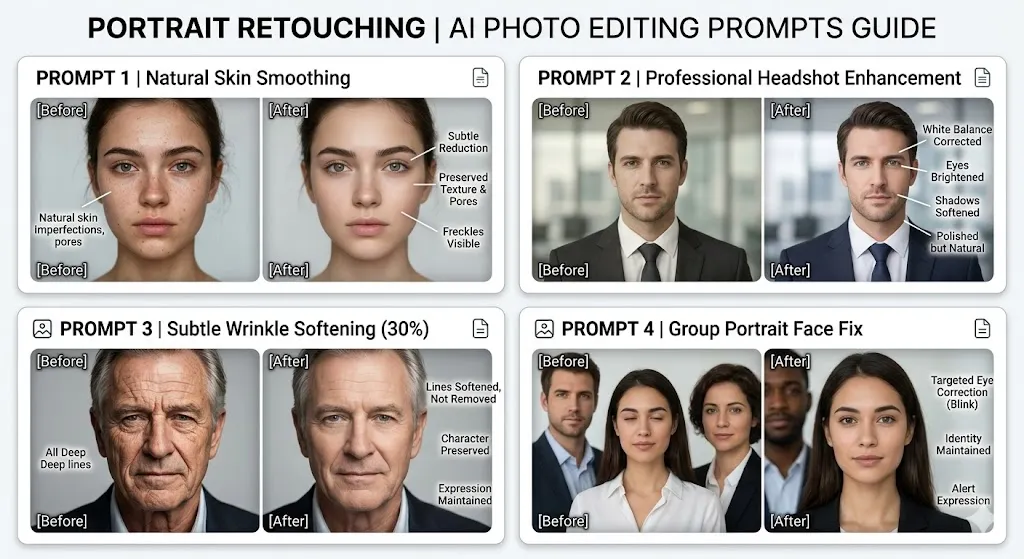
Prompt 1 — Natural Skin Smoothing
- Best for: Headshots, portraits, LinkedIn photos
Smooth the skin on this portrait subtly — reduce blemishes and minor imperfections while keeping all skin texture, pores, and freckles visible. Do not change the face shape, eye color, or hair. Keep the lighting exactly as it is.- Why it works: The “subtly” qualifier and explicit preservation list prevent over-smoothing.
- Customize it: Change “portrait” to “headshot” or “close-up”; adjust smoothing level (“very subtly” vs. “moderately”).
Prompt 2 — Professional Headshot Enhancement
- Best for: LinkedIn headshots, team pages, speaker bios
Enhance this headshot for professional use. Correct the white balance to neutral, slightly brighten the eyes, soften undereye shadows, and even out skin tone. Do not alter the person's facial features, expression, or hair. Keep the background unchanged.- Why it works: Targets specific sub-edits (white balance, eyes, undereye) while anchoring identity.
- Customize it: Change “neutral” white balance to “warm” for a friendlier look.
Prompt 3 — Subtle Wrinkle Softening
- Best for: Executive portraits, author photos
Soften the wrinkles and fine lines on this person's face by about 30 percent — reduce their depth without removing them entirely. Preserve the person's natural expression, facial structure, and skin character. Keep everything else in the image unchanged.- Why it works: The percentage instruction prevents aggressive smoothing while keeping character.
- Customize it: “30 percent” to “50 percent” for more or “15 percent” for minimal.
Prompt 4 — Group Portrait Face Fix
- Best for: Family photos, team photos, event shots
In this group photo, the second person from the left has their eyes half-closed. Correct their eyes to appear naturally open and alert while keeping their exact face, skin tone, and expression intact. Do not change any other person in the photo.- Why it works: Specific positional targeting and individual protection instructions.
- Customize it: Change the positional description to match your specific photo.
Background and Object Cleanup
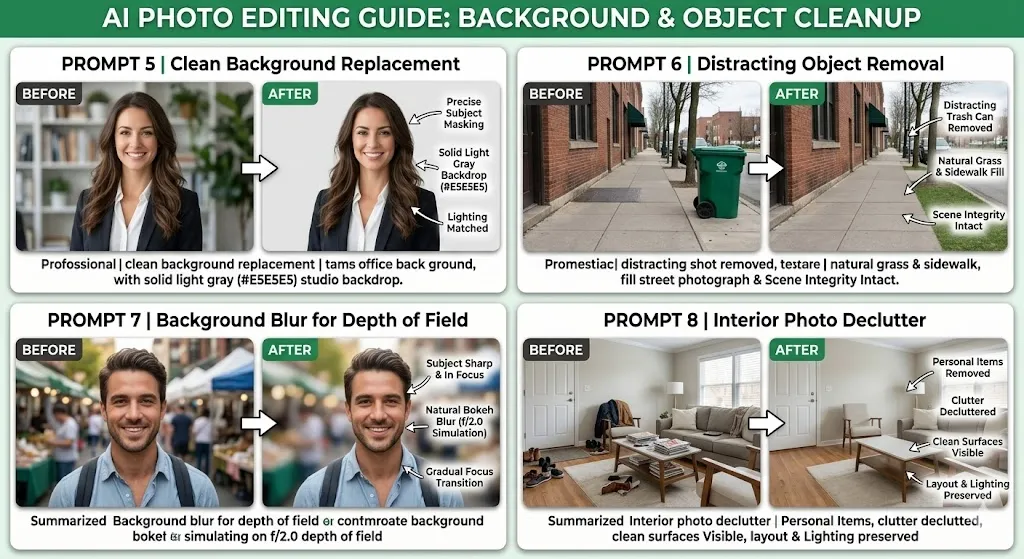
Prompt 5 — Clean Background Replacement
- Best for: Headshots, profile photos
Remove the entire background behind the person and replace it with a clean, solid light gray (#E5E5E5) studio backdrop. Keep the subject perfectly intact — hair edges, clothing, and all details. Match the lighting on the background to the existing lighting on the subject.- Why it works: Hex color specificity plus lighting-match instruction.
- Customize it: Change the hex code to white (#FFFFFF), navy (#1B2A4A), or any brand color.
Prompt 6 — Distracting Object Removal
- Best for: Street photography, event photos, real estate
Remove the trash can on the right side of this image. Fill the area naturally with the surrounding grass and sidewalk textures. Do not alter anything else in the scene.- Why it works: Specific object + fill-texture guidance + boundary protection.
- Customize it: Change “trash can” to any unwanted object; adjust the fill description.
Prompt 7 — Background Blur for Depth of Field
- Best for: Portraits shot on phone cameras
Apply a natural-looking background blur (bokeh) to this photo. Keep the person in the foreground perfectly sharp and in focus. Gradually blur the background starting about one foot behind the subject. Simulate an f/2.0 lens depth of field.- Why it works: Lens simulation reference gives the AI a concrete target.
- Customize it: “f/2.0” to “f/1.4” for more blur or “f/2.8” for subtler.
Prompt 8 — Interior Photo Declutter
- Best for: Real estate photography, Airbnb listings
Remove all personal items and clutter from this interior room photo — shoes by the door, magazines on the coffee table, and coats on the chair. Fill each area with a clean version of the underlying furniture or surface. Keep the room layout, wall color, and lighting intact.- Why it works: Itemized clutter list plus surface-fill guidance. Real estate agents looking for more ideas can explore our ChatGPT prompts for real estate agents.
- Customize it: Change the clutter list to match your specific photo.
Product and Ecommerce
Prompt 9 — White Background Product Shot
- Best for: Amazon, Shopify, Etsy product listings
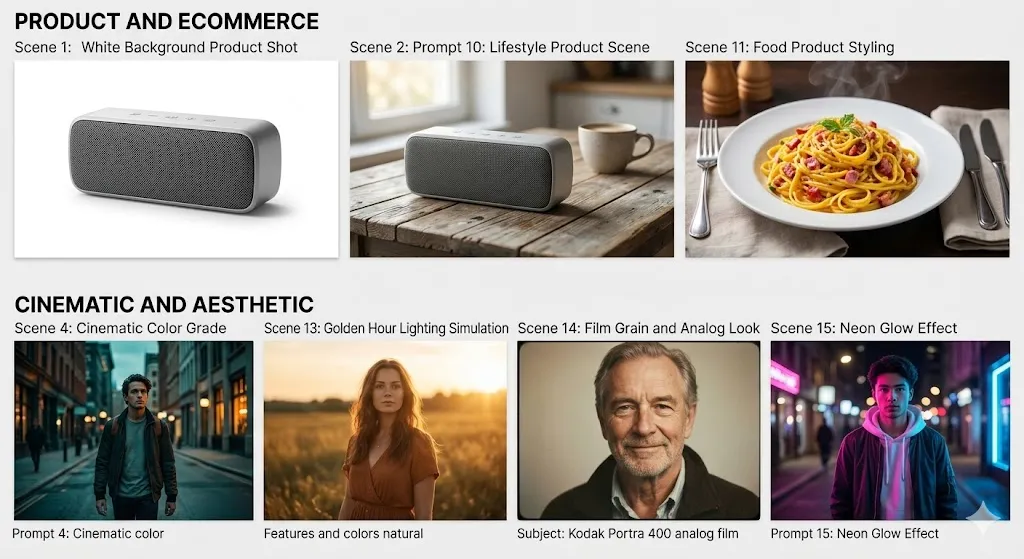
Remove the background of this product photo and replace it with a pure white (#FFFFFF) background. Keep the product's colors, shadows, and details perfectly accurate. Add a subtle natural drop shadow beneath the product so it does not look like it is floating.- Why it works: Hex-specific white plus shadow instruction creates marketplace-ready images.
- Customize it: Change white to light gray for a softer look; adjust shadow intensity.
Prompt 10 — Lifestyle Product Scene
- Best for: Social media product marketing, DTC brand content
Place this product on a rustic wooden kitchen table with soft morning window light coming from the left. Add a coffee cup slightly behind and to the right of the product, out of focus. Keep the product itself completely unchanged and in sharp focus.- Why it works: Environmental scene + focus/blur hierarchy + product preservation.
- Customize it: Change surface (marble countertop, office desk), props, lighting direction.
Prompt 11 — Food Product Styling
- Best for: Restaurant menus, food delivery apps
Make this food photo look more appetizing. Enhance the color saturation slightly on the food items. Add visible steam rising from the dish as if just served. Brighten the plate. Keep the background and table setting unchanged.- Why it works: Targets food-specific visual cues (steam, color saturation, plate brightness).
- Customize it: “steam” to “condensation on the glass” for beverages.
Cinematic and Aesthetic
Prompt 12 — Cinematic Color Grade
- Best for: Content creation, mood-setting visuals
Apply a cinematic color grade to this photo — teal and orange tones in the style of a Hollywood thriller. Deepen the shadows, add warm highlights, and slightly desaturate the midtones. Keep the subject and composition exactly the same.- Why it works: Specific color reference (teal/orange) plus tonal range instructions.
- Customize it: “teal and orange” to “muted pastels,” “warm golden hour,” or “cool noir.”
Prompt 13 — Golden Hour Lighting Simulation
- Best for: Outdoor portraits, travel photos
Adjust the lighting in this photo to simulate golden hour — warm amber tones, long soft shadows, and a slightly hazy glow. The light should come from the right side, low on the horizon. Keep the subject's features and colors natural.- Why it works: Light direction, temperature, and quality description.
- Customize it: Light direction; swap “golden hour” for “blue hour” with cool tones.
Prompt 14 — Film Grain and Analog Look
- Best for: Creative portfolios, editorial content
Add subtle film grain and a slight warm-tone color shift to this photo as if it were shot on Kodak Portra 400 film. Lower the contrast very slightly and add a faint vignette around the edges. Keep all subject details intact.- Why it works: A specific film stock reference gives the AI a clear aesthetic target.
- Customize it: “Kodak Portra 400” to “Fuji Superia” (cooler) or “Ilford HP5” (B&W).
Prompt 15 — Neon Glow Effect
- Best for: Night photography, creator branding
Add neon light effects to this photo — a pink neon glow from the left and a blue neon glow from the right, as if the subject is standing between two neon signs on a city street at night. Keep the subject's face and clothing details visible.- Why it works: Two-color lighting with direction plus visibility protection.
- Customize it: Colors (purple/green, red/cyan); environment (club, arcade, alley).
Restoration and Utility
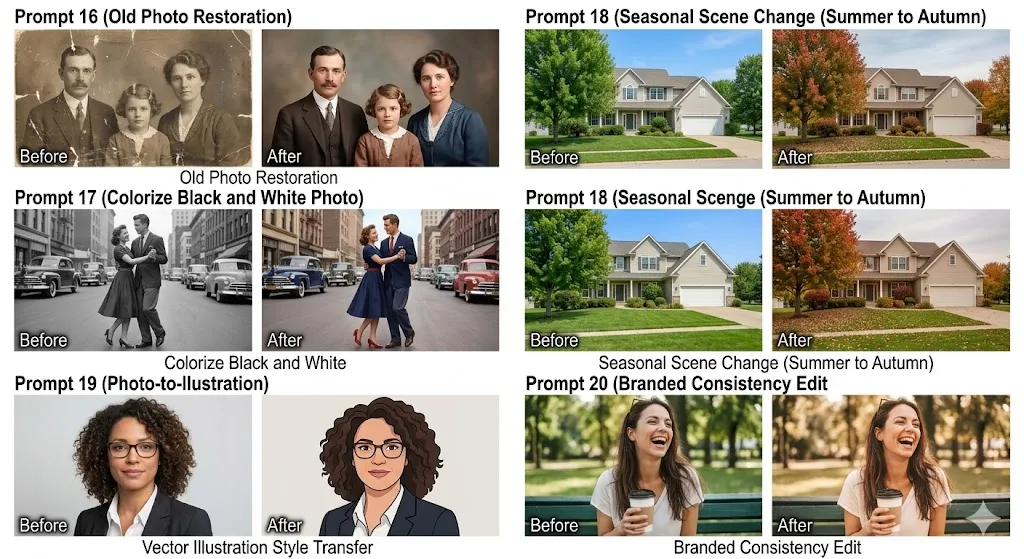
Prompt 16 — Old Photo Restoration
- Best for: Family archives, historical photos
Restore this old photograph. Remove scratches, dust spots, and fading. Correct the faded colors to appear vibrant but era-appropriate. Repair any torn or missing edges. Sharpen the image slightly. Keep all faces and details as close to the original as possible.- Why it works: Itemized restoration tasks with era-sensitivity and identity preservation.
- Customize it: Add “convert to black and white” or “colorize” for B&W originals.
Prompt 17 — Colorize Black and White Photo
- Best for: Historical family photos, heritage projects
Colorize this black and white photograph with realistic, historically plausible colors. Use natural skin tones appropriate to the subjects. Color clothing in typical colors of the era (1940s). Keep all facial features, expressions, and image details unchanged.- Why it works: Era reference guides color choices; identity anchoring.
- Customize it: Change the decade for era-appropriate colors.
Prompt 18 — Seasonal Scene Change
- Best for: Real estate seasonal marketing, holiday promotions
Change the season in this outdoor scene from summer to autumn. Turn the green leaves on the trees to reds, oranges, and golds. Add a few fallen leaves on the ground. Adjust the sky to a slightly cooler, softer tone. Keep the building and its details exactly the same.- Why it works: Targeted color changes with scene-consistent additions.
- Customize it: Target season (winter with snow, spring with blossoms).
Prompt 19 — Photo-to-Illustration Style Transfer
- Best for: Brand avatars, marketing illustrations
Convert this portrait photo into a clean vector-style illustration — simplified shapes, flat colors, and bold outlines. Keep the person's likeness recognizable including their hairstyle, face shape, and clothing style. Use a limited palette of 5-6 colors.- Why it works: Specific illustration style plus likeness preservation plus color limit.
- Customize it: “vector-style” to “watercolor,” “pencil sketch,” or “Pixar-style 3D.”
Prompt 20 — Branded Consistency Edit
- Best for: Brand social feeds, consistent content series
Edit this photo to match a consistent brand look — apply a warm filter with slightly lifted blacks, a subtle warm vignette, and increased contrast. The overall tone should feel bright, modern, and approachable. Keep the subject's appearance natural and unchanged.- Why it works: Defines a repeatable aesthetic formula for brand consistency.
- Customize it: Tone descriptors, filter warmth, and vignette to match your brand guidelines.
ChatGPT Photo Editing — Mini Review Verdict
Best for: Conversational, natural-language photo editing where you want to describe changes the way you would talk to a human retoucher. ChatGPT is often strongest at identity-preserving portrait edits, iterative refinement, and handling complex multi-step instructions in a single conversation.
Strongest areas: Portrait retouching, background replacement, product photo cleanup, creative color grading.
Limitations: Precision is moderate — you cannot mask or select specific pixel regions. Very complex edits may require multiple conversation rounds.
Want all 50 ChatGPT photo editing prompts? See our complete guide: ChatGPT Photo Editing Prompts — with 30 additional prompts covering batch edits, resolution upscaling, social media formatting, and more.
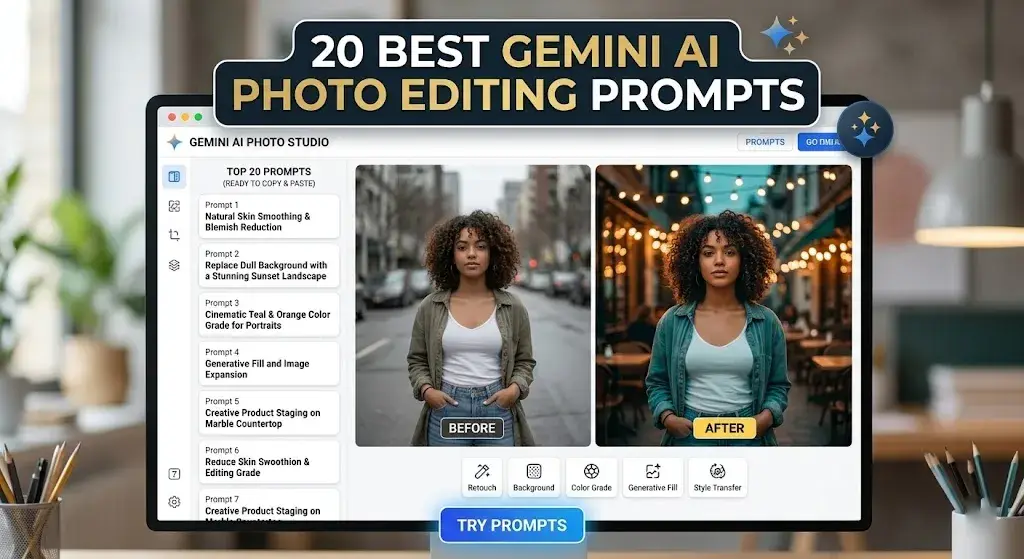
20 Best Gemini AI Photo Editing Prompts
Google Gemini supports editing uploaded images directly in conversation. You upload a photo, describe the edit, and Gemini processes the change. These 20 prompts represent the most practical selections from our full Gemini prompt library.
Tool-specific tip: Gemini works best with clear, direct instructions. State the edit, the area to target, and what to preserve. Shorter, well-structured prompts tend to outperform long, complicated ones.
Portrait Retouching
Prompt 21 — Quick Skin Tone Correction
- Best for: Fast portrait fixes, casual photo sharing
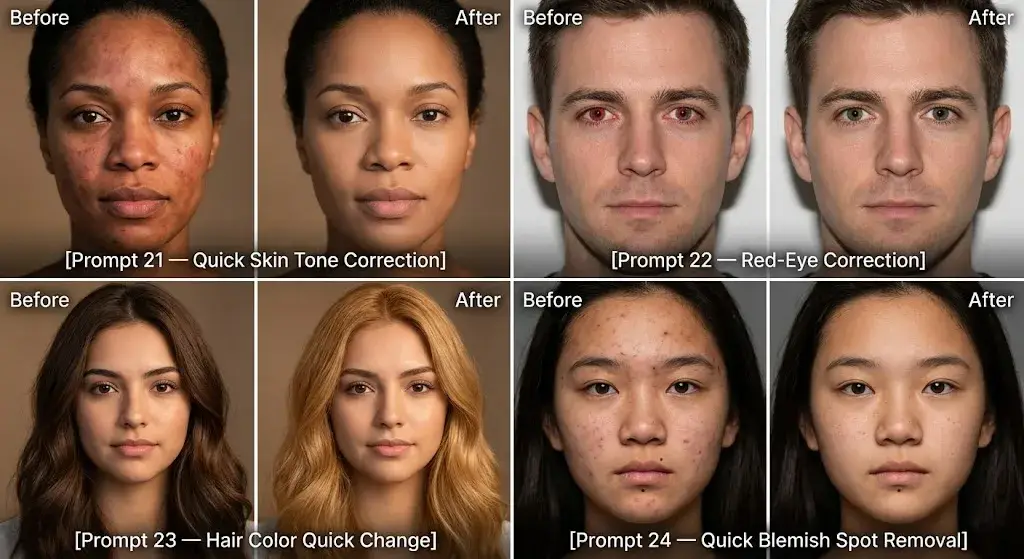
Fix the uneven skin tone on this person's face. Make it smooth and natural without changing the person's skin color, facial features, or expression. Keep the lighting as it is.- Why it works: Direct action with clear boundaries.
- Customize it: Change “face” to “neck and arms” for body skin evening.
Prompt 22 — Red-Eye Correction
- Best for: Flash photography, event shots
Remove the red-eye effect from the person's eyes in this photo. Restore a natural dark pupil. Keep the iris color, eye shape, and all other facial features exactly the same.- Why it works: Targeted optical fix with feature preservation.
- Customize it: Add “for all people in the photo” for group shots.
Prompt 23 — Hair Color Quick Change
- Best for: Creative experimentation, style previews
Change this person's hair color to a warm honey blonde. Keep the hairstyle, volume, texture, and every other detail in the photo exactly the same. The new color should look natural and well-lit.- Why it works: Specific color name plus natural-looking quality constraint.
- Customize it: “warm honey blonde” to “rich auburn,” “jet black,” or “platinum silver.”
Prompt 24 — Quick Blemish Spot Removal
- Best for: Fast portrait cleanup
Remove the visible blemishes and spots on this person's face. Keep all natural features — freckles, moles, skin texture, and facial structure — untouched. Only remove temporary blemishes.- Why it works: Distinguishes permanent features from temporary blemishes.
- Customize it: “face” to “forehead and chin” for targeted areas.
Background and Object Cleanup
Prompt 25 — Simple Background Swap
- Best for: Quick social media posts, profile pictures
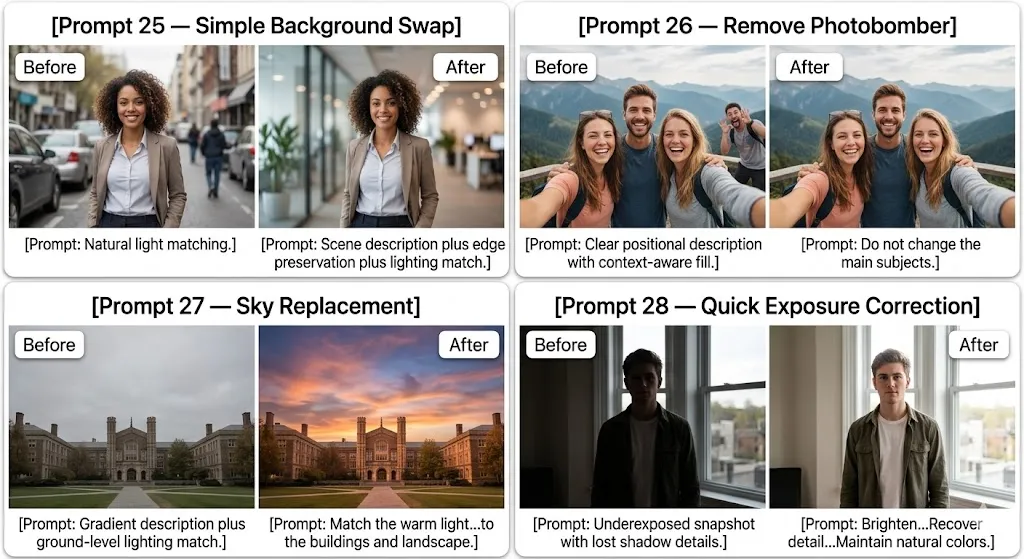
Replace the background in this photo with a soft blurred office setting. Keep the person in the foreground completely unchanged including hair edges and clothing. Match the lighting of the new background to the subject.- Why it works: Scene description plus edge preservation plus lighting match.
- Customize it: “blurred office” to “cafe,” “park,” “solid color.”
Prompt 26 — Remove Photobomber
- Best for: Group photos, event shots, tourist photos
Remove the person in the far right background who is photobombing this shot. Fill the area with the landscape that would naturally be behind them. Do not change the main subjects in the foreground.- Why it works: Clear positional description with context-aware fill.
- Customize it: Change positional description to match your photo.
Prompt 27 — Sky Replacement
- Best for: Real estate, travel photography
Replace the overcast gray sky in this photo with a dramatic sunset sky — warm orange, pink, and purple clouds above the horizon, transitioning to deeper blue at the top. Match the warm light of the sunset to the lighting on the buildings and landscape below.- Why it works: Gradient description plus ground-level lighting match.
- Customize it: “sunset” to “clear blue,” “partly cloudy,” or “stormy.”
Prompt 28 — Quick Exposure Correction
- Best for: Backlit photos, underexposed snapshots
This photo is underexposed. Brighten the entire image by two stops. Recover detail in the shadow areas. Keep the sky from blowing out to white. Maintain the natural colors.- Why it works: Photography-specific terms (stops, blown out) guide precision.
- Customize it: “brighten” to “darken” for overexposed photos; adjust stop count.
Product and Color
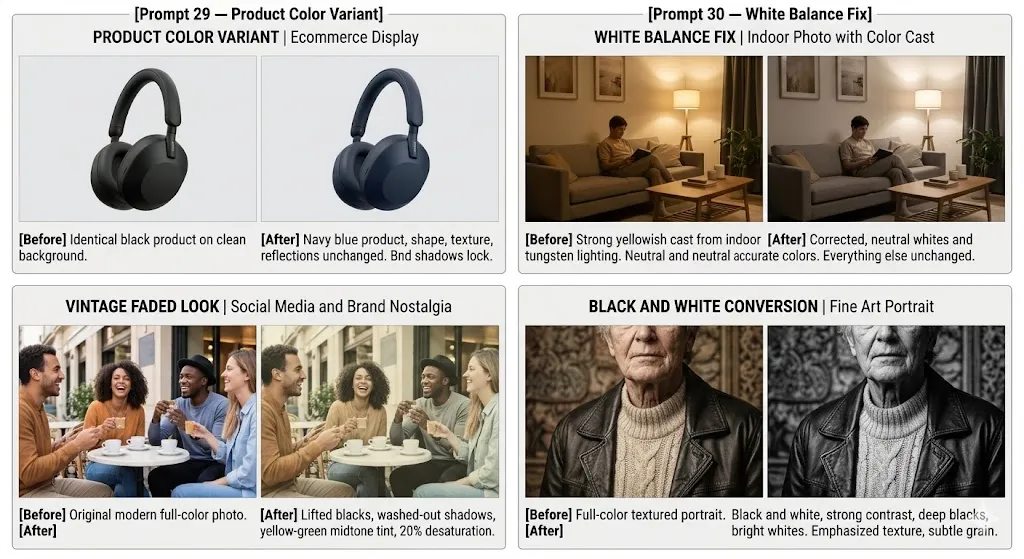
Prompt 29 — Product Color Variant
- Best for: Ecommerce variant displays
Change the color of this product from black to navy blue. Keep the product shape, texture, reflections, and all other details exactly the same. Do not alter the background or shadows.- Why it works: Single-attribute change with everything else locked.
- Customize it: “navy blue” to any target color; specify matte vs. glossy finish.
Prompt 30 — White Balance Fix
- Best for: Indoor photos with color casts
Correct the white balance in this photo. The image has a yellowish cast from indoor tungsten lighting. Make the whites neutral and the colors accurate. Keep everything else unchanged.- Why it works: Identifies the specific color cast problem.
- Customize it: “yellowish” to “bluish” or “greenish” for different light sources.
Creative and Style
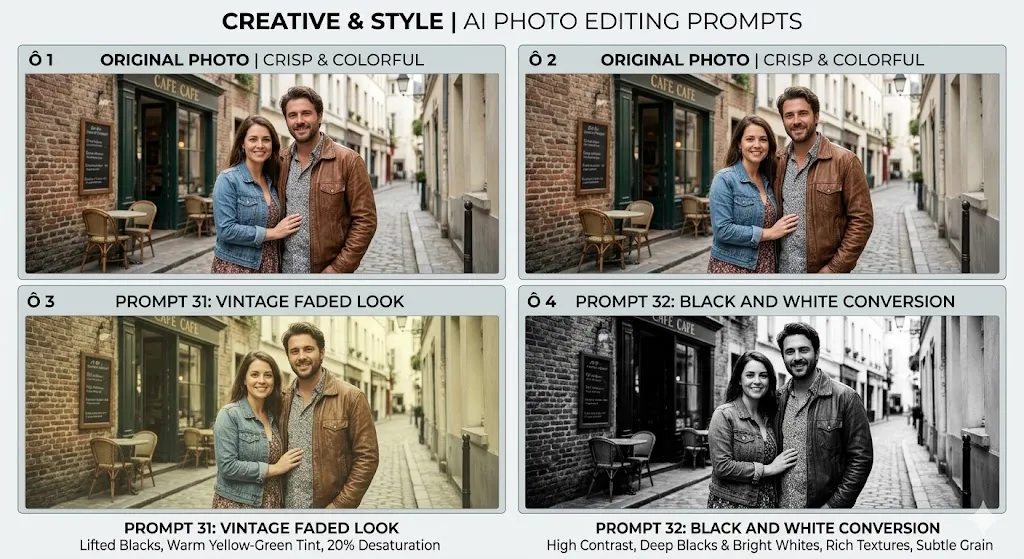
Prompt 31 — Vintage Faded Look
- Best for: Social media content, brand nostalgia
Give this photo a vintage faded look — lift the blacks so shadows appear slightly washed out, add a warm yellow-green tint to the midtones, and desaturate by about 20 percent. Keep the composition and subject unchanged.- Why it works: Specific tonal adjustments replicate the vintage effect precisely.
- Customize it: Tint color (cool blue for retro, pink for dream-like).
Prompt 32 — Black and White Conversion
- Best for: Fine art portraits, documentary-style
Convert this photo to black and white with strong contrast — deep blacks and bright whites. Emphasize texture in the skin, clothing, and background. Add a subtle grain. Keep the tonal range rich, not flat.- Why it works: Targets tonal richness and texture rather than just desaturation.
- Customize it: Add “high-key” for brighter B&W or “low-key” for darker.
Utility and Optimization
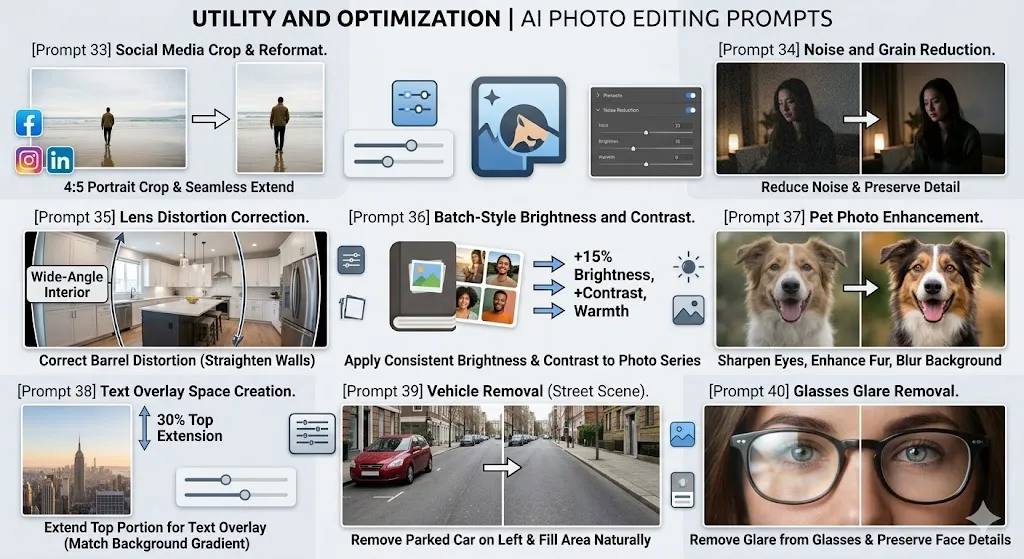
Prompt 33 — Social Media Crop and Reformat
- Best for: Instagram posts, Stories, LinkedIn banners
Reformat this landscape photo into a 4:5 portrait crop optimized for Instagram feed posts. Center the subject in the frame. If canvas needs to be extended, fill the extended areas with content-aware fill that matches the existing background seamlessly.- Why it works: Specific ratio plus platform purpose plus fill guidance.
- Customize it: “4:5” to “9:16” for Stories, “1.91:1” for LinkedIn, or “16:9” for YouTube.
Prompt 34 — Noise and Grain Reduction
- Best for: Low-light photos, old digital camera shots
Reduce the digital noise and grain in this photo while preserving as much sharpness and detail as possible. Focus noise reduction on the shadow areas where grain is heaviest. Keep color accuracy. Do not over-smooth textures.- Why it works: Selective area focus (shadows) plus anti-smoothing instruction.
- Customize it: “shadow areas” to “sky” or “background” for targeted reduction.
Prompt 35 — Lens Distortion Correction
- Best for: Wide-angle shots, real estate interiors
Correct the barrel distortion in this wide-angle interior photo. Straighten the vertical lines on the walls and door frames. Keep the room contents and perspective natural. Do not crop the image.- Why it works: Names the specific optical distortion and targets structural elements.
- Customize it: “barrel distortion” to “perspective correction” for tilted buildings.
Prompt 36 — Batch-Style Brightness and Contrast
- Best for: Photo series, album consistency
Increase the brightness by 15 percent and boost the contrast slightly. Add subtle warmth to the overall tone. Keep the subject's skin tones natural and do not blow out any highlights.- Why it works: Quantified adjustments create repeatable results.
- Customize it: Change percentage values to match your series target.
Prompt 37 — Pet Photo Enhancement
- Best for: Pet portraits, animal photography
Enhance this pet photo — sharpen the animal's eyes and fur detail, slightly brighten the face, and blur the background softly. Keep the animal's natural coloring and markings exactly as they are.- Why it works: Targets pet-specific focal points (eyes, fur) with preservation.
- Customize it: Add “remove the leash” or “clean up the messy background.”
Prompt 38 — Text Overlay Space Creation
- Best for: Social media graphics, blog feature images
Extend the top portion of this image by 30 percent using content-aware fill to create space for text overlay. Keep the extended area matching the existing sky or background gradient. Do not alter the subject or lower portion of the image.- Why it works: Percentage-based extension with fill-match instruction.
- Customize it: “top” to “right side” or “bottom”; adjust percentage.
Prompt 39 — Vehicle Removal from Street Scene
- Best for: Real estate curb photos, architectural photography
Remove the parked car on the left side of the street in this photo. Fill the space with the road, curb, and grass that would naturally be visible. Keep the rest of the scene intact.- Why it works: Specific object and fill-material description.
- Customize it: “car” to “truck,” “bicycle,” any vehicle.
Prompt 40 — Glasses Glare Removal
- Best for: Headshots of glasses wearers
Remove the glare and reflections from the glasses in this photo. Keep the glasses frames, eye details behind the lenses, and all other facial features fully intact.- Why it works: Targets the optical issue without removing the glasses themselves.
- Customize it: Add “and make the eyes behind the lenses sharper.”
Gemini Photo Editing — Mini Review Verdict
Best for: Fast, accessible image editing through simple conversation. Gemini is well-suited for quick uploaded-image edits where speed and ease of use matter more than pixel-level precision.
Strongest areas: Exposure correction, background swaps, color changes, noise reduction, quick portrait cleanup.
Limitations: Less control over fine details compared to Midjourney or Firefly. Creative range is more limited for artistic transformations.
Want all 50 Gemini photo editing prompts? See our complete guide: Gemini Photo Editing Prompts — with 30 additional prompts covering advanced retouching, HDR effects, panorama stitching, and more. For prompts optimized specifically for Nano Banana Pro — the premium model behind Gemini’s best photorealistic output — see our Nano Banana Pro prompts guide.
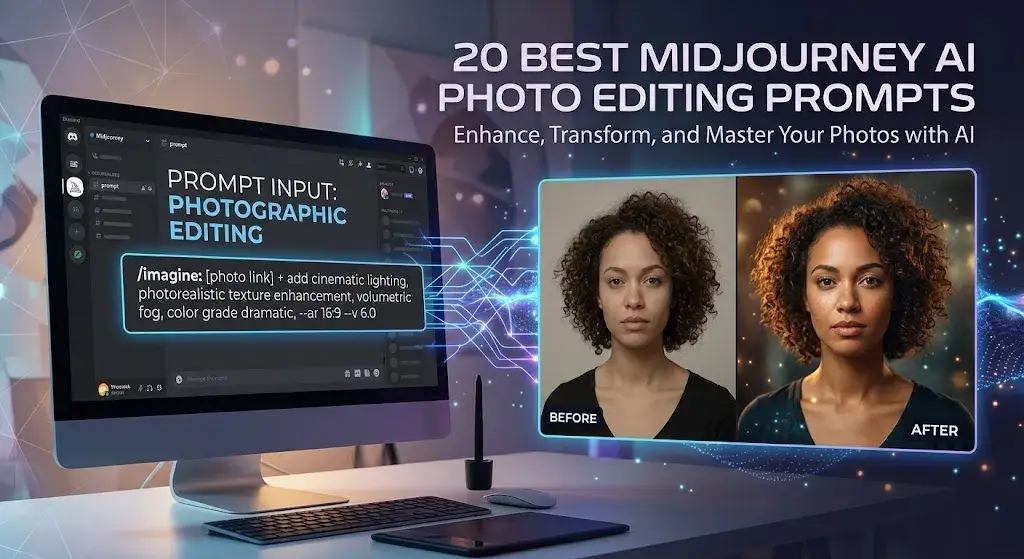
20 Best Midjourney AI Photo Editing Prompts
Midjourney has evolved from a text-to-image generator into a serious photo editing platform. The Midjourney Editor with Smart Select, layers, Fill, Erase, Retexture, and pan/zoom tools gives you creative control that no other tool on this list matches for stylized transformations. These 20 prompts showcase Midjourney’s editing strengths.
Tool-specific tip: Midjourney prompts work differently from conversational tools. Use the Editor UI for precise selections, then write terse, descriptive prompts. Use –stylize (–s) to control how much Midjourney adds its own aesthetic. Lower –s keeps edits closer to the source.
Material and Texture Transformation
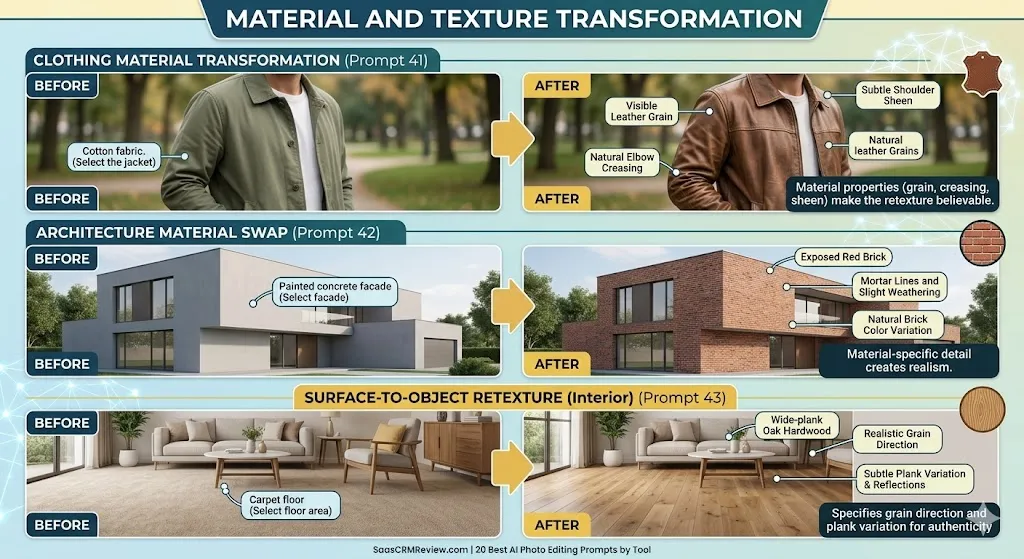
Prompt 41 — Retexture Clothing Material
- Best for: Fashion visualization, creative editorial
[Select the jacket] Retexture to worn brown leather with visible grain, natural creasing at the elbows, and subtle sheen on the shoulders. Keep the garment shape and fit identical.- Why it works: Material properties (grain, creasing, sheen) make the retexture believable.
- Customize it: “brown leather” to “denim,” “velvet,” “silk,” or “metallic fabric.”
Prompt 42 — Architecture Material Swap
- Best for: Design visualization, renovation previewing
[Select the building facade] Replace the painted concrete with exposed red brick. Add mortar lines, slight weathering, and natural variation in brick color. Keep windows, proportions, and surroundings unchanged.- Why it works: Material-specific detail (mortar lines, weathering, color variation) creates realism.
- Customize it: “red brick” to “limestone,” “glass curtain wall,” “reclaimed wood.”
Prompt 43 — Surface-to-Object Retexture
- Best for: Interior design mockups
[Select the floor area] Retexture from carpet to wide-plank oak hardwood flooring. Add realistic grain direction, subtle color variation between planks, and ambient reflections. Keep all furniture and room elements unchanged.- Why it works: Specifies grain direction and plank variation for authenticity.
- Customize it: “oak hardwood” to “marble,” “polished concrete,” “terrazzo.”
Scene Extension and Compositing
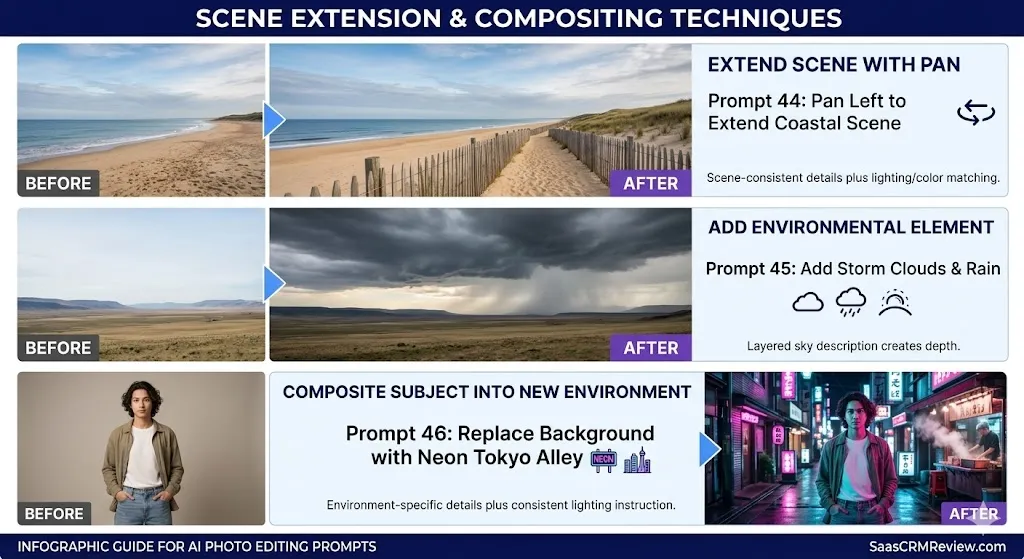
Prompt 44 — Extend Scene with Pan
- Best for: Landscape photography, architectural context
[Pan left] Extend this coastal scene. Continue the sandy beach, add a weathered wooden fence leading into the distance, and match the existing sky gradient and cloud pattern. Maintain the same lighting and color temperature.- Why it works: Scene-consistent details plus lighting/color matching.
- Customize it: Direction (right, up, down); scene elements to match your source.
Prompt 45 — Add Environmental Element
- Best for: Scene enhancement, atmospheric effects
[Select the sky area] Fill with dramatic storm clouds gathering on the horizon. Dark grays at the top, lighter breaks near the horizon line. Add subtle rain streaks in the distance. Match the moody lighting to the rest of the scene.- Why it works: Layered sky description (gradient, breaks, rain) creates depth.
- Customize it: “storm clouds” to “northern lights,” “star field,” “golden hour clouds.”
Prompt 46 — Composite Subject into New Environment
- Best for: Creative portraits, concept art
[Select background] Replace with a neon-lit Tokyo alley at night. Wet reflections on the pavement, Japanese signage in soft focus, steam rising from a food stall. Light the scene with pink and cyan neon. Keep the subject's lighting consistent with the new environment.- Why it works: Environment-specific details plus consistent lighting instruction.
- Customize it: Scene (Parisian cafe, mountain summit, space station).
Artistic Style and Color
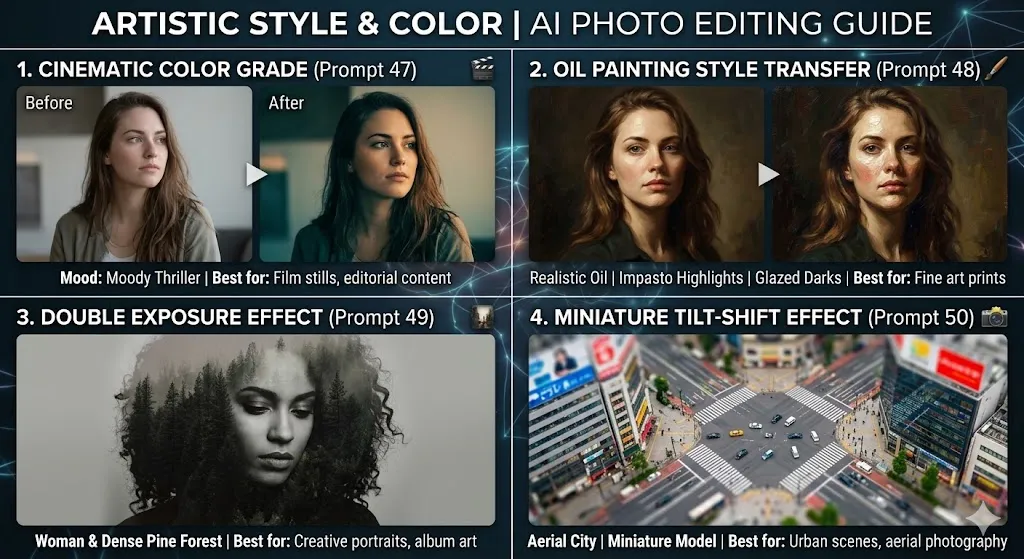
Prompt 47 — Cinematic Color Grade
- Best for: Film stills, editorial content
Apply a cinematic grade — teal shadows, warm amber highlights, lifted black point, subtle film grain. Let the subject's face stay naturally warm. Overall mood: moody thriller.- Why it works: Terse, art-direction-style language that Midjourney interprets well.
- Customize it: “moody thriller” to “romantic drama,” “sci-fi epic,” “70s detective film.”
Prompt 48 — Oil Painting Style Transfer
- Best for: Fine art prints, gallery pieces
[Full image] Transform into a realistic oil painting style. Visible brushstrokes, rich impasto texture on highlights, glazed darks. Rembrandt lighting. Keep the subject's likeness and composition. --s 600- Why it works: Art-technique vocabulary (impasto, glazing) plus specific lighting reference.
- Customize it: “oil painting” to “watercolor,” “charcoal sketch,” “stained glass.”
Prompt 49 — Double Exposure Effect
- Best for: Creative portraits, album art, concept imagery
[Full image] Create a double exposure effect blending this portrait with a dense pine forest. The trees should fill the dark areas of the face and hair. Keep the eyes and facial outline clearly visible. Desaturated, moody tones.- Why it works: Specifies the blending logic (trees in dark areas) rather than leaving it random.
- Customize it: “pine forest” to “city skyline,” “ocean waves,” “flower field.”
Prompt 50 — Miniature Tilt-Shift Effect
- Best for: Aerial photography, urban scenes
[Full image] Apply a tilt-shift effect to make this aerial city photo look like a miniature model scene. Keep the center strip sharp. Blur the top and bottom thirds heavily. Increase color saturation by 20 percent to enhance the toy-like quality.- Why it works: Specifies the sharp/blur zones and the saturation boost that defines tilt-shift.
- Customize it: Adjust the sharp-zone location; add warmer tones.
Object and Element Editing
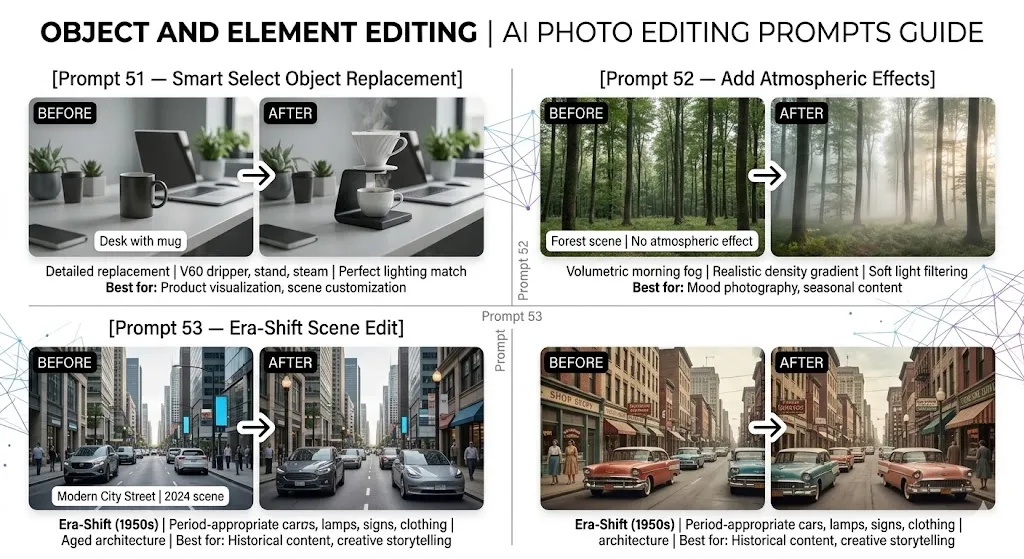
Prompt 51 — Smart Select Object Replacement
- Best for: Product visualization, scene customization
[Select the coffee mug on the desk] Replace with a sleek white ceramic pour-over coffee setup — V60 dripper on a matte black stand, with steam rising from the cup below. Match the existing desk surface and office lighting.- Why it works: Detailed replacement description plus lighting/surface matching.
- Customize it: Replace object to match your creative vision.
Prompt 52 — Add Atmospheric Effects
- Best for: Mood photography, seasonal content
[Select the air/space around trees] Add volumetric morning fog weaving between the trees. The fog should be densest at ground level and thin out at head height. Keep the trees fully visible with soft light filtering through.- Why it works: Density gradient specification makes fog realistic, not uniform.
- Customize it: “morning fog” to “dust motes in sunbeams,” “falling snow,” “fireflies.”
Prompt 53 — Era-Shift Scene Edit
- Best for: Historical content, creative storytelling
[Full image] Shift this modern city street scene to look like the 1950s. Add period-appropriate cars (1950s American sedans), vintage street lamps, painted shop signs, and clothing on any visible pedestrians. Keep the architecture mostly intact but age it to match.- Why it works: Multiple era-specific details across categories (cars, lamps, signs, clothing).
- Customize it: “1950s” to “1920s,” “2050s cyberpunk,” “medieval.”
Portrait Enhancement
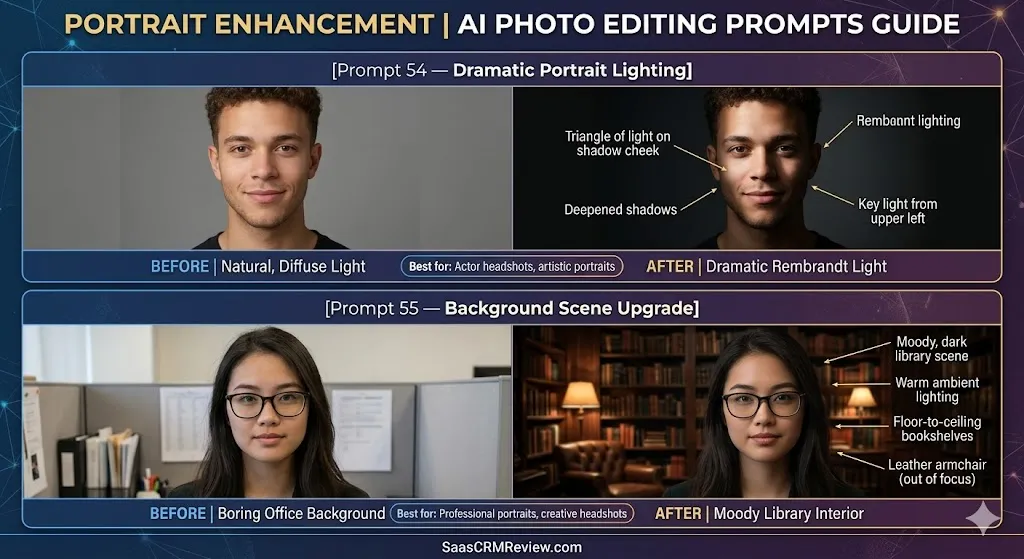
Prompt 54 — Dramatic Portrait Lighting
- Best for: Actor headshots, artistic portraits
[Select the lighting/shadows on face] Reshape the lighting to Rembrandt style — strong key light from the upper left creating a triangle of light on the shadow-side cheek. Deepen the shadows. Keep the subject's features, expression, and skin tone fully intact.- Why it works: Named lighting technique plus specific light direction.
- Customize it: “Rembrandt” to “butterfly lighting,” “split lighting,” “rim lighting.”
Prompt 55 — Background Scene Upgrade
- Best for: Professional portraits, creative headshots
[Select background] Replace with a moody, dark-toned library interior — floor-to-ceiling bookshelves, warm reading lamps, leather armchair visible but out of focus. Match the warm ambient light to the subject's existing illumination.- Why it works: Rich scene description plus explicit lighting matching.
- Customize it: “library” to “artist’s studio,” “rooftop terrace,” “botanical garden.”
Artistic Compositing
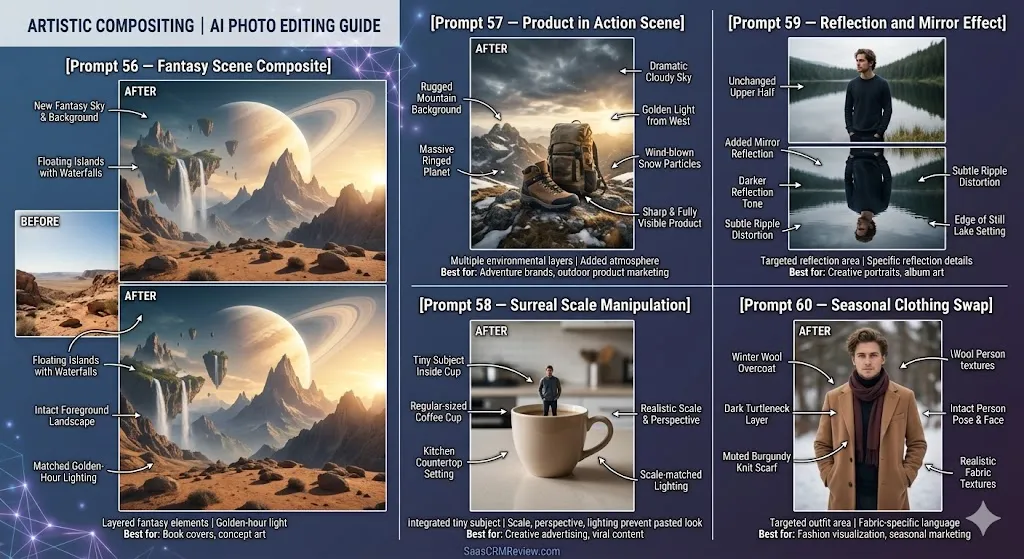
Prompt 56 — Fantasy Scene Composite
- Best for: Book covers, concept art, gaming content
[Select sky and distant background] Replace with a fantasy landscape — floating islands with waterfalls, a massive ringed planet rising behind mountain peaks, golden-hour light from behind the planet. Keep the foreground landscape intact and match the lighting transition.- Why it works: Layered fantasy elements with physical light logic.
- Customize it: Fantasy elements (dragon, enchanted forest, futuristic cityscape).
Prompt 57 — Product in Action Scene
- Best for: Adventure brands, outdoor product marketing
[Select background] Place a rugged mountain summit environment behind this product — rocky terrain, snow patches, dramatic cloudy sky, golden light from the west. Add subtle wind-blown snow particles. Keep the product sharp and fully visible.- Why it works: Multiple environmental layers plus atmosphere.
- Customize it: Environment (ocean wave, city rooftop, tropical beach).
Prompt 58 — Surreal Scale Manipulation
- Best for: Creative advertising, social media viral content
[Full image] Make the subject appear tiny — as if they are standing inside a regular-sized coffee cup on a kitchen counter. Add realistic perspective, depth of field, and scale-matched lighting. The subject should look naturally integrated, not pasted in.- Why it works: Scale, perspective, and lighting instructions prevent the pasted-in look.
- Customize it: Container/context (flower pot, bookshelf, snow globe).
Prompt 59 — Reflection and Mirror Effect
- Best for: Creative portraits, album art
[Select the lower half of the image] Create a mirror reflection effect as if the subject is standing at the edge of a perfectly still lake. The reflection should be slightly darker and have a subtle ripple distortion. Keep the subject's upper half completely unchanged.- Why it works: Reflection-specific details (darker, rippled) create realism.
- Customize it: “still lake” to “polished marble floor,” “rain puddle,” “glass surface.”
Prompt 60 — Seasonal Clothing Swap
- Best for: Fashion visualization, seasonal marketing
[Select the person's outfit] Replace with a winter ensemble — camel-colored wool overcoat over a dark turtleneck, knit scarf in muted burgundy. Keep the person's face, hair, build, and pose exactly the same. Match the fabric textures to the existing lighting.- Why it works: Detailed clothing description with fabric-specific language.
- Customize it: Season/style (summer linen, formal evening wear, athletic).
Midjourney Photo Editing — Mini Review Verdict
Best for: Creative, stylized photo edits where artistic control matters more than photorealistic precision. Midjourney is often preferred for material retexturing, scene compositing, style transfer, and atmospheric effects that other tools either cannot do or do less convincingly.
Strongest areas: Retexture, scene compositing, artistic color grading, style transfer, environment replacement, fantasy/surreal edits.
Limitations: Steeper learning curve. The Editor UI requires understanding selections and layers. Identity preservation on faces is less reliable than ChatGPT or Firefly. Subscription cost is higher.
We are preparing a dedicated Midjourney photo editing prompts guide with 30 additional prompts. In the meantime, our Midjourney review covers the full platform including pricing, Editor features, and generation capabilities.
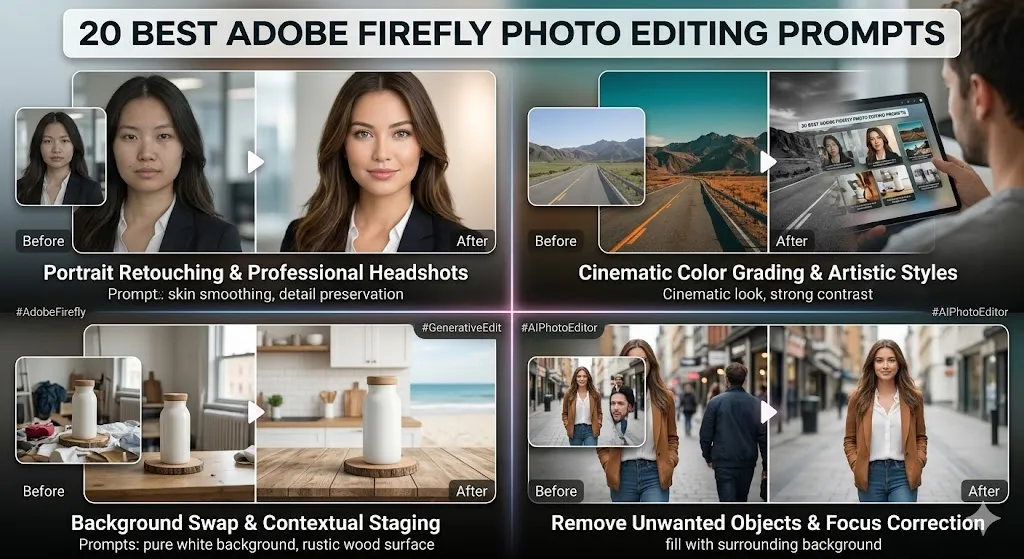
20 Best Adobe Firefly Photo Editing Prompts
Adobe Firefly integrates directly into Photoshop, Lightroom, and the Firefly web app. Its Prompt to Edit and Generative Fill features give you the most precise control over specific areas of a photo. Every output carries Adobe Content Credentials for provenance tracking, and the licensing is designed for commercial use from day one.
Tool-specific tip: Firefly works best when you select the exact area to edit first (using masks or selection tools), then describe what to generate in that area. Think of it as “select, then describe” rather than full-image prompts.
Generative Fill and Object Editing
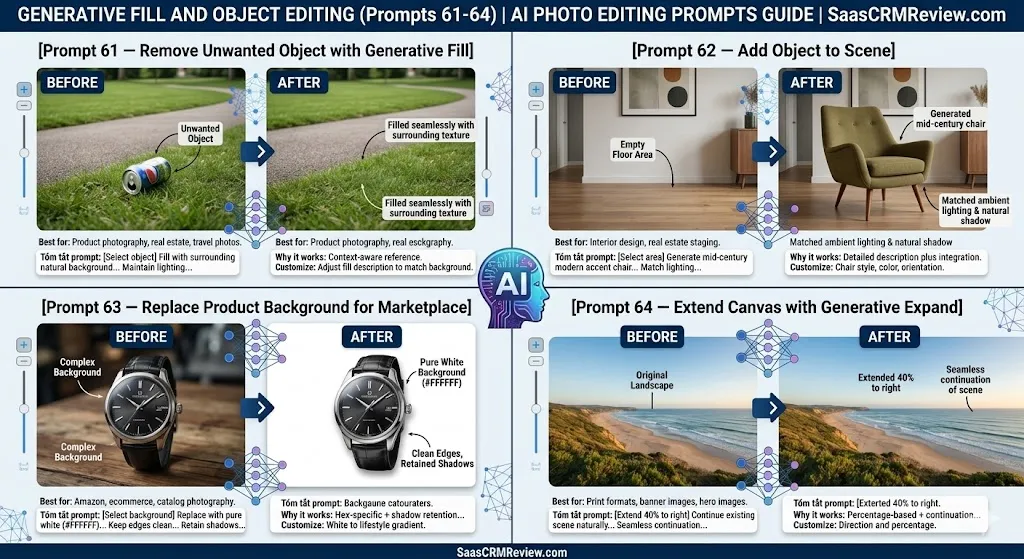
Prompt 61 — Remove Unwanted Object with Generative Fill
- Best for: Product photography, real estate, travel photos
[Select the unwanted object] Fill with the surrounding natural background — grass, pavement, or wall texture that matches the surrounding area. Maintain the existing lighting direction and shadows.- Why it works: Context-aware fill reference plus lighting preservation.
- Customize it: Adjust fill description to match your specific background.
Prompt 62 — Add Object to Scene
- Best for: Interior design, real estate staging
[Select empty area on the floor] Generate a mid-century modern accent chair in earthy olive green fabric with tapered wooden legs. Position it facing slightly left. Match the ambient room lighting and cast a natural shadow.- Why it works: Detailed object description plus spatial and lighting integration.
- Customize it: Chair style, color, and orientation to match your room.
Prompt 63 — Replace Product Background for Marketplace
- Best for: Amazon, ecommerce, catalog photography
[Select entire background] Replace with pure white (#FFFFFF). Keep the product's edges perfectly clean. Maintain all natural shadows beneath the product. The product itself must remain completely untouched.- Why it works: Hex-specific + shadow retention + edge emphasis.
- Customize it: White to lifestyle gradient or contextual scene.
Prompt 64 — Extend Canvas with Generative Expand
- Best for: Print formats, banner images, hero images
[Extend canvas 40 percent to the right] Continue the existing scene naturally — match the landscape, sky gradient, and lighting. Generate content that looks like a seamless continuation, not a separate image stitched on.- Why it works: Percentage-based extension with seamless-continuation emphasis.
- Customize it: Direction and percentage based on your target format.
Commercial Product Photography
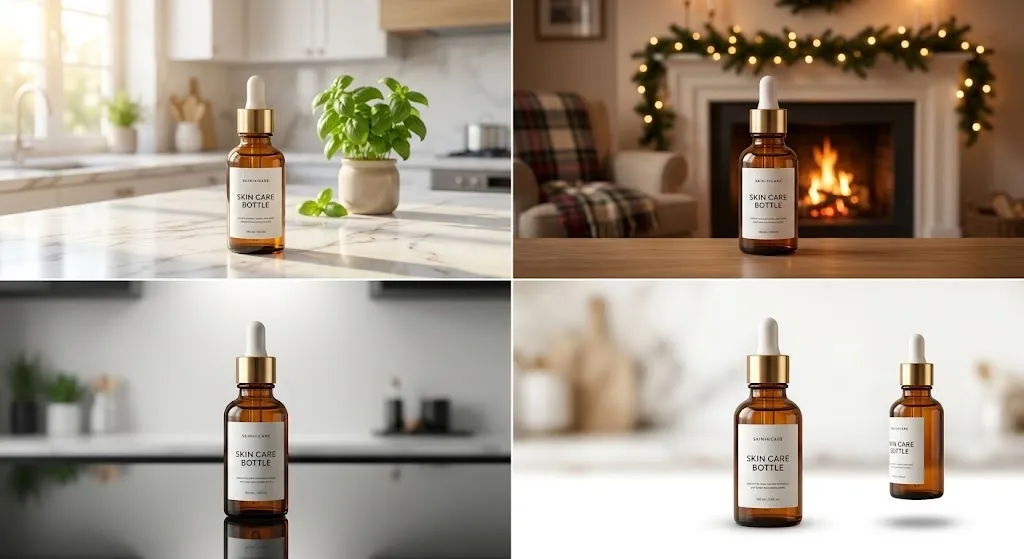
Prompt 65 — Product Lifestyle Background
- Best for: DTC brands, social media product shots
[Select the background area] Create a bright, modern kitchen countertop scene with marble surface, fresh herbs in a pot, and morning sunlight streaming in from the left. Keep the product in the foreground completely unchanged and sharply in focus.- Why it works: Detailed scene elements plus lighting direction plus product protection.
- Customize it: Scene context (bathroom vanity, office desk, outdoor brunch table).
Prompt 66 — Seasonal Product Context
- Best for: Holiday marketing, seasonal campaigns
[Select the background area] Generate a cozy winter holiday scene — a fireplace with crackling flames, evergreen garland, soft warm string lights, and a plaid throw blanket on a nearby chair. Keep the product centered and sharp. Light the scene with warm amber tones.- Why it works: Season-specific props and lighting create instant context.
- Customize it: Season (spring flowers, summer beach, autumn harvest).
Prompt 67 — Product Reflection Surface
- Best for: High-end product photography, electronics, jewelry
[Select the surface beneath the product] Replace with a polished dark glass surface that creates a subtle mirror reflection of the product. Keep reflections slightly darker than the product. Add studio-quality overhead lighting.- Why it works: Surface material + reflection behavior + lighting quality.
- Customize it: “dark glass” to “white acrylic,” “brushed aluminum,” “marble.”
Prompt 68 — Multi-Angle Product Composite
- Best for: Product detail pages, catalog layouts
[Select the empty area to the right of the main product] Generate a smaller angled view of the same product showing the side profile. Match the lighting, scale, and style of the main product shot. Add a subtle drop shadow.- Why it works: Consistency instructions (lighting, scale, style) maintain visual coherence.
- Customize it: Angle (top-down, detail close-up, unboxed view).
Portrait and People
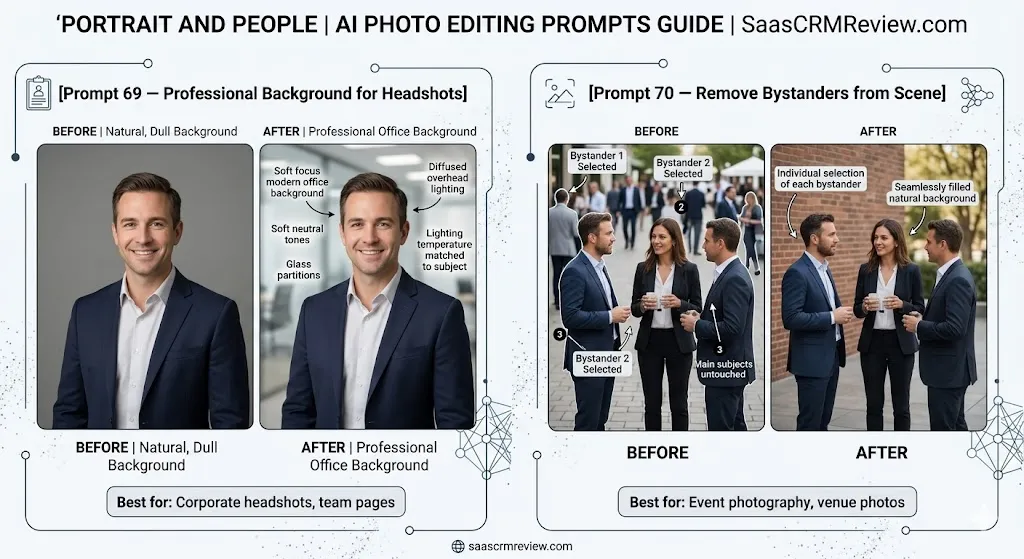
Prompt 69 — Professional Background for Headshots
- Best for: Corporate headshots, team pages
[Select the background] Replace with a clean, slightly blurred modern office environment — soft neutral tones, glass partitions visible in soft focus, diffused overhead lighting. Match the office lighting temperature to the subject's illumination.- Why it works: Specific background elements plus lighting temperature matching.
- Customize it: “modern office” to “outdoor campus,” “bookshelf backdrop,” “solid branded color.”
Prompt 70 — Remove Bystanders from Scene
- Best for: Event photography, venue photos
[Select each bystander individually] Remove and fill with the wall, floor, or background that would naturally be behind them. Handle each removal separately for best results. Keep the main subjects completely untouched.- Why it works: Individual selection instruction produces cleaner results than selecting all at once.
- Customize it: Apply to any number of unwanted people in the scene.
Color and Tone
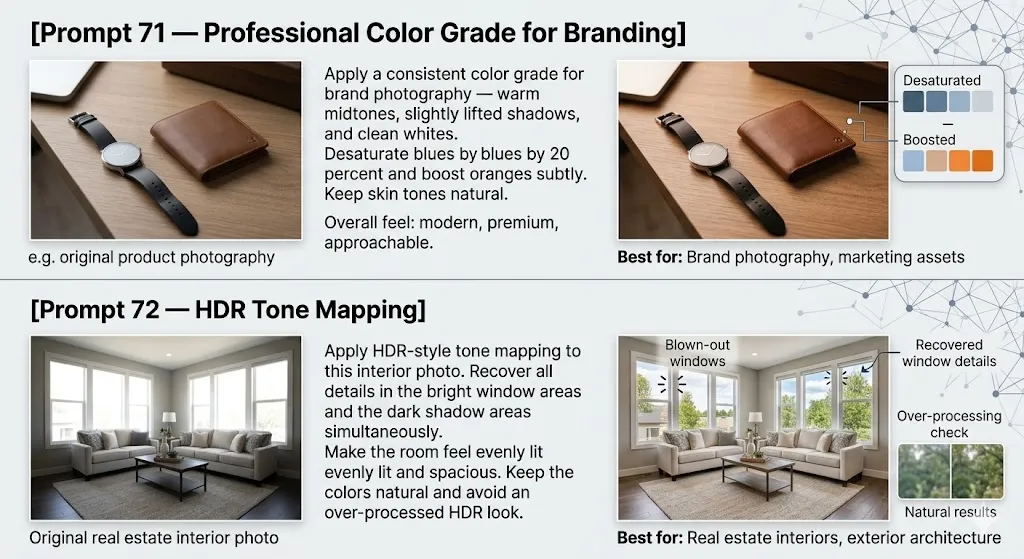
Prompt 71 — Professional Color Grade for Branding
- Best for: Brand photography, marketing assets
Apply a consistent color grade for brand photography — warm midtones, slightly lifted shadows, and clean whites. Desaturate blues by 20 percent and boost oranges subtly. Keep skin tones natural. Overall feel: modern, premium, approachable.- Why it works: Quantified color adjustments plus brand-consistent mood descriptors.
- Customize it: Color values and mood descriptors to match your specific brand guidelines.
Prompt 72 — HDR Tone Mapping
- Best for: Real estate interiors, exterior architecture
Apply HDR-style tone mapping to this interior photo. Recover all details in the bright window areas and the dark shadow areas simultaneously. Make the room feel evenly lit and spacious. Keep the colors natural and avoid an over-processed HDR look.- Why it works: “Avoid over-processed” instruction prevents the common HDR problem.
- Customize it: Intensity (subtle HDR vs. dramatic HDR).
Scene Enhancement
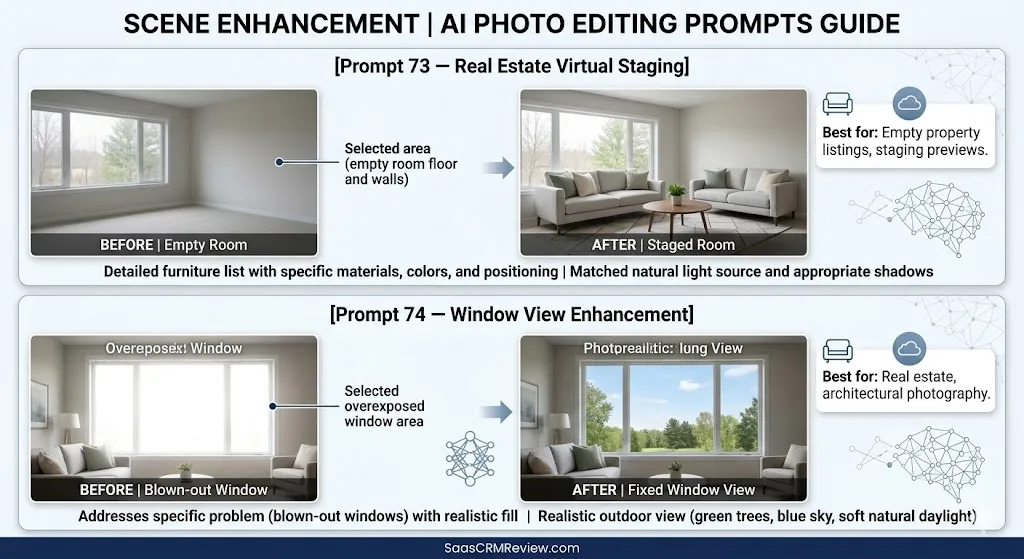
Prompt 73 — Real Estate Virtual Staging
- Best for: Empty property listings, staging previews
[Select the empty room floor and walls] Add modern staging furniture — a light gray linen sofa facing the window, a round walnut coffee table with a small plant, two accent pillows in muted sage and cream, and a geometric area rug. Match the room's natural light source and cast appropriate shadows.- Why it works: Itemized furniture list with specific materials, colors, and spatial positioning.
- Customize it: Furniture style (mid-century, traditional, minimalist Scandinavian).
Prompt 74 — Window View Enhancement
- Best for: Real estate, architectural photography
[Select the window area] Replace the overexposed blown-out window with a realistic outdoor view — green trees, blue sky with a few clouds, and soft natural daylight. Match the outdoor brightness to a natural HDR level so it looks realistic from inside.- Why it works: Addresses a specific photography problem (blown-out windows) with realistic fill.
- Customize it: View (city skyline, garden, ocean, mountains).
Text and Branding
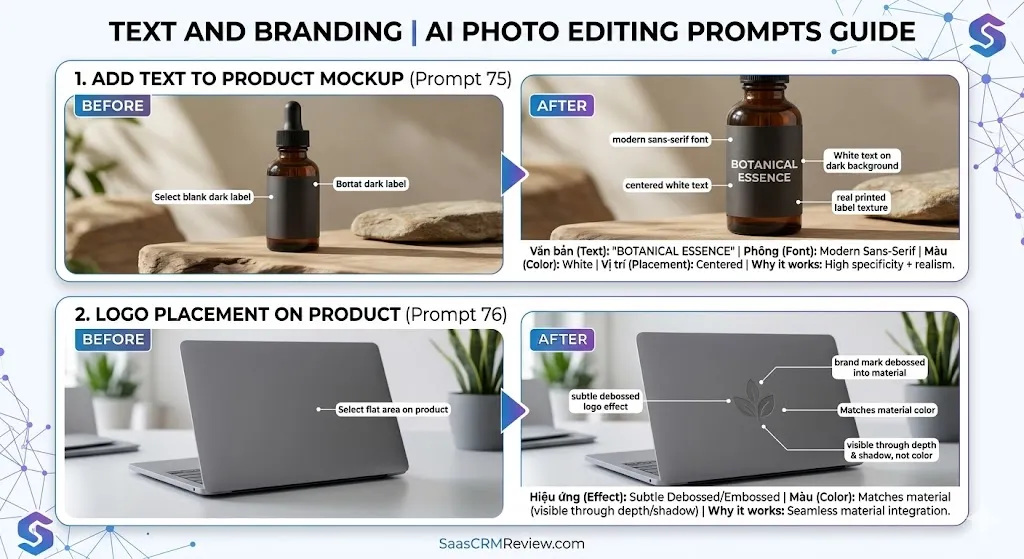
Prompt 75 — Add Text to Product Mockup
- Best for: Packaging mockups, brand presentations
[Select the blank label area on the product] Generate clean, professional text that reads "BOTANICAL ESSENCE" in a modern sans-serif font, centered on the label. White text on the existing dark background. Make it look like a real printed label.- Why it works: Specific text content + font style + positioning + realism instruction.
- Customize it: Text content, font style, color, and placement.
Prompt 76 — Logo Placement on Product
- Best for: Brand mockups, pitch decks
[Select the flat area on the product] Place a subtle embossed logo effect as if the brand mark were debossed into the material. Match the material color — the logo should be visible through shadow and depth, not a different color.- Why it works: Material-integrated logo instruction (embossed/debossed) looks more realistic than overlay.
- Customize it: “embossed” to “printed,” “etched,” “stitched.”
Advanced Editing
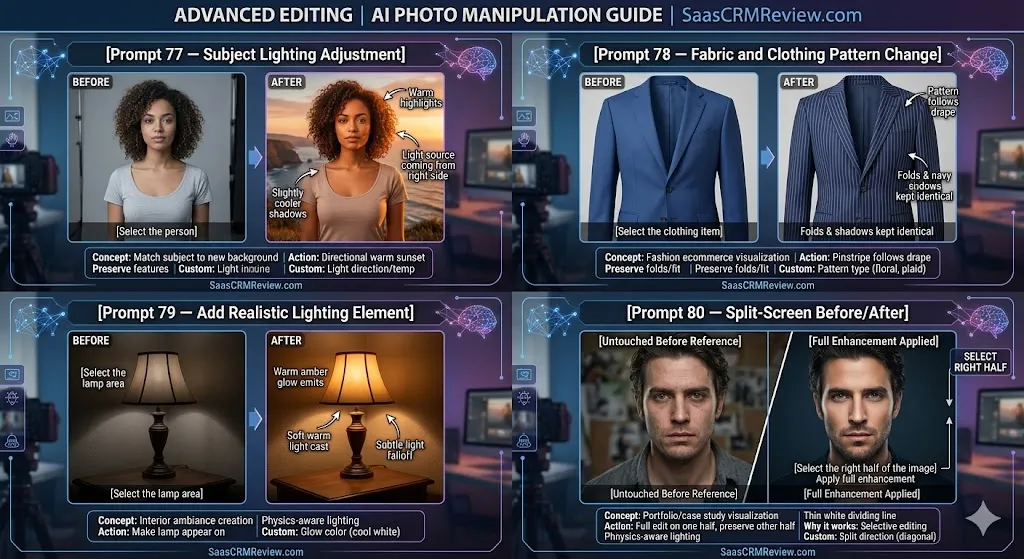
Prompt 77 — Subject Lighting Adjustment
- Best for: Matching subjects to new backgrounds
[Select the person] Adjust the lighting on the subject to match a warm sunset light source coming from the right side. Add warm highlights on the right side of the face and body, and slightly cooler shadows on the left. Keep all facial features and details identical.- Why it works: Directional lighting adjustment with warm/cool specification.
- Customize it: Light source direction and temperature.
Prompt 78 — Fabric and Clothing Pattern Change
- Best for: Fashion ecommerce, pattern visualization
[Select the clothing item] Replace the solid blue color with a subtle navy and white pinstripe pattern. Keep the fabric folds, shadows, and garment fit exactly as they are. The pattern should follow the natural drape and direction of the fabric.- Why it works: Pattern-follows-drape instruction prevents flat, unrealistic pattern application.
- Customize it: “pinstripe” to “floral,” “plaid,” “geometric.”
Prompt 79 — Add Realistic Lighting Element
- Best for: Interior photography, ambiance creation
[Select the lamp area] Make the lamp appear turned on — generate a warm amber glow emitting from the lampshade, casting soft warm light on the wall behind it and the surface below. Add subtle light falloff that fades naturally with distance.- Why it works: Light-physics-aware instruction (glow, cast, falloff) creates believable illumination.
- Customize it: “warm amber” to “cool white” for modern lighting.
Prompt 80 — Split-Screen Before/After
- Best for: Portfolio presentations, case studies
[Select the right half of the image] Apply the full enhancement — color correction, skin smoothing, background cleanup, and professional lighting adjustment. Keep the left half of the image completely untouched as the before reference. Add a thin white dividing line between the two halves.- Why it works: Selective editing with explicit before/after preservation.
- Customize it: Split direction (top/bottom, diagonal).
Adobe Firefly Photo Editing — Mini Review Verdict
Best for: Precision commercial work where you need control over exactly which pixels change. Adobe Firefly is a strong option for Generative Fill, object placement, commercial product photography, and brand-safe licensed output that you can use in client work without licensing questions.
Strongest areas: Generative Fill, product photography backgrounds, virtual staging, text in images, canvas extension, commercial licensing.
Limitations: Requires the Adobe ecosystem (Photoshop or Firefly web app). Less conversational than ChatGPT. Creative stylistic range is narrower than Midjourney’s for artistic transformations.
We are preparing a dedicated Adobe Firefly photo editing prompts guide with 30 additional prompts. For a broader view of how AI powers creative workflows, see our guide to the best AI photo editors or explore the best AI tools for content creation.
What We Noticed Comparing These Four Tools
After developing and organizing prompts across ChatGPT, Gemini, Midjourney, and Adobe Firefly, several patterns emerged that are not obvious from feature comparison tables alone. Here is what we observed in the process of evaluating prompt structures and expected outputs across all four platforms.
Identity preservation varies significantly. When editing portraits, ChatGPT tends to maintain facial identity more consistently than Midjourney, especially across iterative edits. Midjourney sometimes shifts facial features during style transfers, while Firefly’s selection-based approach provides the most control over which areas are modified. If preserving a person’s exact appearance is critical (headshots, corporate team pages), ChatGPT or Firefly with careful masking are generally stronger choices.
Text rendering remains a weak spot across all tools. When prompts involve adding text to images — product labels, signage, or overlaid captions — all four tools struggle with letter accuracy. Adobe Firefly handles it most reliably because of its Photoshop integration, but even Firefly can misspell words or distort letterforms. For text-heavy edits, manual post-processing is usually necessary.
Speed-to-quality tradeoff is real. Gemini consistently produces the fastest results, making it ideal for “good enough” edits on casual photos. However, the quality gap widens for complex edits. Midjourney and Firefly produce higher-fidelity results for creative or commercial work, but require more time spent on selections, prompt refinement, and iteration.
Material retexturing remains Midjourney’s unique differentiator. No other tool in this comparison can convincingly change the material of an object (leather to denim, concrete to brick, carpet to hardwood) while maintaining shape, lighting, and context. If retexturing is part of your workflow, Midjourney is currently the only serious option.
Commercial licensing clarity separates Firefly from the pack. Adobe Firefly is the only tool here that was designed from the ground up with commercial licensing as a priority. Content Credentials, IP-safe training data, and clear terms of use make it the default choice for agencies, brands, and marketplaces that need audit-ready image provenance.
Prompt structure matters more than prompt length. Across all four tools, we found that well-structured short prompts (action + target + constraint) consistently outperformed long, detailed paragraphs. The tools interpret shorter, clearer instructions more accurately. This is especially true for Midjourney and Firefly, which respond well to terse, art-direction-style language.
Failure patterns are tool-specific. ChatGPT tends to over-smooth skin when pushed too hard. Gemini occasionally introduces color shifts. Midjourney can hallucinate details that were not in the prompt. Firefly sometimes creates visible seam lines at the edges of selections. Knowing each tool’s typical failure mode helps you write better prompts from the start.
Best AI Photo Editing Prompts by Use Case
Headshots and Professional Portraits
For professional headshots that require identity preservation and subtle retouching, ChatGPT and Adobe Firefly are the most reliable tools. ChatGPT handles natural-language refinement well (Prompts 1–4), while Firefly gives precision control with background replacement (Prompt 69). Midjourney is a strong choice if you want dramatic lighting changes (Prompt 54).
Ecommerce and Product Photography
Adobe Firefly is usually the strongest option for product photos. Generative Fill lets you create marketplace-ready white backgrounds (Prompt 63), lifestyle product scenes (Prompt 65), and professional mockups. ChatGPT handles simpler product edits like color variants well (Prompts 9–11).
Real Estate Photography
Real estate edits benefit from a multi-tool approach. Use Gemini for quick sky replacement (Prompt 27) and exposure correction (Prompt 28). Use Firefly for virtual staging (Prompt 73) and window view enhancement (Prompt 74). Use ChatGPT for interior declutter (Prompt 8) and seasonal changes (Prompt 18).
Content Creators and Social Media
For social media content, speed and style variety matter most. Gemini handles quick reformatting (Prompt 33) and basic enhancements. ChatGPT is strong for branded consistency (Prompt 20) and neon/cinematic effects (Prompts 12, 15). Midjourney creates scroll-stopping stylized images (Prompts 47–49).
Family and Personal Photos
ChatGPT is well-suited for family photo editing — group portrait fixes (Prompt 4), old photo restoration (Prompt 16), and colorization of historical photos (Prompt 17). Gemini handles quick fixes like red-eye correction (Prompt 22) and pet photo enhancement (Prompt 37).
Small Business and Branding
Small businesses need commercial-ready assets. Adobe Firefly provides the safest licensing for client-facing materials. Use Firefly for branded product photography (Prompts 65–68), professional color grading (Prompt 71), and text/logo integration (Prompts 75–76). ChatGPT works well for maintaining visual consistency across a content series (Prompt 20).
Common AI Photo Editing Prompt Mistakes
1. Being too vague. “Make this photo better” gives the AI no direction. Always specify the action, target, and desired result.
2. Forgetting preservation instructions. Without telling the AI what to keep, it may change things you did not expect. Always add “keep [specific elements] unchanged.”
3. Asking for too many edits at once. Multi-step edits in one prompt often produce worse results than sequential, focused prompts. Break complex edits into steps.
4. Ignoring tool strengths. Using Gemini for complex artistic compositing or Midjourney for quick exposure fixes wastes the tools’ strengths. Match the tool to the job.
5. Not specifying lighting. When adding or changing backgrounds, always instruct the AI to match the lighting direction and temperature. Mismatched lighting is the most common tell of AI-edited photos.
6. Over-correcting faces. Requesting “perfect skin,” “perfectly symmetrical face,” or “remove all lines” produces uncanny results. Use qualifiers like “subtly,” “slightly,” and percentage-based instructions.
How to Customize Any AI Photo Editing Prompt for Better Results
1. Swap the subject type. Most prompts work across subject types. Change “person” to “pet,” “product,” or “building” and adjust the preservation instruction.
2. Adjust intensity with qualifiers. Add “subtly,” “moderately,” “dramatically,” or percentage values to control how strong the edit is.
3. Change the style reference. Swap aesthetic references (film stock names, art styles, lighting techniques) to redirect the creative output while keeping the prompt structure.
4. Specify a target platform. Add “optimized for Instagram Stories (9:16)” or “for LinkedIn banner (1584×396)” to tailor the output for specific use cases.
5. Add negative instructions. “Do not change…” and “avoid…” instructions are often more effective than additional positive instructions for preserving what matters.
6. Chain prompts in sequence. For complex edits, break the work into sequential prompts: background first, then lighting, then color grade. This produces better results than one mega-prompt.
Commercial Use, Privacy, Copyright, and Brand-Safety Notes
Licensing and Commercial Use
Adobe Firefly: Explicitly designed for commercial use. Content Credentials tag outputs with provenance data. Firefly’s training data uses licensed, public domain, and Adobe Stock content. This is typically the safest choice for client-facing, marketplace, or advertising use. See Adobe Content Credentials for provenance details.
ChatGPT (OpenAI): OpenAI’s terms generally allow commercial use of generated and edited images. However, terms can change, and specific enterprise agreements may vary. Always verify the current terms before large-scale commercial deployment.
Google Gemini: Google’s terms for Gemini-generated and edited content should be reviewed before commercial use. Terms may differ between free and paid tiers.
Midjourney: Midjourney’s license allows commercial use for paid subscribers. Free trial users have more limited rights. Review Midjourney’s Terms of Service for current details.
Privacy Considerations
- Never upload photos of people without their consent for AI editing, especially for public or commercial use.
- AI tools may store uploaded images according to their privacy policies. Review each tool’s data handling practices.
- Some jurisdictions have specific laws about AI-altered images of real people. Check local regulations.
Copyright and Originality
- Editing a photo you own generally does not create copyright issues with the editing tool.
- Editing a photo you do not own may violate the original photographer’s copyright regardless of AI involvement.
- AI-generated additions (new backgrounds, added objects) may have complex copyright status depending on jurisdiction.
Brand-Safety Checklist
- Use the original, licensed source photo
- Verify the AI tool’s commercial terms before publishing
- Keep the edit subtle enough that the image remains truthful
- Disclose AI editing when required by your industry or platform
- Archive the original unedited photo for audit purposes
FAQs About AI Photo Editing Prompts
What are AI photo editing prompts?
AI photo editing prompts are text-based instructions you give to an AI tool to modify an existing photograph. You describe the change you want — such as removing a background, smoothing skin, or shifting lighting — and the AI applies the edit. The quality of the prompt directly determines the quality of the output.
Which AI tool is best for photo editing?
There is no single best tool. ChatGPT is often strongest for conversational portrait edits. Gemini is well-suited for quick fixes and accessibility. Midjourney is often preferred for artistic and stylized transformations. Adobe Firefly is a strong option for precision commercial work. Match the tool to your specific editing task.
Are AI-edited photos legal to use commercially?
It depends on the tool’s licensing terms and the rights to the source photo. Adobe Firefly is designed for commercial use with clear licensing. ChatGPT, Gemini, and Midjourney each have their own terms. Always verify the current terms before commercial deployment.
Can AI tools edit existing photos or only generate new images?
All four tools covered in this guide can edit existing photos. ChatGPT and Gemini accept uploaded images for modification. Midjourney’s Editor allows selecting and editing parts of images. Adobe Firefly’s Generative Fill and Prompt to Edit work on existing photos in Photoshop and the web app.
How specific should my AI photo editing prompt be?
More specific prompts produce better results. Include the action (what to do), the target (where to do it), the desired result (what it should look like), and preservation instructions (what should not change). Short, structured prompts outperform long, rambling ones.
Will AI photo editing change the person’s identity?
It can, especially with aggressive edits. To minimize identity changes, always add preservation instructions: “keep the face shape, facial features, and expression exactly the same.” ChatGPT and Firefly tend to preserve identity more reliably than Midjourney during stylistic transformations.
Can I use the same prompt across different AI tools?
The prompt structure works across tools, but exact results will differ. ChatGPT responds to conversational language, Gemini prefers concise instructions, Midjourney uses terse art-direction syntax, and Firefly works best with selection + description. Adapt the phrasing to the tool.
What is the difference between AI photo editing and AI image generation?
AI photo editing modifies an existing photograph — you start with a real photo and instruct the AI to change specific elements. AI image generation creates entirely new images from text descriptions. Both use similar AI technology, but the workflows and outputs are different.
Why do some AI edits look fake?
The most common reasons are mismatched lighting between the subject and new background, over-smoothed skin, inconsistent shadows, and visible seam lines. To avoid these, always include lighting-match and preservation instructions in your prompts.
How do I write a good AI photo editing prompt?
Use the formula: [Action] + [Subject/Area] + [Desired Result] + [Style/Mood Constraint] + [Preservation Instruction]. Be specific about what to change and what to keep. Use qualifiers like “subtly” or percentage values to control intensity. Tell the AI what NOT to change.
Are there free AI photo editing tools?
ChatGPT offers free-tier image editing with limitations. Gemini provides editing features in the free tier. Midjourney requires a paid subscription. Adobe Firefly offers limited free generative credits in the web app, with full features requiring a Creative Cloud subscription.
Can AI photo editing replace professional retouching?
For many everyday editing tasks — background swaps, basic retouching, color grading, exposure correction — AI tools produce professional-quality results in seconds. For high-end commercial work requiring pixel-level precision, brand compliance, and complex compositing, professional retouchers working with AI tools (particularly Firefly in Photoshop) produce the best results.
Bottom Line
The best AI photo editing prompts depend on what you are editing, who the output is for, and how much creative control you need.
- For everyday portrait and conversational edits: Start with ChatGPT. Its natural-language approach and identity preservation make it the most accessible option for most editing tasks.
- For speed and simplicity: Gemini delivers the fastest path from upload to edited photo, well-suited for casual or quick-turnaround work.
- For creative, artistic, and stylized transformations: Midjourney’s Editor with Retexture, Smart Select, and compositing features offers creative possibilities that no other tool matches.
- For commercial, brand-safe, precision work: Adobe Firefly in Photoshop gives you the most control, the clearest licensing, and the best integration with professional workflows.
No single tool is best at everything. The smartest approach is to learn the strengths of each tool and match the tool to the task, not force one tool to do everything.
This guide contains 80 selected prompts — 20 per tool — curated from our full prompt libraries. For the complete 50-prompt deep dives, see our dedicated guides to ChatGPT photo editing prompts and Gemini photo editing prompts. Dedicated Midjourney and Adobe Firefly prompt guides are coming soon.
About This Guide
Editorial disclosure: This guide was developed through editorial evaluation of each tool’s publicly documented capabilities, prompt-engineering principles, and practical workflow assessment during prompt development. Where we describe tool behavior (such as identity preservation quality or typical failure modes), these observations come from editorial assessment, not controlled laboratory testing. If you notice any factual error or outdated capability claim, please contact us so we can update the guide promptly.
Last updated: March 2026
Related guides on SaasCRM Review:
- ChatGPT Photo Editing Prompts — full 50-prompt library
- Gemini Photo Editing Prompts — full 50-prompt library
- Best AI Photo Editors — roundup of top tools
- Best AI Image Generators — generation-focused guide
- What Is Generative AI? — foundational explainer
About the author

I’m Macedona, an independent reviewer covering SaaS platforms, CRM systems, and AI tools. My work focuses on hands-on testing, structured feature analysis, pricing evaluation, and real-world business use cases.
All reviews are created using transparent comparison criteria and are updated regularly to reflect changes in features, pricing, and performance.