

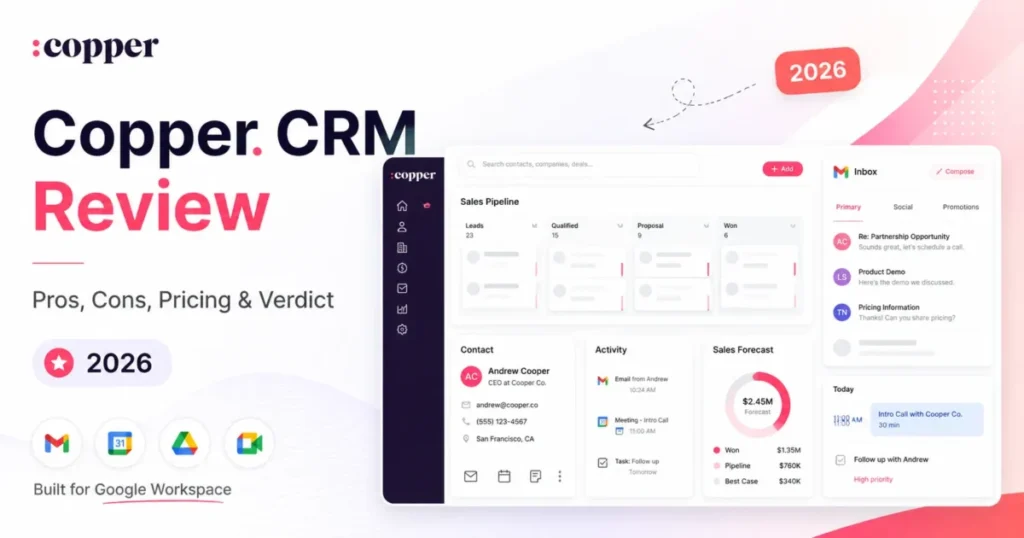
Copper CRM is worth it for one specific buyer: a 5 to 25 person agency, consultancy, or professional-services team that already runs its day inside Gmail, Google Calendar, and Google Drive. This Copper CRM review is built for that buyer and no one else, because the product’s whole advantage is living next to Google Workspace rather than in a separate tab.
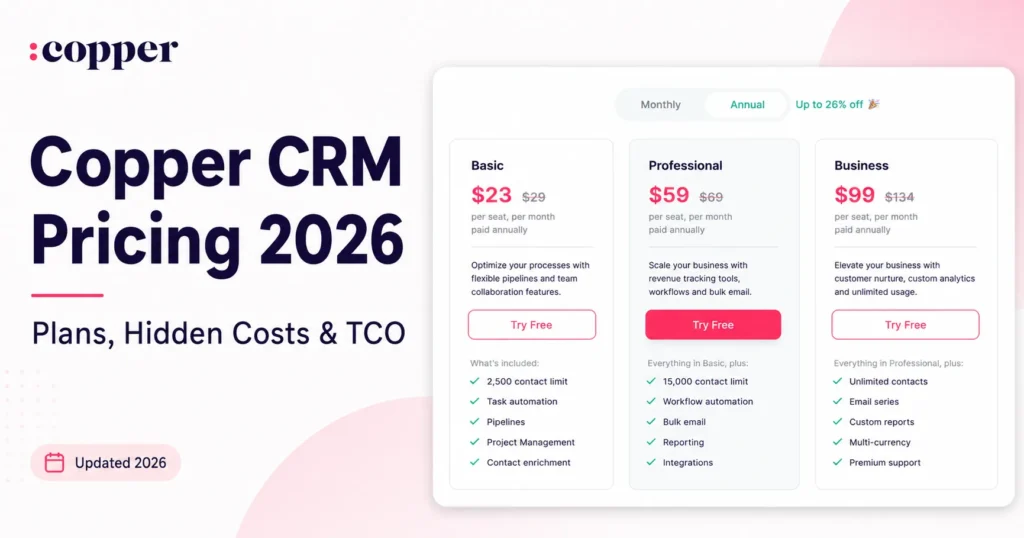
Pricing starts at $23 per seat per month on annual billing, but most teams that need automation, reporting, or an API will land on the $59 Professional plan, not the entry tier. If your team lives in Outlook, runs high-volume outbound, or needs assured integration delivery, Copper is the wrong fit.
This review works from Copper’s official pricing page, Help Center, and developer documentation, checked on July 24, 2026. If you are still shortlisting, the best CRM software hub and this primer on how CRM software works give useful context before you commit.
In This Article (15 sections)
Quick Verdict
| Category | Verdict |
|---|---|
| Best for | 5 to 25 person Google Workspace teams: agencies, consultancies, professional services |
| Not ideal for | Microsoft-centric teams, high-volume outbound, complex reporting, assured-delivery integrations |
| Starting price | From 23 dollars per seat monthly (Basic, annual billing) |
| Best practical plan | Professional, about 59 dollars per seat monthly on annual billing, for automation, leads, reporting, and API |
| Free plan | No free plan; free trial only |
| Setup difficulty | Low for a clean contact list, Medium to High for a real migration |
| Main strength | Deep Gmail and Google Workspace integration |
| Main limitation | Email automation is Gmail-only, weekday-scheduled, and capped at 900 sends per day |
| Best alternative | Pipedrive for a simpler pipeline, HubSpot for a free tier and marketing |
What Is Copper CRM?
Copper is a relationship-focused CRM from Copper, Inc. that is designed to work closely with Google Workspace. It handles contacts, sales opportunities, project pipelines, task and workflow automation, email, and reporting.
A Chrome extension and side panel surface CRM records directly inside Gmail. Instead of copying data between your inbox and a separate CRM, Copper keeps the record next to the email, the calendar invite, and the Drive file it relates to.
That design decision is also the product’s boundary. Copper is at its best when Google Workspace is the system of work, and it gives up ground the moment your stack leans on Microsoft 365 or a dedicated outbound sales engine.
How I Reviewed Copper
This Copper CRM review draws on Copper’s official pricing page, the Copper Help Center, and the Copper developer documentation, with every price and plan limit checked on July 24, 2026. Public review sentiment from G2 and TrustRadius is used only where it is labeled as user opinion.
Each plan was assessed against the same buyer criteria: workflow fit inside Google Workspace, automation depth, reporting, migration effort, integration reliability, and the real cost at five and ten seats.
Greater weight went to the factors that change a purchase decision, including plan gates, documented usage limits, and the point where the advertised price stops matching the practical budget. Vendor positioning did not affect the assessment.
Claims the sources did not support were left out, and Copper’s security statements are attributed to Copper rather than treated as independent certification.
Source: Copper official pricing page and Help Center documentation, checked July 24, 2026.
Setup and Onboarding: What It Takes to Get Copper Running
For a solo operator with a clean contact list and a Google account, Copper connects fast. Connect Gmail, add the Chrome extension, and the side panel starts pulling in people and companies from your inbox.
The learning curve is gentle for the daily user and steeper for the admin. A rep who already lives in Gmail has almost nothing new to learn, while the person configuring fields, pipelines, permissions, and automation carries the real setup weight.
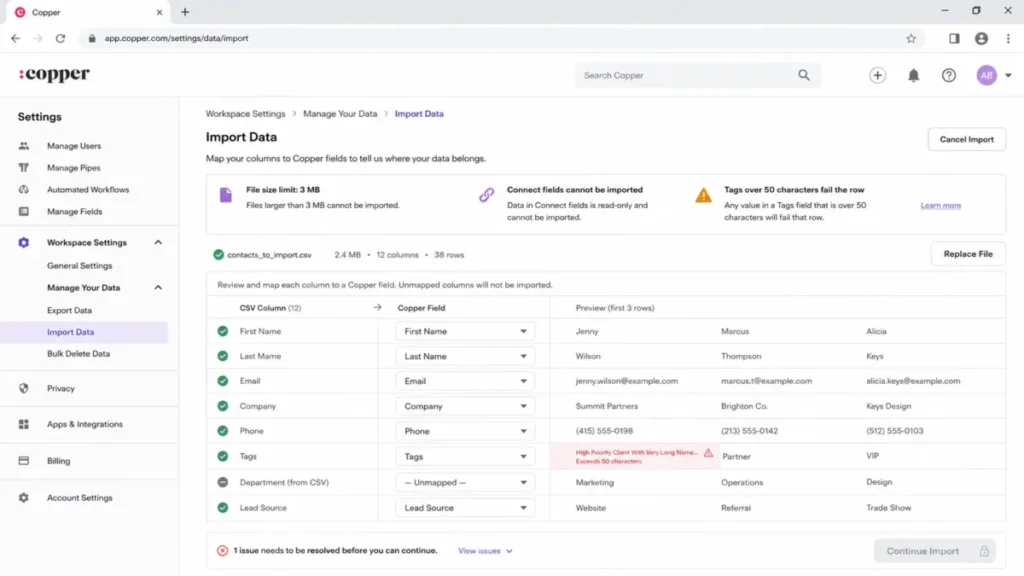
A real migration is a different project. According to Copper’s import documentation, you should create your custom fields and contact types before you import anything, so the columns have somewhere to land.
The documented import order matters. Copper tells you to import Companies first, then People, then Opportunities, so relationships link correctly; Leads can come in at any time.
Then the hard limits start. Import files are capped at 3 MB each, so a large export has to be split into batches before it will upload.
Two migration traps deserve a callout. Connect fields cannot be imported at all, which means any custom record-to-record relationship has to be rebuilt by hand or through the API after the fact.
The second trap is tags. A tag longer than 50 characters fails the entire row it sits on, so a messy taxonomy turns into a partial import you have to reconcile.
Deduplication is automatic but unforgiving. Copper matches duplicate People by email address and duplicate Companies by email domain, and a merge cannot be undone once you confirm it.
That single fact should shape your rollout. Keep a source backup, test a small file first, and validate duplicate matches before you merge anything, because there is no rollback.
A staged plan is safer than one bulk upload. Following a structured CRM migration checklist protects the relationships you are trying to preserve.
Migrating from Salesforce or Pipedrive follows the same staged path. Copper’s importer accepts CSV and Excel files and lists supported source systems, so the friction is not the file format but the field mapping, the object order, and the Connect fields that will not carry over.
For a Salesforce move specifically, budget time to rebuild custom relationships and to request the activity history rather than assuming a clean lift-and-shift. A team switching from spreadsheets has an easier path, because there is no legacy relationship model to preserve.
There is also an exit cost worth knowing before you commit. According to Copper’s export documentation, you can self-export People, Companies, Opportunities, Projects, Tasks, and Leads to XLSX, but activity history is not in that self-service path and requires a one-time Support request.
That matters for data portability. If you ever switch away, plan the activity export early and validate every file before you cut over, because the standard export button does not cover your full history.
By day 30, a healthy Copper rollout should have clean company-people links, resolved duplicates, and pipelines the team keeps current. By day 90, the test is whether reps still log activity in Gmail without being chased, because that habit is what keeps the data trustworthy.
How Copper Handles Contacts, Pipelines, and Email
Copper’s core is solid for relationship selling and delivery work. The features below are the ones that decide whether it fits, each with its plan gate and its ceiling.
Google Workspace and Gmail integration
This is the reason to buy Copper. The Chrome extension and Gmail side panel put contact records, opportunities, tasks, and activity next to the email thread, so reps stop switching tabs to log a note.
Copper also connects to Google Calendar, Google Contacts, Google Drive, and Google Sheets, with availability varying by plan. Recurring praise on G2 reviews centers on exactly this: users like how little context switching the Gmail integration requires for everyday relationship work.
The limitation is the flip side of the strength. The integration assumes Google, so a Microsoft 365 team loses the main advantage and inherits friction instead.
Contact management and enrichment
Contact records are the backbone here, and Copper populates them from your inbox and calendar rather than manual entry. Contact enrichment is documented from the Basic plan up, so even the entry tier fills in company and profile details automatically.
The practical benefit is data hygiene. A CRM that builds records from real email activity has fewer empty fields than one that waits for a rep to type them in.
Opportunity and project pipelines
Copper runs both sales opportunity pipelines and project pipelines, which suits service businesses that sell work and then deliver it. Basic and above document opportunity and project pipelines, so a small agency can track a deal and the delivery that follows in one system.
This is an underrated fit signal. If your revenue motion is sell-then-deliver, mapping both pipelines during a trial tells you more than testing contact management alone.
Workflow automation and pipeline email
Two automation systems live in Copper, and they are not the same thing. Workflow automation rules, available on Professional and Business, create or update records when a trigger fires, but according to Copper’s automation documentation they do not send email.
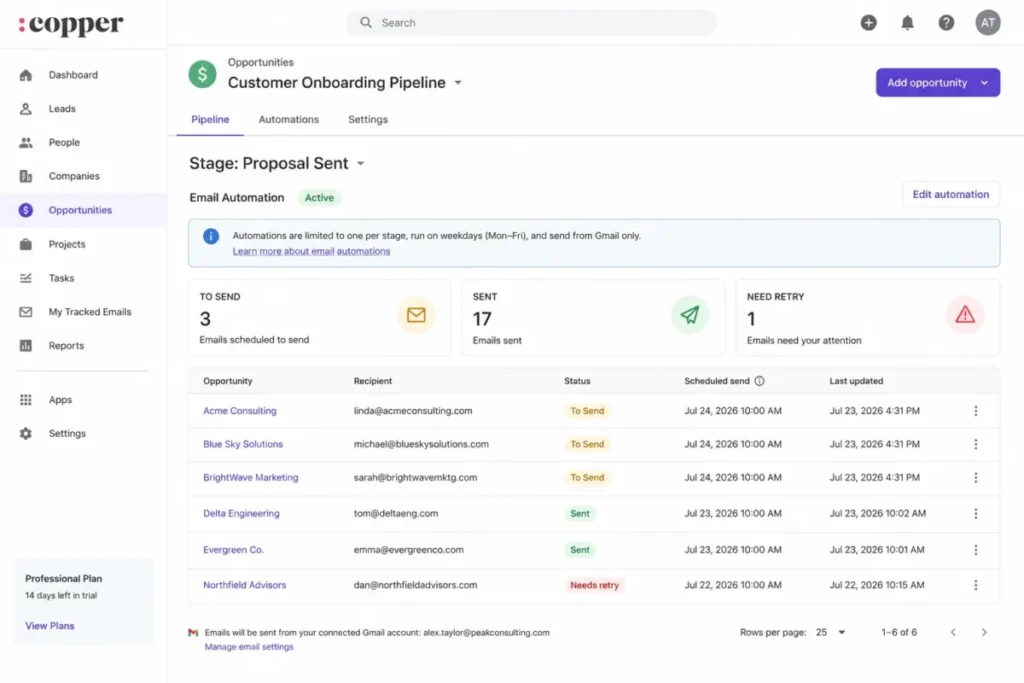
Email goes through a separate pipeline email automation, also on Professional and Business. Per Copper’s email automation FAQ, each pipeline stage supports one automation and each closed status supports one, and only records that enter a stage after you activate it, on their first entry, qualify.
That entry rule catches teams off guard. Existing deals and deals that re-enter a stage are outside the trigger, so any backfill has to be planned separately.
Reporting and the Business-tier report builder
Standard reporting sits on Professional. The Custom Report Builder, the one most buyers picture when they hear “custom reports,” is a Business-only feature per Copper’s plan comparison.
The builder has real constraints I cover in the limits section. Treat a Business upgrade as something to validate against your own schema, not a assured reporting fix.
There is a documented escape hatch worth knowing. Copper supports reporting through Google Sheets and Looker Studio, so a team that needs fresher or more flexible dashboards can push data into Google’s own tools rather than paying up for the Business builder.
Copper also markets AI features, but they are not the reason to buy. Practitioner sentiment from long-term users, including the Efficient App team, describes the AI as less compelling than the core Google Workspace convenience, so I would weight the integration and pipelines far above any AI claim.
Integrations and the API
Copper lists native integrations, third-party native integrations, and Zapier connections, plus a Developer API and an Embedded SDK. The integration list includes Zapier, LinkedIn, Mailchimp, DocuSign, QuickBooks, PandaDoc, Slack, and Zendesk, with availability and connection type varying by plan.
Read that list carefully. Zapier is a separate service that may require its own paid subscription, so a connector shown as “available” can still add cost and another point of failure.
Map the stack Copper must touch before you buy. If the tool has to connect to billing, a data warehouse, or a marketing platform, confirm whether each link is native, partner-native, or Zapier-mediated, because the connection type decides reliability and cost.
What Breaks at Scale: Copper’s Documented Limitations
Copper’s official documentation is unusually specific about its ceilings, which makes each documented capability easy to plan around. Here is the buyer-risk ledger, where every limit carries a workflow consequence tied to the affected buyer, so you can weigh the trade-off before you recommend the tool.
Email automation is the sharpest edge. According to Copper’s email automation documentation, scheduled sends require Gmail, run only on weekdays between 8:00 a.m. and 6:00 p.m. in the company timezone, and support no custom triggers.
Volume has a hard cap too. Copper limits automated email to 900 sends per company per day, and contacts above that cap stay in a To Send queue for a later day.
For a high-volume outbound team, that combination is disqualifying. Copper’s own guidance frames email automation as warm-relationship nurture, and Google’s separate sending limits apply on top of Copper’s cap.
Business email series add multi-step nurture, but they top out at seven emails. An inbound reply or calendar event can pull a contact out of every active series, which is good hygiene for relationship selling and wrong for a rigid drip sequence.
The API has published ceilings worth an engineer’s attention. Copper’s developer documentation allows 180 requests per rolling minute and 3 bulk requests per second, returning HTTP 429 when you exceed them.
Webhooks carry the riskiest limit in the product. Per Copper’s webhook documentation, you get up to 100 active subscriptions, 600 notifications per minute, and 1,800 per 10 minutes, and delivery is at most once with no retries.
That no-retry rule matters more than the numbers. If your receiving endpoint blinks, the event is gone, so any finance, provisioning, or compliance integration needs reconciliation polling or middleware rather than trusting the webhook alone.
Reporting has its own quiet limits. According to Copper’s custom report documentation, four common custom field types are unsupported: Multi-Select Dropdown, Connect Field, Date Field, and Text Area.
Reports also cap at 35 custom attributes and 10 custom metrics. The data refreshes only four times per day.
Two consequences follow for a data-heavy team. Dashboards are not real-time, and deleting a field that a report references can break that report in a way the documentation says cannot be undone.
That last point is an admin governance risk, not a cosmetic one. Before anyone removes a custom field during cleanup, someone has to check which reports and dashboards depend on it, because there is no undo once a live report loses its source field.
Feature Gates: What Each Plan Actually Includes
The single most useful thing in a Copper review is a clear map of what turns on at each tier. Most teams that think they want Basic need Professional once you name the gated workflows.
| Feature | Basic | Professional | Business |
|---|---|---|---|
| Contact limit | 2,500 | 15,000 | Unlimited |
| Task automation | Yes | Yes | Yes |
| Workflow automation | No | Yes | Yes |
| Bulk and single-email automation | No | Yes | Yes |
| Multi-step email series | No | No | Yes (up to 7) |
| Reporting | No | Standard | Standard plus Custom Report Builder |
| Developer API and native integrations | Limited | Yes | Yes |
| Multi-currency and embedded integration | No | No | Yes |
Source: Copper plan feature comparison, Help Center, checked July 24, 2026.
Basic is not a cheaper Professional. It is a different envelope: 2,500 contacts and 25 custom fields with task automation, but no workflow automation, no leads, no bulk email, no standard reporting, and only limited integration access.
That gap is the real upgrade trigger. If your core process depends on automation, leads, reporting, or the API, you must budget for Professional from the start, because building on Basic and discovering the gates later is the expensive path.
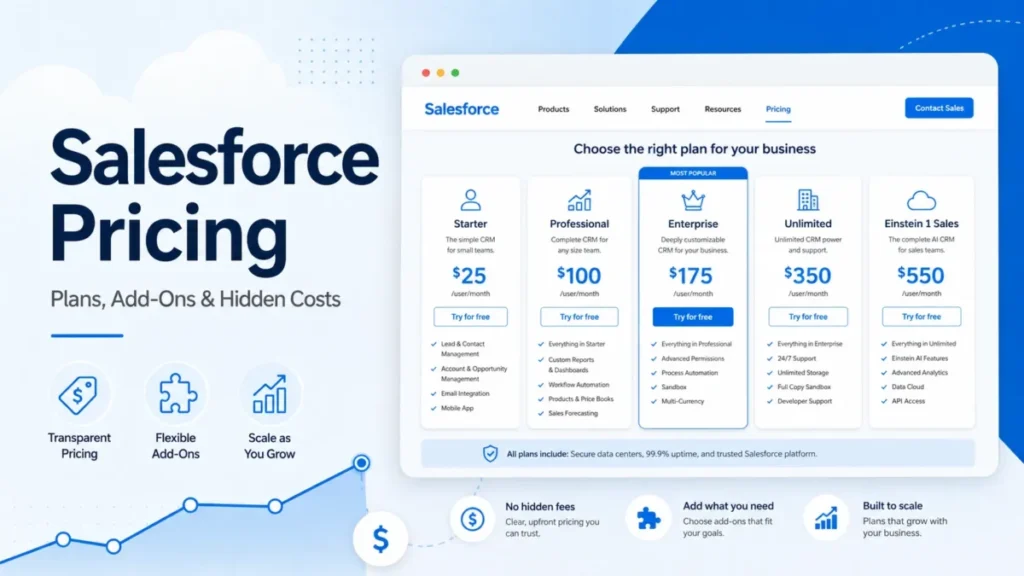
Business earns its price for a narrow set of needs. You move up when you pass 15,000 contacts, need the multi-step email series, require the Custom Report Builder, need multi-currency, or want the embedded integration.
One quiet Starter note protects your budget. Copper’s Help Center still documents a Starter tier with 1,000 contacts and 10 custom fields.
Starter is absent from the current public pricing page, so its July 2026 public price and availability are unverified. Do not trust a third-party Starter price.
Security, Support, and Admin Controls
On security, Copper states that data is encrypted in transit and at rest, that employee and vendor access is role-based and need-to-know, and that outside vulnerability scans and penetration tests are performed. Those are Copper’s own statements on its security page, not independent certifications, so a compliance-driven buyer should still request the trust documents directly.
Support is tiered, and one condition catches procurement. Personal onboarding and premium support are limited to eligible annual Professional and Business accounts, and no public response-time SLA is verified, so do not assume a fixed service level from the plan name alone.
Copper also ships iOS and Android apps, which covers reps who log activity between meetings.
The Pricing Math Nobody Shows You
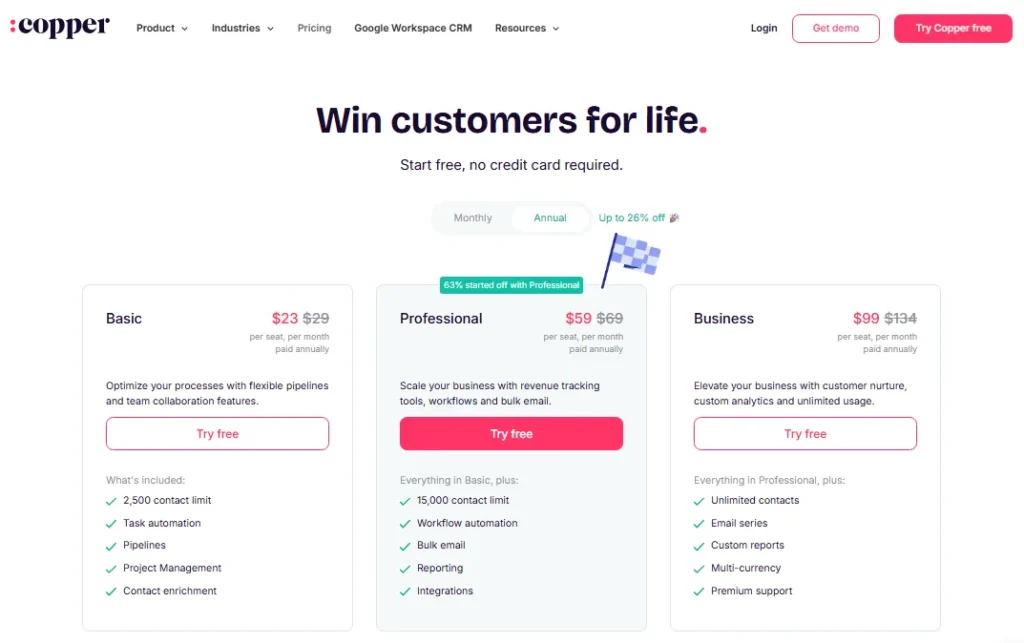
Per-seat pricing hides the real number, so here is the math on Copper’s current pricing page. Prices are in USD and exclude applicable taxes and fees.
| Plan | Price per seat (monthly / annual) | Contact limit | Who it fits |
|---|---|---|---|
| Basic | $29 / $23 | 2,500 | Solo operators and tiny teams needing contacts, pipelines, and task automation |
| Professional | $69 / $59 | 15,000 | The practical plan: automation, leads, email, reporting, native integrations, API |
| Business | $134 / $99 | Unlimited | Teams needing email series, the Custom Report Builder, or multi-currency |
Source: Copper official pricing page, checked July 24, 2026. Annual figures are the effective per-seat monthly rate on an annual commitment.
Now scale it to a team. The table below is the annual commitment cost before taxes, fees, and any third-party connectors.
| Team size, annual billing | Basic | Professional | Business |
|---|---|---|---|
| 5 seats per year | $1,380 | $3,540 | $5,940 |
| 10 seats per year | $2,760 | $7,080 | $11,880 |
Source: calculated from Copper’s official annual per-seat prices, checked July 24, 2026.
The jump most buyers underestimate is Professional to Business. At 10 seats, that step adds $4,800 a year, so the Custom Report Builder or a seven-step email series has to earn real budget, not just look nice in a feature list.
Annual billing is the easy win. Paying annually rather than monthly saves $600 a year on Professional at five seats and $1,200 a year at ten seats, so a monthly plan you keep is quietly a tax.
Two hidden costs deserve a line in the budget. Zapier-based connections may require a separate paid Zapier subscription, and premium support and onboarding only come with eligible annual Professional and Business accounts.
Buyer sentiment reflects this tension. TrustRadius reviewers praise Copper’s value while questioning the need for a higher plan to get capabilities they consider basic in rival CRMs.
For a full tier-by-tier breakdown, see the dedicated Copper CRM pricing guide.
Copper Pros and Cons
| Pros | Cons |
|---|---|
| Gmail and Google Workspace integration keeps CRM records next to the inbox | Email automation is Gmail-only and runs weekdays between 8 a.m. and 6 p.m. |
| Opportunity and project pipelines suit sell-then-deliver service teams | Automation, leads, reporting, and API are gated to Professional, not Basic |
| Documentation publishes exact limits, so rollouts can be planned precisely | Custom Report Builder is Business-only and rejects common field types |
| Contact enrichment and both pipeline types are available from Basic up | Webhooks are delivered at most once with no retries, risking silent data gaps |
| Native integrations plus a documented API on Professional and Business | Migration is a staged project: 3 MB import cap and Connect fields cannot import |
| Personal onboarding on eligible annual Professional and Business plans | Merges cannot be undone and activity-history export needs a Support request |
Source: Copper Help Center, developer documentation, and pricing page, checked July 24, 2026.
Who Should Use Copper
Copper fits a specific operator, and it fits that operator well. If you match one of these profiles, it belongs on your shortlist.
A 5 to 25 person agency or consultancy that runs relationships and delivery inside Gmail, Calendar, and Drive gets the most value, because the integration removes daily tab switching. This is also the audience most likely to use both the opportunity and project pipelines.
A professional-services team that sells warm relationships rather than blasting cold outbound fits Copper’s email model, since the documented use case is nurture, not high-volume sequencing.
A small business standardizing on Google Workspace that wants a CRM without heavy admin overhead will find setup light for a clean list. If that is you, compare it against other options in this roundup of CRM for small business before deciding.
Who Should Avoid Copper
Copper is the wrong tool for four buyers, and naming them saves you a painful migration later.
Microsoft-centric organizations should skip it. The differentiated workflow is tied to Google Workspace, so an Outlook, Teams, and SharePoint team gives up the main advantage and adds friction.
High-volume, multi-channel outbound teams will hit the wall fast. The 900-send daily cap, the weekday-only window, and the Gmail requirement make Copper a relationship CRM, not an outbound engine.
Teams with complex or near-real-time reporting needs should validate first, or look elsewhere. Unsupported field types, the 35-attribute and 10-metric caps, and a four-times-daily refresh mean Business reporting can still miss the mark.
Integration architectures that need assured delivery are a poor match. At-most-once webhooks with no retries mean any critical downstream system needs reconciliation, and some teams would rather not build that safety net.
Copper Alternatives
If Copper is close but not quite right, four alternatives cover the common escape routes. Each is a stronger fit under a specific condition.
| Alternative | Stronger fit when |
|---|---|
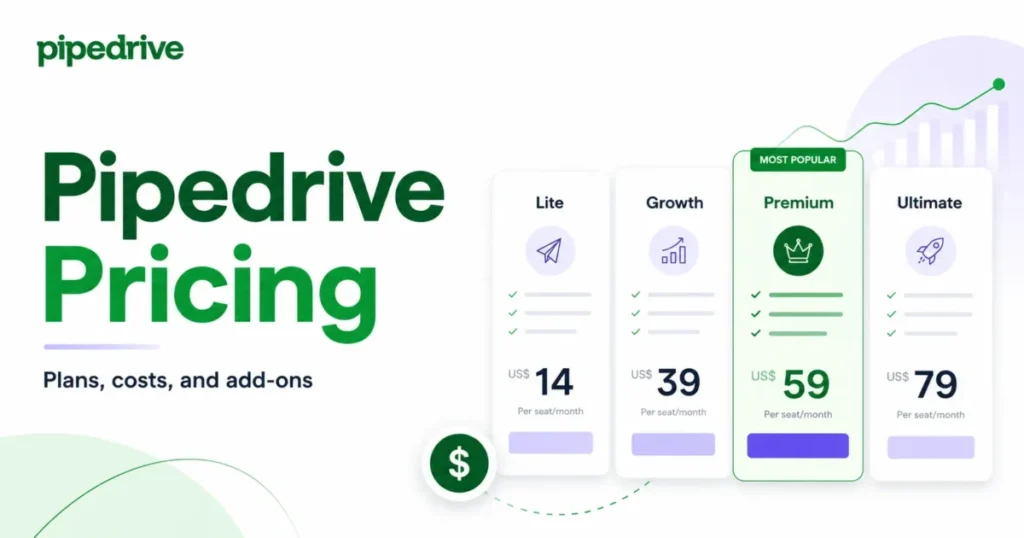
| Pipedrive | You want a simpler sales pipeline without Google-first framing |
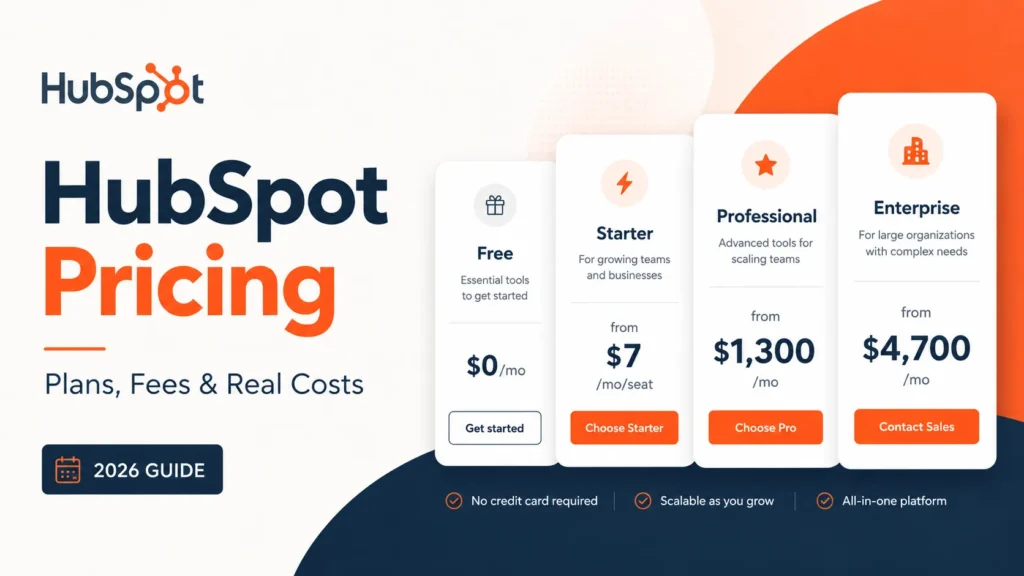
| HubSpot | You need a free tier and native marketing automation alongside CRM |
| Zoho CRM | You want deep customization and multi-channel outreach at a lower entry cost |
| Streak | You want a lighter, Gmail-native CRM for a very small team |
Pick by the exact gap you are trying to close. A Pipedrive CRM review is the read if pipeline simplicity is the priority, while HubSpot CRM is the stronger choice when a free plan and marketing automation matter more than Gmail proximity.
For customization and value at a lower entry price, a Zoho CRM review is worth your time. If you want Copper’s Gmail-native feel in a lighter package, compare it against this Streak CRM review, and a wider set of options lives in this guide to Copper CRM alternatives.
Final Verdict: Is Copper CRM Worth It?
Copper is worth it for a Google Workspace service business of roughly 5 to 25 people that values relationship continuity over enterprise sales complexity. For that buyer, the Gmail integration is a real daily advantage, and the documented limits are easy to plan around.
Default to the Professional plan. Basic is a false economy the moment you need automation, leads, reporting, or the API, and the practical operating tier for most teams is the $59 seat, not the $23 one.
Move to Business only for a named requirement: more than 15,000 contacts, the multi-step email series, the Custom Report Builder, multi-currency, or embedded integration. I would not pay the Business premium on the vague promise of “better reporting” without prototyping a report against my own fields first.
Choose Copper if Google Workspace is your system of work and your revenue motion is warm and relationship-led. Choose a different CRM if you are Microsoft-centric, run high-volume outbound, need real-time custom analytics, or require assured integration delivery.
On the switch-or-stay call, the honest answer depends on your inbox. A team already committed to Google Workspace and frustrated with a bolt-on CRM has a strong case to switch, while a team on Microsoft or one running heavy outbound should stay put and shortlist a different tool.
Before you commit, run a short trial of migration, email automation, and reporting against your own data. That trial is the real test of fit, and Copper’s published limits give you a precise checklist to run it against.
Frequently Asked Questions
These are the questions buyers ask most often before choosing Copper.
Is Copper CRM worth it in 2026?
Yes, if you are a 5 to 25 person team on Google Workspace that sells warm relationships, because the Gmail integration removes daily tab switching and the pipelines suit sell-then-deliver work. It is not worth it for Microsoft-centric teams, high-volume outbound, or complex real-time reporting, where the documented limits get in the way.
How much does Copper CRM cost?
Copper costs $23 per seat per month for Basic, $59 for Professional, and $99 for Business on annual billing, or $29, $69, and $134 monthly, before taxes and fees. Most teams need Professional for automation, leads, reporting, and API access, so five seats runs about $3,540 a year.
Is Copper CRM owned by Google?
No, Copper is an independent company, Copper, Inc., not a Google product, even though it is built to work closely with Google Workspace and surfaces records inside Gmail. Google does not own or operate Copper, and your data and billing sit with Copper rather than Google.
Does Copper CRM have a free plan?
No, Copper offers only a free trial, and the lowest paid tier is Basic at $23 per seat per month on annual billing with a 2,500-contact cap. If a permanent free tier is a hard requirement, HubSpot’s free CRM is the more common starting point for small teams.
Does Copper CRM work inside Gmail?
Yes, Copper’s Chrome extension and Gmail side panel put contacts, opportunities, tasks, and activity next to the email thread, and it also connects to Google Calendar, Contacts, Drive, and Sheets. This Gmail-native design is the main reason to choose Copper and the feature users praise most in public reviews.
Which Copper plan includes workflow automation?
Workflow automation starts on the Professional plan and is also on Business, while Basic includes task automation only, not the rules that create or update records on a trigger. Note that workflow automation does not send email, since pipeline email automation is a separate system, also gated to Professional and Business.
Can Copper CRM send automated email sequences?
Yes, but with real limits: pipeline email automation on Professional sends single scheduled emails, and Business adds multi-step series of up to seven, all requiring Gmail and running weekdays from 8 a.m. to 6 p.m. Sends cap at 900 per company per day, so Copper suits warm nurture rather than high-volume outbound.
What are Copper CRM’s contact limits?
Basic caps at 2,500 contacts, Professional at 15,000, and Business is unlimited, while the documented Starter tier lists 1,000 but is absent from the current public pricing page. If you are growing past 15,000 records, Business is the required tier, so budget for the jump to $99 per seat early.
Can I import my Salesforce data into Copper?
Yes, if you prepare for it, because Copper’s import accepts CSV and Excel files but requires you to create custom fields first, import Companies then People then Opportunities, and keep each file under 3 MB. Connect fields cannot be imported and must be rebuilt, so a Salesforce move is a staged project rather than a one-click transfer.
What are the main Copper CRM alternatives?
The common alternatives are Pipedrive for a simpler sales pipeline, HubSpot for a free tier and marketing automation, Zoho CRM for customization at a lower entry price, and Streak for a lighter Gmail-native option. The right pick depends on the exact gap: Google proximity, outbound volume, reporting depth, or budget.


You have touched some pleasant factors here. Any way keep up writing.
Hi, I do believe this is an excellent web site. I stumbledupon it 😉 I may
come back yet again since i have book marked it.
I must thank you for the efforts you have put in writing this site.
I really hope to view the same high-grade content from you
later on as well. In fact, your creative writing abilities has inspired me to get my own website now 😉