Coda Review 2026: Features, Pricing, Pros & Cons & Best Alternatives

Coda Review 2026: Features, Pricing, Pros & Cons & Best Alternatives

This Coda Review 2026 answers the exact questions people search: Is Coda worth it? How does Doc Maker pricing work? What can Coda AI actually do? What are the real limitations at scale?

You’ll get a pricing table with real cost scenarios, a Coda vs Notion vs Airtable comparison, and a short rollout checklist to avoid common implementation mistakes.

Quick Answers

What is Coda?
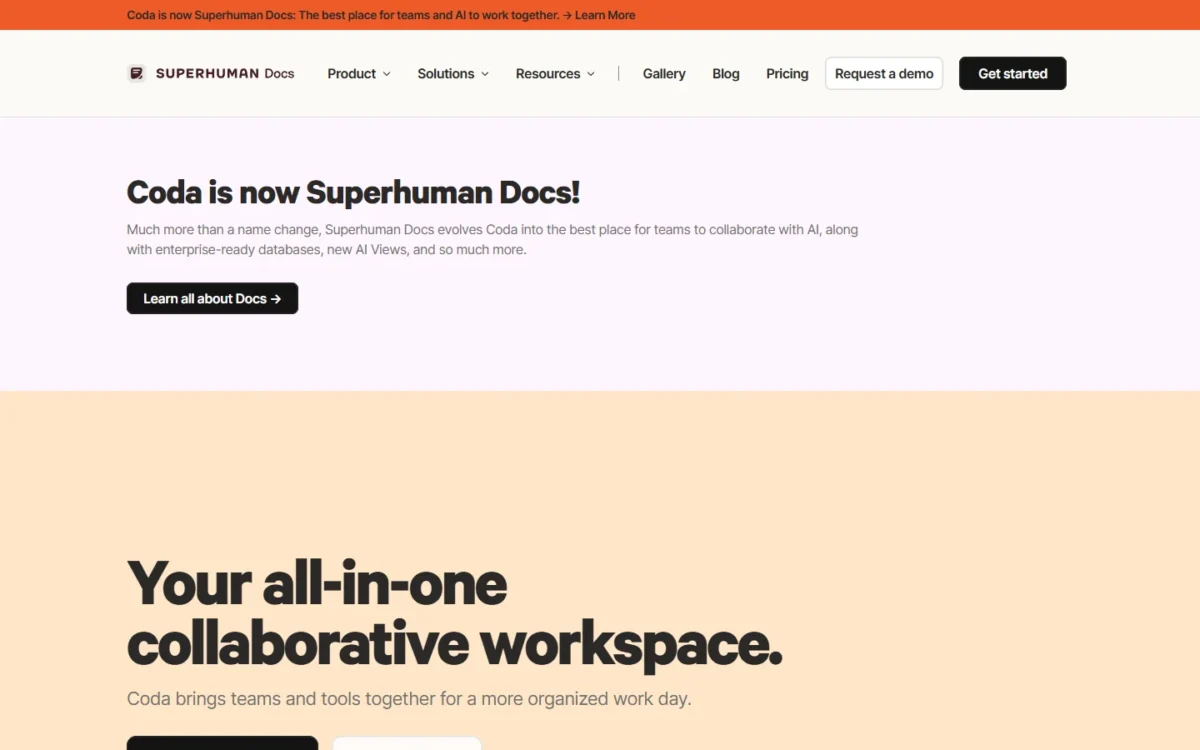
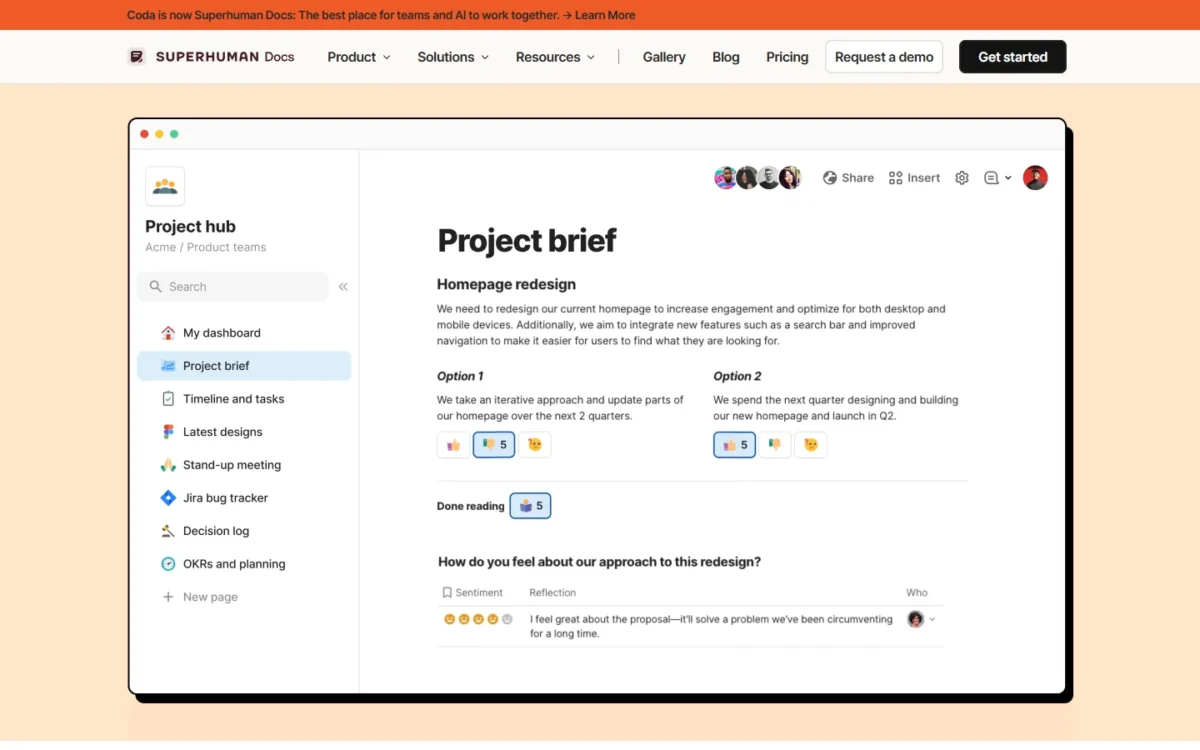
Coda is a collaborative doc platform that combines documents, spreadsheets, and databases with automation and integrations. It lets teams build interactive “docs that work like apps” using tables, formulas, buttons, and pre-built Packs.

How much does Coda cost?
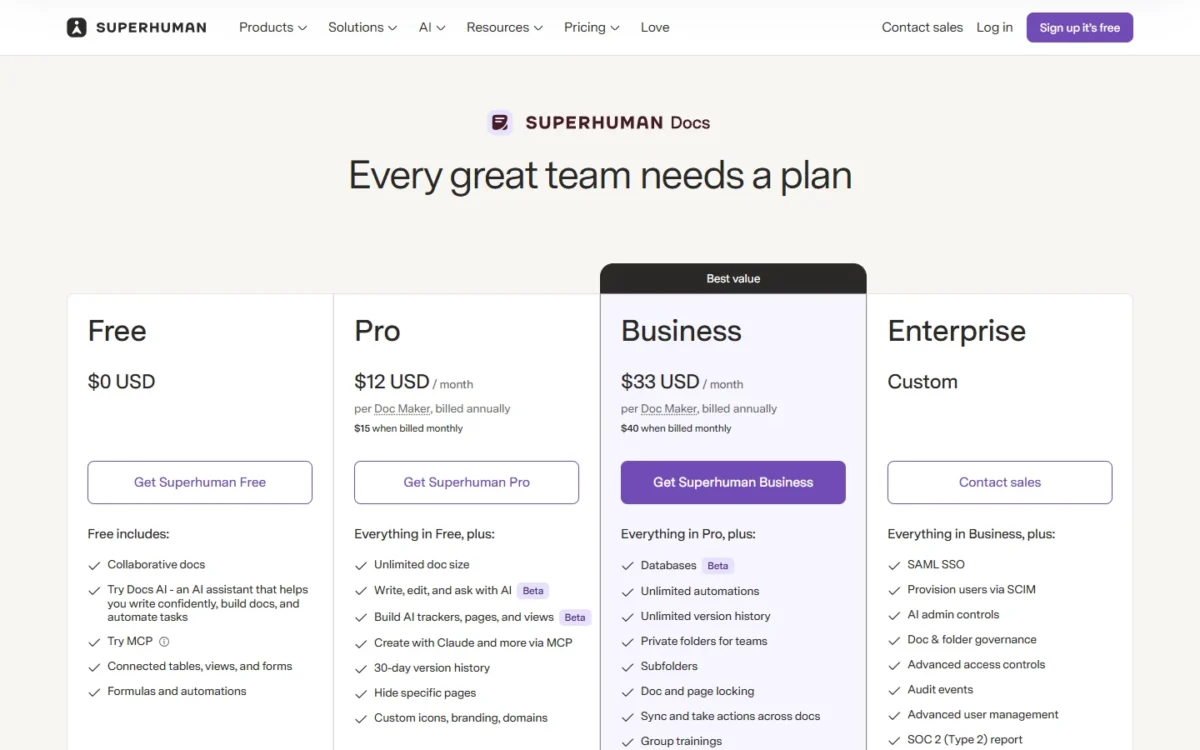
Coda uses Doc Maker billing: Free plan available; Pro starts at $10/Doc Maker/month (editors free); Team is $30/Doc Maker/month; Enterprise is custom pricing. Only users who create or edit doc structure pay.

What are Coda’s best features?
Formula language + buttons for interactivity, Packs (450+ pre-built integrations), automations, relational tables, and Coda AI for doc generation and data analysis.

Who should use Coda?
Operations teams building dashboards and trackers, product managers managing roadmaps, and tech-savvy teams who need custom workflows without coding.

What are the main alternatives?
Notion (simpler, better for wikis), Airtable (better for structured data at scale), ClickUp (better for traditional PM), Smartsheet (better for enterprise governance), Fibery (better for product development workflows).


Coda Review – Quick Verdict

AttributeAssessment
Best forOperations teams, product managers, tech-forward startups building custom workflow docs
Starting priceFree (limited); $10/Doc Maker/mo (Pro) – only creators pay, unlimited editors
Top strengthFormula-driven interactivity + Packs ecosystem (deep integrations without code)
Top weaknessPerformance can degrade in docs with thousands of rows, especially with heavy formulas, lookups, and large sync tables.
Best alternativeNotion (if you prioritize ease of use + wikis), Airtable (if you need relational database performance)
VerdictPowerful for teams who invest in the learning curve; overkill for simple documentation

What Is Coda?

Core Concept: Docs That Work Like Apps

Coda is a collaborative document platform that blurs the line between documents, spreadsheets, and applications. Unlike traditional docs (Google Docs) or wikis (Notion), Coda docs are interactive and formula-driven: you can build buttons that trigger actions, tables that sync data from external tools via Packs, and automations that run based on table changes.

Think of it as: Google Docs + Airtable formulas + Zapier automations, all in one canvas.

Core use case: Teams replace static docs and spreadsheets with living, interactive trackers—sprint planning boards, CRM dashboards, OKR trackers, client portals—that update in real time and connect to tools like Slack, Jira, Google Calendar, and Salesforce via Coda Packs.

Who Coda Is Built For

Coda targets:

  • Operations teams who build dashboards, trackers, and internal tools
  • Product managers who need roadmaps, feature specs, and prioritization frameworks
  • Startups and scale-ups (10–200 people) looking to consolidate tools
  • Technical teams comfortable with formulas and logic (if-then, lookups, filtering)

Not ideal for:

  • Teams needing enterprise-grade permission controls or governance
  • Non-technical teams who want plug-and-play templates (Notion, ClickUp easier)
  • Use cases requiring offline access (Coda is cloud-only)
  • Teams with docs regularly exceeding 5,000 rows (performance issues)

How We Evaluated Coda (Methodology)

We tested Coda for 3 weeks across:

  1. Feature depth: Built 10+ real-world docs (OKR tracker, sprint board, CRM, client portal)
  2. Pricing accuracy: Verified plans on Coda pricing page as of January 2026
  3. Performance: Tested docs with 500, 2,000, and 5,000 rows
  4. Migration: Imported data from Notion, Airtable, Google Sheets
  5. Comparisons: Direct feature/price comparisons with Notion, Airtable, ClickUp, Smartsheet

Evaluation criteria: ease of use, formula power, integration depth, performance, pricing transparency, collaboration features, and enterprise readiness.

Coda Review

Coda Core Features Breakdown

Tables & Views (Database Functionality)

Coda tables are relational databases embedded in docs. Each table can have:

  • Column types: Text, number, select, date, person, relation, button, lookup, image, checkbox, slider
  • Views: Table, card, calendar, Gantt, detail (form-like), grouped
  • Filtering & sorting: Dynamic filters (e.g., show only “Status = In Progress”)
  • Relations & lookups: Link tables (e.g., Tasks → Projects) and pull data via lookups

Comparison to Airtable: Coda’s relational logic is similar, but Airtable handles larger datasets better (10,000+ rows). Coda’s advantage: tables live inside docs alongside text, charts, and buttons.

Comparison to Notion: Notion databases are simpler; Coda’s formula language is more powerful but harder to learn.

Formulas & Buttons (Interactivity)

Coda’s formula language is Excel-like but designed for docs:

  • Common formulas: Filter()SwitchIf()CountIf()Today()Concatenate()Lookup()
  • Use cases: Auto-calculate project budgets, flag overdue tasks, rank features by score

Buttons execute actions when clicked:

  • Add rows to tables, modify data, send Slack messages, create Google Calendar events, push to Jira
  • Example: “Approve Request” button that updates status, notifies assignee via Slack, logs timestamp

Why this matters: Buttons turn static docs into interactive workflows. Non-developers can build lightweight apps (e.g., intake forms, approval flows) without code.

Learning curve: Formulas require investment. Expect 2–4 weeks for non-technical users to become proficient.

Packs (Pre-Built Integrations)

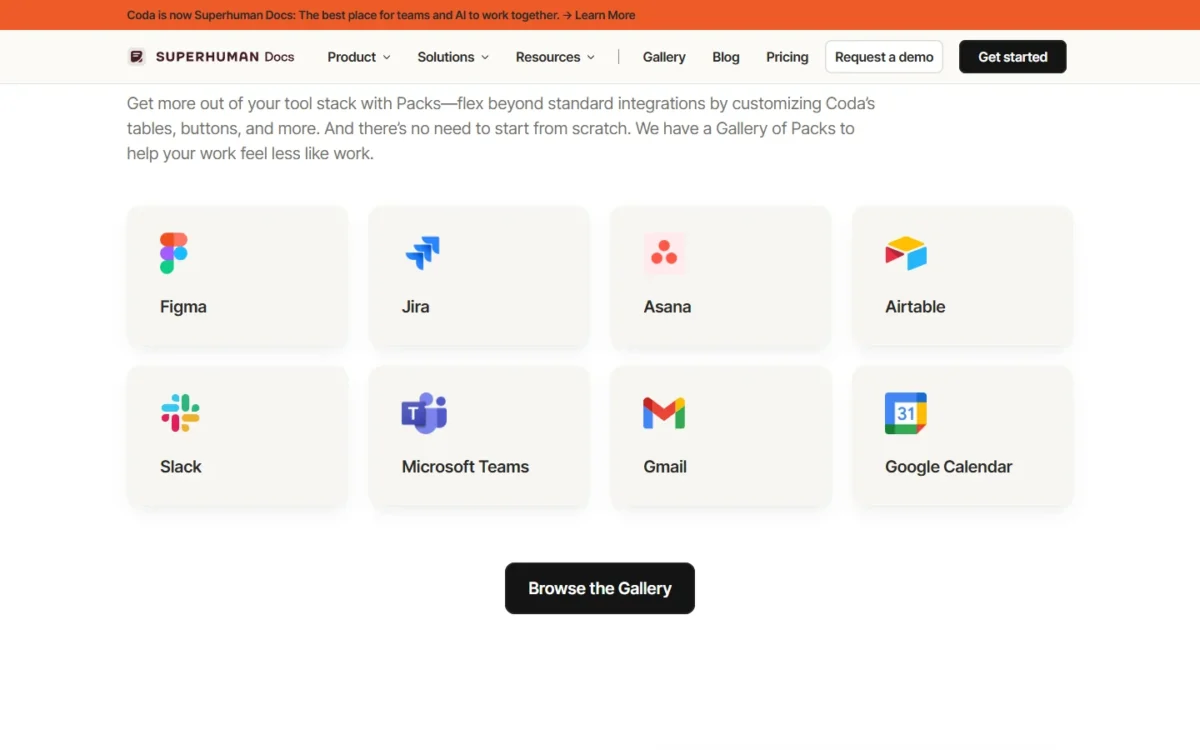
Coda Packs are pre-built integrations (450+ as of Jan 2026) that pull data or trigger actions in external tools. Top Packs:

  • Slack: Send messages, create channels, read threads
  • Google Calendar: Sync events, create meetings
  • Jira: Sync issues, update status, create tickets
  • Gmail: Send emails, read inbox
  • Salesforce, HubSpot: CRM data sync
  • GitHub, GitLab: Pull requests, issues
  • Figma, Miro: Embed designs

How Packs work:

  1. Add Pack to doc → Authenticate → Use Pack tables/formulas/buttons
  2. Example: “GitHub Issues” Pack creates a synced table of issues; buttons can update issue status directly from Coda

Comparison to Zapier: Packs are inside docs (2-way sync); Zapier is external automation. Coda also has native Zapier integration for workflows beyond Packs.

Limitations: Not all APIs covered; some Packs are community-built (quality varies). No offline Pack usage.

Automations (Workflow Engine)

Automations trigger actions based on conditions:

  • Triggers: Row added/changed, button clicked, time-based (daily, weekly), webhook
  • Actions: Modify rows, send Slack/email, create calendar events, run formulas

Example automation: When task status changes to “Done” → notify assignee via Slack + move row to “Completed” table + log timestamp.

Comparison to Zapier: Coda automations are doc-specific and free on all plans (limits apply). Zapier is cross-app but external.

Limits by plan (monthly automation quotas per doc):

  • Free: 35 time-based + 100 event-based automations/month/doc
  • Pro: 100 time-based + 500 event-based automations/month/doc
  • Team: Unlimited automations/month/doc
  • Enterprise: Unlimited automations/month/doc + enterprise controls

Doc Structure & Organization

Coda docs use:

  • Pages & subpages: Hierarchical (like Notion)
  • Sections & columns: Layout control
  • Tables: Embed anywhere, reference across pages
  • Sync tables: Cross-doc references (link tables between docs)

Best practice: One “source-of-truth” doc per workflow (e.g., “Product Roadmap” doc, “Client CRM” doc) rather than many small docs. Coda performs better with fewer, richer docs.

Comparison to Notion: Notion encourages many linked databases; Coda encourages consolidated docs with synced tables.

Coda AI: What It Does & How Credits Work

Coda AI helps teams move faster when work lives in tables, formulas, and structured workflows. Key use cases include:

  • Doc generation: “Create a sprint planning template” → AI suggests tables, columns, and a starter structure
  • Formula assistance: Describe logic in plain English → AI drafts or refines a formula
  • Data analysis: “Summarize top 10 features by upvotes” → AI generates insights from tables
  • Content writing: Generate meeting notes, summaries, FAQs, and updates based on doc context

How AI credits work:

  • Credits are consumed per AI action (generation, formula assist, analysis, writing).
  • Credits are allocated per Doc Maker and pooled at the workspace level (so teams share one credit pool).
  • Credits reset monthly (no rollover).

Included credits by plan (Jan 2026):

  • Pro: 2,000 credits per Doc Maker/month
  • Team: 6,000 credits per Doc Maker/month
  • Enterprise: 12,000 credits per Doc Maker/month
  • Free: includes a limited amount of free AI credits (amount can change—verify before publishing).

Add-on pricing (billed per Doc Maker):

  • +2,000 credits for $2 / Doc Maker / month
  • +6,000 credits for $6 / Doc Maker / month
  • Unlimited AI for $12 / Doc Maker / month

Limitations:

  • Credits reset monthly (no rollover)
  • AI quality varies (usually strongest for formulas and structured summaries)
  • AI requires internet access
  • Privacy/compliance: AI features may process prompts/content with third-party AI providers depending on plan and settings—verify against Coda’s AI/privacy documentation and your org’s requirements.

Comparison to Notion AI: Notion AI is typically positioned as writing/knowledge assistance, while Coda AI is most valuable for workflows involving tables, formulas, and structured operations.

Coda Pricing 2026

Pricing Tiers Overview Table

PlanBest forPrice (annual)Who paysKey features (high level)Packs included (examples)AI included
FreeAnyone just getting started$0Free for you and your teamCreate collaborative docs; Unlimited doc size for unshared docs; Connected tables, charts, kanban boards, and forms; Powerful formulas & automationsFree Packs (always free): Spotify, Wikipedia, Dropbox, WeatherTry AI for free
ProOrganizing your business & life$10/month per Doc MakerEditors are freeEverything in Free + Unlimited doc size; 30-day version history; Hidden pages; Custom domains; Custom icons & branding; Pro PacksPro Packs (tier value: $50): Gmail, Slack, Google Calendar, TwilioAI included for Doc Makers (some credits)
TeamCollaboration across teams & tools$30/month per Doc MakerEditors are freeEverything in Pro + Unlimited automations; Unlimited version history; Doc locking; Manage folder access; Sync across docs; Team Packs; Group trainingsTeam Packs (tier value: $279): Jira, GitHub, Figma, IntercomAI included for Doc Makers (more credits)
EnterpriseOrg-wide security & supportCustomEditors are freeEverything in Team + SAML SSO; User provisioning (SCIM); Advanced access controls; Audit events; Advanced user management; SOC 2 Type 2 report; Pack controls; Enterprise PacksEnterprise PacksAI included for Doc Makers (most credits)

Prices as of January 2026. Verify at coda.io/pricing.

Monthly billing: Add ~15% to annual prices (e.g., Pro is $12/maker/month billed monthly).

Doc Maker vs. Editor Billing Explained

Doc Maker: User who can create new docs or edit doc structure (add/remove tables, columns, automations, formulas).
Editor: User who can only edit content (add/edit rows, change text, interact with buttons).

Billing rule: Only Doc Makers are billed. Editors are free (unlimited).

Example 1: Startup (2 makers + 8 editors)

  • 2 people build trackers (makers); 8 people use them (editors)
  • Cost on Pro: 2 × $10 = $20/month
  • Cost on Team: 2 × $30 = $60/month

Example 2: Operations team (5 makers + 20 editors)

  • 5 ops analysts build dashboards; 20 team members view/edit data
  • Cost on Pro: 5 × $10 = $50/month
  • Cost on Team: 5 × $30 = $150/month

Example 3: Enterprise (15 makers + 100 editors)

  • 15 power users build workflows; 100 employees use docs
  • Cost: Custom pricing (typically $25–$40/maker/month depending on volume + features)

Why this matters: Coda can be more cost-effective than per-seat tools (ClickUp, Monday.com) if you have a small “builder” team and many “users.”

Gotcha: Users who accidentally edit doc structure become Doc Makers (billable). Admins must set permissions carefully.

Coda AI Credits: What’s Included & Add-On Costs

Included AI credits (Jan 2026):

  • Pro: 2,000 credits per Doc Maker/month
  • Team: 6,000 credits per Doc Maker/month
  • Enterprise: 12,000 credits per Doc Maker/month
  • Free: includes a limited amount of free AI credits (verify current amount before publishing).

Add-ons (billed per Doc Maker):

  • +2,000 credits for $2 / Doc Maker / month
  • +6,000 credits for $6 / Doc Maker / month
  • Unlimited AI for $12 / Doc Maker / month

Credit consumption varies by task size (formula help and short summaries cost less than large doc generation).

Pricing Scenarios (Example Team Costs)

Scenario 1: Startup (10 people, 2 Doc Makers, basic workflows)

  • Plan: Pro
  • Cost: 2 × $10 = $20/month ($240/year)
  • Use case: OKR tracker, sprint board, basic CRM
  • Limits (what actually matters): Pro removes doc size limits, but you still operate within Pro automation quotas (per doc/month) and Pack sync table limits (up to 10,000 rows per sync table on paid plans). Version history is 30 days.

Scenario 2: Scale-up (50 people, 5 Doc Makers, advanced workflows)

  • Plan: Team
  • Cost: 5 × $30 = $150/month ($1,800/year)
  • Use case: Product roadmap, sales pipeline, customer onboarding, ops dashboards
  • Limits (what actually matters): Team includes unlimited automations/month/doc and unlimited version history. The main scaling constraint for synced data remains Pack sync tables (up to 10,000 rows per sync table). Performance depends on doc design (formula complexity + sync volume).

Scenario 3: Enterprise (200 people, 15 Doc Makers, compliance needs)

  • Plan: Enterprise
  • Cost: ~$30–$40/maker × 15 = $450–$600/month ($5,400–$7,200/year)
  • Features: SSO, SCIM, audit events/logging, dedicated CSM, SLA (plan-dependent)
  • Use case: Cross-functional workflows, client portals, compliance-heavy operations
  • Limits (what actually matters): Enterprise removes doc size limits and adds governance/security controls. In practice, scale is constrained more by workflow design, Pack sync volume (10,000 rows per sync table), and API constraints (very large docs can be inaccessible via API at ~125MB) than by any fixed “rows per doc” cap.

Hidden Costs & Limits to Watch

  1. Doc size limits (important): On the Free plan, personal docs (not shared) have no size limits, but shared docs are capped at 50 objects (pages, tables, views, buttons, formulas) and 1,000 table rows per doc. Paid plans (Pro/Team/Enterprise) remove doc size limits.
  2. Pack sync table limits (what usually hits first): Pack sync tables (including Cross-doc) cap at 100 rows per sync table on Free, and 10,000 rows per sync table on paid plans. If your workflow depends on syncing large datasets from Jira/Salesforce/GitHub, this limit matters more than “rows per doc.”
  3. Automation quotas (per doc / month): Free includes 35 time-based + 100 event-based automations; Pro includes 100 time-based + 500 event-based; Team & Enterprise include unlimited automations.
  4. Version history: Free is 7 days; Pro is 30 days; Team & Enterprise include unlimited version history.
  5. API constraints (for data-heavy teams): Very large docs can become inaccessible via the Coda API at ~125MB doc size (attachments excluded). Cross-doc source docs also have size considerations around this threshold.
  6. Performance reality: Even on paid plans with “no doc size limits,” docs can slow down when you stack large tables, heavy formulas/lookups, and frequent Pack syncs. Design your doc architecture (archiving, splitting, synced tables) before you scale.

Coda Pros & Cons (Evidence-Based)

What Coda Does Better Than Alternatives

1. Formula Power + Interactivity (vs. Notion)

Coda’s formula language is Excel-level sophisticated while Notion’s is basic.
Example: Building a weighted scoring system (e.g., feature prioritization) takes 5 minutes in Coda vs. manual hacks in Notion.
Buttons: Coda’s action buttons (send Slack message, update rows, trigger automations) make docs interactive. Notion has no equivalent.

2. Packs Ecosystem (vs. Airtable)

450+ pre-built integrations vs. Airtable’s ~50 native integrations (Airtable Extensions are limited).
Example: Syncing GitHub issues + Jira tickets + Google Calendar in one doc is seamless with Packs. Airtable requires Zapier.

3. Doc Maker Billing = Cost Efficiency (vs. per-seat tools)

For teams with few “builders” and many “users,” Coda can be 50–70% cheaper than ClickUp or Monday.com.
Example: 5 makers + 50 editors = $150/month (Team plan). Same team on ClickUp Business (55 seats × $12) = $660/month.

4. Unified Canvas (vs. fragmented tools)

Combine docs, tables, charts, buttons, automations in one place. No context-switching between Docs + Sheets + Zapier.

5. Real-Time Collaboration (on par with Google Docs)

Live cursors, comments, mentions, change tracking work seamlessly.

Coda’s Limitations & Deal-Breakers

1. Performance at Scale (large docs = slow)

Issue: Docs with 2,000+ rows and complex formulas (lookups, filters) experience lag (2–5 second delays on actions).
Tested: 5,000-row CRM with 10 lookup columns = unusable on free wifi.
Workaround: Split data, archive old rows, simplify formulas.
Comparison: Airtable handles 50,000+ rows with minimal lag.

2. Steep Learning Curve (non-technical users struggle)

Issue: Formulas, synced tables, and Packs concepts require training. Non-technical teammates often avoid building, relying on power users.
Time to proficiency: 2–4 weeks for basic formula competency (vs. Notion: 1–3 days).
Mitigation: Use templates, pair junior users with makers.

3. Permission Complexity (vs. Notion, ClickUp)

Issue: Coda’s sharing model (doc-level, folder-level, workspace-level) is confusing. Row-level permissions exist but require formulas.
Use case: Showing different clients different rows in a shared portal requires manual setup (Airtable and Smartsheet handle this natively).
Verdict: Manageable for internal teams; painful for external stakeholders.

4. Governance & Admin Controls (weak for enterprise)

Missing (as of Jan 2026):

  • No centralized usage analytics (which docs are used, by whom)
  • Limited workspace-level policies (templates, branding)
  • Audit logs only on Enterprise plan

Comparison: Smartsheet and Monday.com have stronger enterprise admin features.

5. No Offline Mode (cloud-only)

Issue: Zero offline editing (not even read-only). Dealbreaker for field teams, travel-heavy roles.
Comparison: Notion has offline read + limited edit; Airtable has offline mobile app.

6. Mobile Experience (functional but limited)

iOS/Android apps: Can view + edit rows, run buttons. Cannot build docs or edit structure effectively.
Verdict: Fine for consuming data on-the-go; not for building workflows.


Coda Use Cases by Persona

Operations Teams & PMOs

Use cases:

  • Dashboards (sales pipeline, support tickets, hiring funnel)
  • Process trackers (onboarding checklists, compliance workflows)
  • Reporting hubs (pull data from Salesforce, HubSpot, Google Analytics via Packs)

Why Coda wins here:

  • Buttons automate repetitive ops (e.g., “Approve PTO” → update table + notify Slack)
  • Packs eliminate manual data entry (sync Jira, GitHub, Calendar)
  • Formulas calculate metrics (burn rate, cycle time, NPS)

Template example: Team Hub template

Alternative to consider: Airtable (if you need better performance with very large datasets, more granular permissions, or more robust reporting/interfaces for data-heavy operations).

Product Managers & Roadmapping

Use cases:

  • Feature prioritization (RICE scoring, weighted matrices)
  • Sprint planning (backlog → sprint board with drag-drop)
  • Product specs (embed Figma, link Jira issues, track decisions)

Why Coda wins:

  • Formulas calculate RICE scores automatically
  • Buttons move features between statuses (Backlog → Planned → In Dev)
  • Packs sync Jira roadmap + GitHub PRs in one view

Template example: Product Roadmap Pack

Alternative: Productboard (purpose-built for PM), Notion (simpler but less powerful), Fibery (better for product ops workflows).

Startups & Small Teams

Use cases:

  • All-in-one workspace (replace Notion + Airtable + Zapier)
  • CRM (lightweight sales pipeline)
  • OKR tracking
  • Client portals (branded docs with restricted access)

Why Coda wins:

  • Doc Maker billing = cost-effective (2–5 makers = $20–$150/month vs. $300+ for ClickUp)
  • Consolidation reduces tool sprawl
  • Fast to prototype workflows without dev resources

Risk: Outgrowing performance limits (if scaling to 50,000+ rows).

Agencies & Client Work

Use cases:

  • Client project trackers
  • Deliverable checklists
  • Time tracking + invoicing (integrate Harvest, Toggl via Packs)
  • Branded client portals

Why Coda can work:

  • Share docs with clients (view-only or editor access)
  • Buttons for client approvals (“Approve Design” → notify team)

Why Coda struggles:

  • Permission complexity (showing Client A only their data requires formulas)
  • No white-label branding (Coda logo visible on free/pro)
  • Performance issues if clients have large datasets

Better alternatives: Notion (simpler sharing), ClickUp (better client-facing PM), Smartsheet (enterprise client portals).

Who Should NOT Use Coda

Avoid Coda if:

  1. Non-technical team: Notion or ClickUp will be easier and faster to adopt.
  2. Need offline access: Field teams, travel-heavy roles—use Airtable or Notion.
  3. Data-heavy use cases (10,000+ rows per table): Use Airtable, Smartsheet, or a real database.
  4. Enterprise governance needs: Smartsheet or Monday.com have better admin controls.
  5. Simple documentation: Google Docs or Notion are overkill-free solutions.

Coda vs. Top Alternatives

Coda vs. Notion vs. Airtable (Comparison Table)

Feature/AttributeCodaNotionAirtable
Best use caseInteractive workflow docsTeam wikis + lightweight databasesStructured data at scale
Formula powerAdvanced (Excel-like)Basic (simple calculations)Advanced (Excel + relational logic)
InteractivityButtons, automationsLimited (rollups, filters)Automations (paid plans)
IntegrationsHundreds of Packs (deep, native)50+ (basic embeds)50+ native + 1,000+ via Zapier/Make
PerformanceSlows at 2,000+ rows/docSlows at 5,000+ rows/databaseHandles 50,000+ rows smoothly
Pricing (5 makers)$50/mo (Pro) or $150/mo (Team)$60/mo (Plus, 5 seats) or $90/mo (Business)$100/mo (Team, 5 users)
Learning curveSteep (2–4 weeks)Gentle (1–3 days)Moderate (1 week)
Offline modeNoneRead + limited editMobile app (iOS/Android)
Mobile experienceView/edit data onlyFull editing (limited)Full editing (dedicated app)
Templates300+ (workflow-focused)10,000+ (content-focused)200+ (data-focused)
PermissionsDoc/folder/workspace (complex)Page/database (simple)Base/table/view (granular)
Enterprise featuresSSO, SCIM (Enterprise plan)SSO, SCIM, analytics (Enterprise)SSO, SCIM, admin panel (Enterprise)
Best for teams of…10–100 (tech-savvy)5–500 (all skill levels)10–1,000 (ops/data teams)

When to Choose Which

Choose Coda if:

  • You need formula-driven interactivity (buttons, automations) in docs
  • Your team has technical aptitude (comfortable with formulas)
  • You want deep integrations (Packs) without Zapier
  • You have few makers, many users (cost efficiency)

Choose Notion if:

  • You prioritize ease of use and fast onboarding
  • Your primary need is team wiki + simple databases
  • You want 10,000+ content templates (meeting notes, wikis, project trackers)
  • You need offline editing

Choose Airtable if:

  • You work with large datasets (10,000+ rows)
  • You need relational database performance and granular permissions
  • Your use case is operations-heavy (inventory, CRM, project tracking at scale)
  • You prefer dedicated mobile apps

Coda vs. ClickUp

CodaClickUp
Primary useWorkflow docs + lightweight PMFull project management suite
StrengthsFormulas, Packs, buttonsTasks, Gantt charts, time tracking, goals
Pricing (10 users)$100/mo (if 5 makers + 5 editors, Team plan)$120/mo (Business, 10 seats)
Best forOps teams building custom trackersPM teams managing complex projects
WeaknessNot a true PM tool (no native Gantt, time tracking)Overwhelming feature set, steeper pricing at scale

When to choose Coda: If docs/dashboards are central and PM is secondary.
When to choose ClickUp: If you need full PM capabilities (tasks, dependencies, time tracking).

Coda vs. Smartsheet

CodaSmartsheet
Primary useWorkflow docsEnterprise project/program management
StrengthsPacks, buttons, doc flexibilityGantt charts, resource management, governance
Pricing (10 users)$100–300/mo (Team plan)$900/mo (Business, 10 users)
Best forStartups, scale-upsEnterprises (PMOs, compliance-heavy industries)
PermissionsBasic row-level (via formulas)Advanced row/column-level (native)

When to choose Coda: If budget-conscious and need flexibility over governance.
When to choose Smartsheet: If enterprise PM, resource planning, or compliance is critical.

Coda vs. Monday.com

CodaMonday.com
Primary useCustom workflow docsVisual work OS (boards, timelines)
StrengthsFormulas, Packs, cost (Doc Maker model)Visual interface, automations, CRM add-on
Pricing (10 users)$100/mo (5 makers, Team)$144/mo (Standard, 10 seats)
Best forOps/product teams (tech-savvy)Cross-functional teams (marketing, sales, ops)

When to choose Coda: If you want doc-first workflows and formula power.
When to choose Monday.com: If you want visual boards and broader team adoption (easier for non-technical users).

Migration Considerations for Each

From Notion to Coda:

  • Export Notion databases as CSV → import to Coda tables
  • Rebuild formulas (Notion formulas don’t transfer directly)
  • Recreate automations (Notion has none natively)
  • Time: 1–2 weeks for 10 complex docs

From Airtable to Coda:

  • Export bases as CSV → import
  • Rebuild complex formulas (syntax differs)
  • Reconnect integrations (Airtable automations → Coda Packs/automations)
  • Time: 2–4 weeks for data-heavy bases

From Google Sheets to Coda:

  • Import via CSV or Google Sheets Pack (2-way sync)
  • Rebuild formulas (most translate, some manual adjustment)
  • Add Coda-specific features (buttons, automations)
  • Time: 1 week for 5 complex sheets

Best Alternatives to Coda (2026)

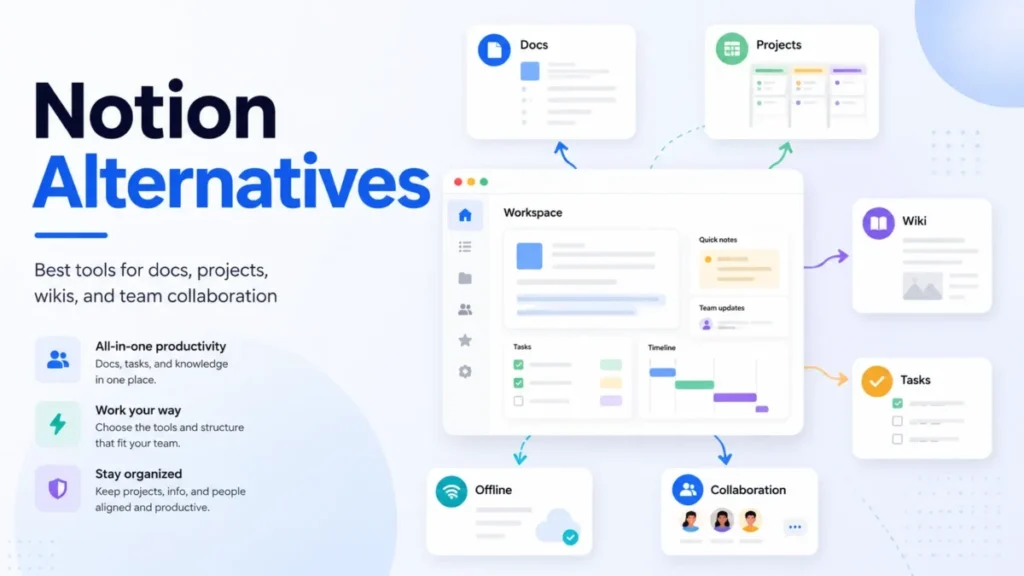
#1 Notion (Best for: Team Wikis & Simple Databases)

What it is: All-in-one workspace for notes, docs, wikis, and databases.

Strengths:

  • Ease of use: Fastest onboarding (1–3 days vs. Coda’s 2–4 weeks)
  • Templates: 10,000+ for every use case (meeting notes, wikis, project trackers)
  • Offline mode: Read + limited edit
  • Cost: $60/mo (Plus, 5 users) vs. Coda $150/mo (Team, 5 makers)

Weaknesses vs. Coda:

  • Basic formulas (no advanced logic)
  • No action buttons or automations (without third-party tools)
  • Limited integrations (50 vs. Coda’s 450 Packs)

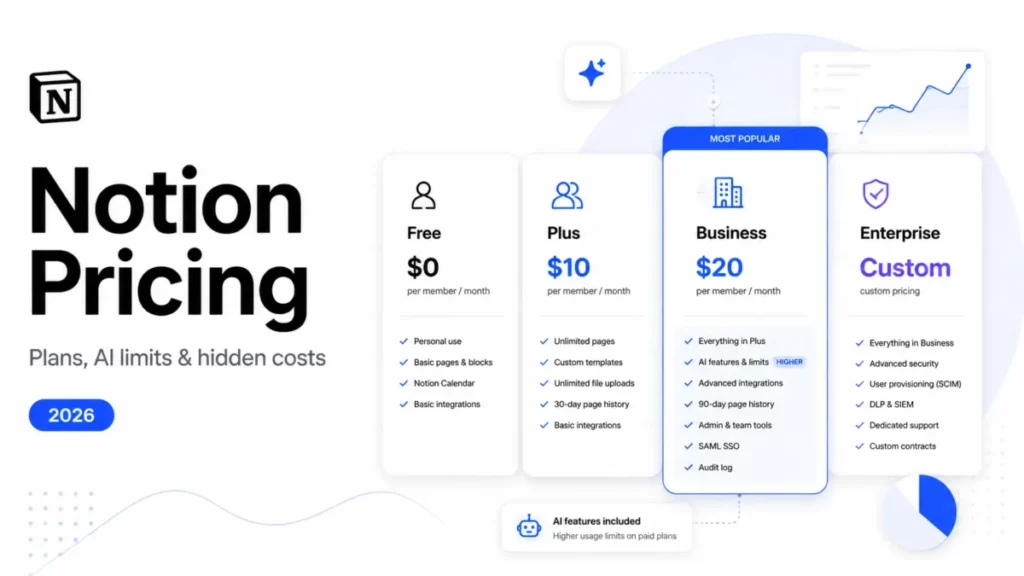
Pricing: Free; Plus $12/user/mo; Business $18/user/mo; Enterprise custom.
Notion pricing

Choose Notion if: You prioritize ease, wikis, and content over workflow automation.

Read full review: Notion Review 2026 – Pricing, Pros & Cons, Best Use Cases

#2 Airtable (Best for: Data-Heavy Operations)

What it is: Cloud-based relational database with spreadsheet interface.

Strengths:

  • Performance: Handles 50,000+ rows/base smoothly
  • Permissions: Granular (base, table, view, field, row-level)
  • Mobile: Dedicated apps (iOS, Android) with offline mode
  • Interfaces: Build custom dashboards (like Coda docs but data-first)

Weaknesses vs. Coda:

  • No native doc editing (text is secondary to data)
  • Fewer native integrations (rely on Zapier/Make)
  • Higher cost at scale ($20/user/mo for Team)

Pricing: Free; Team $20/user/mo; Business $45/user/mo; Enterprise custom.
Airtable pricing

Choose Airtable if: Data > docs, and you need relational DB performance.

Read full review: Airtable Review 2026: Features, Pricing, Pros & Cons & Best Alternatives

#3 ClickUp (Best for: Project Management + Docs)

What it is: All-in-one PM platform (tasks, docs, goals, time tracking).

Strengths:

  • Full PM suite: Gantt, dependencies, time tracking, workload views
  • ClickUp Docs: Rich text + embeds (lighter than Coda)
  • Automations: 100+ pre-built (status changes, assignees, due dates)

Weaknesses vs. Coda:

  • Complex UI (overwhelming for new users)
  • Docs are secondary to tasks (not formula-driven)
  • Higher cost (per-seat, no Doc Maker model)

Pricing: Free; Unlimited $10/user/mo; Business $19/user/mo; Enterprise custom.
ClickUp pricing

Choose ClickUp if: PM is primary, docs are supporting content.

Read full review: ClickUp Review 2026: Features, Pricing, Pros/Cons, and Who It’s Best For

#4 Smartsheet (Best for: Enterprise Teams & Governance)

What it is: Enterprise work management (sheets, Gantt, dashboards, automation).

Strengths:

  • Enterprise governance: Advanced permissions, admin controls, audit logs
  • Resource management: Built-in workload planning
  • Compliance: SOC 2, HIPAA, FedRAMP (some plans)

Weaknesses vs. Coda:

  • Sheet-first (not flexible docs)
  • Expensive ($900/mo for 10 users on Business)
  • Steeper learning curve for non-PM users

Pricing: Pro $9/user/mo (3-user min); Business $32/user/mo (min 3); Enterprise custom.
Smartsheet pricing

Choose Smartsheet if: Enterprise PM, compliance, or resource planning is critical.

Read full review: Smartsheet Review 2026: Features, Pricing, Pros & Cons & Best Alternatives

#5 Fibery (Best for: Product Teams & Advanced Use Cases)

What it is: Work management + product development platform (flexible entity system).

Strengths:

  • Entity modeling: Build custom workflows (like Coda but more structured)
  • Product focus: Roadmapping, feedback, prioritization built-in
  • Integrations: Deep product tool integrations (Jira, Intercom, GitHub)

Weaknesses vs. Coda:

  • Smaller ecosystem (fewer templates, integrations than Coda)
  • Higher complexity (entity model requires setup)

Pricing: Solo free; Standard $10/user/mo; Pro $20/user/mo; Unlimited custom.
Fibery pricing

Choose Fibery if: Product development workflows with advanced customization needs.


Read full review: Tettra Review 2026: Features, Pricing, Pros & Cons

Getting Started with Coda

Which Plan to Start With (By Team Size & Use Case)

Team SizeUse CaseRecommended PlanWhy
1–5 usersTesting, personal trackersFreeUp to 2 Doc Makers; personal docs (not shared) have no size limits, but shared docs have Free size caps (50 objects + 1,000 table rows/doc). Good for validation before committing.
5–15 usersSmall team workflows (OKRs, CRM, sprint boards)Pro ($10/Doc Maker/mo)Paid plan removes doc size limits; higher automation quotas than Free; 30-day version history; Pack sync tables up to 10,000 rows per sync table on paid plans; 2,000 AI credits per Doc Maker/month.
15–100 usersCross-functional ops, product managementTeam ($30/Doc Maker/mo)Unlimited automations/month/doc and unlimited version history; stronger admin/collab controls; same Pack sync table cap (10,000 rows per sync table); 6,000 AI credits per Doc Maker/month.
100+ usersEnterprise with compliance/SSO needsEnterprise (custom)SAML SSO, SCIM, audit events/logging, advanced controls and support/SLAs (plan-dependent); 12,000 AI credits per Doc Maker/month; scaling depends on sync volume, API constraints, and doc architecture more than “rows per doc.”

Source: doc size limits + history + automations + Pack sync limits + AI credits.

Start recommendation: Begin on Free (2 weeks testing) → upgrade to Pro (if workflows validated) → move to Team when hitting limits (automations, rows, permissions).

Migration Checklist (From Notion, Airtable, etc.)

From Notion

  •  Audit current setup: List databases, linked databases, integrations
  •  Export Notion databases: CSV exports (one per database)
  •  Import to Coda: Create tables, upload CSVs
  •  Rebuild formulas: Translate Notion formulas to Coda syntax
  •  Recreate views: Rebuild filters, sorts, grouped views
  •  Add Coda-specific features: Buttons, automations, Packs
  •  Test with pilot team: 2–5 users for 1 week
  •  Train team: 2-hour workshop on Coda basics
  •  Full rollout: Migrate remaining docs, deprecate Notion

Timeline: 2–4 weeks for 10 complex docs.

From Airtable

  •  Export bases: CSV per table
  •  Map relationships: Document table links (for Coda relations)
  •  Import data: Create Coda tables, upload CSVs
  •  Rebuild lookups/rollups: Translate to Coda formulas
  •  Reconnect integrations: Replace Airtable automations with Coda Packs
  •  Test performance: Verify large tables (5,000+ rows) perform acceptably
  •  Pilot → rollout (same as Notion)

Timeline: 3–6 weeks for data-heavy bases.

From Google Sheets

  •  Connect Google Sheets Pack: 2-way sync (if ongoing Sheet use)
  •  OR: Import via CSV: One-time migration
  •  Rebuild formulas: Most translate (some manual adjustment)
  •  Add Coda features: Buttons, automations, Packs
  •  Train team
  •  Rollout

Timeline: 1–2 weeks for 10 sheets.

Rollout Best Practices (Avoiding Common Pitfalls)

1. Start Small (Pilot Team)

Pitfall: Company-wide rollout → confusion + low adoption.
Fix: Pick 1 team (5–10 people) → build 2–3 workflows → validate → expand.

2. Designate Doc Makers

Pitfall: Everyone tries to build → accidental billing + messy docs.
Fix: 2–5 “makers” build templates; others use as editors. Use sharing controls to lock structure.

3. Invest in Training

Pitfall: “Figure it out yourself” → low adoption + frustration.
Fix:

  • 2-hour workshop: Coda basics (tables, formulas, buttons)
  • Office hours: Weekly Q&A for first month
  • Templates: Pre-built docs for common workflows

4. Manage Performance Early

Pitfall: Building 10,000-row doc → unusable slowness.
Fix:

  • Monitor row counts (stay under 5,000/doc for complex formulas)
  • Archive old data monthly
  • Split large datasets across docs (use synced tables)

5. Set Permission Policies

Pitfall: Docs shared externally with full edit → data leaks.
Fix:

  • Default: workspace members only
  • External sharing: view-only or editor (not Doc Maker)
  • Sensitive data: use locked sections

Read full review: Document360 Review 2026: Features, Pricing, Pros & Cons & Best Alternatives

FAQ: Coda Review 2026

1) Is Coda free? What’s included in the Free plan?

Yes. Coda has a Free plan that works best for testing and lightweight personal/team docs.

  • Up to 2 Doc Makers (billing model depends on Doc Maker vs Editor roles)
  • Shared doc caps: 50 objects + 1,000 table rows per doc
  • Automations/month/doc: 35 time-based + 100 event-based; version history: 7 days
    Upgrade when/Best for: Upgrade when you need more makers, higher automation quotas, longer history, or paid Pack tiers.

2) How does Coda’s Doc Maker billing work?

Coda bills only Doc Makers (people who create docs or change structure), while Editors can collaborate without being billed.

  • Doc Maker: can change structure (tables, columns, formulas, automations)
  • Editor: edits content (text/rows/comments/buttons) without structural changes
  • Best practice: restrict structure editing to avoid accidental billable upgrades
    Upgrade when/Best for: Best for teams with a small builder group and many users.

3) What are Coda AI credits and how much do they cost?

Coda AI uses monthly credits (allocated per Doc Maker and shared at workspace level) instead of a flat AI seat fee.

  • Credits reset monthly (no rollover) and are consumed per AI action
  • Included credits differ by plan (Pro/Team/Enterprise), Free is “try AI” (varies)
  • Add-ons available per Doc Maker (extra credits or unlimited AI)
    Upgrade when/Best for: Best for teams using AI for formulas/summaries; add-ons only if you regularly exceed included credits.

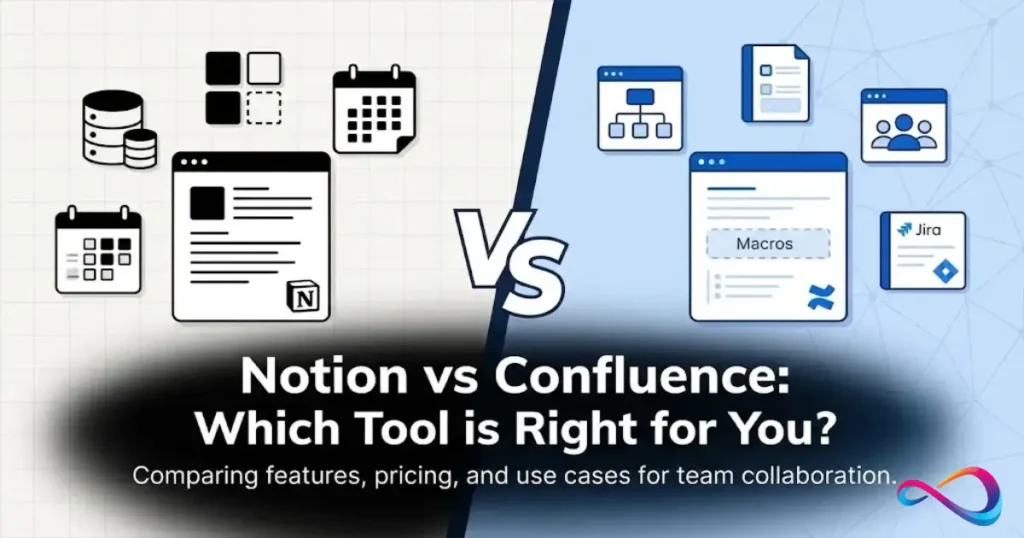
4) Coda vs Notion: which is better for documentation?

Notion is usually better for wiki-style documentation, while Coda wins for interactive, workflow-driven docs.

  • Choose Coda for tables + formulas + buttons + automations
  • Choose Notion for fast onboarding and simpler wiki/database use
  • Common approach: Notion for knowledge base, Coda for operational trackers
    Upgrade when/Best for: Best for teams where docs need to “run workflows,” not just store info.

5) Is Coda good for project management?

Yes, for lightweight PM and ops-style tracking—less ideal as a full PM suite replacement.

  • Strong for sprint boards, backlogs, roadmaps, intake/approvals
  • Works well when connected to Jira/GitHub/Calendar via Packs
  • Weaker for native time tracking and deep dependency management
    Upgrade when/Best for: Best for PM teams that want doc-first dashboards; use ClickUp/Asana/Monday for full-suite PM.

6) What integrations does Coda support?

Coda connects to other tools through Packs (pre-built integrations).

  • Common Packs: Slack, Gmail, Google Calendar/Drive, Jira, GitHub, Salesforce/HubSpot
  • Pack sync tables have row caps (Free lower; paid higher), and APIs may rate-limit
  • Custom Packs can be built via the Pack SDK (JavaScript)
    Upgrade when/Best for: Best for teams needing “inside-the-doc” integrations; upgrade if you rely heavily on synced datasets.

7) How easy is it to migrate from Notion or Airtable to Coda?

Migration is straightforward for data import, but formulas/automation logic usually need rebuilding.

  • Notion: export CSV → import tables → rebuild formulas/views manually
  • Airtable: export CSV per table → recreate relations/lookups → reconnect automations via Packs
  • Recommendation: migrate 1–2 core workflows first, then scale
    Upgrade when/Best for: Best for teams with a clear pilot workflow and a defined Doc Maker owner.

8) Does Coda work for enterprise teams?

Yes, especially on Enterprise plans that add security, provisioning, and admin controls.

  • Typically includes SAML SSO, SCIM, audit events/logs (plan-dependent)
  • Real-world success depends on doc architecture + sync volume + governance needs
  • If you need heavier governance/analytics, compare Smartsheet/Monday.com
    Upgrade when/Best for: Best for enterprises with a defined builder group and workflow-doc use cases.

9) What are Coda Packs and how do they work?

Packs are integrations you add to a doc to sync data or trigger actions.

  • Add Pack → authenticate → use Pack tables, formulas, buttons
  • Sync Packs pull data; Action Packs push actions; Data Packs fetch reference data
  • Example: status change → Slack message button/automation
    Upgrade when/Best for: Best for teams standardizing workflows across tools inside one doc.

10) Can non-technical users learn Coda?

Yes—most users can contribute quickly, but building workflows takes time.

  • Editors: easy (edit rows/text, comments, button clicks)
  • Doc Makers: need ramp time for formulas, relations, automations
  • Adoption improves with templates + training + a small maker team
    Upgrade when/Best for: Best for teams willing to invest in setup/training for long-term workflow leverage.

11) What are the biggest limitations of Coda?

Coda’s limits are usually about scale/complexity, not basic collaboration.

  • Performance can degrade with large tables + heavy formulas/lookups + frequent syncs
  • No offline mode; mobile is better for consuming/updating than building
  • Permissions for external/client portals can be complex
    Upgrade when/Best for: Best for internal workflows; reconsider if you need offline access or heavy external governance.

Final Verdict: Coda Review 2026

In this Coda Review 2026, the bottom line is simple: Coda is worth it if you want docs that work like apps—not just notes. It’s strongest when your team needs tables, formulas, buttons, automations, and Coda Packs integrations to run real workflows in one place.

Choose Coda if you have a small group of Doc Makers (builders) and many Editors (users). Coda’s Doc Maker pricing can be cost-effective compared to per-seat tools, especially for ops-heavy teams. Coda also shines for use cases like OKR tracking, sprint planning, lightweight CRM, intake forms, approvals, and internal dashboards, where interactivity matters more than pretty documentation.

Skip Coda if you want a fast, plug-and-play wiki. Notion is usually better for team documentation and onboarding thanks to easier adoption. If your priority is structured data at scale, stronger database performance, or granular data governance, Airtable is often the safer fit. If you need a full PM suite with native time tracking and dependencies, ClickUp/Asana/Monday.com will feel more complete.

Verdict: Coda is a high-leverage tool for operations and product teams willing to invest in setup and training—overkill for simple documentation.

ScenarioPlanWhy
Testing (1–5 users)Free2 makers included; validate fit
Small team (5–15, basic workflows)Pro ($10/maker/mo)25K rows/doc, 100 automations, 2,000 / maker
Growing team (15–100, complex workflows)Team ($30/maker/mo)Unlimited automations, 100K rows, 6,000 / maker, advanced permissions
Enterprise (100+, SSO/compliance)Enterprise (custom)SSO, SCIM, audit logs, SLA, 12,000 / maker

Best practice: Start Free → Pro for 3 months → Team when you hit limits (automations, rows, or permissions).

Next Steps & Resources

  1. Sign up free: coda.io (no credit card required)
  2. Explore templates: Coda Gallery (300+ workflow templates)
  3. Learn Coda: Coda University (video tutorials, formula reference)
  4. Join community: Coda Community (forums, Q&A, tips)
  5. Book demo: Contact Coda sales (for Enterprise plans or custom needs)

Migration help:

  • Notion → Coda guide
  • Airtable → Coda guide
  • Google Sheets Pack (2-way sync)

External Citations

For accurate, up-to-date pricing and feature verification:

  1. Coda Official Pricing Page
    https://coda.io/pricing
    Source for all pricing tiers, Doc Maker billing, AI credits, and plan limits (as of January 2026).
  2. Coda Help Center: Doc Maker Billing Explained
    https://help.coda.io/hc/en-us/categories/39555711978253-Doc-management
    Official documentation on how Doc Maker vs. Editor billing works and how to control access.
  3. Coda Packs Gallery
    https://coda.io/gallery

For third-party reviews and comparisons:

  1. G2 Coda Reviews (2026)
    https://www.g2.com/products/coda/reviews
    User reviews, ratings (4.4/5 as of Jan 2026), real-world pros/cons from 500+ verified users.
  2. Capterra: Coda vs Notion vs Airtable Comparison
    https://www.capterra.com/
    Independent comparison tool for pricing, features, and user satisfaction across collaboration platforms.
  3. TrustRadius: Coda Buyer’s Guide
    https://www.trustradius.com/products/coda/reviews
    In-depth reviews from enterprise buyers, including deployment experiences and ROI analysis.

About the author

I’m Macedona, an independent reviewer covering SaaS platforms, CRM systems, and AI tools. My work focuses on hands-on testing, structured feature analysis, pricing evaluation, and real-world business use cases.

All reviews are created using transparent comparison criteria and are updated regularly to reflect changes in features, pricing, and performance.

Follow the author: LinkedInX
Leave a Comment

Your email address will not be published. Required fields are marked *