Google Flow looks like a single video tool until the first bill arrives and the credit balance does not behave the way the plan page implied. It is worth paying for, but only after two questions are settled: which model the workload actually needs, and how many generations the plan’s credit bucket funds before it empties.
Both answers live in Google’s documentation rather than on the pricing page, and they point in different directions. Google AI Pro at $19.99 per month is the practical default for a solo creator running steady short-form work.
Google AI Ultra earns its price only when the workload is dominated by the cheaper Veo modes or needs 4K, because Ultra halves two of the three Veo rates and leaves the third untouched. The free route is real but narrow, and Google’s own pages disagree about whether it exists at all.
In This Article (17 sections)
Quick Verdict
| Google Flow | |
|---|---|
| Best for | Solo creators and small creative teams producing short AI video, previz, storyboards, and reference-driven concepts |
| Not ideal for | Teams editing long existing footage, API-first production pipelines, and buyers who need documented enterprise admin controls |
| Starting price | Free tier with 50 daily credits, then Google AI Plus at $4.99 per month |
| Practical plan | Google AI Pro at $19.99 per month |
| Free plan or trial | Free tier documented on the pricing page, contradicted by the eligibility page |
| Setup difficulty | Low on desktop Chromium, with Google warning about other browsers and mobile |
| Main strength | Reference-driven generation, character reuse, and scene assembly in one workspace |
| Main limitation | Model choice silently removes Ingredients, Extend, or video-to-video editing |
| Best alternative | Runway for timeline-style control over generated footage |
Google Flow Pros and Cons
Each line below names the condition behind it and the buyer it affects, because a pro that fits any product decides nothing.
| Pros | Cons |
|---|---|
| Ultra halves the Veo Lite and Veo Fast credit rate, so high-volume short-form work gets materially cheaper per clip | Veo Quality stays at 100 credits on every tier, so the Ultra discount does not reach the mode most people associate with quality |
| Google Takeout exports prompts, model settings, characters, scenes, and edit stacks, not just finished renders | A no-subscription account receives 50 daily credits that do not roll over, which is half of one Veo Quality generation |
| Reference workflows carry across generations through named characters, avatars, and visual ingredients | Voice references work only on Ingredients-based generations, so a frames-first workflow loses them |
| Failed generations are not charged, and audio failures are refunded | Agent queries and Tool creation both sit under daily quotas whose numbers Google does not publish |
| The Agent asks permission before spending credits by default | A shared Tool link exposes the Tool’s code, and the only documented way to stop sharing is deleting the Tool |
| One workspace covers generation, conversational editing, and sequence assembly | A finished Scenebuilder sequence cannot be published straight to YouTube |
What Google Flow Is, and Why It Is Not the Same Thing as Veo
Flow is the workspace. Veo 3.1 is one family of generation models inside it, sitting alongside Gemini Omni Flash for video and Nano Banana for images.
Most search results blur the two, and the cost of the blur is a misdiagnosis. A limitation that belongs to Veo Quality gets reported as a Flow limitation, which sends a buyer to upgrade a plan when the repair was switching models.
Inside the workspace, a project holds prompts, generated clips, uploaded media, reusable characters, collections, and assembled scenes. The Flow Agent adds a conversational layer over that project, and Flow Tools turn a described behavior into a reusable mini-app.
Judge Flow on the workspace, then judge each model separately on capability and credit cost. The plan you buy and the model you pick solve different problems. For model-specific examples you can adapt, see the 50 Google Flow prompts guide.
How Google Flow Was Reviewed
This review rests on Google’s Flow pricing page, the Flow and Google Labs help documentation, the Google One credit policy, and the official Android listing. Every price, credit rate, and plan limit was retrieved from those pages on the date recorded with the pricing table below.
Google Flow was assessed against the criteria a working creator has to budget for: model capability, credit economics, workflow limits, plan gates, publishing and export, privacy controls, and documented restrictions.
Greater weight went to the facts that change a purchase decision: per-generation credit costs, non-rollover rules, model feature exclusions, undisclosed quotas, and the plan a given workload actually needs. Vendor positioning carried no weight.
Where two official Google pages disagree, both positions appear and neither is presented as settled. Claims that could not be verified against a retrieved official page were excluded rather than softened.
Access, Setup, and Ease of Use
Getting into Flow is the first place Google’s documentation contradicts itself, and the contradiction is worth knowing before anyone budgets around a free trial.
The Flow pricing page presents a no-subscription route with 50 daily Google Flow credits. The Get Started page still lists an active Google AI Plus, Pro, or Ultra subscription among the requirements for using Google Flow, alongside age verification and a supported region.
Both pages were live on the same day. Treat the free route as available but unguaranteed for a specific account, and do not build an evaluation plan that depends on it.
Region and age are firmer. The United States is a supported country, and access is limited to users aged 18 and over, according to the Flow availability documentation.
Google also recommends English prompts for the best results, even though other languages work.
Workspace subscribers have a third route. Qualifying Business, Enterprise, Education, and G Suite Legacy Free Edition plans get Flow at no extra charge with 50 daily credits.
That route matters for a marketing team already paying for Workspace and unwilling to add a second consumer subscription to the card.
Setup itself is light because there is nothing to install on desktop. Google recommends a desktop computer with a Chromium-based browser and warns that unsupported browsers and mobile devices can produce bugs or unexpected behavior.
That recommendation is a planning fact, not a footnote. Two of the features a team is most likely to standardize on, the Agent and Tools, are documented as web and PC only, so a mobile-first workflow loses them.
The Android app was updated on September 1, 2026. It syncs projects and assets with the desktop library and accepts camera roll and live camera uploads, according to the official Google Flow listing on Google Play.
The same listing describes background generations with notifications, downloads and sharing. Read the app as a capture-and-monitor companion rather than a replacement for the desktop workspace.
Key Features and the Workflows They Support
Flow’s feature set only makes sense one workflow at a time, because the model selected for a shot decides which of these workflows is even available. The five below are the ones a buyer has to price and plan around.
Generating a Clip From a Prompt
The documented path is short. Open a project, describe the subject, action, environment, lighting, and style in the prompt box, click the model name, choose Video, optionally attach frames or ingredients, then set aspect ratio, number of outputs, model, and length before generating.
Two settings in that list quietly control cost. The number of outputs multiplies the billed generations, and the model sets the rate each one is billed at.
Reference handling is where Flow separates from a plain prompt box. A saved character is called into a prompt by typing an at sign followed by the character name, and an avatar by typing at-me.
Visual ingredients are uploaded or pulled from existing project assets, per Google’s guide to creating videos in Flow.
Voice references carry a restriction that will catch narrative work. They attach only to video generations that use ingredients, so a shot built from a first and last frame cannot take one.
Model Choice Decides What Flow Can Do
This is the single most decision-relevant table in the article, because no plan upgrade fixes a model-level exclusion. All four models handle text to video and both frames-to-video modes, so those three capabilities decide nothing and the table below carries only the ones that do.
| Capability | Veo 3.1 Lite | Veo 3.1 Fast | Veo 3.1 Quality | Gemini Omni Flash |
|---|---|---|---|---|
| Ingredients and references | Yes | Yes | No | Yes |
| Video to video editing | No | No | No | Yes |
| Extend videos | Yes | No | No | Listed as coming soon |
| Documented durations | 4s, 6s, 8s | 4s, 6s, 8s | 4s, 6s, 8s | 4s, 6s, 8s, 10s |
| Credits per generation, non-Ultra | 10 | 20 | 100 | 7 to 15 by length at 720p |
Source: Google Flow Help, Learn about Google Flow models and supported features. Google’s separate credit page lists Veo 3.1 Quality against 8s videos rather than the three durations the model page shows, so confirm the length you need before committing a Quality generation.
Read that table as a set of traps rather than a feature grid. A creator who picks Veo Quality for a hero shot loses reference consistency, which is exactly what a hero shot in a series needs.
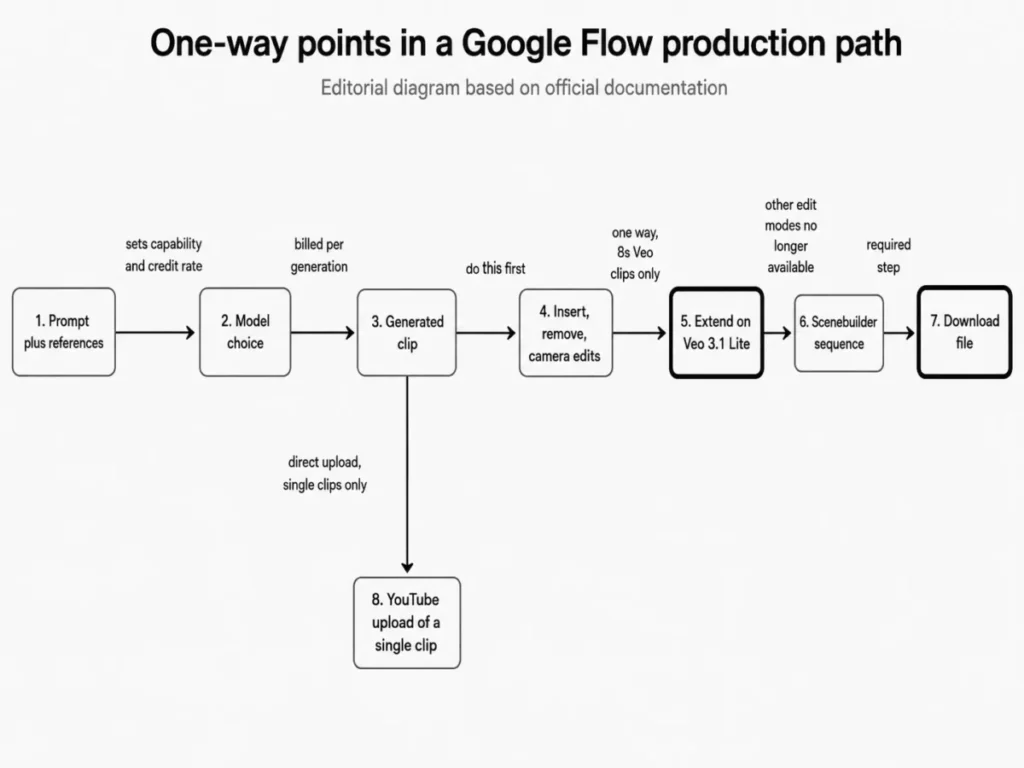
Extension has its own wrinkle. All Veo 3.1 eight-second clips can be extended, but the extension itself must run on Veo 3.1 Lite, so a Quality shot continues in a cheaper mode.
Editing an Uploaded Video With Gemini Omni Flash
Omni Flash is the only model in Flow that edits existing video, and its ceilings are precise enough to decide whether Flow replaces part of an editing workflow at all.
Uploads accept MOV, MP4, AVI, and WMV up to 60 seconds and 1 GB. Anything longer than 30 seconds must be trimmed to 30 seconds inside Flow before editing, and each edit works on a selection of up to 10 seconds.
Conversational editing holds context for up to three turns, and earlier versions stay in History, according to Google’s documentation on editing videos and building scenes.
Stack those four numbers and the boundary is obvious. Flow is a repair and variation tool for short segments, not a timeline editor, and a two-minute client cut never enters it whole.
Extending Clips and Building Scenes
Only Veo-generated videos can be extended, so uploaded footage is outside that path entirely. An extended clip also loses access to other edit modes such as insert, remove, and camera.
Sequence order matters because of that. Do the insert and removal work first, extend afterwards, and treat extension as a one-way door.
Scenebuilder handles assembly: arranging clips in a sequence, reordering them, trimming each end with handles, previewing the whole run, and downloading the result.
Automation and AI: The Flow Agent and Flow Tools
Flow’s automation layer is the most useful thing in the product for a small team, and it carries two cost-control facts that almost no review mentions.
Agent queries do not cost Flow credits, but they sit under a daily quota that Google confirms and does not quantify. Media the Agent generates does consume credits, which is where an automated session turns into a bill.
The setting that governs this is Confirm before generating. It defaults to asking permission before any action that uses credits, and switching it to Never lets the Agent generate media and spend credits without pausing, per Google’s Flow Agent documentation.
Leave it on Always. The convenience of an unattended Agent is small next to a batch that empties a monthly bucket which does not roll over.
Flow Tools sit one level higher: a described behavior becomes a reusable mini-app, editable through conversation, and shareable by link. Tool creation begins at Google AI Plus, while the free tier is limited to using Tools rather than building them.
Three constraints decide whether a team should put real work into a Tool. Creation sits under an unpublished daily quota, generated media inside a Tool spends Flow credits behind a warning banner, and anyone holding a share link can access the Tool’s code, name, and thumbnail.
The sharing rule is the one with teeth. A link shares the version that existed when it was generated, and Google’s documentation on creating and managing Tools states that stopping sharing requires deleting the Tool.
Proprietary prompt logic does not belong in a Tool built for broad sharing. There is no documented revoke, so the decision to share is effectively permanent for that version.
Integrations, Publishing, and Export
Flow publishes an individual generated clip straight to YouTube. A complete Scenebuilder sequence cannot go that way and must be downloaded as a single file, then uploaded through YouTube Studio, according to Google’s guidance on managing Flow projects, assets, and collections.
For a creator shipping one clip at a time that is a non-issue. For anyone assembling multi-shot pieces it adds a manual step to every publish, which is worth building into a schedule rather than discovering on deadline.
Export is stronger than the category norm. Google Takeout pulls generated and uploaded media alongside text prompts, requested aspect ratios, model names, camera controls, voice configurations, trim offsets, projects, collections, nested folders, favorite tags, characters, scenes, and ordered generation history with edit prompts and version chains.
The archive arrives as structure and timeline JSON files, with media in one central folder, per Google Labs on downloading Google Flow data. A metadata JSON file sits beside each asset and shares the same identifier.
Long video archives take time to build, and Google suggests a smaller split size such as 2 GB when an export struggles. Download links expire after seven days.
That is a real portability position, and it changes the lock-in calculation. A team can leave Flow with its prompt library and project structure intact, which is more than most AI video workspaces document.
Migration in the other direction is undocumented. No structured import that preserves another platform’s prompts, timelines, characters, or edit state was located in Google’s Flow documentation, so plan an inbound move as manual rebuilding plus media upload.
One gap matters for automation buyers: no public Google Flow API appeared in the official Flow sources reviewed. Absence from this source set does not prove absence from Google’s wider developer documentation, so an API-dependent pipeline needs confirmation from Google before purchase rather than an assumption either way.
Google Flow Pricing and Plans
Several results still circulating carry a 249.99 dollar Ultra tier or a 9.99 dollar Plus tier. Neither figure matches Google’s live pricing page, and buying from a stale table is the most expensive mistake available on this topic.
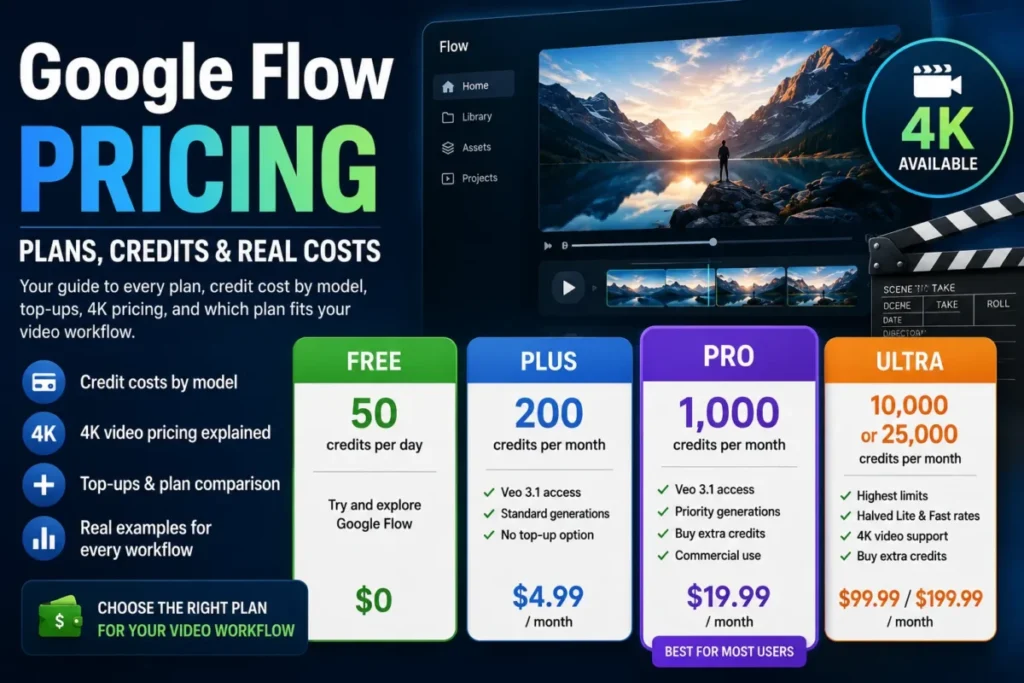
| Plan | Monthly price | Daily Flow credits | Monthly Flow credits | Notable inclusion |
|---|---|---|---|---|
| No subscription | $0 | 50 | None | Access to Gemini Omni Flash, Nano Banana Pro and Veo 3.1, with Tools usage only |
| Google AI Plus | $4.99 | 50 | 200 | Flow Tools creation and 1080p video upscaling |
| Google AI Pro | $19.99 | 50 | 1,000 | AI credit top-ups listed as available |
| Google AI Ultra | $99.99 | 50 | 10,000 | 4K image and video upscaling |
| Google AI Ultra, higher tier | $199.99 | 50 | 25,000 | All Ultra benefits plus expanded storage |
Source: Google, Google Flow pricing and plans, checked September 4, 2026. Google notes that prices vary by market.
A fuller plan-by-plan breakdown sits in the dedicated Google Flow pricing guide.
Flow is sold as an individual Google AI subscription. Google does not publish a Flow-specific seat-based team plan on the pricing pages reviewed here.
Teams should verify account provisioning and centralized billing with Google before estimating a multi-user cost, because nothing in these sources establishes how subscriptions are pooled, administered or invoiced across a group.
That absence of a team plan is itself a buying signal. Finance teams that expect one invoice and one admin console will not find either here.
What Each Plan’s Monthly Credits Actually Buy
Credits only become a budget once they are converted into generations, so here are the rates that do the converting.
| Model or action | Credits per generation |
|---|---|
| Veo 3.1 Lite | 10, or 5 for Ultra subscribers |
| Veo 3.1 Fast | 20, or 10 for Ultra subscribers |
| Veo 3.1 Quality | 100 on every plan |
| Gemini Omni Flash 720p, 4s video | 7 |
| Gemini Omni Flash 720p, 6s video | 10 |
| Gemini Omni Flash 720p, 8s video | 12 |
| Gemini Omni Flash 720p, 10s video | 15 |
| Gemini Omni Flash 360p, 4s video | 4 |
| Gemini Omni Flash 360p, 6s video | 5 |
| Gemini Omni Flash 360p, 8s video | 6 |
| Gemini Omni Flash 360p, 10s video | 7 |
| Gemini Omni Flash, edit an uploaded or generated video | 40 |
| 1080p upscaling | 0 for Plus, Pro and Ultra subscribers, unavailable without a subscription |
| 4K upscaling | 50, Ultra only |
Source: Google Flow Help, Manage your Google Flow credits, checked on the date shown with the pricing table above. Google states on that page that these limits are subject to change at any time, so a budget built on them needs re-checking before each billing cycle.
At standard priority, Ultra halves the Veo Lite and Veo Fast credit rates, leaves Veo Quality at 100 credits, and does not reduce Gemini Omni Flash. Google Flow Help also lists a separate Veo 3.1 Lite (Lower Priority) mode at 0 credits for Ultra subscribers and family plan managers. Ultra family members and non-Ultra users are not eligible for that mode.
Dividing each monthly bucket by those rates gives the capacity a plan actually funds, before retries, edits, or upscales take anything.
| Plan | Monthly credits | Max Veo Lite generations | Max Veo Fast generations | Max Veo Quality generations |
|---|---|---|---|---|
| Google AI Plus | 200 | 20 | 10 | 2 |
| Google AI Pro | 1,000 | 100 | 50 | 10 |
| Google AI Ultra | 10,000 | 2,000 | 1,000 | 100 |
| Google AI Ultra, higher tier | 25,000 | 5,000 | 2,500 | 250 |
Figures are calculated from the monthly credit allocations and standard-priority per-generation rates in the two tables above. They exclude the separate 50 daily credits, retries, Omni edits, 4K upscales, and the eligible Ultra-only zero-credit Lower Priority Lite mode, so they are ceilings for those paid modes rather than forecasts. Google lists the Lower Priority eligibility separately; check its availability in your Flow account before building a workflow around it.
Reading the same figures without the chart: at every plan the Lite ceiling is twice the Fast ceiling, and the Quality ceiling stays one tenth of the Lite ceiling because Quality is never discounted.
Where the Advertised Price Stops Being the Budget
Three documented behaviors pull the real cost above the sticker, and none of them appear on the plan table.
Credits are charged per generation rather than per request, and Google states that some features create multiple generations from one request. A prompt set to return two outputs bills twice.
Unused daily credits do not roll over, and unused monthly subscription credits do not roll over either. A team with uneven production months pays for capacity it structurally cannot bank.
Rate limiting sits on top of that. Google reserves the right to limit how many generations an account can run, with no published numeric threshold on the eligibility page.
Failed generations are not charged, and an Audio Generation Failed event refunds credits, with Google One support named as the route for a billing dispute.
That policy is worth checking against a real account statement rather than taking on trust, because it is the part of a credit system a buyer cannot verify from outside.
Public app-store feedback about Flow exists, but this review presents no aggregated user sentiment. A defensible sentiment reading needs at least two independent review platforms, and no dedicated Google Flow listing was located on the major software review sites.
The Top-Up Contradiction
Anyone planning to absorb a busy month by buying credits instead of upgrading needs to know that Google’s own pages disagree about who can do it.
The Flow credits page states that in supported regions, except Japan, Plus, Pro, and Ultra subscribers can purchase AI credits. Google One’s AI credit purchase documentation states the opposite for one tier: AI credits are available only for Pro and Ultra plans and are not available for purchase on Plus.
Treat Pro and Ultra top-ups as documented and Plus top-ups as unresolved. Google One also notes that purchased credits can expire on terms set at purchase and that auto-reloads are limited to five per day, so an overflow plan built on top-ups needs those terms read at checkout rather than inferred.
Feature Gates: What Each Plan Includes
Each row below is a supported feature that Google’s official documentation ties to a specific tier, so the plan gate a buyer accepts decides the workflow consequence they live with. If a team needs 4K delivery or halved Veo rates, the affected buyer is on Ultra and no lower plan will do, which is why the recommendation at the end of this section is a condition rather than a tier.
| Capability | No subscription | Google AI Plus | Google AI Pro | Google AI Ultra |
|---|---|---|---|---|
| Flow Tools creation | Usage only | Yes | Yes | Yes |
| 1080p upscaling | Not available | Yes, 0 credits | Yes, 0 credits | Yes, 0 credits |
| 4K upscaling | Not available | Not available | Not available | Yes, 50 credits |
| Veo Lite and Veo Fast credit rate | Standard | Standard | Standard | Halved |
| AI credit top-ups | Not applicable | Contradicted across official pages | Documented as available | Documented as available |
Source: plan rows from Google’s Flow pricing page and credit costs from Google Flow Help, both checked on the date shown with the pricing table above.
Each upgrade in that grid has one condition behind it, and none of them is a general wish for more features.
Move from free to Plus when custom Tool creation or 1080p upscaling is needed and monthly video volume stays low, because 200 monthly credits fund ten Veo Fast generations before anything else is spent.
Move from Plus to Pro when regular production makes 200 monthly credits run out mid-month, or when a verified top-up route matters enough that the Plus contradiction becomes a risk.
Move from Pro to Ultra on one of two conditions only: sustained Veo Lite or Veo Fast volume that keeps exhausting 1,000 monthly credits, or a hard 4K delivery requirement. Wanting the best-looking output is not an Ultra trigger, because Veo Quality costs the same 100 credits on Pro.
Move from Ultra to the higher Ultra tier only when a month can actually consume 25,000 credits. Credits that expire unused are the most expensive line item in this whole system.
Privacy, Security, and Support
Anyone putting client material into Flow needs to read one setting before the first upload.
When Help improve Google Flow is enabled, Google may use Flow interactions, uploads, generated output, related feature usage information, and feedback to provide, improve, and develop Google products and services. Those interactions are reviewed by trained reviewers and kept for up to 18 months, separately from the Google Account.
Google’s own instruction on the same page is direct. Do not enter confidential information into Flow interactions, or any data a reviewer should not see, per the guidance on managing your data in Google Flow.
For an agency holding an unreleased product, a pre-announcement campaign, or a client’s private footage, that sentence is the decision point. Review the setting, document the choice, and treat an unreviewed default as an unmanaged risk rather than a technicality.
confidential or
unreleased?
Google Flow setting
18 months retention applies
confidential input
reviewed and the choice
recorded
Watermarking has one universal rule and one regional one. All outputs generated in Flow using Veo, Omni, or Nano Banana carry invisible SynthID watermarks, and a visible watermark is applied automatically for users residing in India, South Korea, or Vietnam.
For a United States buyer, no Ultra upgrade is required to remove a visible watermark. Any article presenting visible watermark removal as a paid-tier gate is describing something Google’s help page does not say.
Commercial use is narrower than a yes or no. Google states it will not claim ownership over content a user generates, while use remains governed by Google’s terms, and third-party rights in a likeness, a trademark, or underlying material are untouched by that statement.
Two documented restrictions cut across every plan and region: Flow does not generate videos of prominent people, and it does not edit uploaded videos of identifiable minors. A concept built around either will not survive contact with the product.
Support and enterprise administration are where the evidence runs out. Google One support is named as the route for credit and billing disputes, and no Flow-specific response-time commitment, SSO, SCIM, audit log, SOC 2, or HIPAA documentation appeared in the sources reviewed.
Google’s general security posture is not a substitute for product-specific evidence. A regulated buyer should ask Google for that documentation in writing before purchase, and treat its absence from public pages as an open question rather than a failure.
Google Flow Limitations
Each limitation below comes from Google’s own documentation, and each one changes how a piece of work gets planned.
Model choice removes capability that no plan restores. Veo Quality cannot use Ingredients or references, Veo Fast and Veo Quality cannot extend directly, and only Gemini Omni Flash edits existing video. A buyer can pay $199.99 per month on the higher Google AI Ultra tier and still be unable to run a reference workflow in Quality.
Existing footage enters through a narrow door. Sixty seconds and 1 GB on upload, a forced trim to 30 seconds above that, a 10-second edit selection, and three turns of conversational context together mean a long client cut is edited elsewhere.
Extension is one way. Insert, remove, and camera modes stop working on an extended clip, so the edit order has to be planned before generation rather than discovered afterwards.
Two quotas have no published numbers. Agent queries and Tool creation both sit under daily limits Google confirms without quantifying, which makes capacity planning for an Agent-heavy or Tool-heavy team a matter of observation rather than documentation.
Shared Tools cannot be unshared. The only documented way to stop sharing is deletion, and the link exposes the Tool’s code to anyone holding it.
Credits expire in both directions. Daily and monthly allocations both fail to roll over, which penalizes exactly the uneven production rhythm that freelance and campaign work produces.
Who Should Use Google Flow
Solo creators running steady short-form output. Pro’s 1,000 monthly credits fund up to 100 Veo Lite or 50 Veo Fast generations, which covers a weekly publishing cadence with room for retries, and 1080p upscaling costs nothing on that tier.
Small creative teams doing previz, storyboards, and concept work. Characters, avatars, visual ingredients, and Scenebuilder hold visual continuity across a set of shots. That continuity is the part of pitch work that breaks when clips are generated one at a time in separate tools.
High-volume short-form producers whose work sits in Veo Lite or Veo Fast. These are the only workloads where Ultra’s halved rate compounds into real savings, and 10,000 monthly credits at the Lite rate is a different production ceiling altogether.
Marketing teams already on a qualifying Google Workspace plan. Access at no extra charge with 50 daily credits makes an evaluation cost nothing but time, and it avoids adding a consumer subscription to a team that already has a Google relationship.
Occasional creators who want Tool creation more than volume. Plus at $4.99 per month buys the Tools creation gate and 1080p upscaling, provided nobody mistakes 200 monthly credits for a production allowance.
Who Should Avoid Google Flow
Teams editing long existing footage. The upload and selection ceilings make Flow a segment-level tool, and a team expecting a conversational replacement for a timeline editor will hit that wall in the first session.
Agencies handling confidential or unreleased client assets without a data review. Google’s own warning against entering confidential information is the disqualifier, and it applies before any question of output quality.
API-first automated production pipelines. No public Flow API was located in the official sources reviewed, so a pipeline that assumes programmatic access is building on an unverified foundation.
Regulated organizations needing documented admin controls. Without Flow-specific SSO, SCIM, audit logs, compliance attestations, or a support commitment, procurement has nothing to evaluate against.
Low-volume buyers tempted by Ultra. Monthly credits do not roll over, so an account that consumes a fraction of 10,000 credits is paying $99.99 per month for capacity that expires.
Projects built around prominent people or footage of identifiable minors. Both are documented product restrictions, not filter friction, and no plan changes them.
Google Flow Alternatives
| Alternative | Choose it if | Trade-off against Flow |
|---|---|---|
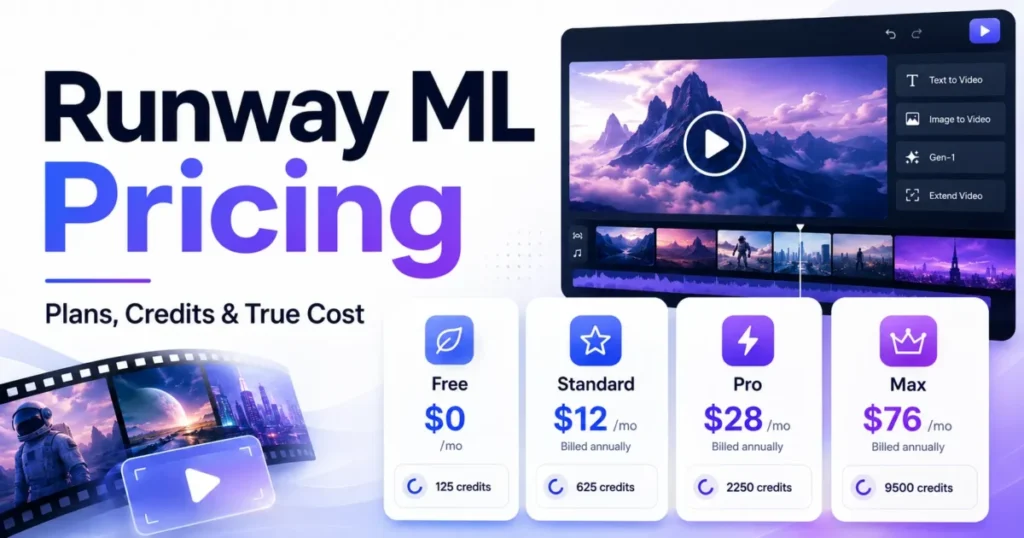
| Runway | The work needs closer control over generated footage inside an editing timeline rather than short conversational edits | Loses Flow’s character, avatar, and ingredient reuse across a project |
| Pika | The job is fast one-shot generation and the project layer is unnecessary overhead | No equivalent to Scenebuilder assembly or a Tools automation layer |
| A conventional nonlinear editor | Delivery needs frame-level control, long-form timeline work, and full audio and finishing control | No generative model access, so concept and B-roll creation moves elsewhere |
| An enterprise creative platform with published admin controls | Procurement requires documented SSO, audit logging, compliance attestations, or a contractual support commitment | Generally higher cost and less direct access to Google’s video model family |
Comparative capability claims above are limited to Google Flow’s own documented behavior, and competitor rows describe the category role each tool plays rather than verified feature parity. My guide to Google Flow alternatives sets those competitor tools against each other.
Broader context sits in the roundup of best AI video generators, and the individual write-ups on Runway ML review and Pika Art review go deeper on those two.
Final Verdict: Is Google Flow Worth It in 2026?
Google Flow is worth paying for when the work is short-form, reference-driven, and iterative, and it is not worth paying for when the work is long-form, confidential without a data review, or dependent on programmatic access.
Google AI Pro at $19.99 per month is the plan I would choose for almost every individual creator here. It moves the monthly allocation from 200 credits to 1,000, includes 1080p upscaling at no credit cost, and is the cheapest tier where the top-up route is documented rather than contradicted.
Plus at $4.99 per month buys access to features, not production volume. Take it for Tools creation and 1080p upscaling, and expect to move up quickly if weekly video output is the goal.
Ultra at $99.99 per month earns its price on volume, not on ambition. The halved Veo Lite and Veo Fast rates and 4K upscaling are the two things it genuinely buys, and Veo Quality costs the same on every tier.
The free route is worth using for evaluation with one expectation set correctly. Fifty non-rolling daily credits fund five Veo Lite generations or two Veo Fast generations, and Google’s documentation does not explain how that balance ever reaches the 100 credits one Veo Quality generation requires, so nobody should plan a Quality test around it.
I would ask Google three questions before a team commits: whether Plus can buy AI credits, what the Agent and Tool daily quotas actually are, and whether any Flow-specific administrative or compliance documentation exists. All three are unanswered in public documentation as of the checked date above, and all three change a purchase.
FAQ
These are the questions the body above leaves a buyer most likely to ask twice, answered from the same official pages.
Is Google Flow free?
Google’s Flow pricing page shows a no-subscription route with 50 daily Flow credits, while Google’s Get Started page still lists a Google AI Plus, Pro, or Ultra subscription among the access requirements. Both pages were live on the same day, so treat free access as available in principle and verify it on the specific account, as my Google Flow free tier guide explains, before planning around it.
How many credits does a Google Flow video use?
At standard priority, a Veo 3.1 Lite generation costs 10 credits for non-Ultra subscribers and 5 for Ultra; Veo 3.1 Fast costs 20 and 10; Veo 3.1 Quality costs 100 for everyone. A separate Veo 3.1 Lite (Lower Priority) mode costs 0 credits for Ultra subscribers and family plan managers only. Gemini Omni Flash at 720p runs from 7 credits for a four-second video to 15 for a ten-second one, and the 360p tier runs from 4 to 7. Editing an uploaded or generated video costs 40. Check Google’s current credit table before budgeting.
Does Google Flow put a watermark on videos?
Every Flow output made with Veo, Omni, or Nano Banana carries an invisible SynthID watermark. A visible watermark is applied automatically for users residing in India, South Korea, or Vietnam, so a United States creator does not need a higher plan to avoid one.
Can Google Flow make 4K video?
4K upscaling is a Google AI Ultra feature and costs 50 credits per use. Subscribers on Plus, Pro, and Ultra get 1080p upscaling at no credit cost, and non-subscribers get neither.
Can Google Flow edit a video I already have?
Yes, through Gemini Omni Flash, within limits that decide whether it fits a workflow. Uploads accept MOV, MP4, AVI, and WMV up to 60 seconds and 1 GB, anything over 30 seconds must be trimmed to 30 seconds, each edit works on a selection of up to 10 seconds, and conversational context holds for three turns.
Can I use Google Flow output commercially?
Google states it will not claim ownership over content a user generates, and commercial use remains subject to Google’s terms. That statement does not clear third-party rights in a likeness, a trademark, or any underlying material, and it is not a plan-gated commercial license.
Does Google Flow have an API?
No public Google Flow API appeared in the official Flow documentation reviewed for this article. That is an absence of evidence rather than proof of absence, so any pipeline depending on programmatic access should confirm it with Google before purchase.
Can I export my Google Flow projects?
Google Takeout exports generated and uploaded media along with prompts, aspect ratios, model names, camera controls, voice configurations, trim offsets, projects, collections, characters, scenes, and ordered edit history. The archive ships as structure JSON files plus a central media folder with per-asset metadata, and download links expire after seven days.