Figma Make is my top pick among the best AI prototyping tools for product teams that already design in Figma. A Figma Professional Full seat includes it, at $16 a month billed annually with 3,000 AI credits a month.
Lovable is the pick when the prototype must run as an app with a database, and Magic Patterns when a product manager needs on-brand, high-fidelity screens without Figma. For all 11 tools, I show what five people pay per year and what you can take with you.
I tested 4 of the 11 on Free plans on October 10, 2026, one run each. All four returned a finished first draft in under 4.5 minutes. The builds used 2.13 of Lovable’s 5 daily credits, 22 of UX Pilot’s 80 and 142 of Framer’s 500, and Relume’s monthly AI meter read 29% afterwards.
In This Article (21 sections)
Quick Picks: The Best AI Prototyping Tool for Each Use Case
All 11 picks, ranked by fit for product teams, with each tool’s job and entry price:
- Figma Make: product teams in Figma; $16 per Full seat a month, billed annually.
- Magic Patterns: PMs prototyping features; $17 per seat a month, billed annually.
- Lovable: founders who need a working app; $21 a month billed annually, unlimited users (tested on Free).
- Alloy: changes to a product you already ship; $20 per user a month.
- v0 by Vercel: engineering teams shipping through GitHub; $30 per user a month.
- UX Pilot: designers going from wireframe to hi-fi; $19 a month, billed annually (tested on Free).
- Visily: PMs on a budget; $14 per editor a month.
- Bolt.new: running code before paying; Free includes 1M tokens a month.
- Framer: a prototype that becomes a live website; $10 a month, billed yearly (tested on Free).
- Relume: agencies planning site architecture; publish from $12 per site a month, export from $18 per user a month, both billed yearly (tested on Free).
- Uizard: non-designers starting from a screenshot; $12 a month, billed annually.
On budget alone, Visily Pro is the lowest per-editor price here with Figma and code export. Lovable Pro covers unlimited users in one workspace for $21 a month billed annually, which is $252 a year for five people ($21 × 12).
Bolt.new Free allows 300K tokens a day, up to 1M a month. It is the only free allowance here counted in raw tokens, so size it against your own usage, not other plans’ credits.
The picks differ most in what they hand over, so start with the output.
What Will You Hand Over: A Design, a Clickable Flow or Running Code?
Choose the output before the tool: a design tool cannot give engineering a repository, and an app builder is more than a stakeholder click-through needs. Readers new to the term can start with what AI prototyping is, its output types and its limits.
| Output | Use it to | Tools | Typical buyer |
|---|---|---|---|
| Editable screens and mockups | Refine screens before handoff | Figma Make, UX Pilot, Visily, Uizard | Designer, PM, non-designer |
| Clickable prototype in your design system | Test a feature flow with stakeholders | Figma Make | PM, designer |
| Prototype matched to what you bring in | Test a feature with customers, built from screenshots and components | Magic Patterns | PM |
| Prototype on your live product | Show a change inside the real product | Alloy | PM with a shipped product |
| Running app with a backend | Store data, deploy, keep code in Git | Lovable, Bolt.new, v0 by Vercel | Founder, engineer |
| Published website | Go live on your domain | Framer, Relume | Marketer, agency |
The running-app row is what this site calls vibe coding: describing software in plain language and letting the AI write it. Below, the source of truth means where the current version of code or design lives, and a greenfield project starts from nothing.
Within each output, price and the free plan separate the tools.
AI Prototyping Tools Compared: Price, Free Plan and Billing Unit
The 11 tools side by side on entry price, free plan and AI billing unit:
| Tool | Starting paid price (basis as printed) | Free plan ceiling | AI billing unit |
|---|---|---|---|
| Figma Make | $16 per Full seat a month, billed annually | Starter: 150 AI credits a day, up to 500 a month (Make not listed) | AI credits per seat |
| Magic Patterns | $17 per seat a month, billed annually | Monthly credits, amount not published | Credits per seat, then $0.02 each |
| Lovable | $21 a month billed annually, unlimited users | 5 build credits a day, up to 30 a month | Credits shared by the workspace |
| Alloy | $20 per user a month | $5 in credits per user a month | Dollar credits per user |
| v0 by Vercel | $30 per user a month | $5 one-time credits, 7 messages a day | Dollar credits spent at token rates |
| UX Pilot | $19 a month, billed annually | 80 credits a day, 1 project | Credits |
| Visily | $14 per editor a month | 300 credits per workspace a month | AI credits per editor |
| Bolt.new | $18 a month, billed yearly | 300K tokens a day, 1M a month | Tokens |
| Framer | $10 a month, billed yearly | 500 AI credits to try | AI credits shared by the workspace |
| Relume | Publish: $12 per site a month, billed $144 yearly. Export: $18 per user a month, billed $216 yearly | 1,500 page views; Figma export only | AI usage tiers |
| Uizard | $12 a month, billed annually | 3 AI generations a month | AI generations |
Sources: Figma, Magic Patterns, Lovable, Alloy, v0, UX Pilot, Visily, Bolt.new, Framer, Relume and Uizard, checked October 2026.
The billing-unit column matters most: credits, tokens, generations and dollar balances are not interchangeable, so compare free plans by what your team will burn.
The criteria that set the order come next.
How I Chose and Ranked These Tools
I ranked all 11 tools from documentation: each vendor’s official pricing page, plus help articles for Lovable, v0 and Bolt.new, checked October 2026. My Free-plan test of four of them adds evidence inside their sections but does not set the order, because one run per tool is too small to rank by.
Five criteria set the order: the output each tool hands over, export and code ownership, the 5-person annual cost, the free-plan ceiling, and the tier that unlocks export and SSO. Ties go to product teams, this list’s main reader.
Figma Make ranks first because teams already on Full seats pay nothing extra and the work stays in their design system. Magic Patterns ranks second because it needs a new subscription, and its custom design-system import is Enterprise only.
Lovable ranks third because a running app is more than most product questions need, and its 100 monthly Pro credits are shared by the whole workspace.
Alloy and v0 by Vercel come next because they start from a product or repository a team already has. UX Pilot and Visily follow as the designer and budget picks, since their paid plans export to Figma and code. Bolt.new, Framer, Relume and Uizard close the list: each serves a narrower job for a product team.
Documentation cannot show what a Free plan delivers in one sitting, so I ran four of them.
How I Tested 4 of the Best AI Prototyping Tools on Free Plans
On October 10, 2026, I ran one prompt in the Free plan of Lovable, UX Pilot, Framer and Relume, two tools per prompt. The biggest bite of a Free allowance was Lovable’s: 2.13 of 5 daily build credits (43%) for one build.
I used my own Free accounts, signed in myself, in my own browser, with an AI browser agent (Claude in Chrome) running each test while I watched. Every value was read from the tool’s own screens; there is no automated log, and I reviewed and approved the notes the same day.
Relume ran in a Relume 2.0 beta workspace. Prompt A went to Lovable and UX Pilot:
Build a clickable onboarding prototype for a small-team CRM web app called Test CRM. Screens: 1) sign-up with name, work email and password fields, 2) invite teammates step with a skip option, 3) import contacts step offering CSV upload or manual entry, 4) a dashboard showing a sample pipeline with three deals.
Use placeholder data only, such as Test Co and test@example.com. No backend needed.
Prompt B went to Framer and Relume:
Design a landing page for Test CRM, a CRM for small sales teams. Sections: hero with a headline and a Start free trial button, three feature cards (pipeline view, contact import from CSV, team invites), a pricing section with three placeholder plans, an FAQ with four questions, and a footer.
Use placeholder copy and data only, such as Test Co.
How I read the results:
- Time: from sending the prompt to a finished result, by wall-clock times read at each step.
- Credits: each tool’s own meter before and after the build; for Relume, after only.
- Output: checked against the screens or sections the prompt named.
- Free limit: any lock, read-only mark or upgrade prompt on screen.
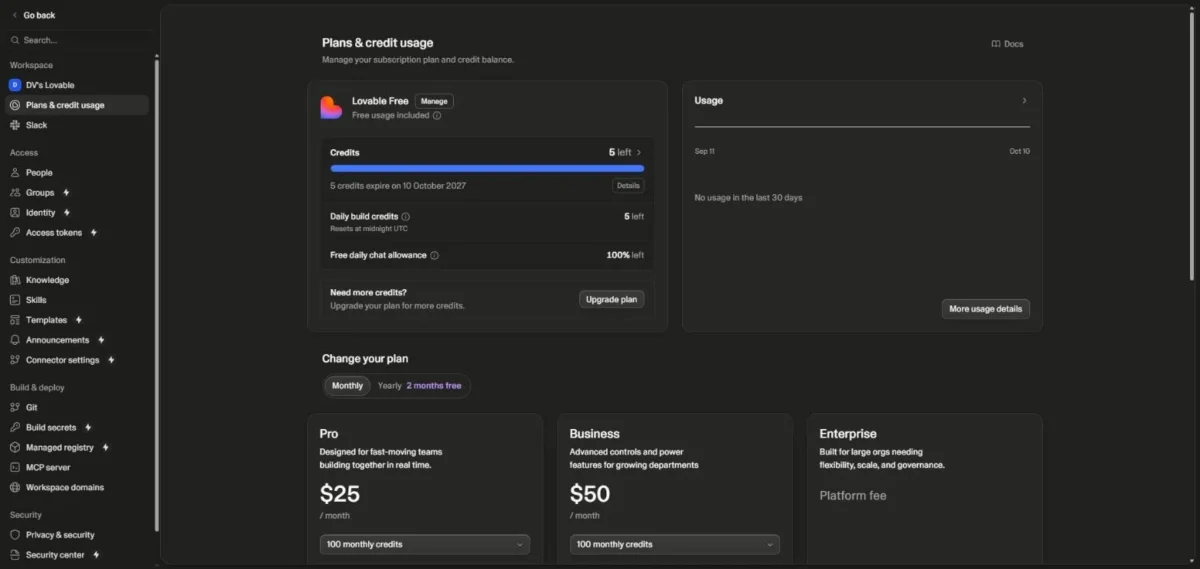
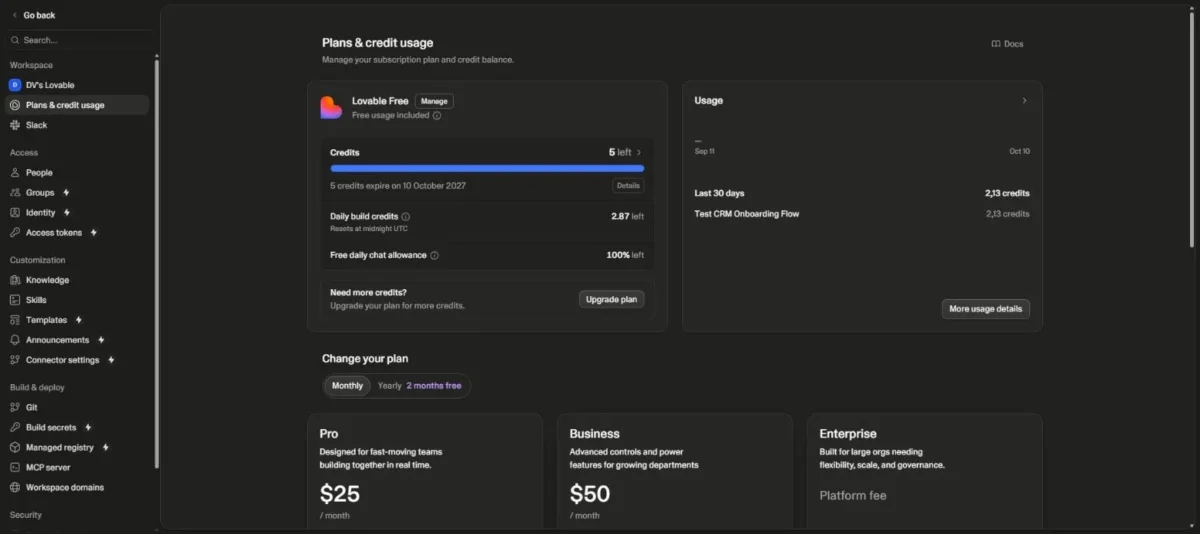
One Free build is no guide to paid capacity. Lovable’s credits page says Build mode cost depends on the complexity of the request and the work completed. So the 2.13 credits my prompt used measure that prompt, not a rate for the next one.
Bolt.new’s page did not respond to the browser extension in 4 attempts, so it is not in the test, and I draw no conclusion about Bolt.new from that.
The four runs differ in time, credits and what they got wrong.
The results side by side
Read the rows in pairs: Lovable and UX Pilot got prompt A, while Framer and Relume got prompt B.
| Tool (Free plan, prompt) | Time to finished draft (upper bound) | Credits used | What it built | Free-plan limit I met |
|---|---|---|---|---|
| Lovable (prompt A) | 4 min 21 s | 2.13 of 5 daily build credits (43%) | 4-step flow; form labelled “STEP 1 OF 3”; 3 sample deals in code | Code view “Read only” |
| UX Pilot (prompt A) | 2 min 55 s | 22 of 80 daily credits (27.5%) | 4 screens: Sign-up, Invite Teammates, Import Contacts, Dashboard | None in this run; Export panel had no lock mark, no export run |
| Framer (prompt B) | 3 min 17 s, 2 questions answered | 142 of 500 trial credits (28%) | Every requested section, 71 layers; card said “6 example deals”, showed 3 | None in this run |
| Relume (prompt B) | 4 min | Monthly meter at 29% after (before not read) | 1 page, 6 sections, 2 themes; no images, empty logo slots | None in this run |
Sources: my Free-plan test notes, October 10, 2026, and the Free allowances on the Lovable, UX Pilot, Framer and Relume pricing pages, checked October 2026.
Within prompt A, UX Pilot beat Lovable on both counts. Lovable was still building at about 3 minutes 15 seconds, after UX Pilot had finished, and spent a larger share of its daily allowance.
Within prompt B there is no speed winner. Relume was still writing at about 2 minutes 28 seconds and done by 4 minutes, so its finish could fall either side of Framer’s 3 minutes 17 seconds.
What this test does not show
Five limits keep these results in proportion:
- One prompt and one run per tool, on Free plans only, in one account per tool, on October 10, 2026. Figma Make, Magic Patterns, Alloy, v0, Visily, Bolt.new and Uizard were not tested.
- No follow-up edits, publishing, custom domains, GitHub or Figma connections, team features or exports were run.
- Finish times were read at intervals, so each one is an upper bound within about a minute.
- Prompt A and prompt B differ, so compare Lovable with UX Pilot, and Framer with Relume, only.
- I did not check Lovable’s project visibility (public or private) or read Relume’s AI usage before the build.
The product sections put each result next to that tool’s price and limits.
1. Figma Make: Best for Product Teams Already Designing in Figma
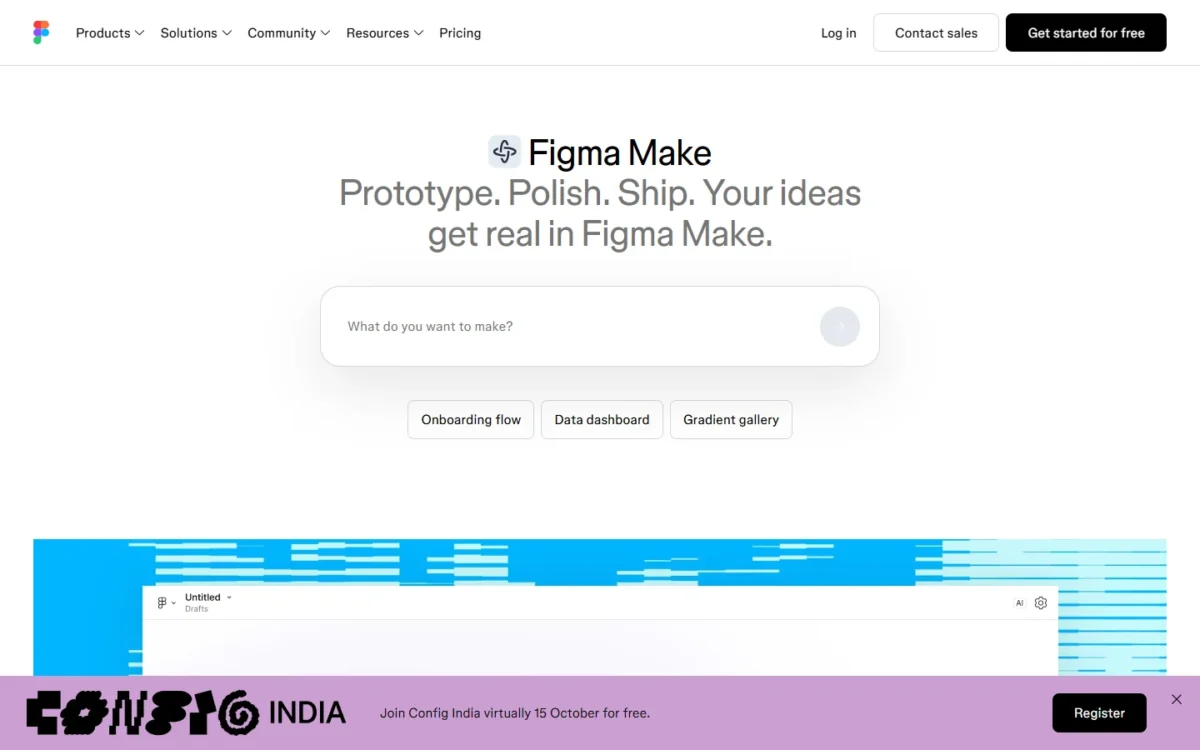
If your designers already hold Figma Full seats, Figma Make costs nothing extra to try: the Full seat includes all Figma products, Make among them.
Make kits sync your npm packages, library styles and guidelines, so prototypes start from your components instead of generic UI.
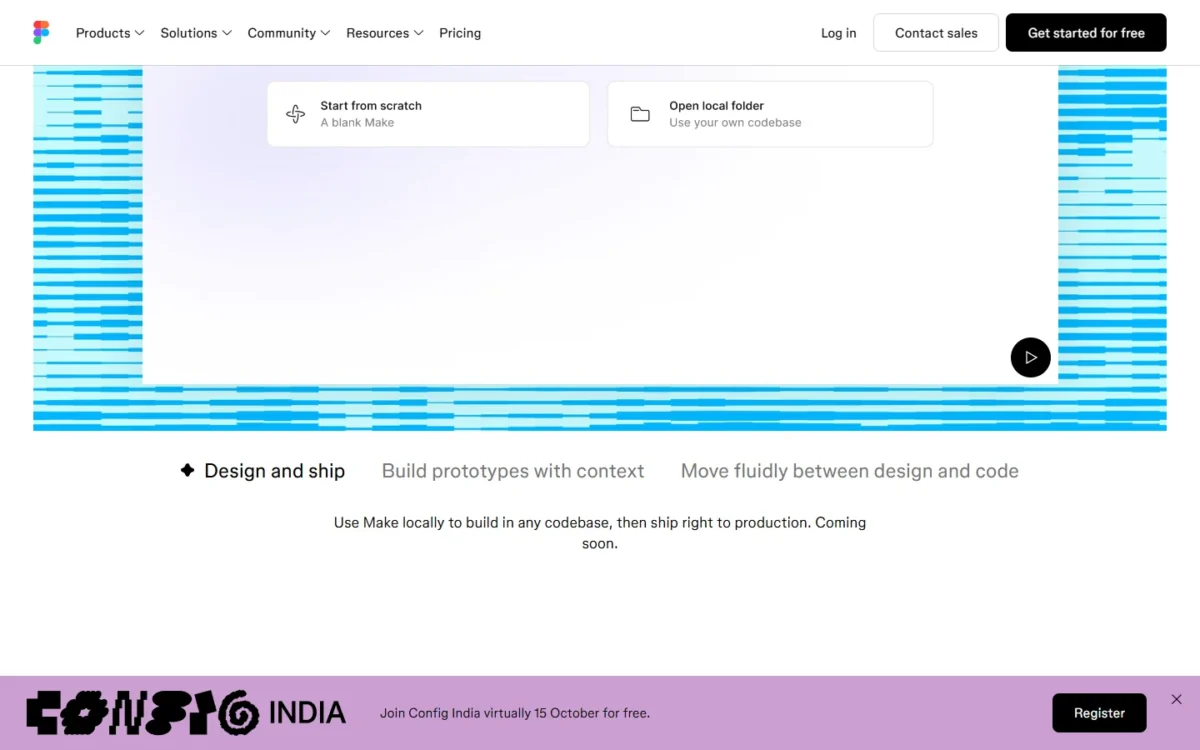
Is Figma Make enough on its own? Yes for click-through prototypes built from your own system.
No when engineering needs code in its repository today: Figma lists “Make on your local codebase (Beta)” as coming soon. My full Figma review weighs the rest of the suite.
- Pricing:
- A Professional Full seat costs $16 a month billed annually, or $20 monthly, with 3,000 AI credits a month. Starter is free and lists 150 AI credits a day, up to 500 a month. Its list names drafts, UI kits and templates, not Make, so I do not count it as a free Make route.
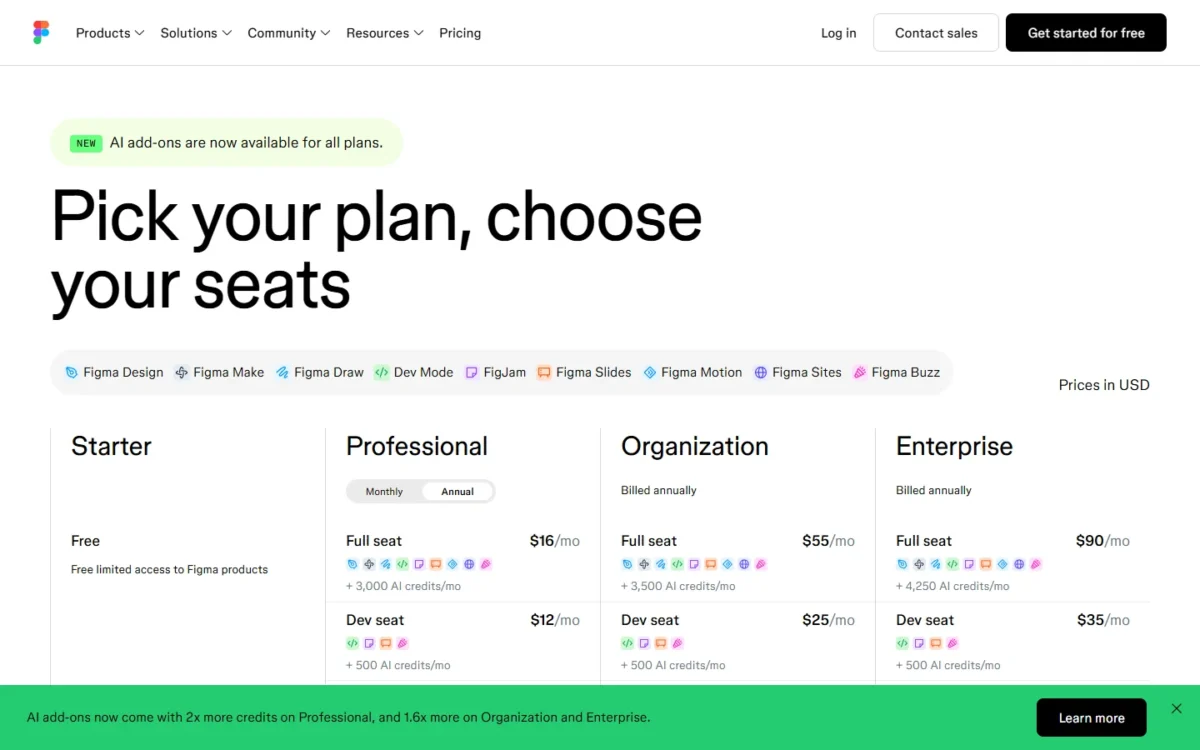
Extra AI credits come as team-shared add-ons on every plan, but Figma prints no add-on price, so a heavy prototyping month is the one cost you cannot budget ahead.
- Skip it if:
- nobody on your team works in Figma, or engineering needs code in a repository now.
2. Magic Patterns: Best for Product Managers Prototyping Features
Magic Patterns matches your product from what you bring in, not from a full design-system sync. You feed it screenshots, components, styles and design-system rules; “Custom import design system” is Enterprise only.
For a product manager, the input is the point: Magic Patterns says a prompt, product requirement or feature idea becomes high-fidelity UI. It also says you can test new features directly with your customers.
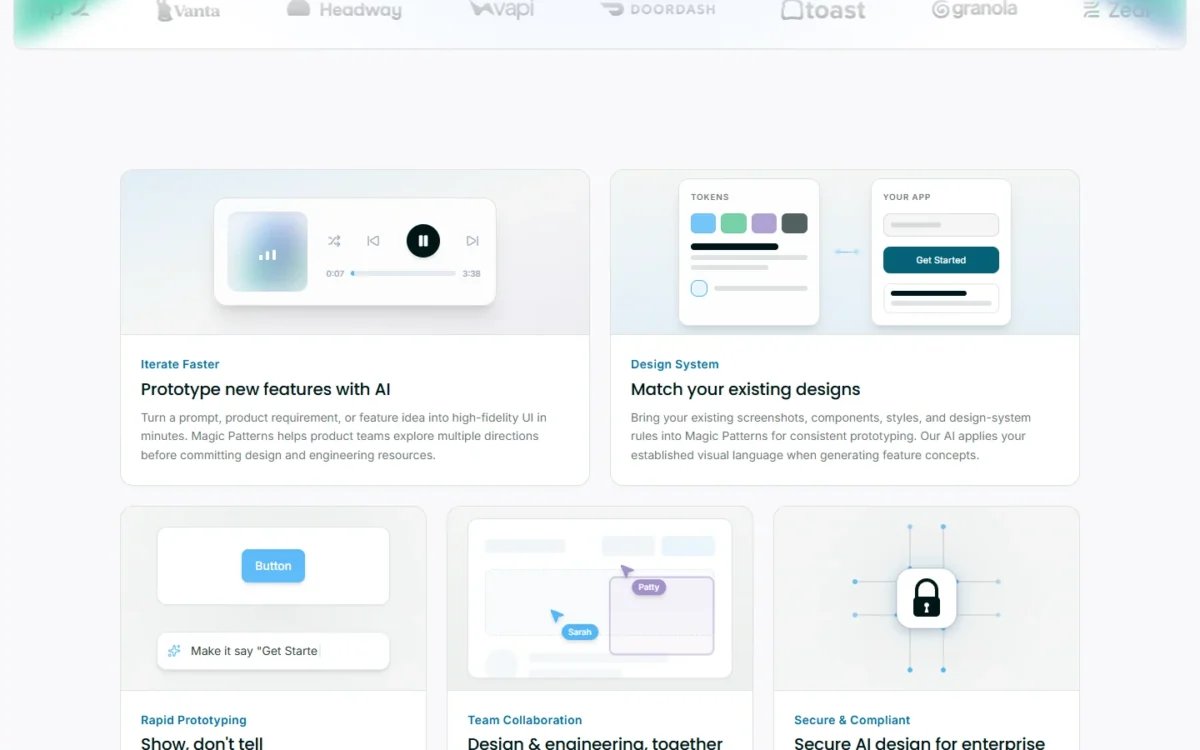
Starter adds Sync with GitHub, MCP and team workspaces for 10 users, so engineers pick up code instead of redrawing screens. Magic Patterns says it is SOC 2 and ISO 27001 certified, which helps a security review.
- Pricing:
- Starter costs $17 per seat a month billed annually, or $20 monthly, with 1,000 monthly credits. That is $1 more than a Figma Full seat ($17 − $16), for a PM who needs none of Figma’s other products. Business costs $85 per seat a month billed annually, with 5,000 credits and SSO.
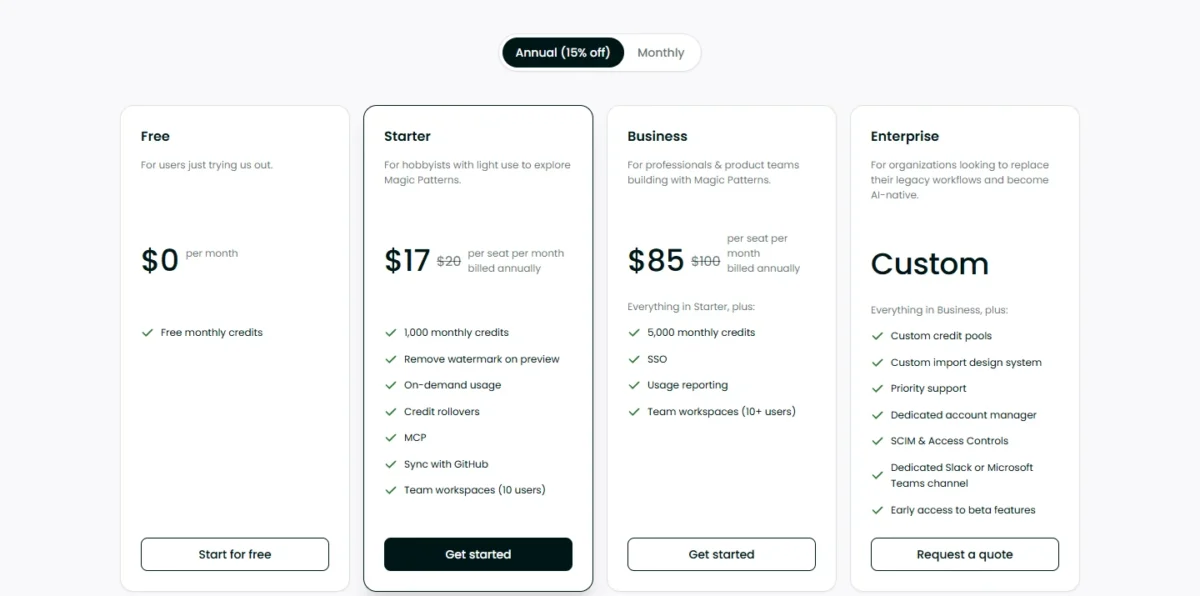
Extra credits cost $0.02 each on paid plans, and the $68 step to Business ($85 − $17) equals 3,400 of them ($68 ÷ $0.02). A seat needing fewer is better off paying overage, unless it needs SSO.
- Skip it if:
- you need your full design system imported without an Enterprise contract, or Figma files back; the pricing page lists GitHub sync, not Figma export.
3. Lovable: Best for Founders Who Need a Working App
Lovable prices the workspace, not the person: Pro covers unlimited users, but its 100 monthly credits are shared by everyone. That makes it cheap for a small team and easy to drain, so set Pro’s per-member credit limits early.
Lovable builds and hosts the app on a built-in backend it calls Cloud. Git sync keeps the code in your own GitHub, GitLab or Bitbucket repository on all plans, and Lovable says you own what you create.
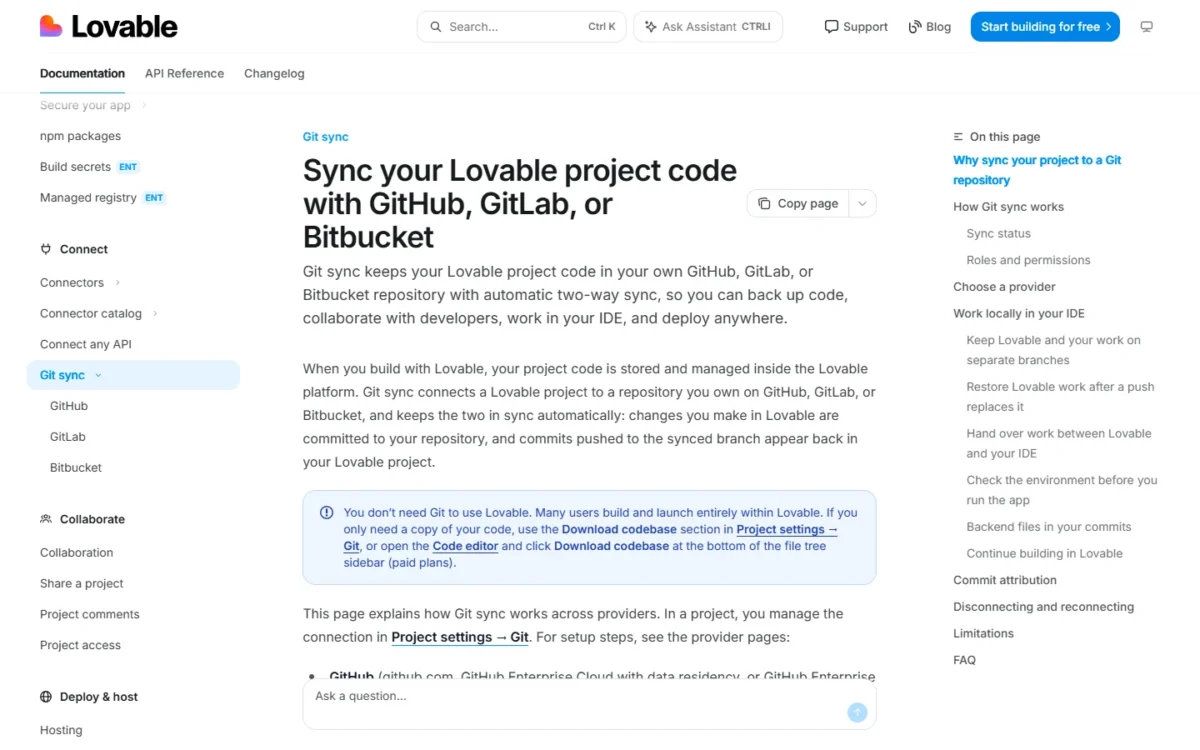
The limit is direction: Lovable is export only and always creates a new repository, so it cannot continue code you already have. My Lovable review looks closer at the build workflow.
In my Free-plan test, prompt A became a project Lovable named “Test CRM Onboarding Flow” in at most 4 minutes 21 seconds. Lovable called the prototype “ready and tested”, yet the sign-up form read “STEP 1 OF 3” under a 4-step progress bar.
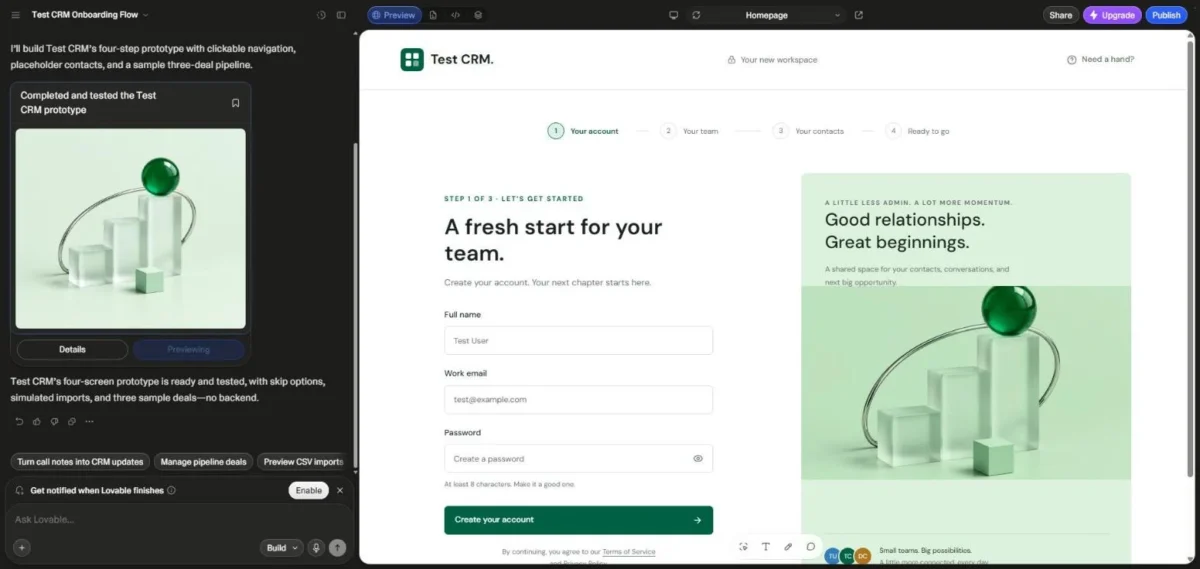
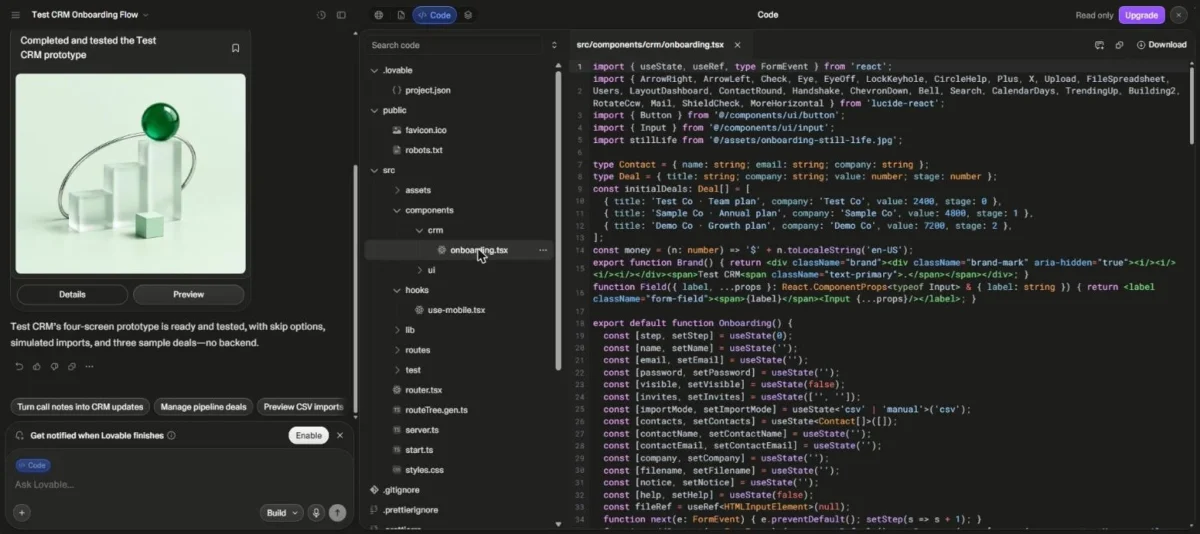
So the tool’s own “tested” message is a claim, not a QA pass. Steps 2 to 4 (three sample deals, CSV or manual import, invite fields) I checked in one code file, because the form needed a password I did not type.
On Free, the Code view opened but was marked “Read only” beside an Upgrade button, and a Download button showed that I did not click. That fits Lovable’s docs: the codebase ZIP download needs a paid plan, while Git sync, which I did not try, works on all plans.
- Pricing:
- Pro costs $25 a month, or $21 billed annually, with 100 monthly credits plus 5 daily build credits. Business costs $50, or $42 billed annually, and adds SSO and role-based access.
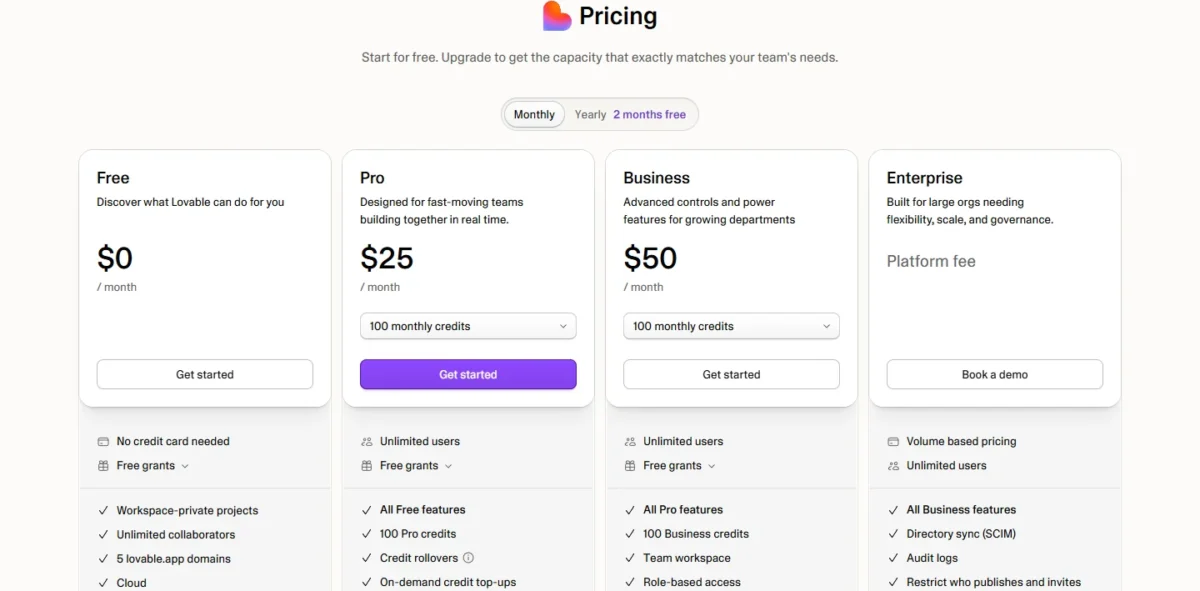
Pro top-ups cost $15 per 50 credits, so doubling the 100 monthly credits adds $30 a month (2 × $15).
- Skip it if:
- you must continue an existing codebase.
4. Alloy: Best for Prototyping Changes on Your Existing Product
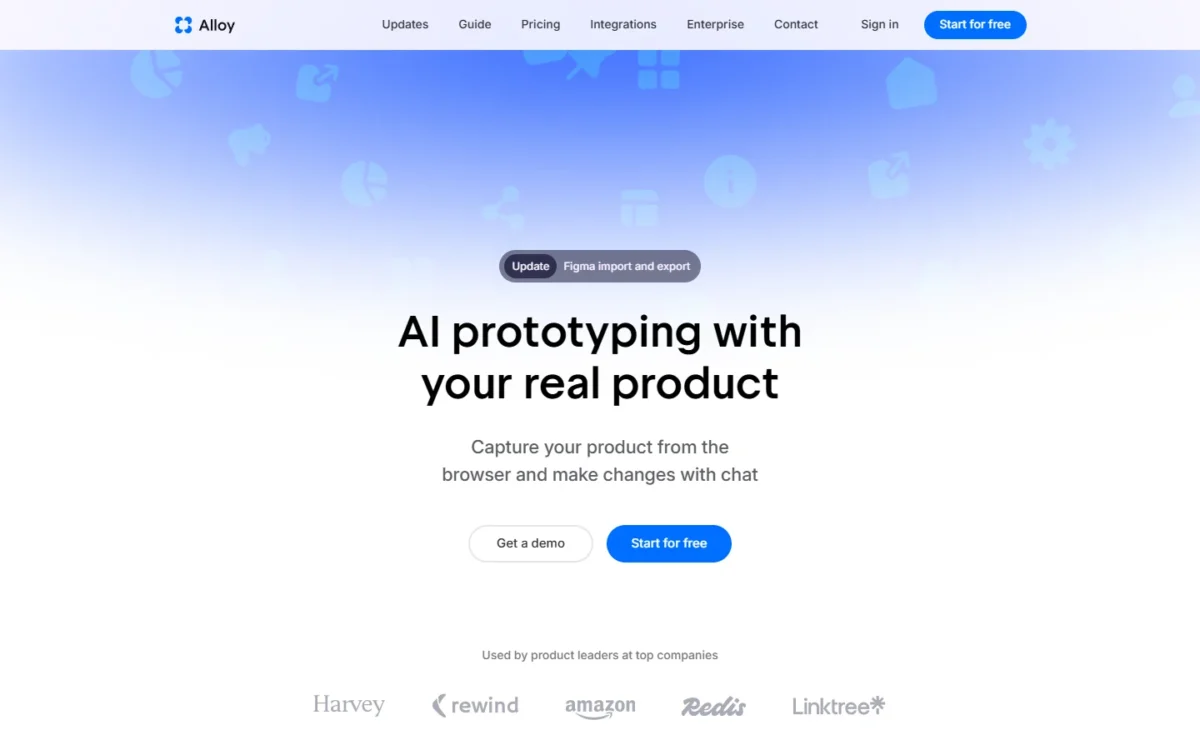
Alloy starts from your real product instead of a blank prompt. Its browser extension captures live pages with no setup; connecting the codebase lets Alloy run the whole app and takes admin permissions and around 15 minutes.
That changes the review for a PM at a company that already ships: stakeholders judge a change inside the actual UI. Each session can become a GitHub pull request, so the prototype can become the change itself.
- Pricing:
- Free is $0 for unlimited users with $5 in credits per user a month. Pro costs $20 per user a month, with $20 in credits per user and Export code; no billing period is printed.
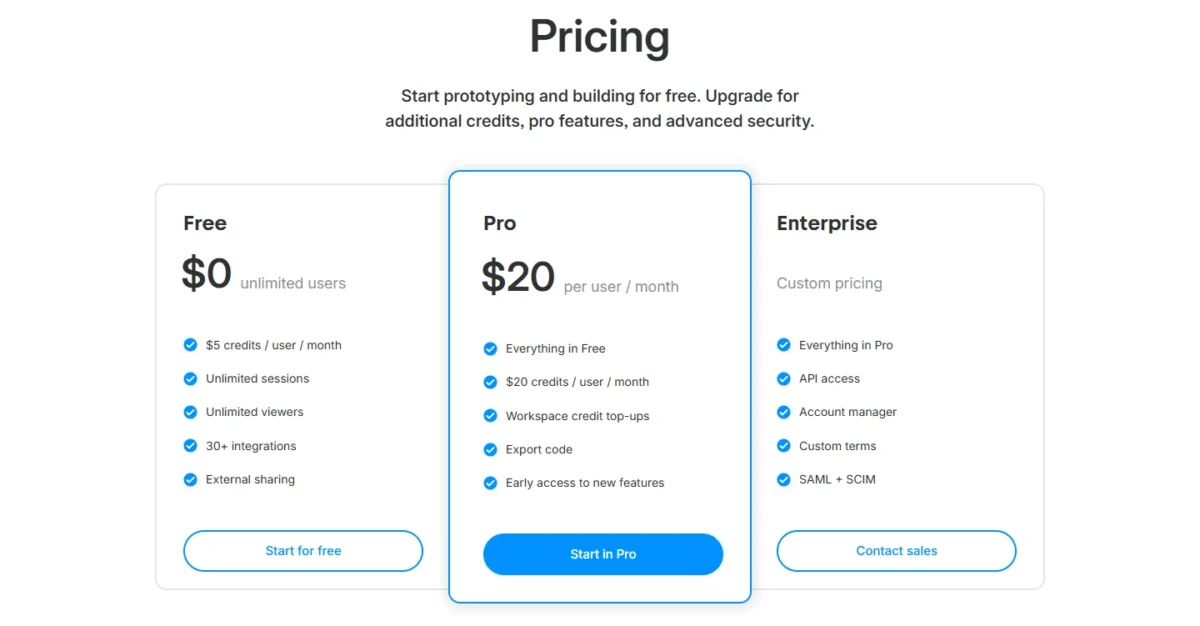
Pro’s fee matches its credits, so the upgrade buys usage and code export, not a seat premium. Google SSO comes with Free and Pro; SAML and SCIM need Enterprise.
- Skip it if:
- you have no product yet; a greenfield idea belongs in Lovable or Bolt.new.
5. v0 by Vercel: Best for Engineering Teams Shipping Through GitHub

For an engineering team, v0 is my pick because of one rule in its docs. Once a GitHub repository is connected, it becomes the source of truth for the project’s code.
v0 can also import an existing repository, then works in branches, preview deployments and pull requests. On Plus, members need access to that repository unless an admin enables Allow v0 to Act on Behalf of Members.
- Pricing:
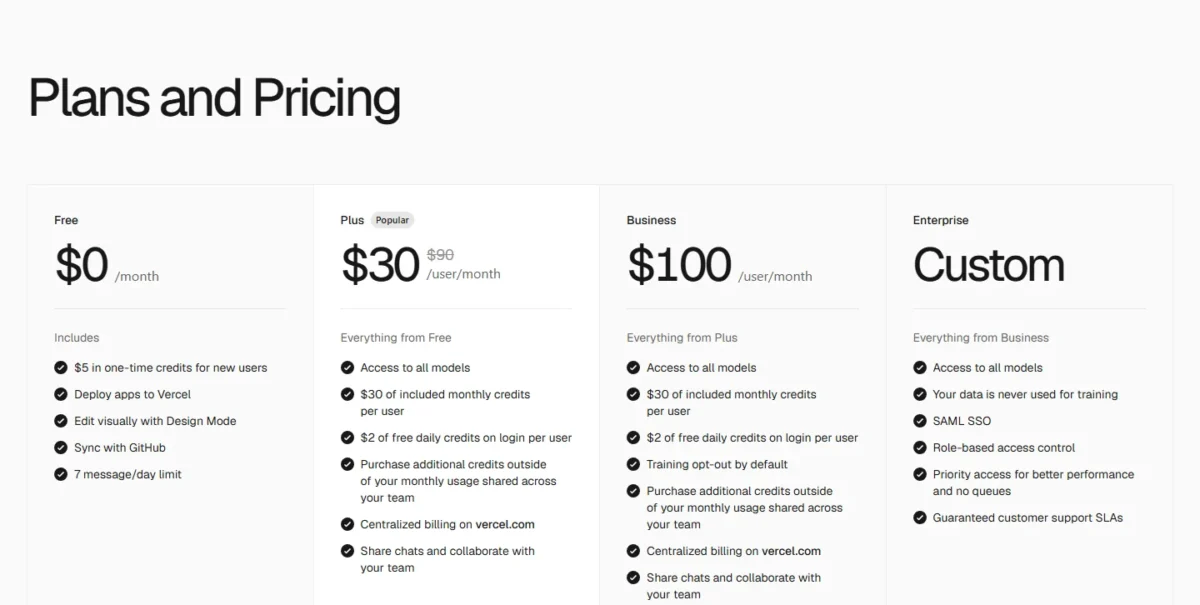
- Plus costs $30 per user a month with $30 of monthly credits per user, plus $2 of free daily credits on login.
Credits drain at model token rates: $30 buys 3M output tokens on v0 Pro ($30 ÷ $10 per million) but 1.2M on v0 Max ($30 ÷ $25 per million).
Training opt-out by default starts on Business at $100 per user a month, and SAML SSO only on Enterprise. v0 also prints $90 beside the Plus price without a label, so recheck it before budgeting.
- Skip it if:
- nobody on the team reviews code or pull requests.
6. UX Pilot: Best for UX Designers Going From Wireframe to Hi-Fi
UX Pilot’s Free plan sends mixed signals on export. The plan table marks Export to Figma and Export to code as Pro and up. Yet my Free account’s Export panel listed Figma, MCP, HTML, PDF and ZIP, with no lock mark.
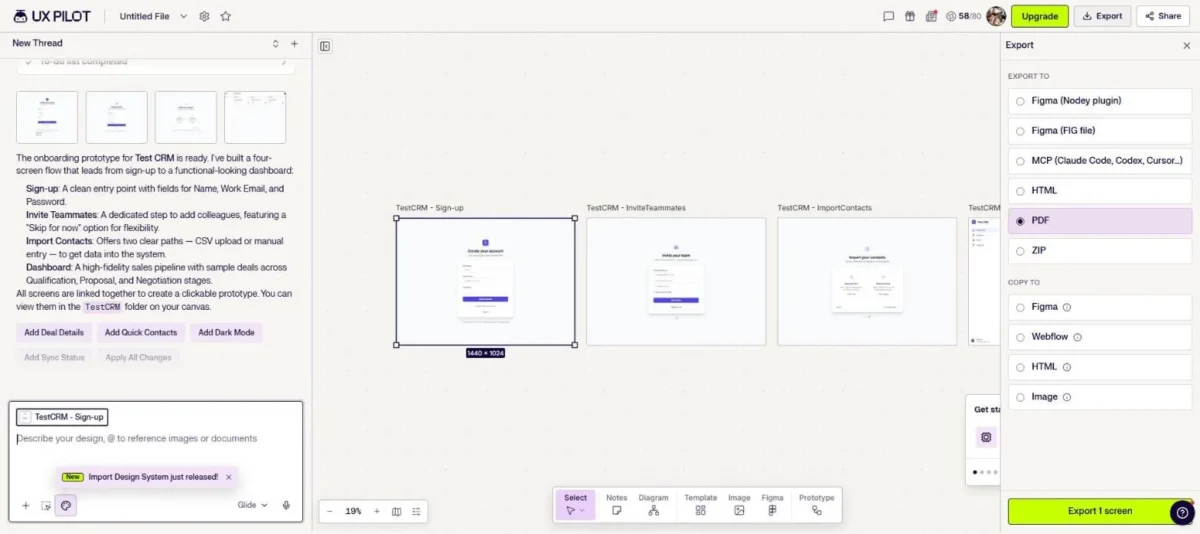
With one screen selected, the “Export 1 screen” button was active, but I did not run an export, so whether Free completes one is untested. Budget the Figma handoff on Pro until you have run one Free export yourself.
In my Free-plan test, prompt A took UX Pilot at most 2 minutes 55 seconds and 22 of 80 daily credits. It wrote a 4-item to-do list, then built Sign-up, Invite Teammates, Import Contacts and Dashboard screens, which UX Pilot said are linked as a clickable prototype, detailed in my UX Pilot review.
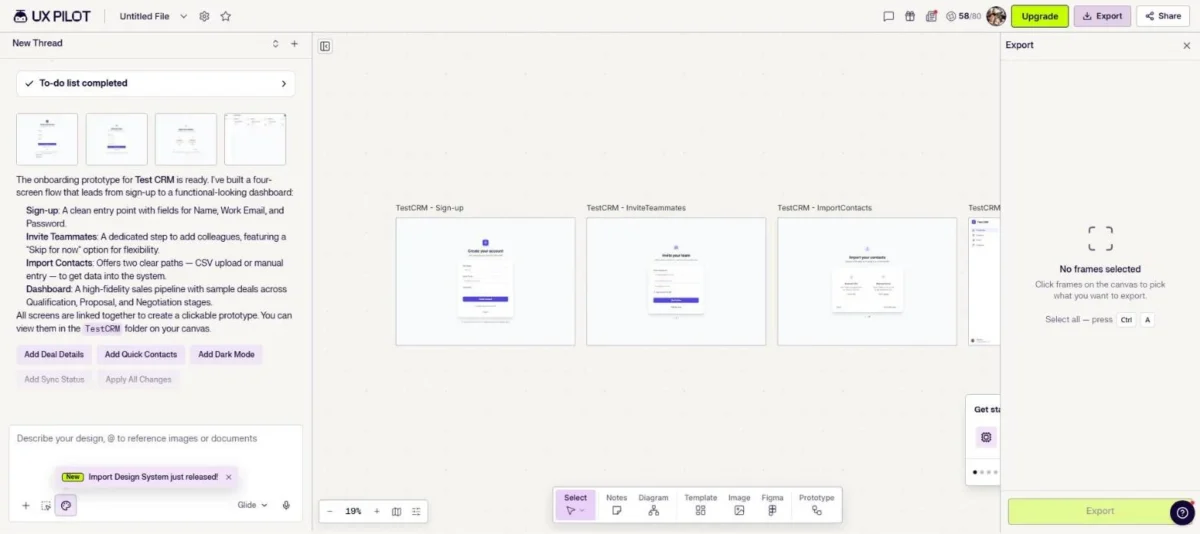
The dashboard filled sample deals across Qualification, Proposal and Negotiation stages. Since Free includes every design feature, it is enough to judge the output on a flow of this size before paying.
- Pricing:
- Pro costs $19 a month billed annually, against a listed $29, with 750 credits a month and 5 projects. Teams costs $31 per user a month billed annually, with 900 credits per user and a shared pool.
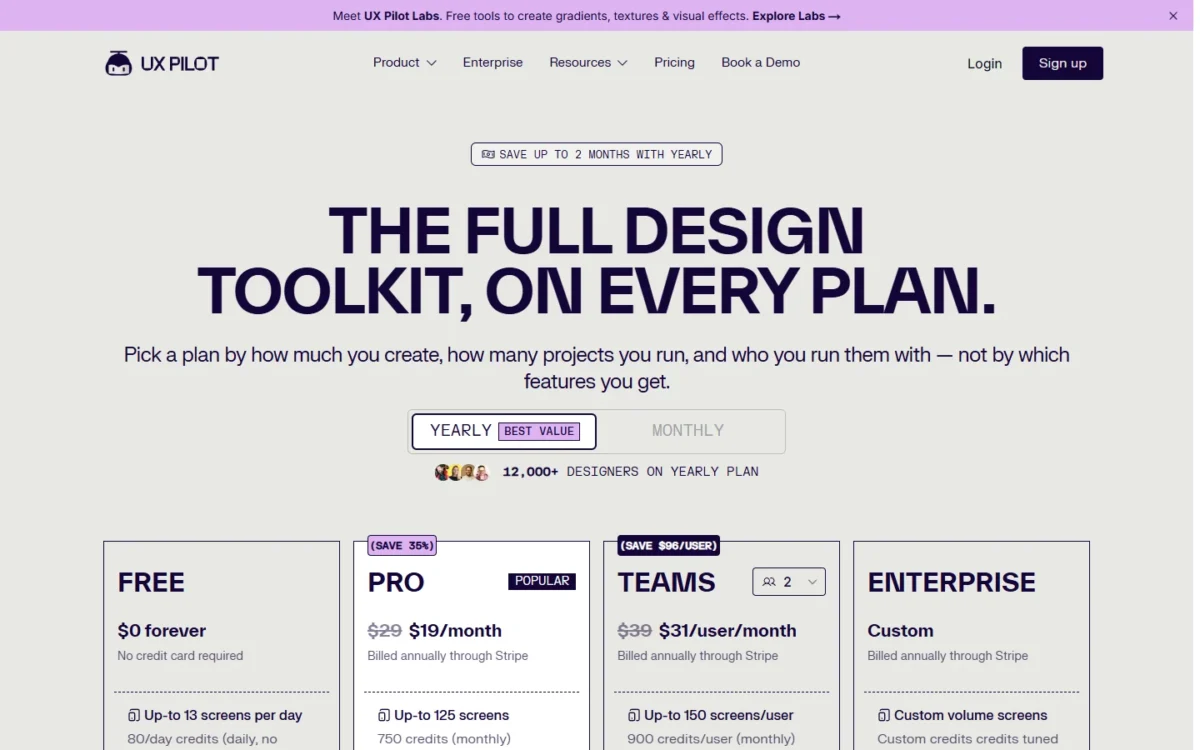
Teams adds $12 per person a month over Pro ($31 − $19) for real-time collaboration, roles and unlimited projects. Two designers who never co-edit can run two Pro plans instead; SSO and SCIM are Enterprise only.
- Skip it if:
- the deliverable is a running app or a change to your live product.
7. Visily: Best Budget Pick for Product Managers
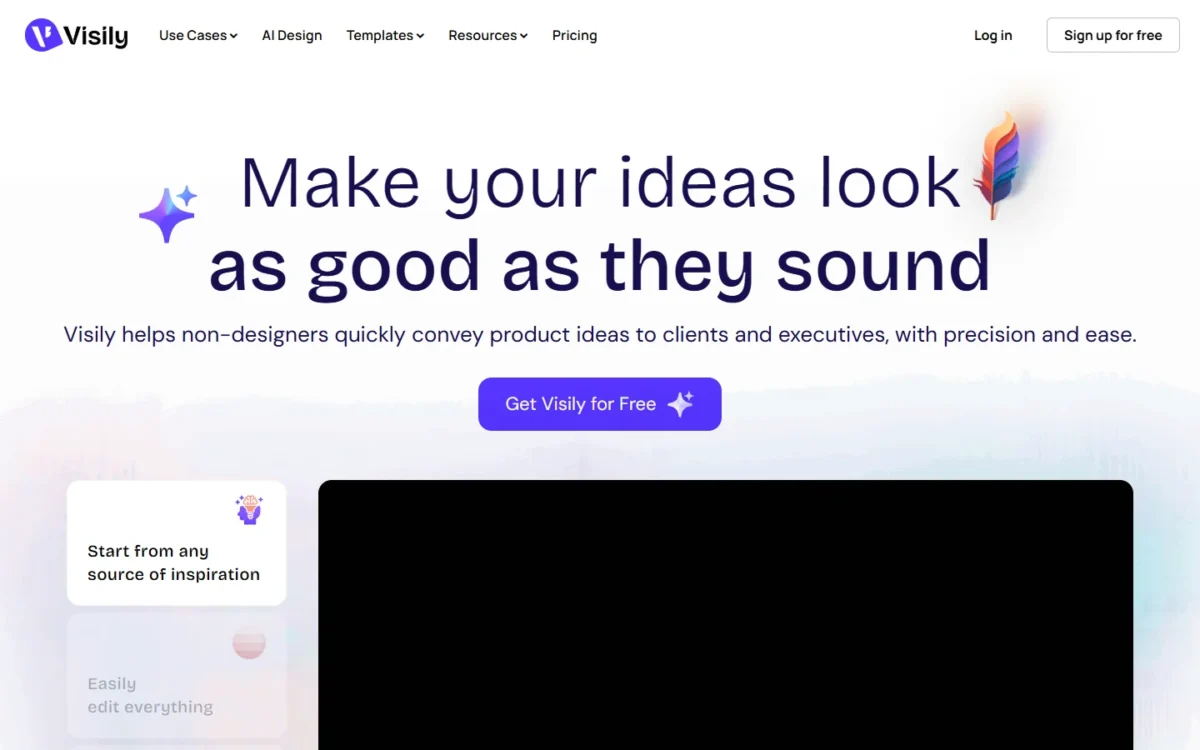
Visily is the cheapest per-editor route here to screens a designer and a developer can both pick up, because its paid plans export to Figma and to code.
Its plan table points at product managers: AI plan mode, Auto Prototype, and Jira, Notion and Slack integrations sit where specs already live.
- Pricing:
- Pro costs $14 per editor a month, with no billing period printed, and includes 3,000 AI credits per editor, Figma export and import, and Export to Code.
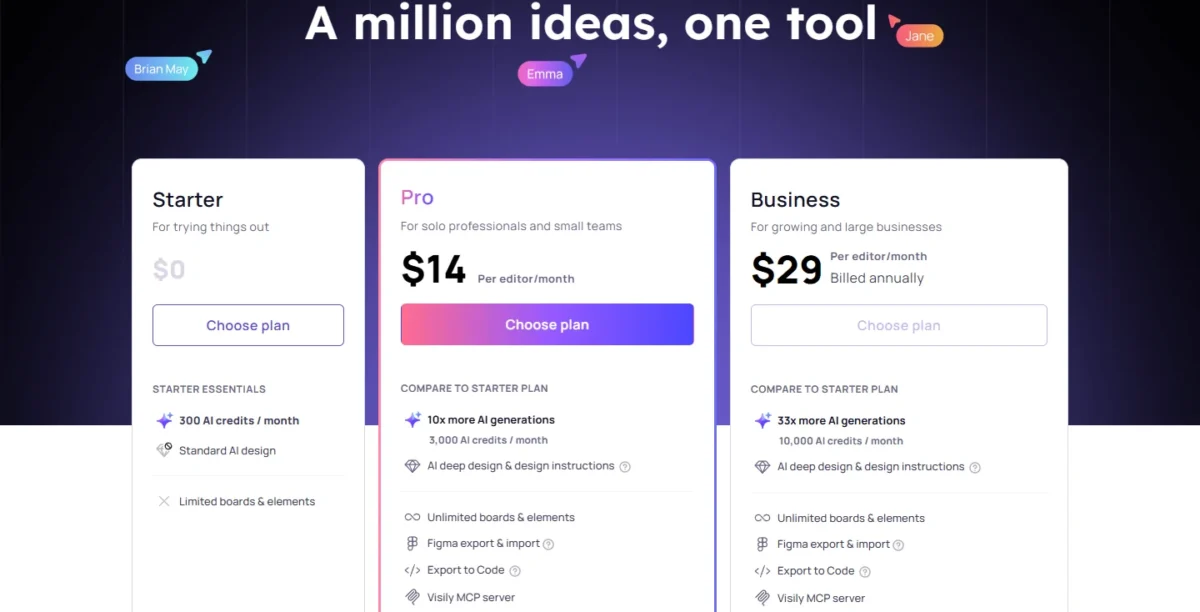
Starter’s 300 free credits are per workspace, not per person, so a whole team shares one small pool. Business costs $29 per editor a month billed annually and adds 10,000 credits and SAML SSO.
- Skip it if:
- the prototype has to run with real data, or your designers already hold Figma Full seats that include Figma Make.
8. Bolt.new: Best for Building Running Code Before You Pay
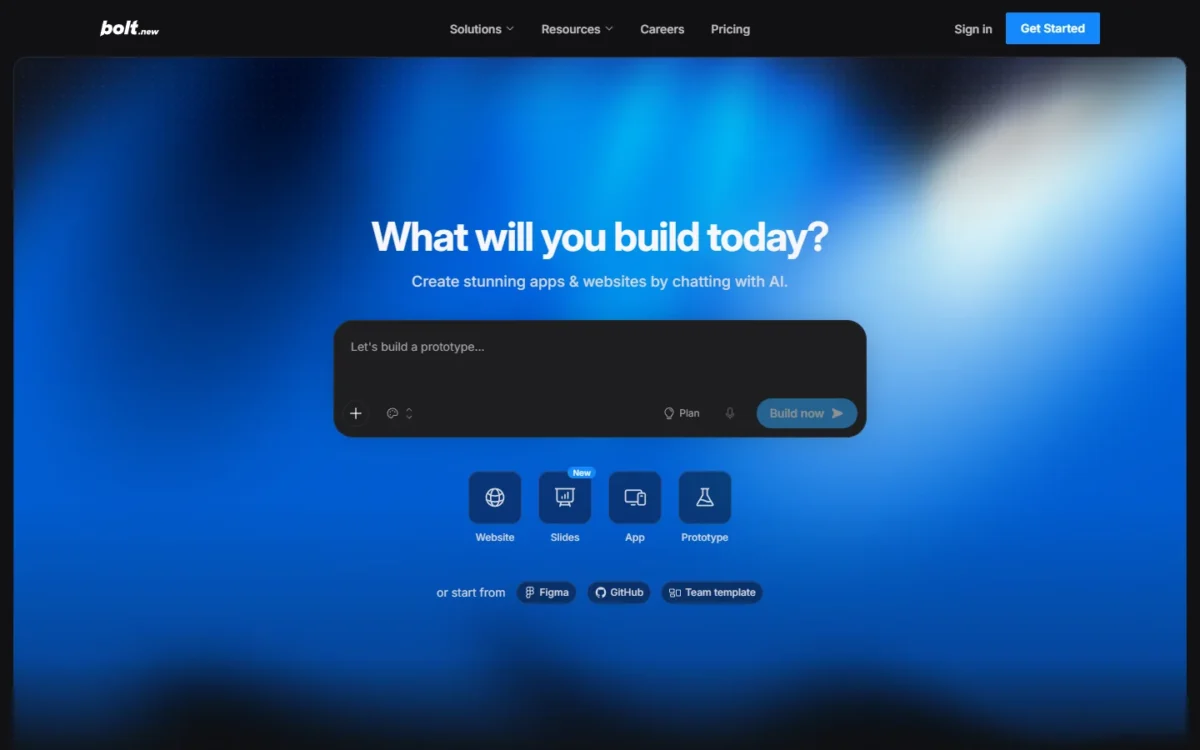
Bolt.new lets you build a working app before paying: Free includes 300K tokens a day, capped at 1M a month, plus hosting and unlimited databases. The catch is Bolt branding on published sites.
Unlike Lovable, Bolt.new can import an existing GitHub project or create a new private repository, so it suits an engineer who already has code. Only the project owner can connect and manage the GitHub integration.
- Pricing:
- Pro costs $25 a month billed monthly or $18 billed yearly, with no daily token limit, 10M tokens a month to start and rollover. Teams costs $30 per member a month, or $27 billed yearly.
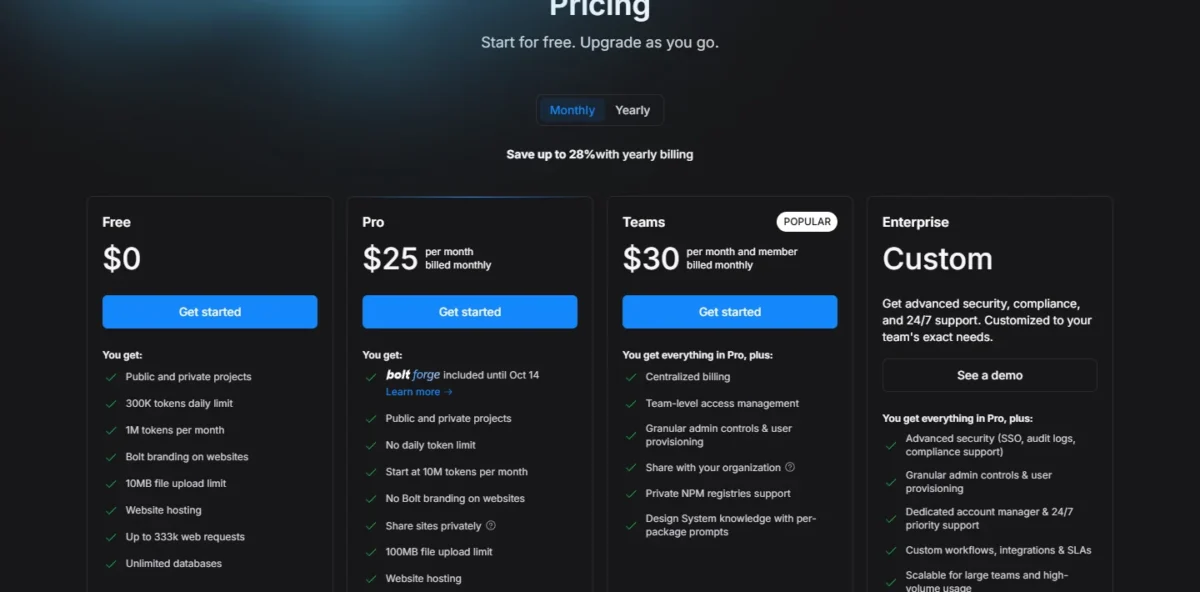
Rollover keeps a slow month’s tokens, which suits a side project built in bursts. Pro also removes the branding and adds custom domains.
This section rests on documentation only: Bolt.new sat out my Free-plan test because its page did not respond to the browser extension.
- Skip it if:
- you only need screens for a stakeholder review, not code.
9. Framer: Best When the Prototype Should Become a Live Website
Framer is a website builder with AI agents, so the prototype is the published site. Its plans price pages, CMS collections, bandwidth and hosting: marketing sites, not app backends.
In my Free-plan test, Framer’s Agent asked 2 questions before building prompt B: which visual direction, and whether repeated buttons and FAQs should be reusable components. I picked the first option for each, and the Agent reported the page done 3 minutes 17 seconds after I sent the prompt.
That session cost 142 of the 500 trial credits (28%). Free’s credits are there to try Agents, so one page this size uses more than a quarter of them before you pay anything.
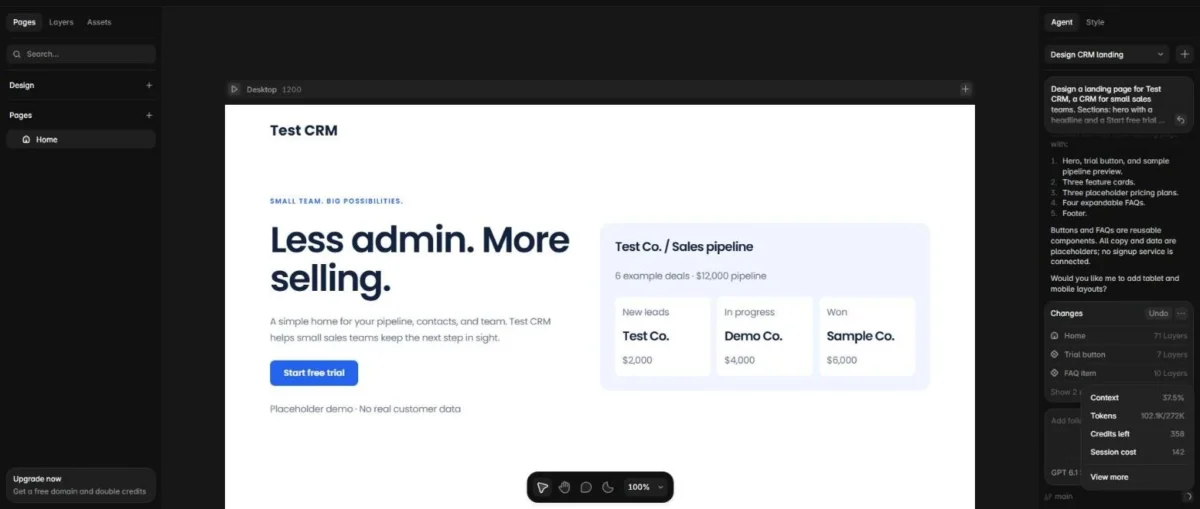
Every requested section came back, with 71 layers on Home and the Trial button and FAQ item made reusable components. The placeholder plans sat under “Illustrative pricing only”, but the pipeline card said “6 example deals” and showed 3.
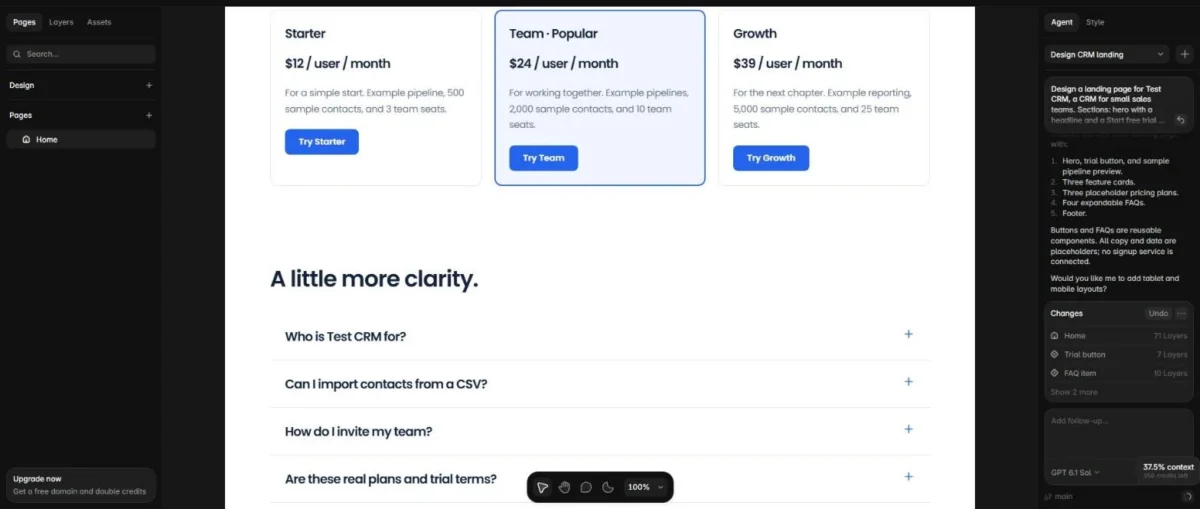
The questions and reusable components suit a team that will keep editing the page, but check counts and copy before it goes live. AI credits are shared across the workspace and its editors, and Basic and Pro include a free custom domain on yearly billing.
- Pricing:
- Basic costs $10 a month billed yearly with 1,000 AI credits a month; Pro costs $30 with 3,000. The workspace owner is included; additional editors cost $20 per editor a month.
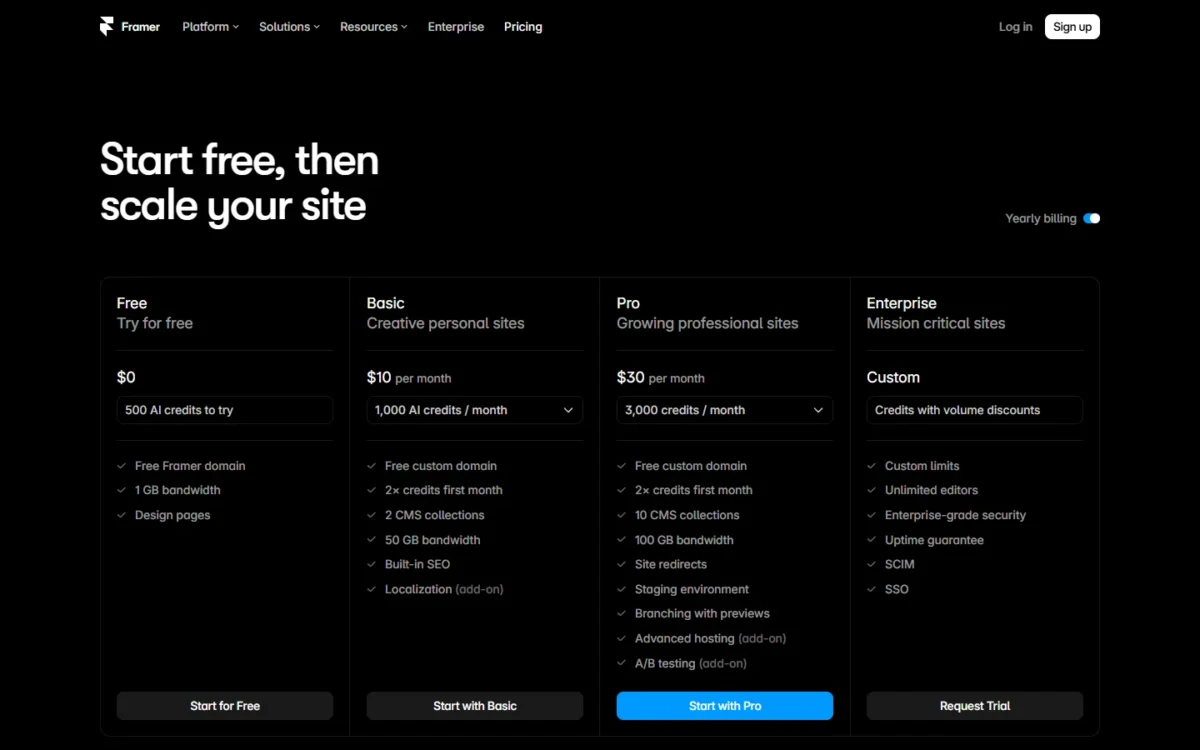
Editors, not the plan, set Framer’s price: four extra editors cost $80 a month (4 × $20), eight times Basic. Content editors cost $10, locales $20 each and advanced hosting $200.
- Skip it if:
- you need an app with a database, or more than 10 people editing, the seat cap on Basic and Pro.
10. Relume: Best for Agencies Planning Site Architecture
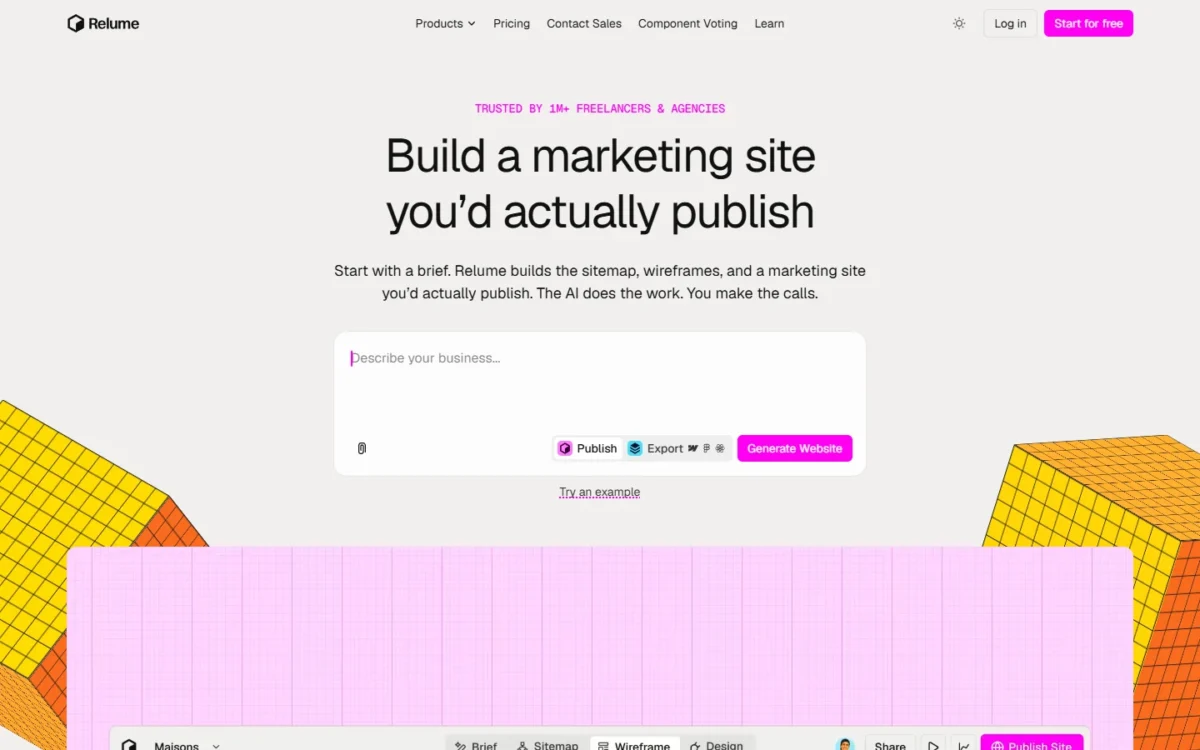
Relume has two price tracks, so an agency should pick the track before the plan. Publish pricing hosts the site on Relume with no per-seat charge; Export pricing charges per user to take the work to Figma, Webflow or React.
Either way, the AI drafts the brief, sitemap, wireframes, designs and style guide, the planning work an agency does before visual design.
In my Free-plan test, Relume asked no questions and ran the brief, a 1-page sitemap, wireframes and design for prompt B on its own, finishing in under 4 minutes. The page had 6 sections, 4 FAQs and two fully styled themes, Indigo Daylight and Midnight Grid.
It generated no images and left the logo slots empty, then listed its own placeholders and suggested a closing call to action. You get structure and styling fast, but the assets are yours to supply.
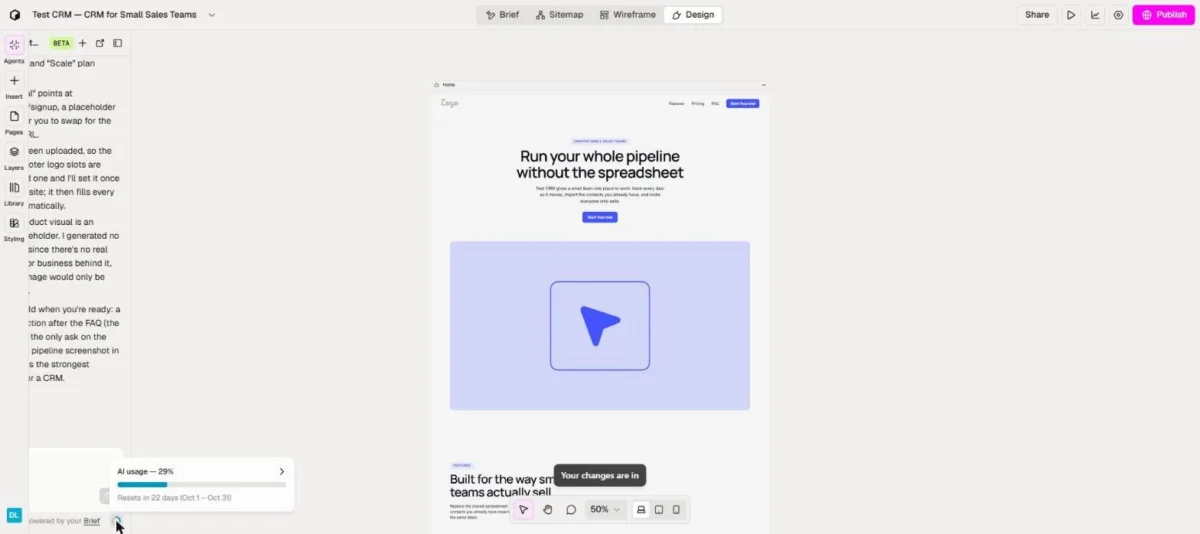
Free includes “enough AI usage to build 1 small website per month”, per Relume’s pricing page. After my one-page build the monthly meter read 29%; I did not read it beforehand, so 29% is the most this build could have used, not its measured cost.
- Pricing:
- On the publish track, Launch hosting costs $12 per site a month (billed $144 yearly) and Pro AI usage starts at $14 a month (billed $168 yearly).
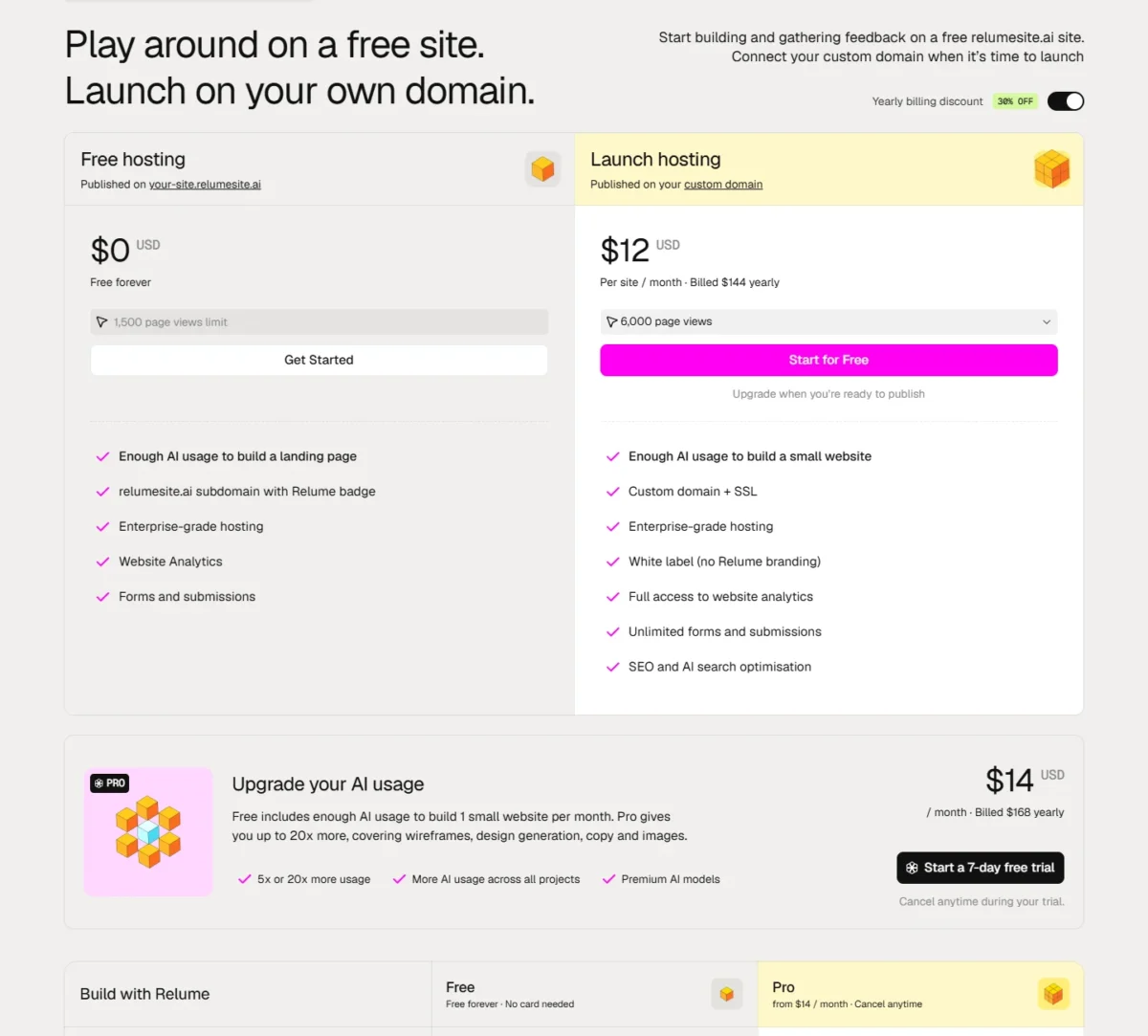
On the export track, Starter costs $18 per user a month (billed $216 yearly) and Pro $40 (billed $480 yearly). Team costs $36 per user with a 3-person minimum (billed $1,296 yearly).
A two-person studio pays $960 a year on two Pro seats ($480 × 2), less than Team’s $1,296 minimum.
- Skip it if:
- you are prototyping an app, not a website.
11. Uizard: Best for Non-Designers Starting From a Screenshot
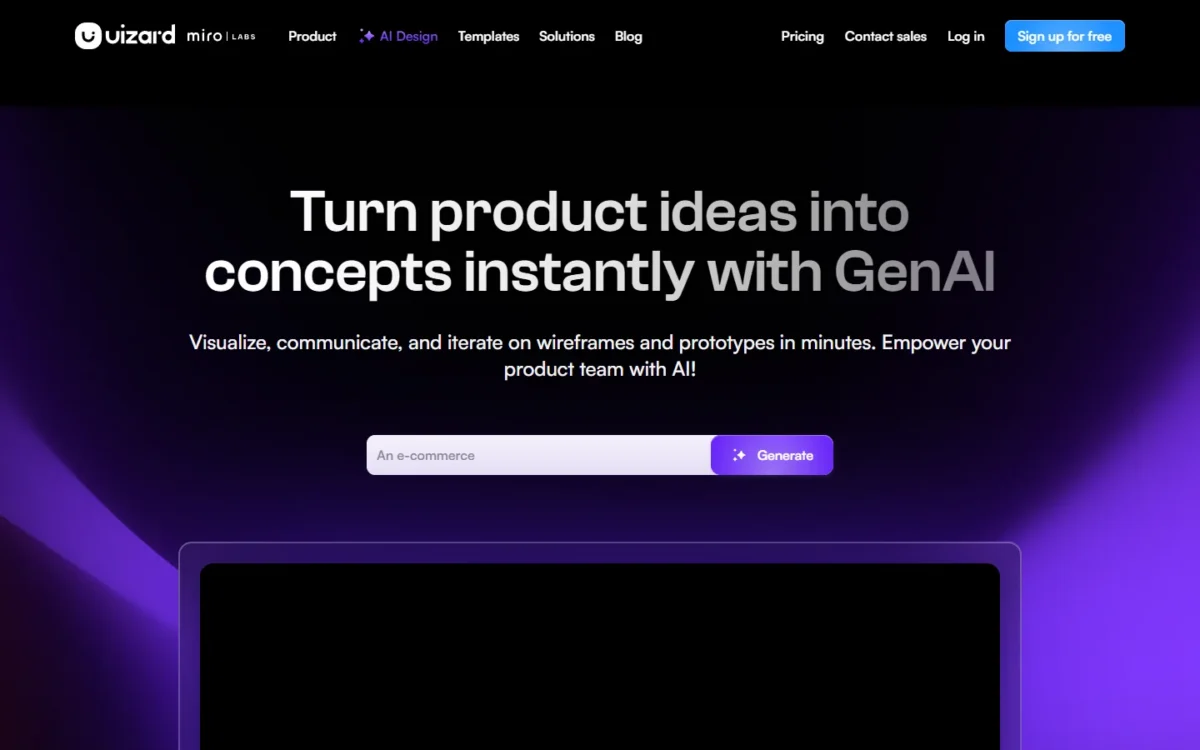
Uizard is the tool I would hand a founder who has a screenshot and no design skills. Screenshot Scanner turns screenshots into editable mockups, and Wireframe Scanner digitizes hand-drawn wireframes.
Free is a demo: 3 AI generations a month, 2 projects and 5 screens per project.
- Pricing:
- Pro costs $12 a month billed annually, which Uizard labels a 40% saving, with 500 AI generations a month and React and CSS developer handoff. Business costs $39 a month billed annually with 5,000 generations.
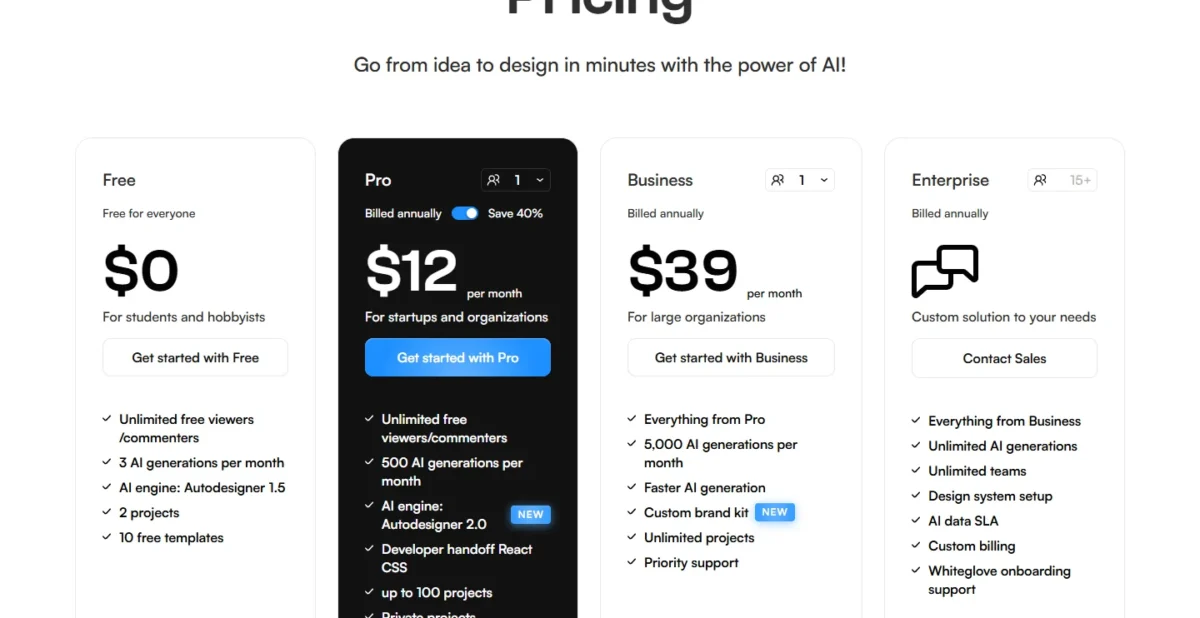
Uizard’s pricing card does not label Pro per creator, and its compare table lists unlimited creators per organization. My team math below assumes one Pro plan per person, the higher cost; one shared plan would cost $144 a year ($12 × 12).
- Skip it if:
- your designers need to keep working in Figma; the pricing page lists React and CSS handoff but no Figma export.
What a 5-Person Team Pays Per Year
For five people over a year, list prices run from $252 on Lovable Pro to $2,160 on Relume’s export Team plan. Most per-seat tools land between $720 and $1,860.
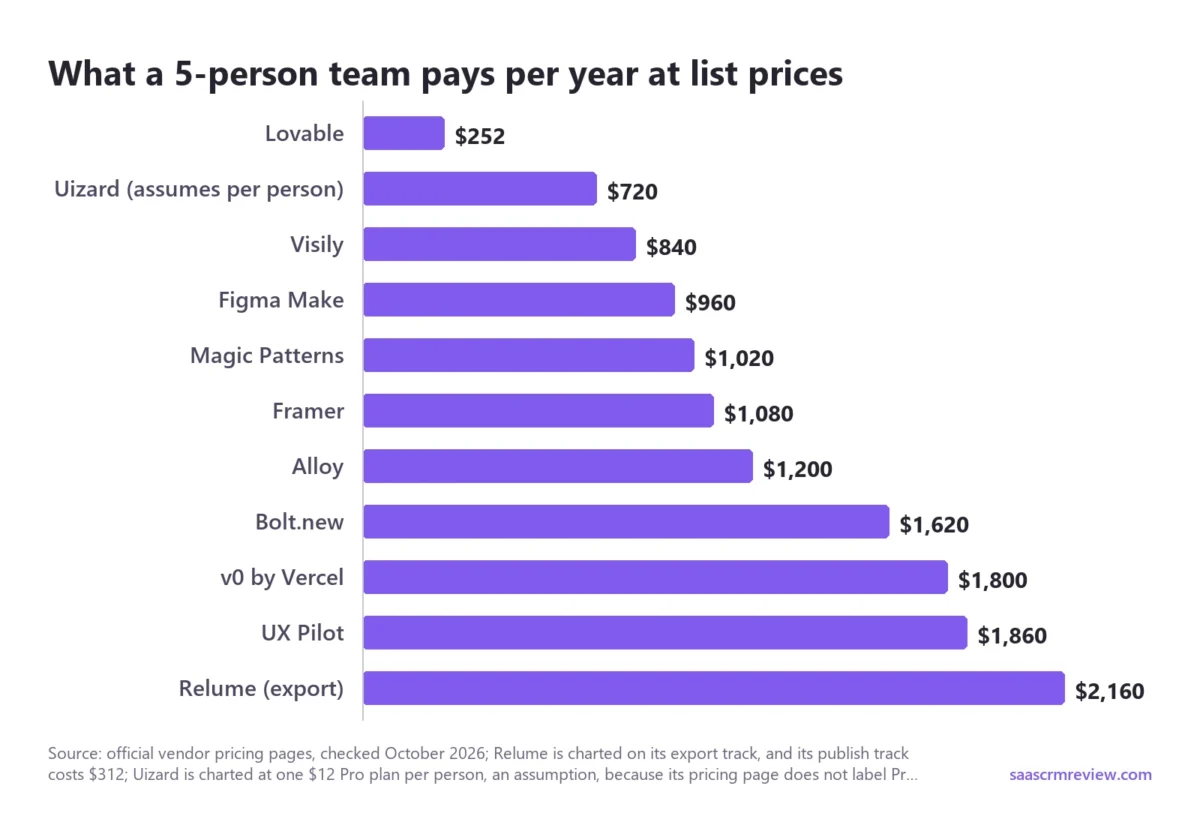
| Tool | Plan for 5 people | Math | Per year | What runs out first |
|---|---|---|---|---|
| Lovable | Pro, one workspace, annual | $21 × 12 | $252 | 100 shared credits a month |
| Relume (publish) | Pro AI usage plus 1 Launch site, yearly | $168 + $144 | $312 | AI usage; 6,000 page views |
| Uizard | Pro × 5, annual (assumes per person) | $12 × 5 × 12 | $720 | 500 generations a month each |
| Visily | Pro, 5 editors | $14 × 5 × 12 | $840 | 3,000 credits per editor a month |
| Figma Make | Professional, 5 Full seats, annual | $16 × 5 × 12 | $960 | 3,000 AI credits per seat a month |
| Magic Patterns | Starter, 5 seats, annual | $17 × 5 × 12 | $1,020 | 1,000 credits per seat, then $0.02 each |
| Framer | Basic plus 4 extra editors, yearly | ($10 + 4 × $20) × 12 | $1,080 | 1,000 shared AI credits a month |
| Alloy | Pro, 5 users | $20 × 5 × 12 | $1,200 | $20 in credits per user a month |
| Bolt.new | Teams, 5 members, yearly | $27 × 5 × 12 | $1,620 | Tokens (Pro starts at 10M a month) |
| v0 by Vercel | Plus, 5 users | $30 × 5 × 12 | $1,800 | $30 in credits per user a month |
| UX Pilot | Teams, 5 users, annual | $31 × 5 × 12 | $1,860 | 900 credits per user a month |
| Relume (export) | Team, 5 users, yearly | $36 × 5 × 12 | $2,160 | AI usage not published |
Sources: Lovable, Relume, Uizard, Visily, Figma, Magic Patterns, Framer, Alloy, Bolt.new, v0 and UX Pilot, checked October 2026.
The spread comes from what each vendor multiplies. Per-seat tools scale with headcount, while Lovable and Relume’s publish track price the workspace or the site, at the cost of one shared credit pool.
I priced UX Pilot at Teams because five people sharing projects need its collaboration, roles and credit pool. Five separate Pro plans would cost $1,140 ($19 × 5 × 12) without them.
On Figma Professional, seats added mid-year are billed monthly at the monthly price unless you add them to the annual subscription. Alloy, v0 by Vercel and Visily Pro print no billing period, so their rows assume the listed price every month.
The Figma pricing breakdown goes deeper into seat types and AI credit math.
A cheap tool gets expensive when the work cannot leave it.
Who Owns the Prototype After You Export It?
The question is whether you can take the design or code out, and for most of these tools you can, but the condition differs. Code tools hand you a Git repository, UX Pilot and Visily hand you Figma files on their paid plans, and Framer prices hosting rather than export.
| Tool | Figma export | Code or Git | Starts from your code or product | What stays behind |
|---|---|---|---|---|
| Figma Make | Native: copy to the canvas | Local codebase mode coming soon | Make kits sync npm packages | Not published |
| Magic Patterns | Not on pricing page | GitHub sync, Starter and up | Screenshots and components | Not published |
| Lovable | Not published; docs list Figma import only | Git sync, all plans; ZIP on paid plans; Code view read-only on Free in my test | No: always a new repository | Database data and uploads export separately |
| Alloy | Current screen, all workspaces | Export code on Pro; GitHub pull request | Yes: browser capture or codebase | Figma Make files not importable yet |
| v0 by Vercel | Not published | Connected GitHub repo is the source of truth | Yes: Import from GitHub | Deleting the repo may lose the code |
| UX Pilot | Pro and up on the plan table; no lock mark on my Free panel, not run | Code export, Pro and up | Figma component import | Whether Free export completes is untested |
| Visily | Pro and Business | Export to Code, Pro and Business | Import from Figma | Starter: images at 1x with watermark |
| Bolt.new | Not published | GitHub sync; new repos start private | Yes: imports a GitHub repository | Not published |
| Framer | Not published | Not published | Not published | Pricing covers hosting, not export |
| Relume | Every plan | React export, Starter and up | Not published | Free: 1 project, 1 page |
| Uizard | Not on pricing page | React and CSS handoff on Pro | Screenshots and wireframe sketches | Free: images at 1x only |
Sources: Figma Make, Magic Patterns, Lovable Git sync, ownership and Figma import, Alloy, v0, UX Pilot, Visily, Bolt.new, Framer, Relume and Uizard, checked October 2026, plus my Free-plan test notes for Lovable and UX Pilot.
If engineering will continue the work, the Starts from your code or product column decides. v0 by Vercel, Bolt.new and Alloy can start from your code, while Lovable syncs out but never imports.
With cost and ownership settled, the choice comes down to your role.
How to Choose by Role, Team Size and Budget
Pick by role first, then let team size choose between per-seat and workspace pricing: the more people who prompt, the more Lovable and Relume’s publish track save.
Two stacks cover common cases. Explore a feature in Magic Patterns, then build the winning flow in Lovable. Or plan the sitemap in Relume, then copy it to Webflow or publish on Relume’s Launch hosting, with the costs in my Relume review.
For product managers
Pick Magic Patterns when screens must match your product’s components, Visily when the budget is tight, and Alloy when the product already exists.
For designers
Pick Figma Make if the team already works in Figma, and UX Pilot Pro if you generate outside Figma and need Figma export back. Designers who want a full suite rather than an AI generator can compare my picks of UI/UX design tools.
For founders and engineers
Pick Lovable for a new app, and v0 by Vercel or Bolt.new when there is a repository to continue. For drafting requirements in chat first, my ranking of the best AI chatbots covers general assistants.
For agencies and marketing teams
Pick Relume to plan and export the site, and Framer to build, host and edit it in one place.
If the budget is zero
Six free plans are worth trying first, each counted in its own unit; for the four I tested, the note shows what my one build used:
- Bolt.new Free for running code: 300K tokens a day, up to 1M a month (not tested).
- Lovable Free for a small app: 5 build credits a day, up to 30 a month; my build used 2.13.
- UX Pilot Free for screens: 80 credits a day; my 4-screen build used 22.
- Framer Free for a landing page: 500 AI credits to try; my page used 142.
- Relume Free for a site plan: enough AI usage for 1 small website a month; after my one page, the monthly meter read 29%.
- Alloy Free for a whole team: $5 in credits per user a month.
I left Figma Starter off this list. It lists 150 AI credits a day, up to 500 a month, but its pricing-page list names drafts, UI kits and templates, not Figma Make.
Teams that only need wireframes, with no AI credits to manage, can start from my list of wireframing tools.
Two popular tools are missing from the ranking, and the reasons matter.
Tools I Left Out and Why
ProtoPie and Google Stitch are left out because neither fits a ranking built on job fit and verified cost.
- ProtoPie: its AI generates interactions inside a prototyping app built on logic, variables and formulas, with paid plans from $25 a month for one seat. That is a different job from turning a prompt into screens or an app.
- Google Stitch: Google calls it an experiment from Google Labs that turns prompts and images into UI designs and front-end code. I keep Labs experiments out of this ranking.
Three buyer questions remain.
FAQ
Are AI-generated prototypes production-ready?
No, not without review. In my Free-plan test, 2 of 4 runs got a count wrong: Lovable’s “STEP 1 OF 3” on a 4-step bar, and Framer’s “6 example deals” card showing 3.
For code, v0 by Vercel follows your repository’s branch protection, so required checks and human reviews can block a publish until someone approves it.
Can AI turn a screenshot into an editable prototype?
Yes. Uizard’s Screenshot Scanner turns screenshots into editable mockups, and Magic Patterns takes screenshots as design context for new features. Google says Stitch can extract a design system from any URL, so new screens follow an existing site’s look.
What should a prototyping prompt include?
Name each screen or section, its fields and the sample data, as both of my test prompts did, and say what to leave out, such as “No backend needed”. Figma Make, for instance, accepts designs, images, videos, audio, text files and PDFs as attachments. My guide to prompt engineering covers the general method.