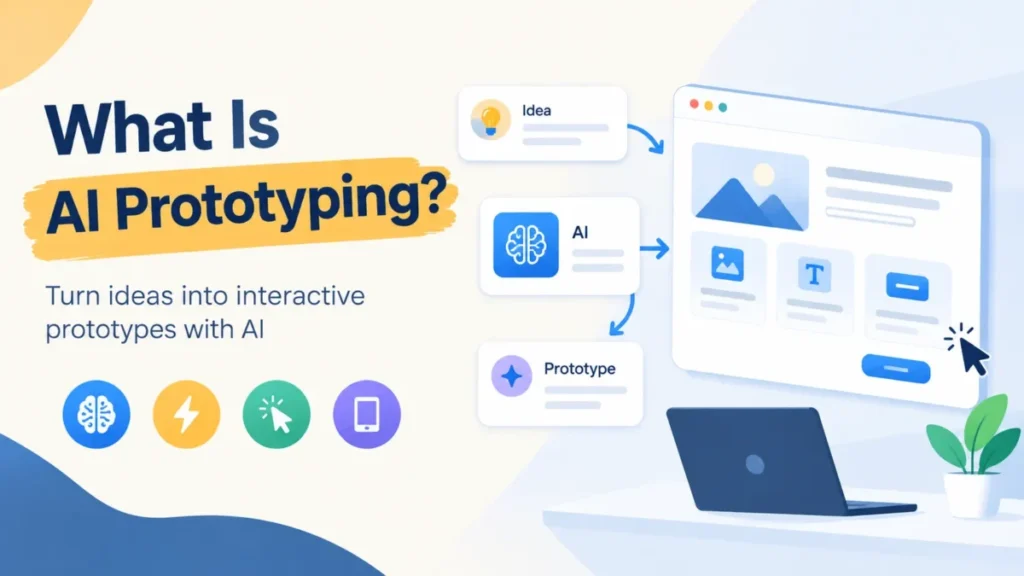
AI prototyping is a way to build a testable version of a product idea by describing it to an AI tool in a prompt, a sketch or your existing designs. The tool generates the interface, the interactions and often the code.
For a PM, designer or founder, that means a clickable idea before any production code exists. The catch is the output type: it decides what you can hand to engineers, whether that is a pull request, a pasted design or a synced code repository.
The tools return five kinds of output: static screens, clickable prototypes, prototypes inside your live product, running apps and websites. All five test an idea; none is a production build. This guide covers prototyping products, not machine-learning models.
Evidence basis: official product pages, pricing pages and documentation, checked October 2026. How I review
In This Article (9 sections)
What AI Prototyping Means, and What It Doesn’t
AI prototyping has four parts: an input, an AI generator, an output and a purpose. You give a prompt, an image, a design or your product; a model returns screens, interactions or code; the point is to test an idea first.
The practice is a form of rapid prototyping, which Figma’s rapid prototyping guide describes as building versions of a product “to test ideas and gather feedback before committing to the whole project.” It is also an application of generative AI to product design.
Figma’s AI prototype generator page says such a tool lets you “create working prototypes by describing what you want in natural language,” which fits clickable prototypes but not screens or websites. The generator is the tool; AI prototyping is the practice around it.
It is not a production build: a prototype answers a question, while production software has to keep working for every user. It is also prototyping a product, not a machine-learning model: the prototype tests an interface or a flow, not a trained model’s accuracy. The next question is what you feed the AI and what comes back.
How a Prompt Turns Into a Prototype
A prompt becomes a prototype in three steps: you supply context, the model generates the interface and usually the code, and you refine the result. In Figma and Lovable, AI requests spend credits, so the loop has a budget.
- Input. Plain text is the minimum. Stitch also takes images such as whiteboard sketches and rough wireframes; Figma Make takes Figma frames, PDFs and design systems; Alloy starts from your live product or its codebase.
- Generation. The model builds screens, layout and logic from that input. Figma Make, Stitch, Alloy and Lovable all produce code behind the screens, while Relume assembles prebuilt components instead of writing raw code.
- Refinement. Figma names three ways to iterate in Make: change the design in the visual editor, edit the code for finer control, or prompt again for a new direction.
Step 1 is where your own context enters. Alloy says it understands your product, component library and design system, and Magic Patterns says it generates UI that matches your existing product.
Take an illustrative dog-walking app that needs a 3-step booking flow. A prompt that names the screens, fields, states and sample data leaves the tool less to guess:
Build a 3-step booking flow for a dog-walking app. Step 1: choose a walker from 3 sample walkers, each with a name, photo and short bio. Step 2: pick 1 of 4 time slots for tomorrow.
Step 3: confirm with the dog’s name and an address. Show an error if no slot is picked and a confirmation screen at the end. Placeholder data only.
Which of the five outputs that prompt should become depends on the handoff.
The Five Kinds of Output You Can Get
AI prototyping tools produce five kinds of output, and they differ most in what you can hand off afterwards:
| Output kind | What you get | Example | What you can hand off | Fits when |
|---|---|---|---|---|
| Screens and mockups | Static UI designs, often with front-end code | Stitch | Designs pasted into a design tool; front-end code | You are exploring layout and style |
| Clickable prototype | Screens with interactions and logic | Figma Make | Figma Design layers; a published link | You need usability tests |
| In-product prototype | A change built on your real product or design system | Alloy, Magic Patterns | A GitHub pull request (Alloy) | It must match what you ship |
| Running app | A working web app with code | Lovable | Code synced to GitHub | The test needs accounts or saved data |
| Website | A marketing site built or edited by AI | Relume, Framer | A published site; export to Webflow or React (Relume) | The deliverable is a site |
Read the table from the right: the handoff you need picks the output kind.
Screens and mockups
Generated screens are enough when the question is visual: which layout, which hierarchy, which style. Stitch was announced on May 20, 2025, as a new experiment that turns simple prompt and image inputs into complex UI designs and frontend code in minutes. It generates multiple variants of an interface and can paste a design into a design tool.
Screens stop being enough the moment a tester needs to click. A static error state shows what the message looks like, not when it appears.
In the illustrative dog-walking example, a screens tool returns the 3 booking steps as static designs to compare.
Clickable prototypes in Figma and other design tools
A clickable prototype adds working interactions and logic, so a tester moves through the flow. Figma Make generates screens, interactions and logic from a prompt, and Figma calls everything built in Make “code-backed and visually editable.”
Make previews turn into design layers you can edit in Figma Design, and Make can simulate data or pull real data through an API. The prototype stays where the design team already works, which is one reason to pick this kind.
In the illustrative example, a tester picks one of the 3 walkers, skips the time slot to trigger the error, then confirms.
Prototypes inside your live product or design system
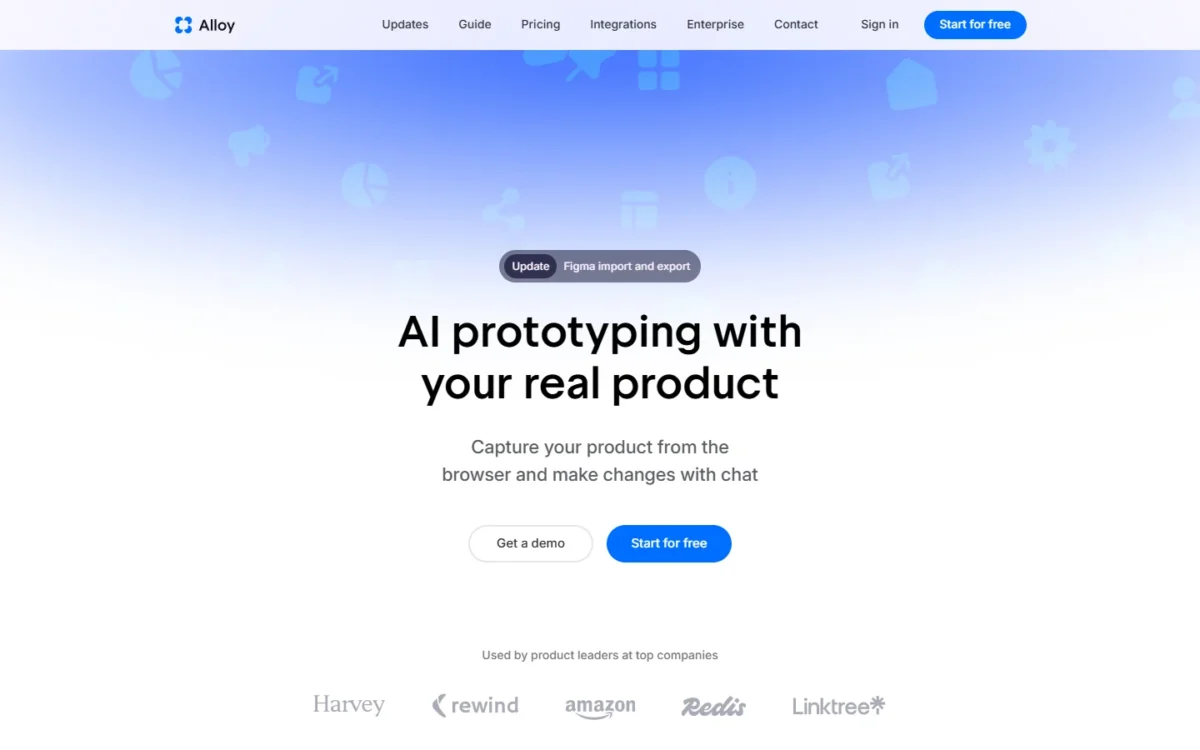
Yes, AI can prototype a change to your existing product when the tool starts from that product. Alloy captures pages with a browser extension that needs no setup, or connects to your codebase, which takes admin permissions and around 15 minutes of setup.
The two routes produce different things. Alloy says the extension is for instant visual prototyping, while a connected codebase lets it write production code that you push to a GitHub pull request. Engineers then review a diff, not a picture.
Magic Patterns takes the design-system route. It imports screenshots, components, styles and design-system rules, and it can copy your app’s styling to match your UI.
In the illustrative example, if the dog-walking app already ships, the booking flow arrives inside its real navigation, as code.
Running apps with real code
You need a running app when the test depends on real accounts or data that survive between sessions. Lovable describes itself as an AI software engineer that builds websites and web apps from chat, with no technical knowledge needed.
The code does not stay locked in the tool: Lovable says you own it and syncs it two ways with GitHub. Whether Lovable itself is worth paying for is a separate question, answered in my Lovable review.
A running prototype is still a prototype. It becomes a minimum viable product only when someone owns the code, reviews it and keeps it running.
In the illustrative example, a booked slot stays booked, so the second tester sees 4 – 1 = 3 slots still free.
Websites
An AI website builder counts as a prototyping tool when the deliverable is a marketing site. Relume says its AI “does not write raw code”: it assembles components its designers built and maintain, then publishes on Relume or exports to Webflow or React.
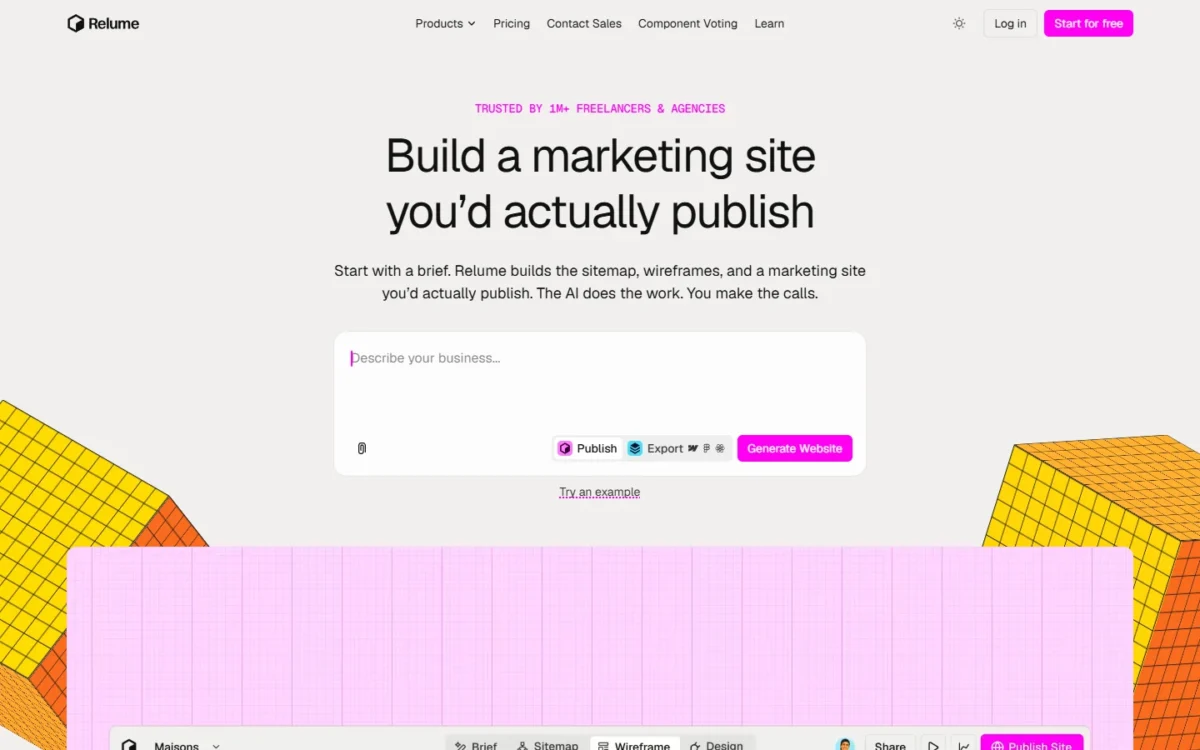
Framer works on the live site itself: its design agent generates and refines in place on your site, and a CMS agent updates your entire CMS. Relume’s export suits a team that builds the final site elsewhere, while Framer’s agent edits the site you will publish.
In the illustrative example, a website builder returns the dog-walking app’s landing page, not the booking flow.
Several of these outputs look like wireframes or mockups, and the running app is what many people call vibe coding.
AI Prototyping vs Wireframes, Mockups, Hand-Built Prototypes and Vibe Coding
AI prototyping is defined by its purpose, testing an idea, while wireframes and mockups are defined by fidelity and vibe coding by method.
Figma’s wireframe and mockup guide calls a wireframe a basic, low-fidelity blueprint and says mockups “focus on form, not functionality”. Google Cloud’s guide credits the term vibe coding to Andrej Karpathy in early 2025: the builder guides an AI that writes the code instead of writing it line by line.
| Term | What it is | Fidelity | Clickable? | Pick it when |
|---|---|---|---|---|
| Wireframe | A layout blueprint with placeholder content | Low | Rarely | You are settling structure |
| Mockup | A static render of the final look | High | No | You need visual sign-off |
| Hand-built prototype | A design wired up with interactions by a designer | Low to high | Yes | You need exact control of each interaction |
| AI prototype | Screens, flows, code or a site generated from a prompt | Varies by output | Usually | You need a testable idea quickly |
| Vibe coding | Software built by guiding an AI that writes the code | Working software | Yes | The software itself is the goal |
| No-code app builder | A functional app built without writing code | Working software | Yes | You want to launch, not only test |
The table hides one overlap: a Lovable app built to test an idea is an AI prototype by purpose and vibe coding by method. What matters is the plan for the code afterwards, the risk side of what vibe coding is.
No-code builders overlap from the other side: Figma’s no-code guide says they let you “build the logic and launch functional products yourself,” so their output is meant to go live. If you only need structure, dedicated wireframing tools do the job without AI.
Which of the four classic prototyping types is it?
The four classic prototyping models are rapid throwaway, evolutionary, incremental and extreme, as Baeldung’s software prototyping guide lists them. In Baeldung’s descriptions:
- Throwaway: built quickly to test approaches, then discarded.
- Evolutionary: a preliminary version that gains features from stakeholder feedback.
- Incremental: separate prototypes for different modules, later combined.
- Extreme: a three-step web method, from HTML pages to a simulated services layer to real services.
I treat an AI prototype as the throwaway kind until someone decides to keep it. It turns evolutionary only when its code is exported, owned and maintained, which is why the export limit below matters more than the demo. First, though, the workflow.
The Workflow From Idea to Handoff
An AI prototype goes from idea to handoff in seven steps; choose the handoff at step 2, not at step 7.
- Write the hypothesis. One sentence on what the prototype must prove, and to whom.
- Choose the output kind by its handoff. Figma layers, a pull request, a GitHub repository and a published site lead to different places.
- Give context, then prompt. Attach your design system or codebase, then name screens, fields, states and sample data. Figma Make’s Plan mode builds an editable plan first, and how to write clearer prompts covers the wording.
- Check the output against the prompt. Count screens, steps and items against what you asked for, and read the generated copy against what is on screen.
- Iterate on a budget. In Figma and Lovable, AI requests spend credits, and Lovable workspace owners and admins can set monthly credit limits for members, so agree a limit before the team starts.
- Test with users or stakeholders. Figma Make and Alloy share prototypes by link, and Magic Patterns is built for testing new features with customers.
- Hand off, then keep or discard. Paste to Figma, raise a pull request, sync to GitHub or export, then decide whether the prototype is thrown away or becomes the start of the product.
In the illustrative dog-walking example, the hypothesis is that owners finish a booking more often when time slots come before walker profiles. The app already ships, so the handoff is a pull request, and 5 owners each book one walk.
The steps are shared, but the output and the handoff change with the person running them.
Who Uses It: PMs, Designers, Founders and Developers
Product managers, designers, founders and developers all prototype with AI, and each role usually needs a different output:
| Role | Typical job | Output that usually fits | Handoff |
|---|---|---|---|
| Product manager | Test a hypothesis or PRD with users | Clickable, or in-product if the product exists | A test link; a spec or pull request |
| Designer | Explore variations in the design system | Screens and clickable prototypes | Editable Figma layers |
| Founder | Put a working app or site before first users | Running app or website | A GitHub repository or a live site |
| Developer | Run a fast spike on the real codebase | In-product prototype | A branch or pull request |
Figma reports that 61% of product builders now say they build interactive prototypes, up from 10% a year earlier. In one Figma study task, designers using Make finished about 19% faster than building manually, and PMs about 9% faster.
Those are vendor figures, and the speed ones come from a single task, so they show direction, not the time your team will save.
A developer may get more from AI coding agents that work in your repository, since the spike lands where the code lives.
Whatever the role, the same three limits decide whether the result can be trusted, kept and afforded.
Limits: Production Readiness, Ownership and Credits
A first-time user meets three limits: a prototype is not tested production software, export paths differ by output kind, and credits meter AI requests in tools such as Figma and Lovable.
Is an AI prototype production-ready?
No, not by default: generated output needs review and testing before real users depend on it. Even Figma’s route from Make to production, “Make on your local codebase (Beta),” is marked “Coming soon.”
Generated output also needs checking before anyone tests it: Figma’s rapid prototyping guide says AI code generation speeds up prototyping, “but the output isn’t always production-quality.” For what came back from real prompts, see this site’s Free-plan test results.
Google Cloud’s guide sets the bar for responsible AI-assisted development: the user “reviews, tests, and understands the code it generates.” A pull request handoff like Alloy’s puts that review in the path before the change rolls out to customers.
Who owns what you build, and can you export it?
Export paths differ by output kind, and the export path is the practical test of whether a prototype can live on as code or only as a design.
Ownership is a separate question: the table below lists export paths only, so read a vendor’s terms before you ship its output. Lovable’s pricing page states ownership outright: you own your code and the AI output you generate, subject to third-party rights in the underlying AI models.
Lovable’s GitHub sync works both ways with github.com on all plans, but existing GitHub repositories cannot be imported into Lovable.
| Output kind | Example | What leaves the tool | Condition or gap |
|---|---|---|---|
| Screens | Stitch | Designs pasted into a design tool; front-end code | As announced on May 20, 2025 |
| Clickable prototype | Figma Make | Design layers in Figma Design; a published URL | Local codebase mode marked “Coming soon” |
| In-product | Alloy | Pull request in GitHub; session export; screen export to a design tool | Screen export works in all workspaces; importing a design needs Pro |
| Running app | Lovable | Two-way GitHub sync; codebase download | Download on paid plans; no import of existing repositories |
| Website | Relume | Published site; export to Webflow or React | The AI assembles components, not raw code |
Sources: Figma pricing and plans and Lovable GitHub sync docs, plus the vendor pages linked above, checked October 2026.
The repository handoffs, Alloy’s pull request and Lovable’s GitHub sync, let a prototype live on as code. Figma Make’s handoff returns the prototype to the design file, which suits a prototype that ends as a design.
How credits cap your iterations
Credits are usage units spent per AI request, not per prototype, and Lovable notes that their value and burn rate depend on the plan and the feature used. Figma’s pricing page says the credits used “varies by request.”
As of October 2026, Figma’s Starter plan includes 150 AI credits a day, up to 500 a month, and its pricing page says included AI credits are subject to change. A Full seat includes 3,000 credits a month on Professional, 3,500 on Organization and 4,250 on Enterprise; Collab, Dev and View seats get 500 a month.
On Starter, the monthly cap bites first: three days at the daily maximum use 150 x 3 = 450 credits, leaving 500 – 450 = 50 for the rest of the month.
Figma says the features your credits work with depend on plan and seat type. Its seat descriptions name Make on the Full seat but not on the Dev or Collab seat.
Check the seat before counting on the 500 credits for Make. My Figma pricing guide covers each seat.
Lovable’s Plan mode costs 1 credit per message, while Default mode varies with task complexity. Its sample prompts run from 0.50 credits (“Make the button gray”) to 1.70 (“Build me a landing page, use images”).
Lovable’s Free plan grants 5 build credits a day, up to 30 a month, so 2 landing-page builds at 1.70 x 2 = 3.40 credits use most of a day.
Lovable prices plans by credits rather than seats, and a workspace shares one pool, so a new teammate drains it faster without raising the bill.
At the 0.50 credits Lovable lists for “Make the button gray,” the same 5 daily credits cover 5 / 0.50 = 10 small fixes. Lovable calls its sample credit costs illustrative, so treat 10 as a rough ceiling for the cheapest edits, not a forecast. Credits measured in real builds are in the Free-plan test results linked above.
With the limits known, the choice of tool comes down to the handoff.
How to Choose the Right Kind of Tool
Choose the kind of AI prototyping tool by the handoff you need, not by the demo:
- If the change must look and behave like your live product, start with an in-product tool that captures your product or reads your codebase.
- If the test needs real accounts or saved data, start with a running app whose code syncs to GitHub.
- If your team designs in Figma and plans usability tests, start with a clickable prototype in the design tool.
- If the deliverable is a marketing site, start with a website builder that publishes or exports.
- If you only need visual direction, a screens generator is enough.
Once the kind is clear, my ranking of the best AI prototyping tools is where to choose a tool within it.
My default for a first project: a Figma team starts with a clickable prototype, a team with a shipped product starts in-product, and a founder without a product starts with a running app. Each choice reuses a handoff the team already has.
The FAQ takes the questions left over, from coding skills to turning a prototype into the product.
AI Prototyping FAQ
Is AI prototyping free?
Yes, to start: Figma says you can try Figma Make for free on the Starter plan, and Lovable’s Free plan grants daily build credits. Those Lovable grants expire at the end of each day and do not roll over, so an unused day does not buy a longer one.
Do I need to know how to code?
No. Figma says Make is built to work without code, though you can edit the code behind a prototype. Someone still has to read that code before it ships, so code skills matter at the handoff, not the prompt.
Can an AI prototype become the real product?
Only if the code leaves the tool and someone maintains it. Lovable, for example, edits and syncs one GitHub branch at a time, so engineers working on another branch must merge into it, or switch the synced branch, before Lovable sees their commits.
What is the best AI prototyping tool?
It depends on the output you need: each kind of tool wins a different job, as the choosing guide above sets out.