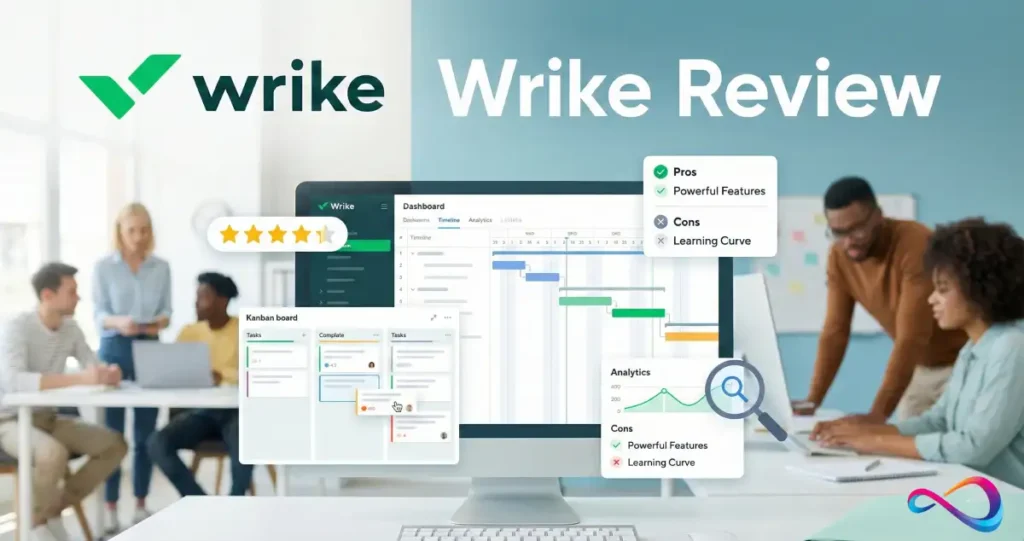
This Wrike Review (2026) breaks down what actually matters if you’re considering Wrike for a real team—not a demo workspace. Wrike is built for organizations that need structured intake, approvals, workload visibility, and executive reporting, but that power comes with complexity and cost as you scale.
In this review, I’ll walk through Wrike’s key features, plan-level pricing, and the practical tradeoffs you should expect in daily use. You’ll also get mini-scenarios you can replicate (marketing ops intake, agency proofing, PMO dashboards), a 14-day trial test checklist, and clear guidance on when Asana, monday.com, ClickUp, Smartsheet, or Jira is a better fit. The goal: help you choose the right tool with fewer surprises.
Wrike Review 2026 – Quick Verdict
| Aspect | Details |
|---|---|
| Best for | Marketing teams, agencies, PMOs, and professional services firms (50–500+ employees) needing advanced resource management, proofing workflows, and executive dashboards |
| Not ideal for | Small teams (<10), solo users, or teams wanting simple, consumer-grade UX; startups prioritizing speed over governance |
| Starting price | Free (limited); paid plans from $10/user/month (Team) |
| Top alternative | Asana for marketing teams prioritizing ease of use; monday.com for operations teams wanting visual flexibility; ClickUp for customization enthusiasts on a budget |
| Key strength | Enterprise-grade resource capacity planning + proofing/approval workflows + flexible dashboards |
| Main limitation | Steep learning curve; interface feels complex for casual users; add-on costs (AI, Proofing) can add up |
Wrike Review 2026: Decision-Only Checks
Use Wrike if…
- You need one system for intake → execution → approvals → reporting (not “tasks + chat chaos”).
- Your real problem is who’s overloaded and when—and you’ll review capacity weekly.
- You must enforce templates, naming, and lifecycle stages across teams/clients.
- Leadership wants portfolio visibility without weekly slide decks.
- You can assign a true workspace owner (admin + governance) and run rollout like a project.
Skip Wrike if…
- You want a tool that “just works” with minimal configuration—and you won’t maintain standards post-launch.
- Most collaborators are occasional stakeholders who will resist a structured workflow UI.
- You expect to scale seats fast without budgeting for enablement and plan-tier upgrades.
What Is Wrike?
Wrike is a cloud-based work management platform designed for cross-functional teams that need to coordinate complex projects, manage resources, automate workflows, and provide executive visibility.
Founded in 2006, Wrike serves marketing teams, agencies, professional services, and PMOs with features like Gantt charts, proofing and approvals, capacity planning, custom dashboards, and AI-powered automation.
Unlike lightweight task trackers, Wrike positions itself as an enterprise-grade solution emphasizing governance, resource management, and intake workflows—making it a fit for organizations with mature processes and distributed teams.

Read full review: 20 Best Project Management Software Picked For 2026
Wrike Core Features (2026)
Wrike’s feature set spans work management fundamentals, advanced automation, resource planning, and AI augmentation. Here’s what you get in 2026—and what actually matters in practice.
Work Management Foundations (Tasks, Projects, Views, Gantt)
What Wrike offers:
- Tasks & subtasks with custom fields, dependencies, tags, status workflows, and priority levels
- Multiple views: List, Board (Kanban), Table, Gantt chart, Calendar, Workload (resource view), and Analytics
- Folders & projects with hierarchical structures, templates (“blueprints”), and cross-tagging
- Dependencies & milestones for critical path planning
- Time tracking & timesheets (native; available on Business tier and above)
Practical take:
Wrike’s task model is powerful but can feel overkill for simple projects. The Gantt chart is excellent for waterfall or hybrid workflows—dependencies update dynamically, and you can reschedule tasks by drag-and-drop. The Workload view (resource capacity) is where Wrike shines: you can see who’s over-allocated, adjust assignments, and forecast availability by role or individual. However, expect a learning curve—new users often struggle with the folder-vs-project distinction and nested hierarchies.
Who benefits most: PMOs, agencies billing by the hour, and operations teams managing multi-phase deliverables.
Workflow Automation & Request Intake (Forms, Approvals)
What Wrike offers:
- Request forms with conditional logic, file uploads, and routing rules (available on Team tier and above)
- AI form builder (2026 update)—auto-generates intake forms from natural language prompts
- Automated workflows triggered by status changes, due dates, or custom field updates
- AI automations (2026)—suggests or auto-creates rules based on project patterns
- Approval workflows for creative assets, budgets, or deliverables (multi-stage, with annotations and version control)
Practical take:
Wrike’s request forms are a standout for centralizing intake—marketing teams can create a “campaign request” form that auto-populates tasks, assigns owners, and triggers approval chains. The AI form builder (launched in 2026) saves setup time but still requires refinement; expect to tweak auto-generated fields. The approval system integrates tightly with Wrike Proof (proofing and approvals for creative files), but note that Wrike Proof is often a paid add-on depending on your plan—check your contract for inclusions.
Who benefits most: Marketing ops, creative services teams, and any department managing high-volume requests with governance requirements.
Reporting & Dashboards (Executive Visibility)
What Wrike offers:
- Custom dashboards with 50+ widget types (burndown, capacity, budget vs. actuals, custom charts, pivot tables)
- AI widget generator (2026; Business/Enterprise/Pinnacle with AI enabled)—builds dashboard widgets from natural language requests
- Real-time data pulled from tasks, timesheets, custom fields, and integrations (e.g., Salesforce, Tableau)
- Pre-built templates for portfolio view, team performance, marketing campaign tracking, and more
Practical take:
Wrike’s dashboards are enterprise-grade—you can build exec-ready views showing project health, budget burn, team utilization, and milestone progress in real time. The AI widget generator is a nice time-saver but occasionally misinterprets complex queries; you’ll still need to know Wrike’s data model. Dashboards require Business tier or higher, which is a dealbreaker for teams on the Team plan. Compared to monday.com’s vibrant, consumer-friendly dashboards, Wrike’s feel more “corporate”—functional but less visually engaging.
Who benefits most: PMOs, professional services leaders, and marketing directors needing C-suite or client-facing reports.
Resource Management & Capacity Planning
What Wrike offers:
- Workload view showing individual and team capacity by hours/week
- Time tracking & timesheets for billable/non-billable hours (Business+ tier)
- Resource allocation forecasting with role-based planning (Enterprise/Pinnacle)
- Capacity heatmaps to identify bottlenecks or over-allocation
- Custom effort fields (e.g., “design hours,” “dev hours”) for granular tracking
Practical take:
This is where Wrike outpaces Asana and monday.com. The Workload view lets you see who’s at 110% capacity, reassign work, and plan hiring or contractor needs weeks in advance. Time tracking is native (no third-party integrations required), and timesheets feed directly into dashboards and reports. However, advanced features like role-based resource scheduling require Enterprise or Pinnacle tiers, which are “Contact us” pricing—expect $30–$50+/user/month or annual contracts. If you don’t actively manage resource allocation, you’re paying for a feature you won’t use.
Who benefits most: Agencies billing hourly, professional services firms, and any team with tight capacity constraints or utilization targets.
AI in Wrike (What’s Real Value vs Hype)
What Wrike offers in 2026:
- AI form builder (auto-generates intake forms from prompts)
- AI automations (suggests workflow rules based on project history)
- AI widget generator (builds dashboard widgets from natural language)
- Mobile inbox prioritization (AI sorts tasks by urgency/impact)
- Powered by Microsoft Azure OpenAI Service; customer data is not used to train Microsoft’s models per Wrike’s security documentation
Practical take:
Wrike’s AI features are useful but not transformative. The form and widget generators save 10–20 minutes of setup time, but you’ll still edit outputs. AI automations occasionally surface helpful patterns (e.g., “tasks in folder X always get assigned to Y”) but require review before enabling. The mobile inbox prioritization is a nice quality-of-life feature but not a game-changer. AI usage may come with credit-based consumption limits (check your plan); heavy users could hit caps mid-month. Compared to ClickUp’s AI, which generates task descriptions and summaries, Wrike’s AI feels more administrative than creative.
Who benefits most: Teams already using Wrike heavily who want incremental efficiency gains; not a reason to choose Wrike over competitors.
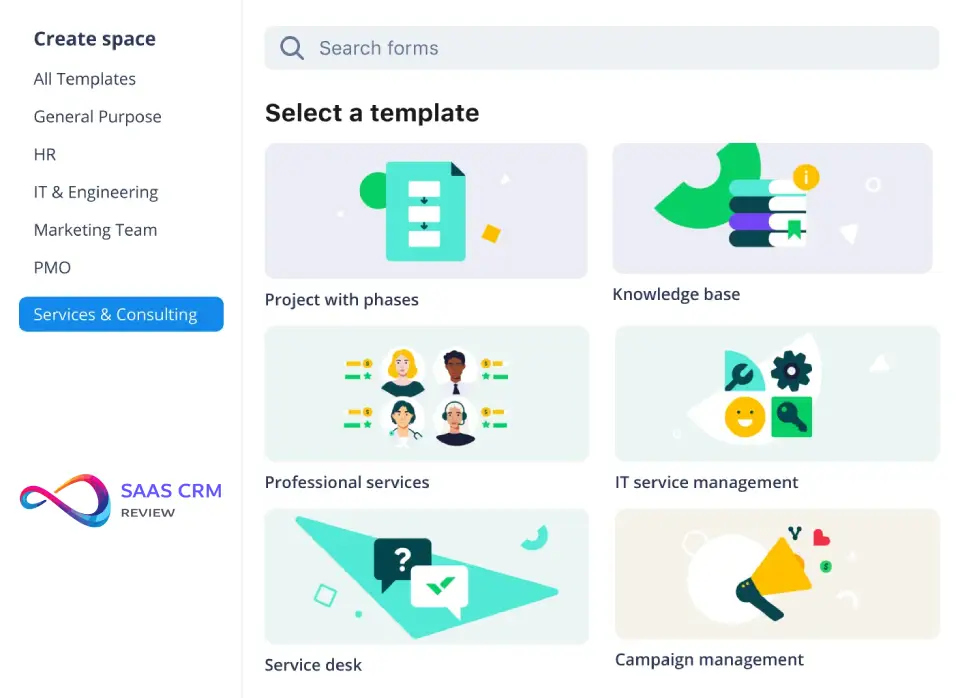
Features only matter if they translate into repeatable workflows your team can actually run. To make Wrike’s capabilities concrete, here are three mini-scenarios that mirror how marketing ops, agencies, and PMOs typically use the platform in the real world. If you can replicate one of these flows in your trial, you’ll know quickly whether Wrike is a fit.
Mini-Scenarios (Real-World Workflows You Can Replicate)
Scenario 1: Marketing Ops Intake Workflow (Campaign + Creative Requests)
Goal: Centralize intake, auto-route work, and enforce SLAs so requests don’t live in email/Slack.
Steps:
- Create one entry point: “Marketing Requests” space/folder.
- Build 3 request forms (Creative Asset / Campaign Launch / Web Update) with required fields (objective, channel, deadline, priority, approver, attachments).
- Add conditional logic (e.g., Paid Social → budget + specs; Video → duration + aspect ratio).
- Route with automation (auto-assign + apply workflow: Draft → Review → Approved).
- Add an approval step at “Review” (Approve / Changes Requested).
- Add an ops dashboard (WIP by status, overdue requests, workload by assignee).
Why it matters: Fewer incomplete briefs, clearer ownership, and measurable throughput.
Scenario 2: Agency Proofing Flow (Client Reviews + Version Control)
Goal: Keep feedback in one place, control versions, and reduce approval chaos.
Steps:
- Use a template project: Brief → Draft → Internal QA → Client Review → Final.
- Standardize deliverables as tasks with subtasks (Copy / Design / Export / QA).
- Enforce version naming (V1 Draft, V2 Revised, V3 Final).
- Trigger approvals on “Client Review” and make the Account Manager the gatekeeper.
- Require client feedback via proof comments (no email approvals).
- Track revision rounds with a simple field (e.g., Revision Count).
Why it matters: Clear sign-offs, fewer lost approvals, and less scope creep.
Scenario 3: PMO Portfolio Dashboard (Executive Visibility + Early Risk Signals)
Goal: Give leadership one view of portfolio health and capacity constraints.
Steps:
- Standardize a portfolio health field (Green/Amber/Red) + minimal statuses.
- Keep fields lean (owner, sponsor, target date, health, top risk).
- Use a consistent project template (milestones + risks/issues list).
- Build a PMO dashboard (health, upcoming milestones, overdue, blocked, workload).
- Add escalation automation when health flips to Red or milestones go overdue.
Why it matters: PMO reporting becomes intervention-driven, not a monthly slideshow.
Wrike Pricing in 2026 (Plans + What You Actually Get)
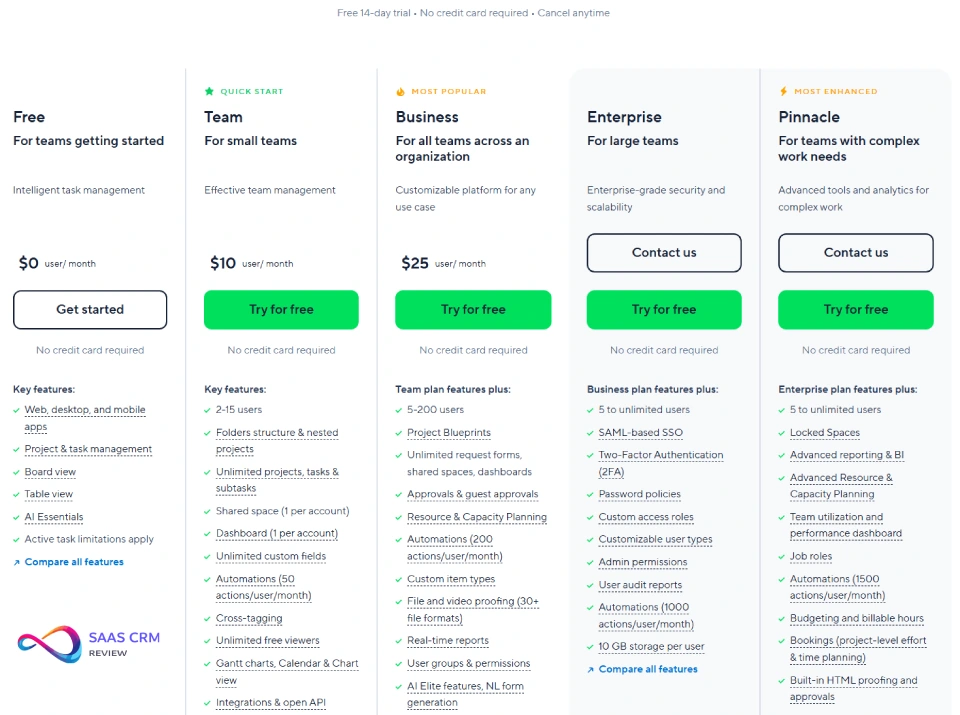
Wrike’s pricing is tier-based, with critical features gated behind higher plans. Here’s the official structure (as of January 2026) and what it means in practice.
| Plan | Price | Users | Key Features Included | What’s Missing |
|---|---|---|---|---|
| Free | $0 | Unlimited | Basic tasks, Board & List views, file sharing (2 GB), @mentions | No Gantt, no integrations, no dashboards, no custom fields, no request forms, no time tracking |
| Team | $10/user/month | 1–200 | Gantt chart, request forms, shareable dashboards (view-only for guests), integrations (400+ apps), custom fields, automations | No time tracking, no advanced resource management, no branded workspaces, no SCIM, limited dashboard widgets |
| Business | $25/user/month | 5–200 | Time tracking & timesheets, advanced reports, custom workflows, user roles, branded workspace, Wrike Lock (file encryption), AI features (with AI add-on) | No role-based resource planning, no portfolio-level budgeting, no audit logs, no custom NDAs |
| Enterprise | Contact sales | Unlimited | Advanced resource management (role-based), portfolio budgeting, SAML SSO, audit logs, 24/7 support, dedicated CSM, advanced security | Need to negotiate; typically annual contracts |
| Pinnacle | Contact sales | Unlimited | Everything in Enterprise + advanced analytics, Tableau integration, custom SLAs, priority support, advanced AI features | Highest cost tier; overkill for most teams |
Source: Per Wrike’s official pricing page.
Best Value Plan Guidance
- For small teams (5–25): Start with Team ($10/user/month). You get Gantt, forms, integrations, and dashboards—enough for most marketing or ops teams. Skip Free; it’s too limited.
- For mid-sized teams (25–100) needing time tracking or billable hours: Go Business ($25/user/month). Time tracking, advanced reports, and branded workspaces justify the upgrade for agencies and professional services.
- For large orgs (100+) needing SSO, audit logs, or advanced resource planning: Negotiate Enterprise. Budget $30–$50/user/month or higher. You’ll get a CSM and dedicated support, which helps with rollout.
- For Pinnacle: Only if you’re running a large PMO (200+ users), need Tableau-level analytics, or have compliance requirements beyond ISO/SOC 2. Most teams don’t need this tier.
Hidden Cost Drivers to Watch
- AI usage credits: AI features (form builder, widget generator, automations) may have consumption caps; heavy usage could trigger overage fees or throttling. Clarify limits with sales.
- Wrike Proof add-on: Proofing and approval workflows for creative assets may be a separate SKU or bundled only in higher tiers. Confirm inclusion.
- Onboarding & training: Wrike’s complexity often requires paid implementation services or admin training (estimate $2,000–$10,000+ for larger rollouts).
- Integrations: Most 400+ integrations are included, but some (e.g., advanced Salesforce sync, custom API builds) may need Enterprise tier or professional services.
- Storage overages: Free = 2 GB; Team/Business = 100 GB–unlimited (check contract). Large creative files can hit limits on lower tiers.
Pricing tables don’t tell you what adoption will feel like—or whether the plan you picked actually covers your workflow. The fastest way to validate Wrike is to run a structured 14-day trial against one real project and one real intake process. Use the checklist below to pressure-test the features that typically make or break a rollout.
What You Should Test in the Trial (14 Days)
Use the trial to answer three questions fast: fit, plan level, and implementation effort.
14-Day Test Checklist (12 Steps)
- Set up a real space/folder structure (avoid demo-only layouts).
- Import one real project (30–50 tasks) to test day-to-day usage.
- Build one intake form for your highest-volume request type.
- Add at least two conditional branches in the form.
- Create one approval flow (Review → Approve/Changes Requested).
- Create two automation rules (auto-assign + auto-dates/status).
- Validate fit across List / Board / Gantt views.
- Test workload/capacity using effort estimates and reassignment.
- If you bill time, run a 3-day time tracking test and review timesheets.
- Build one executive dashboard (health + overdue + capacity).
- Test permissions with two roles (Contributor vs Stakeholder/Guest).
- Test one critical integration end-to-end (Teams/Slack/Drive).
Pass/Fail Signal
If most users can update work after one short training and leadership trusts the dashboard, Wrike is a candidate. If admin/setup overhead dominates, it’s not.
Read our full: Nuclino Review 2026: Features, Pricing, Pros & Cons & Best Alternatives
Wrike Pros & Cons
✅ Pros
| Strength | Why It Matters |
|---|---|
| Best-in-class resource management | Workload views, time tracking, and capacity forecasting are more robust than Asana, monday.com, or ClickUp—critical for agencies and professional services |
| Powerful dashboards & reporting | 50+ widget types, real-time data, and executive-ready views; ideal for PMOs and stakeholder reporting |
| Flexible workflow automation | Request forms + approval chains + conditional logic = strong governance for marketing ops and creative services |
| Enterprise security & compliance | SOC 2 Type II, ISO 27001/27017/27018/27701, SAML SSO, SCIM, audit logs, Wrike Lock encryption—meets procurement requirements for regulated industries |
| Broad integration ecosystem | 400+ integrations (Slack, Microsoft Teams, Google Drive, Salesforce, Adobe Creative Cloud, Tableau, etc.); API for custom builds |
| Scalable for large teams | Handles 200+ users comfortably; folder/project hierarchies and user roles support complex org structures |
❌ Cons
| Limitation | Why It Hurts |
|---|---|
| Steep learning curve | New users find the interface overwhelming; folder vs. project logic, nested hierarchies, and feature sprawl slow adoption |
| Expensive at scale | Once you add AI, Proofing, and Enterprise features, costs climb quickly—$25–$50+/user/month is common; startups and small teams can’t justify this |
| Free plan is nearly useless | No Gantt, no integrations, no dashboards = not viable for real work; feels like a demo license |
| Complex UX for casual users | Wrike optimizes for power users; casual contributors (e.g., occasional stakeholders) find it clunky vs. Asana or Notion |
| AI features feel incremental | Form/widget generators save time but aren’t transformative; ClickUp and Notion offer more creative AI (task generation, writing assistance) |
| Add-on costs unclear | AI credits, Proofing, and advanced integrations may be separate SKUs or capped; requires careful contract review |
Balanced take: Wrike delivers serious power for teams needing governance, resource management, and executive visibility—but you pay for it in cost, complexity, and onboarding effort. If your team isn’t ready to embrace process, Wrike’s strengths become liabilities.

User Experience & Adoption (Learning Curve, Onboarding Plan, Change Management)
Learning Curve
Reality check: Wrike is not intuitive for first-time users. The interface is dense, with multiple navigation modes (sidebar, top menu, breadcrumbs), overlapping concepts (folders vs. projects vs. tasks), and dozens of settings. Marketing and creative teams often need 2–4 weeks to feel productive; admins need 4–8 weeks to master custom fields, blueprints, and dashboards.
Common pain points:
- Folder vs. project confusion: Users struggle to understand when to use folders (organizational containers) vs. projects (work containers)
- Custom field overload: Flexibility is great, but too many fields slow task creation and confuse reports
- Blueprint (template) setup: Powerful but requires admin training to build reusable workflows
Comparison: Asana and monday.com feel 2x faster to onboard; ClickUp is similarly complex but offers better in-app guidance.
Onboarding Plan (90-Day Rollout)
If you’re implementing Wrike, follow this pattern to avoid adoption failure:
Weeks 1–2: Admin Setup
- Assign 1–2 Wrike admins (ideally project managers or ops leads)
- Enroll in Wrike’s free training resources or book paid onboarding ($2,000–$10,000 depending on scope)
- Design your folder structure, user groups, and custom fields before inviting users
- Build 2–3 project blueprints (templates) for common workflows (e.g., “Marketing Campaign,” “Client Onboarding”)
Weeks 3–4: Pilot with Power Users
- Invite 10–20 power users (PMs, team leads) to a pilot
- Run 3–5 real projects in Wrike; gather feedback on friction points
- Iterate on blueprints, dashboards, and request forms based on pilot learnings
Weeks 5–8: Phased Rollout
- Roll out to full teams in phases (e.g., Marketing Week 5, Ops Week 6, Creative Week 7)
- Run live training sessions (1 hour per team); record for future hires
- Create a “Wrike playbook” (internal wiki or Notion doc) with FAQs, screenshots, and workflow diagrams
Weeks 9–12: Optimization & Executive Dashboards
- Build exec-facing dashboards showing portfolio health, team capacity, and milestone progress
- Automate recurring reports (weekly status, monthly capacity forecast)
- Celebrate wins; share examples of time saved or visibility gained
Change management tips:
- Appoint “Wrike champions” in each department to answer questions and evangelize
- Incentivize adoption: tie Wrike usage to team goals or recognition programs
- Integrate Wrike into existing rituals (e.g., weekly standups, monthly business reviews)
Even teams that choose the right plan can struggle if the workspace is over-built or inconsistently governed. In practice, most “Wrike didn’t work for us” outcomes trace back to a handful of predictable rollout mistakes—not missing features. Here are the pitfalls I see most often, along with simple ways to avoid them.
Implementation Pitfalls (Common Wrike Deployment Mistakes)
Wrike is powerful—most failures come from over-building too early.
Common Pitfalls (and How to Avoid Them)
- Field sprawl: Too many custom fields slows work and breaks reporting.
- Fix: Start with 8–12 fields max; add only when tied to a decision/KPI.
- Workflow bloat: Every team invents its own statuses, portfolio visibility collapses.
- Fix: Standardize a core workflow with limited variations.
- Folder/project chaos: Duplicates and confusion spread quickly.
- Fix: Publish simple rules (folders = organization, projects = work containers).
- Permission chaos: Stakeholders either see too much or nothing.
- Fix: Define a role model and test it in the pilot.
- No platform owner: The workspace decays within weeks.
- Fix: Assign one accountable owner + team champions.
- Templates ignored: Every project becomes a one-off.
- Fix: Require templates for top workflows; audit monthly.
- Dashboards without decisions: Pretty charts, no action.
- Fix: Tie each widget to “who acts and what they do.”
- Over-automation early: Rules misfire and create support debt.
- Fix: Run manual 1–2 weeks, then automate stable patterns.
Integrations & Ecosystem (Who Wrike Plays Best With)
Wrike offers 400+ native integrations and a robust API for custom builds. Here’s who it connects with and what to know.
Top Integrations by Category
| Category | Key Integrations | What You Get |
|---|---|---|
| Communication | Slack, Microsoft Teams | Task updates, notifications, and @ mentions in chat; create tasks from Slack messages |
| File storage | Google Drive, OneDrive, Dropbox, Box | Attach files directly; proofing workflows for creative assets |
| CRM & Sales | Salesforce, HubSpot | Sync accounts, deals, or campaigns; track project status in CRM |
| Creative tools | Adobe Creative Cloud (Photoshop, Illustrator, InDesign), Figma | Export assets to Wrike for proofing; version control and annotations |
| Time & Expense | Harvest, Everhour (native time tracking on Business+ tier) | Track billable hours; sync timesheets to invoicing tools |
| BI & Analytics | Tableau, Power BI, Google Data Studio | Export Wrike data to dashboards; combine with other business metrics |
| Dev tools | GitHub, GitLab, Jira (via Zapier/API) | Link commits or issues to Wrike tasks (requires custom setup) |
| Marketing | Google Ads, Facebook Ads, Mailchimp | (via Zapier or API) Track campaign launch tasks and budgets |
Who Wrike Plays Best With
- Microsoft ecosystem users: Deep integration with Microsoft Teams, OneDrive, and Azure AD (SAML SSO) makes Wrike a natural fit for Microsoft 365 shops.
- Salesforce users: Salesforce sync (Enterprise tier) lets sales and marketing align on campaigns, deals, and account plans.
- Creative agencies: Adobe Creative Cloud + Wrike Proof = seamless asset review and approval workflows.
- Professional services: Time tracking + invoicing tools (Harvest, QuickBooks) streamline billable hour workflows.
What’s Missing
- Limited dev tool integrations: Jira and GitHub require Zapier or API work; monday.com and ClickUp have tighter native dev integrations.
- No native Notion or Airtable sync: Teams using Notion for docs or Airtable for databases need Zapier workarounds.
Bottom line: Wrike integrates well with enterprise stacks (Microsoft, Adobe, Salesforce) but feels less flexible for modern SaaS stacks (Notion, Airtable, Linear).
Security, Compliance & Data Privacy (What to Verify in Procurement)
For official security and compliance details (certifications, controls, AI/data handling, and data residency), reference Wrike’s Security Overview in your external citations section.
Procurement Checklist (Security, Compliance & AI Data Handling)
| Procurement area | What to verify | Why it matters / what to ask |
|---|---|---|
| Compliance reports & scope | Latest SOC 2 Type II report and relevant ISO certificates + scope | Confirms controls are audited for the services you’ll use; ask for report date, scope, and any exceptions. |
| Identity & access controls | SSO/SAML, SCIM, MFA, role-based permissions, guest/external access controls | Reduces access risk; ask how provisioning/deprovisioning works and how external reviewers are restricted. |
| Auditability | Audit logs: events captured, retention, export options | Needed for investigations and compliance; ask what actions are logged and how long logs are retained. |
| Encryption & file protection | Encryption in transit and at rest; any advanced file protection options | Confirms baseline security posture; ask about encryption standards and file handling for sensitive assets. |
| Data residency & sub-processors | Available regions, residency enforcement, sub-processor list | Meets regulatory/vendor-risk requirements; ask where data is stored/processed and how changes are notified. |
| Data retention & deletion | Deletion behavior, backup retention, restore windows | Avoids surprises in legal/IT; ask how long deleted data remains recoverable and how deletion requests are handled. |
| AI data handling (if enabled) | What data is processed by AI, admin controls, training/use terms | Prevents unintended data exposure; ask whether customer data is used to train models and how AI can be disabled. |
| Legal docs & incident terms | DPA, breach notification terms, SLAs/support escalation | Sets accountability; ask for breach timelines, support response SLAs, and escalation path for incidents. |
AI Data Privacy (2026 Update)
Wrike’s generative AI features (form builder, widget generator, automations) are powered by Microsoft Azure OpenAI Service. Per Wrike’s security documentation:
- Customer data is NOT used to train Microsoft’s AI models (Azure OpenAI enterprise agreement)
- Data residency: Wrike offers regional data centers (US, EU, AU); confirm your data location during setup
- Encryption: Data is encrypted in transit (TLS 1.2+) and at rest (AES-256)
Wrike’s security is solid—SOC 2, ISO 27k stack, and Azure OpenAI data protections meet most enterprise requirements. Just confirm data residency and review DPAs if you’re in a regulated industry.
Wrike vs Top Alternatives (Decision Table)
How does Wrike stack up against the competition? Here’s a practical comparison for teams evaluating work management platforms in 2026.
| Tool | Best For | Starting Price | Strengths vs Wrike | Weaknesses vs Wrike |
|---|---|---|---|---|
| Wrike | Marketing teams, agencies, PMOs, professional services (50–500 users) | $10/user/month | Best-in-class resource management, proofing/approvals, enterprise dashboards | Steeper learning curve, higher cost at scale, complex UX |
| Asana | Marketing teams, product teams, anyone prioritizing ease of use | $10.99/user/month | Cleaner UX, faster onboarding, strong automation (Rules), excellent mobile app, better task dependencies | Weaker resource management (no native time tracking), limited custom fields on lower tiers, dashboards less flexible |
| monday.com | Operations teams, sales ops, anyone wanting visual flexibility | $9/user/month | More intuitive, colorful/visual interface, faster setup, strong automations, CRM-like flexibility | Weaker Gantt charts, less robust resource planning, fewer governance features (approvals, audit logs) |
| ClickUp | Power users wanting max customization on a budget | Free; $7/user/month (Unlimited) | Highly customizable, built-in docs (ClickUp Docs), AI features, cheaper, native time tracking on Free tier | Overwhelming feature sprawl, occasional performance issues, less polished UX, weaker enterprise security |
| Smartsheet | Teams comfortable with spreadsheets; construction, manufacturing, finance | $9/user/month | Spreadsheet-native UX (low learning curve for Excel users), strong Gantt + dependencies, good for budget tracking | Feels dated vs modern tools, weaker collaboration features (comments, @mentions), limited automation |
| Jira | Software dev teams (engineering-first orgs) | $7.75/user/month | Purpose-built for dev workflows (sprints, backlogs, agile boards), deep GitHub/GitLab integration | Poor fit for non-technical teams; weaker project views, limited resource management, clunky for marketing/ops |
Decision Logic
Choose Wrike over Asana if: You need advanced resource capacity planning, time tracking, or multi-stage approval workflows. Asana is easier to learn but lacks Wrike’s depth in resource management.
Choose Wrike over monday.com if: You need enterprise governance (audit logs, SSO, complex approvals) or your team is comfortable with complexity. monday.com is faster to set up but less powerful for PMO or professional services use cases.
Choose Wrike over ClickUp if: You need enterprise security (SOC 2, ISO, SSO, SCIM) and don’t mind paying for it. ClickUp is cheaper and more customizable but feels less polished and lacks Wrike’s compliance certifications.
Choose Wrike over Smartsheet if: Your team wants modern collaboration (real-time comments, @mentions, integrations) vs spreadsheet-style grids. Smartsheet works well for construction or finance but feels dated for marketing or creative teams.
Choose Wrike over Jira if: You’re not a pure software dev org. Jira is for engineering; Wrike is for cross-functional teams.
Read more: Basecamp Review 2026: Features, Pricing, Pros & Cons
Best Alternatives to Wrike
If Wrike isn’t the right fit, here are 8 alternatives worth evaluating in 2026.
1. Asana (Best for marketing teams prioritizing UX)
What it is: A work management platform emphasizing simplicity, task dependencies, and automation (Rules).
Why consider it over Wrike:
- Easier to learn—onboarding takes days, not weeks
- Cleaner UX—less cluttered interface; better mobile app
- Strong automation (Rules) without the complexity of Wrike’s blueprints
- Better for small to mid-sized teams (10–100 users)
Limitations vs Wrike:
- No native time tracking (requires Harvest or Everhour integrations)
- Weaker resource capacity planning
- Dashboards are less customizable
Pricing: Free; $10.99/user/month (Premium); $24.99/user/month (Business)
Best for: Marketing teams, product teams, nonprofits
Read more: Asana Review 2026: Honest Pros, Cons, Pricing & Best Alternatives
2. monday.com (Best for ops teams wanting visual flexibility)
What it is: A visual work OS with colorful boards, automations, and CRM-like flexibility.
Why consider it over Wrike:
- More intuitive—drag-and-drop interface, visual automations
- Faster setup—get productive in hours, not days
- Strong for operations—sales pipelines, recruiting boards, event planning, inventory tracking
- Vibrant dashboards—more visually engaging than Wrike’s corporate-style widgets
Limitations vs Wrike:
- Weaker Gantt charts and dependencies
- Less robust resource planning (no workload views by default)
- Limited governance features (approvals, audit logs require higher tiers)
Pricing: Free trial; $9/user/month (Basic); $12/user/month (Standard); $20/user/month (Pro)
Best for: Operations teams, sales ops, HR, event planners
Read full review:: Monday.com Review 2026: A Work OS That Scales—But Not for Everyone
3. ClickUp (Best for power users on a budget)
What it is: A highly customizable all-in-one platform with tasks, docs, goals, time tracking, and AI built in.
Why consider it over Wrike:
- Cheaper—Free tier is usable; Unlimited plan = $7/user/month
- More customizable—custom statuses, fields, views, and automations on lower tiers
- Built-in docs and wikis (ClickUp Docs)—no need for separate tools like Notion or Confluence
- Native time tracking on Free tier
Limitations vs Wrike:
- Overwhelming feature sprawl (100+ features)
- Occasional performance issues (slow loading on large workspaces)
- Weaker enterprise security (no SOC 2 Type II on lower tiers; check Enterprise plan)
- Less polished UX—feels “hacky” vs Wrike’s structure
Pricing: Free; $7/user/month (Unlimited); $12/user/month (Business); Contact sales (Enterprise)
Best for: Startups, small agencies, power users wanting max flexibility at low cost
4. Linear (Best for product/engineering teams wanting speed)
What it is: A keyboard-first issue tracker built for software teams.
Why consider it over Wrike:
- Faster UX—designed for developers who live in keyboard shortcuts
- Simpler setup—get productive in minutes, not days
- Deep Slack/GitHub integration—native, not third-party
Limitations vs Wrike: - Not for marketing/ops—very engineering-focused
- No resource planning or time tracking
- Smaller integration ecosystem
Pricing: Free; $10/user/month (Basic); $16/user/month (Business)
Best for: Startups, product teams, engineering orgs escaping Jira complexity
Read full review: Linear Review 2026: Features, Pricing, Pros & Cons
5. Smartsheet (Best for spreadsheet enthusiasts)
What it is: A spreadsheet-based work management platform with Gantt charts, forms, and dashboards.
Why consider it over Wrike:
- Spreadsheet-native UX—low learning curve for Excel/Google Sheets users
- Strong for PMO and construction—Gantt, dependencies, budget tracking
- Good for financial planning—formulas, rollups, budget vs. actuals
Limitations vs Wrike:
- Feels dated vs modern tools (UI hasn’t evolved much)
- Weaker collaboration (comments and @mentions are clunky)
- Limited automation vs Wrike, Asana, or monday.com
Pricing: Free trial; $9/user/month (Pro); $19/user/month (Business); Contact sales (Enterprise)
Best for: Construction, manufacturing, finance, teams comfortable with spreadsheets
Read full review: Smartsheet Review 2026: Features, Pricing, Pros & Cons & Best Alternatives
6. Teamwork (Best for agencies like Wrike but cheaper)
What it is: A project management platform built for client services (agencies, consultancies, professional services).
Why consider it over Wrike:
- Purpose-built for agencies—client portals, billable hours, retainer tracking, profitability dashboards
- Native time tracking and invoicing—no integrations needed
- Cheaper at scale—$10/user/month (Deliver); $18/user/month (Grow)
- Cleaner UX than Wrike for agency workflows
Limitations vs Wrike:
- Smaller integration ecosystem (fewer than 400+ apps)
- Less enterprise-grade (SOC 2, but fewer ISO certs)
- Dashboards less flexible than Wrike’s 50+ widget types
Pricing: Free; $10/user/month (Deliver); $18/user/month (Grow); Contact sales (Scale)
Best for: Agencies, consultancies, professional services (10–100 users)
Read full review: Teamwork Review 2026: Features, Pricing, Pros & Cons & Best Alternatives
7. Notion (Best for small teams wanting docs + tasks in one place)
What it is: An all-in-one workspace combining docs, wikis, databases, and lightweight task management.
Why consider it over Wrike:
- Docs + tasks in one tool—no need for separate wiki (Confluence, Slite) + PM tool (Wrike)
- Cheaper—$8/user/month (Plus); $15/user/month (Business)
- Easier to learn for knowledge-work teams (writers, designers, product managers)
- Beautiful UX—consumer-grade design, templates, and collaboration
Limitations vs Wrike:
- Not a true PM tool—no Gantt charts, resource management, or time tracking
- Weak governance (no audit logs, SAML SSO, or approvals on lower tiers)
- Database views can get complex fast
Pricing: Free; $8/user/month (Plus); $15/user/month (Business); Contact sales (Enterprise)
Best for: Startups, small teams (5–50), product teams wanting docs + lightweight task tracking
Read more: Notion Review 2026 – Pricing, Pros & Cons, Best Use Cases
8. Microsoft Project (Best for traditional PMOs)
What it is: Microsoft’s heavyweight PMO tool with Gantt charts, resource leveling, and portfolio management.
Why consider it over Wrike:
- Deep Microsoft ecosystem integration (Teams, OneDrive, Power BI, Azure AD)
- Traditional PMO features—critical path, resource leveling, earned value management
- Good for government or enterprise with Microsoft contracts
Limitations vs Wrike:
- Desktop-first UX (clunky web/mobile apps)
- Steeper learning curve than Wrike (designed for certified PMs)
- Weaker collaboration vs modern tools
- Expensive (Microsoft Project Plan 3 = $30/user/month; Plan 5 = $55/user/month)
Pricing: $10/user/month (Plan 1); $30/user/month (Plan 3); $55/user/month (Plan 5)
Best for: Large PMOs, government contractors, heavy Microsoft 365 users
9. Airtable (Best for teams wanting database flexibility)
What it is: A flexible database platform with spreadsheet-like UX, custom views, and automations.
Why consider it over Wrike:
- Highly flexible—build custom workflows (CRM, content calendar, inventory, hiring pipeline) without coding
- Easier to learn than Wrike’s folder/project hierarchies
- Strong for operations—marketing ops, sales ops, event planning
- Cheaper—$20/user/month (Team); $45/user/month (Business)
Limitations vs Wrike:
- Not a traditional PM tool—no native Gantt charts, resource management, or time tracking
- Automation less powerful than Wrike or Asana
- Limited reporting vs Wrike’s dashboards
Pricing: Free; $20/user/month (Team); $45/user/month (Business); Contact sales (Enterprise)
Best for: Operations teams, marketing ops, anyone needing database flexibility > traditional project management
Wrike Review 2026 – FAQs
What is Wrike best for?
Wrike is best for mid-size to enterprise teams that need structured intake, approvals, workload visibility, and portfolio reporting—especially marketing ops, agencies, PMOs, and professional services. It’s most valuable when you standardize workflows and reporting, not when you just need lightweight task lists.
Is Wrike free?
Yes. Wrike offers a Free plan, but it’s designed for basic task management and evaluation. Teams that need features like advanced views, forms, reporting, approvals, time tracking, or stronger admin controls usually move to paid plans. Always confirm current Free plan limits on Wrike’s pricing page.
How much does Wrike cost per user?
Wrike publicly lists paid plans that start around Team and Business tiers, while Enterprise-level plans are quote-based. Your effective per-user cost depends on plan selection, billing terms, seat count, and any enterprise admin/security requirements. Check Wrike’s official pricing and confirm final terms in your contract.
Is Wrike good for agencies?
Wrike can be a strong agency fit when you need standardized client intake, structured approvals, version control, and workload visibility. It’s especially useful if you manage utilization and delivery timelines across multiple accounts. Smaller agencies that want simpler setup may prefer lighter tools designed for client services workflows.
Does Wrike have Gantt charts and time tracking?
Wrike supports Gantt-style planning and also offers time tracking/timesheets in higher tiers. Availability can vary by plan and packaging, so verify the exact features included in your subscription before committing. If time tracking is a must-have, confirm plan requirements during your trial or sales evaluation.
What are the best alternatives to Wrike?
Top alternatives depend on your priorities: Asana for simpler UX, monday.com for visual flexibility, ClickUp for customization/value, Smartsheet for spreadsheet-style PMO work, and Jira for software development teams. The best choice comes down to governance needs, reporting depth, and how much configuration your team can support.
Is Wrike secure and SOC 2 compliant?
Wrike markets enterprise-grade security and compliance and is commonly evaluated in environments that require SOC 2 and ISO-aligned controls. For procurement, request the latest compliance reports, confirm scope, and verify access controls, audit logs, encryption, and data residency. Treat security claims as “verify in documentation.”
Does Wrike use AI, and is data safe?
Wrike offers AI-assisted capabilities for workflows and reporting. If you enable AI, confirm what data is processed, what controls exist (opt-in/permissions), and whether customer data is used to train models—then validate those terms in Wrike’s security documentation and your contract/DPA. This is especially important in regulated industries.
How long does Wrike onboarding take?
Expect a structured rollout rather than plug-and-play. Small teams may onboard in a few weeks, while larger organizations often need a phased rollout to standardize templates, workflows, permissions, and reporting. Assigning a platform owner and running a pilot with real projects usually reduces adoption risk significantly.
Should I choose Team or Business?
Choose Team if you need shared project management basics and light structure. Choose Business if you need stronger workflow governance, deeper reporting, and operational controls that make Wrike valuable at scale. The fastest way to decide is to run a 14-day trial against your real workflows and reporting needs.
Final Recommendation (Decision Tree + Next Steps)
Should You Choose Wrike in 2026?
Use this decision tree:
1. Are you a small team (<10 users) or startup wanting fast setup?
- YES → Skip Wrike. Try Asana, monday.com, or ClickUp (easier onboarding, lower cost, simpler UX).
- NO → Continue to Q2.
2. Do you need advanced resource capacity planning (workload views, time tracking, utilization forecasting)?
- YES → Wrike is a strong fit. Compare to Teamwork (cheaper for agencies) or Smartsheet (if spreadsheet-native UX preferred).
- NO → Continue to Q3.
3. Do you need enterprise governance (SAML SSO, audit logs, SCIM, SOC 2, multi-stage approvals)?
- YES → Wrike delivers. Evaluate Enterprise tier (expect $30–$50+/user/month). Also consider Asana Enterprise or monday.com Enterprise if UX simplicity is critical.
- NO → Continue to Q4.
4. Are you a marketing team, creative agency, or PMO with complex workflows?
- YES → Wrike is purpose-built for you (proofing, request forms, dashboards, resource planning). Budget for Team ($10/user/month) or Business ($25/user/month) tiers.
- NO → Continue to Q5.
5. Is budget a primary constraint?
- YES → Try ClickUp ($7/user/month; highly customizable) or monday.com ($9/user/month; easier than Wrike). Wrike’s cost climbs fast at scale.
- NO → Wrike is viable. Pilot on Team plan first; upgrade to Business if you need time tracking or branded workspaces.
Next Steps
If you’re leaning toward Wrike:
- Start a 14-day free trial of the Team plan ($10/user/month)—it’s the minimum viable tier for real work.
- Run a pilot with 10–20 power users on 2–3 real projects (campaign launch, client onboarding, product release).
- Test key workflows: Request forms, Gantt charts, dashboards, integrations (Slack, Google Drive, Salesforce).
- Evaluate learning curve: Track how long it takes users to feel productive. If >2 weeks, reassess.
- Request a demo for Enterprise tier if you need SSO, audit logs, or advanced resource management—sales will provide custom pricing.
- Budget for onboarding: If you have 50+ users, allocate $2,000–$10,000 for training or implementation services.
If you’re still unsure:
- Compare side-by-side: Trial Wrike + Asana + monday.com simultaneously (all offer 14-day trials). Run the same project in each tool and compare setup time, UX, and team feedback.
- Check reviews: Read recent reviews on G2, Capterra, or Gartner Peer Insights filtered by your industry and team size.
- Talk to peers: Ask teams in your industry (marketing agencies, professional services, PMOs) what they use and why.
If Wrike isn’t the right fit:
- For easier UX: Go Asana (marketing teams) or monday.com (operations teams).
- For budget-conscious customization: Go ClickUp.
- For agencies needing billable hours: Go Teamwork (cheaper than Wrike, agency-focused).
- For spreadsheet enthusiasts: Go Smartsheet (construction, finance, manufacturing).
How We Evaluated Wrike
Evaluation Criteria & Scoring Rubric
| Criterion | Weight | What We Assessed | Wrike Score (1–10) |
|---|---|---|---|
| Core PM Features | 20% | Task management, Gantt charts, dependencies, views, templates | 9/10 (excellent depth, but complex) |
| Resource Management | 15% | Workload views, time tracking, capacity planning, timesheets | 10/10 (best-in-class vs competitors) |
| Automation & Workflows | 15% | Request forms, approval chains, conditional logic, AI automations | 8/10 (powerful but requires setup) |
| Reporting & Dashboards | 10% | Custom dashboards, widgets, real-time data, exec visibility | 9/10 (flexible; AI widget generator is nice) |
| Ease of Use & Onboarding | 15% | Learning curve, setup time, in-app guidance, mobile app | 5/10 (steep learning curve hurts adoption) |
| Integrations & Ecosystem | 10% | Native integrations, API, platform compatibility | 8/10 (400+ apps; strong Microsoft/Adobe support) |
| Security & Compliance | 10% | SOC 2, ISO certs, SSO, SCIM, audit logs, encryption, AI data privacy | 10/10 (enterprise-grade; meets procurement bars) |
| Pricing & Value | 5% | Cost vs. features, free plan viability, hidden costs, ROI | 6/10 (expensive at scale; Free plan weak) |
Overall Score: 8.0/10 – Wrike is a powerful, enterprise-ready work management platform best for teams needing advanced resource management, governance, and executive visibility. It loses points for complexity, cost, and onboarding friction.
Information Sources
This review is based on:
- Product documentation: Wrike’s official pricing, feature pages, security documentation, and help center (January 2026)
- User-reported feedback: Aggregate reviews from G2, Capterra, and Gartner Peer Insights (filtered by team size, industry, and recency)
- Competitive analysis: Feature and pricing comparisons with Asana, monday.com, ClickUp, Smartsheet, Teamwork, Jira, Notion, and Airtable
- Industry research: Best practices for work management platform evaluation, procurement checklists, and rollout planning
Disclaimer: This review reflects product capabilities and user-reported experiences as of January 2026. Wrike’s features, pricing, and integrations may change; verify details with Wrike’s sales team or official documentation before purchasing. We have not received compensation from Wrike or competitors for this review.
Final word: Wrike is a serious work management platform for serious teams. If you need resource planning, governance, and executive dashboards—and you’re willing to invest in onboarding—Wrike delivers. If you want simplicity and speed, look elsewhere.
External Citations
- Wrike Pricing Page – https://www.wrike.com/price/ (official plan comparison and pricing details; referenced for Free, Team, Business, Enterprise, and Pinnacle plan features and costs)
- Wrike Security Overview – https://www.wrike.com/security/ (official security and compliance documentation; referenced for SOC 2 Type II, ISO 27001/27017/27018/27701 certifications, SAML SSO, SCIM provisioning, Wrike Lock encryption, audit logs, Azure OpenAI data privacy practices, and data residency)
- G2 Wrike Reviews – https://www.g2.com/products/wrike/reviews (aggregate user reviews and ratings; referenced as social proof for real-world feedback on Wrike’s strengths, limitations, and user satisfaction across industries and team sizes)
About the author

I’m Macedona, an independent reviewer covering SaaS platforms, CRM systems, and AI tools. My work focuses on hands-on testing, structured feature analysis, pricing evaluation, and real-world business use cases.
All reviews are created using transparent comparison criteria and are updated regularly to reflect changes in features, pricing, and performance.