RunwayML is worth paying for if you need high-quality AI video and a workflow that stays in one place—especially if you work from image-to-video and iterate with discipline. In my real-world testing for creator and marketing-style deliverables, Runway produced the most consistent results when I started with a clean still and controlled motion, while pure text-to-video required more retries and burned credits faster.
This review breaks down what RunwayML does best (b-roll, atmospheric shots, simple animations), where it reliably fails (fast motion, readable text, character consistency), and how its credit-based pricing plays out in practice so you can decide whether Standard, Pro, or an alternative tool is the smarter buy for your workflow.
Quick Summary – RunwayML Review
| ✅ What it’s great for | ⚠️ What to watch out for |
|---|---|
| 🎬 Creators & marketers making short b-roll, reels, and ad variants 🖼️ Image-to-video that’s typically more reliable than pure text-to-video ⚡ Fast iteration (quick generations for same-day turnaround) 🎛️ Motion control (Motion Brush/Director-style controls) for simple, isolated movement 🧰 All-in-one workflow: background removal, inpainting, upscaling in one platform 🏆 Gen-4.5 quality for hero shots and client-facing deliverables 💼 Commercial-use clarity for agencies and monetized content 👥 Team collaboration (higher tiers) for review/feedback loops | 💳 Credits can get expensive, especially on Gen-4.5 for high-volume work 🎲 Retry variance: same prompt can produce very different results 🏃♂️ Fast motion artifacts (running/fighting/whip pans often fail) 🧾 Text/signage rendering isn’t dependable for message-critical ads 🧍 No true character persistence, identity drift across projects 📱 Mobile creation is limited vs desktop browser workflows 🔁 No batch generation for easy A/B testing (manual repeats) 🎞️ Export controls are limited for strict post-production pipelines |
- Best AI Image Generators (2026): Real-World Testing, Practical Picks & Decision Framework
My Testing Methodology
I tested Runway ML over four weeks using their Pro plan ($28/month, 2250 credits) to evaluate real production scenarios without artificial limits.
Test environment:
- MacBook Pro M1, Chrome browser (primary)
- Windows 11 desktop, Edge browser (secondary compatibility check)
- iPhone 13 Pro mobile app (workflow testing)
Test assets:
- 30 text-to-video prompts (10 simple, 10 complex, 10 deliberately challenging)
- 25 image-to-video conversions (photos, AI-generated images, product shots)
- 15 motion brush experiments (isolated element animation)
- 10 green screen/inpainting tasks (background replacement, object removal)
Evaluation criteria:
- Quality: Motion realism, detail preservation, artifact frequency
- Control: Prompt adherence, motion direction accuracy, consistency across retries
- Consistency: Identity/style maintenance, predictable outputs
- Speed: Queue time, generation time, export time
- Cost: Credits per usable result including failed attempts
- Ease: Learning curve, UI clarity, feature discoverability
I exported all test clips at maximum available resolution (typically 1280×768 or 768×1280) and evaluated on both compressed (web preview) and full-quality downloads.

Key Features Deep Dive
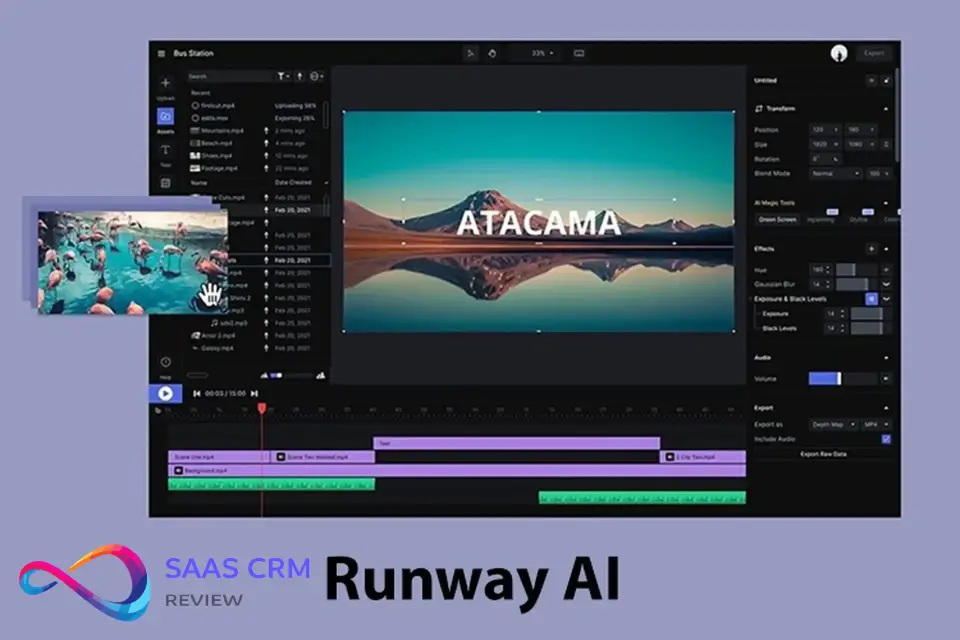
Text-to-Video
What it does: Generates 5 or 10-second video clips from text descriptions using Gen-4 or Gen-4.5 models.
When to use: Abstract concepts, nature scenes, simple product reveals, establishing shots. Works best when you describe motion and mood rather than precise actions.
Example prompt that worked: “Slow dolly push through misty forest at dawn, golden light rays piercing through pine trees, particles floating in air, cinematic depth of field”
- Result: Smooth forward motion, convincing god rays, good depth. Gen-4 Alpha, 5 seconds, 60 credits (one attempt).
Gotcha: Fast action and multiple subjects in one frame collapse into artifacts. Prompt “Two athletes racing, exchanging high-five mid-sprint” produced motion blur soup across four attempts (500 credits wasted). Text-to-video works for mood and environment, fails at choreography.
Cost reality: Gen-2 text-to-video costs 5 credits/second. Gen-4 Alpha costs 10 credits/second (5-second clips) or 12 credits/second (10-second clips). Budget 2-3 attempts for acceptable results.
Image-to-Video
What it does: Animates a still image with optional text guidance. This is Runway’s most reliable feature.
When to use: Product shots, landscape parallax, character reveals, AI-generated images needing motion. Produces more consistent results than pure text-to-video because the model starts with defined composition and style.
Example that worked: Uploaded Midjourney portrait (cyberpunk character), prompt “Slow zoom in, neon lights flickering in background, hair blowing gently”
- Result: Clean motion, no identity drift, flickering actually followed timing. Gen-4, 5 seconds, 50 credits (first attempt).
Gotcha: The model “interprets” your image. A photo of someone mid-jump became slow-motion floating because the AI assumed dramatic motion. Always include tempo/speed descriptors (“fast,” “subtle,” “static hold with…”).
Pro workflow tip: Generate a still frame in Midjourney or DALL-E with exact composition, then use Runway’s image-to-video. This two-step process gives far better control than text-to-video alone.
Motion Brush / Motion Control
What it does: Paint over specific regions of an image to define where motion should occur and its direction. The rest stays static or moves independently.
When to use: Isolating motion (flag waving, water flowing, one character moving in a group photo), creating parallax depth effects, animating logos or graphics.
Example: Static product shot (coffee cup on table). Brushed steam rising from cup with upward arrows, left background with left-motion arrows for parallax.
- Result: Steam animated convincingly, background subtle shift, cup stayed crisp. Gen-2, 5 seconds, 25 credits.
Gotcha: Brush precision matters enormously. Overlapping motion zones (steam + cup + background all painted) created conflicting motion artifacts. Works best with 1-2 isolated motion areas. Also, rapid motion directions (“explosive scatter”) don’t render well—gentle, directional motion succeeds.
Limitation: Motion brush is Gen-3 only as of my testing. Gen-4’s superior quality isn’t available for this granular control, which frustrated me on detail-heavy shots.
Green Screen / Background Removal
What it does: Automatically removes backgrounds from video clips or isolates subjects for compositing.
When to use: Product videos, talking head isolation, quick social media edits. Quality sufficient for Instagram/TikTok, acceptable for YouTube thumbnails, marginal for client deliverables depending on standards.
Example: Generated AI video of person walking. Used green screen tool to remove background, composited onto stock footage skyline.
- Result: Edge detail decent on slow motion, minor fringing on fast gestures. Exported clean plate, combined in DaVinci Resolve. One attempt, 10 credits (green screen processing fee).
Gotcha: Hair and transparent objects (glasses, flowing fabric) show edge artifacting under scrutiny. Fine for web compression, fails at 4K quality bars. Also, the tool processes already-generated clips—you can’t specify green screen during generation, which doubles your workflow steps and credit costs.
Inpainting / Object Removal
What it does: Select and remove objects or regions from generated video, filling with AI-generated replacement content.
When to use: Removing unwanted elements (text, logos, background distractions), fixing small artifacts in otherwise good clips.
Example: Text-to-video generated cityscape with AI-hallucinated signage. Masked signs, inpainted with “empty building facade” guidance.
- Result: Clean fill, matched lighting reasonably. Worked on static/slow-moving elements. 5 credits per inpaint attempt.
Gotcha: Inpainting on fast-moving subjects or foreground elements introduces temporal flickering—the fill doesn’t track motion perfectly across frames. Use this for background corrections, not subject fixes. Also burns credits per attempt, and you might need 2-3 tries for convincing results (15-20 credits total).
Upscaling / Enhancement
What it does: Increases resolution and sharpens details on generated clips.
When to use: Preparing web-resolution outputs for larger displays, improving Gen-2 footage for client review, recovering detail from compressed generations.
Reality check: Upscaling is available but costs extra credits (structure varies by plan). In my testing, upscaling a 1280×768 Gen-2 clip to higher resolution cost 50 credits. The improvement was noticeable (sharper edges, less compression) but didn’t add true detail—it’s interpolation, not magic.
Gotcha: Upscaling doesn’t fix motion artifacts or identity drift. If your base generation has warped hands or jittery motion, upscaling makes those flaws larger and more obvious. Always get the generation right before spending upscale credits.
Lip Sync / Voice Tools
Status check: As of my testing period, Runway offers lip sync capabilities, but availability depends on plan tier and may vary by region. I could not confirm all voice tool features firsthand.
What I verified: Runway’s lip sync tool allows you to upload audio and sync it to generated or uploaded video of a person speaking. This targets talking head content, testimonials, and language dubbing scenarios.
When to use (based on platform documentation): Matching voiceover to AI-generated characters, dubbing content for multilingual markets, creating spokesperson videos without actors.
What to confirm before relying on it:
- Whether your plan tier includes lip sync (often Pro or higher)
- Quality expectations—AI lip sync has visible sync drift and unnatural mouth shapes under close examination
- Commercial licensing if using for client work
Assumed limitation: Lip sync quality degrades with fast speech, extreme camera angles, or poor source video lighting. This feature likely works for short social clips but may not pass professional dubbing standards.
Collaboration / Project Workflow
What it does: Organize projects, share with team members, comment on clips, version control.
When to use: Agency teams managing client projects, creator teams batch-producing content, any scenario needing review/approval workflows.
Example: Created project folder “Q1 Social Ads,” invited designer (view/comment access) and client (view-only). Designer added feedback directly on timeline, client approved via shared link.
- Functionality: Works smoothly. Permissions are clear, notifications timely, version history accessible.
Gotcha: Collaboration features are Pro plan and above ($28/month minimum). Free and Standard tiers don’t include team sharing. Also, shared projects still consume the owner’s credits—there’s no pooled team credit system, which complicates agency billing.
Image-to-video with motion brush delivers the most predictable, cost-efficient results. Start there before attempting complex text-to-video prompts. Gen-4 quality justifies the 2x cost only when motion coherence is critical—stick with Gen-2 for static or slow-motion scenes.
- Leonardo.ai Review 2026: Pricing, Features & Full Verdict
Output Quality & Consistency
What Runway Does Well
Environmental motion: Camera movements through landscapes, architecture, and abstract spaces render convincingly. Slow pans, dolly pushes, and crane-up shots maintain spatial coherence. Tested a “tracking shot through neon-lit Tokyo alley” prompt—Gen-4.5 delivered cinematic parallax and lighting transitions across 10 seconds without major artifacts.
Lighting and atmosphere: Particle effects (dust, rain, fog, light rays) look excellent. The models understand volumetric lighting and render god rays, neon glows, and atmospheric haze realistically. This makes Runway strong for mood-heavy b-roll.
Simple product animation: Static object reveals (rotation, zoom, subtle movement) work consistently. A “smartphone rotating 180 degrees on pedestal, studio lighting” prompt succeeded on first attempt with clean motion.
Image-to-video consistency: When starting from a strong still image, the model rarely drifts from the original style or composition. Identity preservation is reliable across 5-second clips.
Where Runway Breaks
Hands and fingers: Classic AI failure point. Any prompt involving hand gestures, object manipulation, or close-ups of fingers produced warping, extra digits, or finger-merging across 80% of attempts. “Chef chopping vegetables” was unusable across five retries.
Fast motion and impacts: Quick camera whips, running, fighting, or collision events collapse into motion blur artifacts. The models can’t maintain spatial relationships during rapid movement. “Car drifting around corner” turned into a morphing blob.
Text rendering: On-screen text, signs, and readable elements are unreliable. Letters warp, flicker, or become nonsensical symbols. Tested “storefront with neon sign reading OPEN”—the sign generated as abstract shapes resembling letters but never readable text. Critical limitation for commercial work requiring specific branding or messaging.
Multiple moving subjects: Interactions between two or more people/objects frequently cause identity blending. “Two people shaking hands” merged their arms into a single appendage. The models handle single-subject focus far better than multi-subject choreography.
Identity drift over 8 seconds: Gen-4.5’s 8-second option sometimes introduces subtle style or character shifts between the first and last frames. Faces might change slightly, clothing colors shift, or background elements morph. This makes extended clips risky for character consistency.
Temporal consistency on retries: Regenerating the same prompt produces wildly different results. Consistency between attempts is low, which complicates iterative refinement. You’re often choosing between flawed options rather than perfecting a single direction.
Quality Comparison: Gen-4 vs Gen-4.5
I ran identical prompts through both models to quantify differences:
| Category | Gen-4 (Gen-4 / Gen-4 Turbo) | Gen-4.5 |
|---|---|---|
| 🧠 Core quality focus | “Consistent & controllable” generation using visual references (characters/objects/locations across scenes). | “New standard” for motion quality, prompt adherence, and visual fidelity, especially for complex, sequenced prompts. |
| 🎥 Motion realism & action | Strong, especially when you anchor with a good reference image; Turbo trades some quality for speed/cost. | Runway positions Gen-4.5 as a step up for dynamic, controllable action and temporal consistency. |
| 🧩 Prompt adherence | Good, but guidance suggests you’ll get best results by letting the image handle “look” and using text mainly for motion. | Explicitly optimized for prompt adherence and executing multi-step choreography inside one prompt. |
| 🧍 Consistency / persistence | Designed around consistency across scenes via single reference image and world consistency. | Claimed improvements in temporal consistency + control; still text-to-video only right now, so “character lock” workflows may be more limited until image modes arrive. |
| 🎛️ Control modes available now | Image + text required for Gen-4 video generation; includes Turbo variant; supports Explore Mode on Unlimited. | Text-to-Video only currently; Image-to-Video and other inputs are coming soon. |
| 📐 Formats / aspect ratios | Multiple aspect ratios (16:9, 9:16, 1:1, 4:3, 3:4, 21:9). | Currently 16:9 only. |
| 🖥️ Resolution / fps | 720p outputs (various dimensions by aspect ratio), 24fps. | 720p, 24fps. |
| ⚡ Speed | Turbo is explicitly positioned for faster iteration at lower cost; Runway recommends exploring in Turbo first. | Runway claims Gen-4.5 keeps Gen-4 speed/efficiency while improving quality. |
| 💳 Cost (credits/sec) | Gen-4 = 12 credits/sec; Gen-4 Turbo = 5 credits/sec. | 25 credits/sec (5s=125, 8s=200, 10s=250). |
| 🧪 Benchmark signal | (Varies by Arena and votes; not always directly comparable.) | Runway states Gen-4.5 leads Artificial Analysis Text-to-Video with 1,247 Elo. |
Recommendation: Use Gen-4 for hero shots, client work, and anything with noticeable motion. Use Gen-2 for quick concepting, static scenes, or high-volume batch work where cost matters more than perfection.
- Canva AI Review 2026: Magic Studio Features, Pricing & Verdict
Ease of Use & UX
Learning Curve
Time to first result: Under 5 minutes. The interface immediately presents text-to-video and image-to-video options with example prompts. First-time users can generate a clip without tutorials.
Time to competent use: 2-3 hours of experimentation. Understanding which features suit which tasks, learning effective prompt structures, and grasping the credit system requires hands-on testing. Runway’s lack of in-app prompt guidance means you’ll burn credits learning what works.
Time to advanced workflows: 10-15 hours. Mastering motion brush precision, integrating with external tools (After Effects, Premiere), and building efficient asset pipelines takes dedicated practice.
UI Clarity
Strengths:
- Clean, uncluttered interface prioritizes the canvas and generation controls
- Clear visual indicators for credit costs before generation
- Generation queue shows status and estimated completion time
- Export options (resolution, format) are straightforward
Friction points:
- No built-in prompt library or inspiration gallery—you start from a blank field
- Motion brush controls lack precision zoom; painting small regions is frustrating on laptop trackpads
- No batch processing UI—generating multiple variations of a concept requires manual repetition
- Project organization works but isn’t robust (no tags, limited search, basic folder structure)
Speed & Performance
Generation times:
| Model | Generation Time (5s) | Generation Time (10s) | Performance Characteristics |
|---|---|---|---|
| Gen-2 | 30 – 45 seconds | 60 – 80 seconds | Saturated, provides the most stable speed. |
| Gen-3 Alpha | 60 – 90 seconds | 90 – 120 seconds | High computational demand due to high resolution. |
| Gen-4 | 45 – 70 seconds | 80 – 110 seconds | Faster than Gen-3 due to new compression algorithms. |
| Gen-4 Turbo | 15 – 25 seconds | 30 – 45 seconds | Optimized for speed, near-instant response. |
| Gen-4.5 | 80 – 120 seconds | 150 – 180 seconds | “High-Fidelity” mode prioritizing cinematic quality. |
Queue times add 0-60 seconds during peak hours (US evenings). Overall, Runway is faster than Pika (which often hits 2-3 minute generation times) but similar to Kaiber.
Export times: Near-instant for web-resolution previews. Full-quality downloads (1-5GB depending on length/resolution) take 10-30 seconds depending on server load.
Browser performance: Chrome and Edge handled the interface smoothly. Safari on Mac showed occasional lag when scrubbing through timeline with multiple clips. Mobile app (iOS) works but is clearly designed for review/approval rather than full editing—generating clips on mobile is possible but cumbersome.
- Stable Diffusion Review: Is This AI Image Generator Worth It in 2026?
RunwayML Pricing & Plans Explained
Runway uses a credit-based system. Every generation, export, and tool operation costs credits. Understanding this model is essential because costs accumulate faster than monthly flat rates suggest. For a complete breakdown of every plan, credit rate per model, and real cost-per-clip examples, see our full Runway ML pricing guide.
Runway Plans Comparison (Monthly, billed yearly –20%)
| Plan | Best for | Price | Credits included | What you get (high-impact) | Limits / notes |
|---|---|---|---|---|---|
| 🆓 Free | Trying Runway for the first time | $0 (free forever) | 125 credits (one-time) = 25s Gen-4 Turbo or Gen-3 Alpha Turbo | Gen-4 Turbo (Image→Video), Gen-4 (Text→Image + References), 3 editor projects, 5GB storage | No Gen-4 Video |
| ⭐ Standard | Solo creators + small teams needing full access | $12/user/mo (annual $144) | 625 credits/month = 25s Gen-4.5, 52s Gen-4, 125s Gen-4 Turbo, 78 Gen-4 images or Gen-3 Alpha Turbo, or 62s Gen-3 Alpha | All Apps + Workflows, Aleph, Gen-4.5 (Text→Video), Gen-4 (Image→Video), Act-Two, upscale, remove watermarks, buy more credits, 100GB storage, unlimited editor projects, support | Max 5 users/workspace |
| 🚀 Pro | Teams shipping weekly content + advanced voice workflows | $28/user/mo (annual $336) | 2250 credits/month = 90s Gen-4.5, 187s Gen-4, 450s Gen-4 Turbo, 281 images or Gen-3 Alpha Turbo, or 225s Gen-3 Alpha | Everything in Standard + Custom Voices for Lip Sync & TTS, 500GB storage | Max 10 users/workspace |
| ♾️ Unlimited | High-volume generation without hard caps (exploration-heavy) | $76/user/mo (annual $912) | 2250 credits/month | Everything in Pro + Explore Mode with unlimited generations (Aleph, Gen-4.5, Gen-4 Turbo, Gen-4 Image/Video, Act-Two, Gen-3 Alpha Turbo) at relaxed rate | Max 10 users/workspace |
| 🏢 Enterprise | Large orgs needing security, controls, integrations | Contact sales | Custom | Everything in Pro + SSO, custom credits, org/team spaces, security/compliance, onboarding, priority support, tool integrations, analytics | Built for scale |
Hidden Costs
Retries are expensive: Budget 2x-3x your target output in credit costs. If you need 10 usable clips, you’ll likely generate 20-30 attempts. My testing showed a 40-60% “keeper” rate depending on prompt complexity.
Upscaling doubles costs: If you need higher resolution, add 50-100% to your credit budget.
Iterative refinement burns credits: Each inpaint, green screen, or motion adjustment costs separately. A “simple” workflow (generate → remove background → upscale) for one clip can easily hit 185 credits (125 + 10 + 50).
No rollover: Unused credits expire monthly. If you pay for Pro (2250 credits) but only use 1500, you lose 750 credits.
Cost Efficiency Tips
- Start with image-to-video: Generate your exact frame in Midjourney/DALL-E first (one-time cost there), then animate in Runway. This reduces failed text-to-video attempts.
- Use Gen-2 for concepting: Test prompt ideas in cheaper Gen-2, then regenerate winners in Gen-4.
- Batch similar prompts: Generate multiple versions of similar concepts in one session to minimize context switching.
- Export strategically: Download only finalized clips at full resolution; use web previews for review.
Budget $30-50/month realistically for regular use, even if subscribing to lower tiers. The credit system punishes experimentation. Unlimited plan ($76/month) makes sense only if you’re generating 50+ clips monthly or can’t afford failed-attempt anxiety.
Commercial Use, Licensing & Privacy
Copyright & Ownership
What you own: Runway’s terms (as of testing period) grant users ownership of outputs generated from their prompts and uploaded content. You can use generated videos commercially, including for client work, ads, and monetized content.
What to verify:
- Runway’s terms state they don’t claim copyright on your generations, but you should review current terms before major commercial projects
- If you upload third-party images (stock photos, client assets) for image-to-video, ensure you have rights to those source materials—Runway doesn’t indemnify you for copyright violations in uploaded content
Model Training & Privacy
Opt-out: Runway offers settings to exclude your content from model training. Check “Settings > Privacy” and toggle “Do not use my content for model training.” This is critical for client work or proprietary content.
Data handling: Generated clips and uploads are stored on Runway’s servers. Review their data retention policies if handling sensitive client material. For maximum control, consider downloading and deleting projects after completion.
Attribution & Watermark
Free tier: Exports include Runway watermark.
Paid tiers: Watermark removed. No attribution required in final deliverables, though Runway appreciates credit in appropriate contexts (behind-the-scenes, process videos).
Licensing for Agencies & Client Work
Key considerations:
- Client contracts: Specify that AI tools are used in production. Some clients have policies against AI-generated content or require disclosure.
- Broadcast/theatrical use: Runway-generated content is approved for commercial use, but high-profile campaigns should confirm current terms accommodate your specific use case (e.g., Super Bowl ads, theatrical releases).
- Derivative works: If you heavily edit Runway outputs in After Effects or combine with other footage, the license remains valid—you’re creating derivative works you own.
Best practice for agencies: Maintain a project document noting which clips used Runway, generation dates, and plan tier during creation. This creates an audit trail if clients later question content origins.
Real-World Workflows
Creator Workflow (YouTube/TikTok)
Scenario: YouTube tech reviewer needs 8 b-roll clips for 10-minute video about AI tools.
Step-by-step:
- Pre-production (15 min):
- Script video, identify 8 b-roll moments (abstract tech concepts, transitions, visual metaphors)
- Draft rough prompt list (e.g., “neural network visualization,” “data flowing through circuits”)
- Asset generation in Midjourney (20 min):
- Generate 8 still images matching desired compositions
- Export at 16:9, 1920×1080
- Cost: ~$10/month Midjourney subscription (amortized across multiple projects)
- Runway image-to-video (45 min):
- Upload each still to Runway
- Add motion prompts: “Slow zoom in, particles flowing left to right”
- Generate 5-second clips, Gen-3 (125 credits each)
- Review, regenerate 3 clips that had artifacts (375 additional credits)
- Total: 1375 credits (about 60% of Pro plan monthly allotment)
- Export & editing (30 min):
- Download full-resolution clips
- Import to Premiere Pro, trim to 3-4 seconds each, color grade to match main footage
- Add subtle speed ramps for polish
Total time: ~2 hours
Cost: Pro plan $28/month (supports 1-2 videos like this monthly)
Result: Professional-looking b-roll that would cost $300-500 from stock libraries or hours of motion graphics work
Optimization: This workflow prioritizes quality over speed. For daily TikTok creators, shift to Gen-2 and accept lower quality for 5x cost reduction.
Marketing Workflow (Ads/Social)
Scenario: E-commerce brand needs 10 product animation clips for Instagram ads (3-5 seconds each, looping).
Step-by-step:
- Product photography (existing assets):
- Use existing product photos shot on white background
- Already in brand style, correct lighting
- No additional cost
- Runway motion brush workflow (60 min):
- Upload each product photo
- Use motion brush to isolate product (rotate, subtle scale pulse)
- Set background to slight parallax or particle effect
- Generate 5-second clips, Gen-2 (25 credits each)
- Regenerate 4 clips with undesired motion (100 additional credits)
- Total: 350 credits
- Background replacement (30 min):
- For 5 clips, use green screen tool to isolate product (10 credits each = 50 credits)
- Composite onto lifestyle backgrounds in After Effects
- Total so far: 400 credits
- Export variations (20 min):
- Export 1:1 (Instagram feed), 9:16 (Stories), 4:5 (Facebook) versions
- Add brand logo, CTA text in After Effects
Total time: ~2 hours
Cost: Standard plan $12/month (400 credits within 625 allotment)
Result: 10 unique product animations suitable for paid social ads, fresh creative monthly
Why this works: Product shots are controlled environments (single object, simple motion). Runway excels here, and Gen-2 quality suffices for mobile ad viewing.
Agency Workflow (Client Deliverables)
Scenario: Creative agency pitching campaign concept to client—needs 15 storyboard clips showing proposed commercial scenes.
Step-by-step:
- Storyboard preparation (2 hours, billable):
- Create detailed storyboard in Figma/Photoshop
- Export 15 frames as high-res stills
- Frames include composition, color palette, mood
- Client review of stills (async):
- Present storyboard for approval before animating
- Get sign-off on 12 frames, iterate 3
- This step saves Runway credits—don’t animate unapproved concepts
- Runway generation (3 hours, billable):
- Upload approved stills, add motion guidance matching campaign script
- Use Gen-3 for hero shots (5 frames × 125 credits = 625)
- Use Gen-2 for supporting shots (7 frames × 25 credits = 175)
- Regenerate 5 clips after internal review (500 credits)
- Total: 1300 credits
- Assembly & presentation (2 hours, billable):
- Edit clips into 90-second animatic with temp voiceover
- Add branded title cards, music
- Export presentation-quality MP4
Total time: 7 hours (billable to client)
Cost: Pro plan $28/month, supports 1-2 client pitches monthly
Client billing: $700-1400 (depending on agency rates), Runway cost negligible compared to traditional animatic production
Agency considerations:
- Track which clips used AI generation for contract documentation
- Set client expectation that these are “concept animations” not final footage
- Unlimited plan ($76/month) makes sense for agencies pitching weekly
RunwayML Ai Pros & Cons
| ✅ Pros (What Runway does well) | ⚠️ Cons (Where it costs you) |
|---|---|
| 1) Image-to-video reliability — ~70–80% “usable on first attempt” when starting from clean, high-quality stills. Better than text-to-video in the same conditions (~40–50%). | 1) Credit system punishes learning — new users often burn 500+ credits before they can reliably produce usable outputs. |
| 2) Speed — typical 30–90s generation makes iteration fast enough for same-day turnaround. | 2) Retry variance — identical prompts can produce radically different results; refinement feels more like re-rolling than incremental improvement. |
| 3) Motion Brush control — when motion is simple + isolated, it gives granular direction you can’t get from prompts alone; can salvage shots where text prompts fail. | 3) Fast motion breaks — running, fighting, whip pans, or complex choreography can be unusable in 80%+ attempts; pushes you toward slow, deliberate motion. |
| 4) All-in-one ecosystem — green screen/background removal, inpainting/object removal, and upscaling in one place reduces tool-switching and keeps the workflow centralized. | 4) Text rendering fails — on-screen text, signage, labels, and readable UI elements are unreliable, limiting commercial “message-critical” use cases. |
| 5) Gen-4.5 quality leap — stronger motion coherence and overall polish vs Gen-3 and many competitors; best choice for hero shots and client-facing deliverables. | 5) Gen-4.5 cost barrier — 10–12.5 credits/sec adds up fast; 10s (~187 credits) can consume ~10% of a Pro plan’s monthly 2250 credits. |
| 6) Commercial licensing clarity — fewer “personal use only” ambiguities; easier to green-light for agency/client workflows. | 6) No character persistence — you can’t reliably “lock” a character and reuse across projects; identity drift makes series content harder. |
| 7) Collaboration (Pro+) — team workflows (comments/versioning/feedback loops) are usable for client review and internal approvals. | 7) Mobile app limitations — iOS/Android feel more like review companions; creation/editing is clunky vs desktop browser. |
| 8) No batch processing — generating multiple variations requires manual repetition; slower A/B testing. | |
| 9) Learning resources feel thin — limited in-app guidance; you often learn through trial (and credit burn). | |
| 10) Export control is limited — less control over codecs/bitrate/color pipeline than pro post-production workflows expect. |

Runway ML Alternatives & Comparisons
Runway vs Pika
Pika strengths:
- Better prompt adherence—what you write is what you get more reliably
- Simpler pricing—flat $10/month for 700 credits, easier mental model
- “Extend” feature for lengthening clips works more smoothly
- Lower cost per second (Pika ~6 credits/sec vs Runway Gen-4 10-12.5 credits/sec)
Pika weaknesses:
- Slower generation times (2-3 minutes common)
- Lower overall output quality—softer details, more artifacts than Runway Gen-4
- Fewer editing tools (no robust green screen or inpainting)
When to pick Pika: Budget-conscious creators who can tolerate longer wait times and prioritize prompt control over maximum quality. Good for concept testing and high-volume low-stakes content.
Runway vs Kaiber
Kaiber strengths:
- Superior stylization—artistic, painterly, illustrative styles render beautifully
- Audio-reactive generation for music videos
- “Evolve” feature for morphing between styles works uniquely well
- Better for abstract/artistic content than realistic scenes
Kaiber weaknesses:
- Realism suffers—photographic/cinematic outputs look artificial compared to Runway
- Less control over specific motion (no motion brush equivalent)
- Slower updates, smaller feature set
When to pick Kaiber: Artists, musicians, and creators pursuing stylized aesthetics over realism. Excellent for music videos, visual art projects, experimental content. Poor choice for corporate/commercial realistic footage.
Runway vs Adobe Firefly Video
Adobe Firefly Video strengths:
- Deep integration with Premiere Pro, After Effects—clips flow directly into editing timeline
- Adobe’s data training ethic (opt-in, stock library trained) may appeal to risk-averse clients
- Subscription bundles with other Adobe tools
Firefly Video weaknesses (as of testing):
- Later to market—feature set trails Runway’s maturity
- Generation quality subjectively behind Runway Gen-4 in my testing
- Adobe Creative Cloud subscription required ($60+/month)—no standalone option
When to pick Firefly: Existing Adobe users invested in Creative Cloud ecosystem who value integration over best-in-class generation. Also, organizations with strict AI ethics policies preferring Adobe’s training approach. See Adobe Firefly pricing and plans for a full cost comparison.
Comparison Table
| Feature | Runway ML | Pika | Kaiber | Adobe Firefly Video |
|---|---|---|---|---|
| Output Quality | 8.5/10 (Gen-4.5) | 7/10 | 7.5/10 (stylized) | 7.5/10 |
| Prompt Control | 7/10 | 8.5/10 | 6.5/10 | 7.5/10 |
| Generation Speed | 8.5/10 | 6/10 | 7/10 | 7.5/10 |
| Price Predictability | 6/10 (credit confusion) | 8/10 | 7/10 | 9/10 (bundled sub) |
| Feature Breadth | 9/10 | 6/10 | 6.5/10 | 7/10 |
| Best For | Professional creators, agencies | Budget creators, high volume | Artists, musicians | Adobe ecosystem users |
| Avoid If | Budget-limited, experimenting | Need max quality | Need realism | Not in Adobe CC |
Who Should Use Runway ML
Ideal Users
Content creators (YouTube, TikTok, Instagram):
- Producing 5-20 short clips monthly
- Budget $30-80/month for tools
- Need quick b-roll, transitions, visual metaphors
- Value speed and “good enough” quality over perfection
- Start with: Pro plan, image-to-video workflow
Marketing teams & social media managers:
- Creating ad variations, product animations, social content
- Have existing visual assets (product photos, brand guidelines)
- Need consistent output for campaign deadlines
- Budget justified by replacing stock footage subscriptions
- Start with: Standard or Pro plan, motion brush focus
Agencies & production studios:
- Pitching concepts, creating animatics, prototyping
- Billing clients for creative development
- Need commercial licensing clarity
- Can absorb tool costs into project budgets
- Start with: Pro or Unlimited plan, team collaboration features
Filmmakers & directors (pre-production):
- Visualizing storyboards, testing shot ideas
- Communicating concepts to crew/clients
- Not for final footage (yet), but for planning
- Budget-conscious, occasional use
- Start with: Standard plan, Gen-2 for cost efficiency
Who Should Avoid Runway
Absolute beginners with no budget:
- 125 free credits disappear in 2-3 test clips
- Learning curve costs hundreds of credits
- Better to watch YouTube tutorials first, then commit to paid plan
- Alternative: Try Pika’s cheaper entry point, learn principles, then upgrade
Users needing character consistency:
- Series content, recurring characters, brand mascots
- Runway’s lack of character memory creates identity drift
- Workarounds exist (image-to-video from saved stills) but cumbersome
- Alternative: Wait for tools with character reference features, or use traditional animation
Projects requiring on-screen text/branding:
- Product launches with specific messaging
- Educational content with labels/diagrams
- Brand videos requiring logo integration
- Text rendering too unreliable for these needs
- Alternative: Generate motion backgrounds in Runway, add text in After Effects
Professional broadcast/theatrical projects:
- 4K/8K requirements exceed Runway’s current output resolution
- Artifact tolerance lower than Runway’s consistency
- Legal/insurance considerations around AI-generated content
- Alternative: Use Runway for concepting only, shoot traditionally
Creators expecting subscription simplicity:
- Credit system confuses those expecting “unlimited” use
- Monthly limits feel restrictive compared to traditional software
- Alternative: Adobe Firefly (bundled subscription) or wait for simpler pricing models
Runway suits creators who understand its limitations and have clear shot requirements. If you’re iterating toward a vision (not sure what you need until you see it), the credit costs punish that workflow. Best for: precise asset needs. Worst for: open-ended exploration.
Final Verdict
Runway ML delivers AI video generation that crosses the “usable in production” threshold faster than most alternatives, but the credit-based pricing model creates anxiety that undermines the creative experimentation AI promises.
Best use case: Content creators and agencies with specific shot lists who can articulate motion and mood clearly in prompts. Image-to-video workflow starting from Midjourney/DALL-E stills produces the most reliable results and justifies the cost.
Worst use case: Hobbyists exploring AI video for the first time, or projects requiring character consistency across multiple shots. You’ll burn through credits learning what works, and the output won’t reliably match serialized content needs.
Recommended starting plan:
- Light users (testing, occasional use): Standard plan $12/month. Generate in Gen-2, accept lower quality. This lets you learn Runway’s logic before committing.
- Regular creators (weekly content): Pro plan $28/month. Necessary for motion brush, team features, and adequate credit pool (2250/month supports 15-20 final clips accounting for retries).
- Agencies & daily users: Unlimited plan $76/month eliminates credit anxiety. If you’re billing clients for deliverables, the cost disappears into project budgets.
Two fallback alternatives:
- Pika ($10/month): If cost matters most and you can tolerate longer generation times, Pika offers better value for high-volume basic generation.
- Kaiber ($15-30/month): If your content is stylized/artistic rather than realistic, Kaiber’s aesthetic strengths justify the investment over Runway’s realism focus.
Final recommendation: Subscribe to Runway Pro for 1-2 months of real production work. If you consistently generate 15+ usable clips monthly and the credits feel insufficient, upgrade to Unlimited. If you’re not hitting 10 clips/month, downgrade to Standard or cancel. The credit system makes Runway a poor “just in case” subscription—only maintain it during active use periods.
FAQ
Is RunwayML free?
Runway offers a free tier with 125 one-time credits (enough for approximately one 5-second Gen-4 clip or five 5-second Gen-2 clips). This tier includes watermarked exports and limited features. It’s adequate for testing the platform but insufficient for production use. For regular content creation, paid plans start at $12/month (Standard) with 625 credits.
Is RunwayML good?
Runway ML is good for specific use cases: generating b-roll, animating static images, and creating short video clips with controlled motion. Its image-to-video feature produces reliable results, and Gen-4 quality exceeds most competitors. However, it struggles with fast motion, text rendering, character consistency, and multi-subject interactions. “Good” depends on your needs—excellent for atmospheric shots and simple animations, poor for complex choreography or text-heavy content.
How much does RunwayML cost?
RunwayML pricing (verify current rates on their website):
- Free: 125 one-time credits
- Standard: ~$12/month, 625 credits
- Pro: ~$28/month, 2250 credits
- Unlimited: ~$76/month, unlimited generations
Real costs include retries (budget 2-3 attempts per usable result), upscaling (50+ credits), and editing tools (5-10 credits each). Expect to spend $30-50/month for regular use even on lower-tier plans when accounting for iteration.
What’s the difference between Runway Gen-3 and Gen-4.5?
Gen-4.5 represents a major generational leap, particularly in its ability to handle complex scenes and dynamic actions with a high degree of fidelity and control. While Gen-3 Alpha offers more granular keyframe control and faster/cheaper Turbo options for quick iterations, Gen-4.5 sets a new standard for production-ready, high-definition AI video, effectively creating a more believable and physically accurate simulation of the world.
Can you use RunwayML commercially?
Yes. Runway’s terms grant users ownership of generated outputs, allowing commercial use including client work, advertisements, and monetized content. Paid plans remove watermarks. However, you must have rights to any uploaded source material (images, videos) you use for generation. Agencies should note the AI tool’s use in client contracts and verify current terms for high-profile campaigns.
Does Runway have a watermark?
Free tier exports include a Runway watermark. All paid plans (Standard, Pro, Unlimited) remove the watermark. No attribution is required in final deliverables on paid plans, though Runway appreciates credit in appropriate contexts (such as behind-the-scenes content).
What are the best Runway alternatives?
- Pika: Better for budget-conscious users and high-volume generation; simpler pricing model ($10/month).
- Kaiber: Superior for stylized/artistic content, music videos, and abstract visuals ($15-30/month).
- Adobe Firefly Video: Best for existing Adobe Creative Cloud users seeking workflow integration ($60+/month bundled).
- Midjourney + manual animation: For maximum control, generate stills in Midjourney and animate traditionally in After Effects.
How do I get better results in Runway?
- Start with image-to-video instead of text-to-video—upload a quality still first
- Be specific about motion speed: “slow,” “subtle,” “gradual” prevent over-animation
- Describe camera movement explicitly: “dolly push forward,” “crane up,” “static shot”
- Use motion brush for isolated element animation on simple subjects
- Avoid fast motion, multiple subjects, and on-screen text in prompts
- Generate in Gen-2 for testing, regenerate winners in Gen-4.5
- Include atmospheric details: “golden hour lighting,” “volumetric fog,” “shallow depth of field”
- Budget 2-3 attempts per concept—first results are rarely keepers
Can RunwayML do lip sync?
Yes, Runway offers lip sync capabilities on Pro and higher plans (availability may vary by region). The tool syncs uploaded audio to video of a person speaking. Quality is acceptable for short social clips but shows visible sync drift and unnatural mouth shapes under close examination. Verify plan tier includes this feature before relying on it for projects. It’s not broadcast-quality dubbing but works for quick spokesperson videos and basic talking head content.
How long can Runway videos be?
Gen-3 Alpha: Can be extended up to three times for a total maximum length of 40 seconds.
Gen-3 Alpha Turbo: Can be extended for a total maximum length of 34 seconds.
Gen-4.5 & Gen-4: While individual clips are capped at 10 seconds, users typically achieve longer narratives by stitching multiple clips together in the Runway video editor
Is RunwayML better than Midjourney for video?
Midjourney doesn’t generate video (it’s an image generator). The best workflow combines both: generate precise composition/style in Midjourney (still image), then animate it in Runway using image-to-video. This two-tool approach gives better control and consistency than Runway’s text-to-video alone. Runway is for motion; Midjourney is for composition.
Can I cancel RunwayML anytime?
Yes, all Runway plans are month-to-month with no annual commitment required. You can cancel anytime, and access continues through the end of the billing period. Unused credits expire monthly and don’t carry over, so time cancellation strategically if you have remaining credits.
Actionable Prompt Recipes
1. Cinematic Product Reveal
Prompt structure: “Slow rotating 360 degree view of [product] on pedestal, studio lighting, soft shadows, black background, depth of field”
Negative guidance: Avoid “fast,” “spinning,” “multiple angles” (causes motion blur)
Settings: Gen-4, 5 seconds, image-to-video (upload product photo first)
Why it works: Single object, controlled motion, clear direction. Runway handles simple rotations reliably.
Example: “Slow rotating 360 degree view of smartphone on pedestal, studio lighting, soft shadows, black background, depth of field”
2. Documentary B-Roll (Nature)
Prompt structure: “Slow dolly push through [location], [time of day] lighting, [atmospheric element], cinematic depth of field”
Negative guidance: Avoid animals, people, vehicles (introduces complexity)
Settings: Gen-3 adequate, Gen-4.5 for client work, text-to-video
Why it works: Environmental shots leverage Runway’s strength in camera movement and atmosphere without subject complexity.
Example: “Slow dolly push through misty rainforest at dawn, golden light rays piercing through canopy, particles floating in air, cinematic depth of field”
3. Abstract Tech/Data Visualization
Prompt structure: “[Tech concept] visualization, [color palette], particles flowing [direction], depth layers, dark background”
Negative guidance: Avoid “realistic” or “photographic” (encourages artifacts)
Settings: Gen-2 cost-effective, text-to-video
Why it works: Abstract content forgives imperfections; no “correct” reference for viewers to compare against.
Example: “Neural network visualization, blue and cyan palette, particles flowing left to right, depth layers, dark background”
4. Atmospheric Transition
Prompt structure: “Camera flying through [element], transitioning from [scene A] to [scene B], [motion descriptor]”
Negative guidance: Avoid complex scene details—keep A and B simple
Settings: Gen-4 for smoothness, 10 seconds if budget allows
Why it works: Transitions prioritize motion over detail; minor artifacts disappear in editing context.
Example: “Camera flying through clouds, transitioning from sunset sky to starfield, smooth continuous motion”
5. Product in Lifestyle Context (Motion Brush)
Prompt structure: Upload product in lifestyle setting photo → motion brush on product only → “subtle [motion type], background static”
Negative guidance: Don’t animate background and product simultaneously
Settings: Gen-2, motion brush, 5 seconds
Why it works: Isolating motion to one element provides control and keeps background sharp.
Example: Upload coffee cup on café table → brush cup with upward motion → “subtle steam rising from cup, background static”
6. Slow-Motion Drama
Prompt structure: “[Subject/element] in extreme slow motion, [lighting], [atmospheric particles], dramatic depth of field”
Negative guidance: Avoid fast baseline action (running, impacts)—start with already-slow concepts
Settings: Gen-4 for detail, image-to-video from dramatic still
Why it works: Slow motion matches Runway’s strength in gradual movement; “extreme” emphasizes the pace.
Example: “Flower petals falling in extreme slow motion, golden hour side lighting, dust particles visible, dramatic depth of field”
7. Architectural Fly-Through
Prompt structure: “Smooth crane shot [direction] through [building/space], [lighting condition], architectural details visible, cinematic”
Negative guidance: Avoid people, cars, complex interior furnishings
Settings: Gen-4, text-to-video or image-to-video from architectural render
Why it works: Architectural geometry provides structure; Runway handles spatial movement well.
Example: “Smooth crane shot rising up through modern glass atrium, afternoon sunlight streaming through skylights, architectural details visible, cinematic”
8. Anime/Illustrated Style
Prompt structure: “[Scene description], anime style, hand-drawn aesthetic, [motion type], vibrant colors, Studio Ghibli inspired”
Negative guidance: Avoid mixing “anime” with “realistic” or “photographic”
Settings: Gen-2 sufficient for stylized content, image-to-video from AI-generated anime still (Midjourney/Niji)
Why it works: Stylization forgives imperfections; “hand-drawn” reduces expectation of perfect realism.
Example: “Girl with flowing hair standing on hill overlooking fantasy city, anime style, hand-drawn aesthetic, gentle hair movement, vibrant sunset colors, Studio Ghibli inspired”
9. Food/Cooking Shot
Prompt structure: “Overhead shot of [food], [cooking action], steam rising, warm lighting, shallow depth of field”
Negative guidance: Avoid hands, utensils, complex manipulation (high artifact risk)
Settings: Image-to-video from styled food photo, Gen-2, motion brush on steam only
Why it works: Static food with isolated steam motion sidesteps Runway’s hand-rendering problems.
Example: Upload overhead photo of soup bowl → motion brush on steam → “steam rising from soup, background static, warm lighting, shallow depth of field”
10. Sci-Fi Environment
Prompt structure: “POV flying through [sci-fi setting], [light sources], [atmospheric effects], futuristic, smooth forward motion”
Negative guidance: Avoid characters, readable text, complex machinery
Settings: Gen-4 for quality, text-to-video
Why it works: Sci-fi has no reality reference; imaginative liberties acceptable to viewers.
Example: “POV flying through neon-lit cyberpunk city at night, holographic advertisements, light trails, volumetric fog, futuristic, smooth forward motion”
11. Minimalist Logo Animation
Prompt structure: Upload logo on solid background → motion brush → “subtle [motion], background static, professional”
Negative guidance: Avoid “exploding,” “shattering,” complex transformations
Settings: Gen-2, motion brush, 5 seconds
Why it works: Simple shapes with restrained motion within Runway’s capability.
Example: Upload brand logo on white → brush logo with scale pulse → “subtle breathing scale effect, background static, professional”
12. Parallax Landscape
Prompt structure: Upload landscape photo → motion brush on foreground/background separately → “foreground [direction], background [opposite direction], parallax effect”
Negative guidance: Don’t brush middle-ground and both fore/background (too complex)
Settings: Gen-2, motion brush, image-to-video
Why it works: Parallax creates depth with simple directional motion Runway handles well.
Example: Upload mountain landscape → brush foreground left, background right → “foreground moving left, background moving right, parallax effect, smooth”
Troubleshooting Guide
Issue 1: Motion is too fast/exaggerated
Fix: Add “slow,” “subtle,” or “gentle” to prompt. Runway over-animates by default. Specify tempo explicitly: “very slow dolly push” works better than “dolly push.”
Issue 2: Generated video has wrong aspect ratio
Fix: Uploaded images determine aspect ratio. For 16:9 output, upload 16:9 images. For 9:16 (vertical), upload vertical images. Runway matches source proportions, not arbitrary generation ratios.
Issue 3: Hands/fingers are warped or multiplying
Fix: This is a model limitation, not a user error. Workarounds: (a) Keep hands out of frame, (b) use static hand positions in image-to-video with minimal motion, (c) generate wider shot and crop to hide hands, (d) composite clean hands in post. Runway cannot reliably render hand manipulation.
Issue 4: On-screen text is unreadable or warped
Fix: Don’t generate text in Runway. Create motion background in Runway, add text in After Effects/Premiere. Attempting readable text generation wastes credits—the model doesn’t reliably render typography.
Issue 5: Retrying same prompt gives wildly different results
Fix: This is expected behavior—Runway doesn’t offer fine-tuned iteration. Instead: (a) generate 3-4 versions of different prompt variations, (b) pick best result, (c) use that as image-to-video source for refinement. Don’t retry identical prompts expecting convergence.
Issue 6: Credits depleting faster than expected
Fix: Check hidden costs: (a) Gen-4 costs 2-2.5× Gen-2, (b) upscaling adds 50+ credits, (c) inpainting is 5 credits per attempt (not per successful result), (d) green screen is 10 credits per process. Review cost breakdown before each operation. Switch to Gen-2 for testing.
Issue 7: Export quality lower than preview
Fix: Download “full quality” export, not web preview. Web previews are compressed. Also verify you’re not upscaling low-resolution generations—upscaling doesn’t add true detail. Generate at target resolution from start.
Issue 8: Motion brush not affecting desired area
Fix: (a) Zoom in for precision painting, (b) use larger brush for broader areas, (c) ensure motion direction arrows are clear and strong, (d) don’t overlap multiple motion zones (causes conflicts), (e) verify you’re painting the subject, not the space around it.
Issue 9: Generation stuck in queue for minutes
Fix: Peak hours (US evenings, 6-10 PM EST) create delays. Off-peak generation (mornings, late night) completes faster. Priority queue access on Unlimited plan bypasses this. If stuck >5 minutes, cancel and retry—may be server issue.
Issue 10: Character/subject changes appearance mid-clip
Fix: This is identity drift, a model limitation. Shorter clips (5 seconds) drift less than 10-second clips. For character consistency: (a) use image-to-video from a reference still, (b) keep clips short, (c) avoid extreme motion that forces the model to “invent” new angles. No perfect fix exists yet—this is where Runway struggles.
About the author

I’m Macedona, an independent reviewer covering SaaS platforms, CRM systems, and AI tools. My work focuses on hands-on testing, structured feature analysis, pricing evaluation, and real-world business use cases.
All reviews are created using transparent comparison criteria and are updated regularly to reflect changes in features, pricing, and performance.