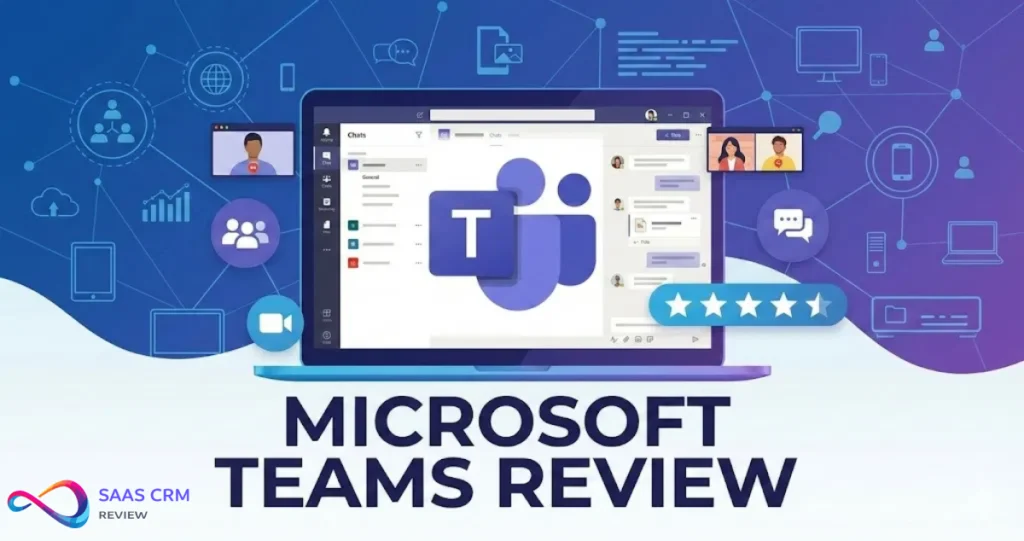
Microsoft Teams is the default choice for companies already on Microsoft 365—and in 2026 it remains one of the most integrated platforms for team chat, video meetings, file collaboration, and business calling.
But that integration comes with complexity: Teams shines in Microsoft-first organizations with clear governance, and frustrates teams that want Slack-level simplicity or seamless external collaboration.
In this Microsoft Teams Review 2026, we break down features, real-world usability, pricing and plans, pros and cons, and the best alternatives so US SMB and mid-market buyers can decide whether Teams is worth it—and which plan fits.
TL;DR Verdict Box – Microsoft Teams Review
| Aspect | Assessment |
|---|---|
| Overall Score | 8.4/10 — Strong for M365 shops, weak for simplicity seekers |
| Best for | Organizations already on Microsoft 365 who want chat, meetings, calling, and files in one place |
| Not ideal for | Small teams wanting simplicity, companies outside the Microsoft ecosystem, or those prioritizing external-first collaboration |
| Biggest strengths | Deep M365 integration, enterprise security/compliance, bundled pricing, Teams Phone option |
| Biggest drawbacks | Steep learning curve, channel sprawl, admin complexity, add-on costs stack up |
| Bottom line | Choose Teams if you’re committed to Microsoft 365 and willing to invest in governance. Start with Business Basic ($6/user/mo) and add features as needed. |
How We Evaluated Microsoft Teams
Why trust this review? This review is produced by the SaaS CRM Review editorial team using a structured evaluation framework. We test products hands-on, verify pricing from official sources, and cross-reference user sentiment from Capterra, G2, and TrustRadius. We do not accept payment for placement or scores.
Editorial Standards
- Independence: No vendor has editorial input. See our Editorial Policy.
- Update policy: Pricing and features verified monthly; full refresh quarterly.
- Affiliate disclosure: Some links are affiliate links. This does not affect scoring. See our Affiliate Disclosure.
Test Environment
| Parameter | Details |
|---|---|
| Accounts tested | Free tier, Business Basic trial, Business Standard trial |
| Platforms | Windows 11 desktop app, macOS Sonoma, iOS 17, Android 14, Web (Chrome, Edge) |
| Test period | January 15–31, 2026 |
| User simulation | 1–3 internal users, 2 external guests |
| Features tested | Chat, channels, meetings (recording/transcript), file sharing, guest access, Copilot, Teams Phone demo |
What We Observed (Hands-On Notes)
- Meeting join time: External guests joined via link in <15 seconds (no account required)
- Recording availability: Recordings appeared in OneDrive within 5 minutes; transcripts ready within 10 minutes
- File sync: Co-editing Word docs in Teams worked smoothly; occasional 2–3 second lag on first load
- Channel creation: Creating 10 test channels took <5 minutes; permission assignment added ~2 minutes each
- Notification overload: Default settings generated 50+ notifications/day in a 3-person test; required manual tuning
- Guest friction: Guests on free accounts could join meetings easily but struggled accessing shared files (permission errors)
- Copilot quality: Meeting recaps were 80–90% accurate; occasionally missed context in crosstalk
- Mobile app: iOS app was responsive; Android app showed slight lag on older devices (Pixel 5)
Scoring Framework
| Criterion | Weight | Score | Notes |
|---|---|---|---|
| M365 integration depth | 25% | 9.5/10 | Near-perfect sync with Outlook, SharePoint, OneDrive, Entra ID |
| Meetings reliability | 20% | 8.5/10 | Solid internal experience; external guest flow is acceptable but not Zoom-smooth |
| Pricing clarity | 15% | 7/10 | Base plans clear; add-ons (Phone, Premium, Copilot) create confusion |
| Governance & admin | 15% | 8.5/10 | Strong controls exist but require IT expertise to configure |
| User experience | 15% | 7.5/10 | Busy interface; learning curve is real |
| AI/Copilot value | 10% | 8/10 | Genuinely useful but not free ($30/user/mo) |
| Overall | 100% | 8.4/10 |
Quick Answers
Is Microsoft Teams free?
Yes. The free tier includes unlimited chat, 60-minute group meetings (up to 100 participants), and 5 GB storage per user. No recording, no phone, no admin controls. (Source: Microsoft free video conferencing)
How much does it cost (starting price)?
Paid plans start at $4/user/month (Teams Essentials, annual). Most businesses land on Microsoft 365 Business Basic at $6/user/month for broader M365 integration. See Microsoft Teams business pricing for current details.
Who should choose it?
Companies already using Microsoft 365 (Outlook, SharePoint, OneDrive) who want a single hub for chat, meetings, and files—especially those needing enterprise compliance.
Who should avoid it?
Teams that need lightweight chat without complexity, organizations standardized on Google Workspace, or businesses prioritizing best-of-breed video (Zoom) or messaging. For a full comparison, see our guide to the best team collaboration tools.
Best alternative for Slack-style chat?
Slack. Its threading, integrations, and developer experience remain superior for messaging-first teams. See Slack pricing plans for current costs.
Best alternative for Zoom-style meetings?
Zoom. Still the gold standard for video reliability, external guest experience, and webinar scale. See Zoom pricing for current plans.
Key takeaways:
- Teams is bundled with M365 subscriptions—free if you’re already paying
- Standalone starts at $4/user/month; most SMBs should start at $6/user/month
- Best for Microsoft-first orgs; not ideal for external-heavy collaboration
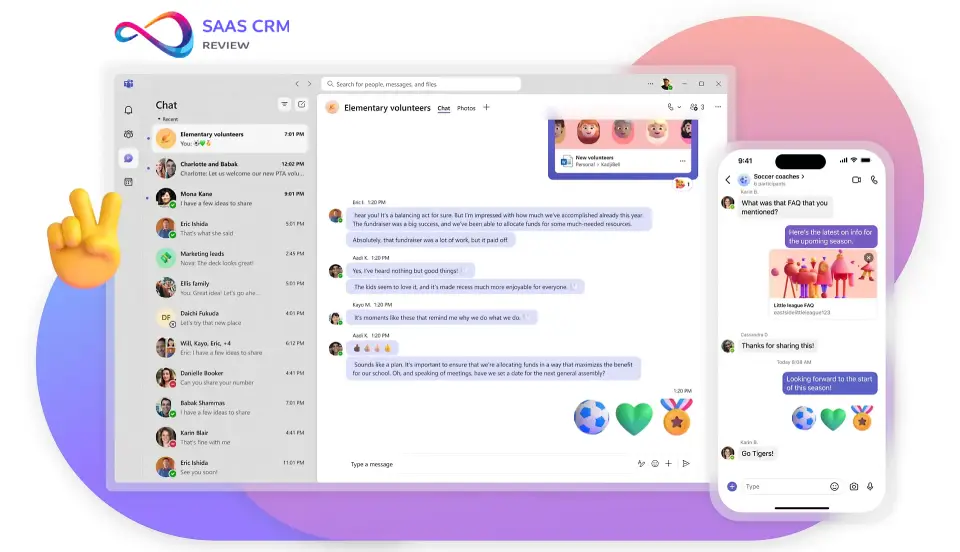
What Microsoft Teams Is (and What It Isn’t)
Microsoft Teams is a unified collaboration platform combining:
- Persistent chat (channels and direct messages)
- Video/audio meetings with recording and transcription
- File storage and co-authoring (powered by SharePoint and OneDrive)
- Integrations with Microsoft 365 apps and third-party tools
- Optional telephony (Teams Phone)
What Teams replaces:
- Scattered email threads for project discussion
- Standalone meeting tools (partially)
- Consumer file-sharing workarounds
What Teams does NOT replace:
- A full project management suite—use Asana, monday.com, or similar for robust PM
- A dedicated CRM or ticketing system
- External-first collaboration tools (Slack Connect, dedicated client portals)
Teams is best understood as the operating layer for Microsoft 365 work—not a standalone app. Its power comes from integration; its friction comes from that same depth.
Key takeaways:
- Teams combines chat, meetings, files, and apps in one interface
- It’s tightly integrated with Outlook, SharePoint, and OneDrive
- It’s a platform, not a point solution—treat adoption as a project

What’s New in Teams (2026)
Source: Based on Microsoft’s official announcements and product updates. For the latest, see What’s New in Microsoft Teams and the Microsoft 365 Roadmap.
Notable themes in recent product direction:
- Copilot AI integration: Meeting recaps, intelligent search, and reply drafting are now core features (requires Teams Premium or Copilot add-on)
- Redesigned compose box: Simplified message formatting with persistent access to apps and files
- Pop-out windows: Multi-window support for meetings, chats, and channels (improved multitasking)
- Voice isolation: AI-powered noise suppression for cleaner audio in noisy environments
- Scheduling for channel posts: Plan and schedule messages in advance
- Enhanced calendar: Multi-timezone support and clearer meeting visibility
- Loop components: Collaborative, live-syncing content blocks embedded in chats
What hasn’t changed:
- Core pricing structure remains stable
- Governance and admin controls are consistent with 2025
- SharePoint/OneDrive file backend unchanged
Key takeaways:
- AI features (Copilot) are the biggest 2026 differentiator—but they cost extra
- UX improvements focus on multitasking and simplification
- No major pricing or architecture changes
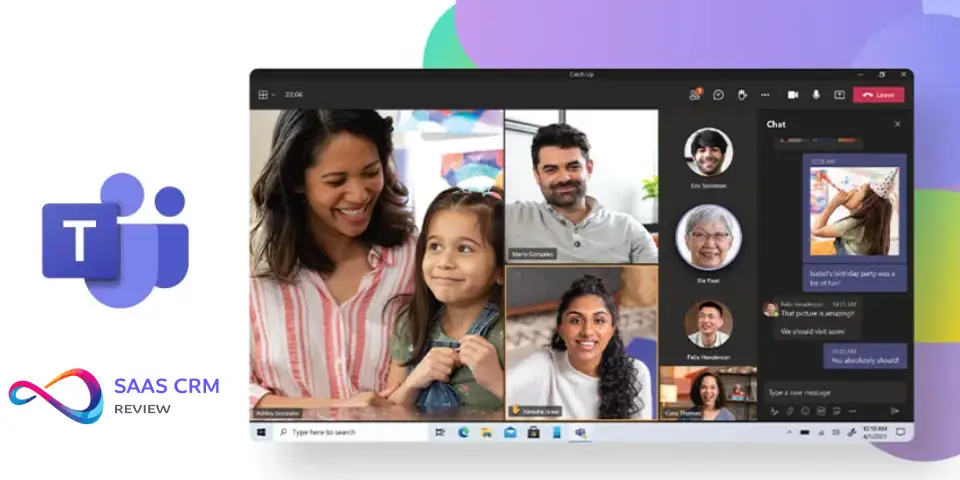
Key Features
Chat, Channels, and Collaboration Model
Teams organizes conversations into Teams (groups) and Channels (topics within groups). This is intuitive at small scale but creates channel sprawl quickly. Without naming conventions and moderation, users lose track of where conversations happen.
What matters for buyers:
- Require clear channel-naming standards before rollout
- Use private channels sparingly (they fragment permissions)
- Plan for archiving and lifecycle management from day one
Meetings Experience (Audio/Video, Scheduling, Recordings/Transcripts)
Teams meetings integrate directly with Outlook calendars and support up to 1,000 participants on Enterprise plans. Key capabilities:
- HD video/audio with background blur and Together Mode
- Breakout rooms, live captions, meeting transcription
- Recording stored in OneDrive/SharePoint
- External guest join (no account required for basic attendance)
What matters for buyers:
- Reliability has improved significantly since 2023
- External guest experience is acceptable, but Zoom is still smoother for ad-hoc external meetings
- Recording auto-expiration policies are essential—storage bloat is real
File Collaboration Reality (SharePoint/OneDrive Under the Hood)
Every Teams channel creates a SharePoint folder. Direct chats store files in OneDrive. This is powerful but confusing.
Common issues:
- Users don’t realize “Files” in Teams = SharePoint
- Permissions get tangled when files are shared outside the channel
- Versioning and sync conflicts frustrate first-time users
What to train users on:
- Always upload files to the channel, not as attachments
- Use “Open in SharePoint” for advanced permissions
- Sync sparingly—train on web-first workflows
Third-party storage options:
Teams also integrates with external cloud storage services like Dropbox and Box, giving teams flexibility beyond the Microsoft ecosystem for file sync and sharing.
Integrations & Extensibility
Teams integrates with 700+ third-party apps plus deep Microsoft-native integration:
- Outlook: Calendar, email, scheduling
- SharePoint/OneDrive: File storage, intranet
- Planner: Lightweight task management (for heavier needs, consider ClickUp or Trello)
- Power Platform: Automations, custom apps
When it gets messy:
- Third-party app quality varies widely
- Too many tabs/apps per channel overwhelms users
- Custom integrations require IT bandwidth
Admin, Governance, and Compliance
Teams administration happens in the Microsoft 365 Admin Center and Teams Admin Center. Key governance levers:
- Guest access policies: Control who can invite external users
- Retention policies: Set via Microsoft Purview (formerly Compliance Center)
- Identity: Single sign-on via Microsoft Entra ID (formerly Azure AD)
- eDiscovery: Search and hold for legal requirements
Practical note: Governance is not optional. Without retention policies and guest controls configured upfront, you’ll inherit a cleanup project later.
AI/Copilot (Benefits + Limits)
Microsoft Copilot integrates into Teams for:
- Meeting summaries and action items
- Chat reply drafting
- File summarization across Word/Excel/PowerPoint
- Intelligent search across conversations
Where it helps:
- Catching up on missed meetings
- Drafting routine replies
- Surfacing relevant files quickly
Where it’s hype:
- Copilot requires Teams Premium or Microsoft 365 Copilot add-on ($30/user/month)
- Accuracy depends on clean data and clear conversations
- Change management is real—users need training to trust AI outputs
Key takeaways:
- Teams is a platform, not just an app—treat adoption as a project
- Governance decisions (channels, permissions, retention) made early save pain later
- Copilot is genuinely useful but not free and not magic
Teams Rooms & Hardware
When it matters: If you have physical meeting rooms or hybrid work environments, Teams Rooms and certified hardware become relevant. For remote-only companies, skip this section.
What Is Teams Rooms?
Teams Rooms is a dedicated meeting room solution that turns conference rooms into one-touch Teams meeting spaces. It includes:
- Touch console for meeting controls
- Integrated audio/video hardware (certified devices)
- Auto-join for scheduled meetings
- Room-specific Teams account
Pricing
| Plan | Price | What’s Included |
|---|---|---|
| Teams Rooms Basic | Free (up to 25 rooms) | Basic join/scheduling, limited analytics |
| Teams Rooms Pro | $40/room/month | Advanced analytics, remote management, AI-powered features |
Source: Microsoft Teams Rooms pricing
Hardware Considerations
| Component | What to Buy | Budget Range |
|---|---|---|
| Small huddle room (4–6 people) | Certified soundbar + camera combo (e.g., Poly, Yealink) | $1,000–$3,000 |
| Medium room (6–12 people) | Modular system with separate mic/speaker | $3,000–$8,000 |
| Large boardroom (12+ people) | Professional AV integrator recommended | $10,000+ |
Key questions before investing:
- How many rooms need upgrades? (Budget multiplier)
- Who owns room IT? (Facilities vs. IT)
- Do you need remote management? (Rooms Pro)
- Is Teams your primary meeting tool? (If Zoom-heavy, consider Zoom Rooms instead)
Pitfalls:
- Buying non-certified hardware causes compatibility issues
- Underestimating installation costs (cables, mounts, network drops)
- Ignoring room acoustics (echo/reverb kills meeting quality)
Key takeaways:
- Teams Rooms Basic is free for up to 25 rooms—start there
- Certified hardware matters; random webcams cause problems
- Budget for installation, not just equipment
Microsoft Teams Pricing & Plans (2026)
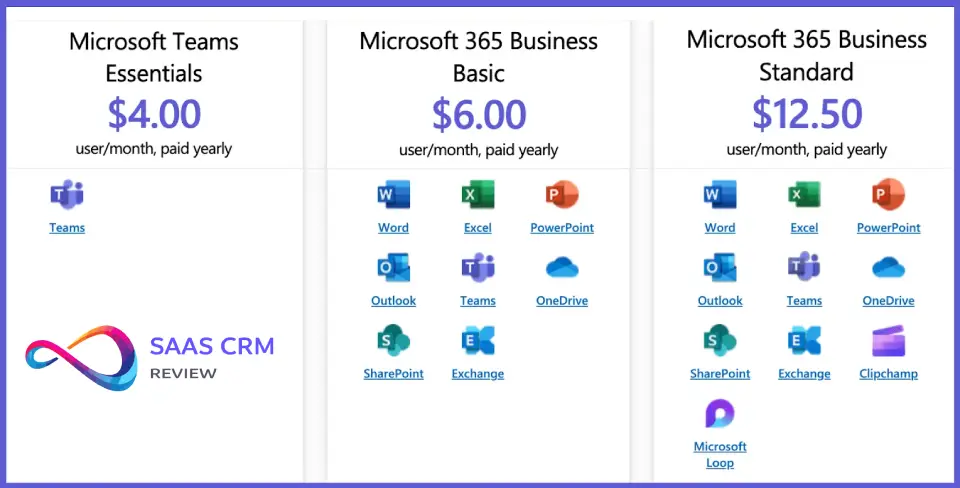
All prices are USD, billed annually per user/month. Pricing verified as of February 2026 from Microsoft Teams business pricing.
| Plan | Best For | Key Limits | What You Miss | List Price (USD) |
|---|---|---|---|---|
| Free | Testing, tiny teams | 60-min group meetings, 100 participants, 5 GB storage | Recording, phone, admin controls, compliance | $0 |
| Teams Essentials | Small teams without M365 | 30-hr meetings, 300 participants, 10 GB storage | Office apps, SharePoint, email | $4/user/mo |
| Microsoft 365 Business Basic | SMBs on M365 | 30-hr meetings, 300 participants, 1 TB storage | Desktop Office apps, webinars | $6/user/mo |
| Microsoft 365 Business Standard | SMBs needing full Office | Adds desktop apps, webinars, Loop | Advanced security, Copilot | $12.50/user/mo |
| Microsoft 365 Business Premium | Security-conscious SMBs | Adds Defender, Intune, advanced compliance | Enterprise-scale features | $22/user/mo |
| Enterprise E3/E5 | Large orgs, regulated industries | 1,000-participant meetings, unlimited storage | E5 adds advanced analytics, Copilot | Custom quote |
Source: Microsoft Teams pricing page (US)
Add-Ons
| Add-On | Price | Notes |
|---|---|---|
| Teams Phone Standard | $10/user/mo | Requires calling plan or direct routing |
| Teams Phone Frontline | $5/user/mo | For frontline workers on F-plans |
| Domestic Calling Plan | $12–$15/user/mo | Varies by region; includes pool of minutes |
| Pay-As-You-Go Calling | Per-minute rates | For low-volume calling |
| Teams Phone with Calling Plan | $15/user/mo | Bundled option (limited availability) |
| Teams Premium | ~$10/user/mo | AI recaps, custom branding, enhanced meetings |
| Microsoft 365 Copilot | $30/user/mo | Requires qualifying M365 subscription |
| Teams Rooms Pro | $40/room/mo | Advanced room management |
Source: Microsoft Teams Phone pricing
Pricing Gotchas
- Annual commitment required for most plans—monthly billing costs ~20% more
- Teams unbundled globally since April 1, 2024 — In EEA and Switzerland, Teams is sold separately from M365. Some global orgs now pay for M365 + Teams separately.
- Phone calling costs extra — Teams Phone Standard ($10) is just the license; you also need a calling plan or direct routing for PSTN connectivity
- Copilot is not cheap — $30/user/mo adds up fast; pilot before broad rollout
- Business vs. Enterprise licensing is confusing — Enterprise plans require volume licensing and often custom quotes
Key takeaways:
- Most SMBs should start with Business Basic ($6/user/mo)—best value for Teams + M365
- Budget for add-ons: Phone ($10–$15), Premium (~$10), Copilot ($30) are all extra
- Always calculate annual commitment vs. monthly—annual saves ~20%
What Users Say (Aggregated Sentiment)
Source: Aggregated from Capterra, G2, TrustRadius, and Reddit as of January 2026. Not our opinions—these are patterns from real user reviews.
What Users Consistently Praise
- M365 integration is seamless — “Everything just works with Outlook and SharePoint” (common theme across G2/Capterra)
- One platform for everything — “Chat, meetings, files in one place saves context-switching” (TrustRadius)
- Security and compliance — “IT loves the admin controls and compliance certifications” (enterprise reviews)
- Bundled pricing — “Already paying for M365, so Teams is basically free” (SMB reviews)
- Continuous improvement — “Microsoft keeps adding useful features without breaking things” (long-term users)
What Users Consistently Complain About
- Interface is overwhelming — “Too many buttons, menus, and options—new users get lost” (most common complaint)
- Channel sprawl — “We have 50 Teams now and no one knows where anything is” (mid-market/enterprise)
- Notifications are aggressive — “I get pinged for everything; had to spend 30 minutes configuring settings” (G2)
- Guest experience is clunky — “External clients struggle to join and access files” (agency/client-facing teams)
- Add-on costs add up — “Base price is fine, but Phone + Copilot + Premium = expensive” (cost-conscious buyers)
So What? (What This Means for Buyers)
- If you’re M365-committed: The integration praise is real—you’ll benefit
- If you’re guest-heavy: The external collaboration complaints are valid; consider Slack Connect or Zoom
- If you’re cost-sensitive: Budget for add-ons or you’ll face surprise costs
- Expect onboarding investment: The “overwhelming” feedback means training isn’t optional
Microsoft Teams Pros & Cons
Pros
- Deep Microsoft 365 integration: Seamless with Outlook, SharePoint, OneDrive, Planner—no context-switching
- Bundled pricing for M365 customers: If you’re already paying for Business Basic or higher, Teams is included
- Enterprise-grade security: SOC 2, ISO 27001, HIPAA, GDPR, FedRAMP—real compliance, not checkbox marketing
- Teams Phone replaces PBX: A genuine unified communications option for voice-heavy orgs
- 320M+ daily active users: Mature platform with continuous investment
- Copilot AI shows real promise: Meeting recaps and file summarization are genuinely useful
- Scales from 10 to 10,000 users: Same platform grows with you
Cons
- Steep learning curve: The interface is busy; new users get lost
- Channel sprawl is inevitable: Without governance, Teams becomes a maze
- Add-ons add up: Phone, Premium, Copilot—each is extra
- File confusion persists: SharePoint/OneDrive distinction trips up users
- Admin complexity: Governance requires dedicated IT attention
- Guest experience is clunky: External collaborators prefer simpler tools
- Performance issues on large channels: Noticeable lag with thousands of messages
Deal-Breakers to Watch For
- You’re not on Microsoft 365: Teams’ value drops sharply outside the ecosystem
- You prioritize external collaboration: Slack Connect or dedicated portals are smoother
- You want plug-and-play simplicity: Teams requires setup, training, and governance
- Budget is ultra-tight: Add-ons quickly exceed the base price
Key takeaways:
- Teams is strongest for M365-committed orgs needing compliance
- Weakest for simple teams, external-heavy collaboration, or non-Microsoft shops
- Governance investment is mandatory, not optional
User Experience & Adoption Reality
Learning Curve: Why Teams Feels “Busy”
Teams combines chat, meetings, files, apps, and calls in one interface. First-time users often feel overwhelmed by:
- Multiple navigation panes
- Notifications from every channel
- Unclear distinction between chats and channels
- Hidden features (like Shifts, Approvals, Bookings)
Mitigation: Start with a minimal rollout (core channels only), expand gradually. For simpler alternatives, tools like Basecamp offer a more streamlined approach.
Onboarding Plan: First-Week Setup Checklist
- Day 1: Create 2–3 core Teams (by department or project), establish naming conventions
- Day 2: Configure notification defaults (mute low-priority channels by default)
- Day 3: Train users on file storage (always upload to channel, not attachment)
- Day 4: Set up guest access policies before inviting external users
- Day 5: Pilot a meeting with recording + transcription; review playback
Common Failure Modes
| Failure Mode | Symptom | Fix |
|---|---|---|
| Notification overload | Users mute Teams entirely | Curate channel membership; set quiet hours |
| Channel sprawl | No one knows where to post | Enforce naming standards; archive aggressively |
| File confusion | Duplicates everywhere | Train on “Files” tab = SharePoint; avoid attachments |
| Guest friction | External users can’t access | Pre-configure guest policies; test before go-live |
Key takeaways:
- Plan a 5-day onboarding rollout with specific daily goals
- Address notification overload and channel sprawl proactively
- Train users on file storage before go-live
Security, Privacy, and Risk Notes
What Teams Generally Does Well
- Data encrypted in transit and at rest
- Multi-factor authentication via Entra ID
- Data Loss Prevention (DLP) policies available
- eDiscovery and legal hold supported
- Meets major compliance frameworks (SOC 2, HIPAA, GDPR, FedRAMP)
What Buyers Must Validate with IT/Security
Before signing, confirm your organization’s requirements for:
- SSO integration: Does your identity provider work with Entra ID?
- Retention policies: Are defaults acceptable, or do you need custom retention via Purview?
- eDiscovery: If you’re in a regulated industry, test search/hold workflows
- Guest controls: Whitelist domains or block external access entirely?
- Data residency: Where is your data stored? (Relevant for EU/UK/AU orgs)
Key takeaways:
- Teams is built for enterprise security—but defaults aren’t always right for you
- Involve IT/security early; governance decisions are hard to reverse
- Adoption is a change management project, not just a software rollout
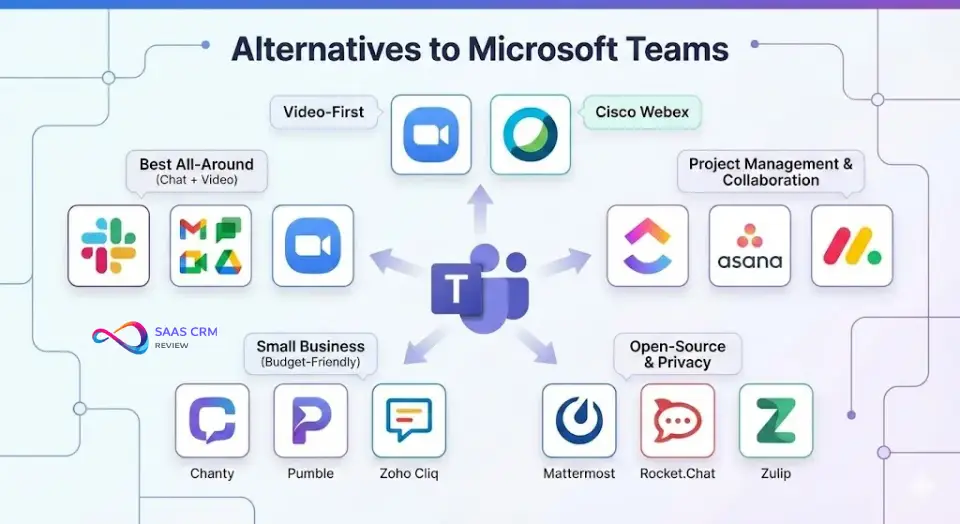
Best Alternatives to Microsoft Teams (2026)
For a comprehensive comparison, see our guide to the best project management software which covers many tools that complement or replace Teams functionality.
| Tool | Best For | Strengths | Weaknesses | Starting Price | When It Beats Teams |
|---|---|---|---|---|---|
| Slack | Messaging-first teams | Threading, integrations (6,400+), UX | Weak video, pricey at scale | $8.75/user/mo | Cross-platform integrations, dev/agency teams |
| Zoom | Video-first orgs | Video quality, external guests, webinars | Chat is an afterthought | $13.33/user/mo | Frequent external meetings, large webinars |
| Google Meet | Google Workspace users | Native Google integration, simple UX | Limited features, no phone | $6/user/mo (Workspace) | Google-first shops |
| Webex | Enterprises needing hardware | Meeting rooms, security, Cisco ecosystem | Complex, dated UX | Custom | Large enterprises with Cisco infrastructure |
| RingCentral | Calling-heavy orgs | UCaaS, reliable calling, integrations | Meetings less polished | $20/user/mo | Companies replacing phone systems first |
For official pricing, see Slack pricing and Google Workspace pricing.
Short Recommendations
- If you mainly need chat: Slack’s threading model and integrations are still best-in-class.
- If you mainly need meetings/webinars: Zoom delivers superior video reliability and external guest experience.
- If you’re Google-first: Google Meet (bundled with Workspace) is simple, native, no extra cost.
- If you’re calling/UCaaS-heavy: RingCentral or similar. Teams Phone is viable but requires M365 commitment.
- If you need project management: Consider Wrike for complex cross-team work or Smartsheet for spreadsheet-style portfolio management.
Fast Chooser: Teams vs Slack vs Zoom vs Google Meet
- If you’re already on Microsoft 365 and need one platform → Teams
- If you prioritize messaging, integrations, and developer workflows → Slack
- If you run frequent external meetings or webinars → Zoom
- If you’re standardized on Google Workspace → Google Meet
- If you need a full phone system replacement → Teams Phone or RingCentral
- If you want the simplest possible setup → Google Meet or Zoom (free tiers)
- If you need advanced project tracking → Pair Teams with Jira for agile development or Teamwork for agency/client work
Buyer Decision Framework
Use this rubric to score Microsoft Teams against your requirements. Rate each criterion 1–5 (1 = poor fit, 5 = excellent fit).
| Criterion | What to Evaluate | Weight | Your Score (1–5) |
|---|---|---|---|
| Microsoft 365 investment | Are you already paying for M365 Business Basic or higher? | 25% | _ |
| Internal vs. external collaboration | Do you primarily work with internal teams (score high) or external clients (score low)? | 20% | _ |
| Governance readiness | Do you have IT capacity to manage policies, retention, and channels? | 15% | _ |
| Telephony needs | Do you need to replace a phone system? (Teams Phone adds value here) | 15% | _ |
| Simplicity preference | Do users want a simple tool, or can they handle a learning curve? | 15% | _ |
| Compliance requirements | Do you need SOC 2, HIPAA, FedRAMP, or similar? | 10% | _ |
Scoring:
- 24–30: Teams is a strong fit. Start with Business Basic or Business Standard.
- 16–23: Teams is viable but compare Slack (messaging) or Zoom (meetings) for specific gaps.
- 10–15: Teams is likely not the right fit. Evaluate Google Meet, Slack, or best-of-breed tools.
Recommended Plan by Scenario
| Scenario | Recommended Plan |
|---|---|
| 10-person startup, no M365 | Teams Essentials ($4) or Slack Free |
| 50-person SMB on M365, needs meetings + chat | Microsoft 365 Business Basic ($6) |
| 200-person hybrid company, needs phone | Business Standard ($12.50) + Teams Phone ($10) |
| Agency collaborating with external clients | Slack (better external experience) or Zoom |
| Frontline-heavy org (retail, manufacturing) | Microsoft 365 F3 + Teams + Shifts |
| Regulated industry (finance, healthcare) | Microsoft 365 E3/E5 (compliance features) |
Example Scenarios
Scenario 1: 200-Person Hybrid Company on Microsoft 365
Profile: Regional professional services firm, 200 employees, already on M365 Business Standard.
Recommendation: Teams is the obvious choice. You’re already paying for it. Add Teams Phone ($10/user/mo) to replace your aging PBX. Invest in governance: assign a Teams champion, establish channel naming conventions, and set retention policies before rollout.
Watch out for: Channel sprawl as departments create ad-hoc Teams. Archive aggressively. For task management within Teams, consider pairing with Todoist for personal productivity or Linear for product teams.
Scenario 2: 40-Person Agency Collaborating with External Clients
Profile: Marketing agency, 40 employees, heavy external client collaboration.
Recommendation: Teams is not ideal. External guest experience is clunky compared to Slack Connect or dedicated client portals. Consider Slack for messaging (better threading, external channels) and Zoom for client-facing meetings. If you must use Teams internally, keep client work in a separate tool.
Scenario 3: Frontline-Heavy Organization (Retail, Healthcare, Manufacturing)
Profile: 500 employees, 400 frontline (no desks), 100 office-based.
Recommendation: Microsoft 365 F3 + Teams. Use Shifts for scheduling, Walkie Talkie for instant communication, and Approvals for frontline workflows. Teams Phone (Frontline) at $5/user/mo is cost-effective. Train frontline managers as champions.
Watch out for: Frontline users need mobile-first onboarding. Desktop training doesn’t transfer.
Governance Starter Kit
Use this checklist before rolling out Teams to prevent governance headaches. Download or copy this as your Teams governance foundation.
Channel Naming Convention
| Format | Example | When to Use |
|---|---|---|
[Dept]-[Topic] | Marketing-Campaigns | Department-specific work |
[Project]-[Phase] | Website-Redesign-Discovery | Project-based teams |
[Client]-[Workstream] | Acme-Onboarding | Client-facing (if using Teams) |
Guest Access Checklist
- [ ] Define who can invite guests (all users vs. specific roles)
- [ ] Whitelist approved domains (or block all external)
- [ ] Set guest expiration policy (e.g., 90-day review)
- [ ] Train users on what guests can/cannot see
- [ ] Test guest experience before go-live
Retention Policy Questions
- How long should chat messages be retained? (Default: forever)
- How long should channel messages be retained?
- Should deleted messages be hard-deleted or held for compliance?
- Who reviews retention exceptions (legal, HR)?
Lifecycle Management
| Trigger | Action | Owner |
|---|---|---|
| Team inactive 90 days | Archive notification | Team owner |
| Team inactive 180 days | Auto-archive | IT Admin |
| Project complete | Manual archive + export | Project lead |
Key Governance Questions to Answer
- Who can create new Teams? (Default: everyone—often too permissive)
- What’s the naming standard? (Prevent duplicates and confusion)
- Who owns guest access decisions? (IT, team owners, or both?)
- What’s the retention policy? (Compliance needs drive this)
- Who archives inactive Teams? (Prevent sprawl)
Microsoft Teams Review – FAQ
Is Microsoft Teams free in 2026?
Yes. The free tier includes unlimited chat, 60-minute group meetings (100 participants), and 5 GB storage. Paid features (recording, phone, admin controls) require a subscription.
How much does Microsoft Teams cost per user?
Teams Essentials is $4/user/month. Microsoft 365 Business Basic (includes Teams + web Office apps) is $6/user/month. Add-ons like Teams Phone ($10–$15) and Copilot ($30) increase costs.
Is Microsoft Teams better than Slack?
For Microsoft 365 organizations, Teams is better integrated and bundled. For messaging-first teams, Slack’s threading, integrations, and UX are superior. Neither is universally “better.”
Can I use Microsoft Teams without Microsoft 365?
Yes. Teams Essentials ($4/user/month) is standalone. The free tier also works with just a Microsoft account.
Does Microsoft Teams include phone calling?
No. Teams Phone is a separate add-on ($10/user/month) plus calling plans or direct routing for PSTN connectivity. See Microsoft Teams Phone pricing for details.
What are the main limitations of free Microsoft Teams?
60-minute group meeting limit, no recording/transcription, no breakout rooms, no admin controls, no compliance features, and 5 GB storage per user.
Is Microsoft Teams secure for business?
Yes. Teams supports MFA, encryption, DLP, eDiscovery, and meets SOC 2, HIPAA, GDPR, and FedRAMP standards. But defaults aren’t always right—configure retention and guest policies.
Can external users join Microsoft Teams meetings?
Yes. External guests can join meetings via link without a Teams account. For ongoing collaboration, guests can be added to Teams/channels (requires guest access enabled).
What is Microsoft Copilot in Teams?
Copilot is an AI assistant that summarizes meetings, drafts replies, and surfaces relevant files. It requires Teams Premium or Microsoft 365 Copilot ($30/user/month).
How many people can join a Teams meeting?
Free: 100 participants. Business plans: 300 participants. Enterprise: up to 1,000 (with webinars/town halls scaling higher).
Is Teams included in Microsoft 365?
Teams is included in Microsoft 365 Business Basic, Business Standard, Business Premium, and Enterprise plans. Since April 1, 2024, some regions offer M365 without Teams (separate purchase).
When was Teams unbundled from Microsoft 365?
Effective April 1, 2024, Microsoft began offering M365 and Office 365 suites without Teams in the EEA and Switzerland. Global impact varies by region and licensing agreement.
Final Verdict
Microsoft Teams is the right choice for organizations committed to the Microsoft 365 ecosystem who want a single platform for chat, meetings, files, and (optionally) phone. Its integration depth is unmatched—but that depth comes with complexity. Teams rewards companies willing to invest in governance, training, and change management.
Overall Score: 8.4/10
Who should buy Teams in 2026:
- SMBs and enterprises already on Microsoft 365
- Organizations needing compliance (SOC 2, HIPAA, FedRAMP)
- Companies replacing legacy phone systems (Teams Phone)
- Hybrid and frontline workforces using Shifts, Approvals, and mobile-first workflows
Which plan to start with:
- Most SMBs: Microsoft 365 Business Basic ($6/user/month)—best value for Teams + M365 integration
- Phone-heavy orgs: Add Teams Phone ($10/user/month)
- AI-curious teams: Pilot Copilot with a small group before broad rollout
When to choose an alternative:
- If you’re on Google Workspace, use Google Meet
- If messaging is your priority, use Slack
- If external meetings dominate, use Zoom
- If you need robust project management alongside collaboration, pair Teams with Figma for design workflows or explore our best project management software guide
Teams isn’t the simplest tool, but it’s the most integrated for Microsoft shops. Choose it when ecosystem power matters more than plug-and-play simplicity.
About the author

I’m Macedona, an independent reviewer covering SaaS platforms, CRM systems, and AI tools. My work focuses on hands-on testing, structured feature analysis, pricing evaluation, and real-world business use cases.
All reviews are created using transparent comparison criteria and are updated regularly to reflect changes in features, pricing, and performance.