
These are 41 copy-paste Gemini Notebook prompts, grouped by task and checked against Google’s help pages in October 2026. Each has a When line and a Needs line naming the box you paste it into and the plan or setting it needs.
Where you paste matters. Google says Gemini Notebook grounds chat answers in your notebook sources, while the same notebook in the Gemini app may also use web search and other Gemini tools.
Study notebooks, first launched on desktop in June 2026, reached the Gemini mobile app in August 2026.
The chat prompts below fill in this master template; the Sources-box, Gemini app and Studio prompts reuse its slots such as [FOCUS], [AUDIENCE] and [LEVEL]:
Use only the selected sources: [SOURCES].
Task: [TASK] for [AUDIENCE].
Format: [FORMAT], [LENGTH], at a [LEVEL] level, focused on [FOCUS].
Cite every claim. If the sources do not cover a point, [GAP RULE].| Group | Prompts | Where you paste it | Needs |
|---|---|---|---|
| Start here | 1-3 | Chat; Configure Chat > Custom | Free plan |
| Study and learning | 4-11 | Chat; Studio > Quizzes, Flashcards, Audio Overview; Gemini app | Keep Activity on for prompt 10 |
| Research and source analysis | 12-19 | Sources search box; chat | Users 18+ for Deep Research (13) |
| Work documents and meetings | 20-27 | Chat; Studio > Reports | Web only for report customization (26) |
| Planning in the Gemini app | 28-33 | A notebook at gemini.google.com or the Gemini mobile app | Gemini Notebook connected; Keep Activity for Drive and memory |
| Studio outputs | 34-41 | Studio customize boxes | Users 18+ for slides, infographics, video styles; Google AI Ultra for prompt 41 |
Sources: Google’s Gemini Notebook plans page, Google’s guide to notebooks in Gemini Apps, checked Oct 2026.
In This Article (13 sections)
What’s in the Gemini Notebook Prompt Template
The master template has eight slots, and two of them, [SOURCES] and [GAP RULE], exist because Gemini Notebook chat answers from the sources you select and cites them.
| Field | What to enter | Example |
|---|---|---|
| [SOURCES] | Source titles to use; tick them in the Sources panel too | “Week 3 slides” and “Lab notes” |
| [TASK] | The action and the deliverable | build a one-page study guide |
| [AUDIENCE] | Who reads or hears the output | a first-year biology student |
| [FORMAT] | Shape of the answer: table, bullets, steps or Q&A | a table with term, definition, source |
| [LENGTH] | How long the answer may run | one page |
| [LEVEL] | Expertise level for Studio boxes | beginner |
| [FOCUS] | The topic an output or search stays on | cell respiration only |
| [GAP RULE] | What to do when the sources are silent | write “not in sources” |
Sources: Google’s sources help page, checked Oct 2026.
Some prompts add a slot such as [QUESTION], [ROLE] or [NUMBER]. Type source titles exactly as the Sources panel shows them; Google says naming sources helps Gemini Notebook narrow its search.
The box you paste into changes the answer, so the surfaces come next.
Gemini Notebook, Notebooks in Gemini and Gemini Chat: Where Each Prompt Runs
One set of notebooks opens in two places, and your sources live in the notebook, so a normal Gemini chat outside one is the wrong box for these prompts.
Gemini Notebook grounds answers in your sources and has the Studio panel; the Gemini app may add web search and tools but makes no Studio outputs. My Google Gemini review covers the Gemini app itself.
Gemini Notebook is Google’s AI-powered research assistant: it answers from the sources you add, with in-line citations (Google’s overview). My list of the best AI tools for research sets it beside other research assistants.
| Attribute | Gemini Notebook (notebook.google.com) | Notebooks in the Gemini app (gemini.google.com) |
|---|---|---|
| Grounding | Your notebook sources; experimental chat actions can also search the web | Your notebook sources, and may add web search and other Gemini tools |
| Studio panel (Audio and Video Overviews, Slide Decks, Infographics) | Yes | Not available |
| Chat style settings | Configure Chat: Default, Learning Guide or Custom | Notebook settings instructions, shared with Gemini Notebook |
| Play Books ebooks as sources | Eligible titles | Not available |
| Study tools | Flashcards and Quizzes in Studio | Study notebooks, with Keep Activity on |
| Where it runs | Browser; Gemini Notebook mobile app, with limits | Gemini web, mobile and Mac apps |
Sources: Google’s Notebooks in Gemini Apps help page, Google’s chat help page, checked Oct 2026.
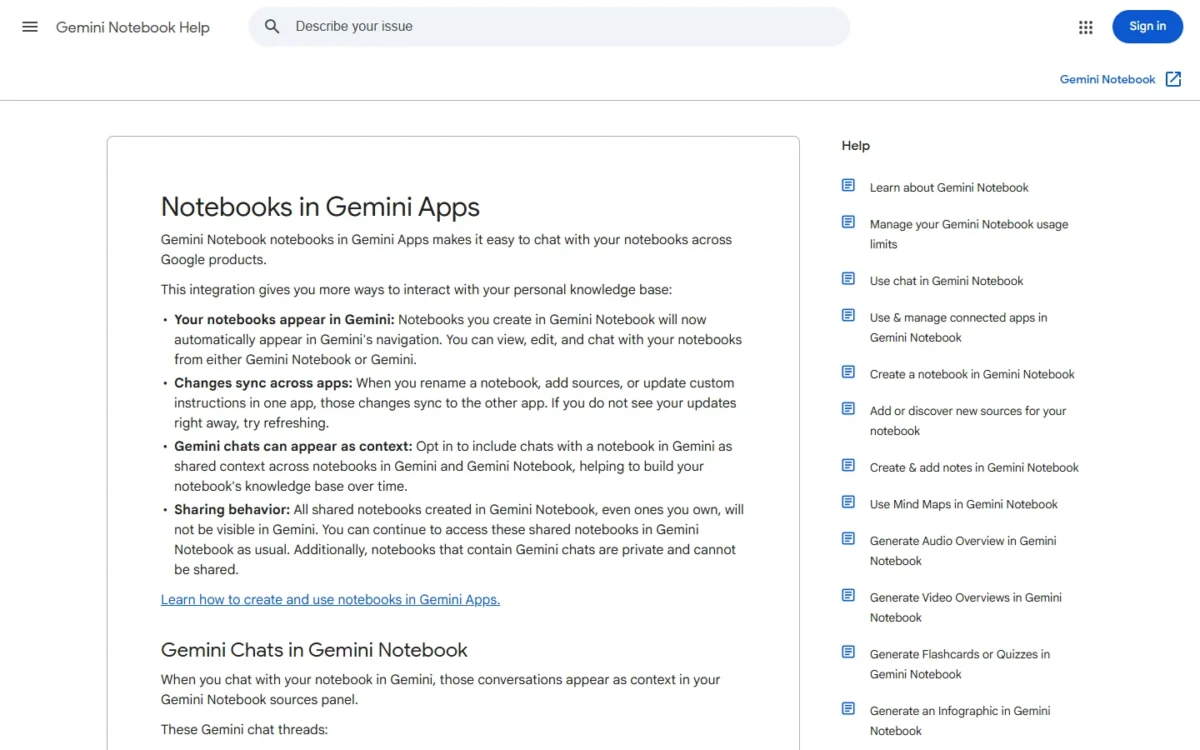
Edits sync both ways: a rename, a new source or new custom instructions in one app carry to the other. Gemini chats with a notebook appear in Gemini Notebook’s Sources panel as read-only context.
So a prompt that must stay inside your sources belongs in Gemini Notebook. One that adds web facts to your files or manages notebooks from a chat belongs in the Gemini app (prompts 28-33).
Both accept PDFs, documents, spreadsheets, images, audio, web URLs and copied text. Gemini Notebook’s list also names Google Slides, captioned public YouTube videos, ePub files, eligible Play Books titles and Gemini chats.
Prompts for a normal Gemini chat sit in my library of Gemini prompts for chat, Canvas and Deep Research. Notebooks in AI Mode in Google Search work in English only, and their chats do not sync with either app.
The surface decides grounding; the plan decides how many sources and how much prompting fit.
What Each Plan Allows in Gemini Notebook
Google’s Free plan includes Gemini Notebook, so most prompts here need no paid plan; paid plans raise notebooks, sources per notebook and usage.
| Plan | Notebooks | Sources per notebook | Usage limit |
|---|---|---|---|
| Free (Gemini Notebook Standard) | 100 per user | 50 | Standard limits |
| Google AI Plus | 200 per user | 100 | Two times standard |
| Google AI Pro | 500 per user | 300 | Four times standard |
| Google AI Ultra (20 TB Plan) | 500 per user | 500 | 5x or 20x AI Pro, by subscription |
| Google AI Ultra (30 TB Plan) | 500 per user | 600 | 5x or 20x AI Pro, by subscription |
Sources: Google’s Gemini Notebook plans page, Google’s usage limits page, checked Oct 2026.
Google’s US plans page lists Free at $0 a month, Google AI Plus at $4.99 a month and Google AI Pro at $19.99 a month.
Google AI Ultra starts at $99.99 a month for 5x AI Pro usage, and $199.99 a month buys 20x. Google does not say which price matches the 20 TB or 30 TB rows.
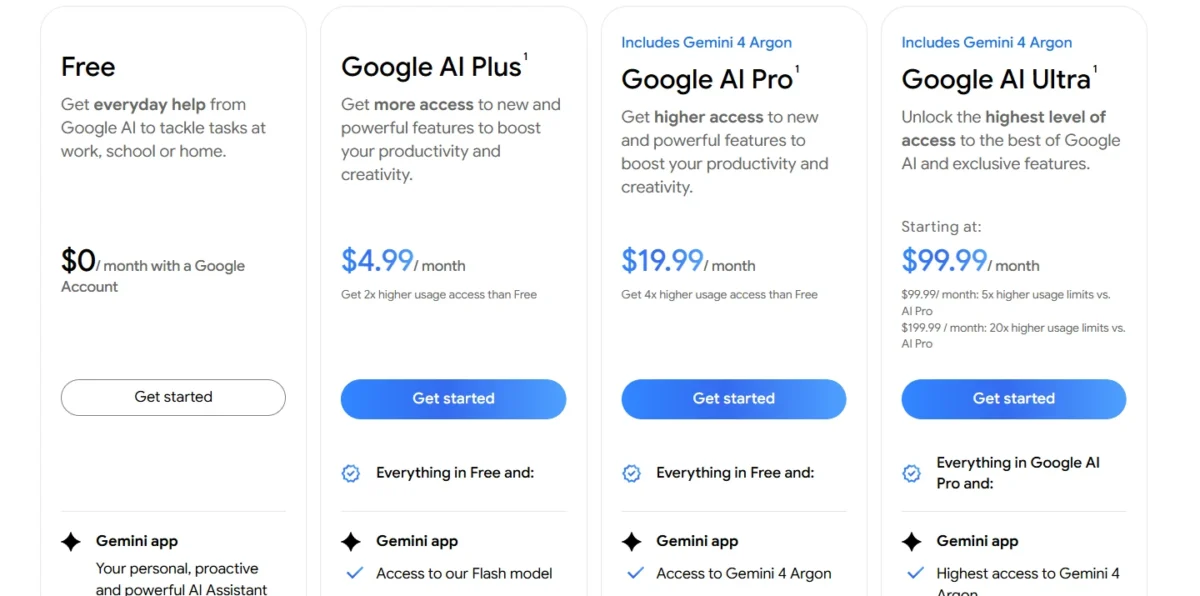
Sources per notebook is the cap a research notebook meets first: an 80-paper literature review outgrows Free’s 50 but fits Google AI Plus’s 100. Each source holds up to 500,000 words or 200MB per uploaded file.
Usage is compute-based: prompt complexity, models, features and chat length all count. The quota refreshes every 5 hours up to a weekly limit, shown under Settings > Usage.
The gates that matter more than price:
- Age: Deep Research in Sources, Slide Decks, Infographics, Cinematic videos and video visual styles are for users 18+.
- Web only: connected apps, report customization and Generate later.
- Keep Activity: study notebooks, Drive sources and notebook memory in the Gemini app.
- Google AI Ultra: co-creating a Video Overview with producer notes.
Work and school accounts follow their Workspace edition, where Gemini Notebook is a core service your admin turns on.
At Standard Access, Google caps chats at 50 a day, Audio Overviews at 3 a day and Deep Research at 10 a month (Google’s work and school page).
Whether the higher limits are worth paying for is the question my Gemini Notebook review answers.
The paid tiers also bundle cloud storage, Google Flow credits and higher Gemini app limits, which my Gemini pricing and plan comparison breaks down.
What remains is running a prompt against the right sources.
How to Use These Gemini Notebook Prompts
Five steps take a prompt from this page to a cited answer:
- Add the sources the task needs with Add sources on the left.
- Tick only the sources and notes the prompt should read. Google uses the whole source set or the subset you select, and a note only when selected.
- Paste the prompt into the box its Needs line names.
- Replace every [SLOT] with your own value.
- Check each claim against its citation: hovering shows the full quote, and selecting it opens the quote in context.
Save to note keeps a good answer with its tables and citations, as a source later prompts can use.
To pull another app into a chat prompt, name the app; connected apps work on the web and are enabled per notebook in Configure Chat (Google’s connected apps page).
Start Here: Three Master Notebook Prompts
Prompt 1 asks a source-grounded question, prompt 2 sets a Configure Chat > Custom style, and prompt 3 compares named sources; all three run on Google’s Free plan.
1. Sources-only answer with a gap rule
Answer this using only the selected sources: [QUESTION].
Quote the line behind each point and cite it.
Where the sources do not answer part of the question, write "Not in sources" instead of guessing.
When to use: any factual question where a guess would cost you.
Needs: Google’s Gemini Notebook chat; Google’s Free plan includes Gemini Notebook.
2. Custom chat style for a role
Act as a [ROLE] reviewing my sources for [AUDIENCE].
Lead with the answer, then give up to [LENGTH] of support.
Cite a source for every claim and flag where two sources disagree.
When to use: many questions in one notebook that should get the same role and tone.
Needs: Google’s Gemini Notebook Configure Chat > Custom, then Save; Google makes custom chat available to everyone.
3. Ask across named sources
Compare what "[SOURCE A]" and "[SOURCE B]" say about [FOCUS].
Table: point, what [SOURCE A] says, what [SOURCE B] says, citation.
End with one line on where they agree.
When to use: a crowded notebook where two sources need reading against each other.
Needs: Google’s Gemini Notebook chat, with both sources ticked in the Sources panel.
With a notebook set up, studying from your own course materials is the first task group.
Study and Learning Prompts
Prompts 4-11 turn course materials into study guides, quizzes, flashcards, an audio review and a study notebook; only prompt 10 needs Keep Activity on.
4. One-page study guide from lecture notes
From [SOURCES], build a one-page study guide for [AUDIENCE].
Sections: key terms, main ideas, one worked example per idea, three likely exam questions.
Cite each item. Keep it [LENGTH].
When to use: the end of a unit, for one review sheet.
Needs: Google’s Gemini Notebook chat; Save to note keeps the guide.
5. Explain a concept at three levels
Explain [FOCUS] from my sources three times: for a 12-year-old, a first-year student and an expert.
Each under 120 words, with a citation.
When to use: a concept that still feels fuzzy after the slides.
Needs: Google’s Gemini Notebook chat in any conversational style.
6. Learning Guide tutor
I am studying [FOCUS] from [SOURCES]. Do not give me the answer yet.
Ask one question at a time, wait for my reply, correct me with a citation, then ask a harder question.
When to use: practice rather than a summary.
Needs: Google’s Gemini Notebook chat with Configure Chat set to Learning Guide.
7. Hard quiz on weak topics
Quiz me on [FOCUS] only, for [AUDIENCE].
Mix application questions with definitions, and base every question on [SOURCES].
Skip the introduction chapter.
When to use: you know the terms but miss applied questions.
Needs: Google’s Gemini Notebook Studio > Quizzes via the pencil icon, difficulty hard; edit access to the notebook.
8. Flashcards for terms and definitions
Make flashcards for every defined term in [SOURCES].
Front: the term. Back: the definition in under 20 words plus one example from the sources.
Audience: [AUDIENCE].
When to use: vocabulary-heavy courses such as biology or law.
Needs: Google’s Gemini Notebook Studio > Flashcards customize box; the deck downloads as a CSV file.
9. Two-minute audio brief before an exam
Cover only [FOCUS]. Assume the listener read the material once.
State the three facts most likely to be tested, then one common mistake to avoid.
When to use: a last review on the way to the exam.
Needs: Google’s Gemini Notebook Studio > Audio Overview set to The Brief: one speaker, under two minutes.
10. Study notebook goal in the Gemini app
Help me study for my [COURSE] exam on [DATE].
My weakest topics are [FOCUS]. I can study [TIME] a day.
Start with a diagnostic quiz, then build lessons on what I miss.
When to use: lessons that adjust to your quiz results.
Needs: Google’s Gemini app at gemini.google.com > New notebook > Study and learn, with Keep Activity on. The goal cannot be edited later, so name the exam and date here.
11. Practice questions from past papers
Using the past papers in [SOURCES], write [NUMBER] new practice questions in the same style.
Give each answer and cite the lecture source that teaches it, or say none does.
When to use: fresh questions from old exams.
Needs: Google’s Gemini Notebook chat with past papers and lecture notes selected.
Researchers use the same grounding to test sources against each other.
Research and Source Analysis Prompts
Prompts 12-19 find, compare and test sources: two go in the Sources search box, and six run in chat and return cited tables and lists.
12. Fast Research query for web or Drive sources
[TOPIC]: recent studies and official reports on [FOCUS]When to use: an empty notebook that needs its first sources.
Needs: Google’s Gemini Notebook Sources panel search box with Web or Drive chosen; pick results before importing.
13. Deep Research query inside the notebook
What does current evidence say about [RESEARCH QUESTION]?
Cover [FOCUS], include government and academic sources, and note where findings conflict.
When to use: a multi-page report plus its sources, imported in one step.
Needs: Google’s Gemini Notebook Sources search box with Web and Deep Research toggled on; users over 18 only, and source limits apply.
14. Themes across sources
Across all selected sources, identify the main themes.
Table: theme, sources that discuss it, one supporting quote per source with citation.
Sort by how many sources discuss each theme.
When to use: the start of a literature review or market scan.
Needs: Google’s Gemini Notebook chat; Google’s Free plan holds up to 50 sources per notebook.
15. Where sources disagree
List every point where the selected sources disagree or report different numbers.
For each: the claim, each source's position with a quote, and a possible reason (date, method or scope).
When to use: before you cite a figure two reports state differently.
Needs: Google’s Gemini Notebook chat with at least two sources selected.
16. Gaps against my research question
My research question: [RESEARCH QUESTION].
List which parts the selected sources answer, with citations, and which parts none address.
Suggest search terms for each gap.
When to use: deciding what to read next; feed the search terms into prompt 12.
Needs: Google’s Gemini Notebook chat with the whole source set selected.
17. Check a claim with exact quotes
Is this claim supported by my sources: "[CLAIM]"?
Answer Supported, Partly supported or Not in sources, then quote the exact lines with citations.
Do not paraphrase the quotes.
When to use: fact-checking a draft before it goes out.
Needs: Google’s Gemini Notebook chat; hover over a citation to read the full quote.
18. Timeline from sources
Build a timeline of [FOCUS] from the selected sources.
Columns: date, event, citation.
Mark any date only one source gives.
When to use: case files, a history topic or a project post-mortem.
Needs: Google’s Gemini Notebook chat; a very short source gets no line-level citation.
19. Compare two studies’ methods
Compare "[STUDY A]" and "[STUDY B]" on sample, design, measures, period and stated limitations.
Cite each cell, then say in two sentences which result transfers better to [AUDIENCE].
When to use: two studies that reach different conclusions.
Needs: Google’s Gemini Notebook chat with both studies selected; a copy-protected PDF will not import.
The same tables work on business files: meeting recordings, handbooks and customer interviews.
Work Document and Meeting Prompts
Prompts 20-27 turn work files and recordings into briefs, action lists, a Q&A, an SOP, a report and a spreadsheet file.
20. One-page executive brief
Write a one-page executive brief from [SOURCES] for [AUDIENCE].
Sections: the decision needed, three key facts with citations, risks, and a recommended next step.
[LENGTH], plain language.
When to use: someone senior needs the gist of a long report.
Needs: Google’s Gemini Notebook chat; Save to note keeps the brief as a note source.
21. Meeting recording to decisions and owners
From the meeting in [SOURCES], list decisions, action items with owner and due date, and open questions.
Quote the line behind each. Write "not stated" for a missing owner or date.
When to use: a recorded meeting nobody took notes in.
Needs: Google’s Gemini Notebook chat with the recording added as an audio source, transcribed at import; audio with no speech is not supported.
22. New-hire Q&A from the handbook
Write 15 questions a new [ROLE] asks in week one and answer each from [SOURCES] with a citation.
Mark any the handbook does not answer "Ask HR".
When to use: onboarding.
Needs: Google’s Gemini Notebook chat with the handbook and policy files selected.
23. SOP from scattered docs
Combine the selected documents into one standard operating procedure for [TASK].
Numbered steps, the role responsible for each, and the tool used.
Flag steps where the documents contradict each other.
When to use: a process spread across several docs.
Needs: Google’s Gemini Notebook chat; Gemini Notebook pulls in data from multiple tabs of a Google Doc or Sheet as one source but does not import footnotes or comments.
24. Customer interview themes
Across the interview transcripts in [SOURCES], find the top [NUMBER] themes about [FOCUS].
For each: how many interviews mention it, two verbatim quotes with citations, and what it means for [AUDIENCE].
Exclude anything only the interviewer said.
When to use: after a round of customer or user interviews.
Needs: Google’s Gemini Notebook chat; transcripts can be documents, PDFs or audio files transcribed on import.
25. Competitor pages side by side
Compare the selected competitor web pages on [FOCUS]: pricing model, target customer and main claims.
One row per company, a citation per cell, and "not on page" where a page is silent.
When to use: a quick read of rival positioning from public pages.
Needs: Google’s Gemini Notebook with each page as a web URL source; only page text imports, and paywalled pages are not supported.
26. Customized document report
Audience: [AUDIENCE]. Focus only on [FOCUS].
Open with a five-line summary, then sections with headings, and end with open questions.
Cite sources inline.
When to use: the default report template is close but not right.
Needs: Google’s Gemini Notebook Studio > Reports > Document, then Edit next to a template, on the web only (Google’s reports page).
27. Export a table as an Excel file
Build a table of [FOCUS] from the selected sources with the columns [COLUMNS] and a citation column.
Create it as a Microsoft Excel (.xlsx) file I can download.
When to use: data in your sources that belongs in a spreadsheet.
Needs: Google’s Gemini Notebook chat file outputs, which Google calls experimental; check the file before you share it.
Planning tasks mix your files with the web, and Google’s Gemini app notebooks (and AI Mode) may add web search to your sources.
Planning Prompts for Notebooks in the Gemini App
Prompts 28-33 run in a notebook at gemini.google.com because they mix sources with web search or manage notebooks from chat; Drive sources and memory need Keep Activity on.
28. Create a notebook from a chat
@Gemini Notebook create a notebook called "[NAME]" and add the files I attached as sources.
Then list the sources it holds.
When to use: mid-chat in Gemini, when a topic needs its own space.
Needs: Google’s Gemini app chat on the web or mobile app with Gemini Notebook connected, automatic in most regions and manual in the European Economic Area.
29. Notebook instructions
This notebook supports [PROJECT]. Answer for [AUDIENCE].
Lead with the answer, cite the source, and keep replies [LENGTH].
When my sources and the web disagree, show both and label which is which.
When to use: once per notebook, so every chat follows the same rules.
Needs: Google’s Gemini app at gemini.google.com > the notebook > More > Notebook settings; the instructions sync to Gemini Notebook.
Instructions meant for every chat, not one notebook, belong in a reusable setup, which my comparison of Gemini skills vs Gems covers.
30. Trip plan from bookings plus the web
From my booking confirmations, build a day-by-day plan for [DESTINATION], [DATES].
Add opening hours and travel times from the web, marked as web details.
When to use: a trip with confirmations already in hand.
Needs: Google’s Gemini app notebook, where chats can include web searches and Gemini tools.
31. Job application notebook
The sources hold my resume and the job posting for [ROLE].
Match each requirement to evidence in my resume, list the gaps, and draft three cover-letter paragraphs using only details from my resume.
Add two facts about the employer from the web for the opening line, marked as web details.
When to use: tailoring one application.
Needs: the same kind of Google Gemini app notebook as prompt 30, opened on the web or in the Gemini mobile app, because the employer facts come from a web search.
32. Business plan draft from research files
Draft a business plan outline for [BUSINESS] from my research files.
Sections: problem, customer, market evidence, pricing, costs, risks.
Use my sources first; label any web data and give its link.
When to use: turning scattered research into a first plan.
Needs: Google’s Gemini app notebook; adding the research from Google Drive requires Keep Activity on.
33. Weekly project check-in from saved chats
From past chats in this notebook and my sources, summarize what changed since last week, what is open, and the next three tasks.
Cite the chat or source for each.
When to use: a recurring weekly review of one project.
Needs: Google’s Gemini app notebook with Keep Activity on, which notebook memory requires.
Studio outputs exist only in Gemini Notebook, so the last group moves back there.
Studio Prompts: Audio, Video, Slides and Infographics
Prompts 34-41 steer the Studio panel’s customize boxes; Slide Decks, Infographics and video visual styles are for users 18+, and producer notes need Google AI Ultra.
34. Audio critique of my draft
Review my draft "[SOURCE]" as constructive editors.
Focus on [FOCUS]: argument strength, structure and missing evidence.
Suggest three concrete fixes.
When to use: a second opinion on an essay or design doc.
Needs: Google’s Gemini Notebook Studio > Audio Overview set to The Critique; edit access to the notebook (Google’s Audio Overview page).
35. Audio debate on two positions
Debate [POSITION A] versus [POSITION B] using only the sources.
Each host argues one side with evidence, then names the strongest point against their own side.
When to use: preparing for a seminar or a decision meeting.
Needs: Google’s Gemini Notebook Studio > Audio Overview set to The Debate.
36. Longer deep dive for a team
Audience: a [ROLE] team new to [FOCUS], [LEVEL] level.
Define terms first, cover each source's main finding, and end with decisions to discuss.
When to use: onboarding a team to a topic they will listen to.
Needs: Google’s Gemini Notebook Studio > Audio Overview in Deep Dive with length set to Longer, which Google offers in English only.
37. Explainer video steering prompt
Focus on [FOCUS] for [AUDIENCE].
Use one running example from the sources, show each step on screen, and end with a recap of the key terms.
When to use: a visual walkthrough for a class or a team wiki.
Needs: Google’s Gemini Notebook Studio > Video Overview, Explainer format, steering prompt; generation can take more than 30 minutes (Google’s Video Overview page).
38. 60-second short video
One idea only: [FOCUS].
Hook in the first sentence, one example from the sources, one takeaway at the end.
When to use: a quick review clip.
Needs: Google’s Gemini Notebook Studio > Video Overview in the Short format, which Google lists at about 60 seconds.
39. Slide deck for beginners
Create a deck for beginners on [FOCUS], one idea per slide.
Give step-by-step instructions where the sources describe a process, and end with a slide listing the sources.
When to use: training material from a manual or policy.
Needs: Google’s Gemini Notebook Studio > Slide Deck, users 18+; batch your edits, because every revision creates a new deck. Downloads as PDF or PowerPoint (Google’s Slide Deck page).
40. Infographic with three key stats
Highlight the three most important numbers in [SOURCES] about [FOCUS].
One color theme, a short label for each number, and no text that is not in the sources.
When to use: a one-image summary for a slide or post.
Needs: Google’s Gemini Notebook Studio > Infographic customize box, users 18+; it downloads as a PNG file (Google’s Infographic page).
41. Producer notes feedback
Cut the introduction to one sentence. Move the example about [FOCUS] earlier.
Replace jargon with plain terms for [AUDIENCE], and end on the decision the viewer should make.
When to use: refining a video before it renders.
Needs: Google’s Gemini Notebook Studio > Video Overview with Review producer notes on, for Google AI Ultra subscribers only; add all feedback at once, because after Proceed the notes are final.
“View custom prompt” in the three-dot menu shows the prompt behind a past Audio Overview, Slide Deck or Infographic. Mind Maps come from a chip in chat and take no prompt.
A filled example shows a prompt with every slot holding a real value.
Example: A Filled-In Notebook Prompt (Sample Data)
This example uses invented sample data: a fictional company, Acme Outdoor Co., with six interview transcripts, run through prompt 24.
| Slot | Sample value |
|---|---|
| [SOURCES] | “Acme interview 1” to “Acme interview 6” |
| [NUMBER] | 4 |
| [FOCUS] | why customers return tents |
| [AUDIENCE] | the product team planning the spring line |
Sources: sample data invented for this example; Acme Outdoor Co. is not a real company.
Across the interview transcripts in "Acme interview 1" to "Acme interview 6", find the top 4 themes about why customers return tents.
For each: how many interviews mention it, two verbatim quotes with citations, and what it means for the product team planning the spring line.
Exclude anything only the interviewer said.
Tick only the six transcripts in the Sources panel, so each theme’s interview count is out of six.
Most prompts that fail do so for a handful of repeatable reasons.
Common Mistakes That Make a Notebook Prompt Fail
A notebook prompt usually fails because the answer is not in the selected sources, the task is creative, or a source never imported. Each cause has a fix:
- The answer is not in the sources. If the answer is not in your uploaded material, Gemini Notebook gives no response (Google’s FAQ). Add a source, or use a Gemini app notebook, which may also include web search (Google’s Notebooks in Gemini Apps help page).
- A creative task in Gemini Notebook chat. “Rewrite the end of my story” can return “Gemini Notebook can’t answer this question”. Rephrase around your sources.
- Sources or notes not ticked. A note counts only when selected.
- An inactive Drive file. A Drive file you lose access to still counts toward your source limit, but chat and Studio stop referencing it.
- A paywalled or image-heavy web page. Only page text imports, and paywalled pages are not supported.
- A YouTube video without captions. Only public videos with captions import, as a transcript.
- Keep Activity off in the Gemini app. Study notebooks, Drive sources and notebook memory need it on.
- A vague question in a crowded notebook. Name the source and the topic so retrieval finds the right passage. Sensitive topics such as violence can trigger a safety flag, even in historical sources.
If you need open-web answers rather than source-grounded ones, my ranking of the best AI chatbots covers assistants built for that.
FAQ
Is Gemini Notebook the same as NotebookLM?
Gemini Notebook is the research app Google’s release notes from May and August 2025 call NotebookLM; its help center and US plans page now say Gemini Notebook. The help center gives no date for the name change.
Do these prompts work on Google’s Free plan?
All but prompt 41 do: Google’s Free plan includes Gemini Notebook, and producer notes (prompt 41) need Google AI Ultra. Separately from the plan, prompts 13, 39 and 40 need users 18+, and prompts 10, 32 and 33 need Keep Activity on.
Can I use these prompts in the Gemini mobile app?
Prompts 28-33, yes: Google makes notebooks available in the Gemini web and mobile apps.
The study notebook prompt (10) works there too, since study notebooks reached the Gemini mobile app in August 2026. The Gemini Notebook mobile app may limit some features, and connected apps and report customization are web only.
Can Gemini Notebook answer in other languages?
Yes. Gemini Notebook supports 80+ languages, and Settings > Output Language sets the language of chat answers, study guides and Audio and Video Overviews (Google’s output language page).
Are my sources used to train Google’s models?
Google says the files you add and your Gemini Notebook chats are not used directly to train its foundational models unless you give feedback. For Workspace and Workspace for Education users, uploads, queries and responses are not reviewed by human reviewers or used to train AI models.