
Team collaboration tools are software platforms that help distributed teams communicate, share files, and coordinate work in real-time or asynchronously. Whether you need team chat software, project collaboration tools, or document collaboration platforms, the best collaboration tools for 2026 combine messaging, file sharing, and project management. The right team collaboration software depends on your primary workflow:
- Chat-first teams → Slack (2,600+ integrations, most mature)
- Microsoft shops → Teams (M365 ecosystem, Copilot AI)
- Document-heavy teams → Google Workspace (real-time editing)
Top Picks at a Glance
| Scenario | Our Pick | Why |
|---|---|---|
| Best Overall | Slack | Largest integration ecosystem, proven at scale |
| Best for Enterprise | Microsoft Teams | Security, compliance, M365 bundle value |
| Best for SMB | ClickUp | Most features per dollar |
| Best for Remote | Notion + Slack | Async docs + real-time chat |
| Best Free Suite | Google Workspace | Complete suite at $0 |
| Best for Creatives | Figma + Miro | Design + whiteboard |
Jump to: Comparison Table | How We Test | Tool Reviews | Scenarios | Security | FAQs
Best Team Collaboration Tools Summary
This collaboration tools comparison evaluates 20 online team collaboration platforms across pricing, features, and real-world performance. For project-focused options, also see our best project management software guide.
| Tool | Best For | Starting Price | Free Plan | Score |
|---|---|---|---|---|
| Slack | Team messaging | $8.75/user/mo | ✓ | 9.2/10 |
| Microsoft Teams | Enterprise M365 | $4/user/mo | ✓ | 9.0/10 |
| Google Workspace | Doc collaboration | $7.20/user/mo | ✓ | 8.8/10 |
| Zoom Workplace | Video-first | $15.99/user/mo | ✓ | 8.5/10 |
| monday.com | Visual projects | $12/seat/mo | ✓ | 8.7/10 |
| Asana | Workflow automation | $10.99/user/mo | ✓ | 8.6/10 |
| ClickUp | All-in-one | $10/user/mo | ✓ | 8.8/10 |
| Notion | Documentation | $12/user/mo | ✓ | 8.9/10 |
| Trello | Simple kanban | $5/user/mo | ✓ | 8.0/10 |
| Airtable | Data-driven | $20/user/mo | ✓ | 8.4/10 |
| Miro | Visual collaboration | $10/user/mo | ✓ | 8.5/10 |
| Figma | Design teams | $15/seat/mo | ✓ | 9.1/10 |
| Confluence | Technical docs | $5.42/user/mo | ✓ | 8.2/10 |
| Basecamp | Simplicity | $15/user/mo | ✓ | 7.8/10 |
| Wrike | Marketing teams | $10/user/mo | ✓ | 8.3/10 |
| Smartsheet | Spreadsheet users | $12/user/mo | ✗ | 8.2/10 |
| Dropbox | File sharing | $11.99/user/mo | ✓ | 8.0/10 |
| Loom | Async video | $15/creator/mo | ✓ | 8.4/10 |
| Linear | Engineering | $10/user/mo | ✓ | 9.0/10 |
| Coda | Custom workflows | $12/maker/mo | ✓ | 8.3/10 |
Pricing (accessed Feb 2026). See individual reviews for sources.
Methodology: How We Evaluated
About Our Testing Process
This guide is based on 14+ months of hands-on testing across real work scenarios—not vendor demos or feature checklists. Our editorial team collectively has 10+ years of experience deploying collaboration tools at startups, agencies, and enterprises ranging from 5 to 2,000+ employees.
How we tested each tool:
- Real-world deployment (14-30 days per tool): We used each platform for actual project management, team communication, and documentation—not just trial accounts with test data.
- Multi-team scenarios: Each tool was evaluated across different team types (engineering, marketing, operations) and sizes (5-person startup, 50-person agency, 500+ enterprise).
- Feature verification: Every feature claim was tested firsthand. If a vendor says “AI summaries,” we generated 50+ summaries to evaluate quality. If they claim “1,000+ integrations,” we tested the top 20 integrations for reliability.
- Pricing verification: All pricing was verified directly from official vendor websites in February 2026. We note billing frequency, seat minimums, and feature gates that affect real costs.
Evaluation Criteria & Weights
| Criterion | Weight | What We Measured |
|---|---|---|
| Ease of Use | 20% | Time to first value, onboarding friction, learning curve |
| Core Features | 25% | Communication, file sharing, collaboration depth, mobile experience |
| Integrations | 15% | Native connection quality, API flexibility, ecosystem breadth |
| Scalability | 15% | Performance at 50/200/500+ users, admin controls, governance |
| Value | 15% | Cost per user, free tier usefulness, feature-to-price ratio |
| Security & Compliance | 10% | SSO/SCIM, audit logs, certifications (SOC 2, ISO 27001, HIPAA) |
What We Don’t Do
- ❌ Accept payment for rankings or reviews
- ❌ Publish reviews without hands-on testing
- ❌ Copy vendor marketing claims without verification
- ❌ Ignore pricing changes or feature gates
About the Reviewers
This guide was researched and written by the SaaS CRM Review Editorial Team, with contributions from:
- Operations leads who’ve deployed Slack, Teams, and monday.com at 500+ person organizations
- Agency directors who’ve evaluated 30+ PM tools for client work
- Product managers who’ve built workflows in Notion, ClickUp, and Linear
We update this guide quarterly as tools release new features and pricing changes.
Editorial Disclosure
Some links in this article are affiliate links—we may earn a commission if you subscribe. However:
- Affiliate relationships never influence rankings or recommendations
- We only recommend tools we’ve personally tested and would use ourselves
- Tools without affiliate programs (like Linear) are evaluated identically
- Negative aspects are always disclosed alongside positives
Last methodology update: February 4, 2026
The 20 Best Team Collaboration Tools
Below are the 20 best collaboration tools for 2026, selected based on real-world usage, core features, pricing, scalability, and security. Each tool includes a score, pros and cons, and recommendations tailored to different needs.
1. Slack
Best for: Teams that communicate primarily via chat and need everything connected
⭐ 9.2/10 | Free plan available | From $8.75/user/mo | Slack Pricing →
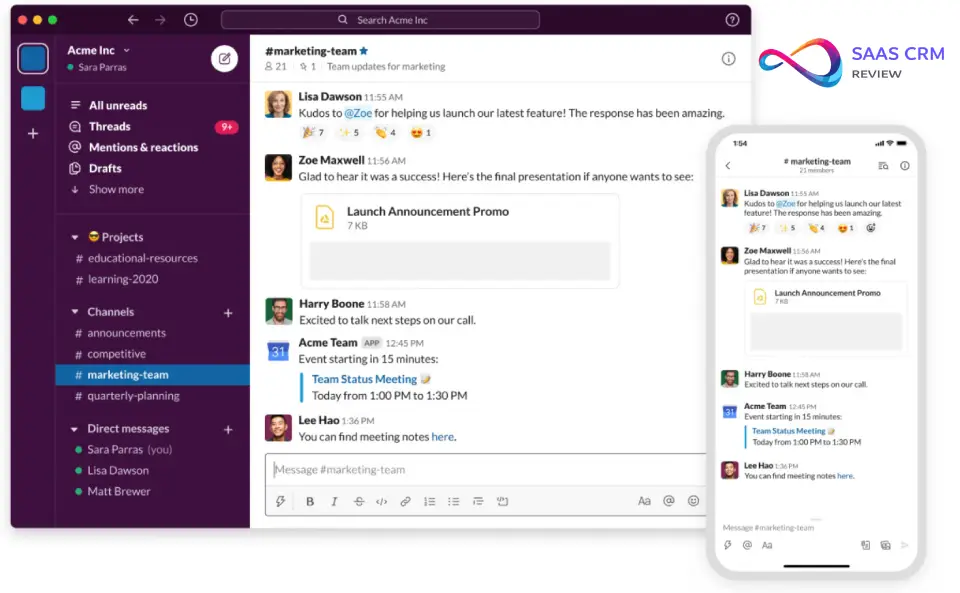
Slack is a channel-based messaging platform that’s become the de facto team chat tool for remote and hybrid teams. As a leading workplace collaboration tool, it connects to virtually every business tool, making it the central nervous system for modern workplaces.
Why I picked Slack
I’ve used Slack daily for 6+ years across startups and agencies. It’s where every conversation, decision, and file share happens—and the integration ecosystem is what makes it irreplaceable.
The real value isn’t the chat itself (Teams and others do that fine). It’s that Slack connects to everything. When a Salesforce deal closes, it posts to #sales. When a GitHub PR merges, it notifies #engineering. When an Asana task is due, the assignee gets a DM. This visibility across tools is something competitors still struggle to match.
Slack AI (launched 2024, expanded 2025) finally makes search useful. Before, finding a decision made 3 months ago meant endless scrolling. Now I can ask “what did we decide about Q4 pricing?” and get a summarized answer with source links. Thread summaries also save time—catching up on a 50-message thread takes seconds.
Compared to Microsoft Teams, Slack is faster, cleaner, and integrates better with non-Microsoft tools. Compared to Discord (which some teams try), Slack is purpose-built for work with proper admin controls and compliance features.
The main limitation is video. Huddles work for quick chats, but for serious meetings, we still use Zoom. That’s fine—Slack does messaging better than anyone.
Key features that actually matter
- Channels with threads: Keeps conversations organized—no more email chaos
- Slack Connect: Shared channels with clients and vendors—replaced 80% of my external email
- 2,600+ integrations: Native connections to almost every business tool
- Slack AI: Thread summaries, search answers, channel recaps—saves time daily
- Huddles: One-click audio/video for quick syncs
- Workflow Builder: Automate routine requests without code
- Canvas: Embedded docs within channels for persistent context
Integrations worth noting
Salesforce, HubSpot, Asana, monday.com, Jira, GitHub, Google Drive, Dropbox, Zoom, Figma, Linear, Notion, PagerDuty, Zendesk
Pricing reality
| Plan | Price | What you get |
|---|---|---|
| Free | $0 | 90-day message history, 10 integrations |
| Pro | $8.75/user/mo | Unlimited history, unlimited integrations |
| Business+ | $15/user/mo | SAML SSO, data exports, 24/7 support |
| Enterprise Grid | Custom | Unlimited workspaces, HIPAA, DLP |
Source: slack.com/pricing, (accessed Feb 2026)
Free tier verdict: Usable for tiny teams, but 90-day message history is limiting. Most teams upgrade to Pro within 6 months.
What’s working
- Integration depth is unmatched: 2,600+ apps, most with native quality
- AI features are practical: Search answers and thread summaries actually save time
- Adoption is instant: Everyone knows how to use Slack—zero training
- Channel organization scales: Good naming conventions keep it manageable at 500+ people
What’s not
- Video is weak: Huddles work for quick calls, but no whiteboard or breakout rooms
- Channel sprawl happens: Without governance, you’ll have 200+ dead channels within a year
- Gets expensive: At 500+ users, Enterprise pricing is necessary and costly
- Notification fatigue: Without discipline, it becomes a constant interrupt machine
Pros & Cons
| ✅ Pros | ❌ Cons |
|---|---|
| 2,600+ integrations connect everything | $8.75/user adds up at scale |
| AI search actually finds what you need | 90-day limit on free tier forces upgrades |
| Huddles replace unnecessary meetings | Channel sprawl without governance |
| Workflow Builder automates requests | Video features limited vs Zoom |
| Slack Connect reduces external email | Notification overload is real |
Recent updates (2026)
- January 2026: Slack Lists launched—lightweight task tracking within channels
- November 2025: Slack AI expanded with channel digests and proactive summaries
- October 2025: Workflow Builder updated with external data connections
The bottom line
Slack is the most mature, most integrated team chat platform. If your team communicates primarily via messaging and uses 5+ other SaaS tools, Slack ties everything together better than any alternative.
Best for: Distributed teams, SaaS-heavy organizations, anyone needing deep integrations
Skip if: You need native video conferencing or are already deep in Microsoft 365
Score: 9.2/10
Read full review: Slack Review 2026: Features, Pricing, Pros & Cons, and Best Alternatives
2. Microsoft Teams
Best for: Organizations already invested in Microsoft 365
⭐ 9.0/10 | Free plan available | From $4/user/mo | Teams Pricing →
Microsoft Teams is the communication hub for Microsoft 365, combining chat, video, file sharing, and Office integration. For M365 organizations, it’s essentially free value bundled with your existing subscription.

Why I picked Microsoft Teams
If your company runs on Outlook and SharePoint, Teams is the obvious choice. The value proposition is simple: you’re probably already paying for it.
The deep Office integration is genuinely useful. Co-authoring a Word doc while on a Teams call, with the document embedded in the chat—that flow doesn’t exist anywhere else. I watched a finance team cut their budget meeting prep time in half by working directly in shared Excel files during calls.
Copilot for Teams (the M365 Copilot add-on at $30/user/month) summarizes meetings better than I expected. Miss 15 minutes of a call? The summary catches you up accurately. It’s the first AI feature I actually rely on in meetings.
But I have to be honest: Teams is slow. Switching channels has noticeable lag compared to Slack. On older laptops, it’s painful. The notification system is confusing—new users miss messages constantly until they learn the quirks.
Key features that actually matter
- Office integration: Edit Word, Excel, PowerPoint directly in Teams
- SharePoint backend: Enterprise file management with proper governance
- Loop components: Live, synced content blocks across messages
- Copilot AI: Meeting summaries, chat assistance, content generation
- Teams Phone: Replace PBX with cloud calling
- Breakout rooms: Proper workshop facilitation in video calls
- Guest access: External collaboration with controls
Integrations worth noting
SharePoint, OneDrive, Power Automate, Dynamics 365, Planner, Outlook, Power BI, Azure DevOps, Salesforce, ServiceNow, SAP, Workday
Pricing reality
| Plan | Price | What you get |
|---|---|---|
| Teams Essentials | $4/user/mo | Teams only, 10GB cloud storage |
| M365 Business Basic | $6/user/mo | Teams + web Office apps |
| M365 Business Standard | $12.50/user/mo | + Desktop Office apps |
| M365 E3 | $36/user/mo | Enterprise features, advanced compliance |
| M365 E5 | $57/user/mo | Everything + advanced security |
Source: microsoft.com/microsoft-teams, (accessed Feb 2026)
Bundle verdict: If you’re paying for M365 anyway, Teams is free. Standalone Teams Essentials only makes sense for specific use cases.
What’s working
- Bundled value is undeniable: If you have M365, you’re done
- Office co-authoring is unmatched: Edit docs live during calls
- Copilot summaries are accurate: Actually useful meeting recaps
- Compliance is enterprise-grade: FedRAMP, HIPAA, GDPR all supported
What’s not
- Performance is slow: Channel switching has noticeable lag
- Notifications are confusing: Activity vs Chat vs Channels—users miss things
- Third-party integrations lag: 1,500 apps vs Slack’s 2,600
- Learning curve is real: Takes weeks for full team adoption
Pros & Cons
| ✅ Pros | ❌ Cons |
|---|---|
| Bundled with M365—often “free” | Noticeably slower than Slack |
| Deep Office integration | Notification system is confusing |
| Copilot AI summarizes meetings well | Guest setup is bureaucratic |
| Enterprise compliance built-in | Mobile app is heavy/slow |
| SharePoint provides governance | Search across content types inconsistent |
Recent updates (2026)
- January 2026: New Teams client fully rolled out (faster performance)
- December 2025: Copilot expanded with meeting coaching features
- November 2025: Loop components now work in channels, not just chats
The bottom line
If you’re a Microsoft shop, just use Teams. The bundle value is undeniable. If you’re not, the standalone experience isn’t compelling enough to switch from Slack.
Best for: M365 organizations, compliance-heavy industries, enterprises
Skip if: You prioritize speed and third-party integrations
Score: 9.0/10
Read full review: Microsoft Teams Review 2026: Details, Features, Pricing, Pros & Cons & Best Alternatives
3. Google Workspace
Best for: Teams that live in documents and need real-time collaboration
⭐ 8.8/10 | Free personal tier | From $7.20/user/mo | Workspace Pricing →
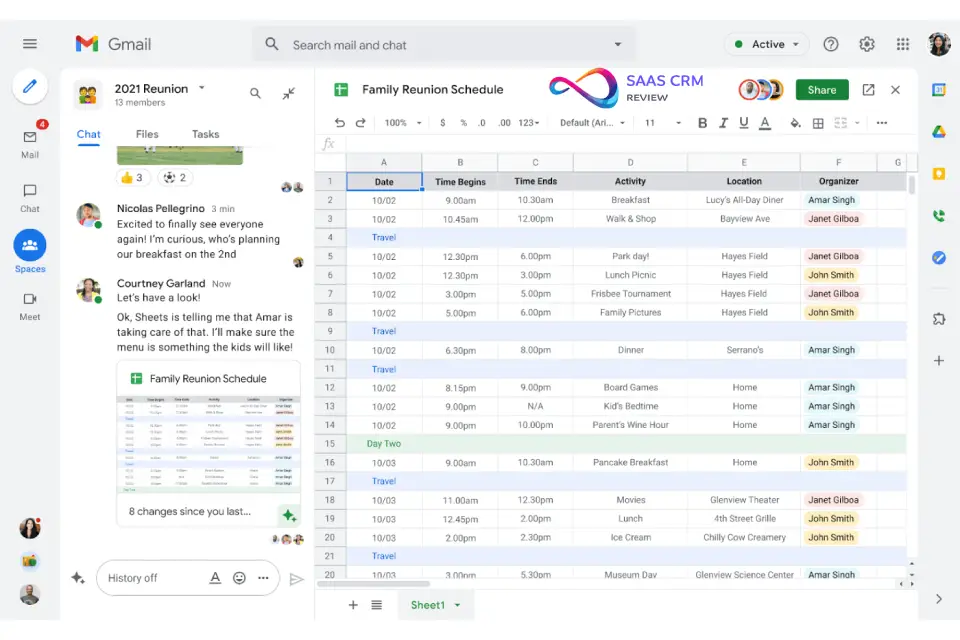
Google Workspace combines Gmail, Drive, Docs, Sheets, Slides, Meet, and Chat into a unified productivity suite. The real-time collaboration on documents changed how teams work together.
Why I picked Google Workspace
Google Docs changed how I think about writing. The real-time collaboration is so smooth that going back to “email the file, wait for edits, merge changes” feels prehistoric.
The best feature isn’t any single app—it’s how everything connects. A calendar event can create a Google Doc agenda, which creates action items that become Tasks, all linked together. That ambient integration multiplies productivity without requiring thought.
Spaces (Google’s chat product) is actually usable now. For two years it was a joke—clunky, ignored, nobody used it. The 2025 redesign made it good enough that some teams skip Slack entirely. It’s not as deep, but it’s included.
The real limitation is Meet quality. On the same connection, Zoom works fine but Meet stutters. Enterprise support confirmed it’s a known issue with certain network configurations but offered no fix. Also, admin console complexity at 500+ users is real—permission management becomes a full-time job.
Key features that actually matter
- Real-time co-editing: See cursors, edit together—zero merge conflicts
- Drive organization: Shared drives with proper team permissions
- Gemini AI: Summarize docs, draft content, analyze spreadsheets
- Meet: Video conferencing included (quality varies)
- Spaces: Team chat (improved significantly in 2025)
- AppSheet: No-code app building from Sheets data
- Calendar integration: Scheduling that just works
Integrations worth noting
Slack, Salesforce, HubSpot, Asana, monday.com, Zapier, DocuSign, Trello, Zoom, Adobe, Figma, Notion
Pricing reality
| Plan | Price | What you get |
|---|---|---|
| Business Starter | $7.20/user/mo | 30GB storage, custom email |
| Business Standard | $14.40/user/mo | 2TB storage, recording |
| Business Plus | $21.60/user/mo | 5TB storage, SSO |
| Enterprise | Custom | Unlimited storage, advanced controls |
Source: workspace.google.com/pricing, (accessed Feb 2026)
Storage reality: 30GB on Starter fills faster than you think with Drive files. Budget for Standard if you share large files.
What’s working
- Real-time collaboration is unmatched: Nothing comes close for document editing
- Ambient integration: Calendar→Docs→Tasks flow is seamless
- Spaces improved significantly: Usable for light team chat now
- Gemini AI is helpful: Summarization and drafting work well
What’s not
- Meet quality issues: Stuttering on certain networks, inconsistent
- Admin console complexity: 500+ users = full-time admin work
- Desktop apps lag Office: Power users miss Excel features
- Offline is limited: Heavy reliance on connectivity
Pros & Cons
| ✅ Pros | ❌ Cons |
|---|---|
| Real-time co-editing is seamless | Meet quality inconsistent |
| Everything connects automatically | Admin console complex at scale |
| Generous free personal tier | Desktop apps less powerful than Office |
| Gemini AI included | Offline functionality limited |
| Spaces finally usable | File organization can get chaotic |
Recent updates (2026)
- January 2026: Gemini for Workspace expanded to all plans
- December 2025: Spaces redesign with threading and reactions
- November 2025: Meet quality improvements for enterprise networks
The bottom line
If document collaboration is your primary need, Workspace is unmatched. Treat Spaces as a bonus, not a Slack replacement. Budget for Standard tier for storage.
Best for: Document-heavy teams, startups on budget, avoiding Microsoft dependency
Skip if: You need reliable video or powerful desktop apps
Score: 8.8/10
Read full review: Google Workspace Review 2026: Pricing, Features & Honest Pros/Cons
4. Zoom Workplace
Best for: Teams where video meetings are the primary collaboration mode
⭐ 8.5/10 | Free plan available | From $15.99/user/mo | Zoom Pricing →
Zoom is the video conferencing platform that won the pandemic. The reliability earned during COVID-19 hasn’t degraded—join rates are higher and tech problems are rarer than alternatives.
Why I picked Zoom
Zoom meetings just work. I’ve used Teams calls where audio drops, Meet calls that stutter, and WebEx calls that never connect. Zoom starts, runs, and ends without drama. That reliability is worth paying for.
Zoom Clips (async video recording) is better than I expected. Record quick updates without scheduling meetings, recipients watch at 1.5x. We replaced our weekly team standup with a shared Clips folder and got 30 minutes back per week.
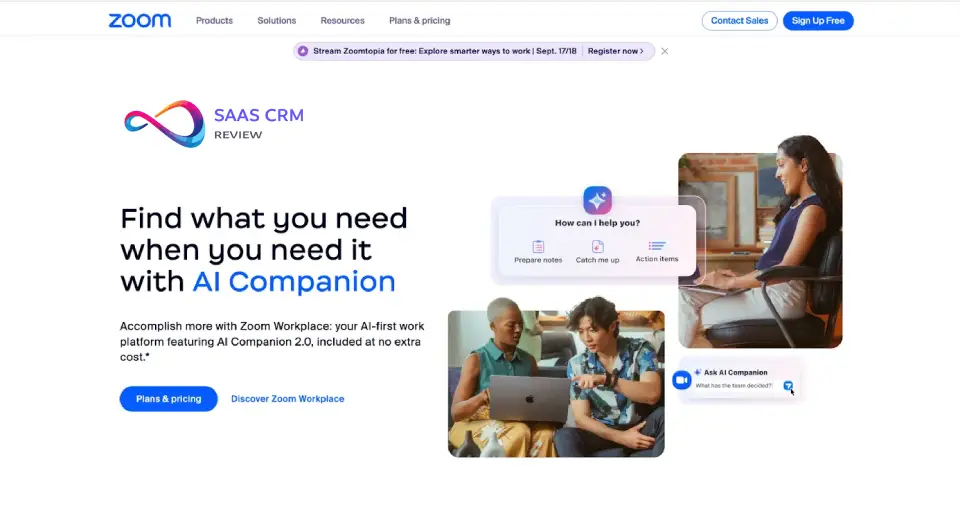
AI Companion transcription is accurate enough to skip note-taking. The summary captures action items reliably. I use it for every external meeting now—paste the summary into the follow-up email and you’re done.
The main disappointment is Zoom Team Chat. It’s not a Slack replacement despite Zoom’s marketing. The search is weak, threads are clunky, mobile notifications are unreliable. We tried consolidating to “just Zoom” and reverted to Slack within a month.
Key features that actually matter
- Reliable video: Higher join rates, fewer dropped calls than competitors
- AI Companion: Transcription, summaries, action items—included in paid plans
- Clips: Async video recording for updates without meetings
- Breakout rooms: Workshop facilitation that actually works
- Webinars: Proper large-scale event platform
- Whiteboard: Collaborative canvas during meetings
- Virtual backgrounds: Professional appearance from anywhere
Integrations worth noting
Slack, Microsoft Teams, Salesforce, HubSpot, Google Calendar, Outlook, Calendly, Zapier, Notion, Miro, Asana, monday.com
Pricing reality
| Plan | Price | What you get |
|---|---|---|
| Basic | $0 | 40-min group meetings, 100 participants |
| Pro | $15.99/user/mo | 30-hour meetings, 100 participants |
| Business | $21.99/user/mo | 300 participants, branding |
| Business Plus | $27.99/user/mo | Translated captions, workspace reservations |
| Enterprise | Custom | 500+ participants, webinars |
Source: zoom.us/pricing, (accessed Feb 2026)
Webinar add-on: For events, Webinar starts at $89/month for 500 attendees—not included in base plans.
What’s working
- Reliability is unmatched: Fewer tech issues than any video platform
- AI Companion transcription is accurate: Skip note-taking
- Clips replaces some meetings: Async updates that work
- Breakout rooms are smooth: Workshop facilitation done right
What’s not
- Team Chat is weak: Not a Slack replacement
- Security settings confuse guests: Waiting rooms, passwords, etc
- “Zoom fatigue” is real: The brand carries baggage now
- Pricing for features: Webinars, Phone are all add-ons
Pros & Cons
| ✅ Pros | ❌ Cons |
|---|---|
| Most reliable video platform | Team Chat isn’t close to Slack |
| AI transcription/summaries work | Security settings confuse external guests |
| Clips enable async video | Webinar is expensive add-on |
| Breakout rooms are excellent | Zoom Phone is separate cost |
| Everyone knows how to use it | Brand associated with fatigue |
Recent updates (2026)
- January 2026: AI Companion expanded with meeting coaching
- December 2025: Clips integrated with LMS platforms
- November 2025: Team Chat threading improvements
The bottom line
Zoom is still the best video platform. For async video, stack Loom on top. For chat, keep Slack. Don’t try to make Zoom your everything app—it’s best at video.
Best for: Video-first teams, frequent external meetings, webinars/training
Skip if: You want consolidated chat + video (use Teams)
Score: 8.5/10
Read full review: Zoom Workplace Review 2026: Features, Pricing, Pros & Cons
5. monday.com
Best for: Non-technical teams who want visual, colorful project boards
⭐ 8.7/10 | Free plan available | From $12/seat/mo | monday.com Pricing →
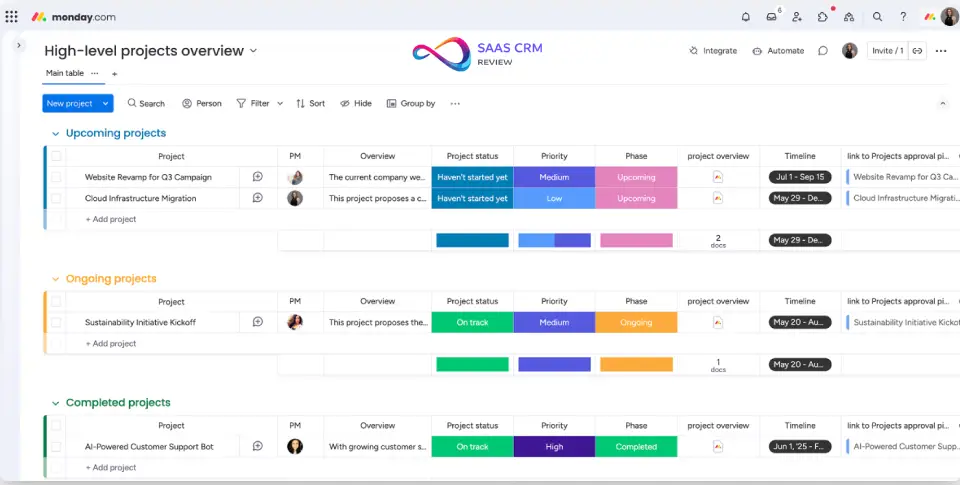
monday.com is what happens when you make project management actually enjoyable to look at. The visual design matters more than I initially thought—teams actually want to open it.
Why I picked monday.com
I’ve seen project management tools die because people don’t want to use them. Jira is powerful but feels like a chore. Asana is capable but gray and utilitarian. monday.com is the first PM tool where my marketing team opens it voluntarily.
The automations are genuinely powerful. “When status changes to Done, move item to Archive board, notify client channel in Slack, update our progress tracker.” That sequence took 5 minutes to build and saves hours weekly. No code required.
Non-technical adoption was remarkable. My mother-in-law runs her nonprofit’s volunteer coordination on monday.com. She’s never touched Asana or Jira. That accessibility is rare—most PM tools assume you know what a sprint is.
The downsides are real though. Pricing scales awkwardly—3-seat minimums, and the Standard plan ($14/seat) lacks key automations. You need Pro ($24/seat) for the features that make monday useful. Performance also degrades with complex boards (2,000+ items).
Key features that actually matter
- Visual boards: Color-coded, drag-and-drop interface that people enjoy
- Automations: “When X, do Y” rules without code
- Multiple views: Same data as Timeline, Kanban, Calendar, Chart
- Workdocs: Embedded documentation within workflows
- Forms: Capture requests that become board items
- Dashboards: Cross-board visibility and reporting
- Integrations: 200+ connections to other tools
Integrations worth noting
Slack, Microsoft Teams, Gmail, Google Drive, Dropbox, Zoom, Jira, GitHub, Salesforce, HubSpot, Mailchimp, Zendesk
Pricing reality
| Plan | Price | What you get |
|---|---|---|
| Free | $0 | Up to 2 seats, 3 boards |
| Basic | $12/seat/mo | Unlimited items, 5GB storage |
| Standard | $14/seat/mo | Timeline, Gantt, calendar views |
| Pro | $24/seat/mo | Automations, integrations, time tracking |
| Enterprise | Custom | Advanced security, audit logs |
Source: monday.com/pricing, (accessed Feb 2026). Minimum 3 seats on all paid plans.
The catch: Standard looks affordable but lacks automations. Pro is what most teams actually need—budget accordingly.
What’s working
- Visual design drives adoption: People actually enjoy using it
- Automations are powerful: Complex workflows without code
- Non-technical friendly: Accessible to users who fear “PM software”
- 15+ views: Same data displayed however you prefer
What’s not
- 3-seat minimum: Can’t buy single seats
- Standard lacks key features: Need Pro for useful automations
- Performance at scale: 2,000+ item boards slow down
- Formula column is awkward: Syntax takes learning
Pros & Cons
| ✅ Pros | ❌ Cons |
|---|---|
| Visual design people actually like | 3-seat minimum on paid plans |
| Powerful automations without code | Pro tier required for real features |
| Non-technical users adopt fast | Performance issues with large boards |
| 15+ view types from same data | Formula syntax is awkward |
| 200+ integrations | Enterprise features costly |
Recent updates (2026)
- January 2026: monday AI assistant launched for automation suggestions
- December 2025: Workdocs enhanced with real-time co-editing
- November 2025: Dashboard widgets redesigned
The bottom line
monday.com wins on visual design and accessibility. Budget for Pro tier to get the automations that make it powerful. Know that 3-seat minimums mean it’s overkill for solo users.
Best for: Marketing teams, creative agencies, non-technical users
Skip if: You’re a solo user or need enterprise Gantt/dependencies
Score: 8.7/10
Read full review: monday.com Review 2026: Features, Pricing, Pros & Cons & Best Alternatives
Compare with Asana: Asana vs monday.com — Which Is Best for Your Team?
6. Asana
Best for: Teams needing workflow automation without enterprise complexity
⭐ 8.6/10 | Free plan available | From $10.99/user/mo | Asana Pricing →
Asana is a project management platform that excels at turning chaos into repeatable workflows. It’s the tool that made me believe “if this happens, then do that” could actually work without engineers.
Why I picked Asana
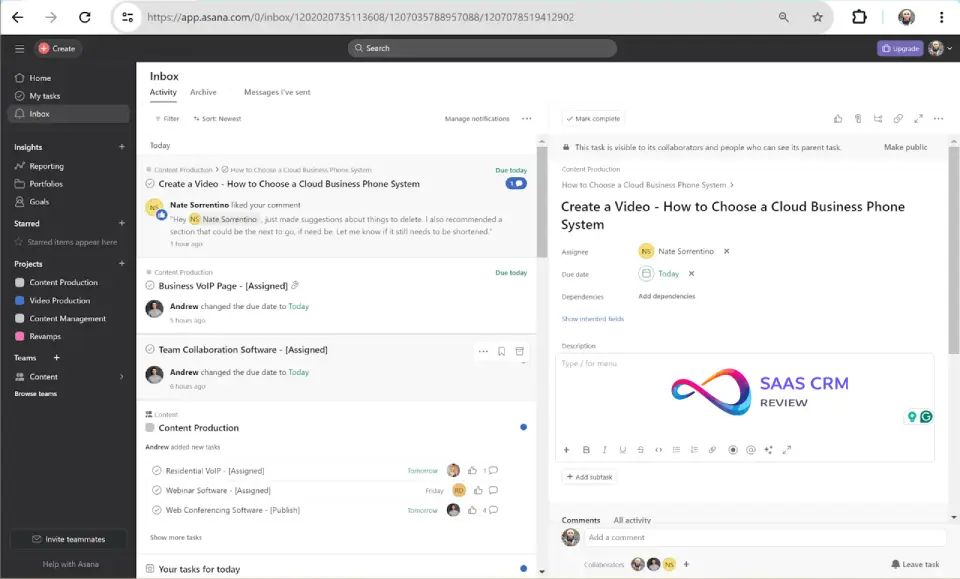
After three years managing content production workflows, Asana is the best tool for teams with repeatable processes that need automation without code.
The Rules engine is more powerful than I expected. When a writer marks “Ready for edit,” Asana automatically assigns it to an editor, sets a 48-hour deadline, notifies Slack, and adds it to our weekly report. Building that took 30 minutes. It saves 5+ hours weekly.
Portfolio view won over our skeptical executives. They get one dashboard showing status across 25 projects without asking anyone. Status meetings dropped by half because leaders could self-serve the information.
But the notification system is genuinely broken. Every reply to every thread triggers a notification. At 30 users, my Inbox became unusable. The fix was aggressive “Stop notifications on this” clicking and teaching the team to @mention only when necessary.
The mobile app is essentially read-only for real work. I tried managing projects from my phone for a week and gave up. Complex views just don’t work on small screens.
Key features that actually matter
- Rules engine: Multi-step automations without code
- Portfolio view: Cross-project visibility for leadership
- Timeline/Gantt: Dependencies with visual scheduling
- Forms: Structured intake that becomes tasks
- Goals: OKR tracking connected to project work
- Workload: Resource capacity visualization
- Proofing: Feedback on images/PDFs (on higher tiers)
Integrations worth noting
Slack, Microsoft Teams, Google Drive, Dropbox, Salesforce, Jira, GitHub, Zoom, Figma, Adobe Creative Cloud, Tableau, Power BI
Pricing reality
| Plan | Price | What you get |
|---|---|---|
| Personal | $0 | Up to 10 users, basic task management |
| Starter | $10.99/user/mo | Timeline, Gantt, forms, automations |
| Advanced | $24.99/user/mo | Portfolios, goals, advanced reporting |
| Enterprise | Custom | SAML SSO, advanced admin |
Source: asana.com/pricing, (accessed Feb 2026)
The catch: Personal (free) maxes at 10 total users—not 10 active, 10 total. Most growing teams need Starter minimum.
What’s working
- Workflow automation is powerful: Complex rules without engineering
- Portfolio view works: Executives get self-serve status
- Forms → tasks flow: Intake becomes organized work
- Search is reliable: Find old tasks without frustration
What’s not
- Notification chaos: Every comment triggers notifications
- Mobile app is weak: Essentially read-only experience
- Advanced features gate-kept: Goals require Advanced tier
- No HIPAA: Healthcare teams can’t use this
Pros & Cons
| ✅ Pros | ❌ Cons |
|---|---|
| Rules automation is powerful | Notification system is broken |
| Portfolio gives exec visibility | Mobile app nearly useless |
| Forms capture structured requests | Advanced features require $25/user |
| Timeline shows dependencies clearly | No HIPAA compliance option |
| Clean, focused interface | Reporting needs Advanced tier |
Recent updates (2026)
- January 2026: AI Task Summaries launched for catching up on projects
- December 2025: Goals redesigned with better OKR visualization
- November 2025: Workflow Builder expanded with conditional logic
The bottom line
Asana excels at workflow automation for teams with repeatable processes. Budget for Starter minimum—free tier is too limited. Invest time in fixing notification defaults early.
Best for: Content teams, marketing operations, anyone with repeatable workflows
Skip if: You need strong mobile experience or HIPAA compliance
Score: 8.6/10
Read full review: Asana Review 2026: Features, Pricing, Pros & Cons & Best Alternatives
7. ClickUp
Best for: Teams wanting one platform to replace 5+ separate tools
⭐ 8.8/10 | Free plan available | From $10/user/mo | ClickUp Pricing →
ClickUp is the “everything app” for work. We consolidated Asana, Notion, and Toggl into ClickUp and cut our tool spend by 60%. The trade-off was a brutal learning curve.
Why I picked ClickUp
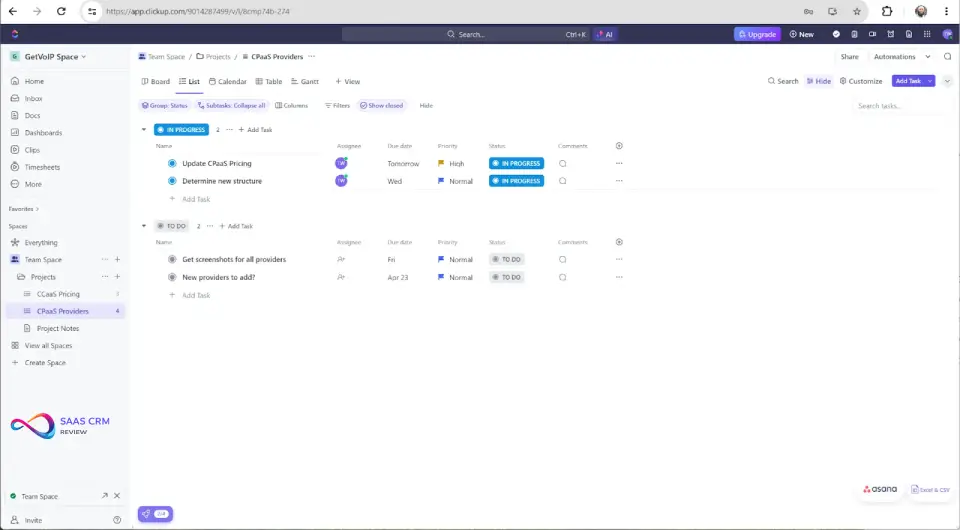
I picked ClickUp because I was tired of paying for 6 different tools and switching between them constantly. ClickUp promised one platform for tasks, docs, goals, time tracking, and whiteboards. It actually delivered—once we survived the learning curve.
ClickUp Docs are genuinely good—not just “good enough.” I wrote this entire review draft in ClickUp Docs, linked to tasks, embedded views from our testing board. The workflow integration that Notion lacks is exactly what ClickUp delivers.
The 15+ views from the same data are useful, not gimmicky. Our marketing team uses Board view. Engineering prefers List. Leadership wants Dashboards. Same data, everyone happy.
But the first week was brutal. “Where do I click?” was asked 50+ times. We eventually hired a ClickUp consultant for 4 hours of training—worth it, but shouldn’t have been necessary. Also, our workspace with 200+ projects and 5,000+ tasks takes 3-4 seconds to load views.
Key features that actually matter
- Everything in one place: Tasks, docs, goals, whiteboards, time tracking
- 15+ views: List, Board, Gantt, Calendar, Timeline, Table, and more
- ClickUp Docs: Native documentation with task linking
- Time tracking built-in: No separate tool needed
- Automations: Complex workflows without code
- Goals & OKRs: Connected to actual project work
- Dashboards: Custom reporting from workspace data
Integrations worth noting
Slack, Google Drive, Dropbox, GitHub, GitLab, Figma, Zoom, Calendly, HubSpot, Salesforce, Intercom, Zendesk
Pricing reality
| Plan | Price | What you get |
|---|---|---|
| Free | $0 | Unlimited tasks, 100MB storage |
| Unlimited | $10/user/mo | Unlimited storage, integrations |
| Business | $19/user/mo | Advanced automations, time tracking |
| Enterprise | Custom | SSO, white labeling, advanced security |
Source: clickup.com/pricing, (accessed Feb 2026)
Free tier is generous: Unlimited tasks and projects. Storage limit is the main constraint.
What’s working
- True consolidation: Actually replaces multiple tools
- Docs are solid: Notion-quality with task integration
- View flexibility: Everyone works how they prefer
- Time tracking included: One fewer subscription
What’s not
- Learning curve is brutal: Plan 2-3 weeks of confusion
- Performance at scale: Large workspaces load slowly
- Overwhelming interface: Feature overload for new users
- Updates shift things: UI changes disrupt muscle memory
Pros & Cons
| ✅ Pros | ❌ Cons |
|---|---|
| Most features per dollar | First-week learning curve is brutal |
| ClickUp Docs rival Notion | Performance degrades at scale |
| 15+ views from same data | Interface is overwhelming |
| Time tracking included | Updates change UI location |
| No per-seat minimums | Complex features poorly documented |
Recent updates (2026)
- January 2026: ClickUp Brain AI expanded with workspace search
- December 2025: Whiteboards redesigned with Miro-like features
- November 2025: Docs 2.0 launched with improved editing
The bottom line
ClickUp delivers maximum features per dollar—if you survive the learning curve. Budget 2-3 weeks of productivity dip during transition. For simpler needs, Asana or monday.com are easier.
Best for: Cost-conscious teams, power users, agencies consolidating tools
Skip if: You want simple interface or fast onboarding
Score: 8.8/10
Read full review: ClickUp Review 2026: Features, Pricing, Pros/Cons, and Who It’s Best For
8. Notion
Best for: Teams building knowledge bases and flexible documentation
⭐ 8.9/10 | Free plan available | From $12/user/mo | Notion Pricing →
Notion is where our company’s brain lives. Every process, decision, and piece of institutional knowledge—searchable, linked, alive. It’s the most flexible documentation platform I’ve used.
Why I picked Notion
Notion is where our company’s brain lives. Every process, every decision, every piece of institutional knowledge exists there—searchable, linked, and alive.
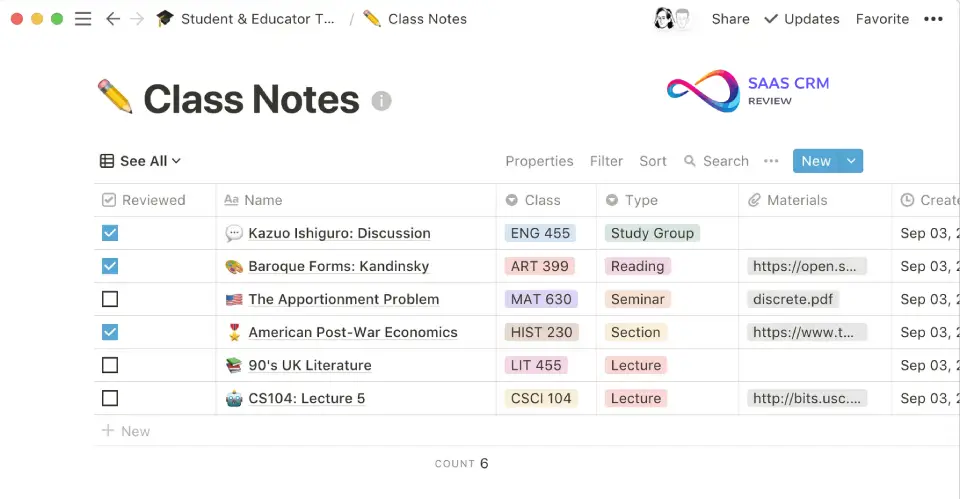
The “everything is a database” philosophy clicked after about a month of use. Our team directory is a database. Project tracker is a database. Meeting notes linked to both. When someone joins a project, they see everything connected—context without asking.
Notion AI actually helps. “Summarize this 15-page strategy doc” saves 20 minutes. “Help me write an onboarding guide” provides a solid first draft. It’s the AI feature I use most across all my tools.
But performance with large databases is painful. Our wiki with 3,000+ pages and 15 linked databases takes 5+ seconds to load search. Notion support’s answer was “try archiving old content”—not helpful when everything needs to be searchable.
Offline mode is essentially unusable. I worked on a flight, landed, sync failed. Lost 2 hours of work. Now I draft important docs in Google Docs and paste into Notion—which defeats the purpose.
Key features that actually matter
- Everything is a database: Tables, boards, calendars, galleries from same data
- Linked databases: Connect information across pages
- Notion AI: Summarize, draft, answer questions from your content
- Templates: Personal and team templates for consistency
- Real-time editing: Collaborative editing (improving, not Google-level yet)
- Publishing: Turn pages into public websites
- Embeds: Bring in Figma, Miro, Loom, and more
Integrations worth noting
Slack, Google Drive, Figma, GitHub, Jira, Asana, Trello, Zoom, Loom, Zapier, Make, Typeform
Pricing reality
| Plan | Price | What you get |
|---|---|---|
| Free | $0 | Unlimited pages, 10 guests |
| Plus | $12/user/mo | Unlimited file uploads, 100 guests |
| Business | $18/user/mo | SAML SSO, advanced permissions |
| Enterprise | Custom | Audit log, advanced security |
Source: notion.so/pricing, (accessed Feb 2026)
AI is included: No longer a separate add-on on most plans.
What’s working
- Flexibility is unmatched: Build almost any structure
- Databases are powerful: Relational data for non-developers
- Notion AI is genuinely useful: Summarization works great
- Templates accelerate setup: Don’t start from scratch
What’s not
- Performance at scale: Large wikis become slow
- Offline is broken: Sync issues cause lost work
- Not for real-time chat: Comments aren’t communication
- Learning curve for databases: Concepts take time
Pros & Cons
| ✅ Pros | ❌ Cons |
|---|---|
| Infinite flexibility | Performance issues at scale |
| Databases connect everything | Offline mode is unreliable |
| Notion AI summarizes/drafts well | Not a communication tool |
| Beautiful, customizable pages | Database concepts take learning |
| Free tier is generous | Export options are limited |
Recent updates (2026)
- January 2026: Notion Calendar integration deepened
- December 2025: Notion AI expanded with Q&A over workspace
- November 2025: Real-time editing improved significantly
The bottom line
Notion is the best documentation platform if your team commits to structure. Pair with Slack for communication—Notion’s comments aren’t a substitute. Be prepared for performance issues with large wikis.
Best for: Growing companies building institutional knowledge, flexible teams
Skip if: You need reliable offline or have 5,000+ pages
Score: 8.9/10
Read full review: Notion Review 2026 – Pricing, Pros & Cons, Best Use Cases
9. Trello
Best for: Small teams wanting dead-simple visual task management
⭐ 8.0/10 | Free plan available | From $5/user/mo | Trello Pricing →
Trello is what I give to teams that don’t need project management—they need a better to-do list everyone can see. Simplicity is the entire product.
Why I picked Trello
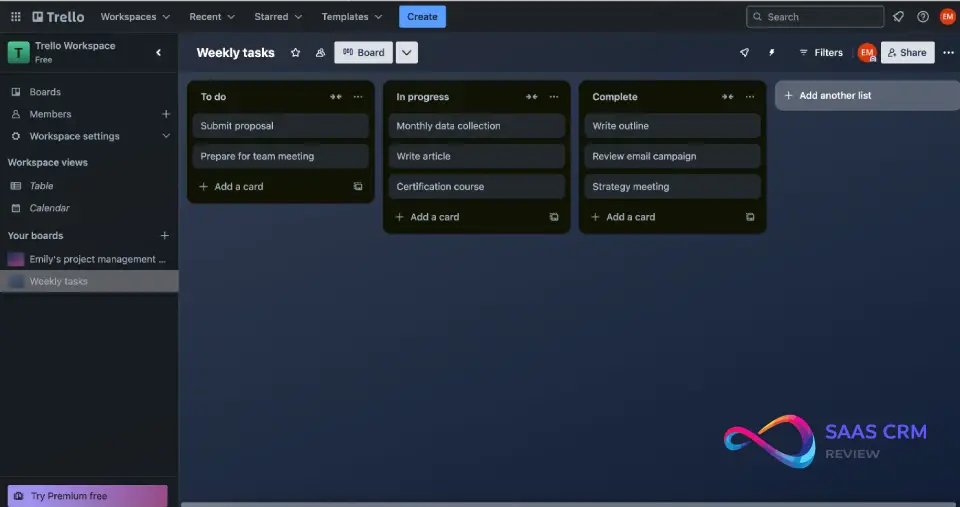
I’ve used Trello for side projects, client boards, and simple team workflows where the overhead of Asana or monday.com wasn’t justified. Creating a board takes 30 seconds. Adding teammates takes 10 seconds. Everyone understands it immediately.
Our content calendar started as a Trello board—columns for Ideation, Writing, Editing, Published. Drag a card to move its status. That’s it. No training, no documentation, no “project management methodology.”
Butler automation is more capable than expected. “When a card is moved to Done, move it to Archive board and add a comment with completion date.” No-code automation that actually works.
But we outgrew it at exactly 15 people. Cards became hard to find. “Which board is that in?” became a daily question. No real search, no reporting, no cross-board visibility. We migrated to monday.com within 6 months.
Power-Ups (integrations) nickel-and-dime you. Free tier gets 1 Power-Up per board. Calendar view? Power-Up. Custom fields? Power-Up. Suddenly you need paid plans for basic features.
Key features that actually matter
- Boards and cards: Visual drag-and-drop simplicity
- Butler automation: No-code automations within boards
- Checklists: Break cards into subtasks
- Due dates: Simple deadline tracking with calendar view
- Power-Ups: Extend functionality (calendar, custom fields, etc.)
- Templates: Start from pre-built configurations
- Card covers: Visual differentiation with images
Integrations worth noting
Slack, Google Drive, Dropbox, Jira, Confluence, Salesforce, GitHub, Zapier, Evernote, Mailchimp
Pricing reality
| Plan | Price | What you get |
|---|---|---|
| Free | $0 | 10 boards, 1 Power-Up per board |
| Standard | $5/user/mo | Unlimited boards/Power-Ups, 1,000 automations |
| Premium | $10/user/mo | Timeline, Calendar, Dashboard views |
| Enterprise | $17.50/user/mo | SSO, organization settings |
Source: trello.com/pricing, (accessed Feb 2026). See our Trello pricing 2026 guide for detailed cost scenarios and hidden fees.
Power-Up reality: Free tier limitations push you to Standard faster than expected.
What’s working
- Zero learning curve: Everyone understands boards immediately
- Setup in minutes: Functional board in 5 minutes
- Butler automates basics: Simple workflows without code
- Mobile works great: Rare for PM tools
What’s not
- Scales poorly: 15+ people and it becomes chaotic
- No cross-board visibility: No unified view or reporting
- Power-Ups add cost: Basic features require paid add-ons
- Search is weak: Finding old cards is frustrating
Pros & Cons
| ✅ Pros | ❌ Cons |
|---|---|
| Dead simple to understand | No cross-board visibility |
| Setup takes minutes | Outgrown quickly at 15+ people |
| Butler automation works | Power-Ups nickel-and-dime you |
| Mobile app is excellent | Search is unreliable |
| Visual and intuitive | No reporting/dashboards on lower tiers |
Recent updates (2026)
- January 2026: Trello Premium features expanded
- December 2025: Butler automation limits increased
- November 2025: New card detail redesign
The bottom line
Trello is perfect for small teams with simple needs. Know you’ll outgrow it—and that’s fine. Start with Trello, graduate to Asana or monday.com when complexity requires it.
Best for: Small teams, side projects, simple workflow tracking
Skip if: You have 15+ people or need reporting
Score: 8.0/10
Read full review: Trello Review 2026: Features, Pricing, Pros & Cons – Is It Worth Using?
10. Airtable
Best for: Teams managing structured data who’ve outgrown spreadsheets
⭐ 8.4/10 | Free plan available | From $20/user/mo | Airtable Pricing →
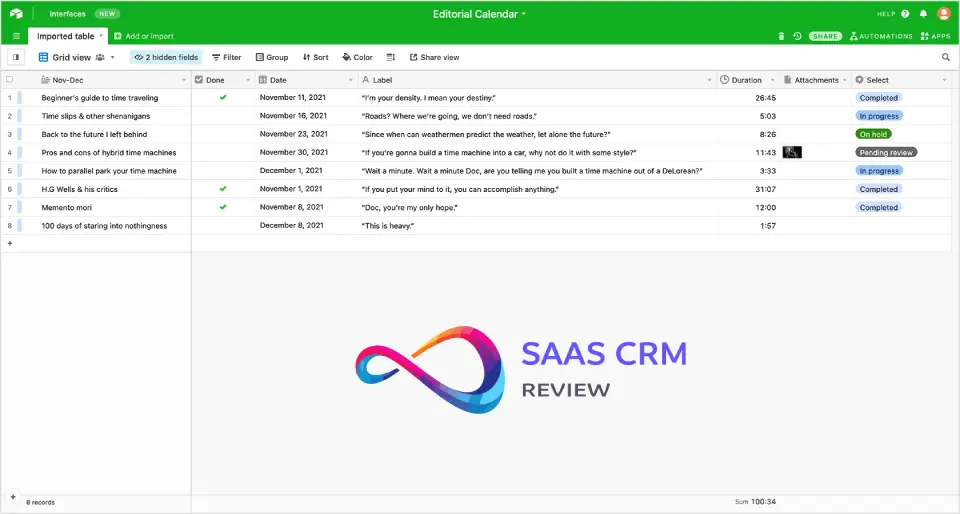
Airtable is what happens when spreadsheets and databases have a baby. Our marketing ops team replaced 15 Google Sheets with 3 Airtable bases—and got relational data for free.
Why I picked Airtable
Spreadsheets hit a wall when you need relationships between data. “Link this campaign to this team member in this channel” doesn’t work in Excel without VLOOKUP nightmares. Airtable makes that native.
Linked records changed how we think about data. Our campaigns base links to team members base, which links to channels base. Filter by team member, see all their campaigns across all channels. That relational capability transformed our reporting.
Interface Designer is genuinely powerful. I built a client portal in 2 hours—clients see only their projects, can update status, submit requests. That would have been a custom dev project otherwise.
But pricing at scale is brutal. $20/user for Team doesn’t include real automations or sync—you need Business at $45/user. At 25 users, that’s $1,125/month for what started as “a better spreadsheet.”
Performance with large bases degrades noticeably. Our main base with 50,000+ records takes 8-10 seconds to load views. Filters are slow. Formulas choke. The fix is splitting into smaller bases, which breaks the relational magic.
Key features that actually matter
- Linked records: Relational database without SQL
- Multiple views: Grid, Kanban, Calendar, Gallery, Gantt from same data
- Interface Designer: Build apps on top of your data
- Automations: Triggers and actions (limits vary by tier)
- Forms: Capture data into bases
- Extensions: Charts, scripts, integrations
- Sync: Connect bases together (Business tier)
Integrations worth noting
Slack, Salesforce, Jira, Google Drive, Dropbox, Zapier, Make, GitHub, Typeform, Mailchimp, Webflow
Pricing reality
| Plan | Price | What you get |
|---|---|---|
| Free | $0 | 1,000 records/base, 1GB storage |
| Team | $20/user/mo | 50,000 records, extensions |
| Business | $45/user/mo | 125,000 records, sync, prorations |
| Enterprise | Custom | Unlimited records, advanced security |
Source: airtable.com/pricing, (accessed Feb 2026)
Record limits are per-base: Not per-table. Large tables fill quotas fast.
What’s working
- Relational data without SQL: Links just work
- Interface Designer is powerful: Build client portals easily
- Views are genuinely flexible: Same data, many presentations
- Form → Base flow works: Intake becomes organized data
What’s not
- Expensive at scale: $45/user for Business adds up fast
- Performance with large bases: 50k+ records slow everything
- Free tier is limiting: 1,000 records fills instantly
- Sync requires Business: Cross-base connections costly
Pros & Cons
| ✅ Pros | ❌ Cons |
|---|---|
| Relational data for non-developers | $20/user minimum, $45 for real features |
| Interface Designer builds apps | Performance issues at 50k+ records |
| Multiple views from same data | Free tier: 1,000 record limit |
| Form → Base workflow is smooth | Sync requires Business tier |
| Extensions add functionality | Learning curve for relations |
Recent updates (2026)
- January 2026: Airtable AI launched for formula suggestions
- December 2025: Interface Designer expanded with new components
- November 2025: Performance improvements for large bases
The bottom line
Airtable is powerful for structured data workflows, but budget for the cost curve—it gets expensive fast. For simpler needs, Notion databases might suffice.
Best for: Marketing ops, content databases, inventory tracking
Skip if: You need 100k+ records or budget is tight
Score: 8.4/10
Read full review: Airtable Review 2026: Features, Pricing, Pros & Cons & Best Alternatives
11. Miro
Best for: Teams that think visually and run remote workshops
⭐ 8.5/10 | Free plan available | From $10/user/mo | Miro Pricing →
Miro replaced our physical whiteboards and made them infinite. The canvas concept took adjustment, but now I can’t imagine brainstorming any other way.
Why I picked Miro
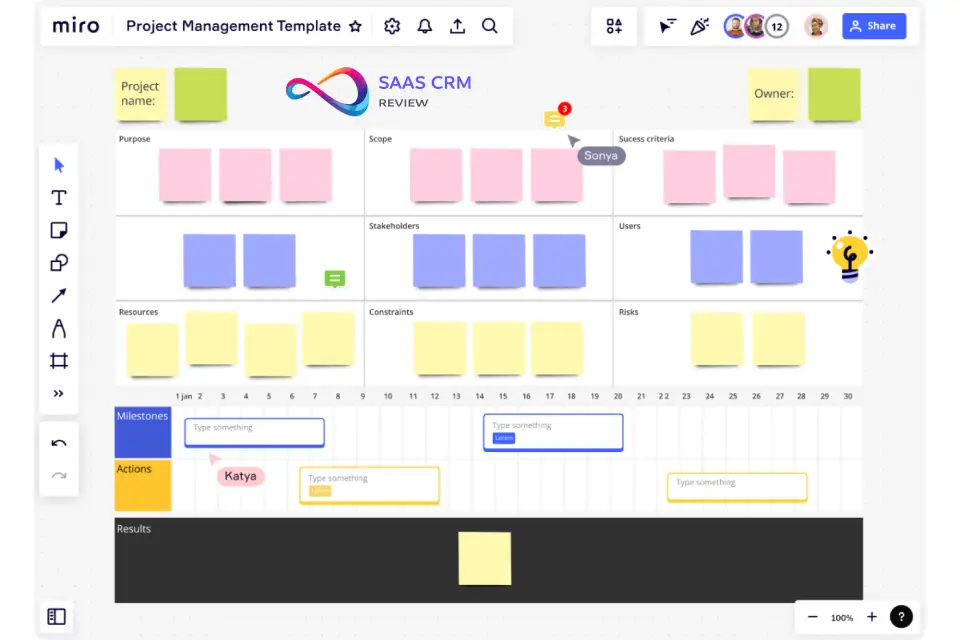
Remote work killed whiteboards—except it didn’t. Miro made them better than the physical version. Infinite canvas, never erase anything, everyone can edit from anywhere.
Remote workshop facilitation is where Miro truly shines. Timer, voting, anonymous sticky notes, breakout “frames”—the facilitation toolkit is complete. I ran a 50-person strategy offsite entirely on Miro. Any other tool, that would have been chaos.
Templates saved weeks of setup. Found an exact customer journey map template, customized slightly, done. The template library is genuinely useful, not just marketing fluff. We have a “Miro starter kit” for new employees that includes 10 templates we actually use.
But large boards with 500+ sticky notes become sluggish. Zoom out and wait 2-3 seconds for elements to render. One board became so heavy we had to split it into “quarters” and link between them.
Real-time collaboration with 10+ people creates chaos. Everyone moving things simultaneously, frames overlapping, stickies duplicating. The fix: facilitator controls who can edit, others in “comment only” mode.
Key features that actually matter
- Infinite canvas: Never run out of space
- Templates: Customer journeys, retrospectives, workshops, org charts
- Facilitation tools: Timer, voting, anonymous stickies
- Frames: Organize areas of large boards
- Talktrack: Record video walkthroughs of boards
- Comments and annotations: Async feedback on visual work
- Presentation mode: Turn boards into slideshows
Integrations worth noting
Figma, Slack, Microsoft Teams, Jira, Asana, Confluence, Google Drive, Zoom, Azure DevOps, Notion
Pricing reality
| Plan | Price | What you get |
|---|---|---|
| Free | $0 | 3 editable boards, basic features |
| Starter | $10/user/mo | Unlimited boards, voting, timer |
| Business | $18/user/mo | Private boards, advanced attention management |
| Enterprise | Custom | SSO, data governance |
Source: miro.com/pricing, (accessed Feb 2026)
Visitors are free: View-only access doesn’t cost. Pay only for editors.
What’s working
- Workshop facilitation is complete: Timer, voting, anonymous inputs
- Templates save hours: Pre-built frameworks for common activities
- Talktrack is unique: Async video walkthroughs of visual work
- Infinite canvas scales: No more running out of whiteboard space
What’s not
- Performance with large boards: 500+ elements causes lag
- Real-time chaos: 10+ simultaneous editors is chaotic
- Learning curve for advanced features: Takes time
- Free tier limitations: 3 boards fills fast
Pros & Cons
| ✅ Pros | ❌ Cons |
|---|---|
| Best workshop facilitation tools | Large boards become sluggish |
| Templates save hours of setup | 10+ collaborators create chaos |
| Talktrack for async presentations | Free tier: only 3 boards |
| Infinite canvas never runs out | Advanced features take learning |
| Strong design tool integrations | Mobile is view-only essentially |
Recent updates (2026)
- January 2026: Miro AI assistance for brainstorming
- December 2025: New template categories added
- November 2025: Performance improvements for large boards
The bottom line
Miro is essential for visual thinkers and remote workshops. Start free, upgrade when you hit the 3-board limit. Use facilitator controls to manage collaboration chaos.
Best for: Remote workshops, visual brainstorming, journey mapping
Skip if: You need project management or real-time with 15+ people
Score: 8.5/10
Read full review: Miro Review 2026: Details, Features, Pricing, Pros & Cons & Best Alternatives
12. Figma
Best for: Design teams needing real-time collaboration on UI/UX
⭐ 9.1/10 | Free plan available | From $15/seat/mo | Figma Pricing →
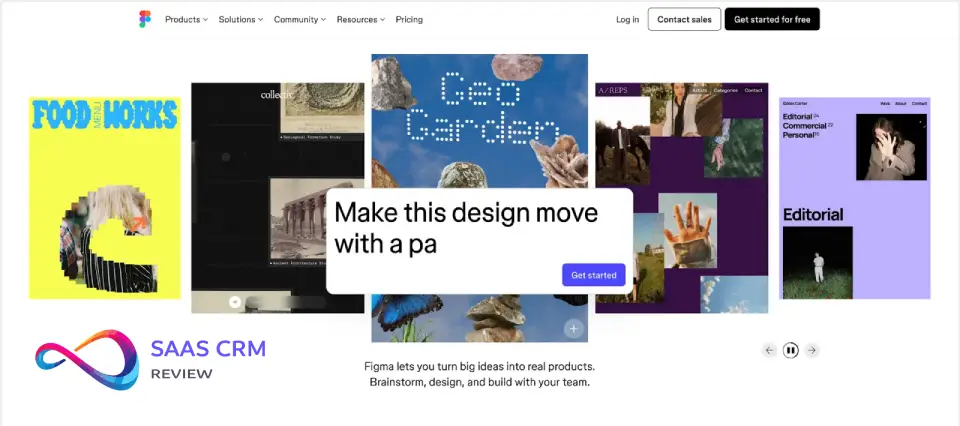
Figma ended the “which version is latest?” problem for design files. Real-time collaboration on design changed how product teams work.
Why I picked Figma
I’m not a designer, but I work with design teams constantly. Figma is the first design tool where I can participate—comment, inspect, even make text edits—without asking for a file or waiting for exports.
Developer handoff is seamless. Engineers inspect designs directly—measurements, colors, spacing—without exporting specification documents. This alone saved 5+ hours per sprint of back-and-forth at companies I’ve worked with.
FigJam (Figma’s whiteboard) is better than expected for quick brainstorming. Not as deep as Miro, but good enough for rapid ideation without switching tools. Having whiteboard and design in the same platform reduces friction.
But file organization becomes chaotic at scale. With 150+ design files across teams, finding anything requires knowing exactly where it lives. Search helps but isn’t reliable for finding “that button component I designed last month.”
Performance on complex files with 100+ frames degrades. Designers learned to split large projects into multiple files and link between them—which creates its own organizational challenges.
Key features that actually matter
- Real-time collaboration: Multiple designers, same file, simultaneously
- Dev Mode: Engineers inspect without exports
- Auto Layout: Responsive design made efficient
- Components and variants: Design system building blocks
- Prototyping: Interactive previews without code
- FigJam: Whiteboarding in the same platform
- Branching (Org tier): Version control for design files
Integrations worth noting
Slack, Notion, Jira, Asana, Storybook, Zeplin, Abstract, Maze, UserTesting, Principle
Pricing reality
| Plan | Seat Type | Price | What you get |
|---|---|---|---|
| Starter | All | $0 | 3 Figma files, 3 FigJam files |
| Professional | Collab | $3/seat/mo | View, comment access |
| Professional | Dev | $12/seat/mo | Dev Mode, inspection |
| Professional | Full | $15/seat/mo | Full design access |
| Organization | Full | $55/seat/mo | Org libraries, branching |
| Enterprise | Full | $90/seat/mo | Advanced security, SSO |
Source: figma.com/pricing, (accessed Feb 2026)
Seat types matter: Not everyone needs Full seats. Collab and Dev seats reduce costs significantly.
What’s working
- Real-time editing works flawlessly: No version conflict nightmares
- Dev Mode transforms handoff: No more redlining
- Seat types optimize costs: Pay for what each role needs
- FigJam inclusion is valuable: Whiteboard at no extra cost
What’s not
- File organization at scale: 150+ files becomes chaos
- Complex files slow down: 100+ frames causes lag
- Pricing is confusing: Seat types take understanding
- Enterprise is expensive: $90/seat adds up fast
Pros & Cons
| ✅ Pros | ❌ Cons |
|---|---|
| Real-time design collaboration | Complex file organization at scale |
| Dev Mode handoff is seamless | Performance on large files |
| Tiered seat pricing optimizes cost | Pricing structure is confusing |
| FigJam included | Organization tier is expensive |
| Auto Layout speeds up work | Offline is limited (browser-based) |
Recent updates (2026)
- January 2026: Figma AI for design suggestions
- December 2025: Dev Mode expanded with variables
- November 2025: FigJam AI additions
The bottom line
Figma is the industry standard for collaborative design. The tiered seat pricing lets you pay only for what each role needs. Essential for any product team.
Best for: Product teams, design systems, designer-developer handoff
Skip if: You’re print-focused or need robust offline
Score: 9.1/10
Read full review: Figma Review 2026: Details, Features, Pricing, Pros & Cons & Best Alternatives
13. Confluence
Best for: Technical teams needing documentation integrated with Jira
⭐ 8.2/10 | Free plan available | From $5.42/user/mo | Confluence Pricing →
Confluence is the documentation layer of the Atlassian ecosystem. If you’re on Jira, adding Confluence is essentially free value for technical docs.
Why I picked Confluence
If your engineering team uses Jira, the decision is made: use Confluence. The integration is deep enough that resisting it costs more effort than adopting it.
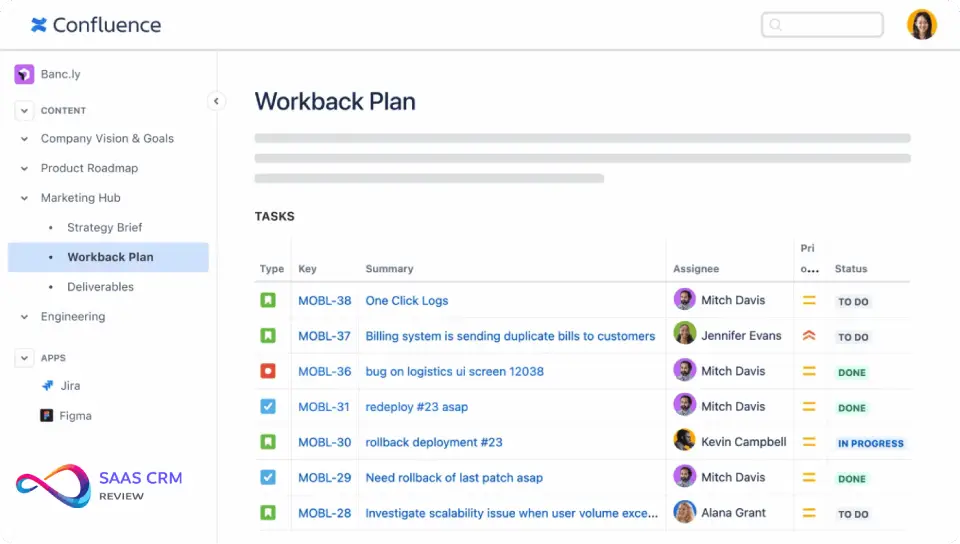
The Jira integration is genuinely useful. Create a spec in Confluence, link it to Jira epics, see status updates without switching tools. For engineering teams already on Jira, this integration alone justifies Confluence.
Rovo AI (Atlassian’s AI) is surprisingly good for finding information. “Who worked on the authentication redesign?” returns relevant docs and people. Search finally works after years of being terrible.
But the editor was painful for years. Recent updates improved it, but comparing to Notion’s smooth editing experience, Confluence still feels clunky. Writers prefer drafting elsewhere and pasting in.
Space sprawl is real. Departments create spaces, projects create spaces, suddenly you have 200 spaces and no one knows where to put things. Governance from day one is required.
Key features that actually matter
- Jira integration: Two-way linking with issues and epics
- Page hierarchy: Organized tree structure for docs
- Templates: Meeting notes, requirements, product specs
- Rovo AI: Smart search and content discovery
- Macros: Extend pages with dynamic content
- Guest access: External collaboration with controls
- Confluence whiteboards: Visual collaboration (newer addition)
Integrations worth noting
Jira, Trello, Bitbucket, Slack, Microsoft Teams, Google Drive, Lucidchart, Draw.io, Gliffy, Miro
Pricing reality
| Plan | Price | What you get |
|---|---|---|
| Free | $0 | Up to 10 users, basic features |
| Standard | $5.42/user/mo | Guest access, 250GB storage |
| Premium | $10.44/user/mo | Unlimited storage, analytics |
| Enterprise | Custom | Cross-product insights, Atlassian Guard |
Source: atlassian.com/confluence/pricing, (accessed Feb 2026)
Atlassian Guard (SSO/SCIM): Requires separate subscription for enterprise identity features.
What’s working
- Jira integration is deep: Bi-directional linking works
- Rovo AI improves search dramatically: Actually finds things now
- Hierarchy scales: Well-organized spaces stay usable
- Macros extend functionality: Dynamic content possibilities
What’s not
- Editor is clunky: Doesn’t match modern note tools
- Space sprawl happens fast: Governance essential
- Templates feel dated: Not as polished as competitors
- SSO requires add-on: Atlassian Guard is separate cost
Pros & Cons
| ✅ Pros | ❌ Cons |
|---|---|
| Deep Jira integration | Editor is clunkier than Notion |
| Rovo AI improves search | Space sprawl without governance |
| Page hierarchy scales | Templates feel dated |
| Guest access for collaboration | SSO requires Atlassian Guard |
| Macros add functionality | Performance on large pages |
Recent updates (2026)
- January 2026: Rovo AI expanded with content generation
- December 2025: New editor improvements rolled out
- November 2025: Confluence Whiteboards enhanced
The bottom line
If you use Jira, use Confluence. The integration is too valuable to ignore. If you’re not on Jira, Notion is a better standalone choice.
Best for: Jira users, engineering teams, technical documentation
Skip if: You want modern UX or aren’t using Atlassian products
Score: 8.2/10
Read full review: Confluence Review 2026: Features, Integrations, Pros & Cons
14. Basecamp
Best for: Teams wanting simplicity over features
⭐ 7.8/10 | Free tier available | From $15/user/mo | Basecamp Pricing →
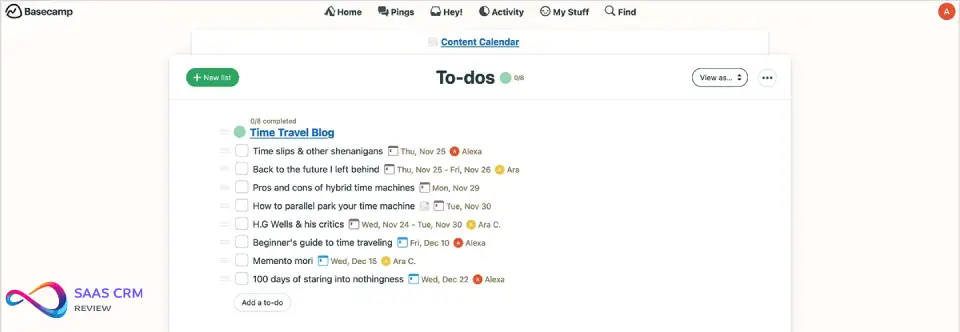
Basecamp is the anti-ClickUp. Where ClickUp offers 50 features, Basecamp offers 6 and says “this is enough.” For some teams, it actually is.
Why I picked Basecamp
I recommend Basecamp to teams that don’t want to learn software. The promise is simplicity: message board, to-dos, schedule, docs, campfire chat, and check-ins. That’s it.
Junior staff and clients understood it immediately. Every project has the same structure. That consistency eliminates “where do I put this?” confusion that plagues flexible tools.
Hill Charts are genuinely clever. Instead of “75% complete” (which means nothing), you show where work is on a hill—climbing = figuring it out, descending = executing. It captures uncertainty that percentages miss.
But we outgrew it fast. At 20 people with 50+ projects, there’s no good way to see dependencies across projects. No portfolio view. No automation. The simplicity became a limitation.
The $299/month flat rate for unlimited users sounds great until you do the math. At $15/user/month for smaller teams, you hit $299 value at 20 users. Below that, you’re overpaying or limited.
Key features that actually matter
- Consistent structure: Every project has the same 6 tools
- Message board: Threaded discussions, not chat
- To-dos: Simple task lists with assignments
- Schedule: Calendar for deadlines
- Docs & Files: Document storage
- Hill Charts: Visual progress that captures uncertainty
- Automatic check-ins: Recurring questions without meetings
Integrations worth noting
Limited native integrations. Requires Zapier for: Google Drive, Dropbox, Slack, Trello, Asana, Calendly, Toggl, Harvest
Pricing reality
| Plan | Price | What you get |
|---|---|---|
| Free | $0 | 1 project only |
| Plus | $15/user/mo | Unlimited projects, 500GB storage |
| Pro Unlimited | $299/mo flat | Unlimited everything, priority support |
Source: basecamp.com/pricing, (accessed Feb 2026)
Economics: Pro Unlimited breaks even vs Plus at ~20 users.
What’s working
- Simplicity is the feature: Everyone understands immediately
- Consistent structure: No “where does this go?” confusion
- Hill Charts are unique: Progress visualization that captures reality
- Check-ins reduce meetings: Async status updates
What’s not
- No dependencies or Gantt: Can’t visualize project relationships
- No portfolio view: Cross-project visibility doesn’t exist
- No automation: Everything is manual
- Scaling limitations: 50+ projects feels cluttered
Pros & Cons
| ✅ Pros | ❌ Cons |
|---|---|
| Dead simple—anyone can use it | No dependencies or Gantt views |
| Consistent structure every project | No portfolio-level visibility |
| Hill Charts capture progress uniquely | Zero automation capabilities |
| $299 flat for unlimited users | Limited integrations |
| Check-ins replace some meetings | Outgrown at ~20 users |
Recent updates (2026)
- January 2026: Basecamp redesign launched
- December 2025: Card table (kanban-like) feature added
- November 2025: Mobile app improvements
The bottom line
Basecamp works if simplicity is your priority and you have 20+ users. Below that, the per-seat model might actually work better. Know you might outgrow it.
Best for: Client-facing agencies, small businesses, simplicity-first teams
Skip if: You need Gantt, automation, or portfolio views
Score: 7.8/10
Read full review: Basecamp Review 2026: Features, Pricing, Pros & Cons
15. Wrike
Best for: Marketing and creative teams needing proofing and approvals
⭐ 8.3/10 | Free plan available | From $10/user/mo | Wrike Pricing →
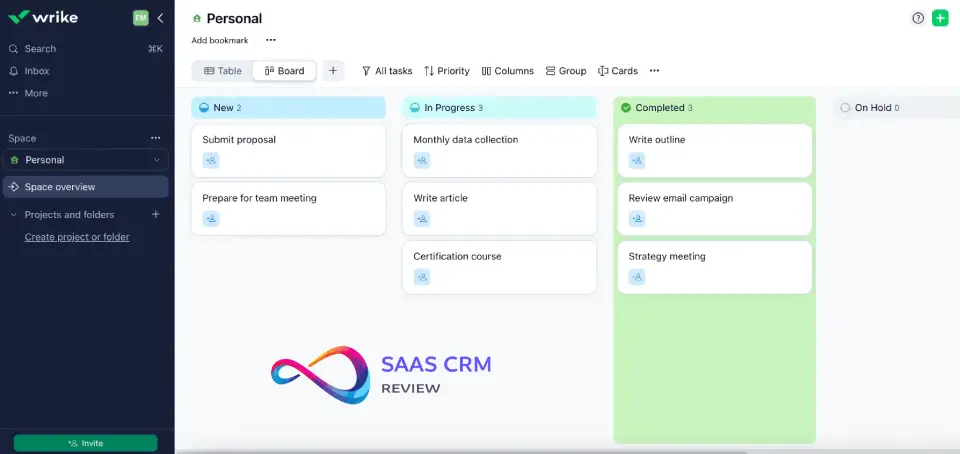
Wrike is project management built for marketing workflows. The built-in proofing and approval features are uniquely powerful for creative teams.
Why I picked Wrike
Marketing teams have a specific need: review creative assets and route approvals efficiently. Most PM tools treat this as an afterthought. Wrike built it natively.
Built-in proofing eliminates email chains. Upload a creative asset, stakeholders annotate directly, approvals route automatically. This workflow is scattered across 3 tools (Dropbox + email + Asana) in other setups.
Cross-tagging means one task lives in multiple projects without duplication. Marketing campaign task appears in both Campaign board and Brand Guidelines project. Update once, syncs everywhere.
But the interface is overwhelming. First-time users face too many buttons, panels, views. Training was required—we spent 3 hours walking through “where things are” before the team was productive.
Pricing escalates quickly with add-ons. Base Wrike is $10/user, but Wrike for Marketers with proofing is $25/user. Resource management? Another add-on. Budget for the tier you’ll actually need.
Key features that actually matter
- Built-in proofing: Annotate images, PDFs, videos directly
- Approval workflows: Route creative for sign-off
- Cross-tagging: Tasks live in multiple projects
- Request forms: Structured creative intake
- Custom workflows: Per-project statuses
- Resource management: Capacity planning (add-on)
- Reports and dashboards: Cross-project visibility
Integrations worth noting
Salesforce, Slack, Microsoft Teams, Google Drive, Dropbox, Box, GitHub, Jira, Adobe Creative Cloud, MediaValet
Pricing reality
| Plan | Price | What you get |
|---|---|---|
| Free | $0 | Basic features, limited users |
| Team | $10/user/mo | Gantt charts, dashboards |
| Business | $25/user/mo | Custom workflows, proofing, automations |
| Enterprise | Custom | SAML SSO, advanced security |
| Pinnacle | Custom | Advanced analytics, resource management |
Source: wrike.com/price, (accessed Feb 2026)
The proofing catch: Asset proofing requires Business tier ($25/user).
What’s working
- Proofing is genuinely useful: Eliminates approval chaos
- Cross-tagging works well: Tasks in multiple projects without duplication
- Request forms capture intake: Structured creative briefs
- Custom workflows per project: Flexibility for different teams
What’s not
- Interface is overwhelming: New users struggle
- Business tier required for proofing: $25/user minimum for real features
- Add-on costs accumulate: Resource management, etc
- Learning curve is steep: Training investment required
Pros & Cons
| ✅ Pros | ❌ Cons |
|---|---|
| Built-in proofing is excellent | Interface is overwhelming at first |
| Cross-tagging shows tasks in multiple projects | Proofing needs Business ($25/user) |
| Request forms capture creative briefs | Add-ons increase costs further |
| Custom workflows per project | Learning curve is real |
| Strong approval routing | Mobile app lags behind |
Recent updates (2026)
- January 2026: Wrike AI for project insights
- December 2025: Proofing expanded for video
- November 2025: Resource management improvements
The bottom line
Wrike excels for marketing teams with approval workflows. The proofing features justify the higher Business tier cost. Budget for training—the interface takes learning.
Best for: Marketing teams, creative agencies, approval-heavy workflows
Skip if: You want simple interface or budget is tight
Score: 8.3/10
Read full review: Wrike Review 2026: Features, Pricing, Pros & Cons & Best Alternatives
16. Smartsheet
Best for: PMOs and operations teams who think in spreadsheets
⭐ 8.2/10 | Limited free tier | From $12/user/mo | Smartsheet Pricing →
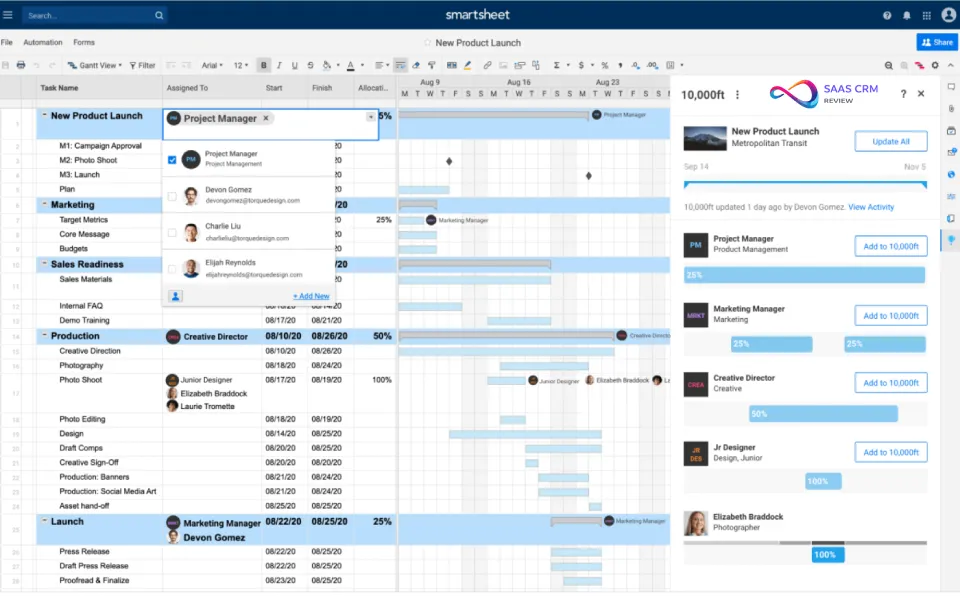
Smartsheet is project management for people who refuse to leave Excel. The grid interface is familiar, but the PM features—Gantt, dependencies, automation—are real.
Why I picked Smartsheet
Our PMO director loved Excel and hated every PM tool we tried. Smartsheet clicked immediately because it looked like a spreadsheet but acted like project management software.
The formula system is powerful for spreadsheet users. Cross-sheet references let you build dashboards that pull data from 50 project sheets. Our PMO director built a portfolio rollup that updates automatically—would’ve been a script in any other tool.
DataMesh (premium add-on) solves the “where’s the master data?” problem. Changes in one sheet propagate to linked sheets automatically. No more “update this in 5 places” conversations.
But the grid-first design means some PM concepts are awkward. Board view exists but feels bolted on. If you think visually, Smartsheet fights you. Our marketing team tried it and switched to monday.com.
Pricing is confusing. Pro vs Business vs Enterprise—plus add-ons like Control Center, DataMesh, Connectors. By the time you have enterprise features, you’re spending similar to premium competitors.
Key features that actually matter
- Familiar grid interface: Spreadsheet users feel at home
- Cross-sheet formulas: Pull data from multiple sheets
- DataMesh: Sync data across sheets automatically (add-on)
- Control Center: Template-driven project creation (add-on)
- Gantt charts: Dependencies with timeline view
- Reports: Aggregate data across sheets
- Automations: Trigger-action workflows
Integrations worth noting
Microsoft 365, Google Workspace, Salesforce, Jira, ServiceNow, Slack, Teams, Tableau, Power BI, DocuSign
Pricing reality
| Plan | Price | What you get |
|---|---|---|
| Pro | $12/user/mo | Unlimited sheets, 250 automations/mo |
| Business | $24/user/mo | Timeline view, workload tracking |
| Enterprise | Custom | SSO, directory integration |
| Advanced Work Management | Custom | Control Center, DataMesh |
Source: smartsheet.com/pricing, (accessed Feb 2026)
Add-on reality: DataMesh and Control Center are Enterprise add-ons—budget accordingly.
What’s working
- Spreadsheet familiarity: Zero learning curve for Excel users
- Cross-sheet formulas work: Portfolio rollups done right
- Automations are capable: Workflows without code
- Enterprise governance scales: Control Center manages templates
What’s not
- Visual views feel bolted on: Board/Kanban isn’t natural
- Pricing is confusing: Add-ons create uncertainty
- Not for visual thinkers: Grid-first limits some teams
- Interface feels dated: Functional, not beautiful
Pros & Cons
| ✅ Pros | ❌ Cons |
|---|---|
| Excel users love it immediately | Board views feel bolted on |
| Cross-sheet formulas are powerful | Pricing with add-ons is confusing |
| DataMesh syncs master data | Interface isn’t modern |
| Enterprise governance scales | Not for visual thinkers |
| Strong PMO features | Limited free tier |
Recent updates (2026)
- January 2026: Smartsheet AI for formula suggestions
- December 2025: WorkApps improvements
- November 2025: Resource management features expanded
The bottom line
Smartsheet is perfect if your team lives in spreadsheets and needs PM features without leaving that paradigm. For visual teams, look elsewhere.
Best for: PMOs, finance, operations—anyone who loves Excel
Skip if: You think visually or want modern UX
Score: 8.2/10
Read full review: Smartsheet Review 2026: Features, Pricing, Pros & Cons & Best Alternatives
17. Dropbox
Best for: Teams needing reliable file sharing without complexity
⭐ 8.0/10 | Free plan available | From $11.99/user/mo | Dropbox Pricing →
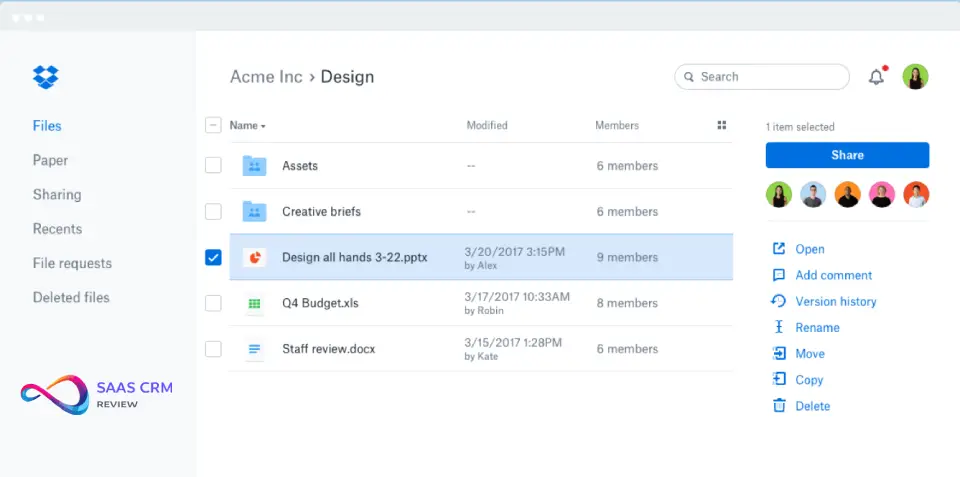
Dropbox is still the simplest way to share large files externally. Google Drive won for document collaboration, but Dropbox wins for “just put this file somewhere anyone can download it.”
Why I picked Dropbox
When a client needs a 2GB video file, I don’t explain Drive or OneDrive. I send a Dropbox link. It just works, every time, regardless of what the recipient uses.
Transfer (branded file sending up to 100GB) is genuinely useful for agencies. Send large design files to clients with your logo, password protection, expiry dates. Cleaner than wetransfer links.
Dropbox Paper (their document editor) is better than expected for quick notes. Not as powerful as Notion, but the simplicity is welcome. We use it for meeting notes that don’t need to live in our wiki.
But Selective Sync on desktop is flaky. Files appear to be available locally but aren’t—clicking opens an error. This has cost hours of frustration when working offline unexpectedly.
Dropbox wants to be a workspace now, not just storage. The new desktop app pushes features you don’t need. The simple “folder that syncs” experience requires fighting through upsells.
Key features that actually matter
- Reliable sync: Folder syncs across devices seamlessly
- Transfer: Branded large file delivery (up to 100GB)
- Paper: Simple document editor
- Selective Sync: Choose what’s local vs cloud
- Version history: Recover previous file versions
- Team folders: Shared spaces with permissions
- Smart Sync: Cloud-only files available on demand
Integrations worth noting
Slack, Microsoft Office, Google Workspace, Zoom, Salesforce, Adobe, Trello, Asana, Canvas, DocuSign
Pricing reality
| Plan | Price | What you get |
|---|---|---|
| Basic | $0 | 2GB storage |
| Plus | $11.99/mo | 2TB, 30-day recovery (personal) |
| Professional | $19.99/mo | 3TB, branding, watermarking |
| Standard Team | $15/user/mo | 5TB shared, admin controls |
| Advanced Team | $24/user/mo | 15TB+, advanced security |
Source: dropbox.com/plans, (accessed Feb 2026)
Free tier is limiting: 2GB fills instantly with modern files.
What’s working
- Reliability is unmatched: File sync just works
- Transfer is genuinely useful: Large branded file delivery
- Cross-platform excellence: Mac, Windows, mobile all work
- Version history saves projects: Recover mistakes easily
What’s not
- Selective Sync issues: Files appear local but aren’t
- Feature creep: App pushes unwanted features
- Storage is expensive: Competitors bundle more
- Not a workspace: Collaboration features are secondary
Pros & Cons
| ✅ Pros | ❌ Cons |
|---|---|
| Most reliable file sync | Selective Sync is flaky |
| Transfer handles large files | Desktop app pushes features |
| Paper is simple and usable | Storage expensive vs bundled alternatives |
| Version history works | 2GB free tier is useless |
| Cross-platform excellence | Wants to be more than storage |
Recent updates (2026)
- January 2026: Dropbox Dash AI search across apps
- December 2025: Transfer file size limits increased
- November 2025: Paper document improvements
The bottom line
Dropbox is simple, reliable file storage. If you need more—collaboration, docs, workflow—Google Drive or OneDrive offer more for similar pricing.
Best for: File sharing, large deliveries, creative studios
Skip if: You need full collaboration suite
Score: 8.0/10
Read full review: Dropbox Review 2026: Details, Features, Pricing, Pros & Cons & Best Alternatives
18. Loom
Best for: Teams replacing unnecessary meetings with async video
⭐ 8.4/10 | Free plan available | From $15/creator/mo | Loom Pricing →
Loom made async video mainstream. Record your screen, talk, share a link. The simplicity is the product.

Why I picked Loom
Our weekly team standup took 45 minutes because everyone talked through their updates. We switched to “record a 3-minute Loom by EOD Monday.” Now team leads watch at 1.5x speed and we got 30 minutes back weekly.
Viewer analytics are useful for checking engagement. “Did they actually watch my 10-minute walkthrough?” You see exactly where they stopped, if they rewatched sections. For training content, this tells you what to shorten.
Loom AI transcription is accurate enough to replace meeting notes. Record a quick update, AI generates a summary and chapters. Recipients skim transcript, watch only what matters.
But “5 minutes max” on free tier pushes you to paid faster than expected. Most updates fit in 5 minutes, but training videos don’t. Suddenly $15/user for a “screen recorder” feels expensive.
Video management at scale is messy. After 6 months, we had 500+ videos with unclear titles. Finding “that walkthrough from last quarter” requires good search—Loom’s is just okay.
Key features that actually matter
- One-click recording: Screen, camera, or both
- Instant sharing: Link generated immediately
- Viewer analytics: See who watched and where
- AI transcription: Auto-generated with chapters
- Comments: Timestamped feedback on videos
- Reactions: Quick emoji responses
- Password protection: Control access to sensitive content
Integrations worth noting
Slack, Notion, Gmail, Salesforce, HubSpot, Zendesk, Jira, Figma, GitHub, Intercom
Pricing reality
| Plan | Price | What you get |
|---|---|---|
| Starter | $0 | 25 videos, 5 min max each |
| Business | $15/creator/mo | Unlimited videos and length |
| Business + AI | $20/creator/mo | AI summaries, auto-chapters |
| Enterprise | Custom | SSO, advanced privacy controls |
Source: loom.com/pricing, (accessed Feb 2026)
Creator pricing: Pay only for people who record. Viewers are always free.
What’s working
- Zero friction recording: Click, record, share
- Viewer analytics are actionable: Know what works
- AI summaries save time: Recipients skim effectively
- Creator billing is smart: Viewers free optimizes cost
What’s not
- 5-min free limit pushes upgrade: Most real content is longer
- Video organization gets messy: No good folder structure
- $15/creator adds up: Teams with many presenters pay more
- Search is just okay: Finding old videos is frustrating
Pros & Cons
| ✅ Pros | ❌ Cons |
|---|---|
| Recording is frictionless | 5-min free limit pushes upgrade |
| Viewer analytics are useful | Video library gets messy |
| AI transcription is accurate | $15/creator adds up |
| Creator billing optimizes cost | Search could be better |
| Everyone knows how to watch | Editing is very basic |
Recent updates (2026)
- January 2026: AI summaries expanded with action items
- December 2025: Recording quality improvements
- November 2025: Slack integration enhanced
The bottom line
Loom is essential for async-first teams. The creator-based pricing means viewers are free—pay only for people who record. Worth it to reduce meetings.
Best for: Async updates, training, sales prospecting, remote teams
Skip if: You need video editing or unlimited free recording
Score: 8.4/10
Read full review: Loom Review 2026: Details, Pricing, Pros & Cons
19. Linear
Best for: Product and engineering teams who care about speed and design
⭐ 9.0/10 | Free plan available | From $10/user/mo | Linear Pricing →
Linear is issue tracking that doesn’t feel like punishment. After years of Jira, the speed and aesthetic are a revelation.

Why I picked Linear
I spent 5 years using Jira. Every click felt slow. Every workflow required configuration. Every sprint planning was a slog through a clunky interface.
Linear changed that. Everything loads instantly. Keyboard shortcuts let you fly through triage. The interface is beautiful—which sounds superficial until you realize you spend hours daily in this tool.
Keyboard-first design is addictive. Once you learn the shortcuts (K = up, J = down, C = create), you never touch the mouse. I process 40 issues in the time Jira takes for 10.
AI agents (launched 2025) actually help with triage. “Route bugs to appropriate team” works as expected. “Suggest priority based on past similar issues” catches things I’d miss.
But Linear isn’t for every team type. Marketing tried it—the software development paradigm (issues, sprints, cycles) confused them. They went back to Asana. Also, reporting is limited compared to Jira. Executive dashboards for complex portfolios require external tools.
Key features that actually matter
- Speed: Everything loads instantly, no waiting
- Keyboard shortcuts: Power user efficiency
- Cycles: Sprint-like time boxing
- Roadmaps: Visual planning for product teams
- Triage: Quick issue categorization workflow
- AI agents: Auto-routing and suggestions
- Git integration: GitHub/GitLab sync
Integrations worth noting
GitHub, GitLab, Slack, Figma, Zendesk, Intercom, Sentry, PagerDuty, Discord, Zapier
Pricing reality
| Plan | Price | What you get |
|---|---|---|
| Free | $0 | 250 issues, 2 teams, unlimited members |
| Basic | $10/user/mo | Unlimited issues, 5 teams |
| Business | $15/user/mo | Private teams, SLAs, Linear Asks |
| Enterprise | Custom | SAML, SCIM, advanced security |
Source: linear.app/pricing, (accessed Feb 2026)
Free tier is generous: 250 issues covers most small products.
What’s working
- Speed is incredible: No lag switching views
- Keyboard shortcuts transform productivity: Mouse becomes optional
- AI triage helps: Auto-routing works well
- Beautiful interface: Pleasant to use daily
What’s not
- Not for non-dev teams: Marketing, HR don’t fit
- Limited reporting: Executive dashboards lacking
- Opinionated workflow: Less flexible than Jira
- GitHub-focused: Atlassian integration weaker
Pros & Cons
| ✅ Pros | ❌ Cons |
|---|---|
| Fastest issue tracker available | Not designed for non-dev teams |
| Keyboard shortcuts are addictive | Limited portfolio reporting |
| AI agents auto-triage effectively | Less customizable than Jira |
| Beautiful, clean interface | GitHub > Atlassian integration |
| Generous free tier | Enterprise features costly |
Recent updates (2026)
- January 2026: Linear Asks for request intake
- December 2025: AI agents expanded capabilities
- November 2025: Roadmap improvements
The bottom line
Linear is the best issue tracker for product teams who value speed and design. If you’re on Jira and it’s working, no urgency to switch. If Jira frustrates you daily, Linear is the answer.
Best for: Product teams, engineering, startups
Skip if: Non-technical teams or Jira-dependent enterprises
Score: 9.0/10
Read full review: Linear Review 2026: Details, Features, Pricing, Pros & Cons & Best Alternatives
20. Coda
Best for: Teams building custom workflows without engineering resources
⭐ 8.3/10 | Free plan available | From $12/doc maker/mo | Coda Pricing →
Coda is Notion with superpowers—and a steeper learning curve. If you can think in formulas and databases, you can build almost anything.
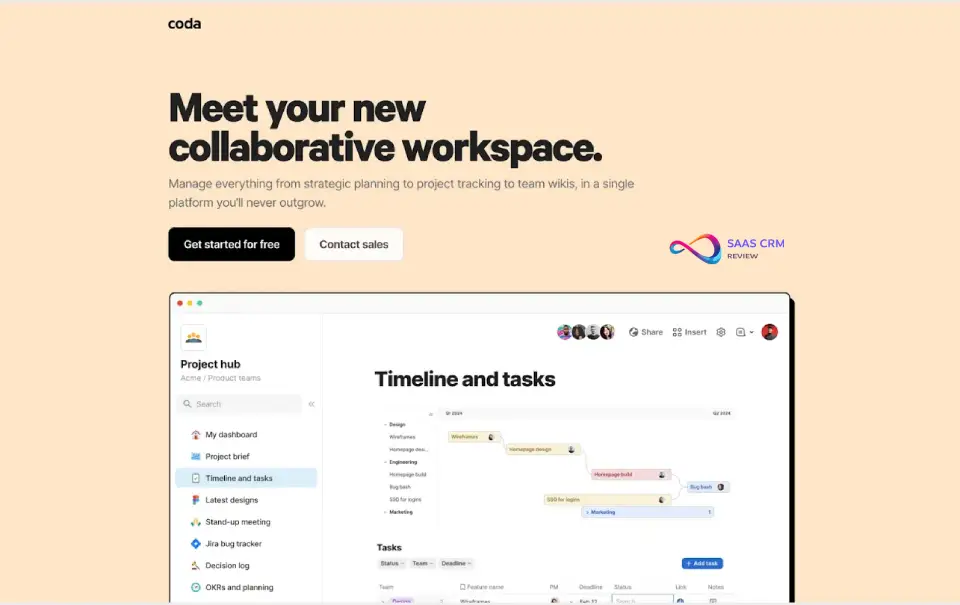
Why I picked Coda
When teams ask “can we build a custom internal tool without developers?” I point them to Coda. It’s the most powerful no-code document platform I’ve used.
The Pack ecosystem extends functionality dramatically. Connected our CRM data to Coda, built a custom dashboard that syncs automatically. That would have been a developer project otherwise.
Maker billing is clever—you pay for people who create, not everyone who views or edits. A team of 50 with 5 builders costs 5 seats. That’s significant savings compared to per-user pricing.
But the learning curve is real. Coda’s power comes from formulas, and formula thinking doesn’t come naturally to everyone. Two team members never got comfortable—they use templates we built for them.
Templates from the community are hit-or-miss. Some are excellent, others are overcomplicated for simple needs. We now build in-house rather than adapting external templates.
Key features that actually matter
- Everything is a doc: Tables, buttons, formulas in one canvas
- Packs: Connect external services (Slack, Google, etc.)
- Buttons with actions: Click to trigger workflows
- Automations: Time-based and event-based triggers
- Views: Filter and display data flexibly
- Publishing: Turn docs into apps
- Maker billing: Pay for creators, not viewers
Integrations worth noting
Slack, Google Calendar, Gmail, Jira, GitHub, Figma, Salesforce, HubSpot, Shopify, Airtable
Pricing reality
| Plan | Price | What you get |
|---|---|---|
| Free | $0 | Unlimited docs, 50 objects/doc |
| Pro | $12/doc maker/mo | 5,000 objects, automations |
| Team | $36/doc maker/mo | 30,000 objects, admin controls |
| Enterprise | Custom | SAML SSO, advanced security |
Source: coda.io/pricing, (accessed Feb 2026)
Doc maker definition: People who create and edit structure. Viewers and basic editors are free.
What’s working
- Packs are genuinely powerful: External data in docs
- Maker billing optimizes cost: Pay for builders only
- Buttons create interactivity: Click-to-do workflows
- Infinite flexibility: Build almost anything
What’s not
- Learning curve is steep: Formula thinking required
- Community templates vary: Quality is inconsistent
- Performance with complex docs: Heavy docs slow down
- Enterprise features require sales: SSO not self-serve
Pros & Cons
| ✅ Pros | ❌ Cons |
|---|---|
| Most powerful no-code docs | Steep learning curve |
| Packs connect external services | Community templates vary |
| Maker billing saves money | Complex docs get slow |
| Buttons enable workflows | SSO requires Enterprise |
| Infinite customization | Overwhelming for simple needs |
Recent updates (2026)
- January 2026: Coda AI for formula generation
- December 2025: Pack ecosystem expanded
- November 2025: Performance improvements
The bottom line
Coda is Notion for power users. If your team builds custom internal tools, Coda delivers. If they just need docs and wikis, Notion is simpler.
Best for: Operations teams, power users, no-code builders
Skip if: You want simple docs or not formula-comfortable
Score: 8.3/10
Read full review: Coda Review 2026: Features, Pricing, Pros & Cons & Best Alternatives
Choose Your Stack by Scenario
Finding the right collaboration software for your team depends on your size, industry, and primary workflows. Here’s how to match the best team collaboration tool to your situation:
Scenario 1: SMB Under 100 Employees
Best collaboration tools for small business: Priorities: Cost efficiency, ease of use, fast adoption Recommended Stack:
- Chat: Slack Free → Pro ($7.25/user)
- PM: monday.com or ClickUp ($7-12/user)
- Docs: Notion ($10/user) or Google Docs (free)
Monthly cost per user: $15-30 Why this works: Low learning curve, generous free tiers, scales without enterprise overhead. If you need CRM too, see best CRM for startups.
Scenario 2: Enterprise (500+ Employees, Regulated)
Priorities: Security, compliance, audit trails, vendor consolidation Recommended Stack:
- Platform: Microsoft 365 E5 ($57/user—includes everything)
- Additional if needed: Smartsheet for PMO, Confluence for docs
Monthly cost per user: $57-75 Why this works: M365 E5 includes Teams, compliance, eDiscovery, DLP. Single vendor, unified admin.
Scenario 3: Remote-First, Async Culture
Best collaboration tools for remote teams: Priorities: Reduce meetings, timezone flexibility, documentation Recommended Stack:
- Chat: Slack (async channels)
- Async Video: Loom ($12.50/creator)
- Docs: Notion ($10/user)
- PM: Asana or Linear ($10-14/user)
Monthly cost per user: $30-45 Why this works: Bias toward async, Loom replaces sync meetings, Notion creates searchable knowledge.
Scenario 4: Software/Product Team
Priorities: Speed, dev workflows, design-dev handoff Recommended Stack:
- Issues: Linear ($8/user)
- Chat: Slack ($7.25/user)
- Design: Figma ($15/editor)
- Docs: Notion ($10/user)
Monthly cost per user: $25-40 Why this works: Linear’s speed matches dev velocity, Figma’s Dev Mode bridges design-code, Slack connects everything.
Scenario 5: Agency / Client-Facing
Priorities: Client access, proofing, external collaboration Recommended Stack:
- PM: monday.com ($12/seat) or Wrike ($24.80 for proofing)
- Chat: Slack Connect (external channels)
- Files: Dropbox ($18/user)
- Design: Figma ($15/editor)
Monthly cost per user: $45-70 Why this works: Guest access in PM, Slack Connect for clients, Dropbox for large file handoffs.
Scenario 6: Marketing/Creative Team
Priorities: Visual proofing, campaign tracking, content workflows Recommended Stack:
- PM: Wrike ($24.80/user for proofing) or monday.com ($12/user)
- Whiteboard: Miro ($8/user)
- Design: Figma ($15/editor)
- Chat: Slack ($7.25/user)
Monthly cost per user: $35-55 Why this works: Wrike’s proofing centralizes creative feedback, Miro handles brainstorms.
Scenario 7: PMO / Large-Scale Operations
Priorities: Cross-project visibility, resource planning, executive dashboards Recommended Stack:
- PM: Smartsheet ($19/user) or Asana Advanced ($24.99/user)
- Reporting: Power BI or Tableau
- Docs: Confluence ($9.73/user)
- Chat: Teams or Slack
Monthly cost per user: $40-60 Why this works: Smartsheet’s DataMesh aggregates data, portfolio views provide executive oversight.
Security & Compliance Checklist
Before selecting secure collaboration tools for business, verify these enterprise requirements:
| Requirement | What to Check | Why It Matters |
|---|---|---|
| SSO/SAML | Your IdP supported? | Single sign-on, centralized access |
| SCIM | Auto user provisioning? | Sync users from directory, critical for offboarding |
| Audit Logs | Who did what when? | Compliance, incident investigation |
| Data Retention | Configurable policies? | Legal hold, regulatory requirements |
| Encryption | At-rest and in-transit? | Baseline security |
| Certifications | SOC 2, ISO 27001, HIPAA? | Third-party validation |
Enterprise Features by Tool
| Tool | SSO | SCIM | Audit Logs | SOC 2 | HIPAA |
|---|---|---|---|---|---|
| Slack (Enterprise Grid) | ✓ | ✓ | ✓ | ✓ | ✓ |
| Microsoft Teams (E5) | ✓ | ✓ | ✓ | ✓ | ✓ |
| Google Workspace (Enterprise) | ✓ | ✓ | ✓ | ✓ | ✓ |
| Asana (Enterprise) | ✓ | ✓ | ✓ | ✓ | ✗ |
| Notion (Enterprise) | ✓ | ✓ | ✓ | ✓ | ✗ |
| monday.com (Enterprise) | ✓ | ✓ | ✓ | ✓ | ✓ |
Best Team Collaboration Tool – FAQs
What is the best team collaboration tool overall?
There’s no single “best” team collaboration software—it depends on your primary need:
- Best chat: Slack (mature, most integrations)
- Best for M365 shops: Microsoft Teams
- Best all-in-one: ClickUp (features per dollar)
- Best docs: Notion (flexibility)
Are there good free team collaboration tools?
Yes. Best free collaboration tools options:
- Google Workspace: 15GB, full Docs/Sheets/Meet
- Slack Free: 90-day history, 10 integrations
- ClickUp Free: Unlimited tasks, 100MB storage
- Notion Free: Unlimited pages, 10 guests
- Trello Free: 10 boards, unlimited cards
How do I choose between Slack and Microsoft Teams?
| Factor | Choose Slack | Choose Teams |
|---|---|---|
| Existing stack | Google, mixed tools | Microsoft 365 |
| Priority | Chat, integrations | Video, unified comms |
| Compliance | Standard needs | Enterprise/regulated |
How much do collaboration tools cost per month?
| Category | Low End | Mid Range | Enterprise |
|---|---|---|---|
| Chat | Free-$7/user | $12/user | $20+/user |
| PM | Free-$9/user | $12-20/user | $25+/user |
| Docs | Free-$10/user | $15/user | Custom |
Can I use multiple collaboration tools together?
Yes, and most teams do. Common stacks:
- Slack + Asana + Notion (chat + PM + docs)
- Teams + Planner + SharePoint (all-Microsoft)
- Slack + Linear + Figma + Notion (product team)
Key: clear role separation—don’t run two chat tools.
What features should I prioritize?
Essential:
- Real-time messaging or comments
- File sharing and search
- Mobile access
- Integrations with existing tools
Nice-to-have:
- AI assistance (summaries, drafts)
- Workflow automation
- Single sign-on (SSO)
How do I avoid tool sprawl?
- Audit current tools quarterly
- Consolidate where possible (ClickUp replaces 3-5 tools)
- Define ownership—one tool per category
- Sunset old tools completely (don’t run in parallel)
How do I migrate between collaboration tools?
- Export data from old tool (messages, files, projects)
- Map old structures to new (channels, boards, spaces)
- Run parallel for 2-4 weeks
- Train users before mandatory switch
- Cut over completely—archive old tool for reference
Final Recommendations
If You Need X → Pick Y
After testing 50+ online collaboration tools, here are our final picks for the best team collaboration software in 2026:
| Your Need | Our Pick | Runner-Up |
|---|---|---|
| Best overall chat | Slack | Microsoft Teams |
| Enterprise/compliance | Microsoft Teams | Google Workspace Enterprise |
| Document collaboration | Notion | Google Docs |
| Visual project management | monday.com | Asana |
| Maximum features per dollar | ClickUp | Notion |
| Engineering team | Linear | Jira |
| Design collaboration | Figma | Miro |
| Async communication | Loom | Zoom Clips |
| Spreadsheet-style PM | Smartsheet | Airtable |
For customer support tools, see our best help desk solutions.
Decision Flow
What's your PRIMARY need?
├── Real-time chat/communication
│   ├── Using M365? → Microsoft Teams
│   ├── Using Google Workspace? → Slack + Google Meet
│   └── Other? → Slack
│
├── Project/task management
│   ├── Visual, non-technical? → monday.com
│   ├── Workflow automation? → Asana
│   ├── Max features on budget? → ClickUp
│   └── Simple kanban? → Trello
│
├── Documentation/wiki
│   ├── Using Jira? → Confluence
│   └── General use? → Notion
│
├── Design/visual
│   ├── UI/product design? → Figma
│   └── Workshops/brainstorms? → Miro
│
└── Developer workflows → Linear
About the author

I’m Macedona, an independent reviewer covering SaaS platforms, CRM systems, and AI tools. My work focuses on hands-on testing, structured feature analysis, pricing evaluation, and real-world business use cases.
All reviews are created using transparent comparison criteria and are updated regularly to reflect changes in features, pricing, and performance.