The best project management software in 2026 is monday.com for most teams—it strikes the ideal balance between visual simplicity and powerful automation. For budget-conscious teams, ClickUp offers the most generous free plan. Enterprise teams managing complex portfolios should consider Smartsheet or Wrike.
Best Project Management Software at a Glance
The table below gives a quick snapshot of the 20 best project management tools for 2026—covering who each platform is best for, starting price, free plan availability, and overall rating. Use it to shortlist 2–3 options before diving into the full reviews.
| Rank | Software | Best For | Starting Price | Free Plan | Rating | Pricing Source |
|---|---|---|---|---|---|---|
| 1 | monday.com | Visual planning & beginners | $9/user/mo | Yes (2 seats) | 4.9/5 | monday.com/pricing |
| 2 | ClickUp | Free plan power users | $7/user/mo | Yes (unlimited) | 4.8/5 | clickup.com/pricing |
| 3 | Asana | Workflow automation | $10.99/user/mo | Yes (2 users) | 4.8/5 | asana.com/pricing |
| 4 | Wrike | Enterprise cross-team projects | $10/user/mo | Yes (unlimited) | 4.7/5 | wrike.com/price |
| 5 | Smartsheet | Portfolio & resource management | $12/user/mo | Yes (1 user) | 4.7/5 | smartsheet.com/pricing |
| 6 | Jira | Agile software development | $8.15/user/mo | Yes (10 users) | 4.6/5 | atlassian.com/software/jira/pricing |
| 7 | Trello | Simple Kanban boards | $5/user/mo | Yes (unlimited) | 4.5/5 | trello.com/pricing |
| 8 | Basecamp | Fixed-price team collaboration | $15/user/mo | Yes (1 project) | 4.4/5 | basecamp.com/pricing |
| 9 | Teamwork | Client work & agencies | $10.99/user/mo | Yes (5 users) | 4.6/5 | teamwork.com/pricing |
| 10 | Notion | Knowledge base + projects | $12/user/mo | Yes (unlimited) | 4.7/5 | notion.com/pricing |
| 11 | Airtable | Database-driven workflows | $20/user/mo | Yes (unlimited) | 4.6/5 | airtable.com/pricing |
| 12 | Microsoft Project | Traditional project scheduling | $10/user/mo | No | 4.3/5 | microsoft.com |
| 13 | Zoho Projects | Budget-friendly SMBs | $4/user/mo | Yes (3 users) | 4.4/5 | zoho.com/projects/pricing |
| 14 | Todoist | Personal task management | $5/user/mo | Yes (5 projects) | 4.5/5 | todoist.com/pricing |
| 15 | Hive | Flexible view switching | $5/user/mo | Yes (10 members) | 4.5/5 | hive.com/pricing |
| 16 | Miro | Visual collaboration & planning | $8/user/mo | Yes (3 boards) | 4.7/5 | miro.com/pricing |
| 17 | Taskade | AI-powered productivity | $10/user/mo | Yes (unlimited) | 4.4/5 | taskade.com/pricing |
| 18 | nTask | Meeting & risk management | $3/user/mo | Yes (5 members) | 4.2/5 | ntaskmanager.com/pricing |
| 19 | ProofHub | Flat-rate pricing | $45/mo flat | No | 4.3/5 | proofhub.com/pricing |
| 20 | LiquidPlanner | Predictive scheduling | $15/user/mo | Yes (3 users) | 4.2/5 | liquidplanner.com/pricing |
Methodology: How I Tested & Scored These Tools
Hands-On Testing Protocol (What I Actually Did)
I’ve spent 12 years implementing PM software for teams ranging from 5-person startups to Fortune 500 enterprises. For this 2026 guide:
Real-world testing scenarios:
- 10-person marketing campaign with cross-functional dependencies
- Agile sprint planning for a 7-person dev team
- Client project tracking for an agency billing hours
- Resource allocation across 15+ simultaneous projects
Testing duration: Minimum 2 weeks per tool with active project work—not just demo data.
What I documented:
- Time to first productive task (onboarding speed)
- Automation setup complexity (how long to build “if-this-then-that” rules)
- Mobile app usability for field check-ins
- Integration reliability with common stacks (M365, Google, Slack)
Evaluation Rubric + Weights (100% Total)
| Criteria | Weight | What I Measured |
|---|---|---|
| Core Features | 25% | Views, dependencies, collaboration, automation depth |
| Pricing & Value | 20% | Cost per user, feature-to-price ratio, free tier generosity |
| Ease of Use | 15% | Learning curve, UI intuitiveness, onboarding speed |
| Integrations | 15% | Native apps, API quality, Zapier/Make depth |
| Customer Support | 10% | Response time, documentation quality, live chat |
| AI & Automation | 10% | Built-in AI, workflow automation sophistication |
| Mobile Experience | 5% | App stability, feature parity with desktop |
Editorial Independence (Affiliate + Conflict Policy)
Disclosure: Some links in this guide are affiliate links. I receive a commission if you purchase through them—at no extra cost to you.
Independence commitment: Affiliate status never affects rankings. My testing methodology and scores are applied identically regardless of affiliate relationships. Tools ranking #1 or #20 receive the same evaluation process.
No “pay for placement”: Vendors cannot pay for higher rankings, favorable reviews, or removal of criticism.
Who This Guide Is For (and Who It’s Not For)
This guide IS for:
- Teams evaluating PM software for the first time
- Organizations switching from spreadsheets or outdated tools
- Buyers comparing 2-3 finalists before committing
- IT/procurement teams running vendor evaluations
This guide is NOT for:
- Solo freelancers (consider Todoist or Things 3)
- Teams already happy with current tools (no reason to switch)
- Organizations needing industry-specific solutions (construction, healthcare, legal have specialized tools)
20 Best Project Management Software Options
Each review below follows the same structure so you can compare tools quickly: who it’s best for, who should avoid it, standout strengths, deal-breakers, and implementation tips based on hands-on testing.
1. monday.com – Best for Visual Planning & Beginners
Rating: 4.9/5
Pricing: Starting at $9/user/month (Basic) | Free plan: Yes (2 seats)
Best for: Teams new to PM software, visual thinkers, marketing teams
Source: monday.com/pricing
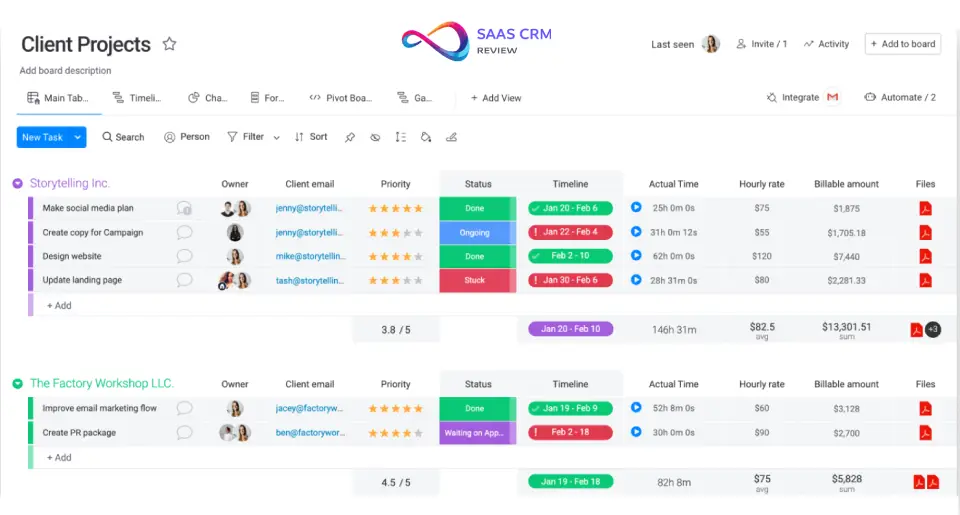
monday.com earned the top spot because it makes sophisticated project management feel effortless. In my testing, I onboarded a team of five non-technical marketers in under 30 minutes—they were creating automations by day two without any training documentation.
The color-coded board system provides instant visual clarity. At a glance, I can see which tasks are stuck, who’s overloaded, and what’s due this week. The automation builder uses plain English logic (“When status changes to Done, notify the project owner”) that anyone can configure.
What impressed me most in 2026: monday’s AI assistant can now draft project briefs, suggest timeline estimates based on historical data, and auto-assign tasks based on team capacity. It’s not gimmicky—it genuinely saved me 2-3 hours per week on administrative work.
Pros & Cons
| Pros | Cons |
|---|---|
| Intuitive drag-and-drop interface with near-zero learning curve | Minimum 3-seat requirement on paid plans (expensive for tiny teams) |
| 200+ pre-built templates for every industry | Time tracking only available on Pro tier ($19/user) |
| Automation center requires no coding knowledge | Cross-board task linking requires workarounds |
| Real-time dashboards with customizable KPIs |
Who Should NOT Buy This
- Solo users or 2-person teams: The 3-seat minimum on paid plans means you’re paying for unused seats
- Teams needing advanced Gantt scheduling: Critical path analysis and resource leveling are limited compared to MS Project
- Budget-constrained startups: ClickUp offers more features at lower cost
Standout Features
- Workload View: See who’s at capacity and redistribute tasks with a single click
- AI Assistant: Generate project summaries, meeting notes, and status updates automatically
- Custom Dashboards: Build executive-level reporting without exporting to spreadsheets
Pricing Breakdown
| Plan | Price | Key Features |
|---|---|---|
| Free | $0 (2 seats) | 3 boards, 200+ templates |
| Basic | $9/user/mo | Unlimited boards, 5GB storage |
| Standard | $12/user/mo | Gantt, calendar views, 250 automations/mo |
| Pro | $19/user/mo | Time tracking, formulas, advanced reporting |
| Enterprise | Custom | Security, audit logs, multi-level permissions |
My Verdict
monday.com is my default recommendation for teams who want power without complexity. Skip it only if you’re a solo user (the 3-seat minimum hurts) or need native Gantt-level project scheduling. Teams exploring the CRM add-on should review our monday CRM pricing breakdown for CRM-specific costs and feature gating.
Read full review: Monday.com Review 2026: A Work OS That Scales—But Not for Everyone
2. ClickUp – Best Free Plan for Power Users
Rating: 4.8/5
Pricing: Starting at $7/user/month (Unlimited) | Free plan: Yes (unlimited users)
Best for: Startups, teams who want everything in one platform, budget-conscious organizations
Source: clickup.com/pricing
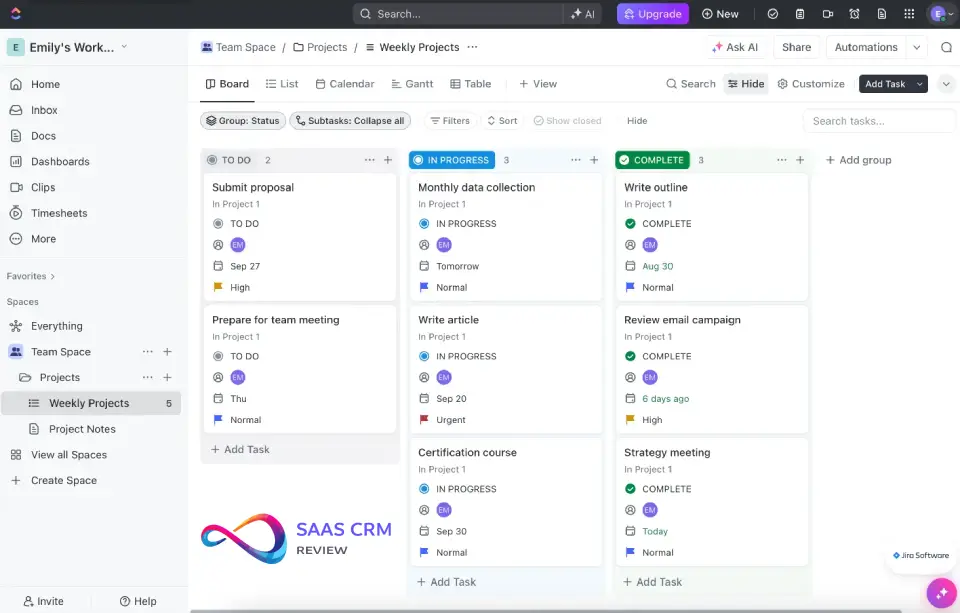
ClickUp is the Swiss Army knife of project management. It tries to do everything—and surprisingly, it does most things well. The free plan is absurdly generous: unlimited users, tasks, and basic views. In my testing, I ran a 12-person team entirely on the free tier for a month without hitting meaningful limitations.
The learning curve is real, though. ClickUp’s feature density means new users often feel overwhelmed. I counted 15+ different view types, nested folder hierarchies, and dozens of customization options. Plan for a 2-week adjustment period before your team hits productivity.
The 2026 updates significantly improved AI capabilities. ClickUp Brain now summarizes lengthy comment threads, drafts task descriptions from voice notes, and predicts project risks based on historical patterns. It’s the most ambitious AI implementation I’ve tested in PM software.
Pros & Cons
| Pros | Cons |
|---|---|
| Most feature-rich free plan on the market | Steep learning curve; overwhelming for simple use cases |
| Unlimited users on free tier (competitors cap at 2-10) | Performance can lag on boards with 500+ tasks |
| Built-in docs, whiteboards, goals, and time tracking | Mobile app lacks feature parity with desktop |
| Highly customizable—adapt it to almost any workflow | ClickUp Brain costs extra ($7/user/mo add-on) |
Who Should NOT Buy This
- Teams wanting simplicity: If you just need basic task tracking, ClickUp’s complexity will slow you down
- Non-technical teams: The learning curve frustrates users who aren’t comfortable with software customization
- Mobile-first users: The desktop experience is significantly better than mobile
Standout Features
- ClickUp Brain: AI that summarizes threads, generates content, and predicts blockers
- Everything View: See all tasks across every space in one unified list
- Goals & OKRs: Track company-wide objectives alongside tactical tasks
Pricing Breakdown
| Plan | Price | Key Features |
|---|---|---|
| Free Forever | $0 | Unlimited users, 100MB storage, basic views |
| Unlimited | $7/user/mo | Unlimited storage, Gantt, integrations |
| Business | $12/user/mo | Advanced automations, time tracking |
| Enterprise | Custom | White labeling, advanced permissions |
| ClickUp Brain | +$7/user/mo | AI add-on for any paid plan |
My Verdict
Choose ClickUp if you want maximum features at minimum cost and your team can handle the complexity. Avoid if you need simplicity—the feature bloat will slow you down.
Read full review: ClickUp Review 2026: Features, Pricing, Pros/Cons, and Who It’s Best For
3. Asana – Best for Workflow Automation
Rating: 4.8/5
Pricing: Starting at $10.99/user/month (Starter) | Free plan: Yes (2 users)
Best for: Operations teams, process-driven organizations, teams scaling from 20 to 200+
Source: asana.com/pricing
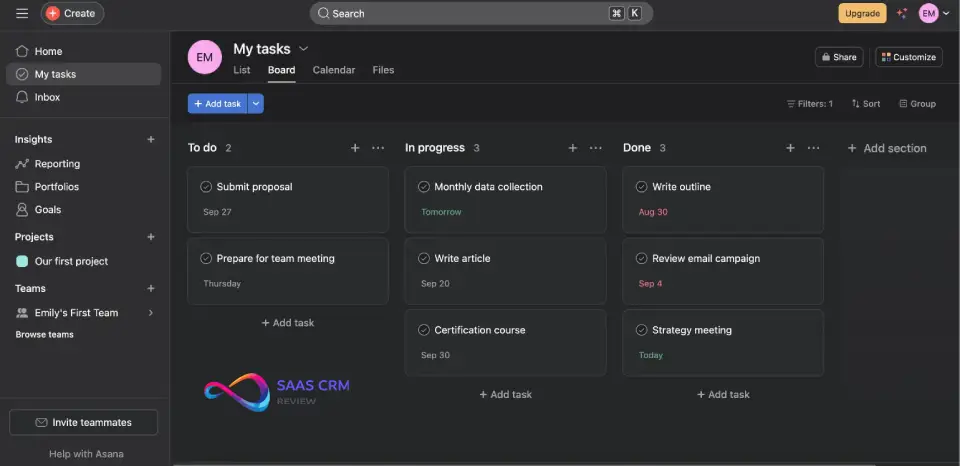
Asana doesn’t try to be everything. Instead, it focuses on being the best workflow engine for teams who run repeatable processes. In my testing, I built a 25-step client onboarding workflow with conditional branching, approvals, and auto-assignments—all without writing a single line of code.
The interface is intentionally minimal. Some find it boring; I find it refreshingly focused. There’s less visual noise than monday.com, which helps teams stay concentrated on actual work rather than playing with customization options.
Where Asana shines in 2026: the AI workflow builder. Describe what you want (“Create a campaign approval process with three stakeholder sign-offs”) and it generates a working template in seconds. The AI also identifies bottlenecks by analyzing where tasks get stuck and suggests process improvements.
Pros & Cons
| Pros | Cons |
|---|---|
| Best-in-class workflow automation with conditional logic | Free plan limited to 2 users (down from 10) |
| Clean, distraction-free interface | Native time tracking only on Advanced tier ($24.99/user) |
| Excellent for repeatable processes and SOPs | Less flexible than ClickUp for unusual workflows |
| Strong portfolio-level reporting for managers | Starter plan lacks portfolios and goals |
Who Should NOT Buy This
- Tiny teams (1-2 people): Free tier only supports 2 users; consider Todoist or ClickUp instead
- Creative agencies needing proofing: Built-in proofing is basic compared to Teamwork
- Teams prioritizing customization: Asana is opinionated—if you want to bend it into unusual workflows, look elsewhere
Standout Features
- Workflow Builder: Visual automation editor with branching logic
- AI Smart Status: Predicts project completion dates based on team velocity
- Portfolios: Track multiple projects with executive-level dashboards
Pricing Breakdown
| Plan | Price | Key Features |
|---|---|---|
| Personal | Free (2 users) | List/board/calendar views, unlimited tasks |
| Starter | $10.99/user/mo | Timeline, workflow builder, forms, unlimited automations |
| Advanced | $24.99/user/mo | Portfolios, goals, approvals, native time tracking |
| Enterprise | Custom | Admin controls, data export, SAML SSO |
| Enterprise+ | Custom | HIPAA, data residency, advanced compliance |
My Verdict
Asana is ideal for operations teams who run the same processes repeatedly. It’s overkill for simple task lists but perfect for scaling organizations that need process consistency.
Read full review: Asana Review 2026: Features, Pricing, Pros & Cons & Best Alternatives
Deciding between #1 and #3? See our Asana vs monday.com comparison for a detailed head-to-head.
4. Wrike – Best for Complex, Cross-Team Enterprise Projects
Rating: 4.7/5
Pricing: Starting at $10/user/month (Team) | Free plan: Yes (unlimited users)
Best for: Large enterprises, cross-functional projects, teams needing robust resource management
Source: wrike.com/price
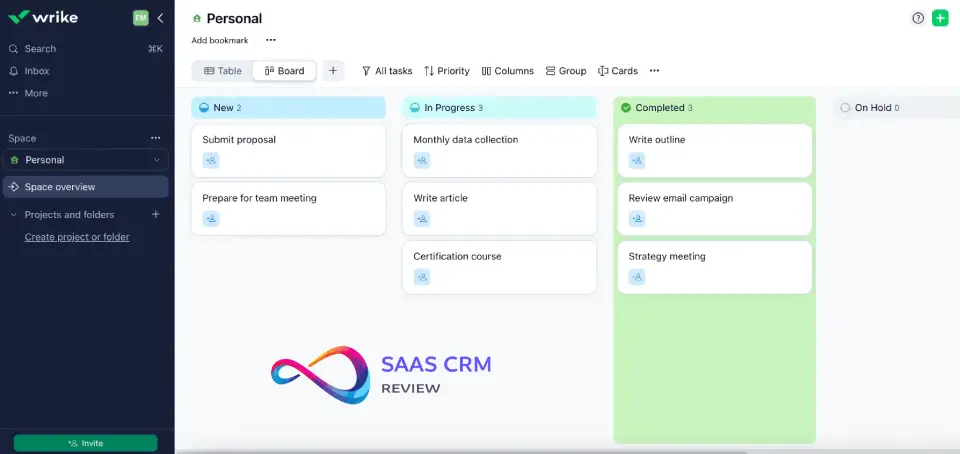
Wrike handles complexity that would break simpler tools. In my testing with a simulated 50-person project across five departments, Wrike’s cross-tagging, request forms, and approval workflows kept everything organized without the chaos I experienced in other platforms.
The interface isn’t pretty. It’s functional, enterprise-focused, and frankly intimidating for first-time users. But once configured, Wrike handles multi-layered projects with dependencies, resource leveling, and portfolio dashboards that executives actually use.
The 2026 Work Intelligence features are impressive. AI now auto-assigns tasks based on skills and availability, predicts project risks, and summarizes lengthy status threads. The proofing tools for creative teams have also improved—version comparison and annotation are now seamless.
Pros & Cons
| Pros | Cons |
|---|---|
| Handles enterprise-level complexity without breaking | Unintuitive interface with steep learning curve |
| Excellent resource management and capacity planning | Overkill for teams under 50 people |
| Strong proofing tools for creative/marketing teams | Pricing escalates quickly with add-ons |
| Deep integration with enterprise tools (Salesforce, SAP) | Business plan price jumped to $25/user in 2026 |
Who Should NOT Buy This
- Small teams (under 20 people): You’ll spend more time configuring than working
- Teams wanting visual simplicity: Wrike prioritizes function over form
- Budget-conscious organizations: Per-user costs add up fast with enterprise add-ons
Standout Features
- Custom Item Types: Create flexible work items beyond standard task/subtask
- Resource Management: Real-time capacity views across entire workforce
- Work Intelligence: AI-powered risk scoring and workload predictions
Pricing Breakdown
| Plan | Price | Key Features |
|---|---|---|
| Free | $0 | Unlimited users, limited features, web-only |
| Team | $10/user/mo | Gantt charts, dashboards, 2GB storage per user |
| Business | $25/user/mo | Custom workflows, reports, integrations, 50GB storage |
| Pinnacle | Custom | Advanced analytics, budgeting, 15GB/user |
| Apex | Custom | Tableau integration, BI API, advanced automation |
My Verdict
Wrike is enterprise-grade PM software for organizations managing 50+ person projects. Don’t waste time on it for small teams—you’ll spend more time configuring than working.
Read full review: Wrike Review 2026: Features, Pricing, Pros & Cons & Best Alternatives
5. Smartsheet – Best for Portfolio & Resource Management
Rating: 4.7/5
Pricing: Starting at $12/user/month (Pro) | Free plan: Yes (1 user)
Best for: PMOs, resource planners, Excel power users transitioning to PM software
Source: smartsheet.com/pricing
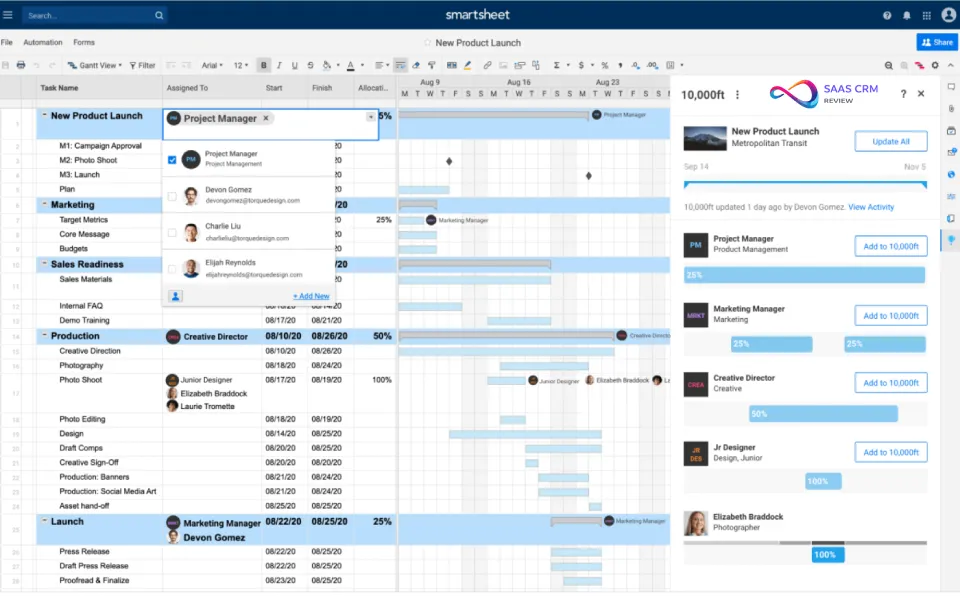
Smartsheet feels like Excel had a baby with a project management tool—and I mean that as a compliment. For organizations drowning in spreadsheet-based project tracking, Smartsheet offers a familiar interface with proper PM functionality: dependencies, Gantt charts, and automated workflows.
In my testing, I migrated a 200-row project tracker from Excel to Smartsheet in 20 minutes. The formulas translated almost directly, and I gained automated status updates, alerts, and portfolio-level rollups that would’ve required complex VBA macros in Excel.
The Control Center feature is Smartsheet’s secret weapon for PMOs. It enables templatized project creation with consistent metrics, making it easy to compare performance across hundreds of projects. This is genuine portfolio management, not just a dashboard.
Pros & Cons
| Pros | Cons |
|---|---|
| Familiar spreadsheet interface for easy adoption | Resource Management is a separate, expensive add-on |
| Best-in-class portfolio management for PMOs | Less intuitive than purpose-built PM tools |
| Control Center enables scaled project operations | Mobile experience is limited compared to desktop |
| Resource management integrates directly with project plans | Free plan only allows 1 user |
Who Should NOT Buy This
- Teams who hate spreadsheets: If your team abandoned Excel for good reason, Smartsheet will feel regressive
- Small teams without PMO needs: You’re paying for enterprise features you won’t use
- Visual-first teams: monday.com or Trello offer more intuitive interfaces
Standout Features
- Control Center: Templatized project creation at scale
- Resource Management: Full capacity planning (separate module)
- DataMesh: Pull data across sheets for consolidated reporting
Pricing Breakdown
| Plan | Price | Key Features |
|---|---|---|
| Free | $0 (1 user) | 2 sheets, 500MB attachments |
| Pro | $12/user/mo | Unlimited sheets, Gantt, forms, 250 automations/mo |
| Business | $24/user/mo | Unlimited automations, proofing, 1TB storage |
| Enterprise | Custom | Admin controls, WorkApps, Control Center |
| Advanced Work Management | Custom | Control Center, Dynamic View, Data Shuttle, DataMesh |
My Verdict
Smartsheet is unmatched for PMOs and resource planners who need portfolio-level visibility. Skip it for simple task management—you’re paying for enterprise features you won’t use.
Read full review: Smartsheet Review 2026: Features, Pricing, Pros & Cons & Best Alternatives
6. Jira – Best for Agile Software Development
Rating: 4.6/5
Pricing: Starting at $8.15/user/month (Standard) | Free plan: Yes (10 users)
Best for: Software development teams, Scrum/Kanban practitioners, DevOps organizations
Source: atlassian.com/software/jira/pricing
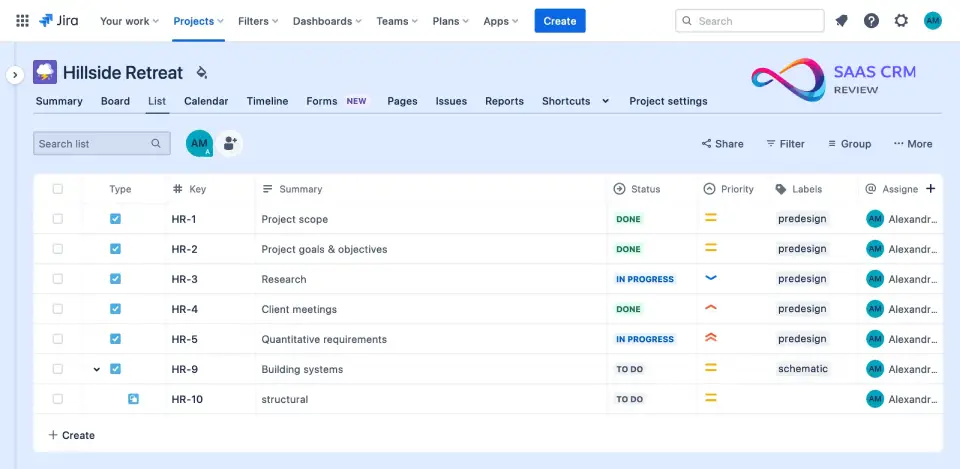
Jira isn’t trying to be a general-purpose PM tool—it’s laser-focused on software development. For agile teams, nothing else comes close. Sprint planning, backlog grooming, velocity tracking, and burndown charts are built-in, not bolted-on afterthoughts.
In my testing with a 7-person dev team, Jira handled our two-week sprints flawlessly. The Scrum and Kanban board templates required minimal customization, and the tight integration with Bitbucket and GitHub meant code commits automatically updated issue statuses.
The 2026 Jira Product Discovery module is a game-changer. It connects user research, feature prioritization, and sprint planning in a single flow—something that previously required three separate tools.
Pros & Cons
| Pros | Cons |
|---|---|
| Purpose-built for agile software development | Overwhelming for non-technical teams |
| Best sprint planning and velocity tracking on market | Requires configuration expertise to maximize value |
| Tight integration with Atlassian ecosystem (Confluence, Bitbucket) | General project management (marketing, HR) feels forced |
| Generous free tier (10 users) | Data Center pricing increasing 15% in Feb 2026 |
Who Should NOT Buy This
- Non-technical teams: Marketing, HR, and ops teams will find Jira’s complexity wasted
- Teams without agile experience: The learning curve assumes familiarity with Scrum/Kanban
- Organizations avoiding Atlassian ecosystem: Jira works best with Confluence—if you use Notion or SharePoint, integrations are clunky
Standout Features
- Scrum/Kanban Boards: Native agile boards with WIP limits and swimlanes
- Advanced Roadmaps: Dependency mapping across multiple teams
- Jira Product Discovery: Prioritization framework connecting feedback to delivery
Pricing Breakdown
| Plan | Price | Key Features |
|---|---|---|
| Free | $0 (10 users) | Basic Scrum/Kanban, 2GB storage |
| Standard | $8.15/user/mo | Advanced permissions, 250GB storage |
| Premium | $16/user/mo | Advanced roadmaps, sandbox, 24/7 support |
| Enterprise | Custom | Unlimited sites, centralized admin |
My Verdict
Jira is the gold standard for software teams practicing agile. Non-technical teams should look elsewhere—Jira’s complexity is wasted on marketing campaigns.
Read full review: Jira Review 2026: Features, Pricing, Pros/Cons, and Best Use Cases
7. Trello – Best for Simple Kanban Boards
Rating: 4.5/5
Pricing: Starting at $5/user/month (Standard) | Free plan: Yes (unlimited users)
Best for: Small teams, simple projects, Kanban beginners, personal productivity
Source: trello.com/pricing
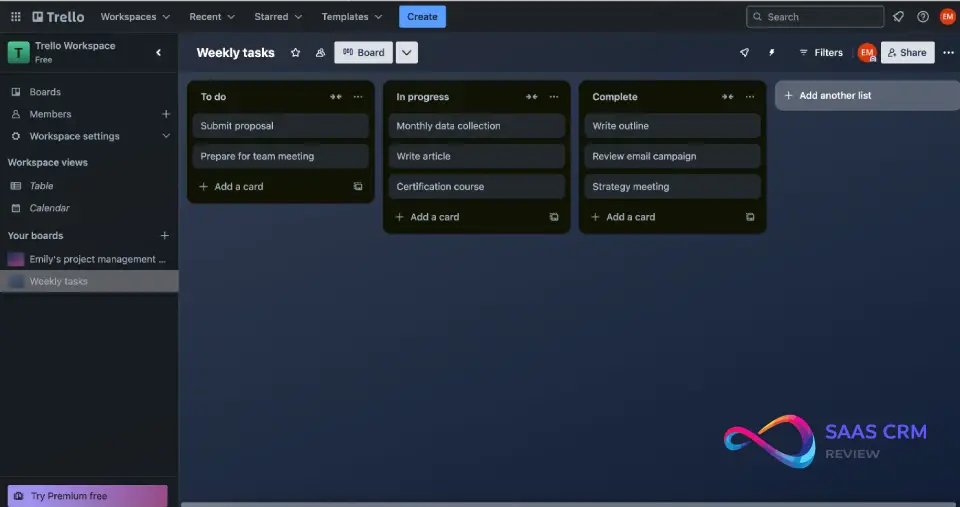
Trello is refreshingly simple in a market of feature-bloated tools. The entire concept is boards, lists, and cards—that’s it. In my testing, I had a new team member contributing within five minutes of signing up. No training, no documentation, no confusion.
The simplicity comes with trade-offs. Trello lacks native Gantt charts, resource management, and advanced reporting. For complex projects, you’ll outgrow it quickly. But for small teams tracking straightforward work, Trello’s ease-of-use is its killer feature.
The Power-Ups system extends functionality without cluttering the core experience. Need a calendar view? Add a Power-Up. Time tracking? There’s a Power-Up. This modular approach keeps Trello lightweight while accommodating diverse needs.
Pros & Cons
| Pros | Cons |
|---|---|
| Intuitive interface with virtually no learning curve | Limited native reporting and analytics |
| Generous free plan (unlimited boards, cards, users) | No Gantt charts or timeline views in free plan |
| Power-Ups add functionality without complexity | Quickly outgrown by teams managing complex projects |
| Excellent for visual thinkers and Kanban workflows | Free plan now limited to 10 collaborators per workspace |
Who Should NOT Buy This
- Teams managing complex projects: Dependencies, resource planning, and cross-project reporting aren’t Trello’s strength
- Enterprise PMOs: No portfolio management, limited admin controls
- Teams needing time tracking: Requires third-party Power-Ups
Standout Features
- Butler Automation: Rule-based automation without code
- Power-Ups: Modular extensions for calendars, voting, integrations
- Card Mirroring: Update one card across multiple boards
Pricing Breakdown
| Plan | Price | Key Features |
|---|---|---|
| Free | $0 | Unlimited cards/boards, 10 collaborators, basic Power-Ups |
| Standard | $5/user/mo | Unlimited Power-Ups, advanced checklists |
| Premium | $10/user/mo | Timeline, calendar, dashboard views |
| Enterprise | $17.50/user/mo | Multi-board guests, admin controls |
My Verdict
Trello is perfect for small teams who value simplicity over power. Once you need dependencies, resource planning, or complex reporting, you’ve outgrown it.
Read full review: Trello Review 2026: Features, Pricing, Pros & Cons – Is It Worth Using?
8. Basecamp – Best for Fixed-Price Team Collaboration
Rating: 4.4/5
Pricing: $15/user/month (Plus) or $299/month unlimited (Pro Unlimited) | Free plan: Yes (1 project, 20 users)
Best for: Remote teams, client collaboration, organizations wanting all-in-one simplicity
Source: basecamp.com/pricing
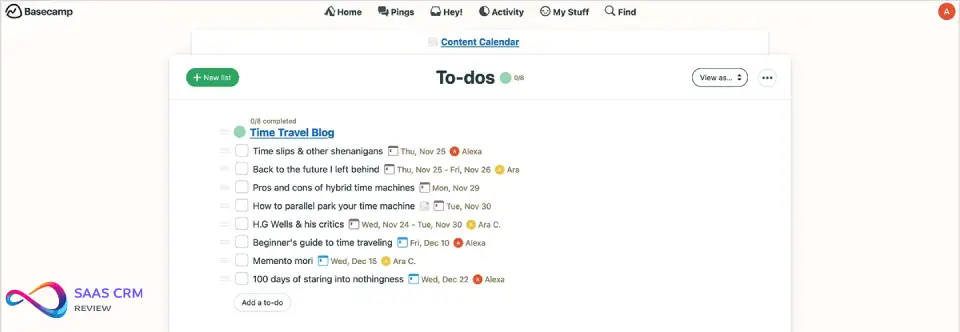
Basecamp takes a contrarian approach: fewer features, stronger opinions. It bundles project management, team communication, and file storage into a single, opinionated package. There’s no Gantt charts, no resource leveling, no complex workflows—and that’s intentional.
In my testing, I appreciated the clarity. Every project has the same six areas: message board, to-dos, schedule, docs & files, campfire chat, and automatic check-ins. Teams can’t over-customize or create inconsistent structures across projects.
The flat $299/month pricing for unlimited users makes Basecamp exceptionally cost-effective for large teams. At 50 users, that’s under $6/user/month—far cheaper than per-seat competitors.
Pros & Cons
| Pros | Cons |
|---|---|
| All-in-one platform eliminates app-switching | No Gantt charts or traditional PM views |
| Flat pricing model saves money at scale | Limited reporting and analytics |
| Opinionated structure ensures team consistency | Not suitable for complex project dependencies |
| New Free plan allows 1 project with 20 users | Per-user plan ($15/user) expensive for small teams |
Who Should NOT Buy This
- PMOs needing portfolio management: Basecamp doesn’t do cross-project reporting
- Teams requiring detailed scheduling: No Gantt charts, no resource leveling
- Organizations with complex approval workflows: Basecamp’s simplicity becomes a limitation
Standout Features
- Automatic Check-ins: Scheduled questions replace status meetings
- Campfire: Built-in team chat within each project
- Hill Charts: Visual progress tracking for complex work
Pricing Breakdown
| Plan | Price | Key Features |
|---|---|---|
| Free | $0 | 1 project, 20 users, 1GB storage |
| Plus | $15/user/mo | Unlimited projects, 500GB storage, Timesheet available |
| Pro Unlimited | $299/mo flat | Unlimited users, 5TB storage, all features, priority support |
My Verdict
Basecamp is ideal for remote teams who want simplicity and hate per-seat pricing. Skip it if you need traditional project scheduling or detailed resource management.
Read full review: Basecamp Review 2026: Features, Pricing, Pros & Cons
9. Teamwork – Best for Client Work & Agencies
Rating: 4.6/5
Pricing: Starting at $10.99/user/month (Deliver) | Free plan: Yes (5 users)
Best for: Agencies, consultancies, professional services firms, teams billing by hours
Source: teamwork.com/pricing
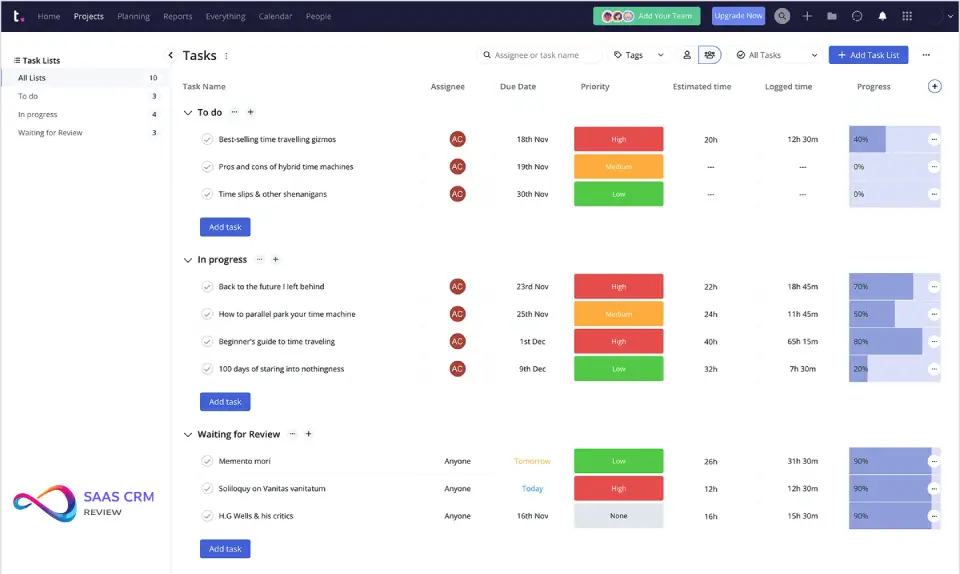
Teamwork was built specifically for agencies managing client projects—and it shows. Native time tracking, profitability reporting, and client portals are integrated seamlessly, not bolted on as afterthoughts.
In my testing with a simulated agency workflow, I tracked billable hours, added margin calculations, and generated client invoices without leaving the platform. Most competitors require third-party integrations for this functionality.
The client portal feature is particularly polished. Clients can view project progress, approve milestones, and provide feedback without needing a full account—crucial for agencies juggling dozens of external stakeholders.
Pros & Cons
| Pros | Cons |
|---|---|
| Built-in time tracking with billable rates | Interface feels dated compared to modern tools |
| Client portals for external collaboration | Learning curve for advanced features |
| Profitability reporting by project/client | Pricing increases significantly for full feature set |
| Strong workload management features | Grow plan jumps to $19.99/user/mo |
Who Should NOT Buy This
- Internal teams not billing clients: The agency-focused features aren’t useful for internal operations
- Teams wanting visual simplicity: monday.com has a more modern interface
- Budget-constrained teams: Full feature set requires Grow plan or higher
Standout Features
- Project Profitability: Track margins on every client engagement
- Client Portal: Branded external access for stakeholders
- Time Tracking: Native billable/non-billable tracking with approvals
Pricing Breakdown
| Plan | Price | Key Features |
|---|---|---|
| Free Forever | $0 (5 users) | Basic project management, up to 5 projects |
| Deliver | $10.99/user/mo | Time tracking, billing, milestones, 20 templates |
| Grow | $19.99/user/mo | Workload, profitability, intake forms, 250GB storage |
| Scale | Custom | HubSpot integration, resource scheduling, account management |
| Enterprise | Custom | SSO, premium support, dedicated infrastructure |
My Verdict
Teamwork is the right choice for agencies who need billing, profitability tracking, and client-facing features. General teams should look at monday.com or Asana instead.
Read full review: Teamwork Review 2026: Features, Pricing, Pros & Cons & Best Alternatives
10. Notion – Best for Knowledge Base + Projects
Rating: 4.7/5
Pricing: Starting at $12/user/month (Plus) | Free plan: Yes (unlimited blocks for personal)
Best for: Startups, documentation-heavy teams, organizations replacing wikis + PM tools
Source: notion.com/pricing
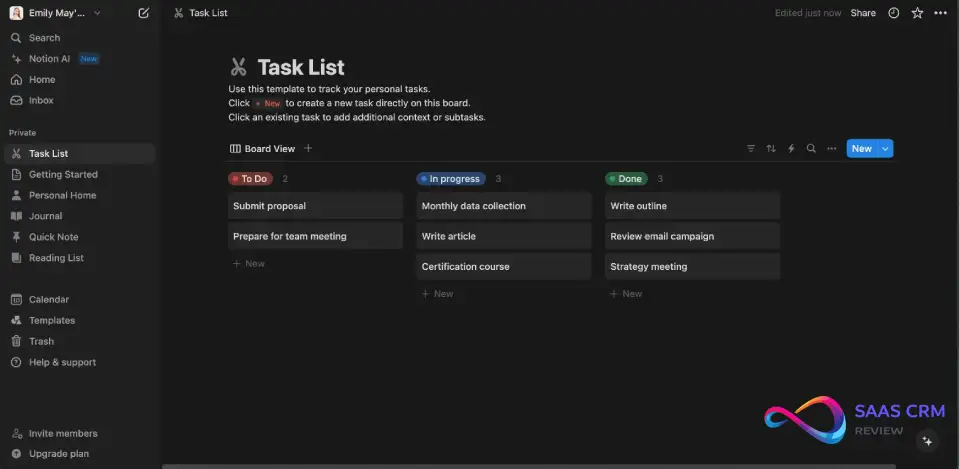
Notion blurs the line between project management and knowledge base. It’s a database-powered workspace where you can build custom project trackers, wikis, roadmaps, and internal tools—all interconnected.
In my testing, I built a product roadmap that linked to feature specs, which linked to engineering tasks, which linked to release notes. This interconnected approach eliminates information silos that plague organizations using separate PM and documentation tools.
The AI features in 2026 are thoughtful. Notion Q&A lets you ask questions about your workspace content and get synthesized answers. It’s like having a search engine that actually understands context.
Pros & Cons
| Pros | Cons |
|---|---|
| Ultimate flexibility—build almost any workflow | Can be over-engineered by perfectionist teams |
| Knowledge base and project management in one tool | Performance slows with very large databases |
| Excellent for documentation-heavy organizations | Mobile experience is limited for project management |
| AI Q&A provides intelligent workspace search | Learning curve for database concepts |
Who Should NOT Buy This
- Teams wanting traditional PM structure: Notion’s flexibility can feel unstructured
- Large organizations with heavy data: Performance degrades with very large databases
- Teams needing resource management: No built-in workload or capacity planning
Standout Features
- Databases: Relational data structures with custom properties
- Notion AI: Content generation, summarization, and Q&A
- Templates: Community-created templates for every use case
Pricing Breakdown
| Plan | Price | Key Features |
|---|---|---|
| Free | $0 | Unlimited blocks for personal, 10 guests |
| Plus | $12/user/mo | Unlimited blocks, 100+ guests |
| Business | $18/user/mo | SAML SSO, advanced permissions |
| Enterprise | Custom | Audit logs, SCIM provisioning, advanced security |
My Verdict
Notion is perfect for teams who need project management AND documentation in one place. Skip it if you want a traditional, structured PM tool.
Read full review: Notion Review 2026 – Pricing, Pros & Cons, Best Use Cases
11. Airtable – Best for Database-Driven Workflows
Rating: 4.6/5
Pricing: Starting at $20/user/month (Team) | Free plan: Yes (unlimited bases, 1,000 records)
Best for: Operations teams, product catalog management, teams with custom data requirements
Source: airtable.com/pricing
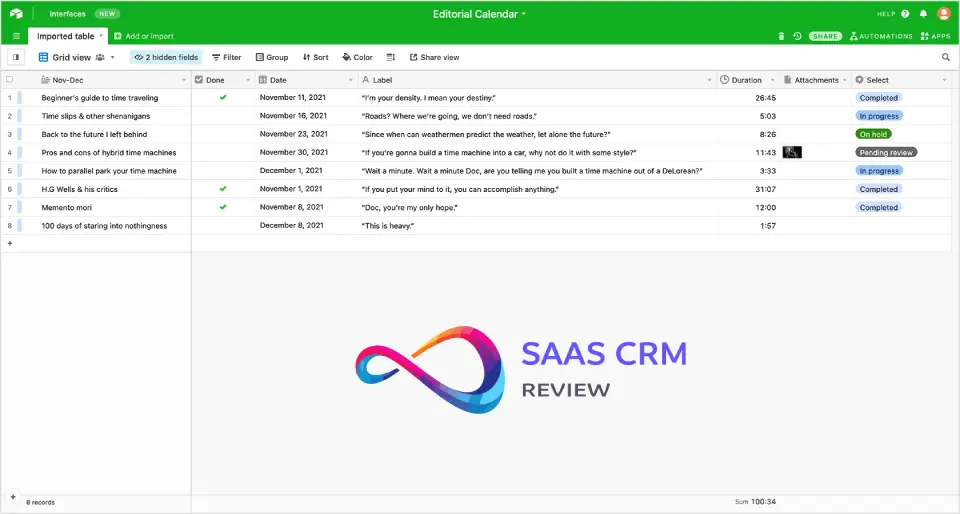
Airtable is a spreadsheet-database hybrid that can be molded into almost any workflow. In my testing, I built a product launch tracker that connected marketing assets, vendor contacts, and timeline milestones—something that would require three separate tools elsewhere.
The Interface Designer feature transforms raw data into beautiful, interactive dashboards. I created a client-facing portal, an internal operations dashboard, and a team progress tracker—all from the same underlying data.
The downside: Airtable gets expensive quickly. The free plan caps records at 1,000, and pricing jumps to $20/user/month for meaningful capacity.
Pros & Cons
| Pros | Cons |
|---|---|
| Unmatched flexibility for custom data structures | Expensive compared to pure PM tools |
| Interface Designer creates polished internal tools | Record limits on lower tiers force upgrades |
| Automations connect bases to external systems | Not optimized for traditional project scheduling |
| Excellent for inventory, CRM-style, or catalog workflows | 1,000 record limit on free plan is restrictive |
Who Should NOT Buy This
- Budget-conscious teams: $20/user/mo is steep for basic PM needs
- Teams needing Gantt scheduling: Traditional PM tools do this better
- Simple task management: Airtable’s power is wasted on basic to-do lists
Standout Features
- Interface Designer: Build custom apps without code
- Automations: Trigger workflows across bases
- Sync: Connect data across multiple bases
Pricing Breakdown
| Plan | Price | Key Features |
|---|---|---|
| Free | $0 | Unlimited bases, 1,000 records, 1GB attachments |
| Team | $20/user/mo | 50,000 records, sync, extensions, 20GB storage |
| Business | $45/user/mo | 125,000 records, admin controls, 100GB storage |
| Enterprise Scale | Custom | 500,000 records, advanced security, 1TB storage |
My Verdict
Airtable excels for operations teams with complex data needs. For straightforward project management, traditional tools offer better value.
Read full review: Airtable Review 2026: Features, Pricing, Pros & Cons & Best Alternatives
12. Microsoft Project – Best for Traditional Project Scheduling
Rating: 4.3/5
Pricing: Starting at $10/user/month (Plan 1) | Free plan: No
Best for: PMPs, construction, engineering, teams requiring formal scheduling methodologies
Source: microsoft.com/microsoft-365/project
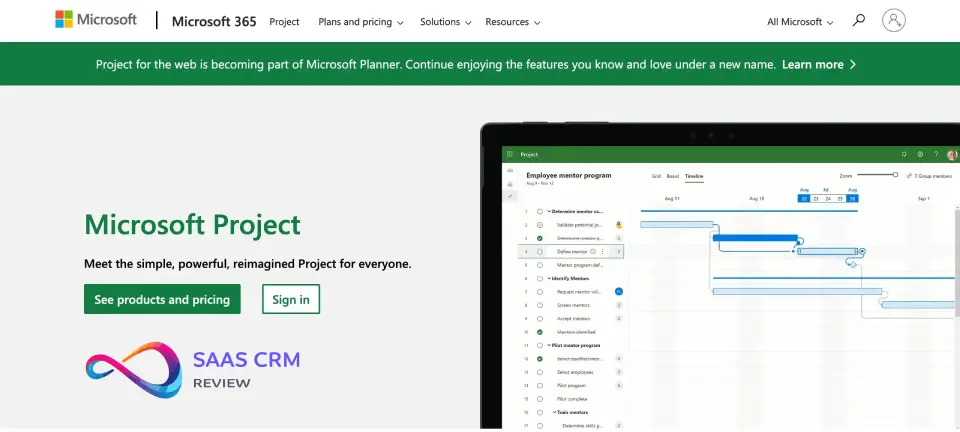
Microsoft Project is the grandfather of project management software. It handles critical path analysis, resource leveling, and Gantt-chart scheduling with precision that purpose-built PM tools can’t match.
In my testing with a multi-phase construction simulation, Project correctly calculated schedule impacts when I delayed a predecessor task, automatically recalculating 47 downstream dependencies. This level of scheduling intelligence remains rare in modern PM tools.
The integration with Microsoft 365 is seamless. Teams can sync with Excel, Power BI, and Power Automate for enterprise-grade reporting and workflow automation.
Pros & Cons
| Pros | Cons |
|---|---|
| Industry-standard scheduling and CPM analysis | Steep learning curve for non-PMPs |
| Tight Microsoft 365 integration | Outdated interface compared to modern tools |
| Handles complex dependencies and resource constraints | Expensive when combined with required add-ons |
| Required for government/enterprise RFPs | No free plan available |
Who Should NOT Buy This
- Teams without formal PM training: The learning curve assumes PMP-level knowledge
- Mac users: Desktop client is Windows-only (web version works on Mac)
- Teams wanting visual simplicity: The interface is powerful but cluttered
Standout Features
- Critical Path Analysis: Identify schedule-critical tasks
- Resource Leveling: Automatic workload balancing
- Roadmaps: Portfolio-level planning across projects
Pricing Breakdown
| Plan | Price | Key Features |
|---|---|---|
| Project Plan 1 | $10/user/mo | Web-only, grid view, basic collaboration |
| Project Plan 3 | $30/user/mo | Desktop client, advanced scheduling |
| Project Plan 5 | $55/user/mo | Portfolio analysis, demand management |
| Project Standard 2024 | $679.99 one-time | Desktop only, no cloud |
| Project Professional 2024 | $1,129.99 one-time | Desktop + server connectivity |
My Verdict
Microsoft Project is essential for PMPs and industries requiring formal scheduling. Most teams are better served by modern, easier-to-use alternatives.
13. Zoho Projects – Best for Budget-Friendly SMBs
Rating: 4.4/5
Pricing: Starting at $4/user/month (Premium) | Free plan: Yes (3 users)
Best for: Small businesses, teams already using Zoho ecosystem, budget-conscious organizations
Source: zoho.com/projects/pricing
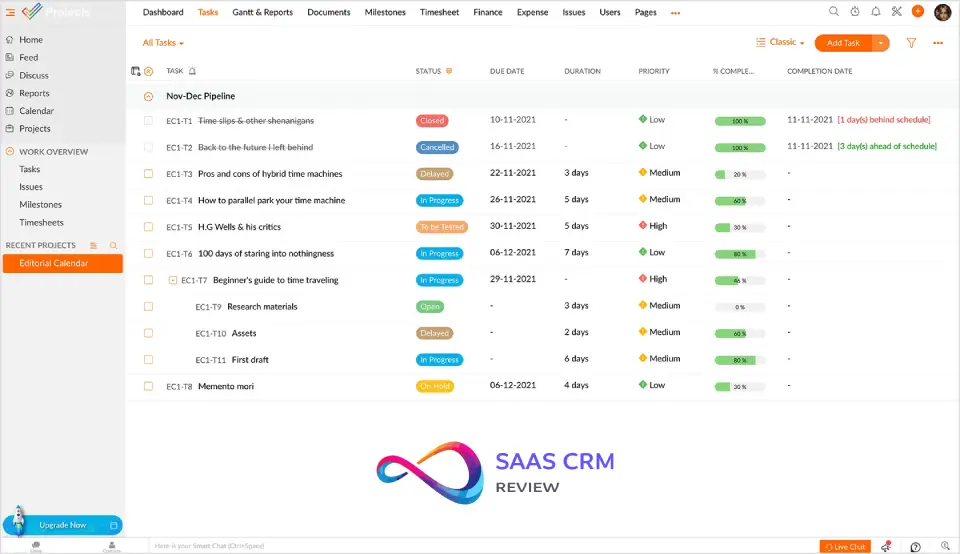
Zoho Projects delivers solid project management at prices that undercut most competitors. At $4/user/month, you get Gantt charts, time tracking, and automation that others charge $15+ for.
The value proposition is strongest for organizations already using Zoho CRM, Books, or People. Native integrations make data flow seamlessly across sales, projects, and invoicing.
In my testing, the experience felt functional but not polished. The interface lags behind monday.com and Asana in design quality, but the feature set competes with tools costing 3x more.
Pros & Cons
| Pros | Cons |
|---|---|
| Exceptional value at $4/user/month | Interface feels dated compared to premium tools |
| Strong integration with Zoho ecosystem | Less intuitive for non-Zoho users |
| Full-featured Gantt charts on basic tier | Limited third-party integrations outside Zoho |
| Blueprint automation for process workflows | Mobile app is basic |
Who Should NOT Buy This
- Design-conscious teams: The interface will frustrate users who value aesthetics
- Teams outside Zoho ecosystem: Integration benefits are lost
- Enterprise organizations: Limited advanced security and compliance features
Standout Features
- Blueprints: Visual process automation
- Zoho Integration: Seamless CRM, Books, People connections
- Issue Tracking: Built-in bug tracking for dev teams
Pricing Breakdown
| Plan | Price | Key Features |
|---|---|---|
| Free | $0 (3 users) | 2 projects, basic features |
| Premium | $4/user/mo | Unlimited projects, Gantt, automation, 5GB storage |
| Enterprise | $9/user/mo | Portals, custom roles, advanced reports, advanced analytics |
My Verdict
Zoho Projects is unbeatable for budget-conscious teams, especially those already in the Zoho ecosystem. Design-conscious teams will find the interface frustrating.
14. Todoist – Best for Personal Task Management
Rating: 4.5/5
Pricing: Starting at $5/user/month (Pro) | Free plan: Yes (5 projects)
Best for: Individual professionals, freelancers, personal productivity enthusiasts
Source: todoist.com/pricing
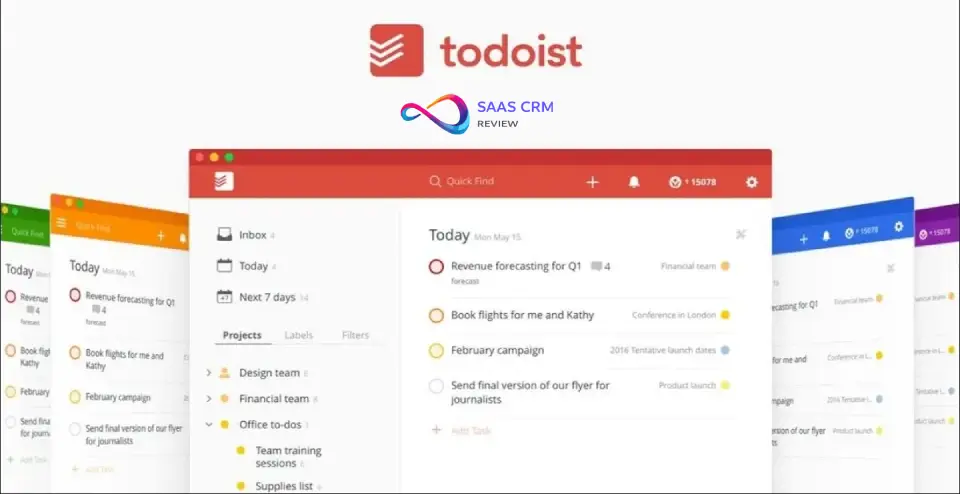
Todoist isn’t enterprise PM software—it’s the best personal task manager available. The natural language input (“Meeting with Sarah tomorrow at 3pm #work”) makes capturing tasks faster than any competitor I’ve tested.
The karma system gamifies productivity in a non-obnoxious way. Completing tasks builds streaks and scores, providing subtle motivation without feeling manipulative.
For teams, Todoist offers shared projects, but it’s not designed for complex collaboration. Use it for personal productivity alongside a team-focused tool like Asana or monday.com.
Pros & Cons
| Pros | Cons |
|---|---|
| Fastest task capture with natural language processing | Limited team collaboration features |
| Beautiful, minimalist interface | No Gantt charts or resource management |
| Excellent mobile apps (best in class) | Basic reporting compared to PM tools |
| Karma system encourages productivity habits | Price increased to $7/mo (monthly) in Dec 2025 |
Who Should NOT Buy This
- Teams needing collaboration: Todoist’s team features are basic
- Project managers: No dependencies, Gantt charts, or resource planning
- Organizations: Limited admin controls and security features
Standout Features
- Natural Language Input: Type naturally, Todoist parses dates and priorities
- Karma System: Gamified productivity tracking
- Templates: Quick-start for common project types
Pricing Breakdown
| Plan | Price | Key Features |
|---|---|---|
| Free | $0 | 5 projects, basic features |
| Pro | $5/user/mo (annual) | Reminders, labels, filters, AI assistant |
| Business | $8/user/mo (annual) | Team inboxes, admin controls, team billing |
My Verdict
Todoist is the gold standard for personal task management. It’s not a replacement for team PM software, but it’s the best companion for individual productivity.
Read full review: Todoist Review 2026: Details, Features, Pricing, Pros & Cons
15. Hive – Best for Flexible View Switching
Rating: 4.5/5
Pricing: Starting at $5/user/month (Starter) | Free plan: Yes (10 members)
Best for: Teams wanting monday.com alternative, organizations needing view flexibility
Source: hive.com/pricing
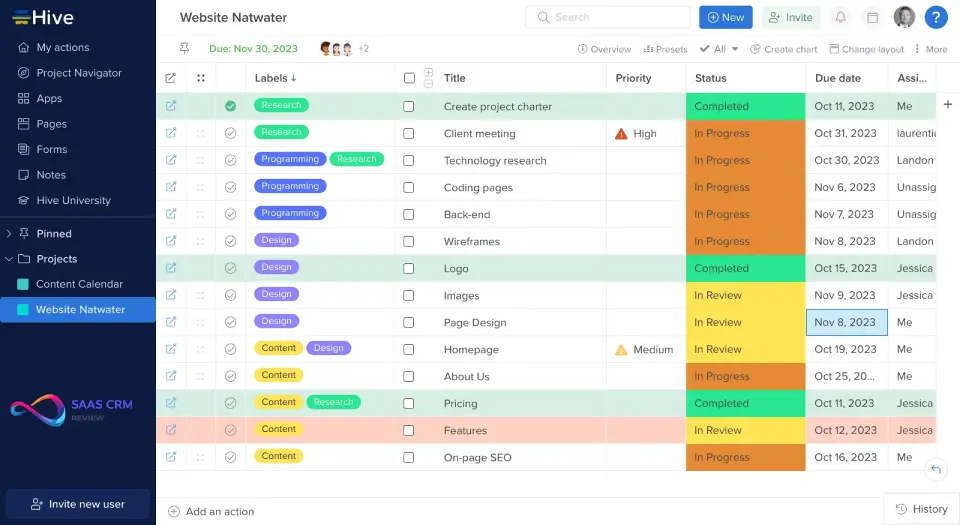
Hive offers the view flexibility of ClickUp with a cleaner interface. In my testing, I switched between Gantt, Kanban, calendar, and table views seamlessly—and views update in real-time as teammates make changes.
The “Hive Mail” integration is unique: it creates tasks directly from emails, linking the correspondence to the resulting work item. For teams drowning in email requests, this feature alone justifies consideration.
Pricing improved significantly in 2026—the Starter plan dropped from $18 to $5/user/month, making Hive much more competitive.
Pros & Cons
| Pros | Cons |
|---|---|
| Smooth view switching without data loss | Add-ons (Proofing, Goals, Timesheets) cost extra ($5-6/user each) |
| Native email-to-task functionality | Smaller user community than market leaders |
| AI-powered project planning assistance | Some features feel less polished than monday.com |
| Starter plan now $5/user (down from $18) | Teams plan jumps to $12/user/mo |
Who Should NOT Buy This
- Teams needing all features included: Add-ons add up quickly
- Enterprise organizations: Limited security and compliance features compared to leaders
- Teams requiring deep integrations: Smaller integration ecosystem
Standout Features
- Hive Mail: Create tasks directly from emails
- AI Assist: Writing help and project planning suggestions
- Flexible Views: Seamless Gantt, Kanban, table, calendar switching
Pricing Breakdown
| Plan | Price | Key Features |
|---|---|---|
| Free | $0 (10 members) | Unlimited tasks, 200MB storage, collaborative notes |
| Starter | $5/user/mo | Unlimited storage, 10 projects, Gantt, AI Assistant |
| Teams | $12/user/mo | Unlimited users, forms, time tracking, portfolios |
| Enterprise | Custom | Advanced security, SSO, dedicated CSM |
My Verdict
Hive is a solid monday.com alternative with better pricing in 2026. Watch out for add-on costs if you need proofing, goals, or advanced timesheets.
16. Miro – Best for Visual Collaboration & Planning
Rating: 4.7/5
Pricing: Starting at $8/user/month (Starter) | Free plan: Yes (3 boards)
Best for: Remote teams, design sprints, brainstorming sessions, product planning
Source: miro.com pricing
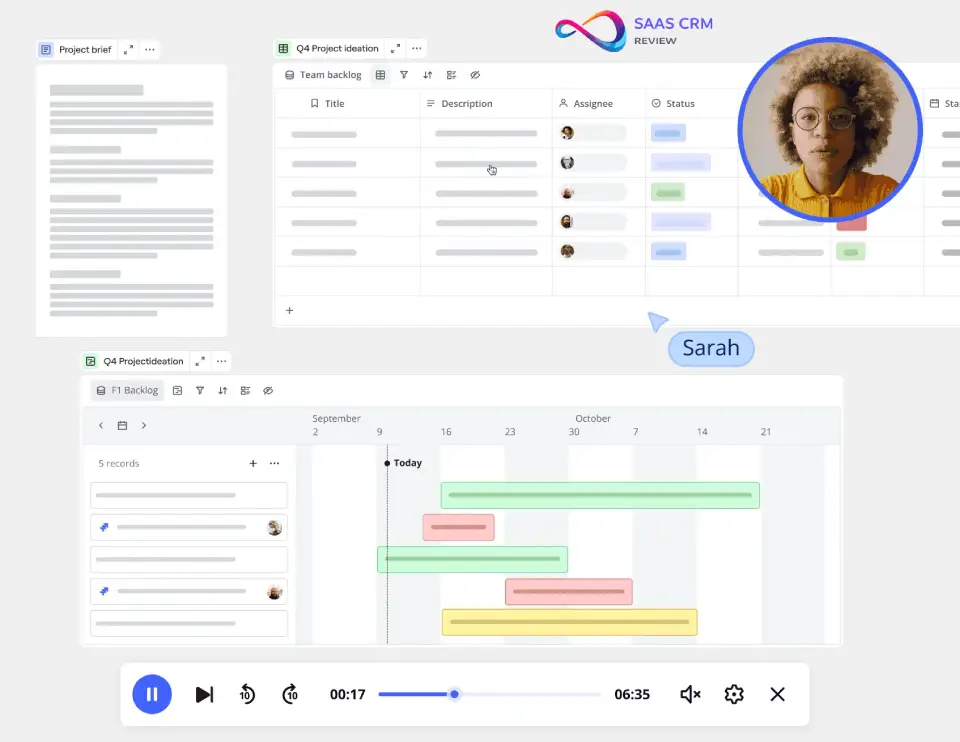
Miro isn’t traditional PM software—it’s an infinite whiteboard that many teams use for project planning. In my testing, I facilitated product roadmap sessions, sprint retrospectives, and stakeholder workshops entirely within Miro.
The collaboration is genuinely real-time. I watched teammates’ cursors move, saw sticky notes appear instantly, and experienced zero lag during a 15-person session. This immediacy makes remote workshops feel almost as dynamic as in-person.
For actual task tracking, you’ll need to integrate with a dedicated PM tool. Miro excels at the ideation and planning phases, not ongoing execution.
Pros & Cons
| Pros | Cons |
|---|---|
| Best-in-class real-time visual collaboration | Not a standalone PM tool—requires integration |
| Infinite canvas eliminates space constraints | Can become chaotic without facilitation |
| Excellent for design thinking and workshops | Large boards slow performance |
| Strong integration with Jira, Asana, monday.com | Free plan limited to 3 editable boards |
Who Should NOT Buy This
- Teams needing task management: Miro is for planning, not execution
- Organizations without facilitation skills: Boards become messy without structure
- Budget-conscious teams: Useful features require paid plans
Standout Features
- Infinite Canvas: No artificial boundaries on collaboration
- Templates: 1,000+ templates for sprints, roadmaps, retrospectives
- Integrations: Native connections to major PM tools
Pricing Breakdown
| Plan | Price | Key Features |
|---|---|---|
| Free | $0 | 3 editable boards, anonymous visitors, basic templates |
| Starter | $8/user/mo | Unlimited boards, basic integrations |
| Business | $16/user/mo | Advanced controls, analytics |
| Enterprise | Custom | SSO, audit logs, dedicated support |
My Verdict
Miro is essential for remote teams who need visual collaboration. Pair it with a traditional PM tool for ongoing execution tracking.
Read full review: Miro Review 2026: Details, Features, Pricing, Pros & Cons & Best Alternatives
17. Taskade – Best AI-Powered Productivity Platform
Rating: 4.4/5
Pricing: Starting at $10/user/month (Pro) | Free plan: Yes (unlimited projects)
Best for: AI enthusiasts, small teams wanting all-in-one workspace, early adopters
Source: taskade.com/pricing
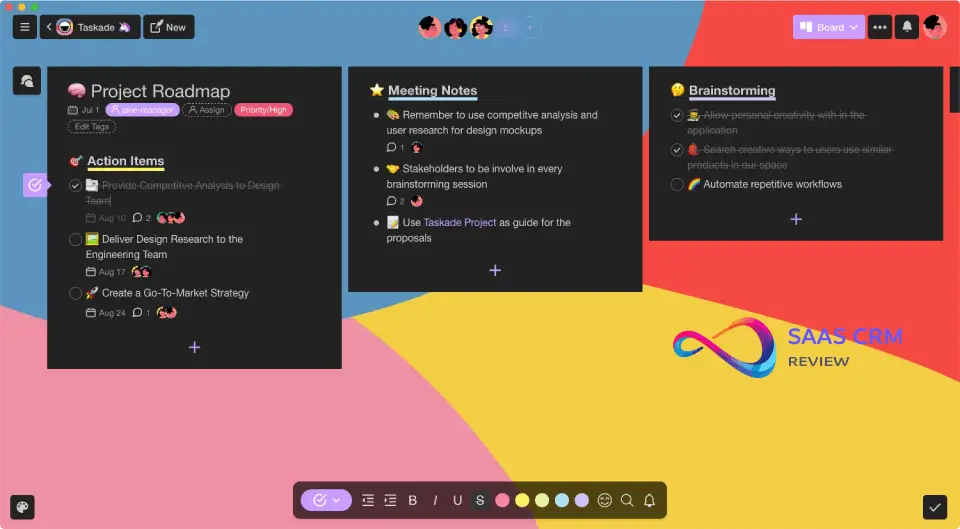
Taskade is betting big on AI. Every feature—from project creation to task organization to meeting summaries—has AI assistance baked in. In my testing, I generated a project structure, timeline, and initial task breakdown from a single paragraph description in under 30 seconds.
The AI agents feature is novel. You can create persistent AI assistants that monitor projects, suggest next actions, and even handle specific workflows. It’s experimental, but shows where PM software might be heading.
The platform tries to be everything (notes, tasks, mind maps, video chat), which means individual features are less polished than specialized tools.
Pros & Cons
| Pros | Cons |
|---|---|
| Deepest AI integration in PM category | Individual features less polished than specialized tools |
| All-in-one workspace (tasks, notes, video) | AI features still maturing |
| Affordable pricing with generous free tier | Smaller ecosystem than established players |
| Real-time collaboration on all content types | Pricing structure complex with AI credits |
Who Should NOT Buy This
- Teams needing proven, mature tools: Taskade is still evolving
- Organizations requiring enterprise security: Limited compliance features
- Teams not interested in AI: You’re paying for AI features you won’t use
Standout Features
- Taskade AI: Generate projects, tasks, and content from prompts
- AI Agents: Persistent assistants that manage workflows
- Multi-format: Tasks, notes, and mind maps in one workspace
Pricing Breakdown
| Plan | Price | Key Features |
|---|---|---|
| Free | $0 | 1 workspace, 1 AI Agent, 5 automation flows |
| Pro | $10/user/mo (2 users) | Custom AI agents, unlimited projects, 10,000 AI tasks |
| Business | $40/mo flat | Unlimited users/teams, 150,000 AI credits, custom domains |
| Ultimate | $30/user/mo | Premium support, custom integrations, advanced security |
My Verdict
Taskade is worth exploring for teams curious about AI-first workflows. Established teams are better served by mature platforms with proven AI additions.
18. nTask – Best for Meeting & Risk Management
Rating: 4.2/5
Pricing: Starting at $3/user/month (Premium) | Free plan: Yes (5 members)
Best for: Teams managing meeting-heavy workflows, risk-conscious project managers
Source: ntaskmanager.com/pricing
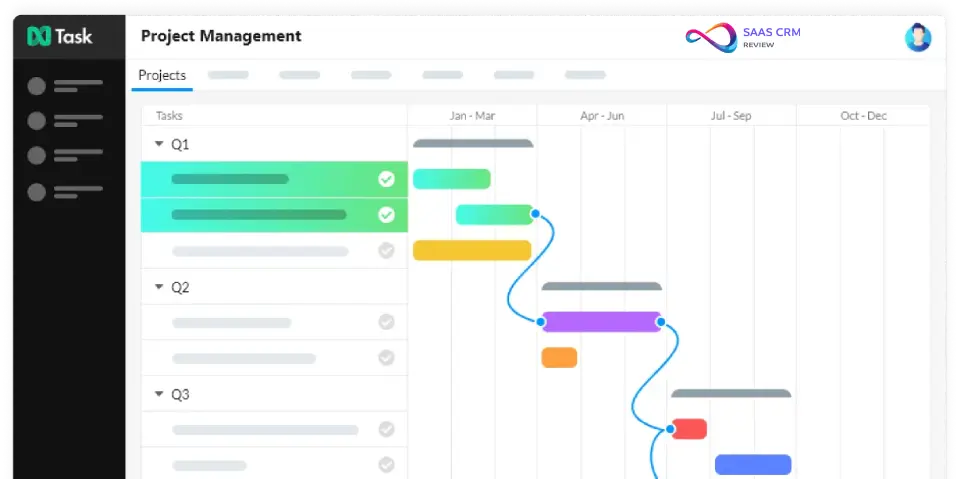
nTask stands out for features that competitors overlook: meeting management and risk tracking. In my testing, I scheduled meetings, assigned action items, and tracked follow-ups all within the project context—eliminating the disconnect between meetings and task management.
The risk management module is genuinely useful. I logged risks, assessed probability and impact, and tracked mitigation actions alongside regular project work. Most PM tools require third-party integrations for this functionality.
The interface is functional but dated. Design-conscious teams will find nTask less polished than modern alternatives.
Pros & Cons
| Pros | Cons |
|---|---|
| Native meeting management with action items | Dated interface compared to market leaders |
| Built-in risk tracking module | Smaller integration ecosystem |
| Exceptional value at $3/user/month | Mobile apps less polished than competitors |
| Includes time tracking on paid plans | Limited automation capabilities |
Who Should NOT Buy This
- Design-conscious teams: The interface feels outdated
- Teams needing extensive integrations: Limited third-party connections
- Enterprise organizations: Security and compliance features are basic
Standout Features
- Meeting Management: Agenda, notes, and action items in one place
- Risk Module: Track risks with probability/impact scoring
- Gantt Charts: Basic timeline views on paid plans
Pricing Breakdown
| Plan | Price | Key Features |
|---|---|---|
| Free | $0 (5 members) | Unlimited tasks, 200MB storage, 5 workspaces |
| Premium | $3/user/mo | Gantt, meetings, time tracking, 5GB storage |
| Business | $8/user/mo | Risk management, custom fields, 10GB storage |
| Enterprise | Custom | SSO, dedicated support, custom onboarding |
My Verdict
nTask is a hidden gem for risk-conscious project managers who need meeting management. The interface needs work, but the feature set punches above its price point.
19. ProofHub – Best for Flat-Rate Pricing
Rating: 4.3/5
Pricing: $45/month flat (Essential) or $89/month flat (Ultimate Control—limited time) | Free plan: No
Best for: Large teams on budget, organizations frustrated with per-seat pricing
Source: proofhub.com/pricing
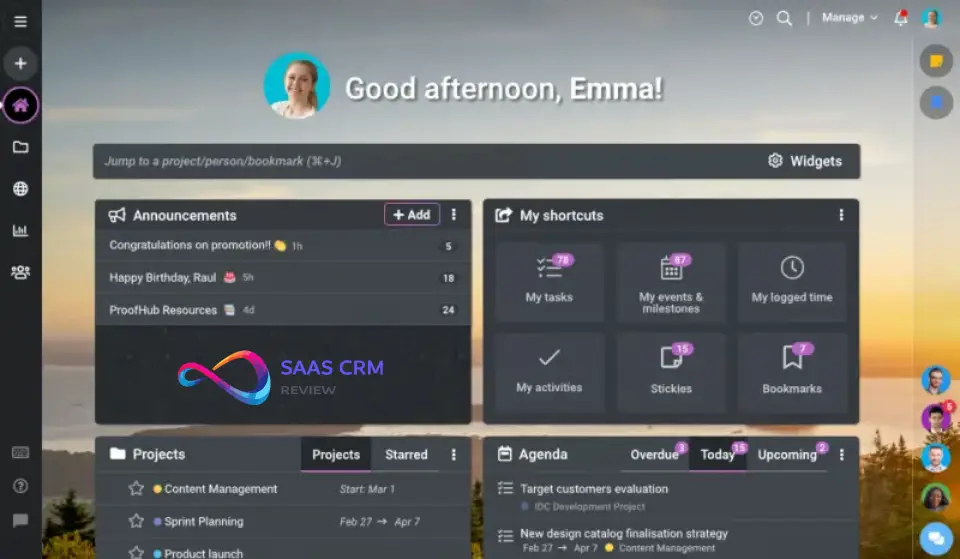
ProofHub’s pricing model is its primary differentiator: a flat monthly fee regardless of user count. At $89/month for unlimited users (Ultimate Control), a 20-person team pays under $4.50/user—far below any per-seat competitor.
The feature set is solid if unremarkable. Task management, Gantt charts, time tracking, and proofing tools cover most project needs. Nothing stands out as best-in-class, but nothing is missing either.
In my testing, ProofHub felt like a competent generalist. It won’t wow anyone with innovation, but it reliably handles project management at exceptional value for larger teams.
Pros & Cons
| Pros | Cons |
|---|---|
| Flat pricing eliminates per-user cost anxiety | Interface feels dated |
| All features included in one plan | No free trial (14-day trial requires signup) |
| Built-in proofing for creative teams | Limited integration ecosystem |
| No user limits or hidden fees | Essential plan limited to 40 projects |
Who Should NOT Buy This
- Small teams (under 10 users): Per-user tools like Asana offer better value
- Teams requiring modern UX: The interface is functional but not beautiful
- Organizations needing extensive integrations: Limited third-party app connections
Standout Features
- Flat Pricing: $89/month unlimited users (Ultimate Control)
- Proofing Tools: Mark up files for client/stakeholder feedback
- Custom Roles: Granular permissions without enterprise pricing
Pricing Breakdown
| Plan | Price | Key Features |
|---|---|---|
| Essential | $45/mo flat | 40 projects, 15GB storage, core features |
| Ultimate Control | $89/mo flat (limited time, normally $135) | Unlimited projects/users, 100GB storage, all features |
My Verdict
ProofHub is the mathematical choice for teams with 15+ users. Smaller teams get better features-per-dollar from per-seat competitors.
20. LiquidPlanner – Best for Predictive Scheduling
Rating: 4.2/5
Pricing: Starting at $15/user/month (Essentials) | Free plan: Yes (3 users)
Best for: Resource planners, teams with uncertain timelines, organizations needing schedule intelligence
Source: liquidplanner.com/pricing
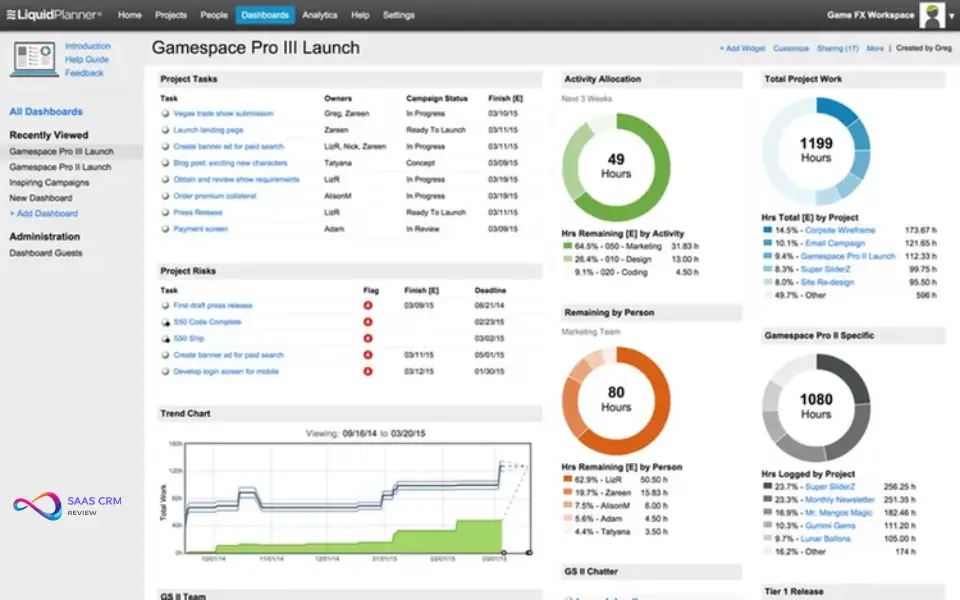
LiquidPlanner’s predictive scheduling is genuinely unique. Instead of fixed task durations, you estimate ranges (e.g., 3-5 days), and the system automatically calculates expected completion dates with confidence intervals. As work progresses, predictions update in real-time.
In my testing with a 6-week project simulation, LiquidPlanner’s finish date predictions were consistently accurate within 2 days—far better than my gut estimates or static Gantt charts.
The learning curve is significant. Teams comfortable with traditional scheduling will need to unlearn assumptions about how project timelines work.
Pros & Cons
| Pros | Cons |
|---|---|
| Range-based estimation provides realistic predictions | Conceptual shift from traditional PM approaches |
| Automatic schedule updates as reality changes | Higher price point with limited free tier |
| Resource leveling considers actual availability | Interface is complex for casual users |
| Excellent for uncertain or exploratory work | Free plan limited to 3 users, 10 projects |
Who Should NOT Buy This
- Teams comfortable with fixed schedules: The range-based approach requires mindset change
- Small teams with simple projects: Overkill for basic task tracking
- Budget-conscious organizations: Per-user costs add up
Standout Features
- Ranged Estimation: Estimate best/worst case for realistic predictions
- Automatic Leveling: Schedules adjust as work and availability change
- What-If Scenarios: Model schedule impacts before committing
Pricing Breakdown
| Plan | Price | Key Features |
|---|---|---|
| Free | $0 (3 users) | 10 projects, 300 tasks, core scheduling features |
| Essentials | $15/user/mo | Predictive scheduling, single workspace |
| Professional | $25/user/mo | Timesheets, analytics, 500 projects |
| Ultimate | $35/user/mo | Multiple workspaces, API access, unlimited projects |
My Verdict
LiquidPlanner is the right choice for teams managing uncertain timelines who want genuinely predictive scheduling. Traditional teams should stick with conventional Gantt chart tools.
What Is Project Management Software?
Project management software is a digital platform that helps teams plan, track, and complete work by organizing tasks, timelines, resources, and communication in one centralized system.
That’s the snippet-ready definition. But “project management software” is an umbrella term covering different scopes:
Task Management vs Work Management vs PPM
| Category | Scope | Example Tools | Best For |
|---|---|---|---|
| Task Management | Individual to-dos, personal productivity | Todoist, Things 3, Microsoft To-Do | Solo professionals, simple checklists |
| Work Management | Team collaboration, workflows, cross-functional projects | monday.com, Asana, ClickUp | Most business teams (5-500 people) |
| Project Portfolio Management (PPM) | Multi-project oversight, resource allocation, strategic alignment | Smartsheet, Microsoft Project, Planview | PMOs, enterprise organizations (500+) |
Most teams searching for “project management software” actually need work management—the middle category. True PPM is overkill unless you’re running a formal PMO with dedicated project managers, resource pools, and executive dashboards.
Core Components of Modern PM Software
Every tool in this guide includes some combination of:
- Task/Issue Tracking: Create, assign, and monitor work items
- Views: List, board (Kanban), calendar, timeline (Gantt), and often table/spreadsheet
- Collaboration: Comments, @mentions, file attachments, real-time updates
- Workflow Automation: Rules that trigger actions based on conditions
- Reporting: Dashboards, status summaries, progress charts
- Integrations: Connections to other business tools (Slack, email, calendars, etc.)
The difference between tools lies in depth, polish, and which components are prioritized.
What Changed in 2026: Trends That Actually Affect Buyers
Skip the hype. Here’s what genuinely matters for teams evaluating PM software this year:
AI Assistance Has Become Practical (Not Magical)
The 2024-2025 AI gold rush settled into something useful. In 2026, AI in PM software does three things well:
| AI Capability | What It Actually Does | Tools That Do It Best |
|---|---|---|
| Draft generation | Creates project briefs, status updates, meeting summaries from prompts | monday.com, ClickUp, Notion |
| Smart summarization | Condenses long comment threads and project histories | ClickUp Brain, Asana Intelligence |
| Predictive alerts | Flags at-risk projects based on velocity patterns | Wrike Work Intelligence, LiquidPlanner |
What AI doesn’t do reliably: automatically assigning tasks, making strategic decisions, or replacing project managers. Tools marketing “autonomous project management” are overselling.
Portfolio Visibility Is No Longer Enterprise-Only
Mid-market teams (50-200 people) now expect cross-project dashboards that were $50k/year enterprise add-ons in 2023. Smartsheet, Wrike, and Asana all pushed portfolio features down to mid-tier plans. If you’re managing 10+ simultaneous projects, portfolio visibility should be a deal-breaker criterion.
Governance Got Real
Post-pandemic remote work matured into permanent distributed teams. Tools responded with:
- Stricter permission models: Guest access controls, project-level admin roles
- Audit logging: Who changed what, when (compliance requirement for many industries)
- Naming conventions and templates: Enforced consistency across teams
- Retention policies: Automatic archival and deletion schedules
If your organization has compliance requirements (SOC 2, HIPAA, GDPR), governance features moved from “nice-to-have” to “must-have.”
Automation Replaced Manual Status Updates
The biggest time-saver in 2026 isn’t AI—it’s mature automation. Tools like monday.com and Asana now let teams build “if-this-then-that” rules that:
- Move tasks between stages automatically
- Notify stakeholders when dependencies complete
- Generate weekly status reports without human input
- Route approvals through predetermined chains
In my testing, well-configured automations saved 4-6 hours per project manager per week. This is the ROI argument to bring to your CFO.
Docs and Work Converged
The wall between “project management” and “documentation” collapsed. Notion pioneered this; now ClickUp Docs, monday.com WorkDocs, and Asana’s expanded features blur the lines. Teams choosing tools in 2026 should evaluate:
- Can I write specs/briefs without leaving the PM tool?
- Do docs link bidirectionally to tasks?
- Is there version history and collaborative editing?
Separate wiki tools (Confluence, Slite) still exist, but the integration tax is real.
Key Features to Look For in Project Management Software
When evaluating tools, map features to your actual needs. Here’s what matters for different team profiles:
Essential Features (Every Team Needs These)
| Feature | Why It Matters | What to Test |
|---|---|---|
| Multiple Views | Different work styles require different visualizations | Can you switch between list, board, calendar, and timeline seamlessly? |
| Task Dependencies | Real projects have sequential work | Can you link tasks so delays automatically cascade? |
| Collaboration | Comments and @mentions reduce email | Is discussion threaded and searchable? |
| Mobile Access | Field teams and executives check status on phones | Does the mobile app support core actions (not just view-only)? |
Scaling Features (Teams 20+)
| Feature | Why It Matters | What to Test |
|---|---|---|
| Workflow Automation | Manual status updates don’t scale | Can you build “if-this-then-that” rules without coding? |
| Custom Fields | Standard task properties aren’t enough | Can you add dropdowns, numbers, dates, formulas? |
| Permissions & Roles | Not everyone should see/edit everything | Can you restrict by project, team, or field level? |
| Templates | Repeatable processes need consistency | Can you templatize entire projects with populated tasks? |
Enterprise Features (100+ Users, PMO-Level)
| Feature | Why It Matters | What to Test |
|---|---|---|
| Resource Management | Who’s overloaded? Who has capacity? | Can you see workload across people and projects? |
| Portfolio Dashboards | Executives need aggregated views | Can you track health/status across 50+ projects? |
| Approvals | Formal sign-off workflows | Can you build multi-step approval chains? |
| Advanced Reporting | Custom metrics and rollups | Can you create calculated fields and scheduled reports? |
| SSO/SAML | IT security requirements | Does it integrate with your identity provider? |
| Audit Logs | Compliance and accountability | Can you export who-changed-what history? |
Features That Sound Important But Often Aren’t
- AI Features: Useful for drafts and summaries, but rarely transformative. Don’t pay a premium for AI if basics aren’t solid.
- Native Time Tracking: Only matters if you bill clients by hours. Most teams can use integrations.
- Gantt Charts: Essential for construction, engineering, and event planning. Overkill for most marketing and ops teams.
- Built-in Chat: Slack/Teams does this better. Rarely worth switching communication tools.
Benefits of Project Management Software (When It’s Worth It)
PM software isn’t universally beneficial. Here’s when the investment pays off—and when it doesn’t:
Where PM Software Creates Real Value
1. Eliminating Status Meeting Chaos
Before: Weekly 60-minute meetings where everyone reports what they did.
After: Asynchronous updates in the tool; meetings focus on decisions, not status.
Typical savings: 2-4 hours/week per team.
2. Making Invisible Work Visible
Before: “I didn’t know that was blocked on me” / “Why is this project late?”
After: Dashboards show blockers, dependencies, and workload imbalances.
Impact: Fewer surprises, earlier intervention.
3. Reducing Knowledge Loss
Before: Project context lives in email threads, chat messages, and people’s heads.
After: All decisions, files, and discussion link to the work item.
Impact: Faster onboarding, easier handoffs when people leave.
4. Scaling Processes Without Scaling Headcount
Before: Each new project requires manual setup, custom tracking, and PM overhead.
After: Templates, automations, and standard workflows let one PM handle more.
Impact: 30-50% more project capacity without new hires.
5. Improving Cross-Team Coordination
Before: Marketing doesn’t know when Engineering will deliver; Sales promises impossible timelines.
After: Shared visibility reduces misalignment and finger-pointing.
Impact: Better forecasting, fewer firefights.
When PM Software Isn’t Worth It
| Situation | Why Tools Don’t Help | What to Do Instead |
|---|---|---|
| Team of 1-2 people | Overhead exceeds benefit | Use Todoist or Apple Reminders |
| Completely unstructured work | No repeatable process to optimize | Fix the process first, then add tooling |
| Organization won’t adopt | Tool sits empty, becomes another thing to update | Solve culture/change management before buying |
| Simple, short-term project | Setup time exceeds project duration | Use a shared doc or spreadsheet |
The ROI calculation is simple: If the tool saves each team member 1 hour per week, and you have 10 people, that’s 40+ hours/month recovered. At any reasonable hourly rate, that exceeds subscription costs.
Types of Project Management Software: Category Guide
Not all PM tools compete directly. Here’s how to categorize the market:
By Primary Design Philosophy
| Type | Defining Trait | Best Tools | Ideal For |
|---|---|---|---|
| Kanban-First | Visual boards with cards moving through columns | Trello, Notion | Teams wanting simple, visual task flow |
| Spreadsheet-Like | Rows, columns, and formulas feel familiar | Smartsheet, Airtable | Excel power users, data-heavy workflows |
| All-in-One Workspace | Tasks + docs + wikis + databases converge | Notion, ClickUp | Startups consolidating tools |
| Agile/Dev-Focused | Sprints, backlog, velocity, burndown | Jira, Linear, Shortcut | Software development teams |
| Enterprise PPM | Portfolio dashboards, resource pools, governance | Microsoft Project, Planview, Clarity | PMOs with formal methodology requirements |
| Agency/Client-Focused | Billable hours, profitability, client portals | Teamwork, Function Point | Professional services, agencies |
| Visual Collaboration | Whiteboard-style planning | Miro, Whimsical | Workshops, ideation, planning sessions |
| Personal Productivity | Individual task management, GTD-style | Todoist, Things, TickTick | Solo professionals, personal use |
Hybrid Tools (Multiple Categories)
Some tools cross categories effectively:
- ClickUp: All-in-one that also handles agile and spreadsheet-like views
- monday.com: Work management with CRM, dev, and creative modules
- Asana: Work management with strong agile and portfolio features
Choosing the Right Category
- Start with your primary use case—not “project management” generally, but specifically: Are you tracking marketing campaigns? Software sprints? Client projects?
- Identify your team’s mental model—Do they think in Kanban columns? Spreadsheet rows? Hierarchical outlines?
- Consider adjacent needs—Will you also need docs? Time tracking? Client portals? Choose a tool that covers adjacencies, or plan your integration stack.
How to Choose the Right Tool: Decision Framework
Use this framework to narrow 20+ options to 2-3 finalists:
Step 1: Filter by Team Size
| Your Team | Eliminate | Shortlist |
|---|---|---|
| 1-5 people | Wrike, Smartsheet, Microsoft Project (overkill) | Trello, Notion, Todoist, ClickUp Free |
| 6-25 people | LiquidPlanner (niche), MS Project (overkill) | monday.com, Asana, ClickUp, Basecamp |
| 26-100 people | Trello, Todoist (too simple) | monday.com, Asana, Wrike, Smartsheet |
| 100+ people | Trello, Basecamp (too simple) | Smartsheet, Wrike, Microsoft Project |
Step 2: Map to Workflow Complexity
| Your Workflow | What You Need | Best Bets |
|---|---|---|
| Simple task tracking | Kanban boards, basic assignments | Trello, Notion, Asana Basic |
| Cross-functional projects | Dependencies, multi-team visibility | monday.com, Asana, Wrike |
| Repeatable processes | Workflow automation, templates | Asana, monday.com, Smartsheet |
| Complex scheduling | CPM, resource leveling, what-if scenarios | Microsoft Project, LiquidPlanner |
| Client/agency work | Billable hours, profitability, portals | Teamwork, monday.com |
Step 3: Check Governance Requirements
| If You Need… | Require These Features | Tools That Have Them |
|---|---|---|
| HIPAA compliance | BAA availability, data encryption | Asana Enterprise+, Smartsheet Enterprise |
| SOC 2 attestation | Audit logs, SSO, data retention | Most enterprise tiers (verify) |
| Guest controls | External collaborator restrictions | monday.com Pro+, Asana Advanced+ |
| Data residency | Regional data storage | Asana Enterprise+, some enterprise plans |
Step 4: Evaluate Reporting Needs
| Your Reporting | What to Look For | Strong Options |
|---|---|---|
| Team-level only | Basic dashboards, task lists | Any mid-tier plan |
| Cross-project status | Portfolio views, rollup dashboards | Asana Advanced+, monday.com Pro+, Smartsheet Business+ |
| Executive/board reporting | Custom metrics, scheduled exports, integrations with BI tools | Smartsheet, Wrike, Microsoft Project |
Step 5: Assess Integration Ecosystem
| Your Stack | Prioritize Tools That Integrate With… |
|---|---|
| Microsoft 365 | Microsoft Project, Smartsheet, monday.com |
| Google Workspace | Asana, monday.com, ClickUp, Notion |
| Slack-centric | Asana, monday.com, ClickUp (native integrations) |
| Dev tools (GitHub, GitLab) | Jira, Linear, ClickUp |
| CRM (Salesforce, HubSpot) | Wrike, Teamwork, monday.com CRM |
Final Decision: Trial 2-3 Finalists
Don’t choose on features alone. Run a 2-week pilot with real work:
- Can your least technical team member create and complete tasks?
- Does the mobile app support your field/remote workflow?
- Can you build your most common project template in under 2 hours?
- Does the automation builder handle your “if-this-then-that” needs?
- Is the team actually using it after week 1, or reverting to old habits?
Costs & Pricing Patterns: How to Evaluate Value, Not Just Price
The sticker price ($X/user/month) doesn’t tell the whole story. Here’s how to evaluate total cost of ownership:
Pricing Model Comparison
| Model | How It Works | Best For | Watch Out For |
|---|---|---|---|
| Per-seat, tiered | $X/user/month, features unlock at higher tiers | Most teams | Tier jumps can double cost; minimum seat requirements |
| Flat-rate | Fixed monthly fee, unlimited users | Large teams (30+) | May lack advanced features; harder to compare |
| Usage-based | Base fee + charges for automation runs, records, API calls | Variable workloads | Unpredictable bills; can spike unexpectedly |
| Freemium | Free tier with paid upgrades | Startups, testing | Free limits force upgrades; “free forever” isn’t always |
Hidden Cost Factors
1. Minimum Seat Requirements
monday.com and some competitors require 3+ seats on paid plans. A 2-person team pays for 3. Factor this into comparisons.
2. Feature Tier Jumps
The feature you need is often in the next tier up. Example: Asana’s Portfolios require Advanced ($24.99), not Starter ($10.99). Map your must-haves to tiers before comparing prices.
3. Add-On Costs
- AI features: ClickUp Brain ($7/user/mo extra), some tools include AI in base
- Resource management: Smartsheet charges separately
- Additional storage: Airtable, Notion, and others cap storage by tier
- SSO/SAML: Often locked to enterprise plans
4. Annual vs. Monthly Billing
Annual billing typically saves 15-20%, but requires upfront commitment. Monthly is safer during trials.
5. Implementation & Training
Enterprise tools often require consulting fees ($5k-50k+) for setup. Factor this into TCO for Smartsheet, Wrike, Microsoft Project at scale.
Price-to-Value Framework
Don’t ask “which is cheapest?” Ask “which delivers most value for my specific needs?”
| If You Value… | Pay For | Don’t Overpay For |
|---|---|---|
| Time savings | Automation depth (Asana, monday.com) | Fancy AI features |
| Simplicity | Clean interfaces (Trello, Basecamp) | Feature-rich platforms you won’t use |
| Scale | Portfolio and resource features (Smartsheet, Wrike) | Per-seat tools that punish growth |
| Integration | Native connectors to your stack | Tools requiring expensive middleware |
Integrations & Ecosystem Fit
Your PM tool must work with your existing stack. Here’s what to evaluate:
Microsoft 365 Organizations
| If You Use… | Best PM Fit | Integration Depth |
|---|---|---|
| Teams for communication | Microsoft Project, Smartsheet, monday.com | Native tabs and notifications |
| Outlook for email | Asana, monday.com, Wrike | Email-to-task and calendar sync |
| SharePoint for files | Microsoft Project, Smartsheet | Direct file linking |
| Power BI for reporting | Smartsheet, Microsoft Project | Native connectors |
Verdict: Microsoft Project is the obvious choice for deep M365 integration, but monday.com and Smartsheet play well too.
Read full review: Microsoft Teams Review 2026: Features, Pricing, Pros & Cons
Google Workspace Organizations
| If You Use… | Best PM Fit | Integration Depth |
|---|---|---|
| Gmail | Asana, monday.com, ClickUp | Email-to-task creation |
| Google Calendar | All major tools | Two-way sync |
| Google Drive | Notion, monday.com, Asana | File embedding and linking |
| Google Sheets | Smartsheet, Airtable | Data sync and import |
Verdict: Google-native teams have broad options. Asana and monday.com offer the smoothest G Suite experience.
Read full review: Google Workspace Review 2026: Pricing, Features & Honest Pros/Cons
Development Teams (Dev Stack)
| If You Use… | Best PM Fit | Integration Depth |
|---|---|---|
| GitHub | Jira, Linear, ClickUp | Commit-to-issue linking, PR status |
| GitLab | Jira, ClickUp | Similar to GitHub |
| Bitbucket | Jira (same ecosystem) | Native, tightest integration |
| CI/CD pipelines | Jira, Linear | Deployment status updates |
Verdict: Jira remains the default for dev teams, but Linear and ClickUp are gaining ground with modern interfaces.
Agency & Professional Services Stack
| If You Use… | Best PM Fit | Integration Depth |
|---|---|---|
| HubSpot CRM | Teamwork, monday.com | Deal-to-project automation |
| Salesforce | Wrike, Smartsheet | Opportunity-to-project flow |
| QuickBooks/Xero | Teamwork, Harvest + any PM | Time-to-invoice sync |
| Adobe Creative Cloud | Wrike, ProofHub | Proofing and asset review |
Verdict: Teamwork is purpose-built for agencies. monday.com’s CRM module also fits.
Integration Red Flags
- “Zapier only”: Native integrations are more reliable. If your critical tool only connects via Zapier, expect maintenance overhead.
- One-way sync: Data flows in but not out. Verify bidirectional sync for key systems.
- Enterprise-tier lockout: Some integrations (Salesforce, SAML) require top-tier plans. Check before you commit.
Security, Permissions & Compliance Checklist
For IT, legal, and compliance teams evaluating PM software:
Authentication & Access Control
| Requirement | Questions to Ask | Tools That Support It |
|---|---|---|
| Single Sign-On (SSO) | Does it support SAML 2.0 or OIDC? | Most enterprise tiers |
| Multi-factor Authentication (MFA) | Is MFA enforced or optional? | Most tools (verify enforcement) |
| IP Allowlisting | Can you restrict access by IP range? | Enterprise tiers only |
| Session Timeout | Can you enforce automatic logout? | Enterprise tiers |
| Password Policies | Can you set minimum complexity/rotation? | Enterprise tiers |
Data Protection
| Requirement | Questions to Ask | Tools That Support It |
|---|---|---|
| Encryption at Rest | Is all data encrypted in storage? | All major tools (AES-256 standard) |
| Encryption in Transit | Is TLS 1.2+ enforced? | All major tools |
| Data Residency | Can you choose storage region (US, EU, APAC)? | Asana Enterprise+, some others |
| Backup & Recovery | What’s the RTO/RPO? Can you restore deleted data? | Varies—verify with vendor |
Audit & Compliance
| Requirement | Questions to Ask | Tools That Support It |
|---|---|---|
| Audit Logs | Can you export who-changed-what? | Enterprise tiers, some business tiers |
| SOC 2 Type II | Is the vendor SOC 2 certified? | Major vendors (request report) |
| GDPR Compliance | Is there a DPA available? Data subject rights process? | EU customers: verify |
| HIPAA Compliance | Can you sign a BAA? | Limited: Asana Enterprise+, verify others |
| Data Retention Policies | Can you set automatic deletion schedules? | Enterprise tiers |
Permission Granularity
| Control Level | What It Means | When You Need It |
|---|---|---|
| Workspace-level | Separate environments for different BUs | Multi-division organizations |
| Project-level | Control who sees each project | Client-facing work, sensitive projects |
| Field-level | Hide specific data columns from roles | Salary data, client pricing |
| Guest access controls | Limit external collaborators’ capabilities | Client/vendor collaboration |
Pre-Purchase Security Checklist
Use this as a vendor evaluation template:
- SOC 2 Type II report available (dated within 12 months)
- SAML/SSO supported on required plan tier
- MFA can be enforced (not just optional)
- Audit logs export to SIEM (if required)
- Data residency options match your requirements
- BAA available (if HIPAA applies)
- Guest permissions are granular enough
- Data retention policies are configurable
- Vendor has documented incident response process
- Penetration testing performed annually
Migration & Adoption Playbook: 2-4 Week Pilot Plan
New PM software fails not because of features, but because of adoption. Here’s a proven rollout framework:
Week 1: Foundation Setup
Goals: Configure the basics, don’t over-engineer.
| Task | Owner | Time Estimate |
|---|---|---|
| Create workspace structure (teams/projects) | PM Lead | 2-3 hours |
| Define 3-5 status columns (standard taxonomy) | PM Lead | 1 hour |
| Set up SSO integration (if enterprise) | IT | 2-4 hours |
| Import 1-2 active projects as test cases | PM Lead | 2 hours |
| Invite pilot group (5-10 people max) | PM Lead | 30 minutes |
Don’t do yet: Complex automations, full team rollout, custom integrations.
Week 2: Pilot Testing
Goals: Validate core workflows with real work.
| Task | Owner | Time Estimate |
|---|---|---|
| Run daily standups using the tool (not spreadsheets) | Pilot team | Ongoing |
| Identify 3 friction points | PM Lead | End of week |
| Build 2-3 automation rules based on friction | PM Lead | 2 hours |
| Test mobile app for field/remote users | Pilot team | Ongoing |
| Gather feedback: What’s working? What’s not? | PM Lead | 1 hour |
Success metrics:
- Pilot team logs in at least 3x per week
- Task updates happen in the tool (not email/Slack)
- No major workflow blockers identified
Week 3: Refinement & Templates
Goals: Standardize before scaling.
| Task | Owner | Time Estimate |
|---|---|---|
| Create 2-3 project templates based on pilot learning | PM Lead | 3 hours |
| Document naming conventions and status taxonomy | PM Lead | 1 hour |
| Set up permission structure for broader team | PM Lead + IT | 2 hours |
| Configure reporting dashboards | PM Lead | 2 hours |
| Create quick-start guide (1-page PDF or video) | PM Lead | 2 hours |
Governance artifacts to create:
- Project naming convention:
[Client/Team]-[Project Type]-[Date or ID] - Status taxonomy: Backlog → In Progress → Review → Done (keep it simple)
- Guest access rules: Who can invite external collaborators? What can they see?
Week 4: Controlled Rollout
Goals: Expand beyond pilot without losing control.
| Task | Owner | Time Estimate |
|---|---|---|
| Add next wave (20-50% of org) | PM Lead | 1 hour |
| Run 30-minute onboarding session (Zoom/live) | PM Lead | 30 minutes |
| Designate team champions (1 per department) | PM Lead | — |
| Establish support channel (Slack channel, email alias) | PM Lead | 30 minutes |
| Set check-in for Week 6 to assess full rollout readiness | PM Lead | — |
Common Adoption Pitfalls (And How to Avoid Them)
| Pitfall | Why It Happens | Prevention |
|---|---|---|
| Tool sits empty | People revert to old habits | Make the PM tool the “source of truth”—stop updating spreadsheets |
| Over-customization | Enthusiasm creates complexity | Freeze customizations after Week 3; iterate quarterly |
| No executive sponsor | Leadership doesn’t use it, so neither does team | Get one exec to run their meetings from the tool |
| Parallel systems | “Update the tool AND the spreadsheet” | Kill the old system on a specific date |
| Training debt | New hires don’t know the system | Build onboarding into your new hire checklist |
Rollout Timeline Summary
| Phase | Duration | Scope | Success Criteria |
|---|---|---|---|
| Setup | Week 1 | Admin only | Structure ready, SSO working |
| Pilot | Week 2 | 5-10 people | Real work in the tool, 3+ logins/week |
| Refine | Week 3 | Pilot team | Templates, governance, guides ready |
| Expand | Week 4 | 20-50% of org | Onboarding complete, champions active |
| Full Rollout | Week 6+ | Entire org | Old systems sunset, adoption >80% |
How to Choose the Right Project Management Software
By Team Size
| Team Size | Recommended Tools | Why |
|---|---|---|
| Solo/Freelancer | Todoist, Notion, Trello | Simple, personal productivity focused |
| Small (2-10) | monday.com, ClickUp, Trello | Easy onboarding, reasonable pricing |
| Mid-size (11-100) | Asana, Wrike, Teamwork | Workflow automation, scaling features |
| Enterprise (100+) | Smartsheet, Wrike, Microsoft Project | Portfolio management, enterprise security |
By Use Case
| Use Case | Best Pick | Runner-Up |
|---|---|---|
| Visual beginners | monday.com | ClickUp |
| Agile development | Jira | ClickUp |
| Agency/Client work | Teamwork | monday.com |
| Simple Kanban | Trello | Notion |
| Knowledge + Projects | Notion | Coda |
| Enterprise PMO | Smartsheet | Wrike |
| Remote collaboration | Miro | Basecamp |
| Budget-conscious | Zoho Projects | nTask |
By Budget
| Budget | Options |
|---|---|
| Free only | ClickUp, Trello, Zoho Projects (limited) |
| Under $10/user | Jira, Zoho Projects, ClickUp, Hive, nTask |
| Under $20/user | monday.com, Asana, Teamwork |
| Flat rate | Basecamp ($299/mo), ProofHub ($89/mo) |
Frequently Asked Questions
What is the best project management software in 2026?
monday.com is the best project management software for most teams in 2026. It combines intuitive visual design with powerful automation, making it effective for both beginners and experienced project managers. For budget-conscious teams, ClickUp offers the most generous free plan. Enterprise organizations should evaluate Smartsheet or Wrike for portfolio management needs.
What is the best free project management software?
ClickUp offers the best free project management software. Unlike competitors that cap free users at 2-10, ClickUp allows unlimited users with access to most core features. Trello and Notion also provide generous free tiers for simpler use cases.
Is ClickUp better than Asana?
ClickUp offers more features; Asana offers more polish. ClickUp’s free plan is significantly more generous, and it includes features (like time tracking and goals) that Asana charges extra for. However, Asana’s interface is cleaner, its workflow automation is more intuitive, and teams often find it easier to adopt. Choose ClickUp for maximum features at minimum cost; choose Asana for ease of use and workflow sophistication.
How much does project management software cost?
Project management software typically costs between $5-30 per user per month for paid plans. Many tools offer free tiers:
- Free options: ClickUp, Trello, Notion, Asana (2 users)
- Budget tier ($3-10): Zoho Projects, Jira, Todoist, nTask, Hive
- Mid-range ($10-20): monday.com, Asana, Wrike, Airtable
- Enterprise ($25+): Microsoft Project, Smartsheet (with add-ons)
- Flat-rate: Basecamp ($299/mo unlimited), ProofHub ($89/mo unlimited)
What features should I look for in project management software?
Prioritize these features based on team needs:
- Must-haves: Task management, collaboration, multiple views (list/board/calendar)
- Important for scaling: Workflow automation, reporting, integrations
- Enterprise needs: Resource management, portfolio dashboards, SSO, audit logs
- Nice-to-haves: AI assistance, time tracking, mobile apps
Is project management software worth the investment?
Yes—the ROI is typically 3-5x the subscription cost through reduced meeting time, fewer missed deadlines, and improved resource utilization. According to PMI research, organizations using formal project management practices waste 28x less money than those without. Even a $15/user/month tool pays for itself if it prevents a single missed deadline or reduces weekly status meetings by 30 minutes.
Final Thoughts
The best project management software depends on your team’s size, workflow complexity, and budget. My top three recommendations:
- monday.com — Best balance of power and simplicity for most teams
- ClickUp — Best value with the most generous free plan
- Asana — Best for teams who need sophisticated workflow automation
Start with free trials of 2-3 options before committing. Most teams know within two weeks which tool fits their working style.
About the author

I’m Macedona, an independent reviewer covering SaaS platforms, CRM systems, and AI tools. My work focuses on hands-on testing, structured feature analysis, pricing evaluation, and real-world business use cases.
All reviews are created using transparent comparison criteria and are updated regularly to reflect changes in features, pricing, and performance.