Most buying guides rank team collaboration tools by feature count. That ranking falls apart the moment a 25-person team hits a plan gate, because the tool with the longest feature list is rarely the one whose limits match how the team works.
This guide ranks the 10 best team collaboration software platforms by what they cost at 10, 25, and 50 seats, which limit breaks first on each free plan, and which buyer each one genuinely fits. Every price below was verified against the vendor’s official pricing page on 29 July 2026, and every plan limit traces to vendor documentation rather than a marketing summary.
Two things changed this year that most competing guides have not caught up with. Microsoft now sells Microsoft 365 without Teams at a lower price, and it has folded Copilot into its Business Standard and Business Premium SKUs, which moved the practical tier for Microsoft buyers by more than $9 per user/month.
In This Article (16 sections)
Quick Verdict: Best Team Collaboration Software by Use Case
| Use case | Best pick | Why it fits |
|---|---|---|
| Strongest fit for companies already inside Microsoft 365 | Microsoft Teams | Chat, meetings, files, and identity on one bill from $7.00 per user/ |
| Best for chat-first culture | Slack | AI included on every tier, including Free, with no separate AI charge |
| Best for real-time document work | Google Workspace | Business Starter at $7.00 per user/ |
| Best for meeting-heavy teams | Zoom Workplace | 30-hour meetings and 300 participants from the Business tier |
| Best for cross-functional projects | Asana | Clearest task ownership model, AI credits bundled from Starter |
| Best all-in-one work management | ClickUp | Business at $12 per user/ |
| Best for visual workflow tracking | monday work management | Board-first structure, though automations start only at Standard |
| Best for team wiki and docs | Notion | Plus at $10 per user/ |
| Best for workshops and whiteboards | Miro | Starter at $8 per member/ |
| Best lightweight kanban | Trello | Standard at $5 per user/ |
| Best free plan for a small team | Trello | 10 boards per Workspace and 250 command runs per month at $0 |
| Best team collaboration tools for small business | Google Workspace | One $7.00 per user/ |
| Best team collaboration tools for remote teams | Slack | 90-day free history, then unlimited on Pro, with async-first channels |
Prices are entry or practical tier on annual billing, United States pricing, verified 29 July 2026. Per-product sources: Microsoft, Slack, Google, Zoom, Asana, ClickUp, monday.com, Notion, Miro, Trello.
The budget pick and the free-plan pick are both Trello, at $5 per user/month annual, because 10 boards and 250 monthly command runs outlast most free tiers here. The enterprise pick is Microsoft Teams, provided the company is already inside Microsoft 365.
Category Coverage Matrix: Which of These Tools Actually Compete
Half the confusion in this market comes from comparing products that do not solve the same job. The matrix below shows which categories each tool genuinely covers, so you can tell a direct competitor from a different purchase.
| Tool | Chat | Meetings | Docs | Tasks | Whiteboard | Free guests |
|---|---|---|---|---|---|---|
| Microsoft Teams | Yes | Yes | Yes | Limited | Yes | Limited |
| Slack | Yes | Huddles | Limited | Limited | No | Conditional |
| Google Workspace | Yes | Yes | Yes | Limited | Limited | Yes |
| Zoom Workplace | Yes | Yes | Limited | No | Yes | Not applicable |
| Asana | Limited | No | Limited | Yes | No | Conditional |
| ClickUp | Limited | Limited | Yes | Yes | Yes | Conditional |
| monday work management | Limited | No | Yes | Yes | Limited | Conditional |
| Notion | No | No | Yes | Limited | Limited | Yes |
| Miro | Limited | Limited | No | Limited | Yes | By plan |
| Trello | No | No | Limited | Yes | No | Limited |
Category coverage is an editorial assessment of each vendor’s documented feature scope, not a feature count. The Free guests column is verified per vendor: Slack guest roles, Notion, Miro, and Trello, all checked 29 July 2026.
Read the matrix before the rankings. Slack and Microsoft Teams compete directly, Miro competes with almost nothing else here, and Notion versus Trello is barely a contest, because one stores knowledge and the other moves cards.
What Team Collaboration Tools Are, and the Seven Categories That Matter
Team collaboration tools are online collaboration tools for teams that need to communicate, share files, coordinate work, and preserve a searchable record of decisions. The category is broad enough that two products called collaboration tools can solve completely different problems.
Most buyers do not choose one tool. They accumulate four, discover the overlap at renewal, and then argue with finance about which one to cut.
Sorting the market into categories first makes that argument shorter. Each category below solves a different job, and the overlap between them is where duplicate spend hides.
| Category | What it owns | Representative tools | Overlap risk |
|---|---|---|---|
| Conversation hub | Persistent channels, direct messages, notifications | Slack, Microsoft Teams | High with suite platforms |
| Suite platform | Email, documents, storage, identity, meetings | Google Workspace, Microsoft 365 | Absorbs 3 to 4 other categories |
| Work management | Tasks, projects, dependencies, workload | Asana, ClickUp, monday work management, Trello | Medium with knowledge tools |
| Knowledge and documentation | Wikis, process docs, internal handbooks | Notion, Confluence | High with work management |
| Visual collaboration | Whiteboards, workshops, diagrams, mapping | Miro, FigJam | Low, rarely duplicated |
| Meetings and async video | Live calls, recordings, screen messages | Zoom Workplace, Loom | High with suite platforms |
| File collaboration | Sync, versioning, external file sharing | Dropbox, Google Drive | High with suite platforms |
Entry prices, free-plan status, and plan limits verified 29 July 2026 on annual billing. Each row maps to its vendor’s own page: Microsoft 365, Slack plans, Google Workspace editions, Zoom plans, Asana plans, ClickUp plans, monday.com plans, Notion plans, Miro plans, Trello plans.
The overlap column is the part that changes a budget. A team already paying for a suite platform is paying for meetings, file collaboration, and documentation whether or not it uses them.
Run a category audit before adding any tool: list the seven categories, mark which one your current suite already covers at an acceptable standard, and only buy into a category where the suite version fails a workflow you can name. Teams under 25 people rarely need more than three categories bought separately.
The two categories that most often justify a separate purchase are visual collaboration and work management, because suite platforms cover both weakly. The two that most often do not are file collaboration and meetings, where the suite version is adequate for teams that are not running client-facing production workflows.
If your decision is inside a single category rather than across the stack, a narrower comparison is more useful than a general ranking. For chat specifically, the Slack vs Microsoft Teams comparison covers the plan gates that separate them, and for documentation the Notion vs Confluence breakdown does the same for wikis.
How We Chose and Ranked These Team Collaboration Platforms
This ranking scores 10 team collaboration platforms on five dimensions. Those are verified cost at 10, 25, and 50 seats, the first plan limit a growing team hits, how AI is packaged and priced, how external collaborators are billed, and how much admin work setup demands.
Pricing came from each vendor’s official pricing page, checked 29 July 2026. Plan limits came from vendor documentation and help-center articles rather than pricing-page marketing copy, because the two often disagree on the number that matters.
This ranking is based on official documentation and verified product evidence, not on a paid account in each platform. Where a figure was not published, we say so instead of estimating it.
Products qualified for the list if they are sold to teams as a primary collaboration surface, publish enough pricing detail to model a real bill, and are actively maintained. We excluded tools that publish no per-seat price at all.
All 10 Team Collaboration Tools Compared at a Glance
| Tool | Entry paid price (annual) | Free plan | First limit that bites | AI packaging |
|---|---|---|---|---|
| Microsoft Teams | $7.00 per user/ | Yes | 300-user cap on business plans | Copilot bundled in Standard and Premium |
| Slack | $7.25 per active user/ | Yes | 90-day message history | Included on every tier, plan limits apply |
| Google Workspace | $7.00 per user/ | No, 14-day trial | Pooled storage and Meet capacity | Gemini included, scope varies by tier |
| Zoom Workplace | Price not published in fetchable form | Yes (Basic) | 40-minute group meetings | AI Companion included on paid tiers |
| Asana | $10.99 per user/ | Yes | Free tier collaboration cap | 50,000 AI credits/ |
| ClickUp | $7 per user/ | Yes | 60MB storage on Free | Add-on only, $9 or $28 per user/ |
| monday work management | $9 per seat/ | Yes | No automations below Standard | 1,000 to 3,000 credits/ |
| Notion | $10 per user/ | Yes | 1,000 blocks once a second member joins | Bundled on Business and Enterprise |
| Miro | $8 per member/ | Yes | 3 editable boards on Free | 25 credits/ |
| Trello | $5 per user/ | Yes | 10 boards per Workspace | Included in paid tiers, no separate price |
Annual-billing totals calculated as seats x monthly price x 12, verified 29 July 2026, excluding tax, add-ons, and onboarding. Sources: ClickUp pricing page, monday.com pricing page, Miro pricing page.
Prices are per user or per member on annual billing unless noted, checked 29 July 2026, and exclude tax, add-ons, and onboarding. The AI column is where this table diverges most sharply from a feature comparison, because three vendors bundle AI, two meter it by credit, and one sells it only as a paid add-on.
The 10 Best Team Collaboration Tools in 2026
The ranking below runs from the broadest consolidation play to the narrowest single-purpose tool. Each entry states its practical tier, its free-plan ceiling, what it beats and loses to, and who should skip it.
1. Microsoft Teams: Best Team Collaboration Tool for Microsoft 365 Companies

- Best for:
- 25 to 300 person companies standardized on Microsoft 365, Outlook, SharePoint, OneDrive, and Entra ID.
- Not best for:
- Startups that want a chat-first culture without Microsoft 365 admin overhead, or Slack teams that need direct messages and custom workflows to survive a migration intact.
Microsoft Teams holds the top rank because it is the only product here that carries chat, meetings, documents, files, identity, and admin policy on a single bill. That consolidation is what finance approves, and the Microsoft Teams review covers the admin side in more depth.
Starting price: $7.00 per user/month paid yearly for Microsoft 365 Business Basic with Teams (Microsoft, checked 29 July 2026).
The pricing structure changed materially this year. Microsoft now lists Business Standard and Business Premium only in their Copilot-bundled form, at $23.50 and $32.00 per user/month annual, and it separately sells Teams-free versions of all three business SKUs.
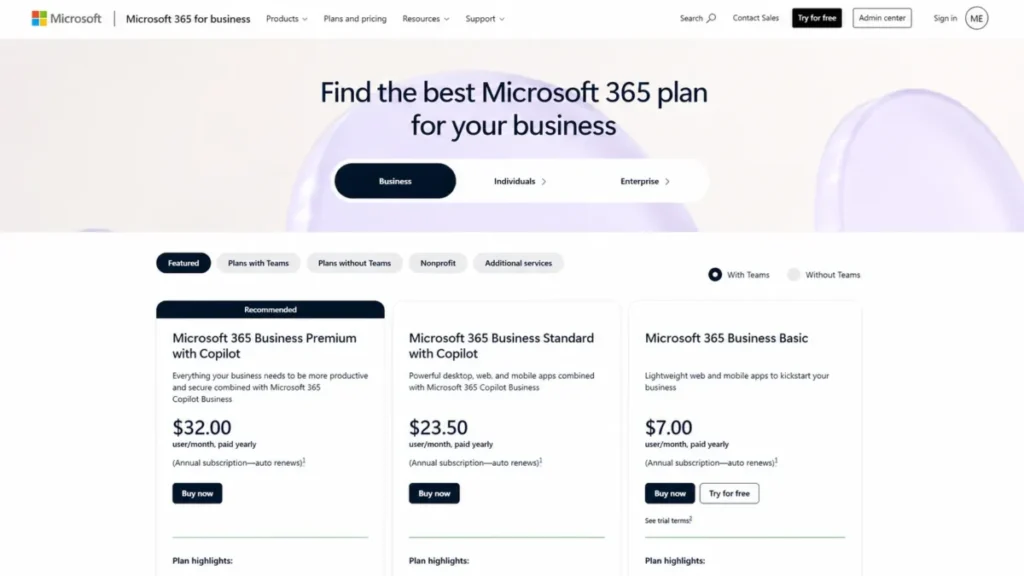
Microsoft 365 Business plans with Teams, including Business Basic at $7.00 per user per month when paid yearly.
- Practical tier:
- Business Basic at $7.00 covers chat, meetings, and web Office, but any team that needs desktop Office apps lands on Business Standard with Copilot at $23.50 per user/month. That is a jump of $16.50 per user/month, and it is the single biggest budget surprise in this category.
Channel files are stored in SharePoint and private chat files in OneDrive for Business, according to Microsoft’s file-sharing documentation. Permissions and retention then follow SharePoint rules rather than Teams rules, which catches admins who expect Teams-level controls.
The limitation that changes decisions is scale. Microsoft 365 business plans are designed for organizations up to 300 users, so growth past that line forces an enterprise agreement and a new negotiation.
- Setup difficulty:
- Medium, and it assumes an IT owner rather than a founder doing it part time. Hidden costs: Teams Phone is a separate line item, and Copilot on Business Basic is an $18.00 per user/month add-on.
- Free plan:
- a free Teams tier exists, though business buyers should confirm current availability before planning a rollout around it.
- Better than Slack
- on total cost when identity and files already sit in Microsoft 365, because chat, meetings, email, and storage arrive on one bill instead of two.
- Worse than Google Workspace
- on real-time document co-editing, and worse than Slack on guest economics once client contacts need channel access.
- Avoid if
- your company runs on Google Workspace with no reason to move, or you expect to pass 300 users inside the contract term.
- Evidence status:
- vendor pricing pages and documentation checked 29 July 2026, plus a sample of 25 user reviews.
User sentiment: in our sample of 25 recent reviews from Capterra only, because the G2 page returned no individual reviews on four attempts, users most often praised Microsoft 365 integration and having files, chat, and calls in one place. The most repeated complaint was a cluttered interface and confusion between chats, channels, and teams. This feedback supports our documentation-based finding that setup assumes a dedicated IT owner rather than a founder doing it part time.
| Pros | Cons |
|---|---|
| Chat, meetings, email, and cloud storage bundled from $7.00 per user/ | Business plans stop at 300 users, forcing an enterprise move |
| Files inherit SharePoint and OneDrive permissions instead of a separate model | Desktop Office now arrives only via the $23.50 Copilot-bundled tier |
| Identity and device policy live in the same Microsoft admin center | Admin console assumes a dedicated IT owner |
| Teams-free SKUs available at $1.60 to $3.20 per user/ | Teams Phone and standalone Copilot are priced on top of the suite |
Verified against the Microsoft 365 Business pricing page, 29 July 2026. Verdict: Choose Microsoft Teams if Microsoft 365 already holds your identity and files. Skip it if your company lives in Google Workspace and has no reason to move.
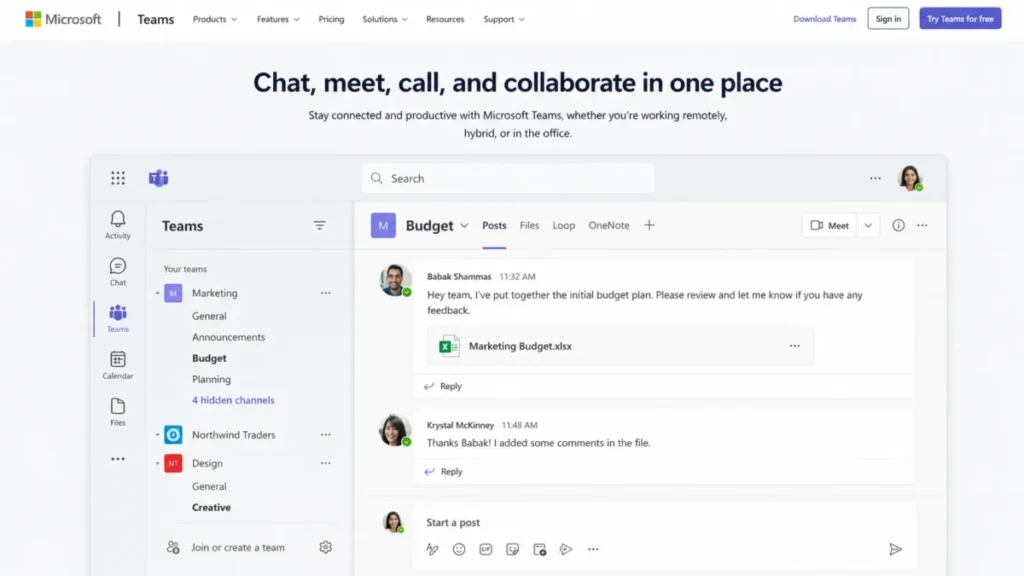
Microsoft Teams brings channel conversations, shared files, Loop, and OneNote together in one workspace.
2. Slack: Best Team Collaboration Software for Chat-First Teams
Slack is the only platform in this ranking that includes AI on every plan, including Free, with capability expanding by tier rather than sitting behind a separate charge (Slack, checked 29 July 2026). Against ClickUp’s $9 or $28 per user/month AI add-on, that packaging difference is worth more than most feature gaps here.
- Starting price:
- $7.25 per active user/month billed annually for Pro, or $8.75 billed monthly. Business+ runs $15 annual and $18 monthly.
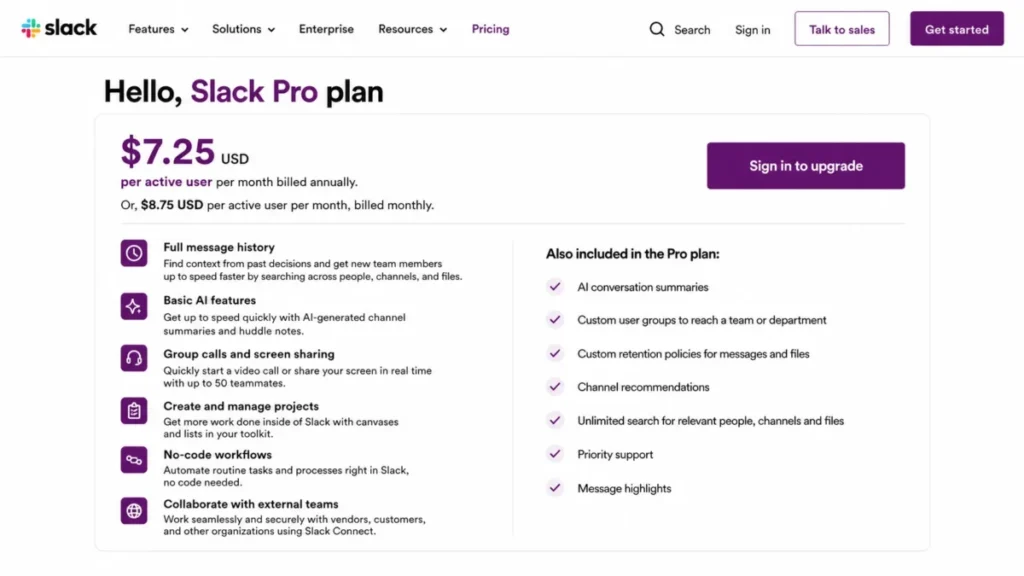
Slack Pro costs $7.25 per active user per month with annual billing, or $8.75 with monthly billing.
The monthly premium is 20 percent. For a 25-person team on Business+, paying monthly instead of annually costs $900 more per year, which is the clearest annual-billing argument in this guide.
Slack also displays a limited-time offer of 50 percent off Pro and Business+ for the first 3 months when a workspace is purchased within 7 days of creation. The standard price after that window is $7.25 and $15 per user/month on annual billing.
The subscription renews at the standard price, so budget from the standard rate rather than the offer. Re-verified on the publish date: 2026-07-29.
A team that onboards new hires by pointing them at old threads loses that workflow on day 91, when the history window closes behind it.
Guest billing is the detail agencies miss. Slack documents multi-channel guests as billed like regular members, while single-channel guests are free at up to five per paid active member. An agency that gives each client contact access to two channels has just converted every one of them into a billable seat.
- Setup difficulty:
- Low. Hidden costs: Slack Connect governance and compliance exports sit on higher tiers, and the Slack pricing guide breaks down where each gate falls.
- Practical tier:
- Business+ at $15 per user/month annual, because compliance exports, guest governance, and most admin controls sit there rather than on Pro.
- Free plan:
- available, capped at 90 days of history and 10 third-party apps.
Better than every other tool here on AI economics, since capability sits inside the seat price rather than above it.
- Worse than Microsoft Teams
- on suite cost, and worse than Notion on guest billing.
- Avoid if
- you need archive history beyond 90 days at zero cost, or your client work depends on many multi-channel guests.
- Evidence status:
- vendor pricing pages and documentation checked 29 July 2026, plus a sample of 73 user reviews.
User sentiment: in our sample of 73 recent reviews from G2 and Capterra, users most often praised channel organisation and the depth of integrations. The most repeated complaint was notification volume burying important messages across too many channels. This feedback supports our finding on the 90-day free history limit and adds a constraint the documentation does not surface, which is that notification design becomes the real adoption risk.
| Pros | Cons |
|---|---|
| AI included on all tiers including Free, with no separate AI SKU | Free plan hides everything older than 90 days |
| Single-channel guests are free at 5 per paid member, which suits client work | Multi-channel guests are billed at full member rate |
| $7.25 per active user/ | Business+ at $15 is needed for most compliance and admin controls |
| Lowest setup burden of the four chat-capable tools here | Monthly billing carries a 20 percent premium |
Verified against the Slack pricing page, 29 July 2026. Verdict: Choose Slack if conversation is your primary collaboration surface and you want AI without a second invoice. Choose Microsoft Teams instead if your files and identity already live in Microsoft 365, as the Slack review explains in more detail.
3. Google Workspace: Best Team Collaboration Platform for Real-Time Document Work

Google Workspace is the strongest option here for teams whose day runs through documents rather than channels.
Business Starter costs $7.00 per user/month on an annual plan and $8.40 on flexible monthly billing. Business Standard sits at $14.00 and Business Plus at $22.00 annual (Google, checked 29 July 2026).
A 14-day trial is the only way to test it, which makes Google Workspace the one platform in this ranking you cannot pilot indefinitely at zero cost.
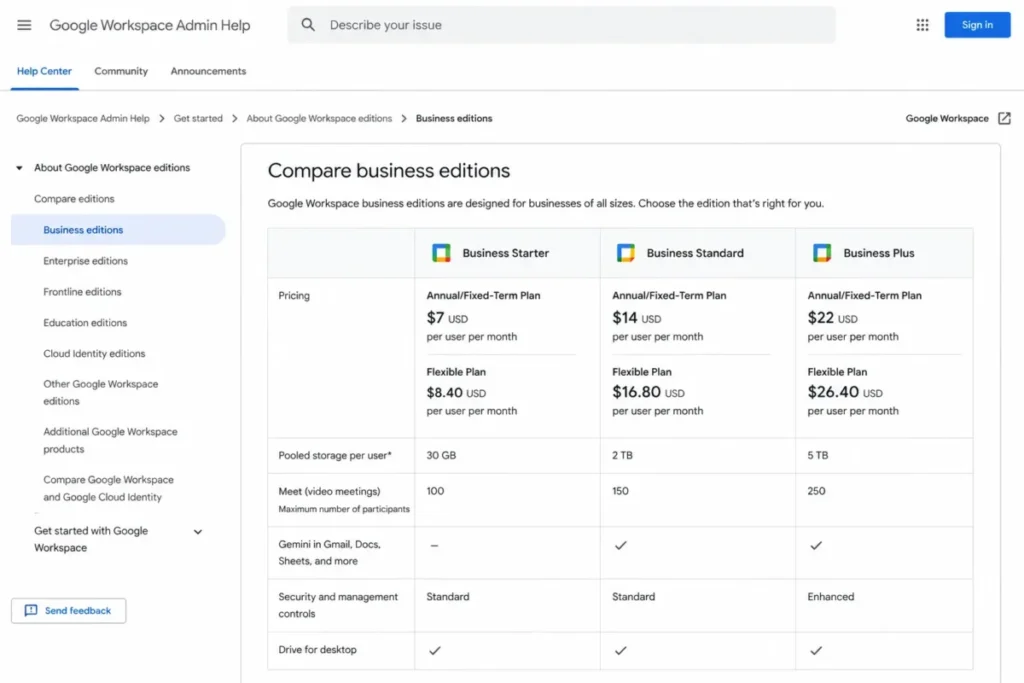
Google Workspace compares Business Starter, Business Standard, and Business Plus by price, pooled storage, and Google Meet capacity.
Storage is pooled across the organization rather than fixed per user, which behaves differently from a per-seat quota when a few video-heavy users dominate. Teams that record every meeting hit the pooled ceiling well before the seat count suggests they should.
Gemini is included, with scope widening by tier rather than being sold separately. That places Google in the same packaging camp as Slack and against ClickUp.
- Setup difficulty:
- Low to medium, with domain verification the main hurdle. Hidden costs: Meet participant capacity and advanced Vault retention are tier-gated, and the Google Workspace pricing guide maps which tier opens what.
- Best for:
- teams whose primary artifact is a document rather than a message, and who want email, files, and meetings on one invoice.
- Practical tier:
- Business Standard at $14.00 per user/month annual. Business Starter caps Meet capacity and Vault retention tightly enough that most teams past 10 people move up within the first year.
- Free plan:
- none. Every tier is available on either an annual plan or flexible monthly billing, and Business Plus sits at $22.00 per user/month annual for teams that need longer retention and larger meetings.
- Better than Microsoft 365
- on real-time co-editing and on time from purchase to a working setup, because there is no desktop-app tier decision to make.
- Worse than Slack or Microsoft Teams
- on conversation depth, since Chat is a companion to the documents rather than the center of gravity.
- Avoid if
- you need a permanent free tier to pilot with, or your team records enough video that pooled storage becomes the binding constraint.
- Evidence status:
- vendor pricing pages and documentation checked 29 July 2026, plus a sample of 75 user reviews.
User sentiment: in our sample of 75 recent reviews from G2 and Capterra, users most often praised real-time co-editing and moving between Gmail, Docs, Sheets, and Meet. The most repeated complaint was a confusing admin console and hard-to-find advanced settings. This feedback challenges our Low to medium setup rating, because administration is where reviewers report the friction rather than initial signup.
| Pros | Cons |
|---|---|
| $7.00 per user/ | No free tier at all, only a 14-day trial |
| Gemini included rather than sold as a separate per-seat add-on | Pooled storage drains faster than per-seat quotas suggest |
| Real-time co-editing remains the benchmark other suites are measured against | Meet capacity and Vault retention are gated by tier |
| Flexible monthly billing available at $8.40 without an annual lock-in | Chat is weaker than a dedicated conversation hub |
Verified against the Google Workspace editions documentation, 29 July 2026. Verdict: Choose Google Workspace if documents are the center of gravity and you want one bill for email, files, and meetings. The Google Workspace review covers the admin controls that separate the three business editions.
4. Zoom Workplace: Best for Meeting-Heavy and Client-Facing Teams

Zoom Workplace earns its place on meeting mechanics rather than price.
Basic is free with a 40-minute cap on group meetings and 100 participants. Pro lifts duration to 30 hours and adds 10 GB of cloud storage per user, Business raises capacity to 300 participants, and Enterprise reaches 500 or more (Zoom, checked 29 July 2026).
Zoom’s per-user prices are rendered dynamically and were not published in a directly verifiable form at the time of checking, so we are not quoting a figure we cannot source. Confirm the current per-seat rate on Zoom’s pricing page before budgeting.
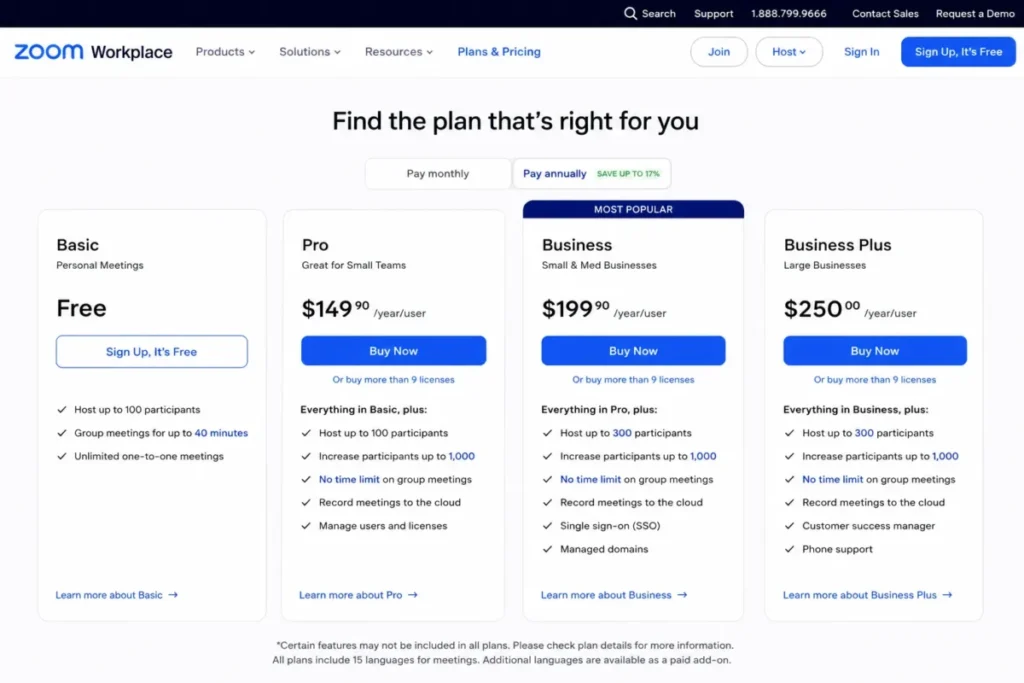
Zoom Workplace compares its Basic, Pro, Business, and Business Plus plans, with Basic free and group meetings limited to 40 minutes.
The 40-minute cap is the limit that forces the upgrade, and it forces it early. Any team running client calls, interviews, or workshops hits it in the first month, which makes Zoom Basic a demo rather than a workable free plan for business use.
AI Companion is included on paid tiers rather than metered separately. Basic gets a token allowance of three AI note-taking sessions.
- Setup difficulty:
- Low. Hidden costs: Webinar and large-meeting capacity are separate purchases, not tier upgrades.
- Best for:
- teams where external meeting quality is a revenue issue rather than a convenience.
- Practical tier:
- Business, because the 300-participant ceiling is what separates it from the meeting tools bundled into a suite.
- Free plan:
- Basic, capped at 40 minutes per group meeting and 100 participants, with three AI note-taking sessions.
- Better than Teams and Google Meet
- on participant ceiling and on external-guest join reliability.
Worse than every suite here on cost efficiency, because it duplicates a category you are already paying for.
- Avoid if
- your meetings are internal and Microsoft 365 or Google Workspace already covers them.
- Evidence status:
- vendor pricing pages and documentation checked 29 July 2026, plus a sample of 75 user reviews.
User sentiment: in our sample of 75 recent reviews from G2 and Capterra, users most often praised having meetings, chat, and AI summaries combined in one reliable app. The most repeated complaint was heavy CPU and memory use with lag in longer or larger meetings. This feedback adds a constraint absent from the documentation, since resource consumption is not a published plan limit.
| Pros | Cons |
|---|---|
| 30-hour meeting duration on paid tiers removes the scheduling anxiety | Per-user pricing is not published in a directly verifiable form |
| 300 participants on Business suits all-hands and client workshops | 40-minute free cap makes Basic unusable for real business meetings |
| AI Companion included on paid tiers rather than metered by credit | Webinars and large meetings are add-on purchases |
| 10 GB cloud recording storage per user on Pro | Overlaps heavily with Teams and Google Meet if you already pay for a suite |
Verified against the Zoom plans and pricing, 29 July 2026. Verdict: Choose Zoom Workplace if external meeting quality is a revenue issue and your suite’s built-in meetings keep failing you. Skip it if you already pay for Microsoft 365 or Google Workspace and your calls are internal, as the Zoom Workplace review sets out.
5. Asana: Best for Cross-Functional Project Ownership

Asana’s advantage is that every task has exactly one owner and one due date, which sounds trivial until you compare it against tools where ownership is a field people forget to fill. Starter runs $10.99 per user/month annual or $13.49 monthly, and Advanced runs $24.99 annual or $30.49 monthly (Asana, checked 29 July 2026).
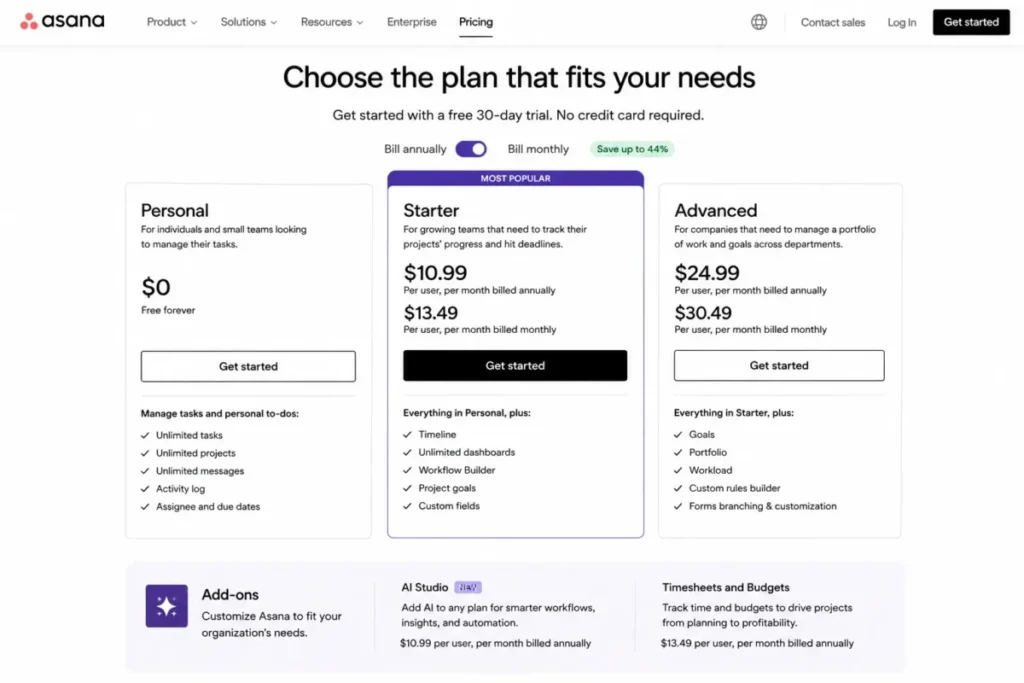
Asana compares Personal, Starter, and Advanced plans, with Starter priced at $10.99 per user per month annually and optional add-ons shown below.
AI Studio credits are bundled by tier at 50,000 per month on Starter, 75,000 on Advanced, and 200,000 on Enterprise, with a further AI add-on at $5.99 per user/month billed annually. Credit bundling means the AI cost is predictable until it is not, and the overage behaviour is what to ask about before signing.
- Setup difficulty:
- Medium, because Asana rewards teams that define project templates up front and punishes those that do not. Hidden costs: The AI add-on and the Timesheets and Budgets add-on are separate, and the Asana pricing guide covers where each one applies.
- Practical tier:
- Starter at $10.99 per user/month annual. Advanced at $24.99 is only worth the jump when portfolio reporting across many projects is a stated requirement.
- Free plan:
- Personal, built for a very small group and capped at 100MB per file, so treat it as an evaluation surface.
- Better than Trello
- on dependencies and workload, and better than ClickUp on how quickly a new team member understands the structure.
- Worse than ClickUp
- on features per dollar, and worse than monday work management on adoption speed with non-technical teams.
- Avoid if
- you want a free departmental plan, or nobody will own template design.
- Evidence status:
- vendor pricing pages and documentation checked 29 July 2026, plus a sample of 71 user reviews.
User sentiment: in our sample of 71 recent reviews from G2 and Capterra, users most often praised a clean interface that makes tracking tasks straightforward. The most repeated complaint was advanced features feeling overwhelming until the team learns them. This feedback supports our Medium setup rating and our point that Asana rewards teams who define templates before rollout.
| Pros | Cons |
|---|---|
| Single-owner task model produces the clearest accountability here | $10.99 entry is the second most expensive paid tier in this list |
| 50,000 AI credits per month bundled from the Starter tier | Advanced at $24.99 is a steep jump for portfolio features |
| Monthly billing available at $13.49 without an annual commitment | Free tier is too small to serve as a departmental plan |
| Timeline and workload views are usable without an admin specialist | Two separate paid add-ons sit above the seat price |
Verified against the Asana pricing page, 29 July 2026. Verdict: Choose Asana when project accountability is the failure you are solving and you have someone to own template design. The Asana review goes deeper on the workload and portfolio tiers.
6. ClickUp: Best All-in-One Team Collaboration Tool, With the Steepest AI Bill

ClickUp packs the widest feature surface of any tool here into the cheapest mid-tier price. Unlimited runs $7 per user/month annual and Business runs $12, with Business carrying 5,000 automations per month and Enterprise carrying 250,000 (ClickUp, checked 29 July 2026).
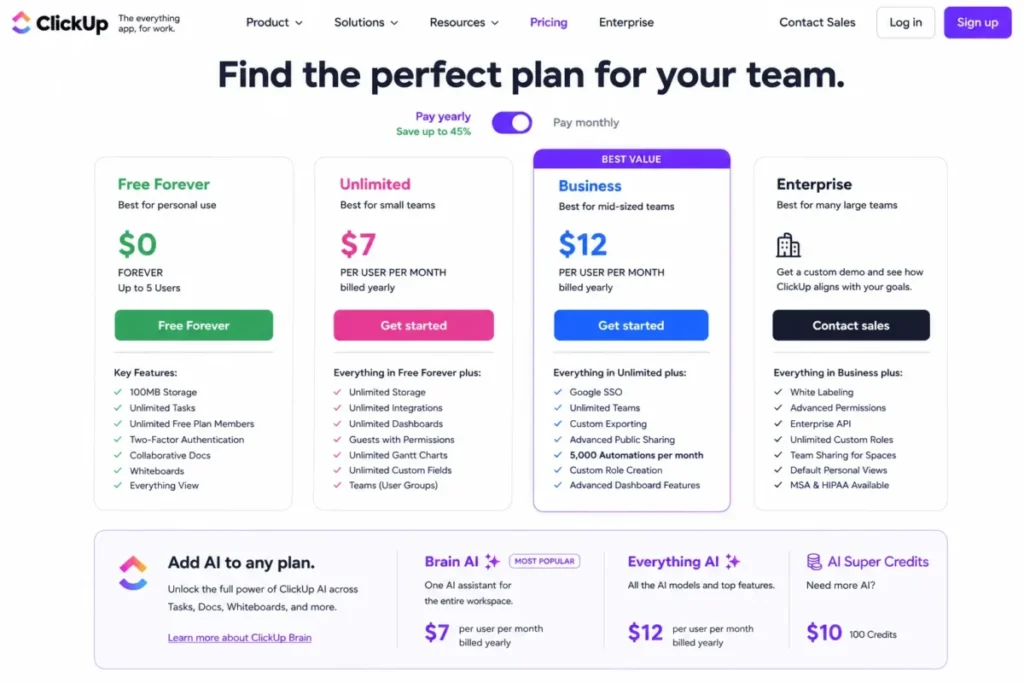
ClickUp compares four pricing tiers, with Business at $12 per user per month billed yearly and AI tools sold separately.
Then the AI bill arrives separately. Brain AI is $9 per user/month with 1,500 AI Super Credits, Everything AI is $28 per user/month with 5,000 credits, and additional credits are sold at $10 per 10,000.
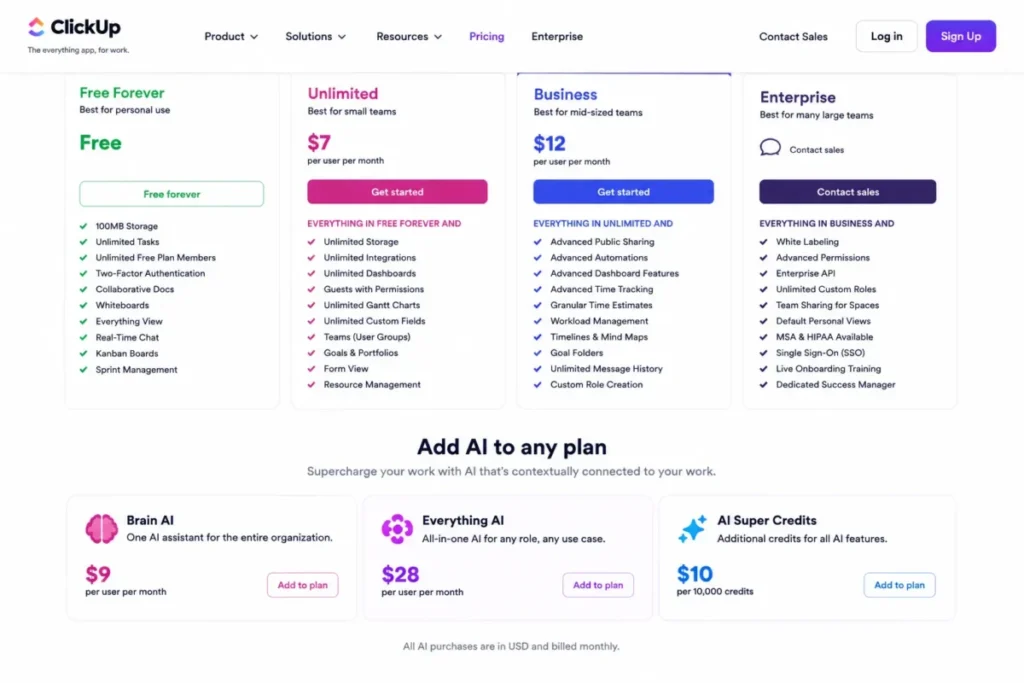
ClickUp sells AI separately, with Brain AI at $9 per user per month, Everything AI at $28, and AI Super Credits at $10 per 10,000 credits.
That structure changes the comparison completely. ClickUp Business plus Brain AI is $21 per user/month, which is above Slack Business+ at $15 where AI is already included.
At 60MB, ClickUp has the tightest free-tier storage constraint in this ranking. It is a product tour rather than a working plan.
- Setup difficulty:
- High. ClickUp’s flexibility is real, and it means a team without a configuration owner will build something nobody else can maintain.
- Practical tier:
- Business at $12 per user/month annual, or $21 once Brain AI is added. Unlimited at $7 is the cheaper entry when 5,000 monthly automations are not yet needed.
- Free plan:
- Free Forever, capped at 60MB of storage.
Better than every work management tool here on feature breadth per dollar, particularly at the $7 Unlimited tier.
- Worse than Slack and Trello
- on AI economics, and worse than Asana on how long a new team member needs to understand the workspace.
- Avoid if
- no one will own configuration, because the same flexibility that makes it capable is what makes it unmaintainable.
- Evidence status:
- vendor pricing pages and documentation checked 29 July 2026, plus a sample of 77 user reviews.
User sentiment: in our sample of 77 recent reviews from G2 and Capterra, users most often praised customisable views and clear task tracking. The most repeated complaint was a steep learning curve created by the size of the feature set. This feedback supports our High setup rating and the recommendation to name a configuration owner before rollout.
| Pros | Cons |
|---|---|
| $12 per user/ | AI is add-on only at $9 or $28 per user/ |
| Widest feature surface per dollar of any platform in this comparison | 60MB free-plan storage is the tightest free limit here |
| Unlimited tier at $7 undercuts every other work management tool here | Configuration burden is the highest in this ranking |
| 250,000 automations on Enterprise suits heavy process teams | Feature breadth encourages sprawl without a governance owner |
Verified against the ClickUp pricing page, 29 July 2026. Verdict: Choose ClickUp if you want one platform to replace three and you have someone to own the configuration, a point the ClickUp review returns to. Price the AI add-on into your comparison first, using the ClickUp pricing guide to model it.
7. monday work management: Best for Visual Workflow Tracking

monday work management sells a board-first mental model that non-technical teams adopt faster than a task list. Basic runs $9 per seat/month annual, Standard $12, and Pro $19, with a three-seat minimum on paid plans (monday.com, checked 29 July 2026).
The automation gate is the number that should drive your tier choice. Automations and integrations are not available on Free or Basic at all, Standard allows 250 actions per month for each, Pro allows 25,000, and Enterprise allows 250,000.
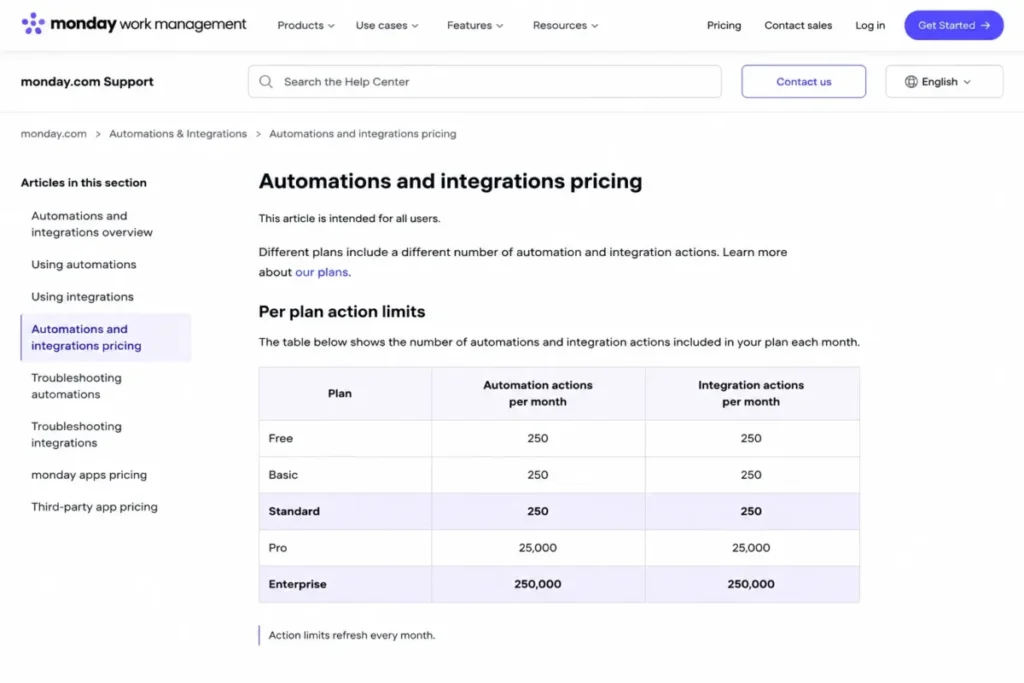
monday.com plan limits show 250 automation and integration actions per month on Standard and 250,000 of each on Enterprise.
The jump from 250 to 25,000 is a hundredfold, and there is nothing between them. A team that automates status changes across a few boards will exhaust 250 actions in days, which makes Standard a trap tier for process-heavy teams and Pro the honest starting point at $19 per seat/month.
AI credits are bundled at 1,000 per month on Basic, 2,000 on Standard, and 3,000 on Pro.
- Setup difficulty:
- Low to medium. Hidden costs: The three-seat minimum means the smallest real bill on Basic is $27 per month.
- Practical tier:
- Pro at $19 per seat/month annual. Standard at $12 is priced like a working tier and behaves like a trial once automation is in scope.
- Free plan:
- 3 boards and 3 docs with no automations at all, and paid plans carry a three-seat minimum, so the smallest real Basic bill is $27 per month.
- Better than Asana
- on adoption speed with non-technical teams, and $1.99 per seat cheaper at entry.
- Worse than ClickUp
- on automation volume per dollar, where $12 buys 5,000 monthly runs against monday’s 250 at the same price point.
- Avoid if
- automation is part of the plan and the budget stops at Standard.
- Evidence status:
- vendor pricing pages and documentation checked 29 July 2026, plus a sample of 70 user reviews.
User sentiment: in our sample of 70 recent reviews from G2 and Capterra, users most often praised intuitive visual boards for daily task management. The most repeated complaint was a tie between performance lag and the learning curve on advanced boards, with pricing close behind. This feedback partly supports our warning that Standard is priced like a working tier, since plan limits are the third most repeated complaint.
| Pros | Cons |
|---|---|
| Board-first interface gets non-technical adoption faster than task lists | No automations at all below the $12 Standard tier |
| AI credits bundled from Basic rather than sold as an add-on | 250 monthly automation actions on Standard is effectively a trial |
| $9 per seat/ | Three-seat minimum sets a floor under the smallest bill |
| 250,000 automation actions on Enterprise supports real process volume | The gap between Standard and Pro is $7 per seat/ |
Verified against the monday.com pricing page, 29 July 2026. Verdict: Choose monday work management if visual workflow adoption is your bottleneck, and budget for Pro at $19 rather than Standard if automation is part of the plan. The monday.com review covers the board structure in detail.
8. Notion: Best for Team Wikis, and the Best Guest Policy Here

Notion’s commercial advantage is quiet and it matters more than any feature: guests are free and are not billed as seats. For a consultancy or an agency that shares documentation with dozens of client contacts, that single policy is worth more than the price difference against every other tool here.
Plus is listed at $10 per user/month and Business at $20 per user/month as the standard displayed rates, with a yearly billing option shown alongside them (Notion, checked 29 July 2026).
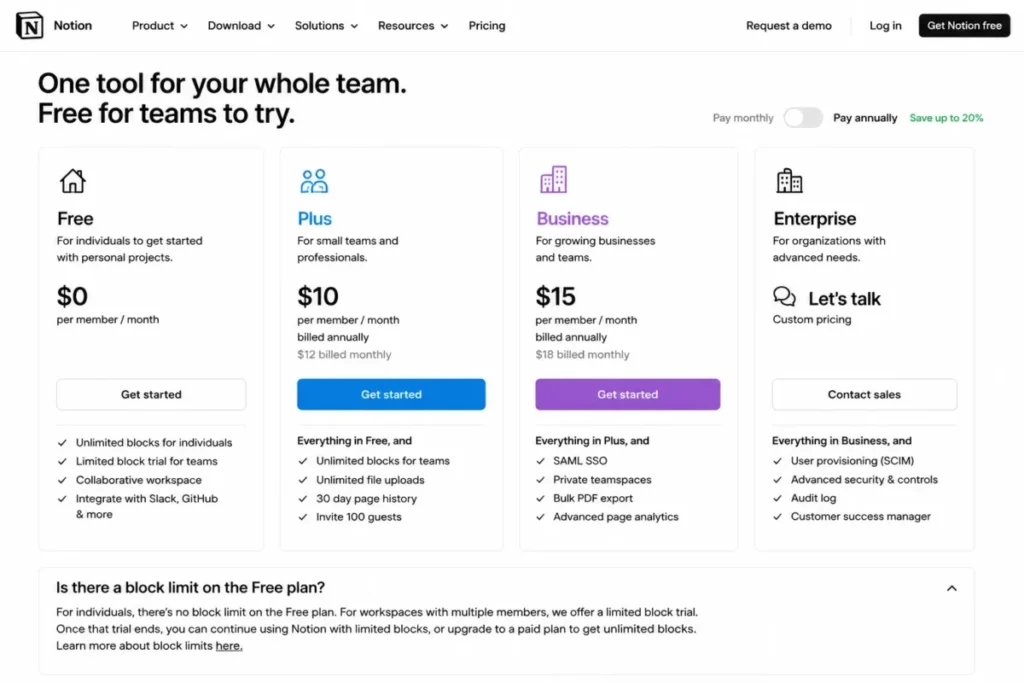
Notion Plus costs $10 per member per month billed annually, while the Free plan is unlimited for individuals but block-limited for multi-member workspaces.
The free plan has a specific trap. It is unlimited for a single person, and the moment a second member joins it caps at 1,000 blocks, which a real documentation set passes quickly.
- Setup difficulty:
- Medium. Hidden costs: Custom Agents are billed at $10 per 1,000 monthly Notion credits, and the Notion pricing guide covers how that meters in practice.
- Practical tier:
- Business at $20 per user/month, because 90-day page history and fully bundled AI both sit there rather than on Plus.
- Free plan:
- unlimited for one person, then capped at 1,000 blocks, 7 days of history, 5MB file uploads, and 10 guests once a second member joins.
Better than every tool here on guest economics, since external collaborators never consume a paid seat.
- Worse than Asana and ClickUp
- as a task tracker, because deadlines and ownership are fields rather than the structure.
- Avoid if
- the problem you are solving is missed deadlines rather than scattered documentation.
- Evidence status:
- vendor pricing pages and documentation checked 29 July 2026, plus a sample of 75 user reviews.
User sentiment: in our sample of 75 recent reviews from G2 and Capterra, users most often praised a clean interface for organising notes and projects. The most repeated complaint was noticeable lag once pages or databases grow large. This feedback adds a scaling constraint the documentation does not state, separate from the 1,000-block limit we verified.
| Pros | Cons |
|---|---|
| Guests are free rather than billable, unlike Slack multi-channel guests | 1,000-block cap triggers as soon as a second member joins |
| $10 Plus tier is competitive for a documentation-first team | Notion AI is only fully bundled at the $20 Business tier |
| 90-day page history on Business supports light audit requirements | 5MB free-plan file upload limit rules out most real attachments |
| Flexible enough to absorb light work management alongside docs | Custom Agents meter separately at $10 per 1,000 credits |
Verified against the Notion pricing page, 29 July 2026. Verdict: Choose Notion when documentation is the primary artifact and external sharing is frequent. The Notion review covers where it stops being a good task tracker.
9. Miro: Best Team Collaboration Tool for Workshops and Whiteboarding

Miro occupies the one category in this ranking that suite platforms genuinely do not cover. Starter costs $8 per member/month annual or $10 monthly, and Business costs $20 annual or $25 monthly, with Enterprise carrying a 30-member minimum (Miro, checked 29 July 2026).
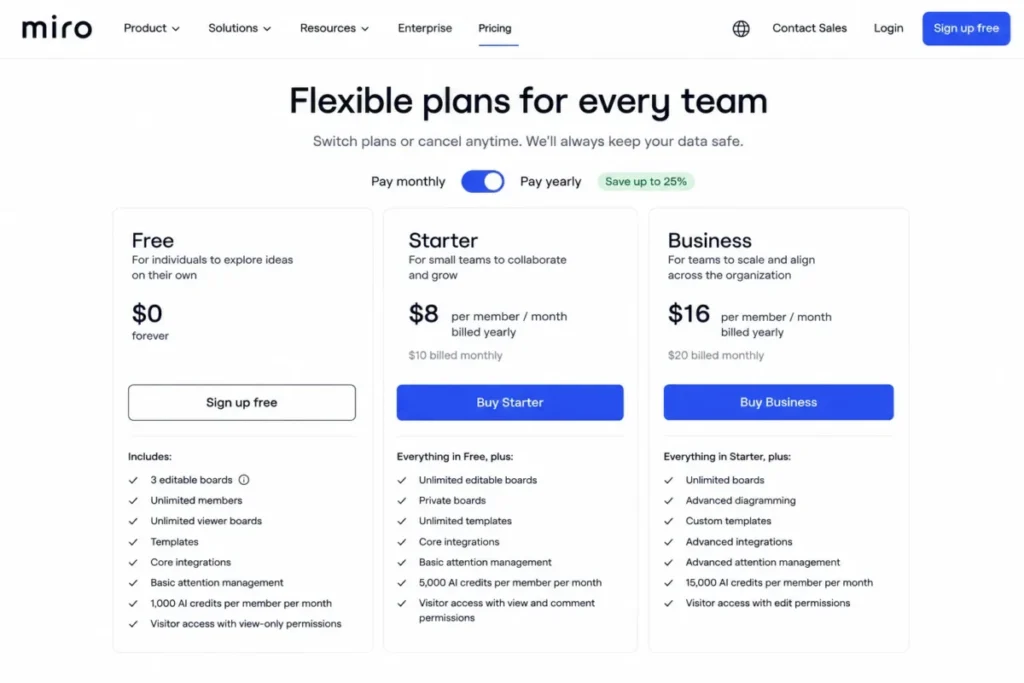
Miro Starter costs $8 per member per month billed yearly, while the Free plan is limited to three editable boards.
Older boards remain visible but frozen rather than deleted, which is a softer failure and still ends any serious workshop practice.
The guest model splits by tier and it matters for client work. Free has no guest role at all, so every invited collaborator becomes a seat-consuming member, while Business allows signed-in guests and public visitors without consuming paid seats.
AI is credit-metered at 25 per member/month on Starter and 50 on Business.
- Setup difficulty:
- Low. Hidden costs: Extra AI credits are an add-on on paid plans, and the Miro pricing breakdown covers the seat-minimum rules.
- Practical tier:
- Business at $20 per member/month annual, because that is where guests and visitors stop consuming paid seats. Enterprise carries a 30-member minimum.
- Free plan:
- available, with only the three most recent boards editable and no guest role at all.
Better than the whiteboards bundled into Microsoft 365 and Google Workspace on facilitation depth and template coverage.
- Worse than any of them on breadth
- , because this is a single-purpose purchase that solves one category and nothing else.
- Avoid if
- whiteboarding is occasional rather than a recurring part of how the team works.
- Evidence status:
- vendor pricing pages and documentation checked 29 July 2026, plus a sample of 75 user reviews.
User sentiment: in our sample of 75 recent reviews from G2 and Capterra, users most often praised the real-time collaborative canvas for brainstorming and workshops. The most repeated complaint was lag once boards become large or crowded. This feedback adds a practical ceiling beyond the three-editable-board free limit we verified.
| Pros | Cons |
|---|---|
| Only tool here covering a category suites do not replicate | Free plan freezes all but the three most recent boards |
| Business tier lets guests and visitors join without consuming seats | Free plan converts every collaborator into a billable member |
| $8 per member/ | 25 AI credits/ |
| Workshop templates reduce facilitation setup time | Enterprise requires a 30-member minimum |
Verified against the Miro pricing page, 29 July 2026. Verdict: Choose Miro if workshops, mapping, or design review are recurring work rather than occasional events, as the Miro review sets out. Start on Business rather than Starter if clients join your boards.
10. Trello: Cheapest Team Collaboration Tool and Best Free Plan

Trello is the cheapest paid tier in this comparison and the most honest free plan. Standard runs $5 per user/month annual or $6 monthly, Premium runs $10 annual or $12.50 monthly, and Enterprise runs $17.50 per user/month annual (Trello, checked 29 July 2026).
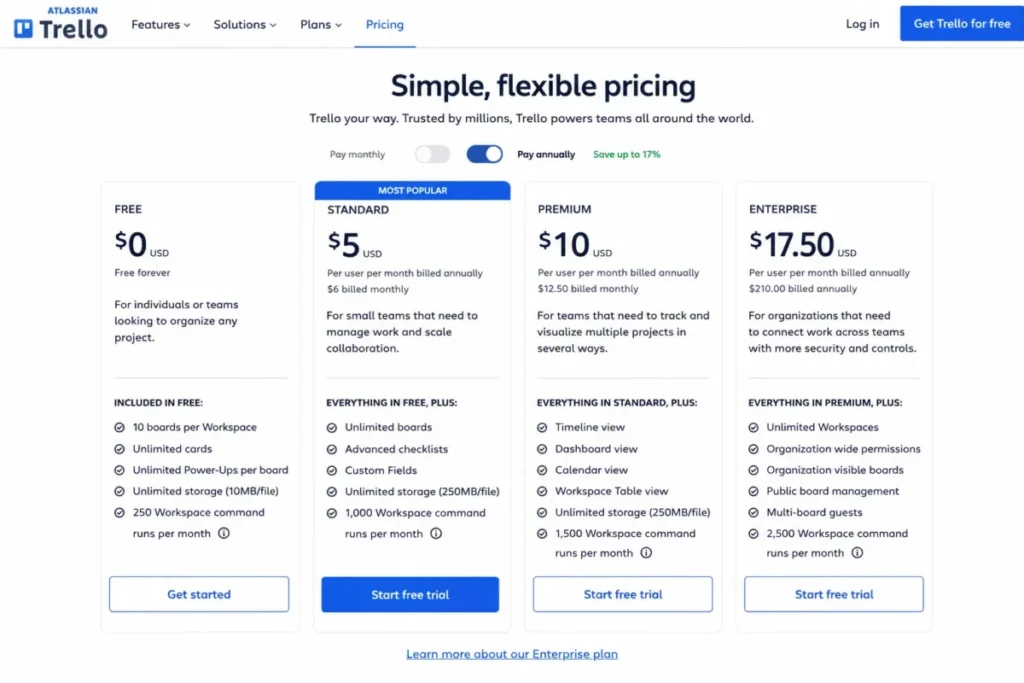
Trello Standard costs $5 per user per month billed annually, while the Free plan includes 10 boards per Workspace and 250 command runs per month.
Against ClickUp’s 60MB or Notion’s 1,000 blocks, that is a free tier a small team can run on for a full year.
The ceiling is real, though. Trello does not model dependencies or workload, so a team that grows into resource planning will outgrow it rather than upgrade within it.
Multi-board guests are billed at the same per-seat rate as members, which removes the client-sharing advantage Notion holds.
- Setup difficulty:
- Low, and the lowest here by a clear margin. Hidden costs: Enterprise at $17.50 per user/month annual is poor value against alternatives at that price.
- Practical tier:
- Standard at $5 per user/month annual. Premium at $10 is worth the jump only when calendar, timeline, and dashboard views become part of the routine.
- Free plan:
- the most survivable here, with 10 boards per Workspace, 250 command runs per month, up to 10 collaborators, and a 10MB per-file ceiling.
Better than every tool here on price and on time from signup to a working board.
Worse than Asana, ClickUp, and monday work management on dependencies, workload, and capacity planning, none of which it models.
- Avoid if
- resource allocation or dependency tracking is part of the job.
- Evidence status:
- vendor pricing pages and documentation checked 29 July 2026, plus a sample of 75 user reviews.
User sentiment: in our sample of 75 recent reviews from G2 and Capterra, users most often praised a drag-and-drop Kanban interface that is simple to learn. The most repeated complaint was useful features and Power-Ups sitting behind paid plans. This feedback supports our finding that Premium is the real tier for teams needing more than basic boards.
| Pros | Cons |
|---|---|
| $5 per user/ | No dependency or workload modelling at any tier |
| Free plan supports 10 boards and 250 monthly command runs | Multi-board guests are billed at full member rate |
| AI is included in paid tiers with no separate charge | Teams outgrow it rather than upgrade within it |
| Fastest time from signup to a working board of any tool here | Enterprise at $17.50 is poor value against alternatives |
Verified against the Trello pricing page, 29 July 2026. Verdict: Choose Trello if the job is visible task tracking for a small team and you want the lowest possible cost and setup time, a fit the Trello review examines. The Trello pricing guide covers where Premium becomes worth the jump.
Pricing Comparison: What These Team Collaboration Tools Actually Cost
Starting price is the least useful number in this category, because almost nobody stays on the entry tier. The table below shows the tier most teams land on, and what it costs per year at three team sizes on annual billing.
| Tool | Practical tier | 10 seats/ | 25 seats/ | 50 seats/ |
|---|---|---|---|---|
| Trello | Standard, $5 | $600 | $1,500 | $3,000 |
| Microsoft Teams | M365 Business Basic, $7.00 | $840 | $2,100 | $4,200 |
| Google Workspace | Business Starter, $7.00 | $840 | $2,100 | $4,200 |
| Slack | Pro, $7.25 | $870 | $2,175 | $4,350 |
| Miro | Starter, $8 | $960 | $2,400 | $4,800 |
| Notion | Plus, $10 | $1,200 | $3,000 | $6,000 |
| ClickUp | Business, $12 | $1,440 | $3,600 | $7,200 |
| Asana | Starter, $10.99 | $1,318.80 | $3,297 | $6,594 |
| monday work management | Pro, $19 | $2,280 | $5,700 | $11,400 |
| Microsoft Teams with desktop Office | Business Standard with Copilot, $23.50 | $2,820 | $7,050 | $14,100 |
Free-plan ceilings taken from vendor pricing pages and help-center documentation on 29 July 2026, one source per tool: Slack free-workspace limits, ClickUp, Trello, Miro, Notion, monday.com, Asana, Zoom, Google Workspace, Microsoft 365.
Figures are editorial calculations using the formula seats x monthly price x 12, on annual billing, excluding tax, add-ons, and onboarding. Prices verified 29 July 2026.
Three findings come out of that table.
Microsoft is the cheapest entry and the most expensive practical tier once desktop Office is required (Microsoft, checked 29 July 2026).
monday work management is far more expensive than its $9 headline suggests, because automation only becomes usable at Pro (monday.com, checked 29 July 2026).
ClickUp’s $12 Business tier becomes $21 the moment Brain AI is added, which pushes a 50-seat deployment from $7,200 to $12,600 per year (ClickUp, checked 29 July 2026).
Annual versus monthly. Slack Pro is $7.25 annual against $8.75 monthly, and Business+ is $15 against $18. A 25-person team on Business+ pays $900 more per year for the flexibility of monthly billing, which is worth it only if you expect to cancel inside a year.
Features of Team Collaboration Software That Change Your Bill
Feature lists are close to useless in this category because almost every tool has almost every feature at some tier. The decision-relevant question is which tier, and what happens at the limit.
These are the eight features where the plan gate, not the feature itself, decides your cost.
Message and file retention. Slack Free shows only the last 90 days of messages and files, and Notion Free keeps 7 days of page history against 90 on Business. A team that onboards new hires by pointing them at old threads loses that workflow the day the window closes.
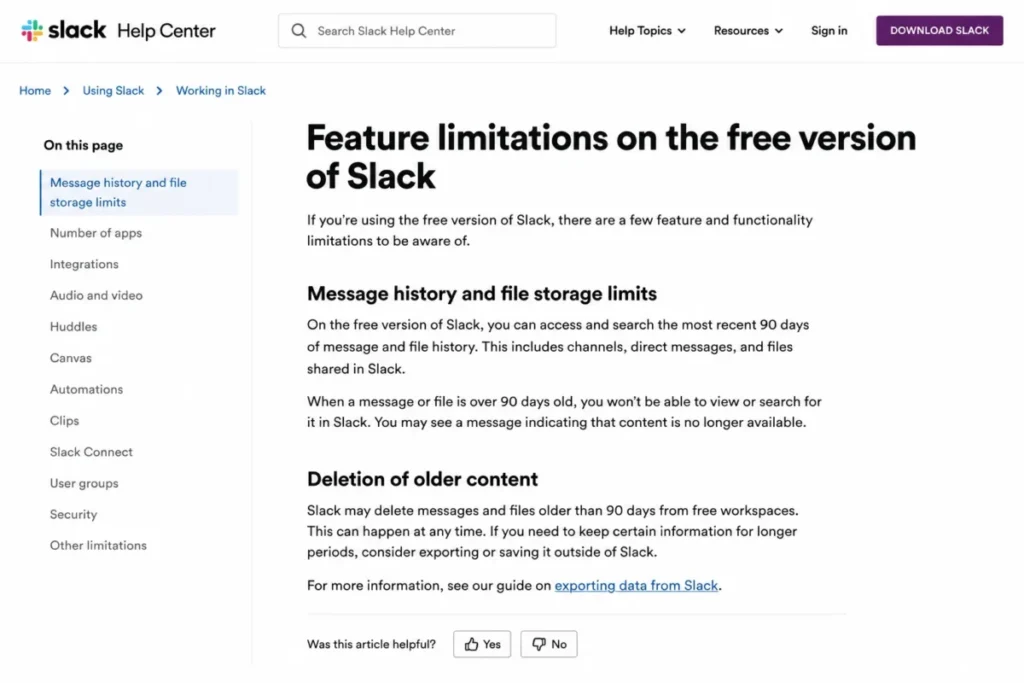
Slack Free provides access to the most recent 90 days of message and file history, while older content may be deleted from free workspaces.
Automation and workflow runs. Automation is rarely absent at lower tiers, it is metered. monday work management allows 250 automation actions per month on Standard against 25,000 on Pro, and ClickUp allows 5,000 on Business against 250,000 on Enterprise.
That gap is what makes automation a tier decision rather than a feature decision. A team automating status changes across a handful of boards exhausts 250 actions within days.
External and guest access. The guest billing model varies more than any other feature here, and it decides whether an agency model is affordable. Slack bills multi-channel guests as regular members while single-channel guests are free at up to five per paid active member (Slack Help Center, checked 29 July 2026).
Notion takes the opposite approach and does not bill guests as seats at all. Miro sits in between, charging for every collaborator on Free but allowing signed-in guests without seat consumption on Business.
Admin roles and permission granularity. Granular permissions usually sit two tiers above the entry plan. A team that needs to stop contractors from seeing finance channels finds that this requirement, not feature depth, forces the upgrade.
Storage allocation. Google Workspace pools storage across the organization while most competitors allocate per seat, and ClickUp Free caps at 60MB against Trello’s unlimited storage with a 10MB per-file ceiling. Video-heavy teams hit pooled limits well before their seat count suggests they should.
AI packaging. AI is the least predictable line item in this category because vendors have not converged on one model. Slack and Trello include it in the seat price, Google and Microsoft bundle it into specific tiers, and Asana, Miro, and monday meter it by credit.
ClickUp is the outlier, selling AI only as a $9 or $28 per user/month add-on above the seat price (ClickUp, checked 29 July 2026).
Data export and portability. Export capability looks irrelevant at purchase and decides your bargaining position at renewal. A tool that exports messages in a usable format keeps a switching option open, and a tool that does not converts every renewal into a captive negotiation.
Single sign-on and directory sync. SSO and SCIM provisioning are almost universally enterprise-gated. A company that adopts an identity provider mid-contract discovers this gate during a security review, at the worst possible moment.
We would verify retention, guest billing, and AI packaging before signing anything, using each vendor’s own plan comparison rather than a summary. Those three decide the gap between the plan a buyer thinks they are approving and the invoice that arrives.
Free Plan Limits: Which One Breaks First
Every free plan in this ranking is a trial with a different fuse. Knowing which fuse burns fastest for your workflow tells you how long a free deployment survives.
| Tool | Free plan ceiling | Typical time to failure |
|---|---|---|
| ClickUp | 60MB total storage | Days, once files are attached |
| Miro | 3 editable boards | Weeks, after the fourth workshop |
| Notion | 1,000 blocks once a second member joins | Weeks, as documentation grows |
| Zoom Workplace | 40 minutes per group meeting | First client call |
| Slack | 90 days of message and file history | 3 months, then silently |
| Trello | 10 boards, 250 command runs/ | Months to a year |
| monday work management | 3 boards, no automations | Weeks |
| Asana | Small-group collaboration cap | Weeks, as the team grows |
| Google Workspace | No free plan, 14-day trial | 14 days |
Setup ratings are editorial judgements based on the admin steps each vendor documents, assessed 29 July 2026 against the Microsoft 365 Business pricing page and each vendor’s published setup documentation.
Slack’s ceiling is the one to watch, because it closes without an alert. Nothing breaks on day 91, the archive stops reaching further back, and the team finds out months later when someone searches for a decision that is no longer there.
Teams planning to run on free tiers for a full year should read the free collaboration tools guide before committing a workflow to one.
Setup and Migration Difficulty
| Tool | Setup difficulty | The reason |
|---|---|---|
| Trello | Low | A working board exists within minutes of signup |
| Slack | Low | Channels and invites need no admin design |
| Zoom Workplace | Low | Account, then calendar integration, then done |
| Miro | Low | Templates carry most of the facilitation setup |
| monday work management | Low to medium | Board structure needs a decision, not a specialist |
| Google Workspace | Low to medium | Domain verification is the only real hurdle |
| Notion | Medium | Requires an information architecture decision up front |
| Asana | Medium | Rewards teams that define project templates first |
| Microsoft Teams | Medium | Assumes an IT owner for identity and policy |
| ClickUp | High | Flexibility becomes unmaintainable without a configuration owner |
Figures verified 29 July 2026 on annual billing, United States pricing. Sources: Asana pricing page, Notion pricing page, Zoom plans and pricing.
Migration risk is a separate question from setup. Moving off a conversation hub is materially harder than moving off a task tool, because message history rarely transfers intact even when the vendor supplies a migration path.
Benefits of Team Collaboration Software, and What Has to Be True First
Every vendor page in this category promises the same outcomes. The outcomes are real, and each one carries a precondition that vendors leave out.
Fewer status meetings. This holds when the team writes updates into the tool instead of narrating them live. If the working culture does not change, a collaboration tool adds a channel and keeps the meeting, which is a net increase in overhead.
Faster onboarding. A new hire onboards faster when documentation is current and searchable. That requires someone to own doc maintenance, and it requires a retention window long enough that historical context is still reachable.
Lower email volume. Internal email drops when internal conversation moves to channels. External email does not drop unless clients and vendors join the same workspace, which reopens the guest billing question from the previous section.
Searchable institutional memory. This benefit has the hardest dependency: it only exists above the retention cap. A team on Slack Free with a 90-day window is not building institutional memory, it is running a rolling buffer.
An audit trail for compliance. Message-level audit logs and legal hold sit on the highest tiers across most of this category. A regulated team that assumes the entry plan produces a defensible audit trail finds out otherwise during the first audit.
The pattern is the same across all five. The benefit is real, the precondition is organizational or plan-gated, and the buyer who ignores the precondition pays for the tool without receiving the outcome.
Write the precondition next to each benefit in your business case. If you cannot name who owns the precondition, that benefit should not be in the case.
Trends in Team Collaboration Tools for 2026
Four documented changes have altered what buyers can negotiate this year. All four trace to official sources rather than vendor marketing.
Regulators forced a cheaper unbundled option. On 12 September 2025 the European Commission made Microsoft’s Teams commitments legally binding. They require EEA versions of Office 365 and Microsoft 365 without Teams at an appreciably lower price. The differential was increased by 50 percent after market testing and is binding for seven years (European Commission). Microsoft also committed to align its worldwide suite offerings, and the Teams-free SKUs now appear on its United States pricing pages.
The differential is concrete. Business Basic is $7.00 per user/month with Teams against $5.40 without, Business Standard with Copilot is $23.50 against $20.30 without Teams, and Business Premium with Copilot is $32.00 against $28.80.
For a 50-seat company already standardized on Slack or Zoom, dropping Teams from Business Basic saves $1.60 per user/month, or $960 per year. That line item is rarely offered by default on a renewal proposal.
AI packaging split into three incompatible models. Slack now includes AI on every plan including Free, with plan limits rather than a separate charge. Microsoft moved the other way and bundled Copilot directly into Business Standard and Business Premium, while still selling it standalone at $18.00 per user/month annual or $25.20 monthly.
ClickUp represents the third model, selling AI only as an add-on at $9 or $28 per user/month. Comparing AI capability across these vendors without normalizing for packaging produces a meaningless answer, because ClickUp Business plus Brain AI at $21 is a different product economically from Slack Business+ at $15 with AI already inside.
Data portability became a real switching lever. Microsoft’s commitments include allowing EEA customers to extract Teams messaging data for use with competing solutions, binding for ten years, alongside interoperability obligations of the same duration. Recurrent switching opportunities were part of the same package.
Portability changes renewal negotiations more than it changes daily work. A buyer who can credibly extract message history has a different conversation with an account manager than one who cannot.
Suite discounting is now constrained. The same commitments prevent Microsoft from setting discount rates on Teams, or on suites with Teams, that exceed the discounts available on suites without Teams. That closes the obvious workaround where a vendor publishes an unbundled price and then discounts the bundle back to parity.
Ask for the Teams-free quote explicitly rather than waiting for it to be offered. The cheaper SKU exists, and it is not the default line on a renewal proposal.
What Users Consistently Report
Documentation tells you what a vendor promises. Reviews tell you which promise breaks in practice, and the two disagree often enough to be worth checking.
| Tool | Reviews sampled | Recurring praise | Recurring complaint |
|---|---|---|---|
| Slack | 73 | Channel organisation and integration depth | Notification overload |
| Microsoft Teams | 25 | Microsoft 365 integration | Complex navigation and admin |
| Google Workspace | 75 | Real-time co-editing across the suite | Confusing admin console |
| Zoom Workplace | 75 | Meetings, chat, and AI in one app | Heavy CPU use and lag in long meetings |
| Asana | 71 | Clean interface for tracking tasks | Learning curve on advanced features |
| ClickUp | 77 | Customisable views and task tracking | Setup and interface complexity |
| monday work management | 70 | Intuitive visual boards | Performance lag and setup curve, tied |
| Notion | 75 | Clean interface for notes and projects | Lag once pages grow large |
| Miro | 75 | Real-time collaborative canvas | Lag on large or crowded boards |
| Trello | 75 | Simple drag-and-drop Kanban | Features locked behind paid plans |
Sample: 691 reviews from G2 and Capterra, collected 29 July 2026. Microsoft Teams is Capterra-only because its G2 page returned no individual reviews. Coding method and limits are described in the methodology above.
Two patterns cut across the whole sample. Reviewers praise ease of use far more often than any feature, and they complain about performance at scale more often than about price, which is the reverse of how most buying guides weight the two.
The complaint column is where the review data earns its place. Nothing in Miro’s or Notion’s published documentation tells you that large boards and large databases slow down, and nothing in Zoom’s plan comparison mentions resource consumption.
How we sampled and coded the reviews
We sampled recent English-language business reviews for each product from G2 and Capterra, collected 29 July 2026, for a combined 691 reviews across the 10 tools. Sample sizes ran from 70 to 77 per product, except Microsoft Teams at 25.
Reviews were coded into six themes: ease of use, setup and learning curve, reliability and performance, collaboration workflow, pricing and plan limits, and customer support. A review can carry more than one theme, so theme counts exceed sample sizes.
Three limits are worth stating plainly.
The Microsoft Teams G2 page returned no individual reviews across four attempts, so its sample is Capterra-only and smaller than the rest.
G2’s default ordering is not strictly chronological, so a handful of older reviews appeared among recent ones and were excluded from the date ranges.
Theme coding involves judgement at the boundaries. A different coder would shift some counts between adjacent themes.
Public review platforms are self-selected samples. Sentiment was used to validate or challenge our documentation-based findings, never to set the ranking on its own.
How to Choose the Right Team Collaboration Software
Seven steps, then the mistakes that most often undo them.
Step 1: Count the categories you already pay for. Use the seven-category table above and mark which categories your existing suite covers. Most duplicate spend is discovered here rather than in a feature comparison.
Step 2: Model the practical tier, not the entry price. Take the tier that includes the one feature you cannot work without, multiply by seats and 12, and use that number in the business case.
Step 3: Find the limit that breaks first. Retention window, automation actions, editable boards, storage, or participant count. Whichever one your workflow hits first is the real determinant of your tier.
Step 4: Price the AI separately. Establish whether AI is included, credit-metered, or an add-on, and add the add-on cost into the seat price before comparing anything.
Step 5: Check how guests are billed. If external collaborators are part of your work, this single policy can change annual cost more than the seat price does.
Step 6: Confirm the export path. Ask what leaves the platform in a usable format, and keep the answer in your file for renewal.
Step 7: Name the configuration owner. For ClickUp, Notion, and Asana especially, a platform without an owner degrades within two quarters.
Common Mistakes to Avoid When Comparing Collaboration Tools for Teams
Budgeting from the starting price. The gap between Microsoft’s $7.00 entry and its $23.50 practical tier is larger than the entire price of most competitors here.
Treating a free plan as a plan. Every free tier in this ranking is a trial with a different fuse, and the dangerous ones fail silently rather than loudly.
Comparing AI features without comparing AI prices. ClickUp Business plus Brain AI at $21 per user/month is not comparable to a $12 seat price, and most published comparisons make exactly this error.
Ignoring guest billing until the first client project. An agency that converts 20 client contacts into billable multi-channel guests has changed its cost base without a purchase order.
Choosing monthly billing by default. A 25-person Slack Business+ deployment pays $900 per year for that flexibility.
Buying a category the suite already covers. Paying for a meetings tool while paying for Microsoft 365 or Google Workspace is the most common duplicate in this market.
Skipping the 300-user check. Microsoft 365 business plans are designed for organizations up to 300 users, and a company planning to cross that line should model the enterprise agreement before committing.
Final Verdict: The Best Team Collaboration Tools by Team Type
Microsoft Teams is the stronger choice for a 25 to 300 person company when Microsoft 365 already holds its identity and files. At $7.00 per user/month for Business Basic it is the cheapest way to put chat, meetings, files, and admin policy on one bill.
The Teams-free SKUs now give you a documented lever if you decide to keep chat elsewhere.
For chat-first companies: Slack at $7.25 per active user/month annual, because it is the only platform here that includes AI on every tier without a second invoice.
For document-centric teams: Google Workspace Business Starter at $7.00 per user/month annual, with the caveat that pooled storage drains faster than a per-seat quota.
For small businesses watching every dollar: Trello Standard at $5 per user/month annual, with the most survivable free plan in this ranking as the trial path.
For agencies and consultancies: Notion Plus at $10 per user/month, because free guests change agency economics more than any feature comparison will.
For process-heavy operations teams: ClickUp Business at $12 per user/month, with Brain AI priced in at $9 and a named configuration owner assigned before rollout.
The tool that fits is the one whose first breaking limit sits furthest from your actual workflow. Feature lists will not tell you that, and the pricing pages will.
Frequently Asked Questions
These are the questions buyers ask most often after narrowing the list, answered from the same verified pricing used throughout this guide.
What are the best team collaboration tools in 2026?
Microsoft Teams ranks first for companies already inside Microsoft 365, at $7.00 per user/month for Business Basic on annual billing. Slack ranks first for chat-first teams because AI is included on every tier, and Trello ranks first on price at $5 per user/month annual.
The best team collaboration apps combine communication, shared work, file access, and searchable history, but the right choice depends on which workflow your team needs to centralize.
What is the cheapest team collaboration software?
Trello Standard at $5 per user/month on annual billing is the cheapest paid tier in this comparison (Trello, checked 29 July 2026).
Microsoft 365 Business Basic and Google Workspace Business Starter tie next at $7.00 per user/month annual (Microsoft and Google, both checked 29 July 2026).
Google has no free plan to fall back on, which is the difference between those two at the same price.
Are free team collaboration tools worth using?
They are worth using as trials and risky as permanent plans. Trello’s free tier is the most survivable here with 10 boards and 250 monthly command runs, while ClickUp’s 60MB storage cap and Slack’s 90-day history window end serious use quickly.
Can a 25-person team run entirely on free plans?
Not for long. A 25-person team will pass Notion’s 1,000-block cap, Miro’s three editable boards, and Slack’s 90-day history window within a quarter, and Google Workspace has no free tier at all.
What is the difference between collaboration software and project management software?
Collaboration software optimizes for communication, shared documents, and a searchable record. Project management software optimizes for dependencies, deadlines, and capacity, and the two overlap in tools like Asana and ClickUp without either fully replacing the other.
Which are the best team collaboration tools for small business?
Google Workspace at $7.00 per user/month annual covers email, documents, storage, and meetings in one bill, which suits a small business that does not want to manage several vendors. Trello at $5 per user/month is the cheaper option when task visibility is the only requirement, and project management tools for small teams covers narrower alternatives.
Which are the best team collaboration tools for remote teams?
Slack fits distributed teams best because channel-based conversation is async by default and AI summaries are included on every tier. Pair it with Miro at $8 per member/month for workshops if your remote team runs recurring facilitation sessions.
How much does team collaboration software cost for 25 people?
On annual billing, 25 seats cost $1,500 per year on Trello Standard (Trello) and $2,100 on Microsoft 365 Business Basic (Microsoft).
The same 25 seats cost $2,175 on Slack Pro (Slack).
On monday work management Pro the figure is $5,700 (monday.com).
Those figures are editorial calculations from published list prices using seats x monthly price x 12, and they exclude tax, add-ons, and onboarding.
Source: official vendor pricing pages, checked 29 July 2026.
Which collaboration tools are best for agencies working with clients?
Notion is the strongest choice because guests are not billed as seats, and Miro Business allows signed-in guests without consuming paid seats. Slack is the most expensive model for agency work, since multi-channel guests are billed at the full member rate.
Should we choose a suite or separate best-of-breed tools?
Choose the suite when your team is under 25 people and no single category is failing you, because one bill and one identity system is worth more than marginal feature depth at that size. Choose separate tools when a specific category, usually visual collaboration or work management, is where the actual work breaks, and compare the options in Asana vs monday.com before committing.