The advertised price of PM software is rarely the price you pay. Automation caps, seat minimums, AI credits, and client-access rules move the real number long before your team count does.
This guide ranks the 10 best PM software tools for 2026 for US buyers, where PM means project management software, not product management. I wrote it for operations, marketing, agency, software, and services leaders sizing a tool for teams of 3 to 250.
For most cross-functional teams, monday.com is the safest starting point because it balances usable boards, automations, and reporting. Agencies that bill clients should look at Teamwork.com first, software teams should default to Jira, and teams that mostly need a fast board can stop at Trello.
Everything below is based on official pricing and documentation checked on July 8, 2026, with a buyer-risk lens borrowed from how I evaluate revenue tooling and adjacent team collaboration tools.
The ranking below leads with monday.com, but every pick carries an explicit “not best for” so you can disqualify tools fast.
In This Article (20 sections)
Quick Verdict: Best PM Software by Use Case
Start here if you want a shortlist before the detail.
| Use case | Best pick | Why it fits |
|---|---|---|
| Best overall for most teams | monday.com | Visual boards, automations, and dashboards without heavy admin |
| Best configurable all-in-one | ClickUp | Tasks, docs, goals, and dashboards in one workspace |
| Best for process-driven teams | Asana | Structured projects, forms, portfolios, and workload |
| Best for enterprise portfolios | Wrike | Resource planning and cross-team governance at scale |
| Best for spreadsheet-native teams | Smartsheet | Grid model with Gantt, reports, and unlimited contributors |
| Best for software and agile teams | Jira | Issues, sprints, backlogs, and release workflows |
| Best for agencies and client work | Teamwork.com | Billable time, budgets, and profitability built in |
| Best budget Kanban | Trello | Fast setup, low learning curve, cheap paid tiers |
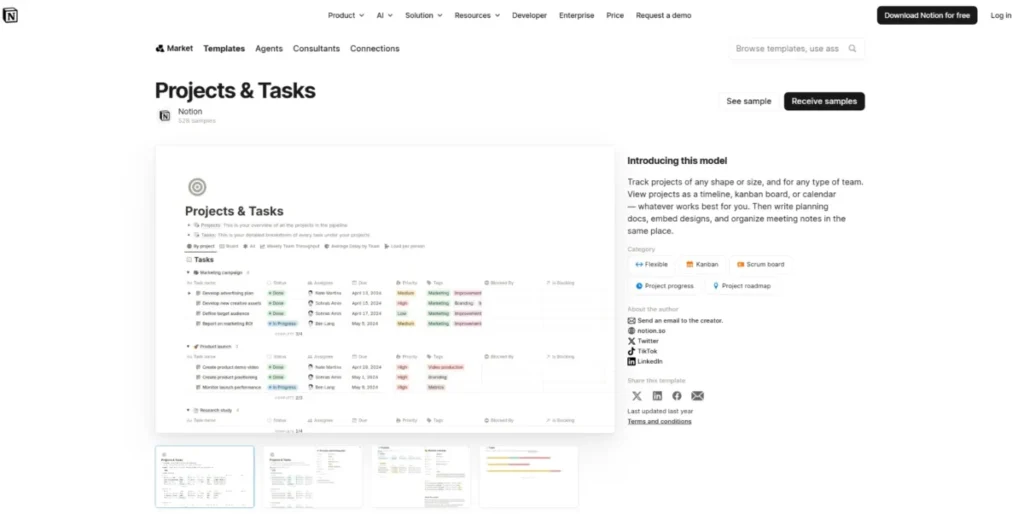
| Best docs-plus-projects | Notion | Projects living beside wikis, notes, and databases |
| Best fixed-fee for larger simple teams | Basecamp | Flat $299/ |
monday.com wins the “most teams” slot, but the budget and agency picks change the math for two big buyer groups. If you only need a board and a few automations, do not overpay for a platform you will never configure.
How We Chose and Ranked These 10 PM Tools
I evaluated these tools using official pricing pages, product and help documentation, current SERP review, and third-party review patterns from G2, Capterra, and TechRadar. No hands-on product testing was performed, so every claim here comes from official sources or clearly labeled review sentiment, not from a personal trial.
Pricing was verified on July 8, 2026, in the US dollar view of each vendor’s official page. SaaS pricing changes without notice, so confirm the exact number at checkout before you budget.
Ranking weighted five things a buyer defends to finance: real cost at the seat count you actually run, automation and reporting ceilings by plan, fit for a specific workflow, adoption risk after the first 90 days, and honest disqualifiers. I did not rank by brand popularity, and commission never determines placement.
Two data caveats shape the tables below. monday.com sells several product lines, so I used monday Work Management pricing only, not monday CRM or dev, and Smartsheet’s page uses a dynamic currency view, so I cite the US dollar figures shown on the check date and flag them for checkout verification.
One methodology limit matters here. Enterprise pricing for several tools is custom and sales-led, so I do not estimate those quotes; where a plan is custom, I say so. Third-party sentiment from G2 and Capterra is used as aggregate patterns, not as attributed reviewer quotes, since I did not verify individual reviews by name and date.
All 10 Tools Compared at a Glance
This table compares entry paid pricing and the standout fit for each tool.
| Rank | Tool | Entry paid price | Free plan | Best for |
|---|---|---|---|---|
| 1 | monday.com | $9/seat/mo (Basic, annual) | Yes | Cross-functional operations and marketing |
| 2 | ClickUp | $7/user/mo (Unlimited, annual) | Yes | Configurable all-in-one workspaces |
| 3 | Asana | $10.99/ | Yes (2 users) | Process-driven cross-functional teams |
| 4 | Wrike | $10/ | Yes | Enterprise resource and portfolio control |
| 5 | Smartsheet | $9/member/mo (Pro, annual) | Trial only | Spreadsheet-style project teams |
| 6 | Jira | $7.91/ | Yes (10 users) | Software and agile teams |
| 7 | Teamwork.com | $9.99/ | Trial only | Agencies and client services |
| 8 | Trello | $5/user/mo (Standard, annual) | Yes | Simple Kanban and small teams |
| 9 | Notion | $10/ | Yes | Docs-plus-projects workspaces |
| 10 | Basecamp | $15/ | Yes | Fixed-fee simple collaboration |
Entry price is a poor comparison point on its own. Two tools here cannot even hold 25 seats on their entry tier, and one flat-fee option beats per-seat pricing once you pass roughly 20 people, both covered below.
The 10 Best PM Software Tools for 2026, Ranked
Products appear in ranked order. Only the number one pick is named best overall; every other tool wins a specific buyer, not the whole market.
1. monday.com: Best Overall for Cross-Functional Teams

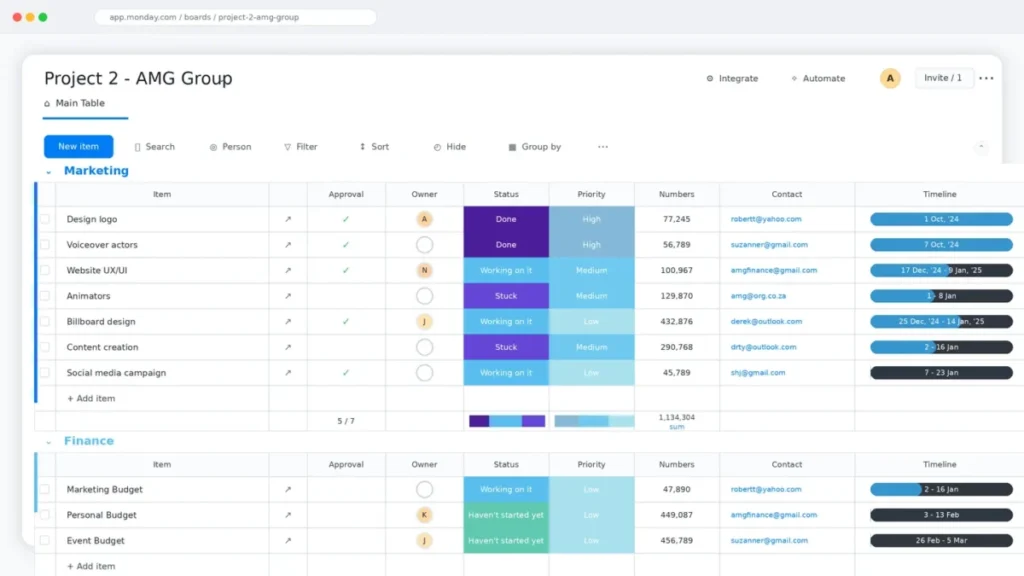
monday.com Work Management is the best PM software for 5 to 75 person operations, marketing, and project teams that want visual boards, automations, and dashboards without a heavy admin burden. It reads as a project tool a non-technical team will actually adopt.
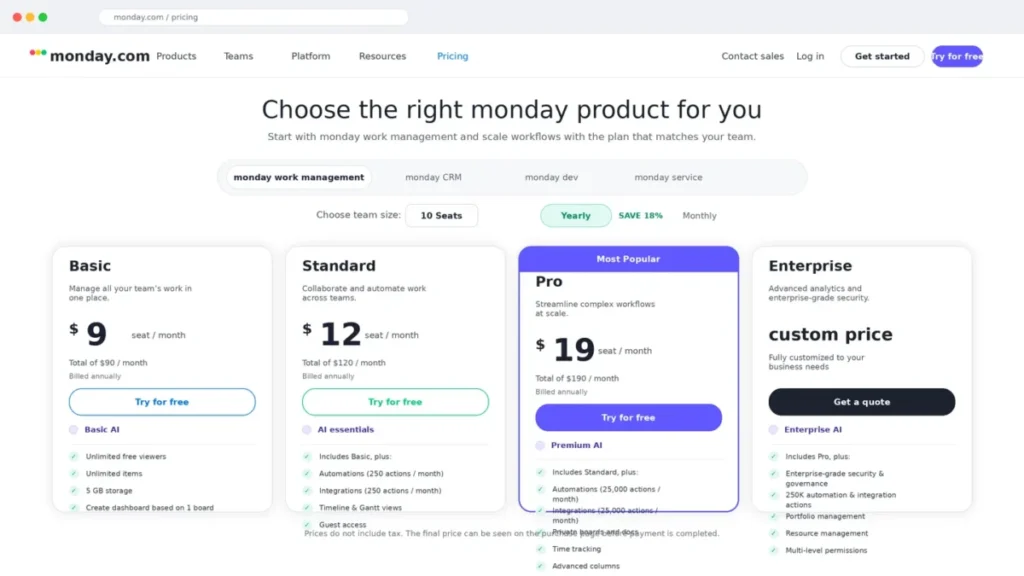
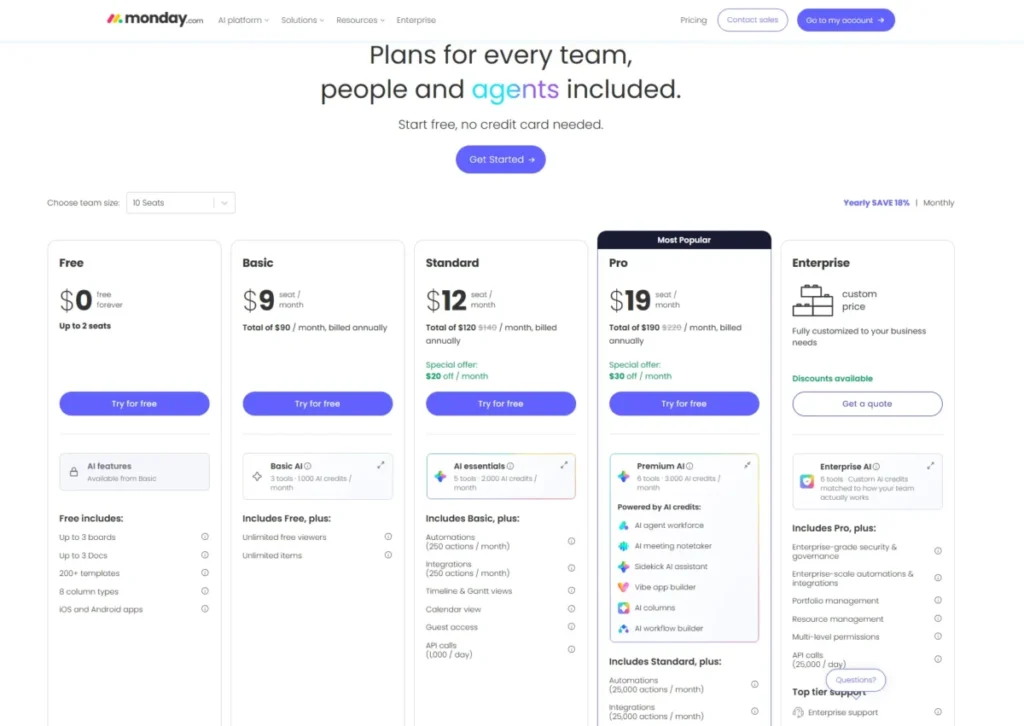
Pricing starts at $9 per seat/month on Basic billed annually, but the practical tier is usually Standard at $12 or Pro at $19 because that is where useful automations and reporting live. Basic omits the timeline and Gantt view most project teams expect.
The plan gates are the story. Standard includes timeline and Gantt, guest access, and 250 automation and 250 integration actions per month, Pro raises that ceiling to 25,000 actions, and Enterprise reaches 250,000 actions plus dashboards aggregating up to 50 boards.
A busy 20-person team can burn 250 monthly actions in the first week, which quietly forces the Pro upgrade.
Its standout strength is the balance of usability, workflow flexibility, and reporting for people who do not want to learn a database. TechRadar review sentiment describes it as flexible and visually organized while noting it lacks the depth of heavier PM tools.
The renewal risk here is tier creep. A team that starts on Basic to save money often lands on Pro within two quarters once automations and cross-board dashboards become daily habits, so budget for the tier you will grow into.
Our monday.com review walks through where each tier stops being enough.
| Pros | Cons |
|---|---|
| Usable boards and dashboards for non-technical teams | Useful automations gated above Basic |
| Clear tiered automation and integration limits | Dashboard board aggregation capped by tier |
| Room to expand into CRM or dev workflows | Per-seat cost climbs fast at Pro |
| Guest access from Standard | Enterprise features are sales-led |
- Best for:
- operations, marketing, and PMO teams of 5 to 75. Not best for: teams needing native software issue tracking or ultra-simple flat pricing.
- Verdict:
- choose monday.com if you want the widest workflow coverage a general business team will keep using after month three.
2. ClickUp: Best Configurable All-in-One Workspace

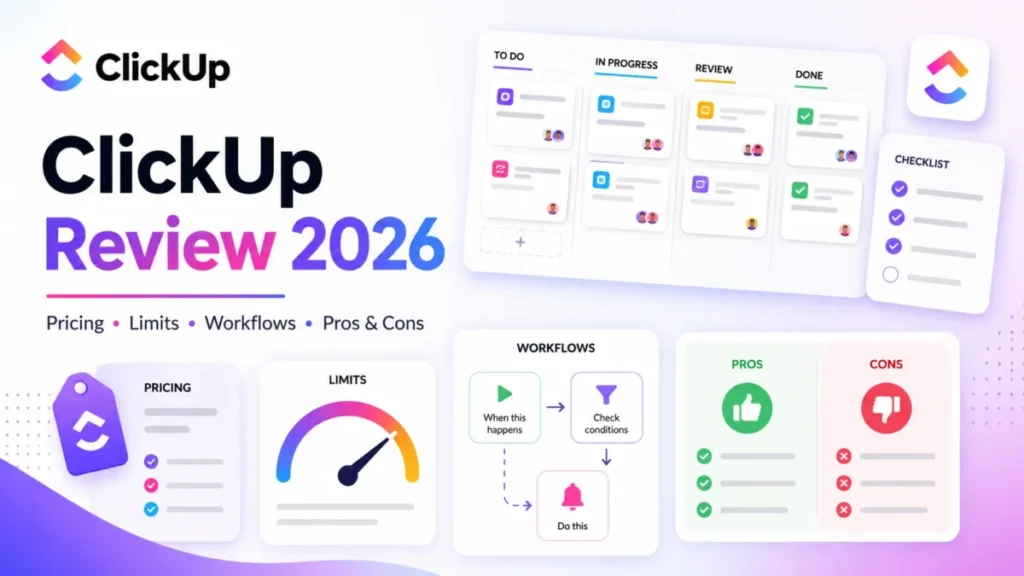
ClickUp is the strongest all-in-one project management tool for operations-heavy teams that want tasks, docs, dashboards, goals, forms, time tracking, and automations in one system they are willing to configure. It rewards teams that standardize their setup and punishes teams that do not.
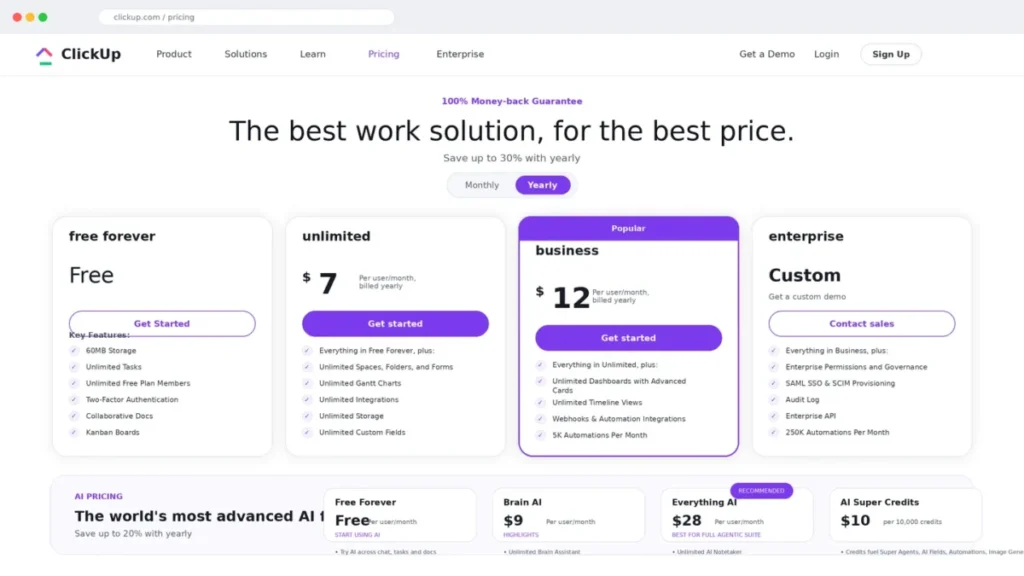
Pricing runs Free Forever, then Unlimited at $7 per user/month billed yearly and Business at $12 per user/month billed yearly, with Enterprise custom. The Free plan caps storage at 60MB, so it suits trials more than real work.
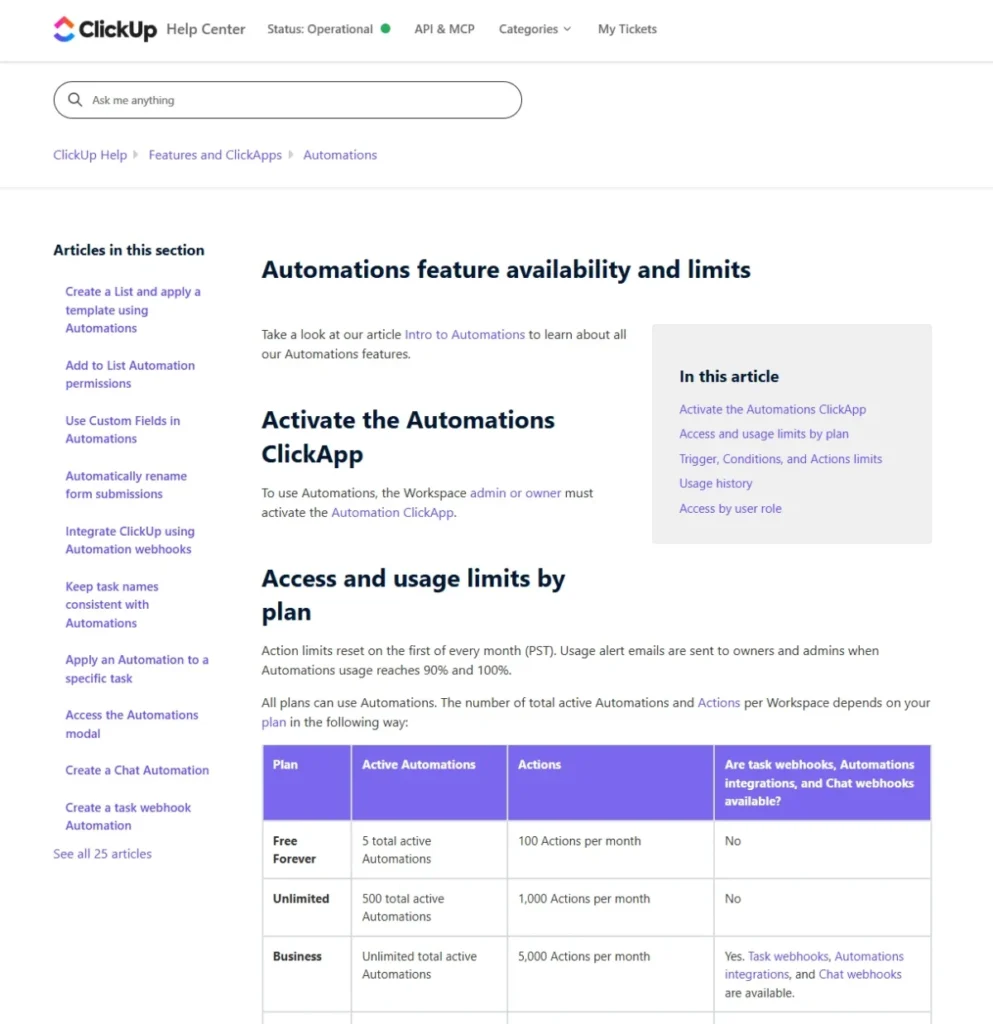
Automation limits scale sharply by tier: Free 100 actions/month, Unlimited 1,000, Business 5,000, and Enterprise 250,000. An agency running recurring intake and status automations will likely outgrow Unlimited’s 1,000 monthly runs before it outgrows seats.
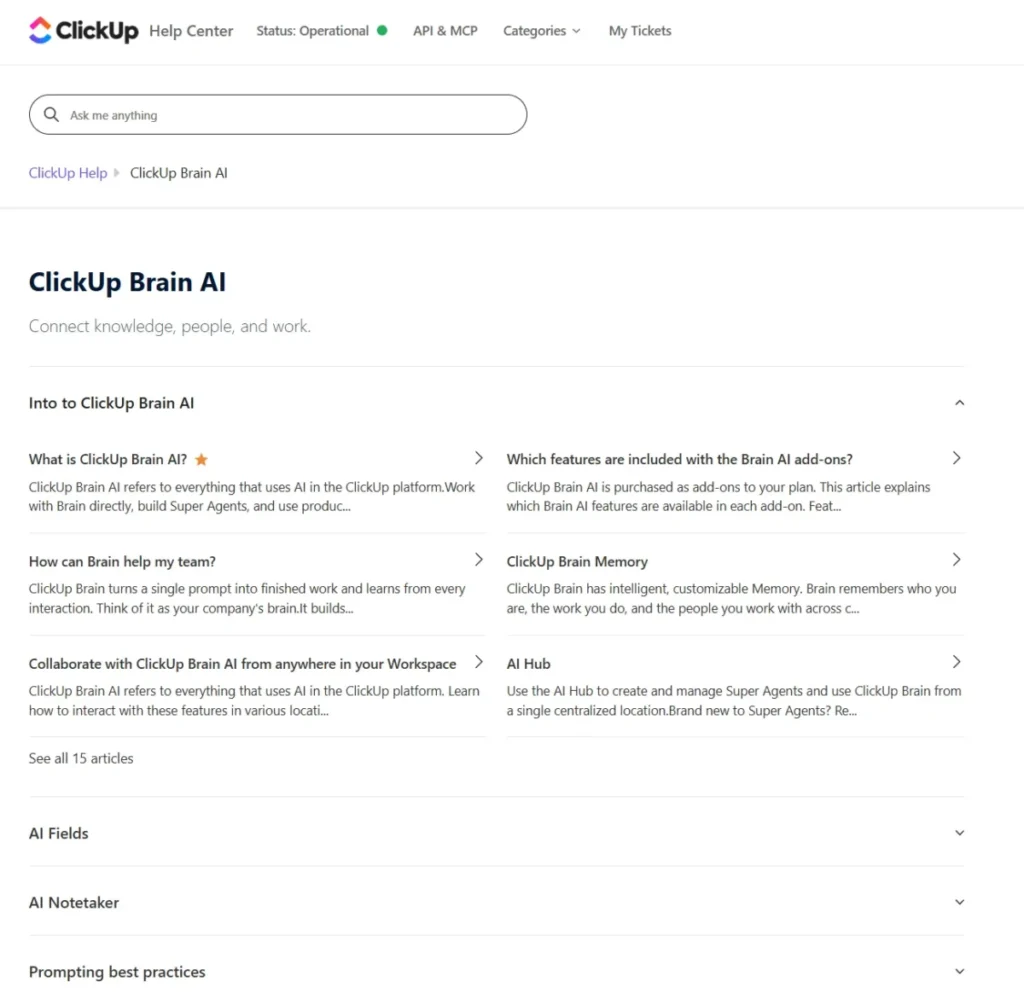
AI is a separate cost line. Brain AI is $9 per user/month, Everything AI is $28 per user/month, and AI Super Credits run $10 per 10,000 credits, so treat AI as an add-on, not an included feature.
Its strength is feature density for teams that treat ClickUp as an operating system. The recurring complaint in review patterns is feature overload and setup complexity for new users.
What breaks first with ClickUp is rarely the feature set, it is governance. Teams that let every person build their own Spaces and statuses lose reporting consistency by month two, so name an owner and lock a template before rollout.
The ClickUp review covers that setup discipline in more depth.
| Pros | Cons |
|---|---|
| Broadest feature set in one workspace | Setup complexity overwhelms new teams |
| Low $7 entry on Unlimited | AI priced as a separate add-on |
| Time tracking, goals, and portfolios included | Free plan storage capped at 60MB |
| 250,000 automations at Enterprise | 1,000 monthly automations on Unlimited is tight |
- Best for:
- ops-heavy teams willing to govern Spaces and automations. Not best for: teams wanting a minimal app with near-zero setup.
- Verdict:
- choose ClickUp if you have an owner who will design the workspace, not just turn it on.
3. Asana: Best for Process-Driven Cross-Functional Teams

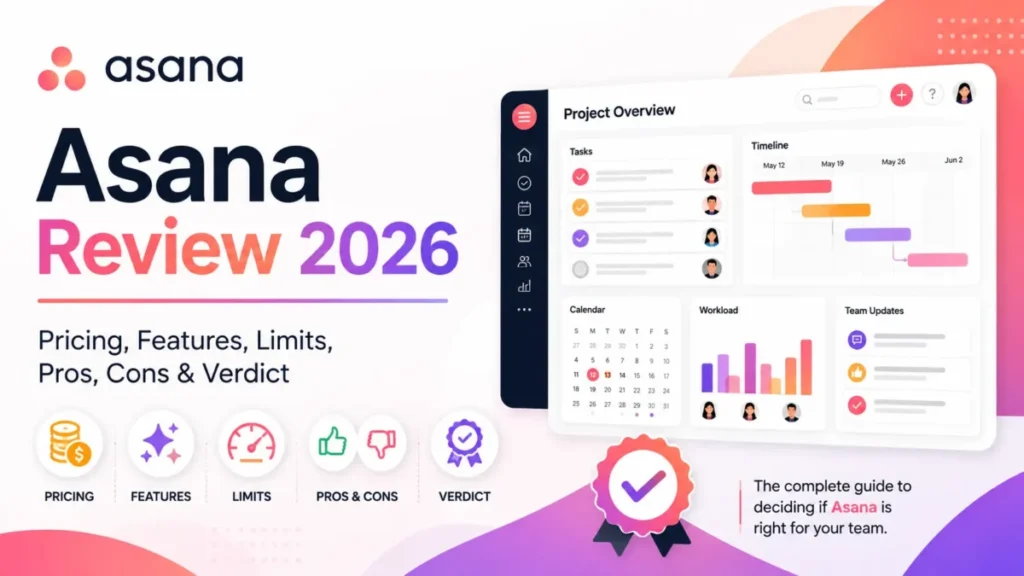
Asana is the best project management software for marketing, operations, and cross-functional teams that need structured tasks, dependencies, forms, dashboards, portfolios, goals, and workload views. It suits teams that care about process consistency and stakeholder visibility.
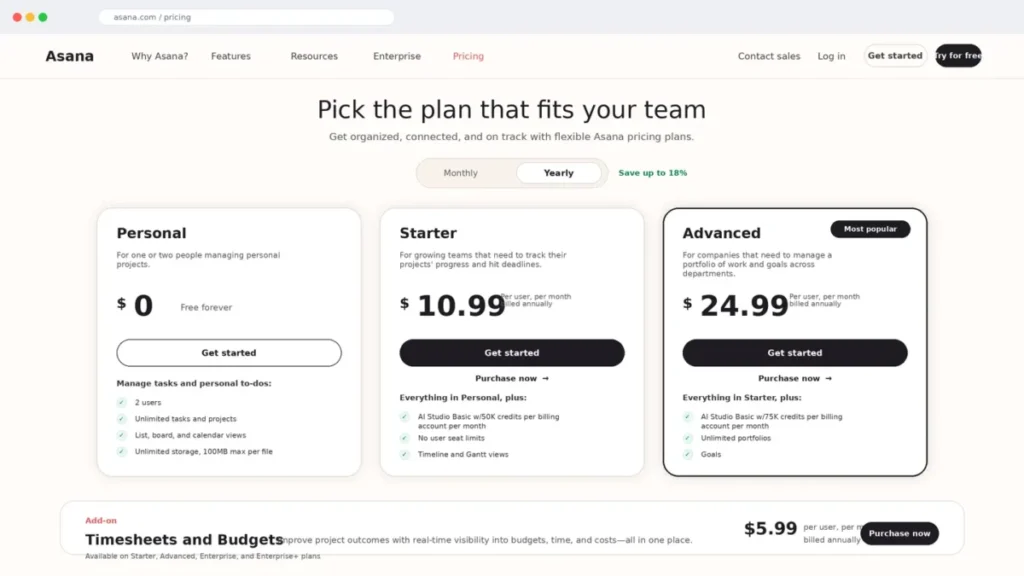
Pricing is Personal free for up to 2 users, Starter at $10.99 per user/month billed annually ($13.49 monthly), and Advanced at $24.99 per user/month billed annually, with Enterprise tiers sales-led. Starter removes seat limits and adds timeline, dashboards, unlimited automations, forms, and guests.
The hidden cost is budgeting. Timesheets and Budgets is a paid add-on at $5.99 per user/month billed annually, so services teams that need time and cost tracking should price that in or look at Teamwork.com instead.
Advanced adds portfolios, goals, workload, and approvals, which is the tier most mid-market teams actually need. Enterprise Plus adds SIEM support, data residency, and audit logs for IT-led buyers.
Its strength is a clear operating model for process-driven teams. The tradeoff is that project profitability is not native, and the free plan stops at two users.
For a 25-person marketing team, the real budget is Advanced at $24.99 per user plus the $5.99 add-on if you track time, which lands close to $770 per month. That is worth it only if reporting and process consistency are the point, not billable-hour recovery.
| Pros | Cons |
|---|---|
| Strong structure: portfolios, goals, workload | Time and budget tracking is a paid add-on |
| Unlimited automations from Starter | Free plan limited to 2 users |
| Forms and dashboards for intake and reporting | Advanced needed for portfolios and workload |
| Enterprise security and audit controls | Per-user cost high at Advanced |
- Best for:
- cross-functional teams that value process and reporting. Not best for: services teams needing built-in budget and profitability tracking.
- Verdict:
- choose Asana if process discipline and stakeholder visibility matter more than billable-time features. See our Asana review for the deeper feature breakdown.
4. Wrike: Best for Enterprise Resource and Portfolio Control

Wrike is the best fit for 15 to 200 person cross-functional teams that need Gantt, dashboards, resource planning, workload visibility, and enterprise delivery controls. It is built for complex, multi-team work rather than simple boards.
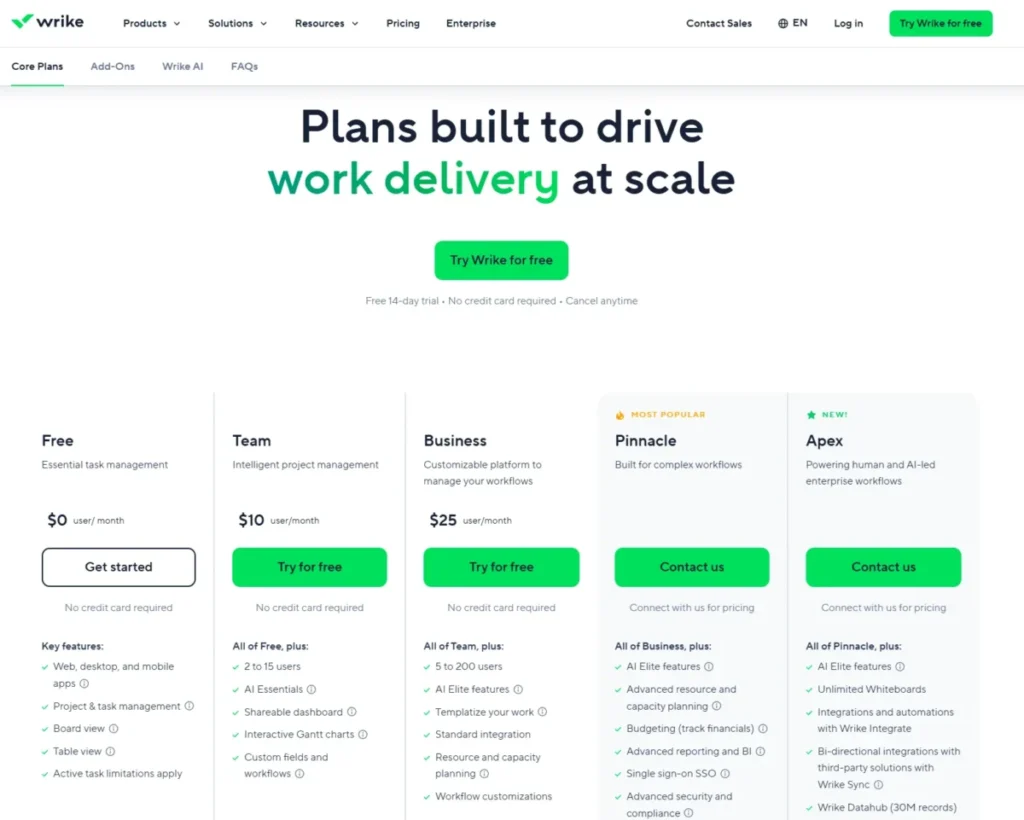
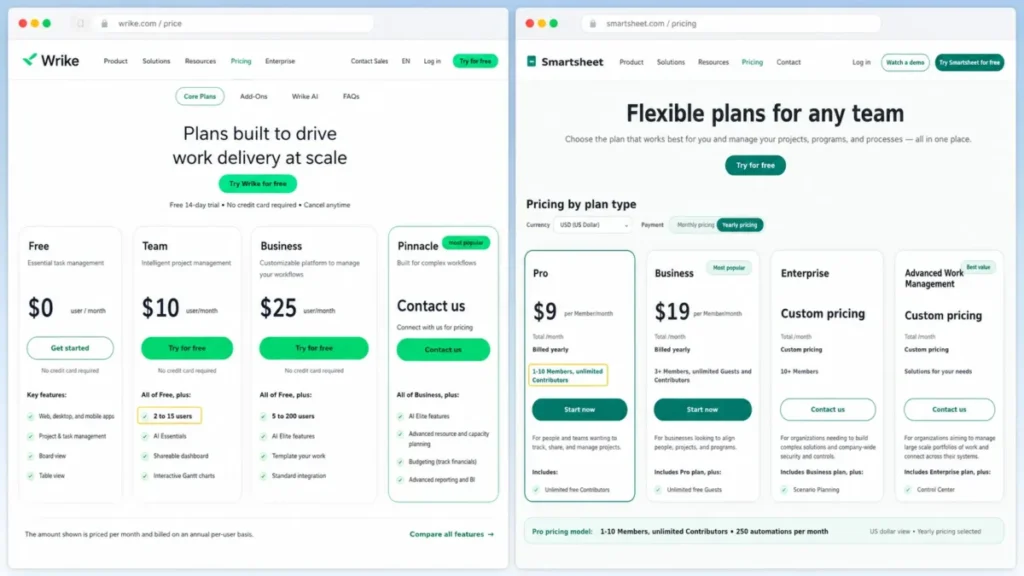
Pricing is Free, Team at $10 per user/month for 2 to 15 users, and Business at $25 per user/month for 5 to 200 users, with Pinnacle custom. This pricing applies to new purchases on or after January 21, 2026, and Wrike notes pricing can change.
The seat cap is the buyer trap most lists miss. Team stops at 15 users, so a growing 25-person team must jump to Business at $25 per user/month, more than doubling the per-seat cost. Budget for Business if you expect to cross 15 seats within a year.
Team adds AI Essentials, dashboards, and Gantt, Business adds templates, standard integrations, and AI Elite, and Pinnacle adds advanced resource and capacity planning, budgeting, and BI.
Its strength is visibility and resource control for mature teams. Its cost is onboarding complexity for smaller or less structured teams.
The switch-or-stay signal for Wrike is team maturity, not team size alone. If you already run structured projects with owners, deadlines, and reporting, Wrike rewards you, but if your team is still moving off spreadsheets, solve adoption on a simpler tool first.
| Pros | Cons |
|---|---|
| Strong resource and capacity planning | Team plan capped at 15 users |
| Gantt and dashboards from Team | Business more than doubles per-seat cost |
| Scales to 200 users on Business | Onboarding complexity for small teams |
| Advanced budgeting and BI on Pinnacle | Pinnacle pricing is custom |
- Best for:
- enterprise and cross-functional teams needing governance. Not best for: small teams that only need simple Kanban.
- Verdict:
- choose Wrike when multi-team visibility and resource planning justify the setup effort, and read our Wrike review before committing to Business.
5. Smartsheet: Best for Spreadsheet-Style Project Teams

Smartsheet is the best project management tool for PMO, operations, and spreadsheet-native teams that want a grid interface with Gantt, reports, dashboards, forms, and automations. It fits people who think in rows and columns but need real project controls.
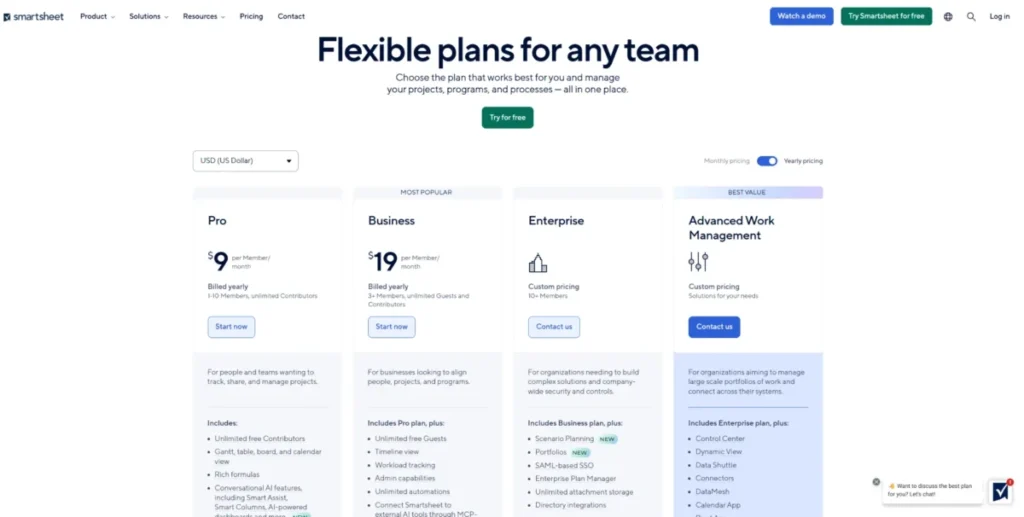
In the US dollar pricing view checked July 8, 2026, Pro was shown at $9 per member/month billed yearly or $12 billed monthly, covering 1 to 10 Members with unlimited free Contributors. Business and Enterprise add broader reporting and governance, and some support services are add-ons.
Two model details change the math. Pro includes unlimited Contributors who can view and update but not create, which lowers cost for teams where most people only contribute. Pro also caps automations at 250 per month, and the Member limit of 10 means a 25-seat team of creators must move to Business.
Its strength is the familiar spreadsheet model paired with stronger project and reporting controls than a real spreadsheet. Reuters reported Smartsheet’s take-private acquisition by Vista and Blackstone, and it serves many large-enterprise workflow needs.
The budget-pressure point for Smartsheet is the Member count, not the sticker price. A team where 8 people build sheets and 40 only view and update stays cheap on Pro, but the moment a ninth or tenth builder joins, the 10-Member cap pushes you to a Business quote.
Price the number of true creators, not the whole headcount, before you assume Pro is affordable.
| Pros | Cons |
|---|---|
| Spreadsheet model with real Gantt and reports | Pro caps Members at 10 |
| Unlimited free Contributors on Pro | Only 250 automations/ |
| Forms, formulas, and dashboards included | Support packages can be add-ons |
| Enterprise governance options | Grid interface not ideal for Kanban-first teams |
- Best for:
- PMO and ops teams comfortable with grids. Not best for: teams that want the easiest beginner Kanban board.
Verdict: choose Smartsheet if your team lives in spreadsheets but needs project structure, and check the Member versus Contributor split before pricing it. Our Smartsheet review covers that model in detail.
6. Jira: Best for Software and Agile Teams

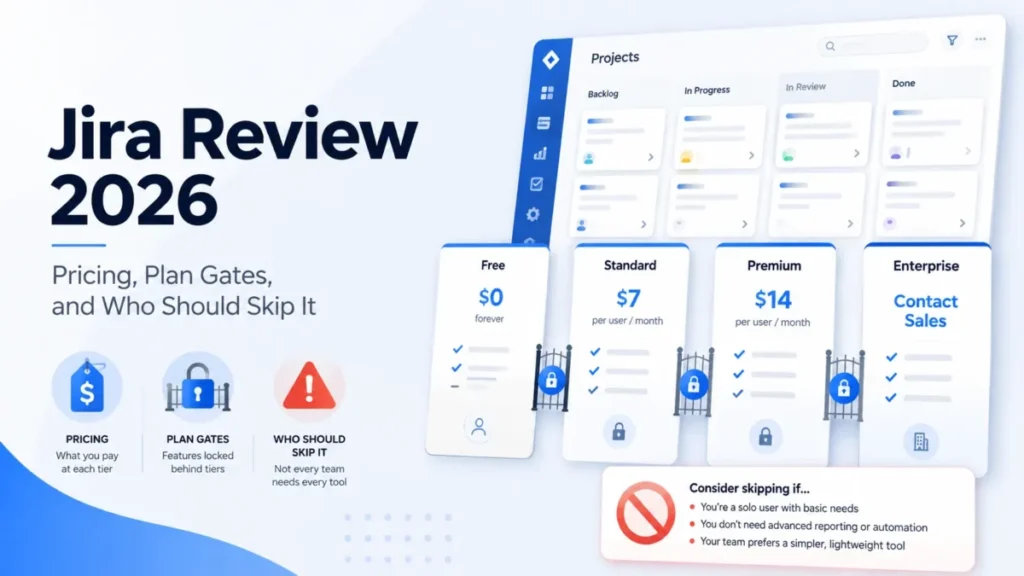
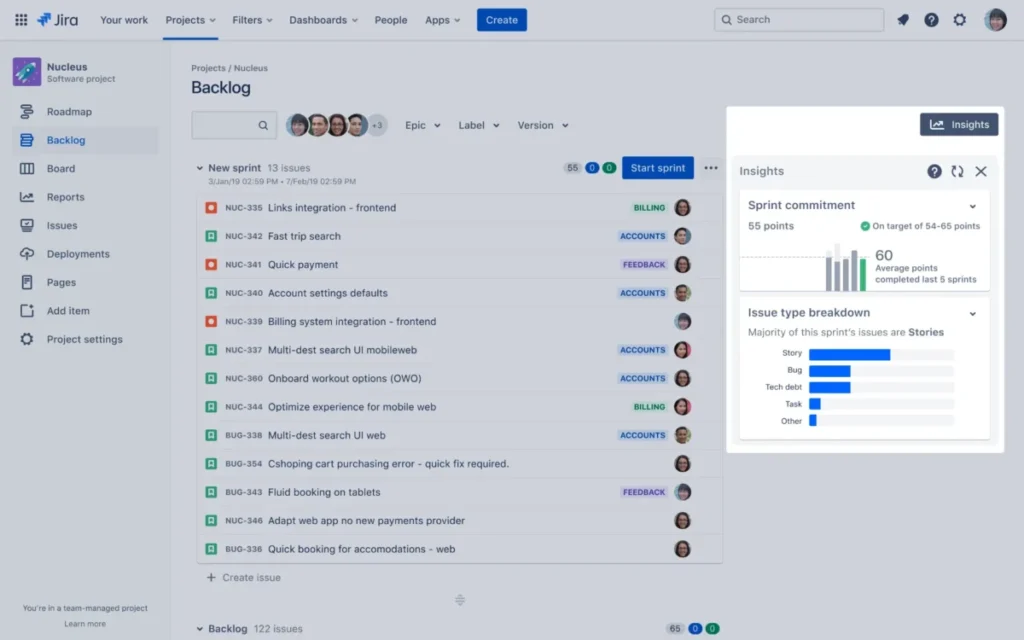
Jira is the best pick for software engineering, product, and technical teams that run agile boards, backlogs, issues, releases, and roadmaps inside the Atlassian ecosystem. It is purpose-built for issue-driven delivery, not general business projects.
Pricing is Free for up to 10 users, with Standard shown at $7.91 per user/month and Premium at $14.54 per user/month, and Enterprise custom. Atlassian pricing adjusts by user tier and billing basis, so confirm the exact quote for your seat count in the Atlassian calculator.
The disqualifier is fit, not price. Jira’s issue schemas, workflows, and agile terminology are a mismatch for marketing or operations teams that just want a visual board. Non-technical teams usually adopt it slowly and resent the admin overhead.
Standard covers production-ready project controls, Premium supports multi-team alignment and more automation, and Enterprise adds advanced analytics and governance. Atlassian ecosystem add-ons can raise total cost beyond the base seat price.
Its strength is being the best-known system for software issue tracking and agile delivery. That same depth is its weakness outside engineering.
The stack-fit case is strongest when you already run Confluence or Bitbucket, since Jira sits in the same Atlassian ecosystem and shares Guard for security. Outside that ecosystem, a general team gains little from Jira’s issue model and pays for complexity it will not use.
| Pros | Cons |
|---|---|
| Best-in-class agile and issue tracking | Too technical for non-software teams |
| Free for up to 10 users | Admin-heavy setup and terminology |
| Deep roadmaps, backlogs, and reports | Ecosystem add-ons raise total cost |
| Scales to enterprise governance | Per-user price varies by user tier |
- Best for:
- software, product, and technical agile teams. Not best for: marketing or operations teams wanting a simple board.
Verdict: choose Jira if engineering owns the tool, and pick monday.com, Asana, or Trello if they do not. The Jira review goes deeper on the agile workflows.
7. Teamwork.com: Best for Agencies and Client Services

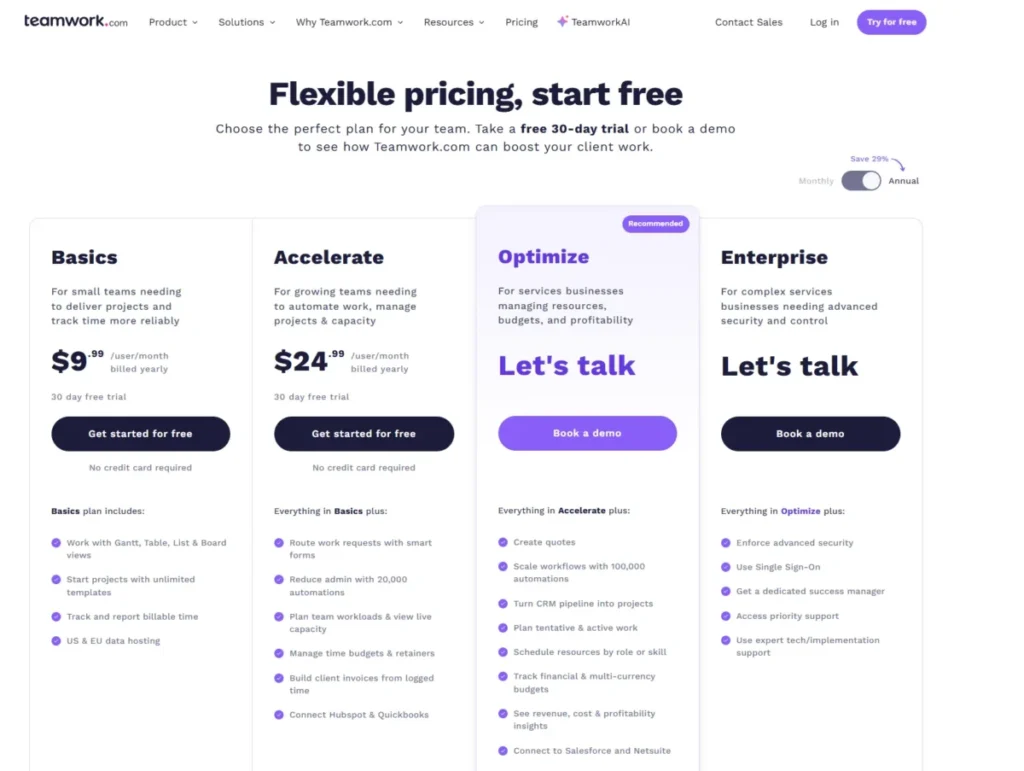
Teamwork.com is the best PM software for agencies, consultancies, and professional-services teams managing client projects, billable time, retainers, budgets, invoices, and utilization. It turns project tracking into service-delivery and profitability management.
Pricing is Basics at $9.99 per user/month billed yearly and Accelerate at $24.99 per user/month billed yearly, with Optimize custom and a 30-day free trial. The annual toggle advertises roughly 29% savings.
The plan gates map to how agencies grow. Basics includes project views, templates, time tracking, and US and EU data hosting, Accelerate adds smart forms, 20,000 automations, workloads, budgets, retainers, invoices, and HubSpot and QuickBooks connections, and Optimize adds 100,000 automations, quotes, role and skill scheduling, multi-currency budgets, and profitability insights.
One freshness caveat matters for budgeting. TeamworkAI is included in paid plans for an introductory period, with usage-based AI credits planned for September 2026, so treat AI as a future cost, not a permanent inclusion.
Its strength is that it prices and reports around billable work, which generic PM tools do not. That focus is also its limit for internal teams.
The practical tier for most agencies is Accelerate, not Basics, because budgets, retainers, and invoices only appear there. A 15-person agency on Accelerate runs about $375 per month, and that spend pays off only if you actually track utilization and profitability rather than just tasks.
| Pros | Cons |
|---|---|
| Billable time, budgets, and invoices native | Overkill for non-billable internal teams |
| Retainers and profitability on higher tiers | Budgets and forms gated above Basics |
| 20,000 to 100,000 automations at scale | AI credits become usage-based in Sept 2026 |
| HubSpot and QuickBooks connections | Optimize pricing is custom |
- Best for:
- agencies and services teams that bill clients. Not best for: internal task teams with no billable work.
- Verdict:
- choose Teamwork.com if project profitability is the point, not just task tracking. See the Teamwork.com review for the billing workfl
8. Trello: Best Budget Kanban Board
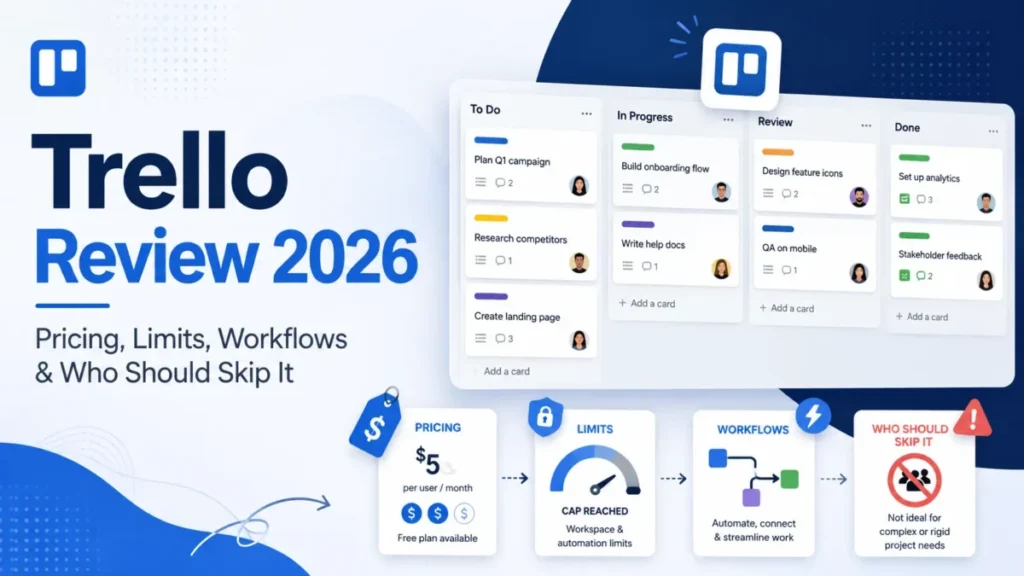
Trello is the best budget project management tool for individuals and small teams that want fast Kanban setup, simple task visibility, and a low learning curve. It is the tool people actually enjoy opening on day one.
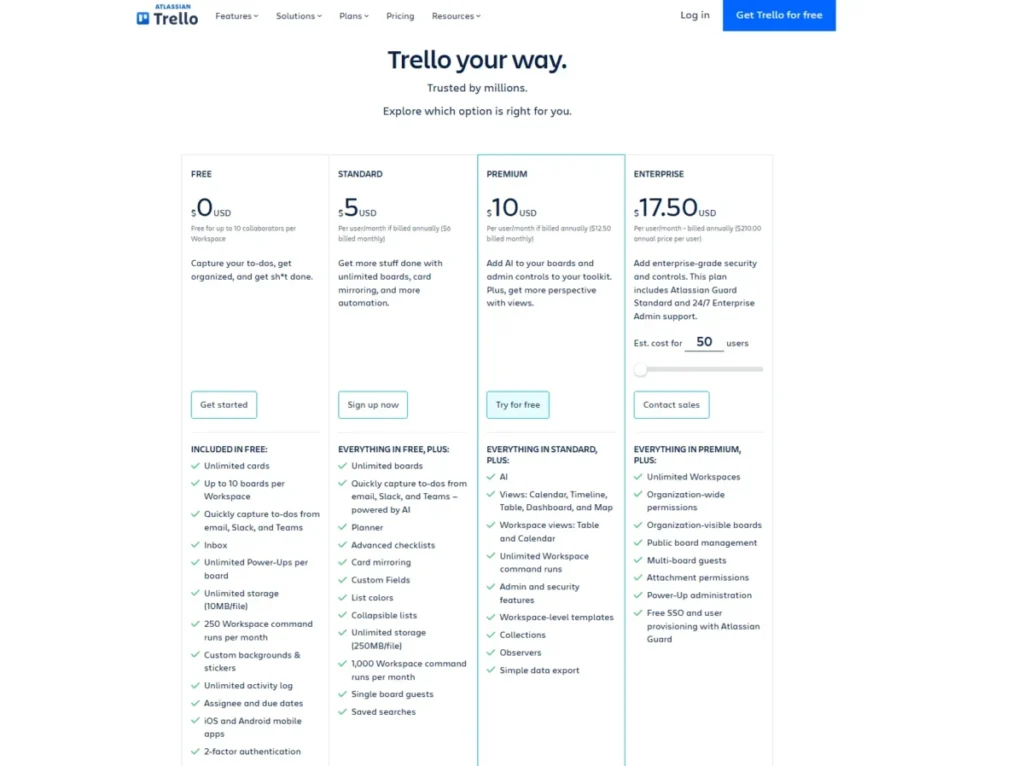
Pricing is Free for up to 10 collaborators per Workspace, Standard at $5 per user/month billed annually, Premium at $10 per user/month billed annually, and Enterprise at $17.50 per user/month billed annually. That $5 Standard tier is one of the cheapest usable paid plans on this list.
The hidden ceiling is automation. Trello’s Butler automation is capped by plan: Free allows 250 command runs, Standard 1,000, and Premium unlimited command runs, with per-board and per-workspace operation limits. Teams that lean on recurring automations hit that wall well before they run out of boards.
Free includes 10 boards per Workspace and 10MB per file, Standard adds unlimited boards and 250MB per file, Premium adds AI plus Calendar, Timeline, Table, Dashboard, and Map views, and Enterprise adds Atlassian Guard Standard and 24/7 admin support.
Its strength is the lowest-friction visual PM experience here. Its weakness is the absence of real resource planning, portfolios, and dependencies.
What breaks first with Trello is reporting across boards, not a single board itself. Once leadership wants a cross-project rollup or capacity view, Trello has no native answer, and that is the usual trigger to migrate to monday.com or ClickUp.
Start here if simplicity is the goal, but expect a switch if the team grows past basic task tracking.
| Pros | Cons |
|---|---|
| Fastest setup and lowest learning curve | Butler automation capped below Premium |
| $5 Standard is very cheap | No native resource planning or portfolios |
| Premium adds AI and advanced views | Weak for complex dependencies |
| Free plan usable for small teams | Scaling beyond boards needs another tool |
- Best for:
- individuals and small teams needing a simple board. Not best for: teams needing portfolios, dependencies, or deep reporting.
Verdict: choose Trello for speed and price, and plan to migrate if automation or reporting becomes serious. The Trello review covers where it stops scaling.
9. Notion: Best for Docs-Plus-Projects Workspaces
Notion is the best project management software for teams whose projects live next to docs, wikis, meeting notes, databases, and AI search. It is strongest when documentation and project work belong in the same place.
Pricing is Free at $0 per member/month, Plus at $10 per member/month, and Business at $20 per member/month in the US dollar view, with yearly billing saving up to 20%. Plus adds unlimited collaborative blocks, unlimited file uploads, charts, and basic connections.
Business is the tier that matters for larger teams. It adds Notion Agent, AI Meeting Notes, Enterprise Search beta, SAML SSO, granular database permissions, private teamspaces, and domain verification, so IT-driven buyers should expect to reach Business for governance.
The honest limit is structure. Notion’s flexible databases can become brittle project systems unless someone designs the schema and permissions, so it behaves like a reliable PM tool only after real setup.
Its strength is projects embedded inside a knowledge base with AI on top. Its weakness is the lack of native Gantt depth, workload, and strict portfolio controls out of the box.
Notion fits best when a team already lives in Notion docs and wants projects beside them, not as a rescue for a team that needs strict tracking. If your leadership asks for reliable status rollups or resource views, that is the signal to pick a purpose-built PM tool instead.
Budget for Business at $20 per member if you need SSO and granular permissions for a larger team.
| Pros | Cons |
|---|---|
| Projects live beside docs and wikis | Flexible databases need custom structure |
| AI, agents, and enterprise search on Business | No strong native Gantt or workload |
| Granular permissions and SAML SSO on Business | Weak for complex portfolio controls |
| Free plan usable for small teams | Governance needs a dedicated owner |
- Best for:
- teams that want project work inside their knowledge base. Not best for: teams needing strict PM governance or resource planning.
Verdict: choose Notion when docs and projects should share one home, not when you need portfolio-grade controls. Our Notion review covers the database setup risk.
10. Basecamp: Best Fixed-Fee Simple Collaboration

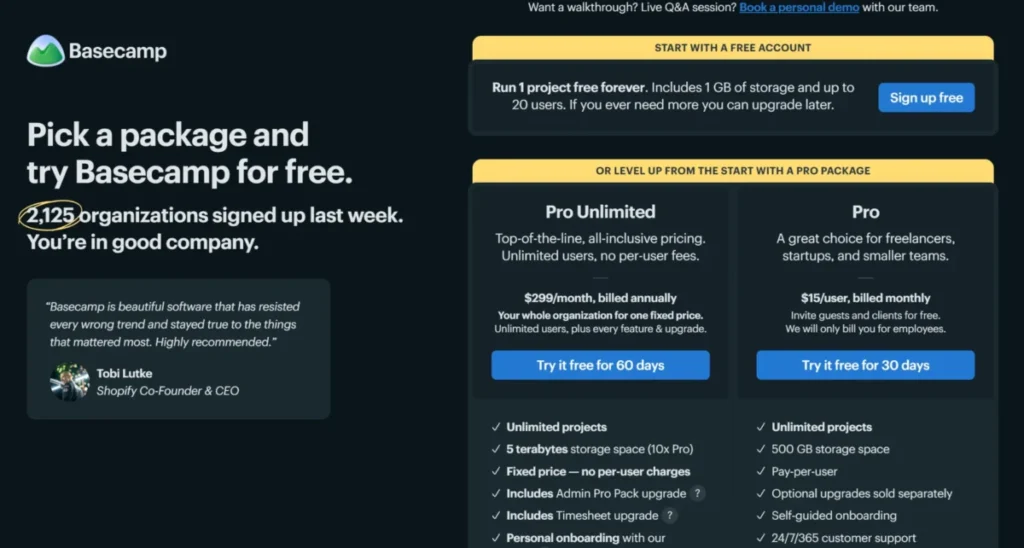
Basecamp is the best fixed-fee project management tool for small companies and client-facing teams that want simple projects, messages, to-dos, schedules, docs, and predictable pricing. It trades PM depth for calm and cost control.
Pricing has a Free account (one project, 20 users, 1GB storage), Pro at $15 per user billed monthly, and Pro Unlimited at $299 per month billed annually with unlimited users and 5TB storage. That flat $299 plan is the reason Basecamp belongs on a cost-focused list.
The break-even is concrete. Pro Unlimited beats a $15 per-user tool at about 20 users, a $12 per-user tool at about 25 users, and a $10 per-user tool at about 30 users, so larger simple teams can save real money.
Pro Unlimited also adds the Admin Pro Pack, a Timesheet upgrade, onboarding, priority support, and a 60-day trial. Basecamp supports integrations and API access, though its native ecosystem is smaller than the leaders here.
Its strength is simple, predictable collaboration without per-feature tiers. Its weakness is the absence of native Gantt, dependencies, subtasks, and deep automation.
The switch-or-stay signal for Basecamp is workflow complexity, not headcount. A 40-person team running straightforward projects saves real money on the flat plan, but the same team adding dependencies, resource planning, or heavy reporting will outgrow it fast.
Choose it when calm and cost control matter more than PM depth, and stay only while your workflows stay simple.
| Pros | Cons |
|---|---|
| Flat $299/ | No native Gantt, dependencies, or subtasks |
| Predictable cost at larger team sizes | Limited automation depth |
| Simple to adopt across non-technical teams | Smaller native integration ecosystem |
| Client access included | Thin reporting versus leaders |
- Best for:
- larger simple teams wanting flat pricing. Not best for: teams needing Gantt, portfolios, or heavy automation.
Verdict: choose Basecamp once your headcount makes per-seat pricing painful and your workflows stay simple. The Basecamp review covers what it leaves out.
Cost at Scale: What 25 Seats Actually Costs
Entry prices hide what a real team pays. This table estimates monthly cost for 25 users on each tool’s entry paid tier, using annual-billing prices where shown.
| Tool | Entry tier | 25-seat monthly cost | Note |
|---|---|---|---|
| Trello | Standard $5 | $125 | Cheapest usable paid tier |
| ClickUp | Unlimited $7 | $175 | Watch 1,000 automation cap |
| Jira | Standard $7.91 | ~$198 | Per-user varies by tier; verify |
| monday.com | Basic $9 | $225 | Standard/ |
| Teamwork.com | Basics $9.99 | ~$250 | Budgets need Accelerate |
| Notion | Plus $10 | $250 | Business needed for SSO |
| Asana | Starter $10.99 | ~$275 | Add $5.99/ |
| Wrike | Business $25 | $625 | Team caps at 15 seats |
| Smartsheet | Business (custom) | Verify | Pro caps at 10 Members |
| Basecamp | Pro Unlimited flat | $299 | Flat, unlimited users |
Two tools break their own entry price at 25 seats. Wrike Team stops at 15 users, forcing Business at $25 per user, and Smartsheet Pro stops at 10 Members, forcing a Business quote, so both cost far more than their headline price suggests.
Basecamp is the clearest budget-pressure lesson. Its flat $299/month undercuts every per-seat tool priced at $12 or more once you reach about 25 people, which is exactly where per-seat budgets start to sting.
Automation Limits by Plan
Automation is a capped resource, not just a feature, and the cap often forces an upgrade before seat count does. These are official monthly action limits.
| Tool | Entry paid limit | Top-tier limit |
|---|---|---|
| monday.com | 250 actions (Standard) | 250,000 (Enterprise) |
| ClickUp | 1,000 (Unlimited) | 250,000 (Enterprise) |
| Trello | 1,000 command runs (Standard) | Unlimited (Premium) |
| Smartsheet | 250/ | Higher on Business/ |
| Teamwork.com | Included on Basics | 100,000 (Optimize) |
| Asana | Unlimited (Starter) | Unlimited |
Smartsheet Pro at 250 automations per month and monday.com Standard at 250 actions per month are the tightest entry ceilings here. An agency running recurring intake, assignment, and status automations will trip those limits fast and land on a higher tier.
Asana is the outlier because unlimited automations start at Starter, which removes automation from the upgrade-pressure list for Asana buyers.
AI Features and Hidden Costs
AI is promoted as included across 2026 PM tools, but the pricing models differ enough to change your budget. Read AI as a variable cost, not a free feature.
ClickUp charges separately: Brain AI at $9 per user/month, Everything AI at $28 per user/month, and AI Super Credits at $10 per 10,000 credits. monday.com includes AI credits by tier with more credits purchasable, and Asana meters AI credits that grow at Advanced.
Teamwork.com is the freshest risk. TeamworkAI is included in paid plans for an introductory period, with usage-based AI credits planned for September 2026, so a 2026 budget built on “AI is included” could break mid-year.
AI here is an assistant, not a replacement for a project manager. A 2025 practitioner literature review on generative AI in software project management found practitioners treat AI as a copilot for summaries and routing, with concerns about hallucination and lack of human judgment.
Use AI for status updates and routine drafting, and keep humans accountable for scope and stakeholder decisions.
Client and Guest Access for Agencies
For agencies, the cost that moves the budget is often client seats, not employee seats. Guest and client behavior differs by tool, and it decides which platform is cheap for external collaboration.
| Tool | Guest/ |
|---|---|
| Teamwork.com | Client users and collaborators built into client-work plans |
| Basecamp | Client access included; clients see only what you share |
| monday.com | Guest access from Standard |
| Asana | Guests included on paid plans |
| Trello | Free plan allows up to 10 collaborators per Workspace |
Teamwork.com and Basecamp are the natural fits when clients are part of every project. Teamwork.com prices around billable client work, and Basecamp’s flat fee means adding client-facing projects does not raise per-seat cost.
monday.com and Asana handle guests well for lighter external collaboration, but neither is built around client billing the way Teamwork.com is. If external users outnumber staff, weigh a flat-fee or client-native tool before a per-seat platform.
Free Plan Comparison
Free plans are not comparable, and the differences decide whether you can trial real workflows before paying. These are the official free-tier limits.
| Tool | Free plan headline limit |
|---|---|
| ClickUp | Unlimited tasks, 60MB storage |
| Trello | 10 boards and 10 collaborators per Workspace, 250 command runs |
| Jira | Up to 10 users |
| Asana | Up to 2 users (Personal) |
| Wrike | Free plan for basic task management |
| Notion | Free for small teams, limited AI and blocks |
| Basecamp | One project, 20 users, 1GB storage |
The strongest free plans for testing real project work are ClickUp, for unlimited tasks, and Trello, for a usable board within its 10-collaborator limit. Jira’s free plan is generous at 10 users but only makes sense for software teams.
Asana’s two-user Personal free plan and Smartsheet’s trial-only model are the weakest for team trials. Do not confuse a free trial with a free plan when you plan a pilot.
Feature Gate Comparison
The plan that includes the feature you need often costs more than the entry price. This table shows where key capabilities open up.
| Tool | Gantt/ | Portfolios/ | SSO and admin |
|---|---|---|---|
| monday.com | Standard | Pro and Enterprise | Enterprise |
| ClickUp | Unlimited | Unlimited/ | Google SSO Business, SCIM Enterprise |
| Asana | Starter | Advanced | Enterprise Plus |
| Wrike | Team | Business and Pinnacle | Higher tiers |
| Jira | Standard | Premium | Enterprise/ |
| Notion | Limited | Not native | SAML SSO Business |
Resource planning and single sign-on are the two most commonly gated features, and both usually sit at the business or enterprise tier. If IT requires SSO, that requirement can decide the plan before any project feature does.
Notion is the clearest fit boundary here. It has no native resource planning, so teams needing workload and portfolio controls should pick monday.com, Asana, Wrike, or Smartsheet instead.
Security and Admin Controls
For IT-led buyers, security features often decide the tool before any project feature does. Single sign-on, audit logs, and admin controls are usually gated at the business or enterprise tier, so confirm which plan you need before you compare project features.
monday.com places enterprise security, multi-level permissions, and advanced admin controls at the Enterprise tier. ClickUp offers Google SSO on Business and adds SCIM, audit logs, and data residency on Enterprise, while Asana reserves SIEM support, data residency, and audit logs for Enterprise Plus.
Jira and Trello draw on Atlassian’s model, where Enterprise adds Atlassian Guard for identity and security governance. Notion moves SAML SSO and granular database permissions to its Business plan, which is a lower gate than most enterprise tiers here.
I avoid claiming specific compliance certifications for any tool unless the official page states them, so treat HIPAA, SOC 2, or data-residency needs as questions for the vendor, not assumptions. If your security team mandates SSO, price the tier that includes it first, then judge the project features second.
Integrations and Stack Fit
A PM tool that does not connect to your stack creates manual work and hidden automation spend. Check the connections that matter before you commit, not the logo wall.
monday.com and ClickUp list broad native integration catalogs plus webhooks, and both expose API access with rate limits that scale by plan. Asana connects to more than 100 tools with a documented API, and Jira sits inside the Atlassian ecosystem, which is a strong fit if you already run Confluence or Bitbucket.
Teamwork.com is the standout for services stacks because it connects to HubSpot and QuickBooks on higher tiers, tying project work to CRM and accounting. Notion uses connections to link external tools, and Basecamp supports integrations and REST-style API access, though its native ecosystem is smaller than the leaders here.
The stack-fit question that decides most buyers: what must this tool write to and read from your CRM, calendar, billing, and reporting systems? If a critical integration is missing, you will rebuild it with paid automation actions, which brings the earlier automation caps back into play.
The 30/90-Day Adoption Test
Software choice is not the risk. Adoption after the first quarter is, so hold each finalist to a simple 30 and 90 day standard before you sign.
By day 30, the tool should hold every active project with owners and due dates, and the team should update it without reminders. If people still track work in spreadsheets or chat, the tool is not landing, regardless of its feature list.
By day 90, reporting should be trustworthy enough that a leader can pull status without asking around, and automations should be removing manual steps rather than creating cleanup. High-setup platforms like ClickUp, Wrike, and Jira usually miss this bar without a named owner and a locked template.
If a finalist cannot pass the 30-day test on a free plan or trial, a higher tier will not fix it. Adoption failure is a governance problem, not a pricing problem.
Setup and Migration Difficulty
Adoption risk is the quiet reason PM software fails, so weigh setup effort as a real cost. These ratings reflect configuration depth, not vendor promises.
| Tool | Setup difficulty | Why |
|---|---|---|
| Trello | Low | Boards work in minutes with little configuration |
| Basecamp | Low | Fixed feature set, minimal choices |
| monday.com | Low to Medium | Templates help, but automations need design |
| Asana | Medium | Portfolios, rules, and forms need structure |
| Notion | Medium | Databases and permissions need a designer |
| Smartsheet | Medium | Grid logic and formulas need setup |
| Teamwork.com | Medium | Billing, budgets, and rates need configuration |
| ClickUp | High | Deep feature set demands workspace governance |
| Wrike | High | Resource and portfolio setup is involved |
| Jira | High | Issue schemas and workflows need admin ownership |
The high-setup tools, ClickUp, Wrike, and Jira, deliver the most power and carry the most adoption risk. Assign an owner before rollout, because these platforms punish teams that turn everything on without a plan.
Low-setup tools like Trello and Basecamp trade depth for speed, which is the right trade for small or non-technical teams.
Portfolio Management vs Single-Project Execution
Many lists mix simple task tools and portfolio-grade platforms without naming the threshold, and that mismatch is where buyers overspend or outgrow a tool. Decide which side of the line you are on before you shortlist.
Single-project execution means one team, a handful of active projects, and a need for boards, tasks, and light reporting. Trello, Basecamp, and monday.com Basic or Standard cover this well, and paying for portfolio depth here is wasted budget.
Portfolio management means multiple teams, cross-project reporting, resource allocation, and leadership dashboards that roll up dozens of projects. Wrike, Smartsheet, monday.com Pro or Enterprise, and Asana Advanced are built for this, and a single-board tool will fail the moment a director asks for a cross-team status view.
The trap runs both directions. A five-person team on Wrike drowns in configuration, and a 60-person organization on Trello loses visibility, so match the tool to the reporting altitude your leadership actually needs.
If you sit in the middle, start on the lighter tool and upgrade when cross-project reporting becomes a weekly ask, not before.
Which PM Software Should You Avoid?
Every tool here is wrong for someone. This is my buyer risk ledger for the most common mismatches.
Avoid Jira if your team is not technical, because issue schemas and agile terminology create adoption drag for marketing and operations groups. Avoid ClickUp if no one will own workspace governance, since its feature density becomes noise without standards.
Avoid Wrike if you are a small team that only needs Kanban, because its resource and portfolio depth is overhead you will not use. Avoid Notion as your system of record for strict project governance, since flexible databases need custom structure to behave reliably.
Avoid Basecamp if you need Gantt, dependencies, or heavy automation, because it deliberately leaves those out. Avoid per-seat leaders like monday.com Pro or Asana Advanced if you have a large simple team, where a flat-fee option is cheaper.
The pattern is simple: powerful tools fail low-configuration teams, and simple tools fail teams that need portfolios, resource planning, or automation at scale.
How to Choose the Right PM Software
When choosing project management software, answer these questions in order, and the shortlist narrows quickly.
- What is your workflow shape: simple Kanban, structured team projects, cross-functional portfolios, client services, or software agile? This single answer removes most of the list.
- How many seats will you run in 12 months, and does any entry tier cap that count? Wrike Team and Smartsheet Pro both cap early.
- Which feature must you have, and which plan includes it? Resource planning and SSO usually sit at business or enterprise tiers.
- What is your automation volume per month? Smartsheet Pro’s 250 and monday.com Standard’s 250 are the tightest entry caps.
- Do external clients need access, and will you pay per client seat? If yes, weigh Teamwork.com or Basecamp first.
- Who owns setup and adoption? High-setup tools need a dedicated owner to survive the first 90 days.
- What is the total cost at your real seat count, including AI and add-ons? Compare the practical tier, not the headline price.
If two picks tie after this, run a short pilot on the free plans and compare adoption after two weeks, not feature lists. A comparison like Asana vs monday.com can settle a close call between the two general-purpose leaders.
Here is the short recommendation map. A general business team should default to monday.com, a configurable ops team to ClickUp, and a process-heavy team to Asana.
An agency should choose Teamwork.com, a software team Jira, and a spreadsheet-native team Smartsheet. A small or budget team should pick Trello, a docs-first team Notion, a large simple team Basecamp, and an enterprise needing resource planning Wrike.
Common Mistakes When Choosing PM Software
These are the errors that show up at renewal.
Buying on the entry price is the most common one, because the practical tier that adds automations, reporting, or resource planning is usually one or two tiers up. The starting price is a marketing number, not a budget.
Ignoring automation caps is the second, since a 250-action monthly limit can force an upgrade in the first week for a busy team. Overbuying enterprise depth is the third, where a five-person team picks ClickUp or Wrike and drowns in configuration.
Treating AI as free is a 2026-specific mistake, especially with usage-based credits arriving for some tools this year. Forgetting client-seat economics is the agency version of the same error, where per-seat pricing quietly taxes every external collaborator.
The last mistake is skipping the adoption plan. A tool no one keeps updating after month two is more expensive than any price difference between vendors.
Final Verdict
For most cross-functional teams, monday.com is the best PM software in 2026 because it balances usable boards, tiered automations, and reporting that a non-technical team will keep using. Budget for Standard or Pro, not Basic, so automations and Gantt are included.
By buyer type, the picks are clear. Agencies and services teams should choose Teamwork.com for billable time and profitability, software teams should choose Jira, spreadsheet-native teams should choose Smartsheet, and enterprises needing resource planning should choose Wrike.
For price-sensitive buyers, Trello wins on the cheapest usable paid tier, and Basecamp wins once a larger simple team makes per-seat pricing painful at roughly 20 to 25 users. ClickUp is the strongest all-in-one for teams willing to govern it, Asana is the best process tool short of PSA needs, and Notion is the right call only when docs and projects belong together.
The renewal question to answer before you sign: at your real seat count, with your automation volume and AI usage, is this still the cheapest tool your team will actually adopt? If you cannot answer yes, shortlist again before you buy.
FAQ
What is the best PM software overall?
For most cross-functional teams in 2026, monday.com is the best PM software overall because it balances visual boards, tiered automations, and dashboards without heavy admin. Budget for Standard at $12 or Pro at $19 per seat/month, since Basic omits the timeline and Gantt views most project teams need. Prices were checked July 8, 2026.
What is the best free project management software?
ClickUp and Trello have the most usable free plans. ClickUp Free Forever offers unlimited tasks with 60MB storage, and Trello Free allows 10 boards and up to 10 collaborators per Workspace. Jira’s free plan covers up to 10 users but suits software teams. Asana’s free Personal plan stops at two users, which limits team pilots.
What is the cheapest PM software?
Trello Standard at $5 per user/month billed annually is the cheapest usable paid tier here. ClickUp Unlimited at $7 and Jira Standard around $7.91 follow. For larger simple teams, Basecamp Pro Unlimited at a flat $299 per month becomes the cheapest option once you pass roughly 20 to 25 users, since it charges no per-seat fee.
Which PM software is best for small teams?
Small teams that want speed should choose Trello for its low setup and $5 paid tier. Teams that want more structure should look at monday.com Basic or Standard, or Asana Starter. Avoid high-setup platforms like ClickUp, Wrike, and Jira for small non-technical teams, because their configuration depth creates adoption drag you will not recover.
What PM software is best for agencies?
Teamwork.com is the best PM software for agencies and client services because it builds billable time, budgets, retainers, invoices, and profitability into paid plans. Basecamp is a strong budget alternative since its flat $299 monthly fee includes client access without per-seat cost. Both fit external-heavy work better than per-seat tools like monday.com or Asana.
Which PM software is best for software development?
Jira is the best PM software for software and agile teams because it is built around issues, backlogs, sprints, releases, and roadmaps inside the Atlassian ecosystem. It is free for up to 10 users. Non-technical teams usually find its issue schemas and terminology hard to adopt, so marketing and operations groups should choose monday.com, Asana, or Trello instead.
Which PM software has resource planning?
Wrike offers the deepest resource and capacity planning, with advanced controls on Business and Pinnacle. monday.com and Asana include workload and resource views on higher tiers (Pro and Advanced respectively), and Smartsheet supports resource management on premium plans. Notion has no native resource planning, so teams needing workload visibility should avoid it as their main project system.
How much does PM software cost in 2026?
Entry paid tiers run from about $5 to $15 per user/month, but the practical tier most teams need is often higher. Expect roughly $125 to $625 per month for 25 users depending on the tool and tier, plus AI add-ons and budgeting extras. Basecamp’s flat $299 monthly plan is the exception, with no per-seat fee. Prices were checked July 8, 2026.
Does PM software automation have limits?
Yes, and the caps often force an upgrade before seat count does. Smartsheet Pro allows 250 automations per month and monday.com Standard allows 250 actions per month, the tightest entry ceilings here. ClickUp scales from 1,000 on Unlimited to 250,000 on Enterprise, and Asana includes unlimited automations from Starter. Check your monthly automation volume before choosing a tier.
Is Notion good for project management?
Notion is good for project management when projects should live beside docs, wikis, and databases, and its Business plan adds AI, SAML SSO, and granular permissions. It is not ideal for teams needing native Gantt, workload, or strict portfolio controls, because its flexible databases require custom structure and an owner before they behave like a reliable PM system.