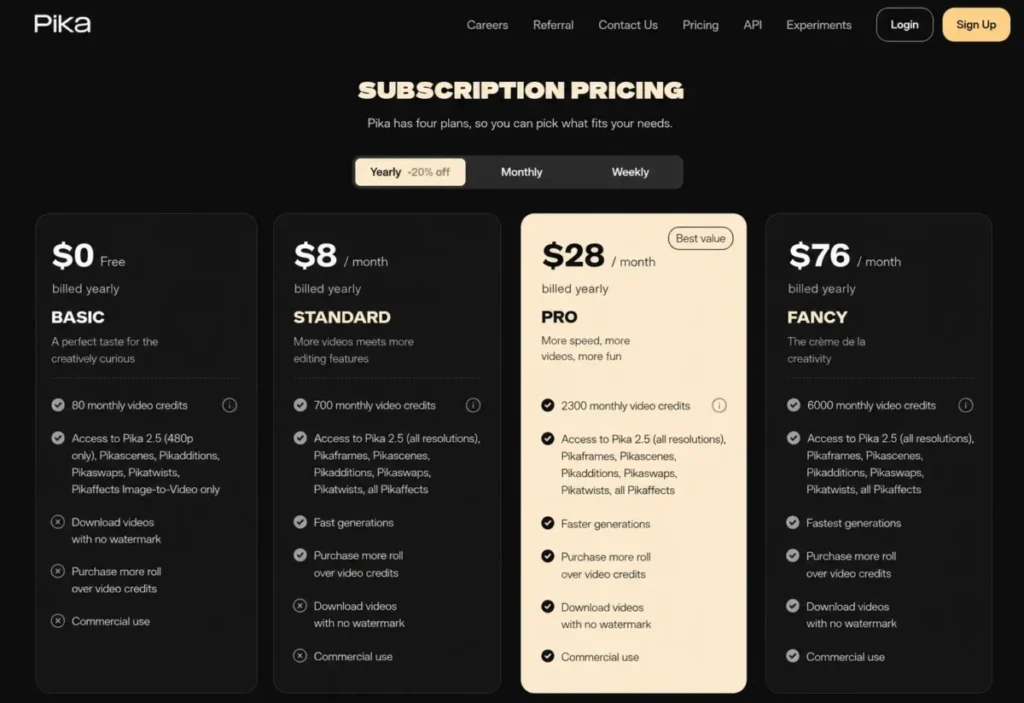
Most buyers choose a Pika plan by counting credits. The more expensive mistake is licensing, because Pika’s own subscription pricing matrix marks commercial use and watermark-free downloads as unavailable on the two cheapest paid states.
This Pika Art review puts plan rights first and credit volume second. Pika is worth paying for when the job is short, effects-led social video and the buyer starts on Pro, which costs $28 per month billed yearly and is the first tier whose matrix includes commercial use and watermark-free downloads.
It is the wrong purchase for shared team logins, confidential client footage, or one continuous generation longer than 25 seconds.
Free entry is Basic at $0 with 80 monthly credits on the live pricing card, about six five-second 480p clips before a reroll.
The best AI video generators roundup covers where Pika sits against fuller suites, and the best AI tools for content creation hub covers the surrounding stack.
In This Article (23 sections)
Quick Verdict on Pika Art
| Category | Verdict |
|---|---|
| Best for | Solo creators making five to ten second effects-led social clips |
| Not ideal for | Multi-user teams, confidential client media, long single-shot ads |
| Starting price | $0 on Basic, then $8 per month on Standard billed yearly |
| Best practical plan | Pro at $28 per month billed yearly, first tier with commercial use |
Both price lines above are read from the subscription pricing page in its yearly state.
| Category | Verdict |
|---|---|
| Free plan or trial | Free Basic plan, no separate trial published |
| Setup difficulty | Low to generate, medium once external assembly starts |
| Main strength | One-shot transformations: Pikaffects, Pikaswaps, Pikatwists |
| Main limitation | Standard opens resolution and tools but not commercial rights |
| Best alternative | Runway for timeline finishing and team administration |
Source: Pika subscription pricing and Pika FAQ, checked August 17, 2026.
Pika Art Review 2026: Pricing, Workflows, Limits and Verdict
Four gates decide this purchase, and only one is credit volume. The first is commercial use, which opens on Pro rather than on the first paid plan.
The second is metering. The published credit tables price a five-second Pika 2.5 generation at 12 credits for 480p and 40 credits for 1080p, so resolution choice changes monthly capacity by more than a factor of three.
The third is the credit lifecycle, since included credits reset monthly while purchased credits carry over.
The fourth is data handling. Pika’s terms of service describe content that may be used for model development, and the public FAQ states that creations are not fully private.
Pika Pros and Cons
| Pros | Cons |
|---|---|
| Named transformations (Pikaffects, Pikaswaps, Pikadditions, Pikatwists) solve one shot problem fast | Commercial use and watermark-free download are unavailable on Basic and Standard |
| 480p prototyping at 12 credits per five-second clip keeps iteration cheap | Direct Pika shares keep a watermark on every tier, including Pro |
| Pikaframes reaches 25 seconds, past the usual short-form ceiling | Included credits reset monthly, so uneven months waste allowance |
| Per-feature credit tables allow exact capacity forecasting before purchase | One individual per account, with no team plan, roles or audit logging |
| Web and iOS sync under one library, and annual billing saves a clean 20 percent | Terms permit inputs and outputs for model development, with no consumer support commitment or failure-credit rule |
Source: Pika subscription pricing and Pika terms of service, checked August 17, 2026.
Methodology: How This Pika Art Review Was Built
Testing level: documentation-based. Pika was evaluated against four buyer criteria that decide this purchase: plan rights, credit economics, workflow limits and data handling.
The source hierarchy runs official first. The pricing page in its yearly, monthly and weekly states plus the published credit tables carry every price and limit, followed by the FAQ, terms, privacy policy and support pages.
Prices, credit allowances and feature-matrix icon states were checked August 17, 2026. Developer pricing, the documented API workflow and the separate Pika Agent property were read the same day.
Public review signals from the Apple App Store, Trustpilot and Product Hunt appear only as attributed opinion. This review reflects published documentation and public interface states rather than an authenticated account, so generation quality, queue timing and failure-credit behavior are reported as documented or unknown.
What Is Pika?
Pika is a generative video platform operated by Mellis, Inc. that turns text prompts, still images and existing clips into short videos, positioned as an idea-to-video product rather than an editing suite.
The current consumer model is Pika 2.5, wrapped in named creation surfaces: Pikaframes for keyframe transitions, Pikascenes, Pikadditions and Pikaswaps for object-level changes, Pikatwists for scene twists, Pikaffects for presets, and Pikaformance for audio-driven output.
Two adjacent products share the brand but not the account: the Pika API is a developer membership priced per second, and Pika Agent at pika.me is experimental with its own account and wallet.
The practical rule is that a consumer subscription buys credits inside pika.art and nothing else.
The Three Problems Pika Solves
Turning a single asset into a finished-looking clip
The strongest use case is a one-shot transformation: an image or short clip needs motion, an effect or a swapped element without opening an editor.
The published credit tables price Pikaffects at 15 credits for image-to-video and 18 for video-to-video at five seconds, the cheapest activity on the platform. Pikadditions and Pikaswaps insert or replace objects at 20 credits for 480p, 35 for 720p and 65 for 1080p.
For a social creator publishing several posts a week, that pricing supports genuine iteration rather than a single careful attempt.
Getting past the five-second ceiling without an editor
Most short-form generators cap one output at a few seconds, and Pika’s public FAQ documents five or ten seconds for standard text-to-video and image-to-video work.
Pikaframes is the exception, reaching 25 seconds across five bands. The curve is steep: 720p runs 20 to 100 credits, and 1080p runs 40 to 200.
A single 25-second 1080p Pikaframes generation therefore consumes 200 credits, which is more than a quarter of the entire Standard monthly allowance. That is a workflow tool for transitions, not a replacement for a timeline.
Cheap prototyping before an expensive render
The 480p tier is the underrated part of the credit table, because it tests prompt direction at 12 credits per five-second clip and reserves 40-credit 1080p runs for shortlisted shots.
Standard opens every resolution, so the pattern is to prototype low and finish high in one plan.
The Three Problems Pika Creates
A paid plan that still cannot be used commercially
Standard looks production-ready: it opens every resolution, adds Pikaframes and includes all Pikaffects, and Standard costs $8 per month billed yearly.
It does not include commercial use or watermark-free downloads. The pricing matrix marks both as unavailable on Basic and Standard and available on Pro and Fancy, and the public FAQ states the same requirement.
A freelancer who delivers Standard output to a paying client is therefore working outside the published permission, which moves the real entry price for client work from $8 on Standard to $28 per month on Pro billed yearly.
Watermarks that survive the upgrade on one path
Pro and Fancy remove the watermark from downloaded files. They do not remove it from videos shared directly out of Pika, which the Pika FAQ describes as watermarked on every tier.
Reviews that compress this into “Pro removes the watermark” set up a branding surprise. The safe reading is that the download path is clean on Pro and above, while the share path is not, so publishing should always run through a downloaded file.
Creations that are not fully private
The Pika FAQ states that account videos are not fully private and that videos created after November 29, 2024 may be selected for the Templates page, with private mode described as planned and no release date published.
For an embargoed product launch or a client under NDA, planned is not a control. This is the single most under-covered risk in the current search results for this product, and it disqualifies Pika for a category of work that the plan matrix otherwise seems to allow.
Pricing Reality: What Each Pika Plan Costs
The subscription pricing page publishes four plans in three billing states, and the yearly control is labeled as a 20 percent saving. The table uses the yearly state, the cheapest published route to each tier.
| Plan | Price billed yearly | Monthly credits | Commercial use | Worth it? |
|---|---|---|---|---|
| Basic | $0 | 80 | No | Prompt sandbox only |
| Standard | $8 per month | 700 | No | Noncommercial exploration |
| Pro | $28 per month | 2,300 | Yes | Best plan for client work |
| Fancy | $76 per month | 6,000 | Yes | Only after 2,300 proves too few |
All four are US list prices read on the subscription pricing page, which notes that a VAT rate may apply by country of residence.
The same pricing page shows the monthly state, where Standard is $10, Pro is $35 and Fancy is $95.
Against those published rates, Standard totals 120 dollars across twelve monthly payments versus $96 billed yearly. Pro totals 420 dollars versus $336, and Fancy totals 1,140 dollars versus $912.
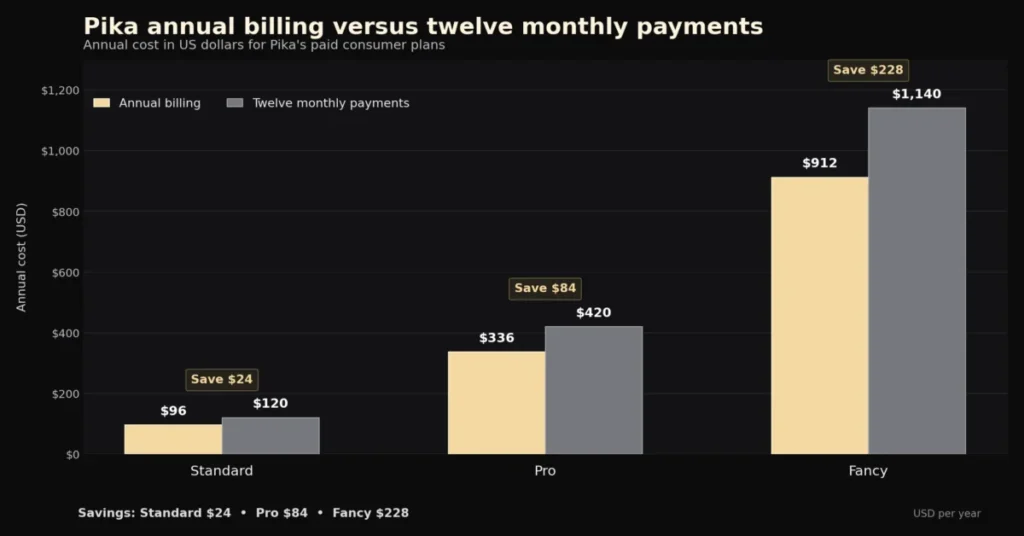
The saving is 24 dollars on Standard, 84 on Pro and 228 on Fancy, which is the 20 percent the pricing page advertises. Annual billing is the cheaper route, and it is also the longer commitment on a product whose terms set automatic renewal with no prorated refund for a partly used period.
Weekly billing is a bridge, not a saving
The weekly state shows Standard at $8.99 for 175 weekly credits and Pro at $14.99 for 575, with Fancy not displayed.
Fifty-two weekly payments come to 467.48 dollars on Standard and 779.48 dollars on Pro.
Against $96 on Standard and $336 on Pro billed yearly, weekly is roughly five times the price for Standard and more than double for Pro.
Weekly suits one campaign week with a hard end date, not a budget strategy.
Higher tiers do not buy cheaper credits
A bigger plan usually lowers the unit price, and on Pika the opposite holds. Each annual commitment divided by its published credit allowance gives about 1.14 cents per credit on Standard, 1.22 on Pro and 1.27 on Fancy.
Standard therefore holds the lowest unit cost, so Pro buys rights, priority and headroom rather than volume economics, and Fancy only after 2,300 credits proves insufficient.
The 10-account cost, and why it is not a team plan
Pika’s terms of service state that each account may be used by only one individual, and no shared-seat or team plan appears on the public pricing page.
Ten creators therefore means ten accounts, which is 3,360 dollars a year on annual billing, or 350 dollars a month billed monthly.
That figure is arithmetic on the published single-account price, not a quoted team rate. Any organization buying at that scale should confirm the purchase path, invoicing and account ownership in writing before assuming it is permitted.
Hidden costs worth naming before checkout
Additional credit pack pricing on the public FAQ is $10 for 375 credits, $20 for 750 and $30 for 1,125, and packs are available on Standard, Pro and Fancy rather than on Basic.
Every pack works out to about 2.67 cents per credit, so the largest pack gives no unit discount, and top-up credits cost roughly 2.3 times more than Standard’s included 1.14 cents.
Two further contract mechanics matter. Subscriptions renew automatically until canceled, cancellation takes effect at the end of the current period, and partly used periods are not refunded except where the terms or local law require otherwise.
Source: Pika FAQ and Pika terms of service, checked August 17, 2026.
Feature Gates: What You Get on Each Plan
| Capability | Basic | Standard | Pro | Fancy |
|---|---|---|---|---|
| Pika 2.5 resolutions | 480p only | All | All | All |
| Pikaframes and all Pikaffects | No | Yes | Yes | Yes |
| Watermark-free download | No | No | Yes | Yes |
| Commercial use | No | No | Yes | Yes |
| Generation priority | Standard queue | Fast | Faster | Fastest |
| Buy rollover credit packs | No | Yes | Yes | Yes |
Every row is read from the subscription pricing matrix. The gate that matters is the pair on rows three and four, which move together and open at Pro.
Resolution access and rights access are separate purchases in effect, and buying the first does not grant the second.
Two absences matter as much as the gates: no plan lists role-based administration, shared workspaces, centralized billing or audit logging, and none lists a private mode.
Source: Pika subscription pricing, feature-matrix icon states read visually, checked August 17, 2026.
Credit Economics: What 700 Credits Actually Buys
Pika publishes a per-feature credit table, so allowance converts into output before purchase. Pika 2.5 is metered by resolution and duration.
| Resolution | Five-second clip | Ten-second clip | Access |
|---|---|---|---|
| 480p | 12 credits | 24 credits | Free tier and above |
| 720p | 20 credits | 40 credits | Paid plans |
| 1080p | 40 credits | 80 credits | Paid plans |
Every rate comes from the published credit tables.
Applying those rates to the 700 credits included with Standard gives a hard ceiling for each configuration.
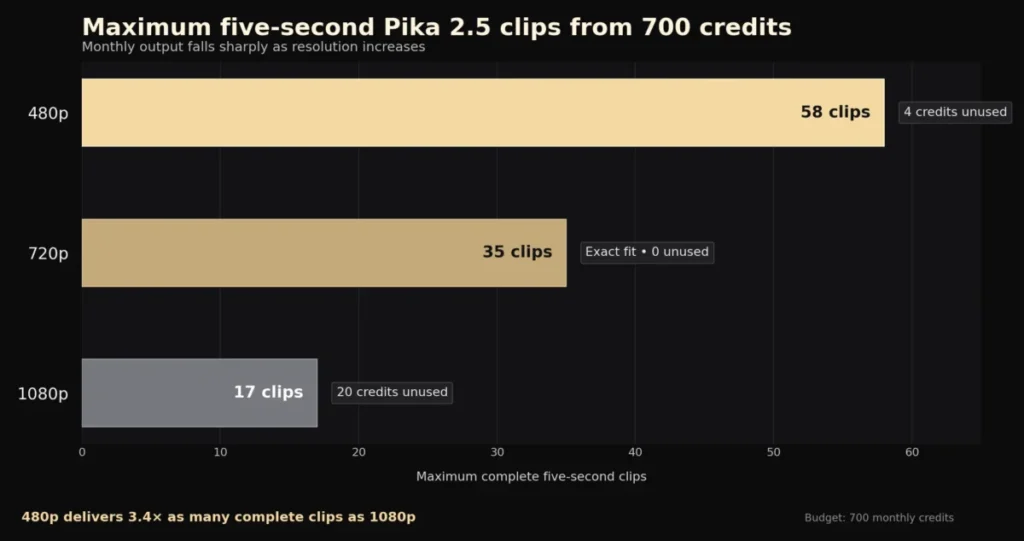
Against the published rates, Standard funds at most 58 five-second clips at 480p with 4 credits spare, 35 at 720p, or 17 at 1080p with 20 spare. Those are ceilings for a month where every generation is kept.
That last condition is the one plan tables usually skip. Public reviews of Pika recurrently describe prompts that miss and outputs that need rerolling, and each reroll is charged in full. Two attempts per usable 1080p shot halves that 17-clip ceiling to eight or nine finished clips a month.
The number of attempts is the lever you control. Tightening the brief before you spend a credit is what moves it, and the cross-model AI video prompt library has the field checklist and scoring thresholds to do that.
The transformation surfaces are priced differently
| Surface | Cost at five seconds | Notes |
|---|---|---|
| Pikascenes, Pikadditions, Pikaswaps | 20 at 480p, 35 at 720p, 65 at 1080p | Dearer than a 1080p Pika 2.5 clip |
| Pikatwists | 60 Turbo at 720p, 80 Pro at 1080p | Dearest per five seconds |
| Pikaffects | 15 image-to-video, 18 video-to-video | Cheapest exploration path |
| Pikaformance | 3 per second at 720p | Audio to 10 or 30 seconds, so up to 90 |
Each figure is read from the per-surface credit tables.
One inconsistency on the same pricing page deserves a flag. Each plan card carries a cost-per-video summary listing 10 credits for Turbo work with Pikascenes, Pikadditions or Pikaswaps, while the detailed table prices those surfaces at 20, 35 and 65 credits by resolution.
Budget against the detailed table, the more specific of the two, then confirm the balance deducted after the first generation.
Source: Pika per-surface credit tables, read on the yearly pricing state, checked August 17, 2026.
Pikaframes duration bands
| Duration band | 480p | 720p | 1080p |
|---|---|---|---|
| Up to 5 seconds | 12 credits | 20 credits | 40 credits |
| Up to 10 seconds | 24 credits | 40 credits | 80 credits |
| 10 to 15 seconds | 36 credits | 60 credits | 120 credits |
| 15 to 20 seconds | 48 credits | 80 credits | 160 credits |
| 20 to 25 seconds | 60 credits | 100 credits | 200 credits |
Source: Pika Pikaframes credit bands, checked August 17, 2026.
Credit Lifecycle: Two Banks, Two Rules
Pika runs two credit balances with opposite expiry rules, and the Pika FAQ is the only place both appear.
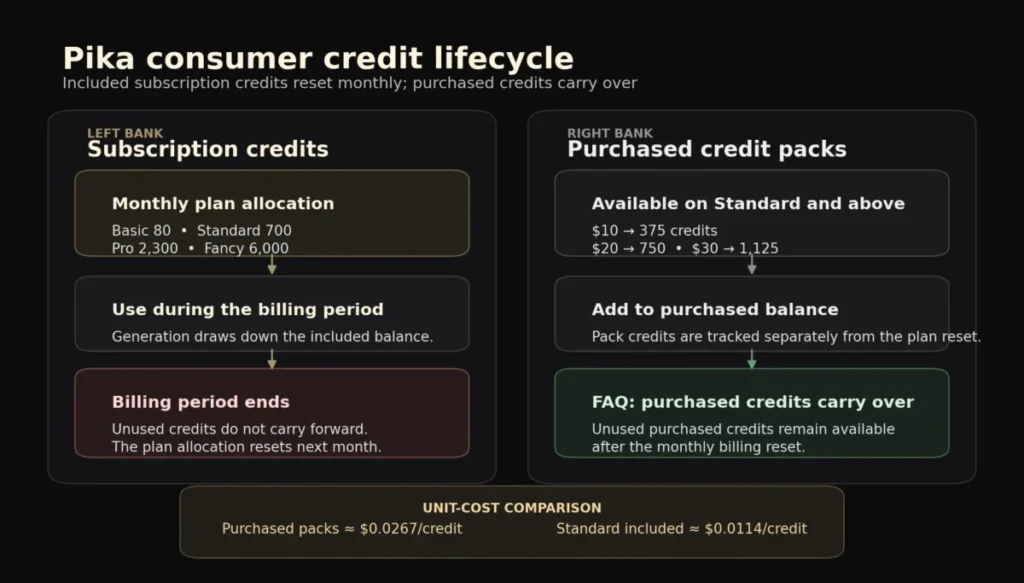
Included credits do not carry month to month, so an unused Standard allowance disappears at the reset. Purchased credits do carry over.
The rule follows: spend the included allowance first, then buy a top-up pack only when a project exceeds it.
One gap remains open. Pika publishes that purchased credits carry over but does not publish an expiration date for them, so a buyer planning to bank a large pack should get that answer in writing at checkout rather than assuming it is indefinite.
Key Features with Plan Gates
Pika 2.5 text-to-video and image-to-video
The core generator makes five or ten second clips from a prompt or still image, and the logged-out composer shows Pika 2.5 with a five-second default before sign-up is required.
The plan gate is resolution. Basic is confined to 480p, and every higher resolution requires Standard or above, which makes 480p the free plan’s only output format rather than a quality preference.
Pikaframes keyframe transitions
Pikaframes animates between reference frames and is the only path the credit tables take past ten seconds, up to 25.
It is gated from Standard upward and omitted from Basic. The limitation is cost rather than access, since the longest 1080p band consumes 200 credits, so previewing at 720p or in a shorter band before the final run is the sensible pattern.
Pikascenes, Pikadditions and Pikaswaps
These surfaces add or replace elements inside an existing clip, the closest Pika comes to editorial control of a shot.
All three appear on Basic at 480p, and higher resolutions require a paid plan. The constraint for client work is the license, because a delivered edit still needs Pro before it can be billed.
Pikatwists and Pikaffects
Pikatwists reworks a scene at 60 credits for Turbo at 720p or 80 for Pro at 1080p, which the credit tables make the most expensive five-second surface on the platform.
Pikaffects is the opposite end at 15 or 18 credits, with Basic limited to image-to-video. The full set arrives at Standard, so the free plan sees a narrowed preset list.
Pikaformance audio-driven output
Pikaformance produces 720p output driven by audio of up to 10 or 30 seconds at 3 credits per second on the published table, which puts a 30-second run at 90 credits.
It is the only surface priced per second rather than per band, and the cheapest route to a longer clip driven by audio.
Ease of Use and Setup
Setup difficulty is low. The public composer exposes the model selector and a five-second duration before an account exists, and sign-up opens settings rather than configuration work.
The learning curve sits in the credit table, not the interface: a creator who ignores that 1080p costs more than triple 480p will exhaust an allowance in a week.
Mobile and web share one account. The Pika FAQ states that web and iOS generations both appear under My Videos.
A creator can therefore start on a phone and finish on a desktop without an export step.
Subscription management does not share one place. Web subscriptions change in the web profile while app purchases run through Apple subscription settings, so a buyer who cancels in the wrong place will renew.
The friction arrives after generation. Anything longer than one output is assembled elsewhere, so a 60-second edit means Pika plus an editor, a workflow cost rather than a subscription cost.
Creators weighing that against fuller suites should see the best text-to-video AI generator options where the timeline ships with the product.
Integrations, API, and the Three Pika Buying Surfaces
Pika publishes no app marketplace or connector list for the consumer product, and no tier gates integrations. Integration happens through the developer product.
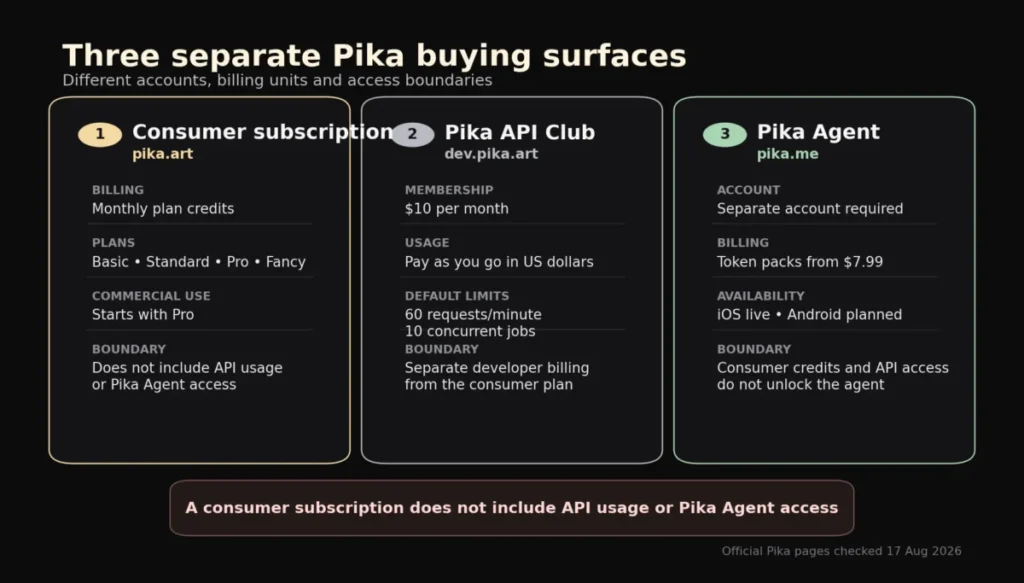
The API is a separate membership. The Pika API Club costs $10 per month plus pay-as-you-go charges, with a stated $10 first-month credit, and its catalog lists 104 models across 17 providers.
Pika’s own models are priced per second rather than in credits there. Pika 2.5 image-to-video is $0.04 per second at 720p and $0.06 at 1080p, Pikadditions and Pikaswaps are $0.03 per request, and Pikaffects is $0.05.
Those dollars and consumer credits are not interchangeable, and no published conversion exists.
The documented developer workflow is conventional. A key is created in the dashboard, generation posts to a concrete endpoint, local files upload through a presigned URL that expires in five minutes, and jobs are polled until completed or failed.
Default capacity on the API pricing page is 60 requests per minute and 10 concurrent jobs, described as scaling automatically with usage.
The third surface confuses buyers most. Pika Agent requires a new account even for an existing subscriber, and ships on iOS with Android described as planned.
Each Pika Agent token pack is priced from $7.99 for 800 tokens up to $149.99 for 15,000 tokens.
Its MCP integration splits billing: generation charges land in the Pika Agent wallet, while prompts through the connected third-party agent bill that agent’s own subscription.
Source: Pika API pricing, Pika API quick start and Pika MCP, checked August 17, 2026.
Automation, AI Models, and Reporting
Automation stops at what a single generation does. No scheduler, batch queue, template automation or webhook is published on any consumer tier, so repeat production is manual.
Model choice is fixed. The consumer product runs Pika 2.5 with per-surface variants such as Turbo and Pro on Pikatwists, while the multi-vendor catalog sits on the developer property.
Reporting is the thinnest area. No plan lists usage analytics, credit-burn reporting or exportable history, so forecasting happens outside the tool against the published rate tables.
For a solo creator that is tolerable. For anyone justifying spend to a client, it means keeping a manual log of generations by resolution and surface.
Security, Support, and Admin Controls
Support is a public search page with issue categories, and no consumer response-time commitment is published.
The one-business-day figure that circulates in reviews belongs to the developer product. The API pricing page describes a shared Slack channel with the developer-relations team and a typical email response within one business day for non-urgent questions.
That commitment is attached to API customers rather than to consumer subscribers.
That matters when a paid generation fails. Public Trustpilot reviews recurrently allege stuck generations, lost credits and slow responses, and Pika publishes no rule on whether a failed generation returns its credits.
Administrative controls are absent by design. The terms limit each account to one individual, and no plan publishes roles, permissions, shared workspaces, single sign-on or audit logs.
No independent audit report, information-security certification or health-data compliance statement appears on the pricing, terms or privacy pages, so a compliance checklist should assume none of them.
Privacy and Data Handling
Two published documents decide whether an agency can use Pika at all.
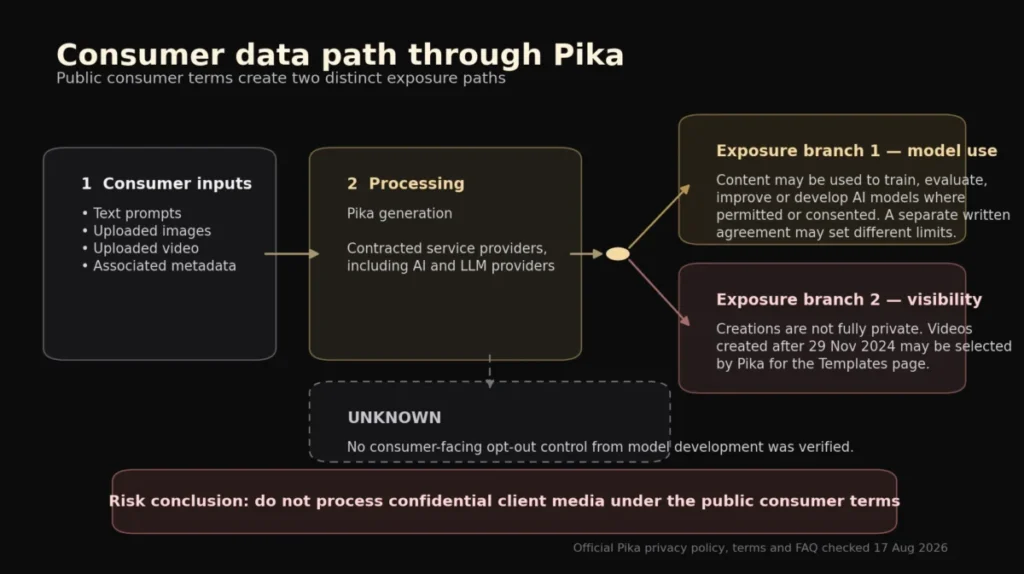
The privacy policy covers prompts, uploaded images and videos, outputs and metadata, and permits disclosure to contracted service providers including AI or LLM providers.
The terms go further. Unless otherwise agreed in writing, Pika may use inputs, outputs and interactions to train and develop its models, which is a permission rather than a toggle.
Ownership and permission are separate. Pika states that users retain their interest in inputs and outputs subject to the terms, and owning an output does not override the plan-level commercial-use restriction.
One retention boundary is specific: biometric information is kept only as long as needed, or at most three years after account deletion.
A wrinkle sits on the adjacent Agent product. The Pika Agent documentation states that inputs are used only for that experience and will not train other agents or general-purpose models.
That is close to the opposite of the consumer video terms, so assuming one Pika data policy gets the answer wrong.
Source: Pika privacy policy and Pika terms of service, checked August 17, 2026.
Pika Limitations
Commercial rights arrive two tiers up. Neither Basic nor Standard includes commercial use or watermark-free download on the pricing matrix, so the first legitimate plan for paid work is Pro at $28 per month billed yearly.
Monthly credits expire. Included allowances reset with no carry-over and only purchased packs roll over, which penalizes uneven production months.
The free allowance is documented twice, differently. The live pricing card lists 80 monthly credits for Basic while the Pika FAQ states 150, and no reconciliation is published.
Free capacity should therefore be confirmed in the account after signup rather than planned from a review.
One continuous output stops at 25 seconds. Only Pikaframes reaches 25, so anything longer is an assembly job in another tool.
Accounts are single-user with no admin layer. The terms restrict each account to one individual and no team plan, role model or audit log is published, which makes shared-login economics both unpermitted and unmanageable.
Failure behavior is unpublished. No consumer rule states whether a failed or stuck generation refunds its credits, which makes that silence expensive rather than academic.
Who Should Use Pika?
Solo short-form creators publishing noncommercial experiments. Basic at $0, or Standard at $8 per month billed yearly on the pricing page, covers prompt exploration and effect testing, and 480p prototyping keeps the burn rate low.
Freelance social-video creators delivering effects-led client clips. Pro is the correct plan, since 2,300 credits with commercial use and clean downloads fits a five to ten second deliverable.
Motion designers who need one specific transformation. Pikaffects, Pikaswaps and Pikadditions solve a narrow shot problem faster than a compositor would, at a per-clip cost low enough to iterate.
High-volume solo creators with a measured ceiling. Fancy at $76 per month billed yearly makes sense only after a month has shown 2,300 Pro credits running out, and the plan table shows Fancy costing more per credit.
Who Should Avoid Pika?
Teams that need shared access or central administration. The one-individual rule, missing team plan and absent audit logging make Pika a set of personal subscriptions rather than a team tool.
Anyone handling confidential or embargoed media. The training permission and the documented Templates exposure are incompatible with NDA footage, and a planned private mode is not a control on any page checked August 17, 2026.
Buyers who need long-form output in one pass. A 30-second single generation does not exist, so creators who need it should look at timeline-built platforms such as the Runway review.
Anyone who needs a fixed number of usable first-pass clips. Ceilings are theoretical maxima, rerolls are charged in full, and no failure-credit rule exists.
Organizations with a compliance checklist. No certification, single sign-on or data residency statement exists for the consumer plans, so procurement will stall.
Pika Alternatives
| Alternative | Better for | Why choose it instead |
|---|---|---|
| Runway | Timeline finishing and team workflows | Editing environment and per-seat administration |
| Adobe Firefly | Brand-safe commercial output | Enterprise licensing and creative-stack integration |
| Leonardo AI | Image-led asset pipelines | Stronger still-image control first |
| Canva AI | Non-specialist marketing teams | Templates, brand kits, shared editing |
Runway is the closest substitute when the deliverable is a finished edit, and the Runway ML pricing breakdown is worth reading before comparing monthly figures to a credit model.
For teams whose bottleneck is brand governance rather than generation, the Adobe Firefly review covers licensing built for commercial use from the entry tier.
Its Firefly pricing breakdown shows what that costs per plan.
Image-first pipelines are better served by the Leonardo AI review or the Midjourney review.
The best AI image generators comparison covers that step, and marketing generalists who want templates should compare the Canva AI review.
These are editorial fit rules from published capability and licensing, not head-to-head output tests.
Final Verdict: Is Pika Art Worth It in 2026?
Pika is worth paying for when the deliverable is a short, effects-led clip and the buyer accepts Pro as the entry point. Pro at $28 per month billed yearly supplies 2,300 credits, commercial use and watermark-free downloads, the smallest configuration that legally supports paid work.
The decision chain runs one way. The documented capability is a five to ten second generator with named transformation surfaces, and the pricing matrix shows the plan gate: commercial use and watermark-free download appear only on Pro and Fancy.
The workflow consequence follows. A freelancer or two-person studio, the affected buyer, can produce a finished-looking clip on Standard at $8 per month and hold no license to bill for it.
The trade-off is therefore a 20-dollar monthly step rather than a feature upgrade.
The recommendation is conditional on one test. If any output will be sold or monetized, choose Pro; if not, Standard is better value because it holds the lowest cost per included credit.
Choose Basic for prompt practice at 480p, Standard for noncommercial work needing every resolution, Pro for any billable delivery, and Fancy only when a measured month has exhausted 2,300 credits. Reject Pika outright, and choose Runway instead, when licensing, privacy, long-form editing or team administration is the requirement rather than a preference.
Before renewal, answer one question: how many usable clips did last month produce, and what did each cost after rerolls?
Frequently Asked Questions
Is Pika worth paying for?
Yes, if the deliverable is a short effects-led clip and the buyer starts at Pro. Pro at $28 per month billed yearly is the first tier with commercial use, watermark-free download and 2,300 credits on the pricing matrix.
It is not worth it on Standard when the output is commercial, since Standard buys resolution without permission to bill.
How much does Pika cost?
On yearly billing the pricing page lists Standard at $8 per month, Pro at $28 and Fancy at $76, which is $96 for Standard, $336 for Pro and $912 for Fancy across a year.
Monthly billing raises Standard to $10, Pro to $35 and Fancy to $95.
A weekly state offers Standard at $8.99 and Pro at $14.99. Because rights begin on Pro, the client budget is the $336 Pro line, checked August 17, 2026.
Is there a free Pika plan?
Yes. Basic costs $0 and the live pricing card lists 80 monthly credits, limited to Pika 2.5 at 480p.
Basic excludes commercial use, watermark-free download and top-ups. The FAQ states 150 credits rather than 80, so confirm the balance after signup.
Which Pika plan allows commercial use?
Pro and Fancy only. The pricing matrix marks commercial use and watermark-free download as unavailable on Basic and Standard, and the FAQ says the same.
Standard opens every resolution plus Pikaframes and all Pikaffects, which looks production-ready, but resolution is not permission.
Does Pika add a watermark?
That depends on the export path. Pro and Fancy remove the watermark from downloaded files, while direct Pika shares stay watermarked on every tier according to the Pika FAQ.
Publishing should therefore run through a downloaded file, even on the most expensive plan.
Do unused Pika credits roll over?
No, unless they were bought separately. Included credits reset each month, while packs bought on Standard, Pro or Fancy carry over.
Additional credit pack pricing on the Pika FAQ is $10 for 375 credits, $20 for 750 or $30 for 1,125, about 2.67 cents per credit at any size.
How long can Pika videos be?
Standard text-to-video and image-to-video generations run five or ten seconds. Pikaframes reaches 25 seconds across five published bands, costing 200 credits for the longest 1080p band.
Anything longer is assembled from several outputs in a separate editor.
Are Pika videos private, and does Pika train on them?
Not fully private, and yes to training. The Pika FAQ states that account videos may be selected for the Templates page, with private mode described as planned.
The terms permit inputs and outputs for model development unless otherwise agreed in writing, and no consumer opt-out is published.
Pika vs Runway: which is better for a small marketing team?
Runway, in most cases. A small team needs shared access, versioning and a timeline, and the Pika terms restrict each account to one individual with no admin layer.
Pika wins when the job is one striking transformation and someone else assembles.
What are Pika’s biggest limitations?
Five stand out across the pricing page and the Pika FAQ. Commercial rights start two tiers up on Pro, monthly credits expire without carry-over, and one continuous generation stops at 25 seconds.
Accounts are single-user with no team administration, no rule states whether a failed generation refunds credits, and the 80 against 150 free-credit conflict is a sixth.
Choose Basic or Standard for noncommercial work, choose Pro or Fancy when a commercial licensing right is required, and reject Pika when privacy, long-form editing or team administration is required.