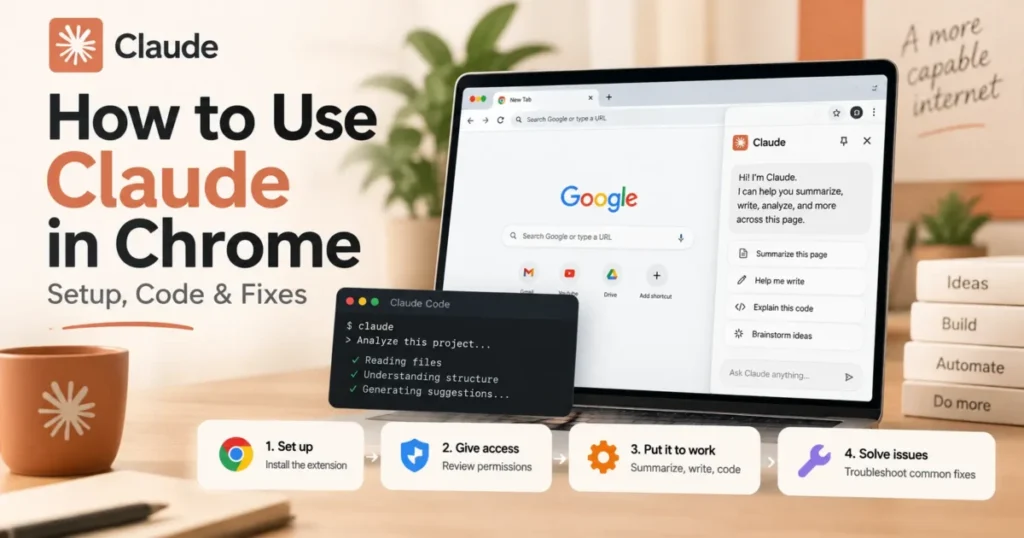
Claude in Chrome runs on three surfaces, not one, and the side panel is only the first of them. The other two do the heavier work, and the setting that decides how much Claude does without asking sits in a different place again.
This guide covers all three, in the order a new user should try them. Each method carries the exact commands, what the documentation says the step should produce, and the documented cause and fix for each of the four error messages the Claude Code docs list.
Claude in Chrome is a paid-plan feature, so the first section settles whether you can run it at all before you install anything.
In This Article (14 sections)
What Claude in Chrome Is Actually For
Anthropic describes the extension as one that lets Claude read, click and work through websites alongside you. The useful way to think about that is not chat with a page.
It is the work that lives behind a login, on a screen with no export button.
A dashboard that shows four numbers and offers no download. A CRM that takes contacts one form at a time, or an internal tool whose reports exist as HTML and nothing else.
None of that is reachable through an API you have access to. All of it is reachable by something that can see your screen and type.
That framing sets the bar for whether setup was worth it. If the only thing you ask for is a summary of an article, a plain assistant tab does that without any permissions.
The extension earns its place when the answer has to come out of a page you are signed into, or go into one. That is the test I would apply before installing anything.
It also explains the risk profile. A tool that reads and clicks inside your authenticated session is operating with your access rather than its own, which is why the permission mode further down this page deserves more attention than the install steps.
What You Need Before You Start
Anthropic is blunt about the trade-off, and the line is worth reading before you install rather than after. The extension, in its own words, is enhanced with safety classifiers but is still risky.
The requirements split by which route you take, so read the row for the method you plan to use.
| Requirement | What the official pages state | What it means for you |
|---|---|---|
| Plan | Available for all paid plans (Pro, Max, Team, and Enterprise) | The Free plan is not listed, so it cannot run it |
| Browser | Not supported on other Chromium-based web browsers or mobile devices | The extension itself is desktop Chrome only, per the setup page |
| Browser for Claude Code | Works with Google Chrome and Microsoft Edge; also detects the extension in Brave, Arc, Vivaldi, and Opera | The terminal route is more permissive than the side panel |
| Extension version for Claude Code | Version 1.0.36 or higher | Update the extension before you debug anything else |
| Account type for Claude Code | A direct Anthropic plan (Pro, Max, Team, or Enterprise) | Bedrock, Google Cloud or Foundry access alone is not enough |
| Windows Subsystem for Linux | Chrome integration is not supported in WSL | The docs rule WSL out and name no workaround |
| Model | Available on all public models | No model choice blocks setup |
Source: official Claude Chrome extension setup page and the Claude Code Chrome documentation, checked 2026-09-12.
Two prerequisites are easy to miss because they are not about Chrome at all. The first is how you signed in.
The documentation states that Chrome integration requires signing in with /login. An API key or a long-lived token from claude setup-token keeps the integration off even when you pass the browser flag, because the extension cannot authenticate with those credentials.
The second is that usage is shared rather than extra. Per the usage-limits note, Claude in Chrome counts against the same plan limits that apply to Claude or Claude Code, so a heavy browser session spends the same allowance as a heavy coding session.
That shared pool is worth planning around. A reader who already runs close to a limit should treat browser automation as a replacement for some existing usage, not an addition to it.
If you have not set the assistant up yet, my Claude setup guide covers the account side first. The Claude pricing breakdown covers which paid tier is the sensible floor for this kind of work.
Method 1: The Chrome Side Panel
Start here. It needs no terminal, and it is the route the help center walks through.
The side panel is in beta, and what runs behind it depends on your plan. On Max and Team plans the side panel runs as a Claude Cowork session, and the setup page says that experience is rolling out to Pro plans.
Install and Pin the Extension
The six steps below are the documented install sequence.
- Open a Google Chrome browser window.
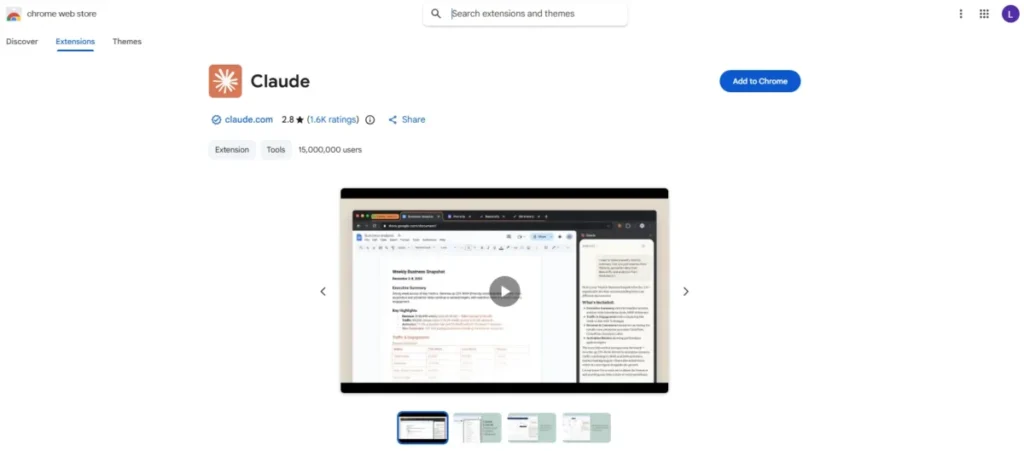
- Visit the Chrome Web Store to find Claude in Chrome.
- Click “Add to Chrome” to install the extension.
- Sign in with your Claude account credentials when prompted.
- Pin the extension by clicking the puzzle piece icon, then the thumbtack next to “Claude.”
- Grant the necessary permissions to enable Claude to interact with your browser.
Expected outcome: the documented sequence ends with the extension pinned and its permissions granted, which is what puts the Claude icon in the toolbar.
Pitfall: the store listing is named “Claude” and its publisher is Anthropic, not the longer product name. Check the publisher line before you click Add.
I would not skip step 5. It is the step that moves the icon out from behind the puzzle piece menu.
Grant the Permissions the Extension Asks For
The setup page lists fifteen Chrome permissions. Three of them do the load-bearing work, and the documentation explains each in plain terms.
| Permission | What the documentation says it does |
|---|---|
| debugger | This is what allows Claude to actually control your browser, clicking buttons, typing text, and taking screenshots, when you ask it to complete tasks for you |
| webNavigation | This lets Claude intervene if it detects that you are on a high-risk website |
| nativeMessaging | This will let the extension seamlessly integrate with other Anthropic products on your computer like Claude Desktop or Claude Code once we enable that capability |
Source: the permission list on the official extension setup page.
The debugger permission is the one that gives people pause, and the documented purpose is exactly the clicking and typing the extension exists to do.
The capability is broad by necessity, so the control you actually exercise is when it fires rather than how far it reaches. That is why the permission mode, not this dialog, is the setting worth deciding.
Run Your First Task
Open the side panel on a page you are already signed into, then describe the job instead of naming the buttons.
A request like “pull every row in this table into a CSV and tell me which three are missing an owner” gives Claude both the goal and the finish line. A request like “tidy this up” leaves Claude deciding what done means.
Expected outcome: what happens next is set by the permission mode. In Manually approve, Claude pauses before each action; in Automatically approve, it keeps working and reviews each action for safety.
Pitfall: the first run is where you learn whether your site renders in a way Claude reads cleanly. Pick a page whose result you can check by eye in ten seconds.
What Breaks First on the Side Panel Route
Two weaknesses are visible in the documented design rather than in any test.
The first is a page that loads its content late. The documented steps include no wait step, so a dashboard that paints its numbers after a delay is the case I would be most careful with.
The second is scope. A panel that sits beside one tab invites one-tab requests, and I would expect that habit to keep a reader at summaries rather than at the tasks that justify the permissions.
If that is where you are after a week, the terminal route below is the upgrade.
Method 2: Claude Code in Your Terminal
This is the stronger route. Claude Code drives the same extension from the command line, so browser steps and file steps sit in one session: read a local CSV, fill a web form with it, then write what came back to disk.
The documentation is direct about how it behaves. Claude opens new tabs for browser tasks and shares your browser’s login state, so it can reach any site you are already signed into.
Browser actions run in a visible Chrome window in real time.
That visibility is a feature rather than a limitation. You watch the clicks happen, which makes it easier to catch a misread page before it writes anything.
Connect Claude Code to Chrome
- Install the extension first, following Method 1, and confirm it is version 1.0.36 or higher.
- Sign in to Claude Code with
/login. An API key or aclaude setup-tokencredential will not work here. - Start Claude Code with the browser flag:
claude --chrome. - Press Enter through the one-time dialog that introduces the integration and explains how site permissions work.
- Run
/chrometo check the connection.
Expected outcome: the status panel shows “Status: Enabled” and “Extension: Installed”. The documentation names that pair as the signal that the integration is working.
Pitfall: the first time you enable the integration, Claude Code installs a native messaging host configuration file, and Chrome reads that file on startup. If the extension is not detected on the first attempt, restart Chrome so it picks up the new configuration.
The docs give the mechanism rather than a success rate: Chrome reads that file on startup, so a restart is what lets it pick up a newly written one. Nothing in “extension not detected” hints at that.
To stop passing the flag every session, run /chrome and select “Enabled by default”.
There is a cost to that convenience, and the docs state it plainly: enabling Chrome by default in the CLI increases context usage because browser tools are always loaded. I would leave it off and type the flag, because browser tools sitting in context on every coding session is a tax you pay whether or not you open a page that day.
If more than one browser is connected, you choose which one Claude uses, and it keeps using your choice even when another browser connects. Run /chrome and select Select browser to switch later.
Know What Runs Without Asking in Plan Mode
Plan mode splits browser calls by whether they change anything, which is the distinction that decides how often you get interrupted.
| Call type | What it covers | Prompts for approval |
|---|---|---|
| Read-only | read_page, get_page_text, find, reading console messages or network requests, and taking a screenshot | No |
| State-changing | Clicks, typing, navigation, tab and window management, and recording a GIF | Yes |
Source: the plan-mode section of the official Claude Code Chrome documentation.
There is a trap inside the read-only row worth knowing before it surprises you. An otherwise read-only call also prompts for approval when it sets a state-changing input flag, such as saving a screenshot to disk rather than returning it.
To see the full tool list yourself, run /mcp, select claude-in-chrome, then select View tools.
That server name matters for a second reason. An organization can block the claude-in-chrome server with the deniedMcpServers managed setting, and when it does, Claude Code does not show the install prompt.
That reads as a missing feature rather than a policy, which is why the server name is worth knowing.
Uploads Have Three Limits
File upload is the feature that makes the terminal route worth the setup, and it carries three documented restrictions rather than one.
- Permission: Claude can upload a file only when the session is allowed to read it, so a rule that denies read access to a file also blocks uploading it.
- Size: a single upload can include up to 10 MB of files in total.
- Hard links: Claude refuses files that have multiple hard links, which is common inside package-manager stores like
node_modules. Copy the file and upload the copy.
Source: the upload section of the official Chrome integration docs.
The hard-link rule is the one that reads like a bug when you hit it. A file pulled straight out of a dependency folder gets refused, and copying it somewhere else first is the whole fix.
What Breaks First on the Terminal Route
The first is long sessions, and it has its own documented error message rather than a silent pause. The fix sits in the troubleshooting section below.
The second is session hygiene. The extension collects the tabs Claude opens into a Chrome tab group tied to your session, and the docs state that typing /clear closes that group, open pages included, unless work that survives the clear is still running.
Method 3: A Claude Cowork Session
The third route needs no install beyond Method 1’s, and it is last here because it depends on a plan and admin state you may not control. The setup page names Claude Cowork alongside Claude Code and the side panel, so it is a first-class surface rather than a workaround.
On Enterprise plans the side panel runs as a Cowork session once an admin has enabled Cowork in the cloud, and until then the side panel uses the classic experience.
That sentence is the one to reach for when two colleagues on the same plan see different panels. The variable is an admin setting rather than the subscription.
Expected outcome: on Max and Team the side panel is already running as a Cowork session, so there is nothing extra to switch on.
Pitfall: reached through the side panel, Cowork inherits the desktop-Chrome-only limit, because that limit belongs to the extension’s side panel.
When the Side Panel Looks Different Than It Did
The troubleshooting page carries a heading for exactly this, so it is a known state rather than a bug report. The setup page explains the mechanism behind it.
Check your plan first, using the rule quoted in Method 1.
Then check with your admin if you are on Enterprise, for the reason given earlier in this section.
Only then the extension version, which is the least likely cause and the easiest to rule out from chrome://extensions.
Which Method to Choose
| If your task is | Use | Why |
|---|---|---|
| Reading or extracting from the page in front of you | Side panel | No setup beyond the install, and the panel sits beside the page |
| Anything that mixes local files with web pages | Claude Code with the browser flag | One session reads the file and fills the form |
| Testing or debugging something you are building | Claude Code with the browser flag | Console and network reading sit next to the code |
| Repetitive multi-site data entry | Claude Code with the browser flag | Uploads and file output make the loop finishable |
| Work you want to keep as an ongoing session | Cowork | Nothing to install beyond the extension, and on Max and Team the panel is already a Cowork session |
| Anything on Edge, Brave, Arc, Vivaldi or Opera | Claude Code with the browser flag | The extension is Chrome-only for the panel; Claude Code is documented with Chrome and Edge and detects the other four |
A reader with one job to do should start at the top row and stop there. The terminal route only pays for itself once a task touches a file on your machine.
Permission Modes: The One Setting That Matters
Every other choice on this page is reversible in seconds. This one decides how much Claude does before you see it, so set it deliberately on day one.
One thing to know before you open the setting. The general availability announcement says Claude will now automatically approve actions it determines to be safe, so day one is a switch to Manually approve rather than a confirmation of it.
You reach it through the extension: click the Claude extension icon, then the three dots in the upper right corner of the side panel, then Extension settings, which lands on the Permissions page.
| Mode | What the documentation says it does | When I would use it |
|---|---|---|
| Manually approve | Claude pauses and asks for approval before each action. You review each request and choose Allow or Deny | The first week, and any session on a site holding money or customer records |
| Automatically approve | Claude keeps working and reviews each action for safety, automatically blocking anything it determines to be unsafe and pausing to ask you when needed | Routine work on sites you have already watched it handle |
| Skip all approvals | Claude doesn’t pause to ask and nothing checks its actions automatically | Nowhere I can name for a business account |
Source: official Claude permissions guide for all three mode descriptions.
The third row earns its blunt entry. Anthropic’s own condition for that mode is that you completely trust every action, connector, file and app involved in the task, and a browser session on the open web does not meet that test.
The permissions guide lists three actions that require explicit permission: modifying permissions settings, granting authorizations, and inputting potentially sensitive information into websites.
The third item is the reason I would expect a form-filling session to keep interrupting. That is the design rather than a fault.
What Claude in Chrome Will Not Do
The permissions guide lists actions that are prohibited outright. Reading it before you plan a workflow saves building one around a step that will never run.
- Making purchases or financial transactions
- Creating accounts
- Handling sensitive credit card or ID data
- Downloading files from untrusted sources
- Permanent deletions (emptying trash, deleting emails, files, or messages)
- Providing investment or financial advice
- Executing financial trades or investment transactions
- Modifying system files
- Completing instructions from emails or web content
Source: the prohibited-actions list in the official permissions guide.
The last item is the quiet one, and it is a security control rather than a feature limit. Completing instructions from emails or web content is on the prohibited list, which is the defence against the attack described further down.
There is also a category block that has nothing to do with your settings. Sites can fall into default blocked categories, and the official troubleshooting page names them as financial services, banking, investment platforms, cryptocurrency exchanges, adult content and pirated content.
If Claude will not touch your bank, that is the first thing to check.
Three Tasks I Would Not Hand to It
This is editorial judgement rather than documentation, and it comes from what the prohibited list implies about where the sharp edges are.
Anything that sends on your behalf. Mail, messages and public posts are irreversible in a way a wrong CSV is not, and a single misread thread costs more than the automation saves.
Anything that authorises. Granting an app access to an account is one click and a long tail of consequences, and it sits in the explicit-permission list for exactly that reason.
Anything where you cannot check the result. If verifying the output takes longer than doing the task, the automation has moved work rather than removed it.
13 Prompts to Copy for Your First Week
The difference between a useful browser agent and a party trick is whether you asked for a finished artifact.
Each prompt below names the input, the action and what comes back. Paste one, then read what Claude proposes before you approve it.
Extract and Report
Read this page and pull every row of the main table into a CSV with the same column headers. Do not click anything. Tell me which rows have an empty cell in any column.
Go through the tabs I have open in this window, list the page title and URL of each one, and group them by topic in a markdown table.
Open this dashboard, read the current values of the four headline numbers, and write them into a dated row appended to metrics.csv on my machine.
Fill and Submit
I have contacts.csv on my machine. For each row, open the CRM at this URL, click Add Contact, and fill in the name, email and phone fields. Stop before submitting the first one and show me what you filled in.
Fill this expense form from receipt.pdf on my machine. Leave the submit button alone and tell me which fields the receipt does not cover.
Open the bug tracker at this URL, create a new issue titled exactly what I paste next, and attach logs/session.log from my machine.
Test and Debug
Open localhost:3000, submit the login form with an invalid email, and tell me what the console logged and what the user saw.
Load this page, read the network requests, and list every request that returned a status other than 200 with its URL and status.
Compare the page in this tab against the same page on staging. List every visible difference in headings, button labels and prices.
Record a GIF of the checkout flow on this site from adding an item to the confirmation page, then tell me whether it paused anywhere.
Research Across Sites
Open each of these three vendor pricing pages in turn, read the plan names and the monthly per-seat prices, and give me one table with a row per plan. Quote the page wording for anything ambiguous.
Find the pricing page on this site, read the plan names and prices, and give me one table with the exact figures the page states.
Open this competitor’s documentation and this vendor’s documentation, find the page on each that covers usage limits, and put the two sets of numbers in one table.
Two habits make these land. Name the file you want back rather than asking only for a summary, because the artifact is the thing you can check.
Then tell Claude where to stop. “Stop before submitting” is three words, and it is what turns an irreversible action into a review step.
Troubleshooting: Error, Cause, Fix
The Claude Code docs list four common error messages, each paired with a cause. Match the exact string rather than guessing from the symptom.
| Error | Documented cause | Fix |
|---|---|---|
| “Browser extension is not connected” | Native messaging host cannot reach the extension, or your organization’s IP allowlist rejects the connection to bridge.claudeusercontent.com | Restart Chrome and Claude Code, then run /chrome to reconnect |
Extension shows “Not detected” in /chrome | Chrome extension is not installed or is disabled | Install or enable the extension in chrome://extensions |
| “No tab available” | Claude tried to act before a tab was ready | Ask Claude to create a new tab and retry |
| “Receiving end does not exist” | Extension service worker went idle | Run /chrome and select “Reconnect extension” |
Source: the error table in the official Chrome integration documentation.
The first row is worth reading twice, because it names two different causes behind one symptom. One is local, and a restart clears it.
The other is your company’s network refusing a connection to a specific host, and no amount of reinstalling touches that. If you are on a managed laptop and the error survives a restart, hand the host name to whoever owns the allowlist.
When the Extension Is Not Detected
Work this list in order rather than jumping to a reinstall.
- Verify the extension is installed and enabled in
chrome://extensions. - Verify Claude Code is up to date by running
claude --version. - Check that Chrome is running.
- Run
/chromeand select “Reconnect extension”. - Restart both Claude Code and Chrome.
If it still fails, check that the native messaging host configuration file exists. I would read a missing file as a connection that never worked, as opposed to one that broke.
| Browser and system | Configuration file location |
|---|---|
| Chrome, macOS | ~/Library/Application Support/Google/Chrome/NativeMessagingHosts/com.anthropic.claude_code_browser_extension.json |
| Chrome, Linux | ~/.config/google-chrome/NativeMessagingHosts/com.anthropic.claude_code_browser_extension.json |
| Chrome, Windows | HKCU\Software\Google\Chrome\NativeMessagingHosts\ in the Windows Registry |
| Edge, macOS | ~/Library/Application Support/Microsoft Edge/NativeMessagingHosts/com.anthropic.claude_code_browser_extension.json |
| Edge, Linux | ~/.config/microsoft-edge/NativeMessagingHosts/com.anthropic.claude_code_browser_extension.json |
| Edge, Windows | HKCU\Software\Microsoft\Edge\NativeMessagingHosts\ in the Windows Registry |
Source: the troubleshooting section of the official Chrome integration documentation. Other Chromium-based browsers read the same file from their own configuration directory, named after the browser.
Windows adds two failure modes of its own. A named pipe conflict resolves by restarting Claude Code and closing other sessions that might be using Chrome, and a native messaging host that crashes on startup is a reinstall of Claude Code to regenerate the host configuration.
When It Connects and Then Stops
Two failure modes look like a broken integration and are not.
The extension’s service worker can go idle during extended sessions, which breaks the connection. Running /chrome and selecting “Reconnect extension” is the documented fix, and it is worth trying before concluding anything is wrong.
The other is a page problem rather than an extension problem. A JavaScript dialog blocks browser events and prevents Claude from receiving commands, so an alert or confirm box left open stops everything.
Dismiss it by hand, then tell Claude to continue. This is also why a page that throws dialogs is a poor first test.
When Claude Cannot See or Reach the Page
The troubleshooting page treats “Claude can’t see the webpage” and “Actions aren’t working correctly” as separate headings from the connection errors above, which is the right split.
Start with the site rather than the software. A blocked category, an admin blocklist and an ungranted site permission are all site-side causes rather than install faults, and none of them is a bug.
Team and Enterprise: What Your Admin Controls
On a company plan, four admin controls override what you set. They are available for Team and Enterprise plans, and the blocklist among them applies regardless of other settings.
| Control | What it does |
|---|---|
| Enable for your team toggle | Enables or disables Claude in Chrome for the entire organization |
| Allowlist | Specifies which sites Claude is permitted to access |
| Blocklist | Specifies sites Claude should never access, regardless of other settings |
| forceLoginOrgUUID Chrome enterprise policy | Limits which organization the extension can be used with |
Source: official Claude admin controls page for all four rows.
One date on that page belongs in an administrator’s calendar. Starting September 10, 2026, the team toggle turns on by default unless it has already been disabled, which means a workspace that never made a decision has now made one.
The blocklist row is the one that ends arguments, because it applies regardless of other settings. A user who granted a site permission in the extension still cannot reach a blocklisted site.
For an admin reading this, the sequence I would follow is narrow before wide.
Decide the toggle first, because leaving it to a default is a decision either way. Then set a blocklist for the systems that hold money, payroll and customer records.
Only after that would I open an allowlist, and I would open it per team rather than per company. A marketing team that needs a CMS and an analytics dashboard does not need the finance stack in scope, and an allowlist written once for everybody ends up as wide as no allowlist at all.
The last piece is a review date. Site lists rot the moment a team adopts a new tool, so an allowlist nobody revisits becomes a support ticket in month two, and the fix is a calendar entry rather than a policy.
Is Claude in Chrome Safe? What Anthropic Publishes
The honest answer is that the risk is real, named by the vendor, and only partly measured.
The biggest risk facing browser-using AI tools, per Anthropic’s own safety guidance, is prompt injection: malicious instructions hidden in web content that could trick Claude into taking unintended actions. The instructions sit in the content Claude reads rather than in anything sent to you.
Anthropic made the feature generally available on every paid plan in a post dated August 26, 2026. The same post lists four points under its prompt-injection heading, three of them defences.
| Defence | How the announcement describes it |
|---|---|
| Recognition | Claude recognizes more attacks |
| Probes | Probes screen web content before Claude acts on it |
| Verification | Actions are verified before they run |
Source: the prompt-injection section of the official general availability announcement.
One number is published, and it is worth quoting precisely rather than rounding. The safety page states that the current configuration reduces attack success rates to less than 0.08%.
Read that figure for what it is. It is a vendor-published figure, and the same page says human security researchers continuously probe for vulnerabilities, which reads as a moving target rather than a warranty.
The feature also now approves some actions on its own, as the announcement quoted in the permission section states. The Permissions page is where you change that.
Three habits are worth more than the number. Switch to Manually approve for any site that holds money, records or customer data.
Avoid opening the extension while viewing sensitive information, which the safety page recommends directly. And treat the prohibited-actions list above as the real boundary, because it is published as a prohibition rather than a recommendation.
I would not run Skip all approvals on an account that can spend money or send mail on your behalf.
If a session does something you did not ask for, the useful move is to stop it and look at the page rather than the prompt. Hidden instructions live in the content, so the page Claude was reading is the evidence.
Anthropic asks for reports of safety issues and unexpected behaviour through its own channel, which is the right destination for a session that went wrong in a way this page does not explain.
What Changes After Setup, and What to Do Next
A working setup leaves you with three things: a pinned extension, a permission mode you chose on purpose, and one task you have watched Claude finish end to end.
Watch that first task rather than walking away from it. The point of manual approval in week one is not safety theatre, it is learning which of your sites Claude reads cleanly and which ones confuse it.
That knowledge is what makes automatic approval a reasonable choice in week three. Without it, the mode switch is a guess.
By the end of a month you should be able to name two or three recurring jobs the browser route has taken off your hands, each with an artifact you can point at. If you cannot, the honest read is that your work does not live behind logins, and the setup was not worth it for you.
One habit is worth keeping past the first month. Check the site permissions list every few weeks, because a permission granted for one task stays granted, and the list is where scope creeps quietly.
From there, the next step depends on what you do all day. If your work is writing and research, the assistant’s own habits matter more than the browser layer, and the Claude setup guide linked in the requirements section above covers those.
If you are weighing this against other paid assistants, the Claude review covers where it lands overall.
Related Resources
- Best AI chatbots: where Claude sits against the field for day-to-day work.
- ChatGPT review: the closest comparison for readers choosing between two paid assistants.
- Perplexity review: for readers whose browser work is mostly research rather than actions.
FAQ
The body covers setup, permissions and errors. These are the questions readers still ask afterwards.
How Do I Get Claude to Work in Chrome?
Install the extension from the Chrome Web Store on a desktop copy of Google Chrome, sign in with a paid Claude account, pin the extension, and grant the permissions it asks for.
If you want it in the terminal instead, sign in to Claude Code with /login, start it with claude --chrome, and run /chrome to confirm the status panel reads Enabled and Installed.
Can I Use Claude in Chrome for Free?
No. The setup page states it is available for all paid plans, naming Pro, Max, Team and Enterprise, so a Free account cannot run it.
The pricing guide linked earlier compares the paid tiers. If a free browser sidebar for summaries and rewrites would cover your needs, the MaxAI review shows how far its Free plan goes before Pro.
Does Claude in Chrome Work on Edge, Brave or Arc?
It depends on the route. The side panel is not supported on other Chromium-based browsers or on mobile.
The Claude Code integration works with Chrome and Edge, and also detects the extension in Brave, Arc, Vivaldi and Opera.
Why Does It Say Claude in Chrome Is Not Connected?
The documented causes for “Browser extension is not connected” are a native messaging host that cannot reach the extension, or an organization IP allowlist rejecting the connection to bridge.claudeusercontent.com.
The fix is the restart-and-reconnect sequence in the error table above. If your company uses IP allowlisting and it persists, it is a network question rather than an install question.
Does Claude in Chrome Use My Normal Plan Limits?
Yes. Usage limits apply across interfaces, so browser work counts against the same plan limits as Claude or Claude Code rather than a separate browser allowance.
Is It Safe to Let Claude Click Things on My Behalf?
It carries real risk, and Anthropic says so on its own page. The main threat is prompt injection through hidden instructions in page content, and the published figure for the current configuration is an attack success rate of less than 0.08%.
Use Manually approve on the sites that matter, and do not open the extension while sensitive information is on screen.
Why Will Claude Not Open My Bank or Exchange?
Those sit in default blocked categories. The troubleshooting page names six of them, listed in the permission section above, and it is the first thing to check rather than a bug.
Can My Company Stop Me Using It?
Yes, in several ways. Four sit on the admin controls page: disabling the extension for the whole organization, restricting Claude to an allowlist, blocklisting specific sites regardless of your own settings, and deploying the forceLoginOrgUUID Chrome enterprise policy to limit which organization the extension works with.
An organization can also block the claude-in-chrome server, as the plan-mode section above notes, in which case Claude Code does not offer to install it.