

To make an AI video, choose the method that fits what you start with: text, an image, a script for an avatar, or a clip you already have. Then prompt each shot, generate short clips, assemble them, add audio and captions, and export once rights and AI disclosure are cleared.
One generation is a short clip: 2 to 10 seconds on Runway’s Gen-4.5, up to 8 seconds in Canva. So learning how to create an AI video longer than that means planning shots so each generation stays inside the clip length.
- Task: make one short AI video, such as a clip or a YouTube Short
- Result: an exported file at the right ratio, with audio, captions, cleared inputs and the AI disclosure set
- Prerequisites: one tool account and its plan, rights to every upload, age 18+ for Google’s video tools
- Tools: a generator, an editor, a voice source
- Limitation: single generations are short clips
In This Article (14 sections)
What You Need to Make AI Videos
You need an account on one tool that passes its gate, an idea or short script, rights to what you upload, and a destination.
- Google Flow: 50 daily Google Flow credits without a Google AI subscription, 18+; features vary by tier, platform and region (Google Flow).
- Gemini Apps: a Google AI plan for a personal account, a qualifying Workspace license for work or school, and not for users under 18 (Gemini Apps help).
- Canva Create a Video Clip: Pro, Business, Enterprise and Nonprofit users get a limited number of clips per month.
- Runway Gen-4.5: the Standard plan or higher. The Free plan’s 125 one-time credits cover images, voiceovers, Characters, upscaling and scene building.
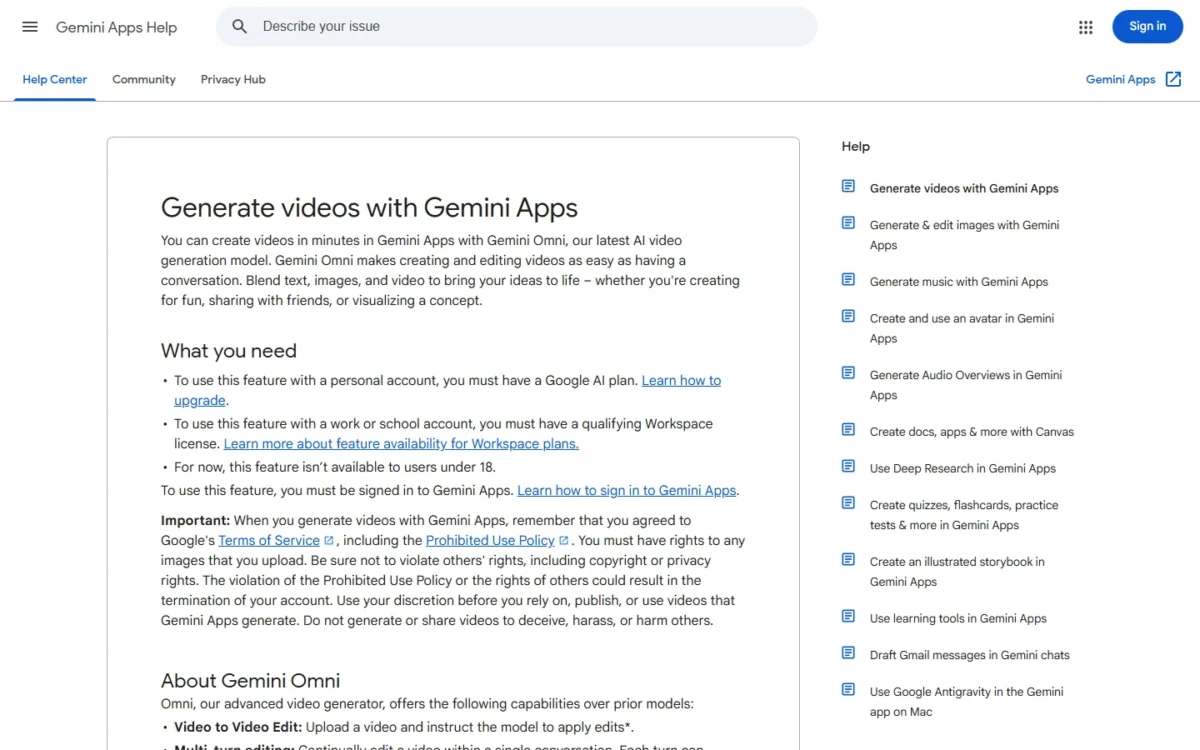
For a free first test, Flow’s daily credits fit best: Gemini and Canva put video on paid plans, and Runway’s Free plan list names no video generation. Gemini says one video may take a few minutes to generate.
Step 1: Choose Your Method Based on What You Start With
Your starting material picks one of 5 methods, and the method decides what the prompt may say.
| You start with | Method | The prompt’s job | Documented options |
|---|---|---|---|
| An idea only | Text-to-video | Describe what is in frame and how it moves | Runway Gen-4.5, Flow Text to Video, Canva Create a Video Clip |
| A still you must keep | Image-to-video | Describe motion only | Runway Gen-4.5, Flow Frames to Video, Firefly first frame |
| A script and a presenter | Avatar video | Script, voice settings, scene order | HeyGen AI Studio, Canva talking head, Gemini avatar |
| A script plus slides or stock media | Script-to-video in an editor | Scene order and on-screen text | HeyGen PPT/ |
| A clip that is nearly right | Video-to-video edit | Describe only the change | Gemini Omni, Runway Aleph 2.0, Flow video-to-video editing |
Sources: Runway AI video generator, HeyGen AI Studio overview, checked October 2026.
Pick one method per shot, not per video: a teaser can open on an animated product photo and close on a presenter.
Gemini Apps now runs on Gemini Omni, with video-to-video edits and multi-turn editing. Sora went the other way: OpenAI’s help page says its web and app ended on April 26, 2026 and its API on September 24, 2026.
For the first row, my text-to-video generators compared ranks tools by job.
For the second, see the image-to-video generators shortlist.
On Google’s free route, the Google Flow beginner tutorial walks through its screens.
Expected result: every planned shot has one of the 5 methods written next to it.
Step 2: Set the Aspect Ratio and Length for Where It Will Play
Lock the shape and the total length before you write a prompt, because both change what each shot must frame.
| Destination | Shape | Vendor facts |
|---|---|---|
| YouTube Shorts | Vertical | Shorts run up to 3 minutes and upload at up to 1080p; Gen-4.5 lists 9:16 at 720×1280 px |
| YouTube video or website | Horizontal 16:9 | Gemini text prompts default to Landscape; Canva clips are 16:9 |
| Square feed post | 1:1 | Gen-4.5 lists 1:1 at 960×960 px |
Sources: YouTube Shorts help, Runway Gen-4.5 guide, checked October 2026.
Gemini matches the ratio of an uploaded image or video, and Gen-4.5’s image-to-video follows the input image by default, so crop the still to the target shape first.
Length is a shot count. At Gen-4.5’s 10-second maximum, a 30-second video takes at least three generations: 3 x 10 seconds x 12 credits = 360 credits before any retry. Its 720p output, not the 1080p Shorts ceiling, is the resolution limit you meet first.
Expected result: the ratio and the total length sit at the top of your shot card.
Step 3: Write the Script and Break It Into Shots
Write the story in a few lines, then give every shot its own card: one action, one method, one duration inside the tool’s clip length.
| Field | What to write | Why it matters |
|---|---|---|
| Shot ID and job | S1, S2… and the shot’s job | Keeps retries traceable |
| Method | One method from Step 1 | Decides the prompt grammar |
| Duration and ratio | Seconds and shape | Must fit the model’s window |
| Subject and count | Main subject, how many | Firefly says more than four subjects can often confuse it |
| Action | One visible action | Keeps the review simple |
| Camera and motion | Camera, subject, background motion | Three motions, three instructions |
| Reference and role | Each upload and what it controls | No untracked variables |
| Rights cleared | Yes, or stop | No retry fixes an upload you may not use |
| Prompt | The exact text sent | Makes retries comparable |
| Acceptance line | What a viewer must see | Turns “looks off” into a named failure |
For a presenter video, swap the camera row for script, voice and scene order; HeyGen’s AI menu includes a Script writer.
To keep one character across shots, reuse the same still or reference. Runway says a character reference keeps that character’s look across everything you generate.
Expected result: a numbered shot list, with 9 of the card’s 10 fields filled and only the prompt left.
Step 4: Write the Prompt for Your Method
A text-to-video prompt describes what is in frame and how it moves. An image-to-video prompt describes motion only, and an avatar video takes a script instead of camera language.
Text-to-video prompts
Describe the visuals and the motion in plain sentences. Runway’s text-to-video guide suggests “[Camera] shot of [a subject/object] [action] in [environment]” and says natural language usually gives more control than keywords.
Adobe’s Firefly prompt guide orders it as Shot Type Description + Character + Action + Location + Aesthetic, as in this illustrative prompt:
A slow dolly-in close-up of a barista in a green apron pouring latte art
in a small sunlit coffee shop. Warm tones, shallow depth of field, 35mm film look.
For timing inside one clip, Runway documents timestamp prompting, such as “[00:00 through 00:02]” before an action. Flow users can adapt my Google Flow prompts for Veo.
Image-to-video prompts
Write only the motion, the camera work and what changes over time; do not re-describe the picture. Runway’s image-to-video guide suggests “The camera [motion description] as the subject [action].”
The camera slowly pushes in as steam curls up from the mug.
The mug stays fixed in place.
Describe a visual only when it is new, such as an element not in the image. Fix the still first: Runway warns that visual artifacts such as blurry hands or faces may be intensified once the image moves.
Avatar and script videos
Give the tool a script, an avatar, voice settings and the scene order. HeyGen’s Script panel takes any language and sets the voice’s accent, tone, model and speed; Canva’s presenter speaks over 40 languages.
AI video prompts by style and shot
Prompts sorted by style, shot and scene, to adapt for each card instead of writing every prompt from scratch.
Expected result: one saved prompt or script block per shot, pasted into its card.
Step 5: Generate One Short Test Clip and Review It
Generate the shortest clip that shows the action (Gen-4.5 starts at 2 seconds), then review it in a fixed order and mark it keep, revise or reject.
- The subject keeps its shape, color and proportions.
- The one action on the card happens.
- Text and logos in frame are intact.
- The camera does only what the prompt asked.
- Nothing important sits outside the crop for your ratio.
If an unwanted cut appears, Runway’s advice is to raise the duration before you reword the prompt.
Write down the single worst failure and change one variable per retry. Firefly’s settings vary by model, so re-read them each run.
Warning
Runway charges each video generation per second. At Gen-4.5’s 12 credits per second, a rejected 10-second Gen-4.5 take costs 10 x 12 = 120 credits. Test at a short duration first; Runway shows the total cost before you generate.
Credit rules differ by tool; my cost per clip comparison sets them side by side.
Expected result: each shot has a clip marked keep, revise or reject, with one named failure per retry.
Step 6: Edit and Assemble the Shots
Join the passing shots in order, fix single problems with edits instead of regenerations, then trim in an editor.
In Runway, to continue a shot, move the scrubber to the last frame, select Use, then Use current frame, and generate from it. Runway’s guide then combines both clips in an editor and cuts the shared frame. Runway also lists Extend and Workflows for chaining generations.
In Gemini Apps, a follow-up prompt can remove or replace objects, change camera angles or modify the scene. Flow adds Type Overlays for animated text, Video Resizer for any aspect ratio, and pixelBento for effects like lo-fi and glitch.
Warning
An edit can replace a take you liked. Download the version you want to keep before you ask for another change.
For trimming and ordering, my list of AI video editors compares assembly tools.
Expected result: one timeline with every shot in order, at the ratio you locked in Step 2.
Step 7: Add Voice, Music and Captions
Generate sound with the clip where the model supports it, or add voiceover and music afterward. Avatar tools take the voice from the script settings.
| Element | Documented options |
|---|---|
| Sound with the clip | Runway on supported models; Canva clips with dialogue and music; ask Gemini to generate audio |
| Voiceover afterward | Runway voiceover; HeyGen Script voice settings; your own audio in Canva |
| Music | HeyGen Music Library or your own upload; Canva AI Music Generator |
| Captions | HeyGen Stylized Captions, synced to each word; Canva Auto Caption |
This choice feeds Step 8: YouTube asks you to disclose AI-generated music that is the video’s main focus, but not captions or a clone of your own voice.
If you want a narrator your generator lacks, my ranking of text-to-speech tools compares dedicated options.
Expected result: voice, music and captions line up with the script from first frame to last.
Step 8: Check Rights and Disclosure, Then Export
Before you export, confirm your rights to every upload, know what the tool’s terms give you, and set YouTube’s “AI use” to Yes if the video looks realistic.
| Check | What to do |
|---|---|
| Uploads | Upload only images you have the right to use (Gemini) |
| Ownership | Runway: you own your work on every plan; Canva: commercial use allowed, but you may not have exclusive rights |
| Logos and art | Check whether you need permission for artworks, photos, trademarks or logos (Canva) |
| Content credentials | Runway’s own models add C2PA credentials on every plan; Free plan images carry a small Runway watermark |
| YouTube label | Under Attributes, select Yes for “AI use” on realistic AI content |
| Export | Gemini: Share, then Download video or Share on YouTube; Runway: extend, upscale, export |
Sources: YouTube AI disclosure help, Canva AI video generator, checked October 2026.
YouTube requires disclosure when a real person appears to say or do something they did not. The same holds for an altered real event or place, a realistic scene that never happened, and music that is the video’s main focus.
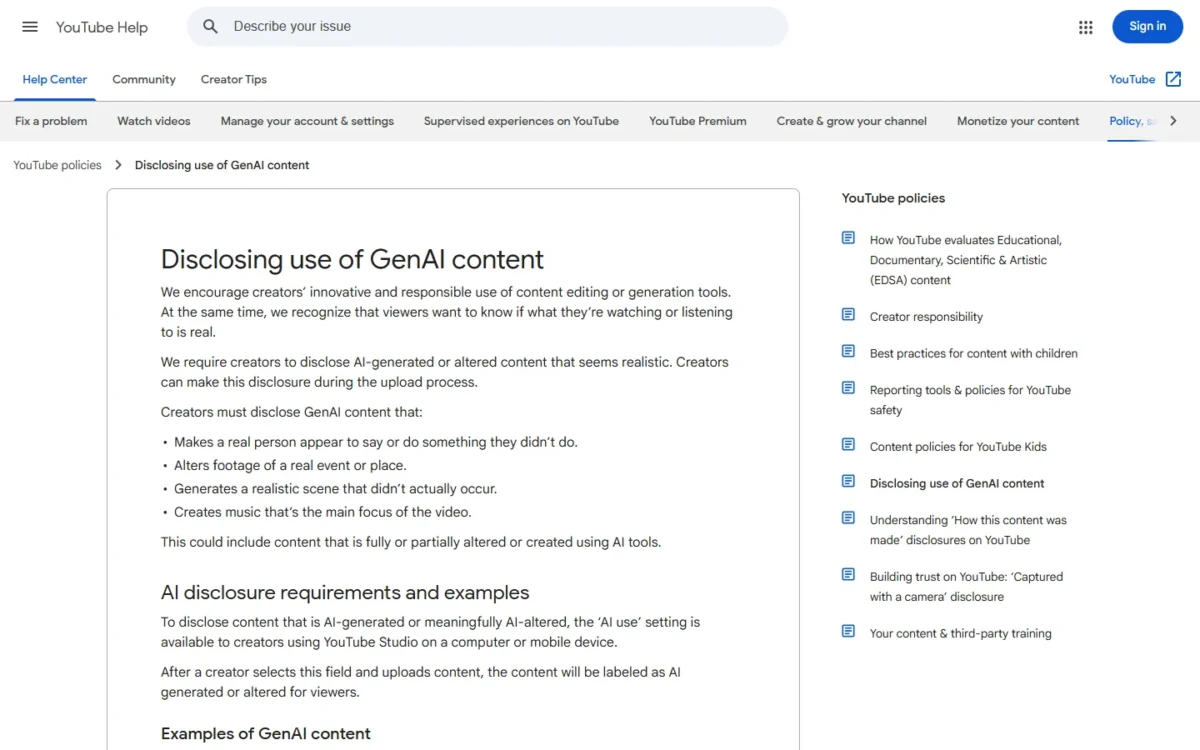
YouTube may label content with C2PA metadata on its own, and that label cannot be adjusted, so a clip from Runway’s own models may arrive labelled. TikTok’s AI-generated content help page says it requires a label on realistic AI-generated content.
Warning
YouTube says creators who consistently skip disclosure may face a label, removal of content or suspension from the YouTube Partner Program.
Expected result: a downloaded file, and a YouTube upload with the AI use setting answered.
How to Verify Your AI Video Is Ready to Publish
Your video is ready when all 7 lines below hold on the exported file, not the editor preview.
Ready-to-publish checklist
- The file plays start to end at the ratio and length on the card
- Every shot passed its acceptance line
- No warped subject, broken text or unwanted cut
- Voice and captions match the script
- The Rights cleared field reads Yes on every card
- The YouTube “AI use” answer is decided
- Any watermark or AI label is one you expected
Practical Example: A 20-Second Product Teaser
Take an illustrative 20-second vertical teaser for a red ceramic mug, built from one licensed product photo cropped to 9:16 and animated with Gen-4.5’s image-to-video.
| Shot | Method and length | Action and camera | Acceptance line |
|---|---|---|---|
| S1 hero | Image-to-video, 6 seconds | Steam rises; slow push-in | Mug shape and red glaze unchanged |
| S2 pour | Image-to-video, 8 seconds | Coffee pours in; camera still | Handle intact; liquid stays in the mug |
| S3 end card | Image-to-video, 6 seconds | Mug turns a quarter turn | No new objects; space left for the product name |
Sources: illustrative example data; durations within the range on Runway’s Gen-4.5 guide, checked October 2026.
The shots run 6 + 8 + 6 = 20 seconds, so one full pass on Gen-4.5 costs 20 seconds x 12 credits = 240 credits before any retry.
S1 uses the image-to-video prompt from Step 4. The product name goes on as editor text, so no generated frame has to draw letters.
The audio is an AI music bed with editor captions. The disclosure answer is Yes because the pour is a realistic scene that never happened. The music bed alone would not trigger it, since it is not the video’s main focus.
Common Mistakes and Troubleshooting
The table lists six common causes, each with a check to run before the next generation.
| Problem | Possible cause | What to check |
|---|---|---|
| Flaws in the still look worse once it moves | Visual artifacts in the input image, such as blurry hands or faces | Use a clean, high-quality still; prompt motion only |
| The story stops mid-action | One generation was asked to hold a whole story | Split it into shots; extend from the last frame |
| An unwanted cut appears in a clip | The duration is too short for the image and prompt | Raise the duration, then reword any cut phrasing |
| The motion fights your instruction | The still implies motion (blur, dust, a mid-step pose) | Remove the motion cues from the image first |
| No video upload control in Gemini | Video edits are unavailable in the EEA, Switzerland, the UK and some US states | Use a text or image prompt, or another tool |
| A setting you used before is missing | Settings vary by model | Re-read Duration, Resolution and Audio for this model |
Sources: Runway image-to-video guide, Gemini Apps help, checked October 2026.
Frequently Asked Questions
Is making AI videos free?
Partly. Google Flow gives 50 daily credits without a Google AI subscription, while Canva’s clip generator and Runway’s Gen-4.5 sit on paid plans. My ranking of free AI video generators compares the free plans.
Is making AI videos legal?
The tools here let you use what you generate, with conditions. Gemini requires rights to your uploads, Runway says you own your work, and Canva says you may not have exclusive rights. This is not legal advice.
Can I make an AI video of myself?
Yes. In Gemini Apps you type @[your Google username] in the prompt to use your avatar, HeyGen accepts your own avatar, and Canva turns a selfie into a talking head.
How do I create AI videos for YouTube?
Go vertical for Shorts, or use 16:9 for a regular video: YouTube’s upload settings page calls it the standard aspect ratio on a computer. Then answer “AI use” in YouTube Studio. YouTube says disclosure alone won’t limit a video’s audience or its eligibility to earn money.
Is Sora still an option?
No. Both the app and the API are discontinued, so skip tutorials built on Sora; OpenAI’s help page explains how to export old content.
Next Steps
Where to go after your first video:
- To choose a paid tool, my guide to the best AI video generators by job matches tools to tasks.
- For store ads, see how to make ecommerce video ads with AI.
- To widen beyond video, see my list of AI tools for content creation.
I checked every tool fact in this guide against the vendors’ own help and product pages on October 29, 2026.