Picking the best video editing software in 2026 is rarely a features problem. It is a limits problem.
The editor that looks cheapest on the plan page is often the one that stops you at export, at 4K, or at the twenty-fifth generative credit of the month.
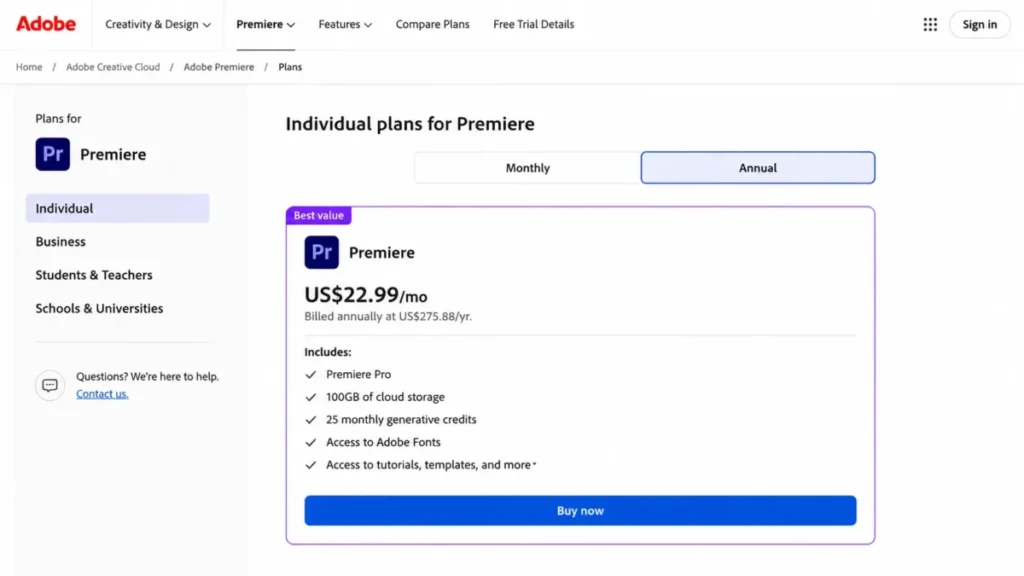
For a cross-platform team that already lives inside Creative Cloud, Adobe Premiere is the safest starting point at $22.99 per month on an annual commitment, according to Adobe’s Premiere plan comparison. Blackmagic Design’s editor is the stronger pick when the budget is zero and the work is colour and finishing.
This guide ranks eleven editors the way a buyer has to think about them: what the first year costs, which export ceiling the free tier enforces, how much AI usage is included, and which team each one stops working for. If your shortlist is drifting toward generated footage rather than edited footage, the separate roundup of AI video generators covers that category instead.
In This Article (13 sections)
Quick Verdict: Best Video Editing Software by Use Case
| Use case | Best pick | Why it fits |
|---|---|---|
| Cross-platform professional team | Adobe Premiere | Professional timeline, Frame.io review, and Express Premium in one subscription |
| Zero-budget professional finishing | DaVinci Resolve 21 | The free edition covers edit, colour, visual effects, and audio in one application |
| Editing footage you shot, with AI doing the first assembly | invideo Editor | AI agents build a base cut from raw footage in the browser, on a free plan |
| Apple-only studio that dislikes subscriptions | Final Cut Pro | One-time purchase of $299.99 on the Mac App Store |
| Beginner-to-enthusiast desktop editing | CyberLink PowerDirector 365 | Guided editing plus monthly content drops at a low annual price |
| Solo creator who wants guided AI editing | Wondershare Filmora | AI text-based editing and a deep AI toolset on an approachable timeline |
| Short-form social publishing | CapCut | Template-led editing across mobile, desktop, and web |
| Podcast, interview, and talking-head video | Descript | Transcript-first editing with a timeline handoff to a traditional editor |
| Distributed marketing team with no installs | VEED | Browser editing, auto subtitles, and recording in one tab |
| Brand-led social content | Canva Video | Template and brand-kit workflow rather than a finishing suite |
| Windows household or Microsoft 365 subscriber | Microsoft Clipchamp | Unlimited free exports at 1080p with no watermark |
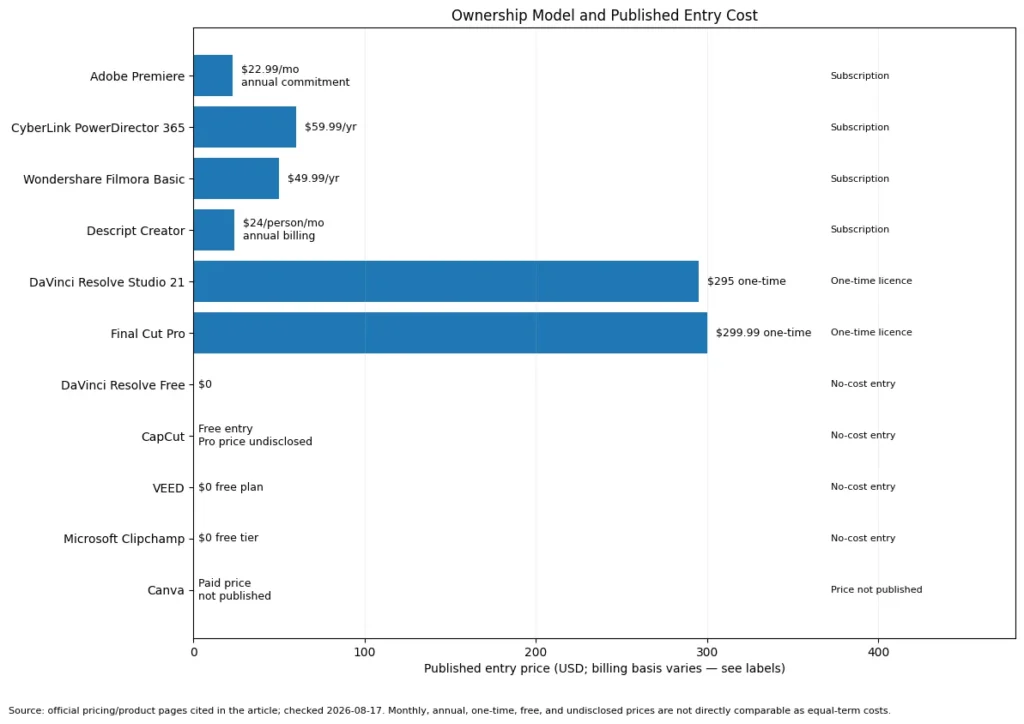
Read that table as a shortlist filter rather than a ranking. Six of the eleven picks cost nothing to start and two are one-time purchases, so the ownership model matters here as much as the feature list.
How We Chose and Ranked These Tools
These rankings are based on official pricing pages, vendor product pages, and help-center documentation for each editor. Pricing, plan gates, and usage limits were checked on 2026-08-17.
Each tool was assessed against the same buyer-focused criteria: editing depth, workflow fit, export and format gates, AI allowances, platform support, collaboration, and cost across a full year.
Greater weight went to the factors that change a purchase decision: the tier that removes the limit a buyer will hit, the export ceiling enforced on free plans, and the metered allowance sitting behind every AI feature. Brand popularity and affiliate relationships did not influence the order.
Claims that could not be traced to a named official page were excluded rather than softened. Temporary offers are labeled separately from standard pricing and re-verified on the publish date: 2026-08-17.
The Three Problems Every Video Editing Buyer Faces in 2026
Feature lists are the easy part of this category. Buyers lose money on three things that no feature list shows.
Problem 1: The entry price and the working price are different numbers
Every subscription editor here publishes a headline figure that assumes an annual commitment. The Premiere plan page lists $22.99 per month for an individual on that commitment, which is a monthly bill attached to a twelve-month promise.
A one-time licence removes the renewal question instead of answering it. Resolve Studio costs $295 and Final Cut Pro costs $299.99.
Each is more than a first year of most subscriptions here, and less than a second.
That is the entire ownership argument, and it only breaks in one direction. If you stop editing, a subscription stops costing money while a licence has already been spent.
Problem 2: Free and 4K almost never mean what the marketing implies
Six editors here ship a free tier, and four of them publish exactly what that tier can export. Only one exports beyond 1080p without payment.
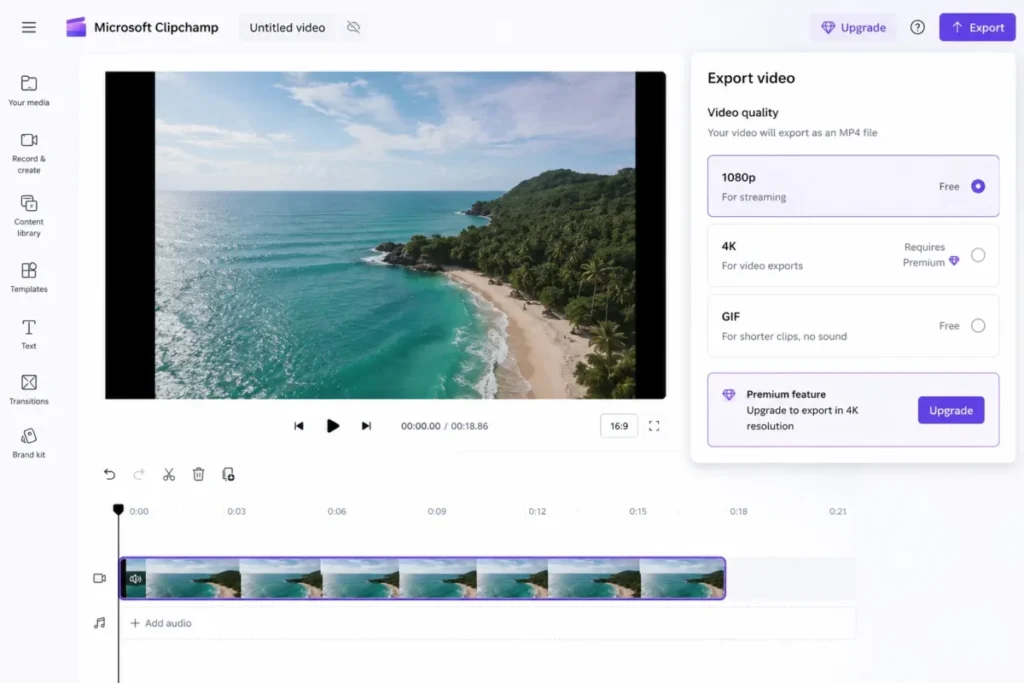
Blackmagic’s free edition is the outlier, because it ships professional finishing tools and still exports Ultra HD at up to 60 fps, per the Resolve edition comparison. The Clipchamp free tier is generous in a different way, since exports are unlimited and unwatermarked but stop at 1080p.
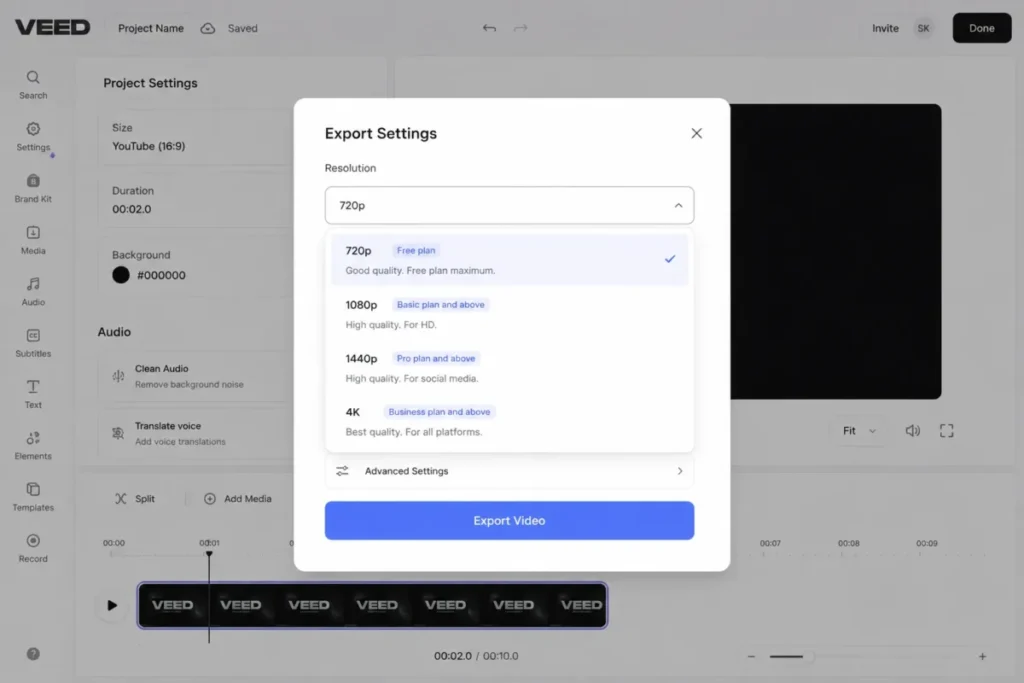
Browser editors are stricter again. The VEED export guide puts the free plan at 720p, which sits below the resolution most brands now treat as a floor for paid social.
Problem 3: AI is metered, and the meter is attached to the plan
Generative features are the fastest-moving part of this category and the least transparent part of its pricing. The label covers everything from silence removal to synthetic footage, and what generative AI covers differs between two editors that use the same word.
Almost every vendor here attaches a monthly credit balance rather than unlimited use.
The individual Premiere plan includes 25 generative credits a month, and PowerDirector 365 includes 100.
The Filmora plan shop splits its allowance at 1,000 credits on Advanced and 2,000 on Premium.
Those balances only mean something once you know what a single generation consumes, which is the part vendors publish least consistently. Treat an included balance as a trial allowance rather than a production budget, and price the upgrade before a workflow depends on it.
Best Video Editing Software Compared
The table below normalises the thing plan pages hide: what you are buying, and what the no-cost route gives you.
| Editor | Ownership model | Published entry price | Free tier ceiling | Platform | Best-fit buyer |
|---|---|---|---|---|---|
| Adobe Premiere | Subscription | $22.99 per month, annual commitment | No free tier | Windows and macOS | Cross-platform professional teams |
| DaVinci Resolve 21 | Free edition plus one-time licence | $0 free, $295 for Studio | Ultra HD at up to 60 fps | Windows, macOS, Linux | Colour and finishing work on any budget |
| invideo Editor | Free plus paid tiers | Free, paid plans from $9 per seat per month | No watermark, resolution not stated on the pages cited here | Browser | Creators and content teams |
| Final Cut Pro | One-time licence | $299.99 once | No free tier | Mac and iPad only | Apple studios that prefer to own |
| CyberLink PowerDirector 365 | Subscription | $59.99 per year on the current sale | No free tier on this plan page | Windows | Guided desktop editing at low cost |
| Wondershare Filmora | Subscription | $49.99 per year on Basic | Not stated on the pages cited here | Windows and Mac | Solo creators wanting guided AI editing |
| CapCut | Free plus paid tier | Not publicly disclosed as one figure | Free editing, paid for 4K and 60fps | Mobile, desktop, and web | High-frequency short-form publishing |
| Descript | Subscription | $24 per person per month, annual billing | Free starting tier | Windows, macOS, and web | Podcast and talking-head teams |
| VEED | Free plus paid tiers | $0 on the forever-free plan | 720p exports | Browser | Distributed marketing teams |
| Canva Video | Paid plan on top of a free tier | Not published on the pages cited here | Not stated on the pages cited here | Browser and mobile | Brand-led social content |
| Microsoft Clipchamp | Free plus paid tiers | $0 on the free personal tier | Unlimited 1080p exports, no watermark | Windows and web | Windows and Microsoft 365 households |
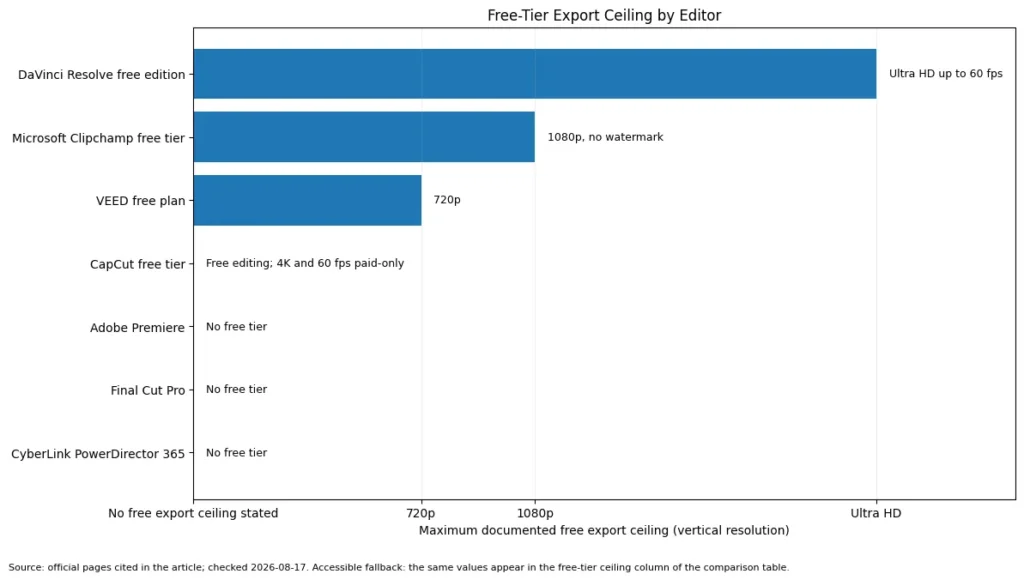
Two patterns fall out of that table. The no-cost end of this market is far stronger than it was five years ago, and the paid end has quietly split into rental and ownership rather than cheap and expensive.
The 11 Best Video Editing Tools for 2026, Ranked
The order below follows overall buyer fit across the three problems above, not raw feature count. Each entry names the cohort it serves and the cohort it fails.
1. Adobe Premiere: Best for cross-platform professional teams

Premiere earns the top spot on breadth rather than price. It is the only editor here that puts a professional timeline, review and approval, a design application, and cloud storage inside a single subscription.
- Best for:
- 3 to 15 person cross-platform teams producing client, campaign, or long-form YouTube work.
- Avoid if:
- you want a perpetual licence, or your generative work needs more than a token monthly allowance.
- Starting price:
- $22.99 per month for an individual on an annual commitment, per the Premiere plans comparison, checked 2026-08-17.
- Practical tier:
- the same individual plan, which is also the tier that carries 100GB of cloud storage and 25 monthly generative credits.
- Free plan:
- none. A trial is the only no-cost route.
- First limit that bites:
- the 25 monthly generative credits, which a single afternoon of generative work can consume.
- Better than DaVinci Resolve:
- Frame.io review and approval is included rather than bolted on.
- Worse than Final Cut Pro:
- every month of Premiere is rent, and no perpetual option appears on that plan page.
- Setup difficulty:
- Medium. Installation is simple, but colour management, proxy workflows, and shared project hygiene take a deliberate setup pass.
- Hidden costs:
- additional generative credits, storage beyond the included 100GB, and the wider Creative Cloud apps most teams end up wanting.
- Evidence status:
- Adobe’s own plan comparison, which carries the price, the billing basis, the storage allowance, and the credit balance on one page, checked 2026-08-17.
What the plan page makes plain is how much sits inside one line item. Frame.io review and approval and Adobe Express Premium are both marked as included, alongside 100GB of storage and the monthly credit balance.
For a team that was paying separately for review software and a social design tool, that bundling is the real argument. Two line items retire when one starts.
The credit balance is the counterweight. An allowance of 25 generative credits a month is a sampling budget, and any workflow that leans on generative tools will meet it inside a single editing session.
That is the shape of the whole subscription: broad inclusion at the top, a metered ceiling underneath. Budget the ceiling before the workflow depends on it.
- Verdict:
- choose Premiere if bundled review, design, and storage matter more than owning the software, and budget the generative allowance as a trial rather than a workflow.
| Pros | Cons |
|---|---|
| Frame.io review and approval included in the plan | Subscription is the only ownership model on this plan page |
| Adobe Express Premium bundled with the individual plan | 25 monthly generative credits is a sampling allowance |
| 100GB of cloud storage included | Storage beyond the included 100GB is an extra line item |
| Annual commitment keeps the monthly outlay at $22.99 | The same commitment locks in twelve months |
2. DaVinci Resolve 21: Best free professional-grade editor

Start with the number that makes this entry unusual. The free edition is not a trial, not watermarked, and not time-limited, and it still ships edit, colour, visual effects, and audio in one application.
- Best for:
- solo editors and small post teams that need colour and finishing depth on a zero-software budget.
- Avoid if:
- your camera files, delivery specs, or AI tools sit behind the paid edition and you expected them free.
- Starting price:
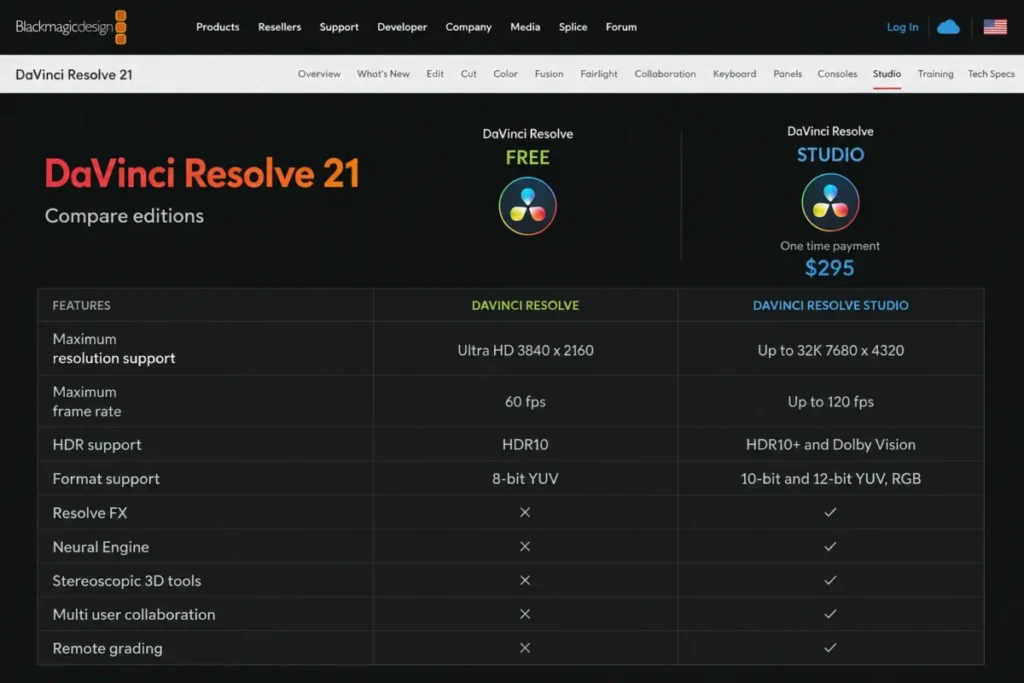
- $0 for the free edition. Studio 21 is a one-time $295 licence, per the DaVinci Resolve Studio page, checked 2026-08-17.
- Practical tier:
- the free edition for most creators, and Studio the moment a project needs the Neural Engine, the extra Resolve FX, or a frame rate above the free ceiling.
- Free plan:
- yes, and it edits and finishes up to 60 fps at Ultra HD.
- First limit that bites:
- frame rate and resolution. The free edition edits and finishes up to 60 fps at Ultra HD, while Studio supports up to 120fps at 32K.
- Better than Premiere:
- the free edition covers a professional finishing workflow with no recurring bill.
- Worse than Premiere:
- review and approval is not bundled in the same way.
- Setup difficulty:
- High. Page-based workspaces, colour management, and hardware expectations make this the steepest learning curve on the list.
- Hidden costs:
- none in software terms. The real cost is hardware and the hours it takes to learn four workspaces.
- Evidence status:
- Blackmagic Design’s own edition comparison, which is the single source for both the licence price and the free-versus-paid gates.
The gates are the whole decision here, and they are technical rather than commercial. The DaVinci AI Neural Engine, 45 extra Resolve FX including noise reduction and SuperScale, and the 120fps and 32K ceilings all sit in Studio.
That produces an unusually clean buying rule. Work in the free edition until a source format or a delivery spec refuses to cooperate, then buy the licence once and stop thinking about it.
For a freelancer billing two colour grades a month, the $295 pays for itself immediately. For a creator publishing 1080p talking-head video every week, it may never need to be spent at all.
- Verdict:
- choose Resolve if finishing quality matters more than onboarding speed, and treat Studio as a format upgrade rather than a subscription.
| Pros | Cons |
|---|---|
| Free edition is genuinely production-capable | Steepest learning curve in this comparison |
| One-time $295 upgrade instead of a subscription | The Neural Engine and 45 extra Resolve FX are Studio-only |
| Edit, colour, visual effects, and audio in one application | Advanced AI tools sit behind the paid edition |
| Collaboration support is built in | Hardware expectations are higher than browser rivals |
3. invideo Editor: Best for turning raw footage into a first cut

invideo Editor starts where most AI video tools stop: with footage you already shot. It is a free, browser-based editor built around AI editing agents you can assign real work to. Upload your clips with a script or a short direction, and the agent reviews the material, selects usable takes, cuts repetition, and returns an editable base cut on a normal multitrack timeline.
- Best for:
- creators, marketing teams, and agencies who shoot regularly and lose hours to rough cuts.
- Avoid if:
- you want template or stock-footage video built from a prompt, or you need to edit without an internet connection.
- Starting price:
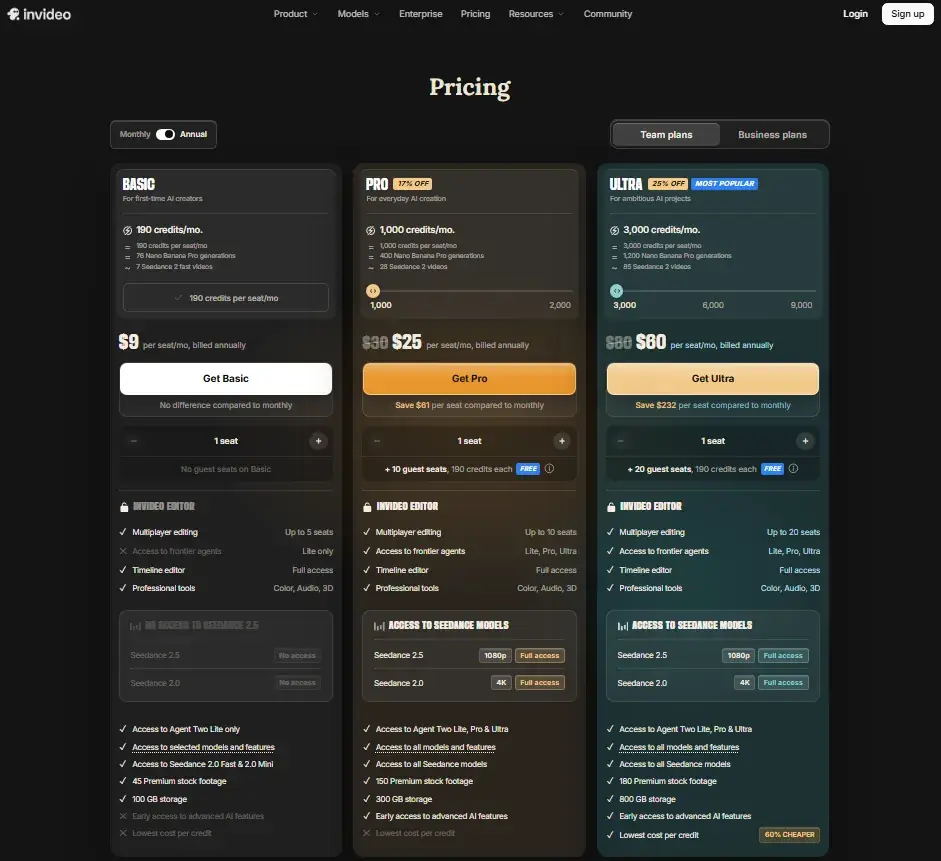
- $0. invideo’s AI video editor page says the free plan includes the AI editor and the full timeline, needs no credit card, and exports without a watermark. Paid plans start at $9 per seat per month on Basic, per the invideo pricing page, checked 2026-09-30.
- Practical tier:
- the free plan for editing your own footage. Paid tiers matter once you want generative models: Basic carries 190 credits per seat a month, Pro costs $30 monthly or $25 on annual billing with 1,000 credits, and Ultra costs $80 monthly or $60 annually with 3,000.
- Free plan:
- yes. invideo does not publish the free plan’s export resolution or storage on the pages cited here. The pricing table lists 4K export of your own footage and 100GB of storage from Basic upward.
- First limit that bites:
- generative credits, not editing. The timeline, colour, audio, and 3D tools are listed on every paid plan, while credits pay for generative models and unused credits do not roll over to the next month.
- Better than Descript:
- the agent reads the footage itself (speakers, shots, and beats), not only the transcript, before it makes a cut.
- Worse than DaVinci Resolve:
- it runs only in the browser, and Blackmagic publishes its free export ceiling while invideo does not.
- Setup difficulty:
- Low. Nothing to install, and the workflow is four steps: upload footage, describe the edit, review the cut, export.
- Hidden costs:
- credits for any generated shot, premium stock beyond the plan allowance of 45, 150, or 180 clips, and additional seats.
- Evidence status:
- invideo’s AI video editor page for the free plan and the footage workflow, the colour grading page for the grading controls, and the pricing page for plans and credits, all checked 2026-09-30.
The useful idea is the order of work. Most AI video tools ask for a prompt and hand back generated clips. invideo asks for your rushes and hands back a timeline.
Every change the agent makes lands as a visible, reversible edit, so the first assembly becomes something you review rather than something you build. That is the stage where a weekly shooter loses the most hours.
Finishing stays in your hands. The color grading tools include colour wheels, curves, scopes, .cube LUT import, and copy-and-paste grades between clips, which is how footage from different shoots ends up matching.
Handoff is covered too. The same editor page says a timeline exports to Premiere Pro, DaVinci Resolve, and Final Cut Pro, so the agent can do the assembly while a different application does the final pass.
The gap is the free plan’s fine print. Paid export limits are published and free ones are not, so run one real project through the export dialog before the free tier carries client work.
- Verdict:
- choose invideo Editor if the rough cut is where your week disappears, and keep your preferred finishing tool for the last pass.
| Pros | Cons |
|---|---|
| Hands off the slowest part of editing, the first assembly | Built for footage you shot, not stock-template video creation |
| Free plan includes the AI editor and full timeline with no watermark | Browser-based, so it needs an internet connection |
| Runs in the browser, no install or high-end hardware needed | Free plan export resolution and storage are not published |
| You keep full control of the timeline, with export to Premiere Pro, Resolve, and Final Cut Pro | Generated shots draw on a monthly credit balance that does not roll over |
4. Final Cut Pro: Best for Mac-based professionals
One line decides this entry for most readers. Apple builds it for Mac and iPad and for nothing else, so a mixed-operating-system team can stop reading here.
- Best for:
- Apple-based professional and advanced creators who prefer to own the software outright.
- Avoid if:
- any collaborator works on Windows or Linux, or your pipeline depends on cross-platform project handoff.
- Starting price:
- a one-time $299.99 purchase on the Mac App Store listing, checked 2026-08-17.
- Practical tier:
- there is only one tier, which removes an entire category of plan-gate analysis.
- Free plan:
- none, though Apple has historically offered a trial through its own site.
- First limit that bites:
- platform. Apple describes it as running across Mac and iPad, and the Mac licence is sold as a one-time App Store purchase.
- Better than Premiere:
- one payment, no renewal date, no credit balance to watch.
- Worse than Premiere:
- a Windows contractor cannot open the project at all.
- Setup difficulty:
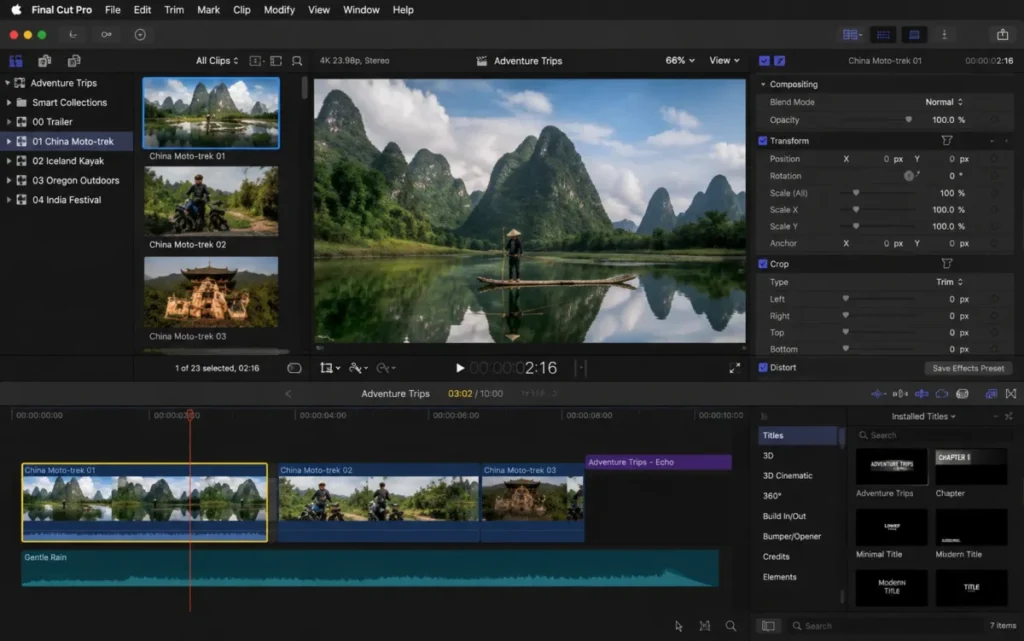
- Low. Apple’s Final Cut Pro product page leads on the Magnetic Timeline, Magnetic Mask isolation, and automatic captions as the day-one workflow.
- Hidden costs:
- hardware. The licence is fixed, the Mac it runs on is not.
- Evidence status:
- Mac App Store listing for price and platform, plus Apple’s product page for the feature set, both checked 2026-08-17.
Automatic captions matter more than they sound for a social-first studio. Caption passes are the repetitive task that quietly eats a working week each quarter.
Magnetic Mask is the newer draw for people who previously bounced clips out to a compositor. It keeps isolation work inside the timeline instead of a round trip.
The trade is rigidity. There is no plan to upgrade, which is excellent, and no way to bring a Windows editor into the same project, which is not.
- Verdict:
- choose Final Cut Pro if the whole team is already on Mac and you would rather buy once than rent forever.
| Pros | Cons |
|---|---|
| One-time $299.99 purchase with no renewal | Apple platforms only, which rules out Windows and Linux teams |
| Magnetic Timeline and Magnetic Mask keep work in one app | No free tier for evaluation on the store listing |
| Automatic captions are built into the editor | Ties the studio to Apple hardware refresh cycles |
| Single tier removes plan-gate guesswork | Collaboration tooling is thinner than Premiere’s |
5. CyberLink PowerDirector 365: Best easy desktop all-rounder
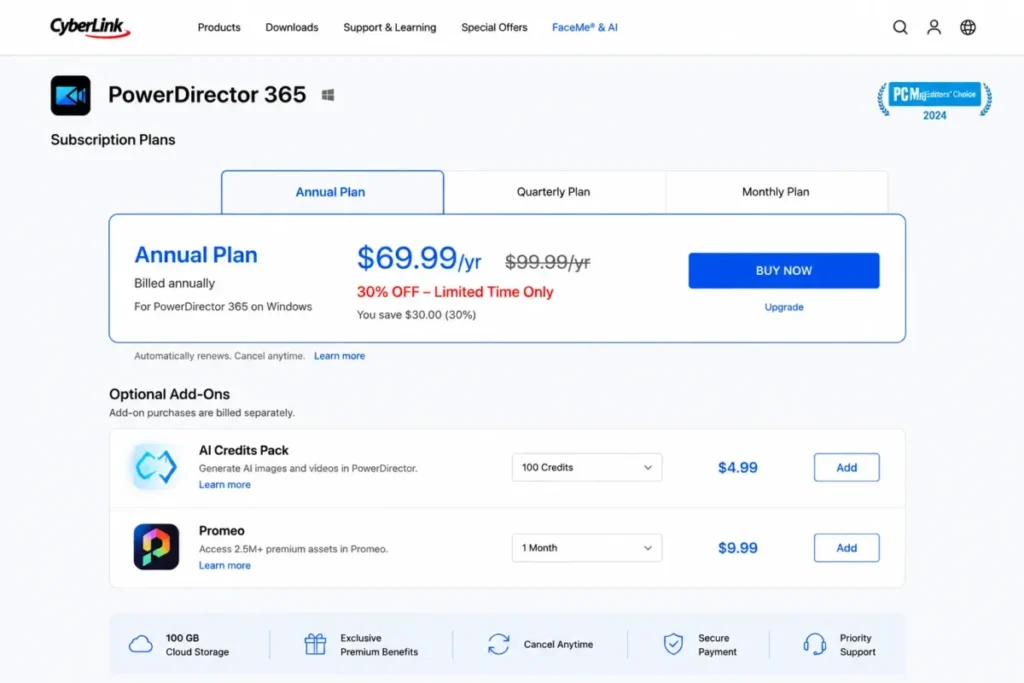
Price is the entry argument here, and it comes with an asterisk worth reading. The PowerDirector pricing page shows $59.99 per year as a current sale against a $79.99 standard price, checked 2026-08-17.
- Best for:
- solo creators and small marketing teams that want guided desktop editing with regular template and stock drops.
- Avoid if:
- you expect unlimited generative AI, or you assume every stock and marketing extra is inside the base subscription.
- Starting price:
- $59.99 per year on the current sale, against a $79.99 per year standard price.
- Practical tier:
- the base PowerDirector 365 subscription, which already carries the AI tools most buyers came for.
- Free plan:
- none on this subscription page.
- First limit that bites:
- the 100 monthly AI credits, which is the tightest published generative allowance on this list.
- Better than Filmora:
- monthly feature and content updates keep the template library moving all year.
- Worse than Premiere:
- professional collaboration and review tooling is thinner.
- Setup difficulty:
- Low. Guided editing modes and templates carry a first-time editor through a finished export.
- Hidden costs:
- Promeo at $34.99 per year and the unlimited stock package at $49.99 per year, both optional and both billed separately.
- Evidence status:
- CyberLink’s own US pricing page, which carries the sale price, the standard price, the credit allowance, and the add-on list in one place.
The add-on structure is where a $59.99 decision quietly becomes a $144.97 decision. A creator who wants the marketing templates and the unlimited stock library is buying three products, not one.
That is not a criticism of the pricing so much as a warning about the comparison. Ranking this editor against a rival on headline price alone gets the answer wrong in both directions.
The 50GB of included cloud storage and the bundled stock media do real work for a solo operator who was otherwise paying a separate stock subscription. Count that before assuming the add-ons are mandatory.
- Verdict:
- choose PowerDirector if you want the shortest path from raw clips to a finished social edit, and confirm which add-ons you genuinely need before checkout.
| Pros | Cons |
|---|---|
| Lowest published annual price among the paid desktop editors | 100 monthly AI credits is a tight generative allowance |
| Monthly feature and content updates | Two optional add-ons carry their own annual bills |
| 50GB cloud storage and stock media included | Sale price is temporary, not the standard price |
| Guided editing suits first-time desktop editors | Collaboration tooling trails the professional suites |
6. Wondershare Filmora: Best creator-friendly AI editor

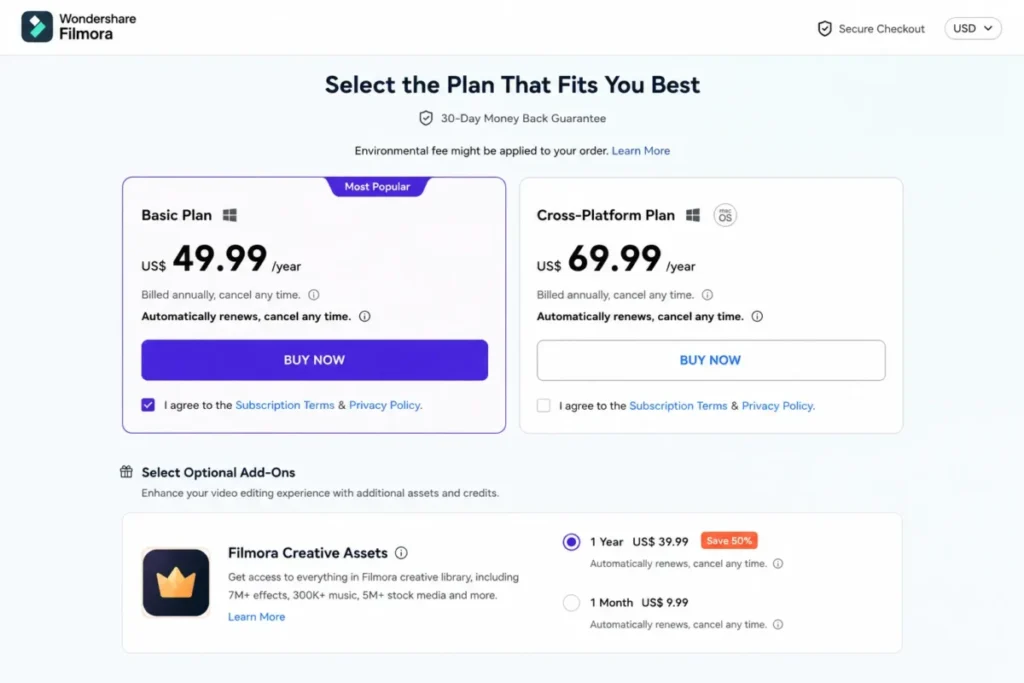
Filmora sits in the gap between a toy and a broadcast suite, which is exactly where most solo YouTubers live. The Filmora North America shop bills the Basic plan yearly as $49.99 and states that it renews automatically, checked 2026-08-17.
- Best for:
- solo creators and two-person content teams that want guided AI editing without a broadcast learning curve.
- Avoid if:
- you want the simplest possible bill, or you tend to click through checkout without reading what else is in the cart.
- Starting price:
- billed yearly as $49.99 on Basic, and the plan renews automatically.
- Practical tier:
- Advanced or Premium once AI becomes routine, because the credit allowance is what separates them.
- Free plan:
- not stated on the pages cited here, which list paid plans only.
- First limit that bites:
- AI credits. Advanced carries 1,000 per month and Premium carries 2,000, so the plan choice is a usage forecast.
- Better than PowerDirector:
- the published AI toolset is broader, and it includes text-based editing of the footage.
- Worse than Resolve:
- colour and finishing depth is not in the same class.
- Setup difficulty:
- Low. The timeline is conventional, and the AI feature overview presents the automation as named one-click tools.
- Hidden costs:
- the Creative Assets option presented during checkout, which carries its own renewal path separate from the editor subscription.
- Evidence status:
- the North America shop page for plan pricing and credits, plus the AI features page for the automation set.
The checkout detail is the one worth flagging to a finance-conscious buyer. A Creative Assets trial added at purchase renews on its own schedule, so a single click can produce two recurring charges from one vendor.
Neither charge is hidden, and neither is unusual for this market. The problem is that a buyer comparing $49.99 against a rival’s annual price is not comparing the same basket once that option is ticked.
On capability, the AI toolset is the reason this outranks the pure template tools further down. Wondershare lists text-based editing alongside smart masking, cutout, denoise, and text-to-speech, which is a working set rather than a demo reel.
- Verdict:
- choose Filmora if you want approachable 4K editing with AI assistance, and decline the extra asset subscription unless you will genuinely use it.
| Pros | Cons |
|---|---|
| AI text-based editing turns a cut into a document edit | Checkout can add a separately renewing asset subscription |
| Large effects and asset library for vlog work | AI allowance is plan-dependent rather than flat |
| Continuous version upgrades on the Basic plan | Colour and finishing depth trails the professional suites |
| AI tools surfaced as one-click timeline actions | Automatic renewal is the default on the annual plan |
7. CapCut: Best for short-form social video

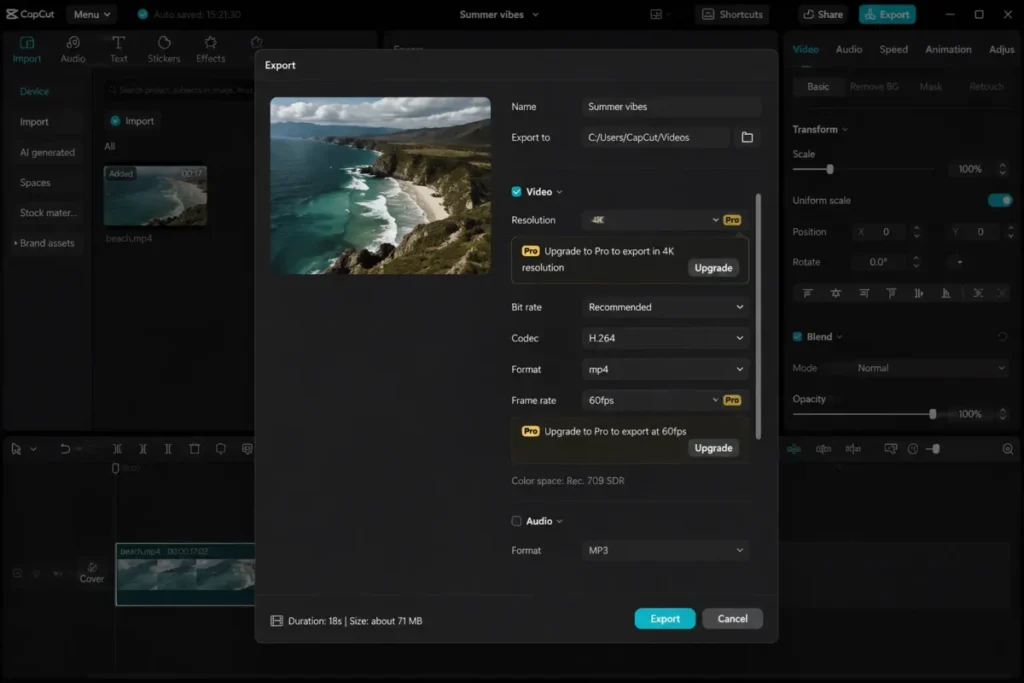
This is the only entry on the list where the price cannot be quoted honestly. CapCut’s own help page on what CapCut Pro costs states that pricing varies by region, device, and promotions, and directs buyers to the upgrade flow, checked 2026-08-17.
- Best for:
- short-form creators publishing to vertical feeds several times a week across phone, desktop, and browser.
- Avoid if:
- you need a fixed price before procurement approval, or you need 4K without an upgrade prompt.
- Starting price:
- free to edit. Pro pricing is not published as one fixed figure.
- Practical tier:
- Pro, because that is where 4K and 60fps export sit.
- Free plan:
- yes. Editing is free, and the gates appear at export.
- First limit that bites:
- export settings. The upgrade-prompt documentation ties 4K and 60fps export, watermark removal, premium templates and effects, and AI tools to Pro.
- Better than Filmora:
- cross-device continuity from phone to desktop is smoother for social workflows.
- Worse than Premiere:
- there is no plan page a finance team can budget against.
- Setup difficulty:
- Low. Templates and presets carry a first edit end to end.
- Hidden costs:
- unknowable in advance by design, since the amount shown depends on region, device, and current offers.
- Evidence status:
- two CapCut help articles, one on pricing variability and one on the upgrade prompt.
The workflow strength is real. Template-led editing, caption automation, and social-ready aspect handling make this the fastest route from clip to publish for a creator working alone.
The buying weakness is equally real, and it is the reason this sits sixth rather than third. A tool whose price you can only discover inside checkout is difficult to compare, difficult to approve, and difficult to forecast.
There is also a practical trap in the free tier. A project built with premium templates and effects will hit the upgrade requirement at export, which is the worst possible moment to discover it.
- Verdict:
- choose CapCut if speed to publish beats budget certainty, and check the price in your own upgrade flow before committing a team to it.
| Pros | Cons |
|---|---|
| Editing is free and the gates only appear at export | No single published price for the paid tier |
| Fast template-led editing across phone, desktop, and web | 4K and 60fps output require the paid tier |
| Caption and aspect-ratio automation suits vertical feeds | Premium assets can block a free export |
| Watermark removal and premium assets are documented gates | Difficult to budget or approve in advance |
8. Descript: Best for transcript-first video

Descript is the entry that changes how the edit is made rather than what the edit can contain. Dialogue becomes text, the text becomes the timeline, and the finished sequence can be handed to a traditional editor.
- Best for:
- two to five person podcast, interview, training, and talking-head teams that edit primarily through words.
- Avoid if:
- your monthly volume is high, or you need every effect to survive a handoff to another application.
- Starting price:
- $24 per person per month on annual billing for the Creator plan, with a $35 monthly rate shown separately, per Descript’s pricing page, checked 2026-08-17.
- Practical tier:
- Creator, which is the lowest plan carrying both watermark-free 4K export and timeline export.
- Free plan:
- yes, a free starting tier exists alongside the paid plans.
- First limit that bites:
- 30 media hours a month on Creator, ahead of the 800 monthly AI credits.
- Better than Premiere:
- first-assembly speed on dialogue-heavy footage is not close.
- Worse than Resolve:
- finishing, colour, and effects depth is not the job this tool is built for.
- Setup difficulty:
- Low. Import, transcribe, and cut is a same-day workflow.
- Hidden costs:
- overflow beyond the monthly media-hour allowance, and the second application most teams still need for finishing.
- Evidence status:
- the official pricing page for plan limits, plus the timeline-export help article for interchange behaviour.
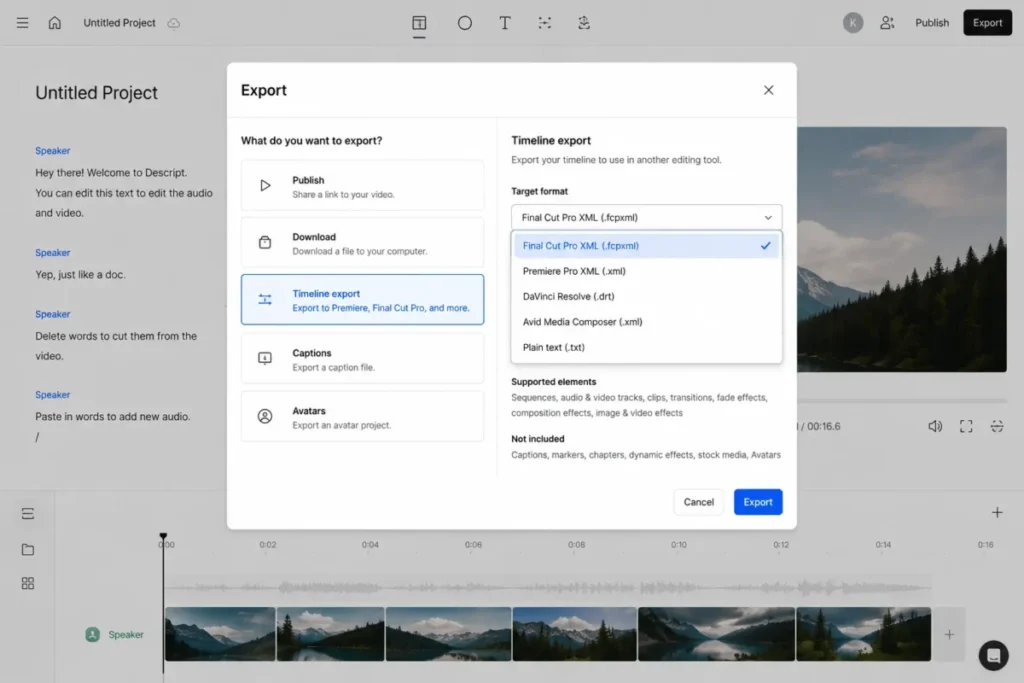
The handoff is the part worth studying before committing. Descript’s timeline export documentation lists Premiere as XML, Final Cut Pro as FCPXML, and audio interchange for Reaper, Audition, and Pro Tools or Logic.
That article is candid about what does not travel. Sequences and Avatars are named as unsupported, and the element table marks transitions, titles, video effects, images, and speed changes as unsupported too.
For a team that plans to rough-cut in Descript and finish elsewhere, that is a hard constraint on how much work belongs in the first application.
Volume is the other ceiling. A team producing four hour-long interviews a month with multiple camera angles will meet the 30 media hours before it meets any feature limit.
- Verdict:
- choose Descript if your footage is mostly people talking, and plan the finishing application before the media-hour allowance forces the decision for you.
| Pros | Cons |
|---|---|
| Transcript-first editing collapses first-assembly time | 30 media hours a month caps production volume on Creator |
| 4K watermark-free export on the Creator plan | Sequences and Avatars do not survive timeline export |
| Timeline export to Premiere and Final Cut Pro formats | 800 monthly AI credits is a finite allowance |
| Royalty-free stock library included on the plan | Finishing depth still needs a second application |
9. VEED: Best browser editor for distributed teams

Nothing installs, which is the entire pitch. For a marketing team spread across three time zones and two operating systems, that removes the slowest part of onboarding a new editor.
- Best for:
- distributed marketing, social, and enablement teams of roughly two to ten people.
- Avoid if:
- you need 4K on a free plan, or you need the control surface of a desktop suite.
- Starting price:
- $0 on the forever-free plan described on VEED’s own comparison page, checked 2026-08-17.
- Practical tier:
- a paid tier, because resolution is the gate that moves.
- Free plan:
- yes, and the export documentation caps it at 720p.
- First limit that bites:
- export resolution. Creator reaches 1080p, and Pro, Studio, and Enterprise reach up to 4K.
- Better than Canva:
- subtitles, transcription, and recording are treated as first-class editing tools.
- Worse than Resolve:
- there is no colour or finishing depth to speak of.
- Setup difficulty:
- Low. A browser tab and a login is the whole environment.
- Hidden costs:
- the tier jump that 1080p delivery forces on a team that expected free output to be usable.
- Evidence status:
- the official export article for resolution gates, with the free-plan status taken from VEED’s own comparison page.
The 720p ceiling deserves more attention than it usually gets in browser-editor roundups. Most paid social placements now expect 1080p as a floor, so the free plan is a trial surface rather than a publishing surface.
Plan naming is the other thing to check before quoting a price internally. Current official pages do not use one consistent set of tier labels, so confirm the tier name against the export documentation rather than a comparison page.
Teams that only need templates, captions, and a fast export sometimes land somewhere lighter still, and the FlexClip review covers that end of the browser market.
- Verdict:
- choose VEED if browser access and caption speed matter more than finishing control, and budget for a paid tier from day one if you publish at 1080p.
| Pros | Cons |
|---|---|
| No installation, which suits mixed-device teams | Free exports stop at 720p |
| Auto subtitles and transcription built into the editor | Plan labels are inconsistent across official pages |
| Recording tools sit beside the timeline | 4K needs the higher paid tiers |
| Forever-free plan for evaluation | No meaningful colour or finishing depth |
10. Canva Video: Best design-led marketing video

The honest framing for this entry is a category correction. Canva is a design system that edits video, not a video editor that happens to include design.
- Best for:
- brand and social teams already producing designs in the same workspace who need template-led video beside them.
- Avoid if:
- the job is colour, audio, or finishing control rather than layout, brand, and speed.
- Starting price:
- not published on the pages cited here. The Canva Pro page describes the paid capabilities rather than a price, checked 2026-08-17.
- Practical tier:
- Pro for any team that needs brand kits and the premium content library.
- Free plan:
- not stated on the pages cited here, so treat plan access as something to confirm at signup.
- First limit that bites:
- brand and premium content. Brand Kits, the premium template and asset library, and the AI tools are all described as Pro capabilities.
- Better than Premiere:
- a non-specialist can produce an on-brand social cut in an afternoon.
- Worse than Descript:
- dialogue-driven editing has no comparable transcript workflow.
- Setup difficulty:
- Low. Most teams are already inside the tool for other work.
- Hidden costs:
- the Pro upgrade, which is where the brand and asset capabilities that make it worth using at work live. The amount is not quoted here.
- Evidence status:
- the Pro overview page for the paid capability set, plus Canva’s video sharing page for the editing surface. Pricing is deliberately not quoted.
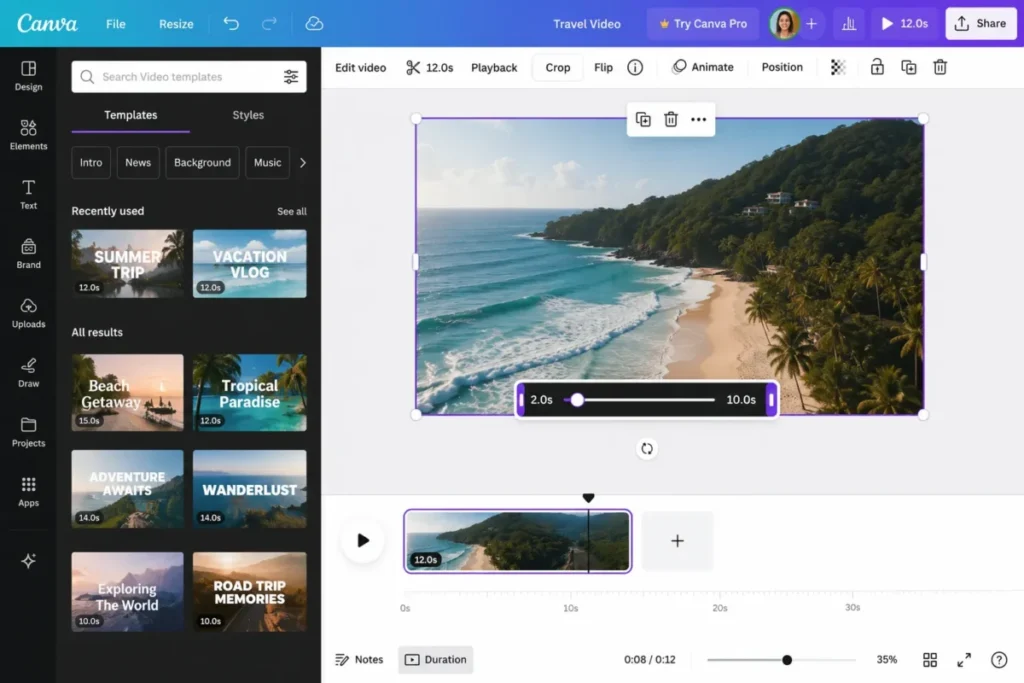
The video sharing page describes the editing surface plainly: insert text, add music, resize the video, then download it as an MP4. That is the correct expectation to hold.
Read against a professional timeline it looks thin, and that comparison misses the point. Against the actual alternative for a brand team, which is a designer waiting on an editor, it is the faster path to a publishable asset.
- Verdict:
- choose Canva Video for template and brand-led social output, and hand the project to a specialist editor the moment finishing control matters. The wider Canva AI review covers how the surrounding toolset has developed.
| Pros | Cons |
|---|---|
| Text, music, and resizing produce a usable MP4 quickly | Not a substitute for colour or audio finishing |
| Brand Kits keep colours, fonts, and logos in one place | Brand Kits and the premium library require Canva Pro |
| A premium library of templates, photos, video, and music | Timeline control is shallow by design |
| Design and video live in the same workspace | The AI toolset sits on the paid tier |
11. Microsoft Clipchamp: Best free editor for Windows buyers

Last place here is not a criticism of the free tier, which is the most generous on the list. It is a statement about the ceiling.
- Best for:
- Windows households, students, and Microsoft 365 subscribers making everyday social, school, and internal video.
- Avoid if:
- you need professional finishing, or your project depends on premium assets you may stop paying for.
- Starting price:
- $0 on the free personal tier described on the Clipchamp plan comparison, checked 2026-08-17.
- Practical tier:
- free for most personal use, with Microsoft 365 Personal or Family covering 4K.
- Free plan:
- yes, with unlimited exports, no watermark, and AI subtitles, voiceovers, and silence removal included.
- First limit that bites:
- 1080p. Higher output depends on a Microsoft 365 entitlement or the paid Premium tier.
- Better than Canva:
- the free tier exports without a watermark and without an asset paywall on basic projects.
- Worse than Resolve:
- finishing depth is not comparable, and it is not trying to be.
- Setup difficulty:
- Low. A signed-in personal account is the whole prerequisite.
- Hidden costs:
- premium stock and content backup, plus the export block a project can hit after a downgrade.
- Evidence status:
- the plan comparison page for free-tier capability, plus Microsoft’s subscription support article for upgrade and downgrade behaviour.
The downgrade behaviour is the detail worth planning around. Microsoft’s subscription article documents that projects survive a downgrade while premium assets inside them can still require an upgrade before export.
For a school or a small business that treats this as the default editor, keeping premium assets out of long-lived projects is the cheapest insurance available.
- Verdict:
- choose Clipchamp if the output is 1080p and the priority is zero cost with no watermark, and step up only when 4K or content backup becomes a requirement.
| Pros | Cons |
|---|---|
| Unlimited free exports with no watermark | Free output stops at 1080p |
| AI subtitles, voiceovers, and silence removal on the free tier | Premium assets can block an export after a downgrade |
| 4K included for Microsoft 365 Personal and Family | Content backup is a paid capability |
| Effectively zero setup on Windows | Finishing depth is shallow next to the desktop suites |
Year-One Cost and the Tier You Actually Need
Entry price answers the wrong question. The number that matters is what a working setup costs across twelve months once the limit you will hit has been removed.
| Editor | Ownership model | Published entry price | Billing basis | Free tier | Optional or separate costs |
|---|---|---|---|---|---|
| Adobe Premiere | Subscription | $22.99 per month | Annual commitment, billed monthly, per individual | None | Extra generative credits, storage above 100GB |
| DaVinci Resolve 21 | One-time licence for Studio | $295 | Single payment | Yes, free edition | None published in software terms |
| invideo Editor | Free plus paid tiers | $0 on the free plan, $9 per seat per month on Basic | Monthly, or annual on Pro and Ultra | Yes, free plan | Generative credits, premium stock, extra seats |
| Final Cut Pro | One-time licence | $299.99 | Single payment on the Mac App Store | None | Mac hardware |
| CyberLink PowerDirector 365 | Subscription | $59.99 per year on the current sale | Annual, against a $79.99 standard price | None on this plan page | Promeo at $34.99 per year, unlimited stock at $49.99 per year |
| Wondershare Filmora | Subscription | $49.99 billed yearly on Basic | Billed yearly, renews automatically | Not stated on the pages cited here | Creative Assets option with its own renewal |
| CapCut | Free plus paid tier | Not publicly disclosed | Varies by region, device, and current offers | Yes | Not published |
| Descript | Subscription | $24 per person per month | Annual billing, $35 shown for monthly | Yes, free starting tier | Media-hour overflow beyond the plan allowance |
| VEED | Free plus paid tiers | $0 | Forever-free plan | Yes | Paid tier required for 1080p and above |
| Canva Video | Paid plan on top of a free tier | Not published on the pages cited here | Not stated on the pages cited here | Not stated on the pages cited here | Pro for Brand Kits and premium content |
| Microsoft Clipchamp | Free plus paid tiers | $0 | Free personal tier | Yes | Microsoft 365 entitlement or Premium for 4K |
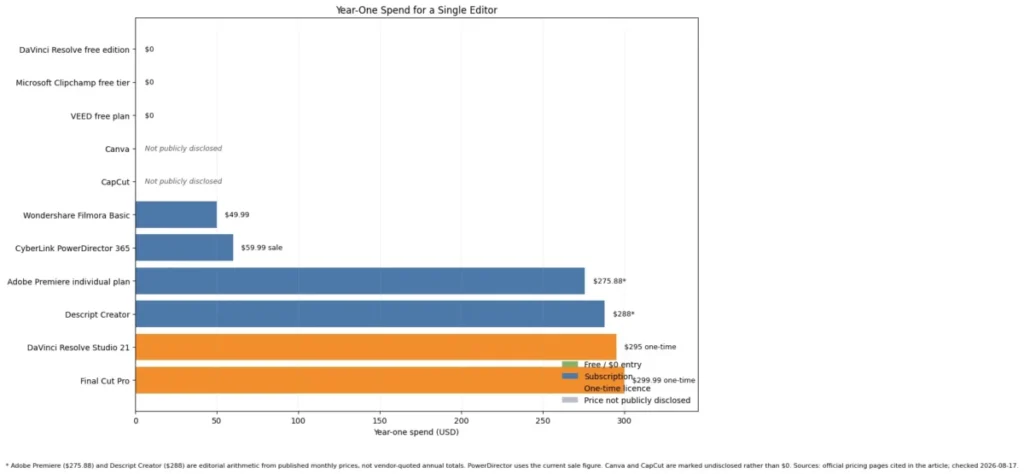
Three scenarios make the ownership split concrete, and each one is arithmetic from the published figures rather than a quoted offer.
Twelve months on the individual Premiere plan comes to $275.88 in year one, calculated as 12 x $22.99.
A Descript Creator seat works out at $288 per person per year, calculated as 12 x $24.
A five-person interview team therefore commits $1,440 in year one, calculated as 5 x 12 x $24, before a single hour of overflow.
Set that against a one-time Resolve Studio licence: five licences cost $1,475 as a single purchase, calculated as 5 x $295, and year two costs nothing.
The PowerDirector plan page deserves its own note, because the headline is the least representative number in this comparison. Adding both optional packages to the current $59.99 subscription produces $144.97 in year one, calculated as $59.99 + $34.99 + $49.99.
That is still competitive. It is not the figure a reader carries away from a comparison table, which is exactly how add-on pricing works.
One caution on that line: the $59.99 figure is a current sale against a $79.99 standard price, so a renewal quote should be checked against the standard figure rather than the promotional one.
What the Free Tiers Actually Export
Four editors publish exactly where their free tier stops. They stop in very different places.
| Editor | Free export ceiling | Watermark on free output | What forces payment |
|---|---|---|---|
| DaVinci Resolve 21 | Ultra HD at up to 60 fps | None | The Neural Engine, the 45 extra Resolve FX, and frame rates or resolutions above the free ceiling |
| Microsoft Clipchamp | 1080p, unlimited exports | None | 4K output, premium stock, brand assets, and content backup |
| VEED | 720p | Not published in the cited export article | 1080p on Creator, and up to 4K on the higher tiers |
| CapCut | Editing is free, export settings are gated | Not published as a fixed rule | 4K and 60fps output, premium templates, and AI generation |
Two of those rows are marked as not published on purpose. Where an official page does not state a watermark rule, guessing one would be more useful to a competitor than to a buyer.
The ranking that falls out of this table is not the ranking most roundups print. On raw free capability, Blackmagic’s free edition is untouchable, and the browser tools are trial surfaces until money changes hands.
AI Allowances, Measured Rather Than Marketed
Every vendor here markets AI. Only some publish what you get before the meter runs out.
| Editor | Plan named on the source page | Included monthly AI allowance | Behaviour beyond the allowance |
|---|---|---|---|
| Adobe Premiere | Individual Premiere plan | 25 generative credits | Not published in the cited plan comparison |
| invideo Editor | Basic | 190 credits per seat | Unused credits do not roll over to the next month |
| CyberLink PowerDirector 365 | PowerDirector 365 | 100 AI credits | Not published in the cited pricing page |
| Wondershare Filmora | Advanced | 1,000 AI credits | Not published in the cited shop page |
| Wondershare Filmora | Premium | 2,000 AI credits | Not published in the cited shop page |
| Descript | Creator | 800 AI credits | Not published in the cited pricing page |
The last column is the honest part of this table. None of these vendors publishes, on the pages cited here, what happens when the balance reaches zero.
That matters because the failure mode differs wildly. A queued job, a blocked action, and a silent charge are three very different experiences for a team on a deadline.
Until a vendor documents it, treat the allowance as a hard stop and design the workflow so a finished edit never depends on the last credit of the month.
Credit metering is the norm across the wider set of AI tools for content creation, so this is a category pattern rather than a video-editing quirk.
Anyone budgeting generative work inside Creative Cloud should also read Adobe Firefly pricing, because the credit cost and the plan tiers are set there rather than inside the editor.
Feature Gates and Where They Bite
| Editor | Highest documented export | AI features | Collaboration or review | Where the first gate sits |
|---|---|---|---|---|
| Adobe Premiere | Professional delivery on the paid plan | Generative credits included, metered monthly | Frame.io review and approval included | The monthly credit balance |
| DaVinci Resolve 21 | Up to 120fps at 32K on Studio | Neural Engine features on Studio | Collaboration supported | The free frame-rate ceiling |
| invideo Editor | 4K export of your own footage on paid plans | AI agents assemble a base cut, plus generative models on credits | Multiplayer timeline with live cursors | The monthly credit balance for generated shots |
| Final Cut Pro | Professional delivery on the single licence | Magnetic Mask and automatic captions | Not comparable to Premiere’s review flow | The macOS requirement |
| CyberLink PowerDirector 365 | Paid subscription output | Premium AI and generative tools included | Thin | The 100 monthly AI credits |
| Wondershare Filmora | Paid plans for Windows and Mac | Plan-dependent credits, 1,000 or 2,000 | Thin | The AI credit tier |
| CapCut | 4K and 60fps on the paid tier | AI generation on the paid tier | Not covered by the cited sources | Premium export settings |
| Descript | 4K watermark-free on Creator | 800 monthly AI credits | Timeline export on Creator and above | 30 media hours a month |
| VEED | Up to 4K on Pro, Studio, and Enterprise | Subtitles and transcription | Browser-based sharing | The 720p free ceiling |
| Canva Video | MP4 download from the design canvas | AI tools on Canva Pro | Shared brand workspace | Brand Kits and premium content |
| Microsoft Clipchamp | 4K with a Microsoft 365 entitlement | AI subtitles, voiceovers, silence removal free | Light | The 1080p free ceiling |
Read the last column first. It names the single thing most likely to end each honeymoon, which is a more useful sorting key than any feature count.
Setup, Migration, and Getting Out Again
| Editor | Setup difficulty | Why | Documented project portability |
|---|---|---|---|
| Adobe Premiere | Medium | Colour management, proxies, and shared project hygiene need a deliberate first pass | Not covered by the cited sources |
| DaVinci Resolve 21 | High | Four page-based workspaces and real hardware expectations | Not covered by the cited sources |
| invideo Editor | Low | Browser-based, no install, agent builds the first cut | Timeline export to Premiere Pro, DaVinci Resolve, and Final Cut Pro |
| Final Cut Pro | Low | Single tier, single platform, guided onboarding | Not covered by the cited sources |
| CyberLink PowerDirector 365 | Low | Guided editing modes and templates carry a first export | Not covered by the cited sources |
| Wondershare Filmora | Low | Conventional timeline with one-click AI tools | Not covered by the cited sources |
| CapCut | Low | Templates and presets carry a first edit end to end | Not covered by the cited sources |
| Descript | Low | Import, transcribe, and cut on the same day | Timeline export as XML and FCPXML, with Sequences, Avatars, titles, transitions, and video effects unsupported |
| VEED | Low | A browser tab and a login is the environment | Not covered by the cited sources |
| Canva Video | Low | Most teams already have an account | Not covered by the cited sources |
| Microsoft Clipchamp | Low | A signed-in personal account is the prerequisite | Not covered by the cited sources |
The portability column is deliberately sparse. Only one vendor in this comparison publishes a documented interchange path, and inventing one for the others would be the least defensible thing in this article.
If moving projects between applications is a real requirement, that column is the shortlist. Everything else in this market assumes you re-cut rather than migrate.
How to Choose the Right Video Editing Software
Work through these in order. The first answer that rules a product out saves you the rest of the evaluation.
- Which operating systems must open the project? A single Windows collaborator removes one option from this list immediately.
- What is the highest resolution and frame rate you deliver? Free tiers split hard at 720p, 1080p, and Ultra HD.
- Do you own the footage problem or the finishing problem? Dialogue-heavy work rewards a transcript editor, and graded work rewards a finishing suite.
- How much generative AI will the workflow depend on each month? Published allowances run from 25 credits to 2,000, and none of these vendors publishes what happens at zero.
- Would you rather rent or buy? Two products here are single payments, and the rest bill on a schedule.
- Who reviews and approves the cut? Built-in review is worth real money once more than two people comment on a video.
- What is the total at the team size you will reach in twelve months, including the add-ons you will genuinely use?
Common Mistakes When Choosing Video Editing Software
Comparing entry prices across different ownership models. A monthly subscription and a one-time licence are not the same purchase, and the crossover usually lands early in year two.
Assuming free means unrestricted. Only one free tier here exports above 1080p, and the browser tools stop lower still.
Treating an AI credit balance as unlimited. An allowance of 25 or 100 credits a month is a sampling budget, not a production one.
Ignoring separately billed extras. Two vendors in this comparison sell optional packages that renew on their own schedule.
Buying finishing depth you will never use. A creator publishing weekly talking-head video does not need a colour suite, and the learning curve is a real cost.
Skipping the export test. Build one short project on the free tier and export it at your delivery spec before any card details are entered.
Final Verdict
Adobe Premiere takes the top position because it fits the widest range of professional buyers, with review, design, and storage bundled into the same subscription as the timeline. It is not the cheapest option here and it is not the best value.
For value, DaVinci Resolve 21 is the strongest recommendation on this list. A free edition that exports Ultra HD at up to 60 fps, with a one-time $295 upgrade when a format demands it, is a better financial shape than any subscription for an editor who works alone.
For a Mac studio that would rather own than rent, Final Cut Pro at $299.99 remains the cleanest purchase in this category, provided nobody in the pipeline runs Windows.
For everyone else, the winner by scenario is the tool that removes the failure you can least afford. Pick PowerDirector or Filmora if the risk is a learning curve, and CapCut if the risk is publishing too slowly.
Pick invideo Editor if the risk is losing hours to rough cuts of footage you shot, Descript if the risk is a bloated first assembly on talking-head video, and VEED, Canva, or Clipchamp if the risk is asking a distributed team to install anything.
Every pick above is a cohort decision rather than a scoreboard. The ranking reason for each one is the workflow it protects and the plan gate it forces, both read from the official pages checked on 2026-08-17.
Teams choosing on brand consistency rather than editing depth are usually solving an approval problem, not a timeline problem, and team collaboration tools address that bottleneck more directly.
If the pipeline is mostly generated footage rather than filmed footage, the separate shortlist of text-to-video AI generators is a better starting point than any timeline here.
The one product to approach carefully is not on capability grounds at all. CapCut is genuinely strong at what it does, and it is the hardest to approve on a budget line because no fixed price is published.
FAQ
What is the best video editing software in 2026?
For most professional teams working across Windows and macOS, Adobe Premiere at $22.99 per month on an annual commitment is the strongest all-round fit, because it combines a mature timeline with transcript editing and built-in review. If cost matters more than collaboration, the free DaVinci Resolve edition covers more professional ground than any other no-cost option.
What do professional video editors use?
Premiere, Final Cut Pro, and DaVinci Resolve are the three that carry professional finishing work, and the split is mostly platform and preference. Apple-only studios lean toward Final Cut Pro, colour-led work lands on Resolve, and teams with clients tend toward Premiere for its included review workflow.
What is the best free video editor without a watermark?
DaVinci Resolve’s free edition is the strongest answer, because it exports Ultra HD at up to 60 fps and ships professional colour and audio tools. Clipchamp’s free tier is a better fit for casual Windows use, with unlimited exports and no watermark, but it stops at 1080p.
Is DaVinci Resolve free to use?
Yes, if your work stays inside the free edition’s documented limits. That edition covers editing, colour, visual effects, and audio, and it exports Ultra HD at up to 60 fps.
The DaVinci AI Neural Engine, the 45 extra Resolve FX, and higher frame rates or resolutions require the $295 Studio licence, which is a one-time purchase rather than a subscription.
Can I edit and export 4K video for free?
No, unless you use DaVinci Resolve’s free edition, which exports Ultra HD at up to 60 fps. Every other free tier on this list that publishes its ceiling stops lower than that.
Clipchamp caps free output at 1080p, the VEED free plan stops at 720p, and CapCut places 4K and 60fps behind its paid tier. Check the export ceiling before building a project around it.
Which video editor is easiest for beginners?
PowerDirector 365 and Filmora are the two built for people who have never opened a timeline, with guided modes, templates, and one-click AI tools. On Windows, the Clipchamp free tier is the lowest-friction starting point of all, since there is nothing to buy and nothing to install beyond a sign-in.
Which video editor is best for YouTube?
For a solo creator publishing weekly, Filmora at $49.99 billed yearly covers guided AI editing without a broadcast learning curve. A channel that is mostly talking-head or interview footage will finish faster in Descript, and a channel built on cinematic grading is better served by DaVinci Resolve’s free edition.
How much does video editing software cost in 2026?
The published range in this comparison runs from $0 to $299.99. Six of the eleven publish a free tier, two sell a one-time licence, and the rest bill on a subscription.
Paid subscriptions start at $49.99 per year, and the two perpetual licences cost $295 and $299.99. CapCut is the exception, because its paid price is not published as one figure.
Which video editors support text-based editing?
Descript and Filmora both publish it, and they aim at different jobs. Descript is built around the transcript from the first import, while Wondershare lists AI Text-Based Editing as one named tool among many on a conventional timeline.
If the plan is to cut in a transcript editor and finish elsewhere, check the interchange first. Descript’s timeline export drops several element types, so the finishing pass inherits less than most teams expect.
Is CapCut good enough for professional work?
Yes, if the deliverable is short-form social video and the reviewer is you. It handles vertical formats, templates, and captions faster than anything else on this list.
It is harder to recommend for client or agency work, where a published price and a predictable export path usually matter more than raw editing speed.