Graphic design shortlists go wrong at the same place every year. The list mixes tools that never competed: a desktop vector production suite, an iPad drawing app, and a browser-based interface editor all get filed under the same heading.
So the right pick for a print studio is the wrong pick for a product team, and both are wrong for a marketer shipping forty channel assets a week.
This comparison ranks ten tools by entry cost, plan gates, device support, collaboration model, and the buyer each one fits. Pricing and plan limits were checked on 2026-08-17.
In This Article (11 sections)
Quick Verdict: Best Graphic Design Software by Use Case
Start here, then read only the entries that survive your device and workflow constraints.
| Use case | Best pick | Why it fits |
|---|---|---|
| Several creative disciplines in one week | Adobe Creative Cloud | One subscription covers raster, vector, and adjacent creative apps |
| Interface and product design with a team | Figma | Shared files, component libraries, prototypes, and developer handoff |
| High-volume marketing and brand content | Canva | Templates, brand assets, and fast resizing across channels |
| Print, sign, and vector production | CorelDRAW Graphics Suite | Vector illustration, page layout, and image editing in one suite |
| Free professional print and layout work | Affinity | Vector, pixel, and layout studios in one free workspace |
| Illustration on an iPad | Procreate | Built for iPad, no subscription, App Store purchase |
| Free logo, icon, and SVG work | Inkscape | Open-source SVG editor with full path and node control |
| Mac-only product design teams | Sketch | Native Mac editor with a permanent-licence option |
| Free photo retouching and raster art | GIMP | Cross-platform raster editing with a plug-in ecosystem |
| Free digital painting on desktop | Krita | Free painting application for Windows, macOS, and Linux |
Source: Adobe plan and app coverage, Figma plan documentation, Canva Business pricing. And https://www.coreldraw.com/en/product/coreldraw/), Affinity release notes. Plus https://procreate.com/procreate), Inkscape feature overview, Sketch plan and licence page, GIMP licensing statement, and Krita platform support. Checked 2026-08-17.
Three picks in that table are free, and two of them are not lighter versions of anything. Affinity and Krita are full professional applications with no licence fee, which changes the value question for a freelancer far more than a discount on a subscription would.
If you already know your device is an iPad, skip to Procreate. If your team needs live co-editing, only Figma, Canva, and Sketch offer it inside the product, and the wider AI tools for content creation comparison covers that side of the stack.
Which Design Job Each Tool Actually Does
A ranked list hides the question that decides most shortlists: do these products even compete? This matrix is an editorial assessment of documented feature scope, not a scoring system.
| Tool | Vector | Raster | Page layout | UI and prototyping | Digital painting |
|---|---|---|---|---|---|
| Adobe Creative Cloud | Yes | Yes | Yes | Yes | Yes |
| Figma | Yes | Limited | No | Yes | No |
| Canva | Limited | Limited | Limited | No | No |
| CorelDRAW Graphics Suite | Yes | Yes | Yes | No | Limited |
| Affinity | Yes | Yes | Yes | No | Limited |
| Procreate | Limited | Yes | Limited | No | Yes |
| Inkscape | Yes | No | Limited | No | No |
| Sketch | Yes | Limited | No | Yes | No |
| GIMP | Limited | Yes | No | No | Limited |
| Krita | Limited | Yes | No | No | Yes |
Source: the Adobe Creative Cloud plans page, the Figma plan and feature documentation. And https://www.coreldraw.com/en/product/coreldraw/), Affinity’s combined design workflow guide. Plus https://procreate.com/procreate), the Inkscape project overview, the Sketch plan comparison, the GIMP project site, and the Krita download page.
Only three pairs in this table are direct competitors. Adobe meets CorelDRAW and Affinity on multi-discipline production, Figma meets Sketch on interface design, and Inkscape meets Illustrator inside the Adobe bundle on vector work. Everything else solves a different job, so a head-to-head score between them would be noise.
Canva sits apart on purpose. It is the only entry built around output volume rather than craft depth, which is why it beats specialist tools on speed and loses to all of them on control.
How We Chose and Compared the Best Graphic Design Software
These rankings are based on official pricing pages, vendor product pages, help-centre documentation, and current release notes. Pricing, plan limits, and platform support were checked on 2026-08-17.
Each tool was assessed against the same buyer-focused criteria: workflow fit, capability breadth, collaboration model, platform availability, purchase structure, plan and feature gates, and documented limitations.
Greater weight was given to factors that change a purchase decision, including the first tier that removes a blocking limit, the capability difference between subscription and permanent licensing, and device support that rules a tool out entirely.
Claims that reliable evidence did not support were excluded from the ranking. Temporary promotions are labelled separately from standard pricing and re-verified before publication.
The Three Problems Every Graphic Design Buyer Faces
Every shortlist in this category collapses into three decisions. Get these right and the tool choice follows.
Problem one: the price you compare is not the price you pay
Design software now spans four different ownership models, and a single starting-price column flattens all of them into a lie.
Adobe sells a recurring subscription, and Sketch sells both a subscription and a permanent Mac licence. Procreate sells a one-time App Store purchase.
Affinity, Inkscape, GIMP, and Krita have no licence fee at all.
Those are not four prices. They are four different relationships with a vendor, with different renewal risk, different update rights, and different consequences if you stop paying.
The trap is sharpest where a vendor sells both. CorelDRAW’s one-time purchase and its subscription are not the same product, and Sketch’s $120 Mac licence removes the collaboration features that most teams buy Sketch for.
Problem two: the plan gate, not the feature list, decides your budget
Every tool here with tiers puts something a working team needs behind a paid plan. The useful question is which limit bites first.
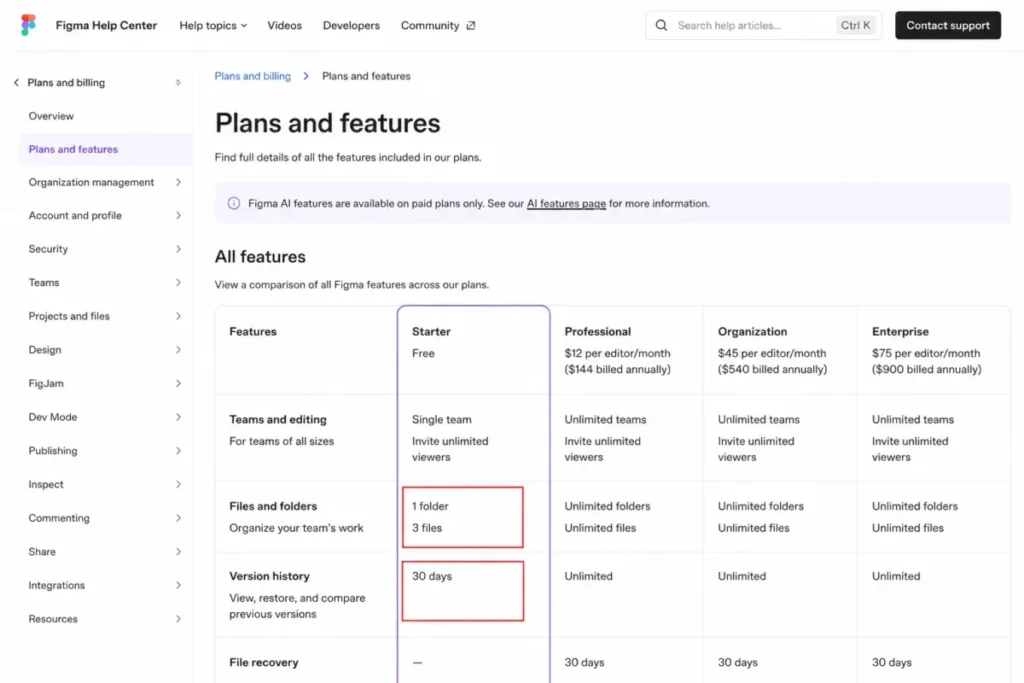
For Figma, the free Starter plan is capped at a single team with one folder and three files, with 30 days of version history. A three-person team with two live projects hits that ceiling in a fortnight.
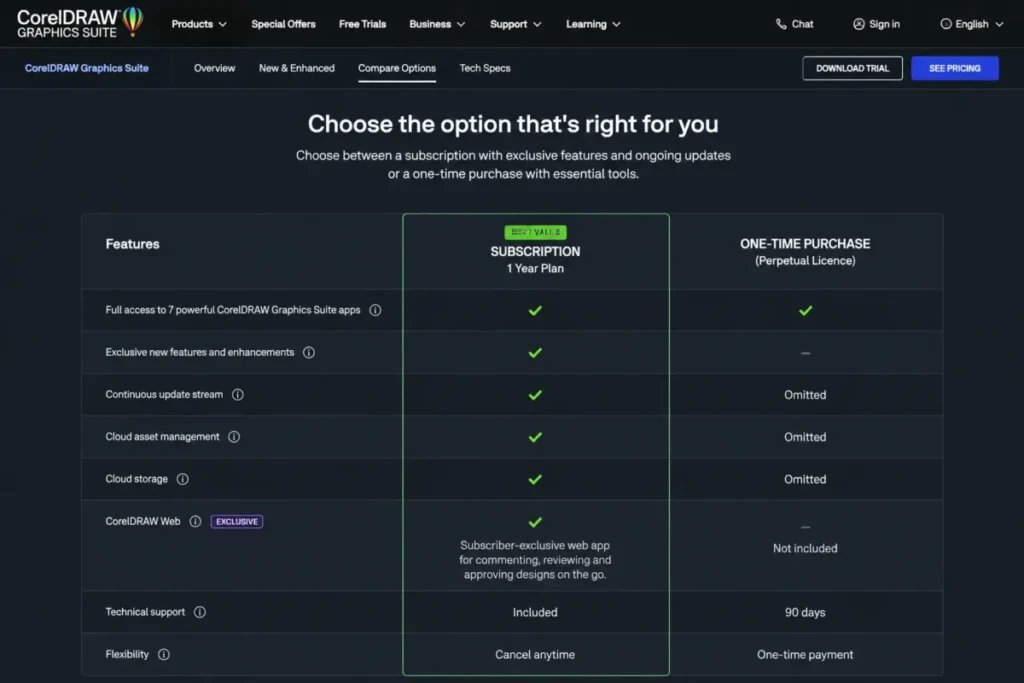
For Canva, the design features sit in Pro while team governance sits in Business at $20 per person per month with no seat minimum. For CorelDRAW, the browser app is subscriber-exclusive, so the purchase model changes what the software can do, not just how you pay for it.
Problem three: the device you work on eliminates half the list
Platform support is treated as a footnote in most roundups. It is the fastest disqualifier on this page.
Procreate is built for iPad, so it cannot be a Windows studio’s main tool. Krita’s download page states that Apple iPads and iPhones are not supported, so it is not an iPad substitute for Procreate.
Sketch edits on macOS. GIMP has no official Android or iOS application, and its documentation notes that iOS is blocked by a licence conflict with Apple’s terms rather than by a missing feature.
Answer the device question first and the ten-tool list usually becomes a four-tool list.
The 10 Best Graphic Design Tools in 2026
Ranked by breadth of documented capability, workflow fit, and how much a buyer gets for the money.
Each entry states its ranking reason, the buyer cohort it serves, and the micro-cohort it does not fit.
1. Adobe Creative Cloud: Best for Multi-Discipline Studios
- Best for:
- designers who move between raster editing, vector illustration, and adjacent creative work in the same week and can defend a recurring line item. Avoid if: one narrow workflow covers your job, or avoiding subscriptions is itself a requirement. Starting price: $69.99 per month, annual plan billed monthly, for the Creative Cloud Pro individual plan. Practical tier: the same Creative Cloud Pro plan, because the value case rests on app breadth rather than on a cheaper single-app tier. Free plan: none for the full suite.
- First limit that bites:
- cost, not capability. The recurring rate is the highest confirmed individual list price in this comparison. Better than CorelDRAW Graphics Suite: wider app coverage beyond vector and layout, including video and generative tooling in the same subscription. Worse than Affinity: carries a permanent monthly cost for work that a free integrated workspace can complete. Setup difficulty: Medium. Multiple applications, an account, and a desktop installer per app. Hidden costs: the introductory rate expires and the regular rate resumes, so budget on the regular figure. Evidence status: the plan page confirms the regular rate, the introductory rate, the app count, and the named applications.
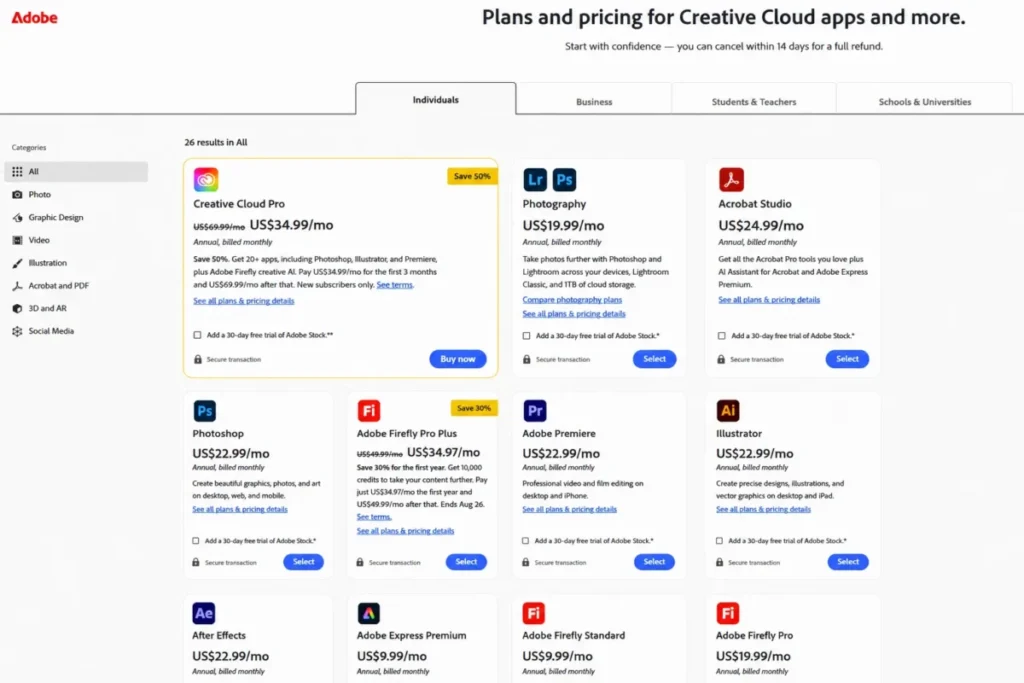
The Adobe plans page lists Creative Cloud Pro at a regular $69.99 per month on an annual plan billed monthly, with an introductory rate of $34.99 per month for the first three months. Twelve months at the regular rate is $839.88, which is the number a finance approval should use.
Adobe describes the plan as more than 20 apps, naming Photoshop, Illustrator, and Premiere, plus Adobe Firefly creative AI. That breadth is the entire argument for rank one.
It is also the reason the plan is poor value for a single-discipline buyer. A logo designer pays for video and audio tooling that never opens. The generative side of the bundle is covered in the Adobe Firefly review and the best AI image generators roundup.
Treat Adobe as the default only when at least three of the included applications appear in a normal month of work. Below that threshold, a free integrated workspace plus one specialist tool covers the same output for no licence fee.
| Pros | Cons |
|---|---|
| More than 20 applications in one subscription, with Photoshop, Illustrator, and Premiere named on the plan page | Highest confirmed recurring individual list price in this comparison at $69.99 per month |
| Covers raster, vector, layout, video, and generative work without adding a second vendor | Introductory rate lasts three months, so the first-quarter cost understates the real budget |
| Adobe Firefly generative AI is included rather than sold as a separate subscription | No permanent-licence option, so stopping payment ends access |
| Industry-standard file formats reduce handoff friction with agencies and printers | Poor value when only one discipline is in regular use |
- Verdict:
- choose Creative Cloud when three or more of its applications earn their keep every month, and reject it when one specialist tool would do the same job.
2. Figma: Best for Collaborative Product Design
- Best for:
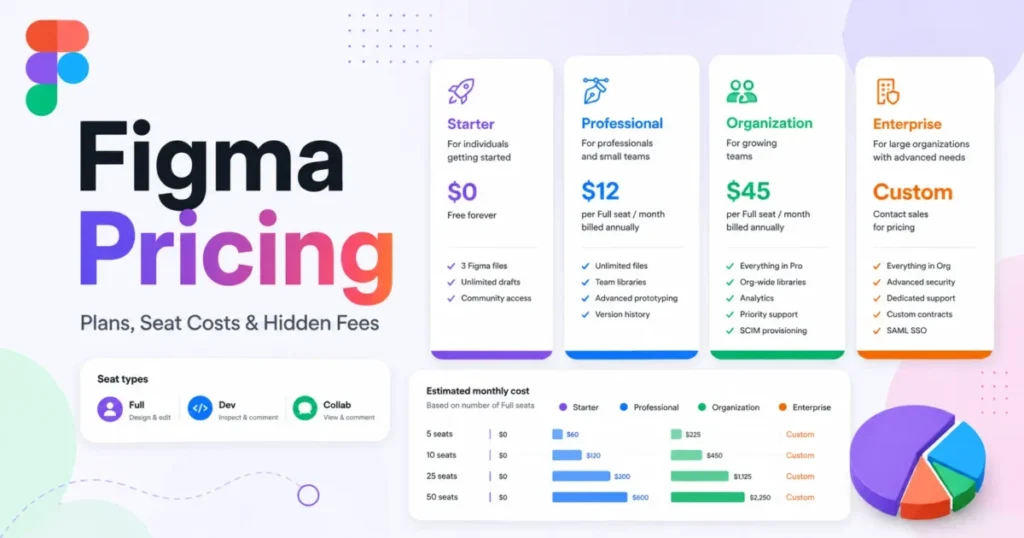
- product, interface, and digital design teams of three to ten people who need shared files, component libraries, prototypes, and developer handoff. Avoid if: your work is print-first, or you expect the free plan to carry a real team. Starting price: the free Starter plan, then $12 per editor per month paid annually on the Professional plan, or $15 paid monthly. Practical tier: Professional, because unlimited folders, shared libraries, and Dev Mode are documented as Professional features. Free plan: yes, capped at a single team with one folder and three files.
- First limit that bites:
- the three-file ceiling on Starter, followed by the 30-day version-history window. Better than Sketch: runs in the browser, so Windows and Linux teammates edit rather than view. Worse than Affinity: no page-layout studio and no print preflight, so it cannot close a print job. Setup difficulty: Low to Medium. Account and team setup is fast; a design system takes real effort. Hidden costs: AI credits are allocated per month by plan and seat type, so heavy AI use is a budget variable rather than a flat fee. Evidence status: plan limits and Dev Mode come from Figma’s plan documentation; the seat price comes from the public pricing page.
Figma’s plan documentation puts the Starter plan at a single team with one folder and three files, with 30 days of version history. Professional is documented as a single team with unlimited folders, plus libraries for components, styles, and variables, video in prototypes, and Dev Mode.
That is the honest upgrade trigger. Not “more features”, but the fourth file and the day-31 rollback.
The Figma pricing page listed Professional at $12 per editor per month paid annually, or $15 paid monthly, and Organization at $45 per month paid annually when checked on 2026-08-17. Twelve months of Professional at the annual rate is $144 per editor, which is well under a fifth of the Adobe figure for a team that only designs interfaces.
Figma also sells Professional by seat type, and AI credits are granted monthly against those seats. Confirm which seat each person needs at checkout before you multiply, because a team of six mixed viewers and editors does not cost six times the editor rate.
Where Figma stops is print. There is no page-layout studio, no preflight panel, and no CMYK document model, so a brochure or a packaging job leaves the tool.
Pairing Figma with a free layout application beats upgrading Figma for work it was never built to do. More detail on plan mechanics sits in the Figma review and the Figma pricing breakdown.
| Pros | Cons |
|---|---|
| Professional is documented as unlimited folders plus libraries for components, styles, and variables | Starter is capped at one folder and three files, which a two-project team passes quickly |
| Dev Mode gives engineers an inspection surface without a second licence | 30-day version history on Starter removes older rollback points |
| Browser-based editing keeps Windows and Linux teammates as editors, not viewers | No page layout, preflight, or CMYK document model for print work |
| $12 per editor per month paid annually is the cheapest team-collaboration rate here | Seat types and monthly AI credits make the per-person figure vary by role |
- Verdict:
- choose Figma when the deliverable is an interface and more than one person touches the file, and skip it when the deliverable goes to a printer.
3. Canva: Best for Fast Marketing Output
- Best for:
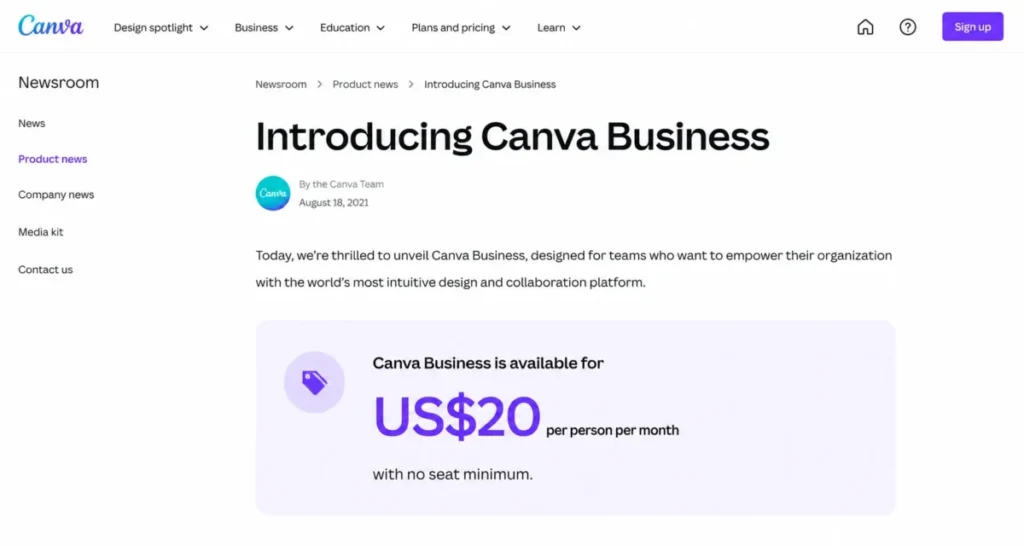
- solo marketers and small brand teams producing many channel-specific assets against a fixed template system. Avoid if: your primary tool has to be a deep desktop illustration or prepress application. Starting price: free, with Canva Business listed at US$20 per person per month and no seat minimum. Practical tier: Business once more than one person needs governed access, because that is the plan Canva positions for teams. Free plan: yes, and it is a working plan rather than a trial.
- First limit that bites:
- brand controls. Brand Kits, Magic Resize, and premium content sit above the free tier. Better than Adobe Creative Cloud: a non-designer can ship an on-brand asset in minutes without training. Worse than CorelDRAW Graphics Suite: no comparable prepress control for commercial print output. Setup difficulty: Low. Template-led, browser-first, minimal configuration. Hidden costs: per-person pricing scales linearly, so a ten-person marketing team reaches $2,400 a year. Evidence status: the Business price and the no-seat-minimum statement come from Canva’s own Business announcement.
Canva’s Business announcement puts Business at US$20 per person per month with no seat minimum, which matters more than it sounds. Most team plans in adjacent categories impose a floor of three or five seats, so a two-person team pays for five.
At $20 per person per month, twelve months costs $240 per person. A ten-person marketing team is therefore a $2,400 annual line, which is the point where a finance conversation starts.
The free tier is the reason Canva outranks specialist tools for marketing work. Someone who has never opened a design application can produce a usable asset on day one, and that adoption curve is worth more to a small team than vector precision it will never use.
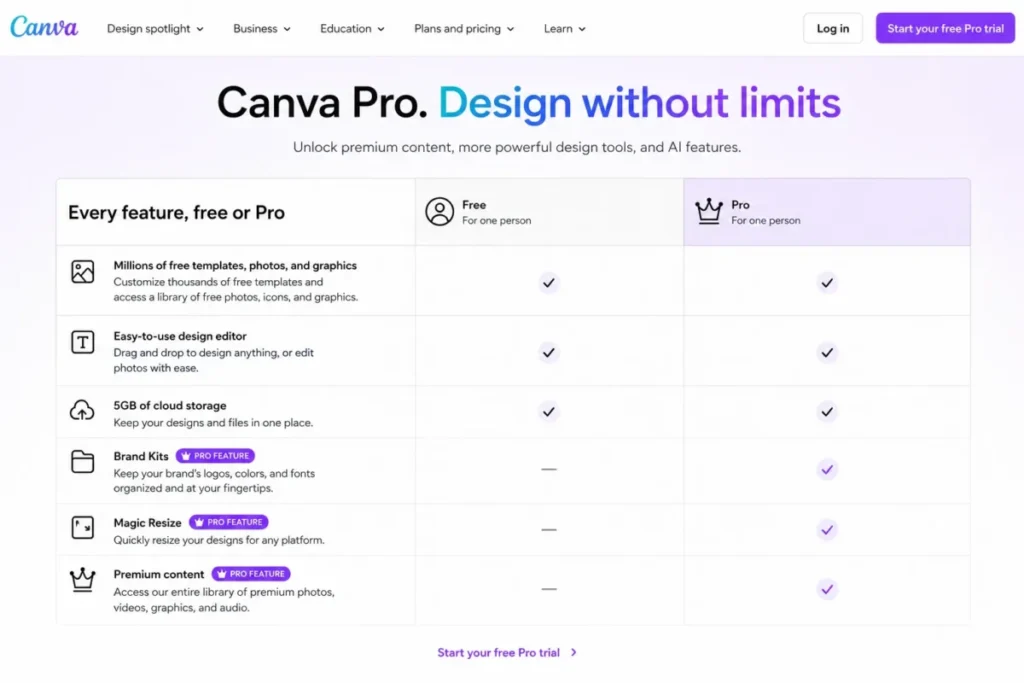
Brand Kits, Magic Resize, and premium content are the Canva Pro additions that make it a brand system rather than a poster maker. Without them, template drift starts within a quarter.
Canva is also now part of Affinity’s documented workflow, since Affinity users can move finished assets into Canva for team distribution. That makes the two products complements rather than rivals, which is not how most roundups frame them.
For teams weighing this against dedicated design tooling, the best AI prototyping tools comparison covers the interface-first side of the same budget, and the Canva AI review covers the generative features in detail.
| Pros | Cons |
|---|---|
| Business is US$20 per person per month with no seat minimum, so a two-person team pays for two | Per-person pricing scales linearly, reaching $2,400 a year at ten people |
| Free tier is a working plan, not a time-limited trial | Brand Kits, Magic Resize, and premium content require a paid plan |
| Non-designers reach an on-brand asset without training, which protects adoption | No prepress control comparable to a dedicated print suite |
| Documented as the distribution layer for finished Affinity assets | Template-led editing limits fine vector and typographic control |
- Verdict:
- choose Canva when output volume and brand consistency matter more than craft depth, and pair it with a specialist tool rather than replacing one.
4. CorelDRAW Graphics Suite: Best for Print and Sign Production
- Best for:
- print, sign, and vector production teams that want illustration, page layout, and image editing from one vendor with a choice of purchase model. Avoid if: you assume the one-time purchase matches the subscription, or you need a published US price before you shortlist. Starting price: not published in the verified US page render, so treat the figure at checkout as the only reliable number. Practical tier: the subscription, because the browser app and continuous updates are subscriber-only. Free plan: none.
- First limit that bites:
- the purchase model itself. Buying once removes CorelDRAW Web, cloud asset management, and cloud storage. Better than Inkscape: page layout, image editing, and font management ship in the same suite rather than as separate projects. Worse than Adobe Creative Cloud: no video or audio tooling, so a mixed-media studio still needs a second vendor. Setup difficulty: Medium to High. A multi-application suite with colour management and output profiles to configure. Hidden costs: generative-AI credits are 2,000 per month on subscription but a single 2,000 allocation on the one-time purchase. Evidence status: the suite contents, platform support, subscriber-exclusive web app, and credit allocations come from the official product page; the US price did not render reliably.
The CorelDRAW product page lists CorelDRAW for vector illustration and page layout, CorelDRAW Web for browser-based design, Corel PHOTO-PAINT for image editing, Corel Font Manager, and CAPTURE, across Windows, Mac, and web.
CorelDRAW Web carries a “Subscriber exclusive” label. That single line is the reason the perpetual licence should not be described as the cheaper version of the same product.
The credit split makes the same point in numbers. Subscription includes 2,000 generative-AI credits per month, while the one-time purchase includes 2,000 credits once.
A designer generating assets weekly exhausts the perpetual allocation inside a quarter and then pays per credit.
Corel also lists cloud-based asset management, cloud storage, instant access to updates as they ship, and continued support for new operating systems and devices as subscription benefits. A perpetual buyer is therefore buying a frozen version, which is a defensible choice only if the machine and the operating system are also frozen.
No US figure for this suite belongs in a comparison table when it comes from a search snippet rather than a checkout. The official page confirms that annual subscription and one-time purchase both exist and that five or more seats move to quoted pricing, so confirm the amount in a US checkout before budgeting.
| Pros | Cons |
|---|---|
| Vector illustration, page layout, image editing, and font management ship as one suite | The US price did not render on the verified page, so no figure can be quoted here |
| Offers a genuine one-time purchase alongside the annual subscription | The one-time purchase omits CorelDRAW Web, cloud storage, and cloud asset management |
| Subscription includes 2,000 generative-AI credits per month | The one-time purchase includes 2,000 credits once, with no monthly reset |
| Runs on Windows, Mac, and the browser for subscribers | No video or audio tooling, so mixed-media studios need a second vendor |
- Verdict:
- choose CorelDRAW when vector and print output is the core of the business, and choose the subscription rather than the perpetual licence unless the workstation is genuinely static.
5. Affinity: Best Free Integrated Design Workspace

- Best for:
- freelancers and print-focused designers who need vector, pixel, and layout work in one application without a licence fee. Avoid if: your team expects live multi-user editing inside the design application itself. Starting price: free. Affinity’s own material describes the current application as completely free. Practical tier: the free application, since there is no paid tier gating the core studios. Free plan: yes, and it is the whole product.
- First limit that bites:
- collaboration. Team distribution runs through Canva rather than inside Affinity. Better than GIMP: a documented CMYK, bleed, PDF/X, and preflight workflow that closes a commercial print job. Worse than Figma: no live co-editing, prototyping, or developer handoff. Setup difficulty: Medium. One application, but real colour-management decisions before the first print job. Hidden costs: none for the application. Connected Canva features carry their own account conditions. Evidence status: the free positioning, the combined studios, and the print workflow all come from Affinity’s current 2026 material.
Affinity’s print production guide describes a unified suite bringing vector, pixel, and editing studios into a single workspace, and states plainly that the app is completely free. Older comparisons that still price Affinity as a paid licence are describing a product that no longer exists at that price.
That single change is the largest shift in this category’s economics, and most roundups have not caught up. A freelancer who previously budgeted for a vector app, a raster app, and a layout app now budgets for none of them.
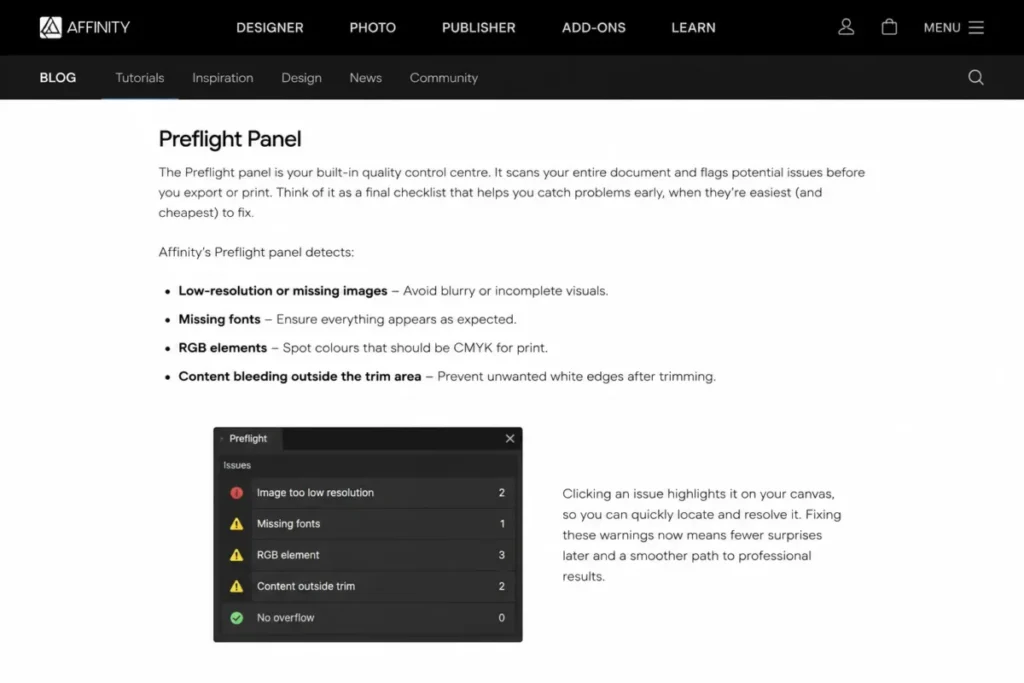
The print evidence is unusually specific for a free tool. Affinity documents starting in CMYK print mode, a 300 DPI minimum, 3mm bleed, PDF/X export, and a Soft Proof adjustment layer. It also documents a Resource Manager that lists linked-image DPI and a preflight panel that flags low-resolution images, missing fonts, RGB elements, and content outside the trim area.
That is a working prepress checklist, and it is the reason Affinity outranks GIMP for anyone whose files reach a printer.
The honest limitation is collaboration architecture. Affinity’s 2026 update describes Canva Brand System inside Affinity and moving assets into Canva to collaborate and distribute across teams, which means team-scale work happens in Canva, not in Affinity.
| Pros | Cons |
|---|---|
| Vector, pixel, and layout studios in one workspace with no licence fee | Live team editing happens in Canva rather than inside Affinity |
| Documented CMYK setup, 3mm bleed, PDF/X export, and a preflight panel | Colour management decisions arrive early and punish a careless setup |
| Capture One and DaVinci Resolve both read native .af files | Fewer third-party tutorials than the incumbent suites |
| The AI Connector is free during its beta period | Beta status means the AI workflow can change without notice |
- Verdict:
- choose Affinity when one person owns the file and the job ends at a printer, and add Canva alongside it when the file has to reach a team.
6. Procreate: Best for iPad Illustration
- Best for:
- illustrators, concept artists, and comic creators whose drawing happens on an iPad. Avoid if: your studio is Windows-first or you need the same editor on a desktop. Starting price: a one-time App Store purchase. Procreate states there are no subscriptions. Practical tier: the single App Store purchase, since there are no upgrade tiers. Free plan: none.
- First limit that bites:
- the device. Procreate is made for the iPad. Better than Krita: runs on iPad, which Krita explicitly does not support. Worse than Adobe Creative Cloud: a single-discipline drawing tool rather than a production stack. Setup difficulty: Low. One App Store purchase and an iPad. Hidden costs: the iPad and stylus, which usually cost far more than the application. Evidence status: the no-subscription model, App Store exclusivity, and feature names come from the official product page; the US amount is not shown there.
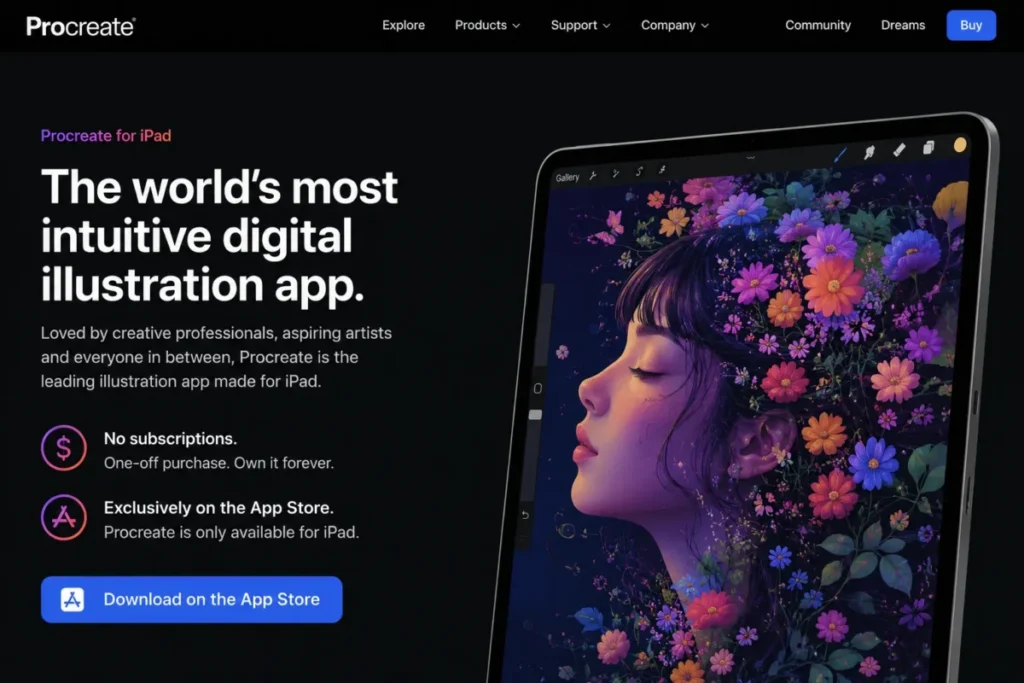
Procreate’s product page is blunt about the model: no subscriptions, exclusively from the App Store, and made for the iPad. For an illustrator, that removes the renewal question entirely.
The documented feature set is drawing-first. Page Assist turns the iPad into a multi-page sketchbook, layers carry full blend modes, and the app supports painting on .USDZ and .OBJ 3D models.
The App Store price is not published on the product page, so the storefront is the only place to confirm it. Anyone quoting a fixed figure from an older article is quoting a number they did not check.
The buying decision here is not about features. It is whether an iPad is already the drawing surface, because Procreate cannot become the Windows studio’s main tool at any price.
| Pros | Cons |
|---|---|
| No subscription, so a single App Store purchase ends the payment question | Built for iPad, which rules it out for Windows-first studios |
| Page Assist supports multi-page sketching, comics, and storyboards | The US App Store amount is not published on the product page |
| Layers with full blend modes and painting on .USDZ and .OBJ models | Single-discipline tool with no layout or prepress capability |
| Low setup cost once the hardware is in place | Hardware cost usually exceeds the software cost by a wide margin |
- Verdict:
- choose Procreate when the iPad is already where the drawing happens, and treat it as a companion to a desktop production tool rather than a replacement.
7. Inkscape: Best Free Vector Editor

- Best for:
- logo, icon, and SVG work where a commercial vector licence cannot be justified. Avoid if: photo-heavy retouching is the main job. Starting price: free. Inkscape is an open-source project. Practical tier: the free application; there is no paid edition. Free plan: yes, with no feature gates.
- First limit that bites:
- scope. It is a vector editor, so raster work needs a second tool. Better than Canva: direct node editing and full path control rather than template constraints. Worse than CorelDRAW Graphics Suite: no bundled page-layout or image-editing application. Setup difficulty: Medium. Installation is simple; the interface rewards deliberate learning. Hidden costs: none in licence terms. The cost is learning time. Evidence status: the open-source status, platform list, and SVG capabilities come from the project’s own overview documentation.
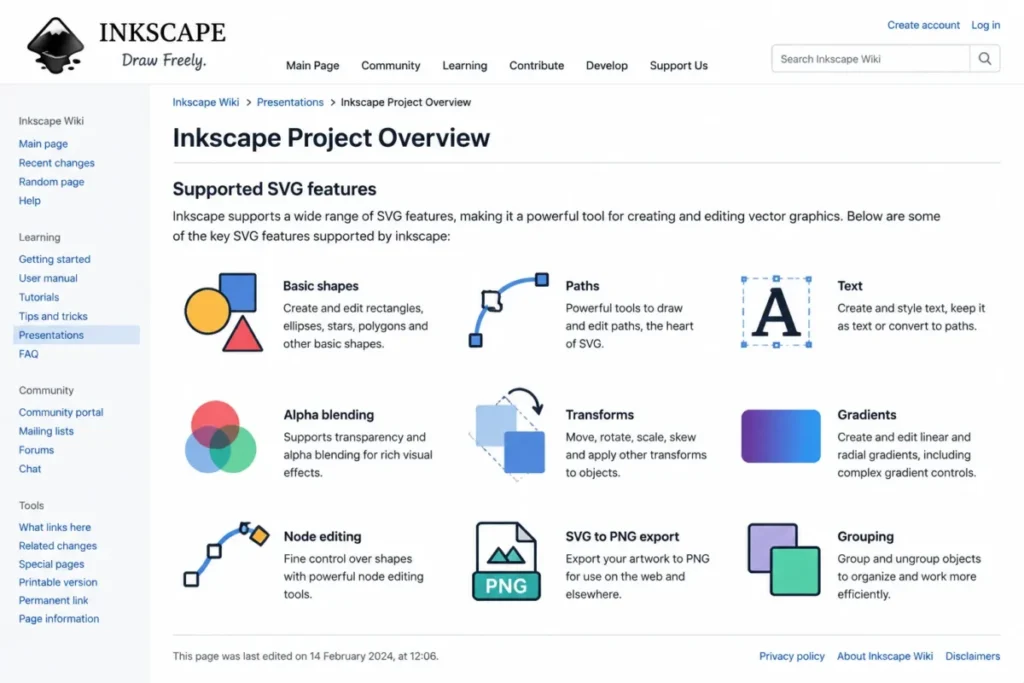
The Inkscape project overview documents Inkscape as an open-source SVG editor with capabilities similar to Illustrator, CorelDraw, and Visio, running on Linux and UNIX, macOS, and Windows.
Its documented SVG support covers basic shapes, paths, text, alpha blending, transforms, gradients, node editing, grouping, and SVG-to-PNG export. For a logo or an icon set, that list is the whole job.
The scope boundary is the thing to plan around. Inkscape is explicitly a vector tool, so a designer who also retouches photographs needs GIMP or Affinity beside it.
That pairing is the practical recommendation. Inkscape plus GIMP costs nothing and covers vector and raster work, which is a defensible stack for a freelancer testing whether design work will pay before committing to a subscription.
| Pros | Cons |
|---|---|
| Open source with no licence fee and no feature gates | Vector-only scope, so raster retouching needs a second application |
| Documented support for paths, node editing, gradients, transforms, and grouping | No bundled page layout or font manager |
| Runs on Linux and UNIX, macOS, and Windows | Interface conventions differ from the commercial suites, which slows switchers |
| SVG-native output suits web and icon workflows without conversion | Smaller commercial support ecosystem than a paid suite |
- Verdict:
- choose Inkscape when the deliverable is a scalable vector asset and the budget is zero, and pair it with a raster editor rather than stretching it.
8. Sketch: Best for Mac-Only Product Teams

- Best for:
- interface and product teams already committed to macOS that want a native editor with collaboration. Avoid if: anyone on the team designs on Windows, or you expect the permanent licence to include collaboration. Starting price: $12 per Editor per month billed yearly on the Standard plan, or $120 per seat as a one-time Mac licence. Practical tier: the Standard subscription, because collaboration and online sharing are subscription features. Free plan: none. A free trial is offered.
- First limit that bites:
- the licence model. The $120 seat is a private, offline editor. Better than Figma: a native macOS application rather than a browser tab, which suits Mac-only studios. Worse than Figma: editing is Mac-only, so Windows colleagues cannot join as editors. Setup difficulty: Low to Medium. Native install plus workspace configuration. Hidden costs: storage is 50GB per Editor, so asset-heavy libraries can force a plan conversation. Evidence status: both prices, the excluded features, and the storage figure come from the official pricing comparison.
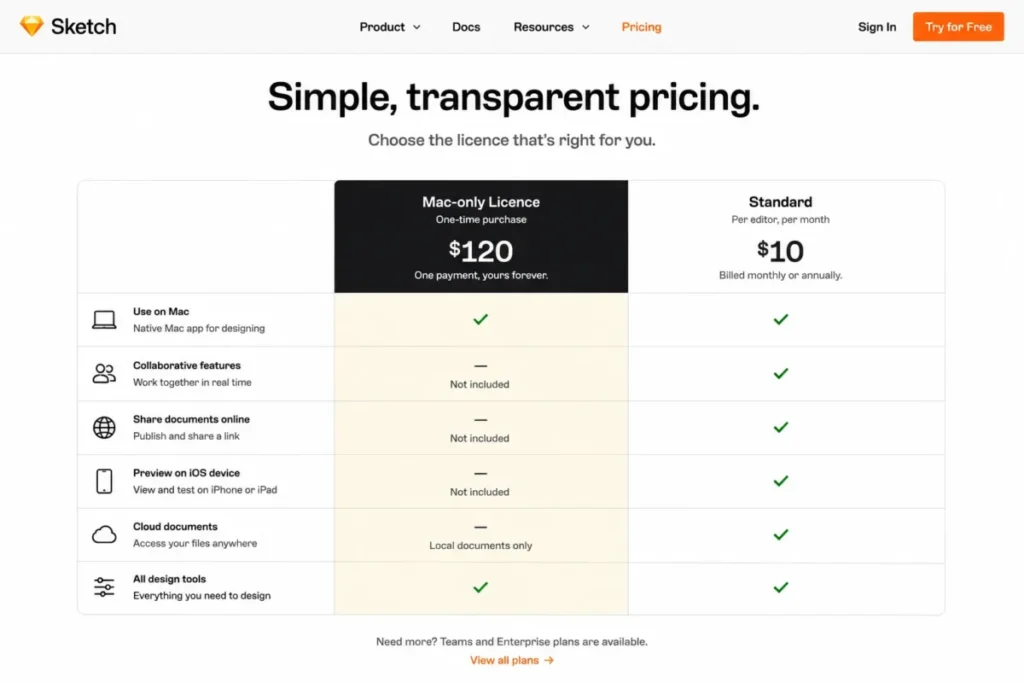
Sketch’s pricing page prices Standard at $12 per Editor per month billed yearly, which is $144 per editor over twelve months, with 50GB of storage per Editor. The alternative is $120 per seat as a one-time Mac licence including one year of updates.
The comparison table is where the decision sits. The Mac-only licence lists working privately, offline, and saving documents locally, while collaborative features, sharing documents online, and previewing on an iOS device belong to the subscription.
So the $120 option is not a discount on the $144 option. It is a different product for a different job, and buying it to save money will quietly remove the review workflow a team depends on.
For a solo Mac designer who never shares a live file, the permanent licence is genuinely the better buy. For anyone else, it is a trap disguised as a saving.
| Pros | Cons |
|---|---|
| Standard is $12 per Editor per month billed yearly, or $144 over twelve months | Editing is Mac-only, so Windows teammates cannot be editors |
| A genuine $120 permanent Mac licence exists with one year of updates | That permanent licence excludes collaboration, online sharing, and iOS preview |
| 50GB of storage per Editor is generous for interface work | Storage is per Editor, so asset-heavy libraries can push a plan change |
| Native macOS application rather than a browser tab | No print, layout, or prepress capability |
- Verdict:
- choose Sketch when the whole team is on macOS and values a native editor, and take the permanent licence only if you genuinely work alone and offline.
9. GIMP: Best Free Raster Editor
- Best for:
- desktop users who need photo retouching, composites, and interface artwork without a licence fee. Avoid if: you design on a phone or tablet, or commercial CMYK print is a core requirement. Starting price: free. GIMP is free software with source you can change and redistribute. Practical tier: the free application; there are no tiers. Free plan: yes, with no feature gates.
- First limit that bites:
- CMYK. Imported and exported CMYK images are converted to and from RGB as the storage format. Better than Krita: stronger photo retouching, restoration, and composite work. Worse than Affinity: no native CMYK document model and no preflight panel. Setup difficulty: Medium. Plug-ins and colour setup take configuration. Hidden costs: none in licence terms. The cost is a print workflow that needs checking with your printer. Evidence status: the licensing, platform list, mobile status, and CMYK behaviour come from the project site and its FAQ.
The GIMP project site describes a cross-platform image editor for GNU/Linux, macOS, Windows, and more, used for retouching, restoration, creative composites, and for producing icons, graphical design elements, and interface mockups.
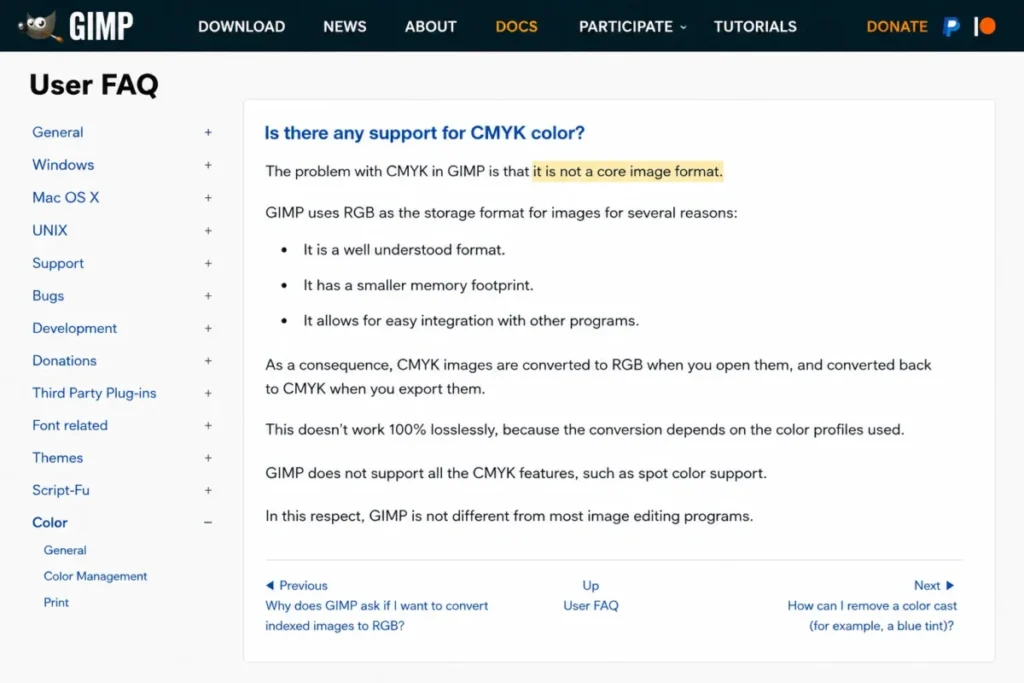
The CMYK detail is the one that decides purchases. The GIMP FAQ says CMYK import and export are converted to and from RGB as the storage format. It adds that CMYK pixel information appears only inside a soft-proof profile context, and that making CMYK a core image format has no timeline.
That is workable for web, screen, and interface art. It is a real risk for packaging or commercial print, where a printer expects a native CMYK document rather than a converted one.
For screen-first retouching, the AI photo editor comparison covers the assisted alternatives to a manual raster workflow.
Mobile is the second disqualifier. The FAQ notes there is no official Android app and that iOS conflicts with the GNU GPL v3+ licence under Apple’s terms, so a tablet-first designer should look elsewhere.
| Pros | Cons |
|---|---|
| Free software with no licence fee and modifiable source | CMYK import and export convert to and from RGB as storage format |
| Cross-platform across GNU/ | No official Android app, and iOS is blocked by a licence conflict |
| Third-party plug-ins extend retouching and automation | No page layout or preflight for print handoff |
| Suited to icons, interface elements, and mockups as well as photography | Configuration effort is higher than a commercial raster editor |
- Verdict:
- choose GIMP for free raster work aimed at screens, and confirm the CMYK handoff with your printer before it becomes a print production tool.
10. Krita: Best Free Digital Painting Tool
- Best for:
- desktop illustrators, concept artists, and comic artists who want a professional painting application at no cost. Avoid if: your main drawing device is an iPad or iPhone. Starting price: free. Krita is a free and open-source application. Practical tier: the free build. Paid store versions exist as a way to support development. Free plan: yes, and it is the full application.
- First limit that bites:
- the device. Apple iPads and iPhones are not supported. Better than GIMP: a painting-first brush engine and workflow rather than a retouching tool. Worse than Procreate: no iPad support, so it cannot follow an artist onto a tablet. Setup difficulty: Low to Medium. Install, then tune brushes and a tablet driver. Hidden costs: none in licence terms. A pressure-sensitive tablet is the real spend. Evidence status: the version, release date, platform support, and iPad exclusion come from the official download page.
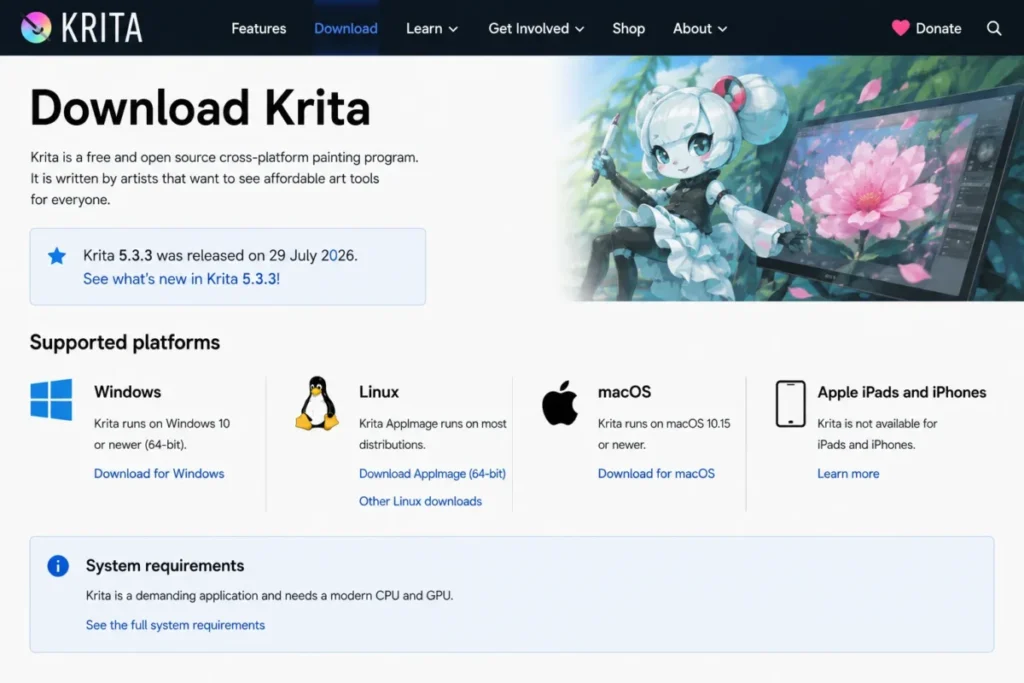
The Krita download page lists Krita 5.3.3, published on 29 July 2026, for Windows 8.1 or higher, macOS 10.15, and Linux. That cadence matters for a free project, because an abandoned painting tool is worse than a cheap one.
The download page states directly that Apple iPads and iPhones are not supported. Any roundup presenting Krita as the free answer to Procreate is describing something the project does not claim.
Paid versions exist on some stores, which fund development rather than gate features. Buying one changes nothing about what the software does.
For a desktop painter, this is the strongest zero-cost option on the page. For a tablet painter, it is not an option at all.
| Pros | Cons |
|---|---|
| Free and open source with no feature gates | Apple iPads and iPhones are not supported |
| Krita 5.3.3 shipped on 29 July 2026, so development is active | No page layout, prepress, or interface-design capability |
| Painting-first brush engine suited to illustration and comics | Retouching workflows are weaker than a dedicated raster editor |
| Optional paid store builds support development without changing features | A pressure-sensitive tablet is effectively required |
- Verdict:
- choose Krita when painting happens on a desktop and the budget is zero, and choose Procreate instead the moment an iPad becomes the drawing surface.
Pricing Comparison: Entry Cost vs Practical Tier
Four ownership models sit in this table, so read the model column before the number.
| Tool | Pricing model | Entry cost | Practical tier | Twelve-month cost |
|---|---|---|---|---|
| Adobe Creative Cloud | Subscription | $34.99 per month for three months | Creative Cloud Pro at $69.99 per month | $839.88 at the regular rate |
| Figma | Free tier plus subscription | Free Starter plan | Professional at $12 per editor per month paid annually | $144 per editor |
| Canva | Free tier plus subscription | Free plan | Business at $20 per person per month | $240 per person |
| CorelDRAW Graphics Suite | Subscription or one-time purchase | Not published in the verified page render | Subscription, for web and cloud access | Confirm in a US checkout |
| Affinity | Free application | Free | Free | No licence cost |
| Procreate | One-time App Store purchase | Not published on the product page | The single purchase | Confirm in the App Store |
| Inkscape | Free and open source | Free | Free | No licence cost |
| Sketch | Subscription or permanent Mac licence | $120 one-time Mac licence | Standard at $12 per Editor per month billed yearly | $144 per editor |
| GIMP | Free and open source | Free | Free | No licence cost |
| Krita | Free and open source | Free | Free | No licence cost |
Source: Adobe’s published plan rates, Figma’s plan pricing, the Canva Business pricing statement. And https://www.coreldraw.com/en/product/coreldraw/), Affinity’s current release notes. Plus https://procreate.com/procreate), the Inkscape licensing overview, Sketch’s published rates, the GIMP licensing statement, and Krita’s release and licensing page. Checked 2026-08-17.
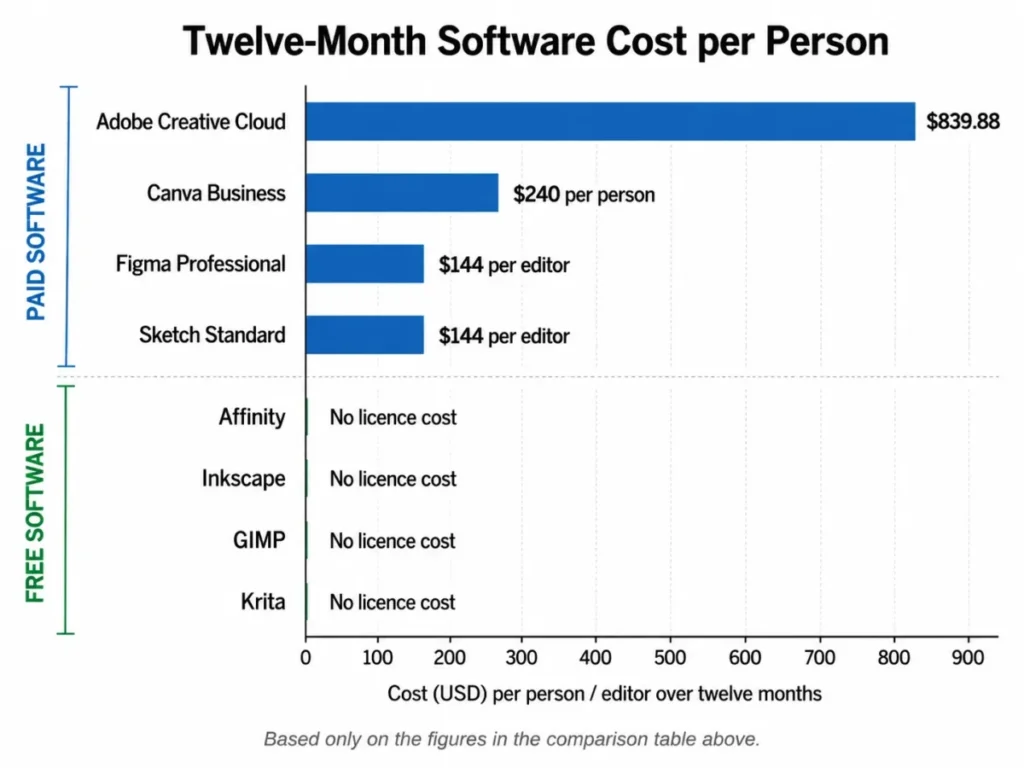
The arithmetic is deliberately simple. Adobe’s twelve-month figure is $69.99 multiplied by twelve, Canva’s is $20 multiplied by twelve, and both Figma and Sketch reach $144 from $12 multiplied by twelve at their annual-billing rates.
Read down that last column and the real spread appears. Adobe costs roughly three and a half times Canva per person, nearly six times Figma or Sketch per editor, and an unlimited multiple of the four free applications.
That gap is only justified by breadth. If a buyer opens three or more Adobe applications in a normal month, the premium buys real coverage; if not, it buys unused software.
Two entries deliberately carry no number. Corel’s US amount did not render on the verified page, and Procreate’s App Store amount is not on its product page, so quoting either would be false precision rather than useful pricing.
Promotional pricing was re-verified on the publish date: 2026-08-17. The regular price is the figure to budget against, since the introductory rate applies only to the first three months.
Feature Gate Comparison
This is where the plan you can afford meets the workflow you need.
| Tool | Free tier | Collaboration model | AI allowance | Print output | Gated behind a paid plan |
|---|---|---|---|---|---|
| Adobe Creative Cloud | None | Per-user apps and cloud files | Adobe Firefly included | Yes | The entire suite |
| Figma | One team, one folder, three files | Native real-time co-editing | Monthly credits by plan and seat | No | Unlimited folders, libraries, Dev Mode |
| Canva | Yes | Shared workspaces on Business | Included AI tools | Limited | Brand Kits, Magic Resize, premium content |
| CorelDRAW Graphics Suite | None | Cloud assets on subscription | 2,000 credits monthly on subscription | Yes | CorelDRAW Web, cloud storage, updates |
| Affinity | Whole application | Handoff into Canva | AI Connector in beta | Yes | Nothing in the core application |
| Procreate | None | Local files only | Not applicable | Limited | Nothing after purchase |
| Inkscape | Whole application | Local files only | Not applicable | Limited | Nothing |
| Sketch | Trial only | Real-time on subscription | Not published | No | Collaboration, online sharing, iOS preview |
| GIMP | Whole application | Local files only | Not applicable | Limited by CMYK handling | Nothing |
| Krita | Whole application | Local files only | Not applicable | Limited | Nothing |
Source for the gated column: Figma’s documented plan limits, Canva’s Pro feature list, Corel’s subscriber-exclusive web app. Plus https://www.sketch.com/pricing/), and Affinity’s 2026 feature update. Checked 2026-08-17.
Four of the ten tools gate nothing at all, which is the single most under-reported fact in this category. Affinity, Inkscape, GIMP, and Krita hand over the whole application on day one.
The paid tools gate three different things. Figma gates file volume and design-system infrastructure, Canva gates brand governance, and Corel and Sketch gate the purchase model itself rather than a feature list.
That distinction changes how you trial them. A Figma trial should test whether three files is enough; a Canva trial should test whether one person can hold the brand together without Brand Kits.
Setup and Migration Difficulty
Adoption failure costs more than a licence. This column is about the first fortnight.
| Tool | Setup difficulty | Why | Migration risk |
|---|---|---|---|
| Adobe Creative Cloud | Medium | Multiple installers, an account, and per-app learning | Low, since its formats are the interchange default |
| Figma | Low to Medium | Fast account setup, slow design-system build | Medium, because component libraries do not transfer cleanly |
| Canva | Low | Template-led and browser-first | Medium, since template-native files leave little to export |
| CorelDRAW Graphics Suite | Medium to High | Suite installation plus colour and output configuration | Medium, with vector formats mostly portable |
| Affinity | Medium | One application, but colour decisions arrive early | Low to Medium, with PDF/X as the safe exit |
| Procreate | Low | One App Store purchase and an iPad | Medium, since layered files favour its own format |
| Inkscape | Medium | Simple install, deliberate interface learning | Low, because SVG is an open standard |
| Sketch | Low to Medium | Native install plus workspace configuration | Medium, and Mac-only editing constrains the exit |
| GIMP | Medium | Plug-in and colour configuration | Low for raster formats, higher for CMYK handoff |
| Krita | Low to Medium | Install, then brush and tablet tuning | Low, with common raster exports |
Source: Adobe’s included application list, Figma’s documented design-system features, Canva’s Pro capability page. And https://www.coreldraw.com/en/product/coreldraw/), Affinity’s print production guide. Plus https://procreate.com/procreate), Inkscape’s SVG capability list, Sketch’s editor and storage terms, GIMP’s platform statement, and Krita’s supported systems. Checked 2026-08-17.
The pattern is consistent: the tools that are easiest to start are the hardest to leave. Canva and Procreate both reward day one and both make an export-everything decision uncomfortable later.
Migration fidelity between these applications is not something to assume. Before committing a live project, export one representative file with its fonts, effects, and linked images and open it in the destination tool.
How to Choose the Right Graphic Design Software
Work through these in order. Each step removes tools rather than adding them.
- Name the device first. An iPad-first illustrator has one serious answer, and a Windows studio can delete two entries immediately.
- Name the output. A file that goes to a printer needs CMYK, bleed, and preflight, which removes Figma, Sketch, and most of Canva’s use cases.
- Count the people who touch the file. One person means a free integrated workspace is enough; three or more means you are buying a collaboration model, not an editor.
- Find the first limit that bites. For Figma that is the third file; for Canva it is brand governance; for CorelDRAW and Sketch it is the purchase model.
- Decide the ownership model deliberately. A permanent licence that removes collaboration is a different product, not a discount.
- Price the twelve-month figure per person, not the monthly rate. $69.99 a month reads as small and $839.88 a year does not.
- Test the exit before the entry. Export one real file from the candidate and open it in the tool you would fall back to.
The criteria behind this order, and how each claim on this page was sourced, sit on the review methodology page.
Common Mistakes When Choosing Graphic Design Software
Most bad outcomes in this category come from six repeatable errors.
Comparing a subscription to a permanent licence as if they were the same number. Sketch’s $120 seat and its $144 annual rate buy different capabilities, and the cheaper one has no collaboration.
Assuming a one-time purchase is a frozen saving rather than a frozen product. Corel’s perpetual buyer gives up the browser app, cloud storage, and the update stream.
Treating a free tier as a team plan. Figma’s Starter plan holds three files, which is a personal workspace, not a studio.
Pricing Affinity from an old article. Its current material describes the app as completely free, which changes the value comparison for every paid alternative here.
Choosing a free raster editor for commercial print. GIMP converts CMYK to and from RGB as its storage format, which is a conversation to have with your printer before the job, not after.
Buying breadth you do not open. A suite is only good value when three or more of its applications appear in a normal month of work.
Final Verdict
Adobe Creative Cloud earns rank one because no other entry covers as many disciplines under one subscription, with more than 20 apps including Photoshop, Illustrator, and Premiere plus Adobe Firefly. That is the strongest all-round position, and it costs $839.88 over twelve months at the regular rate.
It is also the wrong answer for most individual buyers on this page.
For a freelancer or a print-focused designer, Affinity is the better buy in 2026, because it combines vector, pixel, and layout work with a documented preflight workflow and no licence fee. That is the single largest change in this category since the last buying cycle.
For a product or interface team, Figma at $12 per editor per month paid annually is the clearest fit, provided the team accepts that the free Starter plan holds three files and 30 days of history.
For a marketing team measuring output in assets per week, Canva Business at $20 per person per month with no seat minimum is the practical choice, and it works alongside Affinity rather than against it.
For an iPad illustrator, Procreate; for a desktop painter, Krita; for free vector work, Inkscape; for free raster work aimed at screens, GIMP. Sketch remains a reasonable pick only for teams already committed to macOS.
CorelDRAW is the one entry that does not belong on a shortlist without a live price check, since the US figure did not render on the verified page and the perpetual licence is materially less capable than the subscription.
If you are still undecided after all that, buy nothing this week. Install Affinity, run one real job through it, and let the file you produce decide whether you need to pay anyone.
FAQ
What is the best graphic design software in 2026?
Adobe Creative Cloud covers the most disciplines in one subscription, with more than 20 apps and Adobe Firefly, at a regular $69.99 per month. For a single designer who does not use several of those apps monthly, Affinity is the stronger buy because it combines vector, pixel, and layout work at no licence cost.
What is the best free graphic design software?
Affinity, because its current 2026 material describes the app as completely free while documenting CMYK setup, bleed, PDF/X export, and a preflight panel. Inkscape is the better free choice for pure SVG and logo work, GIMP for photo retouching aimed at screens, and Krita for desktop digital painting.
Is Canva or Adobe better for graphic design?
Neither wins outright, so match the tool to the job. Canva is better when output volume and brand consistency matter and non-designers produce assets, at $20 per person per month on Business, while Adobe is better when the work needs vector precision, prepress control, or several creative disciplines in one week.
Can Figma be used for graphic design?
Yes, if the output is digital, because Figma handles vector illustration, icons, and layout for screens and its Professional plan adds unlimited folders, shared libraries, and Dev Mode. No, if the output is printed, because Figma has no page-layout studio, no preflight, and no CMYK document model.
Is Affinity free in 2026?
Yes, and Affinity’s own 2026 material states that the current app is completely free, which is a change from the paid-licence model older comparisons still describe. Team collaboration and distribution run through Canva rather than inside Affinity, so a team should plan for that handoff.
What is the best graphic design software for logos?
Inkscape for a zero-budget SVG workflow, since it documents paths, node editing, gradients, transforms, and SVG-to-PNG export. CorelDRAW Graphics Suite or Adobe Illustrator inside Creative Cloud are the stronger commercial options when logo work sits inside a wider print or brand production stack.
What is the best graphic design app for iPad?
Procreate, which is made for the iPad, has no subscriptions, and is sold exclusively through the App Store, with Page Assist, full blend modes, and painting on .USDZ and .OBJ models. Krita is not an alternative here, because its download page states that Apple iPads and iPhones are not supported.
Is GIMP good enough for professional graphic design?
Yes, for screen and interface work, where its retouching, composite, and icon capabilities are strong and cost nothing. No, unless you have checked your print workflow, because its FAQ states that CMYK images are converted to and from RGB as the storage format and CMYK is not a core image format.
How much does graphic design software cost in 2026?
Anywhere from nothing to $839.88 a year per person. Adobe Creative Cloud Pro is $69.99 per month at the regular rate and Canva Business is $20 per person per month. Figma Professional and Sketch Standard are both $12 per editor per month on annual billing, while Affinity, Inkscape, GIMP, and Krita carry no licence fee.
Which graphic design software should a small team choose?
Match the plan to the governance you need, not the features you want. A three-person interface team should budget for Figma Professional, since the free Starter plan holds one folder and three files, while a small marketing team should budget for Canva Business at $20 per person per month with no seat minimum.