Make is worth it for teams whose automations branch, loop over records or call APIs, as long as they budget in credits rather than in workflows. Core starts at $9 a month for 10,000 credits on annual billing, or $10.59 month to month.
This Make review shows how credits get used, which limit forces each upgrade, and when Zapier or n8n is the better buy. Since November 6, 2025, extra credits cost 25% more than plan credits, so picking the right tier matters more.
Quick verdict
- Worth it for: agencies, ops and marketing teams building branching, looping or API-heavy scenarios who can estimate credits per run.
- Skip it if: your trigger-action automations need an app missing from Make’s 3,500+ library (Zapier offers integrations for more than 9,000 apps) or you must self-host (n8n).
- Main strength: routers and error handlers use no credits, and paid plans run every minute for up to 40 minutes per execution.
- Biggest limit: every module action, including the trigger read, uses a credit, and extra credits cost 25% more. The Make AI Agent (New) app is still an open beta.
- Price basis: per credit tier, not per seat: Core $9, Pro $16, Teams $29 a month at 10,000 credits, billed annually; Free gives 1,000 credits a month.
In This Article (12 sections)
Make at a Glance
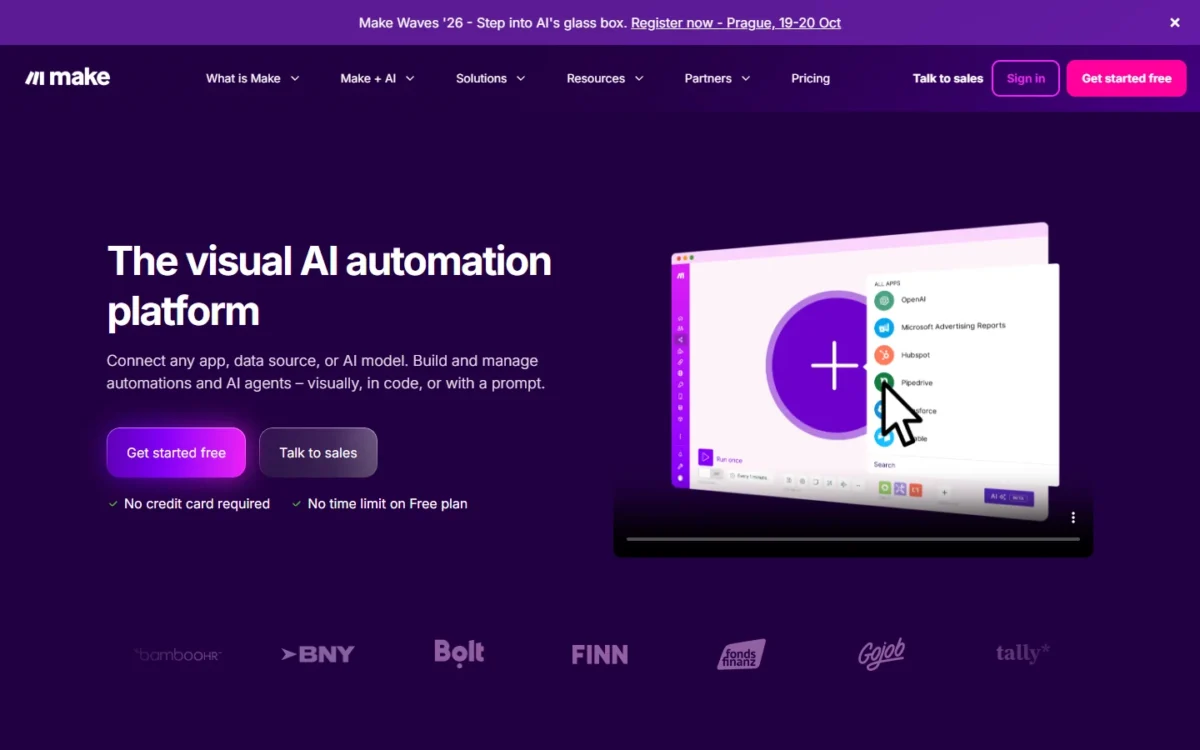
Make is a visual no-code automation platform where you build scenarios from app modules and pay for the module actions in credits. It is part of Celonis, and Make dates its work back to 2015 (about Make).
- Category: visual no-code workflow automation and AI agents
- Best for: branching, data-heavy workflows built without a developer
- Starting price: Free at $0; paid plans from Core, priced by credit tier
- Free plan: 1,000 credits a month, 2 active scenarios, 15-minute minimum interval, no time limit
- Apps: 3,500+ standard apps, plus custom apps for any service with a public API
- Users: unlimited users on every plan
- Main limitation: credits expire at the end of the term, and extra credits cost 25% more
The snapshot shows the plan floor. The harder question is where Make saves you money and where its counting works against you.
Make Pros and Cons
Pros
- Router and error-handler modules use no credits, so splitting one scenario into several paths adds no routing cost
- Paid plans schedule runs down to 1 minute and allow 40-minute executions, against 15 and 5 minutes on Free
- 3,500+ standard apps on every plan, plus custom apps and the HTTP app for any service with an API
- Make reruns a scenario up to 8 times after a connection or timeout error, and five error handlers cover the rest
- Prices follow the credit tier, not the head count, and every plan includes unlimited users
Cons
- Reading data from the trigger app counts a credit, while Zapier counts no task for a trigger
- Extra credits cost 25% more than plan credits, and unused credits expire at the end of the term
- Free stops at 2 active scenarios and 15-minute polling, enough to prove a workflow, not to run one
- Company SSO, audit logs and custom roles are Enterprise-only
- The Make AI Agent (New) app is an open beta whose functionality and pricing may change
Make Features
Four features decide the fit: branching and looping, the app library, AI agents and error handling; run limits are the plan-gated fifth.
Visual scenario builder: routers, filters and iterators
Yes, Make handles workflows that branch and split arrays into single items. A router branches the scenario flow into several chains of modules, and each route processes the data by the condition you set. The router module counts no credits, and routers and filters are on the Free plan.
An iterator converts an array into a series of bundles, one per item. Make’s pricing FAQ lists iterating a row of data among the actions that count credits.
A typical use: a webhook receives a form submission, and a router sends qualified leads to the CRM and the rest to a nurture sheet. The routing is free; each CRM write and sheet row costs a credit.
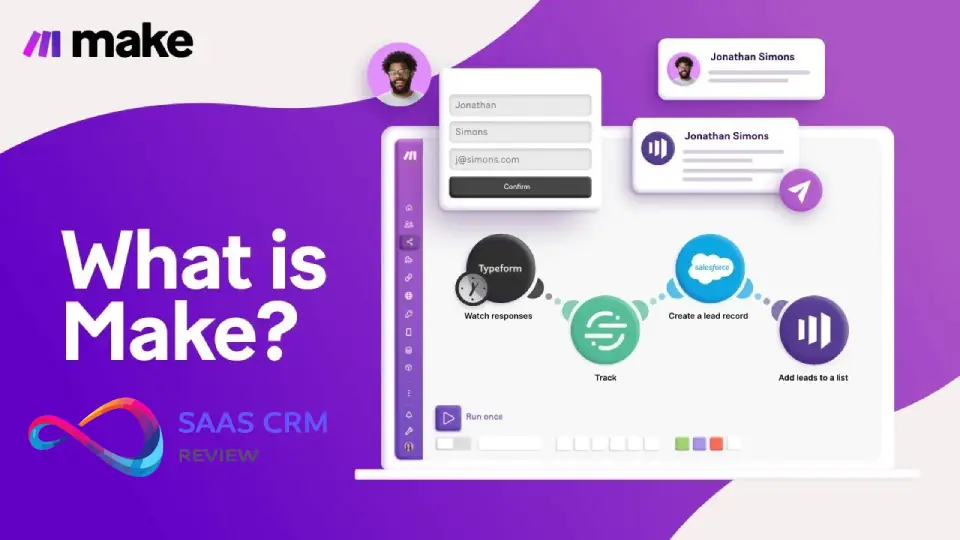
Each 10,000 monthly credits buy a webhook queue of 667 items (10,000 at most), which holds incoming data while a scenario pauses. Subscenarios work on every plan; custom variables shared across scenarios need Pro. Scenario inputs, included on every plan, let a colleague run a complex scenario by filling in the inputs marked as required.
Apps, integrations and the Make API
Make will connect most stacks: every plan includes 3,500+ standard apps (integrations) and custom apps for any service with a public API. If that term is new, start with what an API is.
The gates sit at both ends. Free has no access to the 300+ Make API endpoints; Core allows 60 calls a minute, Pro 120, Teams 240 and Enterprise 1,000. Enterprise apps such as Workday, Coupa and ServiceNow, and the on-prem agent for local networks, are Enterprise-only.
The Make Code App runs JavaScript or Python at 2 credits per second of execution time on paid plans. That is cheap for a quick transform and expensive for a slow script, so keep long processing outside Make.
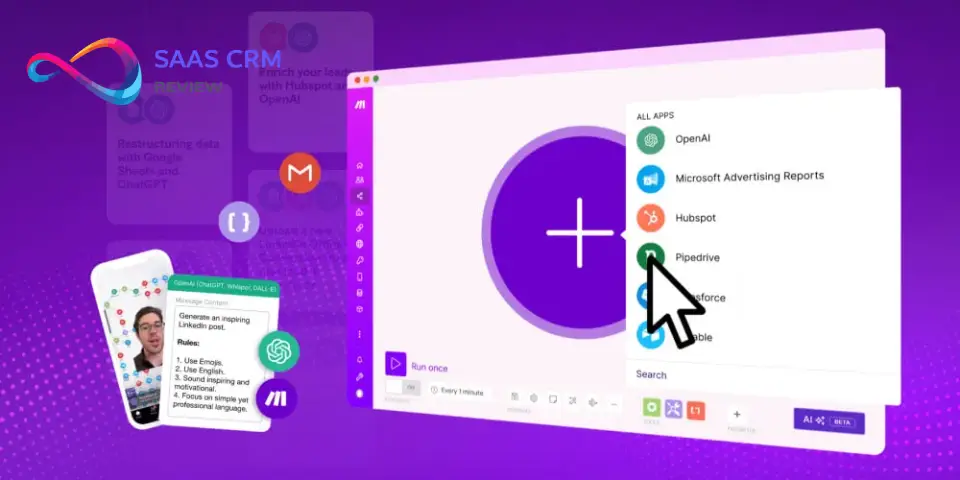
Make AI agents, Maia and the MCP server
Yes, you can build AI agents in Make on every plan. The current Make AI Agent (New) app, released February 2, 2026, is an open beta whose functionality and pricing may change (AI agent guide).
With Make’s AI Provider, running an agent costs 1 credit per operation plus token-based credits. With your own OpenAI or Claude connection, a paid-plan option, Make charges 1 credit per operation and the provider bills the tokens (credit usage for AI agents).
A Reasoning panel shows each agent decision step by step, and you can add manual approvals. Make’s own guidance keeps agents away from sensitive data and high-stakes financial decisions, so I would use them for ticket triage, not refunds.
Maia by Make builds and fixes scenarios from a chat prompt, in public beta on paid plans and as a 30-day trial on Free. The Make MCP server lets Claude or ChatGPT run your on-demand scenarios on any plan; management scopes need a paid plan.
Error handling and retries
When an app fails with a ConnectionError or ModuleTimeoutError, Make reruns the scenario up to 8 times, spaced from 1 minute to as long as 24 hours (exponential backoff). For other errors, you attach one of five handlers to a module: Skip, Retry, Resume, Commit or Rollback.
The catch is a default. Storing incomplete executions is off until you enable it in scenario settings (incomplete executions), and that storage scales with your tier: 10 MB per 10,000 credits, 2 GB at most. Turn it on for any scenario that moves orders or leads.
Scheduling, run limits and logs
Free runs a scheduled scenario every 15 minutes at best and stops an execution at 5 minutes; paid plans go down to 1 minute and 40 minutes. Logs stay 7 days on Free and 30 days on Core to Teams, and full-text log search starts on Pro.
Instant triggers have a default limit of 100 runs per minute (scheduling guide). Extra requests queue, and a scenario with a Webhook response module returns HTTP 429 to the caller, so set that limit on purpose for burst-heavy forms.
The next question is how much effort it takes a team to build and keep scenarios running.
Make Ease of Use
Make’s canvas puts every module, route and error path on one screen. In my view, that layout earns its keep on branching workflows, where each route carries its own condition. The Free plan lets you run two live scenarios before paying.
Public templates shorten the start: they cover over 7,500 use cases on every plan, with a guided setup that prompts for each field (scenario templates). Make Academy offers courses, and on paid plans Maia drafts a scenario from a prompt.
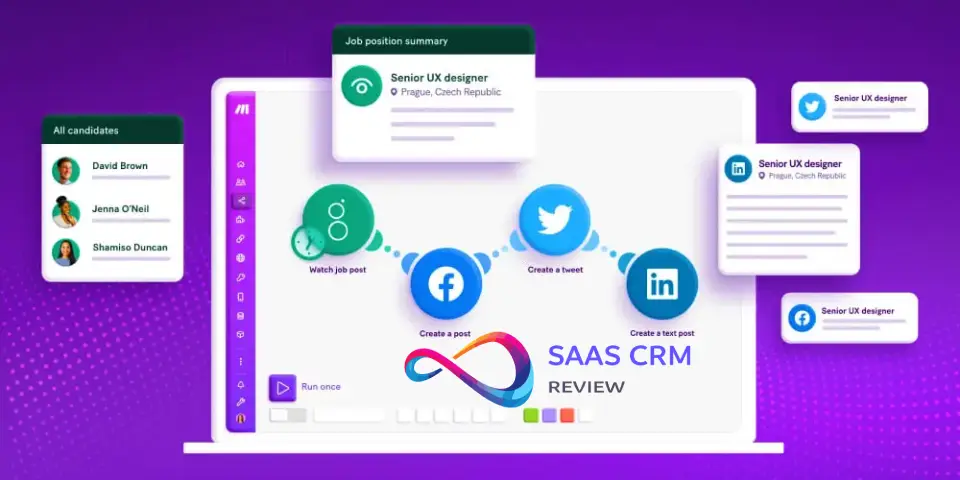
The maintenance work sits in scenario settings: process data in order, store incomplete executions, keep data confidential, and errors before deactivation. Put those four on your build checklist. A scenario that starts with an instant trigger ignores the errors-before-deactivation count and deactivates at the first error, so webhook scenarios need their error handlers in place before launch.
Once the build effort is clear, the running bill is the next question.
Make Pricing
Make prices plans by credit tier, not by user. At 10,000 credits a month, Core costs $9, Pro $16 and Teams $29 per month, billed annually, or $10.59, $18.82 and $34.12 billed monthly; Enterprise is custom. Each paid plan shows a “Save 15%” badge on annual billing, which is paid up front.
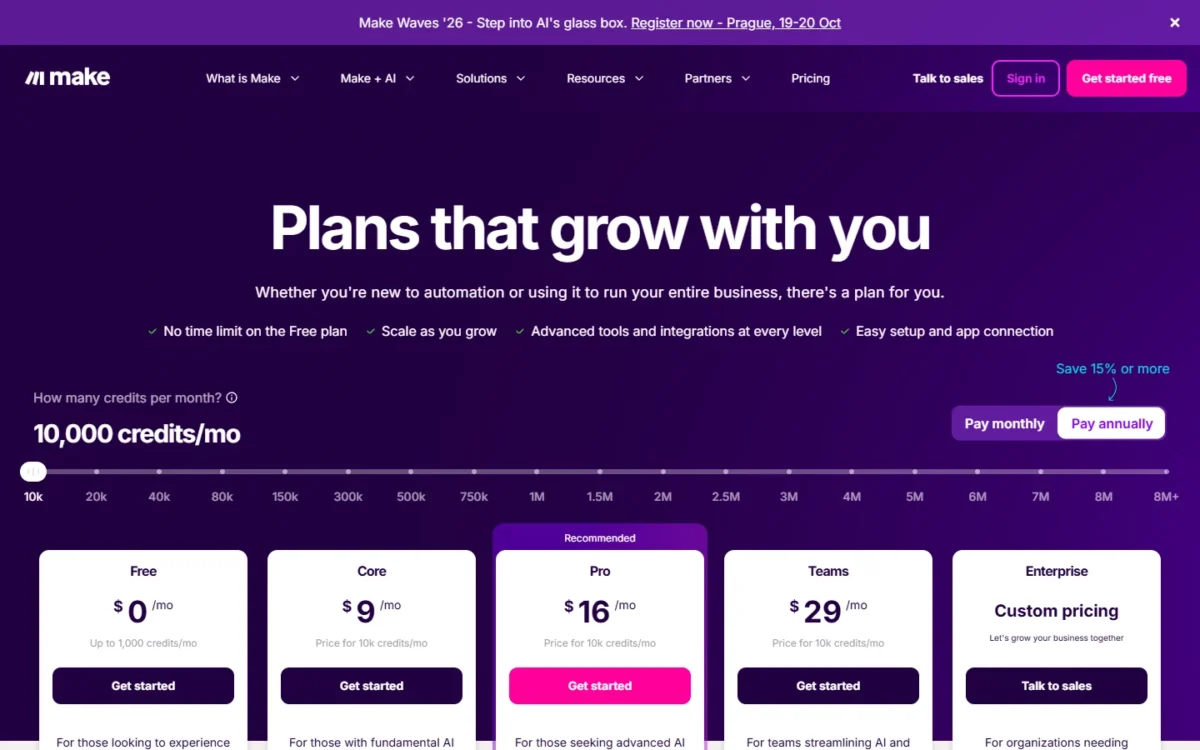
| Plan | Per month, billed annually | Billed monthly | Per 1,000 credits (annual / monthly) | Credits a month | What it adds |
|---|---|---|---|---|---|
| Free | $0 | $0 | Not applicable | 1,000 | 2 active scenarios, 15-minute interval |
| Core | $9 | $10.59 | $0.90 / $1.06 | 10,000, tiers up to 300,000 | Unlimited active scenarios, 1-minute interval, Make API |
| Pro | $16 | $18.82 | $1.60 / $1.88 | 10,000, tiers up to 8 million | Priority execution, custom variables, log search |
| Teams | $29 | $34.12 | $2.90 / $3.41 | 10,000 | Teams and team roles, shared scenario templates |
| Enterprise | Custom | Custom | Custom | Custom | SSO, audit logs, custom roles, enterprise apps, overage protection |
Sources: Make pricing page, Annual billing and Monthly billing views at 10,000 credits, US dollars, checked October 2026; plan adjustments, checked October 2026.
Read the per-credit column. Teams costs $2.90 per 1,000 credits against Core’s $0.90 on annual billing, so you pay for roles, not more automation. A solo builder belongs on Core; the limit that forces an upgrade from Free is usually the third active scenario.
Credits caveat
Unused credits expire at the end of the term, and extra credits cost 25% more than plan credits, whether bought by hand or by auto-purchase (extra credits). On Core, even annual billing resets credits monthly; only Pro and Teams annual plans get a yearly credit pool.
How Make counts credits
One module action is one credit, including reading the trigger data from an app or webhook. Router and error-handler modules are free. AI modules on Make’s AI Provider add token-based credits (credits guide), and some AI Content Extractor modules use 2 or 10 credits per operation.
Take an illustrative lead scenario with five modules: a webhook trigger, a router, a CRM search, a CRM create and a Slack message. The router is free, so each run uses 4 credits. At 2,500 form submissions a month, that is 4 x 2,500 = 10,000 credits, the whole Core 10,000-credit tier.
The same count shows the trap. Put the CRM create inside an iterator over three line items per submission, and that module alone uses 3 credits per run instead of 1.
Measure credits per run on the Free plan’s 1,000 credits before you pick a tier.
What Make costs at real usage levels
A solo builder within 10,000 credits a month pays $108 a year on Core billed annually; a team that needs team roles pays $348 a year on Teams.
| Buyer | Plan and billing | Cost |
|---|---|---|
| Solo builder | Core, billed annually | $9 x 12 months = $108 a year |
| Solo builder paying month to month | Core, billed monthly | $10.59 x 12 months = $127.08 a year |
| Builder who needs custom variables and log search | Pro, billed annually | $16 x 12 months = $192 a year |
| Team that needs team roles | Teams, billed annually | $29 x 12 months = $348 a year |
| Same team, month to month | Teams, billed monthly | $34.12 x 12 months = $409.44 a year |
| Core month that needs 10,000 extra credits | Core at $9 plus extras | $9 + $11.25 = $20.25 for that month |
Sources: Make pricing page and extra credits, checked October 2026. Assumptions: the 10,000-credit tier, prices before tax, annual plans paid up front.
Monthly billing on Core costs $10.59 – $9 = $1.59 more per month. That premium buys the right to stop after one month, which is worth paying only while you are still measuring credits per run.
The overage row is the warning: a month that doubles its usage costs more than double, because extra credits carry the 25% premium. If that keeps happening, price the next credit tier on the pricing page’s slider before you rely on extras.
What forces an upgrade
Free to Core happens at the third active scenario, faster polling, longer runs or bigger files. Core to Pro happens above 300,000 credits a month, or for custom variables, log search or a yearly credit pool. Pro to Teams is about people: team roles.
| Limit | Free | Core | Pro | Teams | Enterprise |
|---|---|---|---|---|---|
| Active scenarios | 2 | Unlimited | Unlimited | Unlimited | Unlimited |
| Minimum interval | 15 minutes | 1 minute | 1 minute | 1 minute | 1 minute |
| Max execution time | 5 minutes | 40 minutes | 40 minutes | 40 minutes | 40 minutes |
| Max file size | 5 MB | 100 MB | 250 MB | 500 MB | 1,000 MB |
| Execution log storage | 7 days | 30 days | 30 days | 30 days | 60 days |
| Data transfer (5 GB per 10,000 monthly credits) | 512 MB | 5 GB | 5 GB | 5 GB | 5 GB |
| Teams and team roles | Not included | Not included | Not included | Included | Included |
| SSO, audit logs, custom roles | Not included | Not included | Not included | Not included | Included |
Sources: Make pricing page, plan comparison table, checked October 2026.
Teams to Enterprise is a governance decision: company SSO, audit logs, custom roles, enforced two-factor authentication and credit overage protection all sit there. Downgrading has its own cost: active scenarios that use a higher plan’s features stop, though unused credits move to the new subscription.
Support, Security and Reliability
Make states GDPR adherence and completed SOC 2 Type II and SOC 3 audits on its security page, and every plan runs on AWS in the EU or North America. Data at rest uses AES-256 encryption, and connections use TLS 1.2 and 1.3.
Enterprise gets the stronger commitments: a separately managed AWS environment, 99.5% Cloud Service Uptime and an ISO 27001 certified information security program. The security page ties that uptime figure to Enterprise Plan customers; its general note is that the cluster is deployed over two zones.
Support scales by plan: Free gets 90-day expert access to get started, Core and Pro get technical support, Teams gets high-priority guidance, and Enterprise gets 24/7 assistance. For client data you should not keep, the keep-data-confidential setting stops Make storing run payloads in logs.
With security settled, the question is who Make fits at all.
Who Should Use Make?
Make fits teams whose workflows branch, loop over records or call APIs, and who can estimate credits per run. Teams whose simple trigger-action automations need apps Make does not list, or who must self-host, should look elsewhere.
A marketer should first decide whether the job is moving data between apps, which is Make’s job, or what marketing automation covers, a different category of tool.
Best for
- Agencies building client workflows with branches and API calls, where routers cost nothing
- Ops teams syncing records in bulk on Core’s 1-minute schedule, budgeting a credit per iterated record and moving to Pro above 300,000 credits a month
- Marketers adding AI steps with their own OpenAI or Claude key on a paid plan
- Growing teams adding builders, since price follows the credit tier and every plan includes unlimited users
Not ideal for
- Simple trigger-action automations that need an app outside Make’s 3,500+ library, where Zapier’s more than 9,000 apps cover more ground
- Teams that must self-host, which n8n’s Community Edition allows
- Budgets that need a flat bill while volume swings, since credits expire and extras cost 25% more
- Regulated work that needs company SSO and audit logs below Enterprise
The not-ideal side points at two tools, so the comparison comes next.
Make vs Competitors
Make bills module actions in credits, Zapier bills tasks with free triggers, and n8n bills per full workflow execution and can be self-hosted.
| Software | Best for | Starting price | Key difference | Main trade-off |
|---|---|---|---|---|
| Make | Branching, data-heavy scenarios | Core $9 a month for 10,000 credits, billed annually | Every module action counts; routers and error handlers are free | Trigger reads count, and extra credits cost 25% more |
| Zapier | Short trigger-action Zaps | Professional from $19.99 a month, billed yearly; Free has 100 tasks a month | Triggers do not count toward the task limit; 9,000+ apps | Free is limited to two-step Zaps |
| n8n | Teams that want to self-host | Community edition, free when self-hosted | One execution is a single run of a whole workflow | You run the server, with Docker Compose or a cloud provider |
Sources: Make pricing page, Zapier pricing page (yearly view), n8n executions and n8n hosting docs, checked October 2026.
Zapier is the rival every Make shortlister weighs. Its Free plan runs two-step Zaps with 100 tasks a month; my Zapier review covers where its task pricing climbs.
n8n changes what you pay for: a workflow run is one execution, and a poll that finds no new data does not count. The self-hosted route is covered in my n8n review.
Best Make Alternatives
If your automations are simple trigger-action pairs, Zapier is the first place to look; if you need to host the platform yourself, n8n is. For more options, see the Zapier alternatives compared on this site.
A marketer who mainly needs email campaigns and nurture sequences, not app-to-app workflows, is better served by the best marketing automation software than by any of these three.
How I Evaluated Make for This Review
I read Make’s pricing page in both billing views on October 20, 2026. I also read its credits FAQ, its help center pages on credits, billing, error handling, scheduling and AI agents, its November 2025 plan release notes and its security page.
For context I read Zapier’s pricing page and n8n’s documentation in October 2026. The cost table, plan-fit calls and credit example are my analysis of those pages. Make does not publish an Enterprise price, and prices above the 10,000-credit tier change along the slider, so read your own tier on the pricing page.
FAQ
What happens if I run out of credits in Make?
Your scenarios stop until credits are added. Incoming webhooks queue up to your webhook queue size and run once scenarios resume, and polling scenarios search back to their last successful run. You can upgrade, buy extra credits in bundles of 1,000 or 10,000, or turn on auto-purchasing on Core, Pro or Teams.
Can I use my own OpenAI or Claude key in Make?
Yes, on any paid plan since November 6, 2025. With a custom AI provider connection, Make charges credits for operations and you pay OpenAI or Anthropic directly for tokens. On Free, Make AI Agents and the AI Toolkit run through Make’s AI Provider, which bills tokens as credits.
Final Verdict
Make is worth it for branching, data-heavy automations on Core or Pro, once a 10,000-credit estimate holds for your scenarios. Its pricing rewards smart design, because routers and error handlers are free.
Pick Teams only when you need team roles, since its per-credit rate is over three times Core’s. Skip Make for simple trigger-action automations that need an app outside its 3,500+ library, where Zapier’s larger catalog fits, and for self-hosting, where n8n fits.
Before you pay, build your two heaviest scenarios on the Free plan and estimate credits per run from the modules each one uses. Multiply by your monthly runs and pick a tier with room to spare.