
The best free video editing software depends on the job: DaVinci Resolve for pro-level edits and color grading, Microsoft Clipchamp for quick browser edits, CapCut for short social clips and iMovie for iPhone, iPad and Mac owners. What separates free editors is the export ceiling and the watermark rule, not the feature count.
“Free” here covers free plans, free apps and open-source editors, with every limit read on the vendors’ US pages in November 2026. DaVinci Resolve’s free version exports up to Ultra HD 3840 x 2160 at 60fps, while the free tiers of Clipchamp and Lightworks stop at 1080p. The comparison table below sets every editor side by side on max free export, watermark on free export, platforms and first paid step.
Quick verdict
Shooting 4K and willing to learn a full suite? Download DaVinci Resolve: its free version handles Ultra HD at 60fps, HDR grading and multi-user collaboration on Mac, Windows and Linux.
Editing in a browser with nothing to install? Clipchamp’s free plan exports unlimited 1080p videos with no watermark. CapCut fits vertical social clips across its Mobile, Pad, Online and Desktop versions, and iMovie costs nothing on Apple devices with 4K saves.
Teams that need 10-bit video or AI noise reduction should plan on DaVinci Resolve Studio; teams that need premium stock should plan on a paid tier such as Microsoft 365 for Clipchamp.

DaVinci Resolve
Best for: pro-level editing and color grading for free
The free version exports 8-bit video up to 60fps at Ultra HD 3840 x 2160, with HDR grading and multi-user collaboration.
Limit: 10-bit, AI tools and resolutions beyond 4K are Studio features

Microsoft Clipchamp
Best for: quick browser edits without a watermark
The free plan exports as many videos as you like at up to 1080p, with AI subtitles and a screen recorder.
Limit: 4K export needs a Microsoft 365 Personal or Family plan

CapCut
Best for: short-form social videos across phone and desktop
CapCut comes as CapCut Desktop, CapCut Online, CapCut Pad and CapCut Mobile, and its Free plan lists free templates and basic editing tools.
Limit: AI credits and premium templates are Pro features

iMovie
Best for: iPhone, iPad and Mac owners
The App Store lists iMovie as free, with 4K editing on Mac and 4K saves at 60 frames per second on supported iPhones and iPads.
Limit: Apple devices only, on macOS 26.6 or iOS 27.0 or later
In This Article (17 sections)
Free Video Editor Comparison Table: Max Free Export, Watermark, Platforms and First Paid Step
| Software | Best for | Max free export | Watermark on free export | Platforms | Starting price (first paid step) |
|---|---|---|---|---|---|
| DaVinci Resolve | Pro editing and color | Ultra HD 3840 x 2160, 60fps, 8-bit | Not stated | Mac, Windows, Linux | Free; Studio $295 list |
| Microsoft Clipchamp | Browser edits | 1080p | None | Browser, Windows app | Free; Microsoft 365 Personal $9.99 per month |
| CapCut | Social clips | Not stated | None on the online editor | Desktop, Online, Pad, Mobile | Free; Pro $19.99 per month |
| iMovie | Apple devices | 4K; 4K at 60fps on supported iPhones | Not stated | Mac, iPhone, iPad | Free; no paid plan listed |
| Shotcut | Portable open source | 4K and 8K support | Not stated | Windows, macOS, Linux | Free, open source |
| Kdenlive | Linux and low-end PCs | Not stated | Not stated | Linux, Windows, macOS, BSD | Free, open source |
| OpenShot | Titles, no project limits | Not stated | None | Linux, macOS, Windows | Free, open source |
| Lightworks | Pro timeline | 1080p, MP4 only | None | Windows, macOS, Linux | Free; Create $20 per user per month |
| Canva | Teams already in Canva | Not stated | Only with Pro or paid elements | Browser, mobile app | Free; Pro $144 per year |
| Adobe Express | Template social videos | Not stated | None | Browser, mobile app | Free; Premium $9.99 per month |
| VSDC Free Video Editor | Action-camera footage | 4K and HDR formats | None | Windows | Free; Pro $19.99 for a year |
Sources: DaVinci Resolve, Clipchamp plans, CapCut pricing, iMovie for Mac, Shotcut features, Kdenlive, OpenShot features, Lightworks pricing, Canva video editor, Adobe Express pricing, VSDC, VSDC Pro subscriptions, checked Nov 2026.
How I Chose These Free Video Editors
Every pick had to clear one bar: the vendor states a free offer, as a free plan, a free app or an open-source license. I then checked every pick against the same criteria: the watermark on a free export, the maximum free export resolution, platform fit, length and storage caps, the cost of the first upgrade, editing depth for the job and help for slower computers. The picks are numbered by the job each one covers, not by an overall score.
The evidence is each vendor’s official documentation and pricing pages, read in November 2026, plus my analysis of what each cap means for a buyer. This ranking does not measure render speed or output quality, which depend on your footage and hardware, so export the same one-minute clip from your top two before you commit.
| Software | Free offer | Pro-level tools on the free tier | Help for slower computers |
|---|---|---|---|
| DaVinci Resolve | Free version | HDR grading, multi-user collaboration | Proxy editing |
| Microsoft Clipchamp | Free plan | AI subtitles, AI voiceovers, silence removal | Not listed |
| CapCut | Free plan | Free templates, basic editing tools | Not listed |
| iMovie | Free app | 4K editing on Mac | Not listed |
| Shotcut | Open source | 4K and 8K support | Proxy editing |
| Kdenlive | Open source | Multicam, nested sequences | Proxies for low-end systems |
| OpenShot | Open source | Blender 3D titles, unlimited tracks | Automatic optimization of 4K+ footage |
| Lightworks | Free forever | Professional timeline, color grading | Proxies up to 720p |
| Canva | Free plan | 4.7M+ free elements | Not listed |
| Adobe Express | Free plan | Content Scheduler, 100,000+ templates | Not listed |
| VSDC Free Video Editor | Free download | GPS telemetry tools | Video proxies |
Sources: DaVinci Resolve, Shotcut features, Kdenlive, OpenShot features, Lightworks pricing, Adobe Express pricing, VSDC, checked Nov 2026.
My take
Pick on the watermark and the export ceiling first, because a free user cannot work around either; feature depth is worth weighing only between tools that pass both.
Free Tier Limits Side by Side: Length, Storage and What the Upgrade Costs
iMovie, Shotcut, Kdenlive and OpenShot cost nothing; for every other editor, the table shows the cap you hit first and the first-year cost of lifting it.
| Software | Length, storage or project cap on free | Paywalled first | First paid step | First-year cost |
|---|---|---|---|---|
| DaVinci Resolve | Not stated | 10-bit, above 4K, AI Neural Engine | Studio | $295 list; $236 sale shown Nov 7, 2026 |
| Microsoft Clipchamp | Unlimited exports | 4K export, premium stock, brand kit | Microsoft 365 Personal | $99.99 per year, or $9.99 x 12 months = $119.88 |
| CapCut | Not stated | AI credits, premium templates | Pro | $179.99 per year, or $19.99 x 12 months = $239.88 |
| Lightworks | MP4 only, 1 cloud provider | 4K export, BRAW and ProRes decode | Create | $20 x 12 months = $240, billed monthly |
| Canva | 5 GB cloud storage | Pro elements without a watermark, Magic Resize | Pro | $144 per year for one person |
| Adobe Express | Up to 30 min per video, 1GB uploads, 5GB storage | Videos up to 2 hours | Premium | $9.99 x 12 months = $119.88, billed monthly |
| VSDC Free Video Editor | Not stated | Premium effects and transitions, non-linear effect changes | VSDC Pro | $19.99 for a year |
| iMovie | Not stated | No paid plan listed | Free on the App Store | Free |
| Shotcut | Not stated | Free and open source | Free and open source | Free |
| Kdenlive | Not stated | Free and open source | Free and open source | Free |
| OpenShot | No project limits | Free and open source | Free and open source | Free |
Sources: DaVinci Resolve Studio, Microsoft 365 plans, CapCut pricing, Lightworks pricing, Canva pricing, Adobe Express pricing, VSDC Pro, VSDC Pro subscriptions, iMovie for Mac, Shotcut, Kdenlive, OpenShot features, checked Nov 2026.
VSDC Pro costs $19.99 for a year, against $240 for 12 months of Lightworks Create. The bigger split is how the price behaves: Blackmagic prints the Studio price with no monthly or yearly term, while CapCut sells Pro monthly or at $179.99 a year, Lightworks offers a monthly or annual subscription or a perpetual license, and Adobe Express Premium is billed monthly.
My take
If you shoot 4K, stay on a free tier that states 4K: DaVinci Resolve, iMovie, Shotcut or VSDC. Clipchamp’s 4K is worth paying for only when you already want Microsoft 365 Personal at $99.99 a year for one person.
If you already know you will pay, my ranking of the best video editing software, paid and free covers the wider field. The picks below are numbered by the job each one covers.
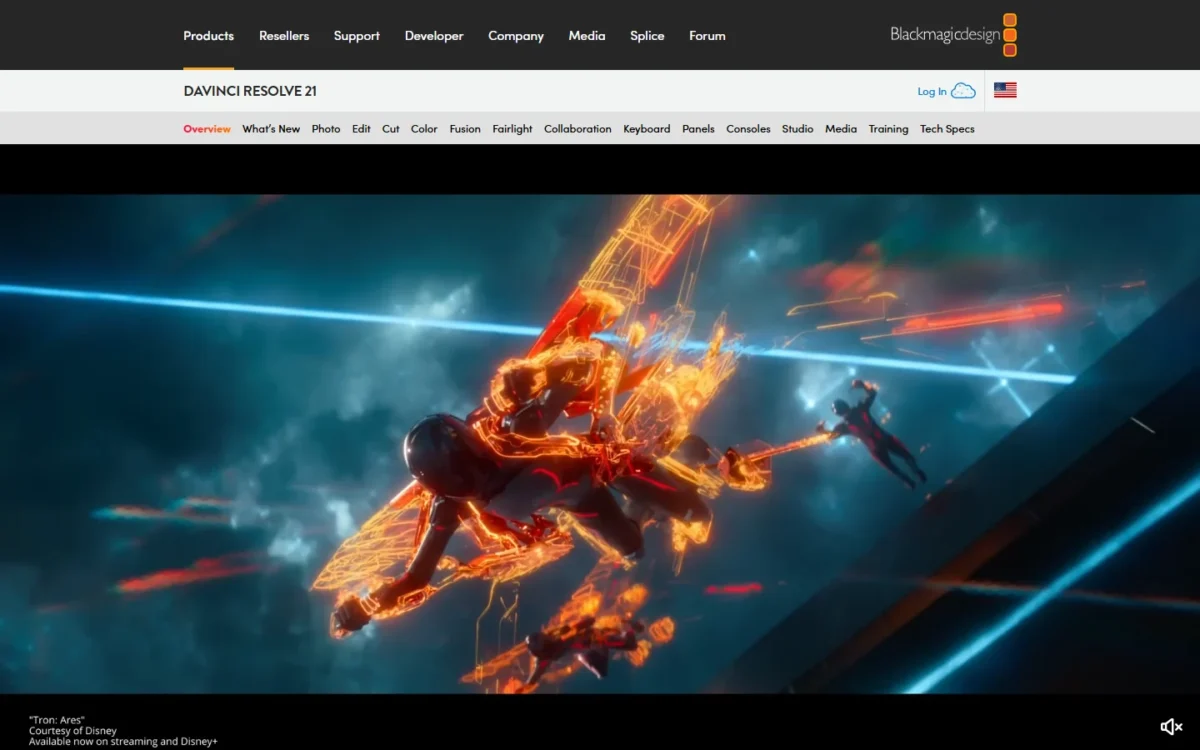
1. DaVinci Resolve: Best for Pro-Level Editing and Color Grading for Free
- Best for: creators and small teams cutting 4K footage who want color and audio tools in one free app
- Free version ceiling: 8-bit video formats up to 60fps, up to Ultra HD 3840 x 2160
- Platforms: Mac, Windows and Linux; current release DaVinci Resolve 21
- First paid step: DaVinci Resolve Studio
Yes, DaVinci Resolve is still free, and its free version is the one to download when the footage is 4K and the edit needs more than cuts. It exports Ultra HD at up to 60fps and includes multi-user collaboration and HDR grading at no cost. The trade-off is scope: Resolve combines editing, color, VFX, motion graphics and audio, far more software than a 30-second social clip needs.
Multi-user collaboration on the free version is the feature a small team should weigh first. An editor and a colorist can work in one project through Blackmagic Cloud without either paying for Studio, though both must learn a full editing and color suite.
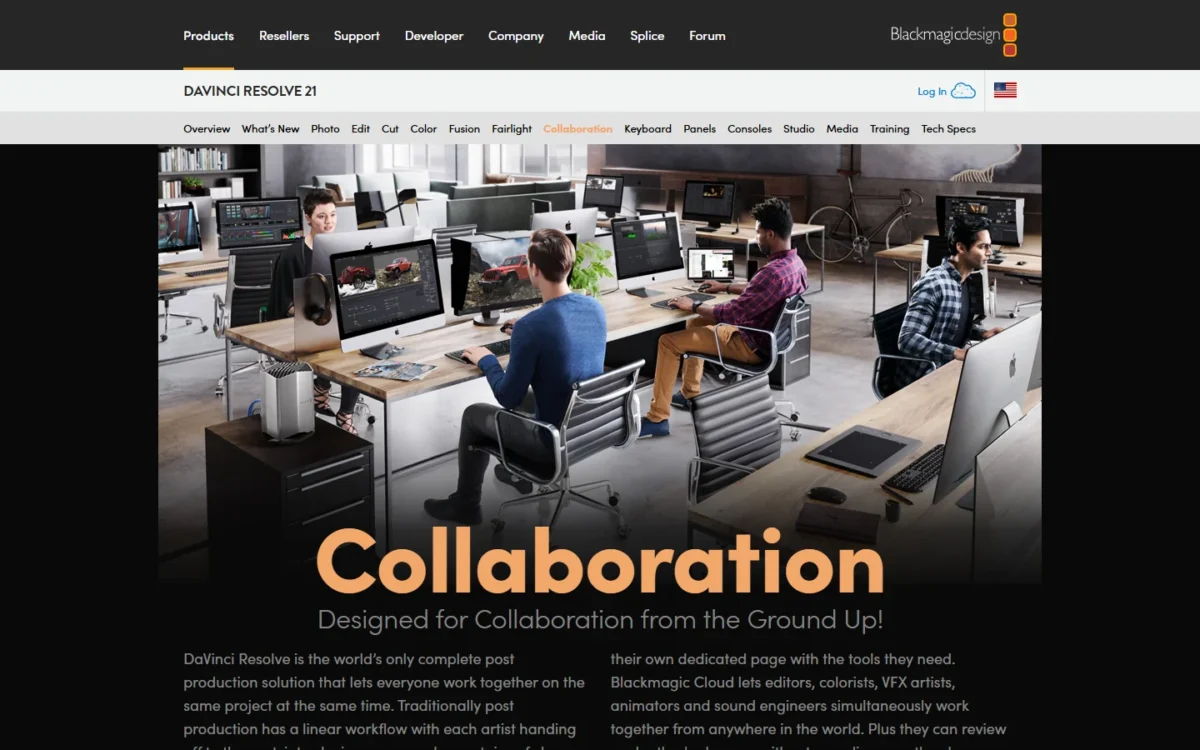
The free ceiling is 8-bit video at up to 60fps and Ultra HD 3840 x 2160; Studio adds 10-bit video up to 120 frames per second and resolutions beyond 4K. So the deciding question is your footage: 10-bit or above-Ultra-HD material points to Studio, while 8-bit footage up to Ultra HD at 60fps stays within the free version.
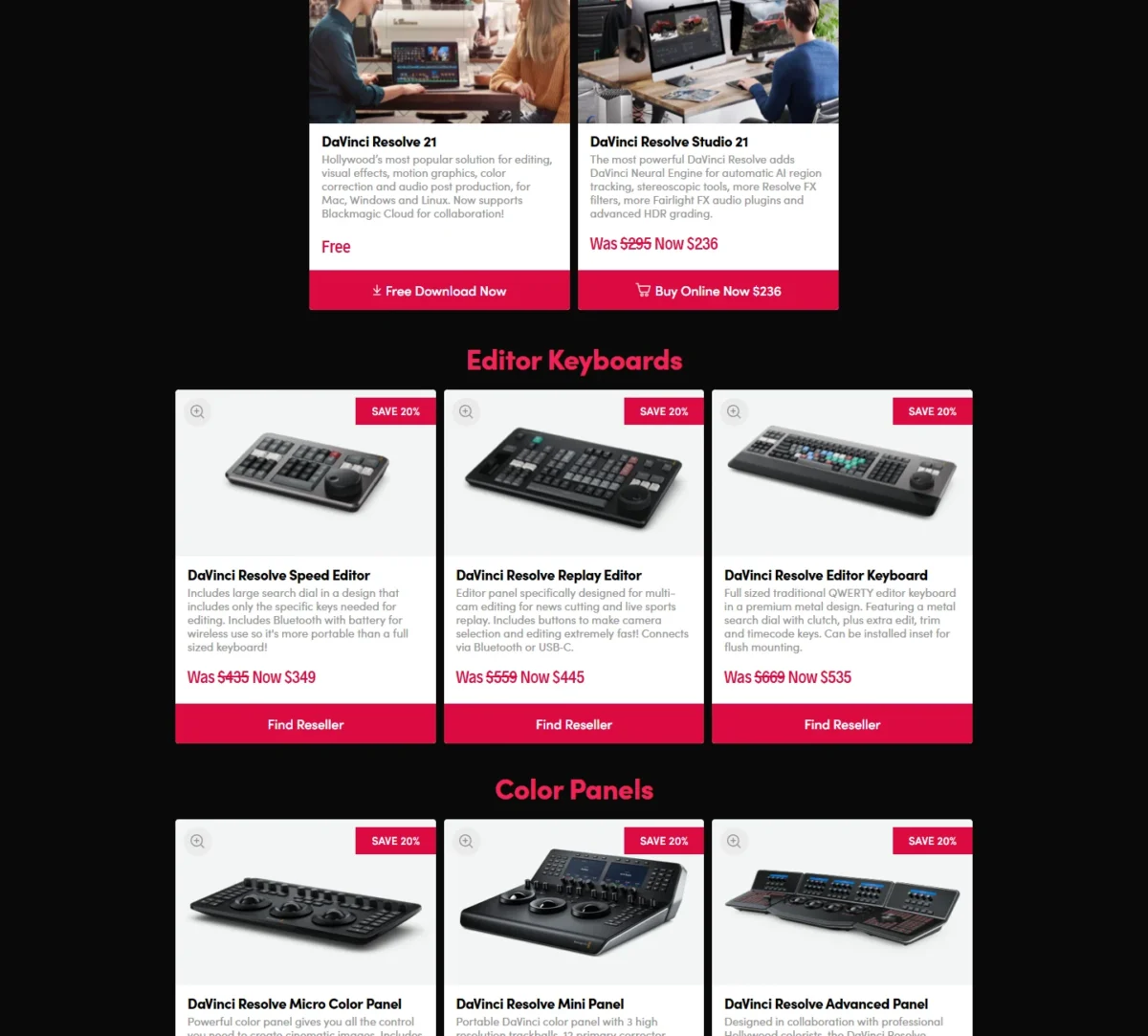
DaVinci Resolve costs nothing. Studio lists at $295, and the Studio page showed “Was $295 Now $236” on November 7, 2026, with no end date stated. Studio adds the DaVinci AI Neural Engine, temporal and AI spatial noise reduction, text-based editing and magic mask.
| Version | Price | Billing | Key limit |
|---|---|---|---|
| DaVinci Resolve | Free | None | 8-bit, up to 60fps, up to Ultra HD |
| DaVinci Resolve Studio | $295 list | No billing period shown | Adds 10-bit up to 120fps, beyond 4K |
Sources: DaVinci Resolve page and DaVinci Resolve Studio page, checked Nov 2026.
Pros
- Ultra HD 3840 x 2160 exports at up to 60fps on the free version
- Multi-user collaboration and HDR grading included free
- Runs on Linux as well as Mac and Windows
Cons
- 8-bit only on free; 10-bit and resolutions beyond 4K need Studio
- Text-based editing, magic mask and AI noise reduction are Studio only
- No browser or phone version among the platforms Blackmagic lists
My take
Pick the free version for any 4K YouTube channel or short film, and buy Studio only when the footage turns 10-bit or needs AI noise reduction. Studio lists at $295 with no monthly or yearly term, against $240 for 12 months of Lightworks Create ($20 x 12 = $240).
- Skip it if:
- you edit in a browser or make vertical clips on a phone; Clipchamp or CapCut covers that job with far less to learn.
2. Microsoft Clipchamp: Best for Quick Browser Edits Without a Watermark
- Best for: Windows users and anyone editing in a browser
- Free export: unlimited videos, up to 1080p, no watermark
- Platforms: web browser; Start menu on Windows 11, Microsoft Store download for Windows 10
- First paid step: Microsoft 365 Personal or Family
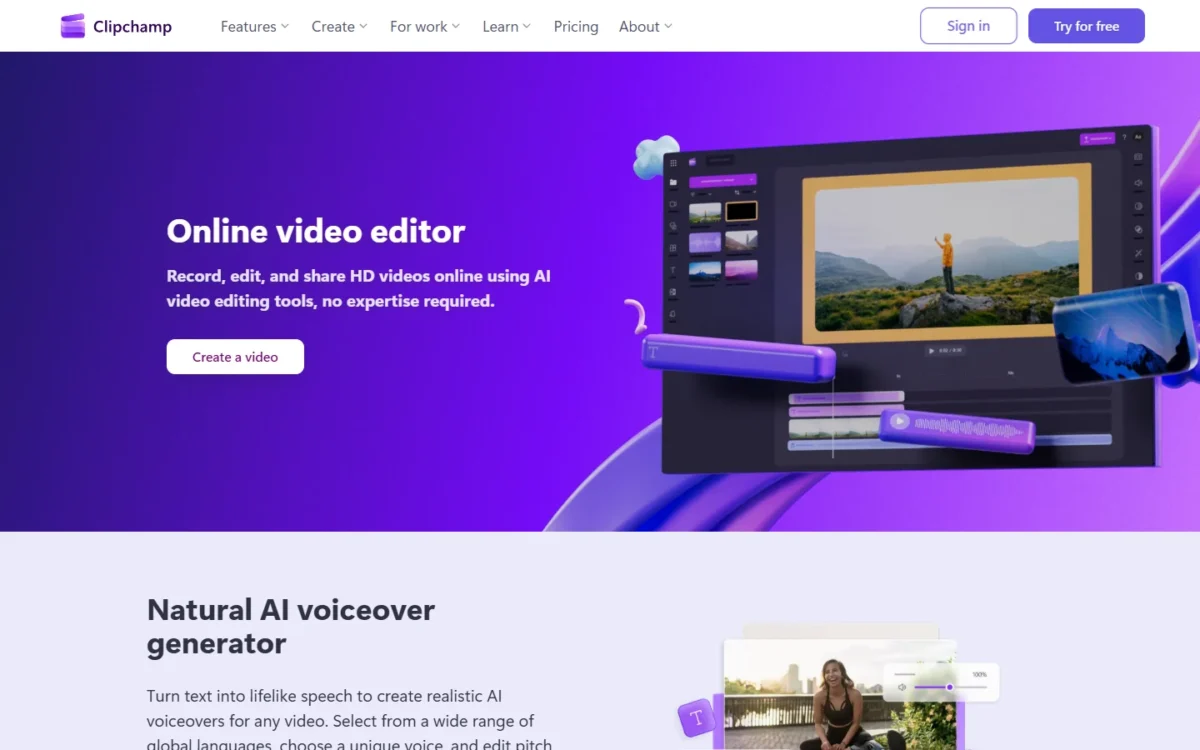
Clipchamp’s free plan exports as many videos as you like, up to 1080p, with no watermark. That makes it the pick for school projects, product demos and social posts made on a laptop with no install. The cost of that convenience is the ceiling, since 4K export is a premium feature.
The free plan’s AI tools do real work for a solo creator: AI subtitles, AI voiceovers and silence removal are included, and Microsoft says the captions cover over 80 languages. A small business recording a narrated walkthrough can caption it and trim the pauses without a paid seat, where DaVinci Resolve keeps text-based editing in Studio.
The built-in screen, camera and voice recorder suits tutorials, and finished projects back up to OneDrive on the free plan. If recording is the main job, my list of screen recording software compares tools built for it.
Clipchamp’s free plan costs nothing. Premium features are now included with Microsoft 365 Personal at $9.99 per month or $99.99 per year, or Family at $12.99 per month or $129.99 per year, so a household already paying for Microsoft 365 gets 4K export and the brand kit without a new bill.

| Plan | Price | Billing | Key limit |
|---|---|---|---|
| Clipchamp Free | Free | None | Up to 1080p export, free stock only |
| Microsoft 365 Personal | $9.99 per month or $99.99 per year | Monthly or yearly | Adds 4K UHD export, premium stock, brand kit |
Sources: Clipchamp plans and Microsoft 365 plans, checked Nov 2026.
Pros
- Unlimited free exports at up to 1080p with no watermark
- AI subtitles, AI voiceovers and silence removal on the free plan
- Runs in a browser, so nothing to install on a school or work laptop
Cons
- Free export stops at 1080p HD
- Premium stock, premium filters and the brand kit need Microsoft 365
- 4K is sold only inside a Microsoft 365 subscription, not as a video plan
My take
Pick Clipchamp first if you are a beginner making 1080p videos on a computer: nothing is watermarked and nothing caps the export count. Microsoft 365 is worth it only when 4K or brand assets become part of the job.
- Skip it if:
- your footage is 4K and you want to keep it that way for free; DaVinci Resolve or, on Apple devices, iMovie keeps 4K at no cost.
3. CapCut: Best for Short-Form Social Videos Across Phone and Desktop
- Best for: creators making short vertical clips on a phone and finishing them on a computer
- Free plan: free templates and basic editing tools
- Platforms: CapCut Desktop (Windows 7 or above, macOS 10.14 or above), Online, Pad and Mobile
- First paid step: Pro, with a 7-day free trial
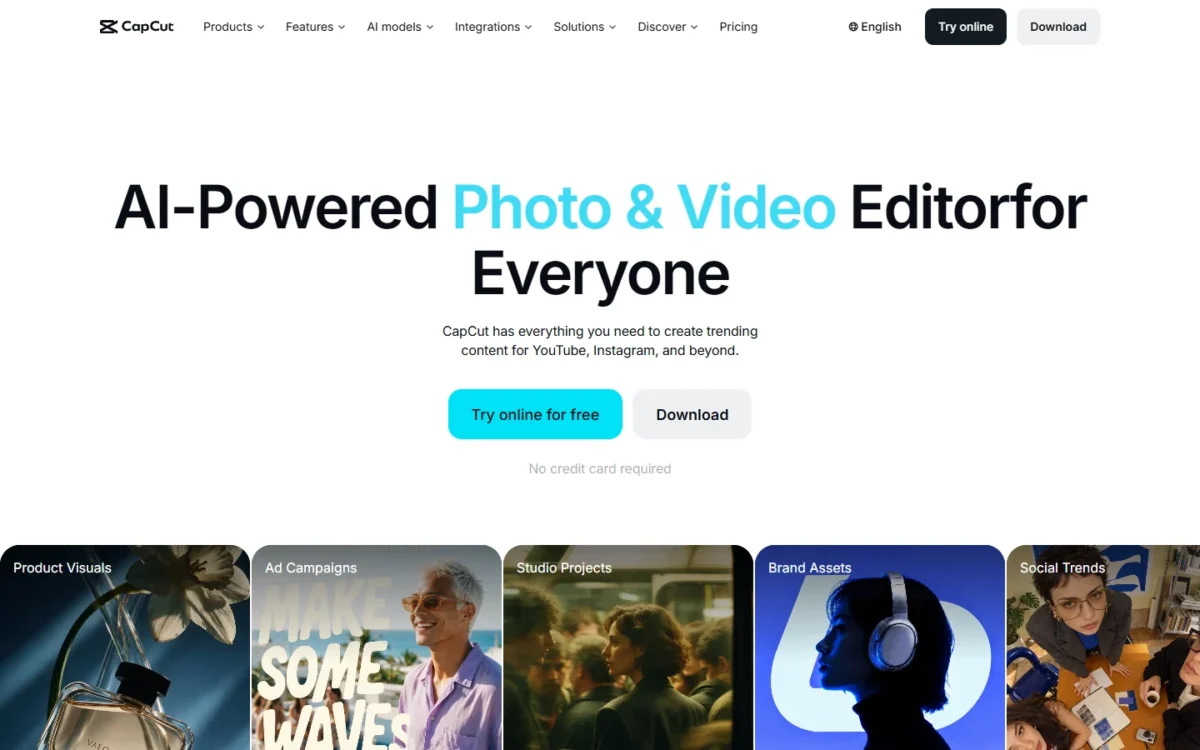
CapCut ships four versions from one vendor: CapCut Desktop for Windows and Mac, CapCut Online in a browser, CapCut Pad and CapCut Mobile. That spread suits creators who shoot on a phone and polish on a laptop. The trade-off is how little the Free plan spells out: the pricing page lists free templates and basic editing tools, and publishes no export resolution for Free. My CapCut pricing guide sets that gap against what the paid plans charge.
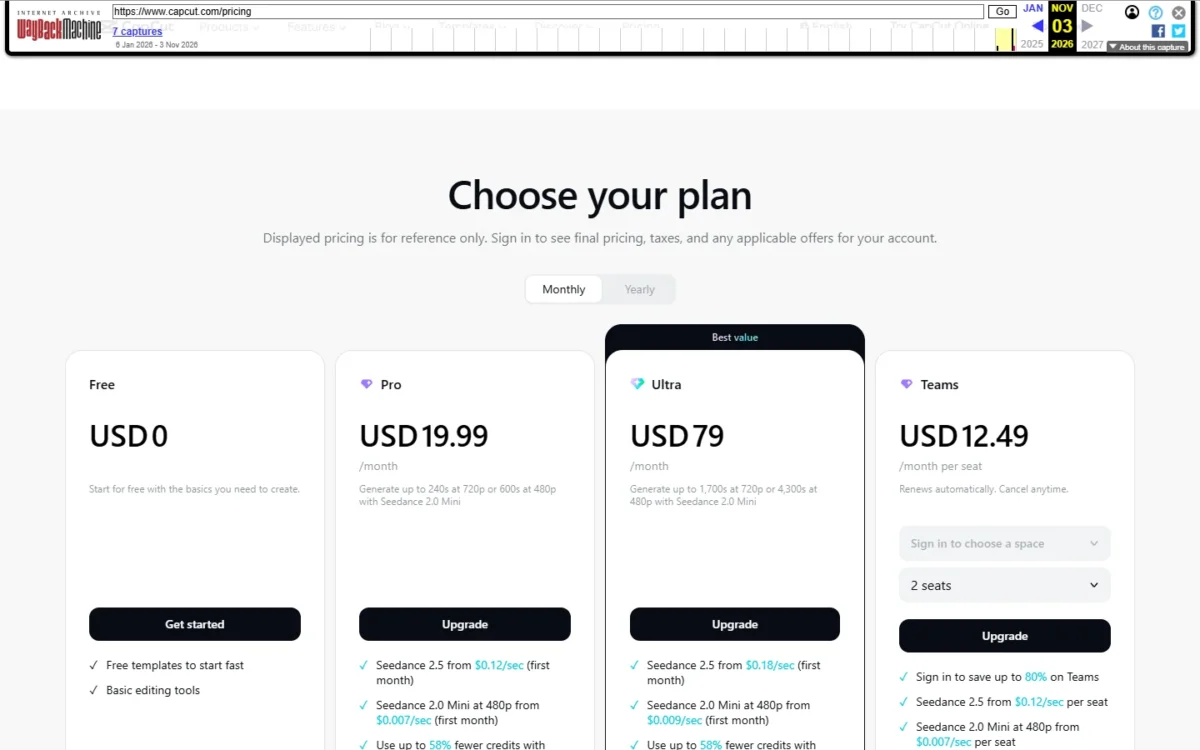
The templates matter most for social work. A creator posting three short clips a week can start from a template instead of a blank timeline; premium templates are Pro, so judge the free library before paying.
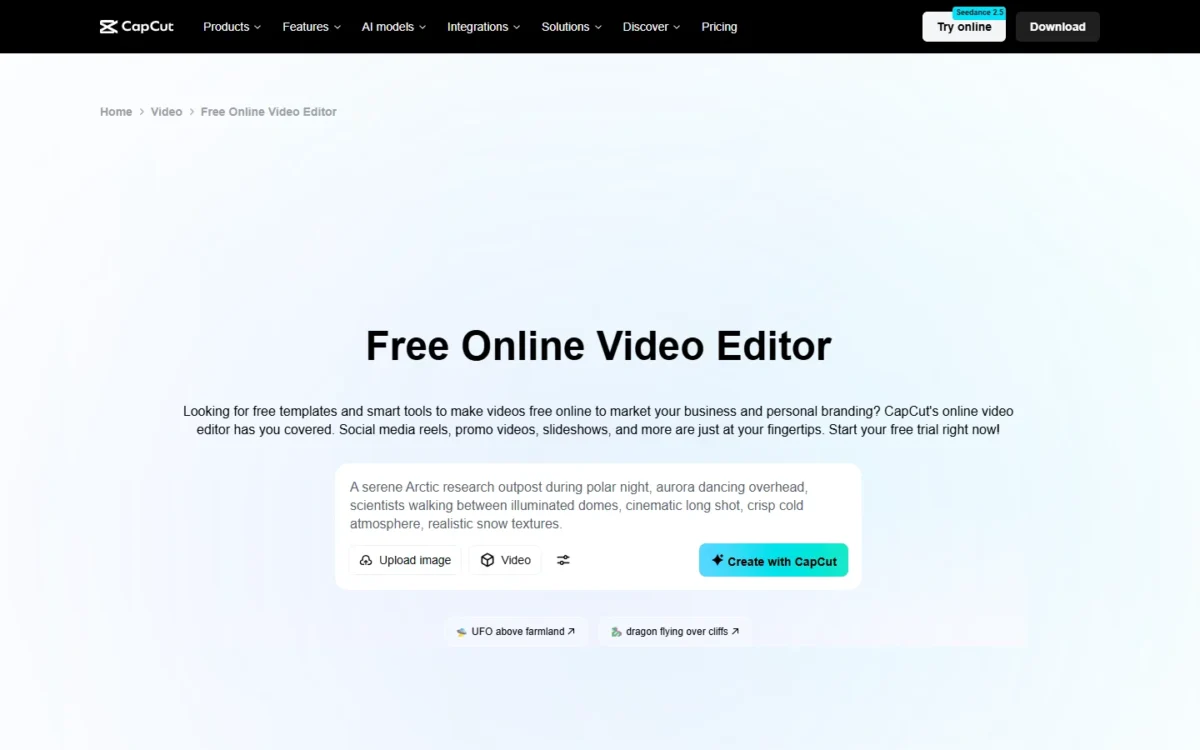
CapCut’s online editor page says it makes videos without a watermark for commercial and personal use. Its export panel lets you set resolution, quality, frame rate and format under Advanced Settings, which is where to confirm the ceiling for your own footage.
AI is where the plans split: Pro includes 1,200 monthly AI credits and 1 TB of storage. If you want to generate clips rather than edit footage, compare free AI video generators before paying for credits.
CapCut’s Free plan costs nothing. Pro costs $19.99 per month on monthly billing or $179.99 per year on yearly billing, a $59.89 saving against 12 monthly payments ($239.88 – $179.99). New users can start a 7-day Pro trial with no credit card, though CapCut says availability varies by region and platform.
| Plan | Price | Billing | Key limit |
|---|---|---|---|
| Free | Free | None | Free templates and basic editing tools |
| Pro | $179.99 per year, or monthly billing | Monthly or yearly | 1,200 monthly AI credits, all premium templates, 1 TB storage |
Sources: CapCut pricing, CapCut online editor, checked Nov 2026.
Pros
- Desktop, Online, Pad and Mobile versions from one vendor
- Free templates on the Free plan for fast social edits
- A 7-day Pro trial needs no credit card
Cons
- No free export resolution published on the pricing page
- AI credits and premium templates need Pro
- The pricing page describes Free only as templates and basic editing tools
My take
Pick CapCut if your videos live on TikTok, Reels or Shorts and start on your phone. Before relying on it for 4K or client work, export one clip and check the resolution, because CapCut publishes no ceiling for Free.
- Skip it if:
- you need a stated 4K free export for long-form YouTube work; DaVinci Resolve publishes Ultra HD on its free version.
4. iMovie: Best for iPhone, iPad and Mac Owners
- Best for: people who shoot and edit only on Apple devices
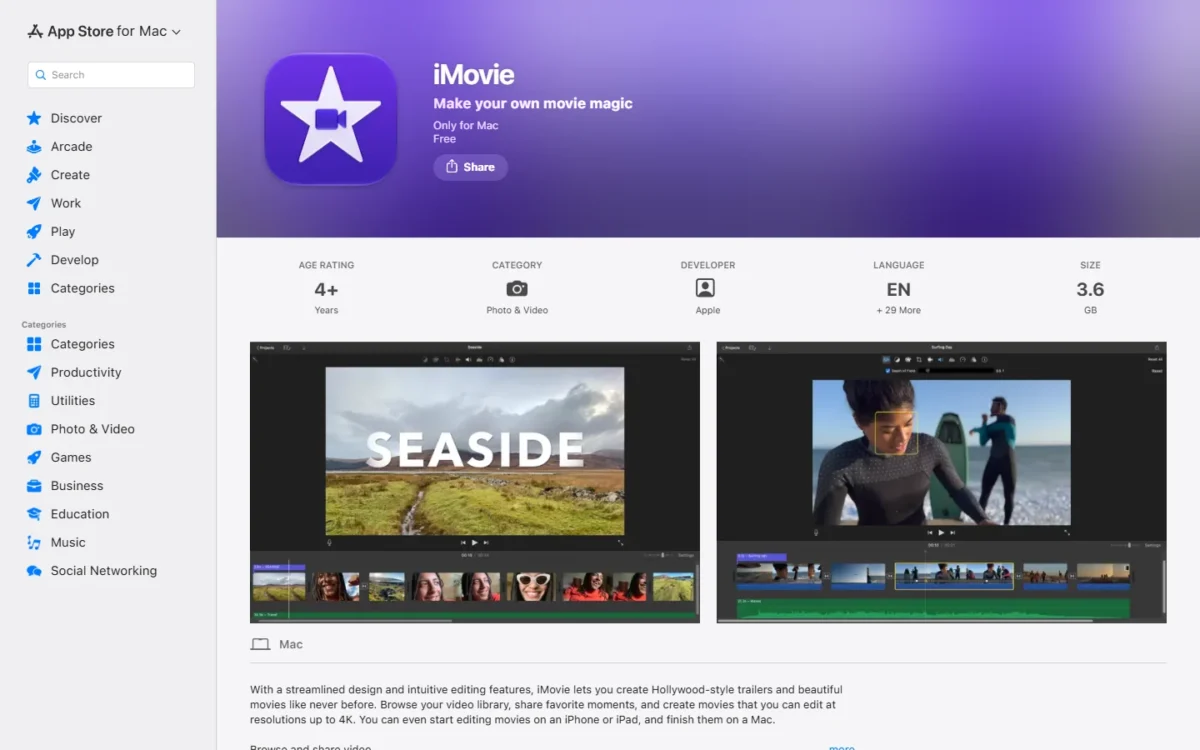
- Free export: edits up to 4K on Mac; saves up to 4K at 60 frames per second on supported iPhones and iPads
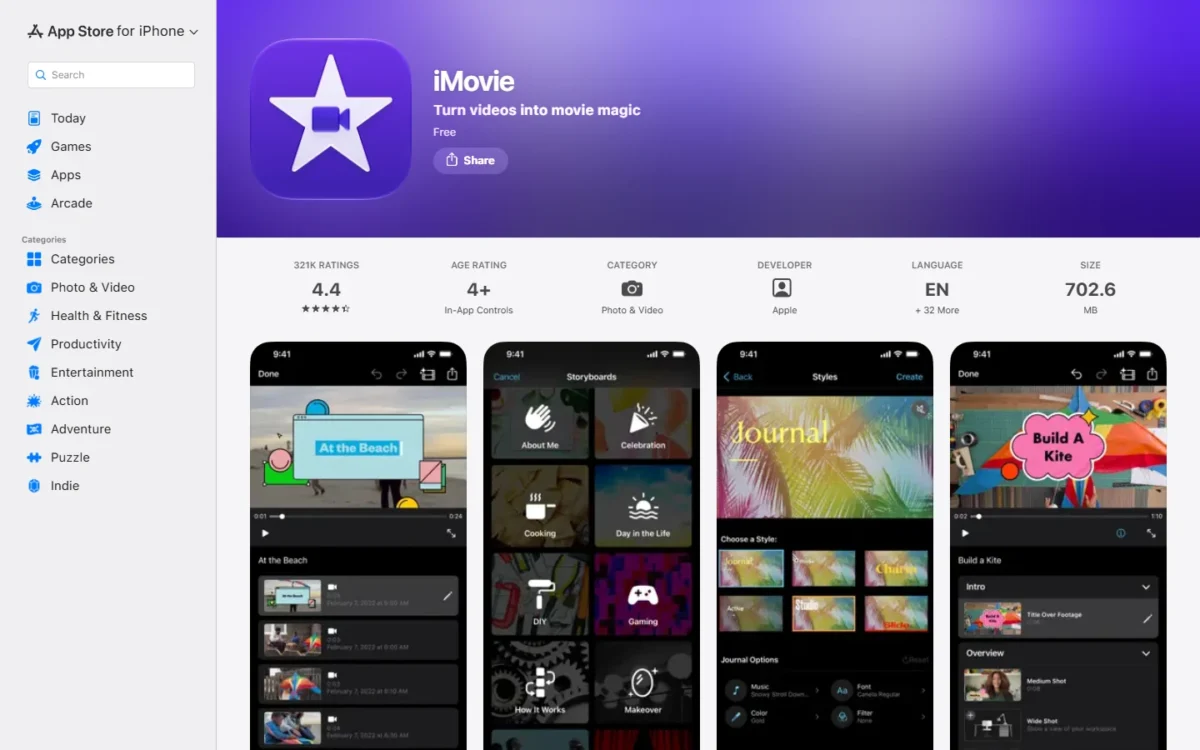
- Requirements: macOS 26.6 or later on Mac; iOS 27.0 or later on iPhone
- Standout feature: projects move from iPhone or iPad to Mac
Nothing in iMovie is sold separately: Apple lists it as free on the App Store, it keeps 4K, and there is no Pro tier to upgrade to. That puts it ahead of CapCut for an Apple user who wants every feature without a subscription. The limit is the wall itself, since iMovie runs only on Mac, iPhone and iPad.
The hand-off between devices sets it apart. You can start a project on an iPhone or iPad and send it to a Mac by AirDrop or iCloud Drive to finish in iMovie or Final Cut Pro, so a student who films on a phone and edits on a MacBook keeps one workflow.
Requirements are the hidden cost: the Mac app needs macOS 26.6 or later, 4GB of memory and 3.5GB of disk space, and the iPhone app needs iOS 27.0, so an older device may not qualify.
iMovie is free on the App Store for Mac, iPhone and iPad; neither App Store page lists a paid plan.
| App | Price | Billing | Key limit |
|---|---|---|---|
| iMovie for Mac | Free | None | macOS 26.6 or later, 4GB memory |
| iMovie for iPhone and iPad | Free | None | iOS 27.0 or later |
Sources: iMovie for Mac and iMovie for iPhone and iPad, checked Nov 2026.
Pros
- 4K editing on Mac and 4K at 60fps saves on supported iPhones and iPads
- Projects move from iPhone or iPad to Mac by AirDrop or iCloud Drive
- Trailer templates: 29 on Mac, 14 on iPhone and iPad
Cons
- Apple devices only: no Windows, Linux or browser version
- Needs macOS 26.6 or iOS 27.0 or later
- 4K at 60fps saves need a supported iPhone or iPad model
My take
Pick iMovie first if everything you own is Apple and meets the requirements. DaVinci Resolve is worth the move when an edit needs HDR grading or a second editor in the project.
- Skip it if:
- you work on Windows or Linux; Shotcut, Kdenlive or Clipchamp run where iMovie does not.
5. Shotcut: Best for a Portable Open-Source Editor on Any Desktop
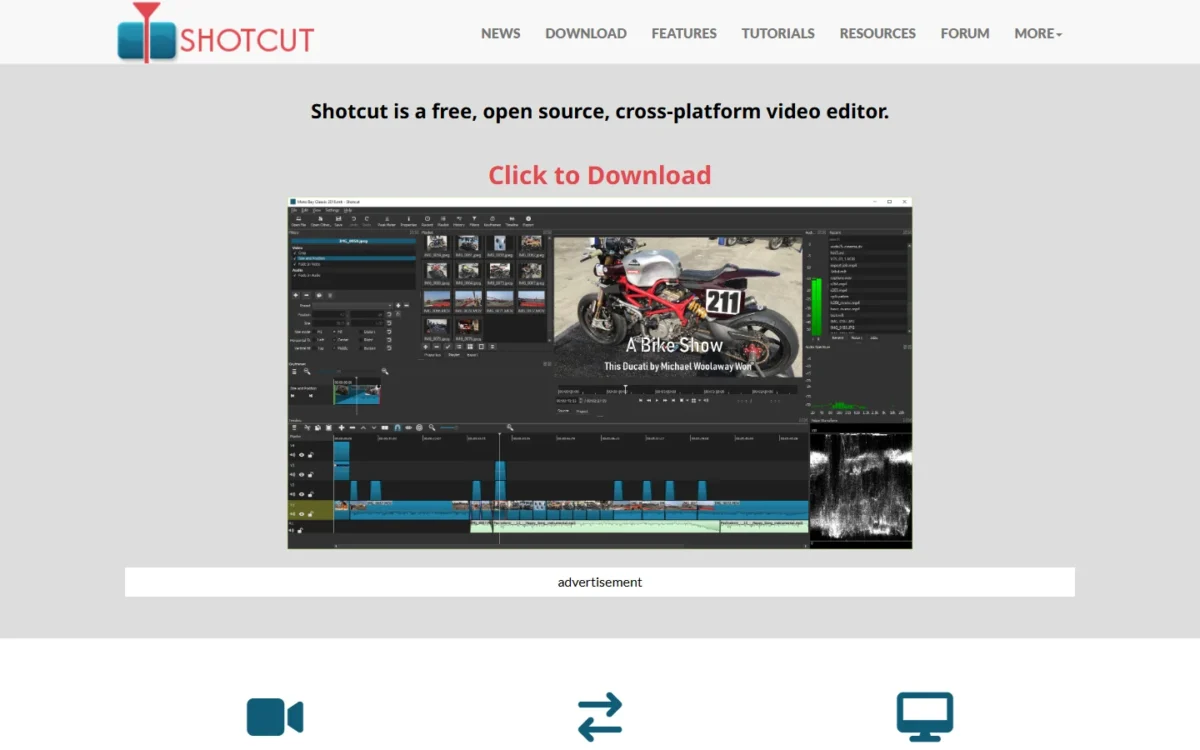
- Best for: Windows, Mac or Linux users who want a free editor they can run without installing
- License: free and open source
- Platforms: Windows 10 and 11 (Intel, AMD and ARM), macOS 12 to 27, Linux
- Current version: 26.9.27
For a computer you do not control, Shotcut is the open-source pick: it ships a Windows portable zip and a Linux portable tar that run without an installer. It also lists 4K and 8K support and a build for Windows on ARM. The trade-off is multi-camera work: multicam is not on its features list, while Kdenlive names it.
A student on a locked-down school PC can run it from a folder and leave nothing installed. Shotcut also converts spoken word to subtitle text, captures a webcam and includes a Stabilize filter for shaky footage.
Shotcut costs nothing: it is free and open source. The download page lists installers and portable builds for Windows, a universal build for macOS 12 to 27, and Linux packages.
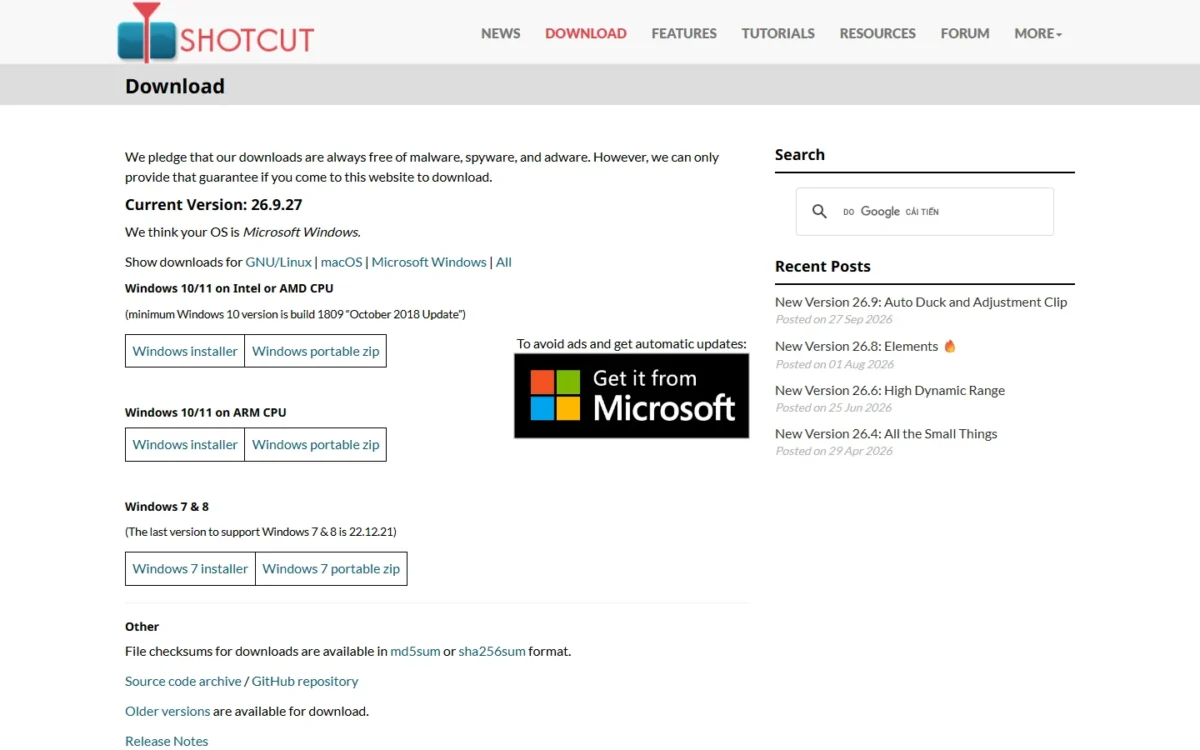
| Edition | Price | Billing | Key limit |
|---|---|---|---|
| Shotcut | Free | None | Desktop builds for Windows, macOS and Linux |
Sources: Shotcut download page, checked Nov 2026.
Pros
- Portable builds for Windows and Linux run without installing
- Native Windows on ARM build and 4K and 8K support
- Speech-to-subtitle and a Stabilize filter at no cost
Cons
- No multicam on the features list, unlike Kdenlive
- No templates or stock library for quick social edits
- No browser or phone version among its downloads
My take
Pick Shotcut when the computer is the constraint: a shared PC, an ARM laptop or a machine where you cannot install software. For multicam and nested sequences, Kdenlive is the better open-source choice.
- Skip it if:
- you want templates and stock footage to finish social posts fast; Clipchamp or Adobe Express starts you from a template.
6. Kdenlive: Best for Linux Users and Low-End PCs
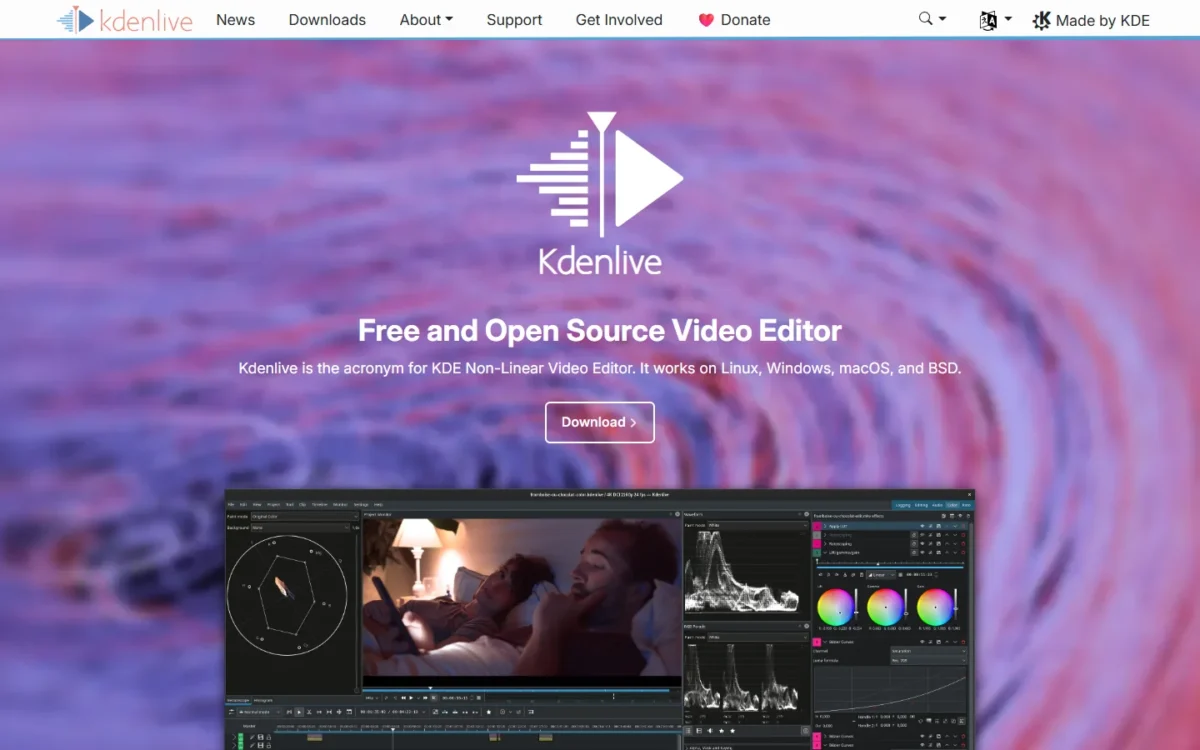
- Best for: Linux users and owners of older or low-powered computers
- License: free and open source
- Platforms: Linux, Windows, macOS and BSD
- Latest release: Kdenlive 26.08.3, released November 7, 2026
On Linux or an aging PC, Kdenlive is where I would start, and its homepage names low-end systems as a target: it uses proxies for smooth playback even there. The trade-off is depth, since multicam, 3-point editing and nested sequences are tools a beginner may never touch.
Multicam and nested sequences matter for a podcast shot on two cameras or an event with several angles, jobs OpenShot’s feature page does not list. Automatic transcription creates subtitles you can then layer and style, and Glaxnimate handles complex motion graphics.
Kdenlive costs nothing: it is free and open source, and its homepage gives no maximum export resolution.
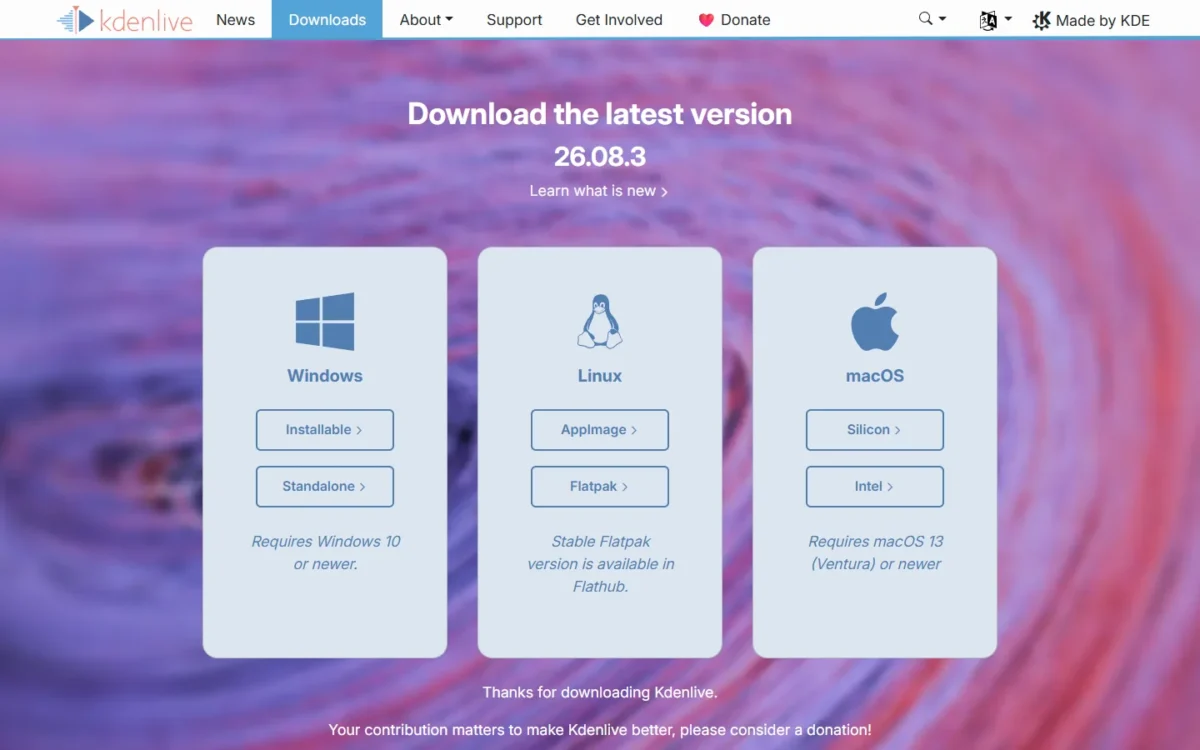
| Edition | Price | Billing | Key limit |
|---|---|---|---|
| Kdenlive | Free | None | No maximum export resolution on its homepage |
Sources: Kdenlive, checked Nov 2026.
Pros
- Runs on Linux, Windows, macOS and BSD
- Proxies named for smooth playback on low-end systems
- Multicam, 3-point editing, nested sequences and automatic transcription
Cons
- No maximum export resolution on its homepage
- More timeline tools than a first-time editor needs
- No templates or stock library listed
My take
Pick Kdenlive over Shotcut when the project has several camera angles or nested timelines; pick Shotcut when you cannot install software at all.
- Skip it if:
- you want the simplest open-source timeline with ready title templates; OpenShot is built around titles.
7. OpenShot: Best for Animated Titles Without Project Limits

- Best for: beginners who want titles and simple animation in a free desktop editor
- License: free and open source; no subscriptions, watermarks or project limits
- Platforms: Linux, macOS and Windows
- Standout feature: 40+ vector title templates and Blender 3D animated titles
Titles come first in OpenShot, and its page states plainly that you edit without subscriptions, watermarks or project limits. That suits a beginner making an intro, a slideshow or a lesson with on-screen text. The trade-off is reach: its feature page names no multicam, subtitles or proxy editing.
OpenShot includes more than 40 editable vector title templates, where you change the text, font and colors, plus Blender-powered 3D animated titles with controls for text, materials, lighting and animation length. Kdenlive hands complex motion graphics to Glaxnimate instead.
The recording panel captures a full screen, a window or a selected region, or a webcam and microphone together, and places each recording on its own timeline track. That puts OpenShot next to Clipchamp as a recorder-plus-editor, but as a desktop app that also runs on Linux. Unlimited tracks, keyframes and more than 400 transition patterns cover more than basic cuts.
OpenShot costs nothing and is free to download and use, and its features page gives no maximum export resolution.

| Edition | Price | Billing | Key limit |
|---|---|---|---|
| OpenShot | Free | None | No paid edition |
Sources: OpenShot features, checked Nov 2026.
Pros
- 40+ title templates and Blender 3D animated titles
- Records screen, webcam and microphone onto separate tracks
- Unlimited tracks and keyframe animation
Cons
- No subtitles or transcription on its features page
- No multicam listed, unlike Kdenlive
- No published export ceiling
My take
Pick OpenShot as a first open-source editor if titles and screen recording matter more than multicam. Its page states editing without subscriptions, watermarks or project limits, so a long lesson or slideshow can stay on the free download.
- Skip it if:
- you edit multi-camera shoots or need automatic subtitles; Kdenlive lists both.
8. Lightworks: Best for a Pro Timeline With a Monthly Upgrade Path

- Best for: learners who want a professional-style timeline on Windows, macOS or Linux
- Free plan: free forever; Full HD 1080p export, MP4 only, no watermark
- Platforms: Windows, macOS and Linux (some features not available on Linux)
- First paid step: Create, billed per user
If you want to learn a professional timeline and expect to pay for more later, one month at a time, Lightworks fits. Its free plan includes the professional timeline, color correction and grading, multitrack audio and direct uploads to YouTube and Vimeo, with no watermark. Against DaVinci Resolve the trade-off is sharp: Lightworks Free stops at 1080p MP4.
The free plan’s other limits show where Lightworks expects you to upgrade: MP4 export only, proxies up to 720p and one cloud provider at a time. Create adds 4K export and BRAW and ProRes decode, and Pro at $35 per user per month adds up to 8K. On Linux, Lightworks marks its advanced titles, advanced transitions and advanced correct and enhance effects as not available.
Lightworks Free costs nothing. Create costs $20 per user per month on monthly billing. Lightworks also offers an annual subscription or a perpetual license.

| Plan | Price | Billing | Key limit |
|---|---|---|---|
| Free | Free | None | 1080p MP4 export, proxies up to 720p |
| Create | $20 per user per month | Monthly | Adds 4K export, BRAW and ProRes decode |
| Pro | $35 per user per month | Monthly | Adds up to 8K video support |
Sources: Lightworks pricing, checked Nov 2026.
Pros
- Free forever with no watermark on exports
- Professional timeline, color grading and multitrack audio on Free
- Direct upload to YouTube and Vimeo
Cons
- Free export stops at 1080p, MP4 only
- 4K costs $240 a year on monthly Create billing
- Some effects, titles and transitions are not available on Linux
My take
Pick Lightworks over DaVinci Resolve only if 1080p is enough today and you would rather pay for 4K month by month on Create than buy Studio at $295 list. For 4K at no cost, Resolve is the better free start.
- Skip it if:
- your footage is 4K and you want to export it free; DaVinci Resolve covers Ultra HD on its free version.
9. Canva: Best for Teams Who Already Design in Canva
- Best for: small teams that already make social graphics in Canva
- Watermark rule: none on Free when every element is free; Pro or paid elements add one
- Export: MP4 or GIF; mobile app on the App Store and Google Play
- First paid step: Canva Pro, billed yearly for one person
When the video sits next to the rest of a brand’s design work, Canva earns its place. A marketer who already builds Instagram posts in Canva can make the video in the same editor with the same assets. The trade-off is the watermark rule: Canva Free exports without a watermark only while every element in the video is free.
That rule decides it for a free user. Canva Free includes 4.7M+ elements, while Pro opens 141M+; drop a Pro element into a Free project and the export carries a watermark. Publishing is built in, with videos going straight to Facebook, Instagram, TikTok and LinkedIn. Magic Resize is Pro, so a team posting one video in three aspect ratios rebuilds it by hand on Free, and 5 GB of free cloud storage fills fast with raw video. For Canva’s AI features beyond video, see my Canva AI review.
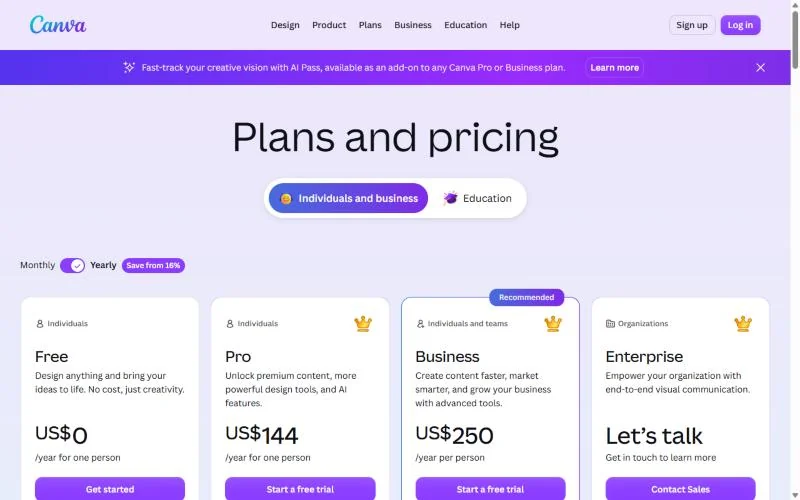
Canva Free costs nothing. Canva Pro costs $144 per year for one person and lifts the library to 141M+ elements and cloud storage to 100GB; Canva offers a free Pro trial. My Canva pricing breakdown covers Business and Enterprise.
| Plan | Price | Billing | Key limit |
|---|---|---|---|
| Free | Free | None | 4.7M+ elements, 5 GB storage |
| Pro | $144 per year for one person | Yearly | 141M+ elements, 100GB storage, Magic Resize |
Sources: Canva pricing and Canva video editor, checked Nov 2026.
Pros
- No watermark on Free when only free elements are used
- Video, social graphics and brand assets in one editor
- Publishes directly to social platforms
Cons
- A single Pro element puts a watermark on a Free export
- 5 GB of cloud storage on Free
- Magic Resize for other aspect ratios is Pro only
My take
Canva is worth it for video only if your team already designs there; otherwise Clipchamp gives a cleaner free export rule. If you stay on Free, use only free elements, images, footage and music, and the export carries no watermark.
- Skip it if:
- you edit long videos from raw footage; 5 GB of storage and a template-first editor point to Clipchamp or DaVinci Resolve instead.
10. Adobe Express: Best for Template-Led Social Videos You Also Schedule

- Best for: marketers who build social videos from templates and schedule them
- Free video limits: up to 30 min per video, uploads up to 1GB, 5GB storage
- Export: watermark-free MP4
- First paid step: Premium, billed monthly
For a marketer who wants to make a video and schedule it in one place, Adobe Express does both on its free plan. It exports watermark-free MP4 files, includes 100,000+ static and video templates, and schedules posts to one account per social network. The trade-off is length: each free video stops at 30 min.

The Content Scheduler sets it apart from Canva and Clipchamp. A small business can build a week of Reels from templates on Monday and schedule them, with no separate tool, as long as one account per network is enough.
Plan around the length cap. A two-minute product clip never hits it, but a recorded webinar will; Premium raises the cap to 2 hours.
Adobe Express Free costs nothing and needs no credit card. Premium costs $9.99 per month, billed monthly with no annual commitment, and starts with a 30-day free trial.
| Plan | Price | Billing | Key limit |
|---|---|---|---|
| Free | Free | None | Up to 30 min per video, 5GB storage, 10 days of version history |
| Premium | $9.99 per month | Monthly, no annual commitment | Up to 2 hours per video |
Sources: Adobe Express pricing and Adobe Express video editor, checked Nov 2026.
Pros
- Watermark-free MP4 exports on Free
- Content Scheduler on Free for one account per social network
- 100,000+ static and video templates on Free
Cons
- Free videos stop at 30 min
- Uploads capped at 1GB per file
- 10 days of version history on Free
My take
Pick Adobe Express over Canva if you want template-led posts scheduled from the same app. For a free video longer than 30 min, move to a desktop editor such as OpenShot, which states no project limits.
- Skip it if:
- you edit long recordings such as webinars or lessons; OpenShot states no project limits on its free download.
11. VSDC Free Video Editor: Best for Action-Camera Footage on Windows
- Best for: Windows users editing GoPro or Insta360 footage
- Free offer: free download for Windows, no watermarks
- Formats: popular video and audio formats including 4K and HDR
- First paid step: VSDC Pro, valid for a year
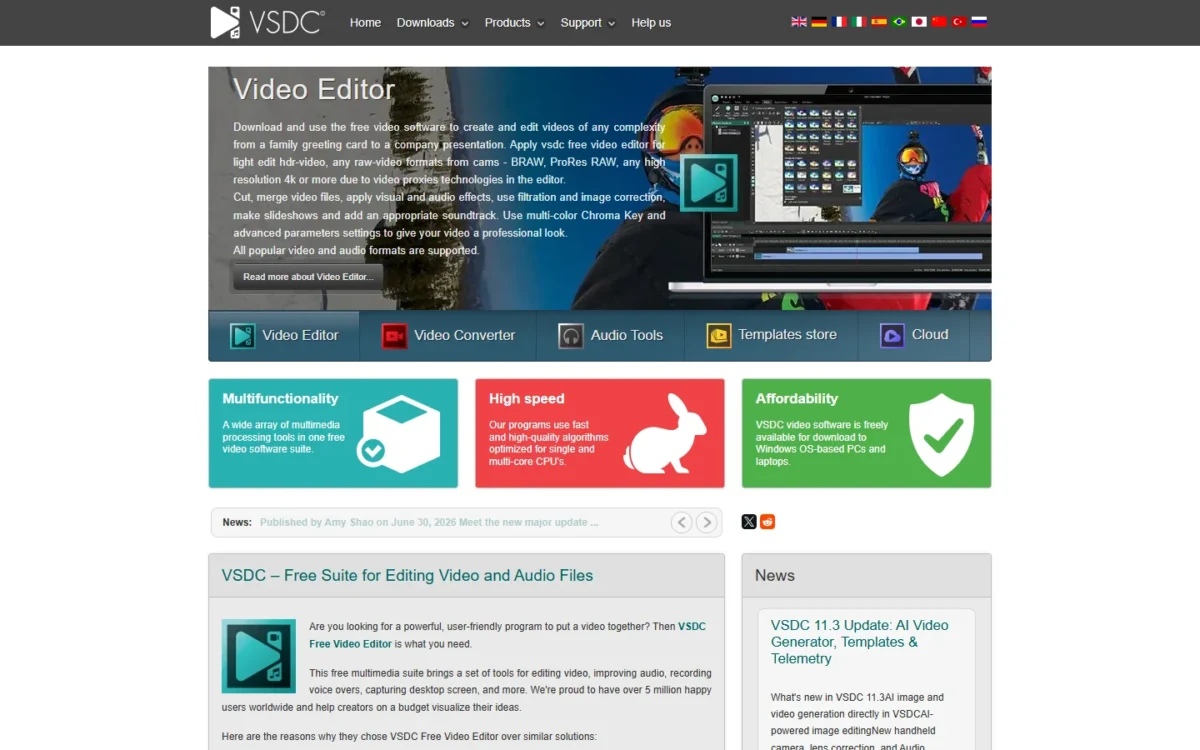
Cyclists, drivers and drone pilots get GPS telemetry tools in VSDC’s free version that add speedometers and maps to GoPro or Insta360 footage. That makes VSDC the free choice for action-camera video on Windows. The trade-off is that VSDC keeps its premium-level effects and transitions, such as Shattered glass, Paper burn and Flow transformation, out of the free version.
A mountain-bike video can carry a live speedometer and a route map without a separate overlay app, and version 11.2, published June 30, 2026, added GPS data and video sync. VSDC handles 4K and HDR formats and uses video proxies to keep high-resolution files editable; the suite also includes a free screen recorder.
Pro also lets an effect change its values along the timeline and turns on hardware acceleration by default. VSDC runs only on Windows.
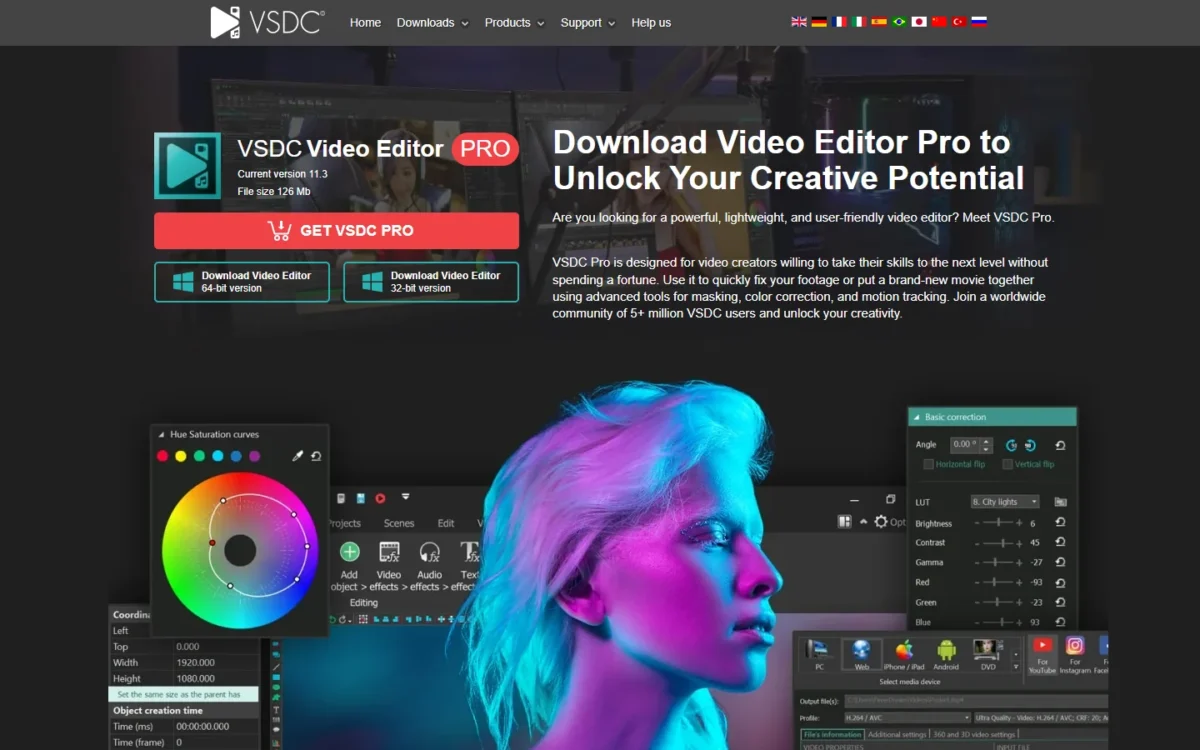
VSDC Free Video Editor costs nothing. VSDC’s own page says its Pro subscriptions “are available at $19.99 and valid for a year”; that page carries no date, so confirm the amount at checkout.
| Edition | Price | Billing | Key limit |
|---|---|---|---|
| VSDC Free Video Editor | Free | None | No premium-level effects and transitions |
| VSDC Pro | $19.99 for a year | Valid for a year | Adds premium effects and transitions, non-linear effect changes |
Sources: VSDC Pro and VSDC Pro subscriptions, checked Nov 2026.
Pros
- GPS telemetry tools for GoPro and Insta360 footage on the free version
- No watermarks on free exports
- 4K and HDR format support
Cons
- Windows only
- Shattered glass, Paper burn and other premium transitions need Pro
- Effects that change values along the timeline are a Pro feature
My take
Pick VSDC if you film on an action camera and edit on Windows; the telemetry alone is worth the install, and Pro earns its place once you want the premium transitions.
- Skip it if:
- you edit on a Mac or Linux; Shotcut runs on both and includes a Stabilize filter for shaky clips.
How to Choose the Best Free Video Editing Software for You
Answer three questions in order: which device you edit on, which resolution you deliver and what job the video does. The device removes the most options. For 4K, the free tiers that state it are DaVinci Resolve, iMovie, Shotcut and VSDC. The job then decides: templates and scheduling (Adobe Express, Canva, CapCut), titles (OpenShot), action-camera overlays (VSDC) or a professional timeline (DaVinci Resolve, Lightworks).
| Software | Linux desktop app | Browser | Screen or webcam recording | Automatic subtitles on free |
|---|---|---|---|---|
| DaVinci Resolve | Yes | Not listed | Not listed | Not listed |
| Clipchamp | Not listed | Yes | Yes | Yes |
| CapCut | Not listed | Yes | Not listed | Online editor |
| iMovie | Not listed | Not listed | Camera recording on iPhone; Mac imports screen recordings | Not listed |
| Shotcut | Yes | Not listed | Yes | Yes |
| Kdenlive | Yes | Not listed | Not listed | Yes |
| OpenShot | Yes | Not listed | Yes | Not listed |
| Lightworks | Yes | Not listed | Not listed | Not listed |
| Canva | Not listed | Yes | Recordings tool listed, plan not stated | Yes, unlimited captions; Pro adds animation controls |
| Adobe Express | Not listed | Yes | In-app voiceover and video recording, plan not stated | Caption Video tool, plan not stated |
| VSDC Free Video Editor | Not listed | Not listed | Yes | Not listed |
Sources: Clipchamp plans, CapCut online editor, Shotcut features, Kdenlive, OpenShot features, Canva video editor, Adobe Express pricing, checked Nov 2026.
My take
Pick Clipchamp or Shotcut if tutorials are the job, since both record and subtitle on the free tier. If you want software to cut and caption footage for you, the AI video editors for footage you already shot are the better fit.
Shortlists by device
- Browser only: Clipchamp, Canva, Adobe Express or CapCut Online.
- Linux: DaVinci Resolve, Shotcut, Kdenlive, OpenShot or Lightworks.
- Phone or tablet: iMovie on iPhone and iPad, CapCut Mobile or CapCut Pad, with Canva and Adobe Express as phone apps for template work.
- Windows: DaVinci Resolve, Clipchamp, CapCut, Shotcut, Kdenlive, OpenShot, Lightworks and VSDC, the one pick that runs on Windows alone.
A video editor is often one tool in a bigger content workflow; my list of AI tools for content creation matches the rest of the stack to the job.
FAQ
What do YouTubers use to edit videos for free?
The right free editor for YouTube depends on the footage. DaVinci Resolve suits 4K uploads, since its free version exports Ultra HD at 60fps. Lightworks Free uploads straight to YouTube but stops at 1080p MP4. Clipchamp handles quick 1080p videos in a browser with free AI subtitles and no watermark.
Which video editor is 100% free?
Shotcut, Kdenlive and OpenShot are free and open source, and iMovie is free on the App Store with no paid plan listed. The other editors here have free tiers but sell an upgrade, such as VSDC Pro at $19.99 for a year or DaVinci Resolve Studio, which Blackmagic showed as “Was $295 Now $236” on November 7, 2026.
Final Verdict
Choose by job and device, not by an overall ranking. For 4K edits with color grading on Mac, Windows or Linux, download DaVinci Resolve. For quick 1080p videos in a browser with no watermark, use Clipchamp. For vertical social clips started on a phone, try CapCut and check its export settings on one clip. On Apple devices, start with iMovie.
For Linux or an older PC, pick Kdenlive, Shotcut or OpenShot by job. Lightworks fits a 1080p YouTube workflow with direct upload; Canva and Adobe Express suit template-led social posts; VSDC is the Windows pick for action-camera footage.
My take
Pick an upgrade only when a cap blocks a real project: VSDC Pro when you want its premium transitions, Microsoft 365 when Clipchamp needs 4K, and DaVinci Resolve Studio when footage turns 10-bit.