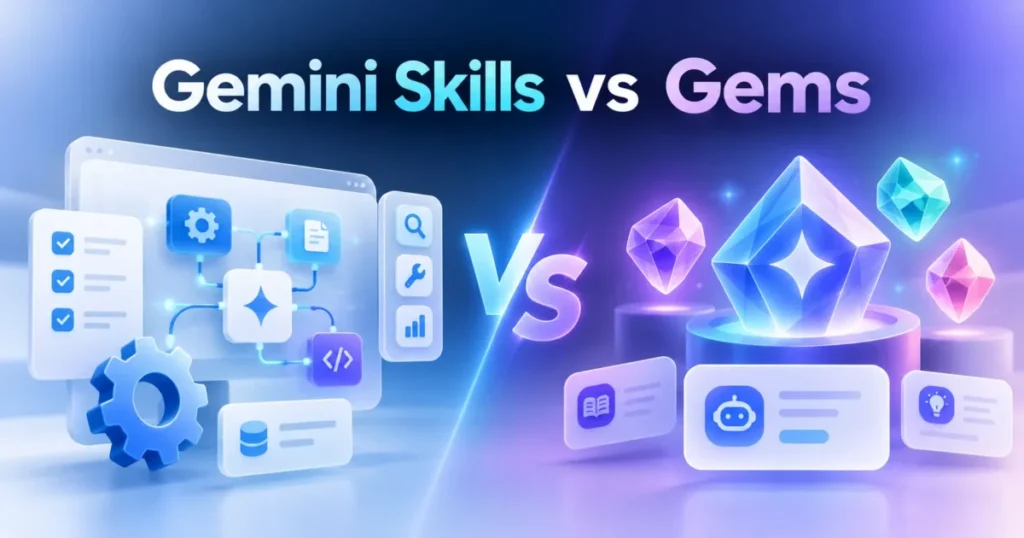
The practical difference between Gemini Skills and Gems is where they run. A Gem is a custom assistant you switch to, while a Skill is a saved set of instructions you call inside the chat you already have open, by typing / and its name.
Google says that shortcut will soon change to @, and its Gems-to-skills help page says your Gems will move to Skills automatically when Gems go away.
So most personal users do not have to act yet. The exception is Gems built in Google Labs, which Google’s launch post says will not migrate into skills.
Workspace admins also have flows to check, covered below.
Last checked: October 2, 2026. Evidence basis: official Google documentation, plus screenshots of the Gemini web app captured in a personal Google account on October 2, 2026.
Short answer: Gems and Skills both save custom instructions, but a Skill works inside any chat and several can be stacked in one. Google plans to convert existing Gems to Skills automatically, so most people can wait. Rebuild a Gem early only if you use it often and it does not depend on a feature Skills still lack.
In This Article (11 sections)
Gemini Skills vs Gems at a Glance
| Question | Gems | Skills |
|---|---|---|
| Where you use it | Each Gem opens in its own window; Gems can’t be used in Workspace apps | In any Gemini chat by typing / (Google says @ is coming); Skills also work in Workspace apps |
| Reuse across chats | Each Gem has a page listing your recent chats with it | Usable in any chat, with no per-Skill page of recent chats |
| Combining | One Gem window per set of instructions | Several Skills can be combined in one prompt |
| Files | Knowledge files attached to the Gem | Plain-text files, PDFs and images uploaded with the Skill, up to 100 MB in total; no .docx or .xlsx, and no GitHub files for now |
| Current limitations | Includes default tools such as Canvas and Deep Research | Canvas, Deep Research, Create video, Create music and Guided learning don’t work with Skills for now |
| Migration | Retiring on a schedule set by account type | Gems become Skills automatically when Gems go away, except Gems by Google Labs |
Sources: Gems-to-skills help page, skills help page, Workspace admin guide, Skills launch post.
My read: for repeat jobs such as call notes, briefs and weekly reports, working inside the chat you already have open is the change that matters most. The trade-off, for now, is losing Canvas and Deep Research inside that chat.
When Gems Go Away for Each Account Type
Google has not published one date for everyone. The schedule depends on the account you sign in with, and Workspace accounts get extra steps before the end.
| Account or milestone | Date Google gives | What happens |
|---|---|---|
| Personal Google Account | November 2026; the in-app banner says migration begins November 17, 2026 | Google starts converting Gems to Skills, and Gems stay usable until they migrate |
| Workspace, Rapid Release domains | October 5, 2026, finishing by October 12, 2026 | Skills roll out in Workspace |
| Workspace, Scheduled Release domains | October 19, 2026, finishing by mid-November | Skills roll out in Workspace |
| All Workspace users, Gemini app | October 13, 2026, finishing by mid-November | Skills roll out in the Gemini app, and Gems keep working beside them |
| All Workspace users | November 17, 2026 | Gems move to Settings in the Gemini app and can still be created, edited and used |
| Workspace business, enterprise and nonprofit | March 2027; no sooner than March 1, 2027 for business and enterprise | Gems stop working, remaining Gems become draft Skills, and Workspace Studio flows with an Ask a Gem step stop working |
| Workspace education | June 2027; no sooner than June 1, 2027 | The same changes, and Gems also leave Google Classroom and learning systems that use Gemini LTI |
Sources: Gems-to-skills help page, Workspace admin guide.
Read the Workspace retirement dates carefully, because Google words them two ways.
Google’s Skills announcement says March 2027 for Workspace business, enterprise and nonprofit customers, and June 2027 for education. The consumer help page uses the same month-only wording.
The admin guide says no sooner than March 1, 2027 for business and enterprise, and no sooner than June 1, 2027 for education.
I plan around the admin wording. Those are the earliest dates Gems can stop working in Workspace, not promised cutoffs, and the admin guide’s row does not name nonprofit accounts separately.
You may see a claim online that every Gem is replaced on one date in October. Google’s pages do not support it. Google gives a date per account type: November 2026 for personal accounts, no sooner than March 1, 2027 for Workspace business and enterprise, and no sooner than June 1, 2027 for education.
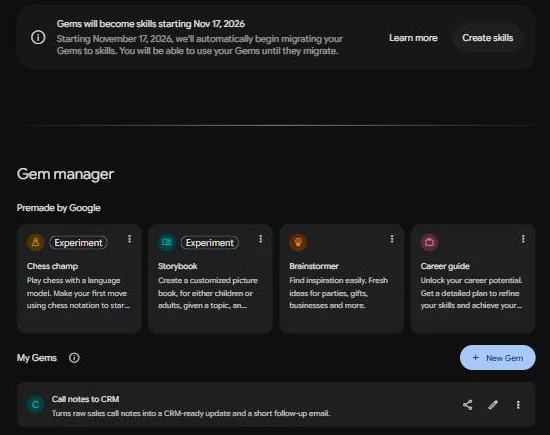
November 17, 2026 means different things by account type. In a personal Google account on October 2, 2026, the Gem manager showed this banner: “Starting November 17, 2026, we’ll automatically begin migrating your Gems to skills. You will be able to use your Gems until they migrate.”
For Workspace, Google’s admin guide says November 17, 2026 is the date Gems move to Settings in the Gemini app, and users can continue to create, edit, and use them after that move.
What the Automatic Migration Keeps and What Needs Review
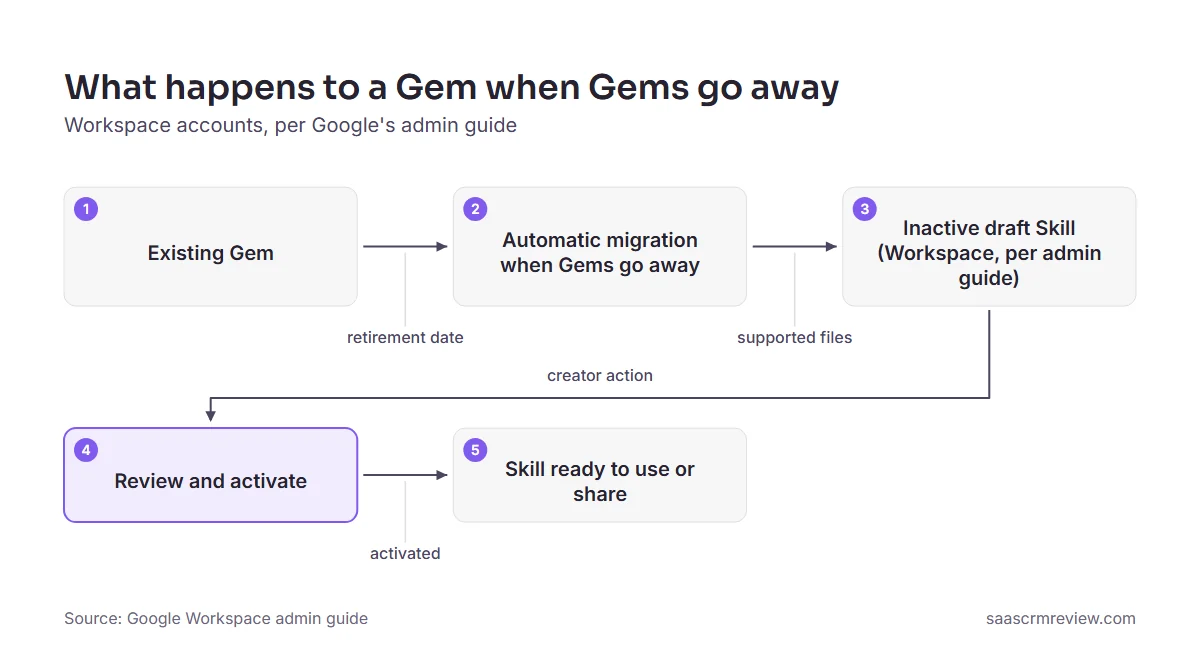
The most detailed description of the automatic migration sits in Google’s Workspace admin guide, which says Google converts existing Gems into skills when automated migration begins.
According to that guide:
- A converted Skill keeps the Gem’s name, description, custom instructions and uploaded knowledge files.
- Drive permissions and sharing settings on the original Gem carry over to the Skill.
What needs review: the admin guide says migrated Gems arrive in the creator’s skills list as inactive drafts, and each one has to be reviewed and activated before it can be used or shared.
The consumer help page for personal accounts does not mention drafts. My advice is to open Settings, then Skills, after the switch and check that every converted Skill is turned on before a routine depends on it.
Watch your knowledge files too. The consumer transition FAQ says Gems move along with any supported files, and Google’s upload requirements list .docx, .doc and .xlsx as not supported.
The admin guide’s wording on files has no such qualifier, so the two pages do not settle what happens to a Word or Excel file. My advice: keep a copy of those files and save them as PDF or CSV before your date.
One inference from Google’s own numbers: only 100 Skills can be active at a time, and migrated Gems arrive as inactive drafts. So a Workspace creator with more than 100 Gems and Skills combined will have to choose which converted Skills to activate.
Google also says the admin guide’s migration section will be updated with full details at least 30 days before automated migration starts. Expect more specifics before your date.
What does not migrate:
- Gems by Google Labs. Google’s launch announcement says they will turn down and will not migrate into skills.
- Opal, Google’s experiment for building mini apps, goes away in November along with Gems by Google Labs.
- Workspace Studio flows with an Ask a Gem step stop working at the business, enterprise and education retirement dates, so flow owners have to replace that step.
Method 1: Wait for the Automatic Migration
When to use it: the Gem is one you open now and then, or you have many Gems and no urgent need.
What to do now: list the Gems you rely on. Copy anything you want to keep from important Gem chats, because Google’s transition pages do not say what happens to past Gem conversations.
Expected outcome: on your retirement date, your Gems show up in your Skills list. For Workspace accounts, Google’s admin documentation says remaining Gems in the Gemini app automatically migrate to draft skills.
Gems used in Workspace are a different case. Google says Gems can’t be used in Workspace apps, which in practice rules out Gmail and Docs, so I read its phrase as Gems a Workspace account relies on, such as an Ask a Gem step in a Workspace Studio flow.
To transition those, Google says users must recreate them by hand in Google Workspace Studio, so waiting does not cover them.
Pitfall: assuming a converted Skill is live. Check its status before a weekly routine depends on it.
Method 2: Recreate a Gem as a Skill Now (Personal Account)
When to use it: you have a personal Google Account, a Gem you use often, and you want it working as a Skill before November 2026.
The steps below follow Google’s manual recreation steps in order. Be warned that this is cumbersome, especially for a Gem with knowledge files: you need to download the files individually to your device, then upload them again to the new Skill.
Use a computer. Google lists a known issue on its skills help page: manually created skills won’t save in the Gemini mobile app.
Skills with uploaded files also can’t be edited in the Gemini mobile app or the Gemini app on Mac, so the web app at gemini.google.com is the place to do this.
First, open the Gem and save its knowledge files
- On your computer, go to gemini.google.com.
- At the top, click Open Sidebar, then Gems.
- Next to the Gem that you want to recreate, click Edit.
- If the Gem has files under “Knowledge,” click each file to open it, then click Download at the top.
- Create a new folder on your device and give it the same name as your Skill. The name must be in all lowercase with hyphens separating words, like sample-skill-name.
- Move all the downloaded knowledge files into that folder.
- Keep the browser tab with your Gem open.
Next, create the Skill and copy the Gem’s details
- Open a new browser tab and go to gemini.google.com.
- In the sidebar, click Settings, then Skills.
- Near the top of the Skills page, click Create manually.
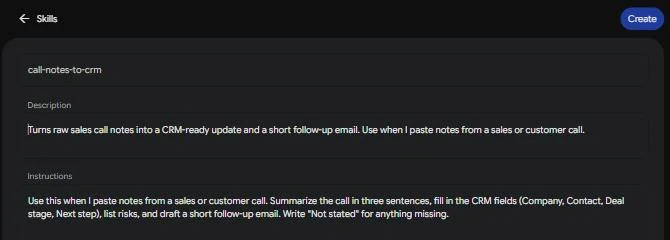
- Copy and paste the name, description, and instructions from your Gem to your skill. Google says the Skill’s name updates to the correct format on its own.
- At the top of the Skill, click Create.
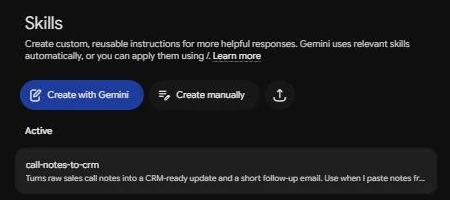
Expected outcome: if the Gem had no knowledge files, you are done. If it had files, continue with the next part.
If the Gem Has Knowledge Files
This is the separate, fiddly part. Google’s transition help page has you download the new Skill, add your files to it, and upload the whole folder again.
- On the Skills page, hover over the Skill you just created, click Skill actions, then Download. This downloads a .zip file containing the SKILL.md file.
- Open the .zip file on your computer and move SKILL.md into the folder with your Gem files.
- Back on the Skills page, hover over the same Skill and click Skill actions, then Replace skill.
- In the upload area, click folder, then choose the folder that holds SKILL.md and your files. The name of the folder must match the name of the skill.
- Click Upload, then Upload again. The Skill now includes the files.
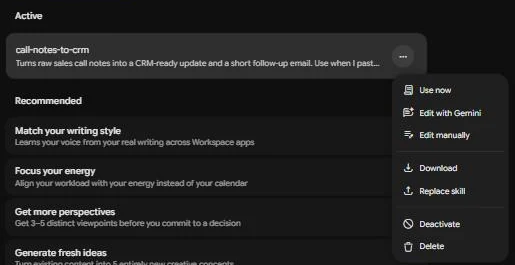
Google’s skills management page labels this menu More instead of Skill actions for Download and Replace skill.
Check the files before you start. Google’s upload rules decide what a Skill will accept:
- Plain-text files such as .txt, .md, .csv and .json are accepted, along with .pdf, .jpg, .png, and other image types.
- Binary files such as .docx, .doc and .xlsx are not supported. My suggestion is to save Word files as PDF and spreadsheets as CSV before you upload.
- All uploaded files together can be no larger than 100 MB.
- GitHub files aren’t supported in skills for now.
- Remove hidden binary files like .DS_Store or .pyc, which Google says might cause the upload to fail.
Workspace users can follow the same steps once Skills reach their account; Google’s Workspace admin guide asks admins to share these instructions so creators can rebuild critical Gems before automated migration.
Method 3: Create a New Skill and Use It in Chat
When to use it: you have a repeat task that never had a Gem, or you would rather start fresh than copy an old Gem.
Who can use Skills now: Google’s Skills setup page says you must be 18 or over and have Keep Activity on.
For now, you also have to sign in with a personal Google Account rather than a work or school account. The same page says skills are available without a Google AI subscription.
Google is gradually making skills available, so the menu may not appear for every account yet.
Google’s Skills launch post adds that access for users under 18 is coming soon.
Create the Skill. Go to gemini.google.com on a computer, or open the Gemini app on a Mac, then in the sidebar click Settings and Skills. Google offers these starting points:
- Create with Gemini: work with Gemini to create the Skill and follow the instructions in the chat.
- Recommended templates: pick a prefilled template and edit its name, description and instructions.
- Create manually: start from a blank template and enter the name, description and instructions.
- Upload: a SKILL.md file, or a folder or .zip file with SKILL.md in its main folder.
You can also ask Gemini in a normal chat to create a Skill, and it saves the result to your Skills page.
Use it in a chat. In a chat or task thread, type / and select the Skill. Gemini can also use a turned-on Skill automatically when it fits the context and intent of your task.

To stop automatic use, open the Skill from Settings and Skills, then click More and Deactivate. If you later ask Gemini to use a Skill that is off, Gemini asks whether you want to turn it back on.
You can add several Skills to one task. Google’s own example is combining a writing style skill with a brand guidelines skill.
Example Skill: Turn Sales Call Notes Into a CRM Update
This is my own example, not a Google template. It suits a Skill because the input changes every time but the output format does not.
- Name: call-notes-to-crm
- Description: Turns raw sales call notes into a CRM-ready update, a list of risks and a short follow-up email.
- Instructions: paste the text below into the instructions field.
Use this skill when I paste notes from a sales or customer call.
1. Summarize the call in three sentences.
2. Fill in these CRM fields, one per line: Company, Contact, Role,
   Deal stage, Budget mentioned, Decision maker, Competitors mentioned,
   Next step, Next step date.
3. If a field is not in the notes, write "Not stated". Never guess
   names, numbers or dates.
4. List objections and risks as short bullet points.
5. Draft a short follow-up email, one paragraph at most, in a plain, friendly tone.
6. End with two questions to ask on the next call.
To run it, open any chat, type /, pick call-notes-to-crm and paste your notes.
Read every field before it goes into the CRM. The Skill formats your notes; it does not check them against your records.
More Skill Templates for Repeatable Business Tasks
These are also my own templates, not Google’s. Each follows the same pattern: a name in lowercase with hyphens, a one-line description, and instructions that say when to use the Skill and what the output looks like.
Meeting prep brief
- Name: meeting-prep-brief
- Description: Turns a meeting invite, attendee list and any pasted notes into a short brief before a customer or prospect call.
- Instructions:
Use this skill when I paste a meeting invite or ask to prepare for a meeting.
1. State the meeting goal in one sentence. If it is unclear, say so.
2. List each attendee with their company and role, using only what I paste.
3. Summarize what is already known about the account from my notes.
4. Suggest three questions I should ask and two risks to watch for.
5. End with the one outcome I should aim to leave the meeting with.
Never invent facts about people or companies. Write "Unknown" instead.
Weekly status report
- Name: weekly-status-report
- Description: Turns rough weekly notes into a consistent status update for a manager or client.
- Instructions:
Use this skill when I paste notes about my week and ask for a status report.
Write the report with these headings, in this order:
- Done this week
- In progress
- Blocked, and what would unblock it
- Next week
Keep each bullet to one line. Keep figures exactly as I wrote them and
never add new ones. If a heading has nothing under it, write "Nothing to report".
Finish with one sentence on overall status: on track, at risk or off track.
Customer follow-up email in your brand voice
- Name: customer-follow-up
- Description: Drafts a follow-up email to a customer in a consistent brand voice.
- Instructions:
Use this skill when I ask for a follow-up email to a customer.
Voice: plain, warm and direct. Short sentences. No hype words, no
exclamation marks, no jargon the customer did not use first.
Structure:
1. Thank them for the specific conversation or request I mention.
2. Restate what was agreed, in the customer's terms.
3. Give the next step, who owns it and when, exactly as I state it.
4. Close with one clear question or call to action.
If I have not given a next step or date, ask me for it instead of guessing.
Google lets you combine Skills in one task, so the follow-up template can run together with a separate brand guidelines Skill if you keep one.
Which Method Fits Each Gem?
Match each Gem to a row.
| Your Gem | Best method | Why |
|---|---|---|
| Uses Canvas, Deep Research, Create video, Create music or Guided learning | Keep using the Gem until your date, then check the converted Skill | Google says these tools don’t work with Skills for now and gives no date |
| Relies on Google Drive files, Gemini Notebook notebooks or sharing | Wait | Google says these features are coming to Skills in the coming weeks |
| Instructions only, used every week | Recreate now | A copy-and-paste job you can compare with the original Gem |
| Has knowledge files and is used daily | Recreate now, on a computer | Worth the file steps, but manually created Skills won’t save in the mobile app |
| Critical Gem in a Workspace account | Rebuild early | Google’s admin guide tells admins to encourage early rebuilds of critical Gems |
| Built in Google Labs | Save what you need before November | Gems by Google Labs will not migrate into skills |
| Opened now and then | Wait | Google will transition it along with any supported files |
Sources: Gems-to-skills help page, skills help page, Workspace admin guide, Skills launch post.
My recommendation: rebuild the two or three Gems you use every week, on a computer, and let Google convert the rest.
What Workspace Admins Should Check
Workspace accounts run on a different clock. Google’s Workspace transition guide for admins was last updated September 30, 2026, and it sets out the work below.
- Confirm your release track. Rapid Release and Scheduled Release domains get Skills on different dates, so check the timeline above against your domain.
- Turn Skills on. Google’s first step for early adoption is to make sure skills are turned on for your organization.
- Tell users their date. Google asks admins to share the key dates for their organization’s edition so users can plan their workflows.
- Rebuild critical Gems early. Google asks admins to encourage creators to rebuild their most important Gems as skills by hand, ahead of automated migration.
- Fix Workspace Studio flows. Users can no longer add an Ask a Gem step to new flows, and existing flows with that step keep working until 2027. Google tells flow owners to use its Workspace Studio transition guide to swap those steps for skills or other actions.
- Plan for the sync gap. Skills don’t sync between the Gemini app and Workspace apps yet. To use one Skill in both places, or to move a Gem used in Workspace, users have to recreate it by hand in Google Workspace Studio.
- Remind creators about drafts. Migrated Gems arrive as inactive drafts, and each creator has to review and activate them before using or sharing them.
- Prepare education domains. For educators using Google Classroom or Gemini LTI, Google recommends moving to Gemini Notebook, available now, and Guided Learning, coming soon to Classroom.
Eligibility differs by surface. Skills in the Gemini app are available to all Google Workspace editions and users of all ages.
Skills inside Workspace apps need users aged 18 or older on Business Starter, Standard or Plus, Enterprise Standard or Plus, Google AI Pro for Education, or the AI Expanded Access add-on. That all-ages rule for the Gemini app differs from the 18-or-over rule on the consumer skills requirements page, so school admins should check which surface their students use.
If you are checking what those editions cost, the Gemini pricing guide is the place for plan prices.
Current Limitations and When to Wait
Skills do not match Gems feature for feature yet. Google’s transition help page and its create and manage skills page describe what works now and what is still to come.
Available now
- Connected Apps, such as Workspace apps, work with Skills.
- Text files, PDFs and images can be uploaded as part of a Skill.
- The / shortcut, typed in any Gemini chat.
Not available with Skills yet
- Create video, Create music, Canvas, Deep research and Guided learning, which Google says do not work with skills for now.
- GitHub files.
- Scripts that require access to the internet.
- Saving a manually created Skill in the mobile app, and editing a Skill with uploaded files on mobile or Mac, which Google lists as known issues it is working to fix.
Limits to plan around
- No dedicated page that lists your recent chats with a Skill; those chats appear in the side panel instead.
- You can create as many Skills as you want, but only 100 can be active at a time.
Coming later, according to Google
- Sharing Skills with others, adding files from Google Drive and adding notebooks from Gemini Notebook, which Google says arrive in the coming weeks.
- The @ shortcut, which Google says will replace / soon.
When to wait: if a Gem depends on Drive files, notebooks or sharing, keep using the Gem until Google adds them. A Gem built around Canvas or Deep Research is different, because Google gives no date for those tools, so plan how you will work without them after your retirement date.
If the Gem is plain instructions, rebuild it now so you can compare the two while the original still exists.
Frequently Asked Questions
Why don’t I see Skills in Gemini?
Google is rolling Skills out gradually. Its Skills requirements list three conditions: be 18 or over, have Keep Activity on, and sign in with a personal Google Account.
That page still says work and school accounts aren’t supported yet, so Workspace users should check again after their domain’s rollout date in the timeline above.
Do I lose my Gem chat history?
Google’s transition pages do not say what happens to past Gem chats. Until Google says more, copy anything you need from important Gem conversations before your retirement date.
Can I still use my Gems before the switch?
Yes, until your account’s date. Google’s Gems transition FAQ lists November 2026 for personal accounts, and the banner in a personal account’s Gem manager says migration begins November 17, 2026, with Gems usable until they migrate.
For Workspace, the admin guide says Gems move to Settings on November 17, 2026, and users can continue to create, edit, and use them until their edition’s retirement date.
Do I need a paid Gemini plan to use Skills?
No. Google’s Skills help article says skills are available without a Google AI subscription.
Whether a paid Gemini plan is worth it for other reasons is a separate decision, and the Gemini review covers it.
Will shared Gems stay shared after the move?
For Workspace accounts, the admin guide says Drive permissions and sharing settings on the original Gem transfer to the converted Skill.
That Skill still has to be activated before it can be shared. Sharing a Skill you build yourself is not available yet; Google’s transition FAQ lists it as coming.
How It Was Evaluated
This guide is based on four official Google sources: the Gems-to-skills help page, the skills help page, the Workspace admin guide and the Skills launch post. The criteria were what Google documents for each account type, where its pages word the same date differently, and which steps a reader can follow without guessing.
Where the pages differ, the more specific admin wording is used for Workspace dates and the difference is shown. Lines marked as advice or a recommendation are editorial judgment based on those documented limits.