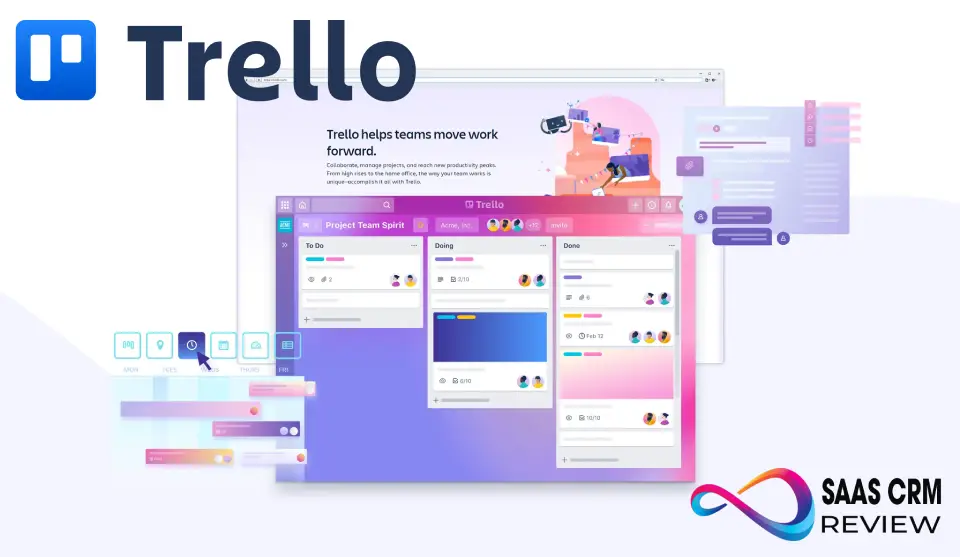
Trello is one of the most widely used project management tools in the world, known for its simple Kanban boards and easy-to-adopt workflow. But as teams grow, projects become more complex, and expectations around visibility, automation, and reporting increase, an important question emerges: Is Trello still the right tool—or does its simplicity become a limitation?
In this Trello review, we evaluate the platform from a real-world, hands-on perspective. Based on practical experience using Trello across marketing teams, startups, and cross-functional projects, this article breaks down Trello’s features, pricing, strengths, weaknesses, and how it compares to competitors like Asana, Monday.com, and ClickUp. The goal is simple: help you decide whether Trello fits your workflow today—and whether it can scale with you tomorrow.
Quick Summary – Trello Review
| Category | Summary |
|---|---|
| Product | Trello |
| Category | Project Management Software |
| Best for | Individuals, startups, marketing teams, small to mid-sized teams |
| Core strength | Simple, visual Kanban boards with fast user adoption |
| Ease of use | ⭐⭐⭐⭐⭐ Very beginner-friendly |
| Key features | Boards, lists, cards, Butler automation, Power-Ups, multiple views (Premium) |
| Automation | No-code automation with usage limits on lower plans |
| Pricing | Free plan available; paid plans start at $5/user/month |
| Free plan value | One of the strongest freemium plans in project management |
| Scalability | Good for small–mid teams; limited for complex, multi-project portfolios |
| Reporting & analytics | Basic; advanced dashboards require Premium |
| Mobile experience | Excellent on iOS and Android |
| Integrations | 200+ integrations (Slack, Google Drive, Teams, Jira, more) |
| Security & trust | Backed by Atlassian; enterprise-grade options available |
| Main limitations | No native task dependencies, limited advanced reporting |
| Top alternatives | Asana, Monday.com, ClickUp, Jira |
| Overall verdict | Ideal for teams that value simplicity, visibility, and fast adoption |
| Overall rating | ⭐⭐⭐⭐☆ 4.7 / 5 |
Key Features of Trello
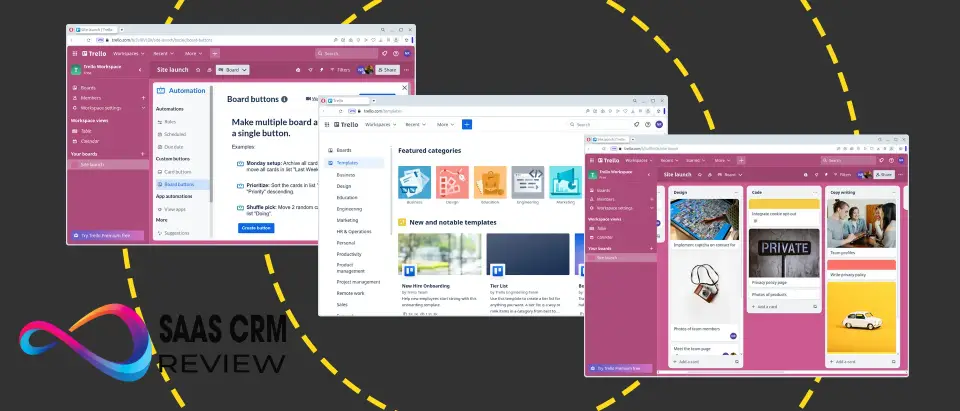
Boards, Lists, and Cards: The Foundation
The board-list-card hierarchy forms Trello’s DNA. In practice, this translates remarkably well to real-world workflows. A marketing team might create a content calendar board with lists for “Ideas,” “In Progress,” “Review,” and “Published.” Each blog post becomes a card that moves across these lists as work progresses.
Cards themselves are more capable than they initially appear. Beyond simple text, each card supports:
- Detailed descriptions with markdown formatting
- File attachments (up to 10MB on free plans, 250MB on paid)
- Checklists for breaking down subtasks
- Due dates and reminders
- Labels for categorization
- Member assignments
- Comments and activity logs
We’ve found that cards work well for straightforward tasks but can become cluttered when managing highly complex items with numerous dependencies. The linear, top-to-bottom nature of checklist items doesn’t elegantly handle parallel workstreams within a single card.
Butler: Automation That Actually Works
Butler represents Trello’s most significant evolution beyond simple Kanban boards. This built-in automation engine allows users to create rules, buttons, and scheduled commands without writing code.
In our experience, Butler transforms Trello from a passive organizational tool into something more dynamic. We’ve set up automations that:
- Automatically move cards to “Done” when all checklist items are checked
- Assign team members based on labels
- Create recurring tasks for weekly review meetings
- Send due date reminders to Slack channels
The automation builder uses natural language, making it accessible even to non-technical users. However, the free plan’s limitation of one automation run per month per board essentially makes Butler a premium feature. Standard plans offer 1,000 automation runs per month per workspace, which we’ve found adequate for most small team needs.
Power-Ups and Integrations
Power-Ups are Trello’s answer to extensibility. Each board can activate Power-Ups that add functionality—calendar views, custom fields, time tracking, voting, and hundreds more. Popular integrations include Slack, Google Drive, GitHub, Salesforce, and Mailchimp.
The catch: free plans are limited to one Power-Up per board. This constraint forces difficult prioritization decisions. Do you want calendar view or custom fields? Integration with Slack or time tracking? For teams with basic needs, one Power-Up might suffice. But we’ve consistently found ourselves needing at least three or four to operate effectively, pushing teams toward paid plans.
Standard plans allow unlimited Power-Ups, though Premium and Enterprise tiers unlock additional advanced Power-Ups. The ecosystem is genuinely robust, with third-party developers continuing to create new extensions. That said, the quality varies significantly, and some Power-Ups feel like they’re compensating for gaps in Trello’s core functionality rather than adding genuinely optional features.
Collaboration and Permissions
Trello handles collaboration elegantly at the surface level. Multiple team members can view and edit boards simultaneously, with changes appearing in real-time. @mentions bring people into conversations, and activity logs provide decent transparency about who changed what.
Permission structures are straightforward: workspace admins, board admins, and board members. This simplicity works well for smaller teams but reveals limitations in larger organizations. There’s no granular control over who can move cards between specific lists or edit certain fields. Everyone with board access essentially has full editing rights unless you restrict them to observer status.
We’ve worked with teams that wanted certain stakeholders to add comments but not move cards, or junior team members to update specific fields but not delete cards entirely. Trello doesn’t accommodate these nuanced permission needs, occasionally creating workflow friction or requiring workarounds like separate boards.
Mobile and Cross-Platform Support
Trello’s mobile apps (iOS and Android) deserve credit for maintaining functionality while adapting to smaller screens. You can perform most essential actions—creating cards, adding comments, checking off items, uploading photos—without feeling constrained.
However, mobile Trello is best suited for quick updates rather than deep work sessions. Setting up board structures, configuring automations, or managing multiple Power-Ups remains cumbersome on mobile devices. We view the mobile apps as companions to the desktop experience rather than full replacements.
The desktop app (available for Windows and Mac) is essentially a wrapped web application. It offers few advantages over using Trello in a browser beyond dedicated window management and slightly faster loading times.
Trello Pricing Plans (Updated & Practical Breakdown)
Trello offers four pricing tiers designed to scale from individuals to global enterprises. The core difference between plans is how much structure, automation, visibility, and control you need as your team grows. For a full cost breakdown with real scenarios and hidden fees, see our Trello pricing guide.
| Plan | Price | Best for |
|---|---|---|
| Free | $0 USD | Individuals, freelancers, very small teams |
| Standard | $5/user/month (billed annually) | Small teams needing unlimited boards & structure |
| Premium | $10/user/month (billed annually) | Teams that need views, AI, and admin controls |
| Enterprise | $17.50/user/month (billed annually) | Large organizations with security & governance needs |
Free Plan – $0 USD
Free for up to 10 collaborators per Workspace
This plan is surprisingly capable and works well as a long-term solution for individuals or very small teams with simple workflows.
Included in Free:
- Unlimited cards
- Up to 10 boards per Workspace
- Quick capture from email, Slack, and Microsoft Teams
- Inbox
- Unlimited Power-Ups per board
- Unlimited storage (10MB per file)
- 250 Workspace command runs per month (automation)
- Custom backgrounds & stickers
- Unlimited activity log
- Assignees and due dates
- iOS & Android mobile apps
- Two-factor authentication
Real-world insight:
The Free plan is ideal for validating workflows. However, the 10-board limit becomes a hard ceiling once a team grows beyond a few projects.
Standard Plan – $5 USD per user/month (billed annually)
Designed for teams that outgrow board limits and want more structure.
Everything in Free, plus:
- Unlimited boards
- AI-powered quick capture from email, Slack, and Teams
- Planner (full access)
- Advanced checklists
- Card mirroring
- Custom Fields
- List colors
- Collapsible lists
- Unlimited storage (250MB per file)
- 1,000 Workspace command runs per month
- Single-board guests
- Saved searches
Real-world insight:
This is Trello’s best value plan for small teams. Unlimited boards + Custom Fields alone justify the upgrade for most marketing and operations teams.
Premium Plan – $10 USD per user/month (billed annually)
Adds visibility, AI features, and admin control—where Trello becomes a management tool, not just a task board.
Everything in Standard, plus:
- Built-in AI (content generation, summarization, brainstorming)
- Advanced views:
- Calendar
- Timeline
- Table
- Dashboard
- Map
- Workspace-level views (Table & Calendar)
- Unlimited Workspace command runs
- Admin & security controls
- Workspace-level templates
- Board collections
- Observers
- Simple data export
Real-world insight:
Premium is worth it when stakeholders need dashboards and timelines, or when multiple teams must follow consistent workflows across boards.
Enterprise Plan – $17.50 USD per user/month (billed annually)
Built for large organizations with compliance, security, and centralized governance needs.
Everything in Premium, plus:
- Unlimited Workspaces
- Organization-wide permissions
- Organization-visible boards
- Public board management
- Multi-board guests
- Attachment restrictions
- Power-Up administration
- Free SSO & user provisioning via Atlassian Guard
- 24/7 Enterprise Admin Support
Estimated cost example:
50 users → approximately $10,500/year
Real-world insight:
Enterprise is not about features—it’s about control, risk management, and scale. Most small and mid-sized teams do not need this plan.
Feature Comparison Table (Condensed & Decision-Oriented)
| Feature | Free | Standard | Premium | Enterprise |
|---|---|---|---|---|
| Unlimited cards | ✔ | ✔ | ✔ | ✔ |
| Unlimited boards | ✖ | ✔ | ✔ | ✔ |
| Custom Fields | ✖ | ✔ | ✔ | ✔ |
| Automation (Butler) | Limited | More | Unlimited | Unlimited |
| AI features | ✖ | ✔ | ✔ | ✔ |
| Views (Dashboard, Timeline, Table, etc.) | ✖ | ✖ | ✔ | ✔ |
| Workspace-level views | ✖ | ✖ | ✔ | ✔ |
| Admin & security controls | ✖ | ✖ | ✔ | ✔ |
| Organization-wide governance | ✖ | ✖ | ✖ | ✔ |
| SSO & user provisioning | Optional | Optional | Optional | ✔ |
| Support level | Community | Business hours | 24/5 | 24/7 |
- BambooHR Review 2026: Features, Pricing, Pros & Cons – Is It Right for Your Business?
User Experience and Interface
Trello’s greatest strength remains its intuitive design. New users can create their first board and start organizing work within minutes, no tutorial required. The drag-and-drop interface feels natural, and the visual representation of work makes project status immediately apparent.
The color-coding through labels, the satisfying motion of dragging cards across lists, the clean aesthetic—these details contribute to an experience that feels less like “using software” and more like naturally organizing thoughts. We’ve introduced Trello to team members who typically resist new tools and watched them become proficient within a single session.
However, this simplicity comes with trade-offs. As projects grow more complex, Trello’s interface doesn’t scale elegantly. Boards with dozens of lists become horizontally sprawling and difficult to navigate. Cards with extensive checklists, multiple attachments, and long comment threads grow cluttered and hard to scan.
The search functionality, while functional, lacks the sophisticated filtering options found in more advanced tools. Finding specific cards across multiple boards requires more manual hunting than we’d prefer. The recent addition of a workspace-level table view (Premium and above) helps somewhat, but it feels like a band-aid on an architectural limitation rather than a comprehensive solution.
- Mailchimp Review 2026: Features, Pricing, Pros & Cons – Is It Worth It?
Real-World Use Cases
Marketing Team Content Management
We’ve seen Trello work exceptionally well for marketing teams managing content calendars and campaign workflows. A typical setup includes boards for:
- Editorial calendar with lists for each month or content stage
- Social media planning with lists for different platforms
- Campaign management with lists representing campaign phases
The visual nature helps marketing teams see content distribution at a glance. Custom labels distinguish content types (blog posts, videos, infographics), and due dates ensure deadlines don’t slip. The Calendar Power-Up transforms the board into a traditional calendar view that resonates with marketing professionals.
Limitations emerge when tracking campaign performance or connecting content directly to analytics. Trello doesn’t natively handle metrics reporting, requiring integration with external tools or manual data entry in card descriptions.
Agile Software Development
Trello’s Kanban origins make it a natural fit for Agile teams, particularly those practicing Scrum or Kanban methodologies. Sprint boards with lists for “Backlog,” “To Do,” “In Progress,” “Code Review,” and “Done” map cleanly to Trello’s structure.
Smaller development teams often find Trello sufficient for their needs, especially when augmented with Power-Ups for GitHub integration and time tracking. However, we’ve consistently observed teams outgrowing Trello as they scale. The lack of native story points, burndown charts, velocity tracking, and sophisticated reporting pushes many development teams toward dedicated tools like Jira (ironically, another Atlassian product) or Azure DevOps.
The integration between Trello and Jira exists for teams wanting a hybrid approach—using Trello for planning and Jira for detailed development tracking—but this adds complexity rather than eliminating it.
Personal Productivity
For individual users managing personal projects, side businesses, or job searches, Trello offers perhaps its most compelling use case. The free plan’s limitations matter less when you’re only activating one Power-Up and running minimal automations.
We’ve built systems for:
- Book writing with lists for research, outline, drafts, and editing stages
- Job hunting with lists for companies to research, applications submitted, and interview stages
- Home renovation projects with lists for each room and phases of work
The flexibility to structure boards however you think works beautifully for personal use where there are no organizational constraints or standardization requirements.
Small Business Project Tracking
Small businesses often use Trello as a lightweight project management solution across diverse functions—client projects, internal operations, hiring pipelines, vendor management. A single workspace can house boards for different aspects of the business.
This versatility is both a strength and potential weakness. Without disciplined structure, Trello workspaces can become disorganized collections of boards with inconsistent organization patterns. The lack of portfolio-level project management features means there’s no unified view of all work across the business, just individual boards that need to be checked separately.
Pros and Cons of Trello (Real-World Evaluation)
✅ Pros of Trello
| Advantage | Why it matters in real use |
|---|---|
| Extremely easy to use | Most users can start using Trello productively within minutes. This dramatically reduces onboarding time compared to heavier project management tools. |
| Highly visual Kanban workflow | Boards, lists, and cards provide instant clarity on work status, making Trello ideal for tracking progress at a glance. |
| Fast adoption across non-technical teams | Marketing, HR, operations, and sales teams tend to adopt Trello naturally without formal training. |
| Flexible and adaptable | Trello can be used for marketing campaigns, content calendars, personal productivity, agile sprints, and lightweight CRM workflows. |
| Strong free plan | The Free plan is genuinely useful long-term for individuals and small teams, not just a trial version. |
| Powerful no-code automation (Butler) | Automation reduces manual work such as moving cards, assigning owners, and setting due dates—saving real time. |
| Large integration ecosystem | Trello integrates with 200+ tools like Slack, Google Drive, Microsoft Teams, and Jira, fitting well into existing workflows. |
| Excellent mobile experience | The mobile apps preserve core functionality and are practical for teams working remotely or on the move. |
| Backed by Atlassian | Being part of the Atlassian ecosystem adds credibility, reliability, and long-term product stability. |
⚠️ Cons of Trello
| Limitation | Why it can be a problem |
|---|---|
| Limited scalability for complex projects | As projects grow in size and complexity, boards can become cluttered and harder to manage. |
| Weak native reporting & analytics | Trello lacks deep reporting, workload analysis, and forecasting compared to tools like Asana or Monday.com. |
| Automation limits on lower plans | Butler automation has usage caps, which can restrict teams that rely heavily on automated workflows. |
| No built-in dependency management | Trello does not natively support task dependencies or critical path planning. |
| Governance requires discipline | Without clear standards, teams can create inconsistent boards, labels, and Power-Ups that reduce clarity. |
| Advanced features require paid plans | Views, AI features, admin controls, and Workspace-level insights are locked behind Premium or Enterprise plans. |
| Not ideal for enterprise portfolio management | Managing multiple programs, resources, and long-term roadmaps is challenging without external tools. |
| Compliance-heavy environments may struggle | While secure, Trello may require additional configuration and validation for strict regulatory requirements. |
Trello vs Competitors – Which Tool Wins in Real Use?
When evaluating Trello against other project management tools, the key question isn’t which tool is “better” universally— it’s which tool aligns best with your team’s workflow, scale, and goals? Below is a practical comparison based on hands-on experience and real-world usage patterns.
Trello vs Asana
| Aspect | Trello | Asana | Winner |
|---|---|---|---|
| Ease of use | ⭐⭐⭐⭐⭐ | ⭐⭐⭐⭐ | Trello |
| Visual Kanban focus | ⭐⭐⭐⭐⭐ | ⭐⭐⭐⭐ | Trello |
| Structured task management | ⭐⭐⭐ | ⭐⭐⭐⭐⭐ | Asana |
| Dependencies & work breakdown | ⭐⭐ | ⭐⭐⭐⭐ | Asana |
| Reporting & dashboards | ⭐⭐ | ⭐⭐⭐⭐ | Asana |
| Best for | Lightweight, visual workflows & teams | Structured project planning & cross-project reporting | — |
Why this matters: Trello’s simplicity wins for teams that want to start quickly and visualize work easily. Asana pulls ahead when tasks interrelate, require dependencies, and need deep reporting across multiple teams.
Real-world takeaway: If your team frequently uses lists and boards to track work, Trello will feel intuitive. If you constantly manage complex plans, milestones, and dependencies for marketing–dev cross teams, Asana may save time long-term.
Trello vs Monday.com
| Feature | Trello | Monday.com | Winner |
|---|---|---|---|
| Customizable workflows | ⭐⭐⭐⭐ | ⭐⭐⭐⭐⭐ | Monday.com |
| Visual simplicity | ⭐⭐⭐⭐⭐ | ⭐⭐⭐⭐ | Trello |
| Dashboards & analytics | ⭐⭐ | ⭐⭐⭐⭐ | Monday.com |
| Integrations | ⭐⭐⭐⭐ | ⭐⭐⭐⭐ | — |
| Automation | ⭐⭐⭐⭐ | ⭐⭐⭐⭐ | — |
| Best for | Simple to moderate workflows | Cross-functional operations at scale | — |
Why this matters: Monday.com is often described as a “work operating system”—a flexible, structured hub for teams across functions. Trello’s strength lies in ease and clarity, while Monday provides more data views and configurability.
Real-world takeaway: Monday.com can absorb more complexity without losing consistency. Trello excels where teams need less configuration and more doing.
Trello vs ClickUp
| Capability | Trello | ClickUp | Winner |
|---|---|---|---|
| Feature depth | ⭐⭐⭐ | ⭐⭐⭐⭐⭐ | ClickUp |
| Simplicity | ⭐⭐⭐⭐⭐ | ⭐⭐⭐⭐ | Trello |
| Multiple work views | ⭐⭐⭐ | ⭐⭐⭐⭐⭐ | ClickUp |
| Docs & knowledge base | ⭐ | ⭐⭐⭐⭐ | ClickUp |
| All-in-one platform ambition | ⭐ | ⭐⭐⭐⭐⭐ | ClickUp |
| Best for | Kanban-first teams | Consolidated work operations | — |
Why this matters: ClickUp’s value proposition is “replace all tools” — combining tasks, docs, goals, dashboards, calendars, chat, and goal tracking. Trello remains focused, clean, and intuitive—but less “all-encompassing.”
Real-world takeaway: ClickUp can slow teams down with choice overload if not governed carefully. Trello, with fewer bells and whistles, has lower onboarding friction.
Trello vs Jira (for software teams)
| Criterion | Trello | Jira | Winner |
|---|---|---|---|
| Software development workflows | ⭐⭐⭐ | ⭐⭐⭐⭐⭐ | Jira |
| Bug tracking | ⭐⭐ | ⭐⭐⭐⭐⭐ | Jira |
| Sprints & backlog grooming | ⭐⭐ | ⭐⭐⭐⭐⭐ | Jira |
| Ease of use | ⭐⭐⭐⭐ | ⭐⭐ | Trello |
| Kanban basics | ⭐⭐⭐⭐⭐ | ⭐⭐⭐⭐ | Trello |
| Best for | Lightweight team task tracking | Scalable engineering project management | — |
Why this matters: Jira is built for software engineering lifecycles, with epics, stories, releases, and detailed boards. Trello is lighter and more visual, and often used by non-engineering teams or cross-functional teams that don’t need Jira-level rigor.
Real-world takeaway: Many organizations use Trello for business teams and Jira for engineering—a common pattern in Atlassian ecosystems.
Security, Privacy, and Reliability
Atlassian’s ownership brings enterprise-grade infrastructure to Trello. The platform maintains SOC 2 Type II certification and complies with major data protection regulations including GDPR. Data is encrypted in transit and at rest, with servers hosted on AWS across multiple geographic regions.
For most businesses, Trello’s security posture is entirely adequate. Enterprise customers gain additional controls including SSO, advanced user provisioning, and attachment permissions. Smaller teams on Standard or Premium plans have fewer security controls but benefit from Atlassian’s overall security investment.
In terms of reliability, we’ve experienced minimal downtime over years of use. Atlassian maintains public status pages and generally resolves incidents quickly. The platform’s performance is consistently responsive, though boards with hundreds of cards can occasionally feel sluggish.
Privacy considerations depend on your board configurations. Public boards are searchable and visible to anyone with the link, which has occasionally led to accidental data exposure when teams misunderstand visibility settings. Private boards and workspaces provide appropriate access controls for business use.
Who Should Use Trello (and Who Shouldn’t)
Trello is ideal for:
- Small to medium-sized teams (5-50 people) with straightforward project needs
- Marketing teams managing content calendars and campaign workflows
- Teams already comfortable with or committed to Kanban methodology
- Organizations seeking an intuitive tool with minimal training requirements
- Freelancers and solopreneurs managing multiple projects
- Teams prioritizing visual organization and simplicity over feature depth
- Businesses looking for an affordable entry point to project management software
Trello may not be suitable for:
- Large organizations requiring sophisticated governance and reporting
- Teams managing highly complex projects with numerous dependencies
- Development teams needing advanced Agile features (story points, velocity, burndown)
- Organizations requiring native time tracking and resource management
- Teams that need Gantt charts or timeline views as their primary interface
- Businesses requiring granular permission controls
- Projects where multiple interconnected views are essential
- Teams coordinating work across many simultaneous projects requiring portfolio management
Final Verdict and Recommendation
Trello succeeds brilliantly at what it set out to do: make project organization visual, intuitive, and accessible. For teams whose work aligns with its Kanban-centric philosophy and who don’t require advanced project management capabilities, Trello remains an excellent choice in 2025.
However, the competitive landscape has evolved substantially. Many teams will find themselves weighing Trello’s simplicity against competitors’ more comprehensive feature sets. The question isn’t whether Trello is good—it is—but whether its particular strengths match your specific needs.
Our recommendation: Start with Trello if you’re a smaller team seeking simplicity, have primarily linear workflows, and want minimal setup friction. Budget for at least the Standard plan ($5/user/month) to access reasonable functionality. Be prepared to potentially migrate to more robust tools as your team grows or your needs become more sophisticated.
Rating: 4 out of 5 stars – Excellent for its target use cases, but not a universal solution for all project management needs.
The tool’s longevity and continued popularity speak to its enduring value. Just ensure you’re choosing Trello for the right reasons—its simplicity and visual approach—rather than settling for it due to familiarity or brand recognition. The best project management tool is the one your team will actually use consistently, and for many teams, that remains Trello.
About the author

I’m Macedona, an independent reviewer covering SaaS platforms, CRM systems, and AI tools. My work focuses on hands-on testing, structured feature analysis, pricing evaluation, and real-world business use cases.
All reviews are created using transparent comparison criteria and are updated regularly to reflect changes in features, pricing, and performance.