
Higgsfield Shorts Studio is worth paying for if you want a short talking-character video from one portrait and a script. The live tool is a Reference, Character, Voice and Script wizard that generates a new video, unlike the upload-and-restyle flow that Higgsfield’s intro page and Greg Preece’s July 2026 review describe. This review rests on five test videos I ran on my Ultra account on November 7, 2026, and on a follow-up through November 9, which brings the total to 21 finished Shorts.
Basic billed 6 credits a second and High 16, and a billed 20 seconds came back as 14.77 to 17.67 seconds. Anyone who needs control over captions should skip it, and anyone starting from their own footage should run one uploaded Basic video before committing to a year.
In the five-video test, renders took 12 to 24 minutes (up to 40 in the follow-up), and one of the five videos failed with its credits refunded. If you use every credit, a 20-second Basic video costs $39 / 1,000 x 120 = $4.68 on Plus billed yearly, and Plus covers 8 of those a month.
Quick verdict
- Worth it for: creators and small marketing teams making about 20-second presenter-style videos from a portrait and a script
- Skip it if: you need control over captions; if your own footage is the job, run one uploaded Basic video before you commit to a year
- Main strength: in all four finished Higgsfield Shorts Studio videos the mouth matched the words and the voice sounded natural
- Biggest limit: a billed 20 or 21 seconds came back as 14.77 to 18.75 seconds, after a long render
- Price basis: 6 credits a second on Basic and 16 on High; Plus costs $39 a month billed yearly for 1,000 credits
In This Article (14 sections)
Higgsfield Shorts Studio at a Glance
Higgsfield Shorts Studio is an AI short-video generator priced in credits per second, on plans from $15 a month.
- Category: AI short-video generator
- Best for: presenter-style Shorts from a portrait and a script
- Starting price: Starter, $15 a month for 200 credits
- Cost per run: 6 credits a second on Basic, 16 on High, on my Ultra account
- Free plan or trial: none listed on the pricing page
- Length and batch: 10 seconds to 2 minutes, 1 to 4 videos at a time
- Output: 1080×1920 files in my four finished videos
- Main limitation: files shorter than the seconds billed
Higgsfield Shorts Studio Pros and Cons
Shorts Studio trades convincing speech and template carry-over for short delivery, slow renders and no caption control that I could find.
Pros
- Lip sync and a natural voice in all four finished videos, which helps creators who would rather not film
- The template’s location, cuts and text style carried over, which helps anyone without an editor
- An AI script in about 20 to 40 seconds, which helps when you hold only a one-line idea
- Three videos ran at once on Ultra in the first test and four in the follow-up, with no queue message, which helps batches
- All 21 finished Shorts came out at 1080×1920, and 20 of them ran at the Basic rate, which helps anyone posting at volume
- The failed video returned its 120 credits, which limits the cost of a bad render
Cons
- File length missed the setting: at a 20-second slider, files ran from 14.77 to 20.8 seconds, which hurts anyone budgeting per second
- Renders ran 12 to 40 minutes, and the failure gave no cause and first showed about 37 minutes in, which hurts same-day work with revisions
- I saw no caption switch in the wizard, which hurts brands with their own caption style
- The AI script sets its own length, 52 seconds to 1 minute 59 seconds (312 to 714 credits on Basic), which hurts anyone who clicks Generate without pulling the slider back
- Edit showed 135 credits on a 120-credit video, which hurts anyone planning to fix a video afterward
- Starter’s 200 credits pay for one Basic 20-second video, which hurts anyone testing on the cheapest plan
Higgsfield’s own pages describe a different input and different plans, so that difference needs explaining before you budget.
Higgsfield’s Pages vs the Tool I Used
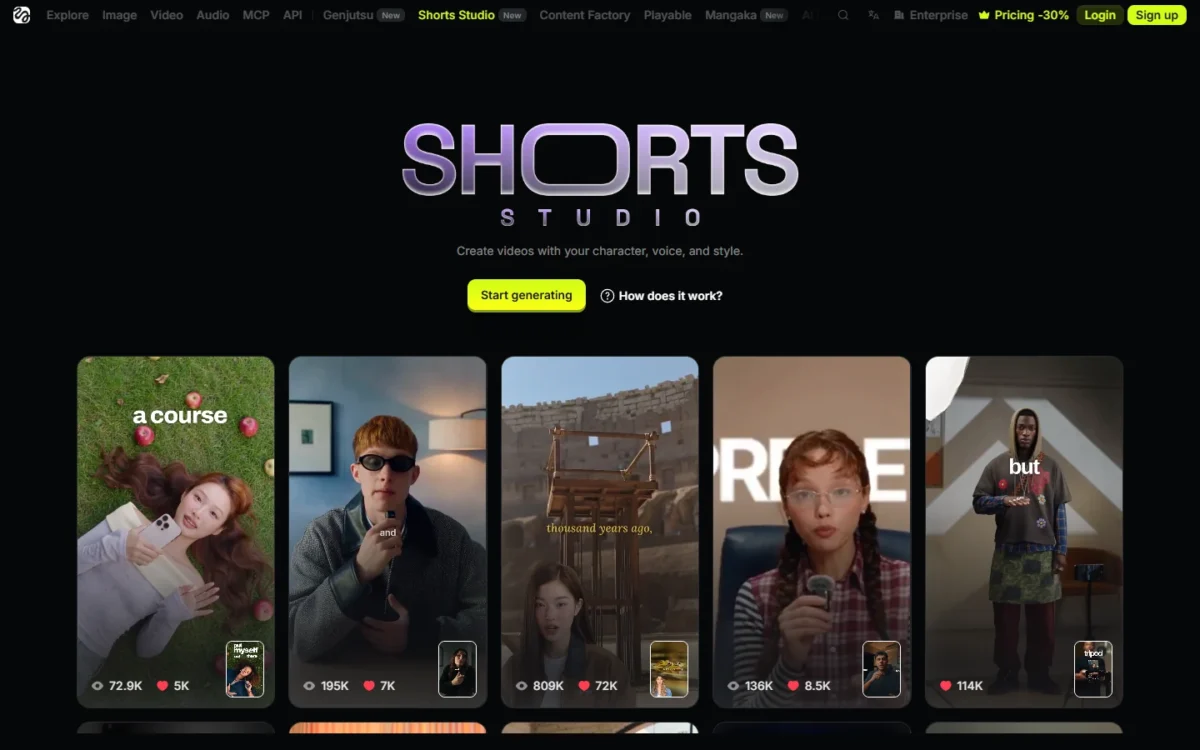
The live page and wizard ask for a character, a voice and a script and generate a new video, while Higgsfield’s intro page describes dropping footage on a preset, so plan a purchase around the wizard. The live page promises “Create videos with your character, voice, and style.” The intro page says “pick a preset, drop your footage, get a finished short” and describes restyling your footage with the original motion intact.

| Attribute | What the pages say | What I saw |
|---|---|---|
| Input | A preset plus your footage (intro page) | Reference, Character, Voice, Script |
| Length | A 10-second limit per clip, longer uploads sliced (Greg Preece) | Duration slider from 10 seconds to 2 minutes |
| Output | 9:16 or 16:9 (intro page) | Four files at 1080×1920 |
| Presets | Hundreds (intro page) | I used templates 1, 2 and 3 |
| Plans | Basic, Pro and Max (intro page) | Starter, Plus, Ultra (pricing page, the plans I price below) |
Sources: Shorts Studio page, intro page, Greg Preece’s review, July 2026, checked Nov 2026.
The upload option still exists on the Reference step, but the wizard required a character before Voice. The intro page also promises a custom preset built from 1 or 6 reference files plus your video.
Greg Preece reported stutters, voice swaps and a 10-second slice per clip in his July 2026 test of uploaded footage. My four videos had no stutter or dropped word in November, on the portrait-and-script path, a different path and month.
My take
I would budget from the wizard and the pricing page, because the intro page describes another input and other plan names. The rest of the platform belongs to my full Higgsfield AI review.
What My Five Test Videos Measured
Basic billed 6 credits a second and High 16, charged at the click, and every finished file came back shorter than billed, after a wait of 12 to 24 minutes. One video failed and was refunded.
The Generate button priced every length I tried at those rates: 11 seconds showed 66 credits and 117 seconds 702 on Basic, and 76 seconds showed 1,216 on High. Starting three videos took 120 + 336 + 120 = 576 credits straight away, from 3,000 to 2,424, before anything finished.

| Video | Settings | Credits | Billed | Delivered | Render and outcome |
|---|---|---|---|---|---|
| Video 1 | Basic, template 2, Grady, 53-word script | 120 | 20s | 17.67s | Finished in 14-22 min |
| Video 2 | High, same template, voice and script | 336 | 21s | 18.75s | Finished in 12-20 min |
| Video 3 | Basic, template 3, Auto generate, 1m 26s AI script forced to 20s | 120 | 20s | None | Failed, first seen about 37 min in; refunded |
| Video 4a | Basic, template 1, Auto generate, 49-word script | 120 | 20s | 16.73s | Finished in 17-24 min |
| Video 4b | Second video of 4a’s batch | 120 | 20s | 14.77s | Finished in 17-24 min |
Sources: my runs in Higgsfield Shorts Studio; render times are ranges because I read them at fixed checks.
Billed against delivered. The four finished files billed 81 seconds and delivered 67.92. On Basic that works out to 360 / 49.17 = 7.32 credits a delivered second, and on High to 336 / 18.75 = 17.92 credits. Budget on those figures, not the 6 and 16 on the button.
Why the file runs short. Delivered length tracked the script: 53 words gave 17.67 and 18.75 seconds, and 49 words gave 16.73 and 14.77, about 3 words a second. That is my inference from two scripts. Both 4a and 4b still show Duration 20s in the panel, so read the file itself. A 20-second slot needs about 60 words.
The default-length trap. The AI script set durations of 49 seconds, 1m 16s and 1m 26s, which cost 49 x 6 = 294, 456 and 86 x 6 = 516 credits on Basic if you leave them alone.
The failure. Video 3 showed “Something went wrong. Please try again, or change your input files or prompt.” with a Credits refunded label, and my balance rose from 2,184 to 2,304. The test does not show whether the script length or the template caused it, and I did not retry.

In total the five videos charged 816 credits and refunded 120, so 696 net left my balance, from 3,000 to 2,304.
What Changed After I Made 21 Shorts
Across 21 Shorts from November 7 to 9, 2026, the Basic rate held at 6 credits a second, and the first thing I managed was the length the AI script picked. All of them used my portrait and a script I wrote, on the same Ultra account, and all but one ran on Basic. Every file came out at 1080×1920, 20 of the 21 at 30 fps and the High one at 24 fps, and files weighed about 5 MB to 34 MB.
Credits and script length. In my account, a 20-second Basic Short charged 120 credits, and the Generate button in Higgsfield Shorts Studio showed that cost before I clicked it. By the end of my 21 test Shorts, my own account showed about 2,800 credits spent in total, followed by the notice “Over 90% already used”.
Generate script set its own length between 52 seconds and 1 minute 59 seconds, which the button priced at 312 to 714 credits, so I pulled the slider back to 20 seconds before every render.
The script also took about 30 to 40 seconds to write in the follow-up, and when I pasted my own text before it finished, the AI script overwrote mine. Waiting until the Length chip showed a value avoided that.
Renders and file length. Renders took about 15 to 40 minutes each, and 4 ran at the same time with no queue message.
With the slider at 20 seconds, files came out between 15.8 and 20.8 seconds. Two were 15.8 seconds because the voice spoke faster, and both still spoke the whole script. One video billed for 30 seconds came out at 35.4 seconds, so check the file, not the panel.
On-screen text. The template gallery in Shorts Studio shows each template’s view count, 959K, 809K and 587K among them. In my account, on-screen text usually took the exact numbers from my script, such as “$4 / $20”, “56 x B200” and “-90%”. Some templates added animated date counters, so I checked frames at 10 per second before posting.
On YouTube. About 2 days after posting, Shorts about a recent change at a big AI brand reached about 76 to 103 views: NotebookLM 103, Google Flow 102 and Claude Ultra 76. General CRM advice Shorts reached 1 to 6 views, except one at 100. Those are counts from one small channel after about 2 days, so they are no general result and no promise of reach.
An unverified channel was stopped after 10 uploads in one day, and the upload dialog did not show a clear error. Every Short also needed the “altered or synthetic content” disclosure set to Yes.
| Step | What I did | Why |
|---|---|---|
| Length | Pulled the slider to 20 seconds before every render | The AI script defaults to 52 seconds to 1 minute 59 seconds, 312 to 714 credits |
| Script text | Pasted mine after the Length chip showed a value | The AI script takes 30 to 40 seconds and overwrites pasted text |
| Budget | Counted 120 credits per 20-second Basic Short | Basic stayed at 6 credits a second |
| Batches | Started up to 4 at once and planned for 15 to 40 minutes | I saw no queue message with 4 running |
| File length | Read the file, not the panel | 20 seconds gave 15.8 to 20.8; a 30-second bill gave 35.4 |
| Frames | Checked frames at 10 per second | Some templates added animated date counters |
| Posting | Set the synthetic-content disclosure to Yes on every Short | The channel hit its stop at 10 uploads in one day |
Sources: my follow-up runs in Higgsfield Shorts Studio and my YouTube channel, November 7 to 9, 2026.
How to Use Higgsfield Shorts Studio: A Step-by-Step Guide
The wizard has four steps (Reference, Character, Voice, Script), and the ten steps below are my own path from template to posting. Most of the cost and risk sit in the length, the tier and the check of the finished file. These are the steps I followed for my 21 Shorts on the Ultra plan, November 7 to 9, 2026. If you are still deciding whether to pay, skip ahead to the pricing section, which works out the cost per video on each plan.
- Open Shorts Studio and pick a template. I clicked Start generating on the Shorts Studio page and chose a template from the gallery, which shows each template’s view count. The template decides the location, cuts and text style that carry into the video.
- Set the Reference. The Reference step takes a preset or an uploaded video. I used presets only, so if your own footage is the job, try that path on one Basic run first.
- Add a character. Upload a portrait or pick one from Uploads, AI Influencer, Generations or Liked. The wizard required a character before it let me reach Voice, and I used my own portrait every time.
- Choose a voice. Pick Auto generate, Male or Female, or Custom with your own 10- to 30-second sample. I used Grady and Auto generate, so test Custom on one Basic run if your own voice matters.
- Write or generate the script. Type a one-line idea and click Generate script, then edit the text it writes. The AI script took about 20 to 40 seconds, and when I pasted my own text before it finished, it overwrote mine, so wait until the Length chip shows a value before you replace the text.
- Pull the length slider down. In my follow-up runs the AI script set its own length, 52 seconds to 1 minute 59 seconds, which the button priced at 312 to 714 credits on Basic. I set the slider to 20 seconds before every render.
- Pick the tier and the count, then read the cost. Basic bills 6 credits a second and High 16, and the count runs from 1 to 4 videos. The Generate button shows the cost before you click, 120 credits for one 20-second Basic video in my account, and the credits left my balance at the click.
- Generate and wait. My renders took about 12 to 40 minutes each, and up to 4 ran at once with no queue message. My one failed run returned its 120 credits, though I first saw the failure about 37 minutes in.
- Review the file before posting. With the slider at 20 seconds my files ran from 14.77 to 20.8 seconds, so read the file length, not the panel. On-screen text took numbers from my script and some templates added animated date counters, so I checked the text and captions frame by frame, at 10 frames a second. Then play each file’s audio to the end: my four finished test videos had a natural voice with no stutter or dropped word, and my two 15.8-second Shorts still spoke the whole script.
- Download and post with the AI disclosure. The player holds Download. On YouTube every Short needed the “altered or synthetic content” disclosure set to Yes, and an unverified channel was stopped after 10 uploads in one day.
Higgsfield Shorts Studio Features
Five features change the decision: the wizard, the AI script, the two tiers, captions and on-screen text, and the paid after-render tools. I saw all five on the Ultra plan. For Higgsfield’s other workflows, start with how to use Higgsfield instead.
The Four-Step Wizard: Reference, Character, Voice, Script
You bring a template or video, a character image, a voice choice and a script, and the wizard requires the character before Voice. Reference takes a preset or an uploaded video. Character takes Uploads, AI Influencer, Generations or Liked. Voice offers Auto generate, Male, Female or Custom, a sample of 10 to 30 seconds, uploaded or recorded.
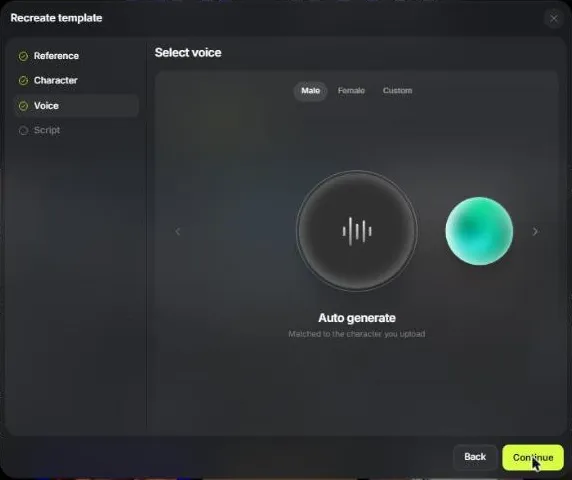
My runs used Grady and Auto generate. If your own voice is the point, spend one Basic run on Custom before you commit to a year.
AI Script Generation
The built-in script is useful as a start: each of my three took about 20 seconds, and my balance stayed at 3,000 after the first. It is editable, and a second run on the same idea gave a different script. Its weak spot is length, so cut the text and pull the slider down before you click Generate.
Basic vs High
High is worth it only for an important video, because the panel labels both tiers 1080p and both of my files were 1080×1920. You pay 16 credits a second against 6 for a better look, not more pixels. On the same template, portrait, voice and script, High looked clearly better to me.

Captions, On-Screen Text and Lip Sync
Speech passed in all four finished videos, and captions are the catch. The audio I checked is the voice track: the mouth matched the words, the voice sounded natural, and no word stuttered or dropped. The face and glasses from my portrait held in the frames I sampled.
The template’s location, cuts, cutaways and text style carried over, and on-screen labels followed my script, such as “billing” and “data export”. For anyone without an editor, that is the main thing the credits buy.
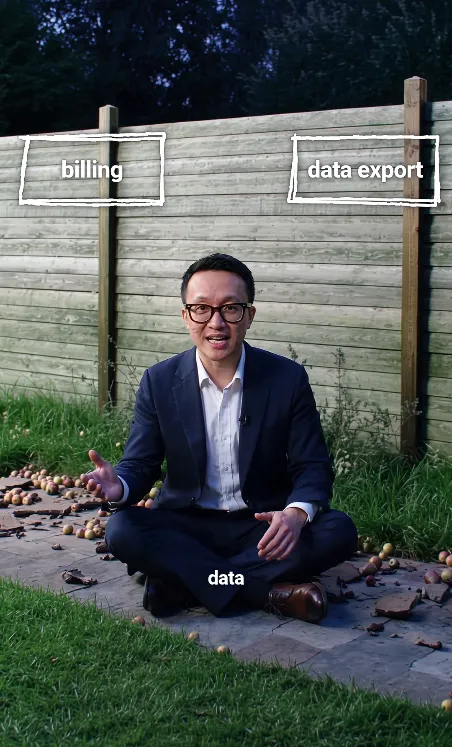
Word-by-word captions appeared in all four finished videos, on templates 1 and 2, and in video 1 a caption sat over the microphone. A brand with its own caption style should rule the tool out unless one test render looks acceptable.
Edit, Extend and the After-Render Panel
Edit on the whole of video 1 showed 135 credits, more than the 120 the video cost. Extend offers Prequel or Sequel at 5 seconds by default, and the player holds Trim and Download. A panel adds Reframe, Upscale, Remove Background, Change scene, Relight and Edit Color Palette. I opened these and applied none.

Fix the script before you render: I would rerender a short video rather than edit it.
Higgsfield Shorts Studio Ease of Use
One video has four steps and a long wait: an AI script takes about 20 to 40 seconds, then the render runs in the background. I started the next video while earlier ones rendered, and three ran at once with no queue message. Reloading the page kept them running.
A pop-up for other Higgsfield tools appeared over History once.
The count goes up to 4 videos at a click, so I would plan a batch around how many videos your credits cover.
Higgsfield Shorts Studio Pricing
Shorts Studio has no price of its own; it draws on your plan’s credits, so Plus covers 8 Basic 20-second videos a month, Ultra 25 and Starter 1.
The counts below use the rates my Ultra account showed: 120 credits for 20 seconds on Basic and 336 for 21 seconds on High. They use the pricing page’s Individual plans; the page sets Business plans apart in a separate view.

| Plan | Billed monthly | Billed yearly | Credits a month | Basic 20s videos | High 21s videos |
|---|---|---|---|---|---|
| Starter | $15 a month | $15 a month | 200 | 1 | 0 |
| Plus | $49 a month | $39 a month | 1,000 | 8 | 2 |
| Ultra | $129 a month | $99 a month | 3,000 | 25 | 8 |
Sources: Higgsfield pricing page, monthly and annual views, checked Nov 2026. US dollars, excluding VAT and local taxes.
| Plan and billing | 20s Basic (120 credits) | 21s High (336 credits) |
|---|---|---|
| Starter | $15 / 200 x 120 = $9.00 | Not coverable |
| Plus, yearly | $39 / 1,000 x 120 = $4.68 | $39 / 1,000 x 336 = $13.10 |
| Ultra, yearly | $99 / 3,000 x 120 = $3.96 | $99 / 3,000 x 336 = $11.09 |
Sources: Higgsfield pricing page; credits per video from my runs. These assume you use every credit and leave out tax, rerenders, Edit and top-ups, whose rate the page does not show.
Three volumes show which plan fits:
- One video a week: 4 x 120 = 480 credits, so Plus is enough, at $39 / 4 = $9.75 a video billed yearly.
- Three videos a week: 12 x 120 = 1,440 credits, 440 more than Plus holds, so Ultra, at $99 / 12 = $8.25 a video billed yearly.
- Twenty Basic and 1 High in a month: 20 x 120 + 336 = 2,736 credits, so Ultra, at $99 / 21 = $4.71 a video billed yearly.
The upgrade trigger on Plus is the 9th 20-second Basic video or the 3rd 21-second High video in a month. Yearly billing is a real commitment: $39 x 12 = $468 for Plus and $99 x 12 = $1,188 for Ultra, saving $120 and $360. The compare table lists commercial use as Included on Starter, Plus and Ultra. Top-ups and the other plan details are in my guide to Higgsfield plans and credits.
Check before you buy Starter
The pricing page does not name Shorts Studio in any plan card or compare row, and Starter lists “Access to selected models only & features”. My runs were on Ultra, so open the wizard on your plan and read the Generate button before you count on these rates.
My take
I would start with one month of Plus at $49, billed monthly, run the checks on this page, then take the $39 yearly rate for up to 8 short videos a month and move to Ultra past that. Skip Starter as a test: one video leaves nothing to compare templates or tiers with.
Who Should Use Higgsfield Shorts Studio?
Solo creators and small marketing teams making presenter-style explainers from a script should use it, and anyone whose job starts with their own footage should judge it on one uploaded Basic video first.
Best for
- A solo creator posting up to 8 short explainers a month, which fits Plus at 120 credits a video
- A small marketing team that wants one template’s look across videos, since location, cuts and text style carried over
Not ideal for
- Footage-first editors, unless one uploaded Basic video gives the cut they need; InVideo’s timeline editor suits that job
- A clean feed without word-by-word captions, which appeared in every finished video I made
- Tight same-hour turnarounds, given a failure first seen about 37 minutes after the click
- Teams that want a custom video avatar with their own voice and look; HeyGen’s Creator plan lists one
If your own footage or a custom avatar is the sticking point, two other tools address it directly.
Higgsfield Shorts Studio vs Competitors
HeyGen fits presenter videos from a custom avatar with a free start, and InVideo fits your own footage with timeline control.
| Software | Best for | Starting price | Key difference | Main trade-off |
|---|---|---|---|---|
| Higgsfield Shorts Studio | Presenter video in a template’s style | $15 a month, 200 credits | Template carry-over, labels from the script | No caption switch seen; slow renders |
| HeyGen | Presenter videos from a custom avatar | Free, then Creator at $29 a month for 600 credits | Custom video avatar with your own voice and look on Creator | Free is 3 watermarked videos a month, up to 1 minute each |
| InVideo | Your own footage on a timeline | $9 per seat a month, or $4 billed annually | Timeline editor on Basic, Pro and Ultra | You do the editing work |
Sources: Higgsfield pricing, HeyGen pricing, InVideo pricing, 50% off shown, checked Nov 2026.
My take
Pick HeyGen for a custom video avatar with your own voice and look and a free first try, InVideo if your footage is the point, and Shorts Studio if a template’s look matters more than caption control.
If you are weighing a different video subscription, my comparison of Google Flow against Higgsfield sets out that choice.
If you want general AI video clips rather than a talking-head Short from a portrait, Kling and Runway are the tools to compare instead. For Kling, my Kling AI review is the next stop; for Runway, start from its own plans page before you weigh it against Kling.
My list of AI tools for content creation widens the field.
How I Tested Higgsfield Shorts Studio
This review rests on five test videos on my own Ultra account on November 7, 2026, plus Higgsfield’s pages, checked the same day. A follow-up ran November 7 to 9, 2026 on the same Ultra-plan account and added 17 Shorts, for 21 finished Shorts in total, mostly Basic.
I used my portrait, templates 1 to 3, the Grady and Auto generate voices, my own script of 53 words, one script of 49 words, and one AI script. Three videos ran at once for part of the render times.
I read the Shorts Studio page, its intro page, and the pricing page in both billing views, and I measured the cost and the wait in my own runs.
The scope is the portrait-and-script path on Ultra, in one account with one portrait over three days, with English scripts. I downloaded and posted the follow-up Shorts, but view counts from one small channel after about 2 days are no general result.
I opened the Reference step with its upload option and uploaded no video, so the footage path has no measurements here. The 10-second clip limit is Greg Preece’s report, and plan capacity assumes the per-second rates Ultra showed. HeyGen and InVideo facts come from their pricing pages, so the competitor table compares jobs and prices, not output quality.
Frequently Asked Questions
Does a failed video cost credits?
Not in my one failure. Video 3 took 120 credits at the click, then showed Failed with a Credits refunded label. The catch is timing: I first saw the failure about 37 minutes later, so those credits sat outside my balance while I waited.
Can I turn off the captions in Shorts Studio?
I found no way to, since the wizard showed no caption switch. Greg Preece wrote in July 2026 that subtitles are burned in with no native setting to disable or customize them, on the upload flow he used. If captions are a dealbreaker, watch one finished Basic video before you buy more credits.
Will Shorts Studio change my voice?
In my runs the voice was the one I picked, Grady or Auto generate, and all four finished videos sounded natural. Preece reported a voice swap in a podcast recording he tested, which is a different path. One short Basic run on Custom is the way to judge your own voice.
Is there a free plan for Shorts Studio?
The pricing page lists no free plan or trial, and Starter at $15 a month is its lowest individual plan. The free generations on its plan cards name other tools, such as Higgsfield AI Influencer and Soul V2 & Cinema, not Shorts Studio.
Higgsfield Shorts Studio Review: Final Verdict
Yes: pick Plus if you make a few presenter-style videos a month, Ultra at about three a week, and run one uploaded Basic video first if your own footage is the point. The price buys a finished talking-character video with lip sync, a natural voice and a template’s look, from one portrait and a script.
The biggest trade-off is control. You pay per second billed and get a shorter file, you wait through a background render, and you take the captions as they come. If your footage needs a timeline editor, go to InVideo, and if you want a custom video avatar, go to HeyGen’s Creator plan.
Check one thing before you commit to a year. On one month of Higgsfield Plus at $49 a month, billed monthly, write a script short enough for 20 seconds of voice, set the slider to 20 seconds, start one Basic run, then read the file length and the wait. That run costs 120 credits and settles the two numbers a yearly commitment depends on.